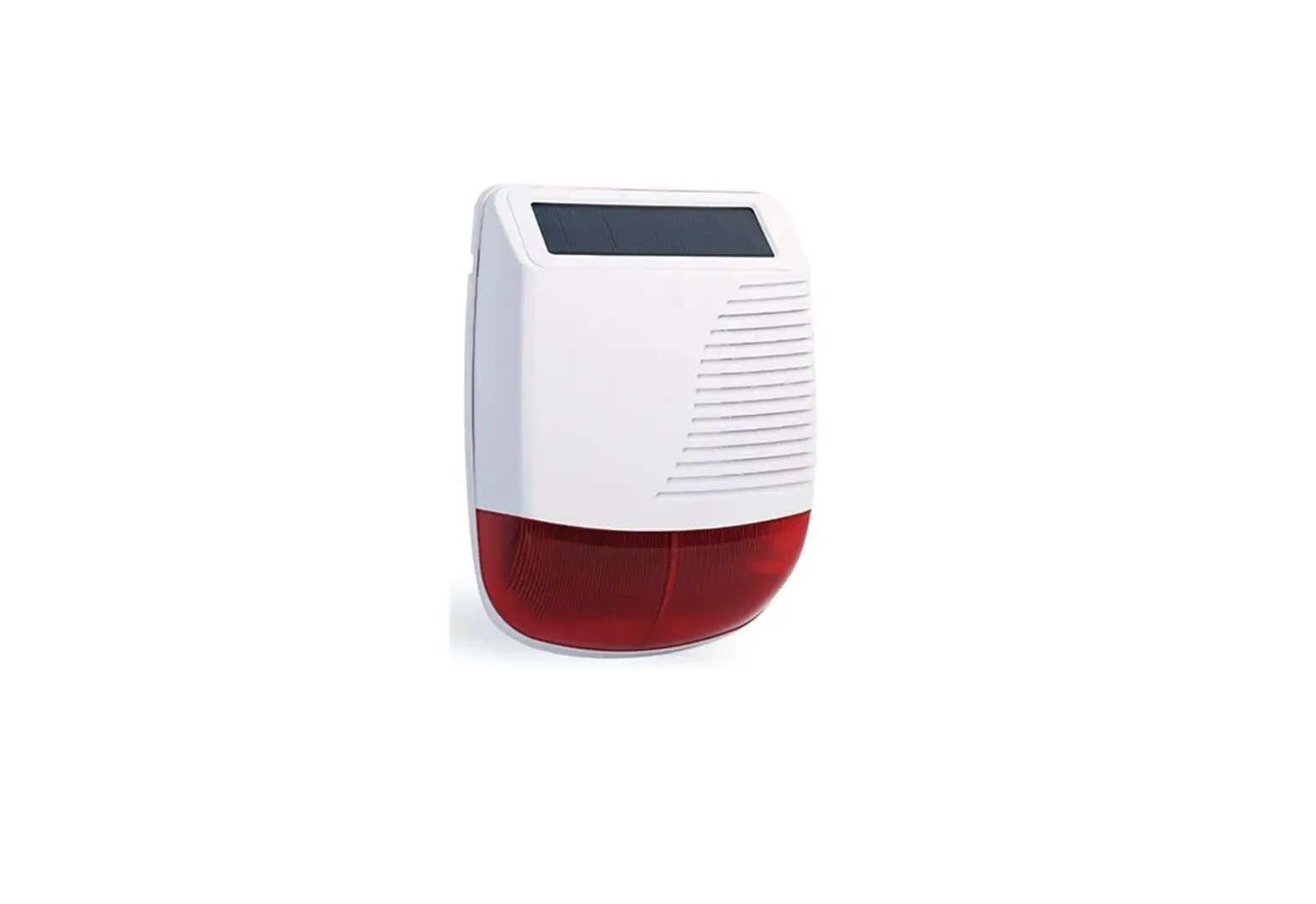
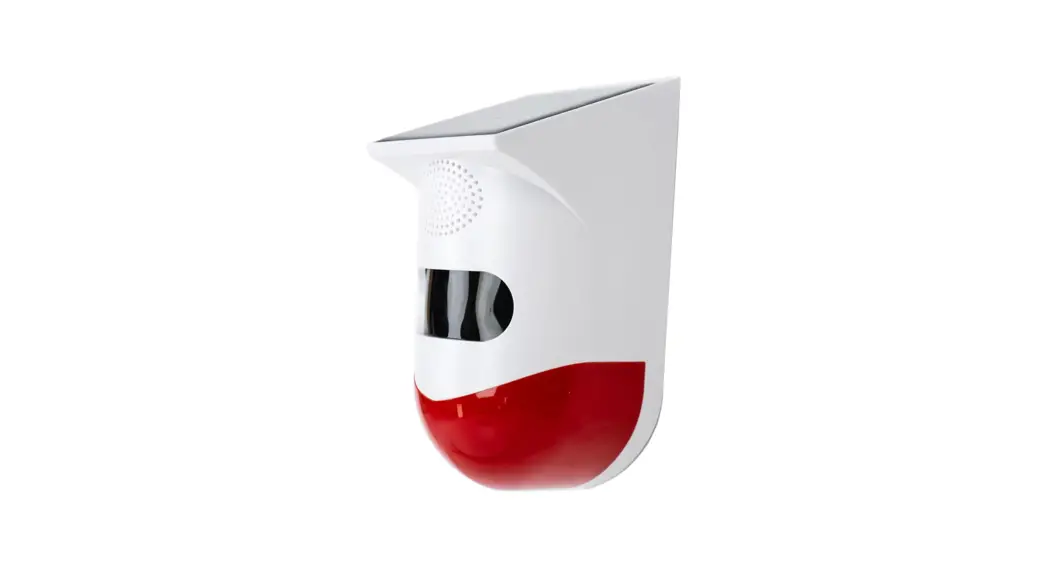
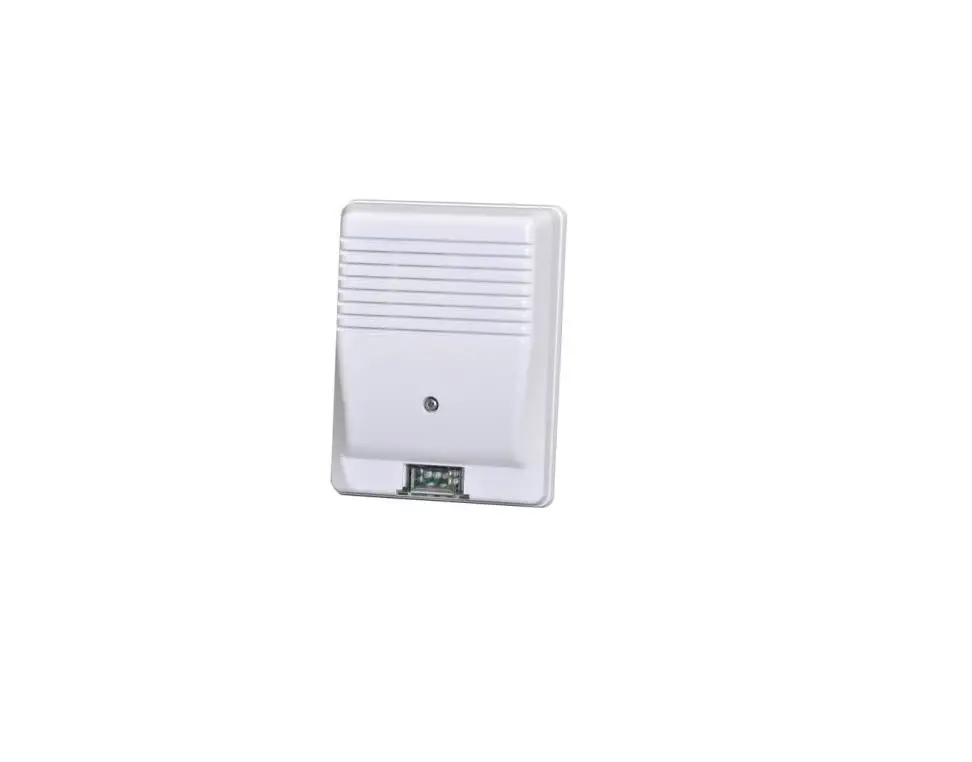
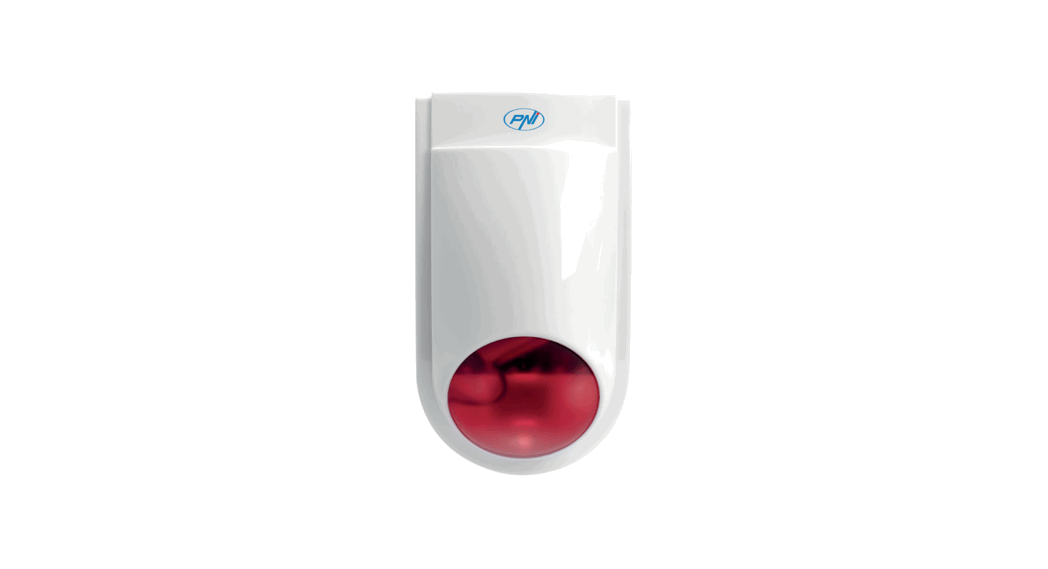
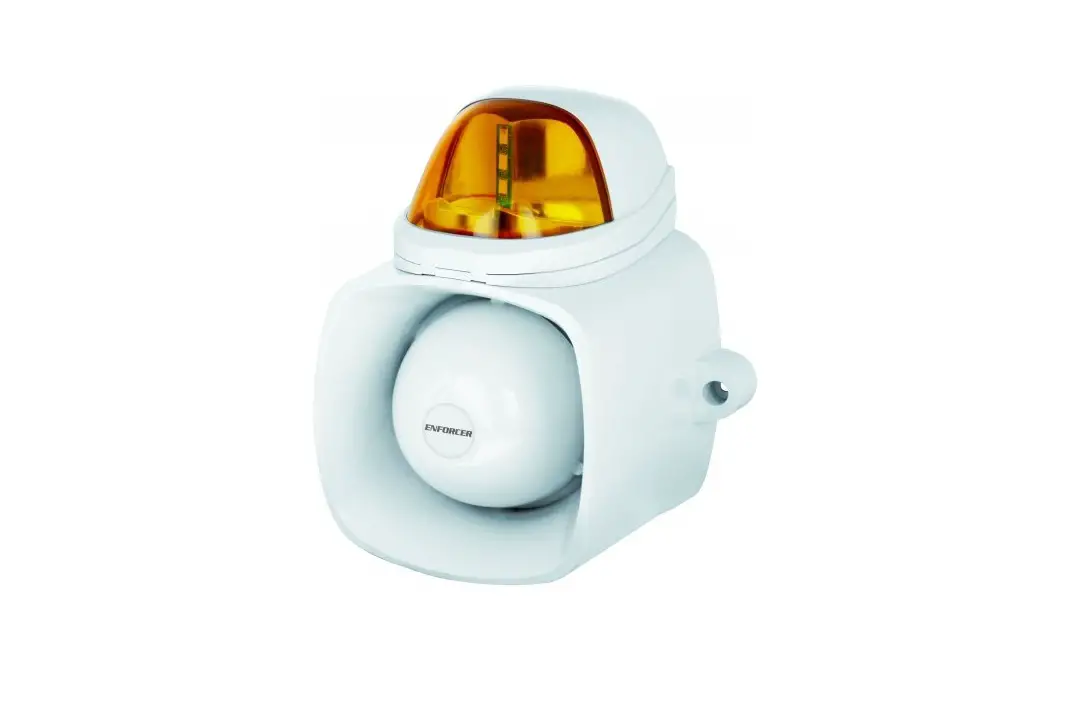
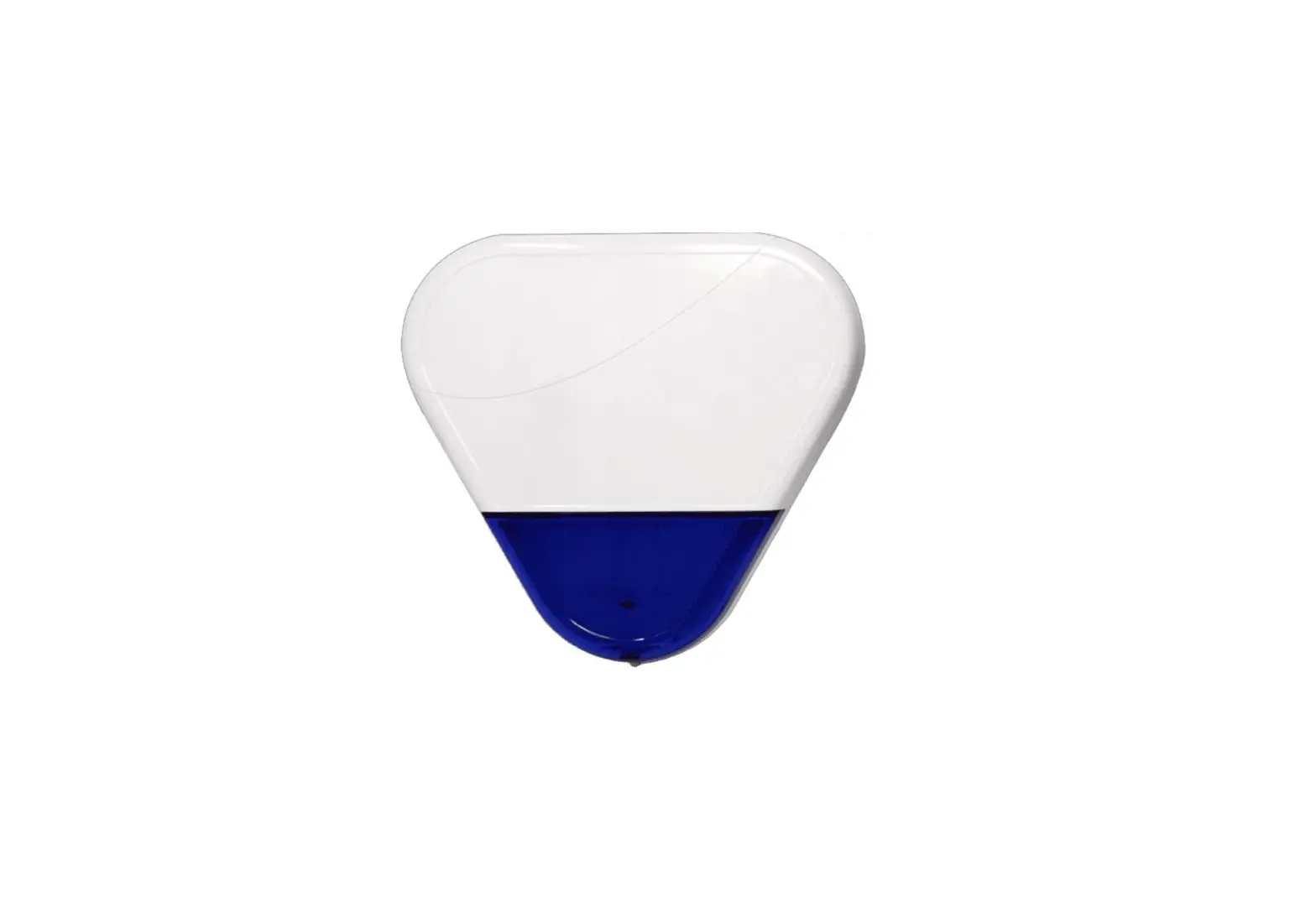
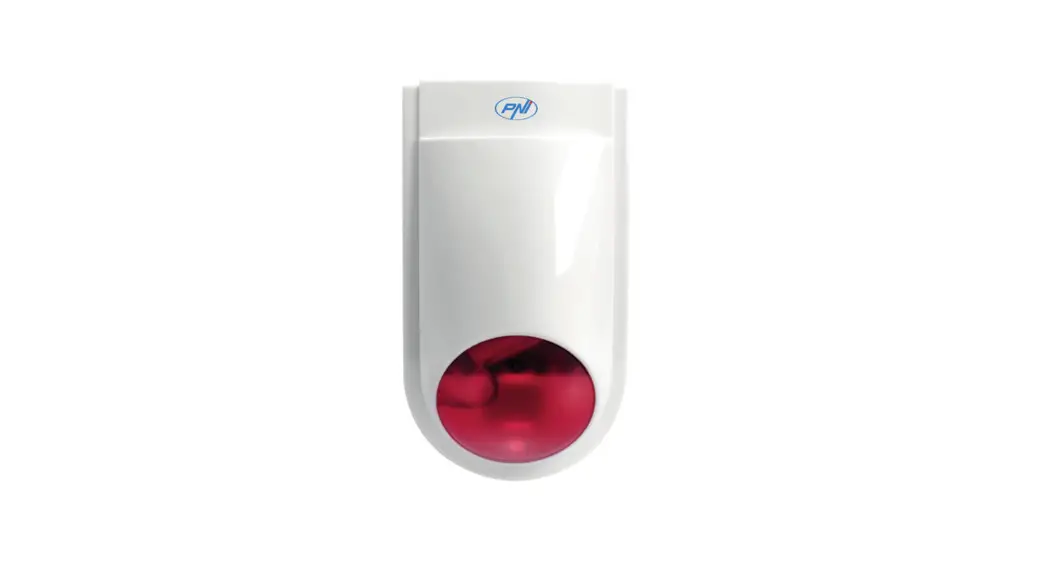
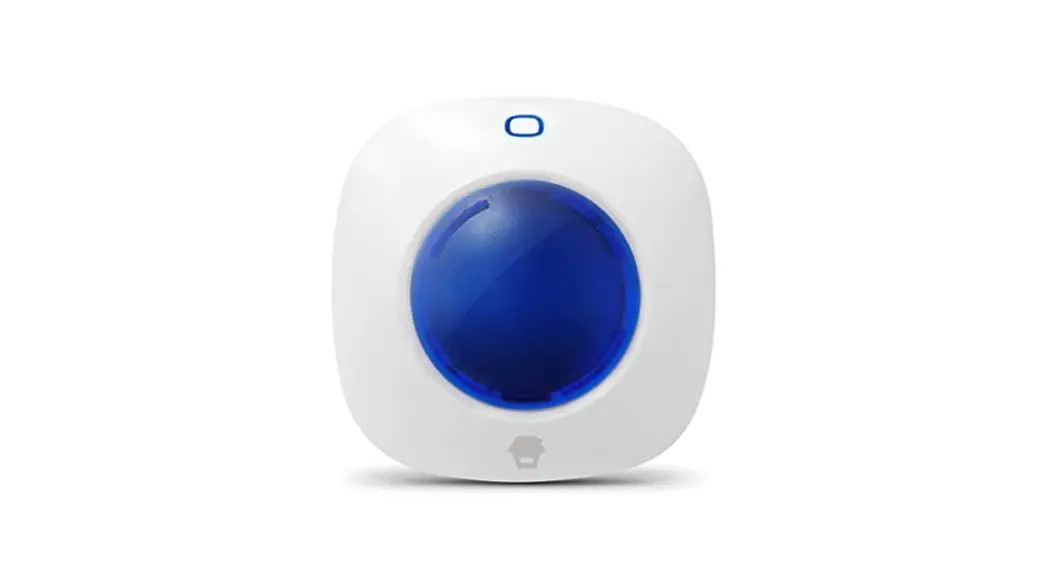
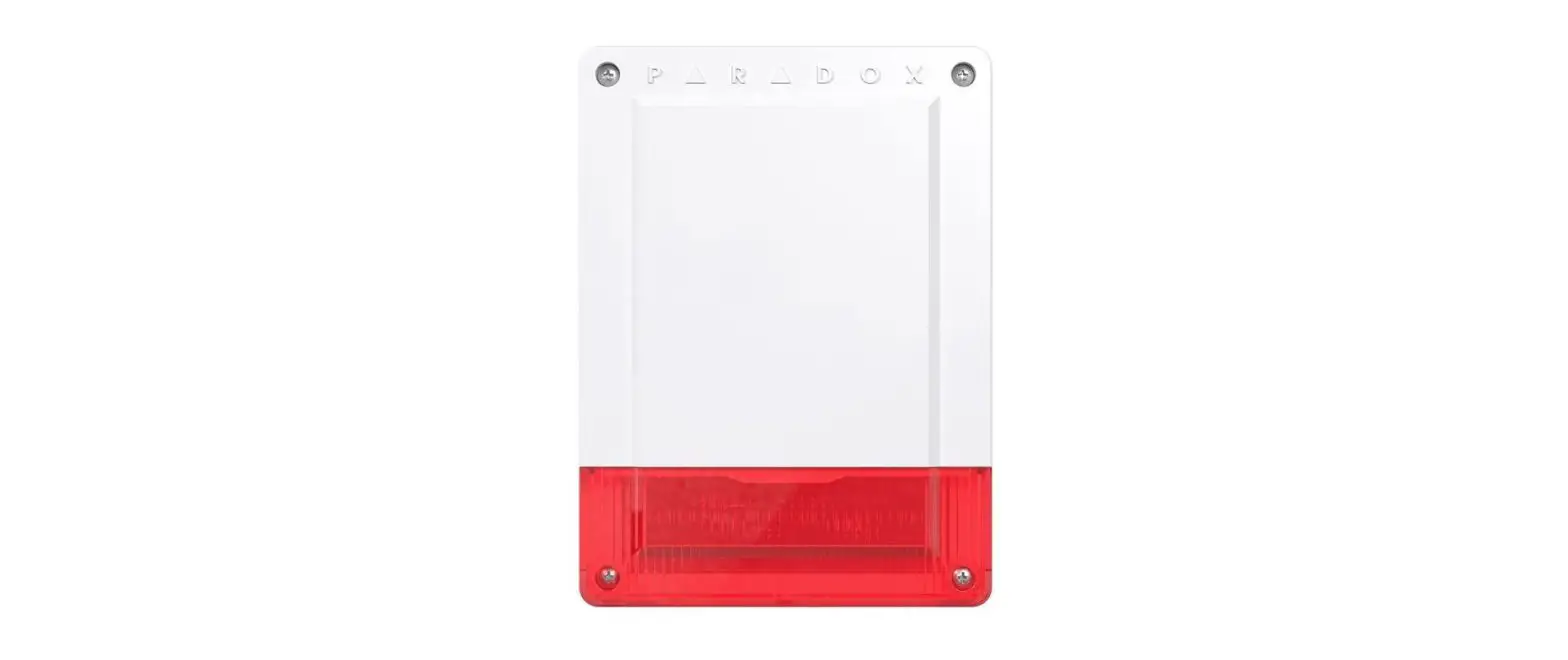
OSR1300 Outdoor External Strobe Siren
Product Information:
The ADD-ON DEVICE Quickstart Guide contains the following:
- Outdoor External Strobe Siren
- Model No. OSR1300
- 1x Outdoor External Strobe Siren
- 1x Power Adapter
- Mounting Accessories
The product requires a broadband internet connection, an iOS or
Android phone, and a home router.
The product features a PCB board with the following
components:
- Status / Alarm Strobe Lens
- Siren LED
- Built-in Siren
- Tamper Switch
- Adapter Interface
- Backup Battery
- Arm / Disarm prompt on / off Jumper
- Siren Volume Jumper
- Siren Time Jumper
- Wired Block
- On/Off Switch
Jumper Setup:
| Jumper | Default Setting | Alternative Setting | |
|---|---|---|---|
| Arm/Disarm Prompt | 30s | Off | |
| Siren Alarming Duration | 2 mins | 5 mins | |
| Siren Volume | High Volume | Mute | Low Volume |
Product Usage Instructions:
Step 1: Assemble your device and accessories
- Unpack your device and accessories.
- Pair the device with the Security Shuttle within 1-10 feet to
ensure a good connection. - Plug the Siren into a power outlet.
Step 2: Add a device
- Open the app and tap on the menu button
 and select Device
Management. - Press the add button
 next to Sensor List.
 - Follow the app instructions to scan the QR code located on the
device. If the scan is incomplete, you will be asked to enter the
serial number (SN) of the device.
 and select Device
Step 3: Mount your device
Before mounting your device, check if it’s within Security
Shuttle’s range.
- Take your device to the room you want to use it in.
- Tap on the Emergency button in the main screen of the app to
send an emergency notification. If your External Siren sounds, it
means it’s within range and you can mount the siren. - Your Siren comes with a backup battery pre-installed. Please
pull and remove the plastic strip when you want to use the battery,
such as during a power outage.
Installation
Follow these steps to install the siren:
- Choose a suitable position on an external wall, as high as
possible, where the siren can be easily seen and out of easy reach
of any potential vandal. - Make sure the Tamper Switch can be fully depressed against the
wall. - Use the provided mounting template to mark the three drill
points. - Drill in the three marked places.
- Plug the Siren into a power outlet.
- Mount the siren on the wall, ensuring it is well
positioned.
Troubleshooting Tips
- Check if your devices are listed in your app.
- Ensure your devices are communicating with the Security
Shuttle. - If there are issues, go to Device Management in the app and use
the add button to add
your devices again.
FCC STATEMENT:
- This device complies with Part 15 of the FCC Rules. Operation
is subject to the following two conditions:- This device may not cause harmful interference.
- This device must accept any interference received, including
interference that may cause undesired operation.
- Changes or modifications not expressly approved by the party
responsible for compliance could void the user’s authority to
operate the equipment.
99200306MIG V1.0
ADD-ON DEVICE Quickstart Guide
What’s inside:
Outdoor External Strobe Siren
Model No. OSR1300
1x Outdoor External Strobe Siren
1x Power Adapter
Mounting Accessories
Broadband internet connection, iOS or Android phone and home router required.
English
Diagram of PCB Board
1 . Status / Alarm Strobe Lens 2. Siren LED
3. Built-in Siren 4. Tamper Switch 5. Adapter Interface
6. Backup Battery 7. Arm / Disarm prompt on / off Jumper 8. Siren Volume Jumper
9 . Siren Time Jumper 10. Wired Block 1 1 . On/Off Switch
English
Jumper Setup
On (as default)
Off
Arm/Disarm Prompt
30s (as default)
Siren Alarming Duration
2 mins
5 mins
Siren Volume
High Volume (as default)
Mute
Low Volume
English
Step 1: Assemble your device and accessories
1 . Unpack your device and accessories. 2. Pair the device with the Security Shuttle within 1-10 feet to make sure the connection is working well. 3. Plug the Siren into power outlet.
1-10 ft
Step 2: Add a device
1 . Open the app, tap on the menu button ” ” and select “Device Management”. 2. Press the add button “+” next to Sensor List. 3. Follow the app instructions to scan the QR code located on the device. Note: If the scan is incomplete, you will be asked to enter the serial number (SN) of the device.
Step 3: Mount your device
Before you mount your device, see if it’s within Security Shuttle’s range. 1 . Take your device to the room you want to use it in. 2. Tap on the Emergency button in the main screen of the app to send an emergency notification. If your External Siren sounds, it’s within range, you can mount the siren. Your Siren comes with a backup battery pre-installed. Please pull and remove the plastic strip when you want to use the battery, such as when power outage.
English
Installation
Choose a suitable position on an external wall, as high as possible, where the siren can be easily seen and out of easy reach of any potential vandal.
0mm
1 Make sure the Tamper Switch can be fully
depressed against the wall.
2 Using the mounting template provided.
3 Drill in the three places indicated.
4 Plug the Siren into power outlet.
5 Mount the siren to the wall and make sure it is
well positioned.
Troubleshooting Tips
Are your devices listed in your app?
If you’re having trouble installing your devices, see if they’re listed in your app: · Navigate to > Device Management to see if all your devices are listed. · Tap + next to the device category and follow the on-screen instructions to add any missing devices.
Are your devices communicating with Security Shuttle?
· If your devices don’t connect to Security Shuttle, they might be too far away. Take them to a location that’s closer to Security Shuttle and try again.
· If they do connect, you’ll know the range of your device and where to install a range extender. · Alternatively, you can move Security Shuttle closer to your device. · If your devices still don’t communicate with Security Shuttle, even when they’re in the same room, navigate
to > Device Management > + on the app to add your devices again.
FCC STATEMENT 1 . This device complies with Part 15 of the FCC Rules. Operation is subject to the following two conditions:
(1) This device may not cause harmful interference, and (2) This device must accept any interference received, including interference that may cause undesired operation. 2. Changes or modifications not expressly approved by the party responsible for compliance could void the user’s authority to operate the equipment.
99200306MIG
V1.0