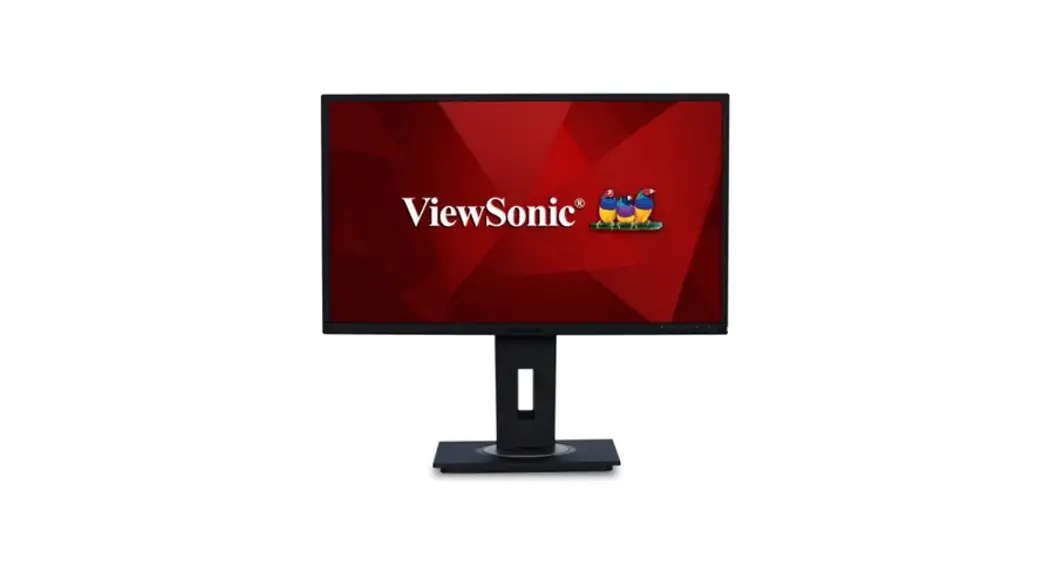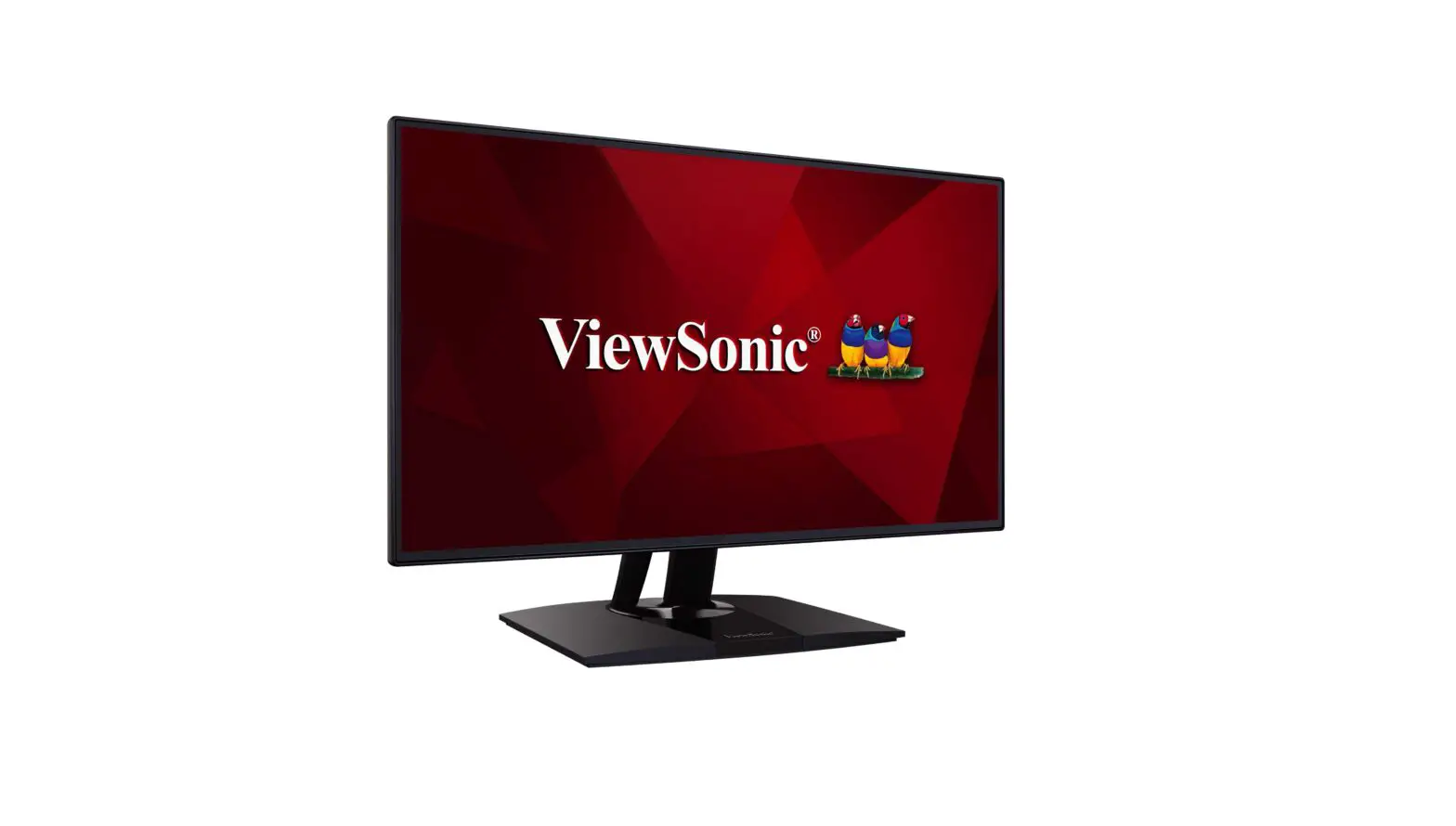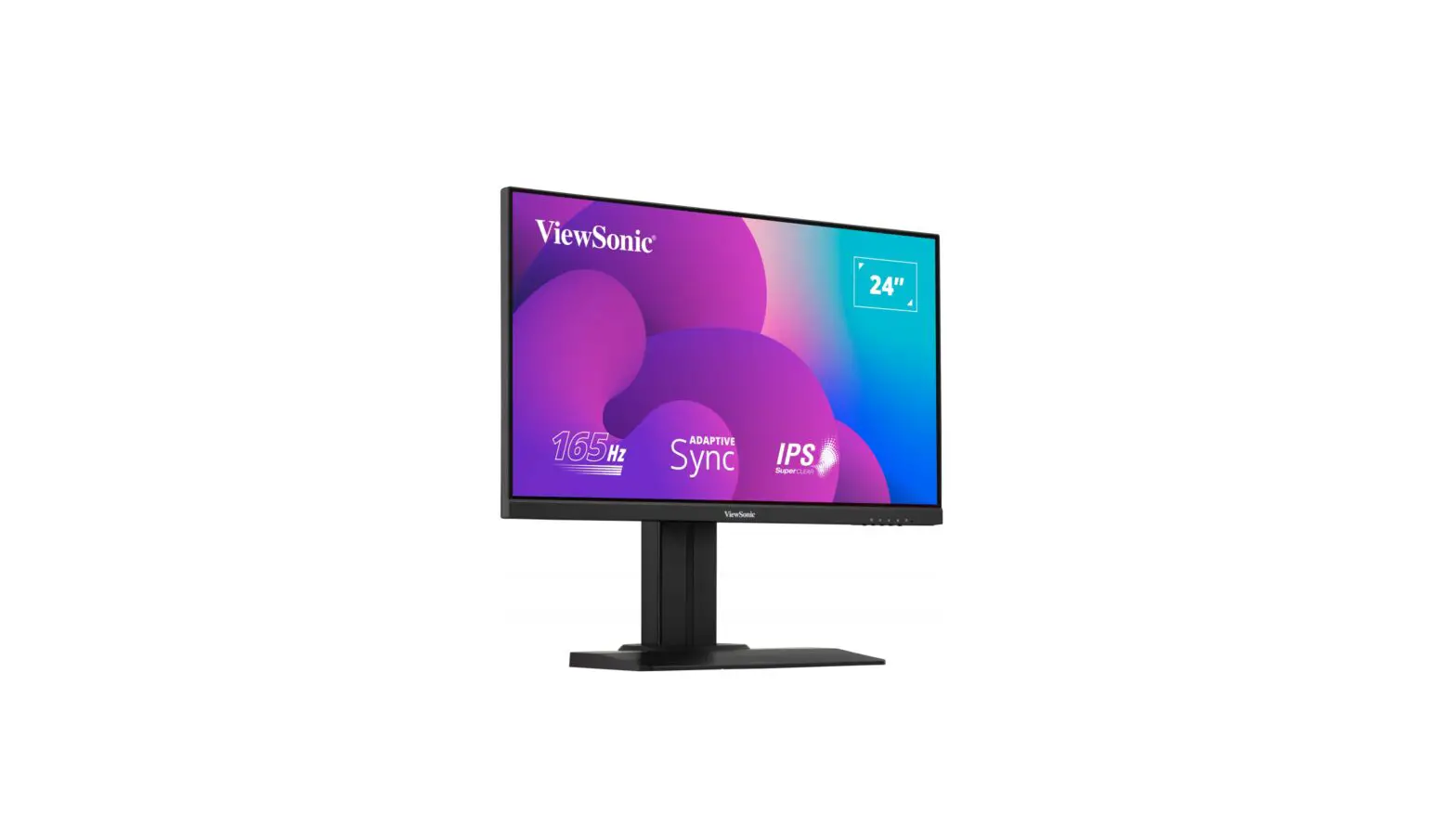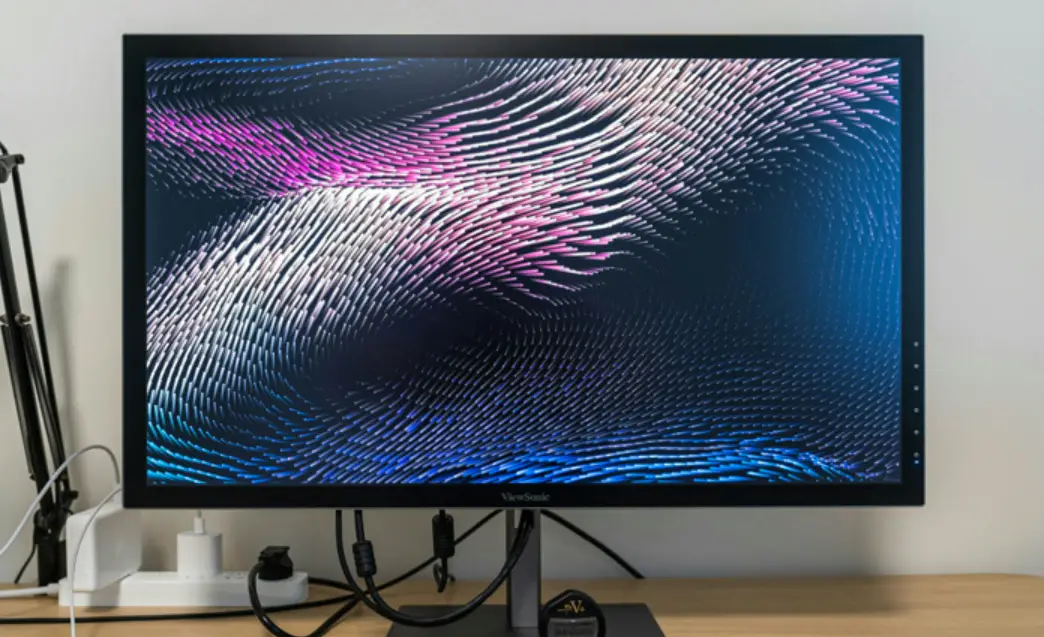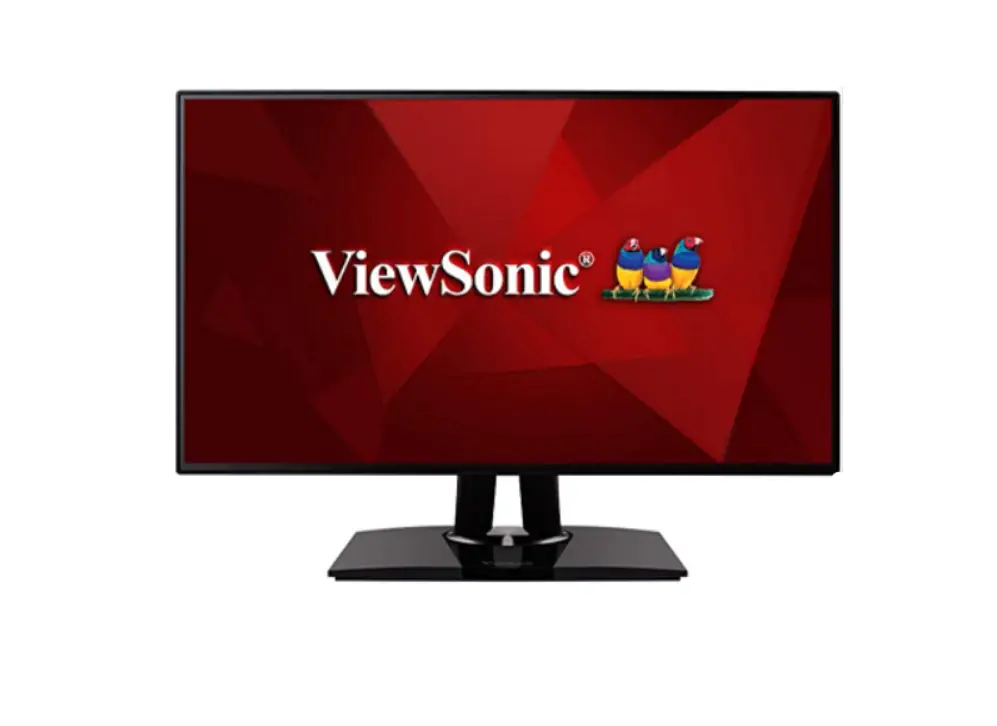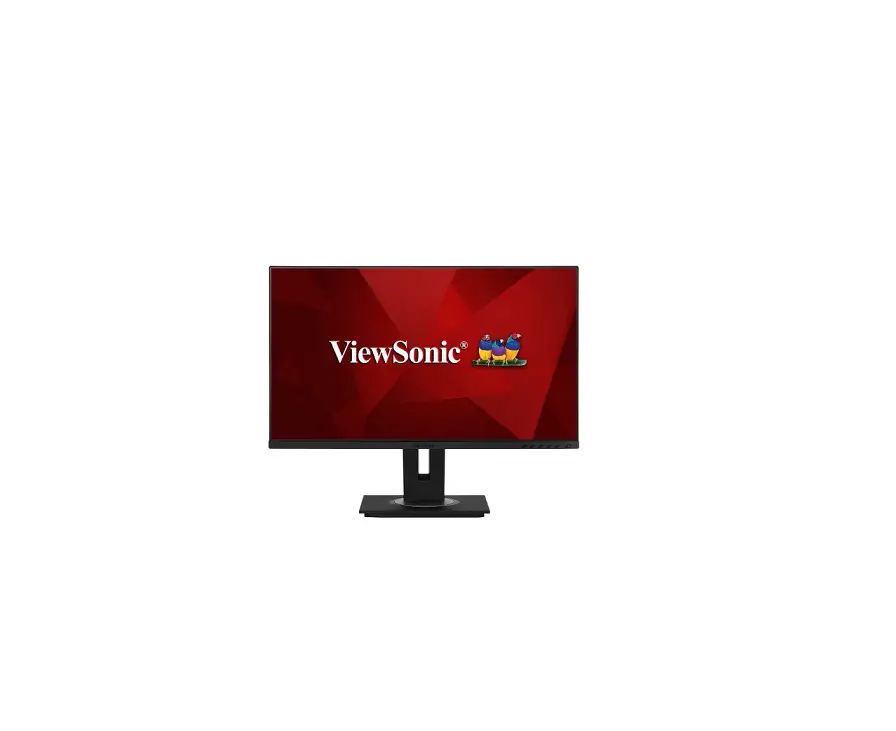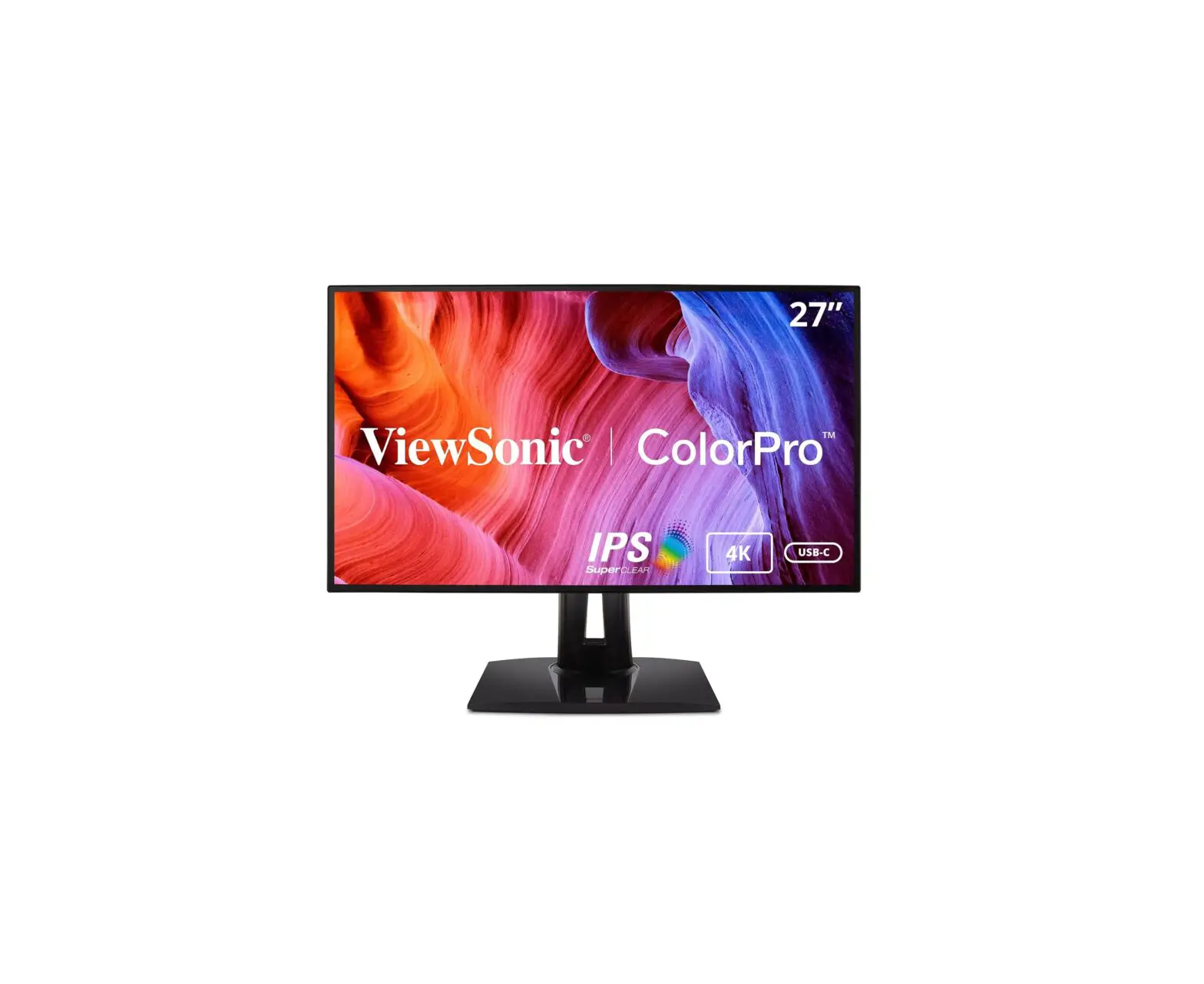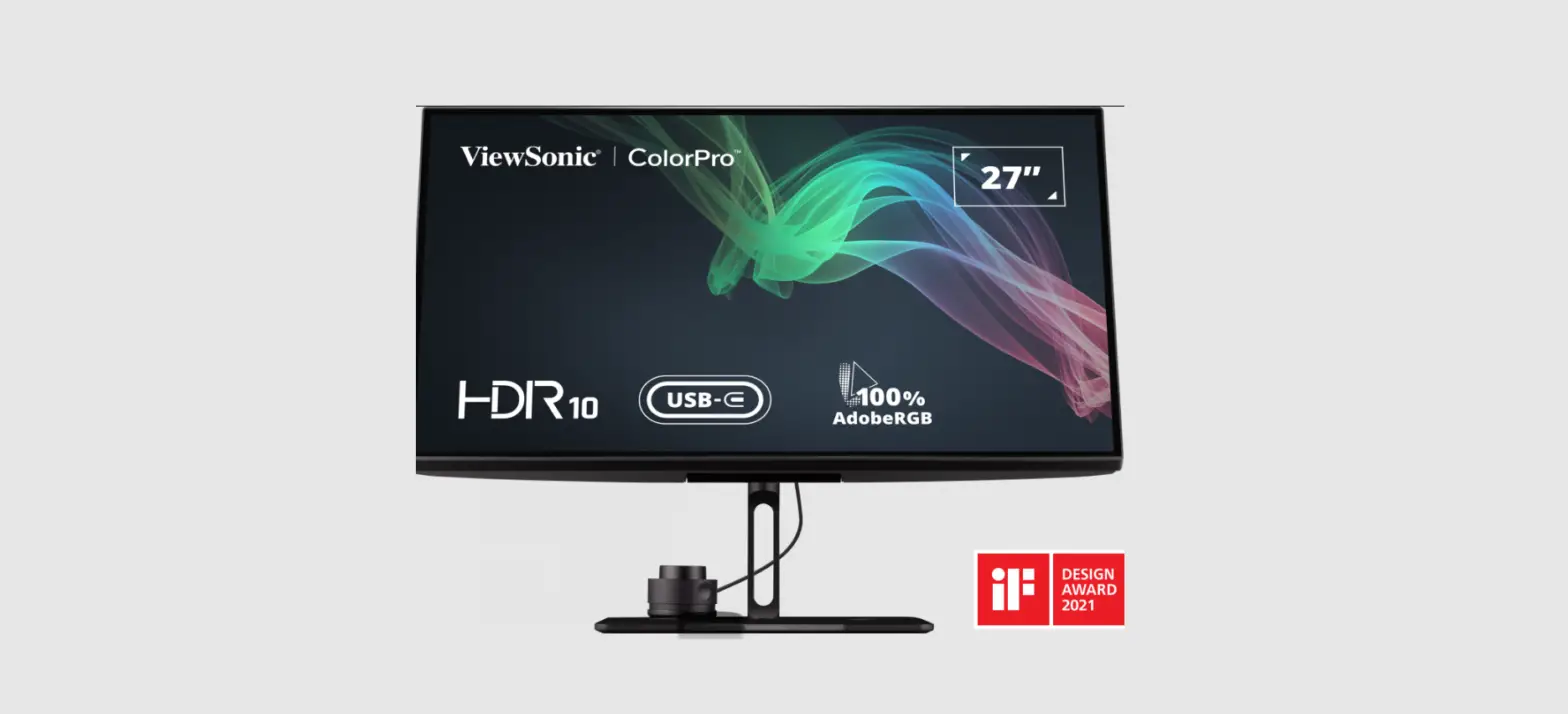
 ViewSonic VP2786-4K Smart LED Display
 ViewSonic VP2786-4K Smart LED Display
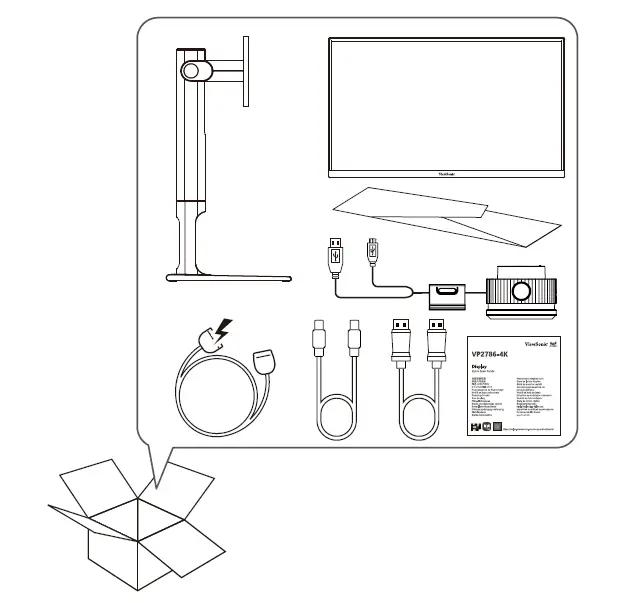
IN THE BOX


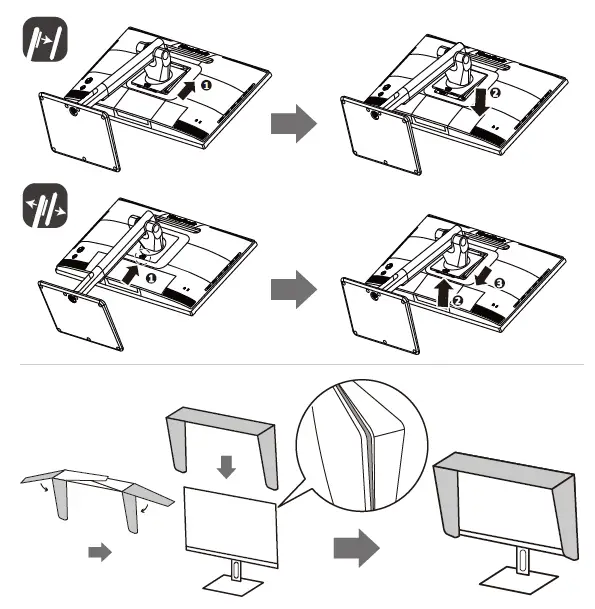
Product Overview
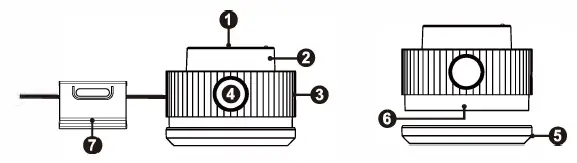
- Confirm Button
- Dial
- Grip
- Back Button
- Lens Cap
- Lens
- Adjustable Weight
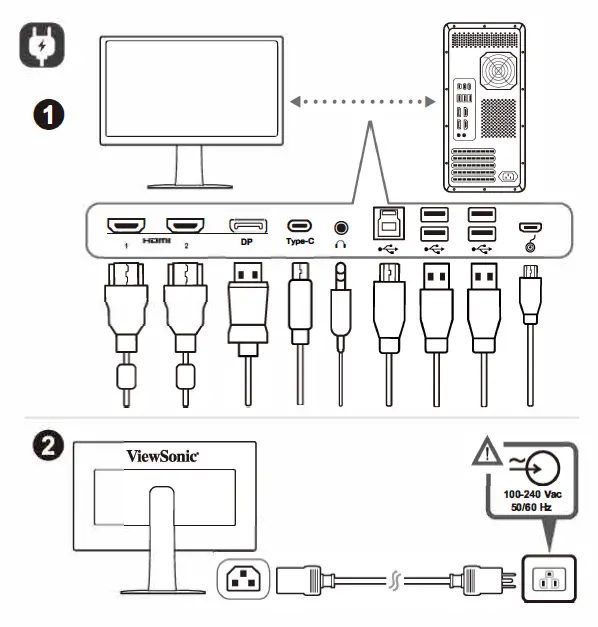
Initial Setup
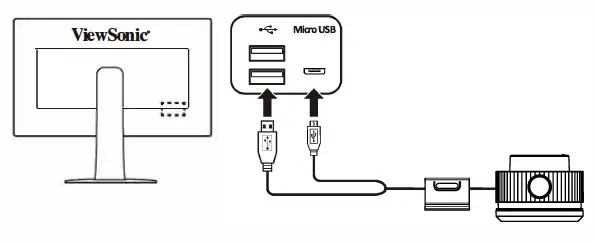
Connecting the ColorPro™ Wheel
Connect the USB Type A and Micro USB cable of the ColorPro'” Wheel to the USB Type A and Micro USB port of the monitor.
Using the Device
Using the ColorPro™ Wheel
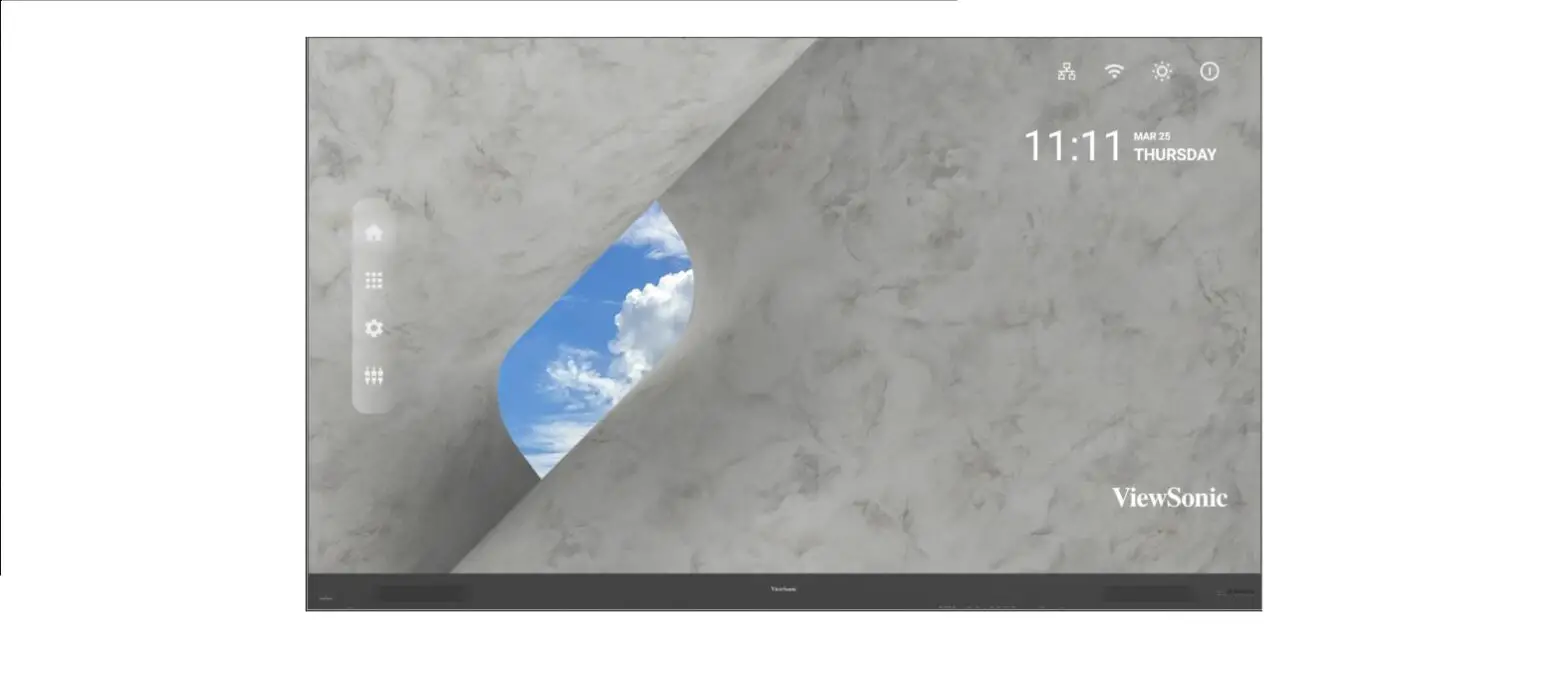
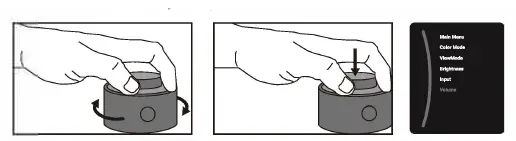
Enter the On-Screen Display (OSD) Menu
Enter the OSD Menu by pressing the Confirm Button.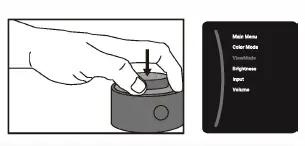
- Select an Option and Confirm
Rotate the dial to select an option, and press the Confirm Button to confirm.
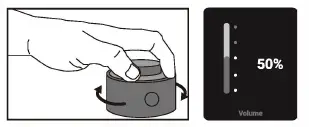
- Adjust the ValueRotate the dial left or right to adjust the value of the selected option.

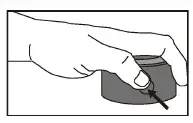
- Back
Press the Back Button at any time to return to the previous option.
WARNING Please visit the “Download” section of the ViewSonic monitor product page to download your monitor drivers.
Don’t forget to register your ViewSonic minor! Simply login to the ViewSonic website in your region and dick on the “Support” tab on the front page.
Don’t forget to register your ViewSonic minor! Simply login to the ViewSonic website in your region and dick on the “Support” tab on the front page.