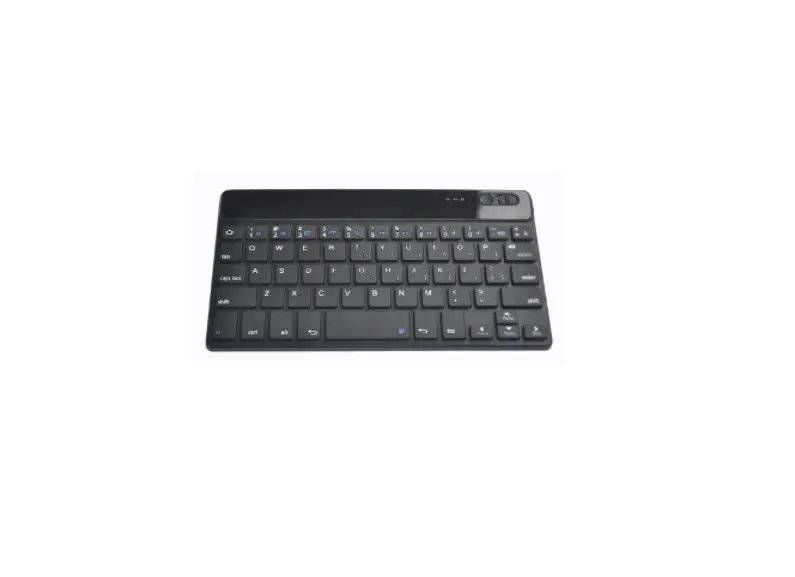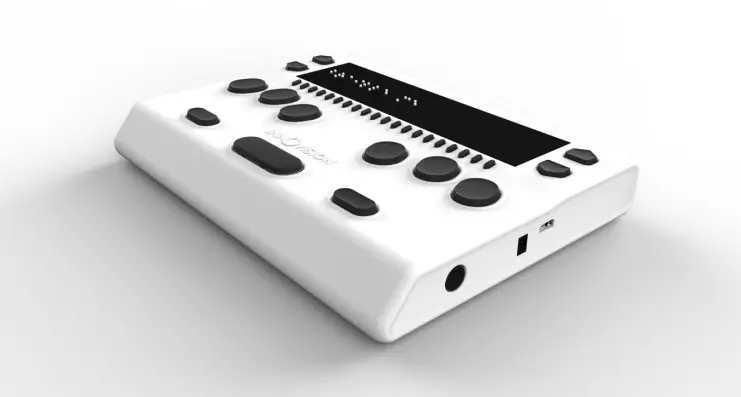
Kunyoong Ibc KBD-002 Bdot Wearable Braille Input Bluetooth Keyboard
BDOT INTRODUCTION
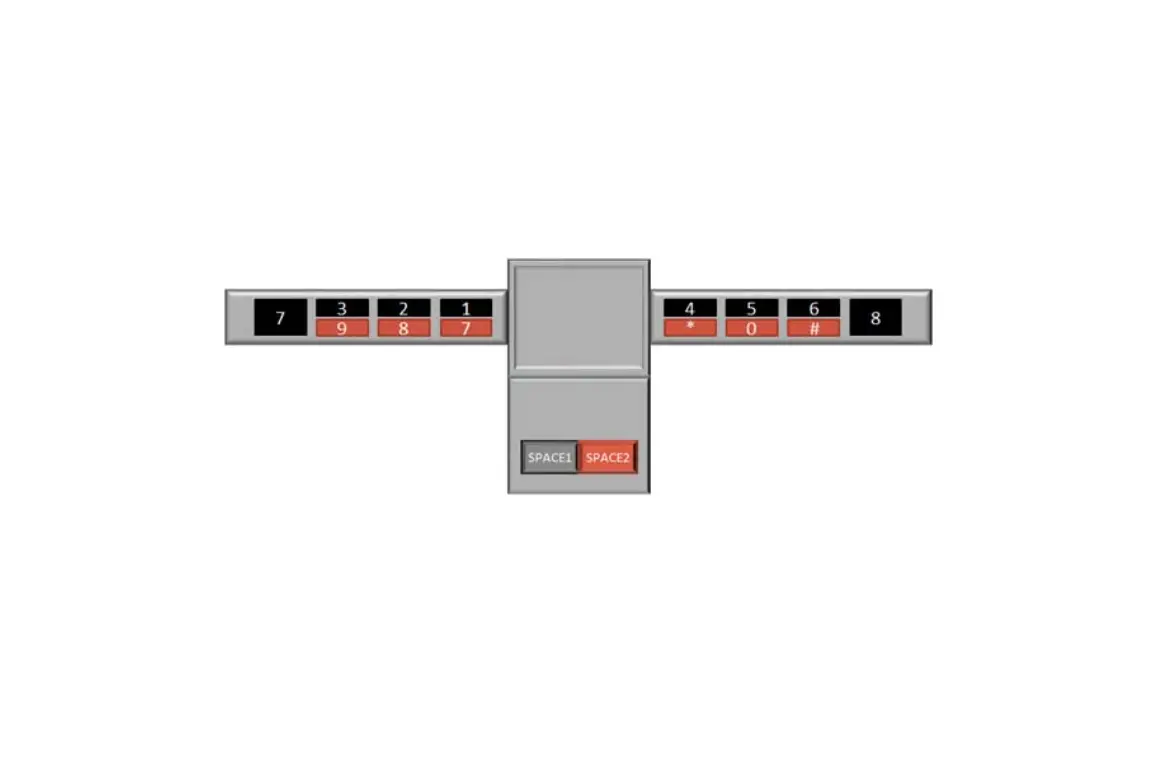
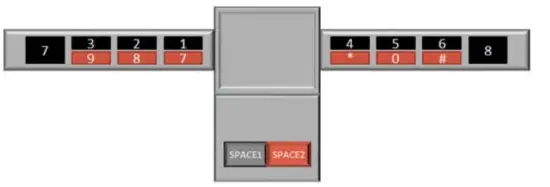
Bdot is a keyboard for exclusive use of braille that connects to a smart device (Android/iOS/Windows/MAC, etc.) via Bluetooth as a physical input device. It is a wearable braille keyboard that is convenient to carry with its wristband design. The main body consists of 4 keys each on both bands and 10 keys with 2 keys, providing faster and more convenient functions than conventional keyboard products. When the main body is opened, the power is automatically turned on, and 4 to the left of the keyboard (1,2,3,7 points), 4 to the right (4,5,6,8 points), 2 in the middle (space 1, space 2). Space 1 and Space 2 function as a space to add a general space, and when two spaces are pressed at the same time, they function as a mode key. When charging, attach it to the back of Bdot using the enclosed magnetic cable to charge (there is a magnetic polarity, so you need to attach it according to the polarity to connect) Bdot can be used with iOS 9.0.0 or higher and Android 4.4.4 or higher, but we recommend using it with the latest OS version.
PRODUCT COMPOSITION
- Bdot
- Charging cable
- User Manual
SPECIFICATION
- Bluetooth 5 support
- Magnetic type charging
- iOS / Android / Windows / macOS hotkey support
- Convenient power control through folding
- Quick control through additional function keys
- Firmware upgrade support
PRODUCT SPECIFICATION
RF frequency: 2.402GHz‐2480GHz
Maximum use distance : 10m
Power supply: Lithium polymer battery(80mAh) / 4 Pin Magnetic Connector charging port
Charging time: in 1 hour
usage time : Up to 40 hours of continuous use time / Waiting time approx. 70 days
Sleep mode : Automatic power saving mode applied
Product Size : When opened 260*86 *T5.5 mm / When folded 43*43*T 11mm
Number of keys: 10 keys
Weight : 36g
BASIC FUNCTION
PRODUCT CONNECTION (BLUETOOTH CONNECTION)
AT FIRST CONNECTION
- Open Bdot and turn it on.
- Search “Bdotxxxx” in the Bluetooth search menu of the mobile device (Android / iPhone / Windows PC / mac) and connect.
- When connected to a mobile device, a buzzer sound (beep, beep) is played.
WHEN RECONNECTING TO AN EXISTING DEVICE
Once connected to the mobile device you want to connect, it will be automatically connected when the power is turned on.
WHEN CONNECTING TO A NEW DEVICE
- Open Bdot and turn it on.
- If there is an existing connected mobile device nearby, delete the connected “Bdotxxxx” from the Bluetooth menu.
- To connect to a new device, reset the connection information from the product (Bdot) by pressing the MODE + 1 + 2 + 3 + 4 + 7 keys.
- Search for “Bdotxxxx” on your new mobile device (Android / iPhone / Windows PC / mac) and connect.
BASIC USAGE
HOTKEY MODE SWITCHING
Provides a mobile OS selection function to use different actions set according to the mobile device.
- (Once set, it is maintained even if the product is turned off and on.) Android : mode + 4 iPhone, iPad : mode + 5 Windows : mode + 6 (To be supported later) MacOS : mode + 8 (To be supported later)
- Use the hotkey according to the list of set hotkey modes. (*Refer to the hotkey table)
CHANGE YOUR LANGUAGE
It provides a function to switch the input language of the current mobile device and the input language of the keyboard.
- When connected to a mobile device, you can change the language of the mobile device and Bdot at the same time by pressing SPACE + 7.
- If the language of the mobile device and Bdot do not match, press SPACE + 7 + 8 to change only the language of the keyboard.
CHECK THE BATTERY LEVEL
- You can check how much battery is left by pressing Mode + 1.
- Pressing Mode + 1 will make a different buzzer sound depending on the remaining battery power.
100% ~ 61% : 3 beeps
60% ~ 31% : 2 beeps
30% ~ 1% : 1 beep
BATTERY LEVEL WARNING
When the battery level goes down to 10% or less, a level warning alarm is notified through a buzzer. When using the mobile app (doTnB), you can set the remaining level alarm to sound in 3 steps: 30% or less, 20% or less, and
10% or less.
BUZZER
Basically, the buzzer sound is played shortly when the function is set, and when the selected function is canceled, the setting sound for the key is played for a long time, and then it is played once more.
ADD-ONS
PHONE MODE KEY ARRANGEMENT
When using the phone mode, it is mapped so that it has a structure similar to that of a phone number pad by grouping it into (1,7), (2,8), (3,9), (4,*), (5,0), (6,#). For example, if you press SPACE2 and 1 at the same time, 7 is entered, if you press SPACE2 and 2, 8 is entered, and if you press SPACE2 and 3, 9 is entered. Likewise, pressing SPACE2 and 4 enters *, SPACE2 and 5 presses 0, and SPACE2 and 6 enters #. Switch to dialing mode : MODE + 2
1 : 1
2 : 2
3 : 3
4 : 4
5 : 5
6 : 6
7 : SPACE2 + 1
8 : SPAC 2+ 2
9 : SPACE2+ 3
* : SPACE2+ 4
0 : SPACE2+ 5
# : SPACE2+ 6
Clear input number: 7
Make a call: 8
Answer/Hang up a call: SPACE + 4 + 8
BRAILLE PRACTICE
How to use:
- After setting the language to be used with the keyboard, press MODE + 1 + 4 to enter a new value every 5 seconds, and press MODE + 1 + 4 again to cancel.
- The keyboard does not check the correct answer for the entered key value, but the user must check based on the value read from the mobile device.
SHORTCUT
APPLE(IPHONE/IPAD)
NAVIGATION
| VoiceOver commands | Dot keys |
| Move to the previous item | SPACE + 1 |
| Move to the next item | SPACE + 4 |
| Move up | SPACE + 2 |
| Move down | SPACE + 5 |
| Move focus to first item on the screen | SPACE + 1 + 2 + 3 |
| Move focus to the last item on the screen | SPACE + 4 + 5 + 6 |
| Open the Item Chooser | SPACE + 2 + 4 |
| Move focus to the status bar | SPACE + 2 + 3 + 4 |
| Open the notifications center | SPACE + 4 + 6 |
| Open the control center | SPACE + 2 + 5 |
| Return to the previous screen | SPACE + 1 + 2 |
| Move to previous container | SPACE + 1 + 7 |
| Move to next container | SPACE + 4 + 7 |
SCROLL
| VoiceOver commands | Dot keys |
| Scroll left 1 page | SPACE + 2 + 4 + 6 |
| Scroll right 1 page | SPACE + 1 + 3 + 5 |
| Scroll up 1 page | SPACE + 3 + 4 + 5 + 6 |
| Scroll down 1 page | SPACE + 1 + 4 + 5 + 6 |
ROTOR
| VoiceOver commands | Dot keys |
| Select previous value in selected rotor | SPACE + 3 |
| Select next value in selected rotor | SPACE + 6 |
| Previous setting of selected rotor | SPACE + 2 + 3 |
| Next setting of the selected rotor | SPACE + 5 + 6 |
INTERACTION
| VoiceOver commands | Dot keys |
| Perform simple tap | SPACE + 3 + 6 |
| Show/hide virtual keyboard | SPACE + 1 + 2 + 3 + 5 + 6 |
| Touch and hold the selected item | SPACE + 3 + 5 + 6 |
READING
| VoiceOver commands | Dot keys |
| Read from the current position | SPACE + 1 + 2 + 3 + 5 |
| Read from the top | SPACE + 2 + 4 + 5 + 6 |
| Pause or resume reading | SPACE + 1 + 2 + 3 + 4 |
EDIT
| VoiceOver commands | Dot keys |
| Select All | SPACE + 2 + 3 + 5 + 6 |
| Select Left | SPACE + 2 + 3 + 5 |
| Select Right | SPACE + 2 + 5 + 6 |
| Tab | SPACE + 2 + 3 + 4 + 5 |
| Shift Tab | SPACE + 1 + 2 + 5 + 6 |
| Cut | SPACE + 1 + 3 + 4 + 6 |
| Copy | SPACE + 1 + 4 |
| Paste | SPACE + 1 + 2 + 3 + 6 |
| Undo | SPACE + 1 + 3 + 5 + 6 |
| Redo | SPACE + 2 + 3 + 4 + 6 |
| Text Search | SPACE + 1 + 2 + 4 |
| Start Dictation when in text field | SPACE + 1 + 2 + 5 |
| Select a previous word | SPACE + 2 + 7 |
| Select a next word | SPACE + 5 + 7 |
| Select to the beginning of line | SPACE + 2 + 3 + 7 |
| Select to the end of line | SPACE + 3 + 4 + 7 |
| Select to the previous line | SPACE + 1 + 3 + 5 + 7 |
| Select to the next line | SPACE + 3 + 6 + 7 |
| Select from the beginning of the current page to the cursor | SPACE + 3 + 5 + 6 + 7 |
| Select from cursor on current page to last | SPACE + 3 + 4 + 6 + 7 |
| Delete | SPACE + 1 + 4 + 5 |
| Return | SPACE + 1 + 5 |
CONTROL
| VoiceOver commands | Dot keys |
| Turn the screen curtain on or off | SPACE + 1 + 2 + 3 + 4 + 5 + 6 |
| Pause or continue speech | SPACE + 1 + 2 + 3 + 4 |
| Mute or unmute VoiceOver | SPACE + 1 + 3 + 4 |
| Open the App Switcher | SPACE + 1 + 2 + 5 (Double click) |
| Turn on VoiceOver Help | SPACE + 1 + 3 |
| Change the label of the selected item | SPACE + 1 + 2 + 3 + 4 + 6 |
| Turn Quick Nav on or off * | SPACE + 1 + 2 + 3 + 4 + 5 |
| Media Play/Pause, Answer phone call | SPACE + 1 + 5 + 6 |
| Volume Up | SPACE + 3 + 4 + 5 |
| Volume Down | SPACE + 1 + 2 + 6 |
* Fast search conversion is used to control the item selection cursor or text input cursor
(On: item selection cursor control, Off: text input cursor control)
8DOT
| VoiceOver commands | Dot keys |
| Previous container | SPACE + 1 + 7 |
| Next container | SPACE + 4 + 7 |
| Toggle Mute | SPACE + 1 + 3 + 4 + 7 |
| Start Help | SPACE + 1 + 3 + 7 |
| Scroll up | SPACE + 3 + 4 + 5 + 6 + 8 |
| Scroll down | SPACE + 1 + 4 + 5 + 6 + 8 |
| Long press | SPACE + 3 + 6 + 7 + 8 |
| Jump to the beginning of line | SPACE + 1 + 2 + 3 + 7 |
| Jump to the end of line | SPACE + 1 + 5 + 6 + 8 |
| Home Button | SPACE + 6 + 8 |
| Open Spotlight | SPACE + 3 + 7 |
| Activate the selected item | SPACE + 8 |
WEBROWSER (FOR SAFARI)
| VoiceOver commands | Dot keys |
| Open Address Bar | SPACE + 1 + 6 + 8 |
| Open a tab | SPACE + 2 + 6 + 8 |
| Close the current tab | SPACE + 1 + 5 + 8 |
| Refresh the current tab | SPACE + 2 + 5 + 8 |
| Go to previous tab | SPACE + 3 + 5 + 8 |
| Go to next tab | SPACE + 4 + 5 + 8 |
| Stop loading the current tab | SPACE + 5 + 6 + 8 |
| Go back a page in the current tab | SPACE + 1 + 2 + 6 + 8 |
| Go next a page in the current tab | SPACE + 1 + 3 + 6 + 8 |
SPECIAL FUNCTION
| VoiceOver commands | Dot keys |
| Screen Capture | SPACE + 4 + 5 + 6 + 8 |
| Screen Capture and Modify | SPACE + 4 + 5 + 6 + 7 + 8 |
| Open Dock * | SPACE + 1 + 3 + 4 + 5 |
| Open previous app * | SPACE + 1 + 2 + 4 + 5 |
| Open next app * | SPACE + 1 + 2 + 4 + 6 |
* (For iPadOS only)
KEYBOARD CONFIGURATION
| VoiceOver commands | Dot keys |
| Hotkey mode switch for iOS | MODE + 5 |
| Hotkey mode switch for Android | MODE + 4 |
| Language changes only at the Tdot/Bdot | SPACE + 7 + 8 |
| Keyboard and smart device sequential language switching | SPACE + 7 |
| Delete the Bluetooth pairing information | MODE + 1 + 2 + 3 + 4 + 7 |
ANDROID
NAVIGATION
| VoiceOver commands | Dot keys |
| Jump to the previous word | SPACE+3 |
| Jump to the next word | SPACE+6 |
| Jump to the beginning of documentation | SPACE+1+2+3 |
| Jump to the end of documentation | SPACE+4+5+6 |
| Jump to the beginning of line | SPACE+1+3 |
| Jump to the end of line | SPACE+4+6 |
| Scroll a page left * | SPACE+2+4+6 |
| Scroll a page right * | SPACE+1+3+5 |
| Scroll a page up (Memo) | SPACE+3+4+5+6 |
| Scroll a page down (Memo) | SPACE+1+4+5+6 |
| DOT Quick move cursor left * | SPACE+2+3 |
| DOT Quick move cursor right * | SPACE+5+6 |
* Same function
EDIT
| VoiceOver commands | Dot keys |
| Select all | SPACE+3+6 |
| Select a previous character | SPACE+3+8 |
| Select a next character | SPACE+6+8 |
| Select a previous word | SPACE+2+8 |
| Select a next character | SPACE+5+8 |
| Select to the beginning of line | SPACE+1+3+8 |
| Select to the end of line | SPACE+4+6+8 |
| Select to the previous line | SPACE+1+8 |
| Select to the next line | SPACE+4+8 |
| Select to the beginning of doc | SPACE+1+2+3+8 |
| Select to the end of doc | SPACE+4+5+6+8 |
| Copy | SPACE+1+4 |
| Cut | SPACE+1+3+4+6 |
| Paste | SPACE+1+2+3+6 |
| Undo | SPACE+1+3+5+6 |
| Redo | SPACE+1+3+4+5+6 |
| Delete | SPACE+1+4+5 |
| Search | SPACE+1+2+4 |
CONTROL
| VoiceOver commands | Dot keys |
| Go to Notification Center | SPACE+2+5 |
| Home | SPACE+1+2+5 |
| Back | SPACE+1+2 |
| Item Chooser | SPACE+2+4 |
| Switch to the Previous App ** | SPACE+1+2+3+4 |
| Switch Back to Original App ** | SPACE+1+2+3+4+5 |
| Open google assistant | SPACE+7+8 |
| Page Context Menu * | SPACE+1+3+4+7 |
| Turn VO speech on/off | SPACE+2+3+4 |
| Show Multitask Bar | SPACE+1+3+4 |
* Available in Google Docs, Home
** Same function
INTERNET BROWSER
| VoiceOver commands | Dot keys |
| Open Location | SPACE+1+3+4+5 |
| Open a tab | SPACE+2+3+4+5 |
| Close the current tab | SPACE+2+4+5+6 |
| Refresh the current tab | SPACE+1+2+3+5 |
CHOOSE AN APP
| VoiceOver commands | Dot keys |
| Open Web Browser App | SPACE+1+2+7 |
| Open Contacts App | SPACE+1+4+7 |
| Open Email App | SPACE+1+5+7 |
| Open Calendar App | SPACE+1+2+3+7 |
| Open Music App | SPACE+1+2+3+4+7 |
| Open Calculator App | SPACE+1+3+7 |
| Open Youtube App | SPACE+1+6+7 |
| Open Message App | SPACE+1+4+5+7 |
LANGUAGE COMMON SYMBOLS
Language common symbols are entered by pressing different Braille keys, such as Braille No. 7 key.
The combination of keys to be pressed is written according to the rules below..
General symbols : Press 7 + 1, 7 + 2, 7 + 3, 7 + 4, 7 + 5, 7 + 6 to enter
. ? ! , : ;
Math symbols : Enter 7 + 1 or 7 + 2 by pressing 7 + 1 + x, 7 + 2 + x
‐ + * / =
Brackets : Enter 7 + 3 + x based on 7 + 3
( ) { } [ ]
Other symbols : Based on 7 + 2, 7 + 1 + 2, 7 + 2 + 4, 7 + 1 + 5
“ ” ‘ ’ ‘ \ … # % | ^ _ ` < > $ ~
Symbol Braille Key
. 7+1
? 7+2
! 7+3
, 7+4
” 7+1+3+4
” 7+1+3+4+5
‐ 7+1+4
` 7+1+2+4+6 (In case of iOS Korean locale, it is indicated by \. US is indicated by `) (Android is indicated by `)
+ 7+1+5
* 7+2+4
\ 7+1+2+6
… 7+1+2+5
# 7+1+2+4
% 7+1+4+5+6
│ 7+1+3+6
^ 7+1+2+4+5
_ 7+1+4+5
@ 7+1+2+4+5+6
: 7+5
; 7+6
/ 7+2+5
‘ 7+1+3+5
‘ 7+1+3+5+6
( 7+3+4
) 7+3+4+5
{ 7+3+5
} 7+3+5+6
[ 7+3+6
] 7+3+4+6
~ 7+2+3+4
$ 7+1+5+6
= 7+2+6
> 7+2+4+5
< 7+2+4+6
PRECAUTIONS
- To use all functions of this product, you must enable and use VoiceOver (iOS) or TalkBack (Android).
- Be careful not to let the product come into contact with water.
- Bdot is a wireless device, and there may be confusion with other products.
- Do not disassemble or modify the product arbitrarily.
- If you want to use it again after leaving it for a long time, recharge it before use.
- Be careful as there is a risk of discoloration if exposed to direct sunlight for a long time.
- Bdot has a built‐in magnet, so do not place it near magnetic cards or bankbooks.
- Do not place products with strong magnetism close to Bdot. Power may be affected and may not turn on or may turn off.
- Bdot’s supported shortcuts may vary depending on the OS version used.
Specifications
| Used wireless frequency | 2402 MHz ~ 2480 MHz |
| Range of receiving | Max. 10 M |
| Channel | 40 ch |
| Operation power | Lithium Ion Battery (For charging : 3.7V) |
| Continuous using Time | 5 hours |
| DC input | DC5V / 2 A |
| Size | 120mm(W) X 30mm(D) X 10mm(H) |
| Weight | 50 g |
FCC Compliance Statement
This device complies with part 15 of the FCC rules. Operation is subject to the following two conditions: (1) This device may not cause harmful interference, and (2) this device must accept any interference received, including interference that may cause undesired operation.
FCC Interference Statement
This equipment has been tested and found to comply with the limits for a Class B digital device, pursuant to part 15 of the FCC Rules. These limits are designed to provide reasonable protection against harmful interference in a residential installation. This equipment generates, uses and can radiate radio frequency energy and, if not installed and used in accordance with the instructions, may cause harmful interference to radio communications. However, there is no guarantee that interference will not occur in a particular installation. If this equipment does cause harmful interference to radio or television reception, which can be determined by turning the equipment off and on, the user is encouraged to correct the interference by one of the following measures:
- Reorient or relocate the receiving antenna.
- Increase the separation between the equipment and receiver.
- Connect the equipment into an outlet on a circuit different from which the receiver is connected.
- Consult the dealer or an experienced radio/TV technician for help.
FCC Caution
Any changes or modifications not expressly approved by the party responsible for compliance could void the user’s authority to operate this equipment. This transmitter must not be co‐located or operating in conjunction with any other antenna or transmitter.
FCC Radiation Exposure Statements
This equipment complies with RF exposure requirements set forth for an uncontrolled environment.