
Connecting Pin Assignments
COMPUTER/COMPONENT input and COMPUTER/COMPONENT output Terminals: mini D-sub 15-pin female connector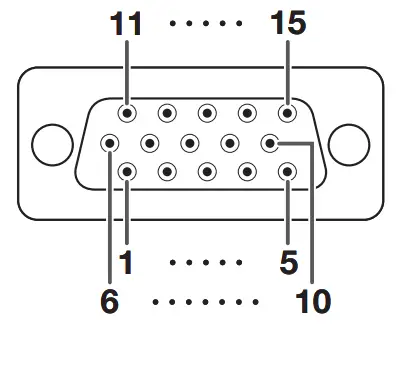
COMPUTER Input/Output
- Video input (red)
- Video input (green/sync on green)
- Video input (blue)
- Not connected
- Not connected
- Earth (red)
- Earth (green/sync on green)
- Earth (blue)
- Not connected
- GND
- Not connected
- Bi-directional data
- Horizontal sync signal: TTL level
- Vertical sync signal: TTL level
- Data clock
COMPONENT Input/Output
- PR (CR)
- Y
PB (CB) - Not connected
- Not connected
- Earth (PR)
- Earth (Y)
- Earth (PB)
- Not connected
- Not connected
- Not connected
- Not connected
- Not connected
- Not connected
- Not connected
RS-232C Terminal: mini-DIN 9-pin female connector
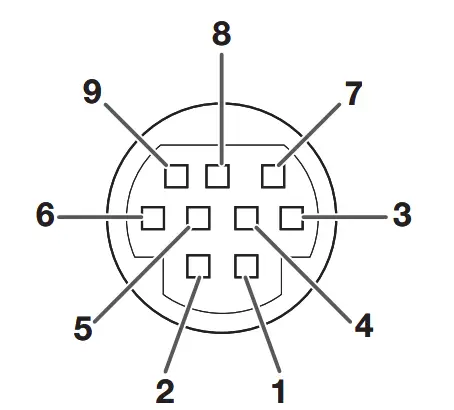
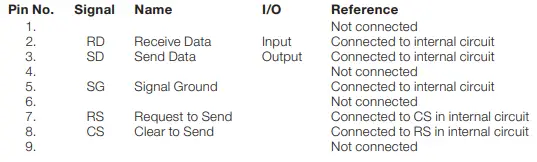
RS-232C Terminal: D-sub 9-pin male connector of the DIN-D-sub RS-232C adaptor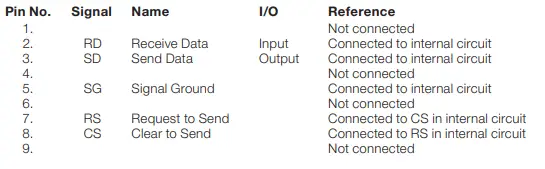
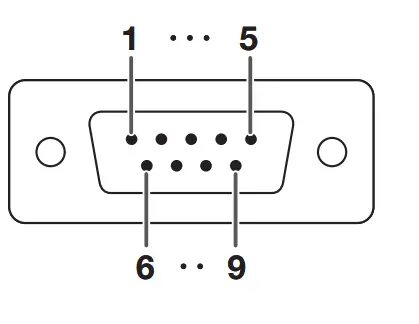
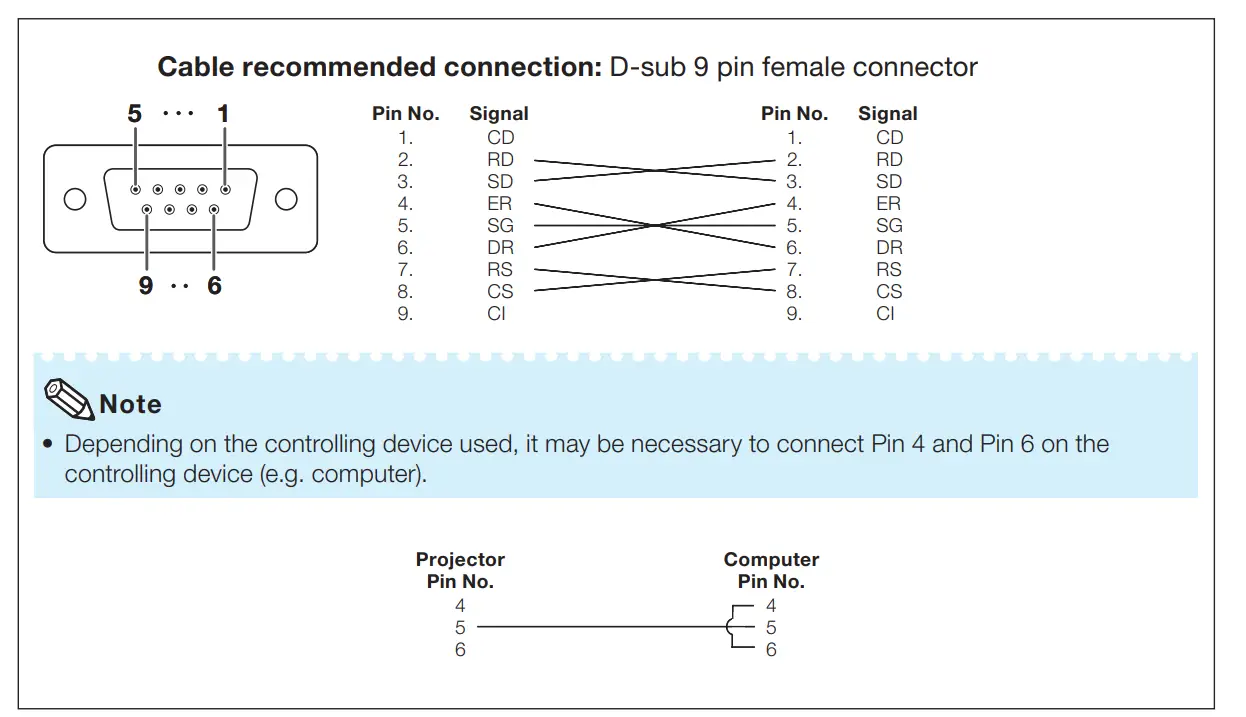
USB Terminal: Type B USB connector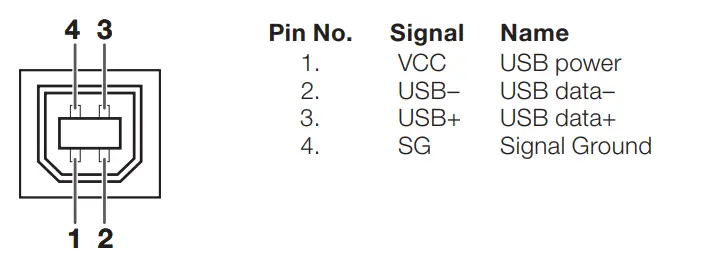 LAN Terminal: LAN (RJ-45)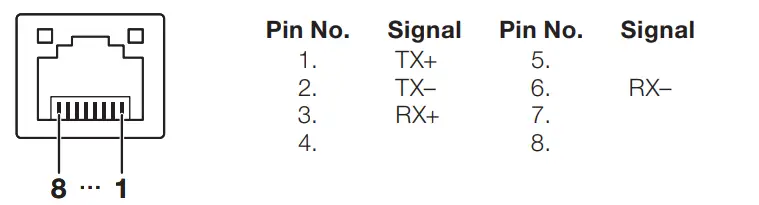
RS-232C Specifications and Commands
- Computer control
A computer can be used to control the projector by connecting an RS-232C serial control cable (cross type, commercially available) to the projector. (See page 24 of the projector’s operation manual for connection.) - Communication conditions
Set the serial port settings of the computer to match that of the table.
Signal format: Conforms to RS-232C standard. Parity bit: None
Baud rate*: 9,600 bps / 38,400 bps / 115,200 bps Stop bit: 1 bit
Data length: 8 bits Flow control: None
*Set the projector’s baud rate to the same rate as used by the computer. - Basic format
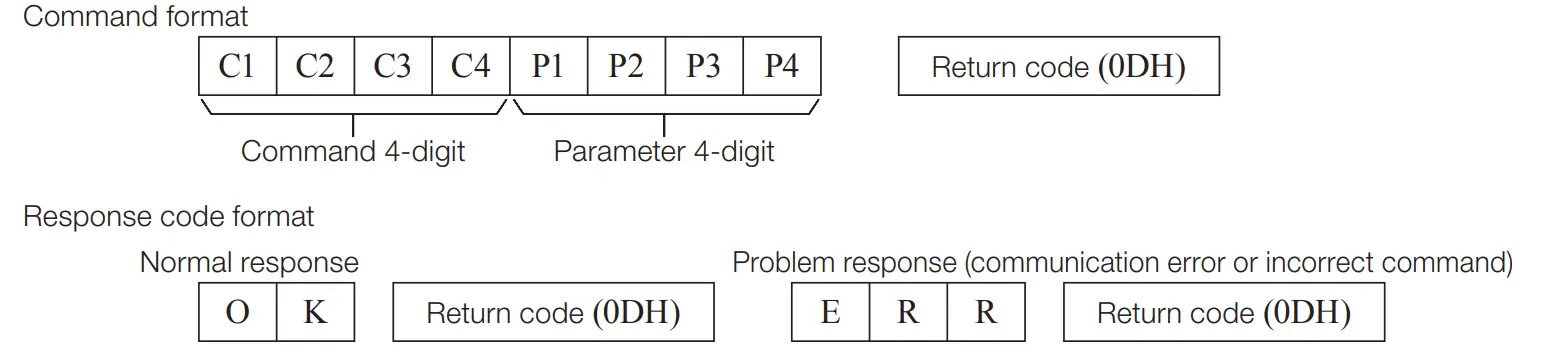
Commands from the computer are sent in the following order: command, parameter, and return code.
After the projector processes the command from the computer, it sends a response code to the computer.
Command format
Info
- When controlling the projector using RS-232C commands from a computer, wait for at least 30 seconds after the power has been turned on, and then transmit the commands.
- After sending an input selection or picture adjustment command and then receiving an “OK” response code, the projector may take some time to process the command. If a second command is sent while the projector is still processing the first command, you may receive an “ERR” response code. If this happens, try resending the second command.
- When more than one code is being sent, send each command only after the response code for the previous command from the projector is verified.
“POWER????”, “TABN _ _ _ 1”, “TLPS _ _ _ 1”, “TPOW _ _ _ 1”, “TLPN _ _ _ 1”, “TLTT _ _ _ 1”, “TLTM _ _ _ 1”, “TLTL _ _ _ 1”, “TNAM _ _ _ 1”, “MNRD _ _ _ 1”, “PJN0 _ _ _ 1” - When the projector receives the special commands shown above:
- The on-screen display will not disappear.
- The “Auto Power Off” timer will not be reset.
- The special commands are available for applications that require continuous polling.
Note
- If an underbar (_) appears in the parameter column, enter a space.
- If an asterisk (*) appears in the parameter column, enter a value in the range indicated in brackets under Control Contents.
Commands
Example: When turning on the projector, make the following setting.
| CONTROL CONTENTS | COMMAND | PARAMETER | RETURN | |||||||||
| Power ON | Standby mode (or 30-second startup time) | |||||||||||
| Power | On | P | O | W | R | _ | _ | _ | 1 | OK or ERR | OK | |
| Off | P | O | W | R | _ | _ | _ | 0 | OK | OK or ERR | ||
| Status | P | O | W | R | ? | ? | ? | ? | 1 | 0 | ||
| Projector Condition | T | A | B | N | _ | _ | _ | 1 | 0: Normal 1: Temp High 8: Lamp Life 5% or less 16: Lamp Burn-out 32: Lamp Ignition Failure | 0: Normal 1: Temp High 2: Fan Error 4: Cover Open 8: Lamp Life 5% or less 16: Lamp Burn-out 32: Lamp Ignition Failure 64: Temp Abnormally High | ||
| Lamp | Status | T | L | P | S | _ | _ | _ | 1 | 0: Off, 1: On, 2: Retry 3: Waiting, 4: Lamp Error | 0: Off, 4: Lamp Error | |
| Power Status | T | P | O | W | _ | _ | _ | 1 | 1: On, 2: Cooling | 0: Standby | ||
| Quantity | T | L | P | N | _ | _ | _ | 1 1 | ||||
| Usage Time(Hour) | T | L | T | T | _ | _ | _ | 1 | 0 – 9999(Integer) | |||
| Usage Time(Minute) | T | L | T | M | _ | _ | _ | 1 | 0, 15, 30, 45 | |||
| Life(Percentage) | T | L | T | L | _ | _ | _ | 1 | 0% – 100%(Integer) | |||
| Name | Model Name Check | T | N | A | M | _ | _ | _ | 1 | PGD3510X/PGD3010X/PGD2710X | ||
| Model Name Check | M | N | R | D | _ | _ | _ | 1 | PG-D3510X/PG-D3010X/PG-D2710X | |||
| Projector Name Setting 1 (First 4 characters) *1 | P | J | N | 1 | * | * | * | * | OK or ERR | |||
| Projector Name Setting 2 (Middle 4 characters) *1 | P | J | N | 2 | * | * | * | * | OK or ERR | |||
| Projector Name Setting 3 (Last 4 characters) *1 | P | J | N | 3 | * | * | * | * | OK or ERR | |||
| Projector Name Check | P | J | N | 0 | _ | _ | _ | 1 | Projector Name | |||
| Input Change | COMPUTER1 | I | R | G | B | _ | _ | _ | 1 | OK or ERR | ERR | |
| COMPUTER2 *2 | I | R | G | B | _ | _ | _ | 2 | OK or ERR | ERR | ||
| S-VIDEO | I | V | E | D | _ | _ | _ | 1 | OK or ERR | ERR | ||
| VIDEO | I | V | E | D | _ | _ | _ | 2 | OK or ERR | ERR | ||
| Input RGB Check | I | R | G | B | ? | ? | ? | ? | 1: COMPUTER1, 2: COMPUTER2 or ERR | ERR | ||
| Input Video Check | I | V | E | D | ? | ? | ? | ? | 1: S-VIDEO, 2: VIDEO or ERR | ERR | ||
| Input Mode Check | I | M | O | D | ? | ? | ? | ? | 1: RGB, 2: VIDEO | ERR | ||
| Input Check | I | C | H | K | ? | ? | ? | ? | 1: COMPUTER1 2: COMPUTER2 3: S-VIDEO 4: VIDEO | ERR | ||
| Volume | Volume(0 – 60) | V | O | L | A | _ | _ | * | * | OK or ERR | ERR | |
| Volume up/down(-10 – +10) | V | O | U | D | _ | * | * | * | OK or ERR | ERR | ||
| Keystone | -80 – +80 | K | E | Y | S | * | * | * | * | OK or ERR | ERR | |
| AV Mute | On | I | M | B | K | _ | _ | _ | 1 | OK or ERR | ERR | |
| Off | I | M | B | K | _ | _ | _ | 0 | OK or ERR | ERR | ||
| Freeze | On | F | R | E | Z | _ | _ | _ | 1 | OK or ERR | ERR | |
| Off | F | R | E | Z | _ | _ | _ | 0 | OK or ERR | ERR | ||
| Auto Sync | Start | A | D | J | S | _ | _ | _ | 1 | OK or ERR | ERR | |
| Resize | COMPUTER1 | Normal | R | A | S | R | _ | _ | _ | 1 | OK or ERR | ERR |
| 16:9 | R | A | S | R | _ | _ | _ | 2 | OK or ERR | ERR | ||
| Native | R | A | S | R | _ | _ | _ | 3 | OK or ERR | ERR | ||
| Full | R | A | S | R | _ | _ | _ | 5 | OK or ERR | ERR | ||
| Border | R | A | S | R | _ | _ | _ | 6 | OK or ERR | ERR | ||
| Area Zoom | R | A | S | R | _ | _ | 1 | 0 | OK or ERR | ERR | ||
| V-Stretch | R | A | S | R | _ | _ | 1 | 1 | OK or ERR | ERR | ||
| COMPUTER2 | Normal | R | B | S | R | _ | _ | _ | 1 | OK or ERR | ERR | |
| 16:9 | R | B | S | R | _ | _ | _ | 2 | OK or ERR | ERR | ||
| Native | R | B | S | R | _ | _ | _ | 3 | OK or ERR | ERR | ||
| Full | R | B | S | R | _ | _ | _ | 5 | OK or ERR | ERR | ||
| Border | R | B | S | R | _ | _ | _ | 6 | OK or ERR | ERR | ||
| Area Zoom | R | B | S | R | _ | _ | 1 | 0 | OK or ERR | ERR | ||
| V-Stretch | R | B | S | R | _ | _ | 1 | 1 | OK or ERR | ERR | ||
| CONTROL CONTENTS | COMMAND | PARAMETER | RETURN | |||||||||
| Power ON | Standby mode (or 30-second startup time) | |||||||||||
| Resize | S-VIDEO | Normal | R | A | S | V | _ | _ | _ | 1 | OK or ERR | ERR |
| 16:9 | R | A | S | V | _ | _ | _ | 2 | OK or ERR | ERR | ||
| Border | R | A | S | V | _ | _ | _ | 3 | OK or ERR | ERR | ||
| Area Zoom | R | A | S | V | _ | _ | 1 | 0 | OK or ERR | ERR | ||
| V-Stretch | R | A | S | V | _ | _ | 1 | 1 | OK or ERR | ERR | ||
| VIDEO | Normal | R | B | S | V | _ | _ | _ | 1 | OK or ERR | ERR | |
| 16:9 | R | B | S | V | _ | _ | _ | 2 | OK or ERR | ERR | ||
| Border | R | B | S | V | _ | _ | _ | 3 | OK or ERR | ERR | ||
| Area Zoom | R | B | S | V | _ | _ | 1 | 0 | OK or ERR | ERR | ||
| V-Stretch | R B | S | V | _ | _ | 1 | 1 | OK or ERR | ERR | |||
| All Reset | A | L | R | E | _ | _ | _ | 1 | OK or ERR | ERR | ||
| COMPUTER1 Input | Picture Mode | Standard | R | A P | S | _ | _ | 1 | 0 | OK or ERR | ERR | |
| Presentation | R | A P | S | _ | _ | 1 | 1 | OK or ERR | ERR | |||
| Movie | R | A P | S | _ | _ | 1 | 2 | OK or ERR | ERR | |||
| Game | R | A P | S | _ | _ | 1 | 3 | OK or ERR | ERR | |||
| sRGB | R | A P | S | _ | _ | 1 | 4 | OK or ERR | ERR | |||
| Contrast | -30 – +30 | R | A | P | I | _ | * | * | * | OK or ERR | ERR | |
| Bright | -30 – +30 | R | A | B | R | _ | * | * | * | OK or ERR | ERR | |
| Red | -30 – +30 | R | A | R | D | _ | * | * | * | OK or ERR | ERR | |
| Blue | -30 – +30 | R | A | B | E | _ | * | * | * | OK or ERR | ERR | |
| Color | -30 – +30 | R | A | C | O | _ | * | * | * | OK or ERR | ERR | |
| Tint | -30 – +30 | R | A | T | I | _ | * | * | * | OK or ERR | ERR | |
| Sharp | -30 – +30 | R | A | S | H | _ | * | * | * | OK or ERR | ERR | |
| CLR Temp | -1 – +1 | R | A | C | T | _ | _ | * | * | OK or ERR | ERR | |
| BrilliantColor™ | 0 – +2 | R | A | W | E | _ | _ | _ | * | OK or ERR | ERR | |
| Film Mode | Auto | R | A | F | M | _ | _ | _ | 0 | OK or ERR | ERR | |
| Off | R | A | F | M | _ | _ | _ | 1 | OK or ERR | ERR | ||
| DNR | Level 1 | R | A | N | R | _ | _ | _ | 1 | OK or ERR | ERR | |
| Level 2 | R A | N | R | _ | _ | _ | 2 | OK or ERR | ERR | |||
| Level 3 | R A | N | R | _ | _ | _ | 3 | OK or ERR | ERR | |||
| Picture Reset | R A | R | E | _ | _ | _ | 1 | OK or ERR | ERR | |||
| Signal Type | Auto | I | A | S | I | _ | _ | _ | 0 | OK or ERR | ERR | |
| RGB | I | A | S | I | _ | _ | _ | 1 | OK or ERR | ERR | ||
| YPbPr | I | A | S | I | _ | _ | _ | 2 | OK or ERR | ERR | ||
| Audio Input | AUDIO 1 | R | A | A | I | _ | _ | _ | 1 | OK or ERR | ERR | |
| AUDIO 2 | R | A | A | I | _ | _ | _ | 2 | OK or ERR | ERR | ||
| COMPUTER2 Input | Picture Mode | Standard | R | B | P | S | _ | _ | 1 | 0 | OK or ERR | ERR |
| Presentation | R | B | P | S | _ | _ | 1 | 1 | OK or ERR | ERR | ||
| Movie | R | B | P | S | _ | _ | 1 | 2 | OK or ERR | ERR | ||
| Game | R | B | P | S | _ | _ | 1 | 3 | OK or ERR | ERR | ||
| sRGB | R | B | P | S | _ | _ | 1 | 4 | OK or ERR | ERR | ||
| Contrast | -30 – +30 | R | B | P | I | _ | * | * | * | OK or ERR | ERR | |
| Bright | -30 – +30 | R B | B R | _ | * | * | * | OK or ERR | ERR | |||
| Red | -30 – +30 | R | B | R | D | _ | * | * | * | OK or ERR | ERR | |
| Blue | -30 – +30 | R | B | B | E | _ | * | * | * | OK or ERR | ERR | |
| Color | -30 – +30 | R | B | C | O | _ | * | * | * | OK or ERR | ERR | |
| Tint | -30 – +30 | R | B | T | I | _ | * | * | * | OK or ERR | ERR | |
| Sharp | -30 – +30 | R B | S H | _ | * | * | * | OK or ERR | ERR | |||
| CLR Temp | -1 – +1 | R B | C | T | _ | _ | * | * | OK or ERR | ERR | ||
| BrilliantColor™ | 0 – +2 | R B | W | E | _ | _ | _ | * | OK or ERR | ERR | ||
| Film Mode | Auto | R | B | F | M | _ | _ | _ | 0 | OK or ERR | ERR | |
| Off | R | B | F | M | _ | _ | _ | 1 | OK or ERR | ERR | ||
| DNR | Level 1 | R B | N | R | _ | _ | _ | 1 | OK or ERR | ERR | ||
| Level 2 | R | B | N | R | _ | _ | _ | 2 | OK or ERR | ERR | ||
| Level 3 | R | B | N | R | _ | _ | _ | 3 | OK or ERR | ERR | ||
| Picture Reset | R B | R | E | _ | _ | _ | 1 | OK or ERR | ERR | |||
| Signal Type | Auto | I | B | S | I | _ | _ | _ | 0 | OK or ERR | ERR | |
| RGB | I | B | S | I | _ | _ | _ | 1 | OK or ERR | ERR | ||
| YPbPr | I | B | S | I | _ | _ | _ | 2 | OK or ERR | ERR | ||
| Audio Input | AUDIO 1 | R | B | A | I | _ | _ | _ | 1 | OK or ERR | ERR | |
| AUDIO 2 | R | B | A | I | _ | _ | _ | 2 | OK or ERR | ERR | ||
| CONTROL CONTENTS | COMMAND | PARAMETER | RETURN | |||||||||
| Power ON | Standby mode (or 30-second startup time) | |||||||||||
| S-VIDEO Input | Picture Mode | Standard | V | A | P | S | _ | _ | 1 | 0 | OK or ERR | ERR |
| Presentation | V | A P | S | _ | _ | 1 | 1 | OK or ERR | ERR | |||
| Movie | V | A P | S | _ | _ | 1 | 2 | OK or ERR | ERR | |||
| Game | V | A P | S | _ | _ | 1 | 3 | OK or ERR | ERR | |||
| Contrast | -30 – +30 | V | A | P | I | _ | * | * | * | OK or ERR | ERR | |
| Bright | -30 – +30 | V | A | B | R | _ | * | * | * | OK or ERR | ERR | |
| Red | -30 – +30 | V | A | R | D | _ | * | * | * | OK or ERR | ERR | |
| Blue | -30 – +30 | V | A | B | E | _ | * | * | * | OK or ERR | ERR | |
| Color | -30 – +30 | V | A | C | O | _ | * | * | * | OK or ERR | ERR | |
| Tint | -30 – +30 | V | A | T | I | _ | * | * | * | OK or ERR | ERR | |
| Sharp | -30 – +30 | V | A | S | H | _ | * | * | * | OK or ERR | ERR | |
| CLR Temp | -1 – +1 | V | A | C | T | _ | _ | * | * | OK or ERR | ERR | |
| BrilliantColor™ | 0 – +2 | V | A | W | E | _ | _ | _ | * | OK or ERR | ERR | |
| Film Mode | Auto | V | A | F | M | _ | _ | _ | 0 | OK or ERR | ERR | |
| Off | V | A | F | M | _ | _ | _ | 1 | OK or ERR | ERR | ||
| DNR | Level 1 | V | A | N | R | _ | _ | _ | 1 | OK or ERR | ERR | |
| Level 2 | V | A | N | R | _ | _ | _ | 2 | OK or ERR | ERR | ||
| Level 3 | V | A | N | R | _ | _ | _ | 3 | OK or ERR | ERR | ||
| Picture Reset | V | A | R | E | _ | _ | _ | 1 | OK or ERR | ERR | ||
| Audio Input | AUDIO 1 | V | A | A | I | _ | _ | _ | 1 | OK or ERR | ERR | |
| AUDIO 2 | V | A | A | I | _ | _ | _ | 2 | OK or ERR | ERR | ||
| VIDEO Input | Picture Mode | Standard | V | B | P | S | _ | _ | 1 | 0 | OK or ERR | ERR |
| Presentation | V | B | P | S | _ | _ | 1 | 1 | OK or ERR | ERR | ||
| Movie | V | B | P | S | _ | _ | 1 | 2 | OK or ERR | ERR | ||
| Game | V | B | P | S | _ | _ | 1 | 3 | OK or ERR | ERR | ||
| Contrast | -30 – +30 | V | B | P | I | _ | * | * | * | OK or ERR | ERR | |
| Bright | -30 – +30 | V | B | B | R | _ | * | * | * | OK or ERR | ERR | |
| Red | -30 – +30 | V | B | R | D | _ | * | * | * | OK or ERR | ERR | |
| Blue | -30 – +30 | V B | B E | _ | * | * | * | OK or ERR | ERR | |||
| Color | -30 – +30 | V B | C | O | _ | * | * | * | OK or ERR | ERR | ||
| Tint | -30 – +30 | V B | T | I | _ | * | * | * | OK or ERR | ERR | ||
| Sharp | -30 – +30 | V B | S | H | _ | * | * | * | OK or ERR | ERR | ||
| CLR Temp | -1 – +1 | V B | C T | _ | _ | * | * | OK or ERR | ERR | |||
| BrilliantColor™ | 0 – +2 | V B | W | E | _ | _ | _ | * | OK or ERR | ERR | ||
| Film Mode | Auto | V | B | F | M | _ | _ | _ | 0 | OK or ERR | ERR | |
| Off | V | B | F | M | _ | _ | _ | 1 | OK or ERR | ERR | ||
| DNR | Level 1 | V | B | N | R | _ | _ | _ | 1 | OK or ERR | ERR | |
| Level 2 | V | B | N | R | _ | _ | _ | 2 | OK or ERR | ERR | ||
| Level 3 | V | B | N | R | _ | _ | _ | 3 | OK or ERR | ERR | ||
| Picture Reset | V | B | R | E | _ | _ | _ | 1 | OK or ERR | ERR | ||
| Audio Input | AUDIO 1 | V | B | A | I | _ | _ | _ | 1 | OK or ERR | ERR | |
| AUDIO 2 | V | B | A | I | _ | _ | _ | 2 | OK or ERR | ERR | ||
| C.M.S. Setting | On | C | M | C | S | _ | _ | 1 | 1 | OK or ERR | ERR | |
| Off | C | M | C | S | _ | _ | 0 | 0 | OK or ERR | ERR | ||
| C.M.S. | Hue | Red | C | M | H | R | _ | * | * | * | OK or ERR | ERR |
| Yellow | C | M | H | Y | _ | * | * | * | OK or ERR | ERR | ||
| Green | C | M | H | G | _ | * | * | * | OK or ERR | ERR | ||
| Cyan | C M | H | C | _ | * | * | * | OK or ERR | ERR | |||
| Blue | C M | H | B | _ | * | * | * | OK or ERR | ERR | |||
| Magenta | C M | H M | _ | * | * | * | OK or ERR | ERR | ||||
| Reset | C M | R | E | _ | _ | _ | 2 | OK or ERR | ERR | |||
| Saturation | Red | C M | S | R | _ | * | * | * | OK or ERR | ERR | ||
| Yellow | C M | S | Y | _ | * | * | * | OK or ERR | ERR | |||
| Green | C | M | S | G | _ | * | * | * | OK or ERR | ERR | ||
| Cyan | C | M | S | C | _ | * | * | * | OK or ERR | ERR | ||
| Blue | C | M | S | B | _ | * | * | * | OK or ERR | ERR | ||
| Magenta | C | M | S | M | _ | * | * | * | OK or ERR | ERR | ||
| Reset | C | M | R | E | _ | _ | _ | 3 | OK or ERR | ERR | ||
| Value | Red | C | M | V | R | _ | * | * | * | OK or ERR | ERR | |
| Yellow | C | M | V | Y | _ | * | * | * | OK or ERR | ERR | ||
| Green | C | M | V | G | _ | * | * | * | OK or ERR | ERR | ||
| Cyan | C | M | V | C | _ | * | * | * | OK or ERR | ERR | ||
| Blue | C | M | V | B | _ | * | * | * | OK or ERR | ERR | ||
| Magenta | C | M V | M | _ | * | * | * | OK or ERR | ERR | |||
| Reset | C | M | R | E | _ | _ | _ | 4 | OK or ERR | ERR | ||
| C.M.S. All Reset | C | M | R | E | _ | _ | _ | 1 | OK or ERR | ERR | ||
| CONTROL CONTENTS | COMMAND | PARAMETER | RETURN | |||||||||
| Power ON | Standby mode (or 30-second startup time) | |||||||||||
| Clock | -150 – +150 | I | N | C | L | * | * | * | * | OK or ERR | ERR | |
| Phase | -30 – +30 | I | N | P | H | _ | * | * | * | OK or ERR | ERR | |
| H-position | -150 – +150 | I | A | H | P | * | * | * | * | OK or ERR | ERR | |
| V-position | -60 – +60 | I | A | V | P | _ | * | * | * | OK or ERR | ERR | |
| Fine Sync Adjustment Reset | I | A | R | E | _ | _ | _ | 1 | OK or ERR | ERR | ||
| Image Shift | -96 – +96 | L | N | D | S | _ | * | * | * | OK or ERR | ERR | |
| Overscan | On | O | V | S | N | _ | _ | _ | 1 | OK or ERR | ERR | |
| Off | O | V | S | N | _ | _ | _ | 0 | OK or ERR | ERR | ||
| OSD Display | On | I | M | D | I | _ | _ | _ | 1 | OK or ERR | ERR | |
| Off | I | M | D | I | _ | _ | _ | 0 | OK or ERR | ERR | ||
| Video System | Auto | M | E | S | Y | _ | _ | _ | 1 | OK or ERR | ERR | |
| PAL | M | E | S | Y | _ | _ | _ | 2 | OK or ERR | ERR | ||
| SECAM | M | E | S | Y | _ | _ | _ | 3 | OK or ERR | ERR | ||
| NTSC4.43 | M | E | S | Y | _ | _ | _ | 4 | OK or ERR | ERR | ||
| NTSC3.58 | M | E | S | Y | _ | _ | _ | 5 | OK or ERR | ERR | ||
| PAL-M | M | E | S | Y | _ | _ | _ | 6 | OK or ERR | ERR | ||
| PAL-N | M | E | S | Y | _ | _ | _ | 7 | OK or ERR | ERR | ||
| PAL-60 | M E | S | Y | _ | _ | _ | 8 | OK or ERR | ERR | |||
| Background | Logo | I | M | B | G | _ | _ | _ | 1 | OK or ERR | ERR | |
| Blue | I | M | B | G | _ | _ | _ | 3 | OK or ERR | ERR | ||
| None | I | M | B | G | _ | _ | _ | 4 | OK or ERR | ERR | ||
| Eco+Quiet | On | T H | M | D | _ | _ | _ | 1 | OK or ERR | ERR | ||
| Off | T | H | M | D | _ | _ | _ | 0 | OK or ERR | ERR | ||
| Auto Sync | On | A | A | D | J | _ | _ | _ | 1 | OK or ERR | ERR | |
| Off | A | A | D | J | _ | _ | _ | 0 | OK or ERR | ERR | ||
| Auto Power Off | On | A | P | O | W | _ | _ | _ | 1 | OK or ERR | ERR | |
| Off | A | P | O | W | _ | _ | _ | 0 | OK or ERR | ERR | ||
| Auto Restart | On | A | R | E | S | _ | _ | _ | 1 | OK or ERR | ERR | |
| Off | A | R | E | S | _ | _ | _ | 0 | OK or ERR | ERR | ||
| STANDBY Mode | Quick Start | M | O | U | T | _ | _ | _ | 1 | OK or ERR | ERR | |
| Eco | M | O | U | T | _ | _ | _ | 0 | OK or ERR | ERR | ||
| PRJ Mode | Reverse | On | I | M | R | E | _ | _ | _ | 1 | OK or ERR | ERR |
| Off | I | M | R | E | _ | _ | _ | 0 | OK or ERR | ERR | ||
| Invert | On | I | M | I | N | _ | _ | _ | 1 | OK or ERR | ERR | |
| Off | I | M | I | N | _ | _ | _ | 0 | OK or ERR | ERR | ||
| Language | English | M | E | L | A | _ | _ | _ | 1 | OK or ERR | ERR | |
| Deutsch | M E | L | A | _ | _ | _ | 2 | OK or ERR | ERR | |||
| Español | M E | L | A | _ | _ | _ | 3 | OK or ERR | ERR | |||
| Nederlands | M E | L | A | _ | _ | _ | 4 | OK or ERR | ERR | |||
| Français | M E | L | A | _ | _ | _ | 5 | OK or ERR | ERR | |||
| Italiano | M E | L | A | _ | _ | _ | 6 | OK or ERR | ERR | |||
| Svenska | M | E | L | A | _ | _ | _ | 7 | OK or ERR | ERR | ||
| M E | L | A | _ | _ | _ | 8 | OK or ERR | ERR | ||||
| Português | M | E | L | A | _ | _ | _ | 9 | OK or ERR | ERR | ||
| M E | L | A | _ | _ | 1 | 0 | OK or ERR | ERR | ||||
| M E | L | A | _ | _ | 1 | 1 | OK or ERR | ERR | ||||
| M E | L | A | _ | _ | 1 | 2 | OK or ERR | ERR | ||||
| M E | L | A | _ | _ | 1 | 3 | OK or ERR | ERR | ||||
| polski | M | E | L | A | _ | _ | 1 | 4 | OK or ERR | ERR | ||
| Türkçe | M | E | L | A | _ | _ | 1 | 5 | OK or ERR | ERR | ||
| M E | L | A | _ | _ | 1 | 6 | OK or ERR | ERR | ||||
| Magyar | M | E | L | A | _ | _ | 1 | 7 | OK or ERR | ERR | ||
| CONTROL CONTENTS | COMMAND | PARAMETER | RETURN | ||||||||
| Power ON | Standby mode (or 30-second startup time) | ||||||||||
| Setup Guide | On | S | E | G | U | _ | _ | _ | 1 | OK or ERR | ERR |
| Off | S | E | G | U | _ | _ | _ | 0 | OK or ERR | ERR | |
| Internal Speaker | On | A S | P | K | _ | _ | _ | 1 | OK or ERR | ERR | |
| Off | A S | P | K | _ | _ | _ | 0 | OK or ERR | ERR | ||
| RGB Frequency Check | Horizontal | T | F | R | Q | _ | _ | _ | 1 | kHz(***.* or ERR) | ERR |
| Vertical | T | F | R | Q | _ | _ | _ | 2 | Hz(***.* or ERR) | ERR | |
| Fan Mode | Normal | H | L | M | D | _ | _ | _ | 0 | OK or ERR | ERR |
| High | H | L | M | D | _ | _ | _ | 1 | OK or ERR | ERR | |
| Input Search *3 | Start | I | S | E | S | _ | _ | _ | 1 | OK or ERR | ERR |
| Video Setup | 0 IRE | V | I | S | U | _ | _ | _ | 0 | OK or ERR | ERR |
| 7.5 IRE | V | I | S | U | _ | _ | _ | 1 | OK or ERR | ERR | |
| Wall Color | Off | W L | C O | _ | _ | _ | 0 | OK or ERR | ERR | ||
| Blackboard | W L | C O | _ | _ | _ | 1 | OK or ERR | ERR | |||
| Whiteboard | W L | C O | _ | _ | _ | 2 | OK or ERR | ERR | |||
| Quick Start Menu | On | Q | S | M | N | _ | _ | _ | 0 | OK or ERR | ERR |
| Off | Q | S | M | N | _ | _ | _ | 1 | OK or ERR | ERR | |
| COMPUTER2 Select *4 | Input | R | B | S | E | _ | _ | _ | 0 | OK or ERR | ERR |
| Monitor Output | R | B | S | E | _ | _ | _ | 1 | OK or ERR | ERR | |
| DLP® LinkTM | Off | 3 | D | E | N | _ | _ | _ | 0 | OK or ERR | ERR |
| On | 3 | D | E | N | _ | _ | _ | 1 | OK or ERR | ERR | |
| DLP® LinkTM Invert | 3 | D | I | V | _ | _ | _ | 1 | OK or ERR | ERR | |
| Closed Caption (For Americas only) | Off | C | L | C | A | _ | _ | _ | 0 | OK or ERR | ERR |
| CC1 | C | L | C | A | _ | _ | _ | 1 | OK or ERR | ERR | |
| CC2 | C | L | C | A | _ | _ | _ | 2 | OK or ERR | ERR | |
| Reset Network Setting | L | N | R | E | _ | _ | _ | 1 | OK or ERR | OK or ERR | |
| Restart Network | L | R | E | S | _ | _ | _ | 1 | OK or ERR | OK or ERR | |
| Lamp Timer Reset *5 | L | P | R | E | 0 | 0 | 0 | 1 | ERR | OK or ERR | |
- For setting the projector name, send the commands in the order of PJN1, PJN2 and PJN3.
- When “COMPUTER2 Select” is set to “Monitor Output”, you may receive an “ERR” response code.
- When the next command is sent during input search, you may receive an “ERR” response code, and the input search is canceled.
- When “COMPUTER2” is selected in the INPUT list, “COMPUTER2 Select” cannot be set to “Monitor Output”.
- The Lamp Timer Reset command is available only in standby mode.
Operating the Projector Using the PJLinkTM Protocol
The projector conforms with the PJLinkTM standard Class 1.
The commands to be used in controlling the projector by the PJLinkTM protocol are as shown below.
| CONTROL CONTENTS | COMMAND | RETURN | ||||||||
| Power Control | Off | P | O | W | R | _ | 0 | OK or ERR3 | ||
| On | P | O | W | R | _ | 1 | OK or ERR3 | |||
| Power Status Query | P | O | W | R | _ | ? | 0: Standby Mode 1: Power On 2: Standby (Cooling) 3: Power On (Warming up) | |||
| Input List Query | I | N | S | T | _ | ? | 11 12 21 22 | |||
| Input Change | COMPUTER1 | I | N | P | T | _ | 1 | 1 | OK or ERR3 | |
| COMPUTER2 | I | N | P | T | _ | 1 | 2 | OK or ERR3 | ||
| S-VIDEO | I | N | P | T | _ | 2 | 1 | OK or ERR3 | ||
| VIDEO | I | N | P | T | _ | 2 | 2 | OK or ERR3 | ||
| Input Status Query | I | N | P | T | _ | ? | 11: COMPUTER1 12: COMPUTER2 21: S-VIDEO 22: VIDEO or ERR3 | |||
| AV Mute | Off | A | V | M | T | _ | 3 | 0 | OK or ERR3 | |
| On | A | V | M | T | _ | 3 | 1 | OK or ERR3 | ||
| AV Mute Status Query | A | V | M | T | _ | ? | 30: Off 31: On or ERR3 | |||
| Lamp Query | L | A | M | P | _ | ? | 1st Number: Lamp Usage Time (Hour) 2nd Number: 0: Lamp Off 1: Lamp on | |||
| Error Condition Query | E | R | S | T | _ | ? | 1st Byte: Fan Error Status 2nd Byte: Lamp Error Status 3rd Byte: Temp. Error Status 4th Byte: Cover Open Status 5th Byte: Not Used, Return 0 6th Byte: Other Error Status | |||
| 0: No Error Detected 1: Warning 2: Error Detected | ||||||||||
| Projector Name Query * | N | A | M | E | _ | ? | Projector Name | |||
| Manufacture Name Query | I | N | F | 1 | _ | ? | SHARP | |||
| Pruduct Name Query | I | N | F | 2 | _ | ? | PG-D3510X/PG-D3010X/PG-D2710X | |||
| Other Information Query | I | N | F | O | _ | ? | Not used | |||
| Class Information Query | C | L | S | S | _ | ? | 1 | |||
You can set “Projector Name” at “Making General Setting for the Network (Network-General)” on page 20.
PJLinkTM Authentication:
The password to be used for PJLinkTM is the same as the one you have set in “Setting the Security (Network-
Security)” (page 19). When operating without authentication, do not set a password.
PJLinkTM Compliant:
This product conforms with the PJLink standard Class 1 and all Class 1 commands are implemented.
This product confi rms with the PJLink standard specification version 1.00.
For additional information, visit “http://pjlink.jbmia.or.jp/english/”.
Setting up the Projector Network Environment
This section describes the basic procedure for using the projector via the network.
If the network is already constructed, the projector’s network settings may need to be changed. Please consult your network administrator for assistance with these settings.
You can make network settings both on the projector and on the computer. The following procedure is for making settings on the computer.
Network settings on the computer
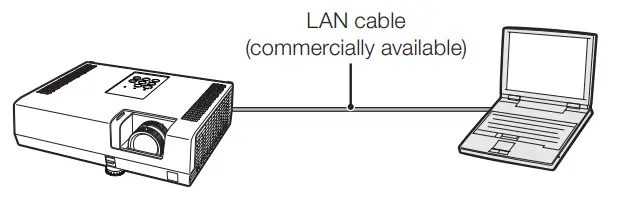
- Connecting the projector to a computer
Connect a LAN cable (Category 5, cross-over type) between the computer and projector.
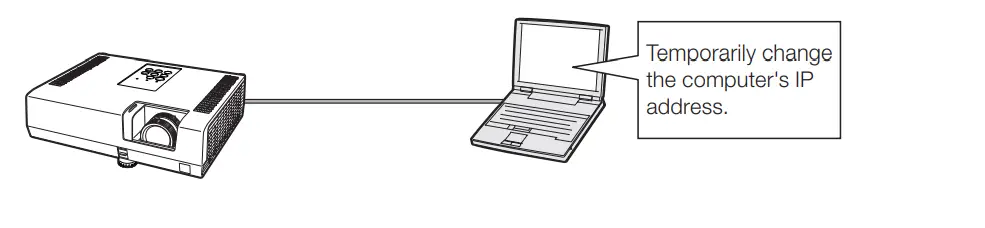
- Setting an IP address for the computer
Adjust the IP settings of the computer to enable one-to-one communications with the projector.
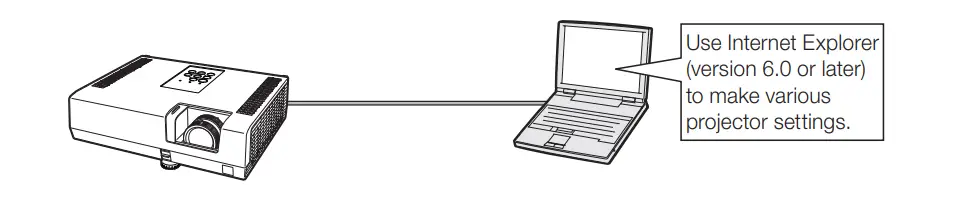
- Setting up a network connection for the projector
Adjust the projector network settings to conform to your network.
NOTE
- Microsoft®, Windows®, and Windows Vista®are registered trademarks of Microsoft Corporation in the United States and/or other countries.
- PJLink is a registered trademark or an application trademark in Japan, the United States, Canada, E.U., China, and/or other countries/regions.
- All other companies or product names are trademarks or registered trademarks of their respective companies.
Setting up the Projector Network Environment
Connecting the Projector to a Computer
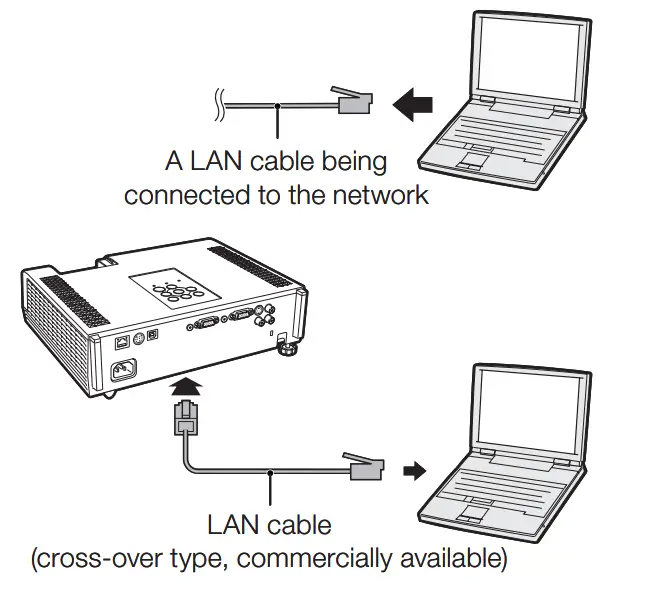
Establishing a one-to-one connection from the projector to a computer. Using a commercially available LAN cable (UTP cable, Category 5, cross-over type) you can configure the projector via the computer.
- Disconnect the computer’s LAN cable from the existing network.

- Connect a commercially available LAN cable (UTP cable, Category 5, cross-over type) to the projector’s LAN terminal and connect the other end of the cable to the computer’s LAN terminal. 3
- Plug the power cord into the AC socket of the projector.

- Turn on the computer.
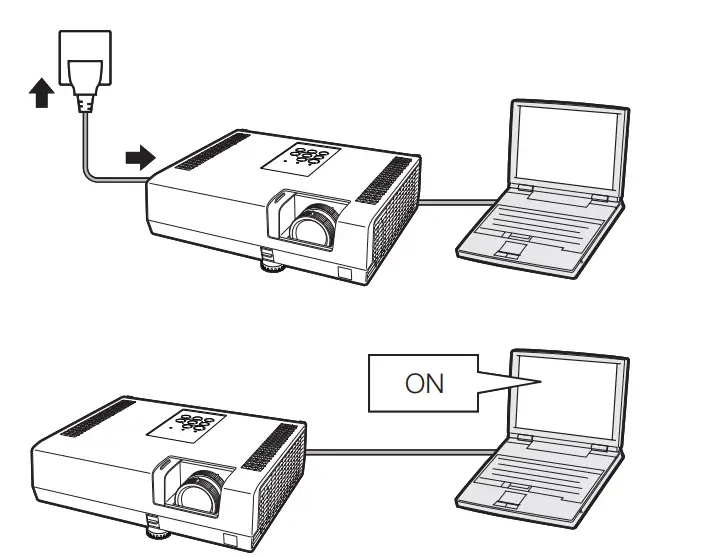
Info
Confirm that the LINK LED on the rear of the projector illuminates. If the LINK LED does not illuminate, check the following:
- The LAN cable is properly connected.
- The power switches of both the projector and the computer are on.
This completes the connection. Now proceed to “2. Setting an IP Address for the Computer”.
Setting an IP Address for the Computer
The following describes how to make settings in Windows Vista®.
- Log on the network using the administrator’s account for the computer.
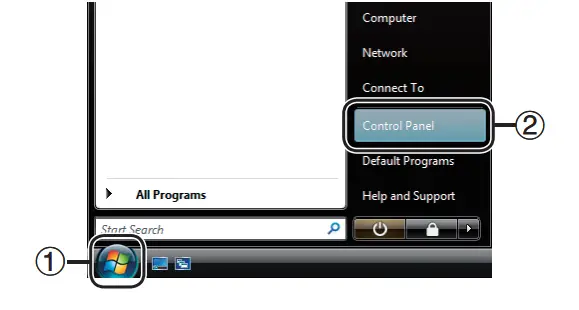
- Click “start”, and click “Control Panel”.

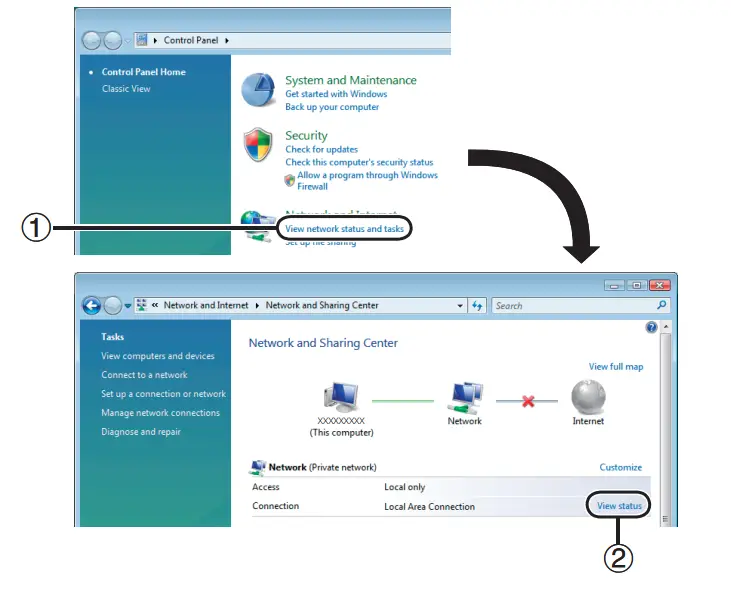
- Click “View network status and tasks” of “Network and Internet”, and click “View status” in the new window.
This manual uses examples to explain the operations in Category View. If you are using Classic View, double-click “Network and Sharing Center”.
- Click “Properties”.
When the user account control display is displayed, click “Continue”.
- Click “Internet Protocol Version 4 (TCP/IPv4)”, and click the “Properties” button.

- Confirm or change an IP address for the setup computer.

- Confirm and note the current IP address, Subnet mask, and Default gateway.
Make sure to note the current IP address, Subnet mask, and Default gateway as you will be required to reset them later. - Set temporarily as follows:
IP address: 192.168.150.3
Subnet mask: 255.255.255.0
Default gateway: (Do not input any values.)
- Confirm and note the current IP address, Subnet mask, and Default gateway.
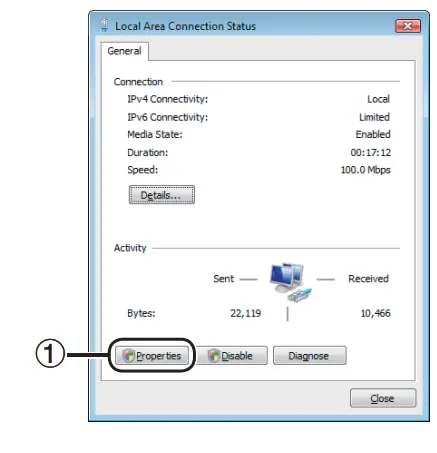
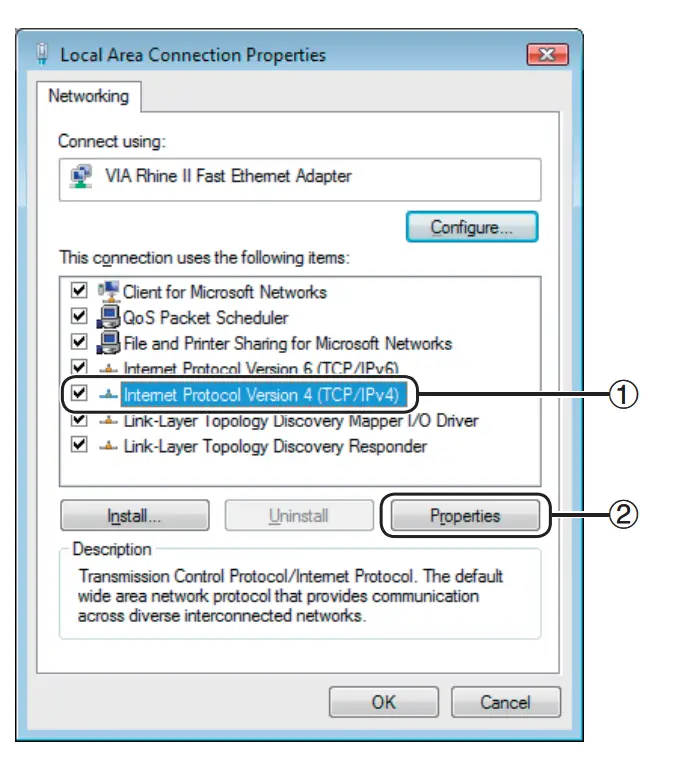
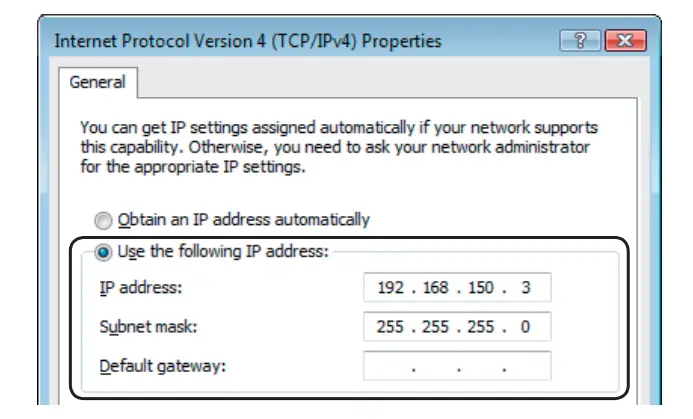
The factory default settings for the projector are as follows:
- DHCP Client: OFF
- IP address: 192.168.150.2
- Subnet mask: 255.255.255.0
- Default gateway: 0.0.0.0
After setting, click the “OK” button, and then restart the computer.
After confirming or setting, proceed to “3. Setting up Network Connection for the Projector”.
Setting up a Network Connection for the Projector
Settings for such items as the projector’s IP address and subnet mask are compatible with the existing network. Set each item on the projector as follows. (See page 55 of the projector’s operation manual for setting.)
- DHCP Client: Off
- IP Address: 192.168.150.002
- Subnet Mask: 255.255.255.000
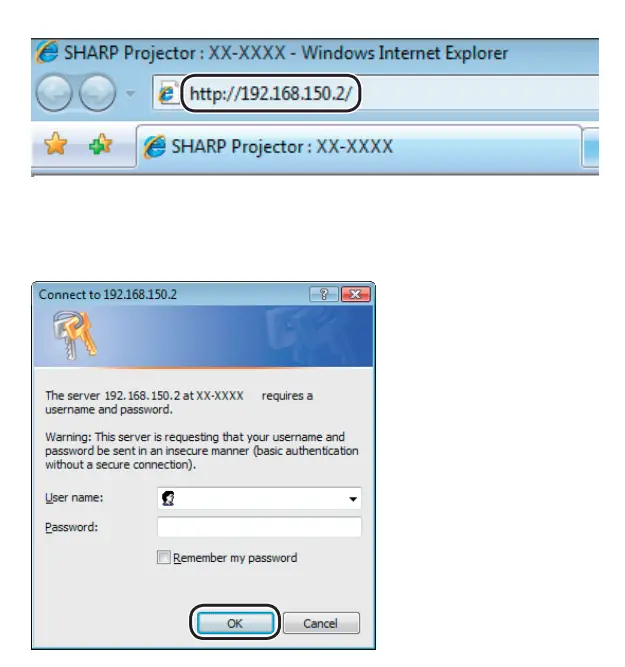
- Start Internet Explorer (version 6.0 or later) on the computer, and enter “http://192.168.150.2/” in Address”, and then press the “Enter” key.

- If a user name and a password have not yet been set, just click the “OK” button.
If a user name and a password have been set, input the username and the password, and click the “OK” button.
If the user name or password is entered incorrectly three times, an error message will be displayed.
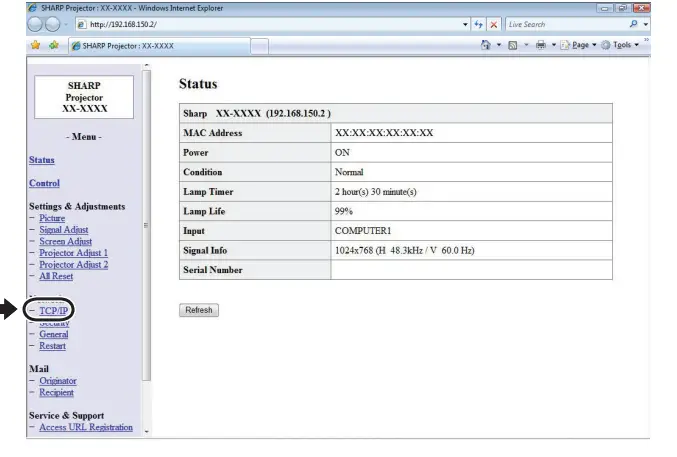
When you are using Internet Explorer 7 or later, another setup screen may be displayed. In this case, make the proper adjustments for the setup screen. - When the screen as shown on the right appears, click “TCP/IP”.

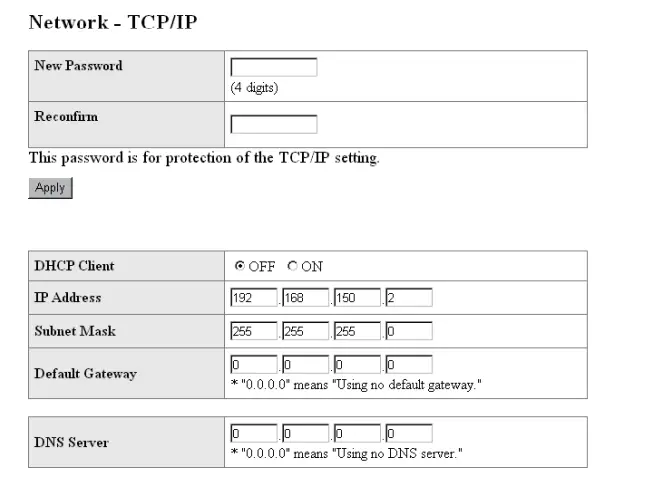
- The TCP/IP setting screen appears, ready for network settings for the projector.


- Confirm the existing network’s segment (IP address group) to avoid setting an IP address that duplicates the IP addresses of other network equipment or computers. If “192.168.150.2” is not used in the network having an IP address of “192.168.150.XXX”, you don’t have to change the projector IP address.
- For details about each setting, consult your network administrator.
Items Setting example / Remarks New Password You can set the password to protect the TCP/IP setting. DHCP Client
Select “ON” or “OFF” to determine whether to use DHCP Client. IP Address
You can set this item when “DHCP Client” is set to “OFF”. Factory default setting: 192.168.150.2 Enter an IP address appropriate for
the network.
Subnet Mask You can set this item when “DHCP Client” is set to “OFF”. Factory default setting: 255.255.255.0
Set the subnet mask to the same as that of the computer and equipment
on the network.
Default Gateway You can set this item when “DHCP Client” is set to “OFF”. Factory default setting: 0.0.0.0
* When not in use, set to “0.0.0.0”.
DNS Server
Factory default setting: 0.0.0.0 * When not in use, set to “0.0.0.0”.
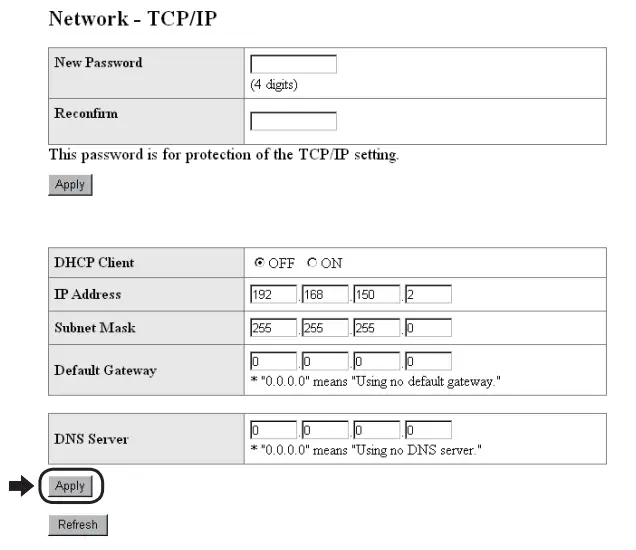
- Click the “Apply” button.
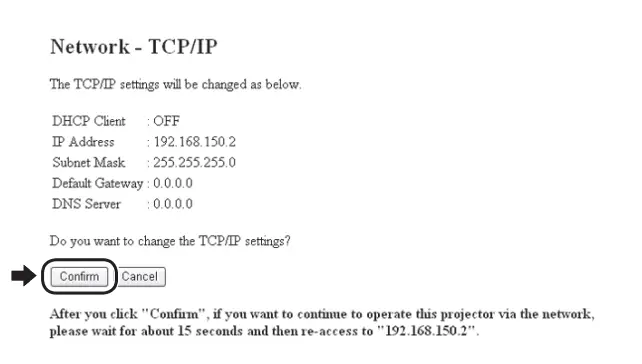
The set values appear. Confirm that the values are set properly, and then click the “Confirm” button.
- Close the browser.
- This completes the network settings.
- After setting items, wait for about 15 seconds and then re-access.
- Change the IP address of the setting computer back to its original address, which you have noted down in Step 6-1 on page 14, and then connect the computer and the projector to the network.
Controlling the Projector via LAN
After connecting the projector to your network, enter the projector IP address in “Address” on Internet Explorer (version 6.0 or later) using a computer on the network to start a setup screen that will enable control of the projector via the network.
Controlling the Projector
Using Internet Explorer
Complete connections to external equipment before starting the operation. (See pages 21-25 of the projector’s operation manual.)
Complete the AC cord connection. (See page 25 of the projector’s operation manual.)
When connecting the projector to the LAN, use a commercially available LAN cable (UTP cable, Category 5, cross-over type). When connecting the projector to a hub, use a straight-through cable.
Note
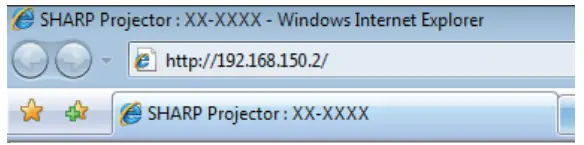
- Start Internet Explorer on the computer.
- Enter “HTTP://” followed by the projector IP address set by the procedure on page 16 followed by “/” in “Address”, and then press the “Enter” key.
When “DHCP Client” is set to “OFF” on the projector, IP address is 192.168.150.2. If you did not change the IP address in “3. Setting up a Network Connection for the Projector” (pages 15-16), enter “http://192.168.150.2/”.
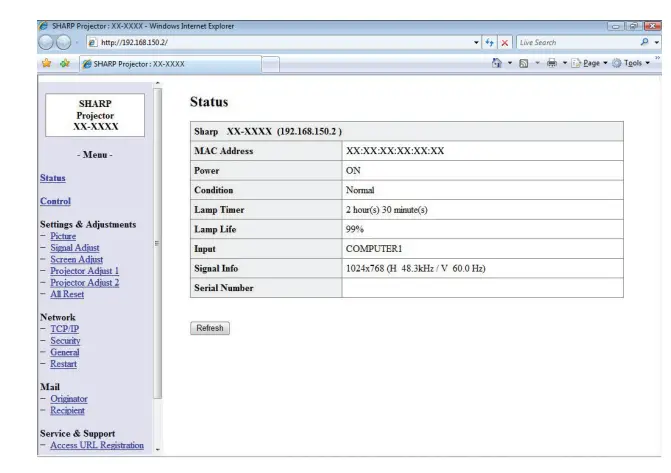
- A screen for controlling the projector appears, ready for performing various status conditions, control, and settings.

Confirming the Projector Status (Status)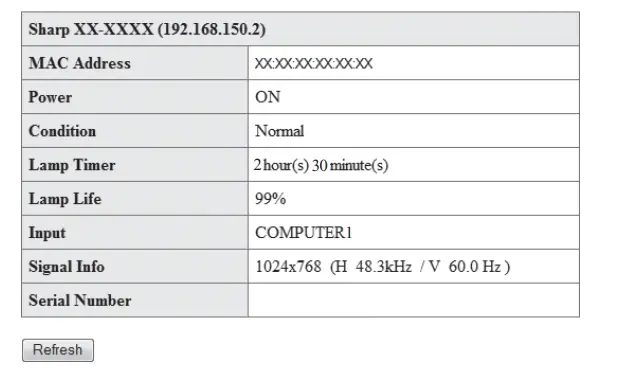
On this screen, you can confirm the projector status. You can confirm the following items:
- MAC Address
- Power
- Condition
- Lamp Timer
- Lamp Life
- Input
- Signal Info
- Serial Number
If you click the “Refresh” button before the screen is displayed completely, an error message (“Server Busy Error”) will be displayed. Wait for a moment and then operate again.
For details about each item, refer to the projector’s operation manual.
Controlling the Projector (Control)
On this screen, you can perform projector control. You can control the following items: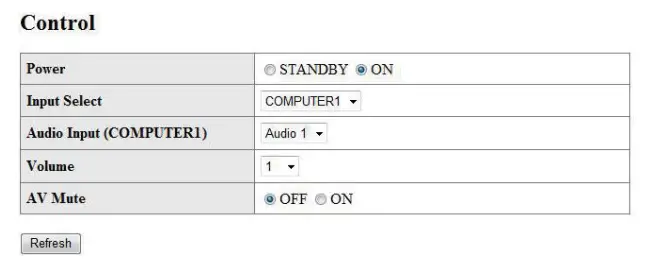
- Power
- Input Select
- Audio Input
- Volume
- AV Mute
NOTE
- If you click the “Refresh” button before the screen is displayed completely, an error message (“Server Busy Error”) will be displayed. Wait for a moment and then operate again.
- You cannot operate this page while the projector is warming up.
- While the projector is in standby mode, you can only control “Power ON”.
- For details about each item, refer to the projector’s operation manual.
Setting and Adjusting the Projector (Settings & Adjustments)
Example: “Picture” screen display for COMPUTER1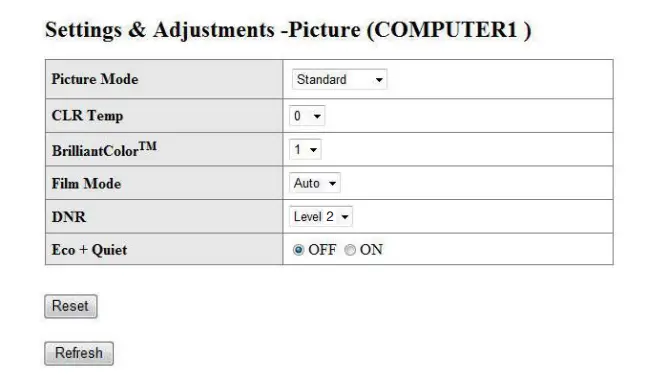
On these screens, you can make projector settings or adjustments. You can set or adjust the following items:
- Picture Mode
- CLR Temp
- BrilliantColorTM
- Film Mode
- DNR
- Eco + Quiet
- Resolution Setting
- Signal Type
- Video System
- Video Setup
- Resize
- Overscan
- OSD Display
- Background
- Setup Guide
- Projection Mode
- Wall Color
- OSD Language
- Auto Sync
- Auto Power Off
- Auto Restart
- Internal Speaker
- RS-232C Speed
- Fan Mode
- Quick Start Menu
- COMPUTER2 Select
- DLP® LinkTM
- DLP® LinkTM Invert
- All Reset
Note
- If you click the “Refresh” button before the screen is displayed completely, an error message (“Server Busy Error”) will be displayed. Wait for a moment and then operate again.
- You cannot operate this page while the projector is warming up.
- For details about each item, refer to the projector’s operation manual.
Setting the Security (Network – Security)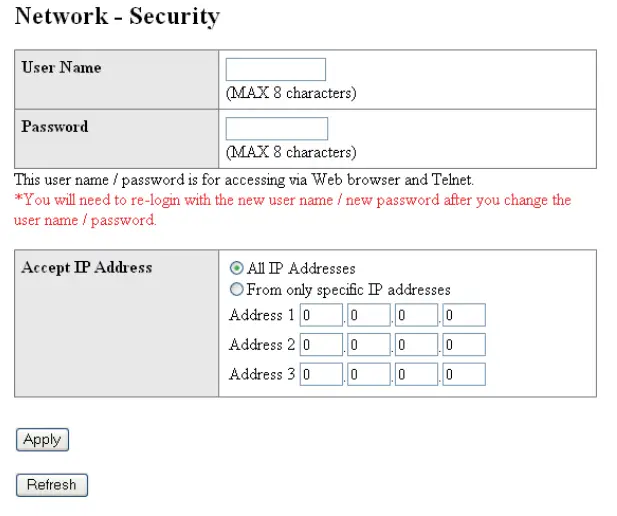
On this screen, you can make settings relating to security.
| Items | Description | |
| User Name | Setting of user name for security protection. | |
| Password | Setting of password for security protection. | |
| Accept IP Address | It is possible to set up to three IP addresses allowing connection to the projector. | |
| All IP Addresses | No limits are set to IP addresses connecting to the projector. | |
| From only specific IP addresses | For security improvement, only an IP address set by “Address 1-3” can be connected to the projector. | |
- User Name and Password can be up to 8 characters.
- You can input the characters below: a-z, A-Z, 0-9, -, _
Making General Settings for the Network (Network – General)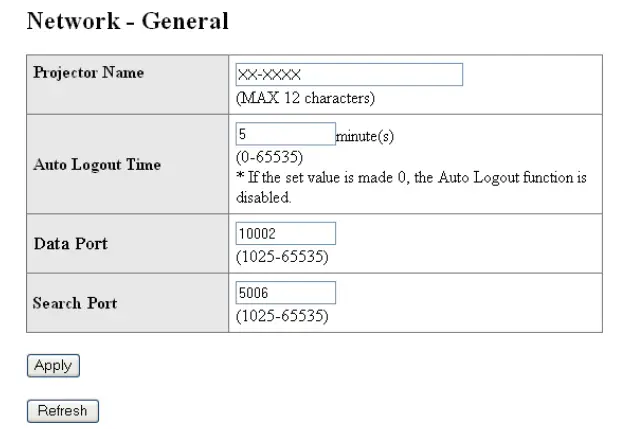
On this screen, you can make general settings relating to the network.
| Items | Description |
| Projector Name | Setting the projector name. |
| Auto Logout Time | Setting the time interval in which the projector will be automatically disconnected from the network in units of a minute (from 1 to 65535 minutes). If the set value is made 0, the Auto Logout function is disabled. |
| Data Port | Setting the TCP port number used when exchanging data with the projector (from 1025 to 65535). |
| Search Port | Setting the port number used when searching for the projector (from 1025 to 65535). |
After clicking the “Apply” button, the set values appear. Confirm that the values are set properly, and then click the “Confirm” button.
Note
- After setting items, wait for about 15 seconds and then re-access.
- The projector Name can be up to 12 characters.
- You can input the characters below: A-Z, 0-9, -, _, (,), space
(When “a-z” are input, they are converted to “A-Z” automatically.)
Setting for Sending E-mail when an Error Occurs (Mail – Originator Settings)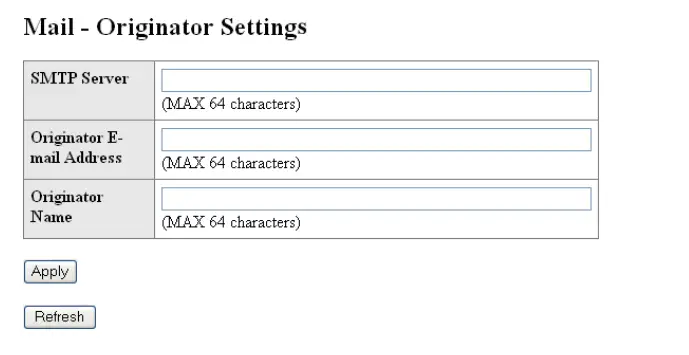
On this screen, you can make settings for sending e-mail to report when the projector has generated an error.
| Items | Setting example / Remarks |
| SMTP Server | Setting an SMTP server address for e- mail transmission. e.g.1: 192.168.150.253 e.g.2: smtp123.sharp.co.jp * When using a domain name, make settings for the DNS server. |
| Originator E- mail Address | Setting the projector’s e-mail address. The e-mail address set here becomes the Originator E-mail Address. |
| Originator Name | Setting the sender’s name. The name set here appears in the “Originator Name” column of the body of the message. |
- SMTP Server, Originator E-mail Address and
The originator’s Name can be up to 64 characters. - You can input the characters below: SMTP Server and Originator E-mail Address: a-z, A-Z, 0-9, !, #, $, %, &, *, +, -, /, =, ?, ^, {, |, }, ~, _, ‘, ., @, (You can input “@” only one time for “Originator E-mail Address”.)
- Originator Name : a-z, A-Z, 0-9, -, _, (,), space
- If the settings of “3. Setting up a Network Connection for the Projector” on pages 15 and 16 are incorrectly set, an e-mail will not be sent.
Setting Error Items and Destination Addresses to which E-mail is to be Sent when an Error Occurs (Mail – Recipient Settings)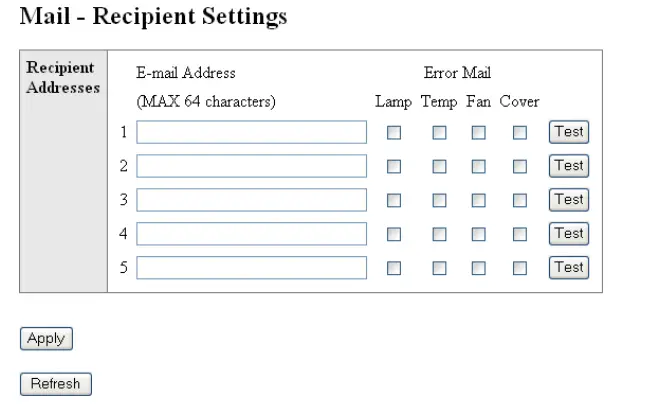 On this screen, you can input e-mail destinations to which error notification (error items) e-mails are sent.
| Items | Description |
| E-mail Address | Set addresses to which error notification e-mail is sent. You can set up to five addresses. |
| Error Mail (Lamp, Temp, Fan, Cover) | Error e-mail is sent on the error items checked in their checkboxes. |
| Test | Send test e-mail. This allows you to confirm that the settings for e-mail transmission are properly set. |
- E-mail Addresses can be up to 64 characters.
- You can input the characters below: a-z, A-Z, 0-9, !, #, $, %, &, *, +, -, /, =, ?, ^, {, |, }, ~, _, ‘, ., @, ` (You can input “@” only one time.)
- For details about error items, refer to the projector’s operation manual.
Setting Error Items and the URL that are to be displayed when an Error Occurs (Service & Support – Access URL)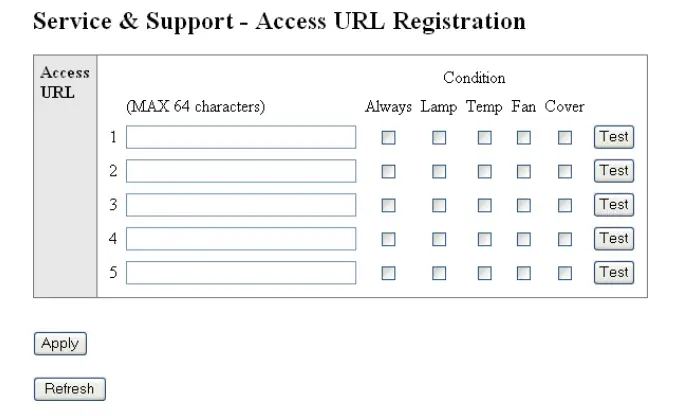
On this screen, you can make settings of the URL and error items that are to be displayed when the projector has generated an error.
| Items | Description |
| Access URL | Set the URL that is to be displayed when an error occurs. You can set up to five addresses. |
| Condition (Always, Lamp, Temp, Fan,Cover) | The URL is displayed when an error checked in their check boxes occurs. |
| Test | The set URL site is test-displayed. This allows you to confirm that the URL site is properly displayed. |
Example of the display when an error occurs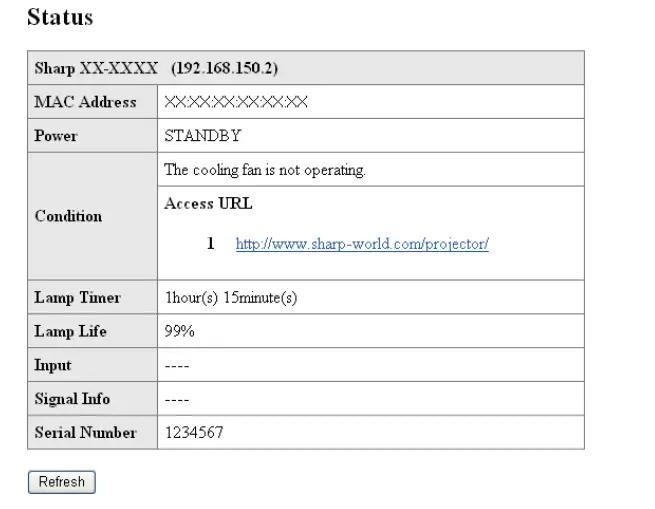
Resetting the Lamp Timer of the Projector via LAN
When the projector is connected to a network, you can use the communications program to send a command to reset the lamp timer. The example below uses Windows® XP as the operating system. When you use Windows Vista®, use other communications programs referring to the following steps, because Windows Vista® does not come with HyperTerminal.
- Click “Start” – “All Programs” – “Accessories” – “Communications” – “HyperTerminal”.
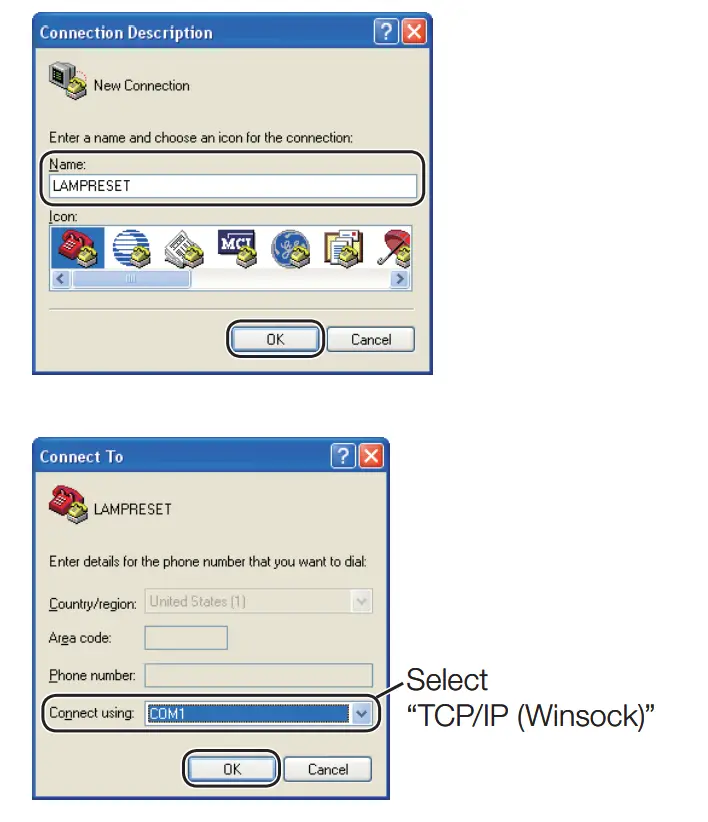
If you do not have HyperTerminal installed, see the operation manual of your computer. Depending on the settings of your computer, you may be required to enter your area code and other details. Enter the information as required. - Enter a name in the “Name” field, and click “OK”.

- If you are required to enter the area code, enter it in the “Area code” field. From the “Connect using” drop-down menu, select “TCP/IP (Winsock)”, and click “OK”.
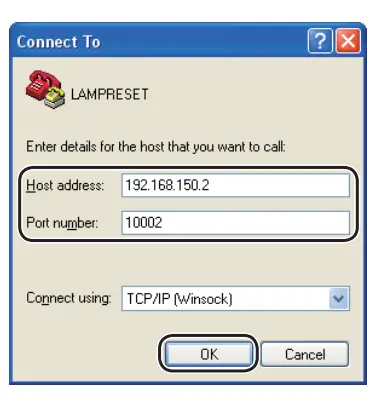
- Enter the IP address of the projector in the “Host address” field (see “TCP/IP” on the “Network” menu of the projector), and enter the data port of the a projector in the “Port number” field (“10002” is the factory default setting), and click “OK”.

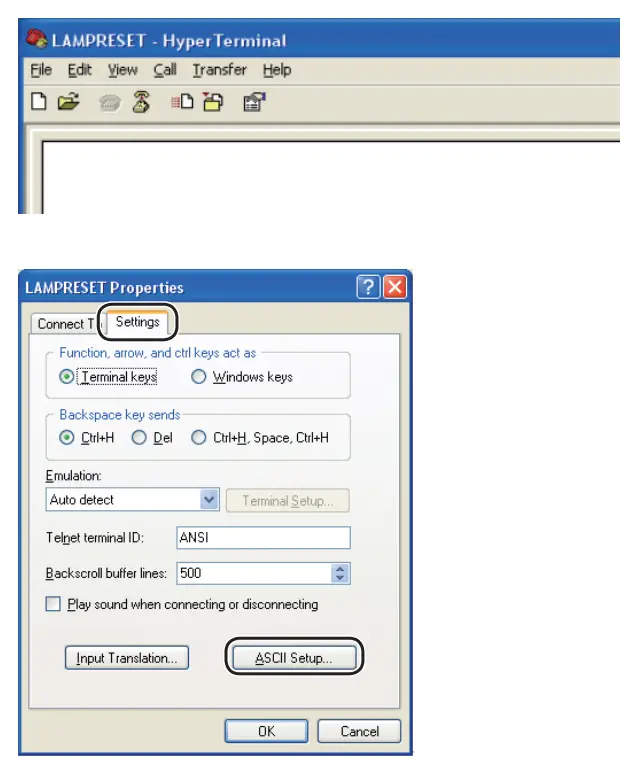
- Click “Properties” on the “File” menu.

- Click the “Settings” tab, and then click “ASCII Setup”.
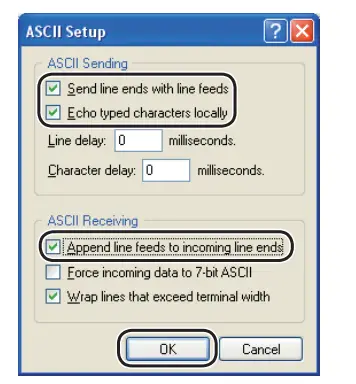
- Select the check boxes next to “Send line ends with line feeds”, “Echo typed characters locally”, and “Append line feeds to incoming line ends”, and click “OK”.
The LAMPRESET Properties window appears, click “OK”.
- If a user name and/or password is set for the projector, enter the user name and password.
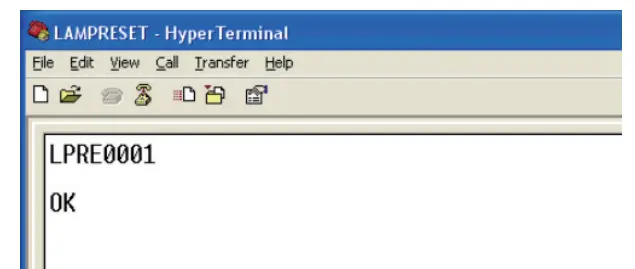
- Send the lamp reset command “LPRE0001”.
This command can only be sent when the projector is in standby mode.
When “OK” is received, this indicates that the lamp was successfully reset.
- Close HyperTerminal.
Troubleshooting
Communication cannot be established with the projector
When connecting the projector using serial-connection
- Check that the RS-232C terminal of the projector and a computer or the commercially available controller are connected correctly.
- Check that the RS-232C cable is a cross-over cable.
- Check that the RS-232C port setting for the projector corresponds to the setting for the computer or the commercially available controller.
When connecting the projector to a computer using a network (LAN)-the connection
- Check that the cable’s connector is firmly inserted in the LAN terminal of the projector.
- Check that the cable is firmly inserted into a LAN port for a computer or a network device such as a hub.
- Check that the LAN cable is a Category 5 cable.
- Check that the LAN cable is a cross-over cable when connecting the projector to a computer directly.
- Check that the LAN cable is a straight-through cable when connecting the projector with a network device such as a hub.
- Check that the power supply is turned on for the network device such as a hub between the projector and a computer.
- If all of the above are unsuccessful, restart the network function using “Network” – “Restart
- Network”. (See page 55 of the projector’s operation manual.)
Check the network settings for the computer and the projector
- Check the following network settings for the projector.
- IP Address
- Check that the IP address for the projector is not duplicated on the network.
- Subnet Mask
When the gateway setting for the projector is “0.0.0.0” (Not Used), or the gateway setting for the projector and the default gateway setting for the computer are the same:- The subnet masks for the projector and the computer should be the same.
- The IP address parts shown by the subnet mask for the projector and the computer should be the same.
(Example)
When the IP address is “192.168.150.2” and the subnet mask is “255.255.255.0” for the projector, the IP address for the computer should be “192.168.150.X” (X=3-254) and the subnet mask should be “255.255.255.0”.
- Gateway
When the gateway setting for the projector is “0.0.0.0” (Not Used), or the gateway setting for the projector and the default gateway setting for the computer are the same:- The subnets for the projector and the computer should be the same.
- The IP address parts shown by the subnet mask for the projector and the computer should be the same.
(Example)
When the IP address is “192.168.150.2” and the subnet mask is “255.255.255.0” for the projector, the IP address for the computer should be “192.168.150.X” (X=3-254) and the subnet mask should be “255.255.255.0”.
note - When “DHCP Client” is set to “OFF” on the projector:
- IP address: 192.168.150.2
- Subnet mask: 255.255.255.0
- Gateway address: 0.0.0.0 (Not Used)
- For network settings for the projector, refer to page 15.
- Take the following steps for checking the network settings for the computer.
- Open a command prompt.
In the case of Windows® 2000: click “start” ➔ “Programs” ➔ “Accessories” ➔ “Command Prompt” in order.
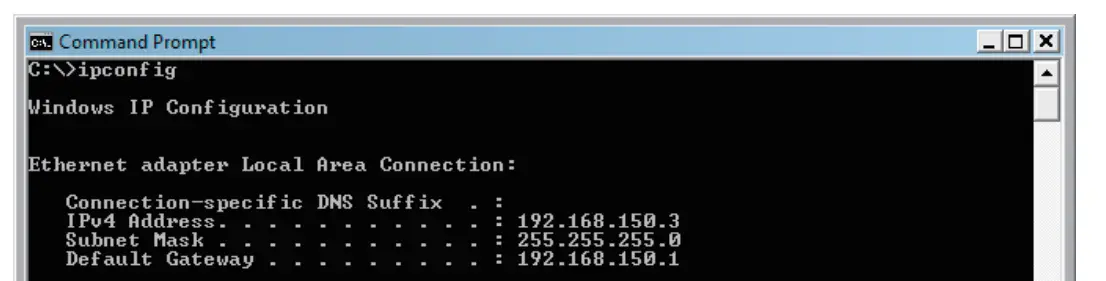
In the case of Windows® XP, Windows Vista®: click “start” ➔ “All Programs” ➔ “Accessories” ➔ “Command Prompt” in order. - After launching the command prompt, enter the command “ipconfig”, and press the “Enter” key.
Note
Communication may not be established even after carrying out the network settings for the computer. In such cases, restart your computer.
C:\>ipconfig
- Usage examples of config
C:\>ipconfi g /? displays how to use “ipconfig.exe”.
C:\>ipconfi g displays the set IP address, subnet mask, and default gateway.
C:\>ipconfi g /all displays all the setting information related to TCP/IP. - To return to the Windows® screen, enter “exit” and press the “Enter” key.
- Open a command prompt.
- Check if the “TCP/IP” protocol is operating correctly using the “PING” command. Also, check if an IP address is set.
- Open a command prompt.
In the case of Windows® 2000: click “start” ➔ “Programs” ➔ “Accessories” ➔ “Command Prompt” in order.
In the case of Windows® XP, Windows Vista®: click “start” ➔ “All Programs” ➔ “Accessories” ➔ “Command Prompt” in order. - After launching the command prompt enter a command “PING”.
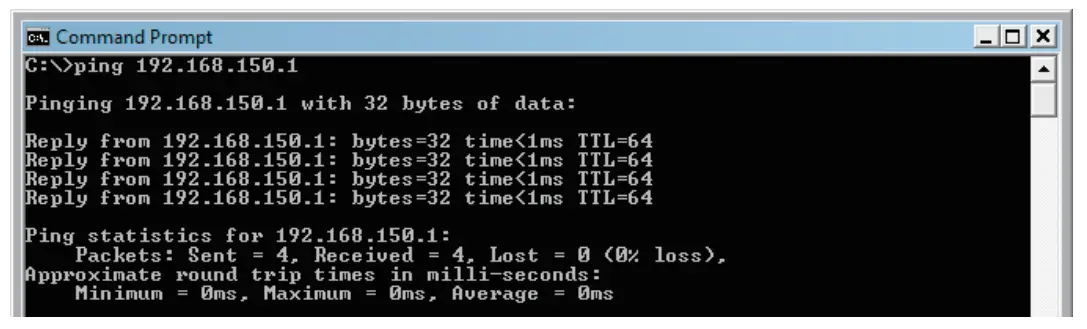
Entry example C:\>ping XXX.XXX.XXX.XXX “XXX.XXX.XXX.XXX” should be entered with an IP address to be connected to, such as the projector. - When connecting normally, the display will be as follows.
(The screen may be slightly different depending on the OS type.)
<Example> when the IP address connected to is “192.168.150.1”
- When a command cannot be sent, “Request time out” will be displayed.
Check the network setting again.
If communication can still not be established properly, contact your network administrator. - To return to the Windows® screen, enter “exit” and then press the “Enter” key.
- Open a command prompt.
- When the projector cannot be connected, even though the “PING” command is checked:
- When “Accept IP Address” is set on the projector, set the IP address of the PC to be connected.
- When security software is installed on the PC, or when a firewall has been set up for the network system, the connection may not be possible. Consult the system administrator when, for example, you want to change the settings to enable the use of the TCP port set as the data port.
- When neither of the above two items applies, change the settings for the data port.
A connection cannot be made because you have forgotten your username or your password.
- Initialize the settings. (See page 55 of the projector’s operation manual.)
- After the initialization, carry out the setting again.
FAQS
FAQ’s
Can I connect the crisper image to my laptop using a sub adaptor?
It features basic AV hookups, so as long as you connected a computer adaptor with regular AV wires, it will function. It is difficult to discern dark colors from the images the projector creates and it is necessary to place the projector close to the wall in order to see the image properly. The projector stand on which it rests conflicts with the standard type of cords, thus the AV cords that come with it are bent at a 90 degree angle. It can be difficult to find an adapter cord with the AV bent at that angle. All in all, this is a fun toy that is reasonably priced. Hope this was helpful.
Where is the volume button?
The volume control is located on the projector’s top.
Has it has an HDMI port?
No, this one lacks an HDMI port. Standard AV cables are employed (the red, white and yellow).
Are speakers integrated?
Yes, they do.
Does it support the iPod?
It should work if you can connect your IPod to RCA wires, though I haven’t personally done this. I believe it will. Video In (yellow) and Audio In (left and right) are the only inputs (white and red). The DVD player and projector function well together.
How can I improve my projector’s sharpness?
Try the following fixes if the projected image is hazy or hazy:
- Focus the image as needed
- Lens cleaning the projector
- Place the projector sufficiently near the screen
- Place the projector so the keystone adjustment angle doesn’t distort the image by being too wide
How can I alter the display options on my projector?
On your keyboard, depress and hold the “Windows Key” before pressing and holding the “P” key. The display options are cycled through by tapping “P.”
Why won’t my projector work?
Make that the projector is connected to a functioning outlet properly. To be sure the gadget hasn’t overheated and shut down, check the temperature lights. Check the batteries if you use a remote control to turn on the projector. Ensure that each and every projector latch is closed.
Can a phone play on a projector?
Click “Screen Sharing” after connecting your Android phone to the same local area network as your projector. When you push the remote control and select “Allow,” the device is automatically recognized by the projector and appears on the same screen. The phone’s contents can be seen on the screen.
Can I use my phone to project on a screen?
You can use cables and adapters such as USB-C to USB-C, HDMI to HDMI, MHL, and USB-C to VGA to connect your phone (Android or iPhone) to a projector. Apple Airplay, Miracast, Chromecast, and Wi-Fi Direct are examples of wireless technologies. Here are the home theatre projectors I consider to be the best.
How do you set a sharpness projector?
- Note your current sharpness setting by opening the display picture settings.
- Now turn up your sharpness to the maximum.
- Run your sharpness down further until the additional white has disappeared.
What is the best distance for a projector?
It is difficult to determine the exact “optimal” distance between the audience sitting and the projector screen. Instead, it is recommended that seats be placed no closer than twice the projected image’s width and no farther than five times the image’s width.
How do you show pictures on a projector?
- Use your projector to display images from a desktop or laptop computer.
- Make a Windows key press and enter “Adjust screen resolution”
- Find the display, and then click the right-hand down arrow.
- After choosing Apply, choose OK.