
 Model Railway Control
WLAN MAUS
User Guide WLANMAUS
Quick Guide
Z21 is an innovation from
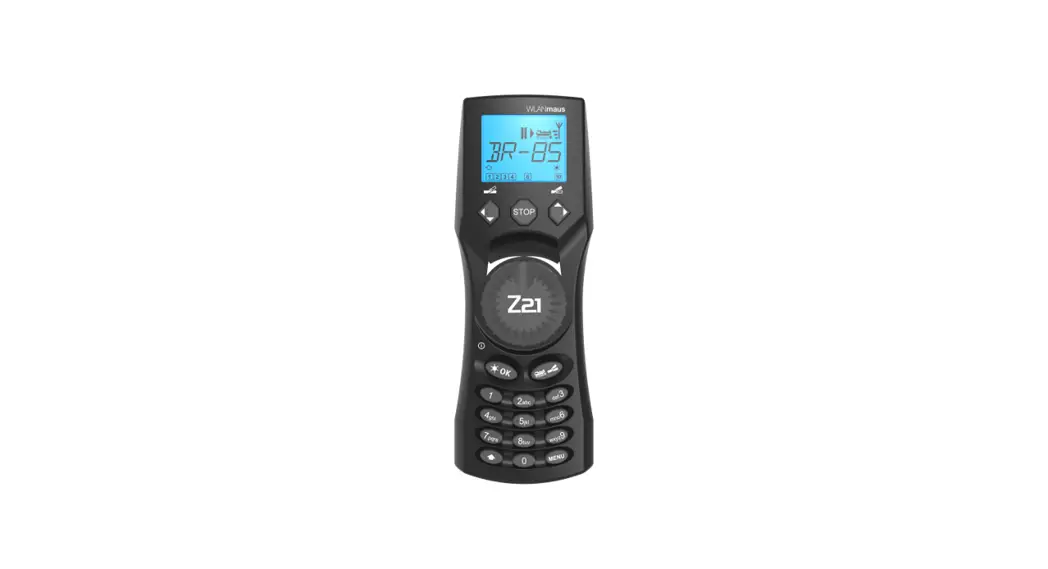
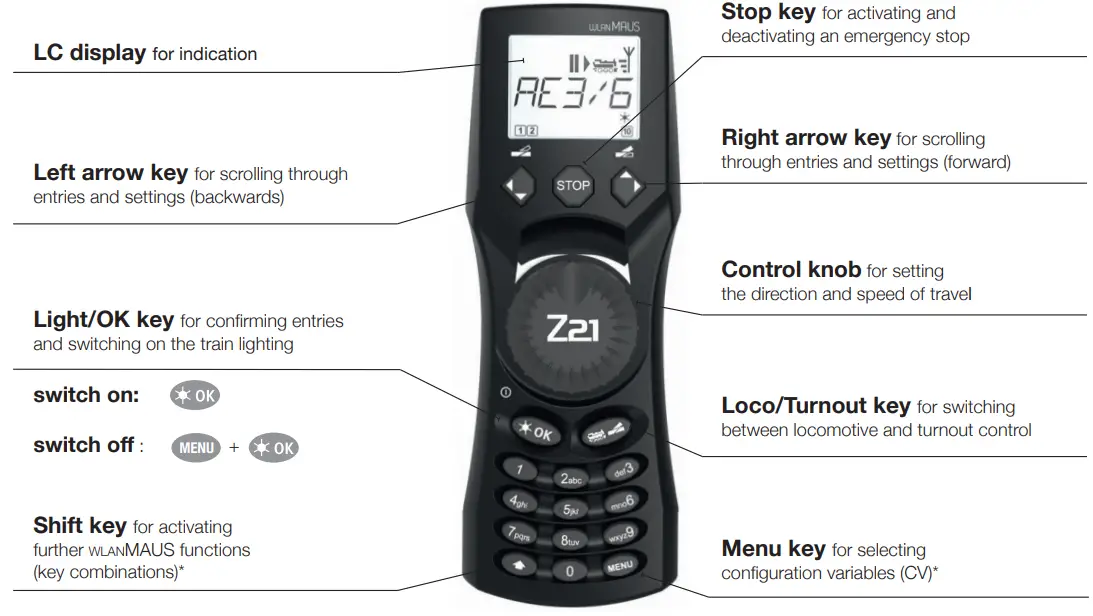
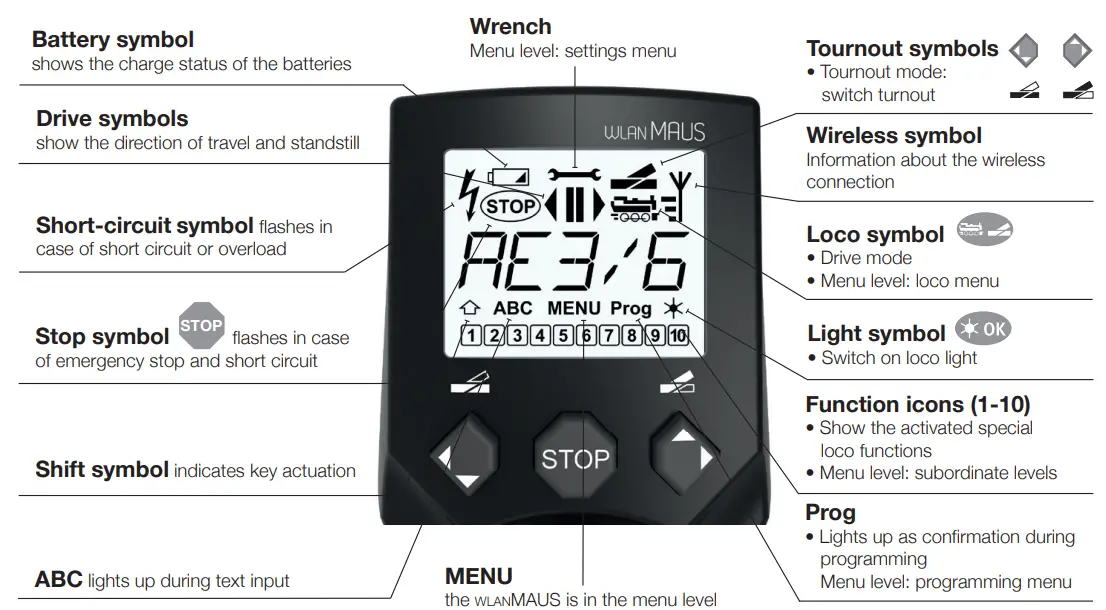
KEYBOARD EXPLANATION
EXPLANATION OF DISPLAY SYMBOLS
Further functionalities of the WLANMAUS and more information can be found on our website: www.z21.eu https://www.z21.eu/en/products/z21-wlanmaus
Inserting 3 x AAA
Rechargeable batteries / batteries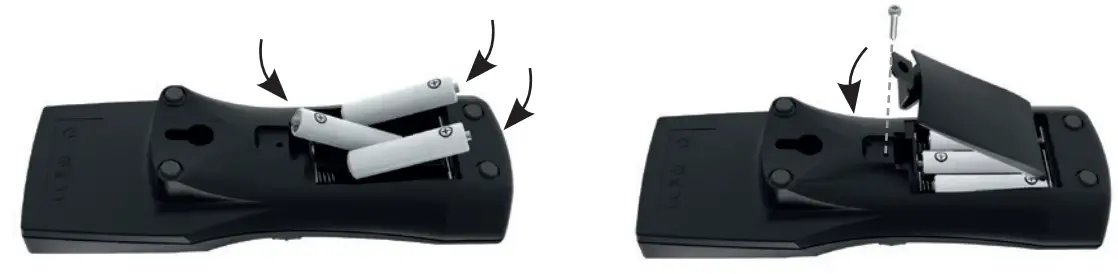
First time switching on and connecting to Z21 WLAN:
Press the  key to turn on the WLANMAUS. Now select the language version by using the arrow keys. Press the key again.
When switching on the WLANMAUS for the first time, you will be asked to enter the WLAN information of your WLAN router.
- Display shows ”SSID?“ → Continue with
 key.
key. - Display shows ”SEARCH“ → Continue with key. The WLANMAUS searches for available WLAN networks in your vicinity and displays them.
- Select your desired WLAN network with the arrow keys and confi rm with the key.
- Display shows ”PWD?“ → Continue with key.
- Enter the WIFI password→ Continue with key.
LOCO SELECTION
To control your loco with the WLANMAUS or to change settings, you must fi rst select the loco. There are two ways to do this: the library mode or the address mode. The first time you switch on your WLANMAUS, it will start in the library mode.
1.1 Library Mode
In the library mode of the WLANMAUS, your locos are sorted by their names.
To select the loco you want to control, simply scroll through the library using the arrow keys.
When you switch on your system, the WLANMAUS display shows the name of the last loco used. When you switch on for the fi rst time, the display will show “LOCO1” or the factory-assigned name of your starter set loco.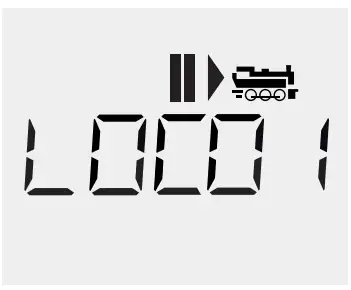 1.2 Address Mode
Alternatively, you can also control the locos by entering the decoder address. The decoder is located in your digital loco and receives the control signals from your WLANMAUS. All locos have preset address 3 at the factory.
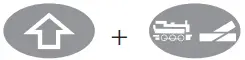
- By pressing the key combination
 you can switch between library mode and address mode and back.
 - You can reach the desired decoder address either by using the arrow keys
 or by entering the address of the loco directly.
 - To do this, fi rst press

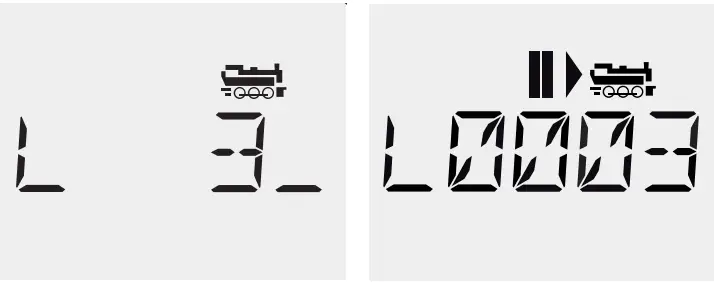
- The adjacent display 2 appears. Enter the loco address in the number field.

- For example, to enter the loco with decoder address “
 ” press and confi rm with
 you can switch between library mode and address mode and back.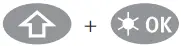
 ” press and confi rm with
 CREATING FURTHER LOCOMOTIVES
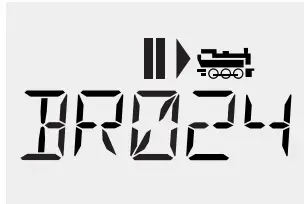
To create a new loco with the name “BR024” and address 24, proceed as follows in three simple steps:
- Create the loco with a new name in the WLANMAUS loco library.
- Assign a new, not yet assigned decoder address in the WLANMAUS.
- Set the decoder of the loco to the new decoder address with the WLANMAUS.
2.1 Creating a new locomotive in the WLANMAUS
- Switch to the library mode.
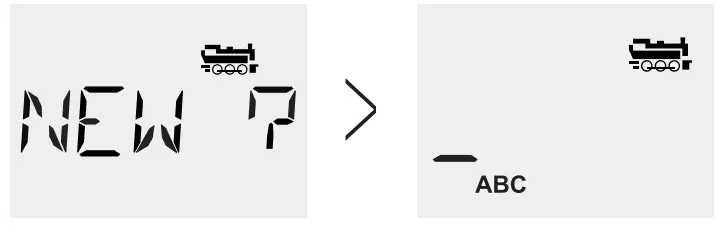
- Scroll with the arrow keys until “” appears in the display

- Confirm your selection with the key
- Enter the name with the numeric keypad. On the keys of the WLANMAUS there are – like on an old cell phone – all letters from A to Z. Each numeric key is assigned several letters. If you press once, the fi rst letter appears, if you press twice, the second letter appears, if you press three times, the third letter appears. When you press the fourth time, the digit appears.
– Press 2 times the key for the letter “B” or, e.g., press 4 times the key for the digit “2”.
– After entering the text, confirm with - Next, enter the new address that the loco is to receive.
– First press, then
– Confirm your selection with the key
- Now select the possible speed levels that the decoder understands. For current decoders use 128.
– Use the arrow keys to select “128” between the values. – Confirm your selection with the key
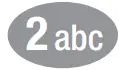 press, then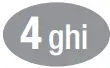
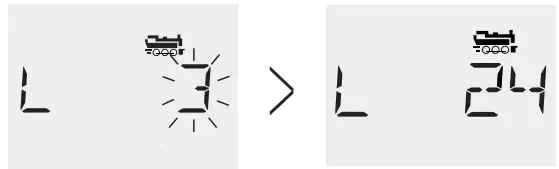
 – Confirm your selection with the key
2.2 Changing the decoder address with the WLANMAUS
The decoder address is stored as the fi rst confi guration variable, CV1 for short, in the digital decoder of each loco. With the help of the WLANMAUS you can easily change this CV setting. Attention: For this programming only one loco may be on the track.
- Press the key combination
 to access CV1
 - Enter the desired loco address by pressing first and then

- Confirm your selection with the key
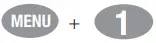 to access CV1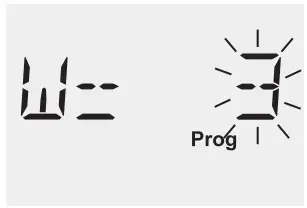
Now your loco has the decoder address 24 and reacts to all commands you give it with the WLANMAUS.
Thank you very much for choosing one of
our DIGITAL products!
 ROCO Modelleisenbahn
 Roco z21