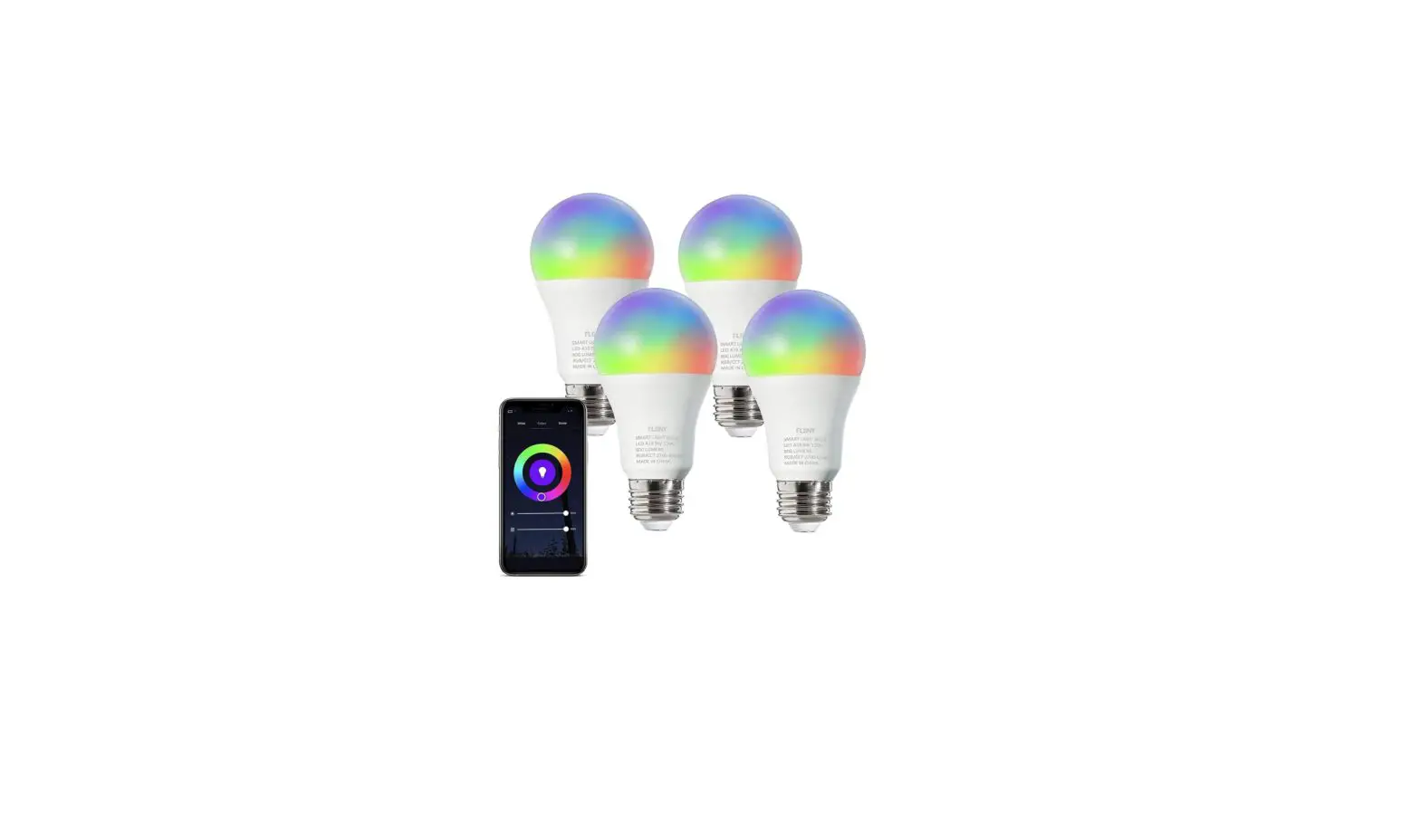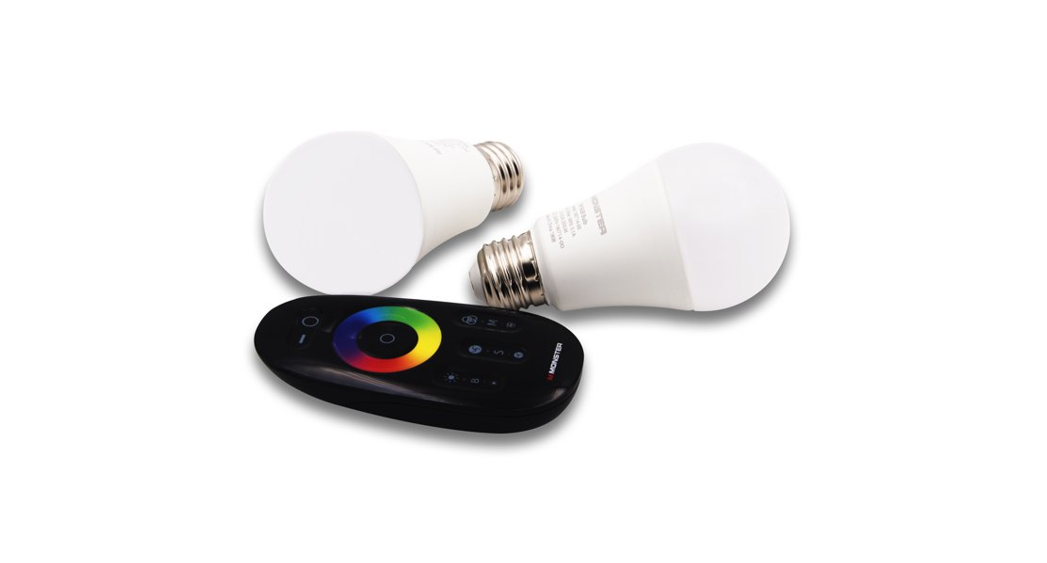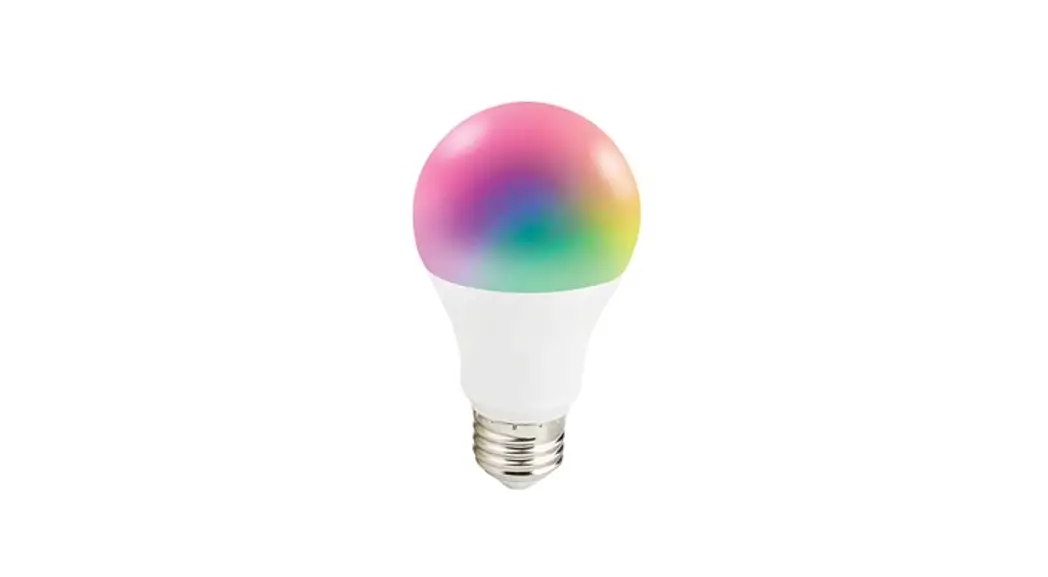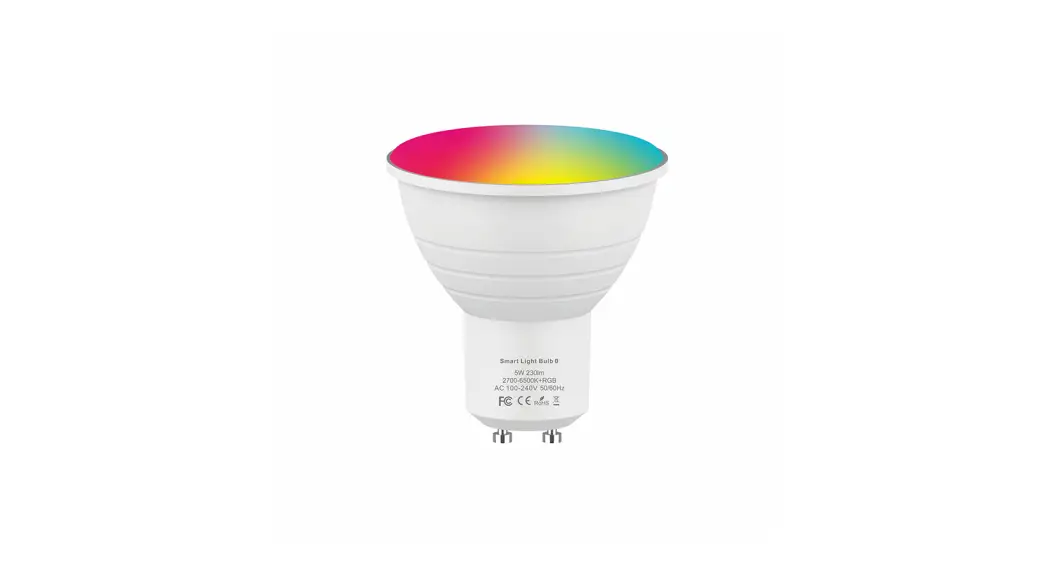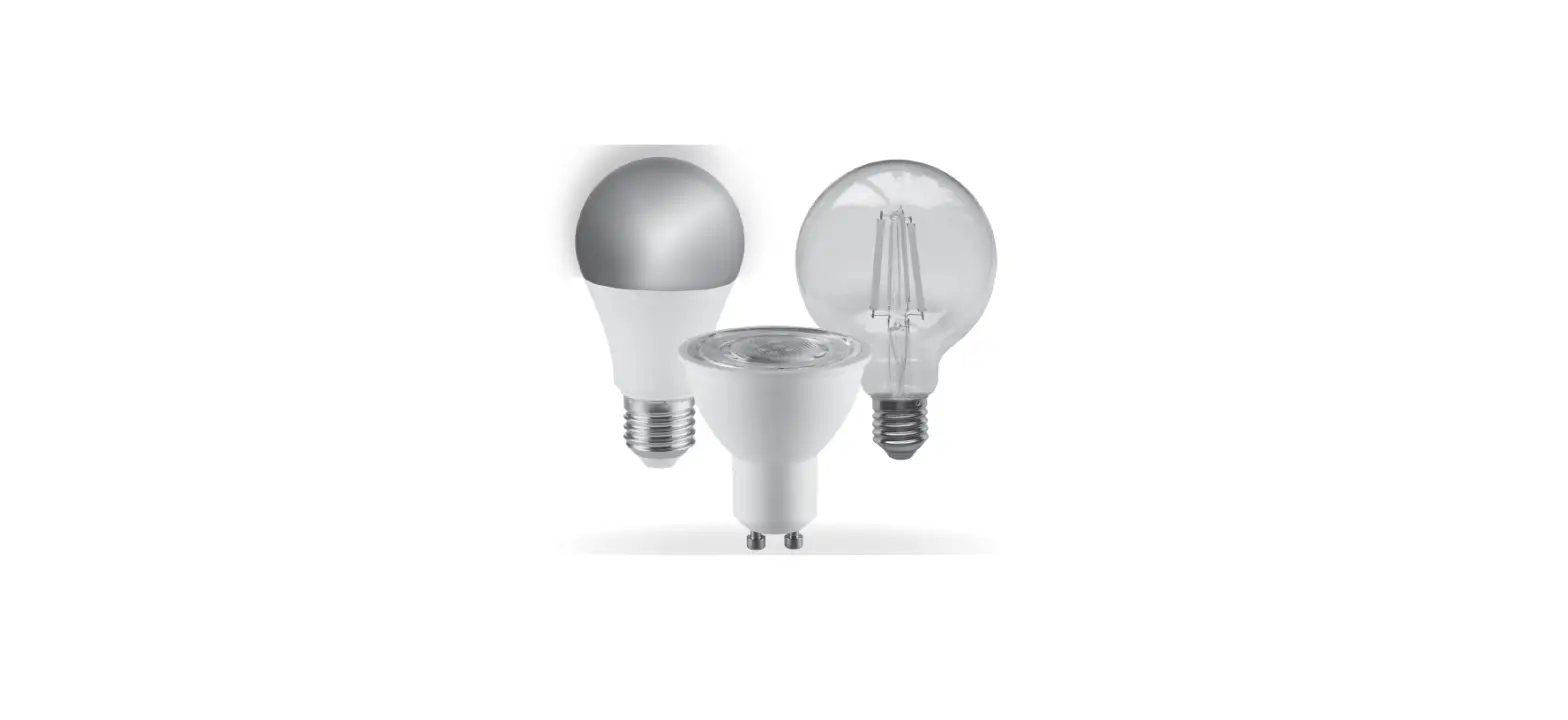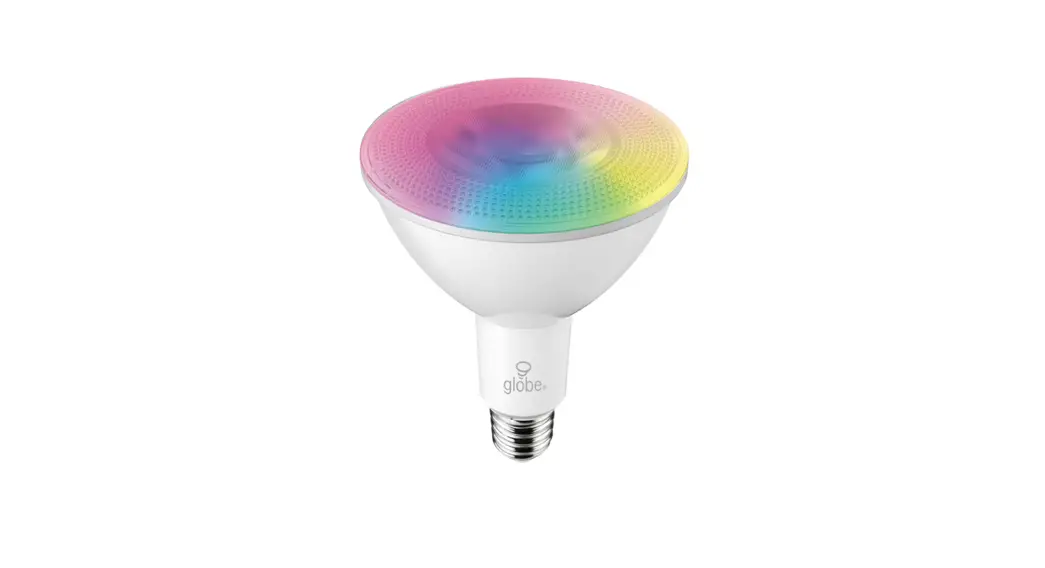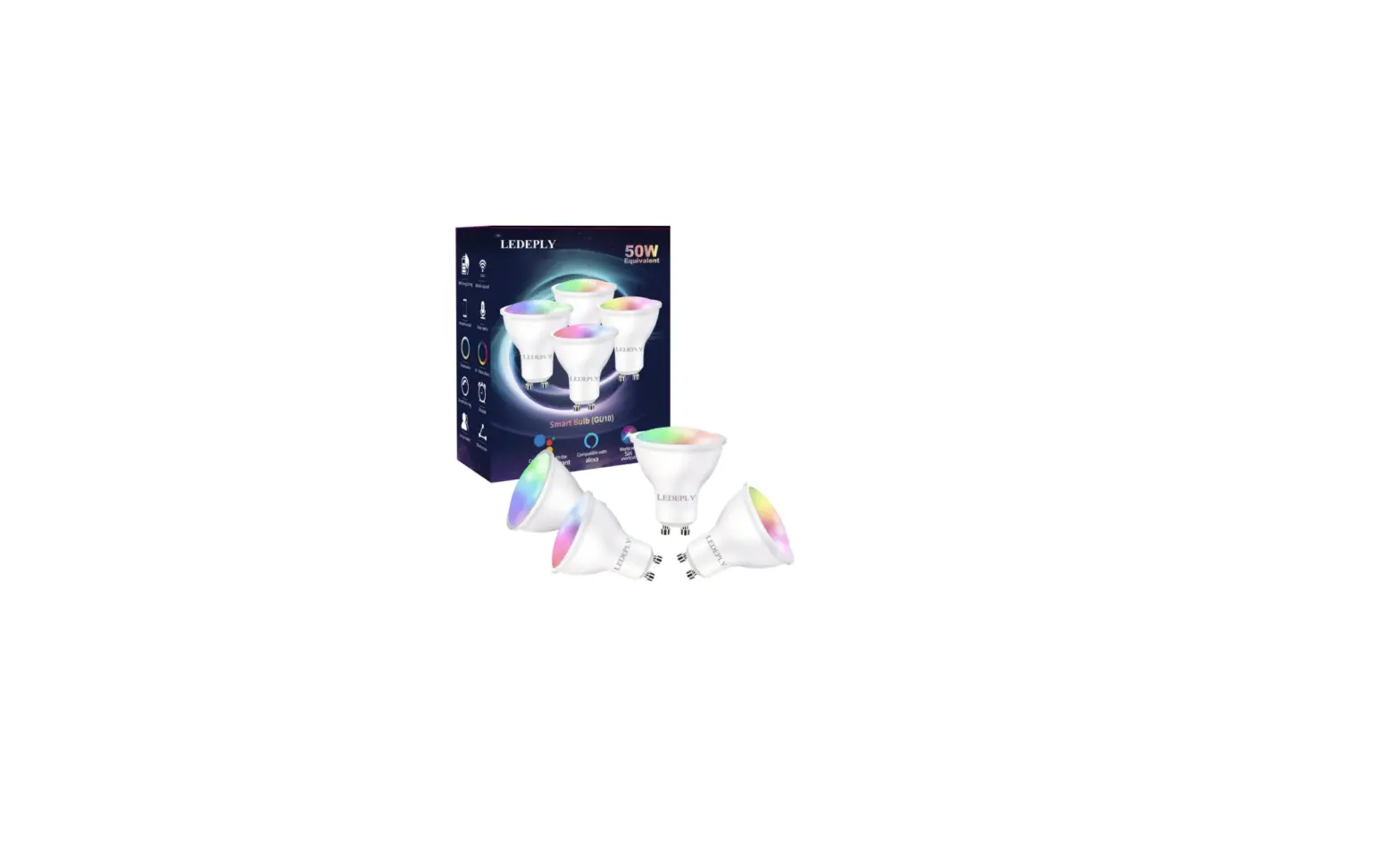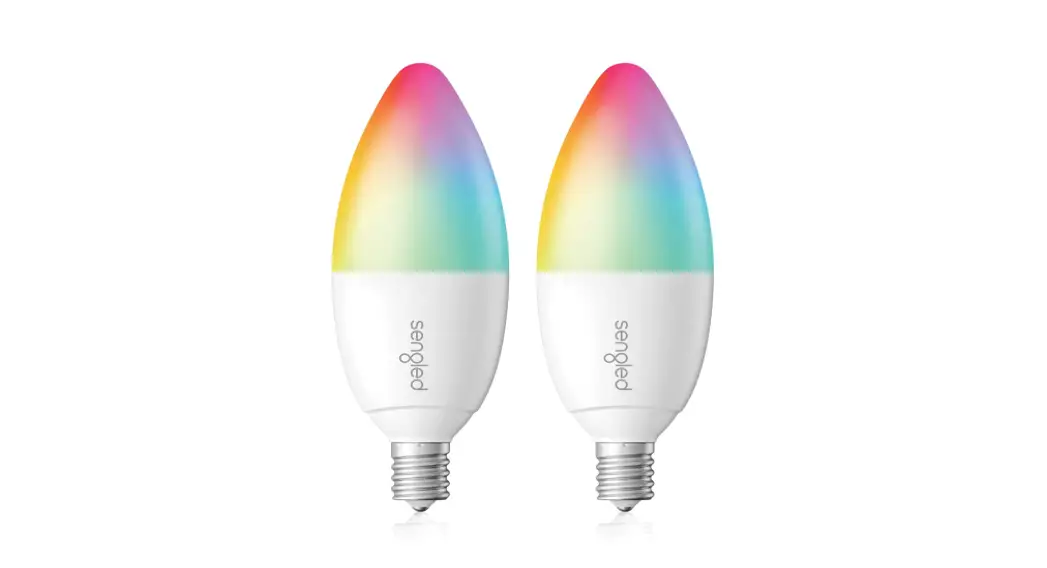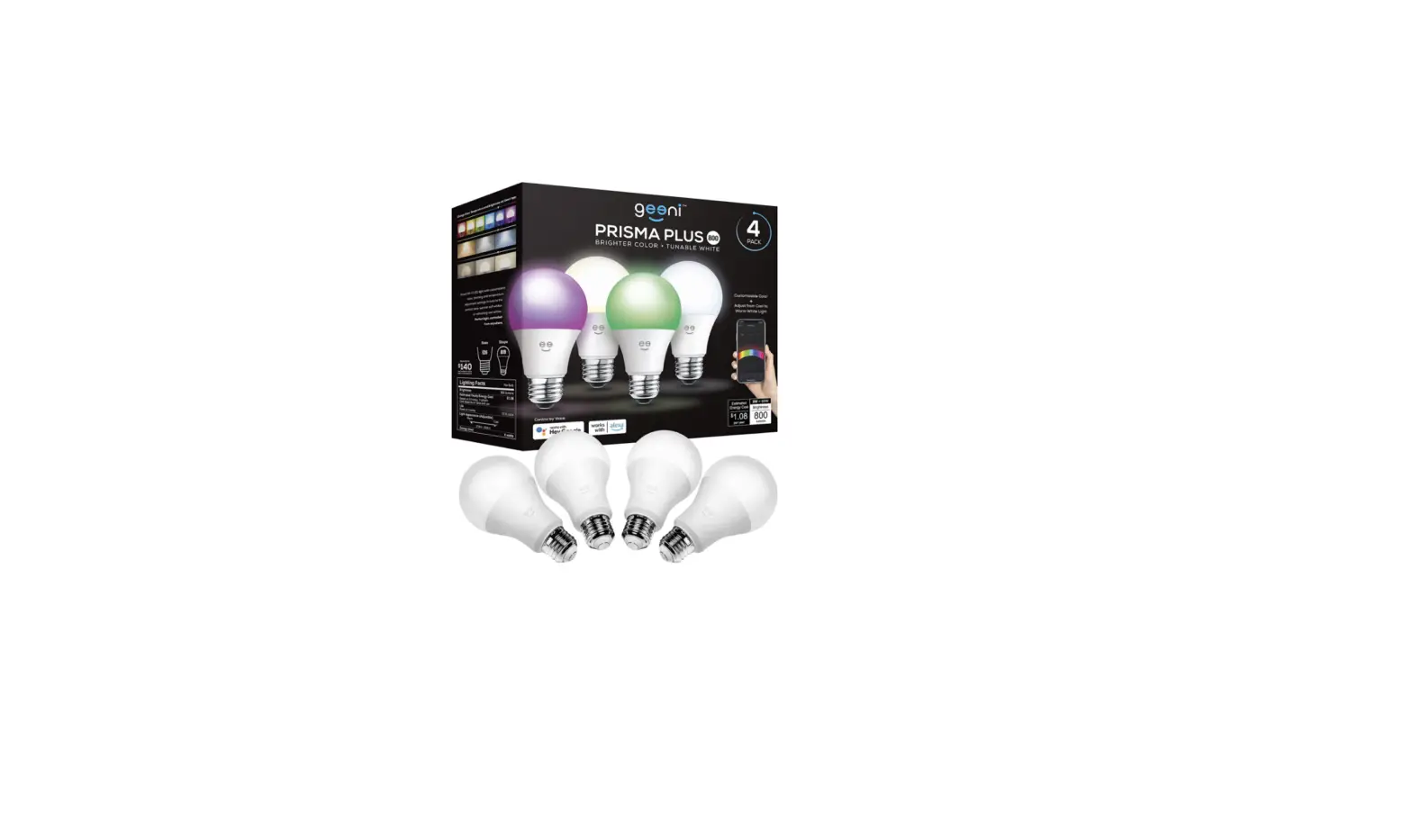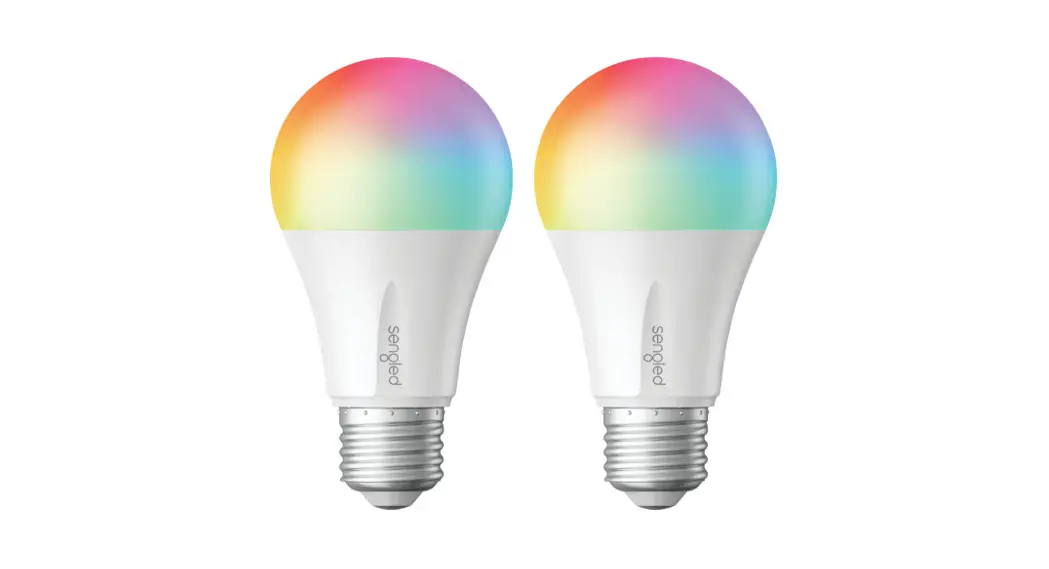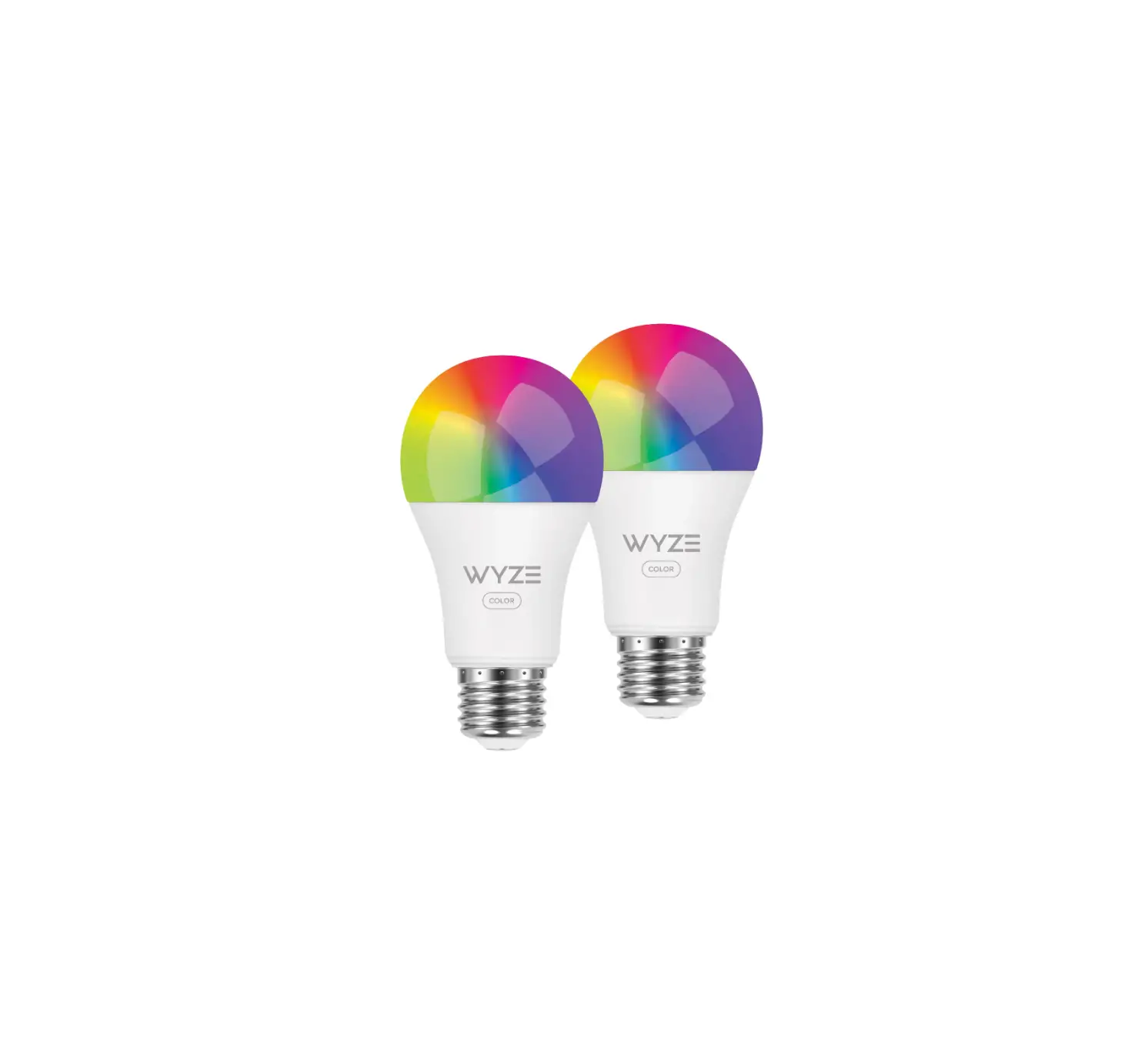

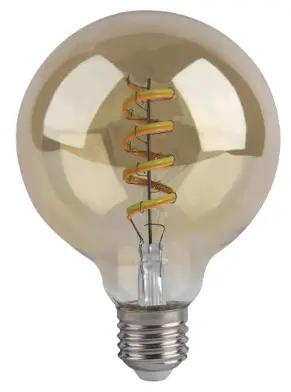
Smart Bulb
 Tunable White
 https://a.smart321.com/hvsappsmartiot

SAFTY INFORMATION
To reduce the risk of injury and/or damage to this smart bulb, please read and follow all instructions and safety guidelines in this manual.
- Warning: Risk of electric shock or burns. Switch Off the light switch controlling the smart bulb and wait for the smart bulb to cool down before touching.
- Keep out of reach of children.
- Only use indoors in dry areas. Keep away from water or other liquids.
- Do not install the smart bulb with wet hands or when standing on wet or damp surfaces.
- Only dim the smart bulb using the app. Do not use the smart bulb with dimmer switches, knobs, or other controls.
- Not for emergency lighting.
- Household use only.
PRODUCT INFORMATION
- Watt: 6W
- Flux: 350LM
- Voltage: AC110-130V
- Color Temperature: tunable white 2100-5000k
- Control mode: VHS Smart app /Alexa/Google Assistant.
PRODUCT DESCRIPTION
- Designed for remote control using a smartphone, tablet, Alexa, and Google Assistant.
• Connection via WiFi/Bluetooth. If the WI-Fl signal is too weak, reset your Wifi router and try again. Bluetooth improves the WiFi network to find your device faster. - Compatible with IEEE 802.11 b/g/n (2.4GHz)
- Control the bulb via the Hvs Smart app.
- Apps work with Android and iOS.
- Continuous change in light color temperature from warm to cold white (2100-5000k).
- Dimming option in the range of 10-100%.
- Compatible with Amazon Alexa and Google Assistant.
- Additional features of the application:
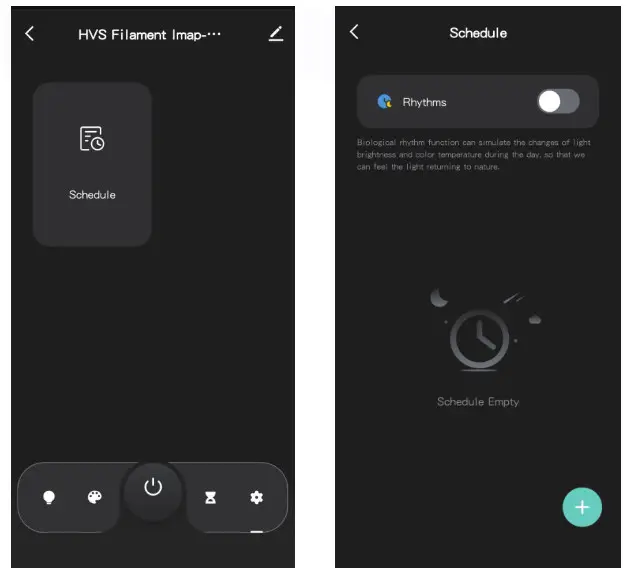
– scheduler to set the time of the shutdown and on.
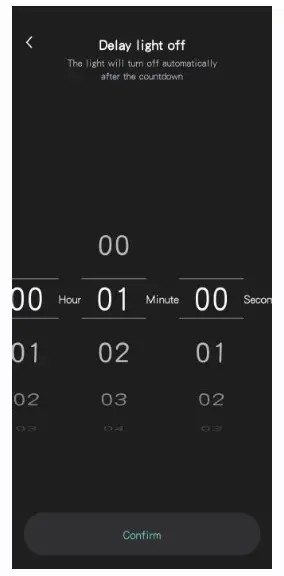
– timer to set the shutdown time.
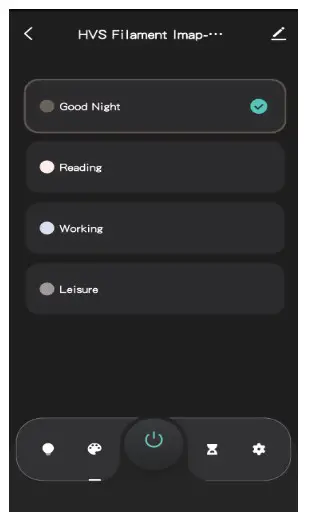
– preset modes (reading, working, night, etc)..
QUICK START GUIDE
STEP 1 Installing
Ensure your Smart bulb is fitted properly.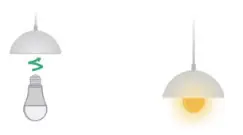 STEP 2 Download App
Search and download “HVS Smart” in major application markets or scan the QR code below to download the App.
https://a.smart321.com/hvsappsmartiot
STEP 3 Registration/Login
If you do not have an app account, you may choose to register or log in by authentication code. The registration process is described on this page and the next.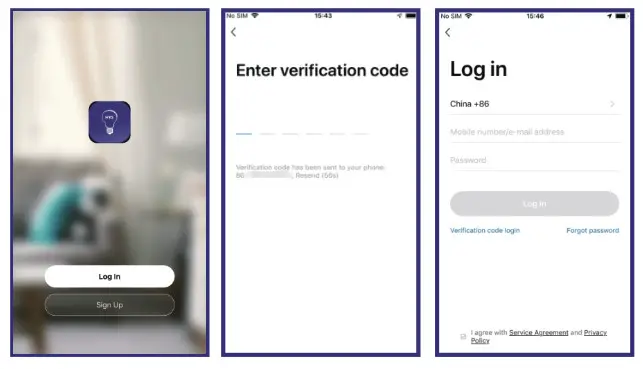 STEP 4 Add Device 1
Click “Add Device” or “+” at the top right corner of the App homepage to enter the “Add Device” page.
There are two ways to add a device: Add Manually and Search Device.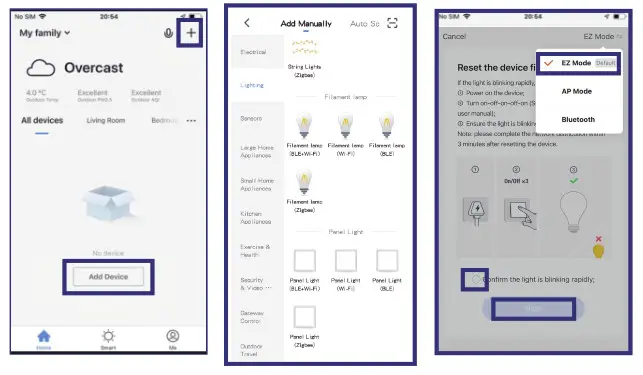 Click “Add Device” or “+”
Choose “Lighting” “Lighting Source” from Add Device List
The initial setting requires selected to 2.4GHz Wi-Fi(EZ Mode) and Hotspot (AP Mode) also available to control lights after the setting is completed. (Please be aware that Bluetooth only for the assistant links, cannot be used for control singly).
STEP 5 Add Device 2
Set indicator light to rapid flashing.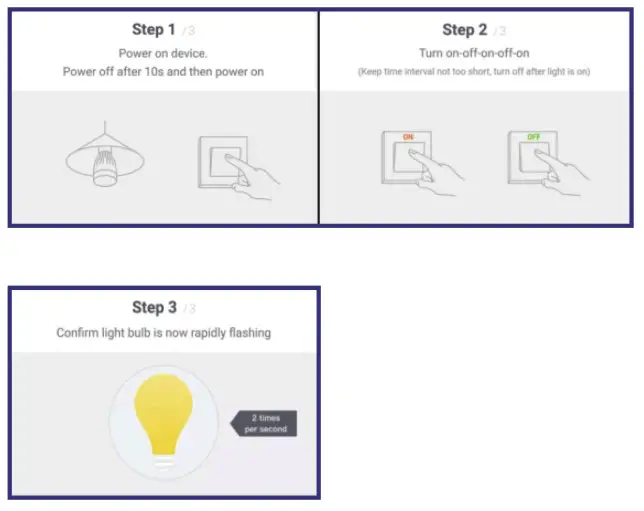 STEP 6 Enter Wifi Password

Switch
Color Mood
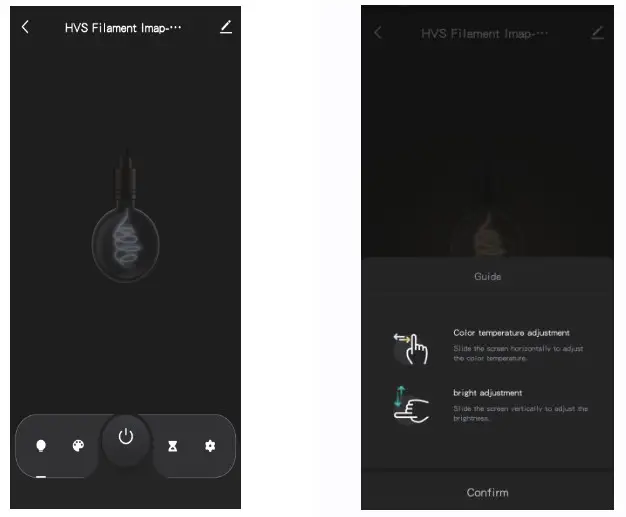
ON/OFF Press to power Smart Bulb
SCENES
TROUBLESHOOTING
Cannot connect to your Wi-Fi network.
Make sure you entered the correct Wi-Fi password during the Wi-Fi setup. Check whether there are problems with your internet connection. If the WI-Fl signal ss too weak. reset your Bluetooth improves WiFi network to give a better experience.
The setup is not working properly.
- Close all apps that are running in the background then re-open the VHS Smart app.
- Uninstall and reinstall the VHS Smart app then repeat the setup process.
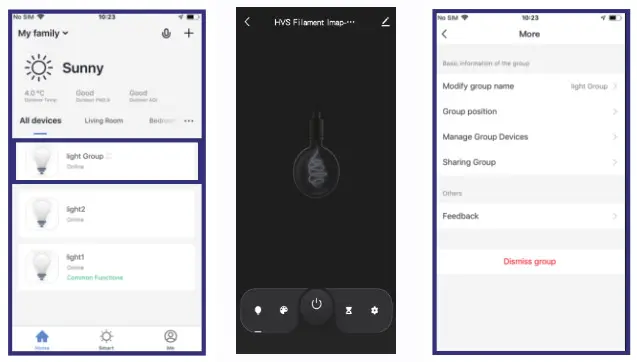
Creating Group
- Groups that have been created can be viewed on the “Home” page and managed with hotkeys.
- Open the group control panel as shown in 2.
- Click “…” at the top right corner to configure or dismiss groups, as shown in Fig. 3.
Smart Features- Automation
Set Time Schedule
Can t Connect?
WE CAN HELP!
Email : [email protected]