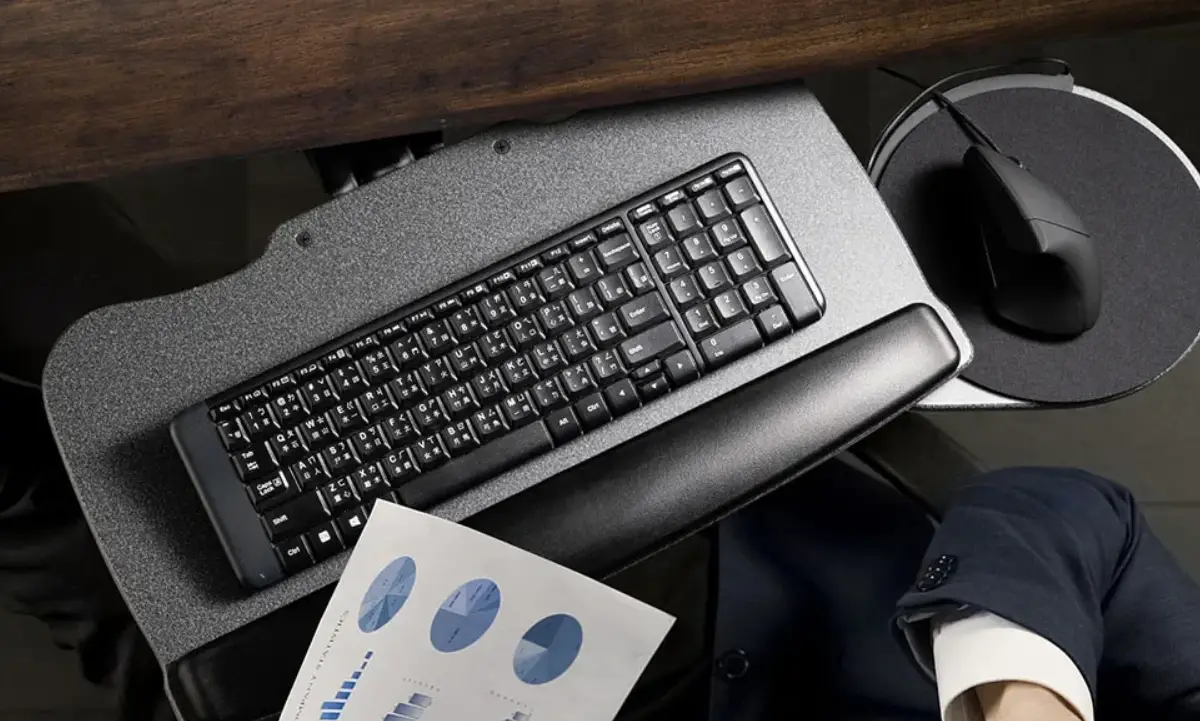
HUANUO Keyboard and Mouse Tray Installation Guide
HNKB03
Thank you for choosing this Huanuo product! At Huanuo we strive to provide you with the best quality products and services in the industry. Please share your experience of our product with others on Amazon if you are satisfied. Should you have any issues, please don’t hesitate to contact us.
Technical Support:
1-800-556-0533 Mon-Fri 10am – 5pm (PST) (USA) (CAN)
Other Info:
[email protected] (US/CA/DE/UK/FR/IT/ES/AU)
Supplied Parts
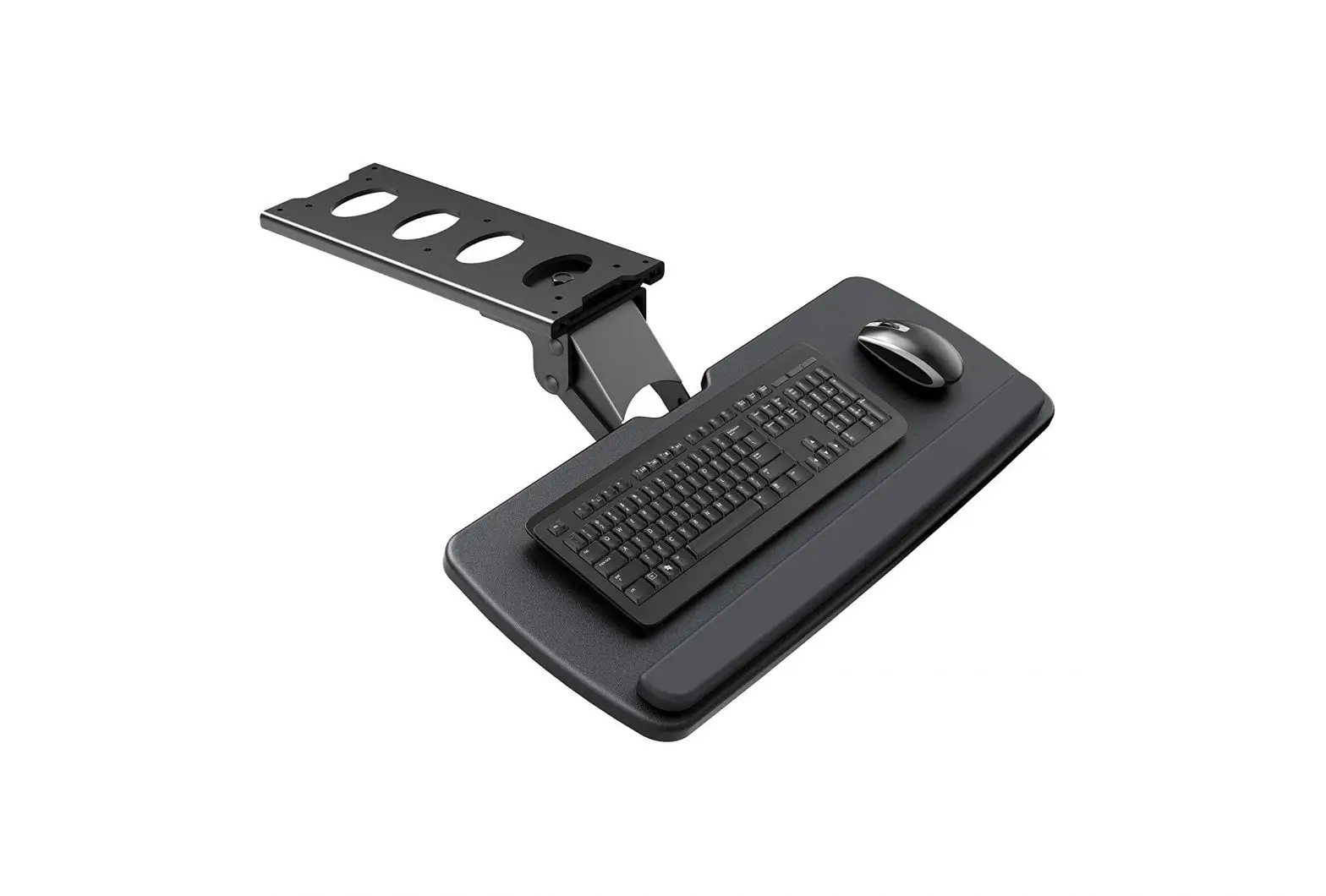
- x1 Keyboard Tray Support

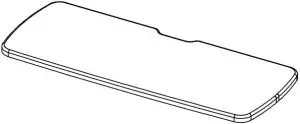
- x1 Keyboard Tray

- x1 Wrist Cushion



Supplied Hardware
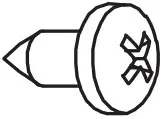
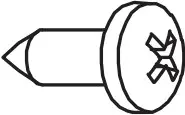
- Screw M5x15MM (x6) A

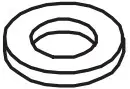
- Washer 15×5.3×1.2MM (x6) B

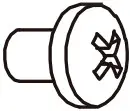
- Bolt M5x12MM (x4) C

- Screw M5x20MM (x6) D

Tools Needed (Not lncluded)
- Screw Driver

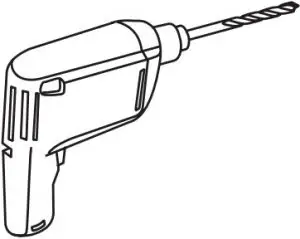
- Drill


Installation Instructions
- Step 1
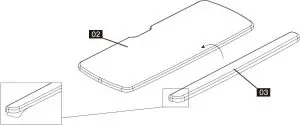
Adhere Wrist Cushion [03] to Keyboard Tray [02].
- Step 2
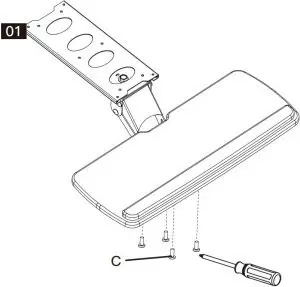
Tighten the Bolts [C] to Secure Keyboard Tray Support [01] to Keyboard Tray [02]
 Screw Driver (Not lncluded)
 - Step 3
Attach Keyboard Tray Support [01] to the Bottom of Desktop.
Select screws according to the thickness of the desk. HEAVY! You may need assistance with this step.
 Screw Driver (Not lncluded)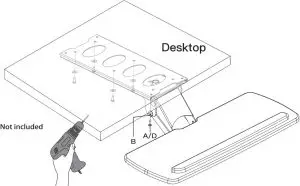
 HEAVY! You may need assistance with this step.
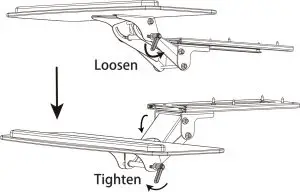
Height Adjustment
If needed, the height can be adjusted.
- Loosen the bolt.
- Adjust the keyboard tray to desired height.
- Secure the bolt to fix the keyboard in place.
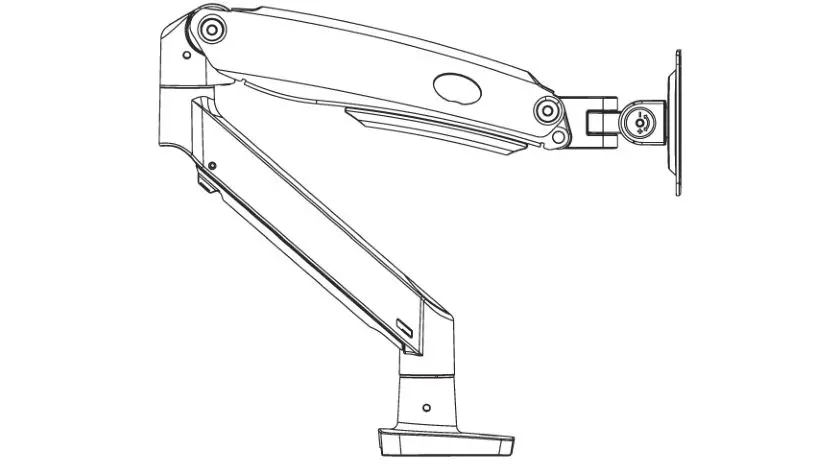
Telescopic Adjustment

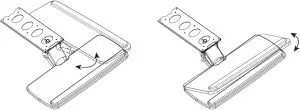
Swivel and Tilt Adjustment