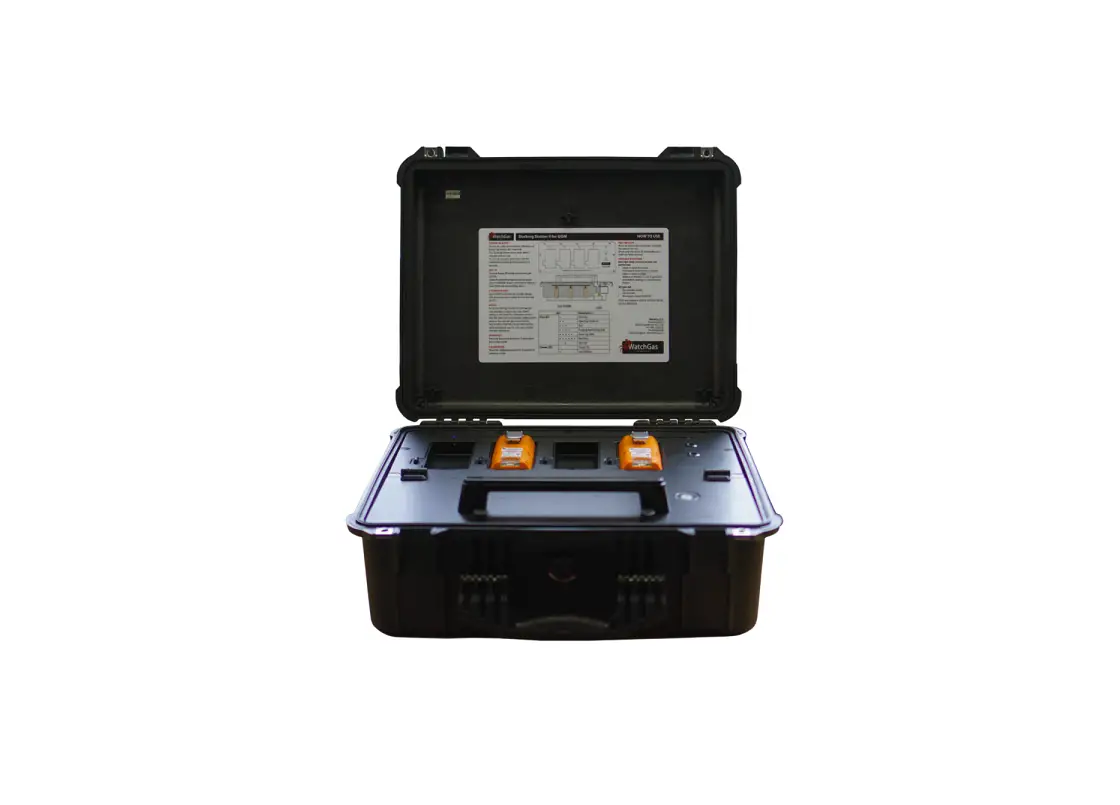
WatchGas QGM Mono and Multi Bump & Docking Station User Manual

 Warning
 Warning
- Any unauthorized attempt to repair or modify the product, or any other cause of damage beyondthe range of the intended use, including damage by fire, lightening, or other hazard, voids liabilityof the manufacturer.
- Do not use if the device appears to be damaged.
- Use the device in a clean environment, which has no hazardous gases.
- Do not use the expired gas cylinders.
- Ensure to use the certified gas cylinders.
- Ensure gas types and concentrations match with manuals and devices.
- Severe vibration or shock to the device may cause a sudden reading change and cause the device malfunction.
- Do not allow water and liquids to reach this device.
READ THE OPERATION MANUAL BEFORE USE
- Before operation, read the manual carefully and follow all the instructions.
- IR link only works when it is placed at the bay 1 on the docking station.
- The device only operates when the power LED turns green.
- Before upgrading firmware, connect the plug to avoid any data loss and malfunction by unexpected power off.
1. Overview
Bump test and calibration are the key features to ensure the safety of devices and users. The QGM Mono and Multi Bump & Docking Station provides bump testing, event management and calibration and gives fleet or safety managers the ability to update configurations on large fleets. It also maintains all the important event logs that demonstrate users are working within company requirements.
KEY FEATURES
- Intuitive simple user interface
- Mobile, easy to transport
- Automatic log storage
- Rugged black brushed steel qualitative finish
ADVANTAGES
| Gas usage controlled | Lowers the cost of bump testing |
| Manages calibration | Manages calibration and stores the records of log events |
| All data is stored in a USB stick | Simple to transfer the data |
| Rechargeable battery or power | Ideal for in-vehicle or Multi-site use |
2. Getting started
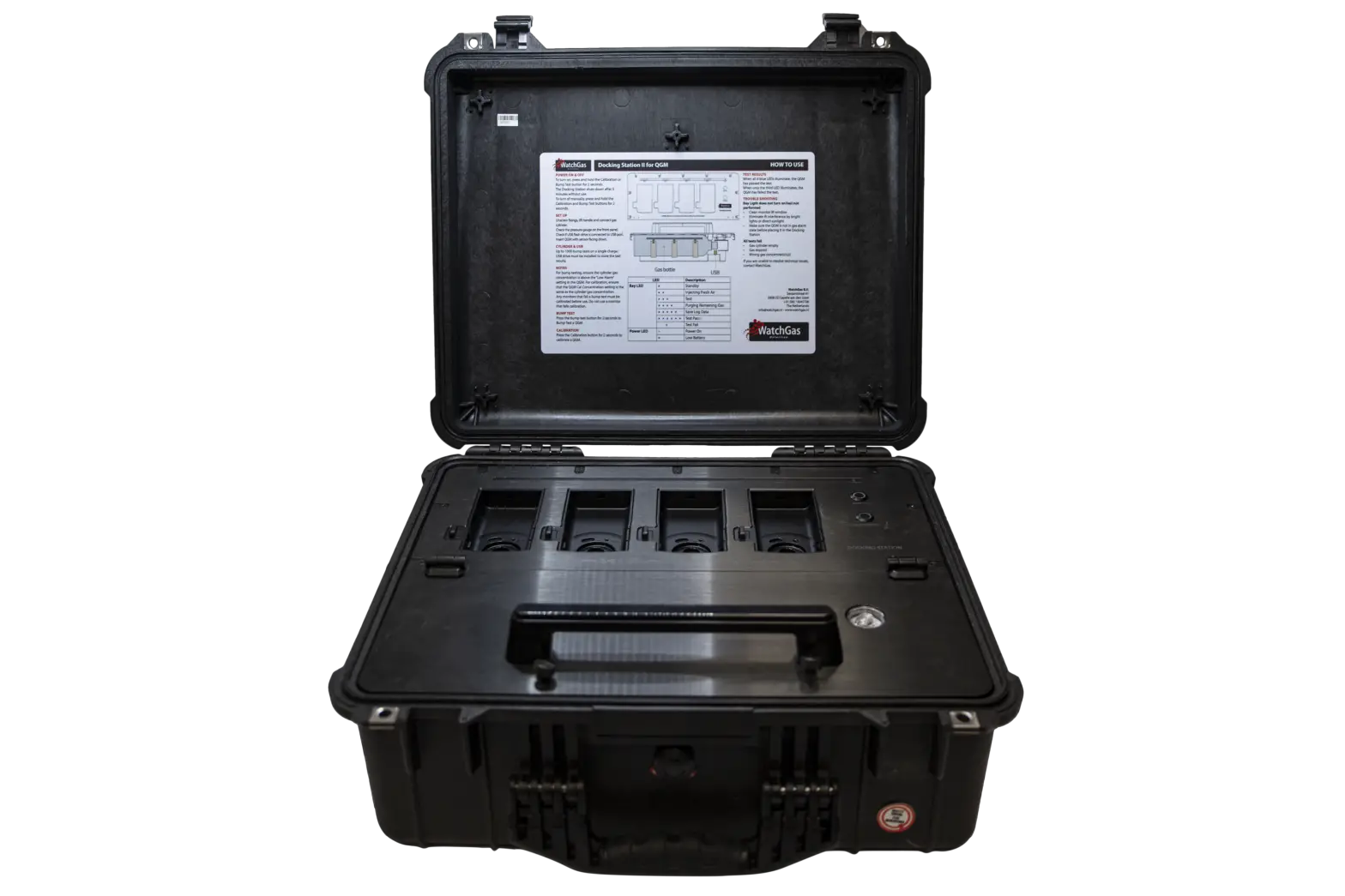
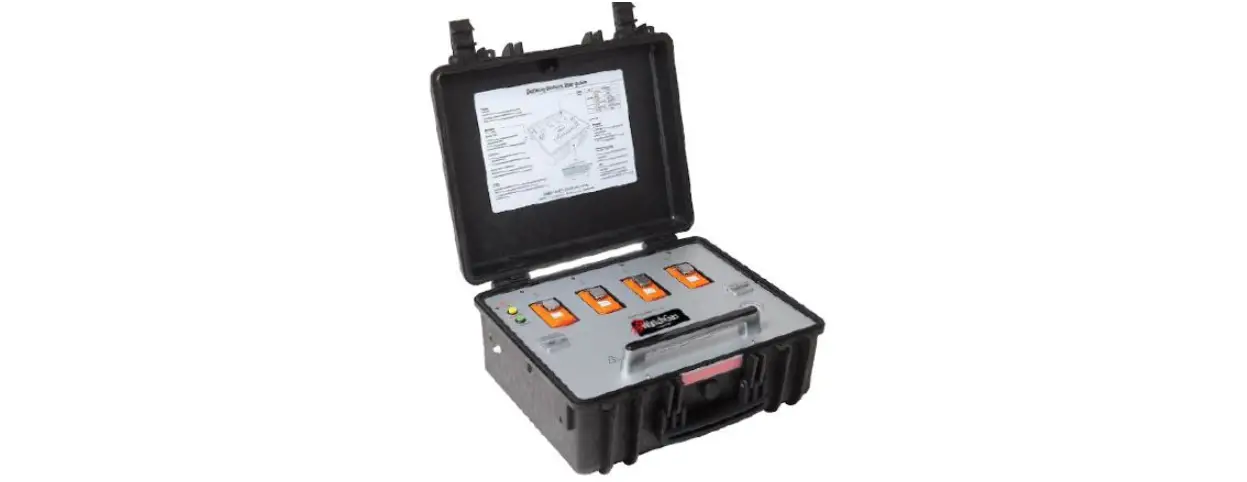
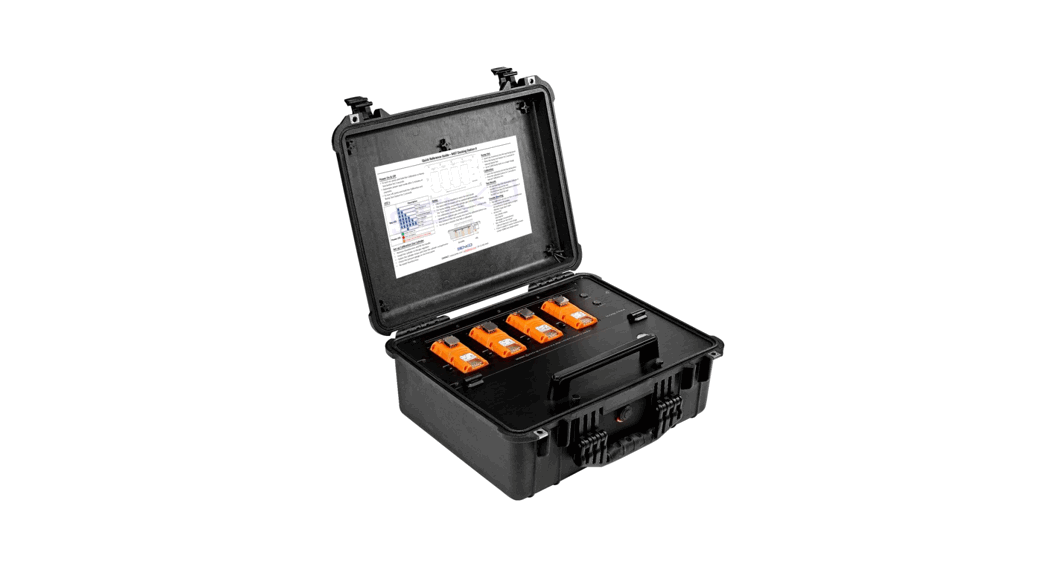
GETTING STARTED WITH YOUR QGM MULTI DOCKING STATION
- Install calibration cylinder by opening the lid. Calibration cylinder can be attached to the internal demand flow regulator.
- Check calibration cylinder pressure .
- Start docking station by pressing any button. Continuous power supply recommended.
- Configure docking station as preferred, see chapter 5.
The QGM Multi Docking station is now ready to calibrate or bump test up to 4 QGM units at the same time. Turn the QGM’s on before putting them into the docking station.
The QGM Multi Docking station is now ready to calibrate or bump test up to 4 QGM units at the same time. Turn the QGM’s on before putting them into the docking station.
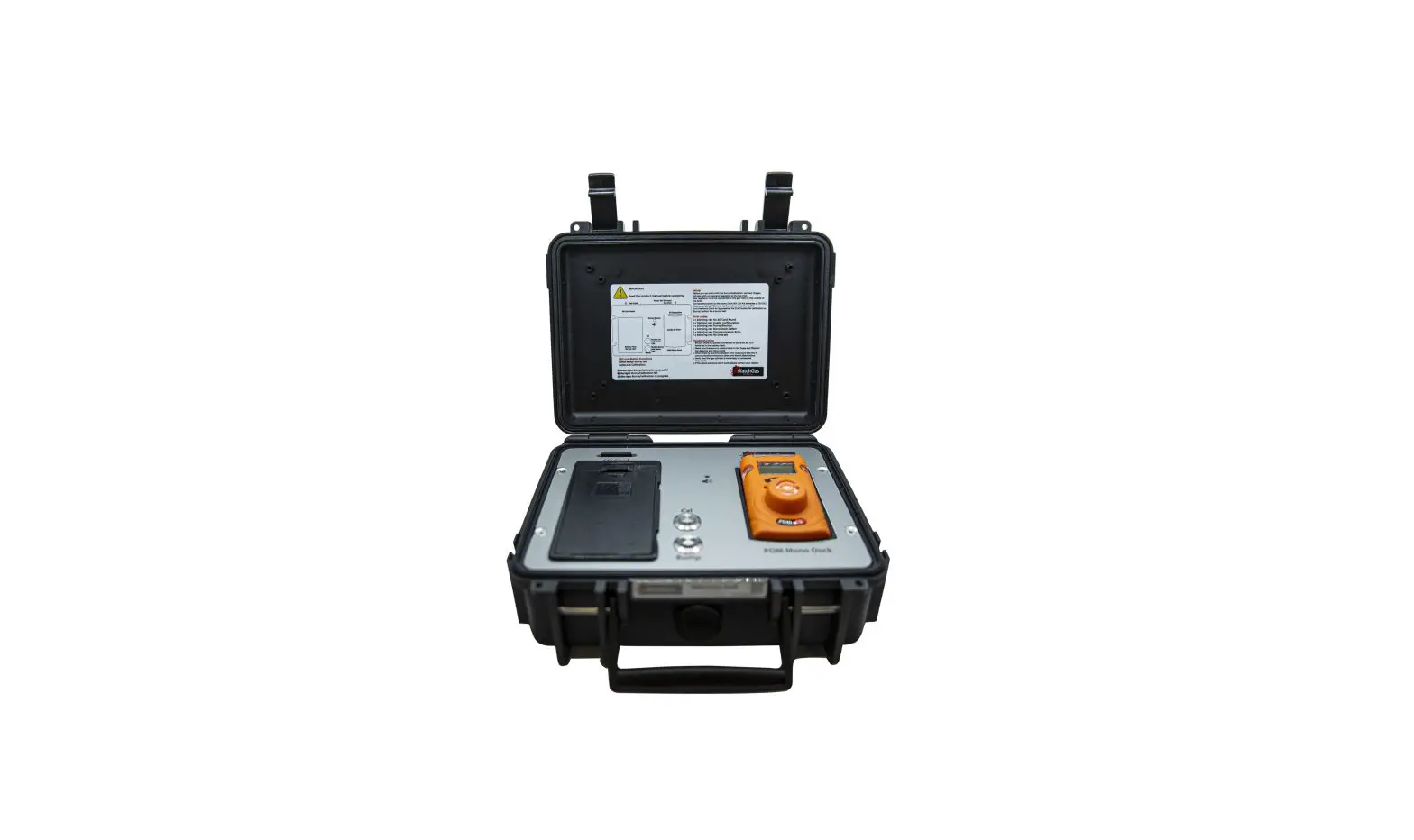
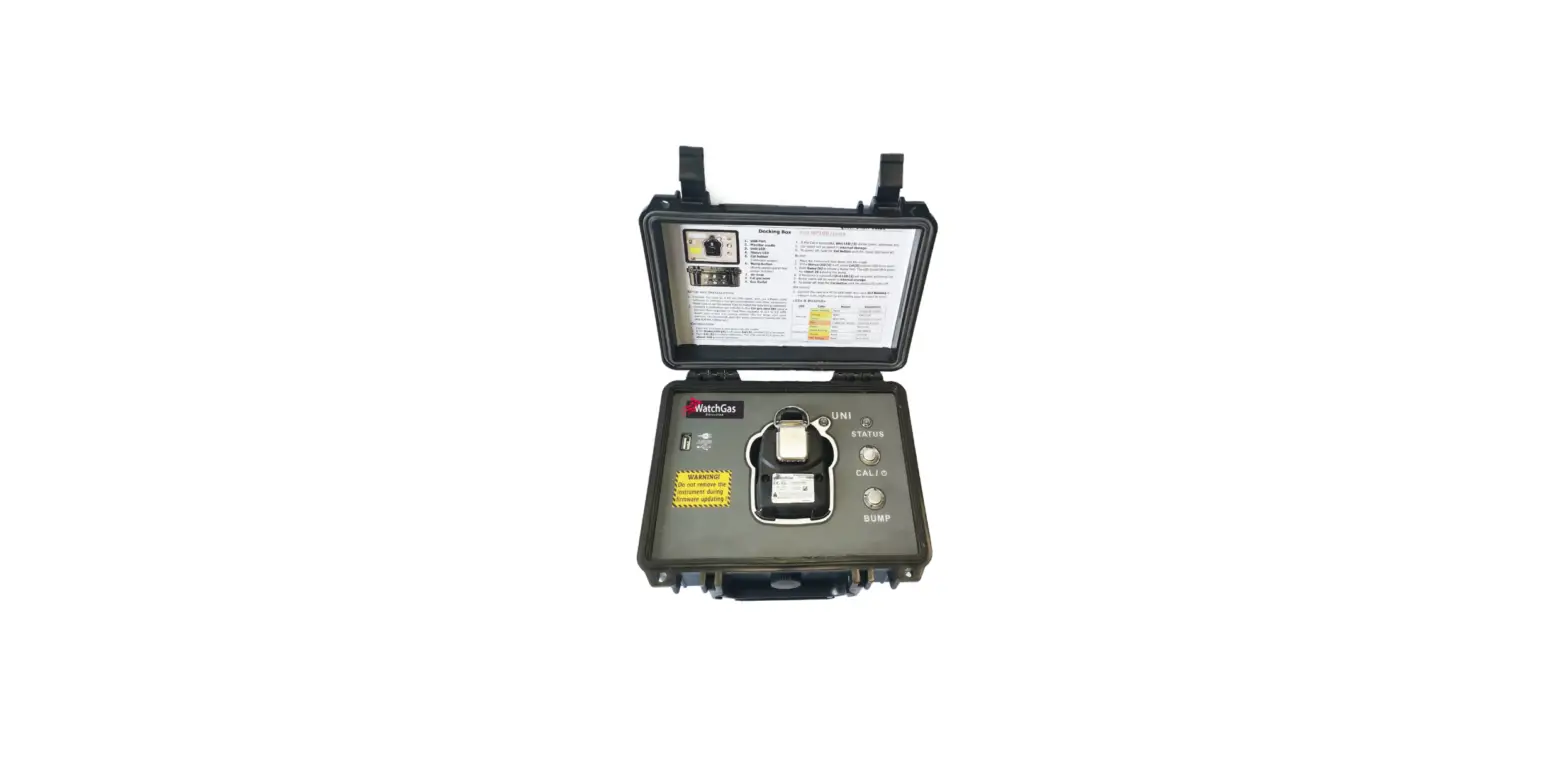
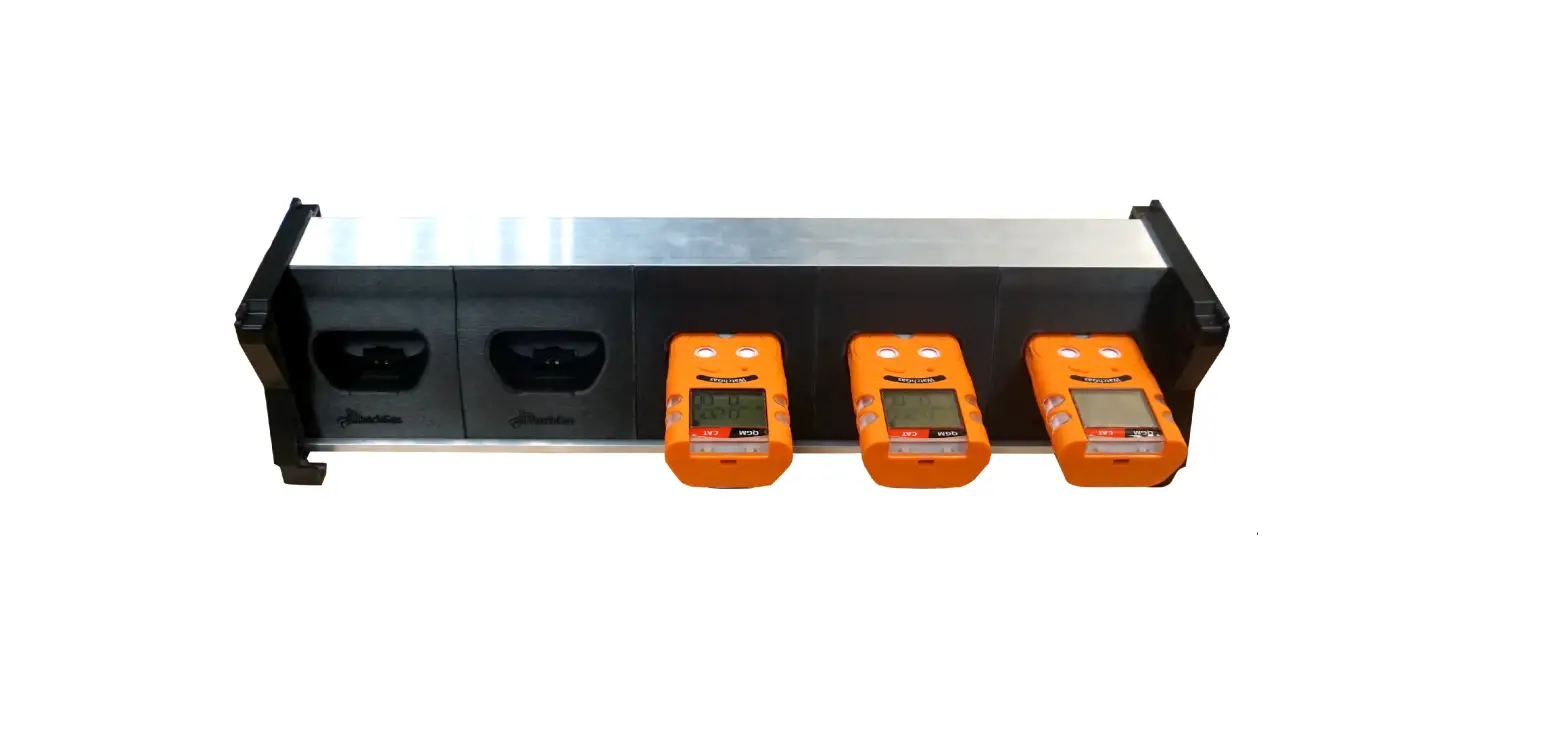
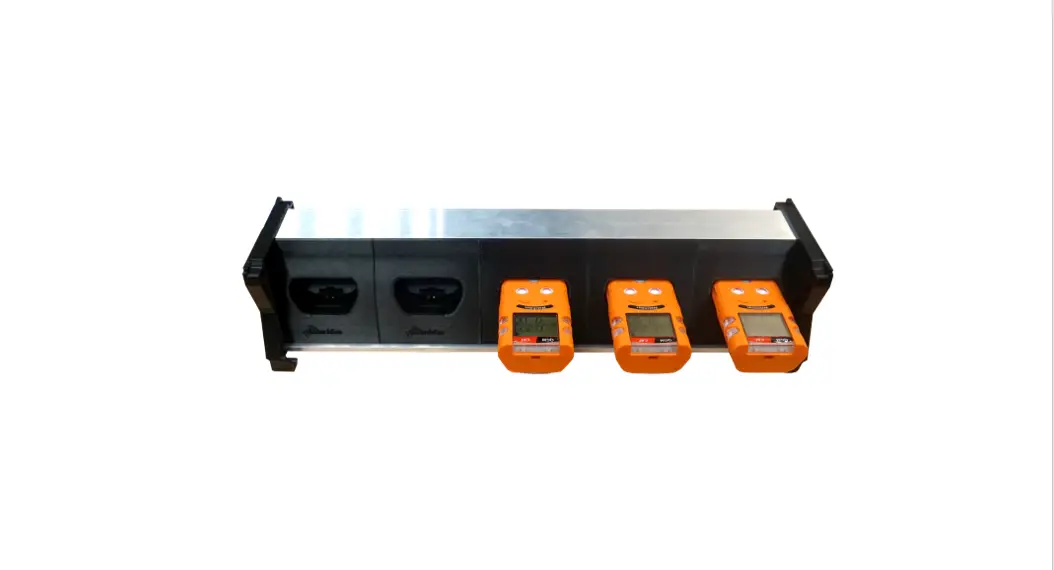
GETTING STARTED WITH YOUR QGM SINGLE DOCKING STATION
- Install demand flow regulated on calibration gas cylinder (sold separately).
- Check calibration cylinder pressure .
- Connect demand flow regulator to Docking Station Gas Inlet.
- Start docking station by pressing any button. Continuous power supply recommended.
- Configure docking station as preferred, see chapter 5.
The QGM Single Docking station is now ready to calibrate or bump test your QGM units.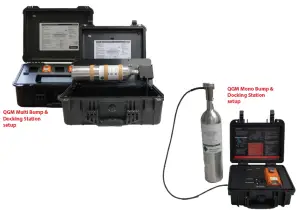
| Function | Button | Instruction |
| Turn on | Calibration or Bump Test | To turn on, press either calibration or bump test button for 1 second. (Power Led: Orange -> Green |
| Turn off | Calibration + Bump Test | To power off, press the calibration and bump test button for three seconds |
| Calibration | To activate the function, press the calibration button for three seconds | |
| Bump Test | To activate the function, press the bump test button for three seconds | |
NOTE:
IR LINK only works when it is placed into the No.1 bay.
The button only works when the power LED turns green
4. LED Color
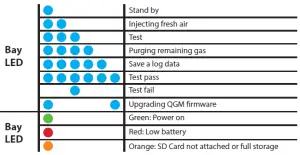
NOTE: When no bay LED’s are lighting up, either the device is turned off or the IR Port is not working properly.
and users can use the bump test for 1,000 times. During recharging, users can use the device. If USB is not connected and the USB memory is full, the power LED (Orange) is blinking If the USB is not connected, users can still use the docking station, but log data will not be recorded.
When the battery is drained, power LED (Red) will be on and the device is not working and it will enter the Idle status.
During the upgrading firmware, unit 6 LED (Blue) will be turned on and flashing for 2 minutes.
5. Configuration
To configure your WatchGas QGM 4-way Docking station or Single Docking station, connect it to the
Docking Manager program. This can be done by placing the IR link into the nr. 1 bay. In Docking Manager, the following settings can be configured:
DOCKING STATION SETTINGS
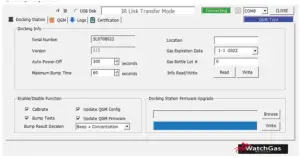
| Docking info | |
| Serial number | Docking station serial number (cannot be changed) |
| Version | Docking station firmware version |
| Auto Power-off | Time (s) after which docking station will power off when inactive |
| Maximum Bump time | Maximum time (s) allowed for bump test (40s or more recommended) |
| Location | Docking station location |
| Gas Expiration date | Expiration date of used calibration gas cylinder |
| Gas Bottle Lot # | Lot number or identifier or used calibration gas cylinder |
Enable/Disable Function
| Calibrate | Enable Calibration using Docking station |
| Bump Tests | Enable Bump tests using Docking station |
| Update QGM Config | Writing setting into QGM at every Calibration and Bump test (settings to be configured in QGM tab) |
| Update QGM Firmware | Update QGM firmware at every Calibration and Bump test if required. (Firmware to be uploaded in QGM tab) |
Docking station firmware can be upgraded by selecting the right firmware file using ‘Browse’. Then pressing ‘Write’ to write the firmware. Restart docking station to upgrade firmware.
QGM SETTINGS
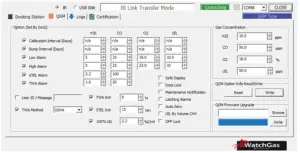
- SERIAL NUMBER: Display a preset serial number.
- FIRMWARE VERSION: Display a firmware version (EX. 1.x.x) .
- USER ID/MESSAGE: Users can program a desired message/ID.
- DISPLAY: Users can choose to display either the real time “Sensor Reading” or “Sensor Life remaining”.
- STEALTH (OPTION): Users can turn off the buzzer, LED, and vibration.
- SELF TEST (HOUR): Set an interval of the self-test alert.
- SENSOR TYPE: Display a sensor type of the device.
- LOW ALARM: Adjust the low alarm set point in compliance with international or local standards.
- HIGH ALARM: Adjust the high alarm set point in compliance with the international or local standards.
- CAL CONCENTRATION: Set a standard calibration value.
- CAL TIME (SEC): Set a standard calibration time.
- CAL INTERVAL (DAY): Set an interval of the calibration alert.
- BUMP INTERVAL (DAY): Set an interval of the bump test alert.
- SAFE DISPLAY: Display only SAFE. Gas reading will only be displayed if above alarm limits
- MAINTENANCE NOTIFICATION: Notice when detector needs maintenance
- DOCK LOCK: Manual calibration disabled. Calibration can only be preformed by docking station.
- AUTO ZERO: Preform zero calibration on start-up.
- AUTO HOLD: Device will be in alarm mode until button is pressed.
- OFF LOCK: Device cannot be turned off (not recommended for catalytic type).
- LEL BY VOL CH4: Change 100 %LEL to vol% value.
- STEALTH Stealth mode. Warning: device will not give any alarm if concentrations exceed alarm limits!
NOTE: Check/uncheck settings to have the Docking station write these into the QGM. Make sure
‘Update QGM Config’ is enabled in Docking Station settings.
Input QGM firmware by selecting firmware filed named as “QGM_FW.bin” by clicking ‘Browse’. Transfer firmware file by clicking ‘Write’. Make sure ‘Update QGM firmware’ is enabled in Docking Station settings.
LOG FILES
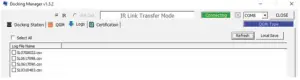
Both the Single and Multi Docking station will transfer QGM log files when a QGM is placed in the
Docking station for calibration. Log files can be viewed in the Logs tab. Click ‘Refresh’ to load available log files. Selected log files can then be saved by clicking on ‘Local Save’.
The Docking Station log file can be found by selecting the top log file.
Note: Log files can also be viewed on the USB stick or SD card without using Docking Manager.
AUTOMATIC CERTIFICATES
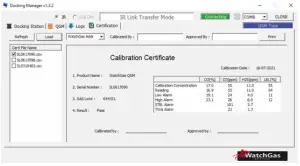
Calibration and test certificates can be generated automatically in the ‘Certification tab’. Press ‘Refresh’ to load available certificates. Press ‘Load’ to load the certificate.
Optionally, the WatchGas address can be removed by selecting ‘No Addr’. Certificates can be completed using the ‘Calibrated by’ and ‘Approved by’ values. Press print to print the generated certificate.
6. Specifications
QGM MONO DOCK
| Size | 245 x 214 x 105 mm |
| Weight (without gas cylinder) | 2.45 kg |
| Operating Temperature | +5 ~ +40 ˚C |
| Warranty | 2 years |
| Battery Type | Rechargeable battery |
| Battery Life | Up to 1.000 Bump Tests |
| LEDS | 6 Blue LEDs for one bay |
| Memory | SD 8GB Standard |
| Log Capacity | Approximately Up to 5 million tests (8GB, removable SD memory) |
| Tests Performed | Bump Test and Calibration |
| Information Stored | Bump/Calibration Logs, Individual Monitor Event Logs, Firmware and Unit Configurations. Automatic certificate |
| Gases Available | LEL (CH4), CO, H2S and O2 |
| Unit Compatibility | Works with QGM IR & QGM CAT |
| Calibration Gas | Compatible with 34L, 58L & 116L cylinders |
| Charging Adaptor | 100 – 240V to 12.0V External |
QGM MULTI DOCK
| Size | 52.5 x 43.7 x 21.3 cm |
| Weight (without gas cylinder) | 11kg |
| Operating Temperature | 5 ~ +40 ˚C |
| Warranty | 2 years |
| Battery Type | Rechargeable Lithium Ion |
| Battery Life | Up to 1.000 Bump Tests |
| LEDS | 6 Blue LEDs for each bay, 3 color LED for power, Switch Back Light LED (Orange, Green) |
| Memory | USB 8GB Standard |
| Log Capacity | Approximately Up to 5 million tests (8GB, removable USB memory) |
| Tests Performed | Bump Test and Calibration |
| Information Stored | Bump/Calibration Logs, Individual Monitor Event Logs, Firmware and Unit Configurations |
| Gases Available | LEL (CH4), CO, H2S and O2 |
| Unit Compatibility | Works with QGM IR & QGM CAT |
| Calibration Gas | Compatible with 34L, 58L & 116L cylinders |
| Interface | Ethernet RJ-45(TCP/IP), 10Mb/s |
| Charging Adaptor | DC12.0V, 3A/h |
7. Limited Warranty
WatchGas warrants this product to be free of defects in workmanship and materials-under normal use and service for two years from the date of purchase from the manufacturer or from the product’s authorized reseller.
The manufacturer is not liable (under this warranty) if its testing and examination disclose that the alleged defect in the product does not exist or was caused by the purchaser’s (or any third party’s) misuse, neglect, or improper installation, testing, or calibrations. Any unauthorized attempt to repair or modify the product, or any other cause of damage beyond the range of the intended use, including damage by fire, lightening, water damage or other hazard, voids liability of the manufacturer.
In the event that a product should fail to perform up to manufacturer specifications during the applicable warranty period, please contact the product’s authorized reseller or WatchGas service center at +31 (0)85 01 87 709 to repair/return information.
All rights reserved. No part of this publication may be reproduced, distributed, or transmitted in any form or by any means, including photocopying, recording, or other electronic or mechanical methods, without the prior written permission of the publisher, except in the case of brief quotations embodied in critical reviews and certain other noncommercial uses permitted by copyright law. For permission requests, contact WatchGas B.V.