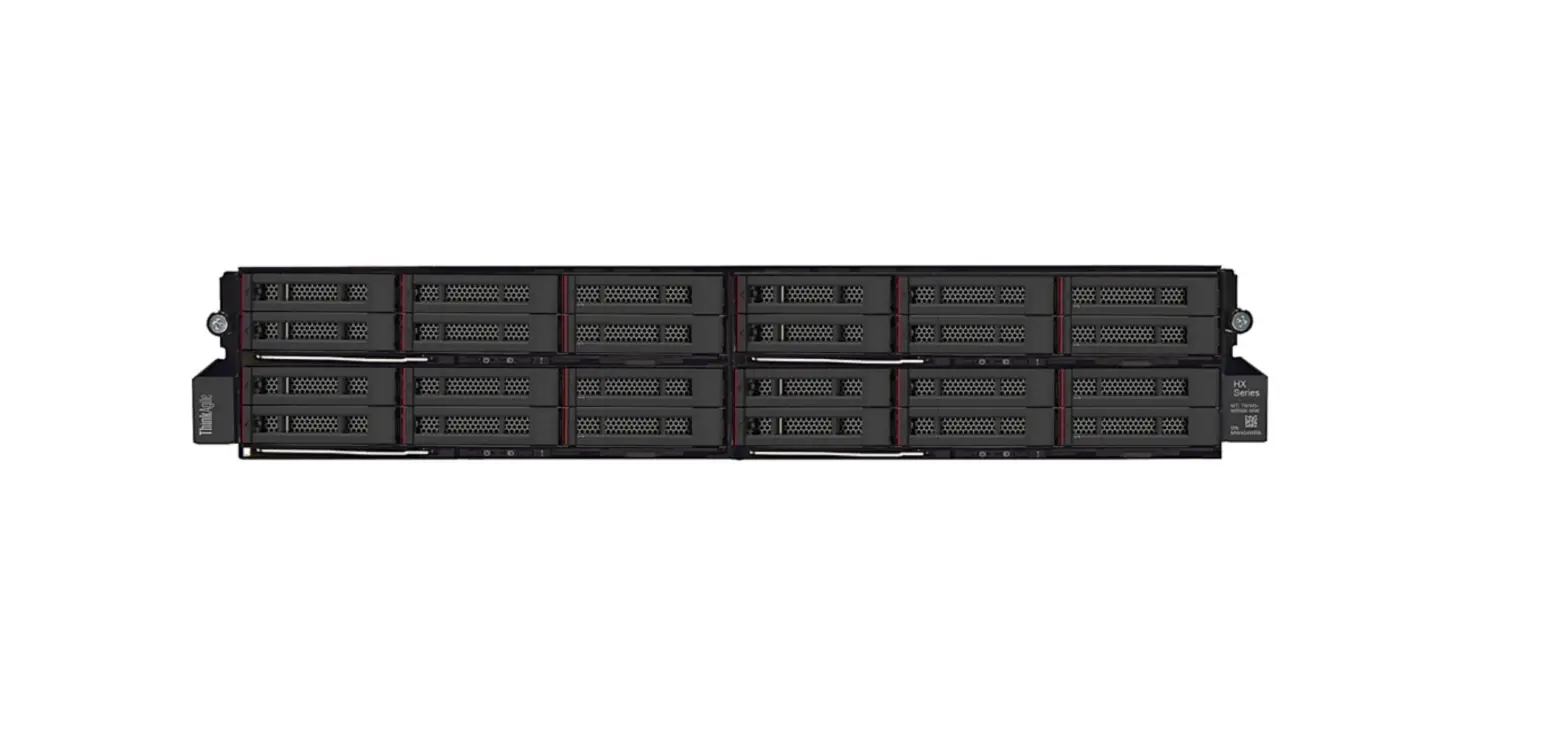
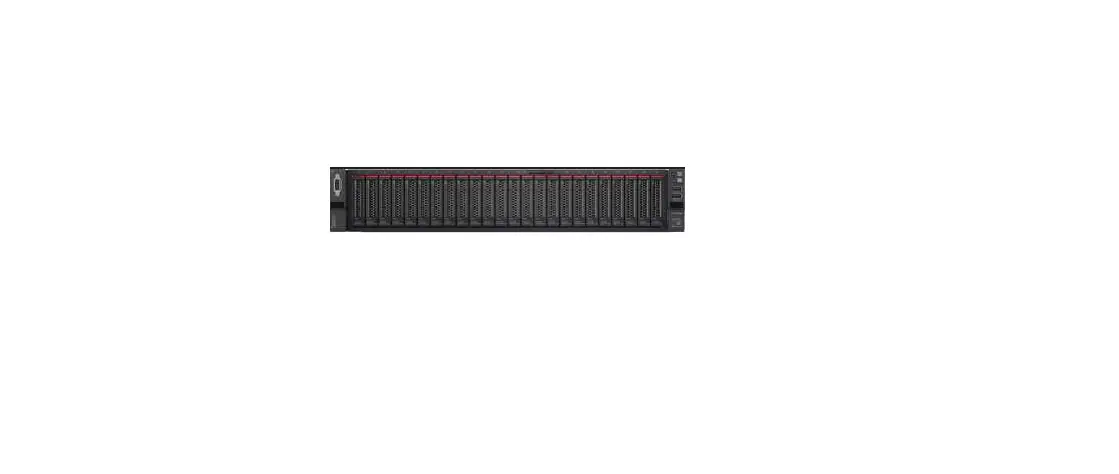
TS75A-B7132 4th Gen Intel Xeon Scalable Barebones
TS75(A)-B7132 Quick Installation Guide
General Information
Before installing the server system, it is essential to read all
precautions and instructions. The Barebone User’s Manual is
available for download from the website at http://www.tyan.com.
It is recommended to refer all servicing to qualified personnel
to avoid the risk of damage to the server system. It is also
essential to exercise normal ESD (Electrostatic Discharge)
procedures during system integration. TYAN/MiTAC recommends wearing
gloves and an anti-static wrist strap to avoid possible damage to
the equipment.
Current processor socket design places the pins on the
motherboard instead of the processor itself. Exercise caution when
installing the processors as the manufacturer’s warranty does not
cover damage inflicted upon the motherboard, including damage to
the CPU sockets.
Box Content
- (1) 2U chassis
- System Board (pre-installed)
- Front Panel Board (pre-installed)
- USB Board (pre-installed)
- (6) 60X60X38mm Fan (pre-installed)
- Riser Card (pre-installed)
- Riser Card (pre-installed)
- Riser Card (pre-installed)
- Riser Card (pre-installed)
- (1) M1321T70A-BP12-8 HDD Backplane Board (pre-installed for
B7132T75AV10E16HR) - (1) M1322T70A-BPE-8 HDD Backplane Board (pre-installed for
B7132T75E8HR) - (1) M7132T75-L20-2F Riser Card (pre-installed)
- (1) M7132T75-L16-1F Riser Card (pre-installed)
- (1) M7132T75-R16-1L Riser Card (pre-installed)
- (1) M7132T75-R16-1F Riser Card (pre-installed)
- (1) M1318T65-BP12E-2 Front HDD Backplane Board (pre-installed
for B7132T75AV10E16HR) - (1) M1317T83-BP12E-8-1 HDD Backplane Board (pre-installed for
B7132T75AV10E16HR)
Accessories
- (1) Rail Kit and Screw
- (1) M.2 Card
- (2) CPU Heatsink
- (2) MCC CPU carrier
- (2) XCC CPU carrier
- (1) TYAN Quick Installation Guide
- (2) 2.5 HDD Screws Latch
- (2) GPU Power Cable
- (2) GPU Card Bracket Kit
- (2) US Power Cord
- (2) EU Power Cord
- (2) Power Wire Mount
- (2) Air Duct
Required Hardware Components
The minimum hardware requirements include:
- (8) 3.5SAS 12GB/s & SATA 6GB/s and NVMe compatible
hot-swap, tool-less HDD drive bays – B7132T75AV10E16HR
Tools Required
- Phillips Screwdriver
- T30 Security Torx Screwdriver
- Anti-Static Wrist Strap
System Installation
B7132T75E8HR
Open the chassis and read normal ESD (Electrostatic Discharge)
procedures before installing the system.
B7132T75AV10E16HR
Preparing the chassis is necessary before installation. Follow
the normal ESD (Electrostatic Discharge) procedures.
Install the Processor
Exercise caution when installing the processors as the
manufacturer’s warranty does not cover damage inflicted upon the
motherboard, including damage to the CPU sockets.
Visual Indicators
The visual indicators on the package carrier are:
- E1A – No Shim case MCC carrier
- Shim installed in package carrier to offset the spring
deflection. - Package Type XCC
- MCC Shim
TS75(A)-B7132 Quick Installation Guide
Document # D2573-100/ Revision 1.0
1 General Information
Read Me First
1. The Barebone User’s Manual is available for download from our Web site at http://www.tyan.com. Make sure to read all precautions and instructions before you start installing the server system.
2. Refer all servicing to qualified personnel to avoid the risk of damage to the server system. 3. Exercise normal ESD (Electrostatic Discharge) procedures during system integration. TYAN/MiTAC recommends wearing
gloves and an anti-static wrist strap to avoid possible damage to the equipment. 4. Current processor socket design places the pins on the motherboard instead of the processor itself. Exercise caution when
installing the processors as the manufacturer’s warranty does not cover damage inflicted upon the motherboard, including damage to the CPU sockets.
Box Content
(1) 2U chassis
(1) TYAN® S7132 (1) M1718T65-FPB (1) M1717T65-USB (2) 1600W Power Supply
System Board Front Panel Board
USB Board
Units (pre-installed)
(pre-installed)
(pre-installed)
(pre-installed)
(6) 60X60X38mm (1) M7132T75-L20-2F (1) M7132T75-L16-1F (1) M7132T75-R16-1L (1) M7132T75-R16-1F Fan (pre-installed) Riser Card (pre-installed) Riser Card (pre-installed) Riser Card (pre-installed) Riser Card (pre-installed)
(1) M1321T70A-BP12-8 HDD Backplane Board (pre-installed
for B7132T75AV10E16HR)
(1) M1322T70A-BPE-8 HDD (1) M1318T65-BP12E-2 (1) M1317T83-BP12E-8-1 HDD
Backplane Board (pre-installed Front HDD Backplane Backplane Board (pre-installed
for B7132T75AV10E16HR)
Board (pre-installed
for B7132T75E8HR)
for B7132T75AV10E16HR)
Accessories
(1) Rail Kit and Screw (1) M.2 Card (2) CPU Heatsink (2) MCC CPU carrier (2) XCC CPU carrier (1) 2.5 HDD Screws Latch
Quick Installation Guide
(2) GPU Power Cable
(2) GPU Card Bracket Kit
(2) US Power Cord
(2) EU Power Cord
(2) Power Wire Mount
(2) Air Duct (1) TYAN Quick Installation Guide
Required Hardware Components
Minimum Hardware Requirements
To avoid integration difficulties and possible board damage, your system must meet the following minimum requirements: · Processor: (2) Intel® Xeon® Eagle Stream (Sapphire Rapids-SP) series processor with TDP up to 350W · Memory Type:
– (16+16) DIMM slots, (L)RDDR5 up to 4800 with ECC (1.2V) – (8) memory channels per CPU, (16) DIMM slots per CPU channel · Hard Disk Drives: – B7132T75E8HR:
(8) 3.5″SAS 12GB/s & SATA 6GB/s and NVMe compatible hot-swap, tool-less HDD drive bays – B7132T75AV10E16HR:
(8) 2.5″ SAS 12GB/s & SATA 6GB/s hot-swap, tool-less HDD drive bays (8+8) 2.5″ NVMe hot-swap, tool-less HDD drive bays (2) 2.5″ NVMe hot-swap, tool-less HDD drive bays · Rack Mount Kit (Industry 19″ rack-mountable) NOTE: The updated hardware requirements of the system please refer to the barebones user’s manual on our website at www.tyan.com
Tools Required
Phillips Screwdriver
T30 Security Torx Screwdriver
Anti-Static Wrist Strap
2 Motherboard Placement
Motherboard Placement
50 49 48 47 46
P1_CHD_DIM0
P1_CHD_DIM1 P1_CHC_DIM0
45
1 32
P1_CHC_DIM1
P1_CHB_DIM0
51
P1_CHB_DIM1 P1_CHA_DIM0
44
52
P1_CHA_DIM1
43
4
D
5 6
54 53
CPU1 Socket
42
41
7
55
40
56
iii
P1_CHE_DIM1 P1_CHE_DIM0
39
i
ii
P1_CHF_DIM1
8
hb
57
P1_CHF_DIM0 P1_CHG_DIM1
9
C
10
B
d
P1_CHG_DIM0 P1_CHH_DIM1 P1_CHH_DIM0
P0_CHD_DIM0
38 37 36
11
P0_CHD_DIM1 P0_CHC_DIM0
35
P0_CHC_DIM1
Intel X710
12
iv
13
14
c
AST2600
f 58
g
P0_CHB_DIM0 P0_CHB_DIM1 P0_CHA_DIM0 P0_CHA_DIM1
34
33 32
15
a Battery
Socket
ei
CPU0 Socket
16
A
31
17 18
19 20 21
P0_CHE_DIM1 P0_CHE_DIM0
30
P0_CHF_DIM1
P0_CHF_DIM0
22
59
P0_CHG_DIM1 P0_CHG_DIM0
29
P0_CHH_DIM1
P0_CHH_DIM0
23 24 25 26 27 28
3 System Installation
B7132T75E8HR
Open the Chassis
B7132T75AV10E16HR
Preparing the Chassis
Read normal ESD (Electrostatic Discharge) procedures.
Place your TYAN® Server Chassis on a flat anti-static surface to perform the following integration procedures. Read ESD procedures before reaching inside to install components.
Install the Processor
Shim Concept XCC carrier
Visual Indicators
E1A
No Shim case MCC carrier
Shim installed in package carrier to offset the spring deflection.
Package Type XCC
MCC
Shim
NO
YES
Carrier code E1A
E1B
TE
1-2351052-5
1-2351052-2
FIT
WNMEC00-0NNK1-EH WNMEC00-0NNK2-EH
LOTES
AZIF0204-P006C
AZIF0240-P003C
1 Remove the two screws
securing the top cover to the chassis.
2 Press firmly the locking
latches, then slide to remove the top cover.
Install the Front Hard Disk Drives (3.5″ or 2.5″)
3 Lift to remove the air ducts
from the chassis.
1 Press on the locking lever latch.
The locking lever opens automatically.
2 Slide the HDD tray out.
3a Unlock and open the tray locking
lever. Place the 3.5″ HDD into the drive tray. Close the locking lever to secure the HDD to the tray.
B A
C
B
1 Align the triangle edge of the carrier with the notch on the edge of the heatsink. Then install the carrier on the bottom of the heatsink and make sure the latches are snapped under the edge of the heatsink.
2 Align and install the processor on the carrier. Make sure the gold arrow is located in the correct direction. NOTE: When installing the processor, secure the front side (A) first, and following with the middle and rear sides (BC).
3 Remove the CPU cover.
3b Place a 2.5″ hard HDD into the
drive tray. Use 4 screws to secure the HDD to the tray.
4 Reinsert the HDD tray into the
chassis.
Install the Front Hard Disk Drives (2.5″)
5 Press the locking lever to secure the
tray. Repeat the same procedures to install other HDD trays.
0
1
2
3
4
5
6
7
8
0
1
2
3
4
5
6
7
8
1 Press on the locking lever latch.
The locking lever opens automatically.
2 Slide the HDD tray out.
3 Unlock and open the tray locking
lever.
0
1
2
3
4
5
6
7
8
0
1
2
3
4
5
6
7
8
4 Install the 2.5″ HDD into the pins on 5 Reinsert the HDD tray into the
the drive tray. Close the locking
chassis.
lever to secure the HDD to the tray.
6 Press the locking lever to secure the
tray. Repeat the same procedures to install other HDD trays.
4 Carefully flip the heatsink assembly. Align the heatsink with the CPU socket by the guide pins. Make also sure that the triangle edge of the carrier is aligned correctly with the triangle mark on the CPU socket. Then place the heatsink assembly onto the top of the CPU socket.
5 Press down on the retention clips to fix the heatsink assembly to the CPU socket.
6 To secure the heatsink assembly, use a T30 Security Torx to tighten the screws.
NOTE: A new heatsink comes with pre-applied thermal grease.
Once the heatsink has been removed from the processor, you need to clean the processor and heatsink using an alcohol solvent. Then apply new thermal grease before reinstalling the heatsink.
Install the Air Duct
By aligning with the guide pins, place the CPU0 air duct on top of the CPU0 heatsink. Repeat the step for installing the CPU1 air duct.
4 I/O Ports
CONNECTORS
1 System Power Connector0 (J24) 2 4-pin Power Connector (J45) 3 4-pin Power Connector (J44) 4 ID Button (SW2) 5 4-pin Power Connector (J42) 6 SPI TPM Connector(J16) 7 OCP 3.0 (J1_OCP3) 8 M.2 Connector (CN2) PCIE ONLY 9 Front VGA Header (J37) 10 Rear VGA Header (J36) 11 RJ45 LAN Port (LAN1) 12 RJ45 LAN Port (LAN2) 13 TYPE A USB3.2 Gen1 Header (J28) 14 Dedicated to IPMI (J8) 15 BIOS COM Port (J7) 16 USB3.1 Gen1 Header (J31)
17 ESPI Port 80 Header (J38)
33 MCIOx4 NVME (CN11)
18 Mini SAS HD Connector (MINI_SAS_HD1) 34 MCIOx8 NVME (J60)
19 4-pin Power Connector (J11)
35 MCIOx4 NVME (CN10)
20 4-pin Power Connector (J43)
36 Fan Connector (SYS_FAN_4)
21 HDD BP SMbus Header (J10)
37 MCIOx4 NVME (CN6)
22 System Power Connector1 (J25)
38 MCIOx8 NVME (J58)
23 HDD BP SMbus Header (J17)
39 MCIOx4 NVME (CN7)
24 HDD BP SMbus Connector (J9)
40 Fan Connector (SYS_FAN_3)
25 Front USB3.0&2.0 Connector (J5)
41 8-pin Power Connector (J56)
26 Front Fan Header (FAN_HD1)
42 Fan Connector (SYS_FAN_2)
27 8-pin Power Connector (J35)
43 MCIOx8 NVME (J62)
28 SATA DOM (J26)
44 MCIOx8 NVME (J61)
29 MCIOx8 NVME (J52)
45 Fan Connector (SYS_FAN_1)
30 MCIOx8 NVME (J53)
46 8-pin Power Connector (J41)
31 Fan Connector (SYS_FAN_6)
47 8-pin Power Connector (J55)
32 Fan Connector (SYS_FAN_5)
48 Front Panel Header (J22)
49 8-pin Power Connector (J12) 50 8-pin Power Connector (J34) 51 8-pin Power Connector (J32) 52 4-pin Power Connector (J40) 53 8-pin Power Connector (J33) 54 Intrusion Header (J1_FPGA) 55 CPLD JTAG Header (J3_FPGA) 56 M.2 Connector (CN1) PCIE ONLY 57 CPU1_FAN (J4) 58 CPU0_FAN (J47) 59 SATA DOM (J27)
LEDs i CPLD HeartBeat LED (D33) ii PLTRST LED (D41) iii SYSTEM PWROK LED (D82) iv BMC HeartBeat LED (D1_BMC)
JUMPERS a CMOS Clear Jumper (J6_PCH) b CPLD Power On Jumper (J2_FPGA) c BMC Reader Jumper (J18) d ME Recovery Jumper (J3_PCH) e BIOS Core Execution Tree Jumper (J5_PCH) f BMC Remote Debug Jumper (J19) g Top Swap Disabled Jumper (J1_PCH) h Password Clear Jumper (J2_PCH) i Manufacture Mode Jumper (J4_PCH)
SLOTS A PCIE#1 x16(J1) CPU0 P2:0~15 B PCIE#2 x20 (J46) CPU0: PE1 0~15 and PE0 8~11 C PCIE#3 x16(J3) CPU1 P2:0~15 D PCIE#4 x16(J2) CPU1 P0 :0~15
Locate the External I/O Port
LAN Port #0
LAN Port #3 (Dedicated IPMI)
USB3.1/3.2
ID Button VGA Port
LAN Port #1
BIOS COM Port
5 Caution
CPU Cover for DOA/RMA
NOTE: Please save and replace the PnP Cap when returning the server board for service.
Install the Single Slot GPU Card (Optional)
1 Unlock the clips.
2 Insert the memory module.
Install the Single Slot GPU Card (Optional)
3 Lock the clips.
1 Release the thumbscrew securing
the GPU bracket to the chassis.
2 Lift to remove the GPU bracket from
the chassis.
3 Flip the GPU bracket and place on
the surface. Then remove the screw and slide to remove the dummy bracket.
4 Install the GPU card to the GPU
bracket, and then secure the GPU card to the bracket with a screw.
5 Carefully flip the GPU bracket. Then
align and install the GPU bracket to its slot on the chassis.
6 Tighten the thumbscrew to secure
the GPU bracket to the chassis.
Install the Dual Slot GPU Card (Optional)
1 Release the thumbscrew and
remove the three screws securing the GPU bracket to the chassis.
2 Lift to remove the GPU bracket from
the chassis.
3 Flip the GPU bracket and place on
the surface. Then remove the two screws and slide to remove the dummy brackets.
4 Align and install the GPU card
holder plate to the GPU card. Then secure it with the two or three long screws.
5 Install the GPU card to the GPU
bracket, and then secure the GPU card to the bracket with the four screws (2 screws for the front side of the bracket and 2 short screws for the rear side of the bracket).
6
Connect the GPU cable (2-in-1) to the GPU card connectors.
7 Carefully flip the GPU bracket. Then
align and install the GPU bracket to its slot on the chassis.
8 Tighten the thumbscrew and install
the three screws to secure the GPU bracket to the chassis.
NOTE: Please refer to http://www.tyan.com for supported GPU list.
9 Connect the other end of the GPU
cable to the motherboard connector.
5618B0060001
 TYAN® Computer - AMD Genoa, Intel Sapphire Rapids servers for HPC, GPU, AI, Datacenter