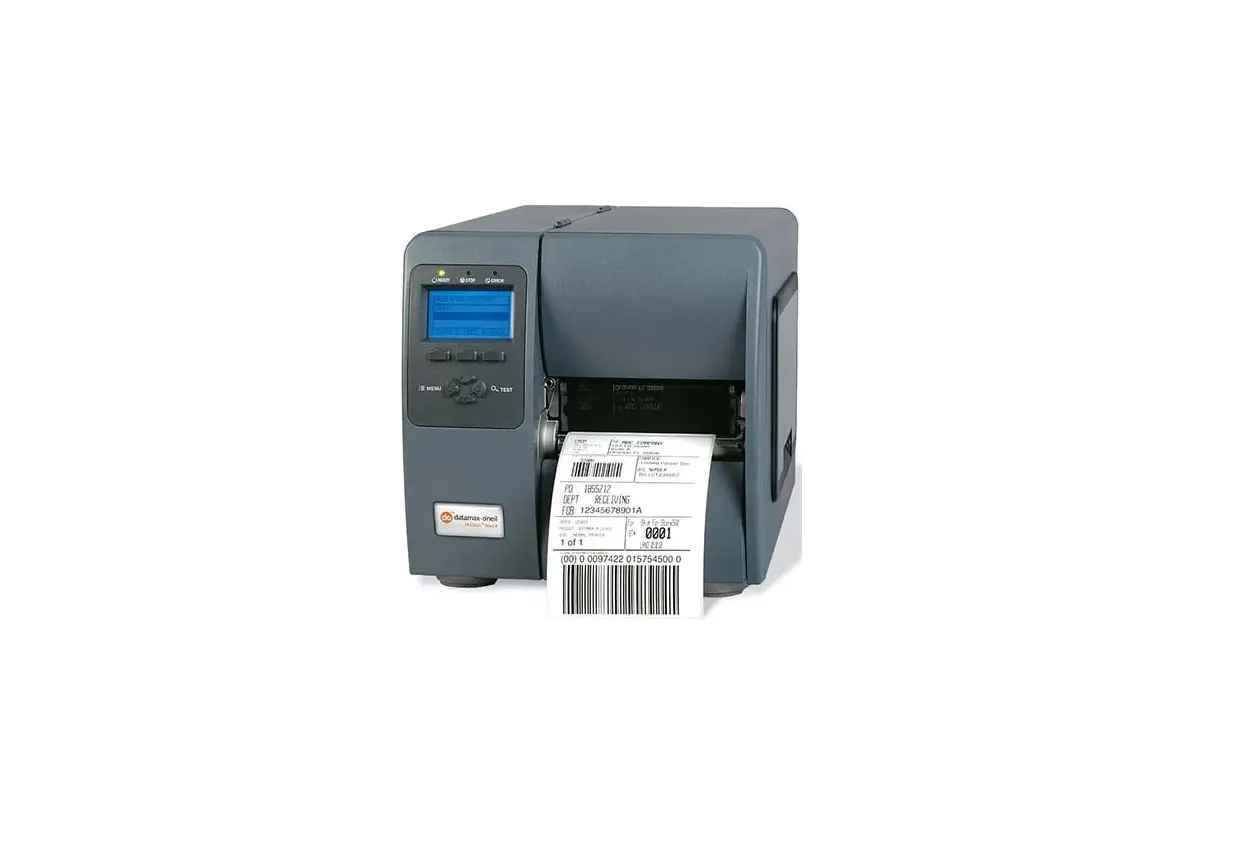
DS Series Printer
Product Information:
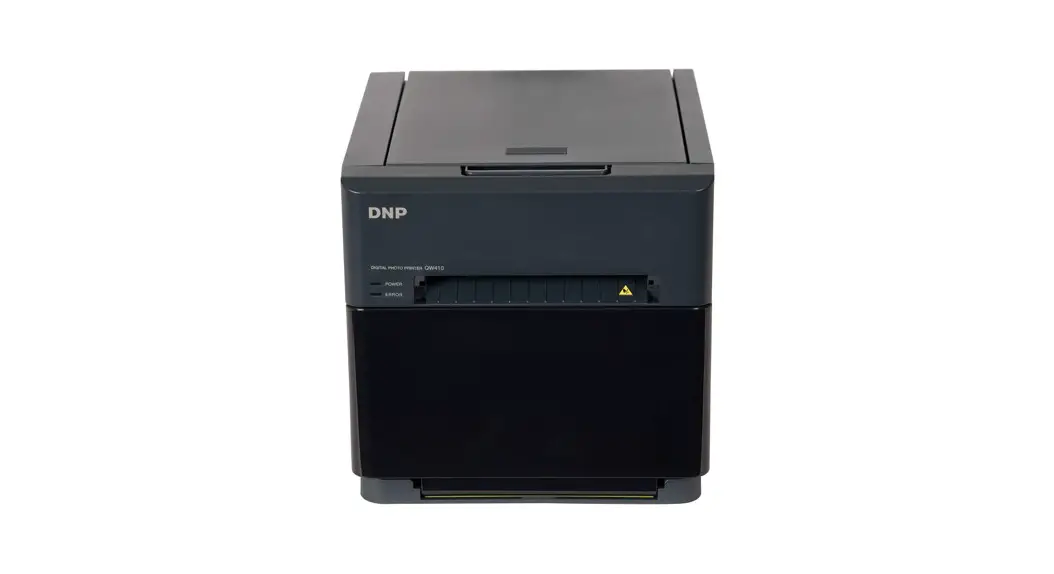
The DNP DS-Series Printer is a high-quality printing device that
requires a driver installation to ensure its smooth operation. The
Driver Installation tool is compatible with Windows 7, 8, and 10
operating systems. The tool allows you to quickly update the
drivers for all your DS-Series printers. Currently, you can use the
Driver Installation tool to update the drivers on your DS620A and
RX1HS printers.
Product Usage Instructions:
- Open your web browser and navigate to the following site:
http://dnpphoto.com/Support/Downloads. - Download the appropriate driver for your DS-Series
printer. - Navigate to the location where you downloaded the file and
double-click the Printer Driver application file. - Read the End-User License Agreement screen and select the “I
accept the terms of the License Agreement” radio button. Click the
Next button. - Click the Install button to begin the installation
process. - The Printer Driver dialog box will be displayed, showing the
progress of the installation. - When the Windows Security dialog box appears, click the Install
button. - When the Driver Installation tool has completed the update,
click the Finish button. Your system will be restarted. If you do
not wish to restart your computer, un-check the Restart Now
checkbox. You will need to manually restart your system for the
install to be completed. - On the Windows Restart dialog box, click the Yes button.
Note that after your system re-starts, a second restart is
required for the Fine Matte print finish to become functional.
Technical Bulletin: DRIVER INSTALLATION GUIDE FOR DNP DS-SERIES PRINTER
© 2023. DNP Imagingcomm America Corp. All rights reserved.
Last Updated: 04/17/2023 Rev: 0008
Contents
Overview …………………………………………………………………………………………………………………………………… 3 Installing DS-Series Printer Driver ………………………………………………………………………………………………………….. 3
DNP Imagingcomm America Corporation
2 of 6
Overview
Overview
The Driver Installation tool allows you to quickly update the drivers for all your DS-Series printers. The Driver Installation tool is compatible with Windows 7, 8 and 10. Currently, you can use the Driver Installation tool to update the drivers on your DS620A and RX1HS printers.
Installing DS-Series Printer Driver
Use the following instructions to install the driver for your DS-Series printer(s): 1. From your browser, navigate to the following site: http://dnpphoto.com/Support/Downloads 2. Download the appropriate driver for your DS-Series printer. 3. Navigate to the location where you downloaded the file. Double-click the Printer Driver application file.
IMPORTANT NOTE: This DNP printer driver can be installed on Windows 7, 8 and 10 OS. Installing onto Windows 11 OS may cause an installation failure or printing mis-operations.
4. Click the Next button.
3 of 6
DNP Imagingcomm America Corporation
Overview
5. From the End-User License Agreement screen, select the I accept the terms of the License Agreement radio button and then click the Next button.
6. Click the Install button to begin the Installation process.
DNP Imagingcomm America Corporation
4 of 6
7. The Printer Driver dialog box is displayed, showing the progress of the installation.
Overview
8. When the Windows Security dialog box appears, click the Install button.
5 of 6
DNP Imagingcomm America Corporation
Overview
9. When the Driver Installation tool has completed the update, click the Finish button. Upon clicking the Finish button, your system is re-started. If you do not wish to restart your computer, un-check the Restart Now checkbox. You will need to manually restart your system for the install to be completed.
10. On the Windows Restart dialog box, click the Yes button.
NOTE: After your system re-starts, a second restart is required for the Fine Matte print finish to become functional.
DNP Imagingcomm America Corporation
6 of 6
 DNP Downloads