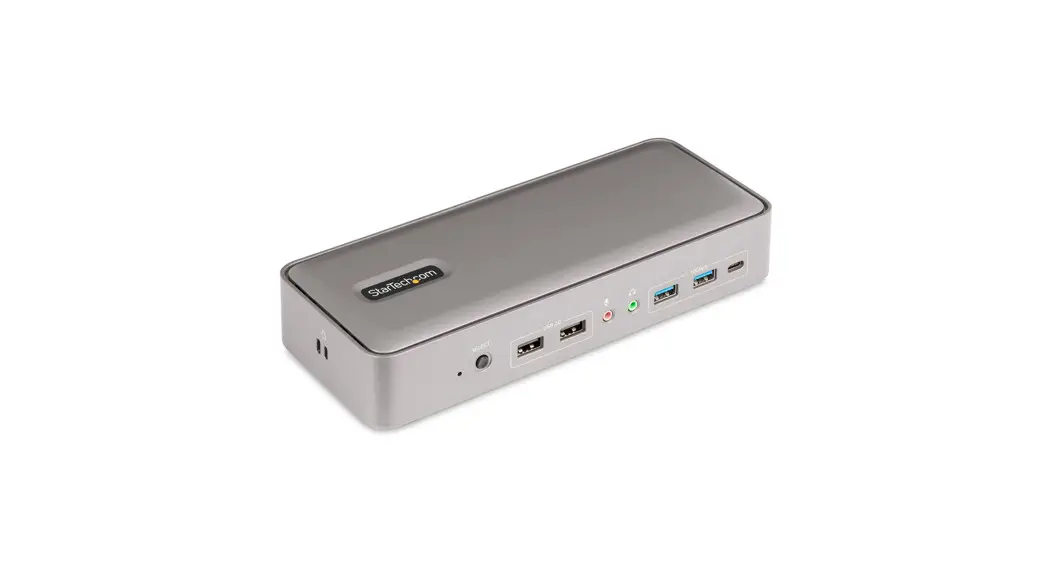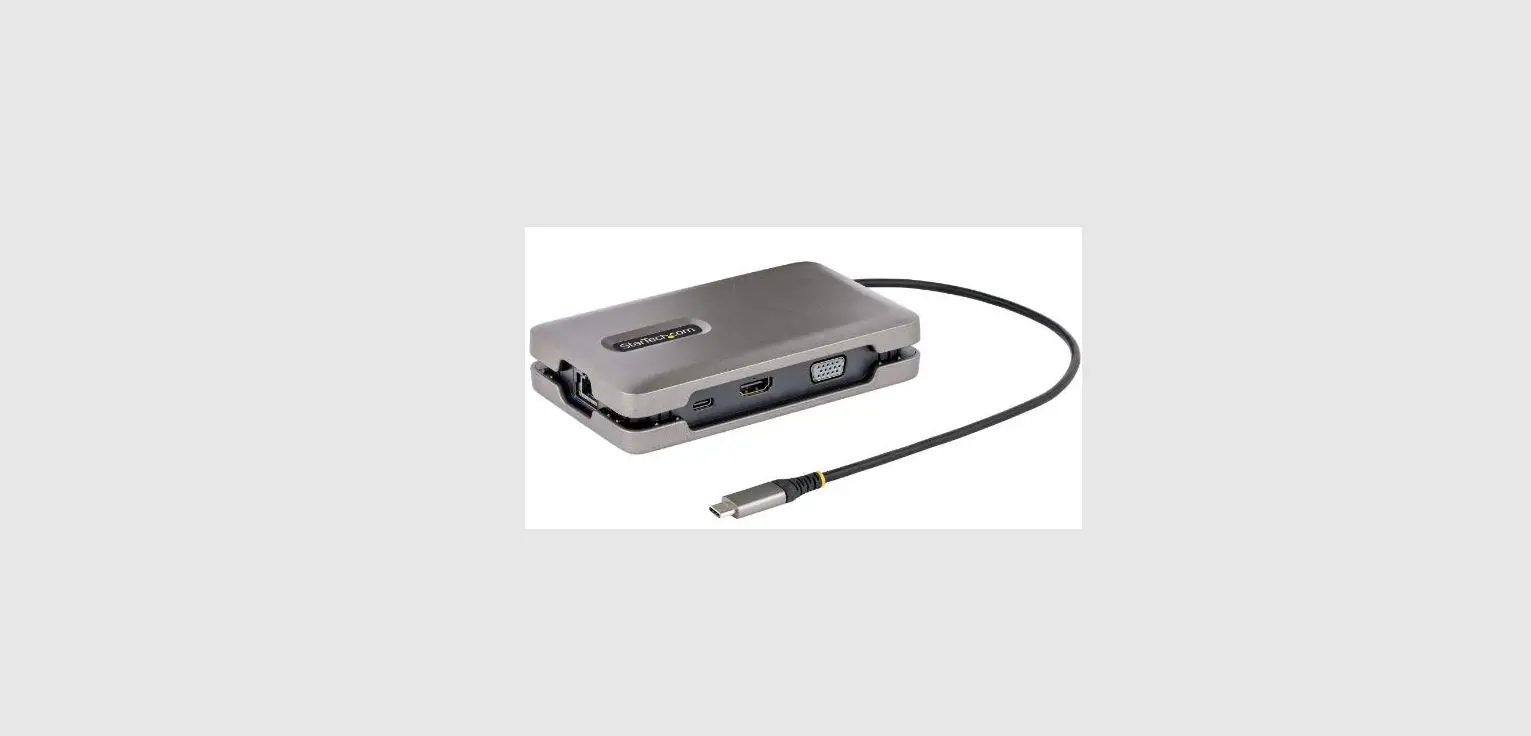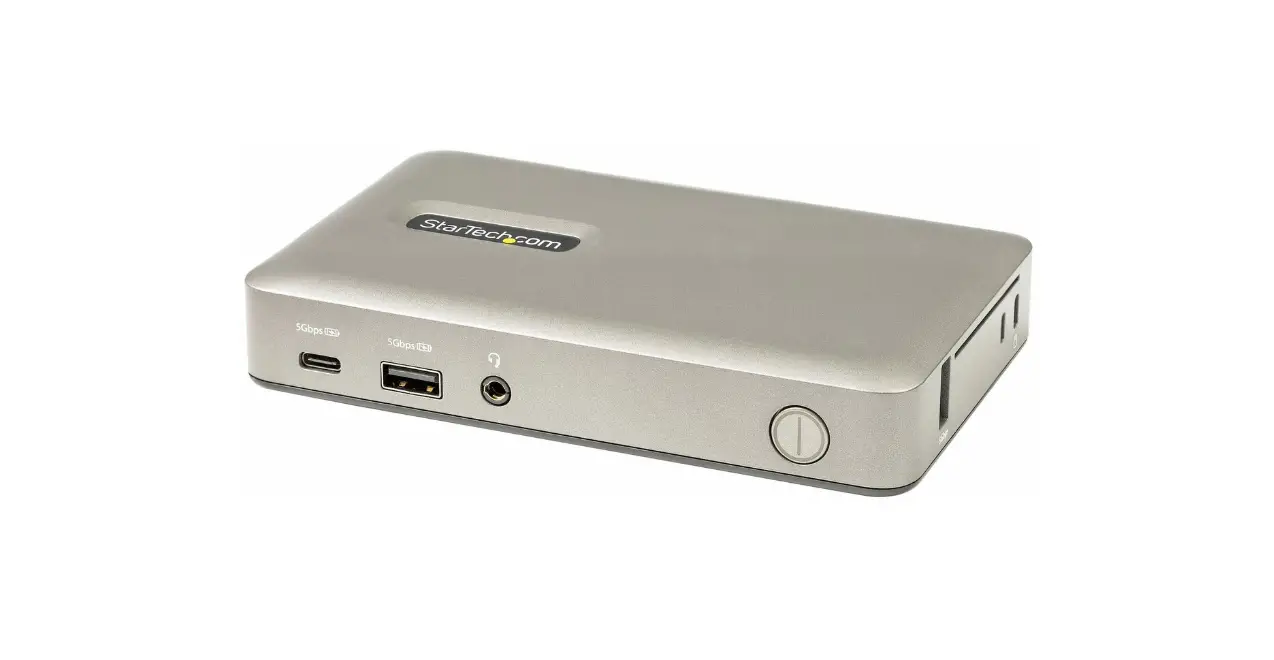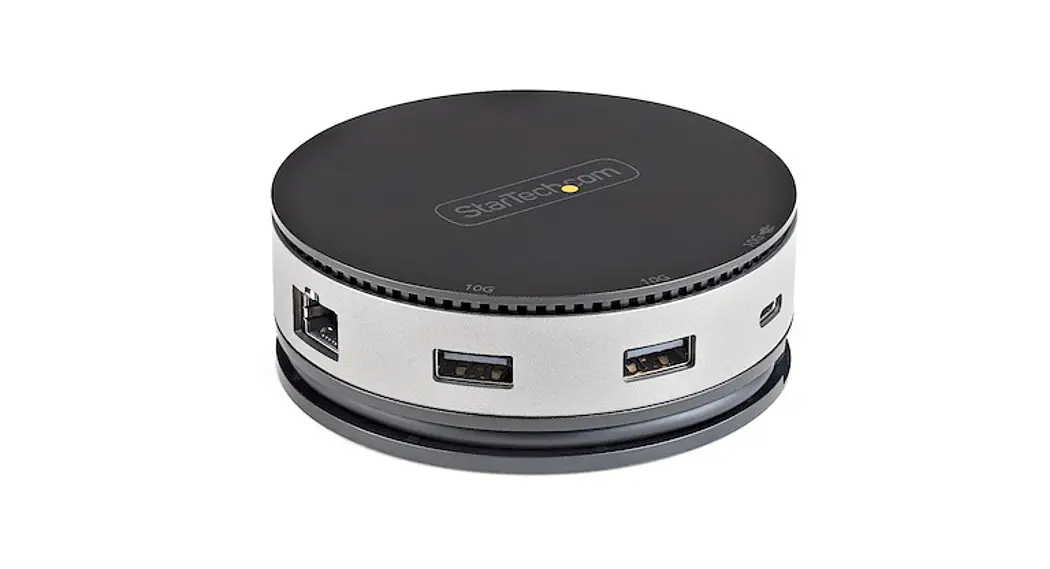
StarTech com 116N-USBC-DOCK USB-C Triple Monitor Dock User Guide
Product ID
116N-USBC-DOCK
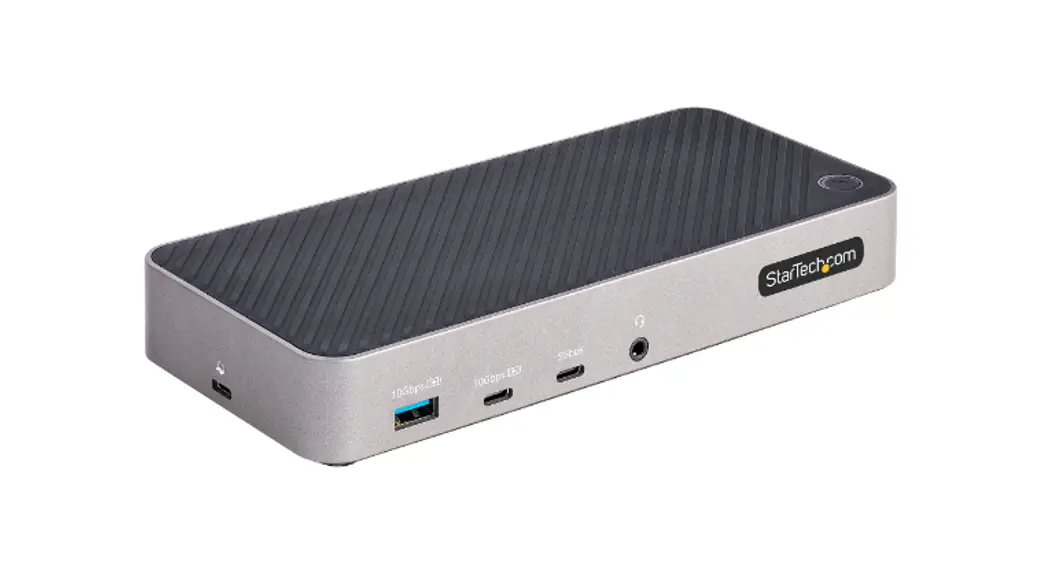
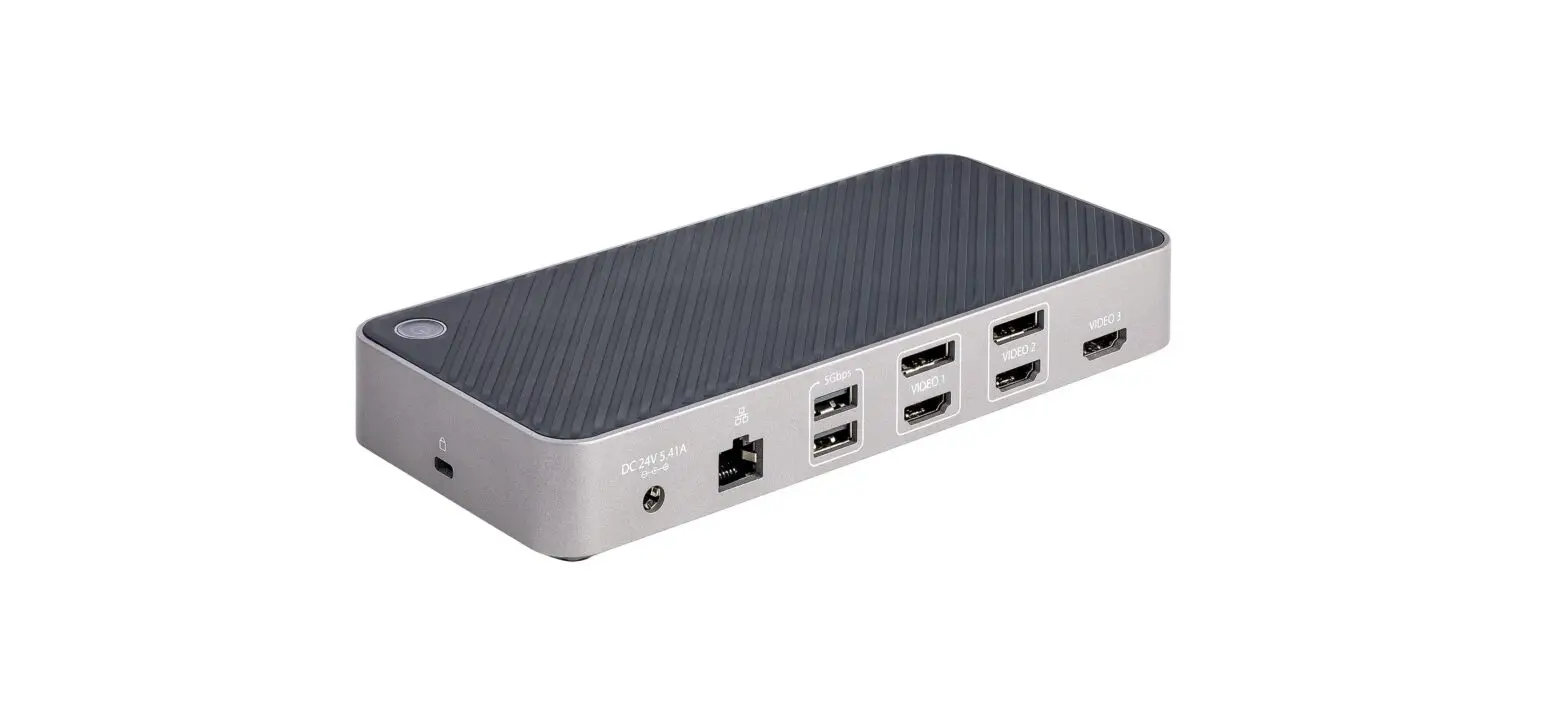
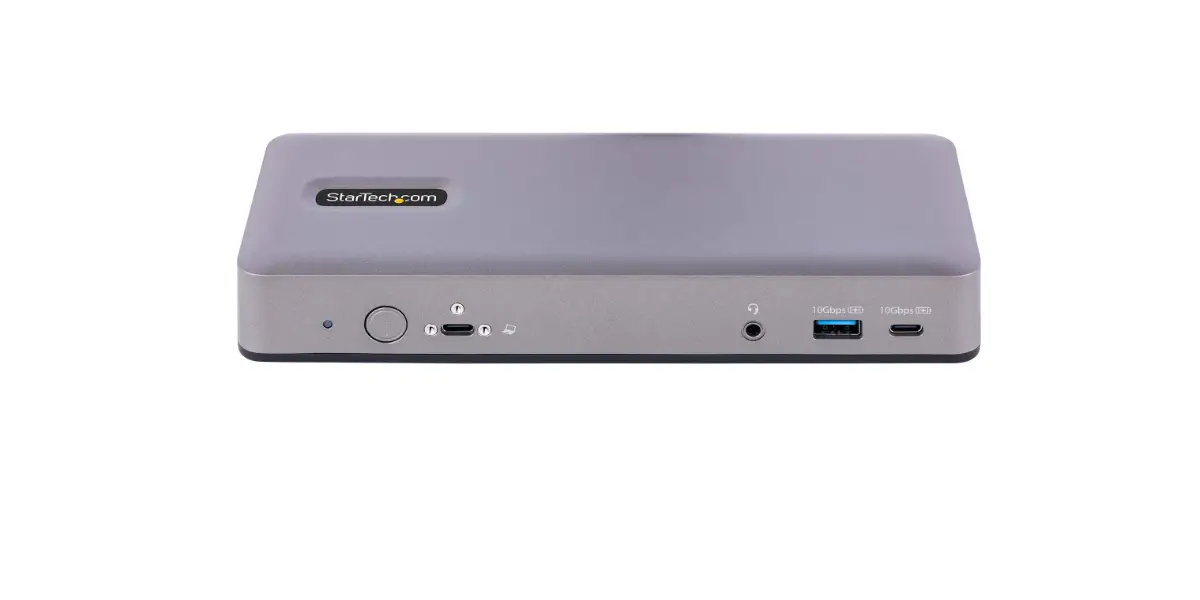
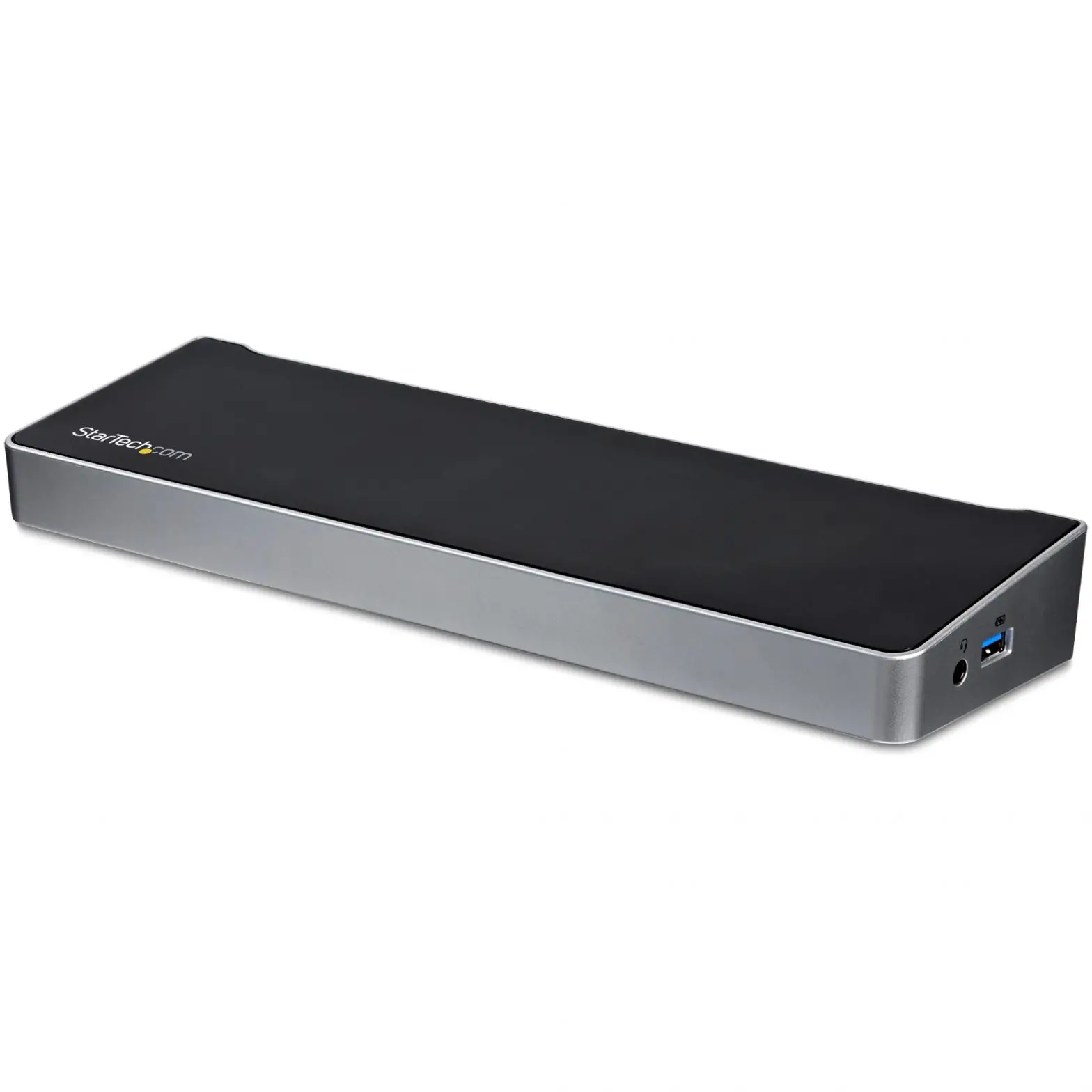
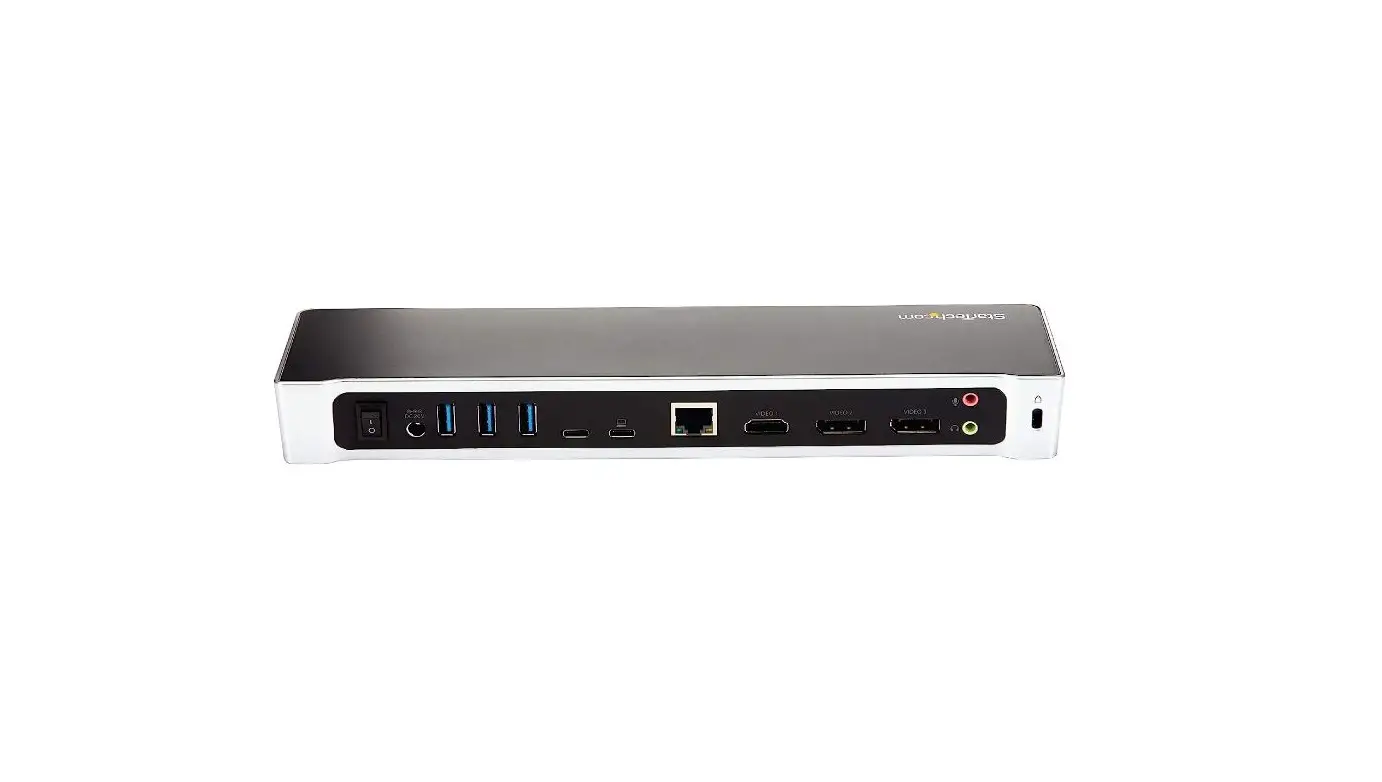
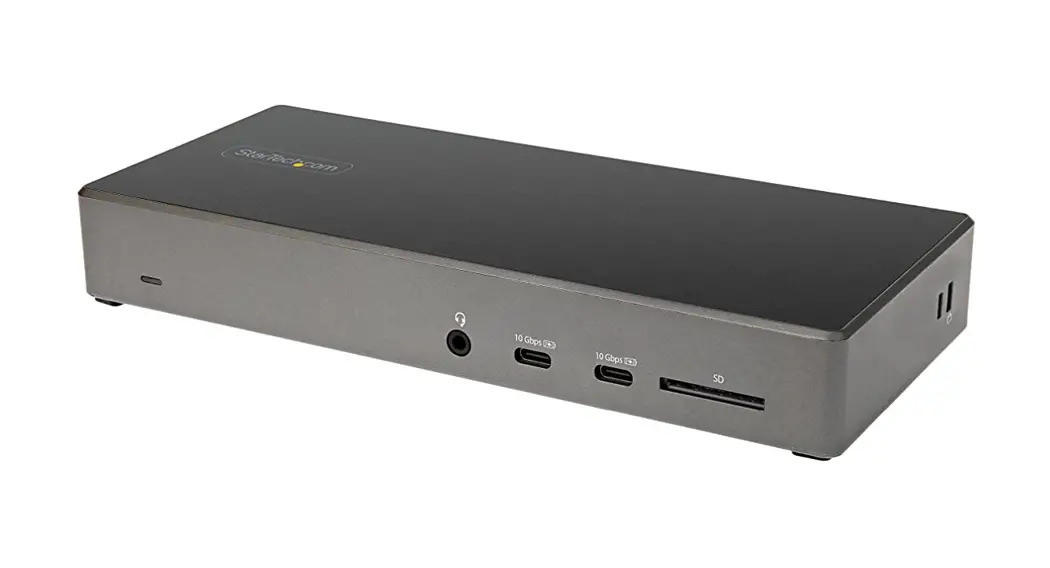
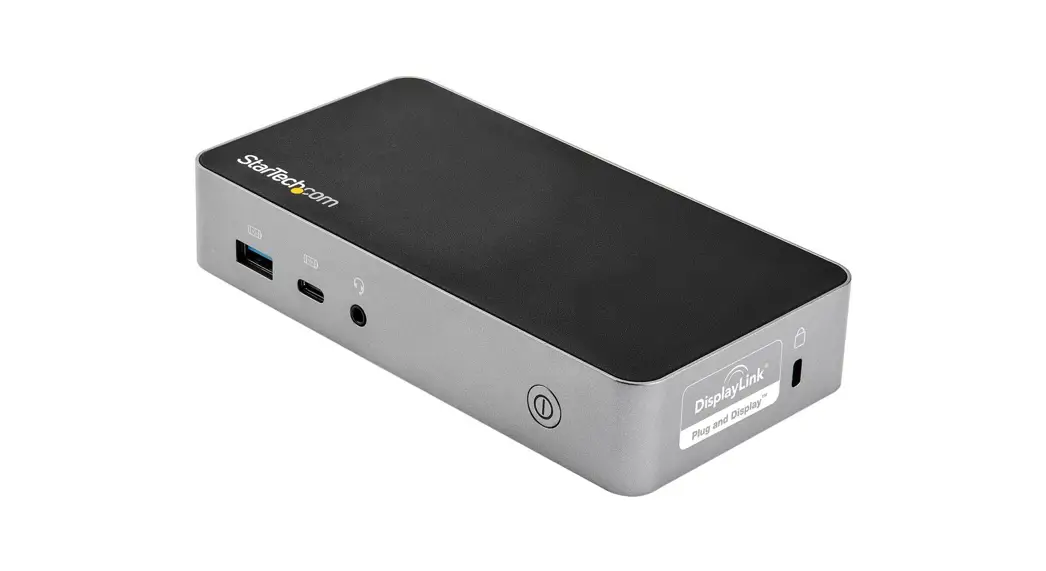
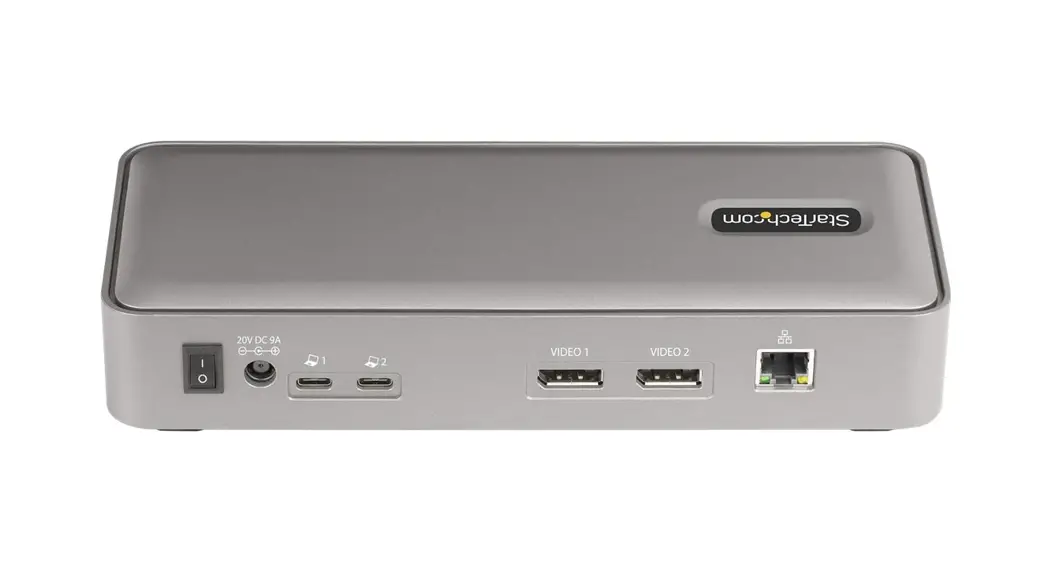
Product Diagram (Side A)
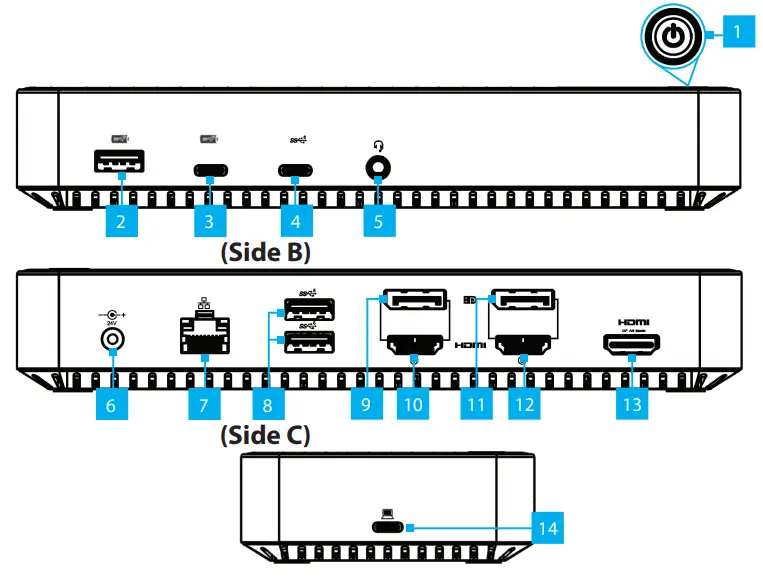
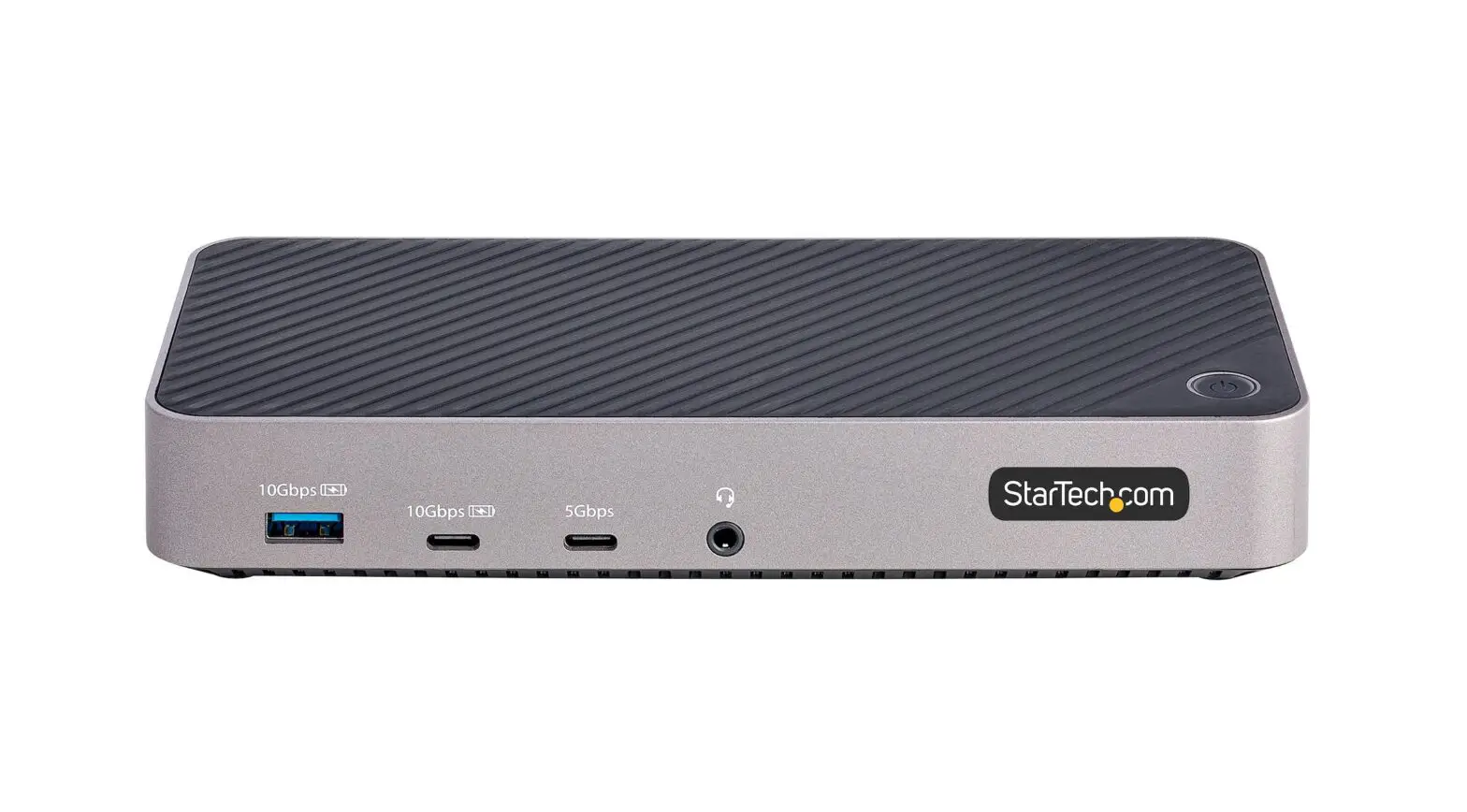
Component | Function | |
| 1 | Power Button |
|
| 2 | USB-A Data/Charge Port |
|
| 3 | USB-C Data/Charge Port |
|
| 4 | USB-C Data Port |
|
| 5 | 3.5mm Audio Po |
|
| 6 | DC 24V Port |
|
| 7 | Gigabit Ethernet Port |
|
| 8 | 2x USB-A Data Ports |
|
| 9 | Display Port Video Port (Video Output 1) |
|
| 10 | HDMI Video Port (Video Output 1) |
|
| 11 | Display Port Video Port (Video Output 2) |
|
| 12 | HDMI Video Port (Video Output 2) |
|
| 13 | HDMI Video Port (Video Output 3) |
|
| 14 | USB-C Host Port |
|
Requirements
- Computer
- DP Alt Mode enabled USB-C Port
- Video performance on Video Output #3, such as resolution, and refresh rate depend upon your host computer’s video controller. Please verify the specifications of your computer.
For the latest drivers, manuals, product information, technical specifications, and declarations of conformance, please visit: www.StarTech.com/116N-USBC-DOCK
Package Contents
- USB-C Docking Station x 1
- 3 ft (1m) USB-C Host Cable x 1
- Universal Power Adapter (North America) x 1
- Quick-Start Guide x 1
Installation
- Connect the Power Adapter from an AC outlet, to the DC 24V Port on the dock.
- Connect a USB Peripheral Device to the USB-C (USB 3.2 Gen 2) Data/Charge Port on the dock.
- Connect a USB Peripheral Device to the USB-A (USB 3.2 Gen 2) Data/Charge Port on the dock.
- Connect USB Peripheral Devices to the USB-A (USB 3.2 Gen 1) Data Ports on the dock.
- Connect an RJ-45 terminated network cable (CAT 5e or better) from your local area network (e.g. Router, Switch, Modem, etc.) to the Gigabit Ethernet Port on the Dock, to access your network via a wired LAN connection.
- Video Output #1 To connect a display using the DisplayPort or HDMI Video Port, connect the respective cable from the respective port to the display device. Note: Only a single display can be connected to either of the Video Output #1 output options.
- Video Output #2 To connect a display using the DisplayPort or HDMI Video Port, connect the respective cable from the respective port to the display device. Note: Only a single display can be connected to either of the Video Output #2 output options.
- Video Output #3 Connect an HDMI cable from the HDMI enabled display device, to the HDMI Video Port on the dock.
Use of Trademarks, Registered Trademarks, and other Protected Names and Symbols This manual may make reference to trademarks, registered trademarks, and other protected names and/or symbols of third party companies not related in any way to StarTech.com. Where they occur these references are for illustrative purposes only and do not represent an endorsement of a product or service by StarTech.com, or an endorsement of the product(s) to which this manual applies by the third-party company in question. StarTech.com hereby acknowledges that all trademarks, registered trademarks, service marks, and other protected names and/or symbols contained in this manual and related documents are the property of their respective holders. Warranty Information This product is backed by a 3-year warranty. For further information on product warranty terms and conditions, please refer to www.startech.com/warranty.
Limitation of Liability In no event shall the liability of StarTech.com Ltd. and StarTech.com USA LLP (or their officers, directors, employees or agents) for any damages (whether direct or indirect, special, punitive, incidental, consequential, or otherwise), loss of profits, loss of business, or any pecuniary loss, arising out of or related to the use of the product exceed the actual price paid for the product. Some states do not allow the exclusion or limitation of incidental or consequential damages. If such laws apply, the limitations or exclusions contained in this statement may not apply to you - If you have a Windows computer with Internet access, connect the USB-C Cable to the USB-C Host Port located on the dock, and to a USB-C port on your host laptop. Your computer will automatically detect the device and install all the required drivers.
If you’re running a non-Windows operating system or the drivers do not automatically install, disconnect the dock from your computer, then:
a. Navigate to www.StarTech.com/116N-USBC-DOCK and click the Drivers/ Downloads tab.
b. Under Driver(s), download the Driver Package for your operating system, and follow the steps outlined in the Installation guide, that’s included in the Driver Package.
Over Current Protection
To protect your connected devices from power surges, this dock features Over Current Protection (OCP).
If a high-powered USB Peripheral, such as a USB-powered external drive, is connected to a USB port on the dock, and the USB Peripheral Device attempts to draw more than 1.8 A of power, the dock will prevent this device from consistently connecting to the Computer. This may result in the Computer re recognizing the device continuously, until the device is disconnected.
For more information on OCP, including details on how to resolve issues with device detection, please visit www.StarTech.com/116N-USBC-DOCK and select the Product Support tab.
Regulatory Compliance
FCC — Part 15
This equipment has been tested and found to comply with the limits for a Class B digital device, pursuant to part 15 of the FCC Rules. These limits are designed to provide reasonable protection against harmful interference in a residential installation. This equipment generates, uses and can radiate radio frequency energy and, if not installed and used in accordance with the instructions, may cause harmful interference to radio communications. However, there is no guarantee that interference will not occur in a particular installation. If this equipment does cause harmful interference to radio or television reception, which can be determined by turning the equipment off and on, the user is encouraged to try to correct the interference by one or more of the following measures:
- Connect the equipment into an outlet on a circuit different from that to which the receiver is connected.
- Consult the dealer or an experienced radio/TV technician for help
This device complies with part 15 of the FCC Rules. Operation is subject to the following two conditions: (1) This device may not cause harmful interference, and (2) this device must accept any interference received, including interference that may cause undesired operation. Changes or modifications not expressly approved by StarTech.com could void the user’s authority to operate the equipment.
Industry Canada Statement
This Class B digital apparatus complies with Canadian ICES-003. NMB-003 du Canada. CAN ICES-3 (B)/NMB-3(B) This device complies with Industry Canada standard(s). Operation is subject to the following two conditions: (1) This device may not cause interference, and (2) This device must accept any interference, including interference that may
cause undesired operation of the device.
IC Radiation Exposure Statement:
This equipment complies with IC RSS-102 radiation exposure limit set forth for an uncontrolled environment. This equipment should be installed and operated with minimum distance 20cm between the radiator and your body.
StarTech.com
Ltd.
45 Artisans Cres
London, Ontario
N5V 5E9
Canada
StarTech.com LLP
4490 South Hamilton
Road
Groveport, Ohio
43125
U.S.A.
StarTech.com Ltd.
Unit B, Pinnacle 15
Gowerton Rd,
Brackmills,
Northampton
NN4 7BW
United Kingdom
StarTech.com Ltd.
Siriusdreef 17-27
2132 WT Hoofddorp,
The Netherlands
FR: startech.com/fr
DE: startech.com/de
ES: startech.com/e
NL: startech.com/nl
IT: startech.com/it
JP: startech.com/jp
 StarTech.com | IT Pro's Trusted Source for Connectivity Accessories
 Triple Monitor Docking Station, HDMI/DP - USB-C Docking Stations | StarTech.com