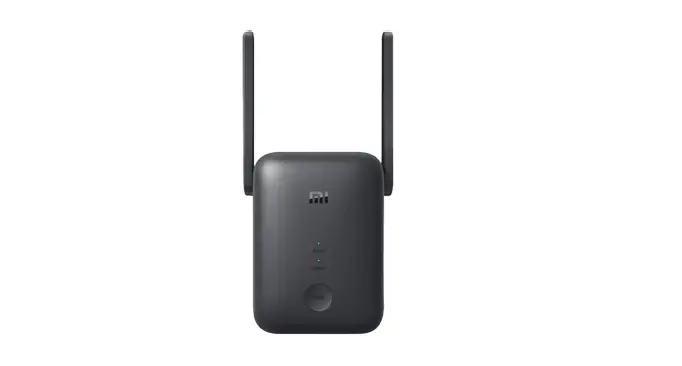
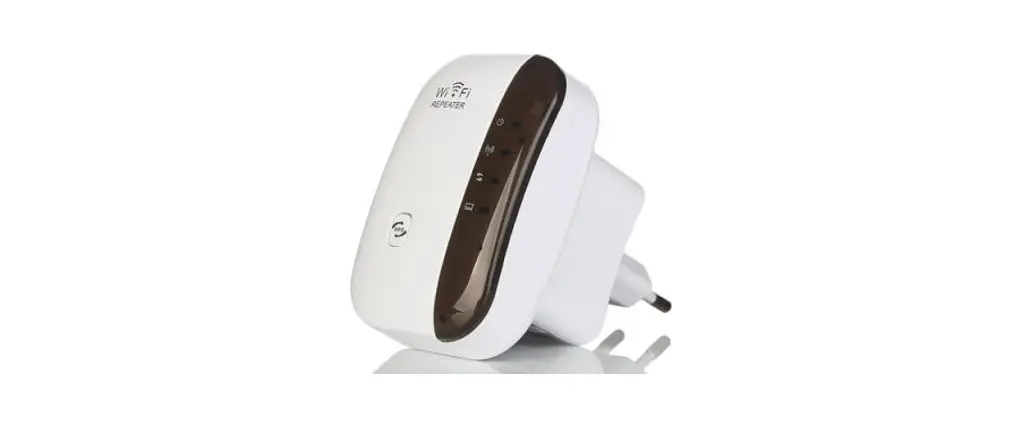
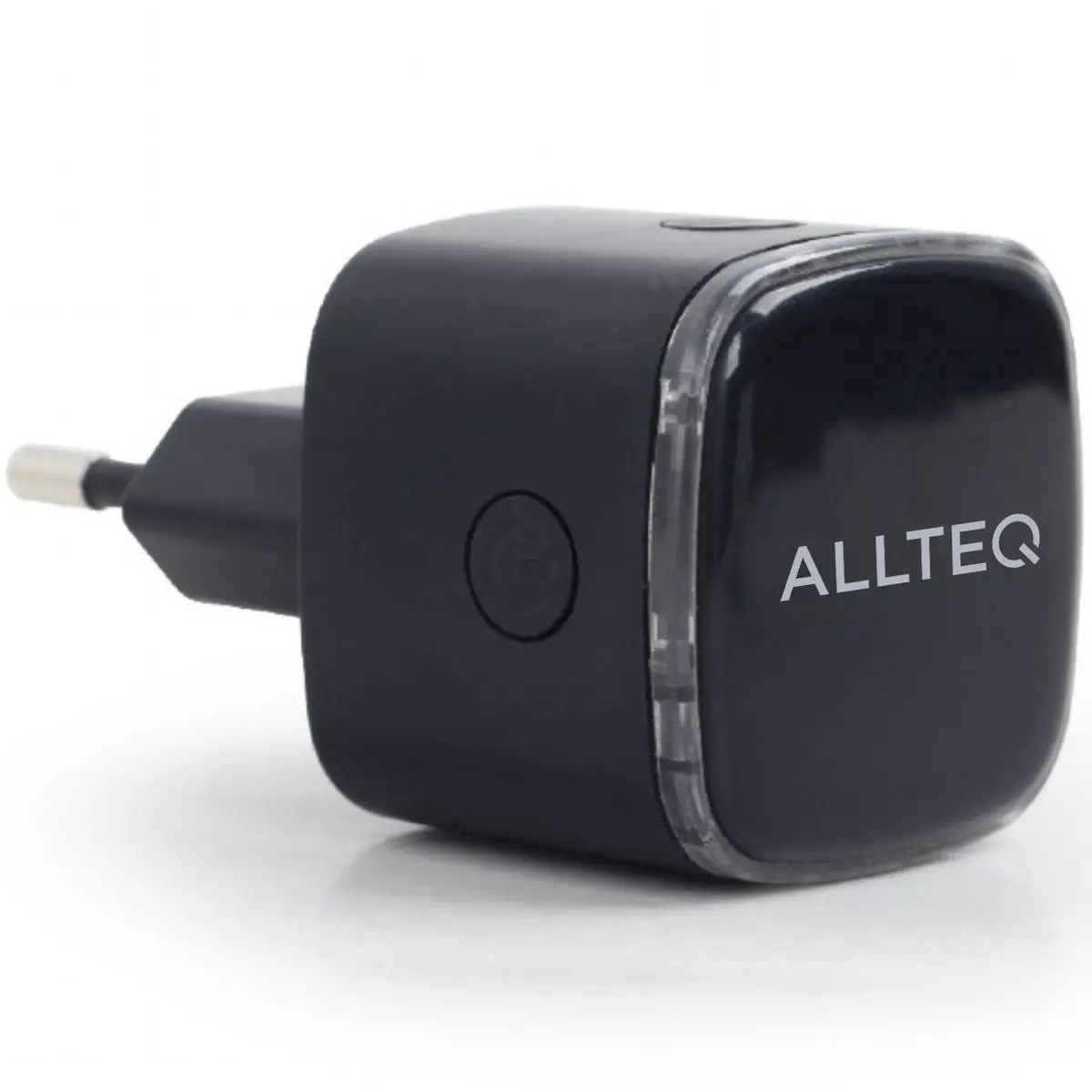
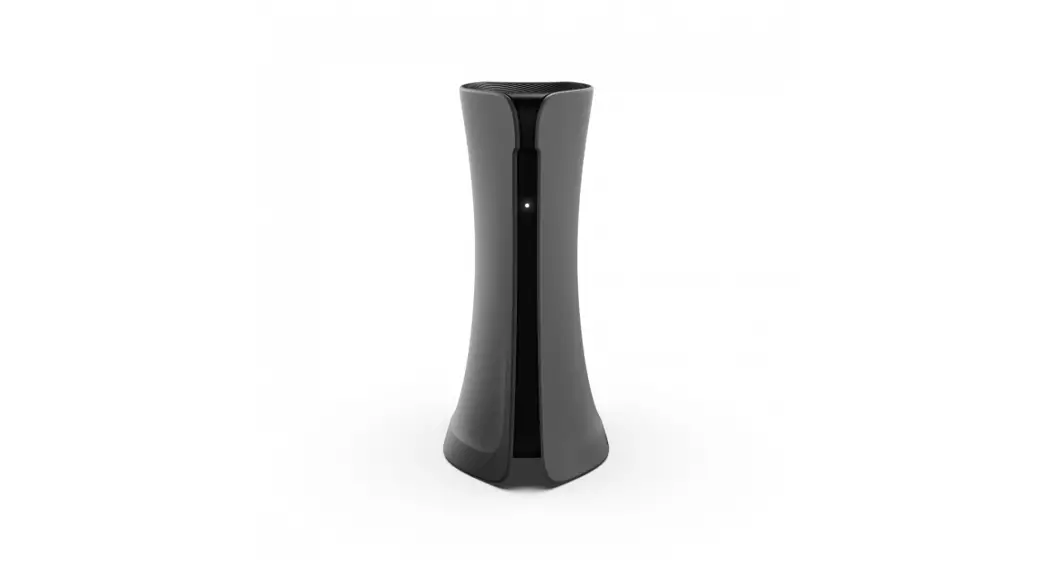
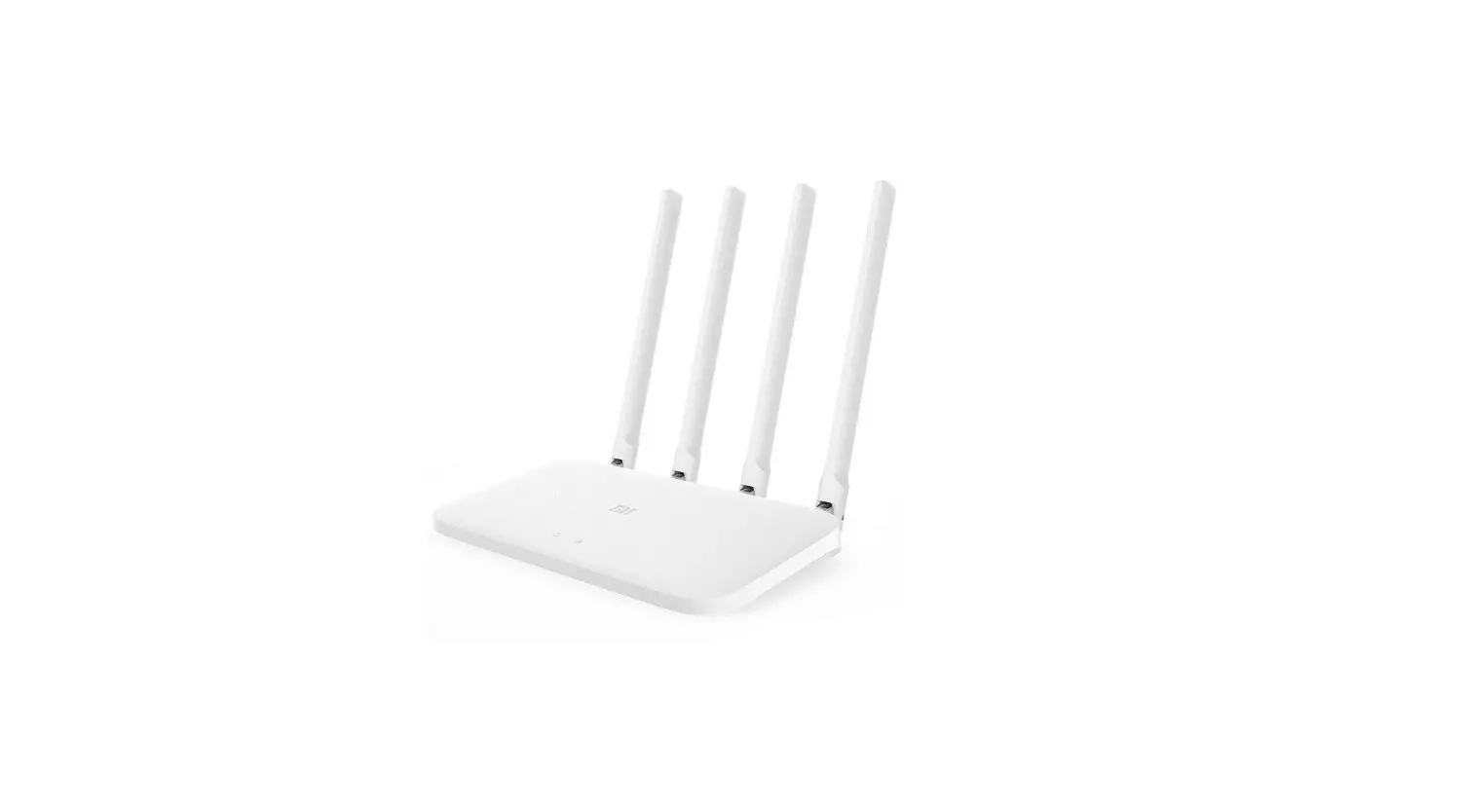
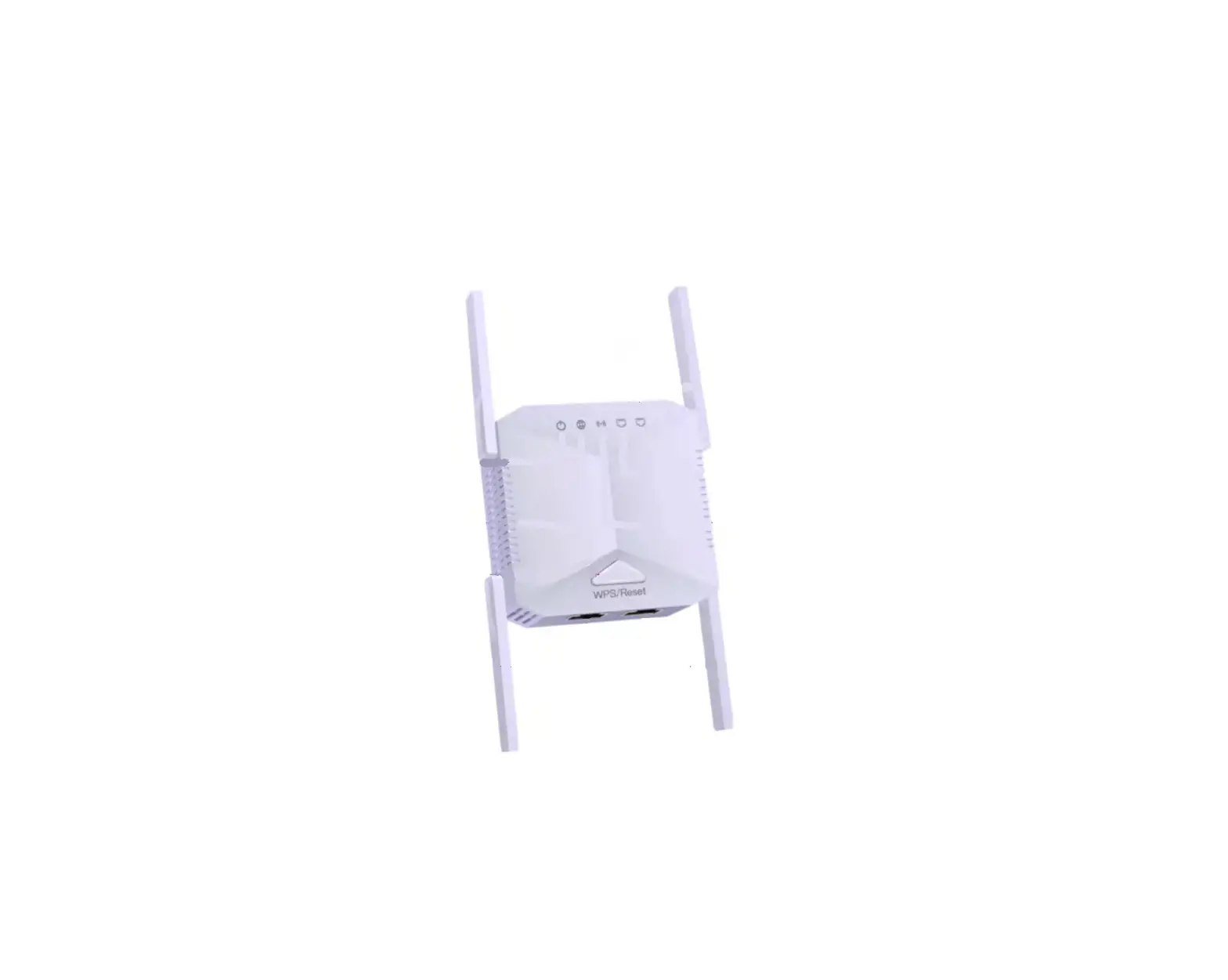
DSGW-075 Gateway and WiFi Repeater
Product Information
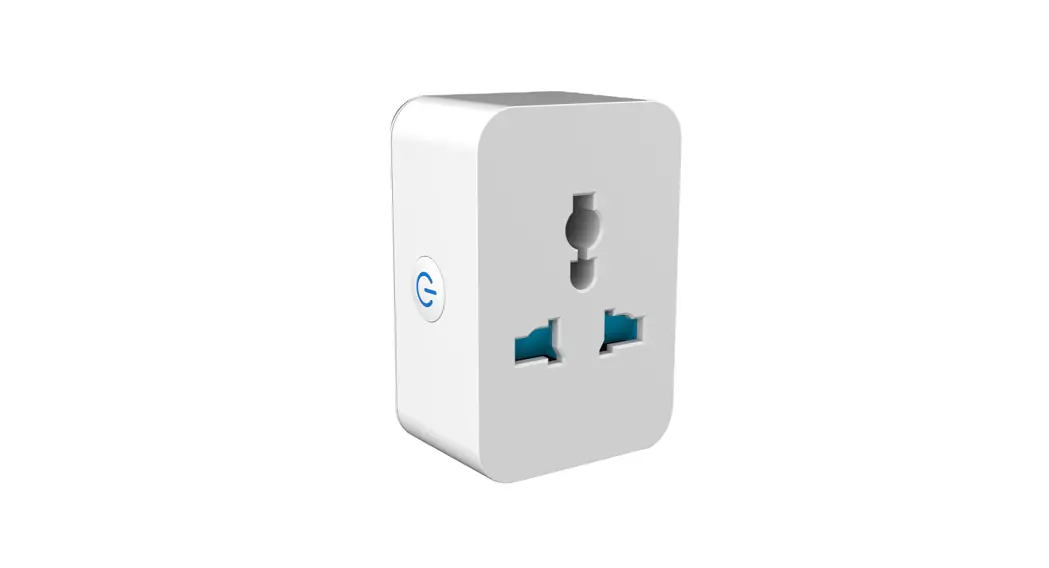
The Tuya Gateway is a device developed based on DSGW-075 and is
designed to connect to Tuya’s ZigBee devices. With the gateway, you
can control your devices using the Tuya App or Smart Life App.
The gateway comes with various components, including:
- Gateway x 1
- Network cable x 1
- Power Adapter
- USB Power cable x 1
The device supports two modes: AP mode and extender mode. In AP
mode, it turns the Ethernet port into your own personal Wi-Fi
hotspot to create a new network. In extender mode, it connects to
your router and extends the Wi-Fi coverage.
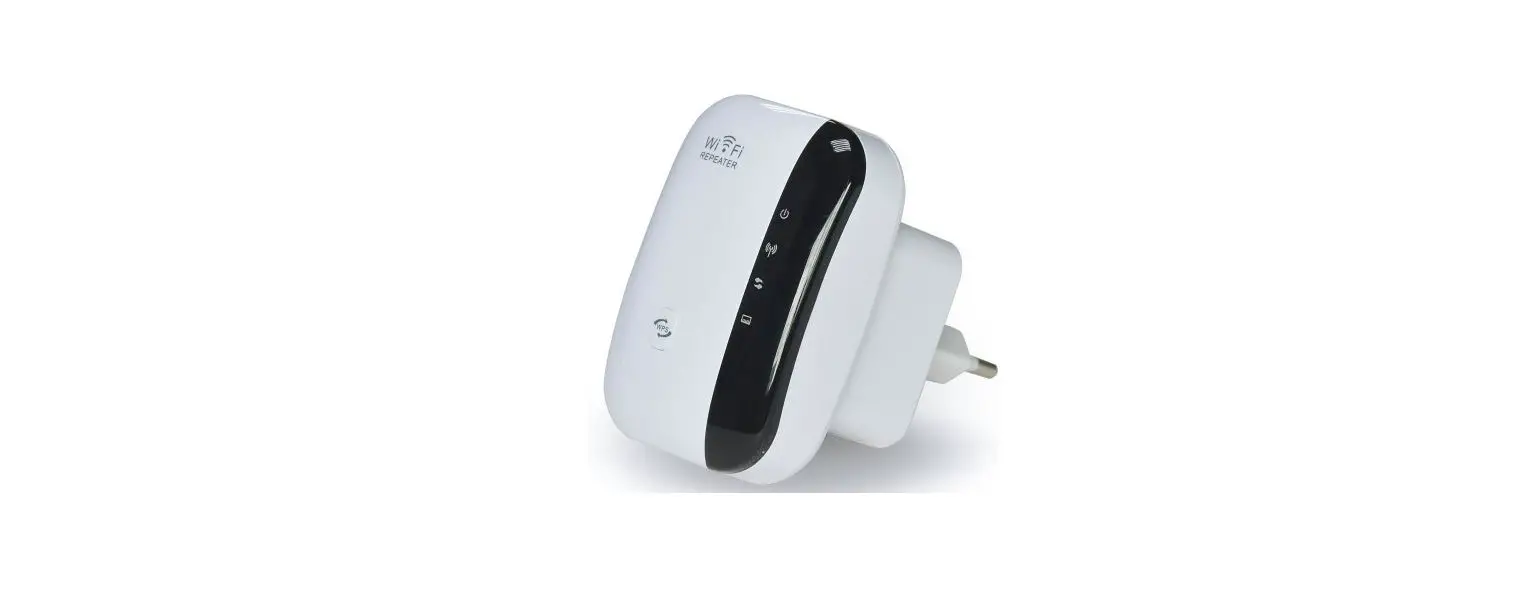
The Tuya Gateway also features button controls and indicator
LEDs to provide status information.
Product Usage Instructions
Installation
- Place the gateway in a location where it can be connected to
the router as well as to a power source. - Plug the gateway into a wall outlet. The device will start up,
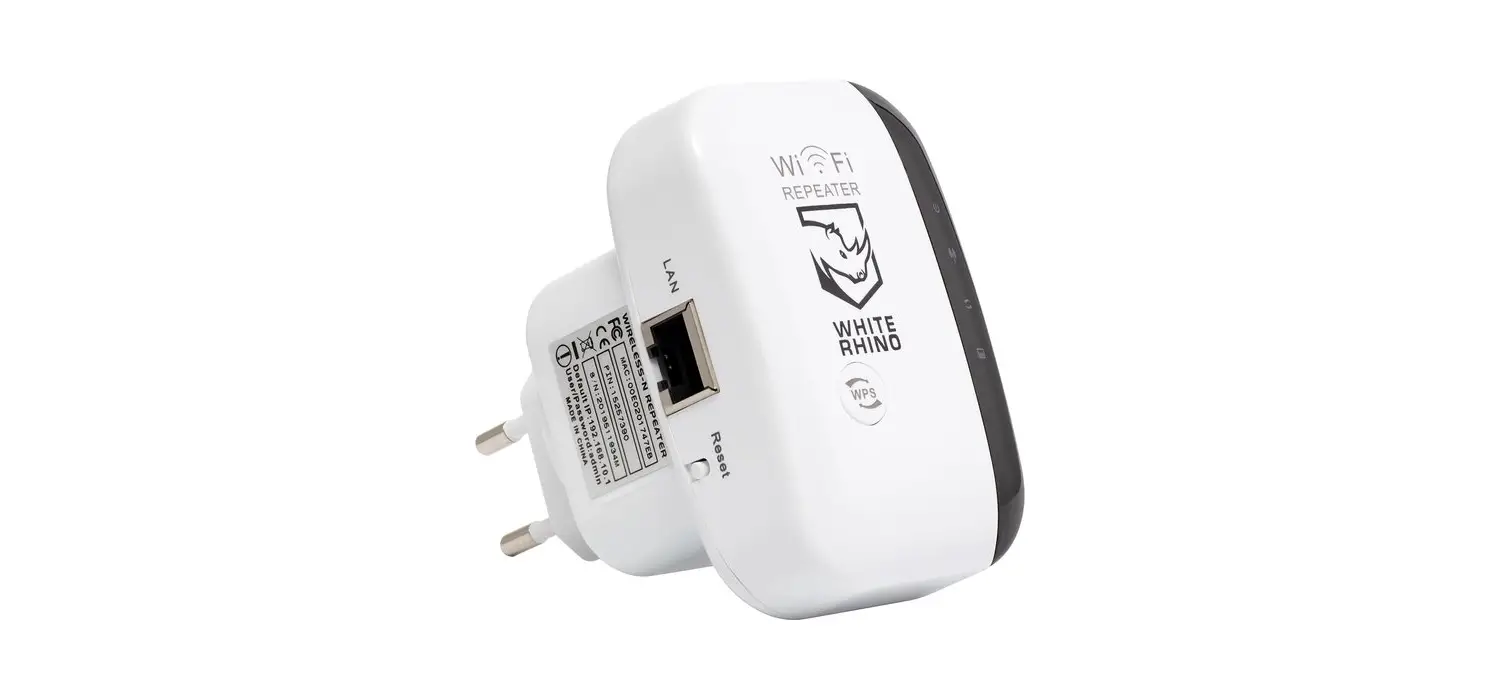
indicated by a flashing magenta LED light. - To reset the device to factory settings, press and hold the
reset button on the gateway for more than 10 seconds.
Setting up with Tuya App
- Use your phone to scan the QR code or search for the Smart Life
app in Google Play Store or App Store. Download and install the
app. - Open the app and select “Add Device”. Find the Wireless Zigbee
gateway in the device list for Gateway Central Control. - Ensure that the device is powered up, the gateway is connected
to the router, and the phone and the device are on the same
network. - Select the network you want to extend, enter the password, set
the extended wireless name, and click “Apply”.
Extender Mode Settings
To configure the extender mode settings, follow these steps:
- Open your mobile browser and enter “dslogin.net” in the address
bar. - On the management page, enter the default password “12345678”
and click “Login”. - In the extender mode settings, select the desired network (2.4G
or 5G) and click “Scan” to search for available networks. - After scanning, select the host network you want to extend and
enter the host password. Set the extended SSID (wireless name) and
click “Apply”.
Antenna Usage
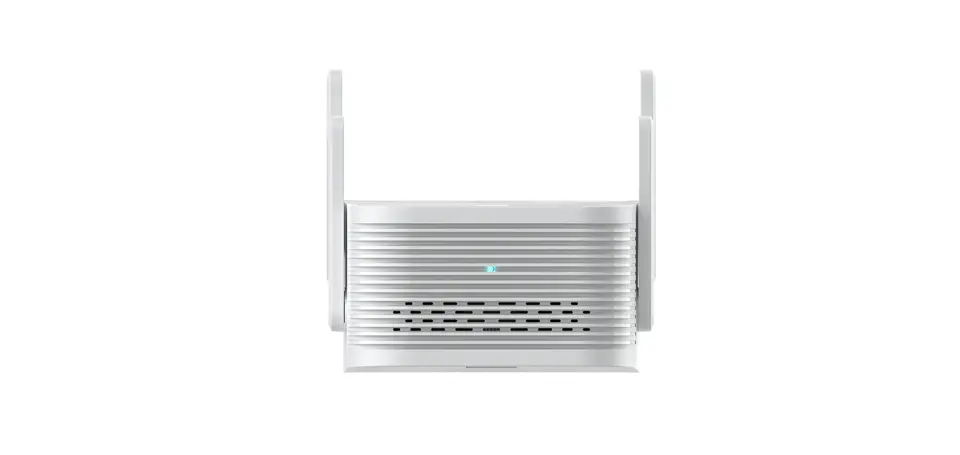
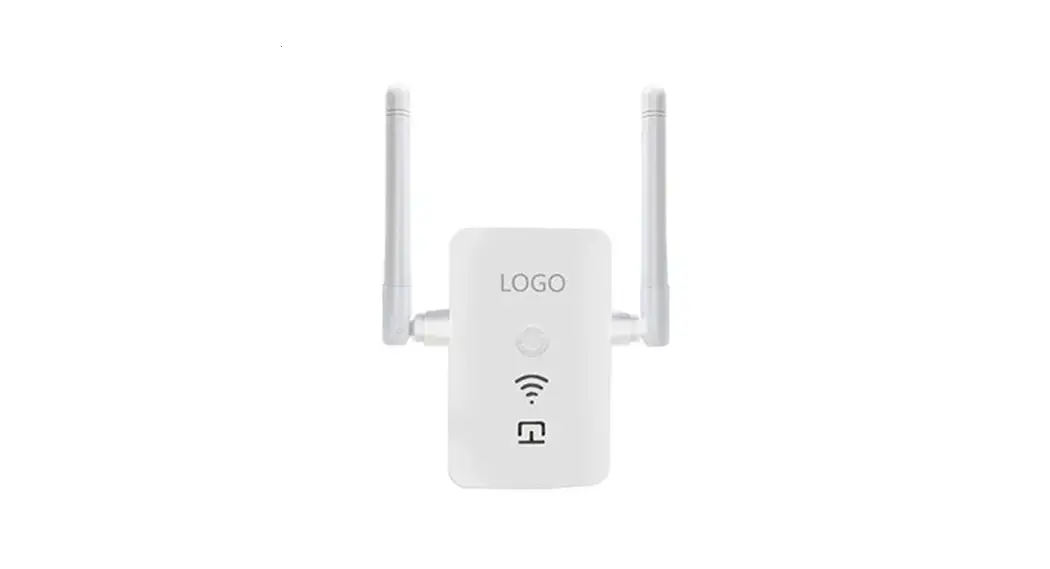
When using the device, ensure that you position the antennas
correctly:
- Do not stand up all four antennas when the device is plugged
in. - Keep the antennas on both sides at a 90-degree angle to ensure
optimal performance.
Tuya Gateway
User manuals
2. After connecting to Wi-Fi, open your mobile browser, output dslogin.net to enter the management page, output the default password 12345678 and click Login.
dslogin.net Welcome to use Wi-Fi extender
Create password Confirm password:
Apply
Product List
Gateway x 1
Network cable x 1
Power Adapter
USB Power cable x 1
3. Factory AP mode by default, in expander mode for scanning the surrounding 2.4G or 5G networks.
dslogin.net
Extender Mode setting
CMCC
2.4G
CMCC-AUTO 2.4G
BUSINESS
2.4G
hzdusun
2.4G
2.4G Setting
2.4G Host Network
Scan
5G Setting
5G Host Network
Scan
dslogin.net
Extender Mode setting
CMCC
5G
CMCC-AUTO 5G
BUSINESS
5G
hzdusun
5G
2.4G Setting
2.4G Host Network
Scan
5G Setting
5G Host Network
Scan
Introduce
The tuya gateway is developed based on DSGW-075, it can be connected to tuya’s ZigBee device. You can control the devices via the gateway with tuya App or smart life App.
Button
Indicator LEDs
How to install
1. Place the gateway in a location where it can be connected to router as well as to a power source.
2. Plug the gateway on the wall outlets (device startup takes about a minute till the LED light flashing magenta color).
3. Reset the device Press and hold the reset button on the gateway for more than 10 seconds, Then the device restoresto factory Settings.
4. Indicator Light Description
Blue light flashing Normal network connection not tied
Blue light always on Successful connection to the Tuya IoT platform
Magenta light flashing Internet disconnect (WAN and Wi-Fi not connected)
Red light
Tuya program startup failure
How to set up
tuya app
1.Use your phone to scan QR code or search”Smart Life” app in Google play store or APP Storeto download and install it.
2.Select Add Device and find the Wireless Zigbee gateway in the device list for the Gateway Central Control.
Note: The device is powered up, the gateway is connected to the router and the phone and the device are on the same network.
4. Select the network to be extended, enter the password and set the extended wireless name, click Apply.
dslogin.net Extender Mode setting
2.4G Setting
2.4G Host Network Host password Extended SSID
Scan CMCC
5G Setting
5G Host Network
Scan
Apply
dslogin.net Extender Mode setting
2.4G Setting
2.4G Host Network
Scan
5G Setting
5G Host Network Host password Extended SSID
Scan CMCC
Apply
Work Mode
The extender supports 2 modes, AP mode and extender mode.
AP Mode
When DSGW-071 works in AP Mode,it turns Ethernet port your own personal Wi-Fi hotspot to create a new network.
Internet
Extender Mode
It connect to router,and extender the Wi-Fi.
WPS Buttons
WPS
WPS
RE
Wi-Fi
Press the WPS button of the superior AP, then press the WPS button of this device. The LEDs of this device start flashing red and blue together. When the red and blue lights start flashing fast, it means that the Wi-Fi in the 2.4G band is being connected and the configuration is completed when the flashing is done (the device is in extender mode once the WPS configuration is completed).
Use the antenna correctly
When plugged in, do not stand up all four antennas. Please keep the antennas on both sides at a 90-degree angle to use.
90°
Basic Parameters
Project Model Power supply Plug Type Interface Indicator LEDs Button Power Consumption Dimension Weight
Specification Description DSGW-075
Input:100V~240V AC/50~60HZ EU,UK,US,AU
1x10x100M Ethernet Port(RJ45) Two-color LED
WPS and Reset function 3W
86mm(W)x57mm(D)x45mm(H) About 126g
3.Connect to your router’s Wi-Fi ,select your Wi-Fi SSID and enter the password, and click Next. Note: Android users will need to select AP Mode for the next step.
4.Connect your mobile phone to the device’s hotspots, add the device to tuya app, the hotspot name is dusun_xxxxxx, xxxxxx is the last 8 digits of mac address.After completing the gateway addition, choose to add your device (device adding takes about a minute till the LED blue light always on).
Repeater
1. The mobile phone searches for the wireless Wi-Fi issued by the extender: Dusun-2G/5G-XXXX, XXXX is the last 4 digits of the Mac address, use your mobile phone to connect to this Wi-Fi.
FCC Statement
1. This device complies with Part 15 of the FCC Rules. Operation is subject to thefollowing two conditions: (1) this device may not cause harmful interference (2) this device must accept any interference received, including interference that maycause undesired operation. 2. Changes or modifications not expressly approved by the party responsible forcompliance could void the user’s authority to operate the equipment.
Note:
This equipment has been tested and found to comply with the limits for a Class B digital device,pursuant to part 15 of the FCC Rules. These limits are designed to provide reasonable protection against harmful interference in a residential installation. This equipment generates,uses and can radiate radio frequency energy and, if not installed and used in accordance with the instructions, may cause
harmful interference to radio communications. However, there is no guarantee that interference will not occur in a particular installation. If this equipment does cause harmful interference to radio or television reception, which can be determined byturning the equipment off and on, the user is encouraged to try to correct the interference by one or more of the following measures:
– Reorient or relocate the receiving antenna. – Increase the separation between the equipment and receiver. – Connect the equipment into an outlet on a circuit different from that to which the receiver is connected. – Consult the dealer or an experienced radio/TV technician for help.
To comply with FCC RF exposure requirements,a minumum seqarationdistance of 20 cm must be maintained between the user’s body and the transmitter.