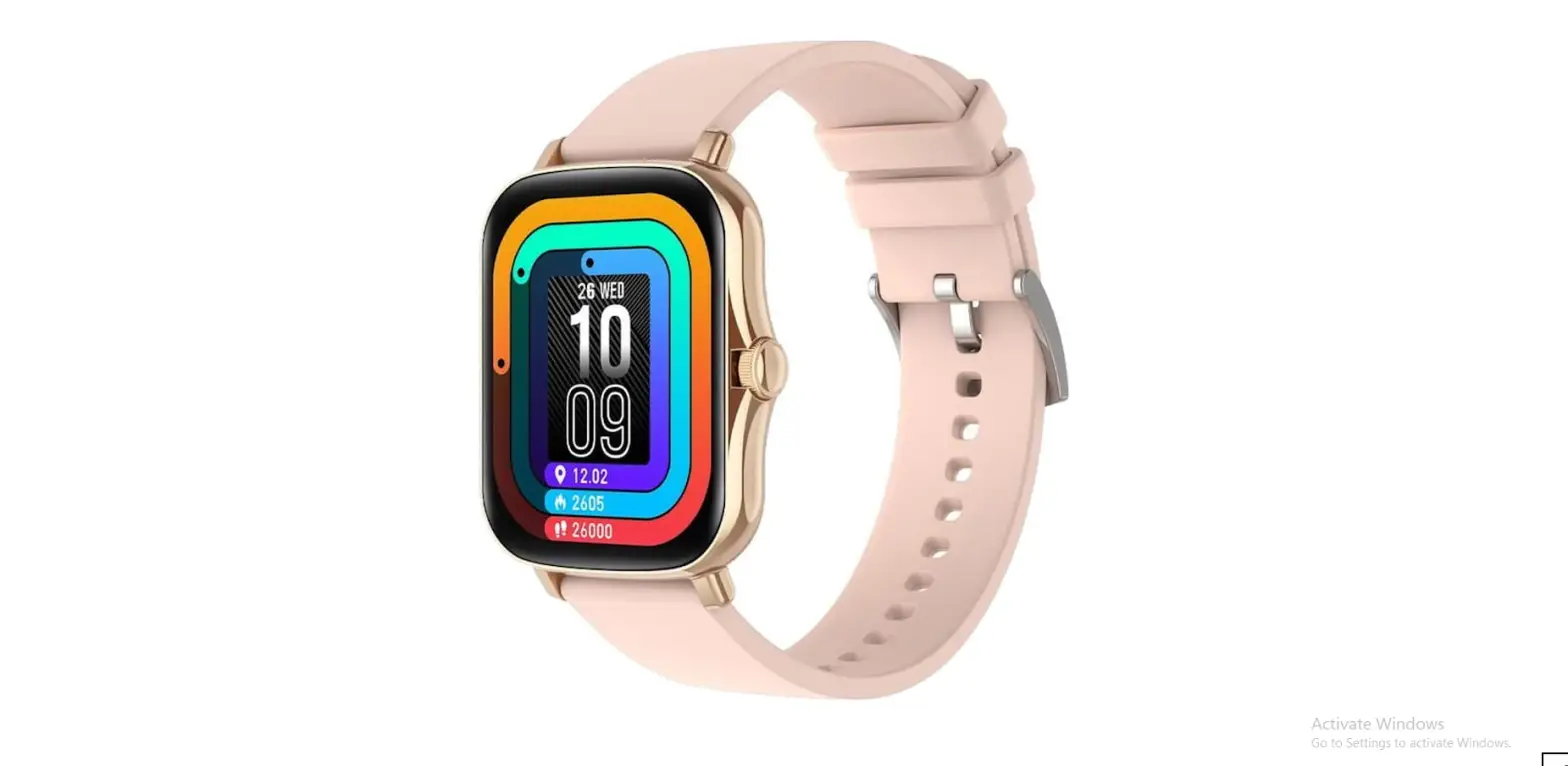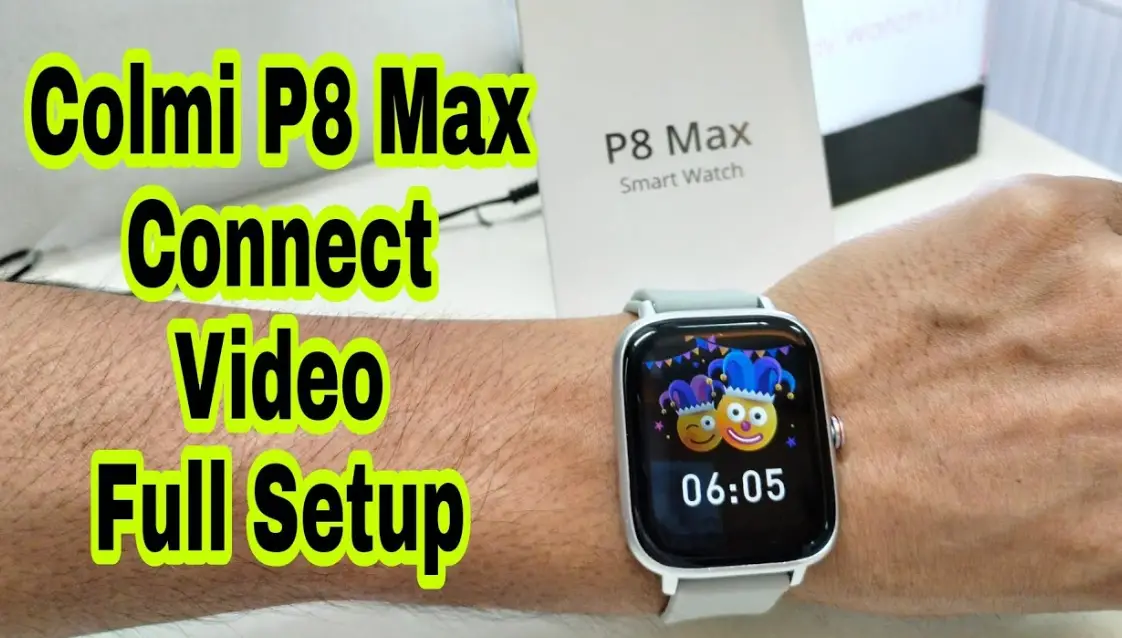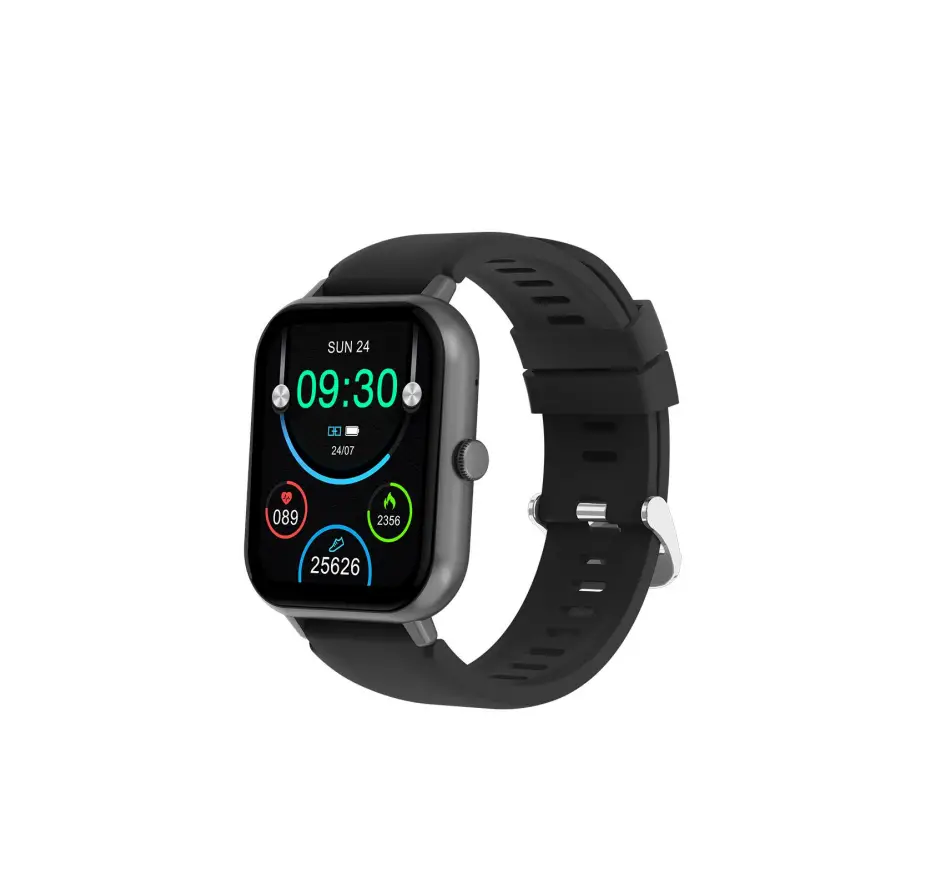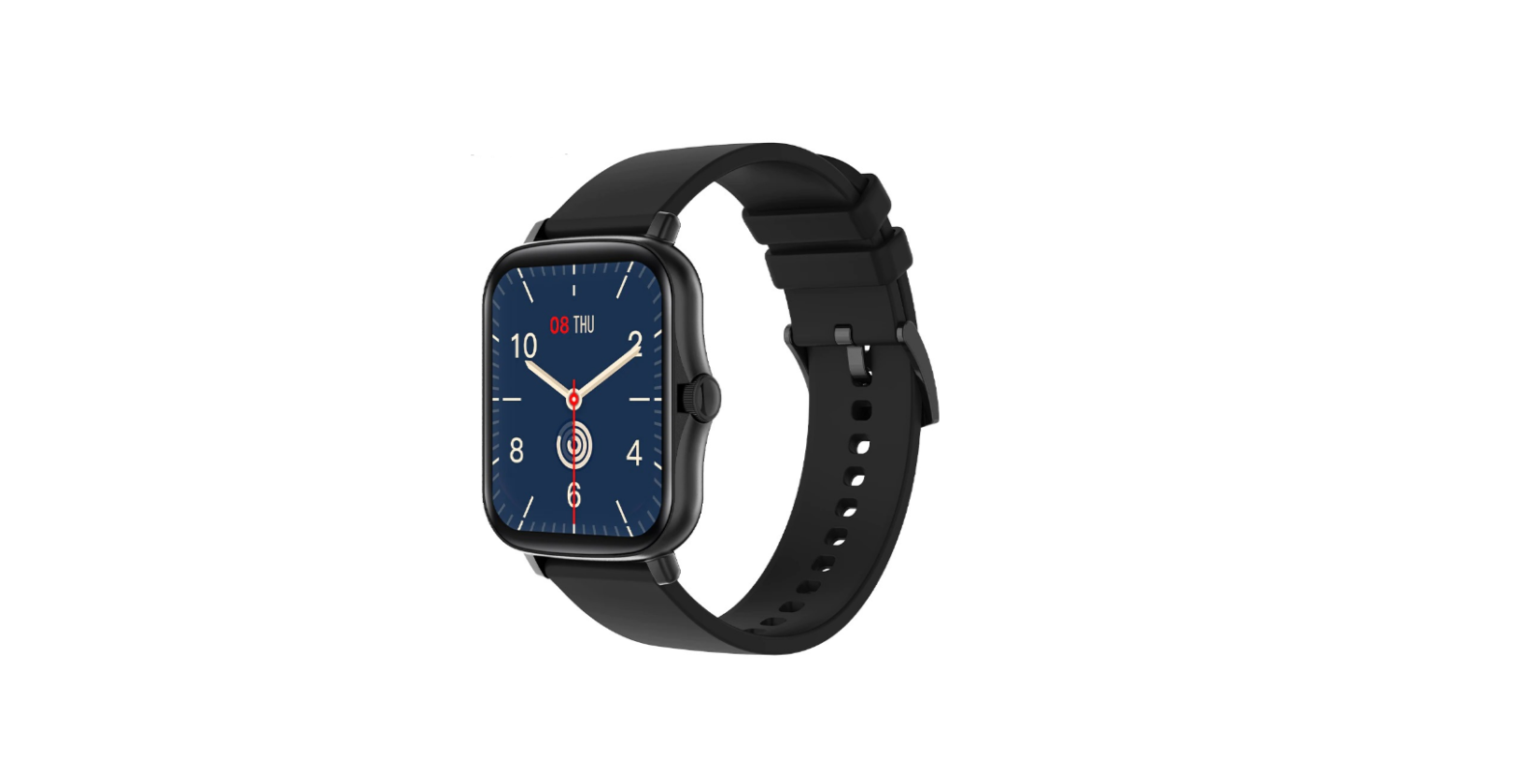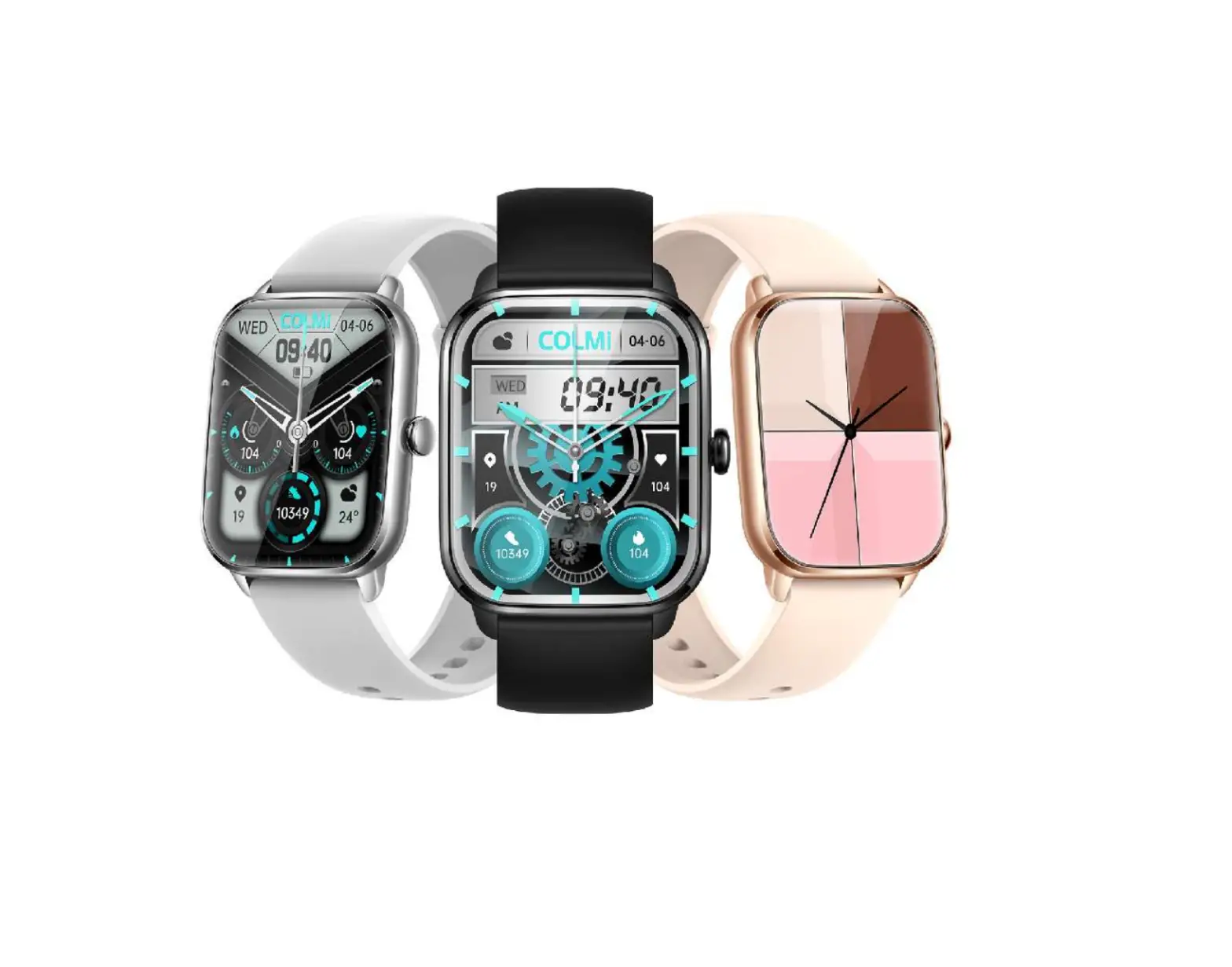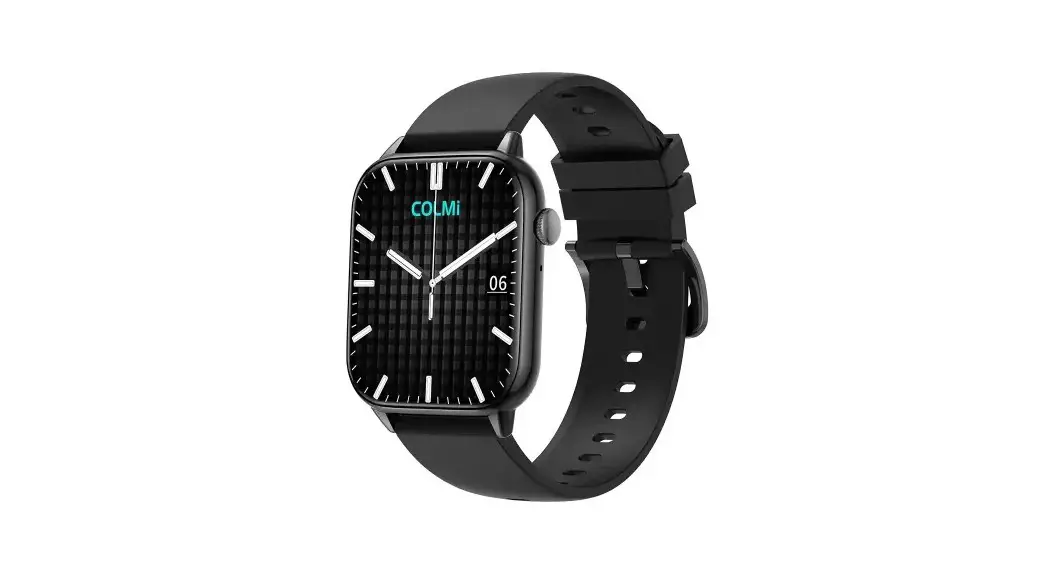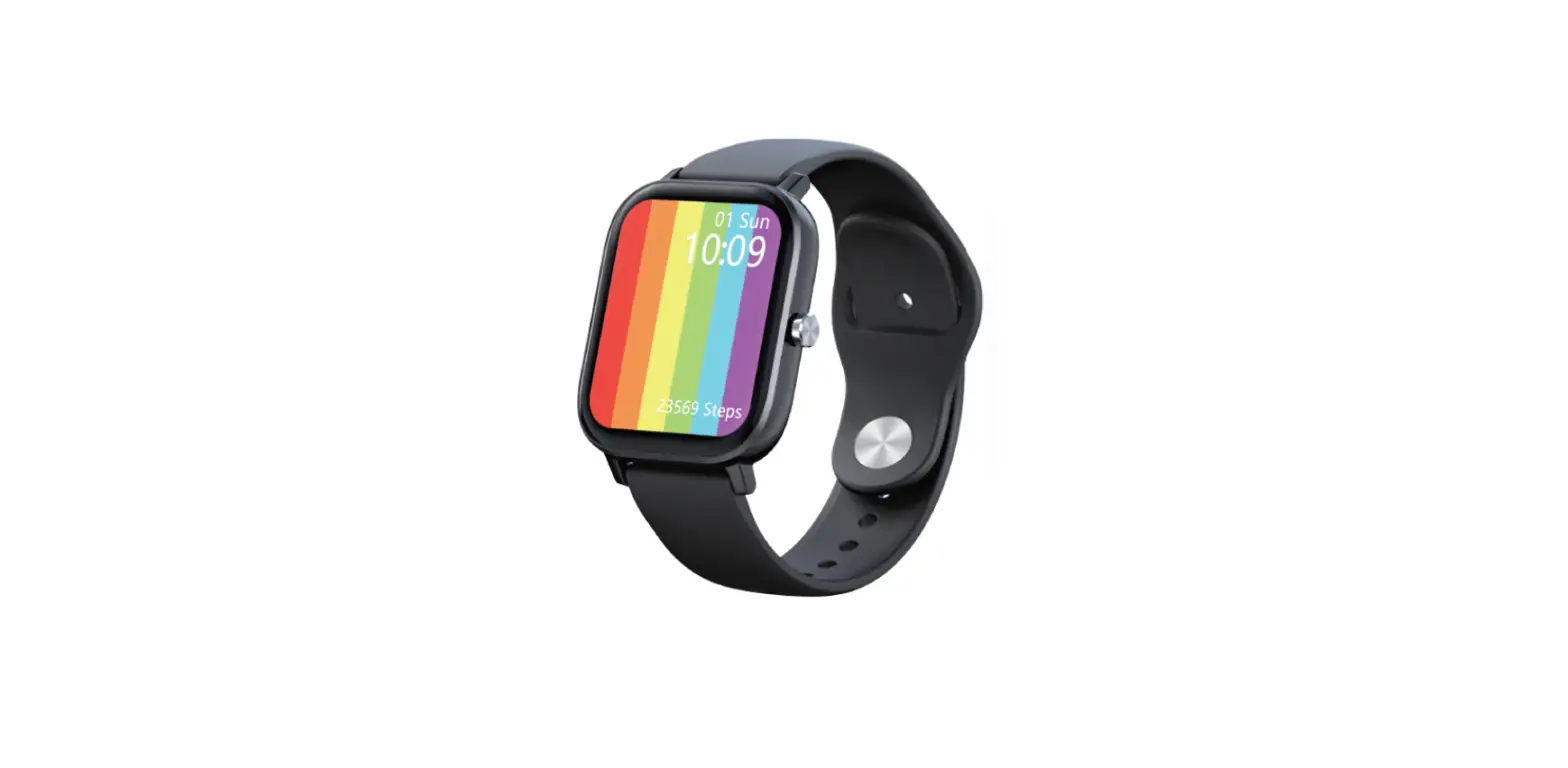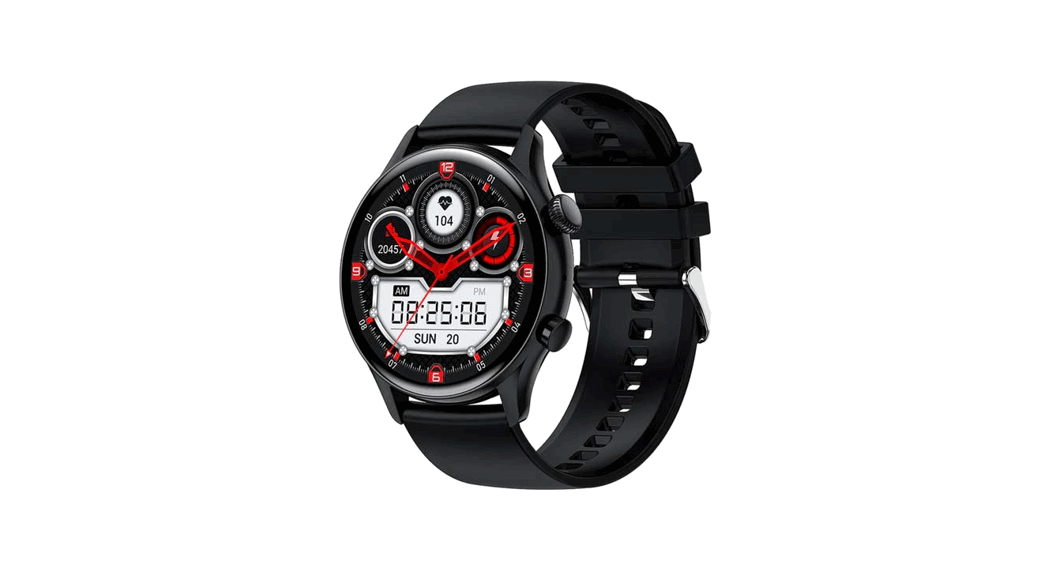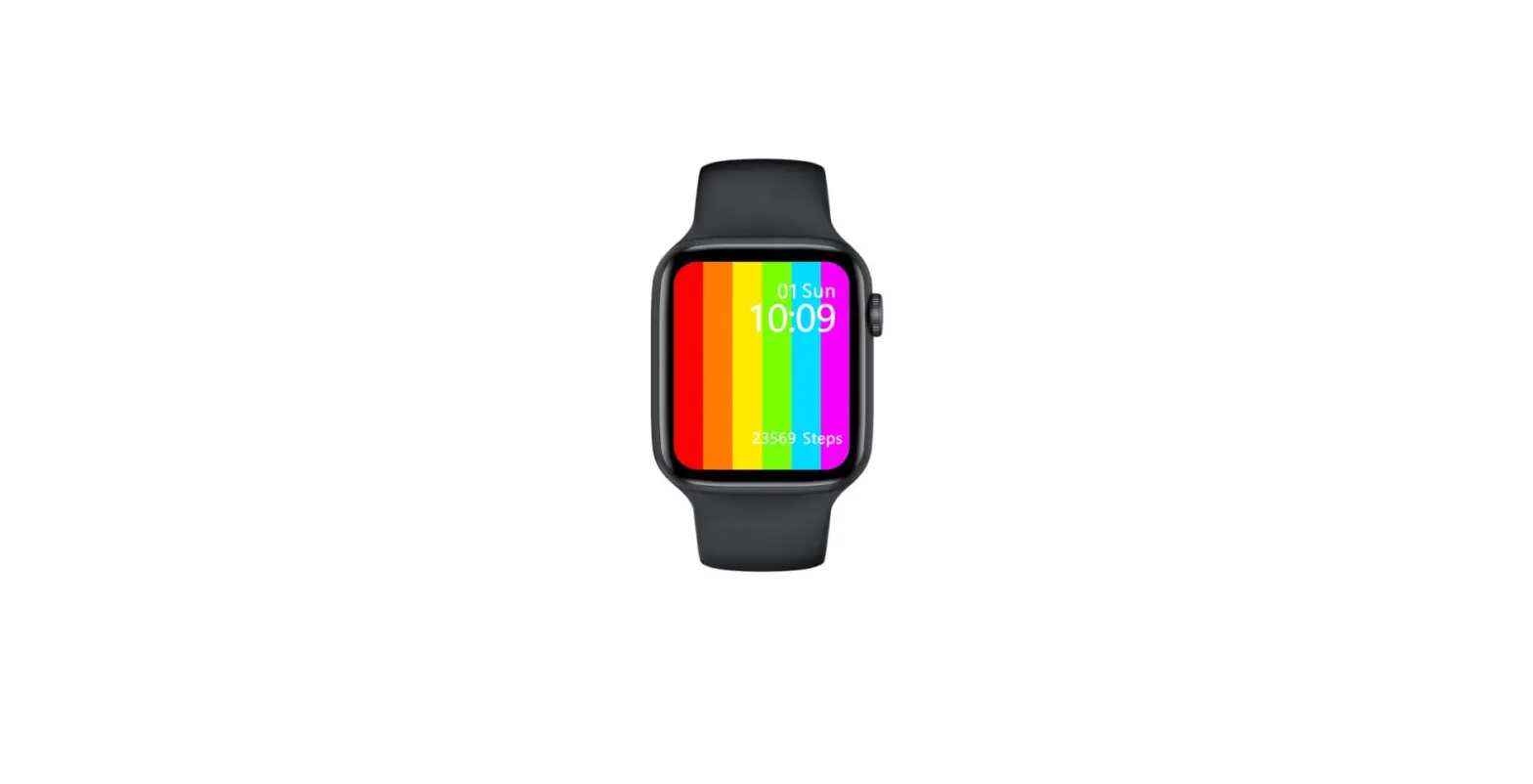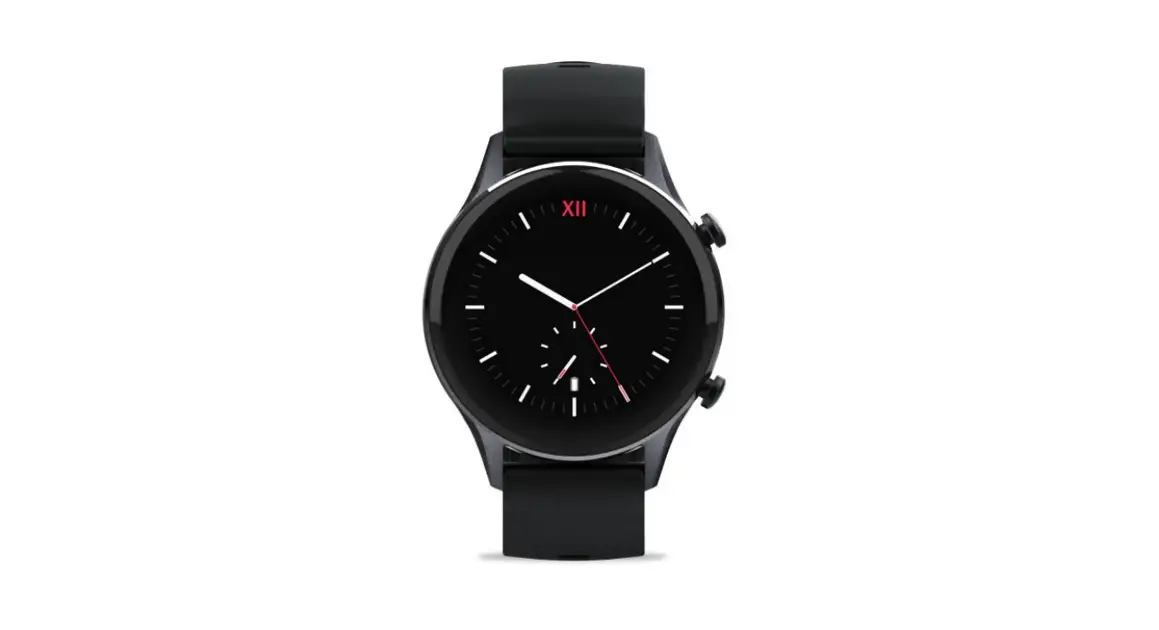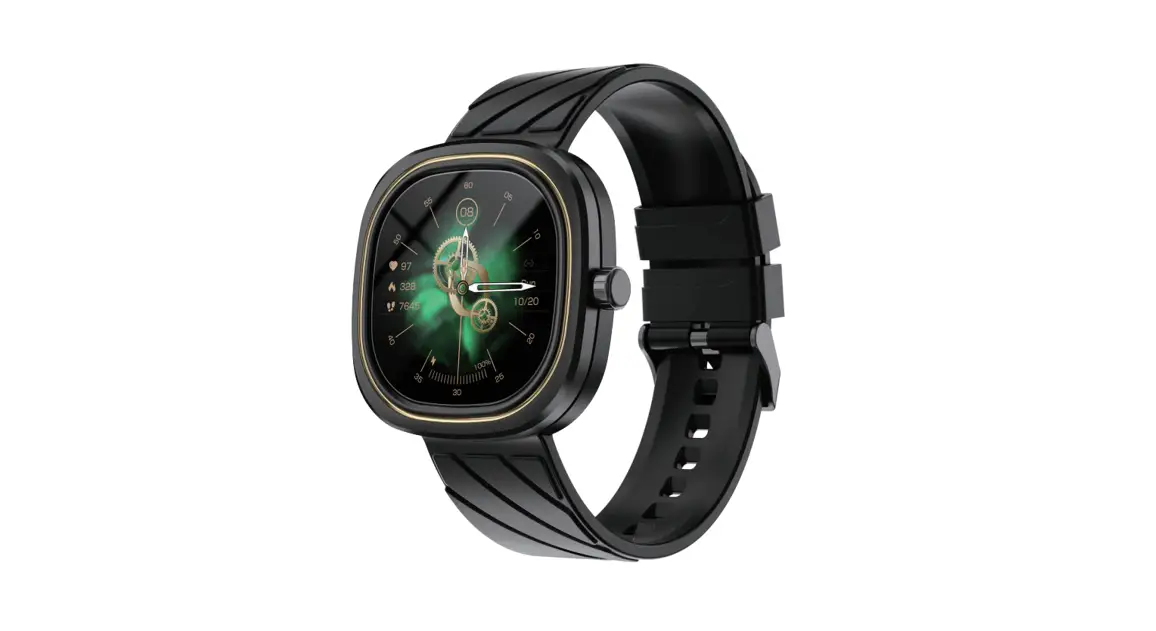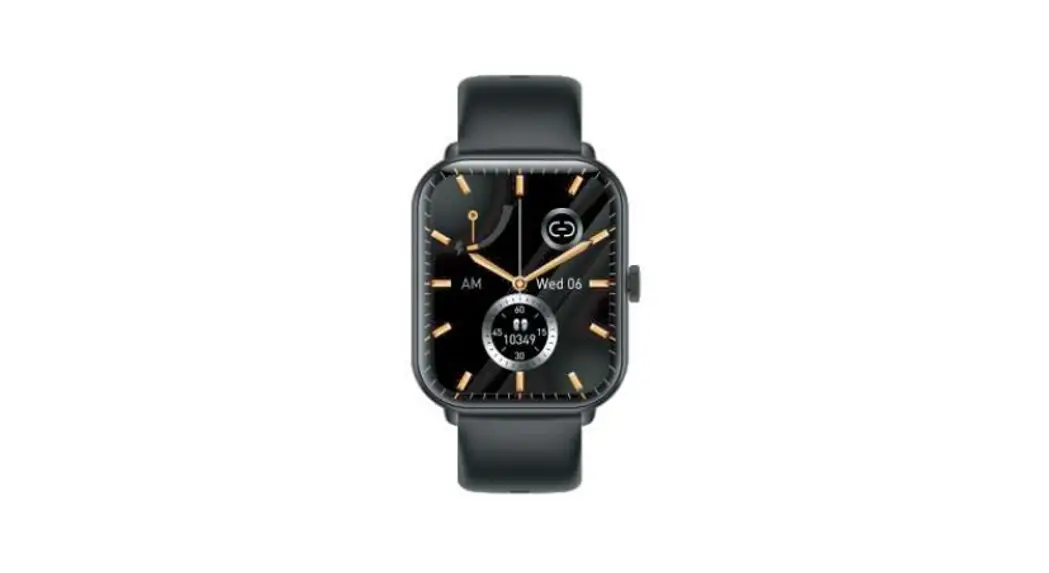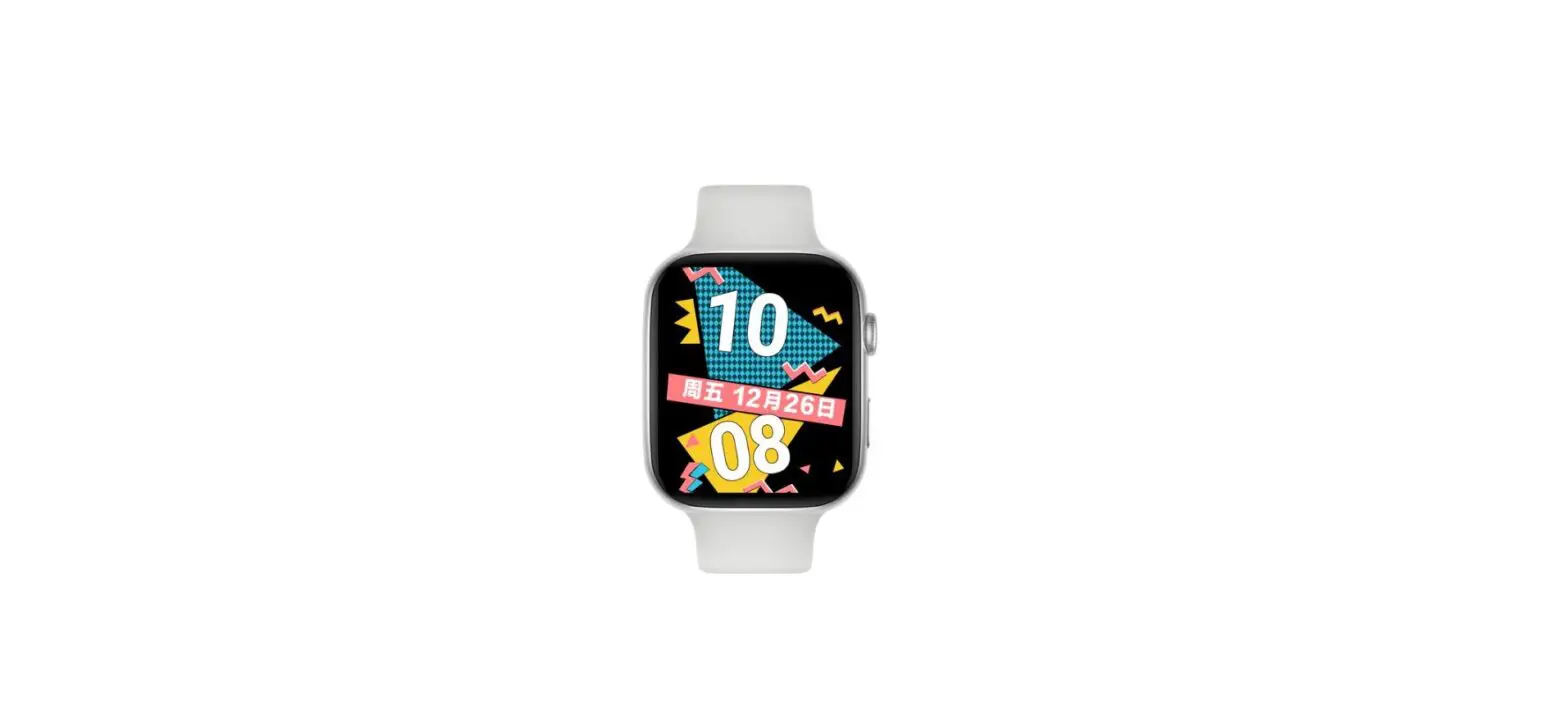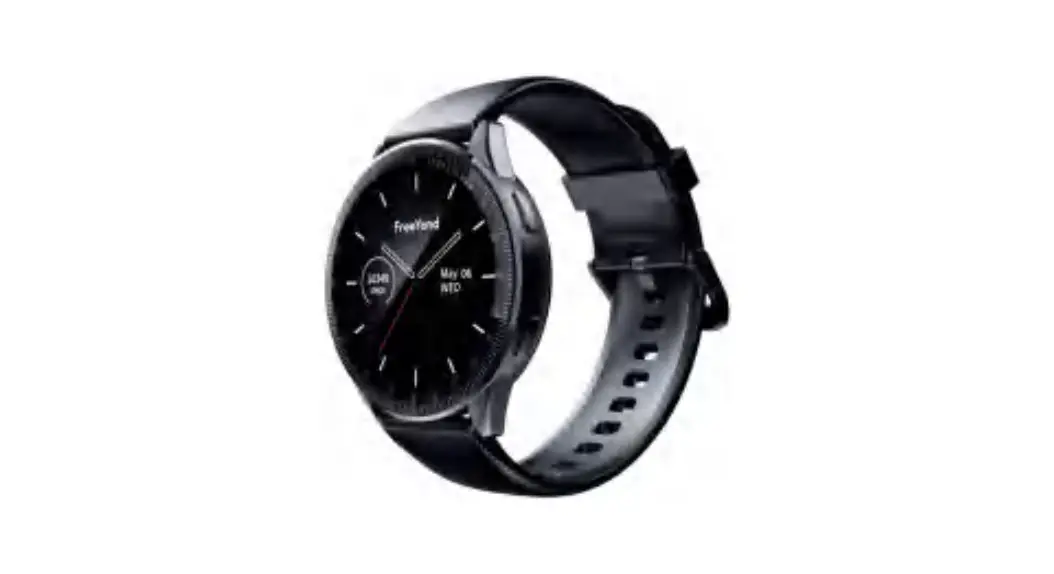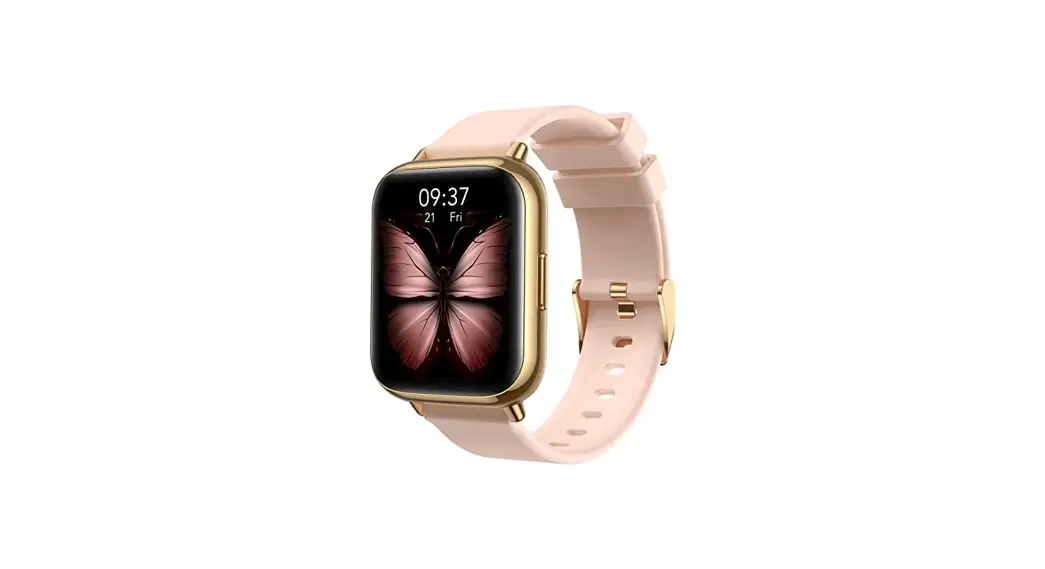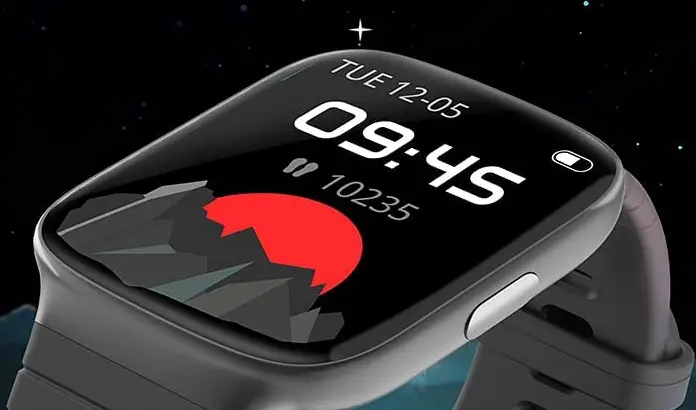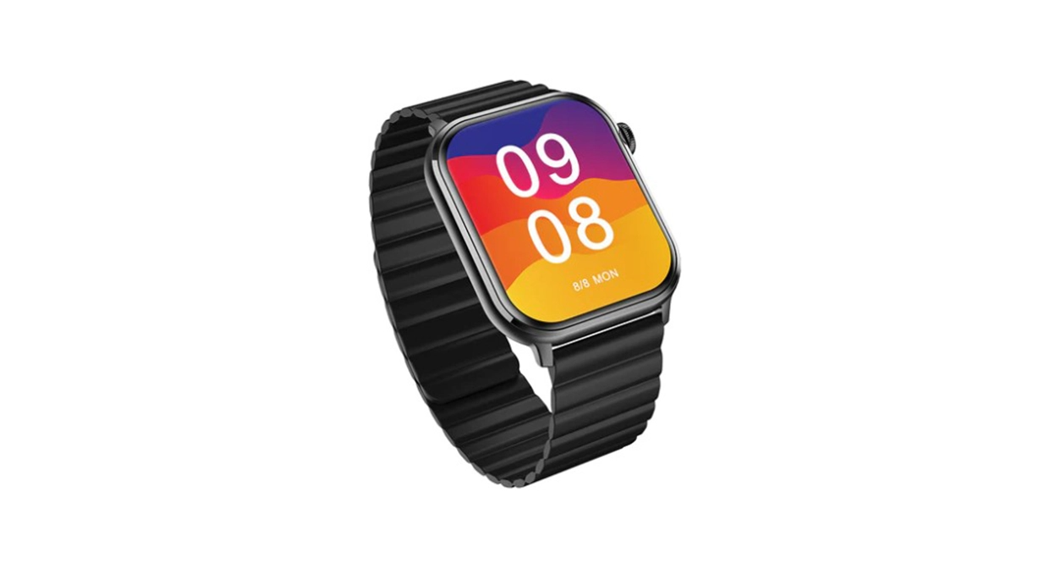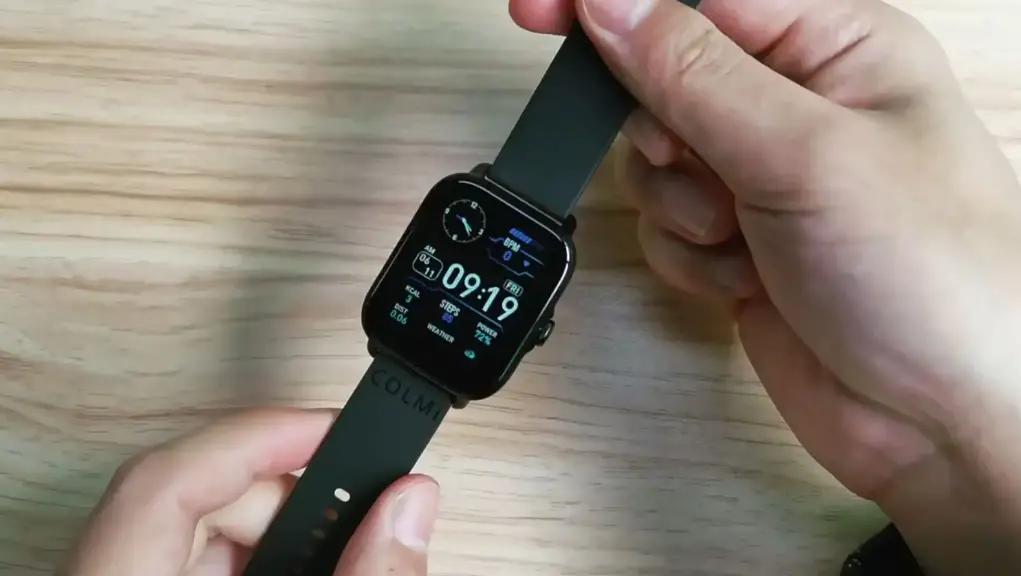

ColMi P28 Plus Smart Watch
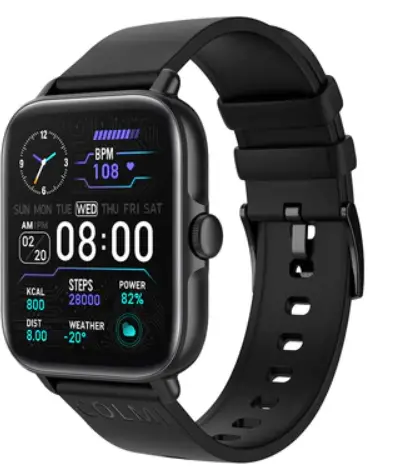
P28 Plus Smart Watch
Welcome to use our high-performance wrist-band smart watch which creates thoughtful and health experience for you.
Device Maintenance
- Clean the smart watch regularly, especially its inner side, and keep it dry.
- Adjust the smart watch tightness to ensure air circulation.
- Excessive skincare product should not be used for the wrist wearing the smart watch.
- Please cease wearing the smart watch in case of skin allergy or any discomfort.
- Do not take a hot bath with the smartwatch. The bath water has a relatively high temperature and generates a lot of vapor which is in the gas phase with small molecular radius and can easily infiltrate into the smart watch from the shell gap. When the temperature drops down, the vapor will condensate into liquid-phase droplets which will easily cause the short circuit inside the smart watch and damage the circuit board and then damage the smartwatch.
Appearance Description
- 1.69 touchscreen
- Multifunction button
- Watch strap (width:20mm)
- Microphone
- Magnetic charging
- Heartrate sensor
- Speaker
Multifunction Button Introduction
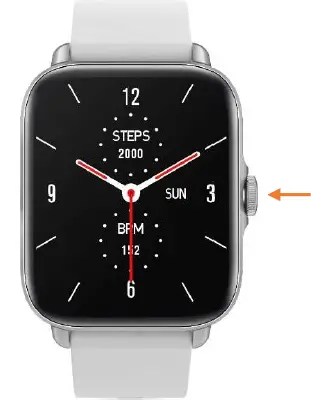
- When shutdown, long press to turn on the P28 Plus
- When turn on, short press to turn on the display
- When turn on, long press to turn off the P28 Plus
- Short press to turn off the display.
APP Download and Connection
APP Download
Use your phone to scan the QR code to download the Da Fit by Google Play or APP Store. After installation according to the guidance, it can be used.
First Use Da Fit
- Enter the parameters
- Enter the Gender
- Enter the date of birth
The wrong body parameter setting will cause slight deviation in the relevant detection of p28 plus. When entering weight, please select the correct unit.
- Enter the height
- Enter the weight
First Connection to P28 Plus
- Tap TO ADD to add P28 Plus
- Find the P28 Plus
- Tap the P28 Plus and connect it
- Pair with P28Plus_Phone
The above operation steps are carried out by using Android mobile phones. The operation interface of mobile phone system may vary slightly due to different mobile phones. Please understand.
- Finish the connection
- P28 Plus_ Phone can be queried or deleted under the Bluetooth connection list of the system
Da Fit Connection of iOS System
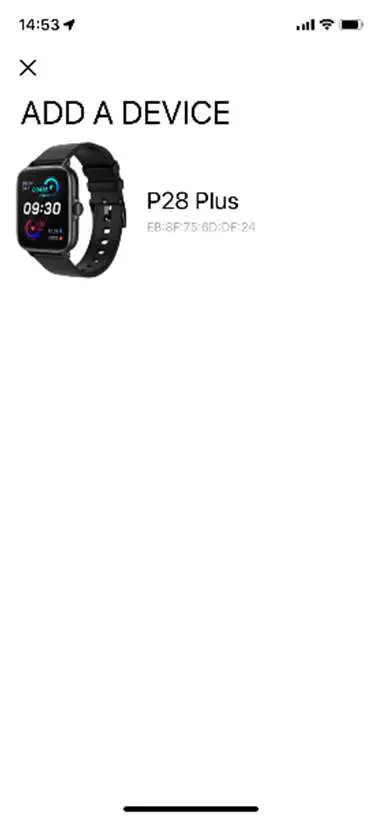
- Tap ADD A DEVICE to Find the P28 Plus add the P28 Plus
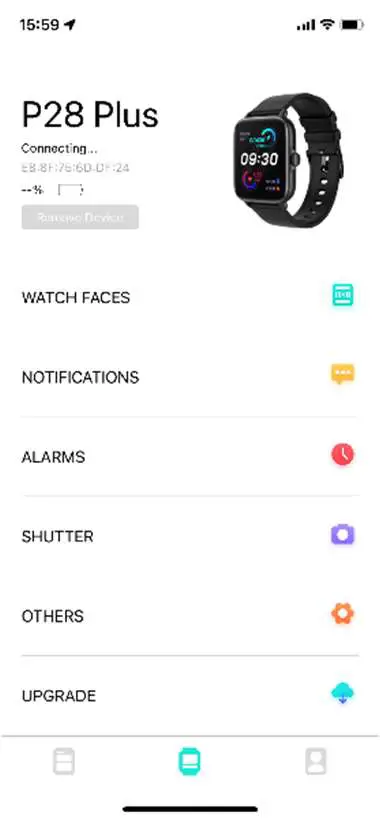
- Tap the P28 Plus and connect it
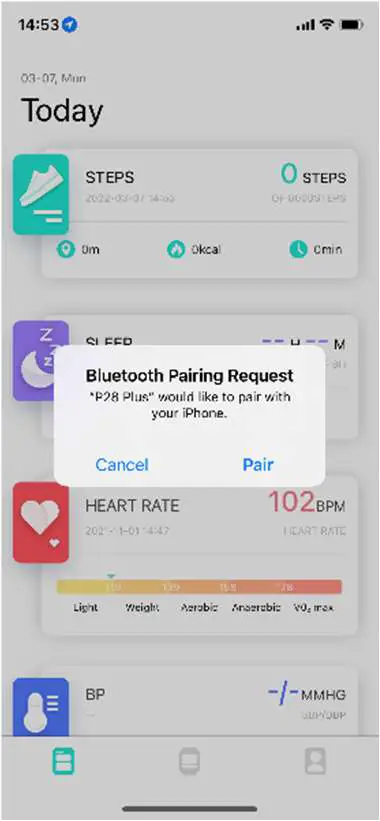
- Pair with P28Plus_Phone
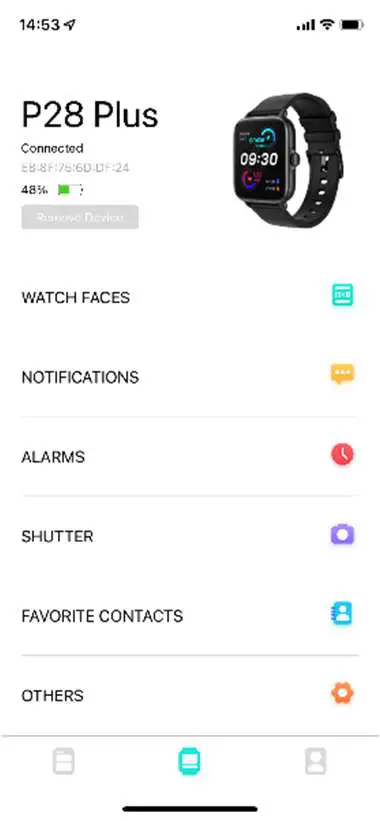
- Finish the connection
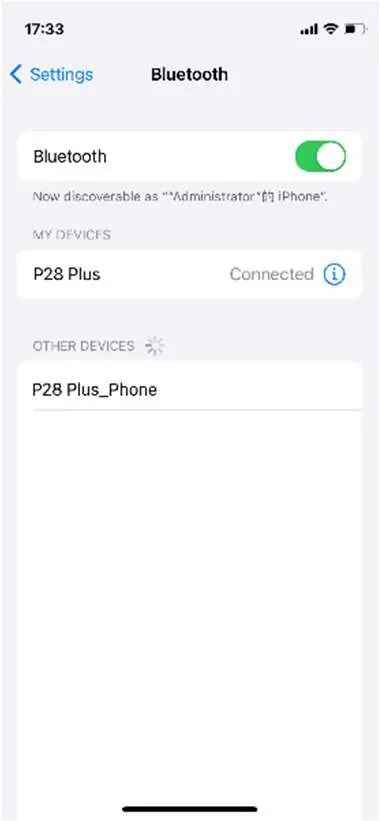
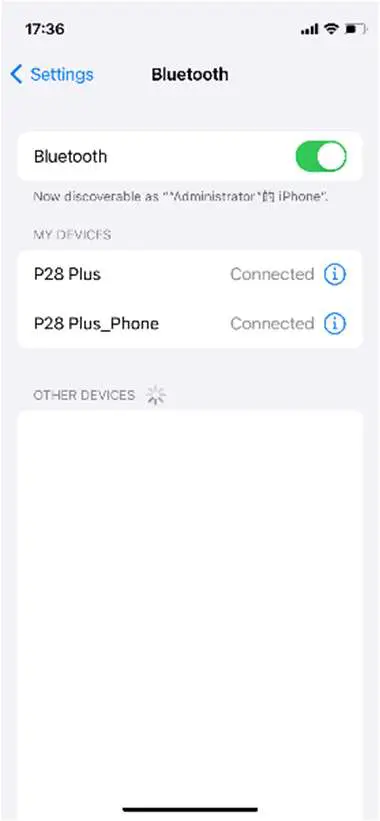
- Enter bluetooth search in system Settings, search for P28 Plus_Phone, and connect it to complete the bluetooth call connection.
P28 Plus Interface Operation Instructions
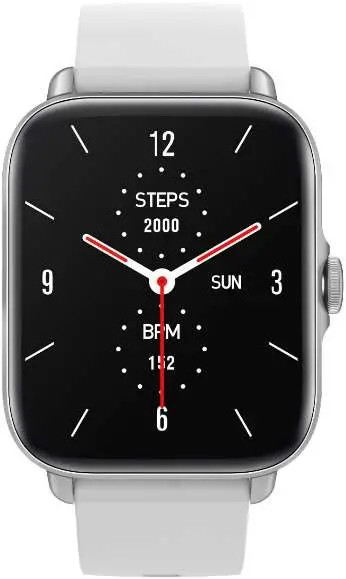
Dial instructions
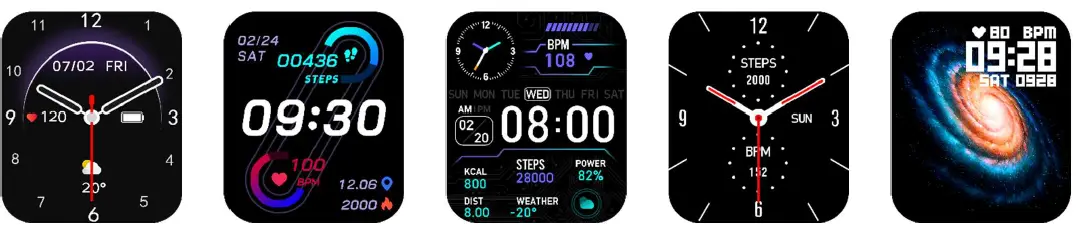
Long press the dial to enter the dial switching interface and slide left and right to switch the dial.
Quick interface instructions
Left swipe on the dial interface to enter the shortcut interface:
- View call records
- Dialing keypad
- Contacts (need to be synchronized to watch via Da Fit)
- Click to use intelligent voice input (need to synchronize to the watch through Da Fit)
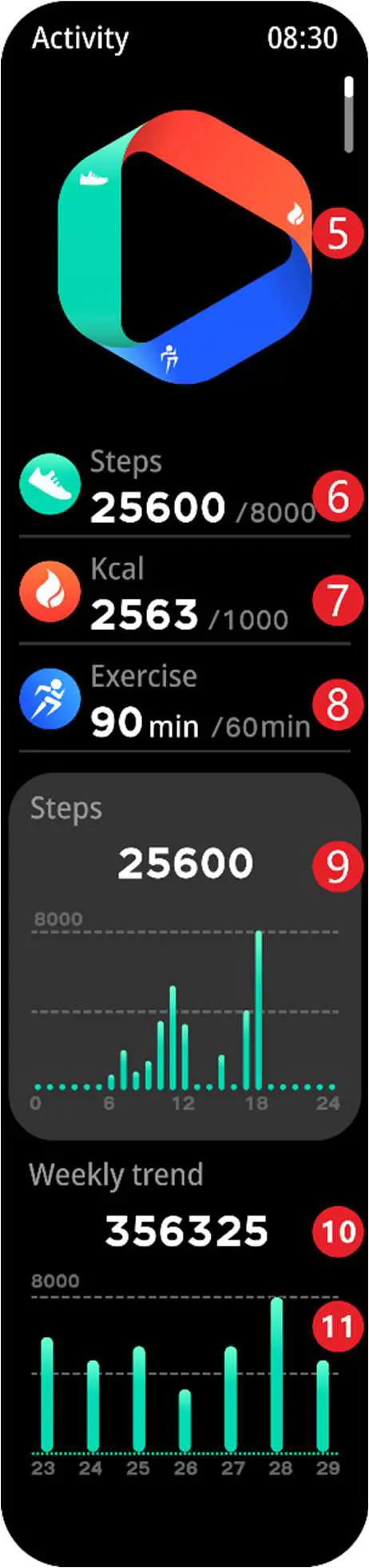
- Schematic diagram of sports compliance
- Actual steps / target steps
- Actual movement time / target movement time
- Actual calorie consumption / target calorie consumption
- Steps per hour from 0:00 to 24:00 of the day
- Total number of steps in 7 days
- Daily steps in 7 days
The step counting data of p28 plus may have slight deviation due to incomplete capture of walking motion. At the same time, wrong body parameters may lead to slight deviation in calorie consumption.
Product Usage Instructions
- Regularly clean the smart watch, especially its inner side, and keep it dry.
- Adjust the tightness of the smart watch to ensure air circulation.
- Do not use excessive skincare products on the wrist wearing the smart watch.
- If you experience skin allergy or any discomfort, stop wearing the smart watch.
- Avoid taking a hot bath with the smartwatch to prevent damage to the circuit board.
- To turn on the P28 Plus, long press the multifunction button when it is shut down.
- To turn on the display, short press the multifunction button when it is turned on.
- To turn off the P28 Plus, long press the multifunction button when it is turned on.
- To turn off the display, short press the multifunction button when it is turned on.
- Download the Da Fit app by scanning the QR code and follow the instructions to set up your profile and connect your P28 Plus to your phone.
- Use the quick interface to access features such as call records, dialing keypad, contacts, and more.
- Use the touchscreen to navigate through different displays and features.
Welcome to use our high-performance wrist-band smart watch which creates thoughtful and health experience for you.
Maintenance
Please remember the following tips when you maintain your smart watch:
- Clean the smart watch regularly, especially its inner side, and keep it dry.
- Adjust the smart watch tightness to ensure air circulation.
- Excessive skincare product should not be used for the wrist wearing the smart watch.
- Please cease wearing the smart watch in case of skin allergy or any discomfort.
- Why can not take a hot bath with the smartwatch?
P.S. The bath water has a relatively high temperature, and generates a lot of vapor which is in the gas phase with small molecular radius and can easily infiltrate into the smart watch from the shell gap. When the temperature drops down, the vapor will condensate into liquid-phase droplets which will easily cause the short circuit inside the smart watch and damage the circuit board and then damage the smartwatch.
Product description
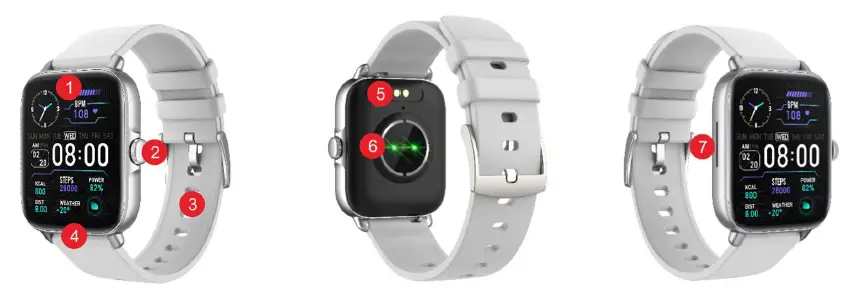
- 1.69” touchscreen
- Multifunction button
- Watch strap (width:20mm)
- Microphone
- Magnetic charging
- Heartrate sensor
- Speaker
When shutdown, long press to turn on the P28 Plus
When turn on, short press to turn on the display
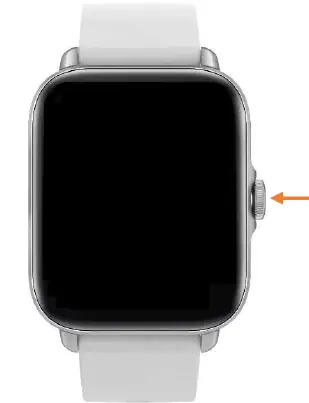
When turn on, long press to turn off the P28 Plus
Short press to turn off the display.
APP download and connection
APP download

Use your phone to scan the QR code to download the “Da Fit” by Google Play or APP Store.
After installation according to the guidance, it can be used
First use Da Fit
- First use Da Fit

- Enter the parameters

- Enter the Gender
- Enter the date of birth
- Enter the height
- Enter the weight
- Start to use
 P.S. The wrong body parameter setting will cause slight deviation in the relevant detection of p28 plus. When entering weight, please select the correct unit

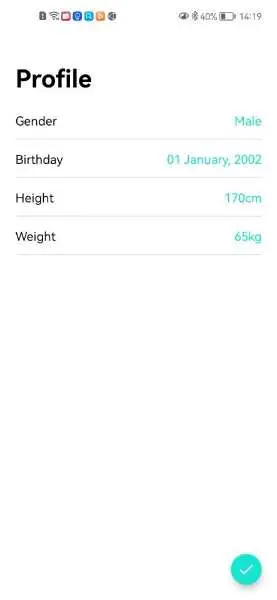
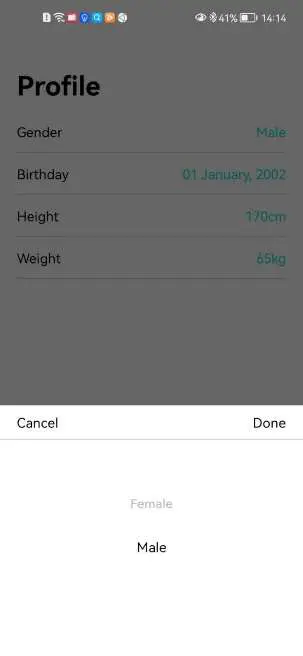
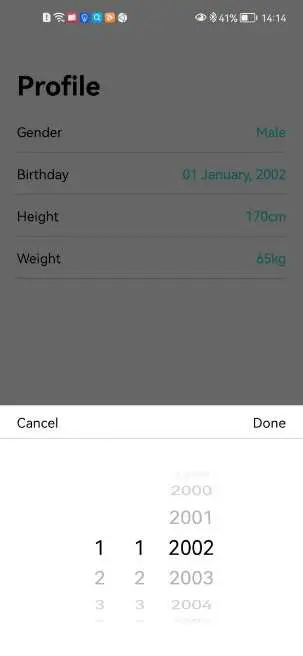
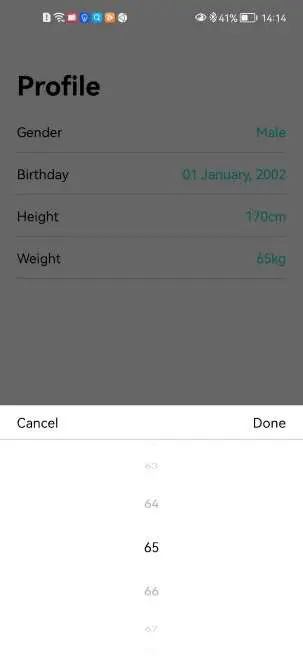
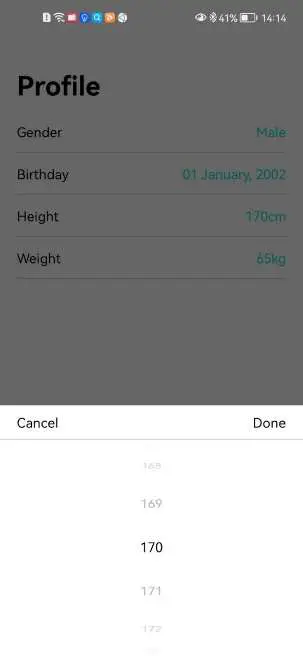
 P.S. The wrong body parameter setting will cause slight deviation in the relevant detection of p28 plus. When entering weight, please select the correct unit
First connection to P28 Plus
- Tap “TO ADD” to add P28 Plus
- Find the P28 Plus
- Tap the P28 Plus and connect it
- Pair with P28Plus_Phone
- Finish the connection
- P28 Plus_ Phone can be queried or deleted under the Bluetooth connection list of the system

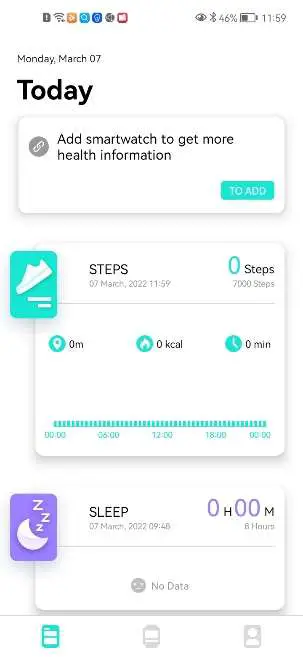
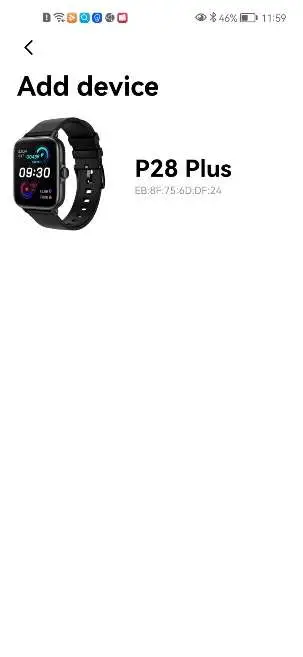
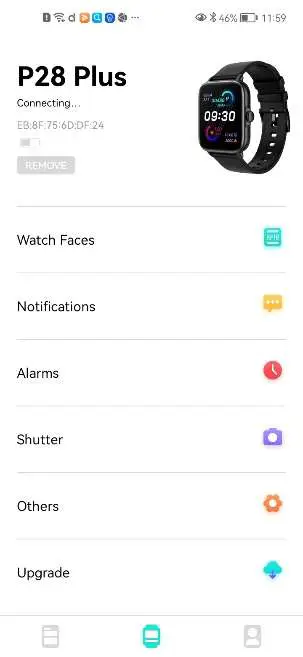
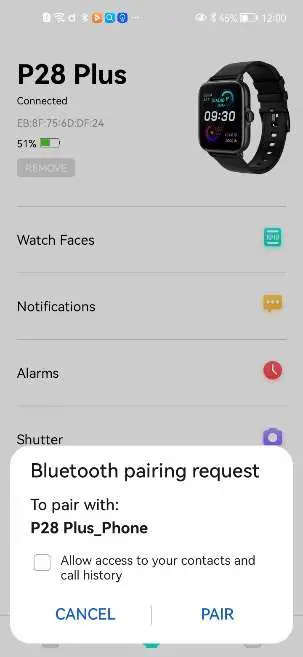
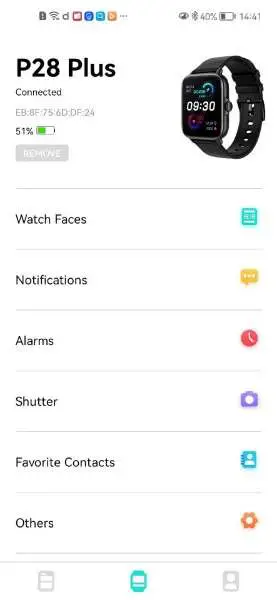
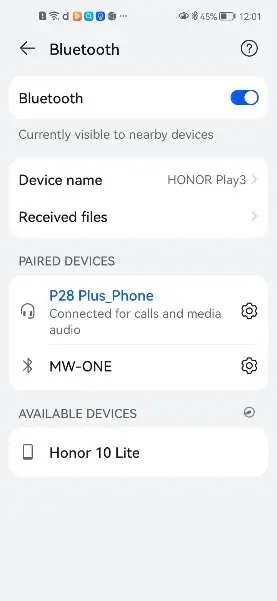
P.S. The above operation steps are carried out by using Android mobile phones. The operation interface of mobile phone system may vary slightly due to different mobile phones. Please understand
Da Fit connection of iOS system
- Tap “ADD A DIVECE” to add the P28 Plus

- Find the P28 Plus
- Tap the P28 Plus and connect it
- Pair with P28Plus_Phone
- Finish the connection
- Enter bluetooth search in system Settings, search for P28 Plus_Phone, and connect it to complete the bluetooth call connection.
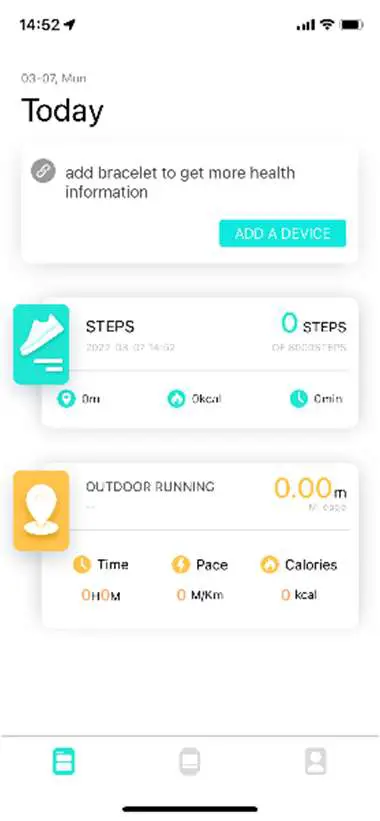
P28 Plus interface operation instructions
- Dial instructions
P. S. long press the dial to enter the dial switching interface, and slide left and right to switch the dial
- Quick interface instructions
- Left swipe on the dial interface to enter the shortcut interface

- Left swipe on the dial interface to enter the shortcut interface
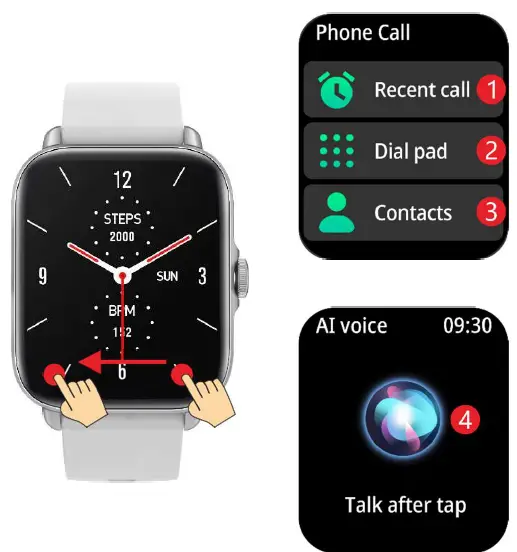
- View call records
- Dialing keypad
- Contacts (need to be synchronized to watch via Da Fit)
- Click to use intelligent voice input (need to synchronize to the watch through Da Fit)

- Schematic diagram of sports compliance
- Actual steps / target steps
- Actual movement time / target movement time
- Actual calorie consumption / target calorie consumption
- Steps per hour from 0:00 to 24:00 of the day
- Total number of steps in 7 days
- Daily steps in 7 days
P.S. The step counting data of p28 plus may have slight deviation due to incomplete capture of walking motion; At the same time, wrong body parameters may lead to slight deviation in calorie consumption.
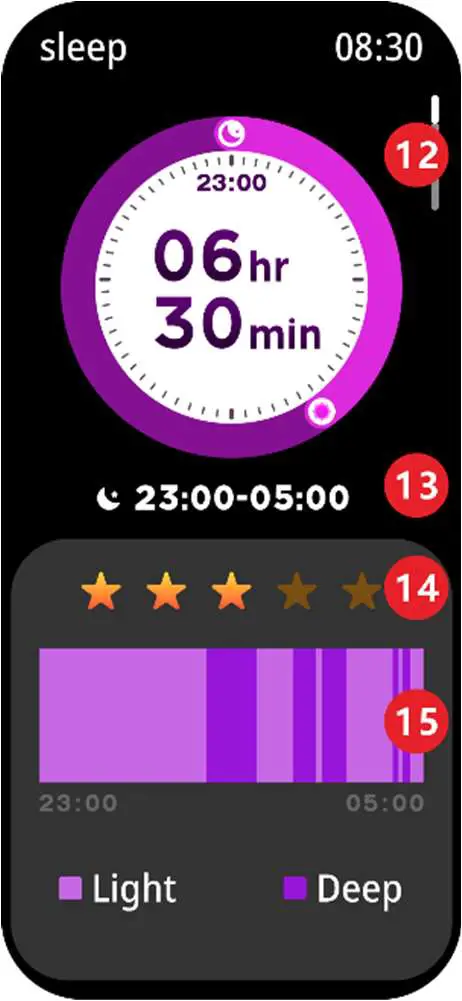
- Total sleep time of the day
- Start and end time of sleep at that time
- Sleep level
- Sleep distribution, including mild sleep and light sleep
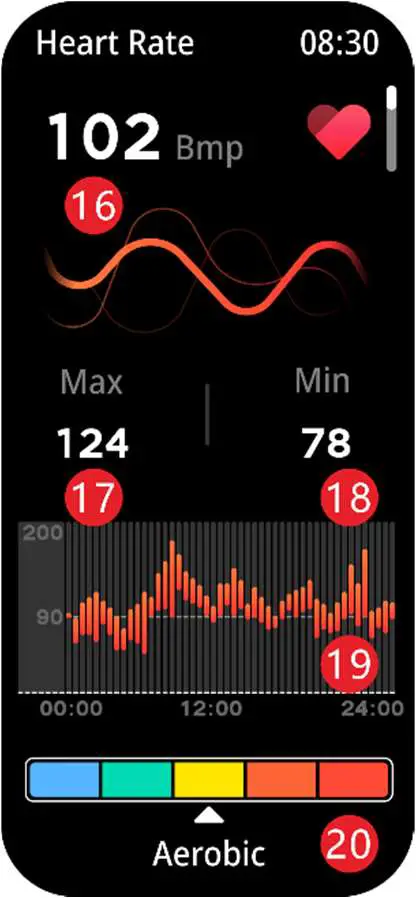
P.S. The sleep monitoring period of p28 plus is from 8 P.M. to 10 A.M., and beyond this period, it will not be included in the sleep data - Current heart rate measurement
- Maximum heart rate of the day

- Minimum heart rate of the day
- Schematic diagram of 24-hour heart rate (this function needs to use Da fit to turn on continuous heart rate test, and continuous heart rate detection will increase the power consumption of p28 plus and reduce the standby time)
- Current heart rate level
P.S. Recommended resting measurement; The heart rate measurement results of p28 plus may deviate due to the user’s wearing method; The heart rate measurement data of p28 plus is for reference only and cannot be used for medical purposes
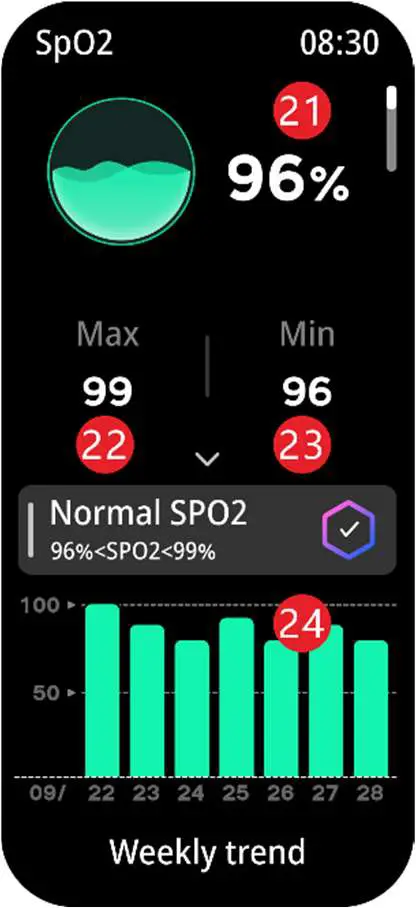
- Current measurement of blood oxygen value
- Maximum blood oxygen of the day
- Minimum blood oxygen value of the day
- Last 7 times blood oxygen measurements
P.S. Recommended resting measurement; The blood oxygen measurement results of p28 plus may deviate due to the user’s wearing method; The blood oxygen measurement data of p28 plus is for reference only and cannot be used for medical purposes
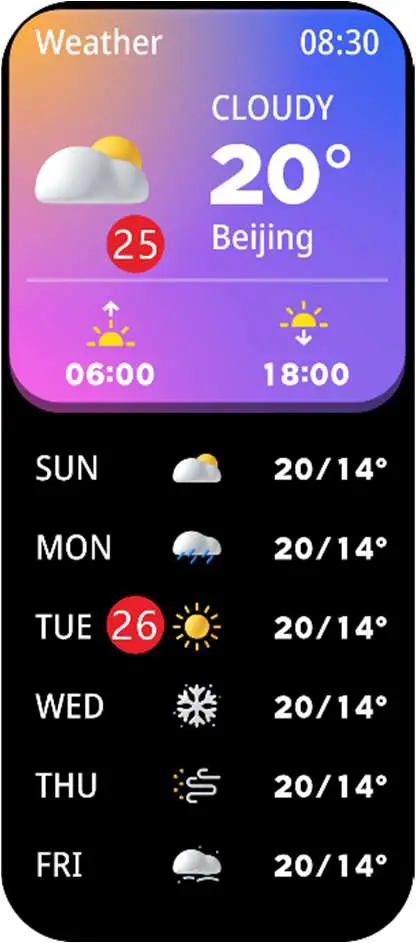
- Weather information of the day
- Future weather information
P.S. The weather function needs to be connected to the mobile app Da fit, and the mobile phone needs to be connected to the Internet; This weather data is provided by a third-party weather data provider, If it is inconsistent with the actual local weather, please understand
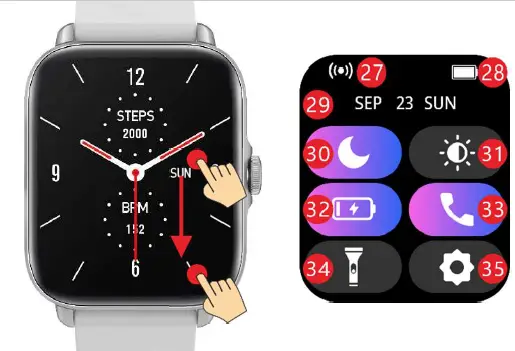
Swipe down the dial interface to enter the shortcut setting interface - Device connection icon (not shown if not connected)
- Battery power display
- Date display
- No disturb quick switch (legend shows no disturb on)

- Brightness shortcut button, click to enter the brightness setting interface
- Power saving mode quick switch (the legend shows that the power saving mode is on)
- Call Bluetooth shortcut switch (legend shows call Bluetooth on)
- Flashlight mode shortcut button, click to open flashlight mode
- Set shortcut button. Click to enter the setting interface
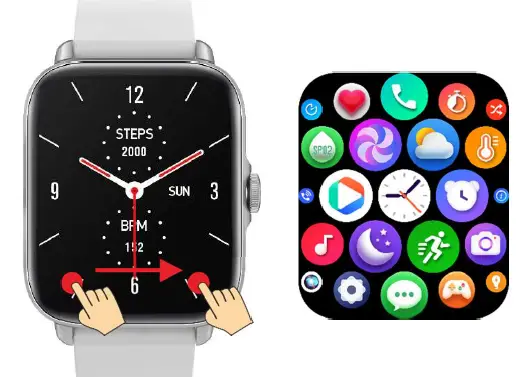
Right swipe the dial interface to enter the cellular menu interface
Cellular menu interface
Scroll down the dial interface to enter the list menu interface

- Messages reminder interface
- Activity interface
- Sleep information interface
- Heart rate measurement and information interface
- Training mode interface
- Phone function interface
- Blood pressure measurement and information interface
- Blood oxygen measurement and information interface
- Weather information interface
- Remote camera interface
- Remote control music interface
- Intelligent voice assistant interface
- Breathing training interface
- Stopwatch interface
- Alarm clock interface
- Countdown timer interface
- Game interface
- Flashlight interface
- Other settings interface P.S
*This function needs to be connected to the mobile Da fit or set in Da Fit
**This function needs to connect mobile app and Bluetooth call

Da Fit operating instructions
- Health information description
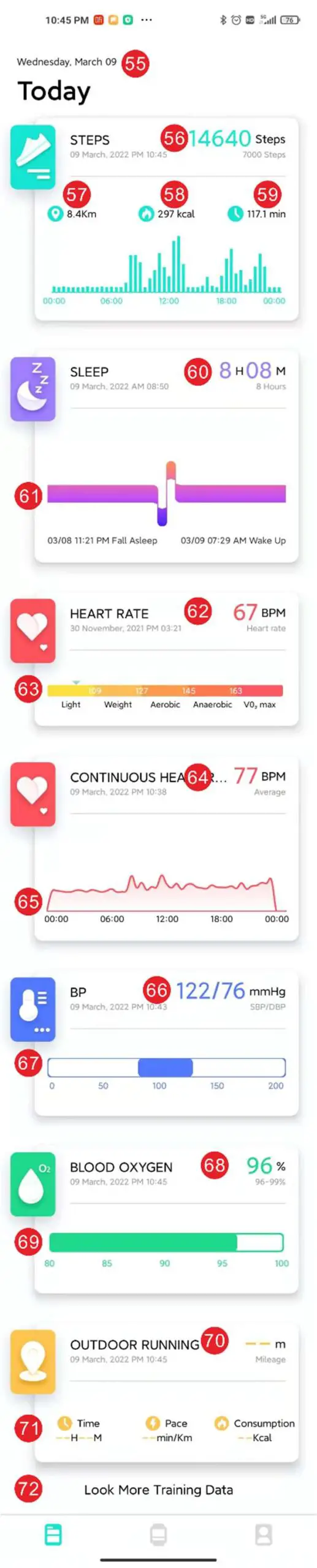
- Date
- Accumulated number of walks today
- Accumulated walking distance today
- Accumulated walking
- calorie consumption today
- Accumulated walking hours today
- Sleep duration of the previous day
- Legend of sleep data of the previous day
- Last heart rate measurement data
- Heart rate level legend
- 24-hour heart rate detection data
- Legend of 24-hour heart rate detection data
- Last blood pressure measurement data
- Legend of blood pressure level
- Last blood oxygen measurement data
- Legend of blood oxygen level
- Outdoor running distance
- Outdoor running data
Step counting interface description
- Historical step data query
- Step counting data statistics of day
- Step counting data statistics of week
- Step counting data statistics of month
- Total steps of the day
- Legend of current day step distribution
- Walking distance of the day
Walking calorie data of the day - Walking time of the day
- Met of the day
- Legend of weekly step data statistics
- Legend of walking goal achieved in the last seven days
- Comparison of daily walking number with the same type of people
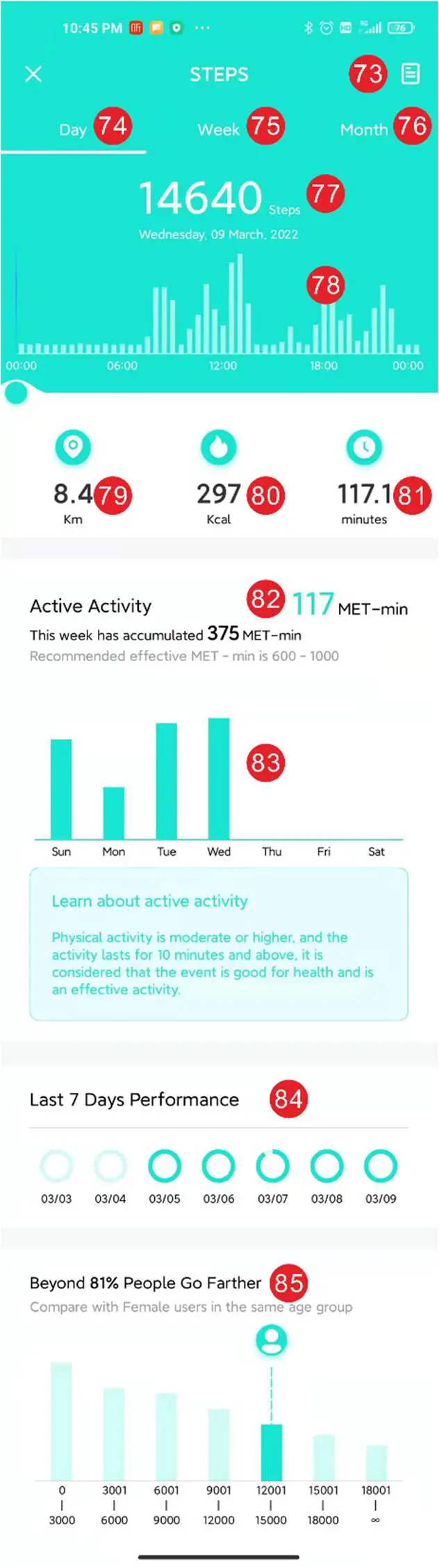
P.S. The step counting data of p28 plus may have slight deviation due to incomplete capture of walking motion; At the same time, wrong body parameters may lead to slight deviation in calorie consumption. Please understand
Sleep interface description
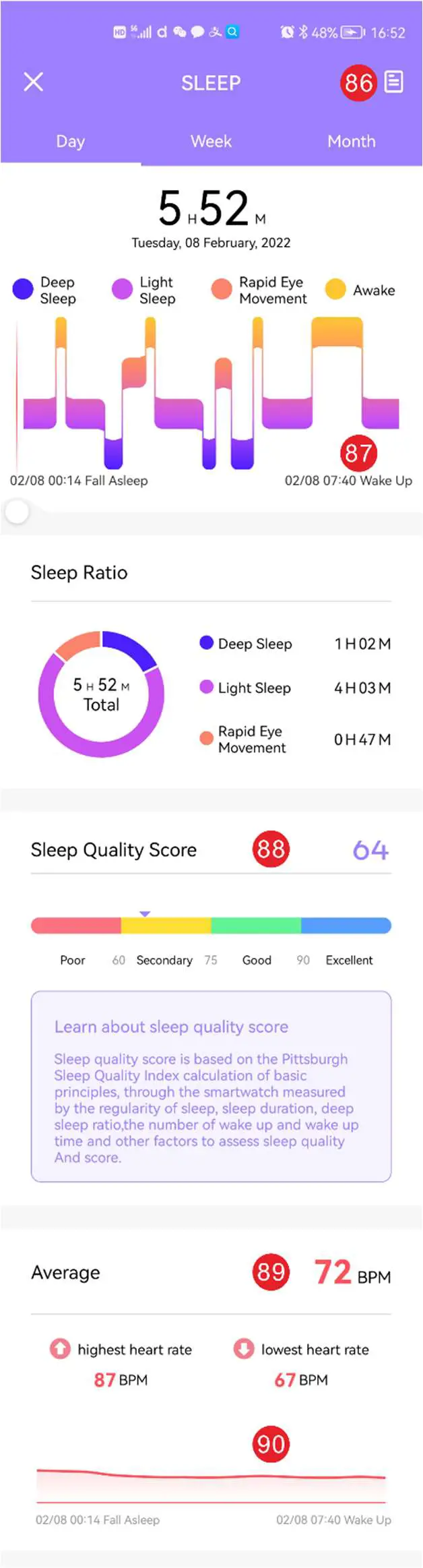
- Historical sleep data query
- Sleep data and distribution legend
- Statistical legend of sleep data
- Average heart rate during sleep
- Heart rate legend during sleep

- Last 7 Days Sleep Trends
- Legend of sleep time compared with others
- Legend of awake time compared with others
- Sleep duration compared with others
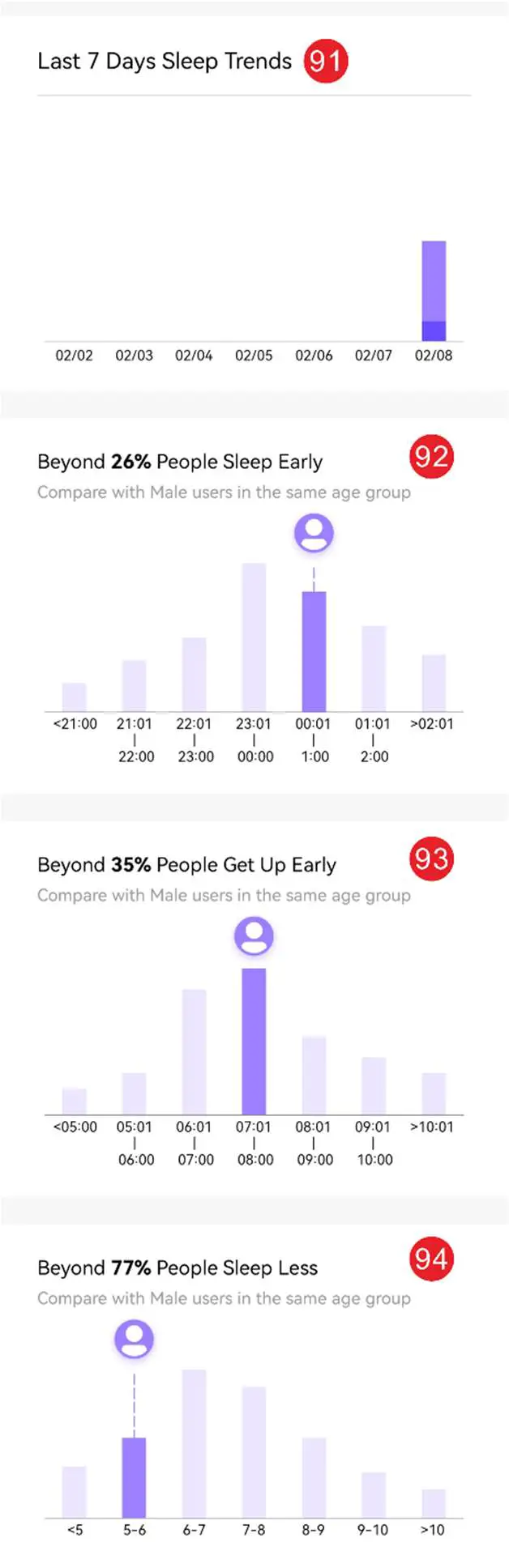
P.S. The sleep monitoring period of p28 plus is from 8 p.m. to 10 a.m., and beyond this period, it will not be included in the sleep data
Heart rate interface description
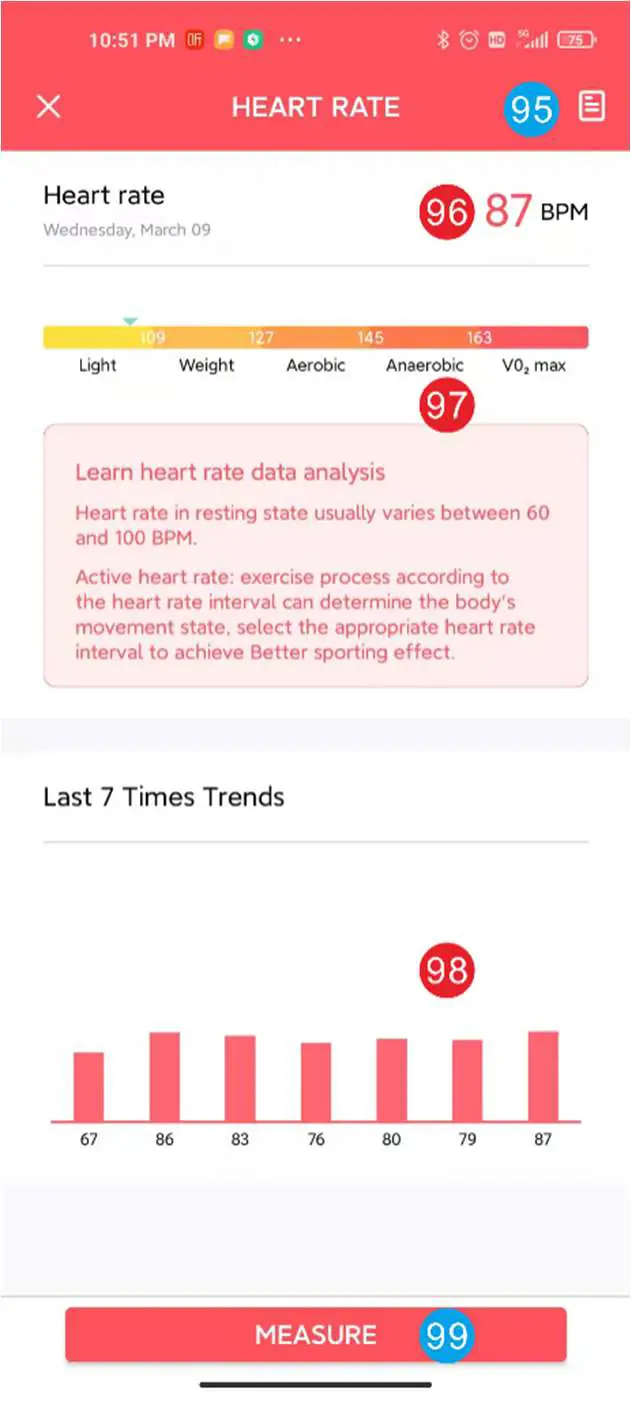
- Historical heart rate data query
- Last measured heart rate data
- Last measured heart rate data level
- Legend of the last 7 times heart rate data
- Click to measure heart rate
P.S. Recommended resting measurement; The heart rate measurement results of p28 plus may deviate due to the user’s wearing method; The heart rate measurement data of p28 plus is for reference only and cannot be used for medical purposes
24-hour heart rate interface description
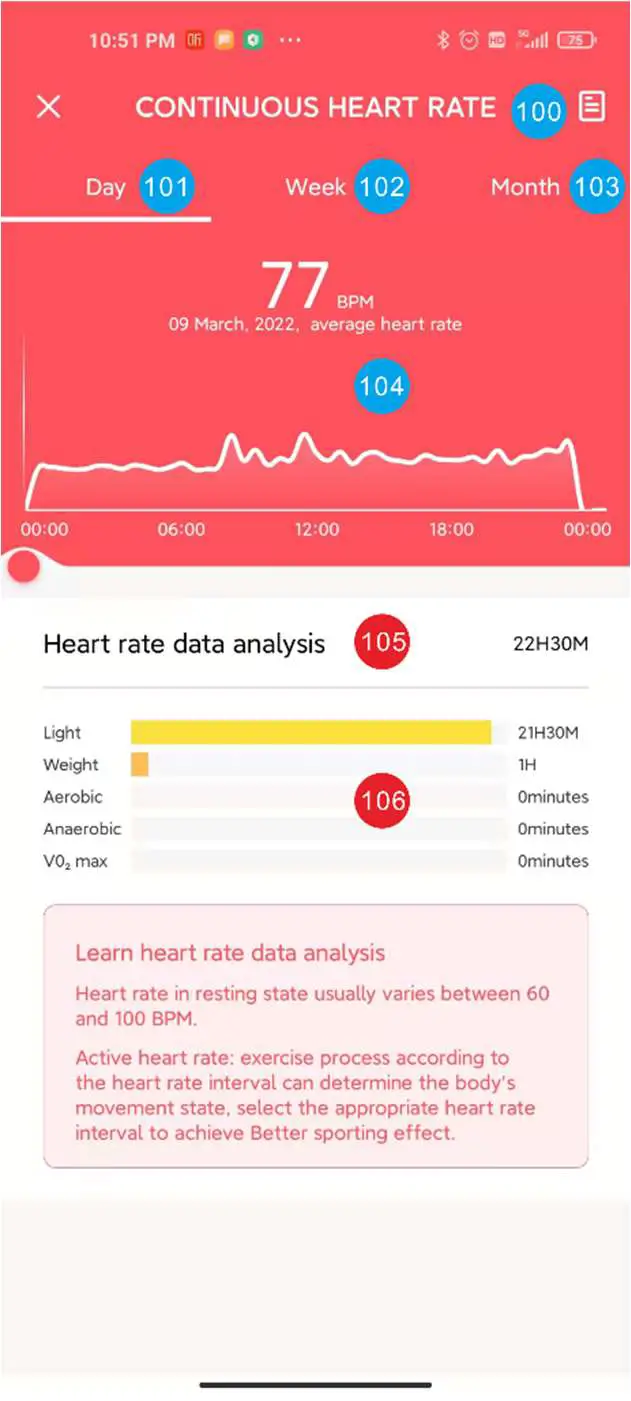
- Historical 24-hour heart rate data query
- 24-hour heart rate data measured today
- 24-hour heart rate data measured this week
- 24-hour heart rate data measured this month
- Legend of 24-hour heart rate data
- 24-hour heart rate data detection duration
- 24-hour heart rate data grade distribution
P.S. The 24-hour heart rate of p28 plus is measured every 30 minutes. The measured data may slightly deviate from the actual heart rate due to the wrist movement during wearing; The heart rate measurement data of p28 plus is for reference only and cannot be used for medical purposes
Blood pressure interface description
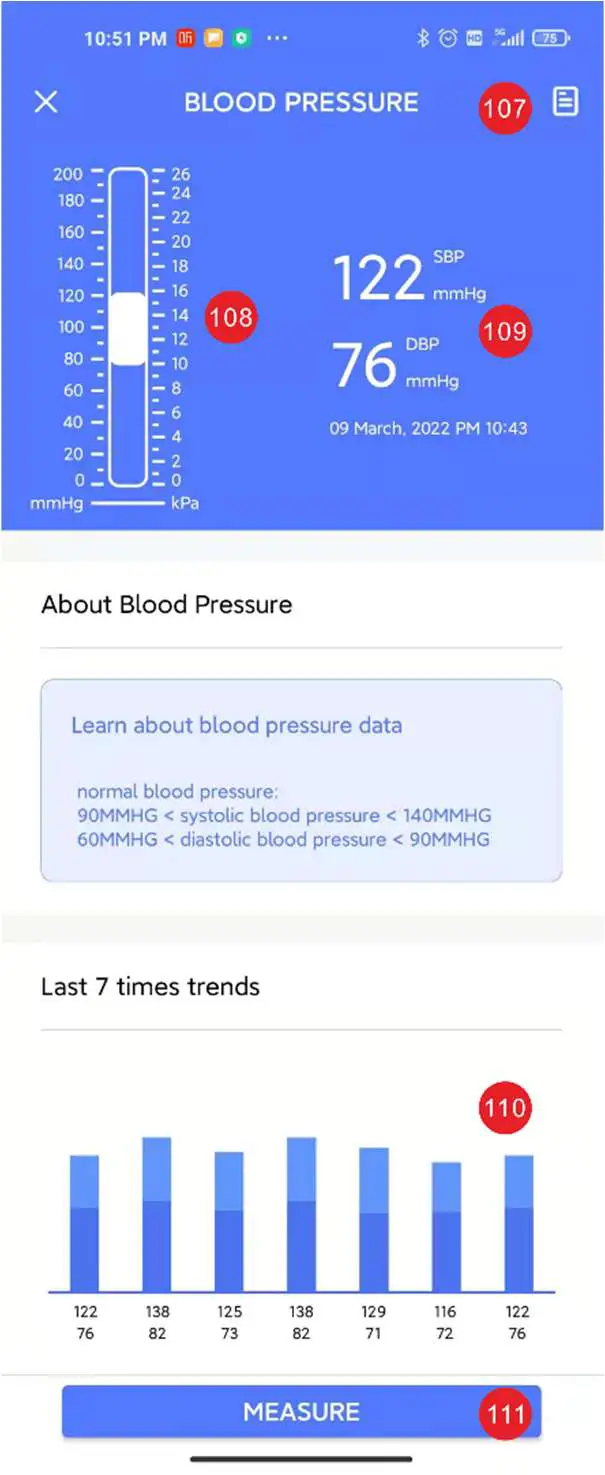
- Historical blood pressure data query
- Legend of blood pressure measured this time
- Blood pressure data measured this time
- Legend of the last 7 times blood pressure data
- Click to measure blood pressure
P. S. recommended resting measurement; The blood pressure measurement results of p28 plus may deviate due to the user’s wearing method; The blood pressure measurement data of p28 plus is for reference only and cannot be used for medical purposes
Description of blood oxygen interface
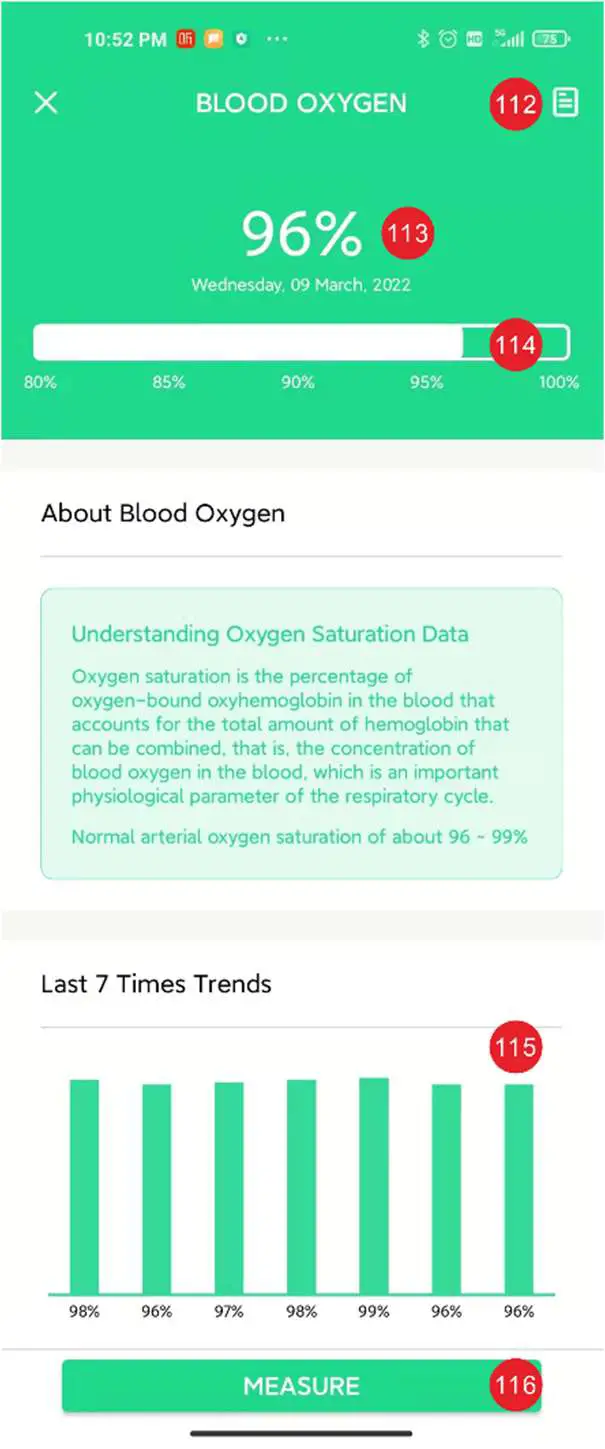
- historical blood oxygen data query
- blood oxygen data measured this time
- Legend of blood oxygen measured this time
- Legend of the last 7 times oxygen data
- Click for blood oxygen measurement
P. S. recommended resting measurement; The blood oxygen measurement results of p28 plus may deviate due to the user’s wearing method; The blood oxygen measurement data of p28 plus is for reference only and cannot be used for medical purposes
GPS running interface
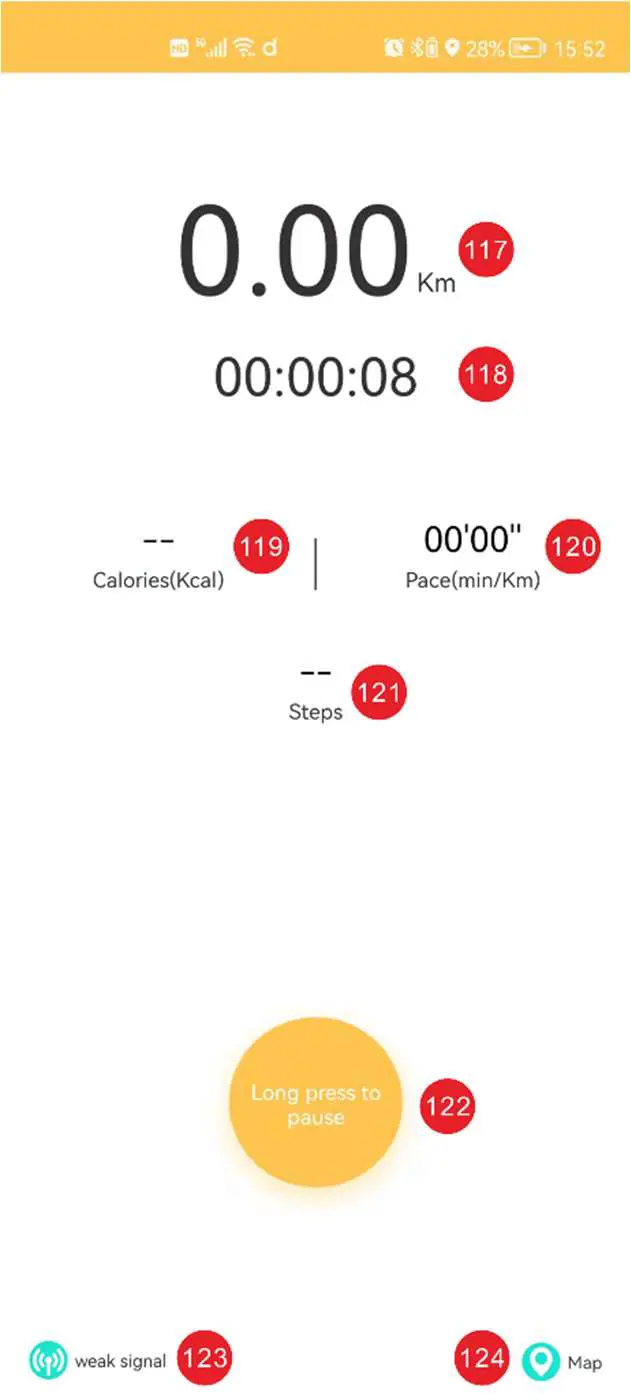
- GPS run distance this time
- GPS running time
- Calories burned in this GPS run
- This GPS run pace
- Steps of this GPS run
- Long press to select exit or pause
- Current GPS signal strength 124: Click to enter map mode
P. S. GPS running function uses the GPS data of the mobile phone. Please carry the mobile phone when using this function
Setting interface description
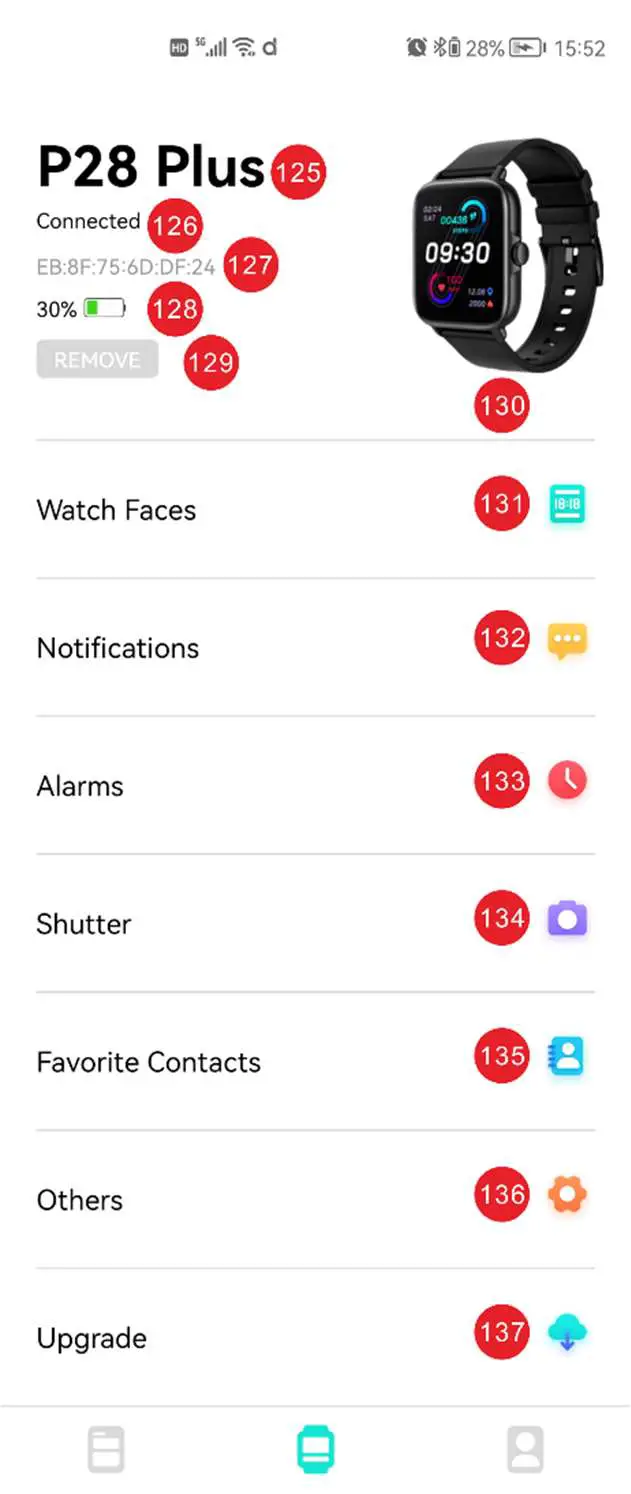
- Connected device name
- Device connection status
- Bluetooth MAC address of connected device
- Connected device battery level
- Remove connected devices
- Preview of connected devices
- Dial setting and downloading interface
- Message push settings
- Alarm clock setting
- Remote camera
- Frequently used contacts
- Other settings
- Connected device software upgrade
*The dial download interface requires the user’s authorization. Da fit can use the mobile network function permission
**The camera used by the remote camera function is that Da fit calls the main camera of the mobile phone, and Da fit cannot call the macro lens, wide-angle lens, etc. in the multi camera of the mobile phone
***Favorite contacts can add up to 8 phone numbers to the watch synchronously
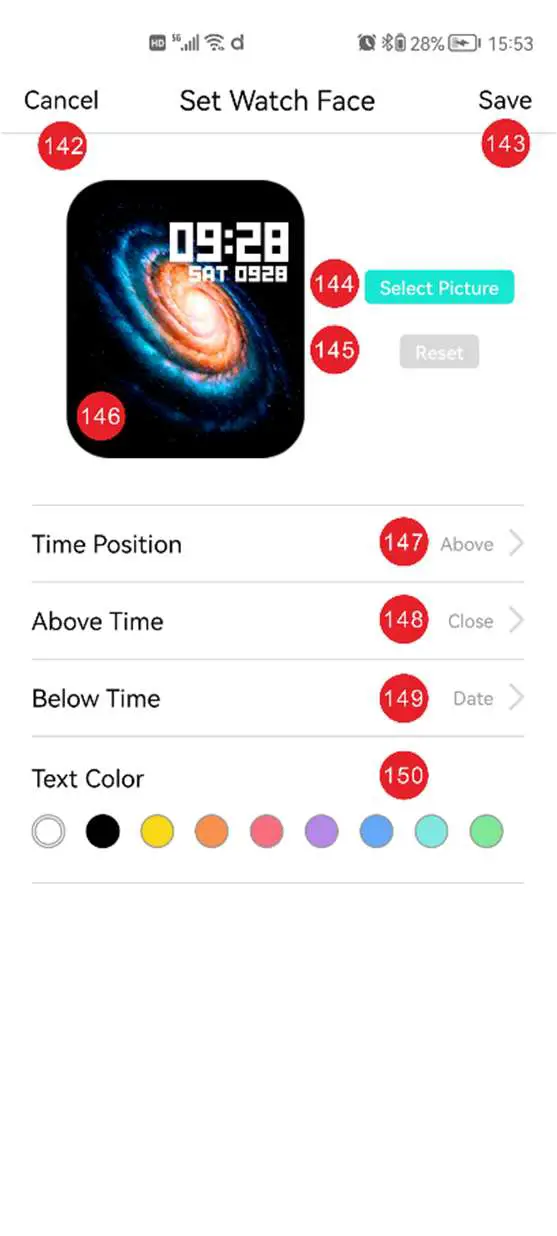
Dial setting and downloading interface
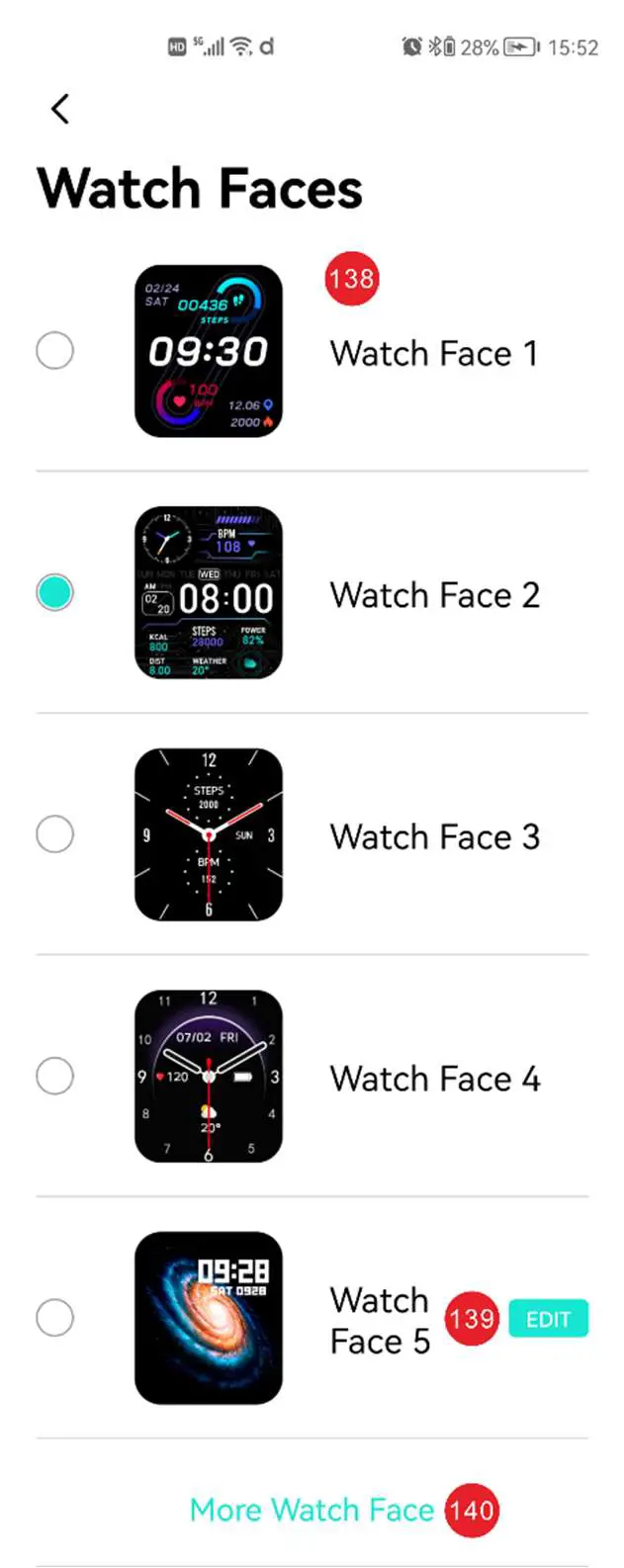
- Built in dial selection
- Custom dial editing
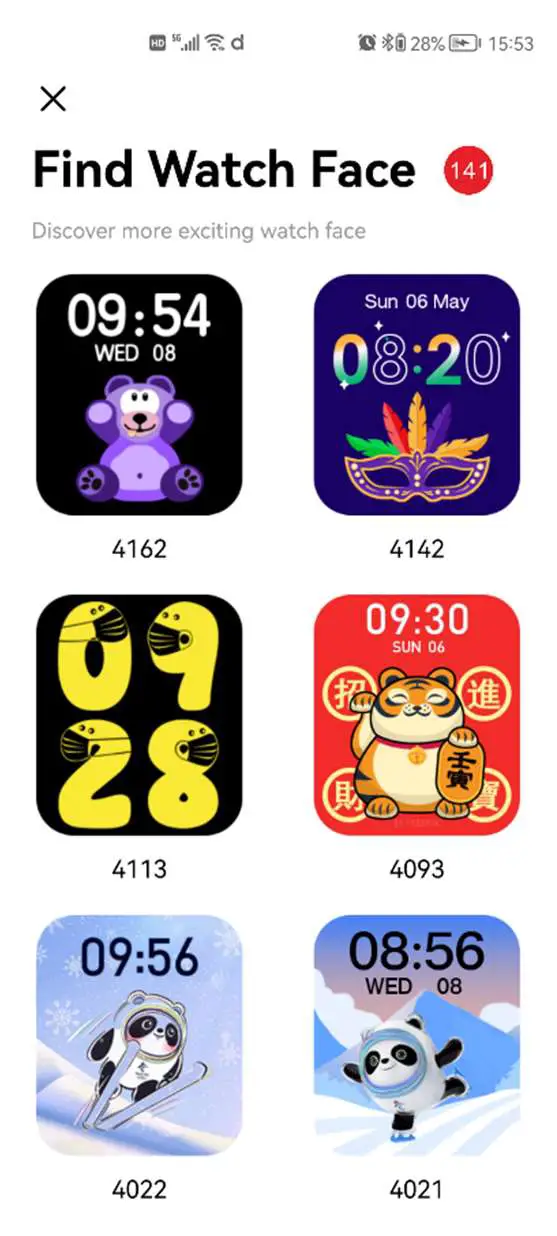
- Dial download market
*The dial download interface requires the user’s authorization. Da fit can use the mobile network function permission
- Dial market interface
- Cancel editing dial
- Save edit dial
- Select dial picture
- Reset edited content
- Edit dial Preview
- Time position selection
- Above Time data selection, including date, sleep, heart rate and step count
- Below time data selection, including date, sleep, heart rate and step count
- Text color selection
Messages reminder setting interface
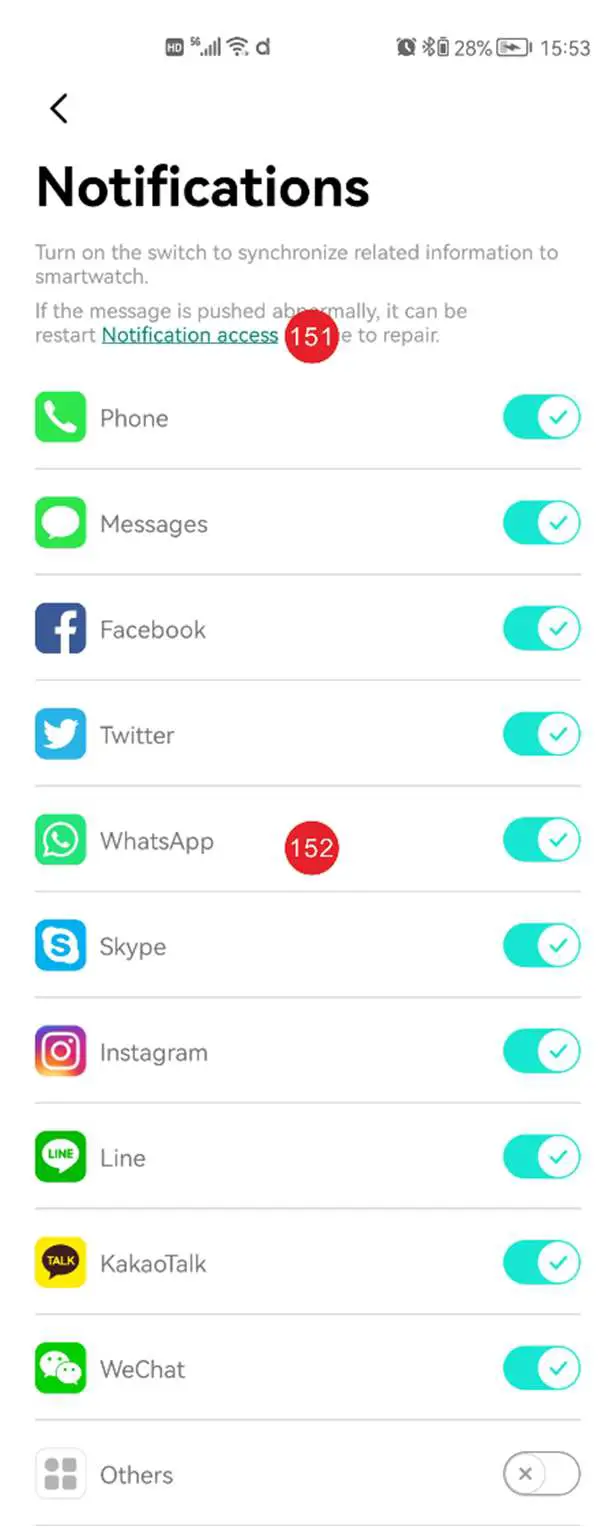
- Set Da fit’s permission to read mobile phone notification bar
- App notification switch
P. S. This function requires the user to set that each app has the permission to use the notice bar
Alarm clock setting interface
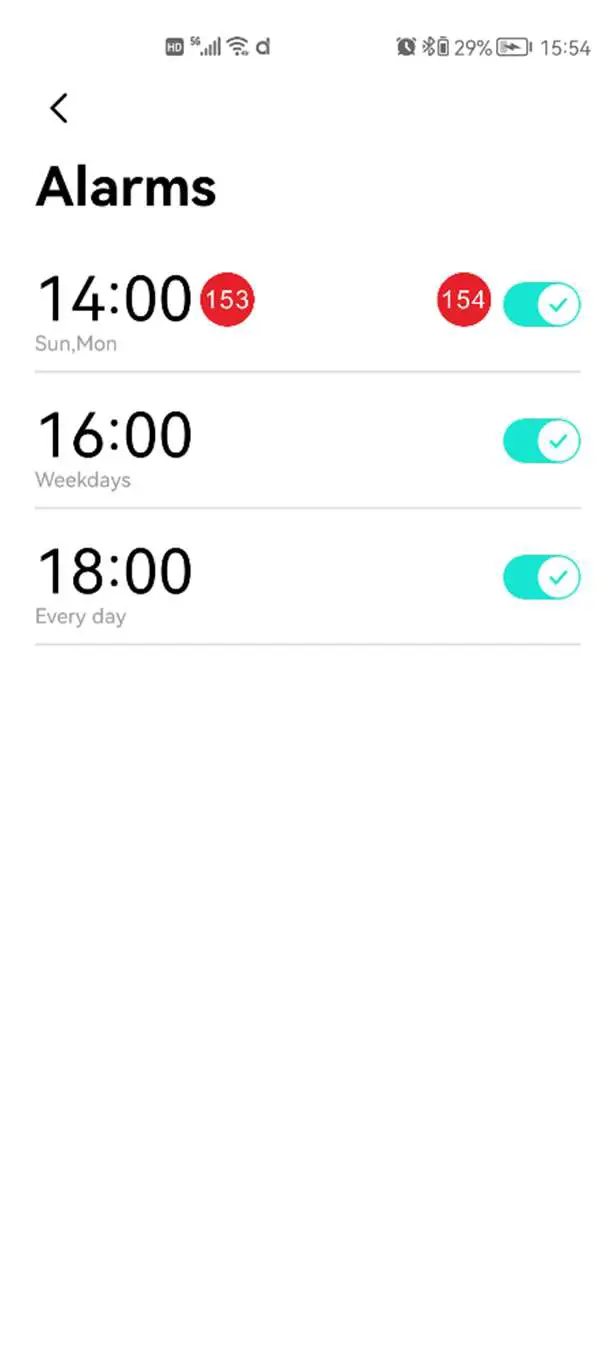
- Set the details of the alarm clock, including hour, minute and week
- Alarm switch
Common contact interface
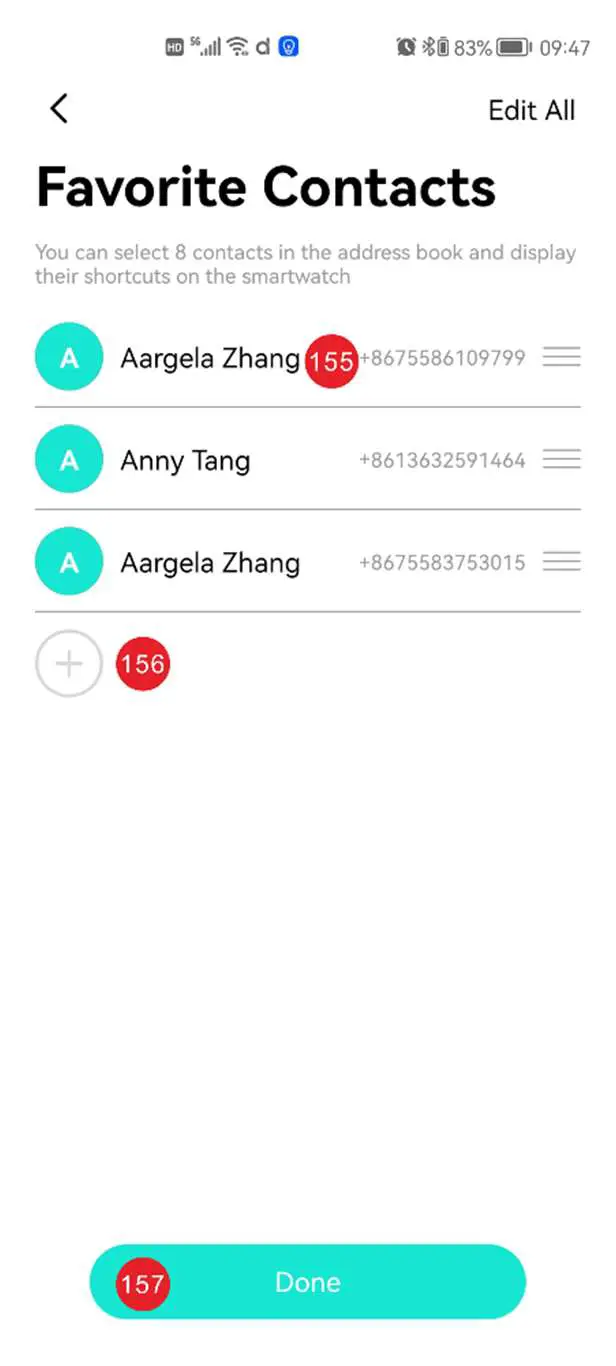
- Favorite contacts added
- Add frequently contacts
- Synchronize favorite contacts to P28 plus
Other settings
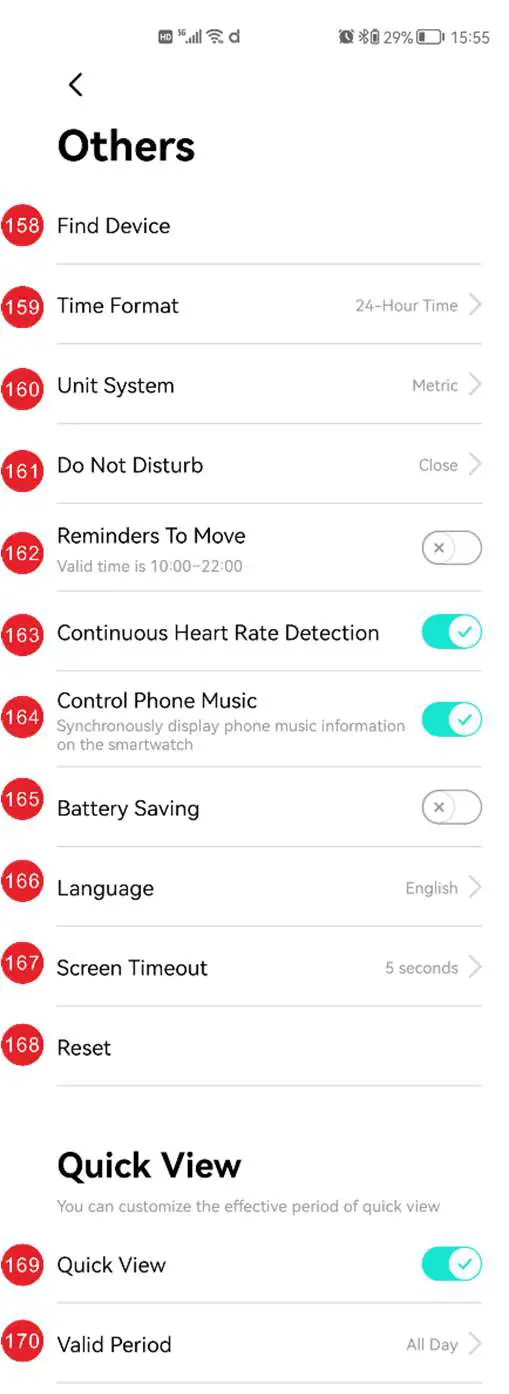
- Find the watch, the watch will vibrate after click it.
- Time format setting, 12-hour and 24-hour modes can be selected
- Distance unit format setting, metric unit and Imperial unit can be set
- Undisturbed mode setting, start and end time can be set
- Sedentary reminder settings
- 24-hour heart rate detection switch. After it is turned on, the heart rate is detected every 30 minutes
- Remote control music switch, turn on to synchronize song information to P28 plus
- Power saving mode switch, which will be turned off when turned on: call Bluetooth, vibration, Raise your hand to light up the screen, push messages, and set the brightness to the lowest
- Language setting: you can set the UI Language of P28 plus, including English, simplified Chinese, Japanese, Korean, German, French, Spanish, Arabic, Russian, traditional Chinese, Ukrainian, Italian and Portuguese
- Screen off time setting, 5S, 10s, 15s and 20s screen off can be set
- Restore the factory settings. Click to reset all P28 plus data
- Raise the hand to light the screen switch
- Raise your hand to light up the screen execution period

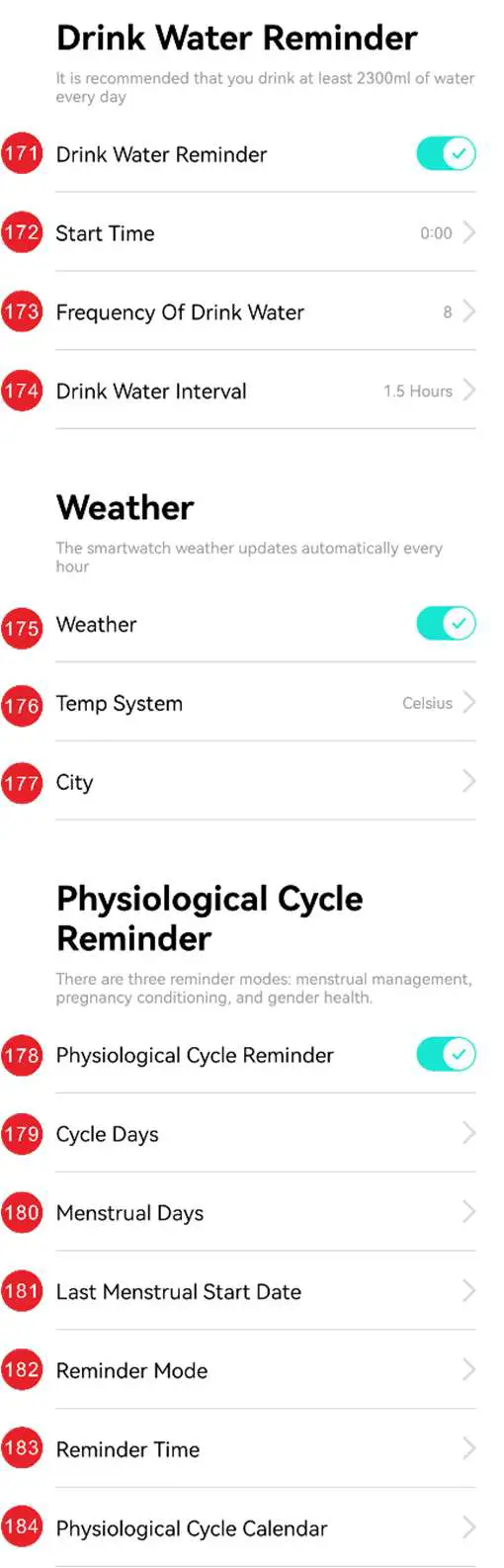
- Drinking water reminder switch
- Start time of drinking water reminder
- Setting of drinking times
- Drinking time interval setting
- Weather switch
- Temperature format setting, you can set Celsius and Fahrenheit
- City setting, you can select the city
- Female physiological period reminder
- Total days of physiological period
- Menstrual days
- Start date of last menstruation
- Reminder mode, you can set menstrual reminder, ovulation reminder, ovulation peak reminder and ovulation end reminder
- Reminder time, you can set the specific reminder time
- Physiological cycle calendar
Personal Center
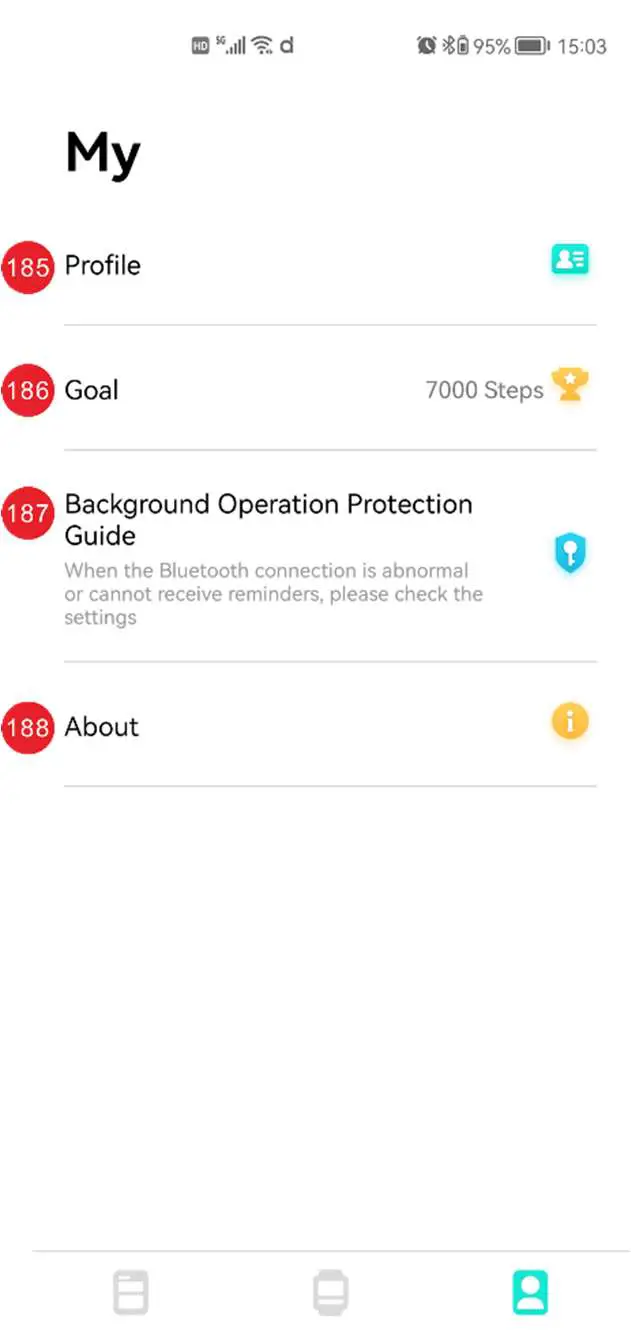
- Personal information setting, which can be set: gender, date of birth, height, weight and step size
- Moving target setting
- Da fit whitelist setting guide
- About Da fit, you can view the version description, privacy policy, software license and service agreement
Note: For more FAQs, please refer to Da Fit APP feedback.

Warning: The smart watch should not be used for any medical purpose though it with dynamically monitor the heart rate at real time .