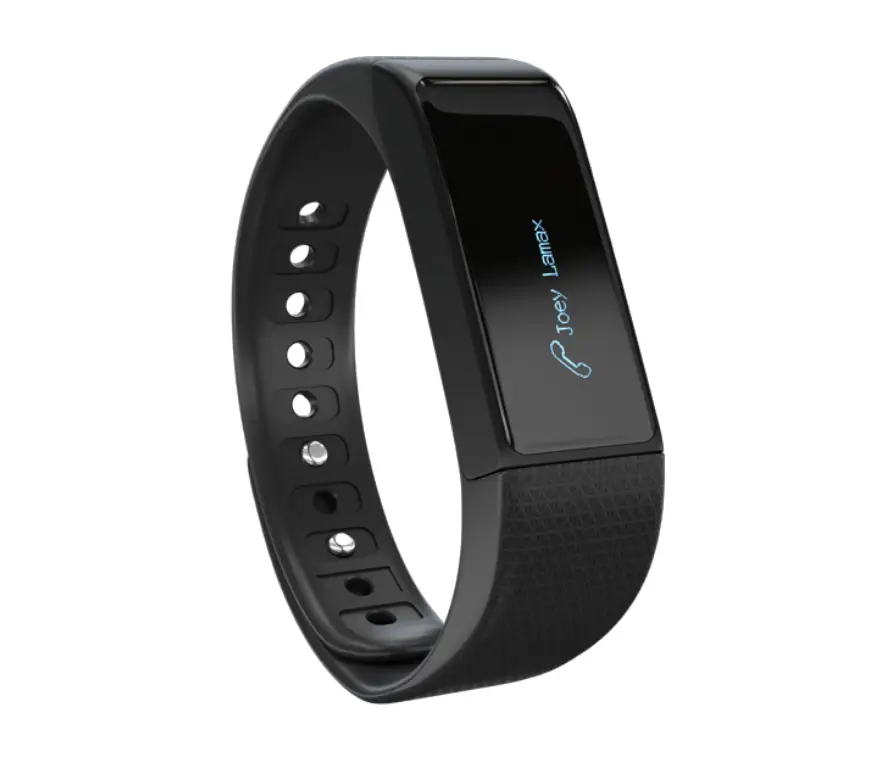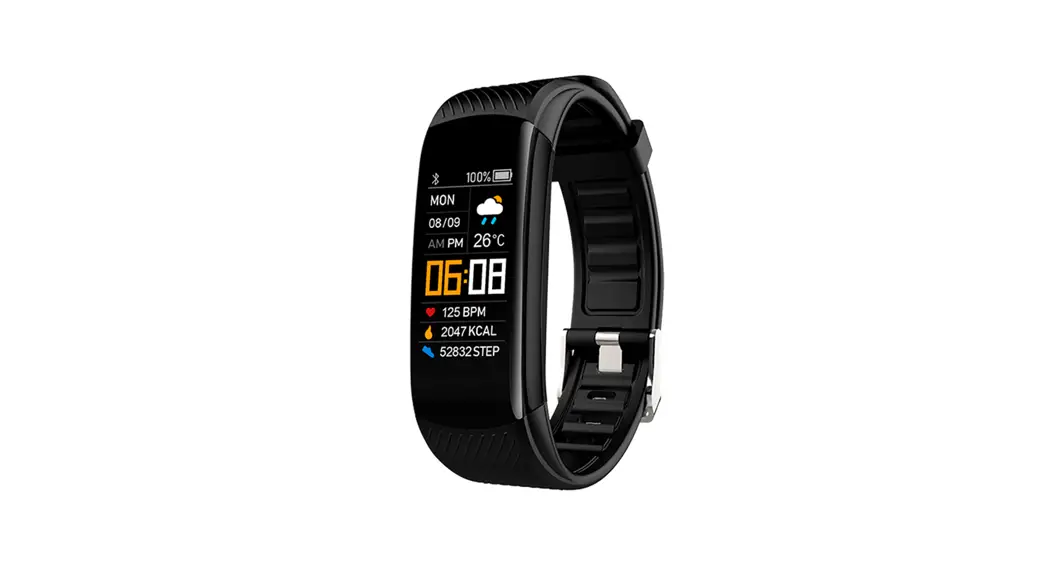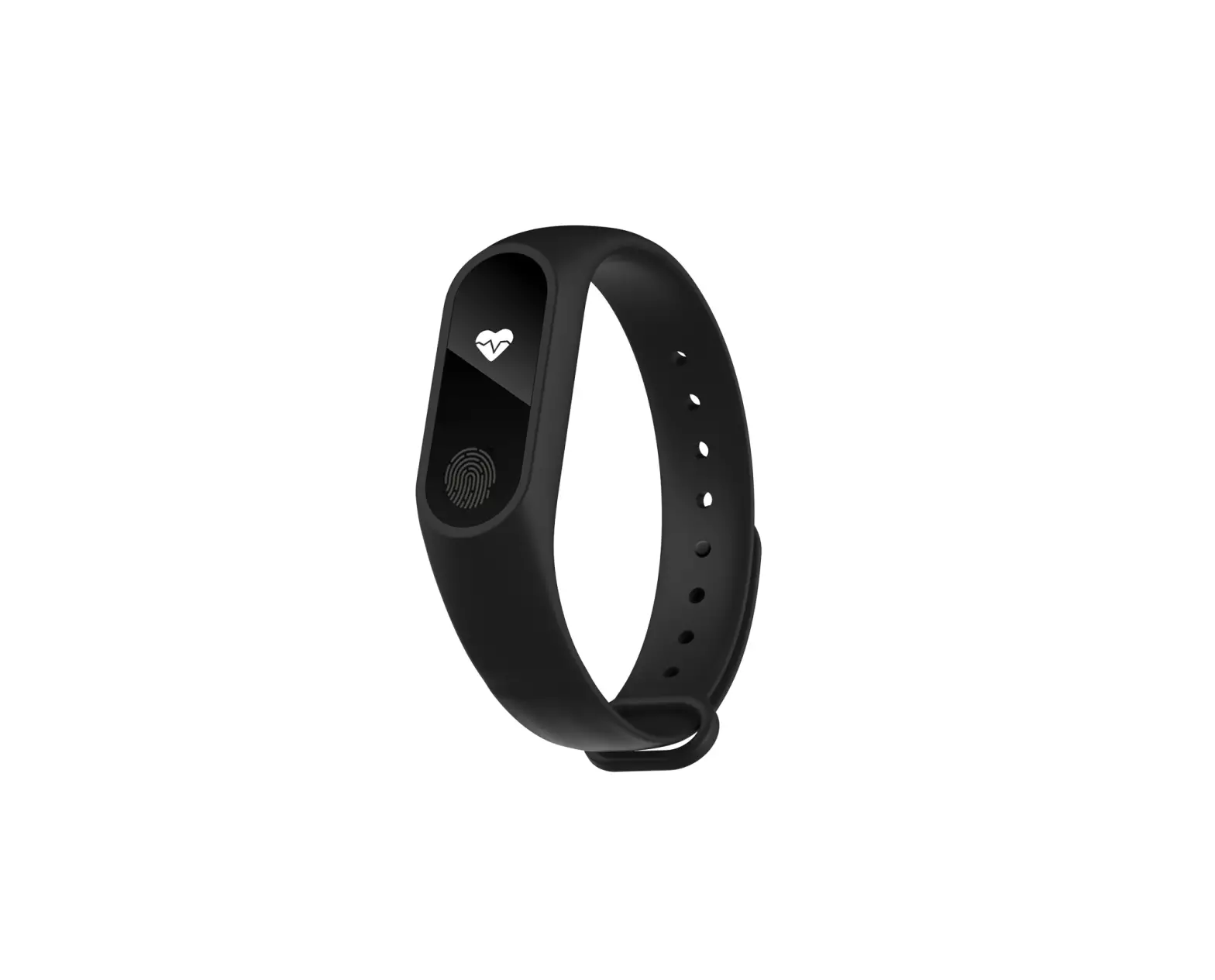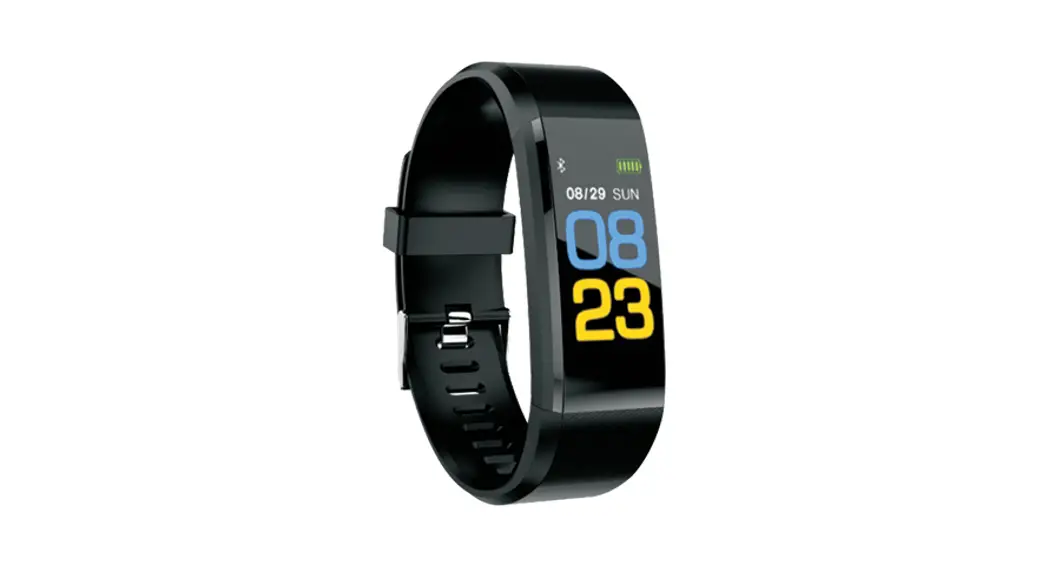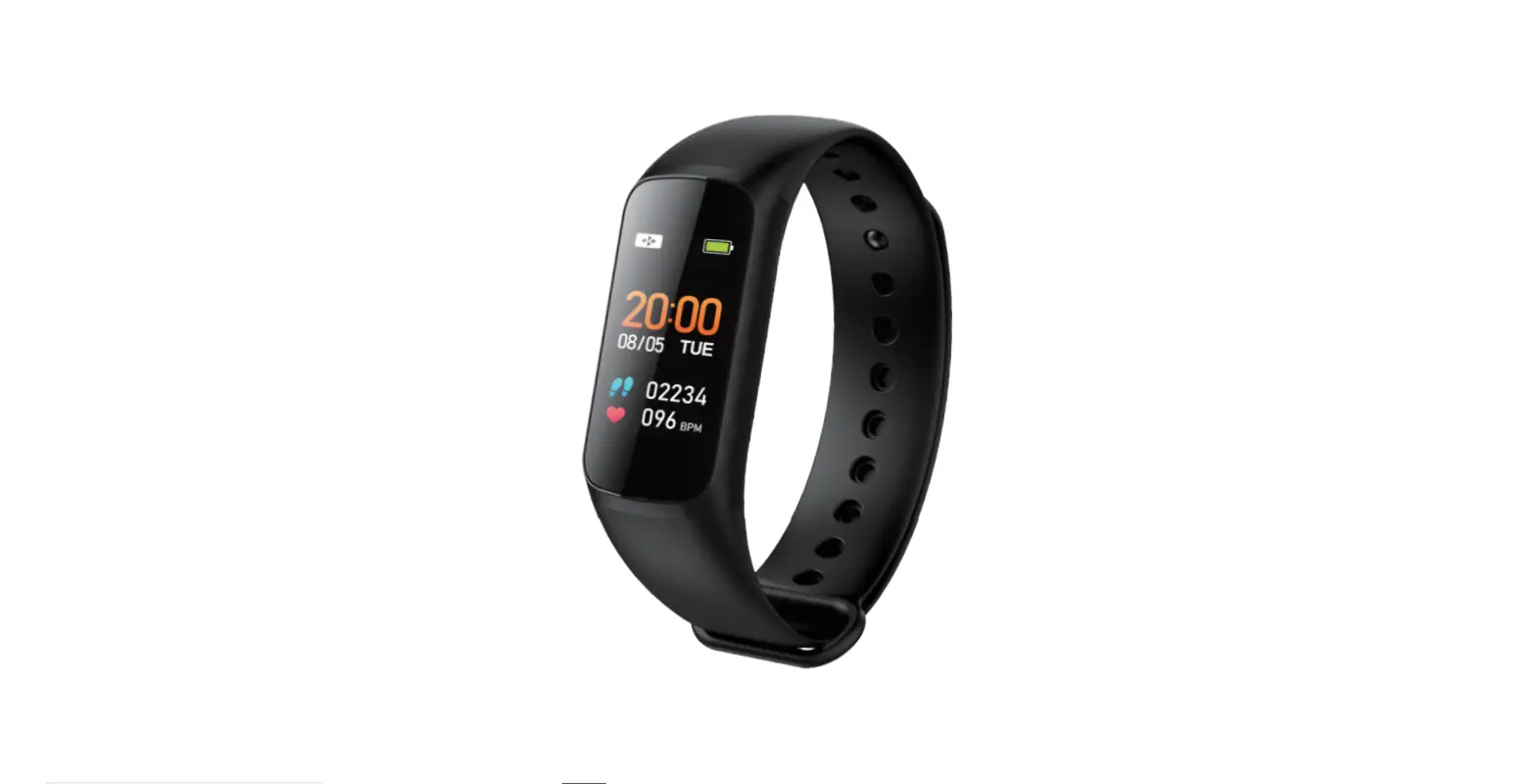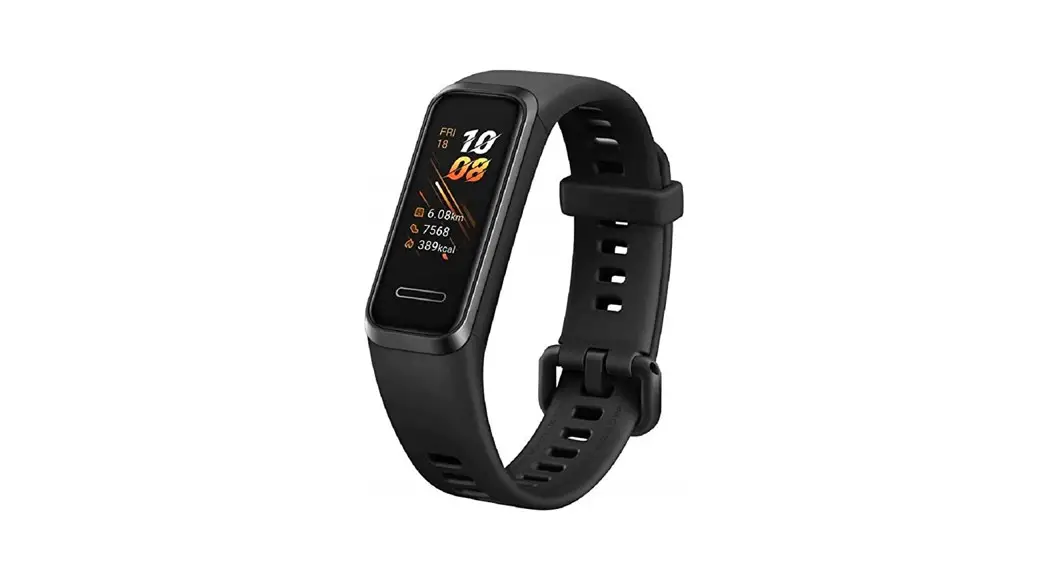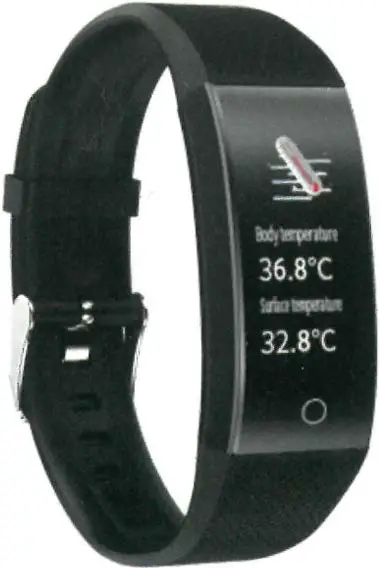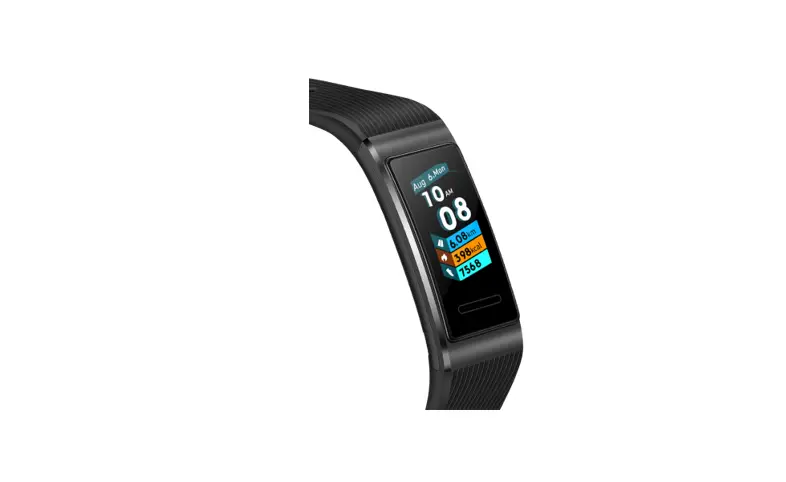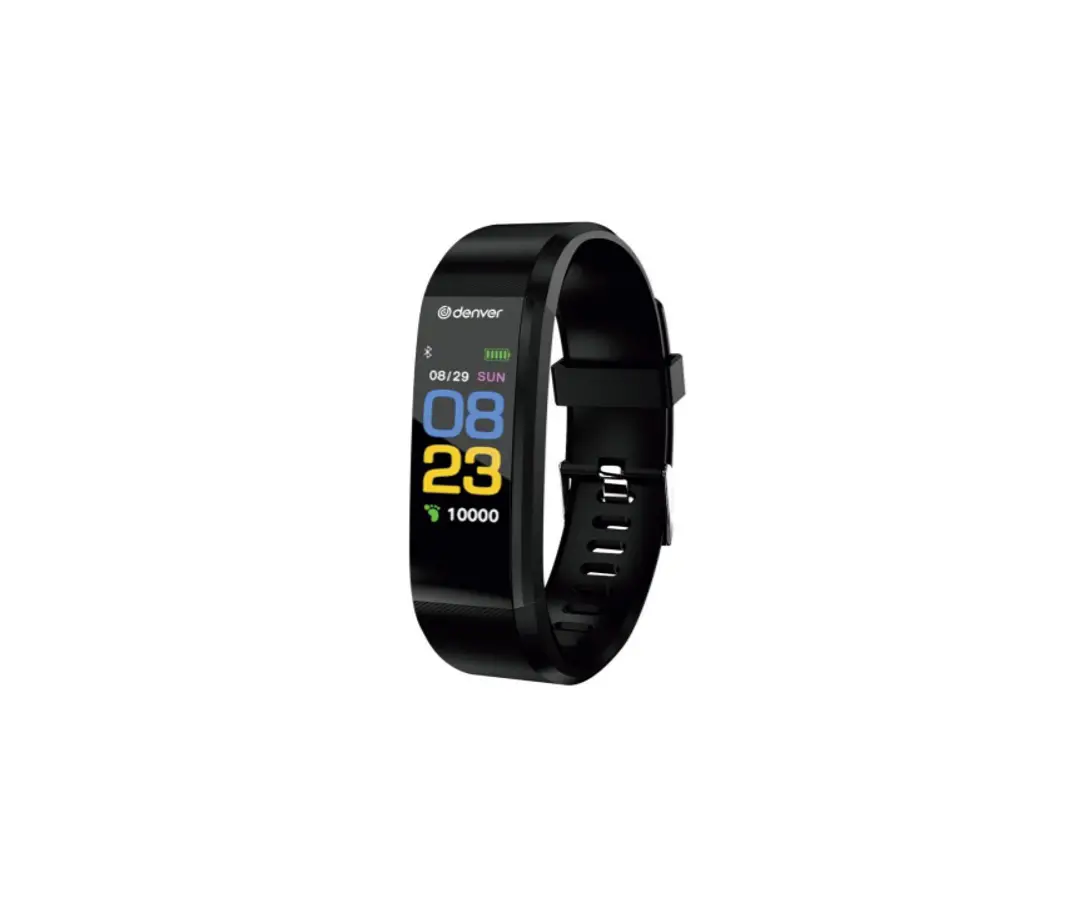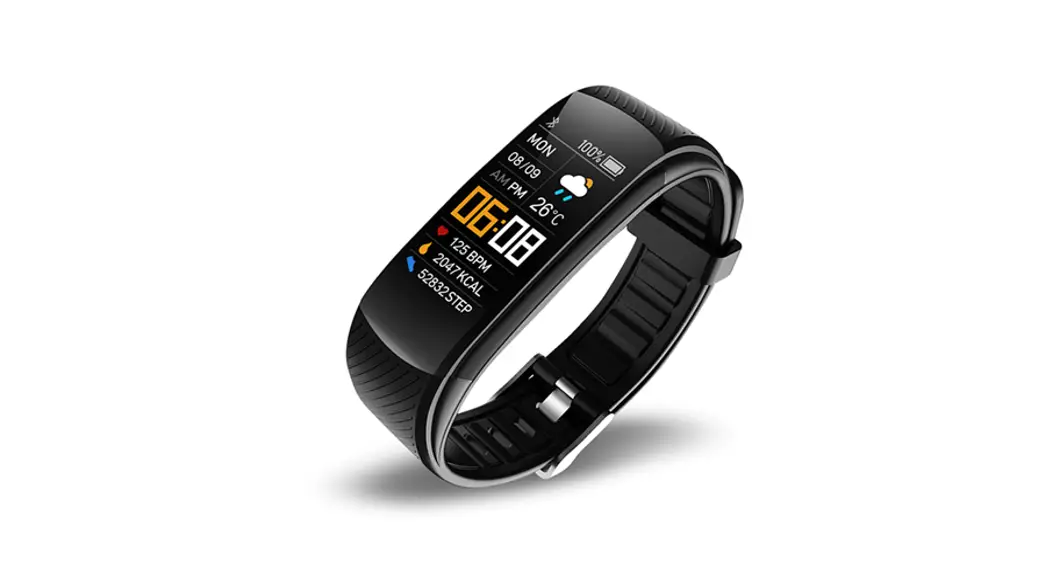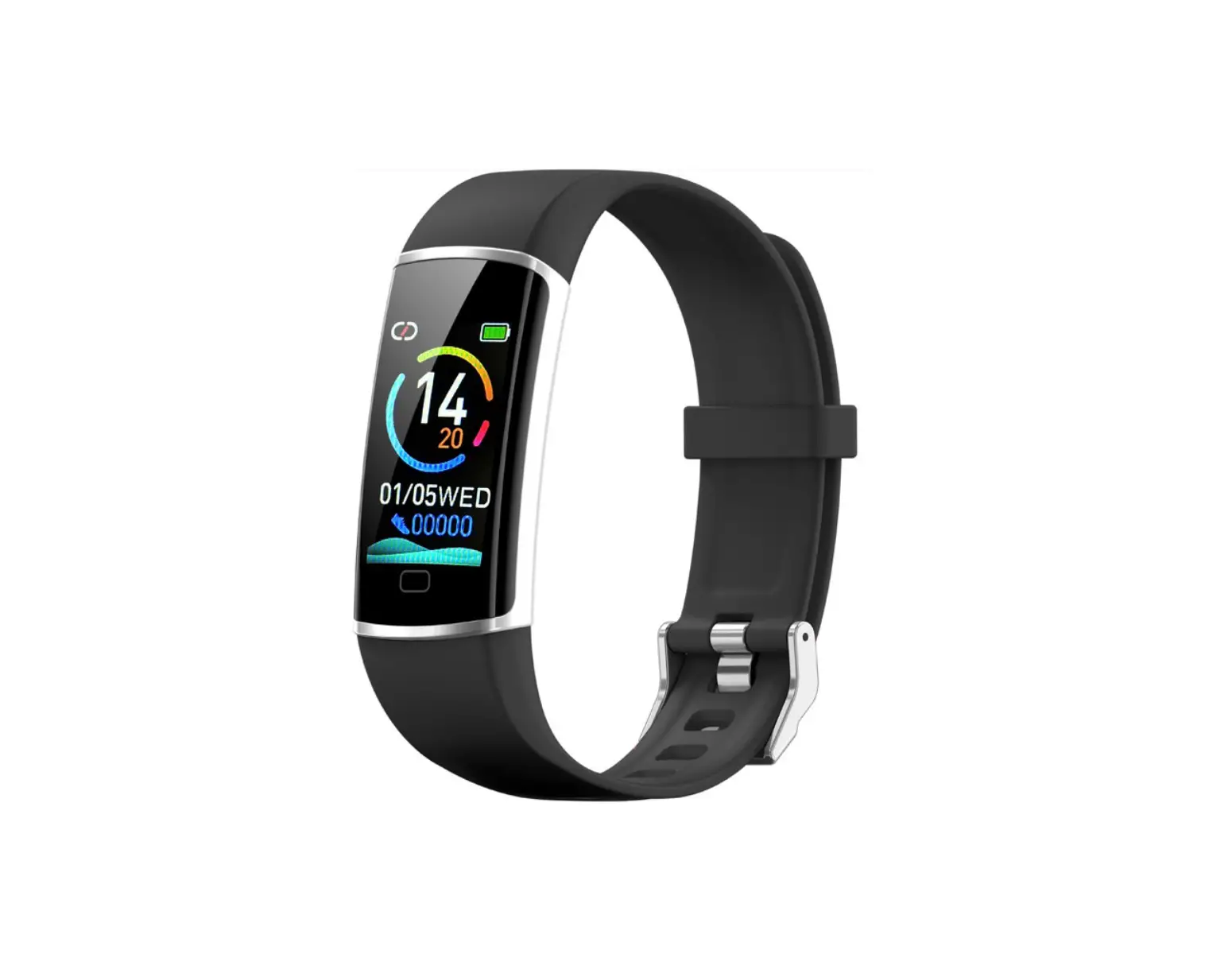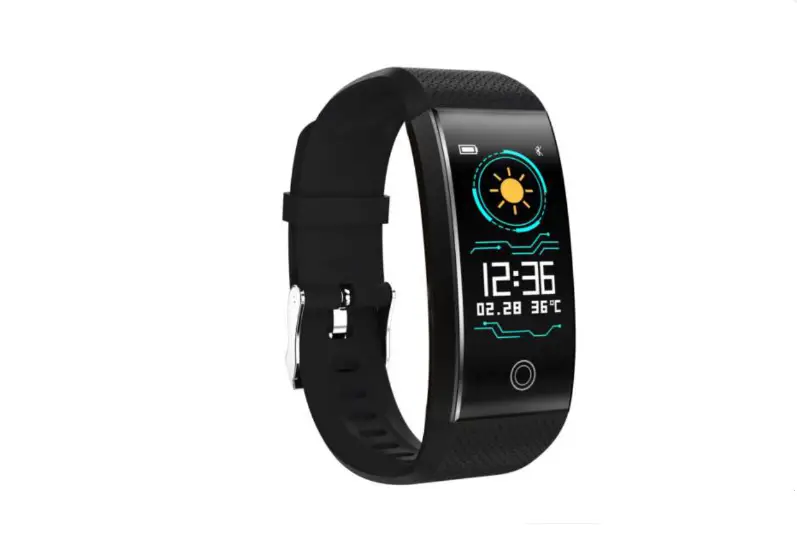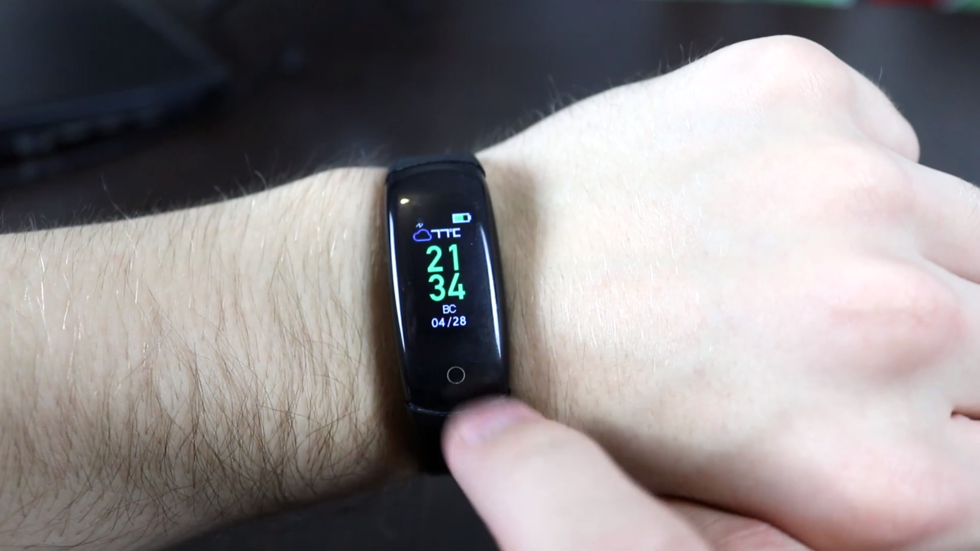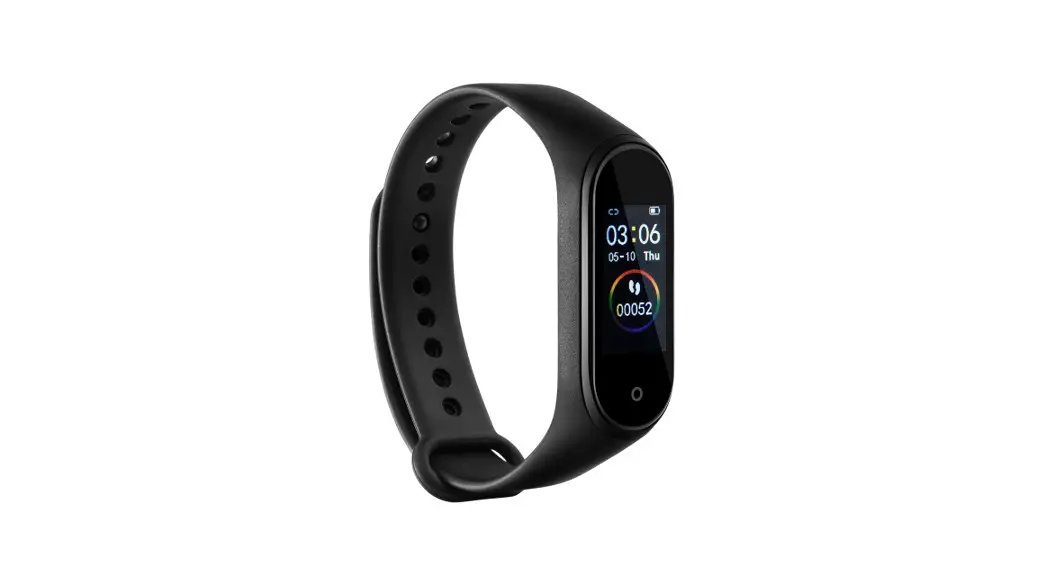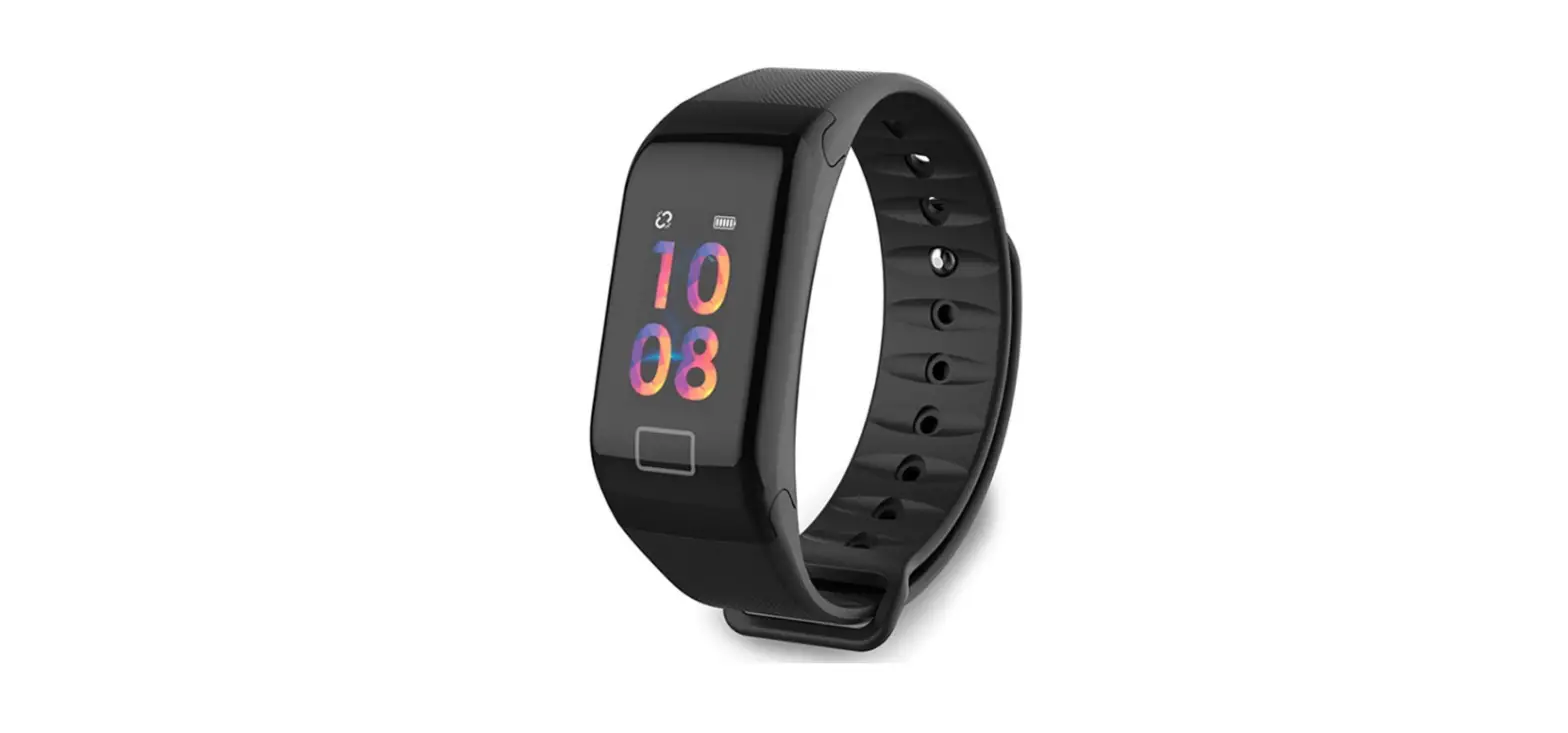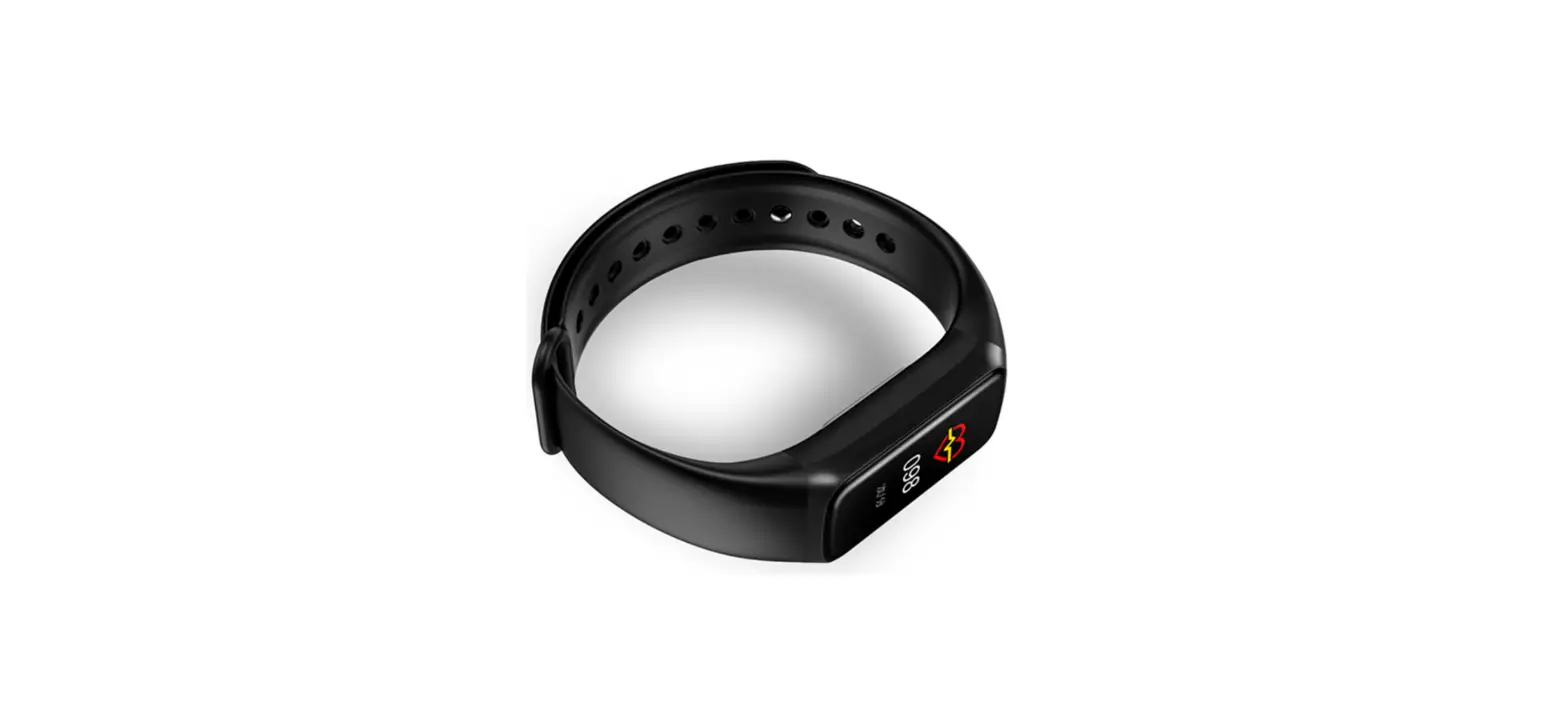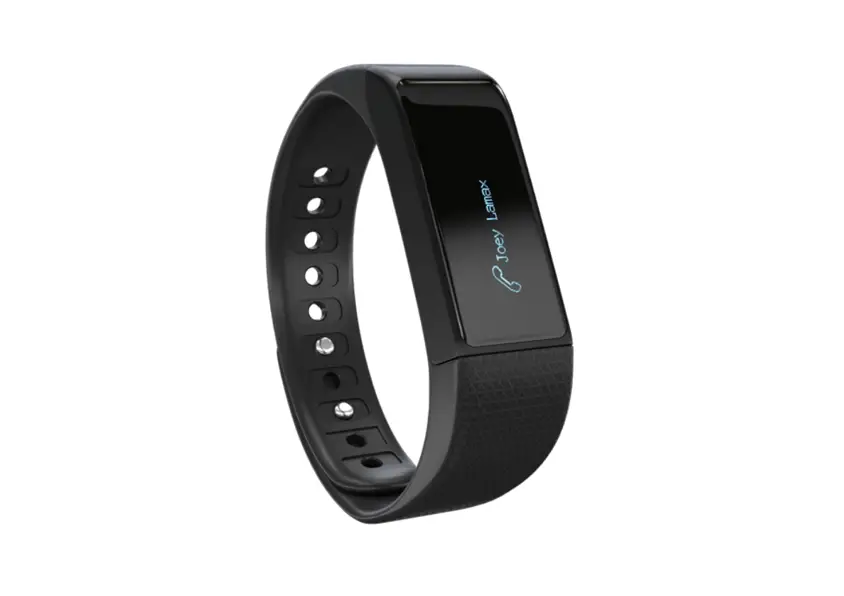

BFit
Quick start guide
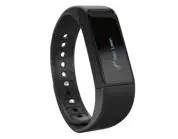
Charging and replacing the wristband
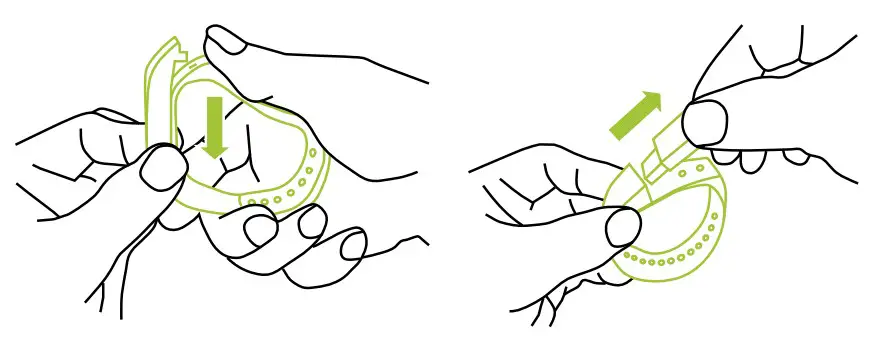
Remove the body of the BFit from the strap according to the instructions in the picture below. Charge the fitness band before using it for the first time. Plug it into any USB charger or USB port on your computer. Whilst charging, the white LED flashes and stops when fully charged. Charging takes about half an hour.
Controls
The fitness band can be controlled by moving the wrist or via touch.
Rotating the band activates the horizontal screen which then displays the current time. This function can be enabled or disabled in the mobile app.
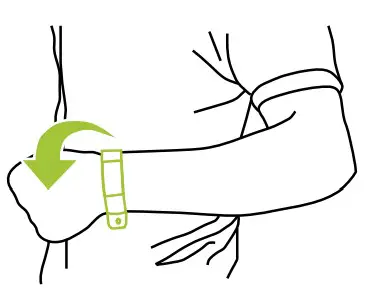
Touch the BFit display to do the following operations:
| Action | operating the fitness band |
| Turn on the fitness band | 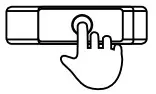 Touch and hold the display. Touch and hold the display. |
| Light up the display | Touch the display or rotate your wrist to a horizontal position. |
| Turn off the fitness band | Swipe on the screen from left to right using your finger until you see the icon . Then touch the power switch icon . Then touch the power switch icon . To turn off, touch, and hold the display. . To turn off, touch, and hold the display. |
| Enter the menu | 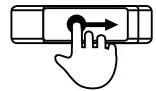 Swipe across the screen from left to right using your finger. Swipe across the screen from left to right using your finger. |
| Browse the menu items | Touch the display on the home screen or in the menu. |
| Confirm selection | Touch and hold the display. |
Fitness band functions
 | Time |
 | Date |
 | Bluetooth connection |
 | Finding connection |
 | Sleep monitor |
 | Phone locate |
 | Turn off wristband |
 | Day of the week |
 | Pedometer |
 | Calories burnt |
 | Camera remote control |
 | Inactivity alert |
 | Alarm clock |
 | Display caller |
 | Display incoming messages |
Installing the mobile app and pairing the fitness band
The fitness band is compatible with iOS (7.0 and higher) and Android (4.4 and higher). Download the mobile app from the following link:
http://tech.lamax-electronics.com/BFit/BFit-app-app-store
 `-
`-
http://tech.lamax-electronics.com/BFit/BFit-app-google-play
Enable Bluetooth on your smartphone. Turn on your BFit band. When the band is not paired, it is in search mode and this icon appears next to the time display, above the battery status. Once paired, this icon is then displayed next to the time and above the battery status.
To properly display the time, you need to synchronize the time in the application first.
Sleep monitor
Swipe the screen from left to right using your finger until you can see the icon. Then touch and hold the display. The band then briefly vibrates and displays the exact time together with the icon.
Sleep monitoring is now activated. Turn off sleep monitoring by pressing and holding the display in this mode. The display will light up, vibrate briefly and the connection icon reappears next to the time. Automatic sleep monitoring can also be enabled in the app.
Alarm clock
In the app go to alarm settings. Set the day and time of the alarm.
At the set time the fitness band will display this icon and vibrate.
Inactivity alert
In the app set the time range and days of the week that you want the BFit to encourage your activity. If you are inactive for a long time within this period the band vibrates and this icon is displayed.
Phone locate
Navigate the menu of the fitness band, which is paired with the phone, to the icon. Touch and hold the display until the band vibrates.
The phone will now begin to ring or just vibrate if the mobile is set to vibrate.
Smartphone camera remote control
In the app navigate to the camera controls. The icon is then displayed on the paired fitness band. To take a photo, press and hold the BFit display.
Display incoming call and message notifications
In the app navigate to the incoming call and message notification settings. Select which notifications to display on the fitness band. If a notification does not appear on the BFit screen, despite being paired with the phone and with the notification function enabled in the app, disconnect and reconnect the band to the smartphone via Bluetooth and turn the notifications off and on again in the app.
Water and dust resistant
The fitness band is resistant to the ingress of water and foreign objects according to the IP67 rating. This means that it is resistant to water for 30 minutes up to a depth of 1 m and resistant to foreign matter including dust.
Technical specifications
| Bluetooth | v 4.0 |
| Display | 0.91″ OLED |
| Weight of body | 9 g |
| Weight of the whole device | 26 g |
| Body dimensions | 46 mm x 18.7 mm x 7.9 mm |
| Charging | USB5 V/0.5 A |
| Battery | 3.7V 75mAh Li-Ion |
| Water-resistant | in accordance with IP67, up to 1 m for 30 minutes |
| Compatibility | mobile devices with iOS 8+ and Android 4.4+ * |
* Modified Android versions from some manufacturers may cause problems with connecting Bluetooth devices. For the current exceptions, check
www.lamax-lectronics.com/BFit/compatibility.
To use this product correctly and for detailed instructions on installing and operating the mobile app and pairing the band with your smartphone, read the most recent version of the manual which is available to download at the following link:
BFit_manual [PDF]
 LAMAX Electronics | EN
 BFit compatibility | LAMAX Electronics | EN