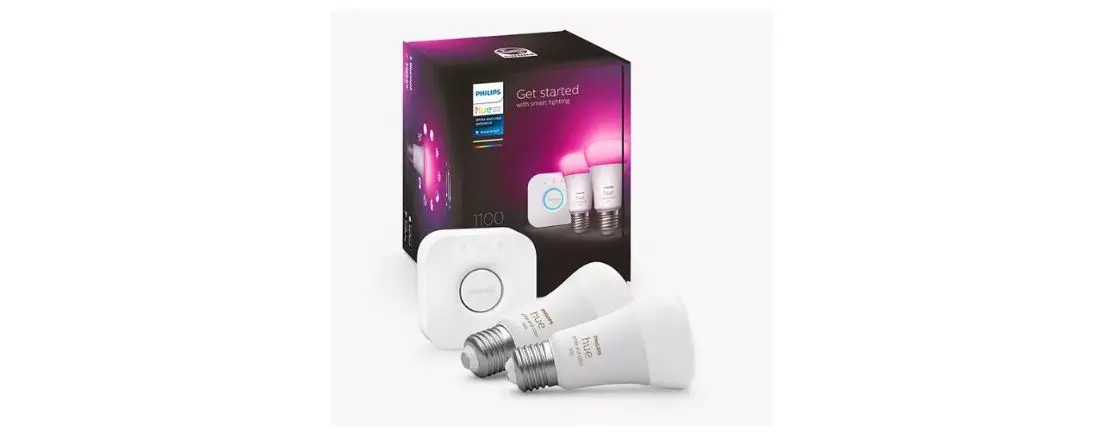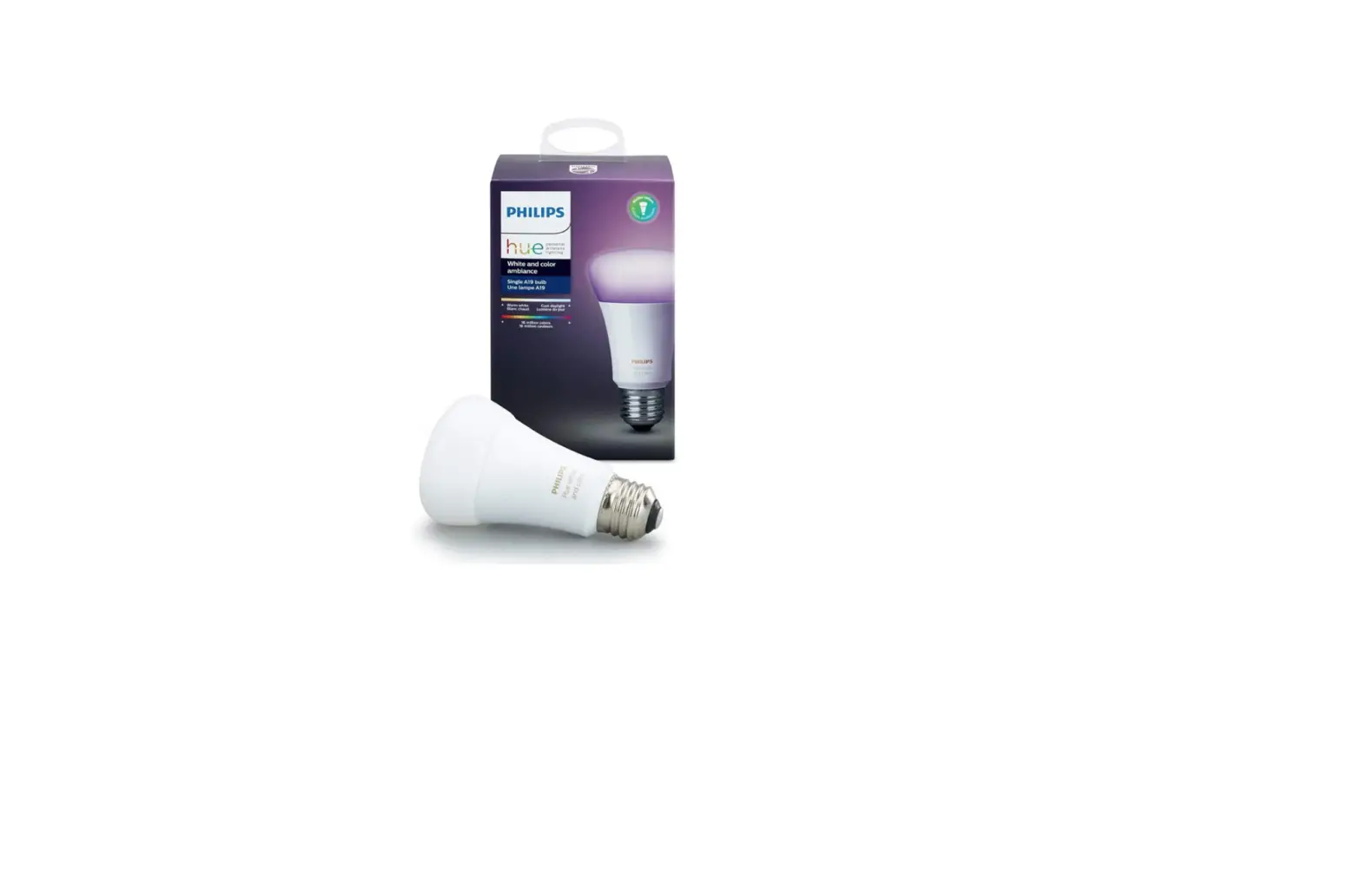

Philips 2.0 hue bridge smart lighting system

Getting Started with Philips Hue
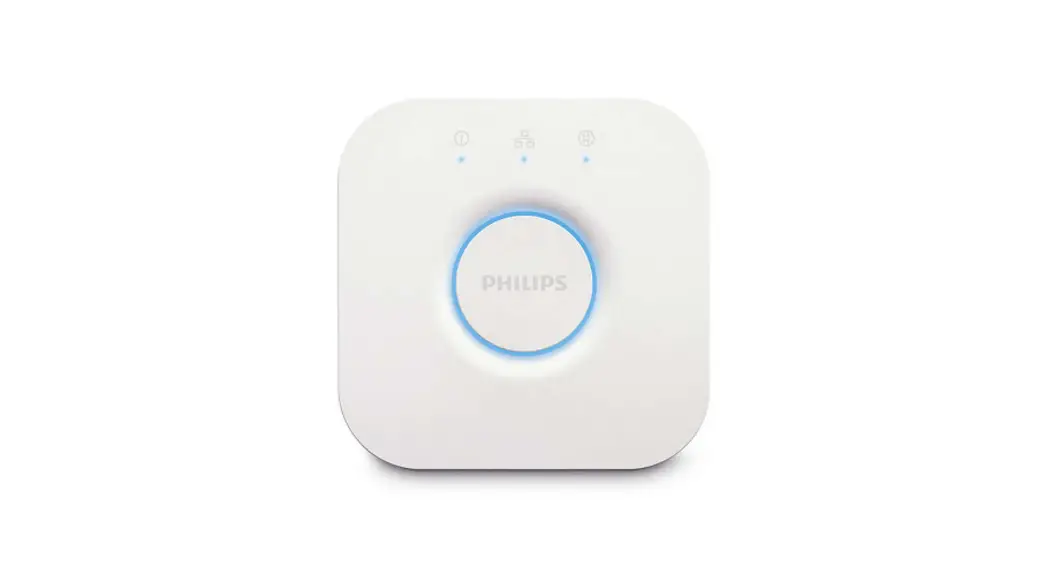
First thing we need to setup is your Philips Hue Bridge. Your Bridge may be square or round depending on which generation of the starter kit you purchased, however, the setup process is still the same. 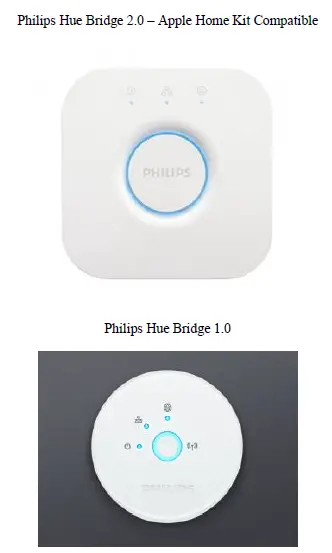
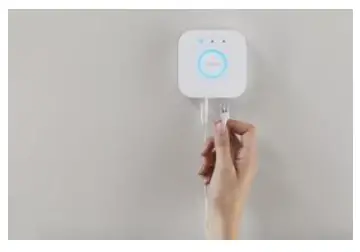
- Step 1.
Plugin the DC power adapter into the back of the hue bridge and then into an available power outlet near your home router - Step 2.
Connect the provided Ethernet cable into an available Ethernet port on your router and connect the other end into the port on the hue bridge. Wait for all lights on the Hue Bridge to become a solid blue color, this could take up to 5 minutes. - Step 3.
Install all of your hue lights within 30 to 50 feet of the Hue Bridge and power the light switch on. The bulbs will come on a default yellow (2700K) color.
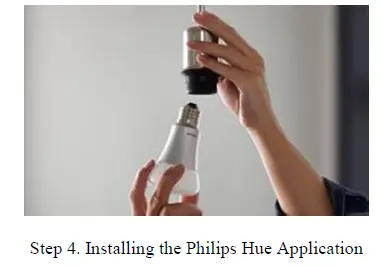
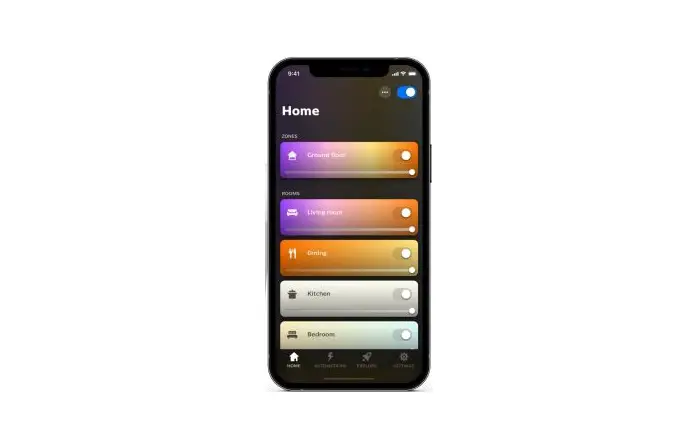
Download the Philips Hue App for IOS
Once you have the Philips Hue app installed, it will present you with the Intro to scroll through. Once you have finished the into, it will search for your Hue Bridge. Please make sure your device is on the same wireless network that the bridge is plugged into. 
If you see this screen it means the Hue application was able to find your Hue Bridge, press the Set up button to continue. If it not find your hue bridge, ensure the bridge is plugged in properly and confirm your devices wifi settings to ensure you are on the correct network. 
When you see this screen, press the center button on your Hue Bridge to link it to your Hue App
Hue Bridge Connectivity Issues
If you are unable to connect to your hue bridge, there are a few things we need to confirm first.
- Make sure your hue bridge is connected directly to your router, if it is going through a switch or multiple switches, bypass them for now.
- All lights should be solid on your hue bridge, none should be flashing.
Most issues with bridge connectivity can be resolved by troubleshooting the network configuration.
For instance, if you have a modem/router combo going into another router, moving the bridge from the router to the modem/router combo can correct your connectivity issue. This can also the be case with switches or managed switches, moving the bridge directly into the router can also resolve the issue. The Bridge requires your to router support Nupnp (Universal Plug and Play). You can confirm with your router manufacturer if your router supports these settings and if they are enabled.
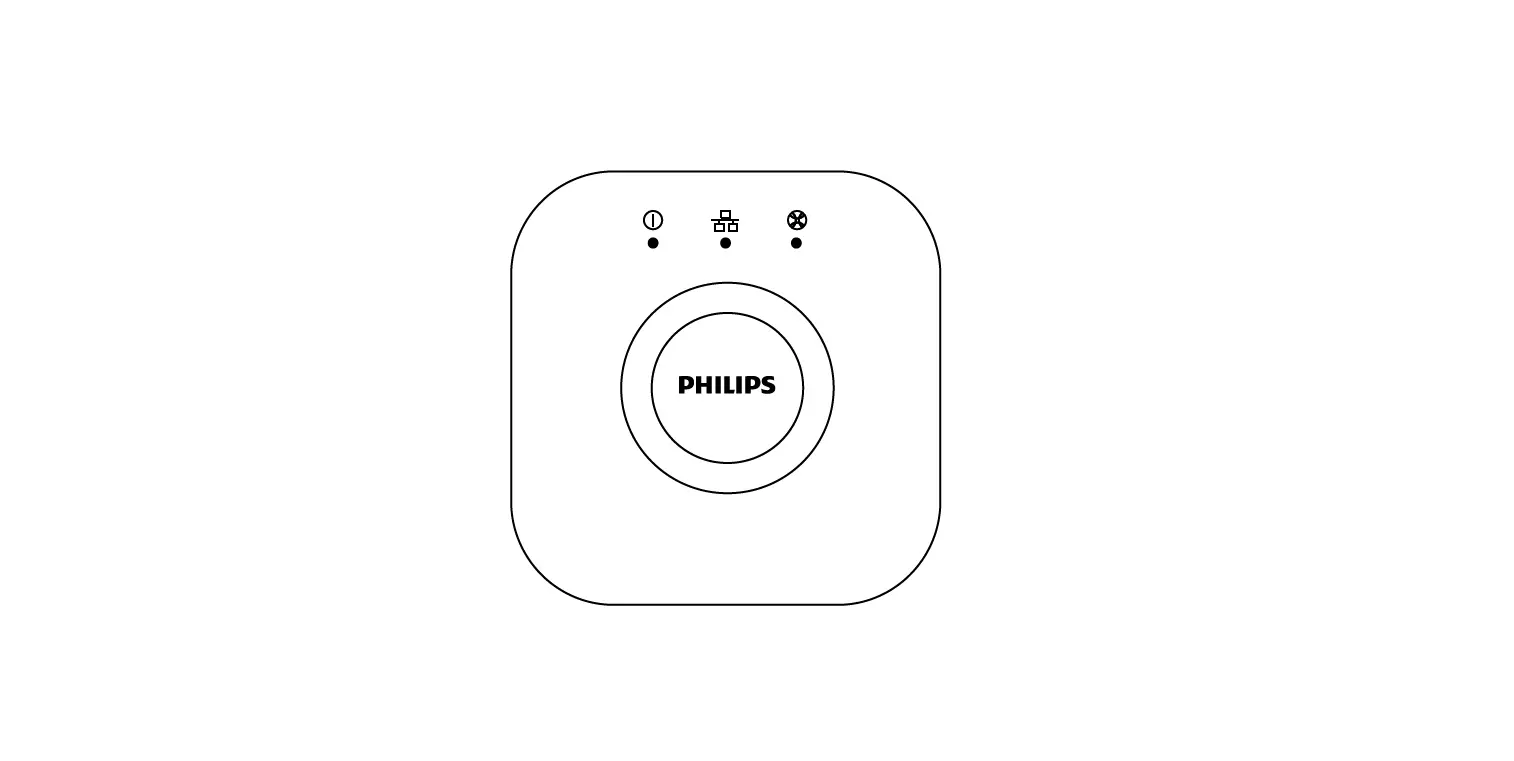
- 1st Light means your bridge is getting power. if this light is not on, make sure your bridge power adapter is plugged in.
- 2nd Light solid means you are connected to your network, if it is flashing it is not making a connect or is plugged into the wrong device.
- 3rd light is your portal/internet light, if it is flashing it means it is not making an internet connection or it is not reaching the meethue.com portal. In recent cases this can also mean Philips is performing maintenance and the portal may be temporarily unavailable.
- Push Link button, you will be asked to press this button in the hue app when making your first connection or linking the bridge to your hue account.

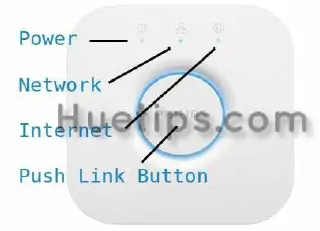
If the 3rd or Internet light on your hue bridge is flashing, first try unplugging the power from your bridge and router for 30 seconds and reconnecting them. If it still does not come back, try moving the bridge to another ethernet port on your router and wait for about 5 minutes for everything to come back up.
Wireless Networks
Your device connects to the hue bridge through your wireless network, please ensure your wifi is on on your device and that you are connected to the same wireless network coming from the router your bridge is plugged into.
If you have multiple wireless networks such as a guest network, a 2.4ghz network, and a 5.0ghz network please try to connect to each network and then go into the hue application Settings/Find bridge and try to connect to your bridge again. The hue bridge will sometimes only be able to connect through one of these multiple networks. There is not a way to define which one the bridge appears on. You can also try disabling all other networks except the main one you want to use and try to connect again, it if connects this way try re-enabling these other networks and see if it remains connected.
If you are unable to connect, but all lights on the bridge are solid
If all of the blue lights on your hue bridge are solid and the hue application is still unable to find the bridge can be resolved by forgetting your network from your device. On an iPhone for example, open your settings then go to wifi, make sure your wifi is on and that you are connected to the correct network, it will show a blue check mark next to it. Tap on the network name and press the “Forget this Network” option. Once the network has been forgotten from your device, rejoin it and enter your wifi password again.
Now that you are reconnected to your wifi network, force close the hue application by press the home button twice if it is an IOS device and swipe up on the hue app. Then reopen the hue app and try to connect again.