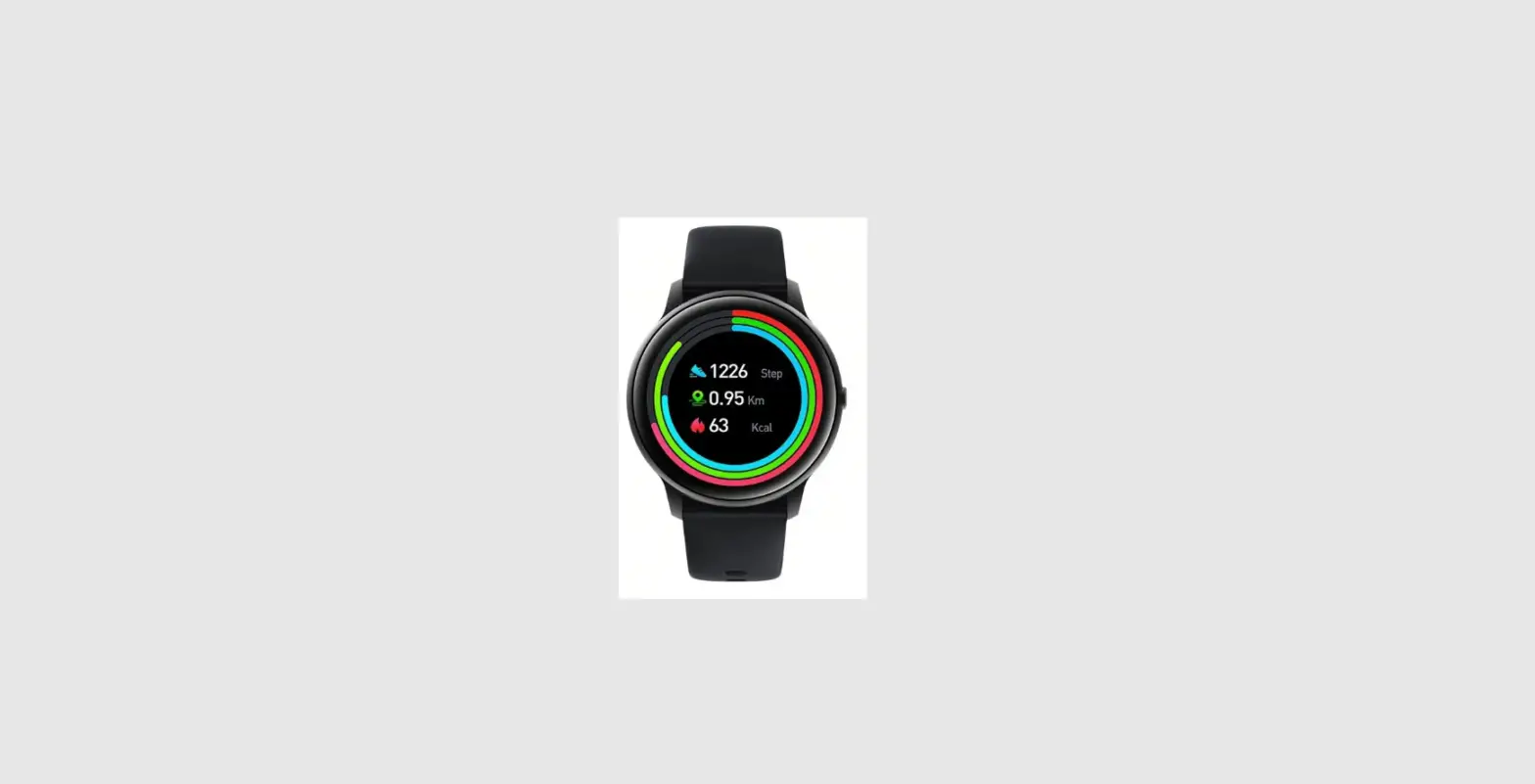
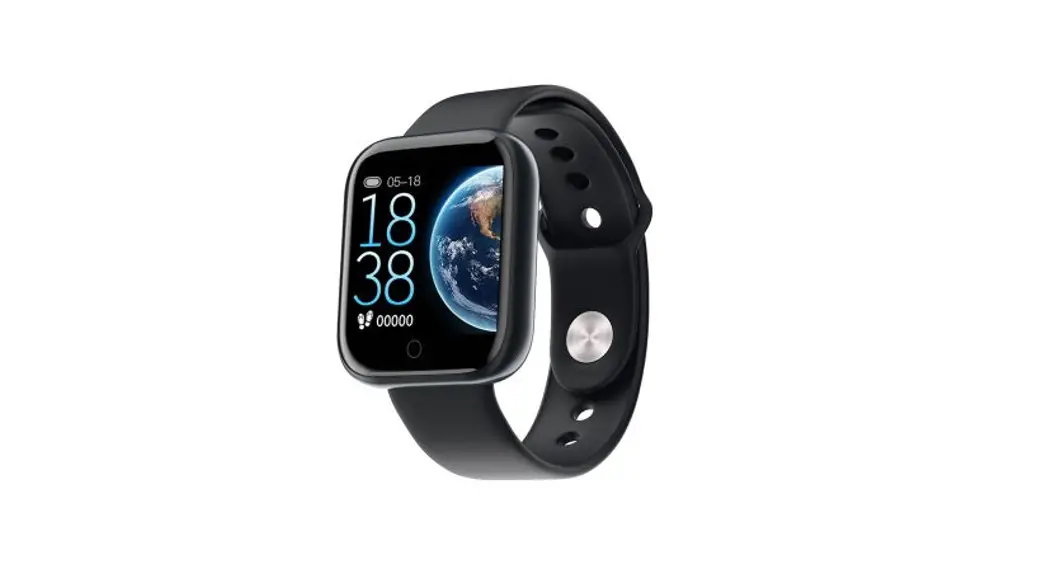
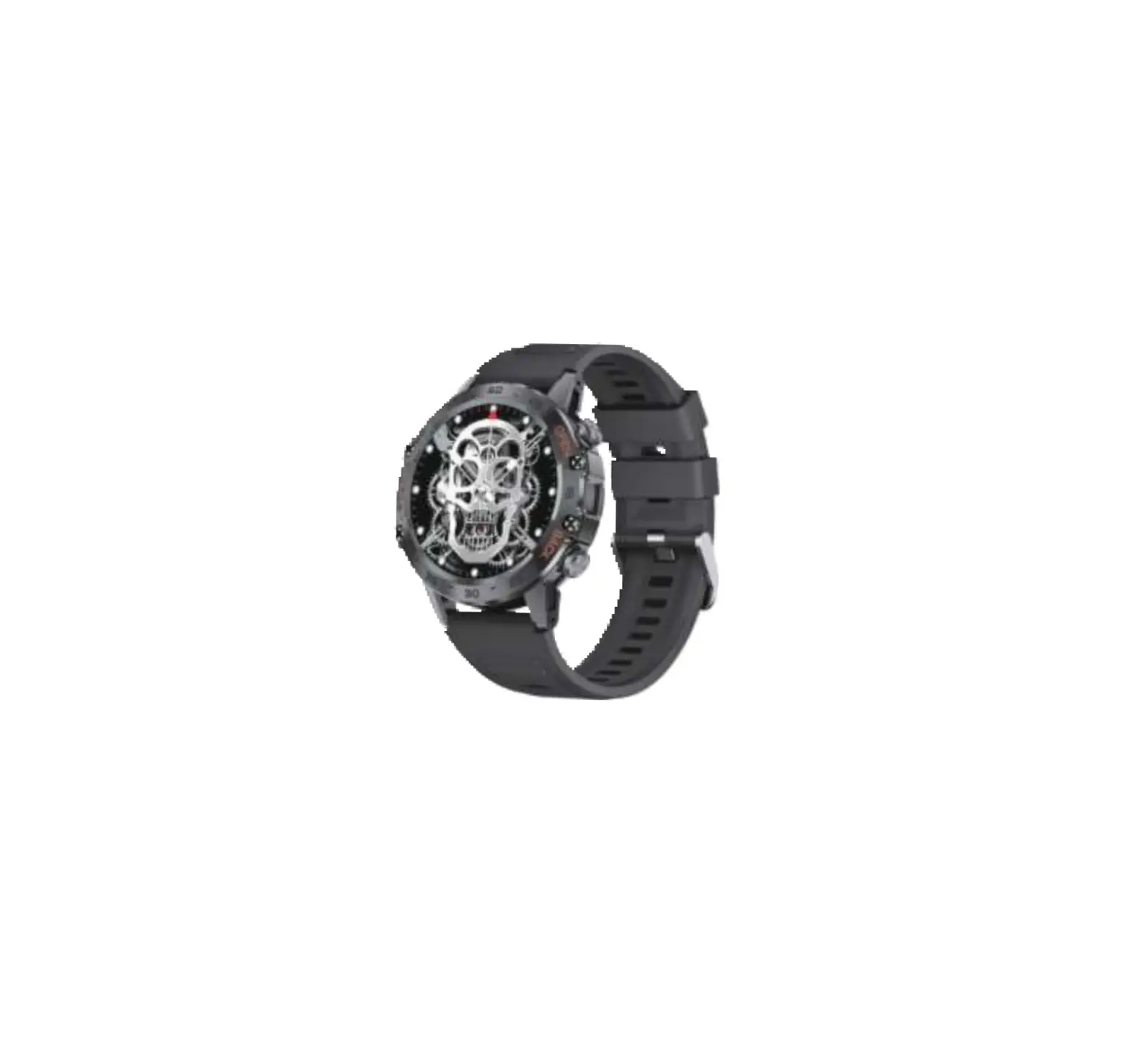
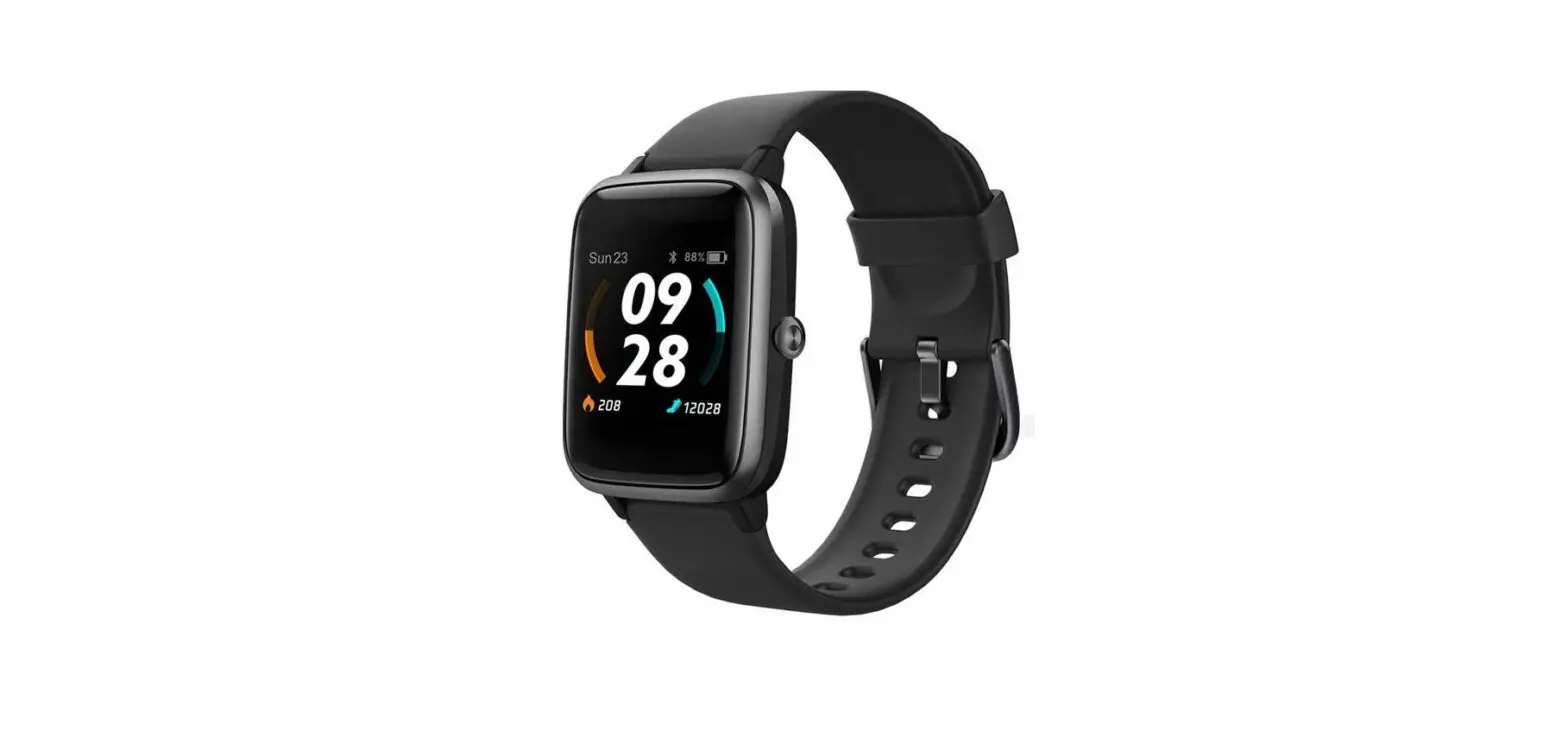
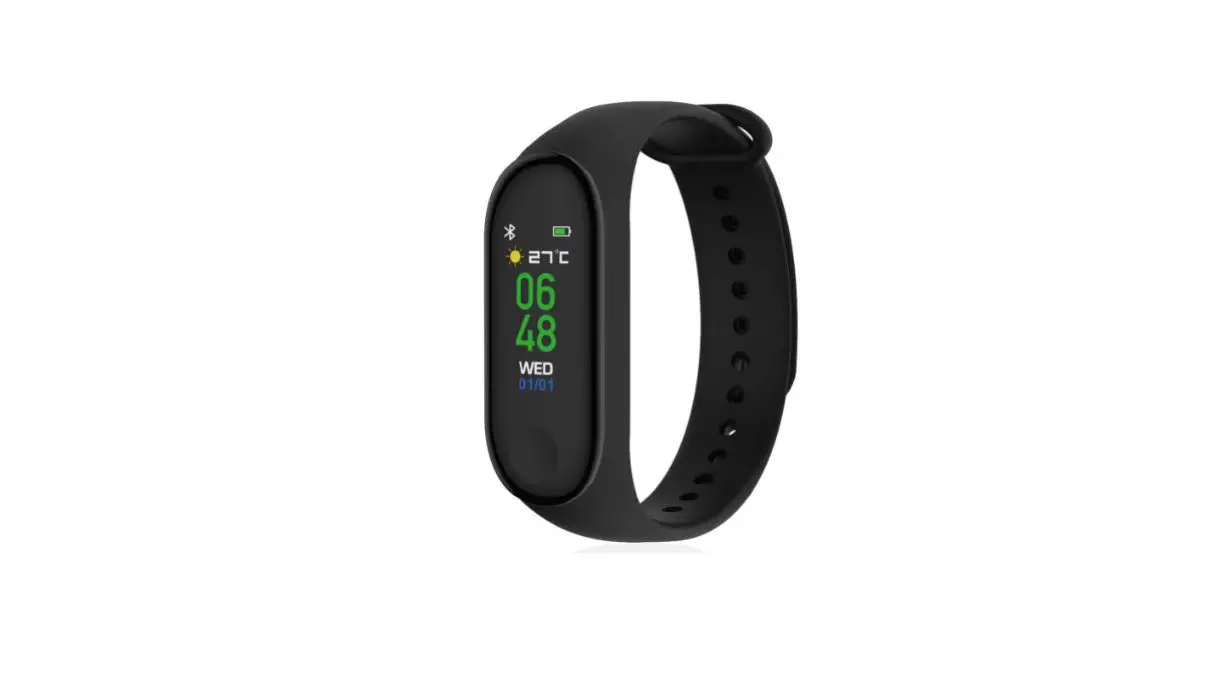
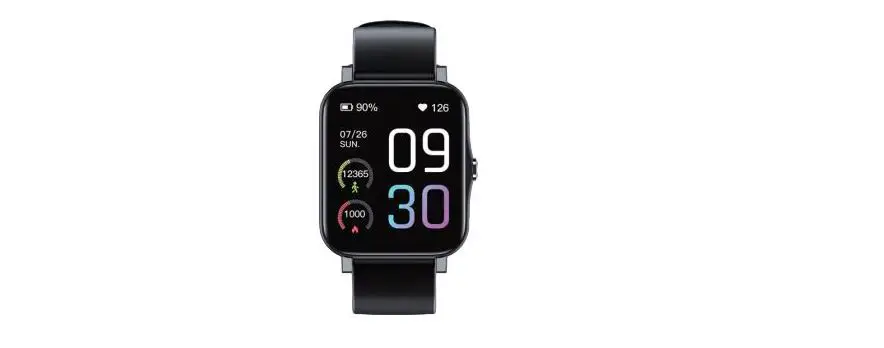
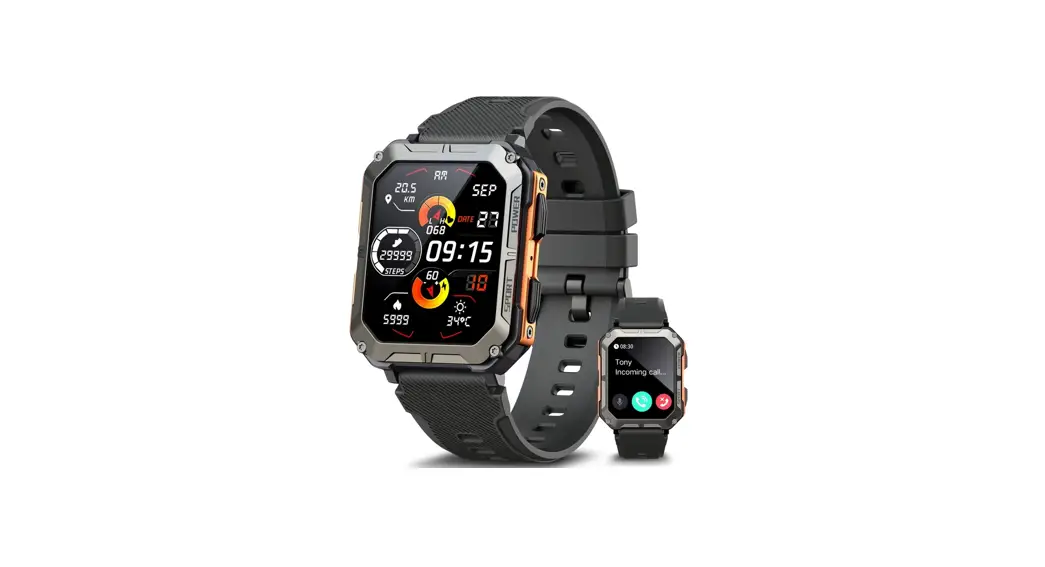
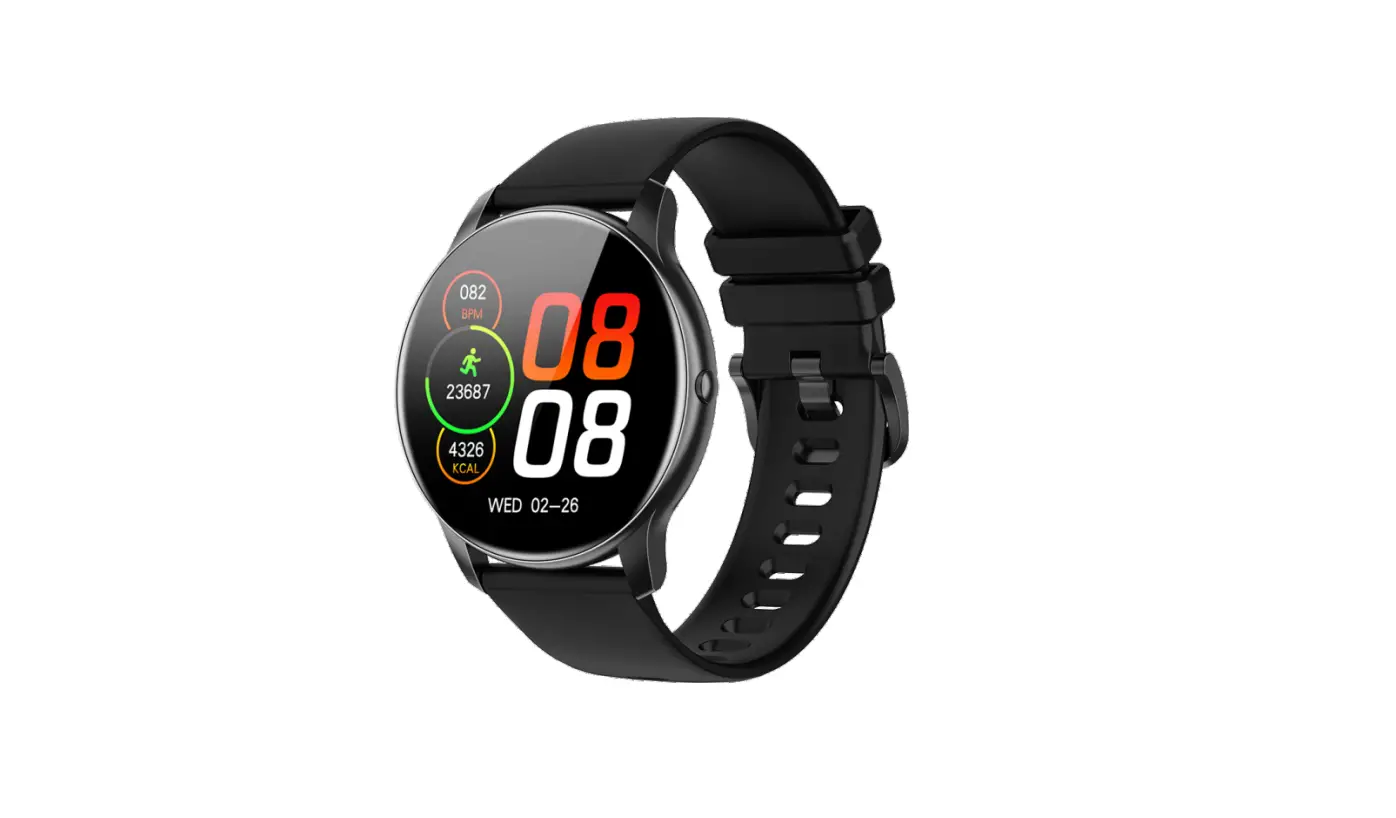
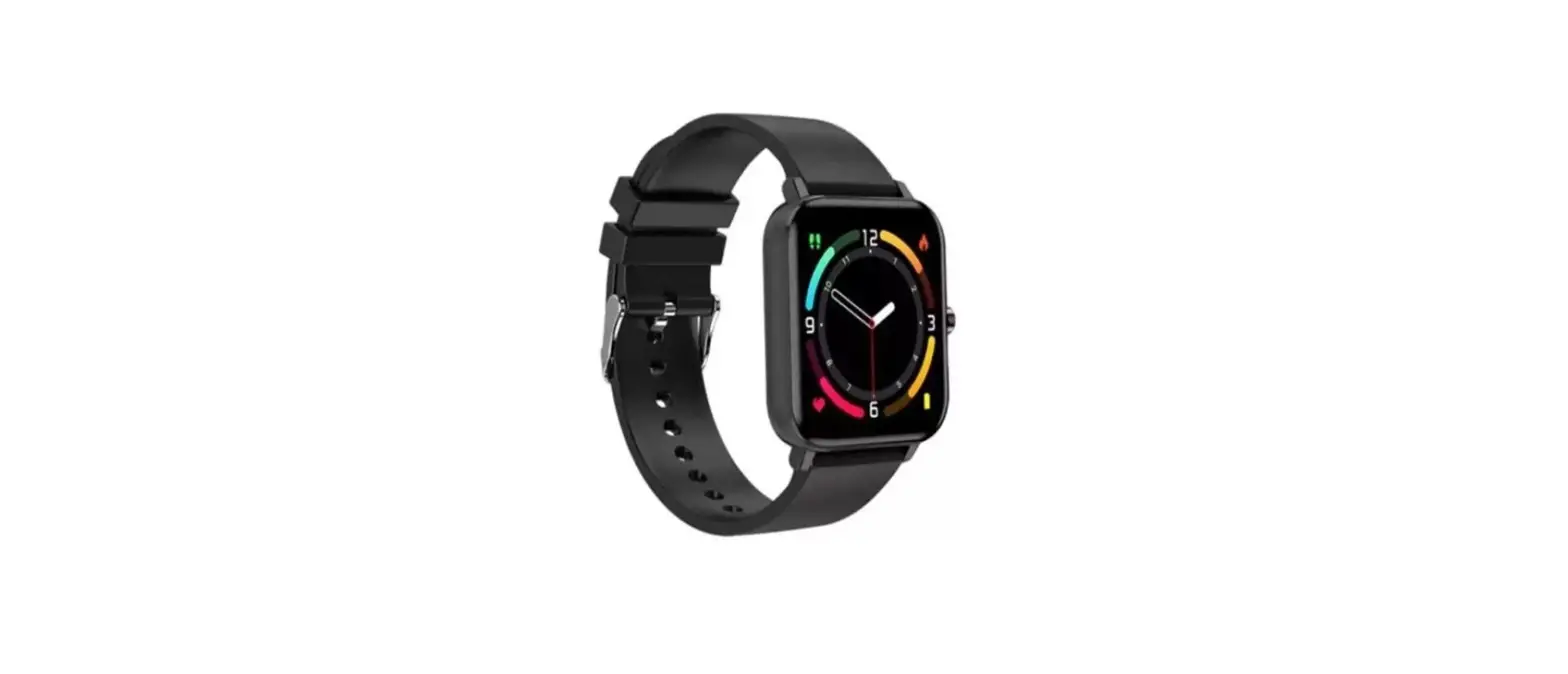
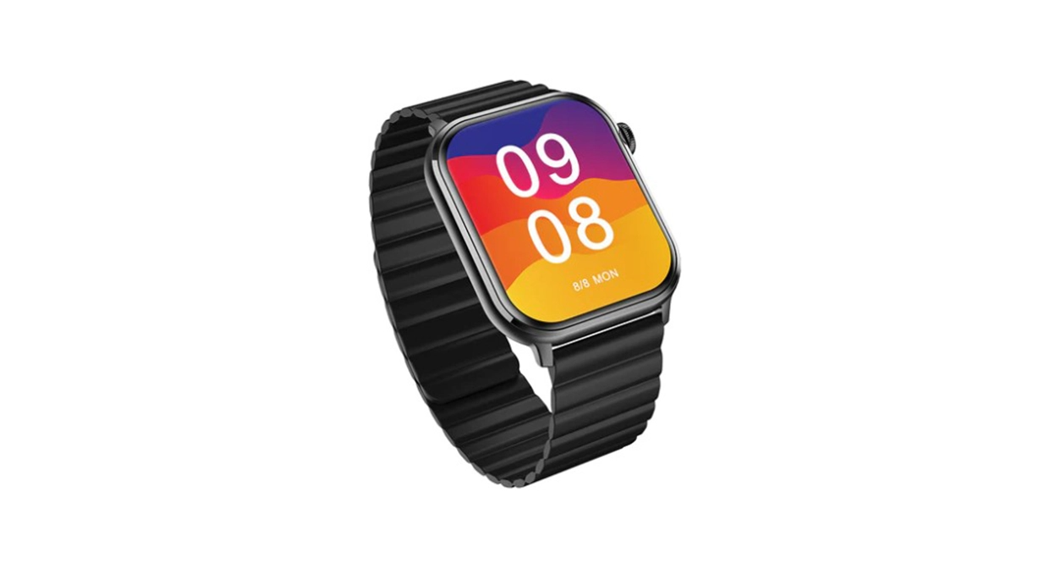
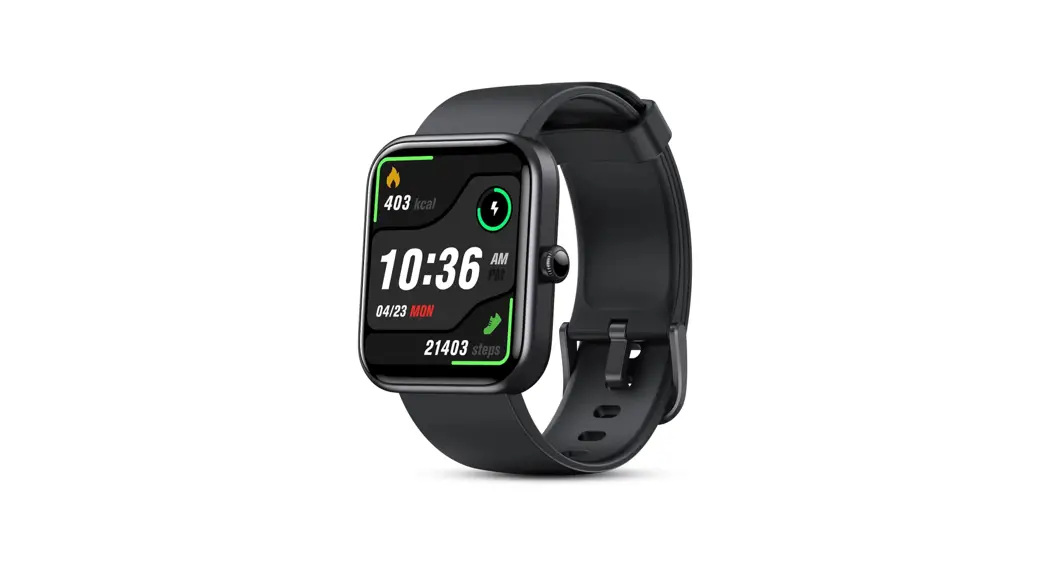
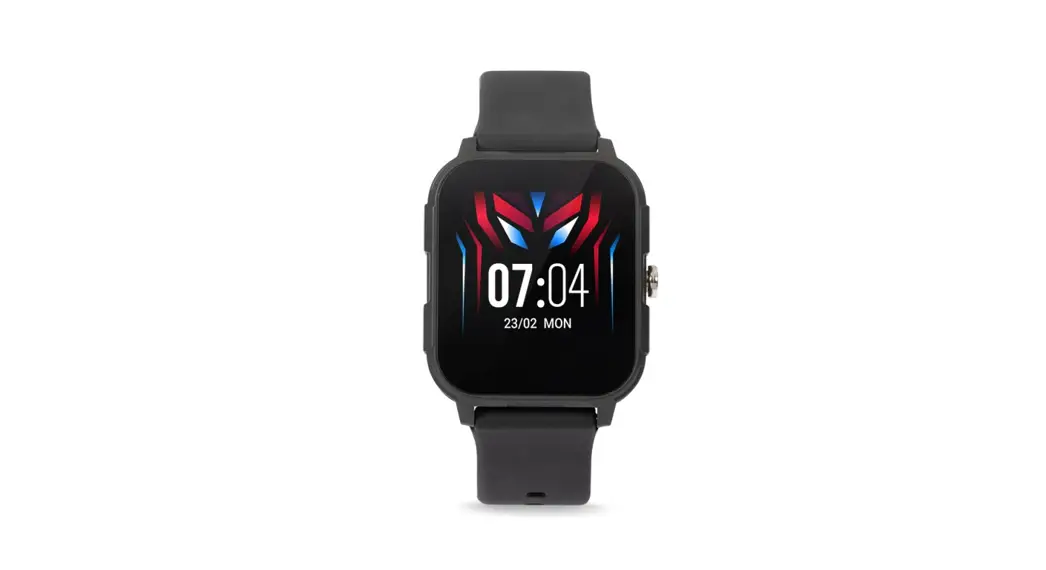
C21PRO Smartwatch
Product Information
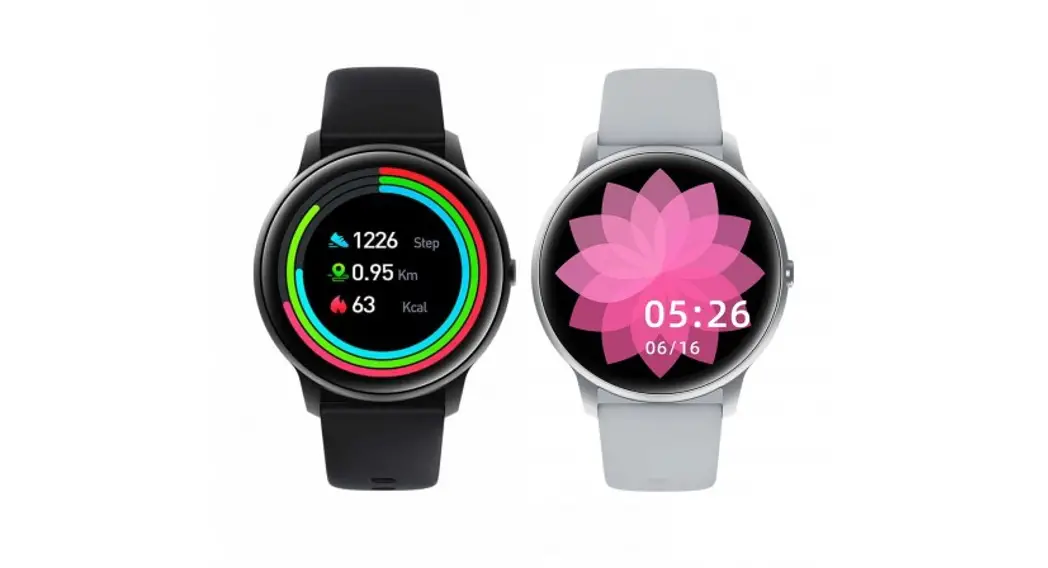
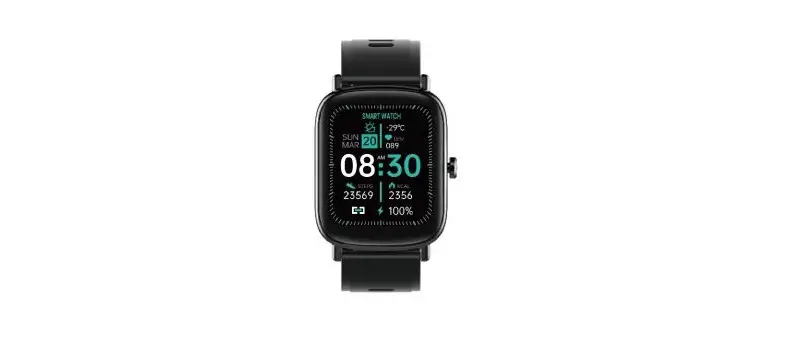
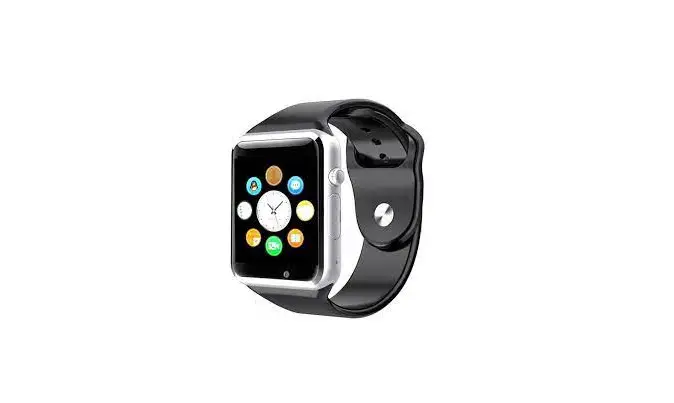
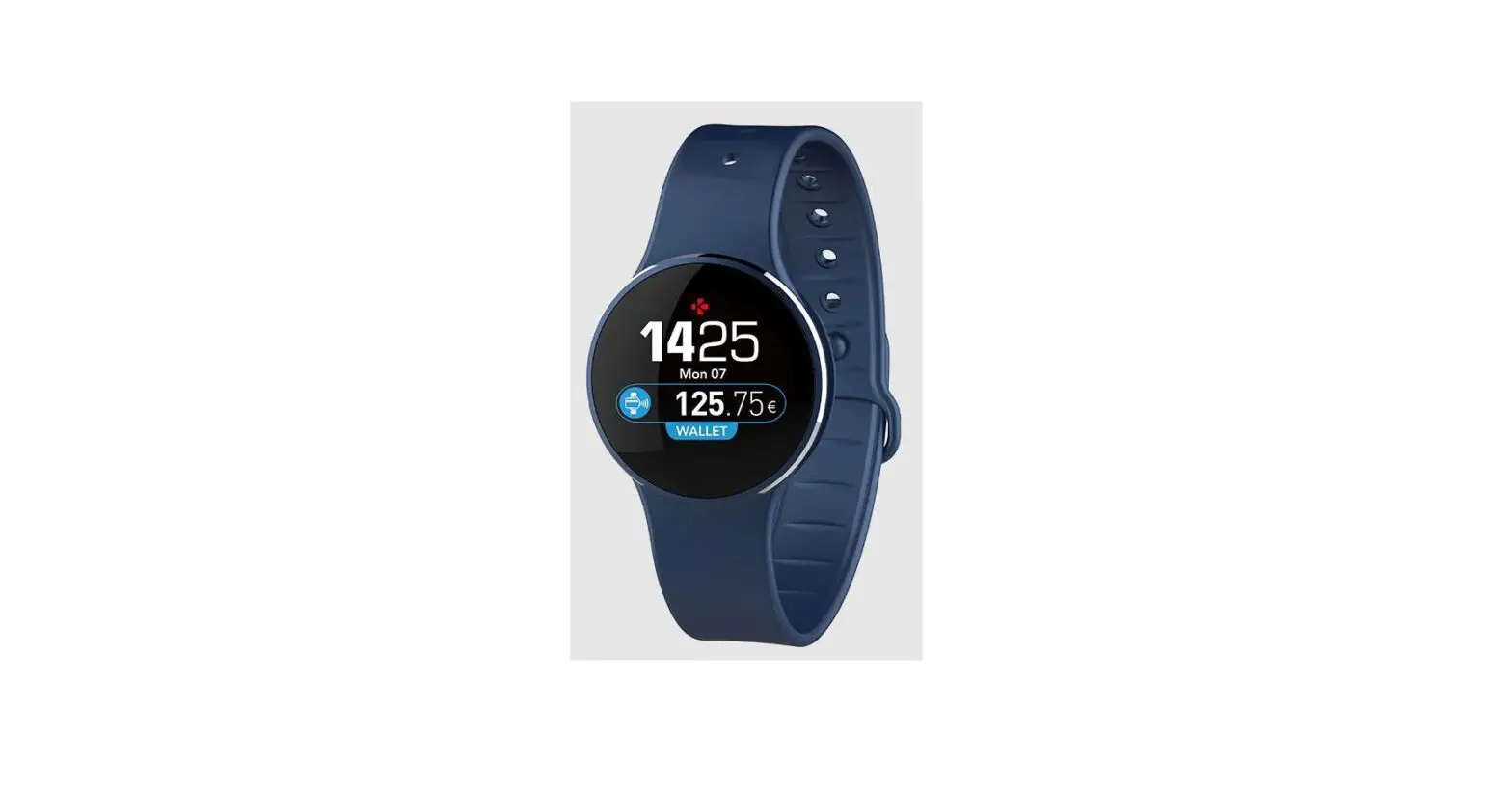
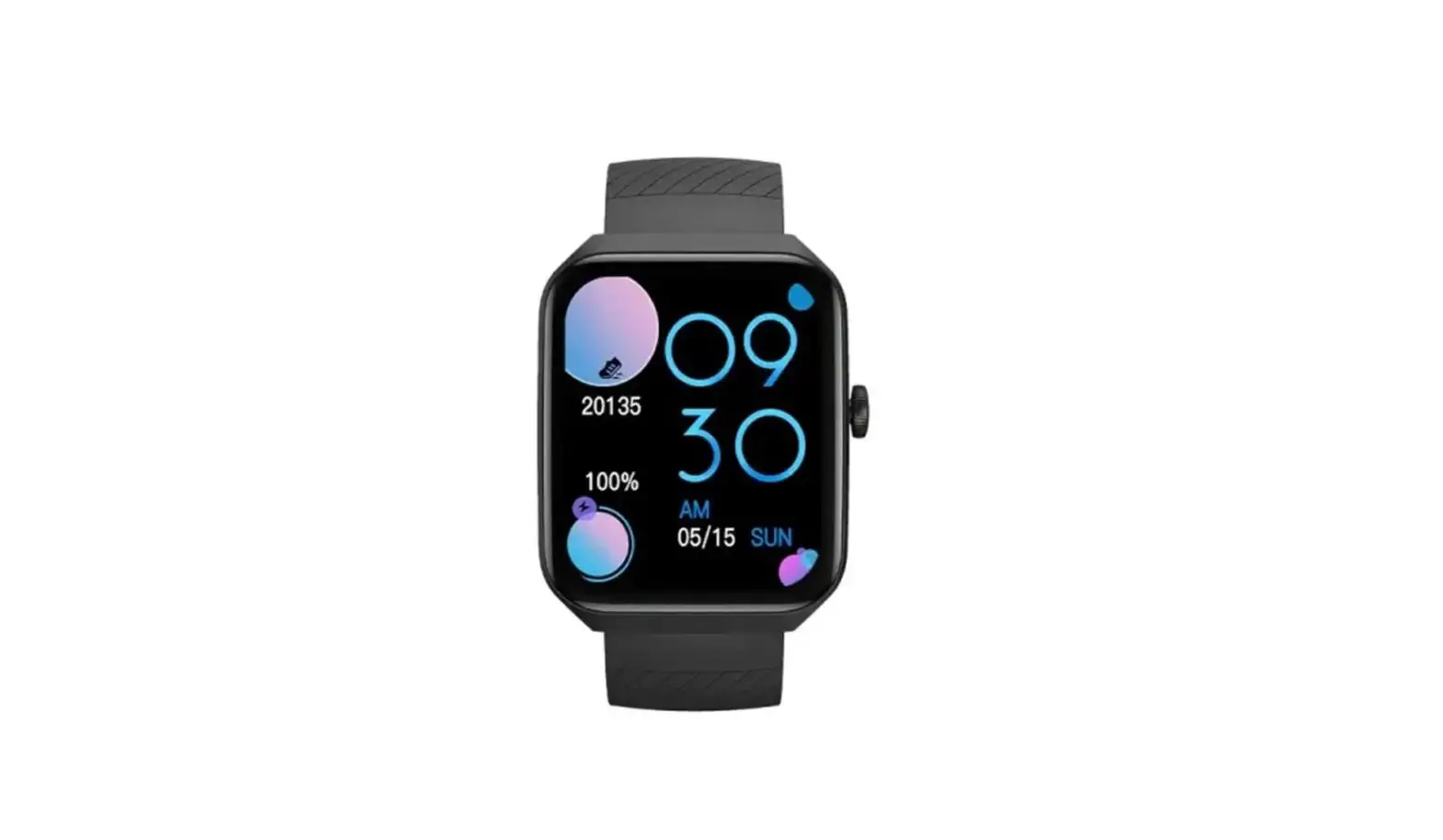
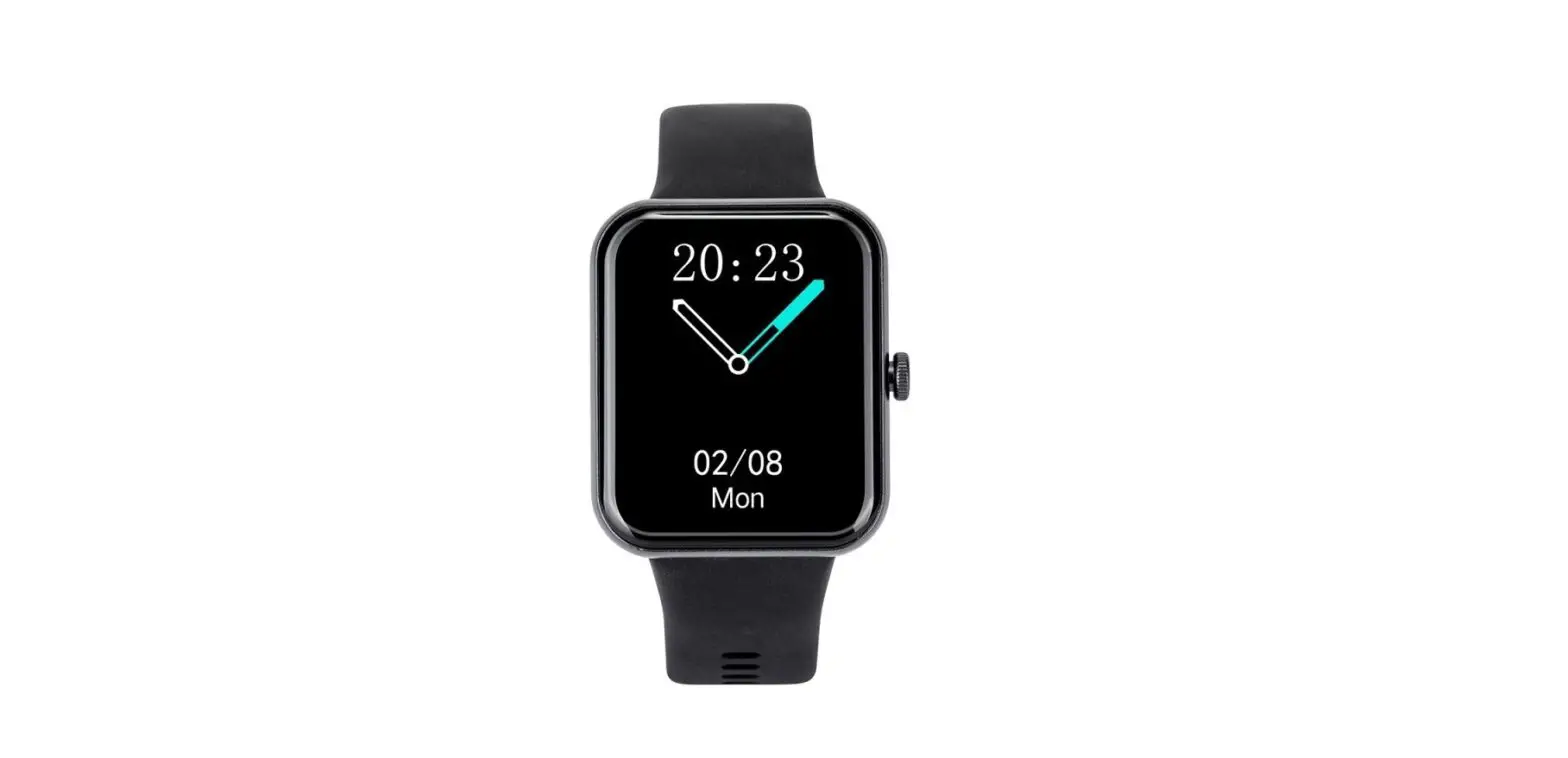
The product is a smartwatch that comes with various features
such as full-screen touch, sports mode, blood oxygen monitoring,
music control, and weather updates. It has a magnetic charger that
needs to be attached to the metal contact on the back of the watch
for charging. The watch can be connected to Android and iOS mobile
phones through the FitCloudPro application for device binding and
Bluetooth call function. The watch also supports daily data
recording, sleep monitoring, and dial customization.
Product Usage Instructions
1. Watch Introduction
To access the various features of the watch, slide down to enter
the status setting bar, slide up to view the notice, slide left to
enter the main function interface, and slide right to enter the
split-screen menu. The POWER key is used to wake up the screen,
enter the function menu, and return to the dial. The SPORT key is
used to wake up the screen, turn off the screen, press and hold to
enter the sports menu, and support customization.
2. Charging Guide
Before using the watch for the first time, charge it using the
equipped magnetic charger. Attach it to the metal contact on the
back of the watch and connect the other end of the charging line to
the 5V1A USB charging head or the computer USB interface.
3. App Download
The FitCloudPro application can be downloaded and installed
through Google Play Store or AppStore. Alternatively, it can be
downloaded and installed by scanning the QR code.
4. Binding Device
To bind the device with an Android phone, open the FitCloudPro
application, enter the device page, and click Bind Device. Click on
the Bluetooth device named C21 Pro on the search device page to
bind. Agree to the following permissions to use the Bluetooth call
function. Similarly, to bind the device with an iOS mobile phone,
open the FitCloudPro application, enter the device page, and click
Bind Device. Click on the Bluetooth device named C21 Pro on the
search device page to bind. Agree to the following permissions to
make the watch function work normally and Bluetooth call
function.
5. Audio Settings
To open the watch Bluetooth call function and play mobile media
audio function, navigate to the audio settings.
6. Dial Setting
To switch the dial, press and hold for 2 seconds in the dial
interface, and slide left and right to switch the dial. To select
your favorite dial in the app dial push and download it to the
watch, navigate to the dial push.
7. Function Introduction
The watch supports various functions such as daily data
recording, sleep monitoring, sports mode, blood oxygen monitoring,
weather updates, and music control. It supports 8 built-in sports
modes and 100+ sports modes pushed by App. It also displays
real-time weather temperature and weather type after connecting to
the APP.
Catalog
1————-Watch Introduction 2————-Charging guide 3————-APP download 4————-Binding device 5————-Audio settings 6————-Dial setting 7————-Function Introduction 8————-FAQ
1. Watch introduction
Full screen touch: slide down to enter the status setting bar, slide up to view the notice, slide left to enter the main function interface, and slide right to enter the split screen menu; POWER key: wake up the screen/enter the function menu/return to the dial SPORT key: wake up the screen/turn off the screen/press and hold to enter the sports menu/support customization
2. Charging guide
Before using the watch for the first time, it can be activated by charging. Use the equipped magnetic charger to attach it to the metal contact on the back of the watch. Connect the other end of the charging line to the 5V1A USB charging head or the computer USB interface.
3. App download
3.1 Download and install through Google Play Store
3.2 Download and install via AppStore
3.3 Download and install by scanning QR code
4. Binding device
4.1 Binding devices with Android phones Open the FitCloudPro application, enter the device page, and click Bind Device
Click the Bluetooth device named C21 Pro on the search device page to bind
When this pop-up window is displayed on the App page, you need to click Agree on the watch to complete the device binding
You need to agree to the following permissions to use the Bluetooth call function
4.2 Binding devices with iOS mobile phones Use iOS mobile phone to bind device Open FitCloudPro application, enter the device page, click bind device
Click the Bluetooth device named C21 Pro on the search device page to bind
When this pop-up window is displayed on the App page, you need to click Agree on the watch to complete the device binding
You need to agree to the following permissions to make the watch function work normally and Bluetooth call function
5. Audio settings
Open the watch Bluetooth call function and play mobile media audio function
6. Dial setting
Dial switch: press and hold for 2s in the dial interface to switch the dial, and slide left and right to switch the dial
Dial push: you can select your favorite dial in the app dial push and download it to the watch
7. Function Introduction
Daily data Support daily calories, steps, distance data and target records It supports recording the total steps in 24 hours and the walking steps in each period Support to view the history of steps in the past seven days
sleep Support daily light sleep and deep sleep records Support to view sleep history of nearly seven days
Heart rate monitoring Before heart rate monitoring, first make sure that the watch is correctly worn on the wrist (the best position is at a finger width above the wrist bone). Heart rate detection requires that the watch be worn tightly to avoid light leakage and cannot be effectively detected. Then enter the heart rate detection. During the detection process, the wrist is required to remain stationary. When entering the heart rate measurement interface, the bottom green light lights up to start the measurement. When the measurement is completed, there will be a vibration reminder Support measuring current heart rate data Support 24-hour detection Support heart rate interval keeping duration record
Sport mode The watch supports 8 built-in sports modes+100+sports modes pushed by App
Blood pressure monitoring Before blood pressure monitoring, first make sure that the watch is correctly worn on the wrist (the best position is at a finger width above the wrist bone). The blood pressure detection requires that the watch be worn tightly to avoid light leakage and failure to effectively detect, and then enter the blood pressure detection. During the detection process, the wrist is required to remain stationary. When entering the blood pressure measurement interface, the bottom green light lights up to start measurement for 30~60 seconds, and there will be a vibration reminder when the measurement is completed,The measurement is based on PPG technology; Support the measurement of current blood pressure data Support to view the blood pressure history data of the last seven times
Blood oxygen monitoring
Before blood oxygen monitoring, first make sure that the watch is correctly worn on the wrist (the best position is at a finger width above the wrist bone). The blood oxygen detection requires that the watch be worn tightly to avoid light leakage and unable to detect effectively. Then enter the blood oxygen detection. During the detection process, the wrist is required to remain stationary. When entering the blood oxygen measurement interface, the bottom green light will light up to start measuring for 30~60 seconds, and there will be a vibration reminder when the measurement is completed,The measurement is based on PPG technology; Support to measure the current blood oxygen data Support to view the blood oxygen history data for the last seven times
weather After the watch is connected to the APP, this weather interface will display the real-time weather temperature and weather type Support to view the weather data of the day
Music control After the watch is connected to the APP, you can control the pause and start of the mobile music player, volume adjustment and song switching;
When the phone plays music, you can use the watch control phone to play/pause, the previous song, and the next song.
Other functions Bluetooth calls, common contacts, call records, voice assistant, sports records, women’s health, breathing training, stopwatch, timer, alarm clock, message push and other functions
8.FAQ
1. Why is there a reminder on QQ, WeChat and other information, but not on the bracelet? 1.1 Confirm whether the messages can be displayed normally in the mobile notification bar. The device pushes messages by reading the messages in the mobile notification bar;If there is no message in the mobile notification bar, the device cannot receive the push.(You need to find the notification and status bar in the mobile phone settings, and turn on the phone, SMS, etc.). 1.2 Open the APP and enter the APP device bar – click the message reminder open the corresponding application switch button to receive message push. 1.3 The Bluetooth connection between the device and the mobile phone is always maintained.
2. How can the device be unbound from the phone? Android phone On the “Device” page of the APP, click the “Unbind” button and select OK to unbind. iPhone 2.1 On the “My” – “Device Information” page of the APP, click the “Unbind” button; 2.2 Under “Settings” – “Bluetooth” – “My device” of the iPhone, select the bracelet to be unbound, click the blue “!” sign at the back, and then click “Ignore this device”. Note: If the iPhone does not ignore the device, it will not be able to search
the device when it is bound again, and it will still receive a reminder notice when there are reminders such as information and phone calls.
3. Why are Android phones easy to disconnect? The APP must be running in the background so that Bluetooth will not automatically disconnect, but the Android mobile phone system memory management will force the APP to close. We need to manually turn off the power saving mode of the mobile phone system or add the APP to the green background of system management so that the APP will not be forced to close.
4. How to update the weather forecast temperature? Several conditions are required to update the weather forecast data: 4.1 APP positioning has been authorized; 4.2 The mobile network is normal; 4.3 Bluetooth connection is normal; If the above conditions are met, update the weather temperature every hour. If it still does not change, please shut down the APP from the background and reopen it.
FCC Warnning: This equipment has been tested and found to comply with the limits for a Class B digital device, pursuant to part 15 of the FCC Rules. These limits are designed to provide reasonable protection againstharmful interference in a residential installation. This equipment generates, uses and can radiateradio frequency energy and, if not installed and used in accordance with the instructions, maycause harmful interference to radio communications. However, there is no guarantee thatinterference will not occur in a particular installation. If this equipment does cause harmfulinterference to radio or television reception, which can be determined by turning the equipmentoff and on, the user is encouraged to try to correct the interference by one or more of thefollowing measures:
· Reorient or relocate the receiving antenna. · Increase the separation between the equipment and receiver. · Connect the equipment into an outlet on a circuit different from that to which the receiver is connected. · Consult the dealer or an experienced radio/TV technician for help.
Caution: Any changes or modifications to this device not explicitly approved by manufacturer could void your authority to operate this equipment.
This device complies with part 15 of the FCC Rules. Operation is subject to the following two conditions: (1)This device may not cause harmful interference, and (2) this device must accept any interference received, including interference that may cause undesired operation.
The device has been evaluated to meet general RF exposure requirement. The device can be used in portable exposure condition without restriction.