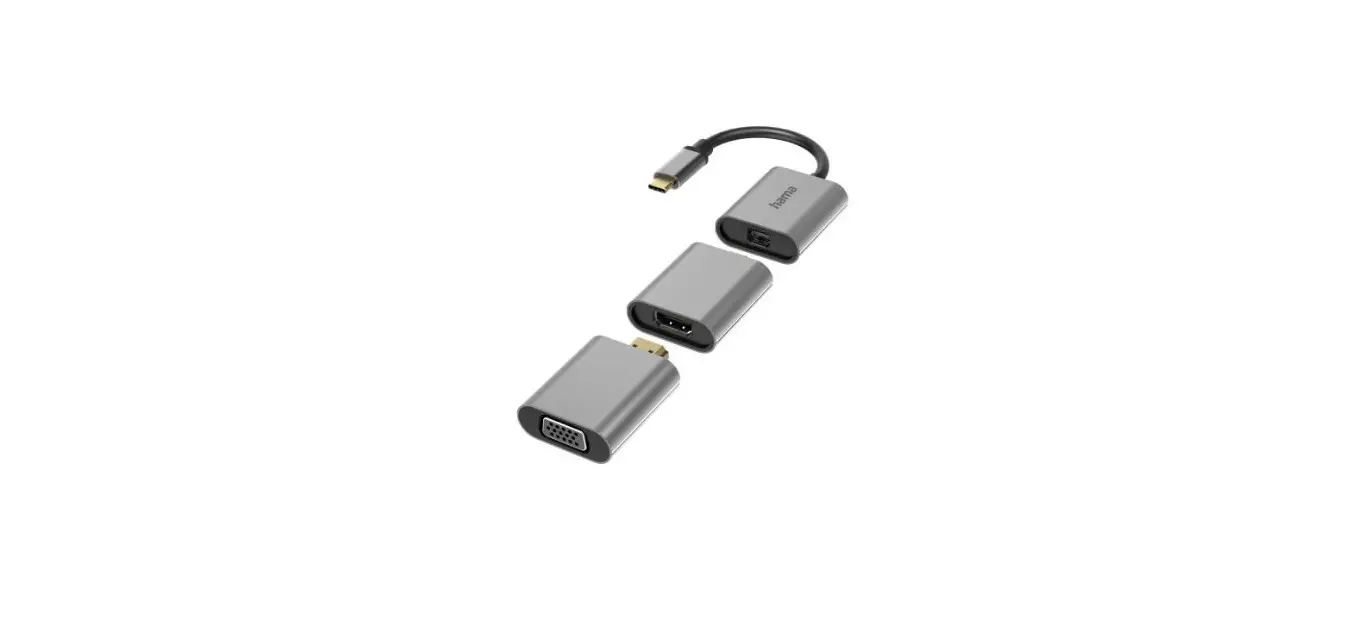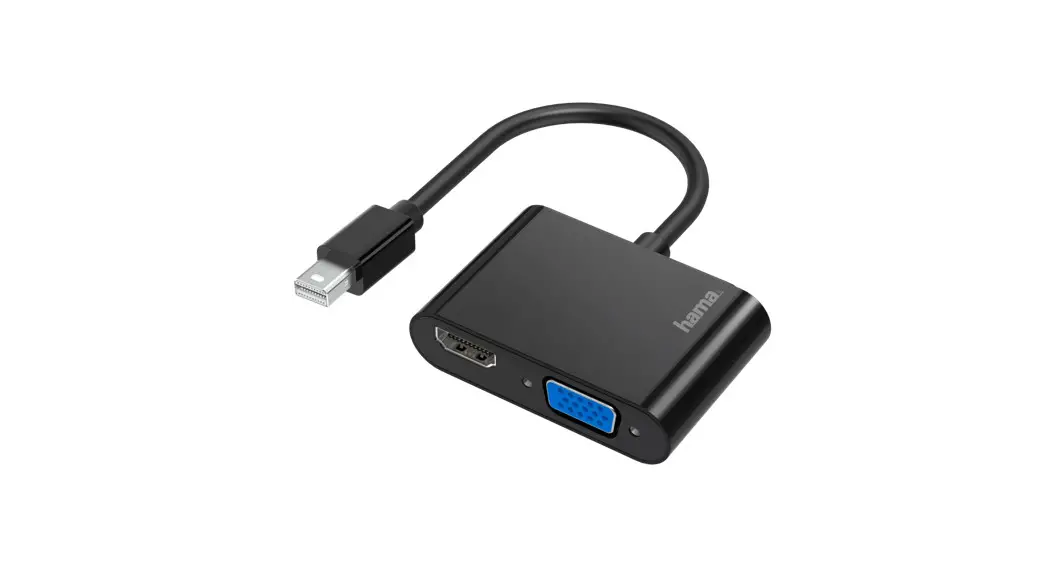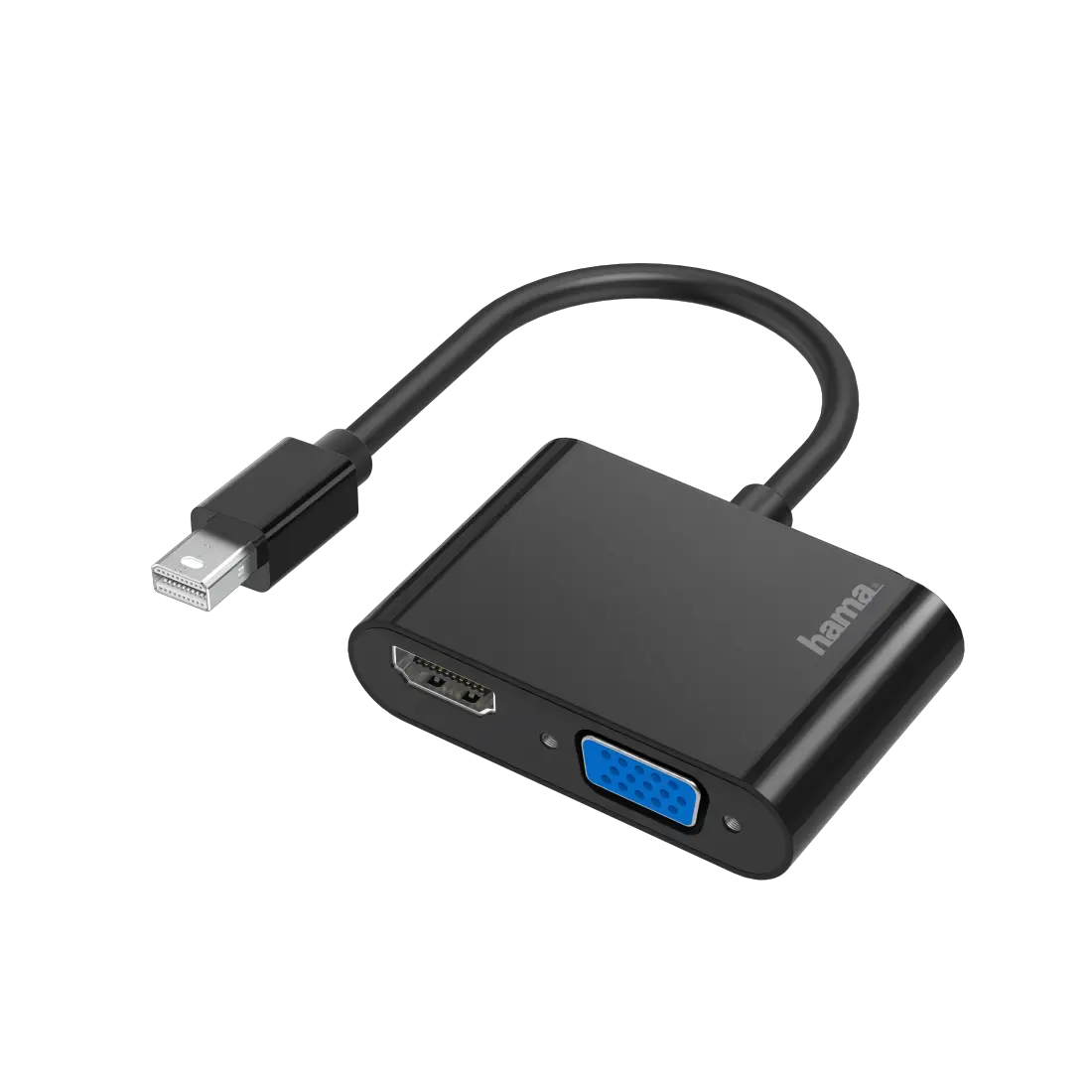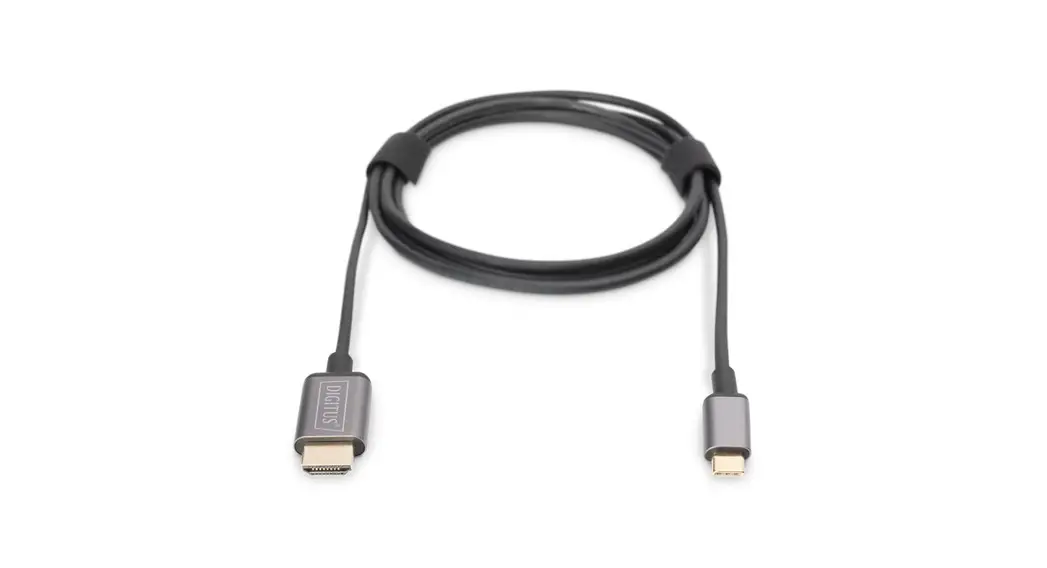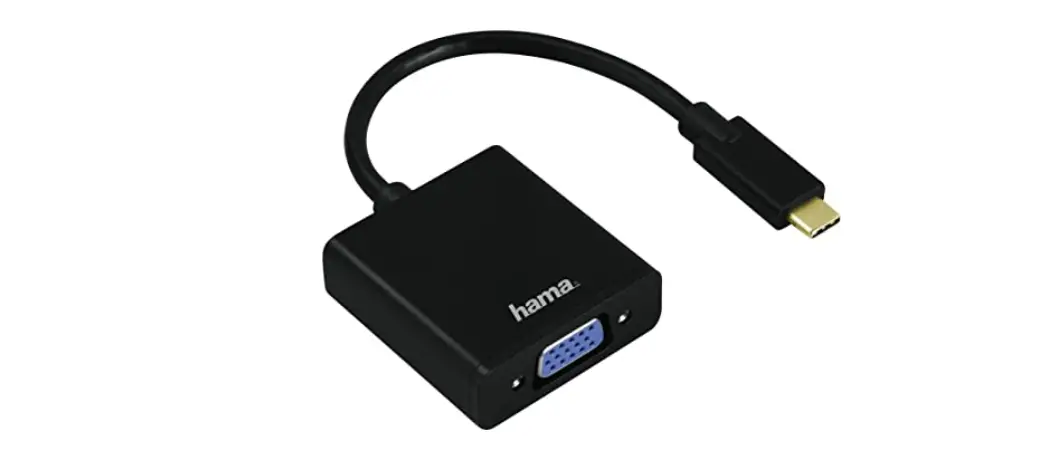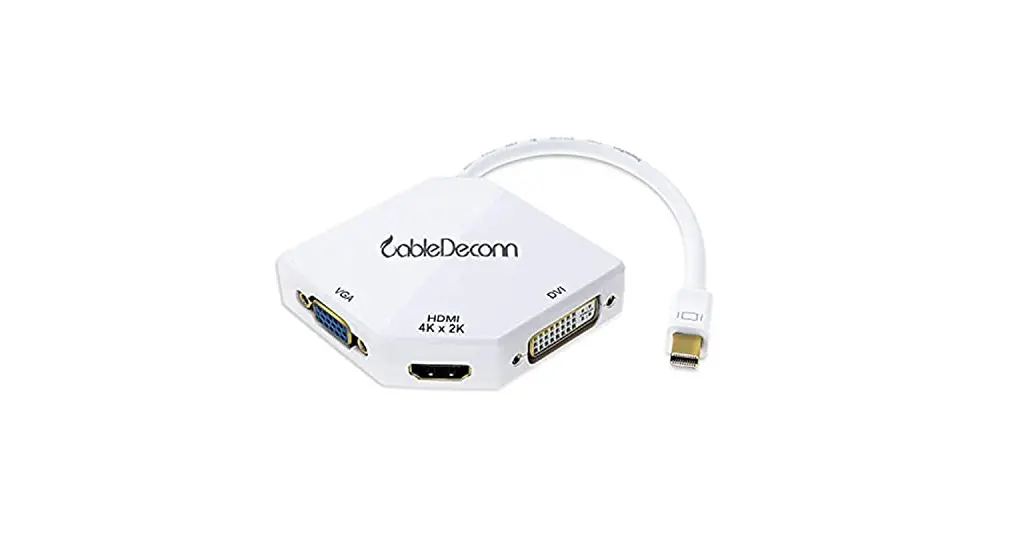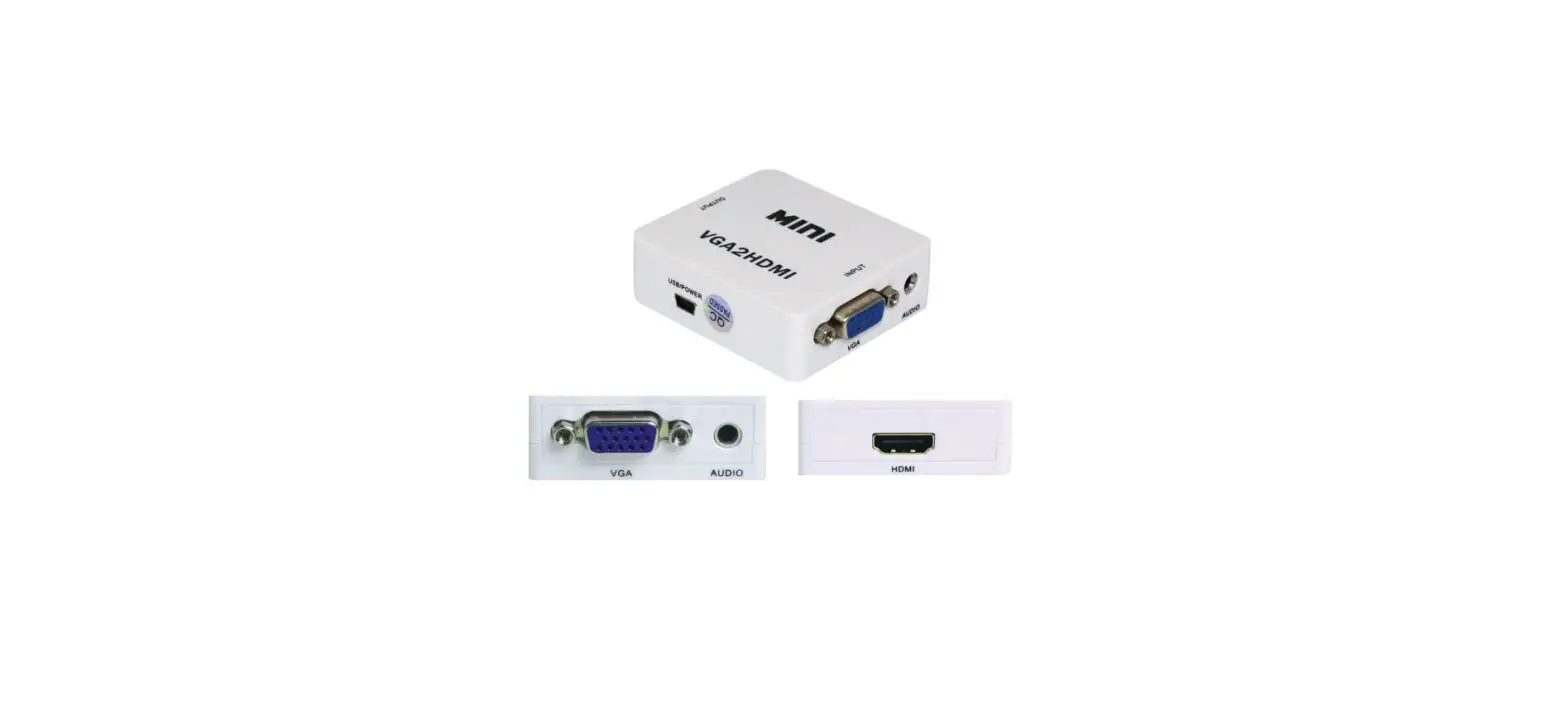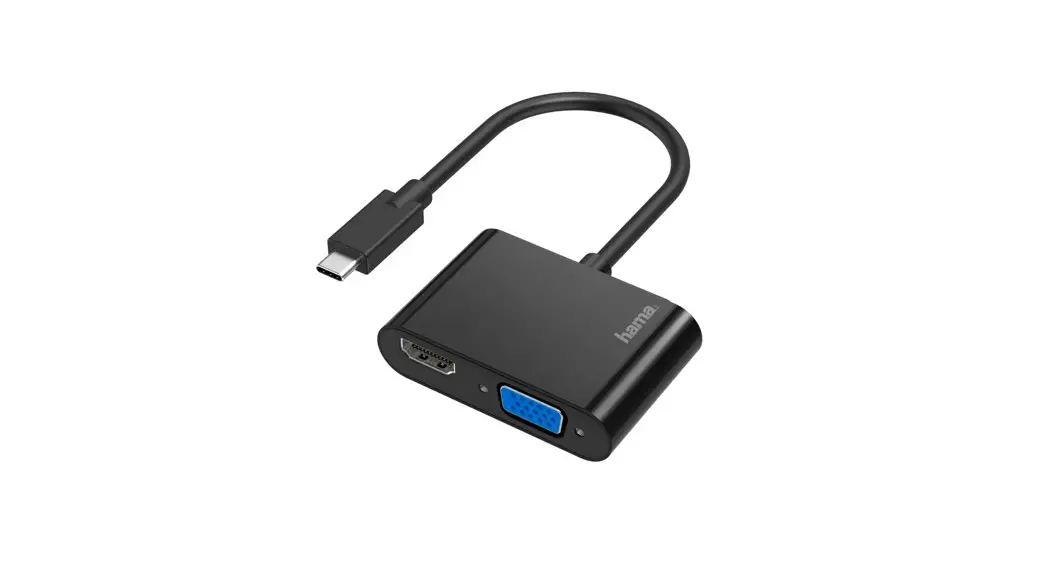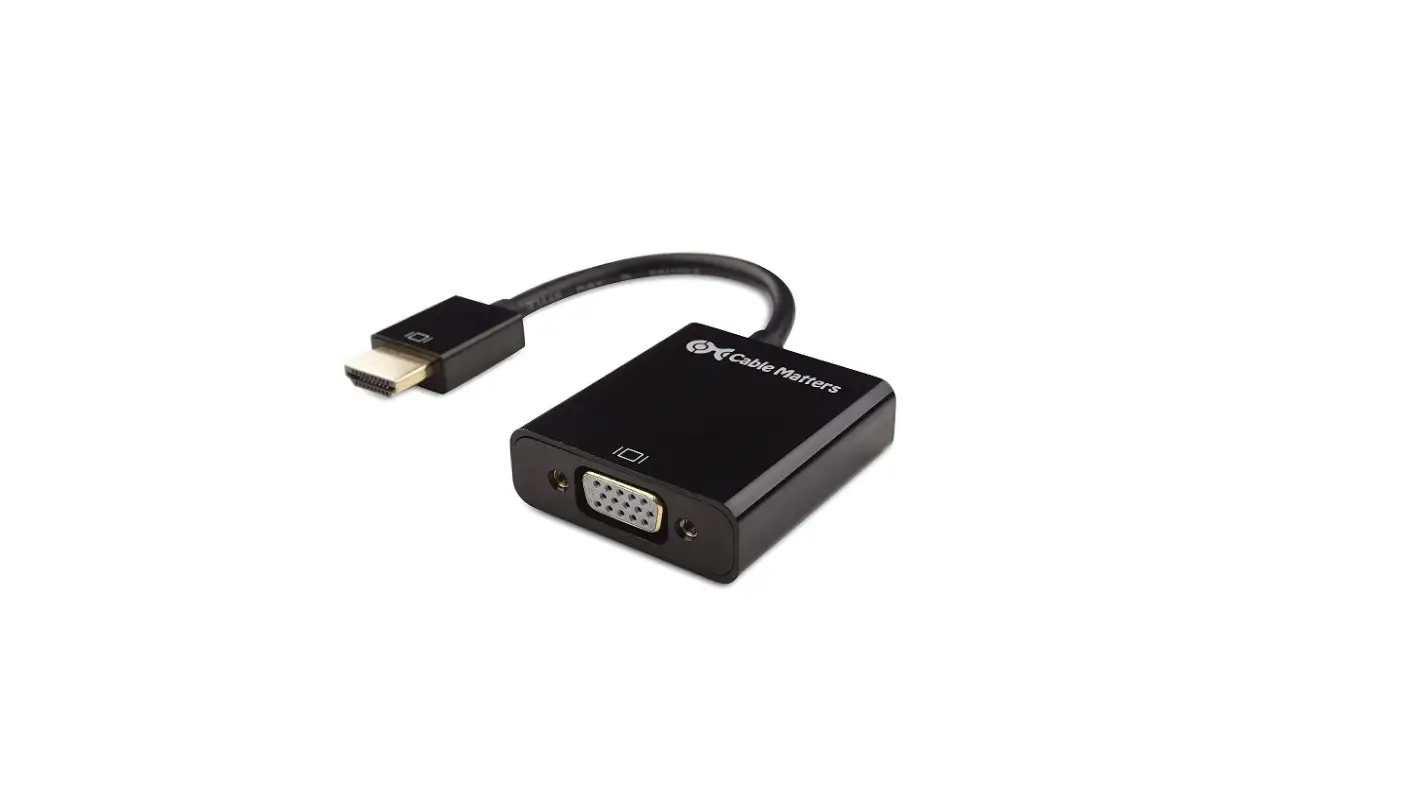

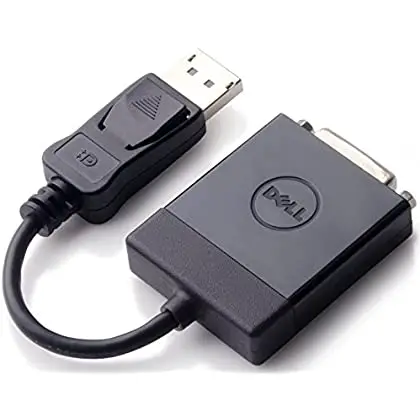
DELL DAUBNBC084 video cable adapter
Notes, cautions, and warnings
- NOTE: A NOTE indicates important information that helps you make better use of your product.
- CAUTION: A CAUTION indicates either potential damage to hardware or loss of data and tells you how to avoid the problem.
- WARNING: A WARNING indicates a potential for property damage, personal injury, or death.
© 2022 Dell Inc. or its subsidiaries. All rights reserved. Dell Technologies, Dell, and other trademarks are trademarks of Dell Inc. or its subsidiaries. Other trademarks may be trademarks of their respective owners.
Dell Hybrid Client
Dell Hybrid Client is a desktop solution that follows the Software-as-a-Service (SaaS) model of software delivery. It provides a hybrid operating environment that enables you to access virtual, cloud, or local applications and resources seamlessly. It encompasses the cloud and storage aggregation for maintaining security and simplicity. Dell Hybrid Client 2.0 can be deployed on two Ubuntu Dell base operating systems, Ubuntu 20.04 and Ubuntu 22.04. It has a minimum memory (RAM) of 8 GB and disk storage of 64 GB or higher.
- NOTE: DHC 2.0 can also be deployed on Ubuntu 20.04 machines with 32 GB disk storage. The user must clear local files from Dell file explorer.
- NOTE: The user must re-configure the settings in Dell Hybrid Client 2.x WMS Config Policies from Dell Hybrid Client 1x. WMS Config Policies, before and after upgrading from DHC 1.6 and DHC 1.8 to DHC 2.0.
Dell Hybrid Client 2.0 release supports the below features.
- Ubuntu 22.04 Support for OptiPlex 3000 TC
- Quick Start Wizard (OOBE)
- UC Optimization (Cisco Webex and Jabber)
- Log Level
- Keyboard Layout on Login Screen
- Nordic Languages
- Bloomberg keyboard support
- SCEP Enhancement ($SN)
- Config UI Alignment
- Dell Client Agent Enhancements
- Bundle and Add-On Naming
For existing Dell Hybrid Client Feature Support, see Dell Hybrid Client 2.0 Administrator Guide at dell.com/support.
Version
Dell Hybrid Client version 2.0.189
Ubuntu 20.04 LTS 64-bit
Ubuntu 22.04 LTS 64-bit
Wyse Management Suite Pro version 4.0 Build 526
Wyse Management Suite Configuration UI package 1.9.532
NOTE: Use Wyse Management Suite to upgrade your Dell Hybrid Client firmware to the latest version. For detailed information about the upgrade process, see the instructions mentioned on the Drivers and Downloads page of the Dell Hybrid Client product page at www.dell.com/support.
Release date
December 2022
Supported Platforms
Table 1. Supported Platforms (DHC Pre-Installed)
| Platform | Processor | RAM | eMMC/SSD/HDD |
| OptiPlex 3000 Thin Client | 11th Generation Pentium and Celeron | 8 GB and above | 64 GB and above for Ubuntu 20.04, 32 GB eMMC (supported for Ubuntu 20.04) |
| OptiPlex 5400 AIO | 12th Gen Intel Core i3/i5/i7 | 8 GB and above | 128 GB and above |
| Latitude 3330 | 11th Generation Intel Core i3/i5/i7 | 8 GB and above | 128 GB and above |
| Precision 3260 | 12th Gen Intel Core i3/i5/i7 | 8 GB and above | 128 GB and above |
NOTE: Wyse 5070, 5070 Extended, OptiPlex 3090, OptiPlex 7090, and Latitude 3320 support 2.0 by bundle upgrade. Dell Hybrid Client is not pre-installed from factory for these platforms.
Supported VDI Clients and Local Applications
Table 2. Common Local Applications and VDI Client Versions for 20.04
| Description | Version |
| Dell RDP | 8.1.08 |
| Citrix Workspace App | 22.12 |
| VMware Horizon Client | 2209 |
| Zoom Client | 5.12.9 |
| VLC Media Player | 3.0.9.2 |
| Teradici PCoIP Client | 22.07 |
| Azure Virtual Desktop | 2.0-03 |
Table 3. Local Applications and VDI Client Versions for 22.04
| Description | Version |
| Dell RDP | 8.1.08 |
| Citrix Workspace App | 22.12 |
| VMware Horizon Client | 2209 |
| Zoom Client | 5.12.9 |
| VLC Media Player | 3.0.16 |
Supported Browsers
Table 4. Browser Versions
| Browser | Version |
| Firefox | 107.0(64 bit) |
| Chrome | 108.0.5359.71(64-bit) |
Optional Packages
Table 5. Optional Packages 20.04
| Packages | Comments |
| DHC2.0-customconnection_00-04_20.04.tar.gz | To create a custom connection from WMS |
| DHC2.0-RDS-sshserver_8.2p1-4-03_20.04.tar.gz | To access SSH for the device |
| DHC2.0-RDS-vncserver_0.9.16-3-03_20.04.tar.gz | To support VNC Remote access |
| DHC2.0-LP-fulllanguage_00-03_20.04.tar.gz | Package installs supported multi-lingual languages |
| DHC2.0-VDI-citrixclient_22.12.0.12-18_20.04.tar.gz | Package installs Citrix client |
| DHC2.0-VDI-vmwareclient_2209-8.7.0-05_20.04.tar.gz | Package installs VMware client |
| DHC2.0-VDI-imprivata_7.8.1.641901-08_20.04.tar.gz | Package installs Imprivata client |
| DHC2.0-VDI-teradici_22.07-06_20.04.tar.gz | Package installs Teradici client |
| DHC2.0-VDI-rdpclient_8.1.08-22_20.04.tar.gz | Package installs Remote desktop protocol |
| DHC2.0-VDI-multimediaextension_00-03_20.04.tar.gz | Package installs Multimedia Extension plugin |
| DHC2.0-VDI-wvd_2.0-03_20.04.tar.gz | Package installs Azure Virtual Desktop |
| DHC2.0-OS-smartcardloginenabler_00-02_20.04.tar.gz | Package to Enable Device Smartcard login |
| DHC2.0-OS-kernelpack_00-01_20.04.tar.gz | Package to install Kernel Pack |
| DHC2.0-OS-securitypack_00-01_20.04.tar.gz | Package to install Service Pack |
Table 6. Optional Packages 22.04
| Packages | Comments |
| DHC2.0-customconnection_00-03_22.04.tar.gz | To create a custom connection from WMS |
| DHC2.0-RDS-sshserver_8.2p1-4-03_22.04.tar.gz | To access SSH for the device |
| DHC2.0-RDS-vncserver_0.9.16-3-03_22.04.tar.gz | To support VNC Remote access |
| DHC2.0-LP-fulllanguage_00-03_22.04.tar.gz | Package installs supported multi-lingual languages |
| DHC2.0-VDI-citrixclient_22.12.0.12-18_22.04.tar.gz | Package installs Citrix client |
| DHC2.0-VDI-vmwareclient_2209-8.7.0-05_22.04.tar.gz | Package installs VMware client |
| DHC2.0-VDI-rdpclient_8.1.08-22_22.04.tar.gz | Package installs Remote desktop protocol |
| DHC2.0-VDI-multimediaextension_00-03_22.04.tar.gz | Package installs Multimedia Extension plugin |
Table 7. Common Packages for Ubuntu 20.04/22.04
| Packages | Comments |
| DHC2.0-VDI-jabberoffload_14.1.2-03_all.tar.gz | The package installs Cisco Jabber plugins |
| DHC2.0-VDI-webexoffload_42.10.0-03_all.tar.gz | The package installs Cisco Webex plugins |
| DHC2.0-VDI-zoomcitrix_5.12.6-06_all.tar.gz | The package installs Citrix Zoom plugins |
| DHC2.0-VDI-zoomvmware_5.12.6-06_all.tar.gz | The package installs VMware Zoom plugins |
Supported Languages
- English (US)
- French (France)
- German
- Italian
- Spanish Latin (America)
- Korean
- Japanese
- Chinese Simplified
- Chinese Traditional
- Russian
- Portuguese (Brazil)
- Hebrew
- Danish
- Finnish
- Norwegian
- Swedish
Software and Package Information
Table 8. Dell Hybrid Client Bundle 20.04 Package
| File Name | DellHybridClient_2.0_189_U20.04.tar.gz |
| Size (bytes) | 906,120,685 |
| MD5 | 3C6CBE2671F29F377DD7149E1E6E5C3F |
| Checksum32 | CD64F128 |
Table 9. Dell Hybrid Client Bundle 22.04 Package
| File Name | DellHybridClient_2.0_189_U22.04.tar.gz |
| Size (bytes) | 926,843,658 |
| MD5 | BC137C16B45018F6FE478B96001221C5 |
| Checksum32 | FA1E915C |
Table 10. Dell Hybrid Client Citrix Client Package 20.04
| File Name | DHC2.0-VDI-citrixclient_22.12.0.12-19_20.04.tar.gz |
| Size (bytes) | 164,445,551 |
| MD5 | 635CC3C4AEF58A4BC8345171E0D0C51C |
| Checksum32 | 2ED5A787 |
Table 11. Dell Hybrid Client Citrix Client Package 22.04
| File Name | DHC2.0-VDI-citrixclient_22.12.0.12-19_22.04.tar.gz |
| Size (bytes) | 164,327,017 |
| MD5 | A50FD58C365F70D293EC74CF211B03EC |
| Checksum32 | FC55FD15 |
Table 12. Dell Hybrid Client Custom Connections Package 20.04
| File Name | DHC2.0-customconnection_00-04_20.04.tar.gz |
| Size (bytes) | 293,672 |
| MD5 | 731AD071C890DC809DE0DA42E805564D |
| Checksum32 | DC9EE435 |
Table 13. Dell Hybrid Client Custom Connections Package 22.04
| File Name | DHC2.0-customconnection_00-03_22.04.tar.gz |
| Size (bytes) | 182,577 |
| MD5 | ABC6107D6A11265CD4B1F05656A4894F |
| Checksum32 | 0B1717D8 |
Table 14. Dell Hybrid Client Smartcard Login Enabler Package 20.04
| File Name | DHC2.0-OS-smartcardloginenabler_00-02_20.04.tar.gz |
| Size (bytes) | 14,084,317 |
| MD5 | D7A9086986AB2B01E0B041E0B42BE200 |
| Checksum32 | CC87F363 |
Table 15. Dell Hybrid Client Azure Virtual Desktop 20.04
| File Name | DHC2.0-VDI-wvd_2.0-03_20.04.tar.gz |
| Size (bytes) | 308,313,131 |
| MD5 | 55FE2380EC543D6C93DBAEF11ED4378C |
| Checksum32 | C085482A |
Table 16. Dell Hybrid Client Multimedia Extension VDI Package 20.04
| File Name | DHC2.0-VDI-multimediaextension_00-03_20.04.tar.gz |
| Size (bytes) | 80,276,926 |
| MD5 | E4CB540DD8CB1476B58A3ADC60B2A493 |
| Checksum32 | 390973B6 |
Table 17. Dell Hybrid Client Multimedia Extension VDI Package 22.04
| File Name | DHC2.0-VDI-multimediaextension_00-03_22.04.tar.gz |
| Size (bytes) | 235,853,646 |
| MD5 | C4BCC143BD7CFFFD23D9CB894F8ACFB4 |
| Checksum32 | 724C4B3F |
Table 18. Dell Hybrid Client RDP Package 20.04
| File Name | DHC2.0-VDI-rdpclient_8.1.08-22_20.04.tar.gz |
| Size (bytes) | 1,478,883 |
| MD5 | 2C9F3688C1D0DF5FF8F7E4D70AB97C00 |
| Checksum32 | E6D6B5E2 |
Table 19. Dell Hybrid Client RDP Package 22.04
| File Name | DHC2.0-VDI-rdpclient_8.1.08-22_22.04.tar.gz |
| Size (bytes) | 1,434,811 |
| MD5 | 09A04901E52E96B8A725FEDA52EFCD57 |
| Checksum32 | AEC0483F |
Table 20. Dell Hybrid Client SSH Server Package 20.04
| File Name | DHC2.0-RDS-sshserver_8.2p1-4-03_20.04.tar.gz |
| Size (bytes) | 1,650,189 |
| MD5 | 127F65AD3A5067838541B5986557D22A |
| Checksum32 | F4ABDCBA |
Table 21. Dell Hybrid Client SSH Server Package 22.04
| File Name | DHC2.0-RDS-sshserver_8.2p1-4-03_22.04.tar.gz |
| Size (bytes) | 1,572,324 |
| MD5 | B3A24A2B07EFA1A32C8FE500201B9548 |
| Checksum32 | BF4EDE24 |
Table 22. Dell Hybrid Client VNC Server Package 20.04
| File Name | DHC2.0-RDS-vncserver_0.9.16-3-03_20.04.tar.gz |
| Size (bytes) | 3,440,729 |
| MD5 | C1324CE1665E3F1CF9BDDE516D4F787A |
| Checksum32 | 90D4A71C |
Table 23. Dell Hybrid Client VNC Server Package 22.04
| File Name | DHC2.0-RDS-vncserver_0.9.16-3-03_22.04.tar.gz |
| Size (bytes) | 3,327,506 |
| MD5 | F608C690255FB41FCDEC6E8B5416A4FD |
| Checksum32 | 30B33641 |
Table 24. Dell Hybrid Client Zoom Citrix Package
| File Name | DHC2.0-VDI-zoomcitrix_5.12.6-06_all.tar.gz |
| Size (bytes) | 54,142,853 |
| MD5 | 6602A7DB2DD36D017BBDE5AD93EBE62C |
| Checksum32 | EFA5E857 |
Table 25. Dell Hybrid Client Zoom VMware Package
| File Name | DHC2.0-VDI-zoomvmware_5.12.6-06_all.tar.gz |
| Size (bytes) | 54,135,198 |
| MD5 | 10A295FB34CE8F58A0C39D7F002D95F0 |
| Checksum32 | 0B5CD91A |
Table 26. Dell Hybrid Client Cisco Webex Package
| File Name | DHC2.0-VDI-webexoffload_42.10.0-03_all.tar.gz |
| Size (bytes) | 60,232,795 |
| MD5 | 7D146AA0E4CC580DFC3B423A8AE8824C |
| Checksum32 | DEBB7A69 |
Table 27. Dell Hybrid Client Cisco Jabber Package
| File Name | DHC2.0-VDI-jabberoffload_14.1.2-03_all.tar.gz |
| Size (bytes) | 52,867,384 |
| MD5 | B82D21B1A85C1810CF2FC839B4E7FEEF |
| Checksum32 | 52,867,384 |
Table 28. Dell Hybrid Client Full Language Package 20.04
| File Name | DHC2.0-LP-fulllanguage_00-03_20.04.tar.gz |
| Size (bytes) | 389,330,563 |
| MD5 | 228A97F98EAB534CE231198F1BBE0C7F |
| Checksum32 | C07D8E20 |
Table 29. Dell Hybrid Client Full Language Package 22.04
| File Name | DHC2.0-LP-fulllanguage_00-03_22.04.tar.gz |
| Size (bytes) | 428,236,226 |
| MD5 | 9C0DC93854A2EF164A2D5DB30A7383F8 |
| Checksum32 | D561D234 |
Table 30. Dell Hybrid Client Imprivata Package 20.04
| File Name | DHC2.0-VDI-imprivata_7.8.1.641901-08_20.04.tar.gz |
| Size (bytes) | 54,600,727 |
| MD5 | 6F4BDCE8C0AE9C5F50A1521C0EA61C3D |
| Checksum32 | 9F769F93 |
Table 31. Dell Hybrid Client Teradici Package 20.04
| File Name | DHC2.0-VDI-teradici_22.07-06_20.04.tar.gz |
| Size (bytes) | 115,799,258 |
| MD5 | F08A8C4D5DF172D2899A1B4B733E246D |
| Checksum32 | 4A7D7630 |
Table 32. Dell Hybrid Client VMWare Client Package 20.04
| File Name | DHC2.0-VDI-vmwareclient_2209-8.7.0-05_20.04.tar.gz |
| Size (bytes) | 219,093,922 |
| MD5 | B65133C00EA2C55B1C85642D2472BFE2 |
| Checksum32 | E779D21B |
Table 33. Dell Hybrid Client VMWare Client Package 22.04
| File Name | DHC2.0-VDI-vmwareclient_2209-8.7.0-05_22.04.tar.gz |
| Size (bytes) | 218,550,777 |
| MD5 | 6D4A2395E35AEC70B75F2534E318E6D5 |
| Checksum32 | B8EB7D95 |
Table 34. Dell Hybrid Client Security Package 20.04
| File Name | DHC2.0-OS-securitypack_00-01_20.04.tar.gz |
| Size (bytes) | 189,142,085 |
| MD5 | 83AC39D4805C7EB45F37318A13D43471 |
| Checksum32 | 672E97EF |
Table 35. Dell Hybrid Client Kernel Package 20.04
| File Name | DHC2.0-OS-kernelpack_00-01_20.04.tar.gz |
| Size (bytes) | 82,598,418 |
| MD5 | CE5D42CDAAE4763417817986A7400719 |
| Checksum32 | A5688866 |
Table 36. Dell Hybrid Client ISO Package for 5400 AIO 20.04
| File Name | DellHybridClient_2.0_189_U20.04_5400.iso |
| Size (bytes) | 4,965,203,968 |
| MD5 | E19604DF23A9DF0761638562FB01DA82 |
| Checksum32 | 12549E49 |
Table 37. Dell Hybrid Client ISO Package for Latitude 3330 20.04
| File Name | DellHybridClient_2.0_189_U20.04_L3330.iso |
| Size (bytes) | 4,929,126,400 |
| MD5 | 363FB97B4DEC331F316513BE1138064D |
| Checksum32 | C4EF4E1A |
Table 38. Dell Hybrid Client ISO Package for 3000_TC 20.04
| File Name | DellHybridClient_2.0_189_U20.04_3000_TC.iso |
| Size (bytes) | 4,513,234,944 |
| MD5 | B96CB65D7370B5AB79D1462490A11EB6 |
| Checksum32 | 743EC61D |
Table 39. Dell Hybrid Client ISO Package for 3260 20.04
| File Name | DellHybridClient_2.0_189_U20.04_3260.iso |
| Size (bytes) | 5,510,420,480 |
| MD5 | ADD7A2191F5714003F5A463446C94E30 |
| Checksum32 | 86E8DB08 |
New and Enhanced Features of Dell Hybrid Client 2.0
Bloomberg Keyboard Support for VDI
The Bloomberg Keyboard is a standard personal computer keyboard that has been designed to use with the Bloomberg Professional® service. The Bloomberg keyboard supports Citrix, VMware, and Teradici VDIs with Dell Hybrid Client 2.0.
Bundle and Add-On Naming
Dell Hybrid Client supports the software versions Ubuntu 20.04 and Ubuntu 22.04. For bundle and add-on naming, a common nomenclature is introduced for helping the WMS administrator. It enables the user to identify the add-on for the corresponding operating system.
For 20.04
The base bundle name is DellHybridClient_2.0_xxx_U20.04.tar.gz 2.0 represents the release version. U20.04 represents the operating system Ubuntu 20.04.
For 22.04
The base bundle name is DellHybridClient_2.0_xxx_U22.04.tar.gz 2.0 represents the release version. U22.04 represents the operating system Ubuntu 22.04. Similarly, the add-on names are generated as below: DHC<dhc_v>-<parent_name/NULL>-<child_name>_<major_v/00>-<minor_v>_<ubuntu_v/all>
- dhc_v is the DHC release version, and the version is 2.0.
- Parent_name is a related module of the add-on.
Example: LP = Language Pack, VDI = Virtual Desktop Infrastructure - Child_name is an add-on name.
- The major and minor version is an add-on versions.
- Ubuntu_v is an Ubuntu version for which the add-on is released (all indicated are supported for the 20.04 and 22.04 versions).
Config UI Alignment
Wyse Management Suite administrator has become more flexible now with the alignment of Config UI of DHC 2x with ThinOS 9x.
The mentioned changes are made on Dell Hybrid Client 2x.
- Specific configurations that are supported for DHC v1.6/v1.5/v1.1 are removed.
- Grub Password is renamed to System Password.
- Advance Local User Account Properties is renamed to Local User Account Properties.
- Broker settings (1.8) are renamed to Broker Settings.
- Session settings (1.8) are renamed to Session Settings.
Dell Client Agent UI Enhancements
Dell Client Agent (DCA) has improved the server URL validation which is now able to detect an invalid IP address.
- Added Notification server status in the registration section, to check the MQTT status.
- Added Event logs under the support section.
- Event logs enable live debugging for DCA.
Keyboard Layout on Login Screen
Administrators can configure the keyboard layout of a login screen using Wyse Management Suite. Only selected keyboard layout lists are displayed in the Dell Hybrid Client login screen.
- The default keyboard layout that is selected in Wyse Management Suite is set as the default layout in the login screen.
- The default layout and the additional layouts that are selected are listed in the dropdown options in the login screen keyboard extension.
- A DHC user can switch to any listed keyboard layout by directly clicking the menu list of the login screen keyboard.
- NOTE: User must install the full language package from Wyse Management Suite for the keyboard layouts, Chinese, Korean, and Japanese. Users must configure the system with a respective language for a particular layout.
- NOTE: DHC login screen and DHC desktop are applicable if the user selects a keyboard layout from the Wyse Management Suite. DHC desktop (after the user logs in) is applicable only when the user selects a keyboard layout from Device Settings.
Log Level
Wyse Management Suite administrator can configure the log level for which DHC generates the log files. The default setting being basic.
Table 40. Log Level Configuration
| Log Level Configuration | Severity of Logs |
| Basic | Warning, Error, and Critical Logs are generated in the DHC log files. |
| Medium | Info, Warning, Error, and Critical Logs are generated in the DHC log files. |
| High | All types of logs, Debug, Info, Warning, Error, and Critical Logs are generated in the DHC log files. |
Quick Start Wizard (OOBE)
A Setup Wizard application runs the first time when you start a device with Dell Hybrid Client. The device starts the Setup Wizard application before you enter the DHC desktop. The Setup Wizard application helps to perform tasks, such as setting up the network connectivity, and helps with the Wyse Management server registration.
Table 41. Quick Start Wizard
| QuickStart Wizard Screens | Description |
| Language | User can configure the Setup Wizard language and keyboard layout using Language Setting screen. |
| Network | User can configure Ethernet/WiFi using the Advanced Network Settings screen and connect to network using the Network Setting Screen. |
| Wyse Management Suite | User’s WMS Registration page is used to register with WMS by providing the URL, group prefix, and token. |
| Setup Completion page | The Thank You screen displays after completing all the configurations. |
- If Auto Discovery (DHCP\DNS) is configured and the EULA is accepted in WMS, in this scenario the user gets the EULA and it automatically accepts, the wizard window is not enabled.
- If Auto Discovery (DHCP\DNS) is configured and the EULA is not accepted in WMS, in this scenario the user gets the EULA and the user does not get the Setup Wizard window.
- Auto Discovery (DHCP\DNS) is not configured, or Auto Discovery is failed, in this scenario, the EULA screen appears, and once the user accepts the EULA, the Setup Wizard window appears.
- The Setup Wizard window will display after the user login, only when the Factory Reset command is sent from WMS.
SCEP Enhancement ($SN)
The administrator can create the SCEP certificate with ” $SN ” and ” $sn “. $SN/$sn: It creates the SCEP certificate with a device serial number(service tag). These special characters can be used in 802 configurations and also as a SCEP certificate name.
Supported Nordic Languages
Dell Hybrid Client 2.0 now supports four Nordic languages (Danish, Finnish, Norwegian, and Swedish). If the user wants to select languages from DHC Device Settings, they must install the full language packages through App Policy from Wyse Management Suite. User can now select their preferred language from Wyse Management Suite or Device Settings.
Ubuntu 22.04 Support
Dell Hybrid Client 2.0 supports the software version Ubuntu 22.04 only for OptiPlex 3000 Thin Client. Only ISO upgrade is supported for DHC running on Ubuntu 20.04 OptiPlex 3000 Thin Clients. All the existing features, including the newly added features for DHC-2.0 which support the 20.04 version, are migrated to the 22.04 version. Imprivata and AVD Cloud are not supported for the Ubuntu 22.04 version.
UC Optimization
- 2.0 release supports the UC optimization for the applications WebEx (Teams and Meeting) and Jabber.
- UC optimization packages are released as optional add-ons with the Dell Hybrid Client 2.0.
- It enables customers for a stable full-featured calling and meeting experience for the VDI users.
- It supports VMware and Citrix VDIs.
Limitations and Behaviors
- In the 22.04 version, the Add to Desktop option from the Show All Apps has been removed from the base operating system. It is the same for Dell Hybrid Client.
- In the 22.04 version, if the user pins apps or shortcuts to the Favorite bar, the apps or shortcuts get removed from the Show All Apps. If the user unpins the apps, they are restored to the Show All Apps.
- Performing reset or reset policy in WMS Bios Settings, does not reset the Bios Settings in Client.
- If the Bios password is set, then the Bios configuration that is pushed from WMS does not take effect without adding the current Bios password.
- Imprivata connection does not launch if the DNS and domain certificate are not added.
- In PIW (connection mode), the user cannot use applications that are required to close Imprivata. The user also cannot restart the client to use other applications.
- Fingerprint authentication is not supported for Imprivata.
- Only Citrix and VMware are supported for Imprivata.
- After launching and closing Imprivata applications in the PIE mode, it is required to manually restart the program to get the authentication screen back.
- Imprivata Smart Card does not work if the user is logged out from connection mode.
- The Imprivata setting, Bootstrap server as IP, is not supported.
- In Imprivata, the user must remove configuration settings from WMS and restart it manually, in order to come to DHC from the PIE mode.
- Imprivata Disable Agent certificate check is not supported.
- User must Repush Open Box Config from WMS (Dell Hybrid Client 2x) to Bundle Upgrade in the Open Box mode.
- The Language pack must be pushed if a client has upgraded to the 2.0 version to apply Nordic languages.
- Smart card device login does not support Ubuntu 22.04.
- The DHC2.0-OS-smart card login enabler add-on must be installed on Ubuntu 20.04 to enable the smart card device login.
- Multi-monitor and hotkeys are not supported for AVD.
- Only alphanumeric characters and selected special characters, #, are allowed in the log password value. Other special characters like- ?, !, @, $, %, ^, &, * – are not supported in the password value.
- ISO upgrade from WMS for Dell Hybrid Client 1x to Dell Hybrid Client 2x is not supported for 32 GB devices.
- ISO upgrade from WMS supports the device conversion from DHC-20.04 to 22.04.
- In Latitude 3330, for a guest user, when the device prompts for the password, the user must hit enter.
- Base operating system from 20.04 to 22.04 upgrade using Apt Update is not recommended in DHC.
- Ubuntu 22.04 screen recorder is not supported for multiple tabs or actions.
- BIOS update from WMS is not supported for Ubuntu 22.04.
- If the AVD session is kept idle for more than one hour, the user is required to remove connection and add it in AVD client.
Peripheral Matrix
Table 42. Peripheral Matrix OptiPlex 3000
| Product Category (Module) | Product Description | OptiPlex 3000 Status |
| Audio | Jabra Evolve 65 MS Stereo – Headset
– 6599-823-309 | √ |
| Dell Mobile Adapter Speakerphone – MH3021P – Apollo – MH3021P | √ | |
| Dell Premier Wireless ANC Headset – Blazer – WL7022 | √ | |
| Dell Pro Wireless Headset – Daybreak – WL5022 | √ | |
| Dell Slim Conferencing Soundbar – Lizzo – SB522A | √ | |
| Dell Speakerphone – Mozart – SP3022 | √ | |
| Plantronics Savi W440M-400 Series convertible wireless headset – DECT 6.0 – 203947-01 – 203947-01 | √ | |
| Plantronics Voyager Focus UC B825- M headset for Microsoft Lync – 202652-02 – 202652-02 | √ | |
| Dell Pro Stereo Headset – Presto – WH1022 | √ | |
| Video | Dell Pro Webcam – Falcon – WB5023 | √ |
| Dell Ultrasharp Webcam – Acadia Webcam – WB7022 | √ | |
| Cables/Dongles/Adapters | Dell USB-C Mobile Adapter – DA310 – Slayer 3 MLK – DA310 | √ |
| External Data Storage | Apricorn 1TB Aegis Padlock 256-bit AES Encrypted Hard Drive | √ |
| Western Digital My Passport Ultra 1TB, Black – WDBYNN0010BBK-WESN | √ | |
| Input Devices | Dell Multi-Device Wireless Keyboard and Mouse Combo – KM7120W – Felix | √ |
| Dell Multi-Device Wireless Mouse – MS5320W – Comet | √ |
Table 42. Peripheral Matrix OptiPlex 3000 (continued)
| Product Category (Module) | Product Description | OptiPlex 3000 Status |
| Dell Optical Mouse – MS116_BLACK – MS116 – Sapphire | √ | |
| Dell Optical Mouse – MS116_GREY – MS116 – Sapphire | √ | |
| Dell Optical Mouse – MS116_WHITE – MS116 – Sapphire | √ | |
| Dell KB813 Smartcard Keyboard – KB813 – Cardinal | √ | |
| Dell Mobile Pro Wireless Mice – MS5120W_Black – Splinter | √ | |
| Dell Multimedia Keyboard – KB216_BLACK – KB216 – Rusty | √ | |
| Dell Multimedia Keyboard – KB216_Grey – KB216 – Rusty | √ | |
| Dell Multimedia Keyboard – KB216_WHITE – KB216 – KB216 –
Rusty | √ | |
| Dell Wired Mouse with Fingerprint Reader – MS819 – Ultramarine | √ | |
| Newman 100 KM-101 Keyboard/Mouse Combo – Dell China SKU A8818726 | Not Available | |
| Dell Mouse MS700 | √ | |
| Input Devices (Keyboards) | Dell Wireless Keyboard and Mouse – Auburn MLK – KM3322W | √ |
| Monitors | Dell Collaboration 34 USB-C Hub Monitor – C3422WE | √ |
| Dell Ultrasharp 34 Curved USB-C HUB Monitor – U3421WE | √ | |
| Dell 20 Monitor E2020H | √ | |
| Dell 19 Monitor E1920H | √ | |
| Dell 24 Monitor E2420H | √ | |
| Dell 24 Monitor E2420HS | √ | |
| Dell 27 Monitor E2720H | √ | |
| Dell 27 Monitor E2720HS | √ | |
| Dell 23 Monitor – P2319H | √ | |
| Dell Ultrasharp 32 4K USB-C Monitor – U3219Q | √ | |
| Dell 24 Touch Monitor – P2418HT | √ | |
| Dell 22 Monitor – E2223HN | √ | |
| Dell 27 4K USB-C Monitor – P2721Q | √ | |
| Dell 32 USB-C Monitor – P3221D | √ | |
| Dell 34 Curved USB-C Monitor – P3421W | √ |
| Product Category (Module) | Product Description | OptiPlex 3000 Status |
| Dell Collaboration 32 Monitor – U3223QZ | √ | |
| Dell Ultrasharp 24 Hub Monitor U2421E | √ | |
| Dell ultrasharp 27 4K USB-C HUB Monitor – U2723QE | √ | |
| Dell ultra-Sharp 30 USB-C HUB Monitor – U3023E | √ | |
| Dell ultrasharp 38 Curved USB-C HUB Monitor – U3821DW | √ | |
| Dell 17 Monitor – E1715S | √ | |
| Dell 19 Monitor – P1917S | √ | |
| Dell 24 USB-C Monitor – P2421DC | √ | |
| Dell ultra-Sharp 27 4K USB-C Monitor
– U2720Q | √ | |
| Dell 21 Monitor – E2221HN | √ | |
| Dell 24 Monitor – E2421HN | √ |
Table 43. Peripheral Matrix OptiPlex 5400 AIO
| Product Category (Module) | Product Description | OptiPlex 5400(AIO) Status |
| Audio Devices | Dell Pro Stereo Headset – UC150 – Skype for Business | √ |
| Dell Pro Stereo Headset – Skype for Business – UC350 | √ | |
| Dell Professional Sound Bar (AE515M) | N/A | |
| Dell USB Sound Bar (AC511M) | N/A | |
| Jabra PRO 935 USB MS Lync Headset – 935-15-503-185 | √ | |
| Dell 2.0 Speaker System – AE215 | √ | |
| Dell Wired 2.1 Speaker System – AE415 | √ | |
| Jabra Evolve 65 MS Stereo – Headset | √ | |
| Jabra Engage 65 Stereo Headset | √ | |
| Plantronics Savi W440M-400 Series convertible wireless headset – DECT 6.0 | √ | |
| Plantronics Voyager Focus UC B825-M headset for Microsoft Lync | √ | |
| Input Devices | Dell Laser Scroll USB 6-Buttons Silver and Black Mouse – Naruto | √ |
| Dell Laser Wired Mouse – MS3220 – Morty | √ | |
| Dell Mobile Pro Wireless Mice – MS5120W
– Splinter | N/A | |
| Dell Mobile Wireless Mouse – MS3320W – Dawson | N/A |
| Product Category (Module) | Product Description | OptiPlex 5400(AIO) Status |
| Dell Multi-Device Wireless Keyboard and Mouse Combo – KM7120W | N/A | |
| Dell Multi-Device Wireless Mouse – MS5320W – Comet | N/A | |
| Dell USB Wired Keyboard – KB216 | √ | |
| Dell USB Wired Optical Mouse – MS116 | √ | |
| Dell Premier Wireless Mouse – WM527 | √ | |
| Dell Wireless Keyboard and Mouse – KM636 | √ | |
| Dell Wireless Mouse – WM326 | √ | |
| Seal Shield Silver Seal Waterproof- Keyboard-USB-US-waterproof-white | N/A | |
| SEAL SHIELD MEDICAL GRADE OPTICAL
(Mouse) | N/A | |
| Man & Machine Its Cool Flat – Keyboard – USB – UK layout – white | N/A | |
| Man & Machine C Mouse – Mouse – right and left-handed – optical – 2 buttons – wired – USB – white | N/A | |
| Dell Wireless Mouse – WM126_BLACK – Rosewood | N/A | |
| Adapters / Cables | Dell Adapter – DisplayPort to DVI (Single Link) – DANARBC084 – DANARBC084 | N/A |
| Dell Adapter – DisplayPort to HDMI 2.0 (4K) – DANAUBC087 – DANAUBC087 | √ | |
| Dell Adapter – DisplayPort to VGA – DANBNBC084 – DANBNBC084 | N/A | |
| C2G – USB 2.0 A (Male) to DB9 (Serial) (Male) Adapter | √ | |
| Dell Adapter – USB-C to DisplayPort – DBQANBC067 – DBQANBC067 | N/A | |
| Dell Adapter – USB-C to Dual USB-A with Power Pass-Through – DBQ2BJBC070 – Combo Adapter | N/A | |
| Dell Adapter – USB-C to HDMI/DP – DBQAUANBC070 | N/A | |
| Dell Adapter – USB-C to HDMI – DBQAUBC064 – DBQAUBC064 | N/A | |
| Dell Adapter – USB-C to VGA – DBQBNBC064 – DBQBNBC064 | N/A | |
| Trendnet USB to Serial Converter RS-232 | N/A | |
| Dell Adapter – HDMI to DVI – DAUARBN004 – DAUARBN004 | N/A | |
| Dell Adapter – HDMI to VGA – DAUBNBC084 – DAUBNBC084 | N/A |
| Product Category (Module) | Product Description | OptiPlex 5400(AIO) Status |
| Dell USB-C Mobile Adapter – DA300 – Slayer 3 – DA300 | N/A | |
| Dell USB to Ethernet adapter | N/A | |
| Trendnet® USB to Serial Converter RS-232 – 2.25 ft | N/A | |
| StarTech.com 1 Port USB to RS232 DB9 Serial Adapter Cable – Serial adapter – USB 2.0 – RS-232 | √ | |
| Display/Monitors | Dell 19 Monitor E1916H | √ |
| Dell 19 Monitor E1916H | √ | |
| Dell 20 Monitor E2016H | √ | |
| Dell 20 Monitor E2016Hv (China only) | N/A | |
| Dell 20 Monitor E2020H | √ | |
| Dell 22 Monitor E2216H | √ | |
| Dell 22 Monitor E2216Hv (China only) | N/A | |
| Dell 22 Monitor E2218HN | √ | |
| Dell 22 Monitor E2220H | √ | |
| Dell 23 Monitor E2318H | √ | |
| Dell 23 Monitor E2318HN | N/A | |
| Dell 24 Monitor E2417H | √ | |
| Dell 24 Monitor E2420H | √ | |
| Dell 24 Monitor E2420HS | √ | |
| Dell 27 Monitor E2720H | √ | |
| Dell 27 Monitor E2720HS | √ | |
| Dell 20 Monitor P2016 | N/A | |
| Dell 19 Monitor P1917S | N/A | |
| Dell 20 Monitor P2017H | N/A | |
| Dell 20 Monitor P2018H | N/A | |
| Dell 22 Monitor P2217 | N/A | |
| Dell 22 Monitor P2217H | N/A | |
| Dell 22 Monitor P2219H | N/A | |
| Dell 22 Monitor P2219HC | N/A | |
| Dell 22 Monitor P2317H | N/A | |
| Dell 23 Monitor P2319H | N/A | |
| Dell 24 Monitor P2415Q | √ | |
| Dell 24 Monitor P2417H | N/A | |
| Dell 24 Monitor P2418D | N/A | |
| Dell 24 Monitor P2418HT | √ | |
| Dell 24 Monitor P2418HZ | N/A |
| Product Category (Module) | Product Description | OptiPlex 5400(AIO) Status |
| Dell 24 Monitor P2419H | √ | |
| Dell 24 Monitor P2419HC | N/A | |
| Dell 24 Monitor P2421D | N/A | |
| Dell 24 Monitor P2421DC | N/A | |
| Dell 27 Monitor P2719H | √ | |
| Dell 27 Monitor P2719HC | N/A | |
| Dell 27 Monitor P2720D | N/A | |
| Dell 27 Monitor P2720DC | N/A | |
| Dell 34 Monitor P3418HW | √ | |
| Dell 43 Monitor P4317Q | √ | |
| Dell 24 Monitor MR2416 | N/A | |
| Dell Ultra-Sharp 24 Monitor U2415 | √ | |
| Dell Ultra-Sharp 24 Monitor U2419H | √ | |
| Dell Ultra-Sharp 24 Monitor U2419HC | N/A | |
| Dell Ultra-Sharp 25 Monitor U2518D | √ | |
| Dell Ultra-Sharp 25 Monitor U2520D | √ | |
| Dell Ultra-Sharp 27 Monitor U2718Q (4K) | √ | |
| Dell Ultra-Sharp 27 Monitor U2719D | √ | |
| Dell Ultra-Sharp 27 Monitor U2719DC | N/A | |
| Dell Ultra-Sharp 27 Monitor U2720Q | √ | |
| Dell Ultra-Sharp 27 Monitor U2721DE | √ | |
| Dell Ultra-Sharp 24 Monitor U2421HE | x | |
| Dell Ultra-Sharp 43 Monitor U4320Q | √ | |
| Networking | Add On 1000 Base-T SFP transceiver (RJ-45) | N/A |
| Dongle | USB-C Mobile Adapter with DP/HDMI/VGA/Gigabit Ethernet/USB-C/ USB-A | N/A |
| Docking Station | Dell Dock – WD19-C (code name Salomon) | N/A |
| Dell Business Dock – WD15 – Imperial Express | N/A | |
| Dell Thunderbolt Dock – WD19TB | N/A | |
| Storage | Dell Portable SSD, USB-C 250GB (Edison) | N/A |
| Dell External Tray Load ODD (Agate) (DVD Writer) | N/A | |
| Smart Card and Readers | Dell Smartcard Keyboard – KB813 | √ |
| Dell keyboard KB813t | √ | |
| Sun microsystem SCR 3311 | N/A | |
| Cherry Smart Terminal SMART Card Reader – ST-1044U | N/A |
| Product Category (Module) | Product Description | OptiPlex 5400(AIO) Status |
| Cherry Smart Terminal ST-1144 SMART Card Reader – USB 2.0 | √ | |
| CHERRY KC 1000 SC – Keyboard – with Smart Card reader – USB – English – US – black – TAA Compliant – JK-A0104EU- | N/A | |
| CARD_ID Prime MD 3840 B w/o OTP | x | |
| Card_IDPrimeMD840B_white_PVC | √ | |
| YubiKey Neo 5.0 | √ | |
| Printers | Dell Color Multifunction Printer – E525w | N/A |
| Dell Color Printer- C2660dn | N/A | |
| Dell Multifunction Printer – E515dn | N/A |
Printer Matrix
Table 44. Printer Matrix
| Printing Type | Printer Type | USB | LPD | SMB | URI |
| Local | Firefox | ✔ | ✔ | ✔ | ✔ |
| Chrome | ✔ | ✔ | ✔ | ✔ | |
| Libre Office | ✔ | ✔ | ✔ | ✔ | |
| File Explorer | ✔ | ✔ | ✔ | ✔ | |
| WMS | Printer push from WMS | N/A | ✔ | ✔ | ✔ |
| VDI Sessions | RDP | × | × | × | × |
| VMWare RDP | × | × | × | × | |
| VMWare PCOIP | ✔ | × | × | × | |
| VMWare Blast | ✔ | × | × | × | |
| CITRIX | × | × | × | × | |
| CITRIX Apps | × | × | × | × | |
| Teradici | × | × | × | × | |
| AVD | × | × | × | × | |
| Imprivata CITRIX | × | × | × | × | |
| Imprivata VMWare RDP | × | × | × | × | |
| Imprivata VMWare PCOIP | ✔ | × | × | × | |
| Imprivata VMWare Blast | ✔ | × | × | × |
Display Matrix
Table 45. Display Matrix
| Hardware | Monitors | VDI Sessions | ||||
| RDP | VMWare RDP | VMWare | VMWare Blast | Citrix | ||
| PCoIP | ||||||
| OptiPlex 3000 Thin Client | 2-4K Monitors: DP1:P2721Q(DP-
cable) DP2:P2721Q(DP- cable) | X | X | ✔ | ✔ | ✔ |
| OptiPlex 3000 Thin Client | 3-4K Monitors: DP1:P2721Q(DP-
cable) DP2:U2723QE(DP- cable) DP4:P2721Q(C- Type ) | X | X | ✔ | ✔ | ✔ |
| 5070 Extd. | 6-2K Monitors:
DP1:P2217(DP-cable) DP2:P2217(DP-cable) DP3:P2722H(DP- cable) AMD DP4:P2417H(DP to mDP cable) AMD DP5:P2417H (DP to mDP cable) DP6:P2722H(DP- cable) | X | X | X | ✔ | ✔ |
| 5070 Extd. | 2-4K Monitors: DP1:P2721Q(DP-
cable) DP2:P2721Q(DP- cable) 2-2K Monitors: DP3:P2217(DP-cable) DP6:P2217(DP-cable) | X | X | ✔ | ✔ | ✔ |
| 5070 Extd. | 2-4K Monitors: DP1:P2721Q(DP-
cable) DP2:P2721Q(DP- cable) 3-2K Monitors: DP3:P2217(DP-cable) DP6:P2217(DP-cable) AMD DP5:P2417H (DP to mDP cable) | X | X | X | ✔ | ✔ |
| 5070 Extd. | 1-4K Monitors: DP1:P2723QE(DP-
cable) | X | X | X | ✔ | ✔ |
| Hardware | Monitors | VDI Sessions | ||||
| RDP | VMWare RDP | VMWare | VMWare Blast | Citrix | ||
| PCoIP | ||||||
| 5-2K Monitors:
DP2:P2217(DP-cable) DP3:P2217(DP-cable) DP6:P2722H(DP- cable) AMD DP4:P2417H (DP to mDP cable) AMD DP5:P2417H (DP to mDP cable) | ||||||
| L3330 | 4K Monitor:
DP: U2718Q 4K & 4K Monitors: HDMI : U3821DW DP :U2718Q HD & 4K Monitors: HDMI :U3821DW DP :U2318H HD Monitor: DP to VGA: U2318H HD & HD Monitors: HDMI :E2218HN DP :E2318H | X | X | X | ✔ | ✔ |
Tested Broker Connections
VDI and Server Environment Details
The tables below consist of various server and desktop information for different protocol testing.
VMWare Table 46. VMWare
| VDI Version | Desktop | RDS Server | |
| WIN10 ENT | WIN 2016/2019/WIN2022 | Apps WIN 2016/2019/ WIN2022 | |
| VMware Horizon 8 2209 | ✔ | ✔ | ✔ |
Citrix Virtual Applications and Desktops
Table 47. Citrix Virtual Applications and Desktops
| VDI Version | Desktop | Server | Apps |
| WIN10/11 ENT | WIN 2016/2K19/WIN2k22 | WIN 2016/2K19/WIN2k22 | |
| Citrix Virtual Desktops 7 22.12 | ✔ | ✔ | ✔ |
Fixed Issues
Table 49. Fixed Issues
| Issue ID | Title |
| DHC-59 | CIPS-29503 – DHC 1.8 Chrome settings is not available(additional arguments). |
| DHC-57 | CIPS-29360 – Extract logs do not work with characters in the password set via WMS. |
| DHC-55 | DHC cannot read Horizon desktop pools with spaces in the name while using Imprivata PIE | DHC 1.8 | Opti 3K TC |
Known Issues
Table 50. Known Issues
| Issue ID | Title |
| HC-13158 | If there are multi monitors, Display Crop and Mirror Mode is observed when a single display mode is pushed through WMS, enabling the monitor settings in Gnome through WMS. |
| HC-13119 | Keyboard layout for all languages does not reflect in RDP Broker connections. |
| HC-13114 | Reset to Default in Display Personalization tab is highlighted without making any changes. |
| HC-12974 | RDP connection icons are not the same in the Favorites bar and displays the Applications window after a configuration push from WMS for RDP and VMware connections, combined. |
| HC-12945 | Intermittently Bad Drawable Error appears while launching the Citrix applications. |
| HC-12873 | Remove All option is not available on the notification panel if the user switches to any other tab through the same panel. |
| Issue ID | Title |
| HC-12870 | Delete Shortcut appears if the user presses the Delete key without selecting any desktop shortcuts present in the desktop. |
| HC-12864 | Desktop icons do not rearrange properly after configuring from On Desktop (All) to On Desktop (Applications only/Desktops only) for Citrix and VMware connections. |
| HC-12830 | EULA display is disabled on the other monitor when the
user removes the primary monitor cable in a multiple monitor scenario. |
| HC-12771 | If the user adds Network Drive or SCEP certificate
in Device settings, the Discard Changes button is not enabled until the user enters all the values in the page. |
| HC-12671 | In version 22.04, the warning pop-up UI is inaccurate. |
| HC-12659 | Logs are not separated properly for Basic and Medium. |
| HC-12282 | Wallpaper color is different if the wallpaper mode is set as
NONE from Device Settings and WMS. |
| HC-12211 | If the user connects to the Guest wireless network, the
Guest Sign In page URL redirection does not occur. |
| HC-11648 | An extra icon on desktop screen appears when a Citrix Application and Desktop is launched. |
| HC-6210 | If the system language is changed from WMS, the Base Operating System pop up do not appear to change the folder names for the guest user. |
Table 51. Third-party Issues
| Jira ID | Title | Workaround | Subsystem |
| HC-12839 | The Move operation of System Information cannot be terminated once the Move function is enabled. | Not applicable | Ubuntu |
| HC-12760 | Chinese and Korean language keyboard layouts are disabled on the Login screen. | Not applicable | Ubuntu |
| HC-12414 | For Imprivata, the Citrix server connection is disabled when the user configures Citrix Storefront URL in the Imprivata server. PNAgent or Storefront web URL is functional. | Not applicable | Imprivata |
| HC-12072 | For Imprivata, other applications are disabled after the user launches Imprivata in connection mode. | Restart or log off. Log in again to enable the other Applications. | Imprivata |
| HC-11846 | For Imprivata, connections are disabled to fit to screen after the user selects resolutions as Default Imprivata. The Exit buttons of Imprivata connection do not appear. | Change any other resolution than
Default. | Imprivata |
| HC-11843 | For Imprivata, the fingerprint icon appears on the Imprivata Authentication screen after the user disconnects the fingerprint biometric device from client. It is | Close and relaunch Imprivata. | Imprivata |
| Jira ID | Title | Workaround | Subsystem |
| removed only after relaunching the Imprivata connection. | |||
| HC-10851 | For smart card keyboard, the functionality of smart card keyboard is broken. | Use USB smart card. | Ubuntu |
| HC-9961 | The login option is disabled for
the domain users after configuring 802.1x (PEAP) machine mode. | This issue is only with machine mode and there are alternative mechanisms like the PEAP user mode. For secured reasons, user mode is recommended. | Ubuntu |
| HC-9941 | For VMware, the resolutions (1024*768) and (1280*720) are disabled in portrait mode for VMware VDI. | Use other resolutions. | Ubuntu |
| HC-9753 | For 802.1x, sometime a manual network restart is required to change the IP address after connecting to the 802.1x network. | Log off from client and login again. | Ubuntu |
| HC-9723 | For ATS issue, system languages are not applicable in the Zoom application. | Users can select the language from Zoom Setting menu. | Zoom |
| HC-9679 | For observation, the Full Language Package is not working for Teradici. | Not applicable | Teradici |
| HC-9607 | For keyboard, the keyboard functionality [Scroll Lock, FN + Pause Break, Calc key] are disabled. | Not applicable | Citrix |
| HC-9386 | For Bios, the UEFI Network Stack options are not same in the WMS Bios page and Client Bios page.
The default values of both sides are different. | Not applicable | BIOS or DCM issue |
| HC-9147 | For DHC Troy’s video, the webcam name is displayed twice under
the video device settings for the C3422WE monitor. | Not applicable | Ubuntu issue or monitor |
| HC-9145 | For DHC Troy’s audio, the jump in values is observed with the in-
built speaker’s uplink cable, which is connected with the C3422WE monitor. | Not applicable | Ubuntu issue or monitor |
| HC-9143 | For DHC Troy’s audio, volume control changes are disabled in VDI for C3422WE. | Use UI volume control from the operating system, like 8043. | Ubuntu |
| HC-8853 | For display settings in span mode, the Display Settings window appears in the secondary screen in span mode. | Not applicable | Electron issue |
| HC-8250 | The session disconnects if the user launches the Teradici connection after enabling Turn Off Hot Keys from WMS and press the keys alt+f4. | Not applicable | Teradici |
| Jira ID | Title | Workaround | Subsystem |
| HC-8043 | Volume control, mute, call connect and disconnect control buttons are disabled in Citrix VDI. | Use UI volume control from the operating system. | Citrix |
| HC-8032 | VMware session USB redirection is disabled for domain users. | USB can be mapped as a workaround. | VMware |
| HC-6290 | Account Selection and Smartcard Certificate Selection window fonts appears bluer in the Citrix workspace app. | Not applicable | Citrix |
| HC-6253 | Citrix FTA does not function when the file name is in multibyte characters (Japanese, Korean, and Chinese) with the system language set to English. | Not applicable | Citrix |
| HC-6222 | For C2422HE, C2722DE_POPup
Camera in a Zoom video call, the video does not work when the pop-up camera is disconnected and reconnected. | Disconnect and reconnect to the meeting session. | Ubuntu |
| HC-6133 | For keyboard MK550, the multimedia and function keys are disabled. | Not applicable | Ubuntu |
| HC-5231 | For WMS_CITRIX and VMware printers, the printer redirection is disabled for Citrix and VMware applications. | User can configure the network printer as a workaround. | Citrix and VMware |
Installation Prerequisites
For installation prerequisites and installation procedure, see the Imaging Instructions section in the Administrator Guide at https://www.dell.com/support/home.
Resources and support
- Go to www.dell.com/support.
- In the Enter a Service Tag, Serial Number, Service Request, Model, or Keyword search box, type the product name or the product model. For example, Dell Hybrid Client.
A list of matching products is displayed. - Click your product from the list.
- Click DOCUMENTATION.
Contacting Dell
NOTE: If you do not have an active internet connection, you can find contact information on your purchase invoice, packing slip, bill, or Dell product catalog.
Dell provides several online and telephone-based support and service options. Availability varies by country and product, and some services may not be available in your area. To contact Dell sales, technical support, or customer service issues:
- Go to www.dell.com/support.
- Select your support category.
- Verify your country or region in the Choose a Country/Region drop-down list at the bottom of the page.
- Select the appropriate service or support link based on your need.
Frequently Ask Questions
An adapter or adapter cable can convert video from a USB-C or Thunderbolt 3 port to an older VGA monitor by using DisplayPort Alt Mode as an intermediate format.
As such, the VGA signal will be the limiting factor of the final output signal. In other words, converting VGA to HDMI will not improve the signal quality of the original output.
The LED lights on the monitor is ON, however the screen displays a message No VGA Cable. Check the VGA or HDMI cable that is connected for damages. Swap with a known-good VGA or HMDI cable, if available. Try reconnecting the VGA or HDMI cable to the monitor and the computer.
The Dell USB-C to HDMI Adapter supports resolution of up to 4K to provide crisp, rich video.
Also known as: graphic accelerator card, graphics card, video adapter, video board, video controller.
Ranking video cables from lowest to highest picture quality: Composite Video (RCA or F-pin) S-Video (Super-Video) Component Video. DVI (Digital Visual Interface)
While DisplayPort offers support for cables of varying lengths, the maximum cable length that Dell recommends for optimal performance is 1.8 meters (around 6 feet). Using a DisplayPort cable beyond 1.8 meters in length may cause data loss and a negative impact to display quality.
Alternatively known as a display adapter, graphics card, video adapter, video board, or video controller, a video card is an expansion card that connects to a computer motherboard. It is used to create a picture on a display; without a video card, you would not be able to see this page.
Video cables are used for the transmission of video signals, including monochrome, composite and component color video signals. They are used with video cards, cameras, monitors, servers, and multiplexers; digital to video recorders (DVR); and scan and video converters.
There are two main types of DisplayPort cable – the standard cable, and a smaller version called Mini DisplayPort. The standard cable is most commonly used. However, the Mini DisplayPort is ideal for smaller devices and compatibility with Apple equipment.
DisplayPort 1.3 and 1.4 can daisy chain DisplayPort monitors up to 4K resolution, though only two of them at the highest resolution and only at 60Hz (even though DisplayPort does support higher refresh rates). They could do up to six 1080p daisy chain monitors, however.
Ranking video cables from lowest to highest picture quality: Composite Video (RCA or F-pin) S-Video (Super-Video) Component Video. DVI (Digital Visual Interface)
Component video splits the video signals into three cables — green, blue and red — with each transmitting a specific component of the video signal. The green cable (also called Y) transmits the brightness information of the signal.
Download The PDF Link: DELL DAUBNBC084 video cable adapter User Manual