
FEASYCOM FSC-DB200 Bluetooth Development
Bluetooth Development Board User Guide V 1.2
Product Information
- Manufacturer: Shenzhen Feasycom Technology Co.,Ltd
- Website: www.feasycom.com
- Email: [email protected]
- Address: Rm 508, Building A, Fenghuang Zhigu, No.50, Tiezai
Road, Xixiang, Baoan District, Shenzhen, 518102, China - Tel: 86-755-27924639, 86-755-23062695
Product Usage Instructions
Introduction
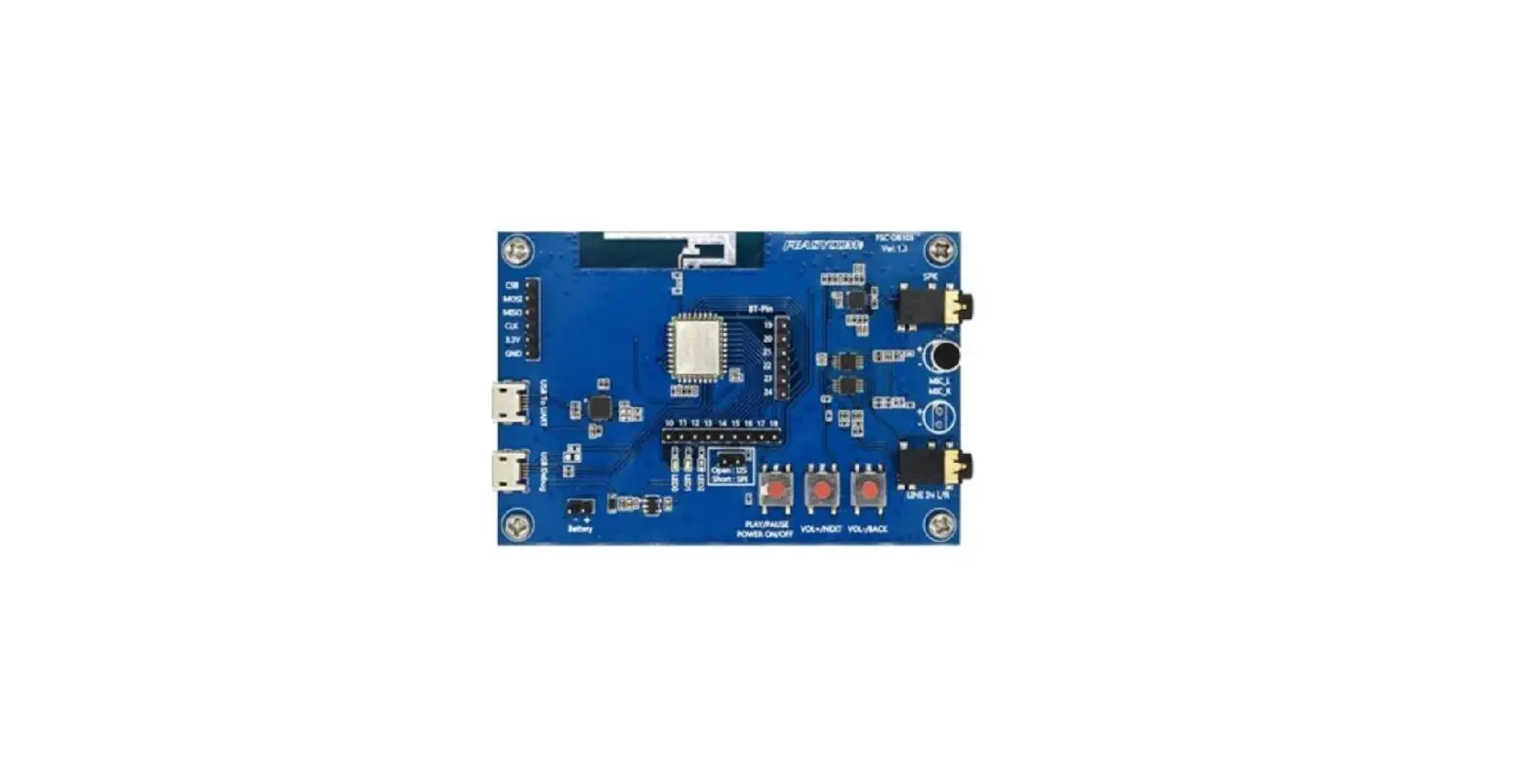
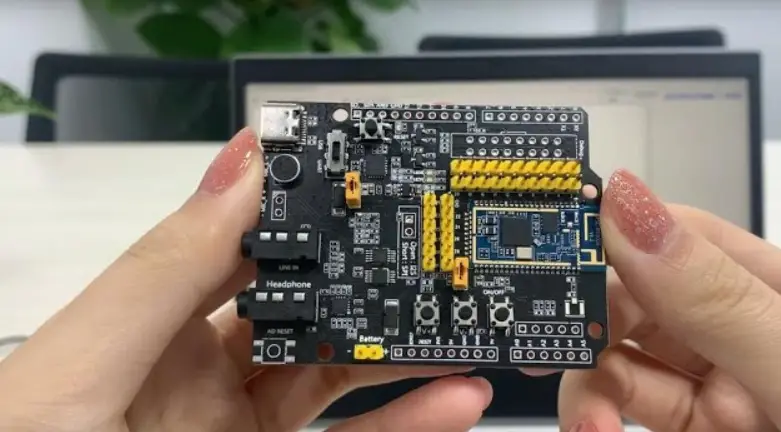
The FSC-DB200 development board is designed to provide convenient functional testing and development of Feasycom products. It integrates various features including Type-C interface, audio input and output, microphone, lithium battery interface, buttons, reset button, headers, and status indicators.
Overview
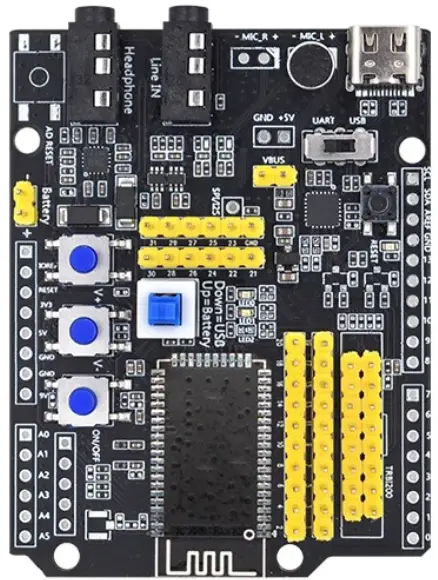
The FSC-DB200 development board integrates Type-C (including UART/USB/charging/power supply), audio input and output, microphone, lithium battery, buttons, reset buttons, 2.54mm pitch headers, status indicators, etc.
It can be used in conjunction with our serial port assistant and AT commands for functional testing, which is convenient for customers to familiarize themselves with our products, shorten the development cycle, and improve efficiency.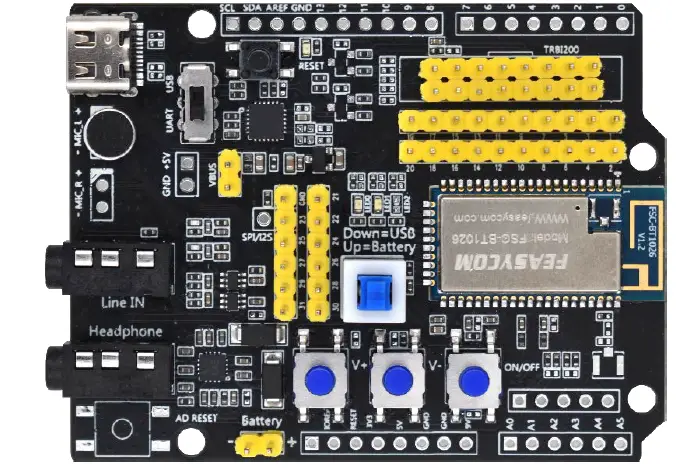
Features
- All-in-one Type-C
- Universal 3.5 headphone jack input
- Universal 3.5 headphone jack output
- Built-in microphone, convenient for call test Lithium battery/USB powered
- Key control (switch on/off/pause playback/volume size/up and down music) and one-key reset 2.54mm spacing row of pins to facilitate DuPont wire connection
- Multi-function indicator light indicates status
- RF interface (non-standard), convenient to test RF signal
- Built-in USB to serial port chip
- Built-in headphone amplifier chip, which can drive 16/32 ohm headphone
- Reserved connection holes for Arduino board
Application
- BT1026X
- BT1006X
- BT806X
- BT958
Functional Specification
Hardware
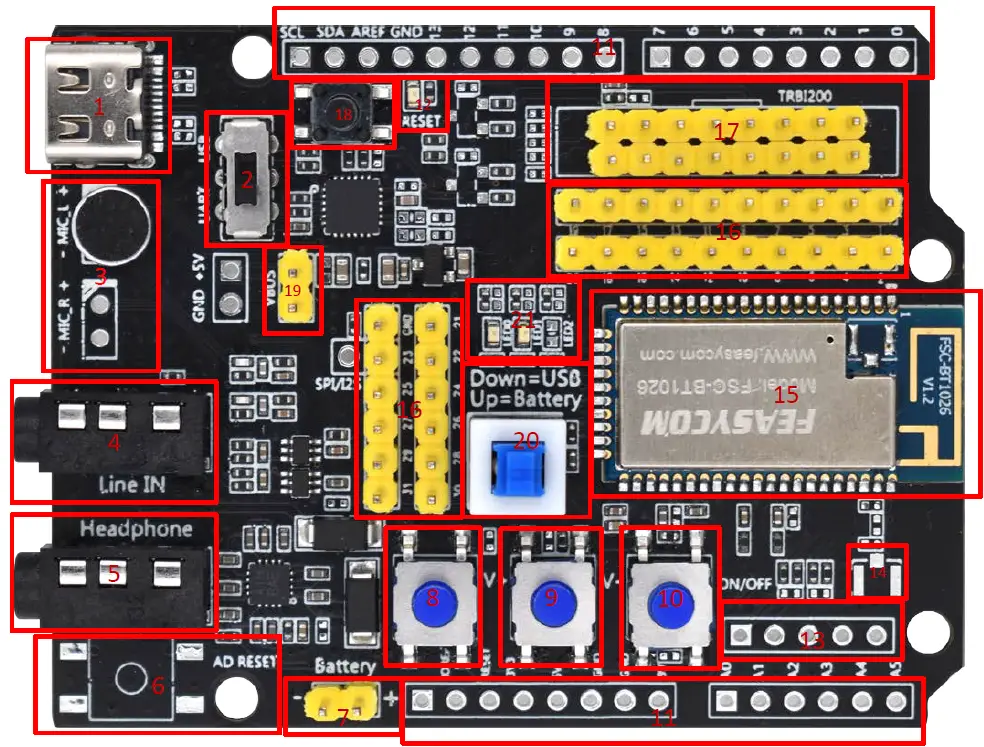
Functional specification
The FSC-DB200 development board has the following functionalities:
| No. | Mark | Description | Remark |
|---|---|---|---|
| 1 | Type-C | Supply power to the module, communicate with the module, charge the battery through the module | |
| 2 | USB/UART switch | Choose UART to communicate with the module or choose the USB function of the module (not all modules have USB function) | |
| 3 | Microphone | HFP (used for incoming/making calls, default L channel), and applications that require a microphone | |
| 4 | Audio Input | Standard 3.5mm audio input | |
| 5 | Headset Output | Standard 3.5mm headphone output, can drive 16/32 ohm speakers, maximum 60mW | |
| 6 | Arduino board reset button | Reset the extended Arduino board (default is empty) | |
| 7 | Battery | Lithium battery interface. Voltage range: 3.7V~4.2V. Exceeding the voltage range may damage the module | |
| 8 | Volume up button | Short press to increase the volume, long press to select the next song | |
| 9 | Volume down button | Short press to decrease the volume, long press to select the previous song | |
| 10 | ON/OFF button | Long press to turn on/off and play music, short press to pause/play. During an incoming call, short press to answer the call and short press again to hang up | |
| 11 | Arduino board extension pin | Default empty | |
| 12 | Arduino Indicator light | ||
| 13 | Analog audio Differential output | Default empty | |
| 14 | External IPEX Module | External antenna connection base | |
| 15 | Module | Supports BT806/1006/1026X/958 etc. | |
| 16 | Module pin | ||
| 17 | TRBI200 burner interface | Default empty | |
| 18 | Module reset button | Short press to reset the module | |
| 19 | Battery charging | Charge the battery under short-circuit condition, module upgrade/fixed frequency | |
| 20 | Module power supply | Up=USB, Down=Battery | |
| 21 | Module Indicator | The blue light flashes quickly when pairing is in progress, and the light keeps on |
* Please refer to the user guide for more detailed instructions on specific functionalities and usage of the FSC-DB200 development board.
3. Driver installation and serial port assistant
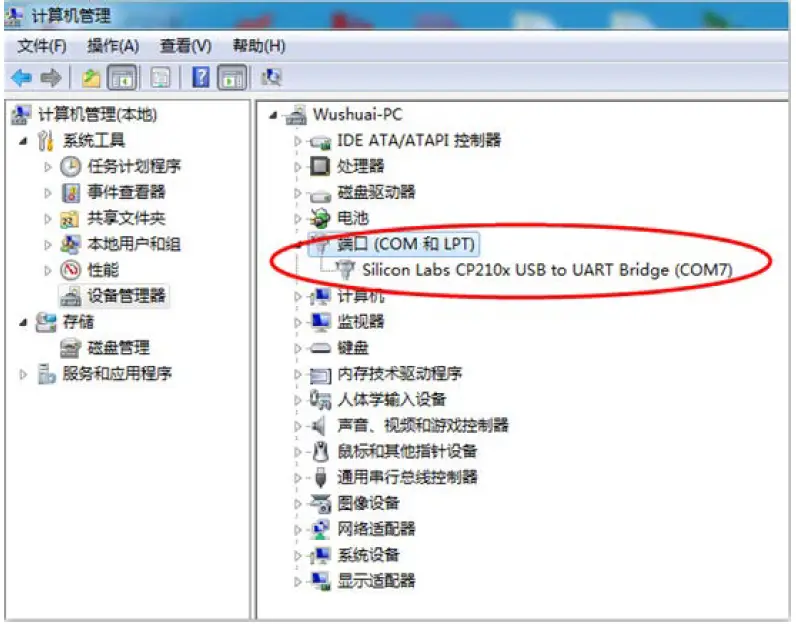
- The Win7 system needs to install the serial port driver, which can be viewed in the computer device manager (Win10/11 may not be required). (You can install a serial port tool by a third party, plug in the USB to identify it. Or contact us)

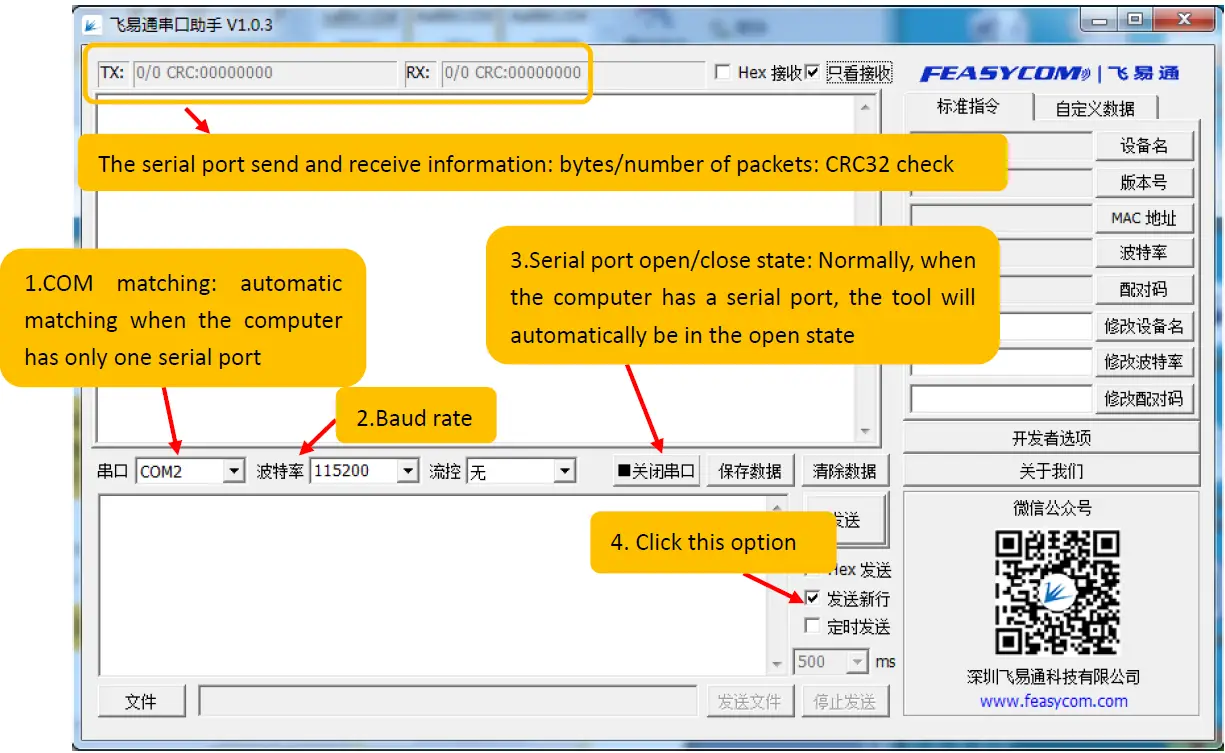
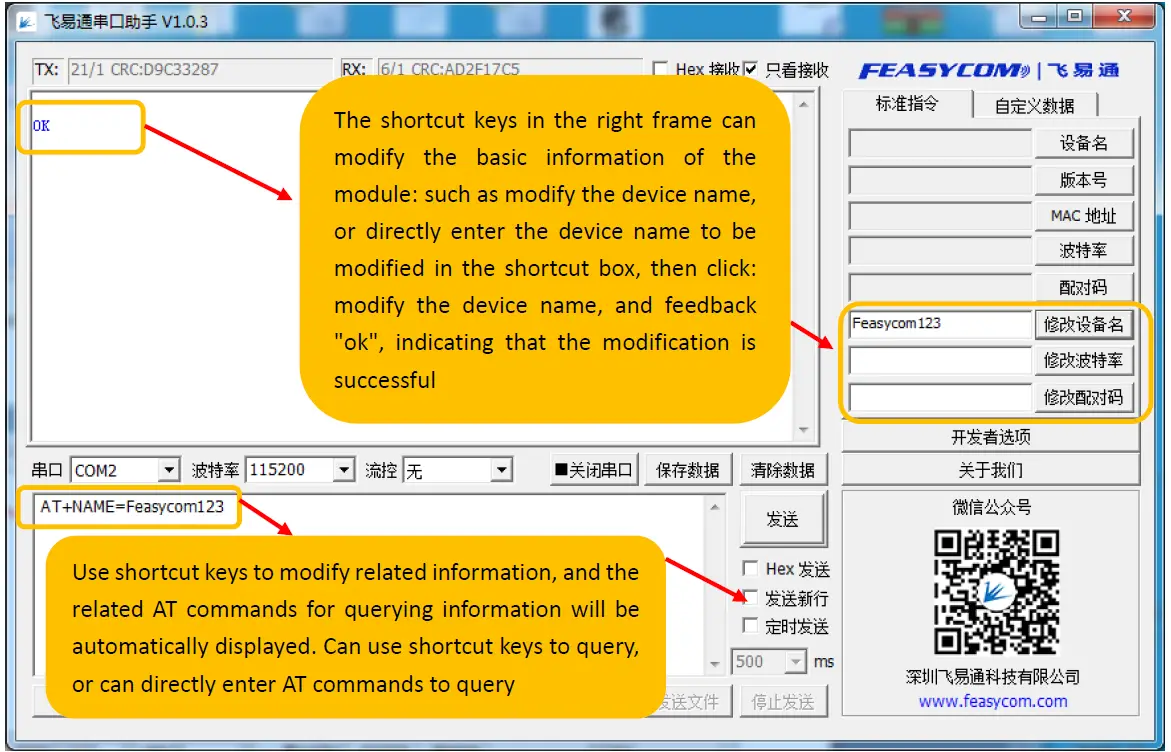
- Serial port assistant installation and use
- Double click

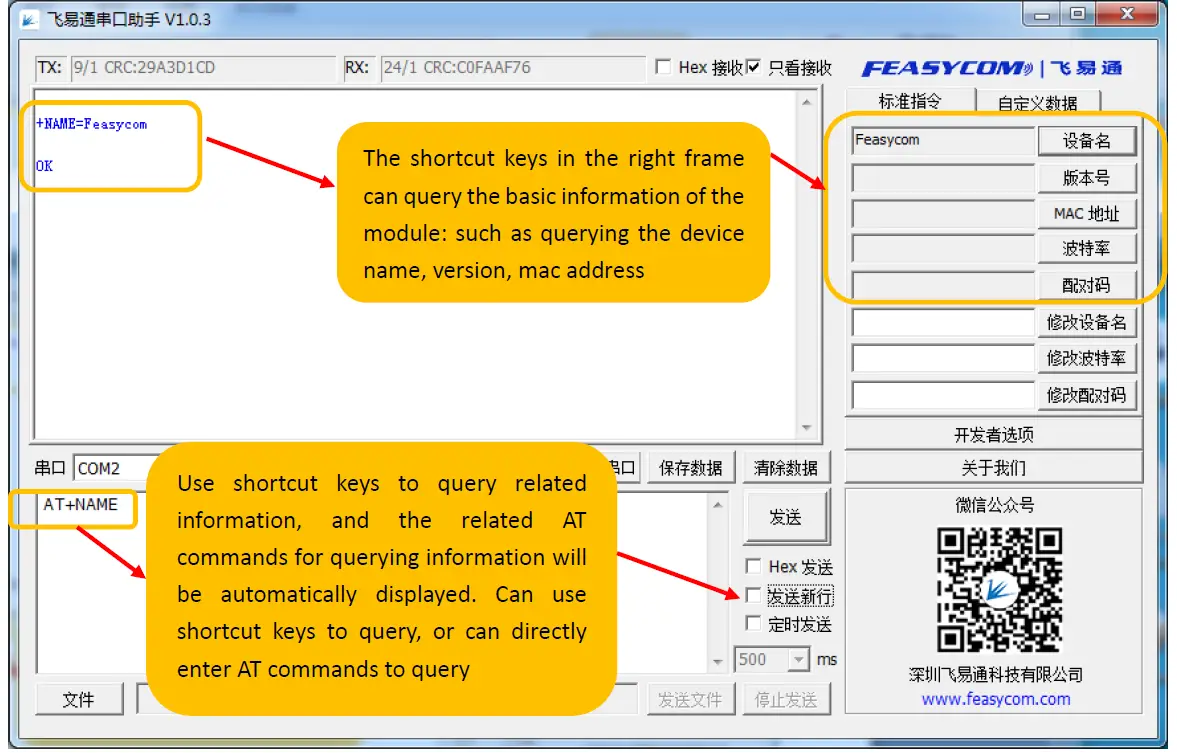
- The interface description is as follows


- Double click
 Feasycom IOT Modules