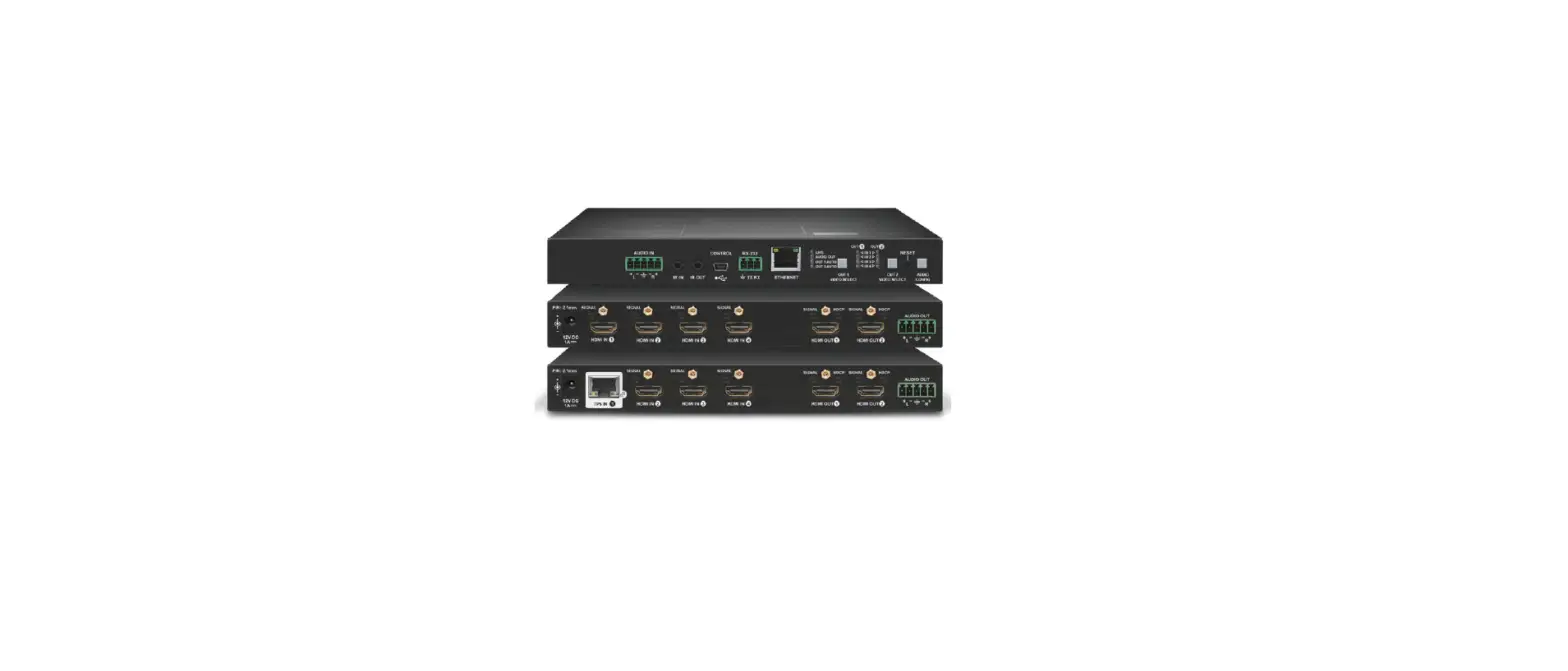
H88HAW Matrix Switchers
Product Information
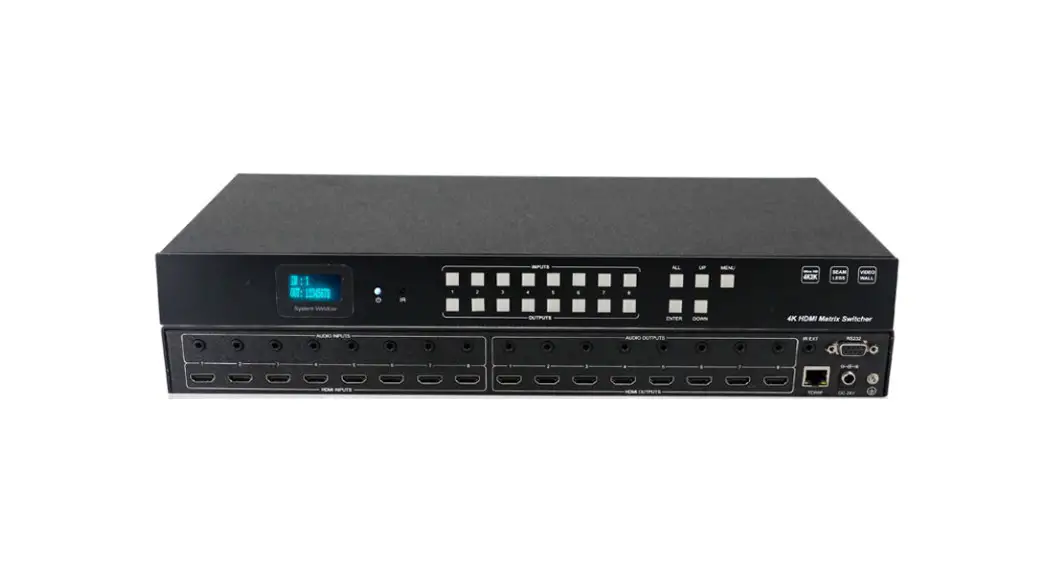
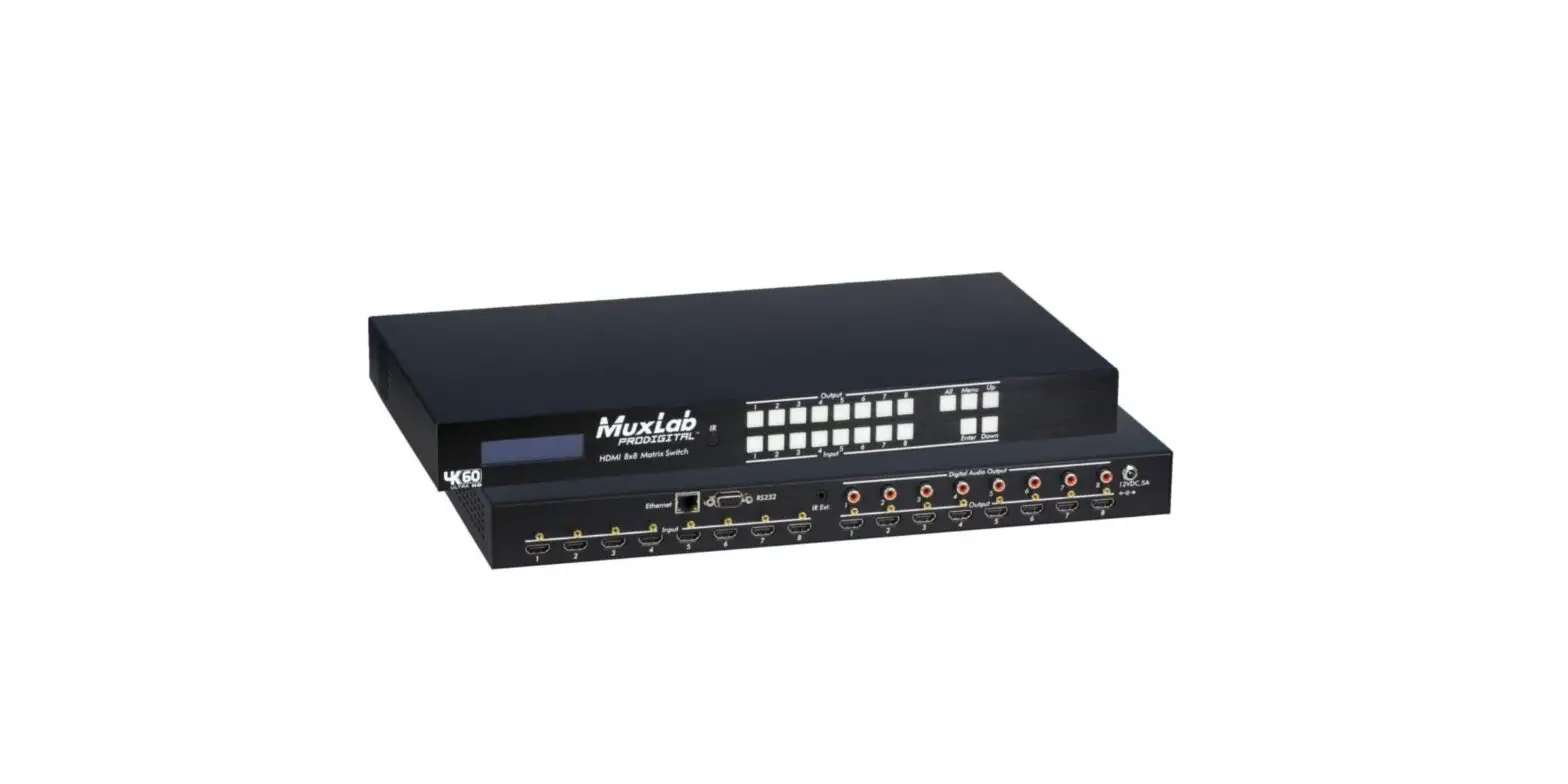
The 18Gbps 8×8 Seamless UHD Matrix, iMatrix H88HAW, is a
high-performance device that allows you to connect 8 HDMI sources
to 8 HDMI displays. It supports video resolutions up to 4K60 4:4:4
and is compliant with HDMI 2.0 and HDCP 2.2 standards. The product
features seamless switching, video wall support, IR matrix support,
audio extract and insert capabilities, EDID management, and various
control options.
Features:
- HDMI 2.0 and HDCP 2.2 compliant
- Supports 18 Gbps video bandwidth
- Seamless switching between HDMI sources
- Video wall support
- IR matrix routing follows the video routing
- HDMI audio extract capability
- External L/R audio insert on HDMI stream
- EDID management for optimal display compatibility
- Multiple control options: front panel, RS232, TCP/IP (LAN
10M/100M)
Package Contents:
– 1 / 12 – (Please refer to the complete user manual for a
detailed list of package contents.)
Specifications:
| Technical | HDMI Compliance | HDCP Compliance | Bandwidth | Video Resolution |
|---|---|---|---|---|
| HDMI2.0 | HDCP2.2 | 18Gbps | Input: 800×600@60Hz, 1024×768@60Hz, 1280×768@60Hz, 1280×800@60Hz, 1280×1024@60Hz, 1360×768@60Hz, 1366×768@60Hz, 1400×1050@60Hz, 1440×900@60Hz, 1600×1200@60Hz, 1680×1050@60Hz, 1920×1200@60Hz, 480p, 576p, 720p, 1920x1080i, 1920x1080p, 3840×2160@24Hz/25Hz/30Hz/50Hz/60Hz, 4096×2160@24Hz/25Hz/30Hz/50Hz/60Hz | |
| Output: 1920×1080@60Hz, 3840×2160@30Hz, 3840×2160@60Hz, 1280×720@60Hz, 1024×768@60Hz, 1360×768@60Hz, 1600×1200@60Hz, 1920×1200@60Hz |
Operation Controls and Functions:
The front panel of the device includes the following
controls:
- LCD Panel: Displays the current video selections
- COM: Control commands indicator
- IR: IR signal indicator
- POWER: Power LED
- LOCK: Front panel lock/unlock
- OUTPUT: Output selection buttons 1~8
- INPUT: Input selection buttons 1~8
- ALL RES: Set all outputs to the next input
selection - EDID: Set the output scaler resolution
- NEXT: Set the EDID options for the next input
selection - SAVE: Save the current matrix setting as a preset
- RECALL: Set the matrix setting from a saved preset
- CLEAR: Cancel the current command function
- ENTER: Set the displayed option
Please refer to the complete user manual for detailed
instructions on connecting, operating, and adjusting this
product.
18Gbps 8×8 Seamless UHD Matrix
iMatrix H88HAW
VER 1.0 www.infobitav.com
Thank you for purchasing this product
For optimum performance and safety, please read these instructions carefully before connecting, operating or adjusting this product. Please keep this manual for future reference.
Surge protection device recommended
This product contains sensitive electrical components that may be damaged by electrical spikes, surges, electric shock, lighting strikes, etc. Use of surge protection systems is highly recommended in order to protect and extend the life of your equipment.
Table of Contents
1. Introduction……………………………………………………………………………………………………… 1 2. Features…………………………………………………………………………………………………………… 1 3. Package Contents………………………………………………………………………………………….. 1 4. Specifications…………………………………………………………………………………………………. 2 5. Operation Controls and Functions…………………………………………………………………… 3 6. RS232/LAN Control Connection……………………………………………………………………….. 5
6.1 RS232 Connector Connection…………………………………………………………………….. 5 6.2 Network Control Connection………………………………………………………………………..5 7. PC Tool User Guide…………………………………………………………………………………………. 6 7.1 Account’s Authentication…………………………………………………………………………..6 7.2 Connect with PC Tool…………………………………………………………………………………. 6 7.3 Matrix Switch Page…………………………………………………………………………………….6 7.4 Signal Setting Page…………………………………………………………………………………… 8 7.5 FineTune Page…………………………………………………………………………………………… 8 7.6 Video Wall Page……………………………………………………………………………………….. 9
7.6.1 Video Wall Context Menu…………………………………………………………………. 10 7.6.2 Layout Save/Load……………………………………………………………………………… 12 8. Control via Web……………………………………………………………………………………………… 12
1. Introduction
The 18Gbps 8×8 seamless UHD Matrix can connect 8 HDMI sources to 8 HDMI displays. Supported video resolution is up to 4K60 4:4:4. The product supports IR matrix, and IR matrix routing follows the video routing. Audio extract and insert are supported. The product supports one or more video wall with RS232 command.
2. Features
HDMI 2.0 and HDCP 2.2 compliant Support 18 Gbps video bandwidth Support seamless switching Support video wall Support IR matrix Support HDMI audio extract Support external L/R audio insert on HDMI stream Support EDID management HDMI video output resolution up to 3840×2160@60 Support front panel, RS232, TCP/IP (LAN 10M/100M) control
3. Package Contents
1 x 8×8 seamless UHD Matrix 1 x AC Power Cord 1 x Matrix IR Remote 4 x IR Receiver cable (1.5 meters) 4 x IR Blaster cable (1.5 meters) 1× CAT6 cable 1× USB to RS232 Cable 1× User Manual
– 1 / 12 –
4. Specifications
Technical HDMI Compliance HDCP Compliance Bandwidth Video Resolution
HDMI2.0 HDCP2.2 18Gbps
Input
800×600@60Hz,1024×768@60Hz, 1280×768@60Hz,1280×800@60Hz, 1280×1024@60Hz,1360×768@60Hz, 1366×768@60Hz,1400×1050@60Hz, 1440×900@60Hz,1600×1200@60Hz, 1680×1050@60Hz, 1920×1200@60Hz. 480p,576p,720p,1920x1080i,1920x1080p, 3840×2160@24Hz/25Hz/30Hz/50Hz/60Hz, 4096×2160@24Hz/25Hz/30Hz/50Hz/60Hz.
Output
1920×1080@60Hz, 3840×2160@30Hz, 3840×2160@60Hz, 1280×720@60Hz, 1024×768@60Hz, 1360×768@60Hz, 1600×1200@60Hz, 1920×1200@60Hz
HDMI Amplitude
T.M.D.S +/- 0.4Vpp
Differential impedance ESD Protection
100±15ohm
Human-body Model: ±8kV (Air-gap discharge) , ±4kV (Contact discharge)
RS232/Ethernet Control
Baud rate and protocol Baud rate9600, data bit: 8, stop bit:1, no parity checking
Ethernet
IE10.0+, HTML5
Mechanical
Housing
Metal Enclosure
Color Dimensions Weight Power Supply
Black 430mm (L) X 300mm (W) X 44mm (H) 5kg AC 110 – 240V
Power Consumption 100W (Max)
Operating Temperature 0°C ~ 40°C / 32°F ~ 104°F Storage Temperature -20°C ~ 70°C / -4°F ~ 158°F
Relative Humidity
10%~50% RH (non-condensing)
– 2 / 12 –
5. Operation Controls and Functions
Front Panel
Item LCD Panel COM IR POWER LOCK OUTPUT INPUT ALL RES EDID NEXT SAVE RECALL CLEAR ENTER
Description Displays the current video selections Control comands indicator IR signal indicator Power LED Front panel lock/unlock Output selection buttons 1~8 Input selection buttons 1~8 Set all outputs to the next input selection Set the output scaler resolution Set the EDID options for the next input selection Select the next available option Save the current matrix setting as a preset Set the matrix setting from a saved preset Cancel the current command function Set the displayed option
· Press buttons OUTPUT n + INPUT m+ TAKE by sequence to switch matrix routing. · Press button POWER to make the matrix enter or release standby state. When standby, the power
LED will be lighted. · Press button LOCK to lock or un-lock front buttons. When locked, the Lock LED will be lit. · Press buttons ALL + INPUT m + TAKE by sequence to switch input m to all the outputs. · Press button SAVE + OUTPUT n to save current routing scene as scene n. Up to 8 scenes can be
saved. · Press button RECALL + OUTPUT n to recall routing scene n as current routing. · Press buttons RES + OUTPUT n + NEXT + TAKE to change output resolution of OUTPUT n port. Resolution Option
Number 1 2 3 4 5 6 7 8
Output Resolution Setting 3840×2160@60Hz 3840×2160@50Hz 3840×2160@30Hz 3840×2160@25Hz 1920×1200@60Hz 1920×1080@60Hz 1920×1080@50Hz 1600×1200@60Hz
Number 9 10 11 12 13 14 15 16
Output Resolution Setting 1400×1050@60Hz 1366×768@60Hz 1360×768@60Hz 1280×1024@60Hz 1280×768@60Hz 1280×720@60Hz 1280×720@50Hz 1024×768@60Hz
– 3 / 12 –
· Press buttons EDID + INPUT m + NEXT + TAKE to change the EDID mode of port INPUT m. EDID options:
Number 1 2 3 4
Output Resolution Setting Manual 3840×2160@60Hz 3840×2160@30Hz 1920×1200@60Hz
Number 5 6 7 8
Output Resolution Setting 1920×1080@60Hz 1280×1024@60Hz 1280×720@60Hz 1024×768@60Hz
Rear Panel
· LAN(10M/100M), RS232 are for PC control. · Analog Audio IN/OUT ports bind to corresponding HDMI ports.
For example: if INPUT HDMI 1 signal is DVI, matrix will use analog AUDIO IN 1 as HDMI 1 audio source (Note: Analog AUDIO IN is only available when the corresponding video input is DVI signal). Analog AUDIO OUT n will always output the same audio content with HDMI OUTPUT n. · IR IN and IR OUT IR IN/OUT is for remote control routing, and follows the video routing. For example: if input HDMI m is routed to output HDMI n1 and n2 ports, then IR IN n1 and n2 ports will be routed to IR OUT m port. Here with is the illustration of the relationship between video and IR routing.
– 4 / 12 –
IR extender connectors (not as accessories)
6. RS232/LAN Control Connection
6.1 RS232 Control Connection
The product supports RS232 control. Connect the RS232 port of the product to a PC via a RS-232 to USB cable, as shown in the following figure:
RS-232 to USB cable PC
6.2 Network Control Connection
The product also supports Network control. Connect the LAN port of the product to a PC via an UTP cable
as shown in the following figure:
NoteFactory default network setting
PC
– 5 / 12 –
LAN
LAN
7. PC Tool User Guide
7.1 Account’s Authentication
Before running the PC tool, the password is needed for authentication. Default password of Administrator access to all features111111
Default password of User access to all features, except OSD function
000000
7.2 Connect with PC Tool
1. The default PC tool’s UI style is as below.
2. You can select UART (with RS-232 cable) or Network to connect, baud rate is 9600 bps. 3. Default IP address: 192.168.0.247.
7.3 Matrix Switch Page
– 6 / 12 –
1. There are 3 options for Matrix Switch page, user can press “Switch UI” button to change the UI style. Suggest to use the default one.
2. There is a shortcut button to switch one input port to all output ports, that is Allset, For example, switch input 1 to all outputs, user can select
3. Recall modeRecall a input/output routing scene which already be saved before. The device supports maximum 8 scenes.
4. Save modeSave the current input/output routing in one index. Maximum 8 modes supported. Note: Save/Recall button here works the same with front panel save/recall control and also the same with Save/Load function on video wall page.
5. System reset: The PC tool supports reset system to recover to factory configuration. 6. EDID Control: Click the “EDID” button on Matrix Switch page, there will be a pop-up EDID
control window. User can do following operations:
a) Read EDID Select the output port, then click the “Read ” button to read EDID.
b) Write EDIDFirst read a EDID from output port
or open a EDID file that saved before
then select the input port
and click the “Write” button to write EDID.
c) Save EDIDAfter reading EDID successfully
click “Save” button, and select the save path and file name for saving.
d) EDID Manual: The written EDID above will be as the manual EDID data. When user select EDID mode with Manual mode by front panel for one input port, matrix system will use this data as the EDID data for the port.
– 7 / 12 –
7.4 Signal Setting Page
1. Audio Select There are two options for input Audio Select. a) Auto: If the input source is HDMI signal, system will get the embedded audio; if the input source is DVI signal, the system will get the corresponding analog audio. b) External: System will get the corresponding analog audio.
2. Output Type There are four options for input Output Type: UHD-HDMI (HDCP OFF), UHD-DVI, UHD-HDCP-1.4, UHD-HDCP-2.2.
3. Output Format User can set the output resolution: 3840×2160@60, 3840×2160@50, 3840×2160@30, 3840×2160@25, 1920×1200@60, 1920×1080@60, 1920×1080@50, 1600×1200@60, 1400×1050@60, 1366×768@60, 1360×768@60, 1280×1024@60, 1280×768@60, 1280×720@60, 1280×720@50, 1024×768@60.
7.5 FineTune Page You can read and set the Brightness/Contrast/Saturation/Sharpness of each output.
Note: Do not change the default settings without special conditions; If there is a problem after changing, click “Reset” to return to the factory settings.
– 8 / 12 –
7.6 Video Wall Page This page is used to configure a group of outputs to function as a video wall.
1. Use the Video Wall Setting controls to change how the displays are arranged on the Video Wall page: a. Adjust the Rows and Columns sliders to change the displayed screen arrangement to permit proper Drag-and-Select of the desired screens for the video wall. b. Change the Available slider to set how many outputs will be used for the Video Wall. c. Click the “Set” button to change the Screen configuration.
2. Use the left mouse button to drag-select the screens that will be set for video wall mode. The selected screens will be shown as bright blue.
3. Use the right mouse button to open a menu. 4. Select “Screen Stitching” from the menu to program the video wall mode. The selected
screens will now be shown as bright green. 5. To change the displayed image: right-click to open the pop-up menu and select the desired
input from the “Input Select” menu option. 6. Repeating steps 2 ~ 5 above with a different set of outputs allows the creation of a second
video wall. However, changing the Rows, Columns and Available sliders will automatically delete the current video wall set up when the “Set” button is clicked. The following example shows a more unusual video wall set-up of two video walls with one 2×2 wall and one 2×1 configurations:
– 9 / 12 –
7.6.1 Video Wall Context Menu Right clicking on any of the screen icons will display the following context menu:
– 10 / 12 –
Screen Stitching This option connects the selected screens into a video wall configuration. Cancel Stitching Return the Video Wall configuration to normal outputs.
Remove the single screen x from the video wall to allow the displaying another full frame image within the video wall configuration, as shown in this example:
Screen x Cancel Stitching
Input Select Output Select Output Type
Output Format
Mirror Test Pattern
Use the sub-menu to select the input to display on the video wall or the secondary input image shown in the above example.
This option is only available for any screen that is not assigned to a video wall mode.
This option is only available for any screen that is not assigned to a video wall mode.
This option is only available for any screen that is not assigned to a video wall mode. It allows setting of the output resolution for the selected screen output.
Two sub options : OFF ( default ), ON ( H+V Mirror) When select “ON”, you can make 180º rotation with the selected screen. When Test Pattern is enabled, the output will display Color Bar pattern
Bezel Setting The Bezel Setting section allows the entry of values to compensate for the display bezel thickness. These values may be entered either as pixels (Type A) or as milli metre (Type B). Type A Bezel Settings The image size will be adjusted to allow for the number of pixels entered in each of the entry boxes. Click the “Set” button to view the effect of the new values. Type B Bezel Settings The image size will be adjusted to allow for the Inner and Outer display dimensions as entered in each of the entry boxes. Click the “Set” button to view the effect of the new values. Bezel Compensation
The following images demonstrate the effect of not having bezel compensation and what a correctly configured bezel compensation settings should produce:
– 11 / 12 –
No Bezel Compensation
Correct Bezel Compensation
7.6.2 Layout Save/Load The Save Scene/Layout and Load Scene/Layout buttons allow a video wall configuration to be saved or recalled at any time. Up to 10 configurations, each with their own name can be saved or recalled. When saving, each Scene can optionally be given a name to identify that video wall scene setup.
8 Control via Web
· If you do not know the matrix IP address: click on the Network Settings page, and then click “Search Device”, and then select the device that found, click “Open Website” to open the web control web site, or can input the IP on the web browser, then enter the username (admin) and password (admin) so that you can control the matrix switch function and use the website. NOTE: The computer IP and matrix IP must be in the same segment and the same local area network; For example, the matrix’s IP is 192.168.1.xxx, then the computer IP must be 192.168.1.yyy; Otherwise you need to change the matrix’s IP or the computer’s IP. The browser must support HTML5 feature, which must be IE10 and above.
· If the matrix IP address is known: Input the IP on the web browser, then enter the username (admin) and password (admin) so that you can control the matrix switch function and use the website. Note: the browser must support HTML5 feature, which must be IE10 and above.
– 12 / 12 –
 infobit AV- 4K Matrix Switchers, Wireless Presentation, Active Optical Cable and Conference Camera- Meeting Room Solutions