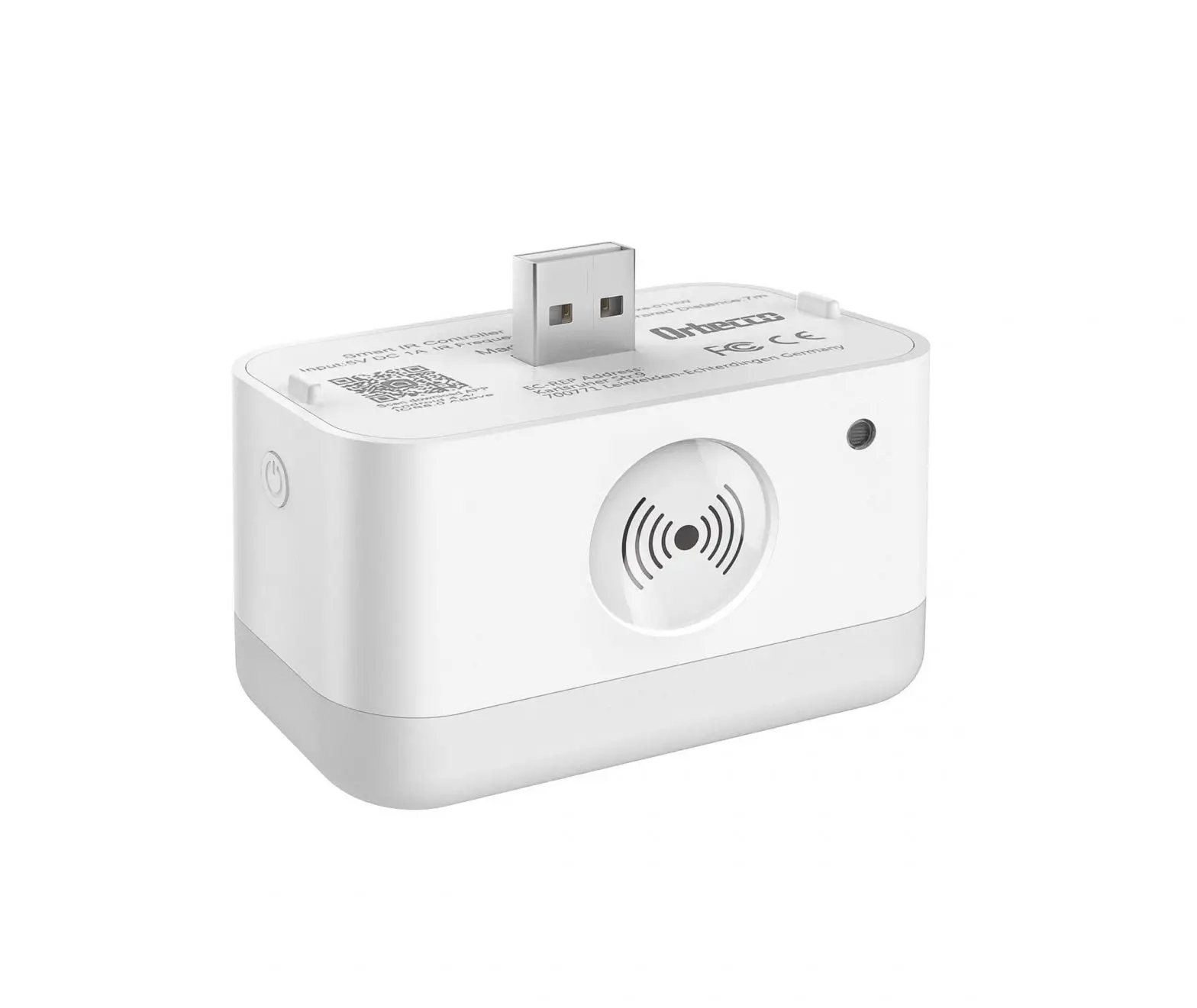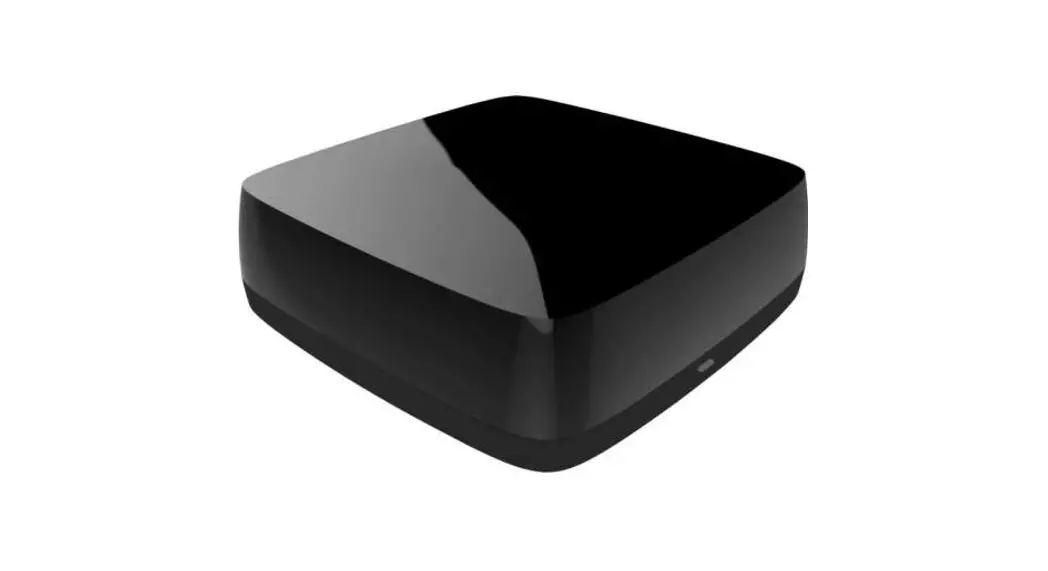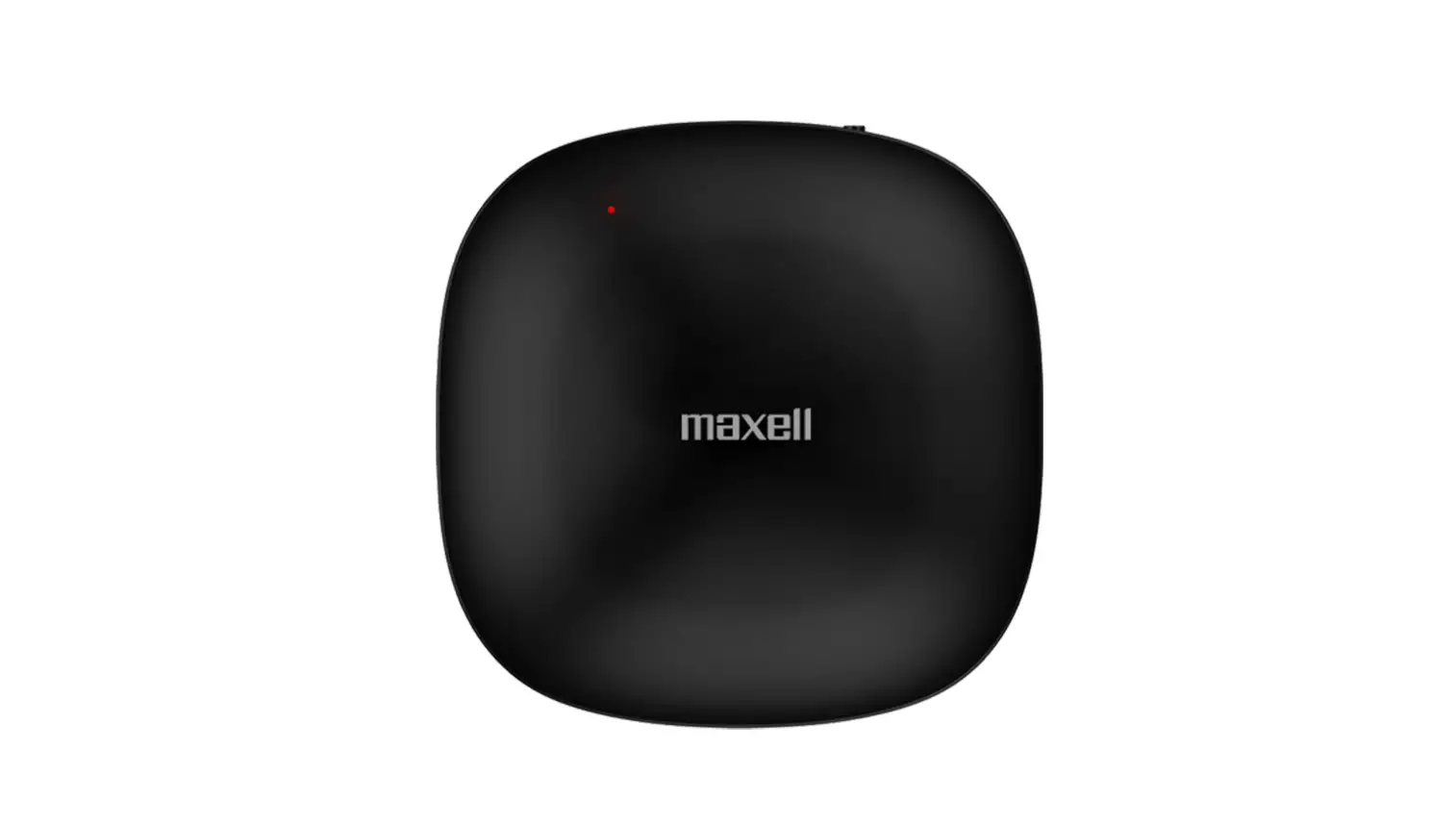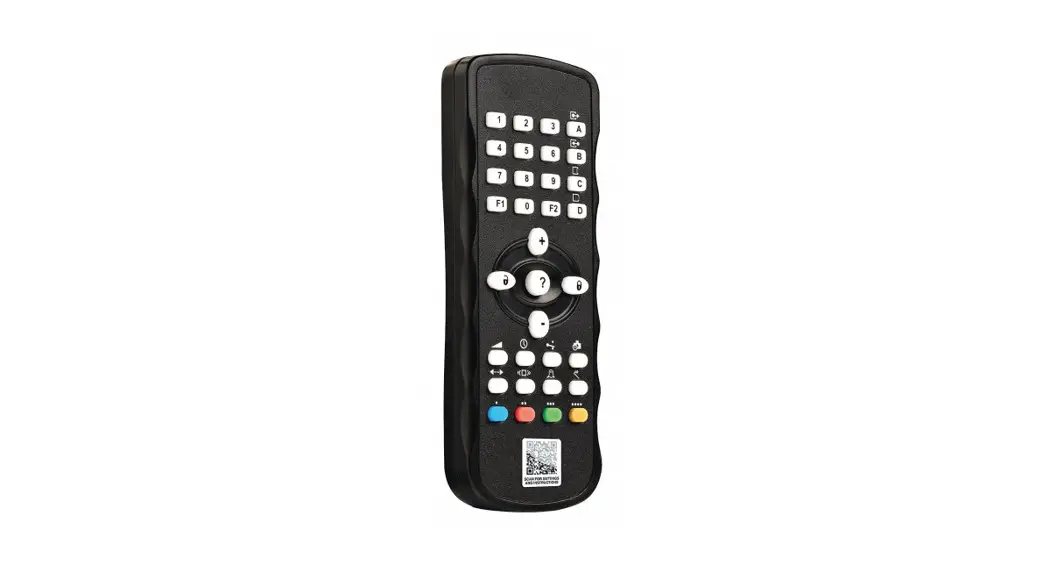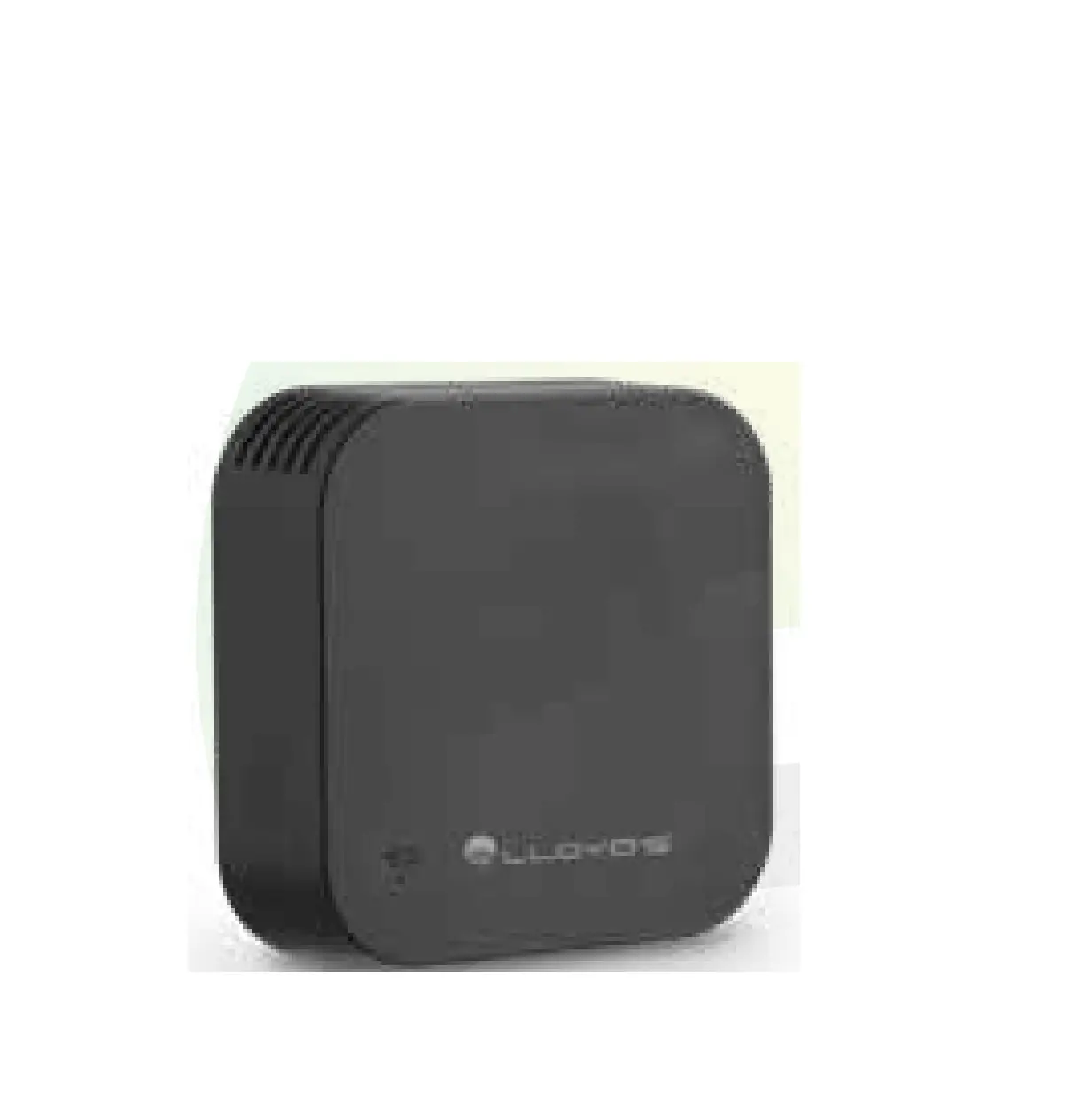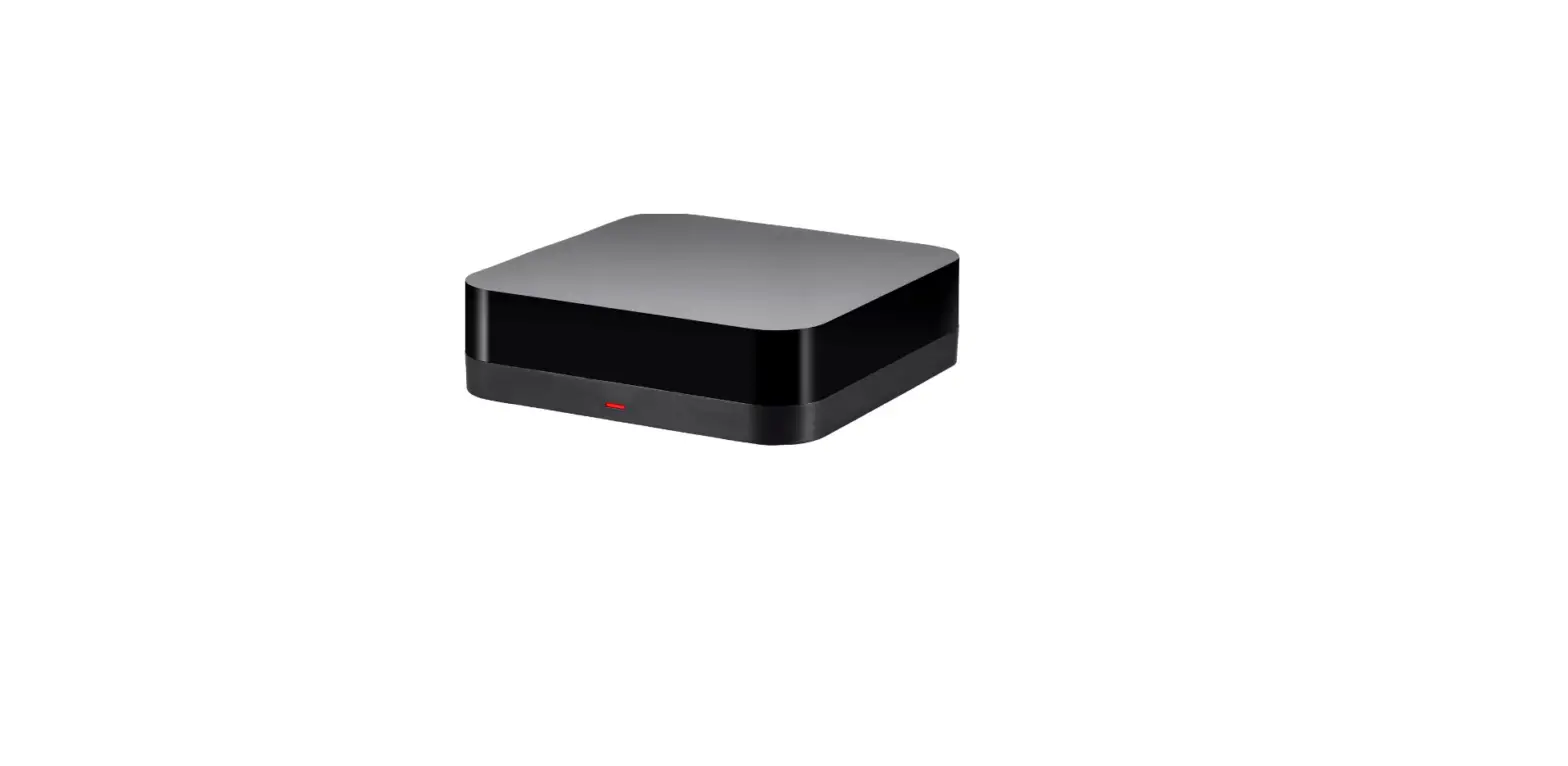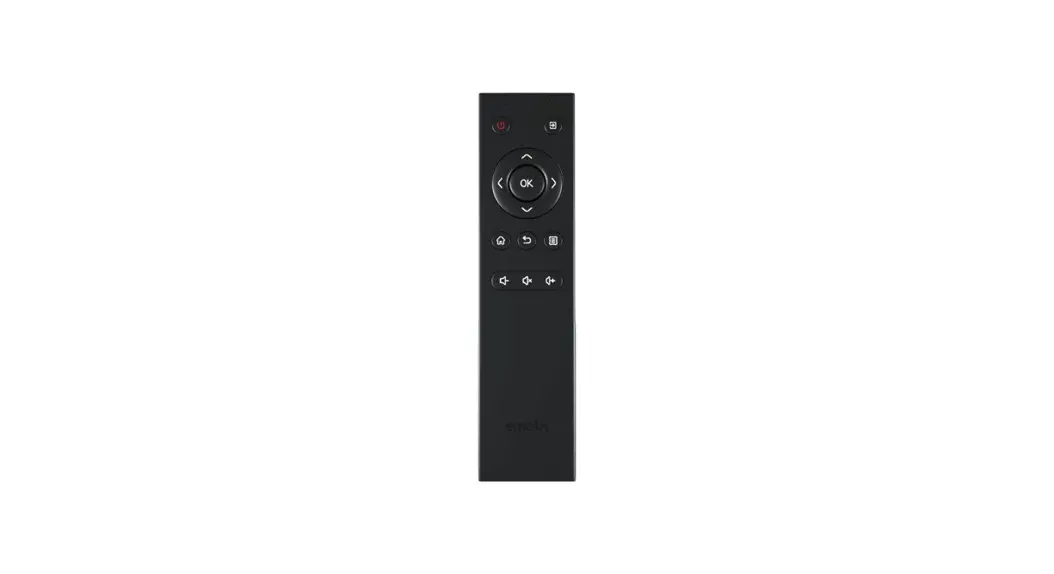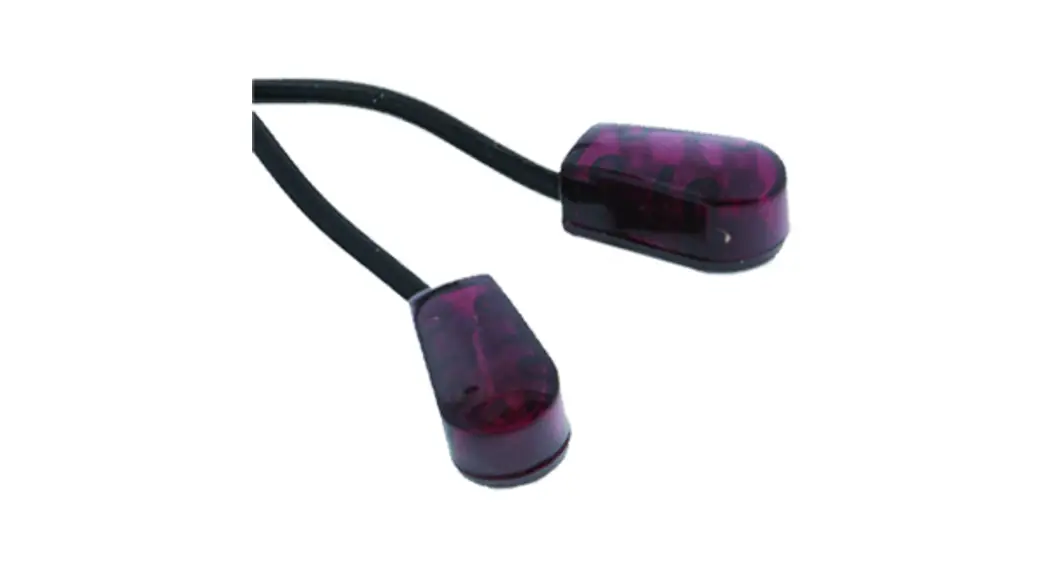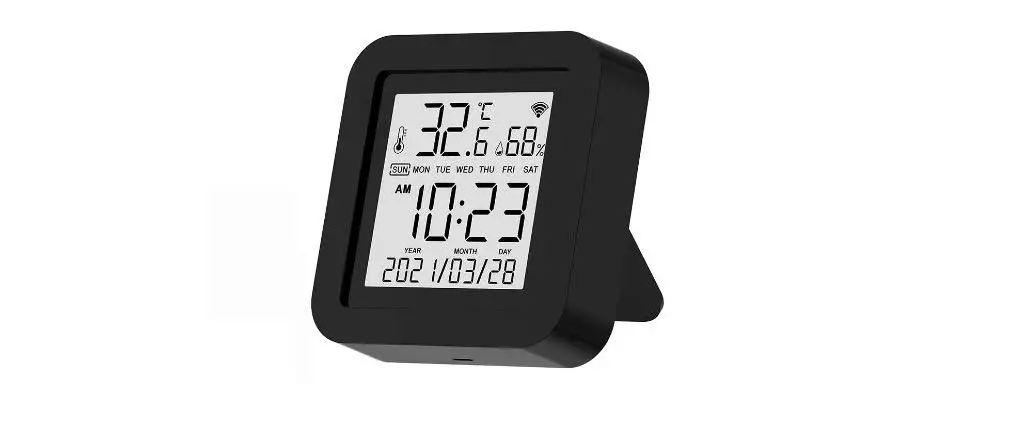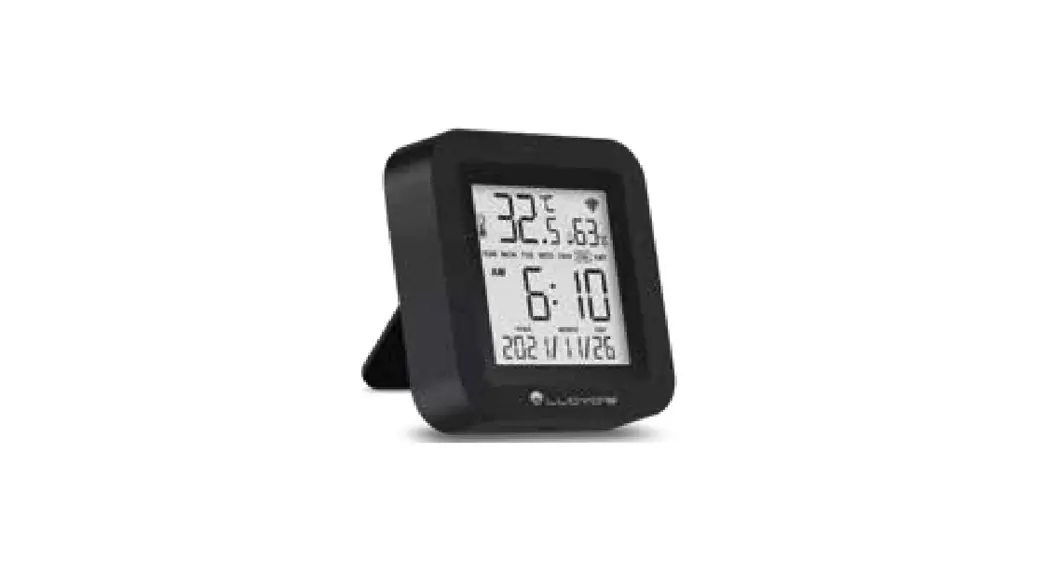

IR remote control
Brand: Lloyd´s Model: LC-1329
LC-1329 IR Remote Control
Lloyd´s ® helps you make your home a smart home Take control from one single App and transform your spaces into safe, efficient, comfortable and fun places.
LIoyds Smart
QUICK GUIDE
PLEASE READ THE INSTALLATION GUIDE
BEFORE OPERATING THE PRODUCT
“Operation is subject to two conditions: (1) this device may not cause harmful interference, and (2) this device must accept any interference, including interference that may be caused by undesired operation”.
Unify the remote control of all your IR devices
Diagram
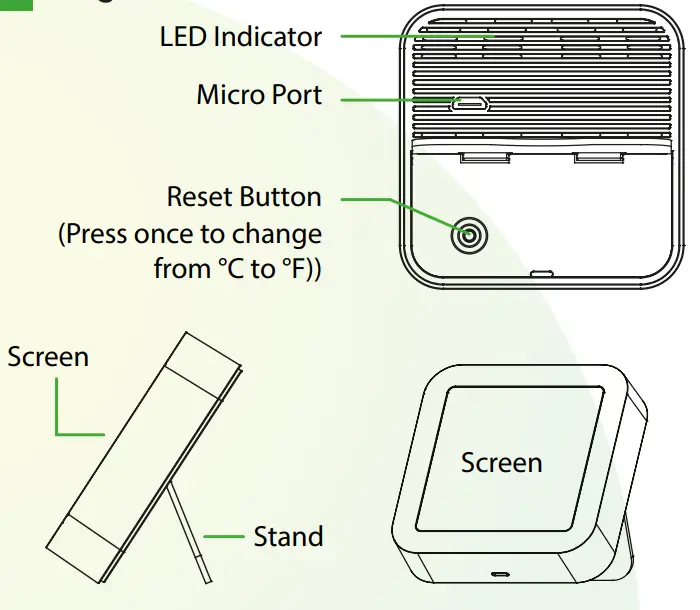
Characteristics
- Integrated display to check date/time/temperature /humidity
- Integrated temperature/humidity sensor and log graphics query from the App
Temperature measure range: 32 °F ~ 140 °F
Temperature accuracy: ± 33.8 °F
Humidity measure range: 0 % RH ~ 99 % RH
Humidity accuracy: ± 5 % RH
- IR (infrared) frequency: 38 KHz
- Wi Fi frequency: 2.4 GHz
- IR distance: ≤ 8 meters
- 360° infrared coverage
- Use of Bluetooth for quick setup
- Operating temperature: 32 ºF ~ 122 ºF
- Recommended humidity: ≤ 85% RH
- Dimensions: 65 mm x 65 mm x 17 mm
- Material: ABS
- Weight: 50 g
- LED Indicator: Blue
- Multi-user
- Create routines that trigger actions in other Lloyd’s smart products
Before getting started
Make sure your smartphone has iOS 10.0 or higher or Android™ 4.4 or higher. Check your network and make sure you are connected to a 2.4 GHz Wi Fi channel.
Download the Lloyds Smart app from the App Store or on Google Play or scan the following QR code with your smartphone.
Registration and access
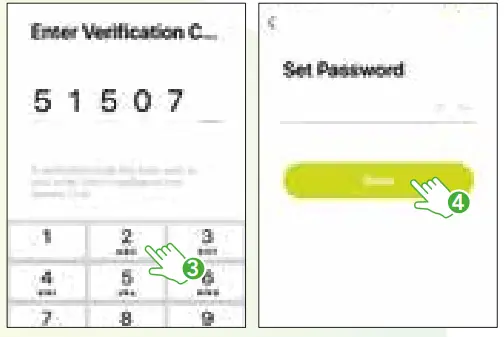
Launch the Lloyds Smart App. To register, click on “Sign Up” (1), to continue, click “Agree,” choose your country and enter an email address, then click “Get Verification Code” (2).
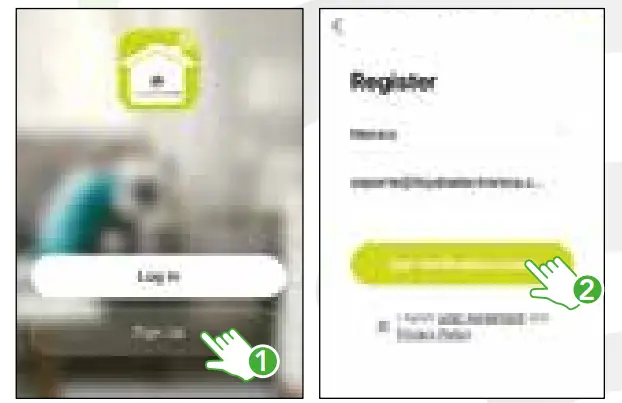
Enter the code sent to your email (check inbox or spam) (3), set a password, and click “Done” (4). Or log in directly if you already have an account.
Add device
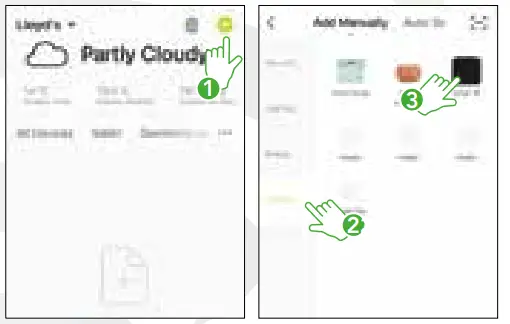
Start the Lloyds Smart App on your smartphone, select “+” (upper right corner) (1), choose the type of device that you want to add, in this case, go to “Comfort” (2), then select “Smart IR” (3).
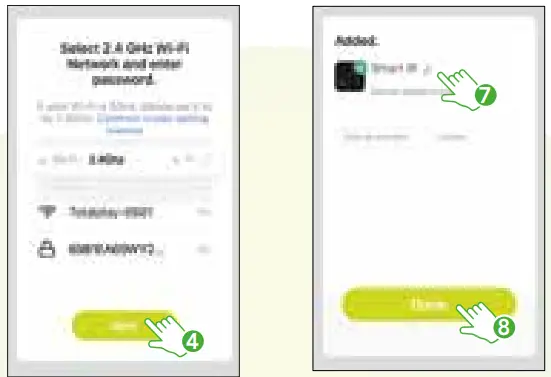
Enter your Wi Fi network information and password, click “Next” (4).
NOTE:
Make sure that the Wi Fi password you enter is correct and that the device is close to the modem during the process.
Connect the IR remote control to the power supply and wait for a moment, then press the reset button for 5 seconds. Confirm that the LED light on the device flashes blue (5) and click “Next” (6).
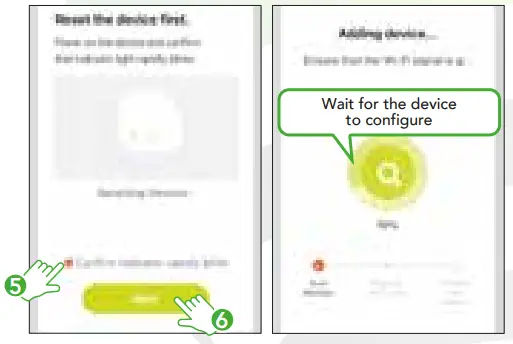
Once the device is configured, you can change the name (7). Finally, click on “Done” (8).
IR device configuration
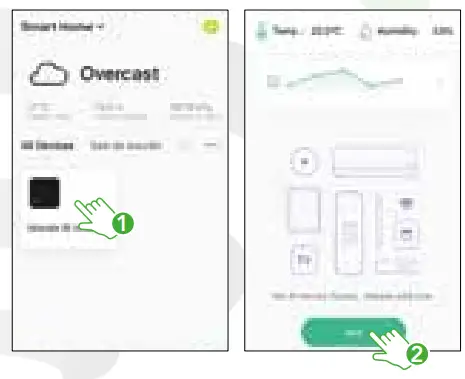
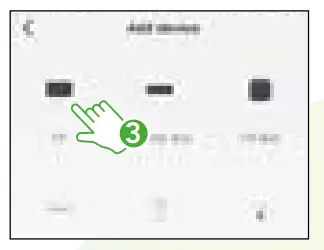
To start adding the devices you want to control (example: TV, set-top box, fan, air conditioner, heater, among others), click on the IR remote control in the App (1), then click “Add” to add a remote control (2), select the type of device, in this case, we will add a TV (3).
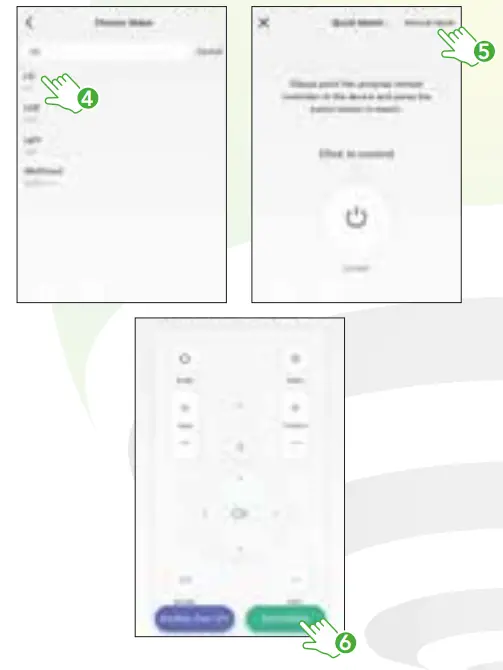
Find and select your TV brand (4), click “Manual Mode” (5), then take the remote control of the TV and pointing it to the IR remote control, press at least 3 buttons to pair, then click “Controllable” (6).
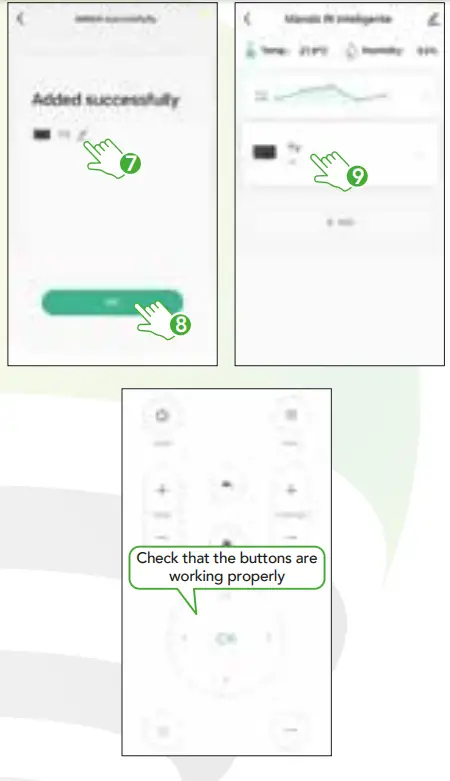
Set a name for the device (7), click “Ok” (8). Then click on the added device (9), test the remote control buttons from the App to validate that you can turn on, turn off, volume up and down, etc.
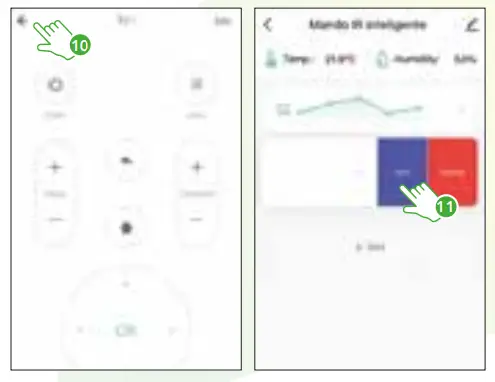
Once the addition is complete, click on the arrow in the upper left corner (10) to return to the main interface. If you add two or more similar devices, you can rename them in the “Edit” option (for iOS slide the button to the left and for Android press and hold it for 3 seconds) to prevent them from interfering with each other, for example: “Living room TV” or “Bedroom TV” (11).
In case not all buttons on the remote control of the device work, you can copy and enable them individually following these steps. Go to the “Edit” option (1) and then select “Copy button” (2). On the App click “OK” (3) and press for 3 seconds on the button you want to copy (4).
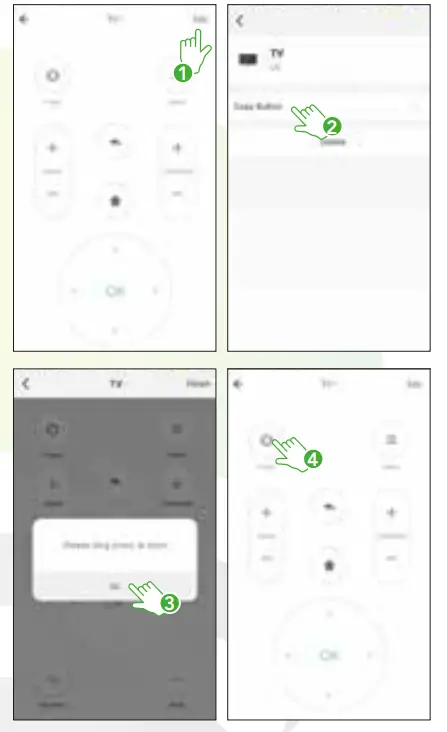
Press the button on the remote control that you wish to replicate pointing towards the Smart IR remote control until it is recognized. When the button is added, the pop-up window is automatically closed. Click “Finish” to exit (5).
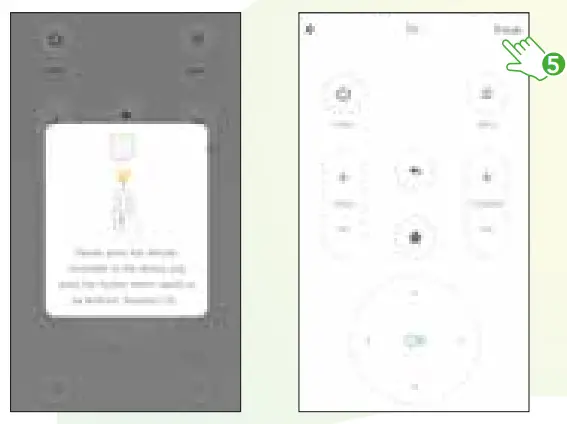
Once a button has been successfully copied, press it to check if it works correctly and proceed with copying other buttons if desired. In case you cannot find the brand of your device in the list, click on the “DIY” option in the main interface tocopy the buttons of your remote control to the smart IR remote to control them from the App.
Notes:
- The device only supports learning at a loading frequency of 38 KHz
- DIY does not support voice control
- DIY is not recommended for air conditioning devices
How to create routines?
To learn more about how to create automation routines from the App, scan the QR code below to download the detailed manual:
Or enter the following link:
https://lloydscorp.com/qr/lc-1329-man-rutinas/
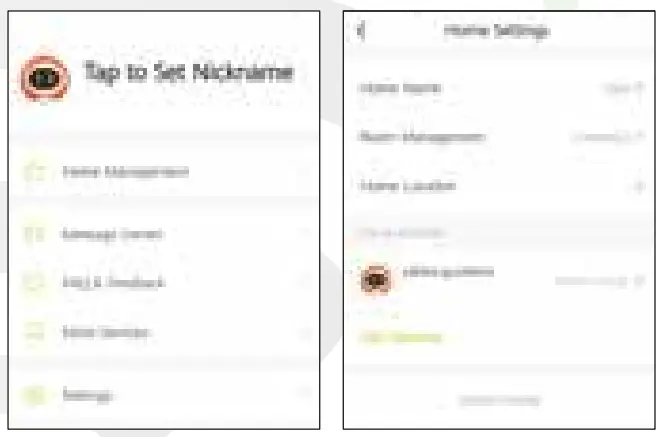
Go to the “Me” profile interface and select “Home management”. Then enter the home you want to share and add or remove family members or friends who will be able to control the devices.
How to configure with Siri Shortcuts
The Lloyd’s smart products are compatible with Siri Shortcuts through routines created from the app. For configuration details, scan the following QR code with your smartphone:
Make sure your smartphone has iOS 12 or higher.
Google Assistant and Amazon Alexa
How to connect to Google Assistant:
- Download and launch the Google Home app, previously configured with your Gmail account and your Google Assistant-enabled device.
- Click on the “+” icon, choose “Set up Device,” then in the “Works with Google” section, click on the search bar and type in Lloyds Smart. When you get the icon, click on it. Enter your Lloyds Smart account and click on “Link now”. Then press on “Authorize” and wait a few seconds.
- Once you have linked Lloyds Smart, the devices added to your account will be displayed, click on “X” (top left corner) and return to the main screen. Now you can control your Lloyd’s Smart devices using just your voice with Google.
NOTE:
You can rename the devices from the Lloyds Smart app to control them with voice commands. Every time you rename the devices, say: “Hey Google, sync devices” or update from the Google Home app.
Try saying “Hey Google” followed by one of the following commands: “Hey Google, turn on TV.”
“Hey Google, turn off fan.”
“Google, Android, Google Play and Google Home are trademarks of Google LLC.”
How to connect to Amazon Alexa:
- Download and access the “Amazon Alexa” app, previously configured with your email account and your virtual assistant.
- Click on the option “Skills & games”, then in the search bar type Lloyds Smart. When you get the icon, click on it. Then press the “Activate to use” button.
- Enter your Lloyds Smart account and click on “Link Now” and finally “Authorize”. You will get the message “Linked successfully”, click on “Close” and wait a few seconds.
- Click “Detect devices” to find the smart devices. Now you can ask your assistant to control them by voice commands.
NOTE:
You can rename the devices from the Lloyds Smart app to control them with voice commands. Every time you rename the devices, say: “Alexa, sync devices” or update from the Amazon Alexa app.
Voice command examples: “Alexa, Turn on TV.”
“Alexa, Turn off fan.”
NOTE:
The Google Home and Amazon Alexa Apps are constantly being updated. For more information, please refer to their user manuals.
Frequent asked questions
– You can control a TV, fan, air conditioner and other devices with infrared technology.
What should I do when I can’t connect the devices with the IR remote control?
– First, make sure that your smartphone and the IR remote control are close and connected to the same network, ensure that the IR remote control is always on and that the distance between it and the device to be controlled does not exceed the range of 8 meters.
– It is required that the IR remote control and the smartphone share the same Wi Fi network when adding the IR remote control for the first time. After the device configuration is successful, you can control it remotely via the 2G / 3G / 4G cellular network. Currently does not support 5G network.
– Verify that the IR remote control is turned on.
– Check if your smartphone is connected to a 2.4 GHz Wi Fi network.
– Check your network connectivity, make sure the router is working properly.
– Make sure that the Wi Fi password entered is correct when adding the IR remote control.
– The infrared signal of the IR remote control cannot pass through walls, make sure that there are no obstacles between it and the controlled devices.
Technical specifications
5 Vdc 1 A
IMPORTED BY:
ZUTTO TECHNOLOGIES, S. A. DE C. V.
Av. Ejército Nacional No. 505 Interior 1602, Col. Granada
Miguel Hidalgo, Ciudad de México, México C.P. 11520
Teléfono: 55 68447575
 lloydscorp.com/qr/lc-1212-man-rutinas/