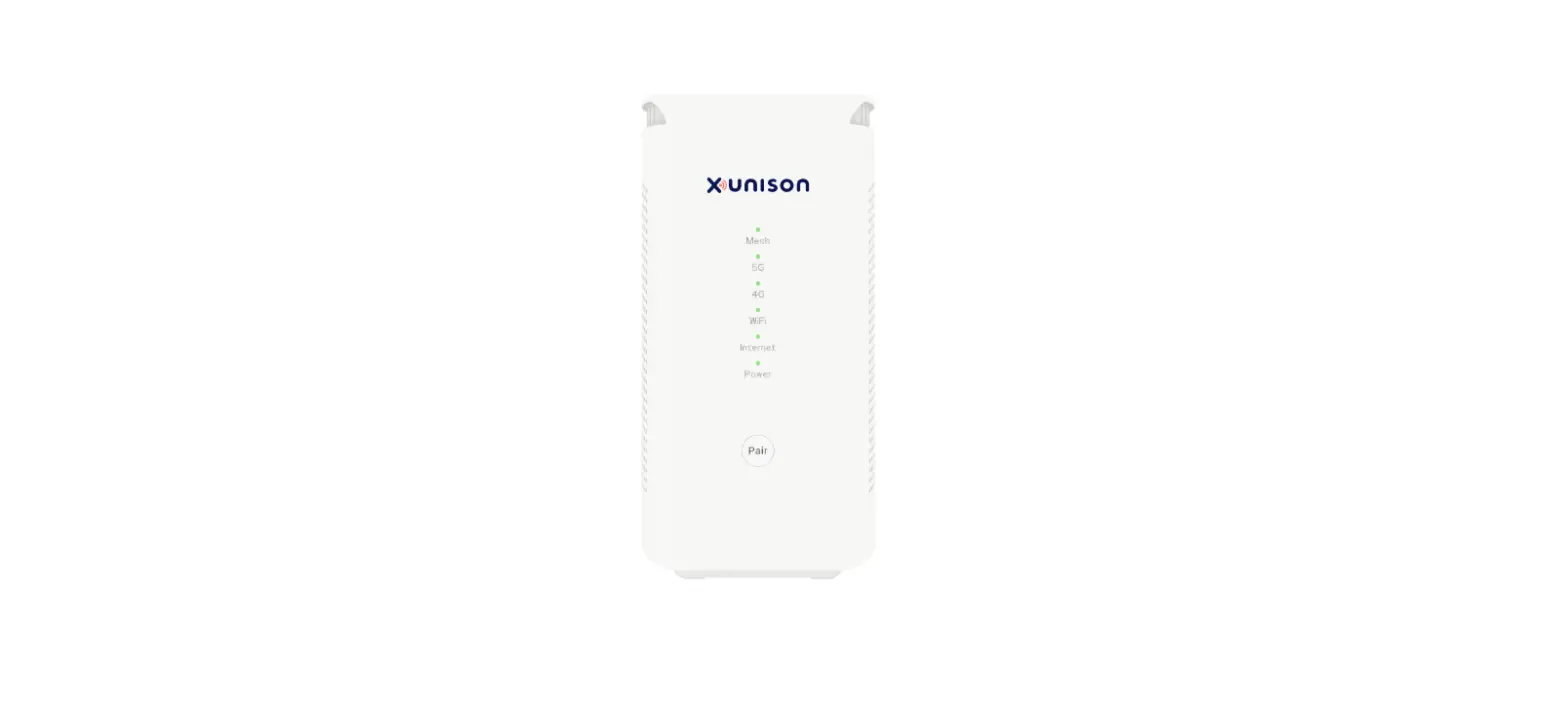
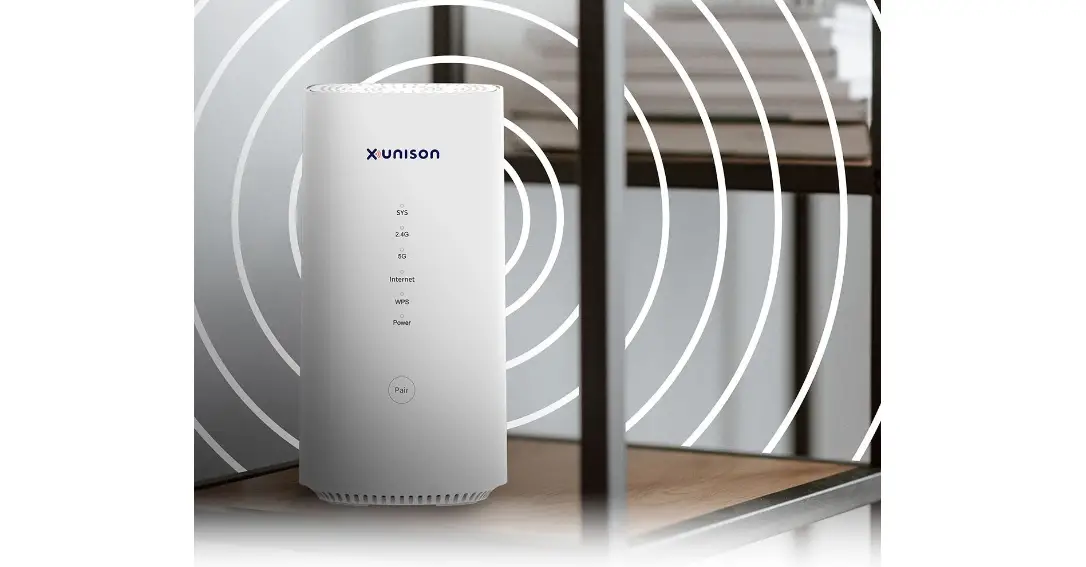
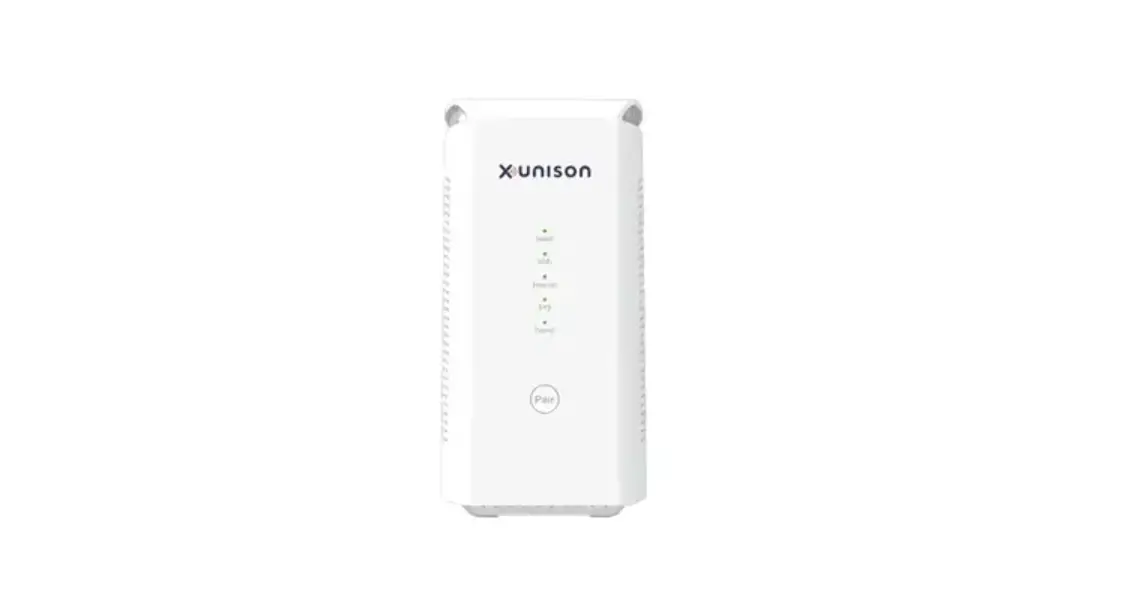
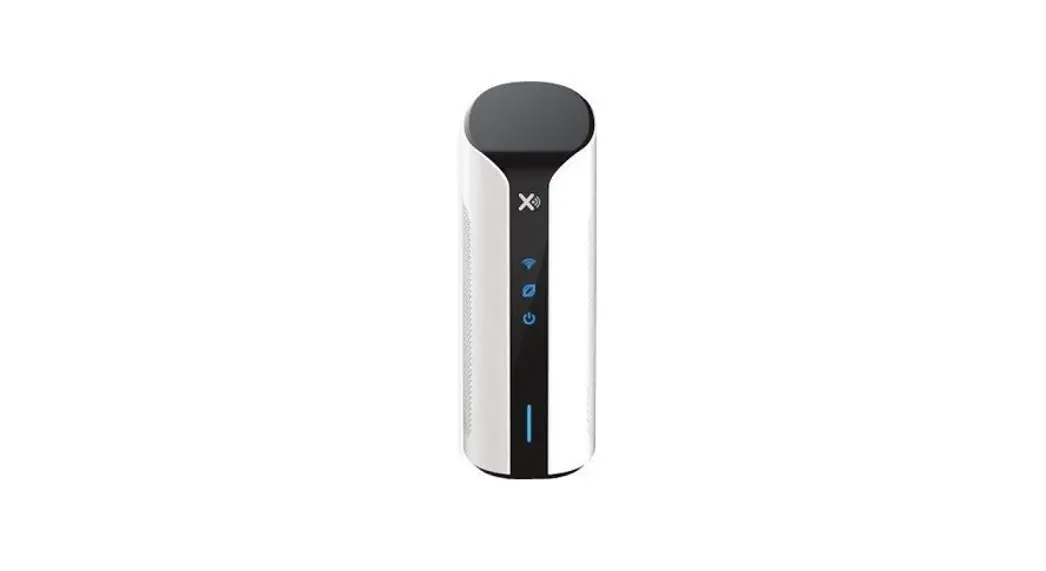
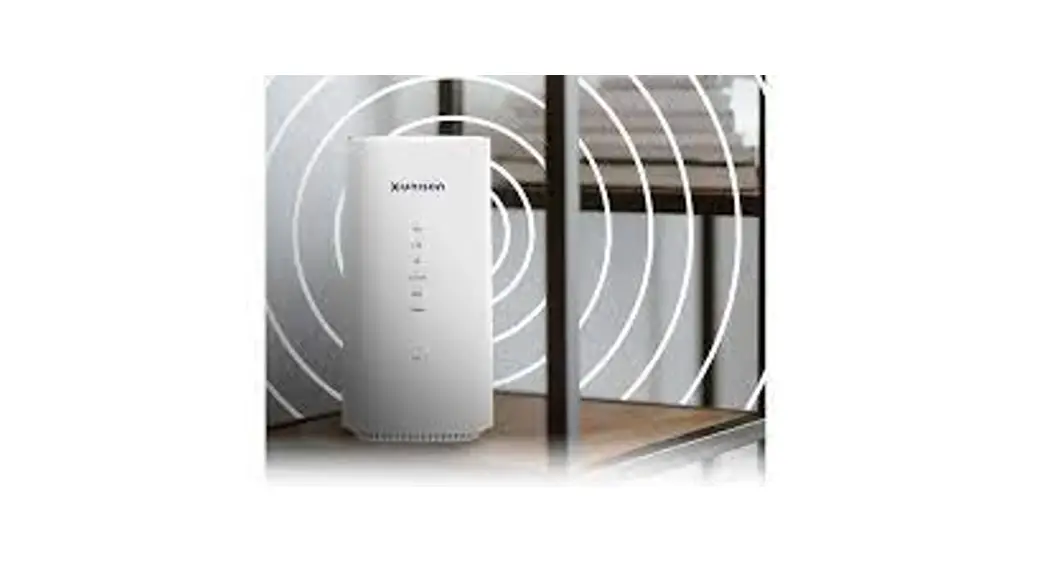
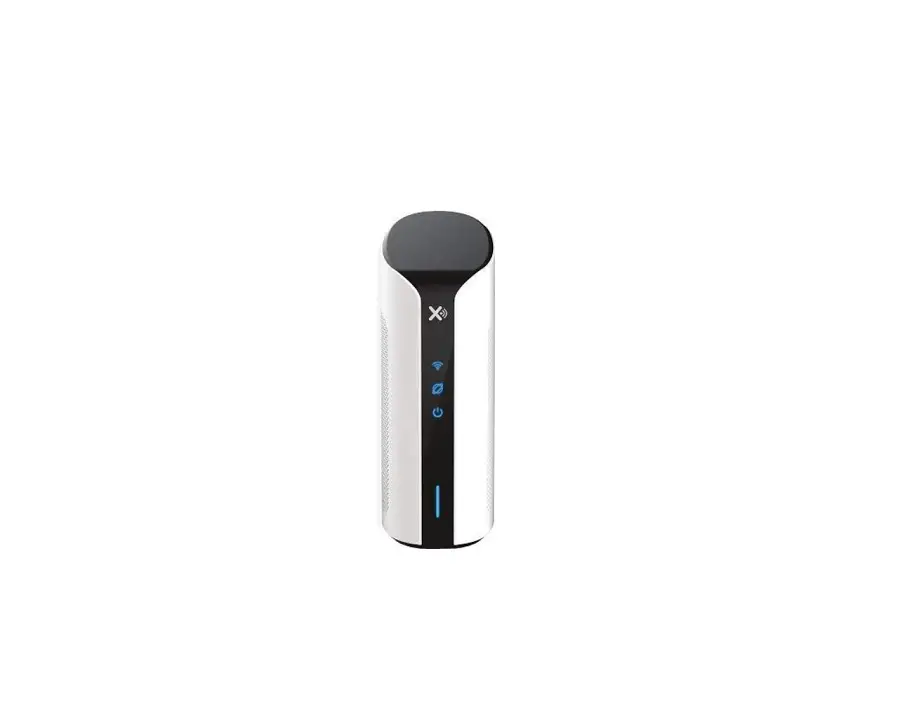
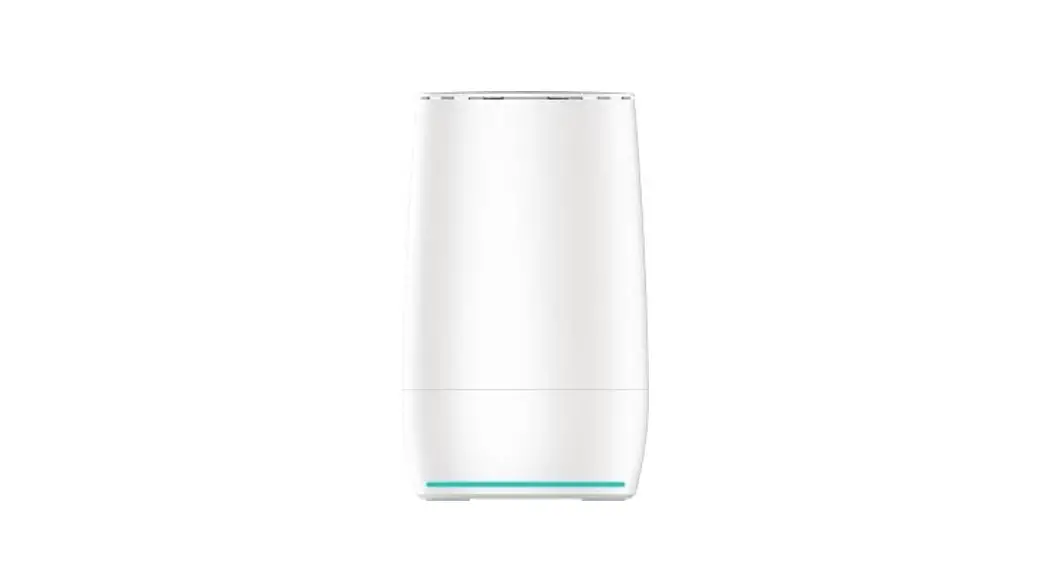
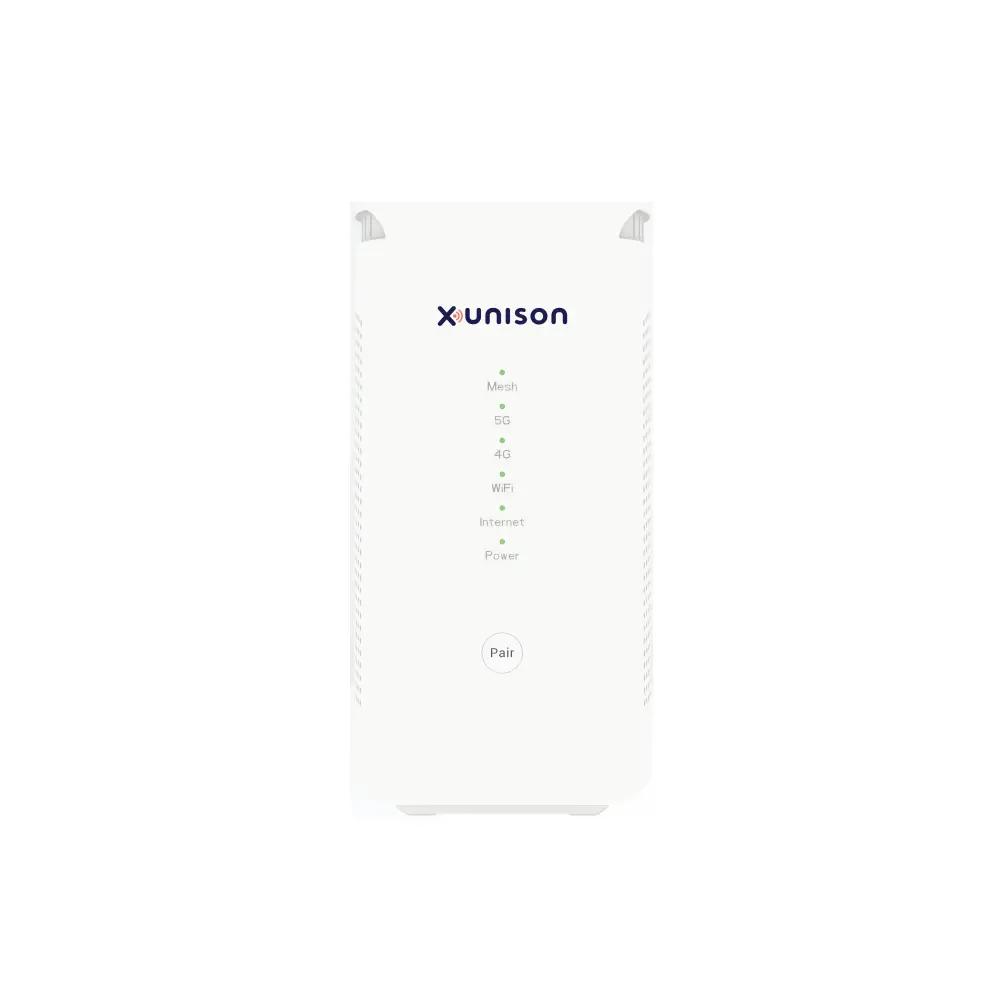
D50 Hub
Product Information
| Product Name | Hub D50 |
|---|---|
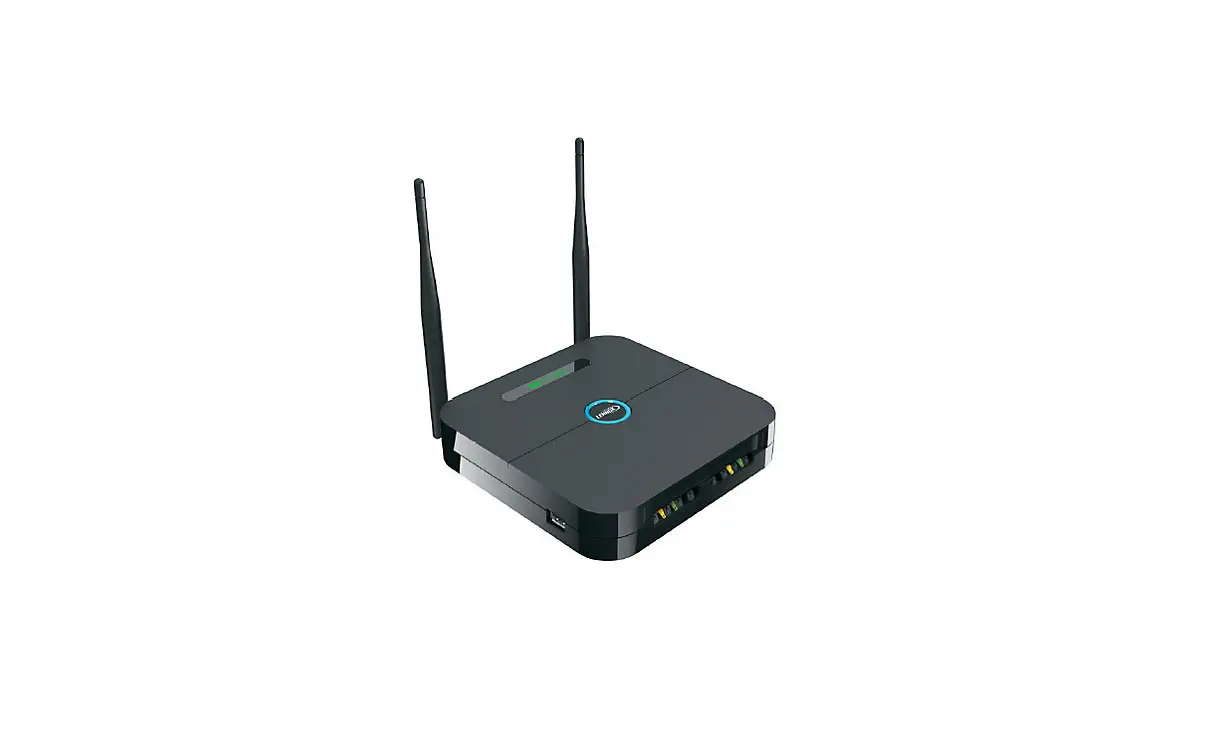
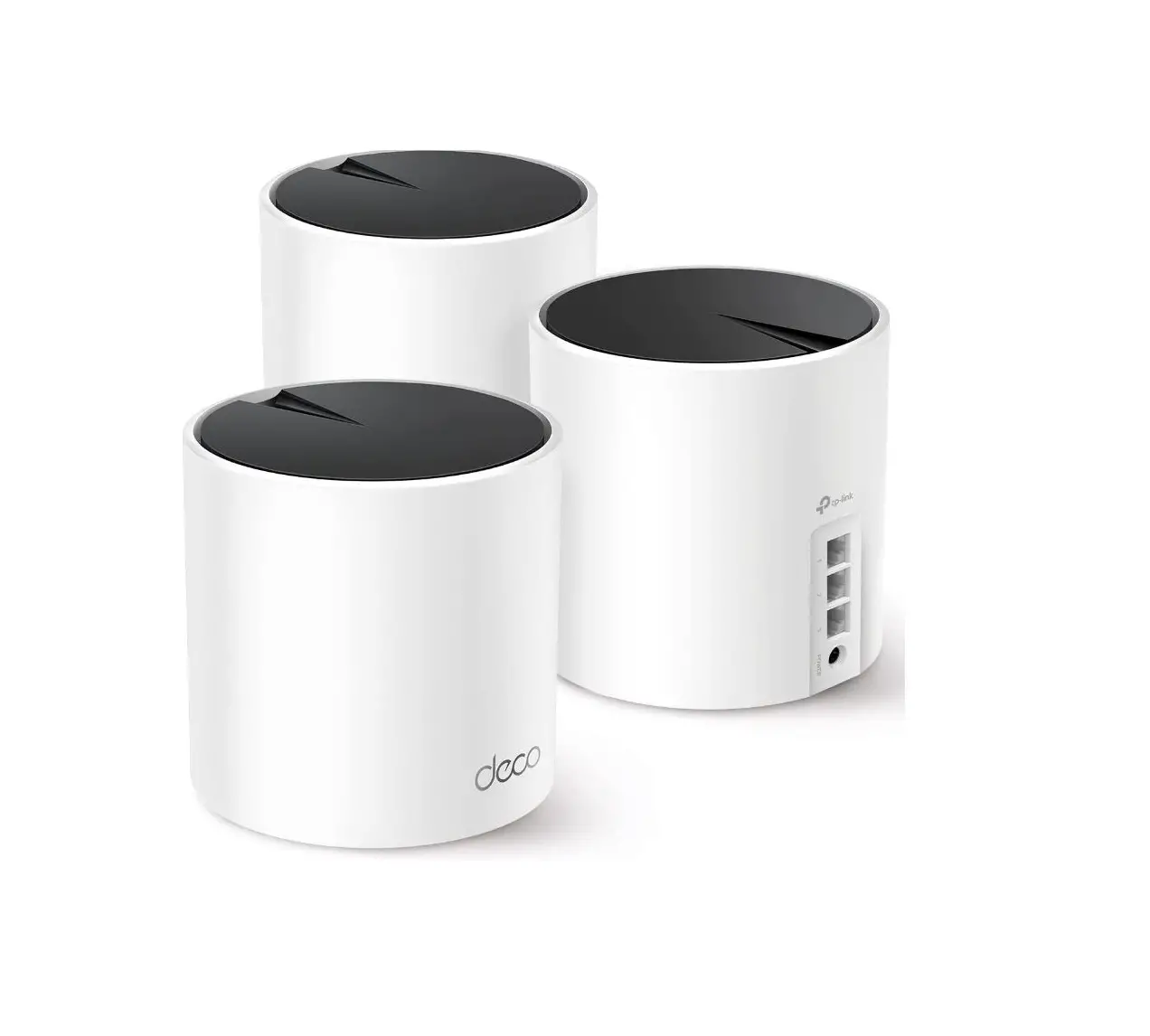
| Product Introduction | The Xunison Hub D50 is a powerful Mesh Wi-Fi system that uses Wi-Fi 6 technology to provide high-speed internet up to 5400 Mbps. It supports numerous devices and maintains high data rates and signal quality even with multiple devices connected, providing a stable and uninterrupted internet connection. |
| Wi-Fi Compatibility | This device supports Wi-Fi 6 and is compatible with various Wi-Fi standards, including older ones, for reliable connections with a range of devices. |
| Mesh Technology | Mesh technology boosts Wi-Fi coverage, eliminates dead zones, and ensures reliable connection. It also offers easy setup with rapid one-button pairing. |
| Parental Control | This feature helps parents monitor and control their child’s internet activity. It includes web content filtering, time limits, and social supervision, promoting online safety and responsible habits. |
Product Usage Instructions
Product Installation
- Ensure the cables are connected.
- Connect the power cable (labeled 1) to the device.
- Press the power button (labeled 2) to turn on the device.
Product Configuration
- Connect your mobile device to the Xunison Hub D50 network by
entering the Wi-Fi details printed on the device sticker. - Install the Xunison app:
- Option 1: Scan the QR code on the welcome card.
- Option 2: Download the Xunison app from Google Play store or
App store.
to access the features of the Xunison Hub D50.
LED Indicators
| LEDs | Color | Symbol | Status |
|---|---|---|---|
| Wi-Fi | Solid Green | OFF | Wi-Fi OFF |
| Internet | Solid Green | OFF | No internet connection |
| System | Solid Green | SYS | System fully loaded |
| Power | Solid Green | OFF | Powered OFF |
LED Mode
| LED Mode | Color | Symbol | Status |
|---|---|---|---|
| Gateway | Solid Green | – | Mesh Network Connected/Regular |
| Mesh Satellite | Blinking Green | – | Gateway Pairing Successfully paired |
| Mesh | Quick Blinking Orange | – | Mesh Failed |
Ports and Interfaces
| Ports | Description |
|---|---|
| 3GE x LAN | To connect PCs, Laptops, etc. via Ethernet cables. |
| 1GE x WAN | Connect Ethernet cable from Xunison Hub D50 router to ISP source. |
| DC jack | For power supply (12V 2A). |
| POWER button | Turn the device On/Off |
| PAIR button | Long press for 5-10 seconds to setup the Mesh mode. |
| RESET button | Press for 10 seconds to factory reset the device to default settings. |
Safety Guidelines
General tips:
- Use only original and certified cables.
- Avoid exposing the device to water during storage,
transportation, and operation. - Keep the device away from heat sources and ensure adequate
ventilation. - Do not use any corrosive cleaner/oil to clean the device.
- Keep the device out of reach of children.
Installation tips:
- Check the cable connections after installing the device.
- Place the Xunison Hub D50 in an appropriate location for
seamless internet connectivity. - Restart the device in case of any internet connectivity
problems. - Change your Wi-Fi passwords regularly.
Hub D50
Quick Start
Guide
1
1 Product Introduction
Hub D50
The Xunison Hub D50 is a powerful Mesh Wi-Fi system that uses Wi-Fi 6 technology to provide high-speed internet up to 5400 Mbps. It supports numerous devices and maintains high data rates and signal quality even with multiple devices connected, providing a stable and uninterrupted internet connection.
Wi-Fi 6 This device supports Wi-Fi 6 and is compatible with various Wi-Fi standards, including older ones, for reliable connections with a range of devices.
Mesh Mesh technology boosts Wi-Fi coverage, eliminates dead zones, and ensures reliable connection. It also offers easy setup with rapid one-button pairing.
Parental control
This feature helps parents monitor and control their child’s internet activity. It includes web content filtering, time limits, and social supervision, promoting online safety and responsible habits.
1
2 Product Installation
Hub D50
2.1 Ensure the cables are connected.
1. Connect the power cable (labeled “1”) to the device. 2. Press the power button (labeled “2”) to turn on the device.
2
1
2
3 Product Configuration
Hub D50
Step 1: Connect your mobile device to the Xunison Hub D50 network by entering the Wi-Fi details printed on the device sticker.
Step 2:To install the Xunison app, you can either scan the QR code on the welcome card.
OR
Step 2: Alternatively, you can also download the Xunison app from Google Play store or App store.
After installing the app, log in with your registered account to access the features of the Xunison Hub D50.
3
4 LED Indicators
LEDs
Wi-Fi Internet
Color
Solid Green OFF
Solid Green OFF
Symbol
Wi-Fi Internet
Solid Green
System
SYS
OFF
Power
Solid Green OFF
Power
Hub D50
Status
Wi-Fi ON Wi-Fi OFF Internet connected No internet connection System fully loaded System is loading Powered ON Powered OFF
4
Hub D50
LED Mode Color Symbol
Status
Solid Green Gateway
Mesh
Blinking Green
Mesh Satellite
Quick Blinking Orange
Solid Green
Mesh
Mesh Network Connected/Regular
Gateway Pairing
Satellite Pairing Successfully paired
Blinking Red
Mesh Failed
5
Hub D50
5 Ports and Interfaces
Ports
Description
3GE x LAN
To connect PCs, Laptops, etc. via Ethernet cables.
To charge devices such as smart USB 2.0 phone, power bank etc.
1GE x WAN
Connect Ethernet cable from Xunison Hub D50 router to ISP source.
DC jack For power supply( 12V 2A ).
BBuuttoonn
POWER PAIR
RESET
DesDcersicprtipiotinon
Turn the device On/Off Long press the PAIR button for 5-10 seconds to setup the Mesh mode.
Press the “RESET” button for 10 seconds to factory reset the device to default settings.
6
6 Safety Guidelines
Hub D50
General tips:
Use only original and certified cables. Avoid exposing the device to water during storage, transportation, and operation. Keep the device away from heat sources and ensure adequate ventilation. Do not use any corrosive cleaner/oil to clean the device. Keep the device out of reach of children.
Installation tips:
Check the cable connections after installing the device. Place the Xunison Hub D50 in an appropriate location for seamless internet connectivity. Restart the device in case of any internet connectivity problems. Change your Wi-Fi passwords regularly.
Caution:
Do not disassemble the device in case of malfunction or damage. Instead, change the connections and contact technical support for assistance.
7
7 RF Parameters
Hub D50
Function
2.4 GHz Wi-Fi 5 GHz Wi-Fi
Frequency Range
2412-2462MHz
5150 ~ 5850 MHz
Transmit Power
(EIRP) 22.76dBm
25.47dBm
Support For answers to your support questions and to access the latest downloads and product services, please visit xunison.com/support. If you experience any issues with our product features or functionality, you can also submit a ticket for assistance.
8
Hub D50
Disposal Note
It is important to properly dispose of electronic waste to prevent harm to the environment and human health. This product should be taken to a designated collection point for recycling of waste electrical and electronic equipment. You can contact your household waste disposal service or the seller of the product for more information on where to drop off your waste equipment for recycling.
This means that the device is only permitted to operate on Wireless Access Systems, such as radio local area networks, within the frequency band of 5150-5350 MHz for indoor use only, and only within the countries of the European Union listed: BE/BG/CZ/DK/DE/EE/IE/EL/ES/FR/ HR/IT/CY/LV/LT/LU/HU/MT/NL/AT/PL/PT/RO/SI/SK/FI/SE/TR/ NO/CH/IS/LI/UK(NI).
The device is not permitted to operate outdoors within this frequency band or in other countries outside of the EU without the appropriate regulatory approvals.
9
Hub D50
Declaration of Conformity
Hereby, Xunison Ltd. declares that the radio equipment type D50 is in compliance with Directive 2014/53/EU. The full text of the EU declaration of conformity is available at the following internet address: xunison.com/support
Compliance Any Changes or modifications not expressly approved by the party responsible for compliance could void the user’s authority to operate the equipment. This device complies with part 15 of the FCC rules. Operation is subject to the following two conditions: (1) This device may not cause harmful interference, and (2) this device must accept any interference received, including interference that may cause undesired operation. This equipment complies with FCC radiation exposure limits set forth for an uncontrolled environment. This equipment should be installed and operated with minimum distance 20cm between the radiator and your body
Note: This equipment has been tested and found to comply with the limits for a Class B digital device, pursuant to part 15 of the FCC Rules. These limits are designed to provide reasonable protection against harmful interference in a residential installation. This equipment generates, uses and can radiate radio frequency energy and, if not installed and used in accordance with the instructions, may cause harmful interference to radio communications. However, there is no guarantee that interference will not occur in a particular installation. If this equipment does cause harmful interference to radio or television reception, which can be determined by turning the equipment off and on, the user is encouraged to try to correct the interference by one or more of the following measures:
–Reorient or relocate the receiving antenna. –Increase the separation between the equipment and receiver. –Connect the equipment into an outlet on a circuit different from that to which the
receiver is connected. –Consult the dealer or an experienced radio/TV technician for help.
10
Bracken Business Park, Bracken Rd, Sandyford Business Park, Sandyford, Dublin, Ireland
www.xunison.com
 Home - Xunison
 Support - Xunison