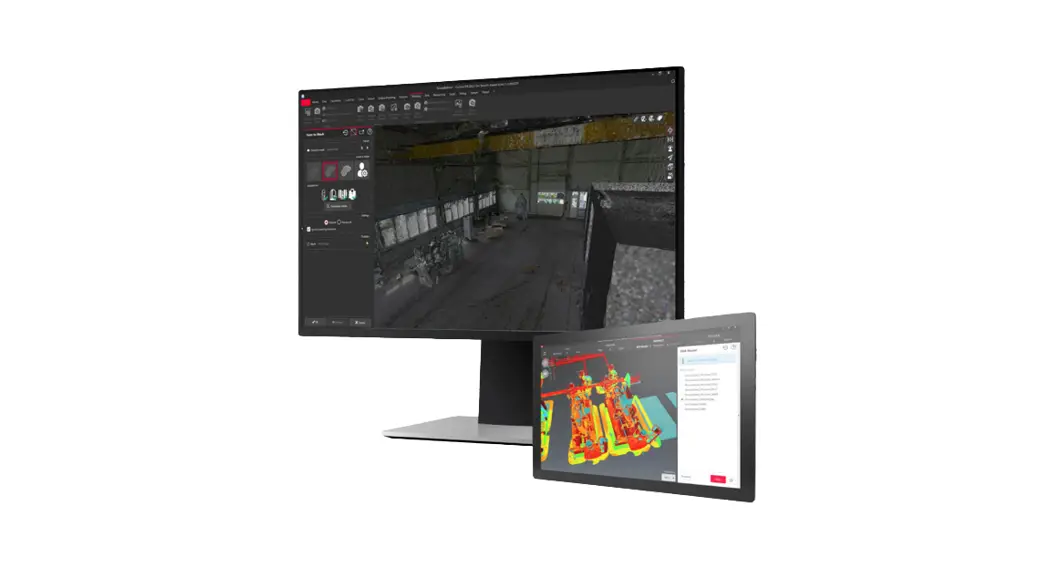
Venus Control Suite Data Studio App
Product Information: Venus Control Suite Data Studio App
The Venus Control Suite Data Studio App is a tool designed to
manage the data feeds used for display purposes. It allows users to
create new data feed sources, configure settings, and trim the data
to be received and processed.
Some features of Data Studio may vary based on the Venus
Subscription level.
Accessing Data Studio
- Log in to Venus Control Suite.
- Select an account.
- Click Data Studio from the My Apps menu.
Creating a New Data Feed
- Click Add Data Source and select an option.
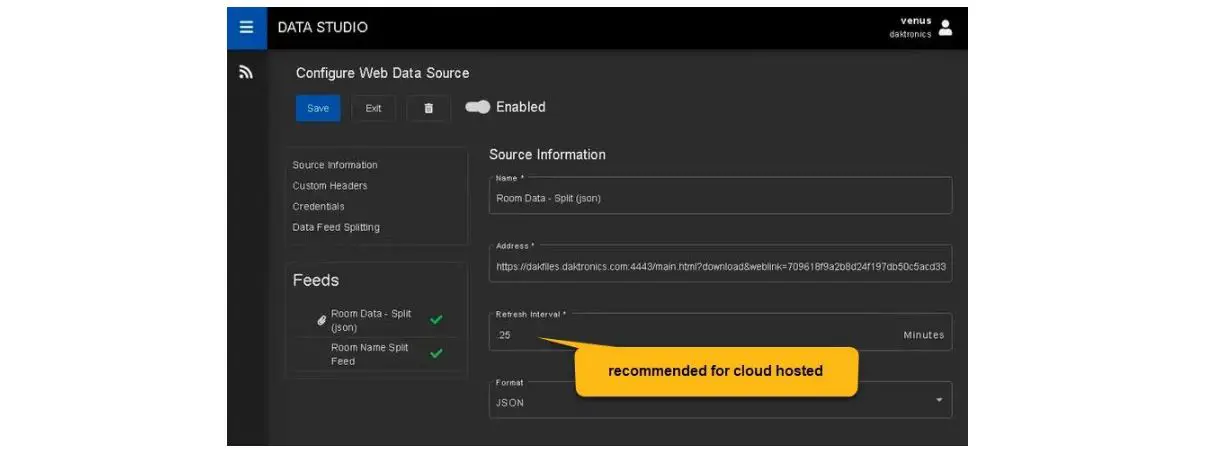
- Enter a Name for the new data feed source.
- Enter the desired URL.
- Select Additional Configurations and enter the user name and
password if required. - Enter Custom Headers.
- Set the Refresh Interval. Note: Most data feeds update once an
hour. - Click Next to move to Data Trimming.
- Click Select Properties to trim the feed’s properties.
- Select the items to be enabled. To limit the number of shown
items from a single property, click All Items and select Custom,
then input the desired max. - Click Done.
- Click Save to finish creating a new data feed.
Note: Once created, the data feeds can be altered to fit
changing needs by clicking and altering the desired
information.
Countdowns and Count-Ups
All countdown and count-up functionality has been moved to the
Web Editor App. For more information, refer to the Web Editor App
Quick Guide.
Venus Control Suite Data Studio App Quick Guide
Page 1 of 2
This guide is designed to help Venus Control Suite (VCS) customers operate the Data Studio App. Data Studio is used to manage the data feeds used for display purposes. Some features of Data Studio vary based on Venus Subscription level.
Accessing Data Studio
1. Log in to Venus Control Suite.
2. Select an account. 3. Click Data Studio from the My Apps menu. Refer to
Figure 1.
Figure 1: Data Studio
Create a New Data Feed
1. Click Add Data Source and select an option. Refer to Figure 2.
2. Enter a Name for the new data feed source. Refer to Figure 3.
3. Enter the desired URL.
4. Select Additional Configurations and enter the user name and password if the data source requires credentials.
5. Enter Custom Headers.
Figure 2: Add Data Feed
6. Set the Refresh Interval.
Note: The refresh dictates how often the feed will refresh. Most data feeds update once an hour.
7. Click Next to move to Data Trimming.
Figure 3: Source Information Menu
Figure 4: Data Trimming Menu
DD5292186 Rev 00 27 June 2023
201 Daktronics Drive Brookings, SD 57006 www.daktronics.com/support 800.325.8766
Venus Control Suite Data Studio App Quick Guide
Page 2 of 2
8. Click Select Properties to trim the feed’s properties. Refer to Figure 4.
Note: The feed’s properties dictates what parts of the feed will be received and processed. The list defaults with no properties selected, so a selection must be made.
9. Select the items to be enabled. To limit the number of shown items from a single property, click All Items and select Custom, then input the desired max. Refer to Figure 5.
10. Click Done.
11. Click Save to finish creating a new data feed.
Note: Once created, the data feeds can be altered to fit changing needs. Edit the data feeds by clicking and altering the desired information.
Countdowns and Count-Ups
All countdown and count-up functionality has been moved to the
Figure 5: Data Properties
Web Editor App. More information regard the Web Editor app can be found
in the Web Editor App Quick Guide (DD4954554).
DD5292186 Rev 00 27 June 2023
201 Daktronics Drive Brookings, SD 57006 www.daktronics.com/support 800.325.8766