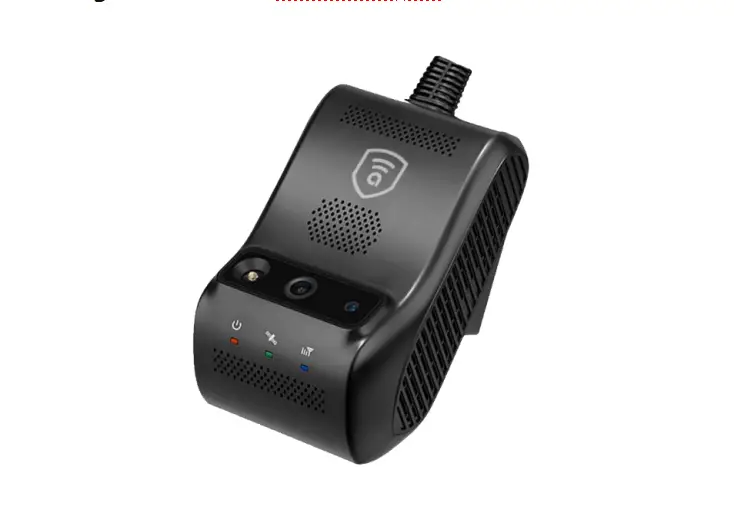

amber connect AVC410 Dual 4G Telematics HD Dashcam
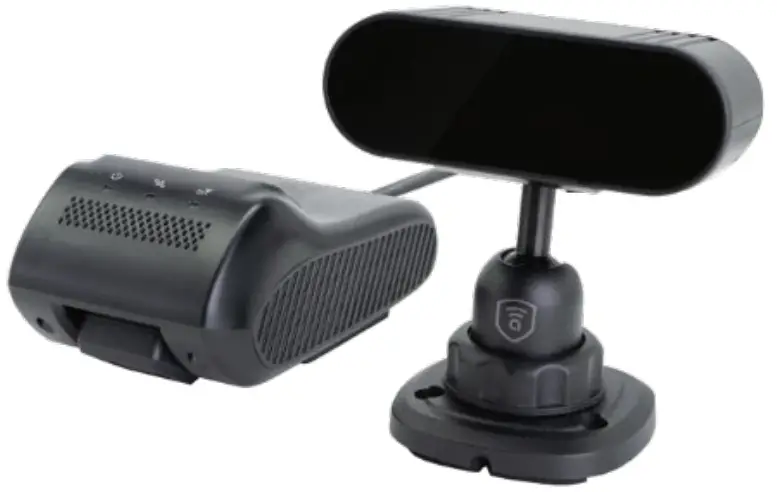
Start Guide
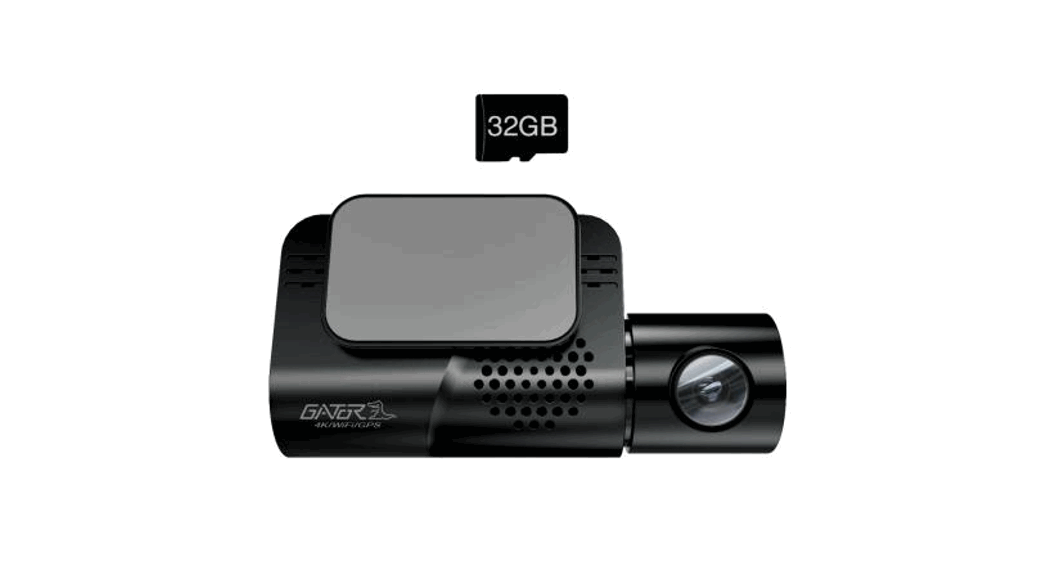
Packing List
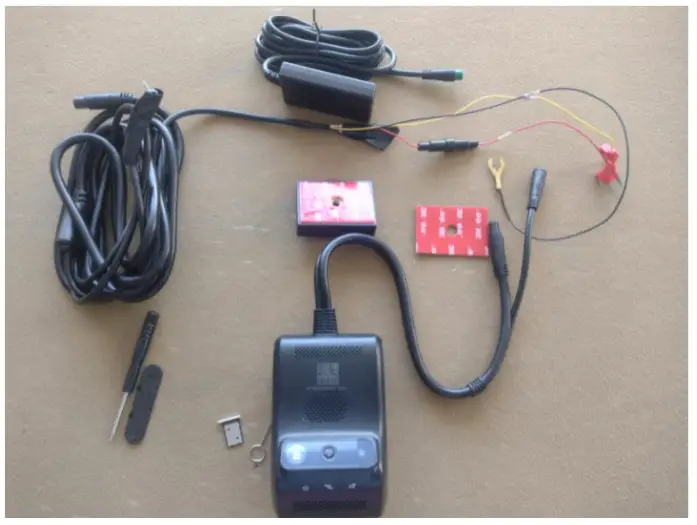
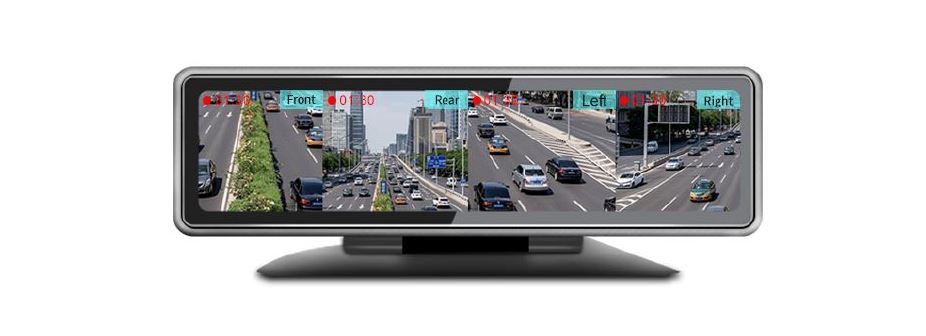
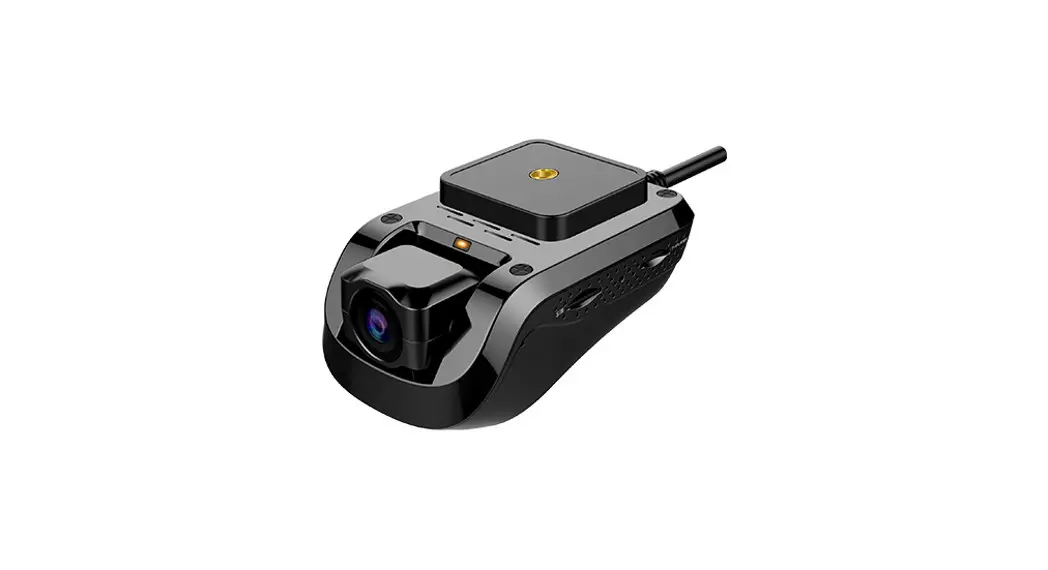
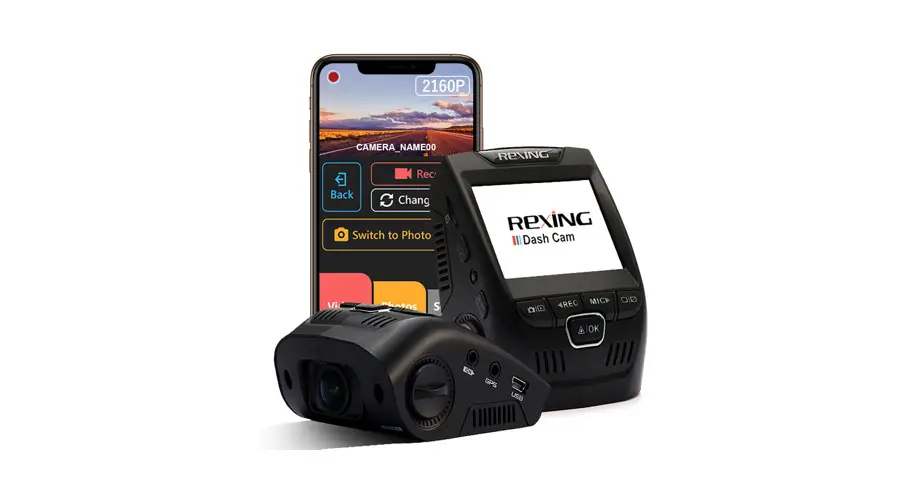
STANDARD
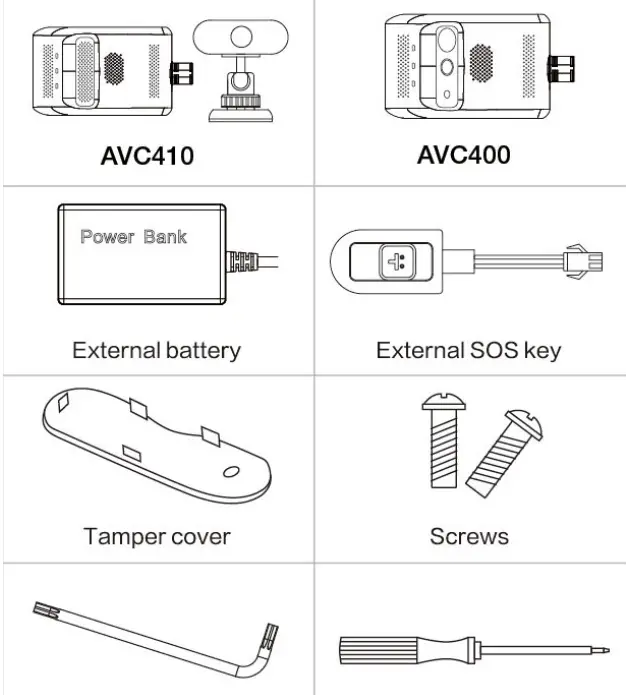
OPTIONAL
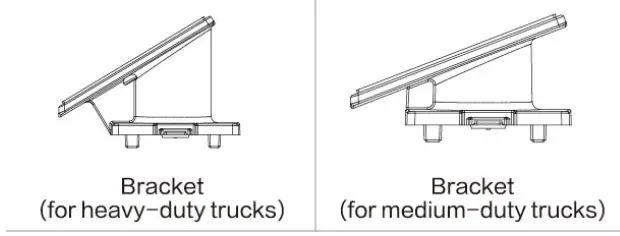
Please check the product model you purchased carefully as the packing list varies with the model.
Overview
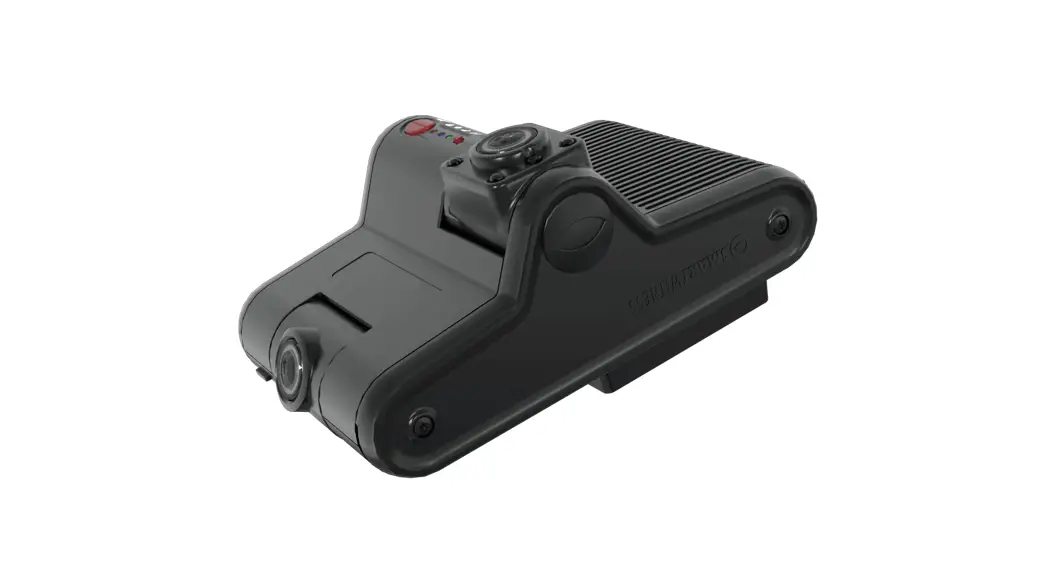
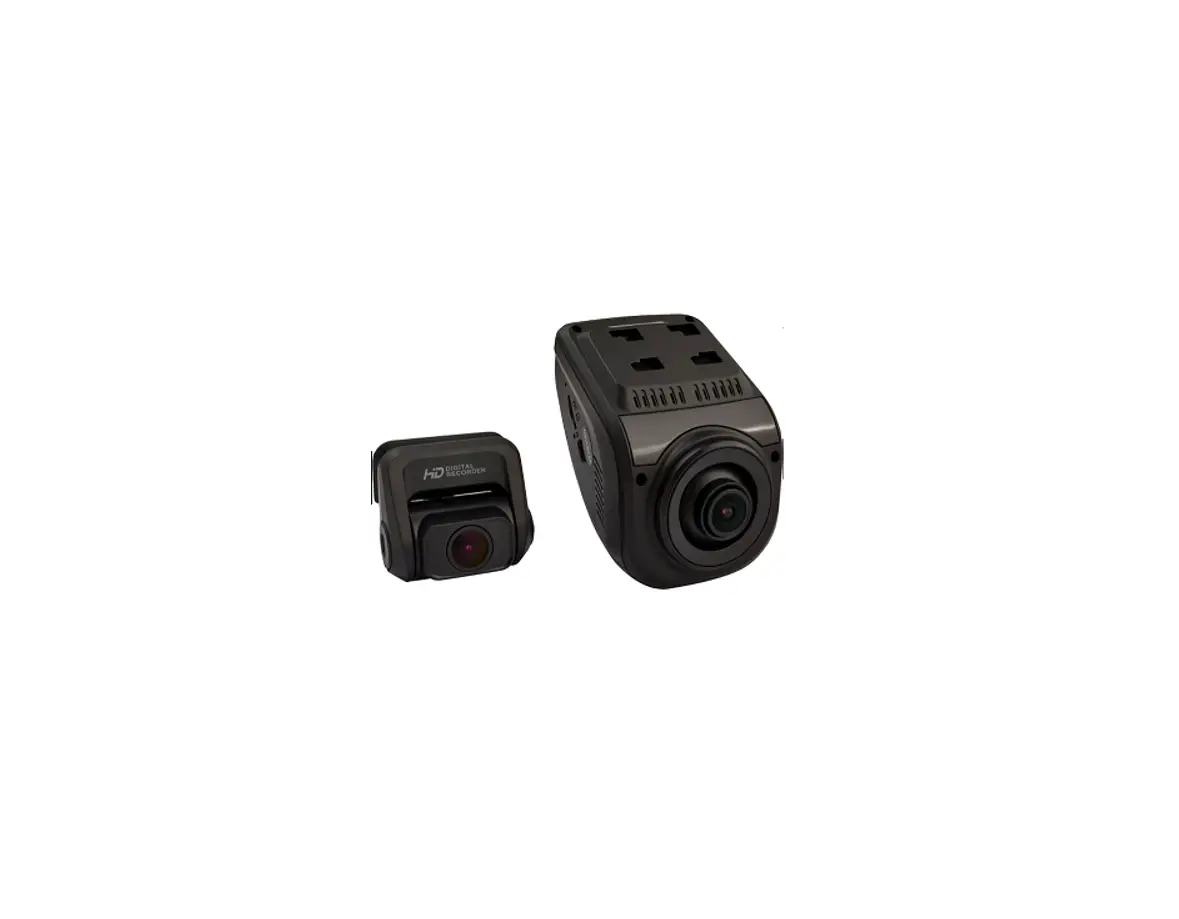
AVC400 series uses 4G network for communication. For these dualchannel digital video recorders (DVRs), except to be able to record simultaneously, the two cameras can also record locally and live stream remotely at the same time. The front-facing HD camera is used for reel-time recording; while the cabin-view camera with IR LED for monitoring at night time. Combined with DMS, driving behavior analysis, multiple alert options, and much more, they can assist the management in monitoring the vehicle condition and the driver’s behavior at any time. This is very useful to coach driver’s behavior, improve management efficiency, and lower operation cost, making AVC400 series an ideal option for remotely managing ridesharing, rental, public, government, and enterprise fleets.
Appearance and LEDs
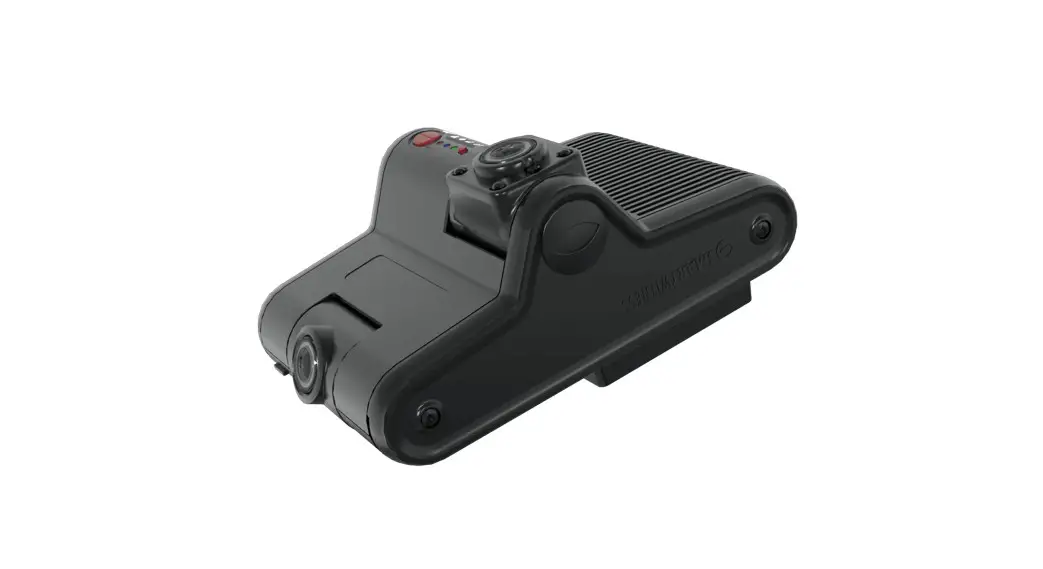
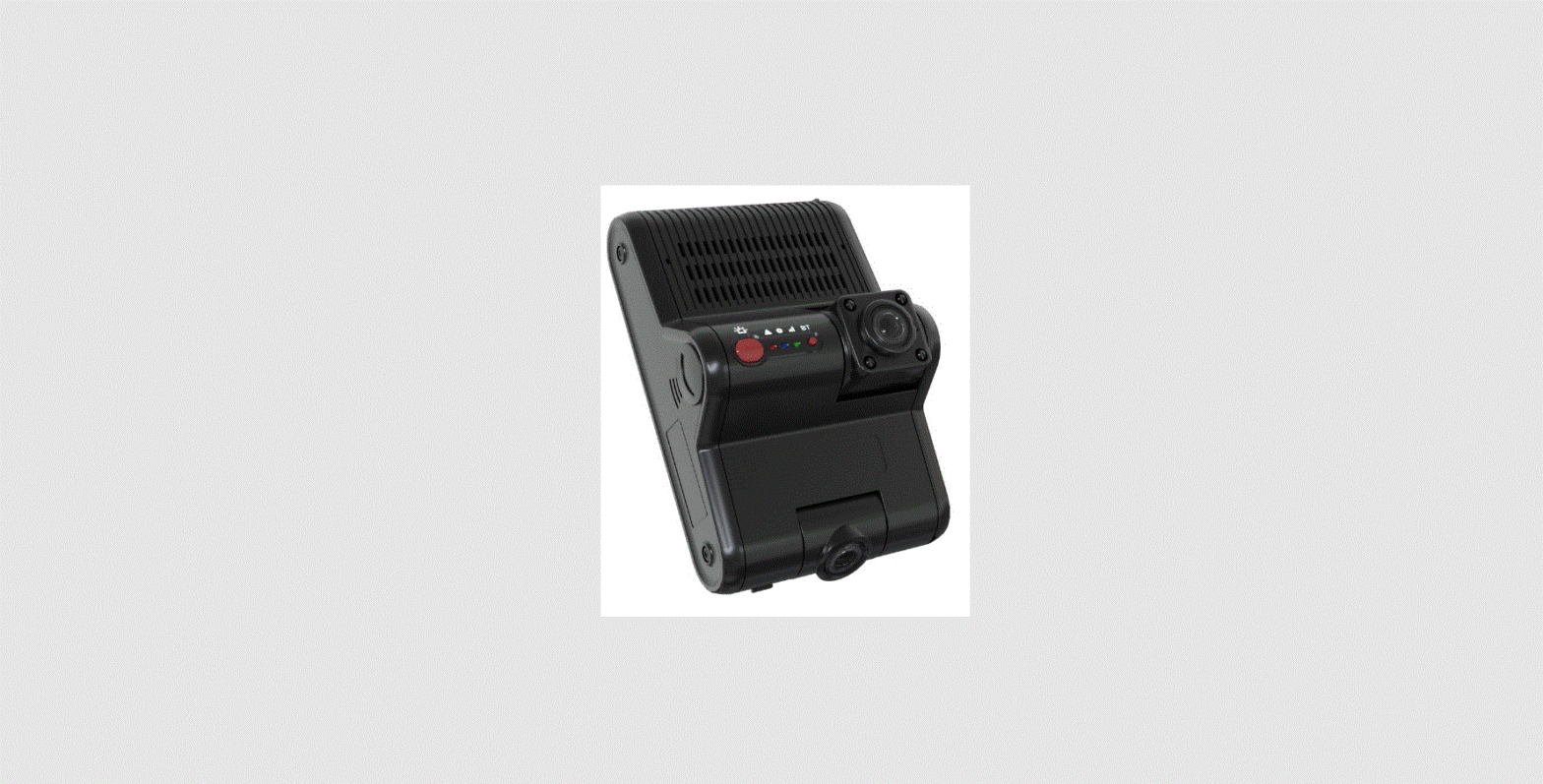
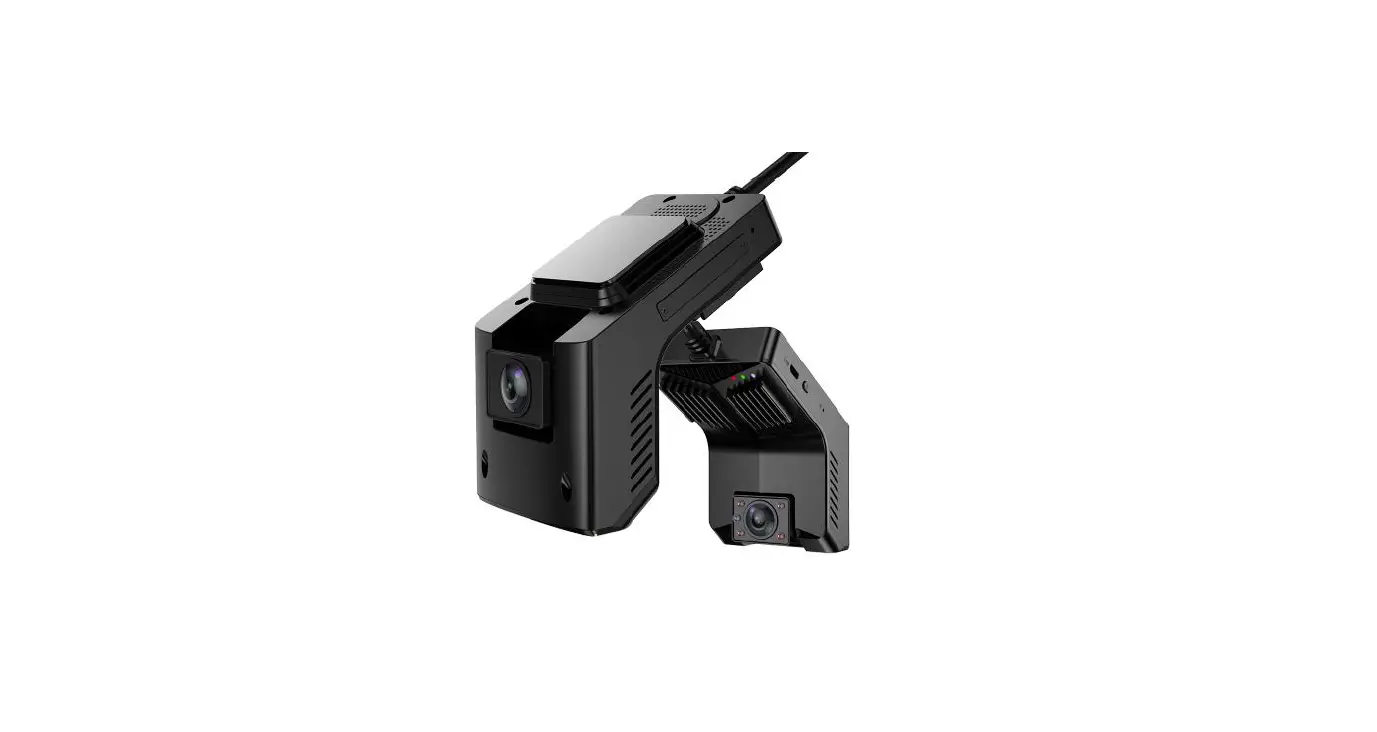
Main Unit
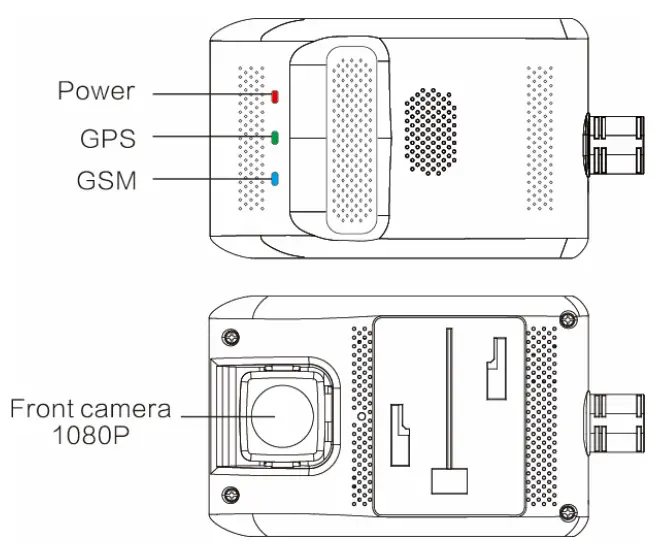
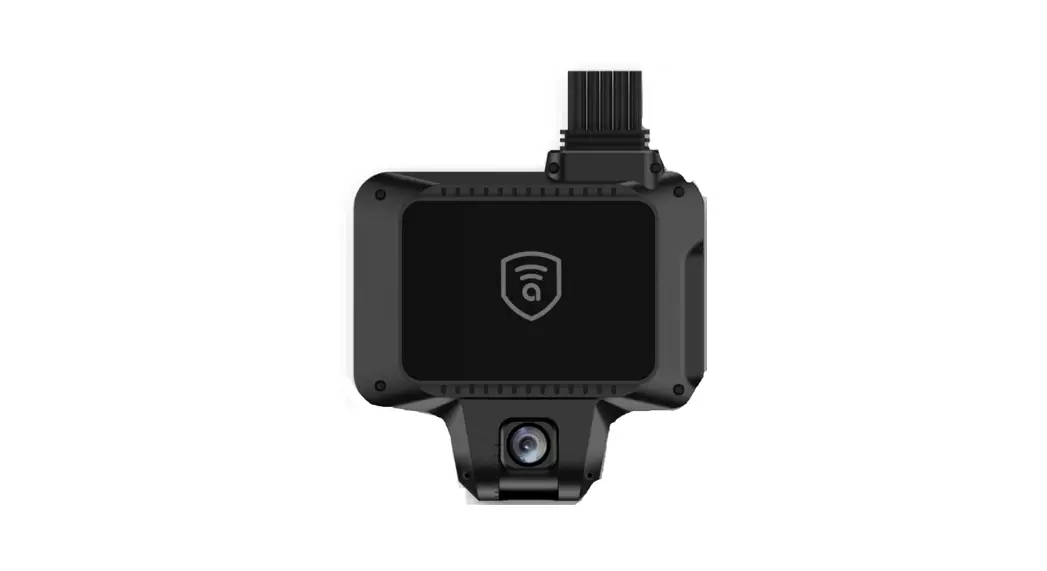
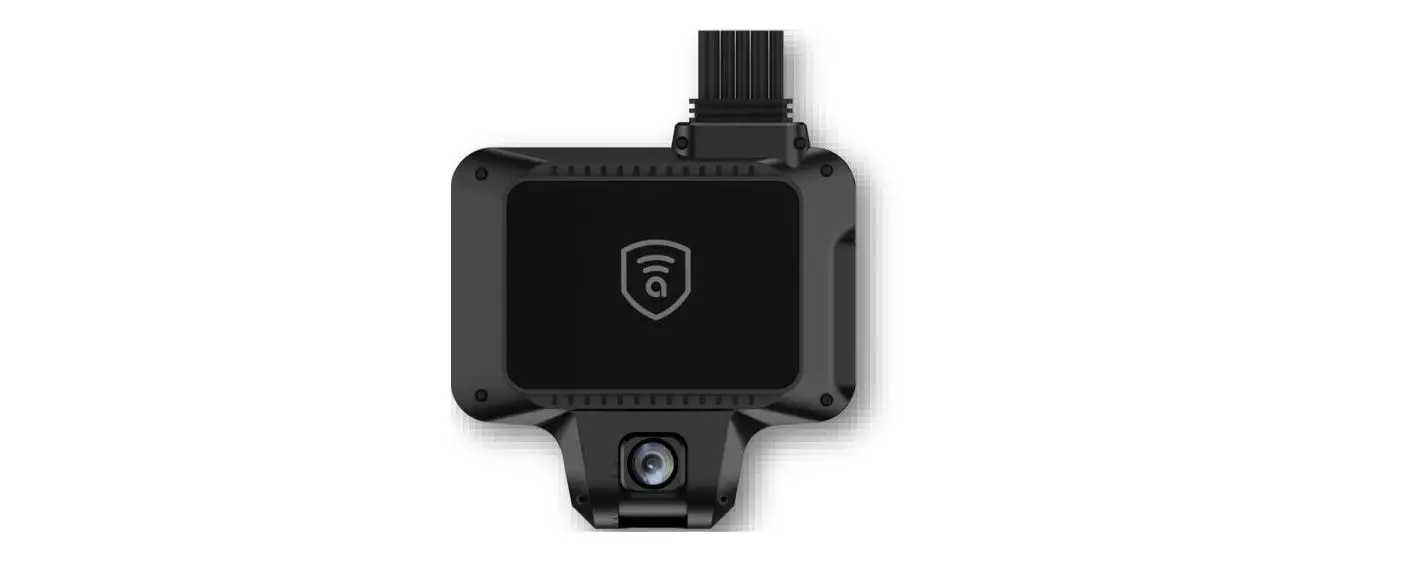
Product Model: AVC400/AVC410 main unit
Camera: 1920×1080/25FPS/F 2.0/Full color
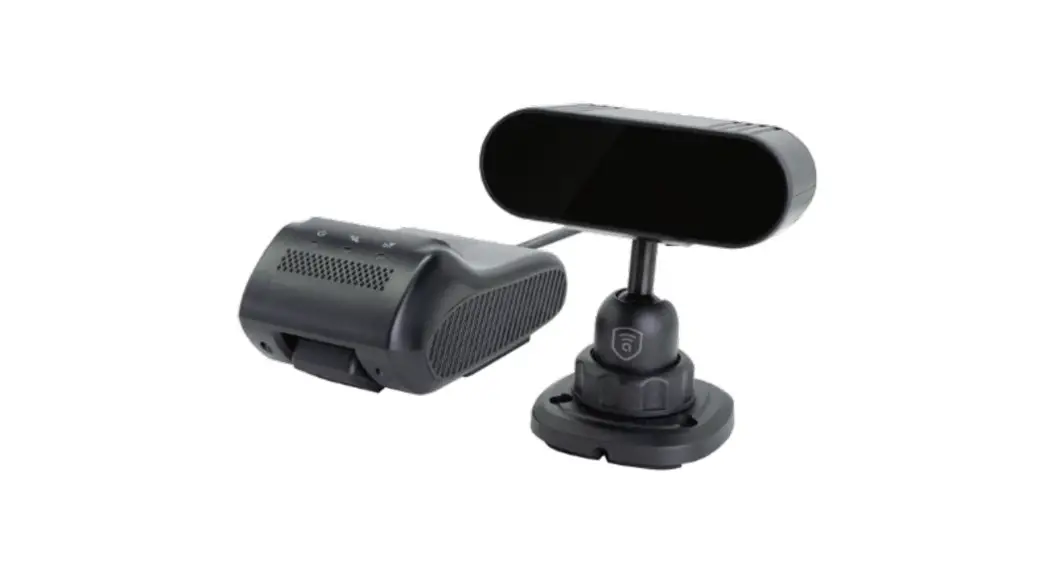
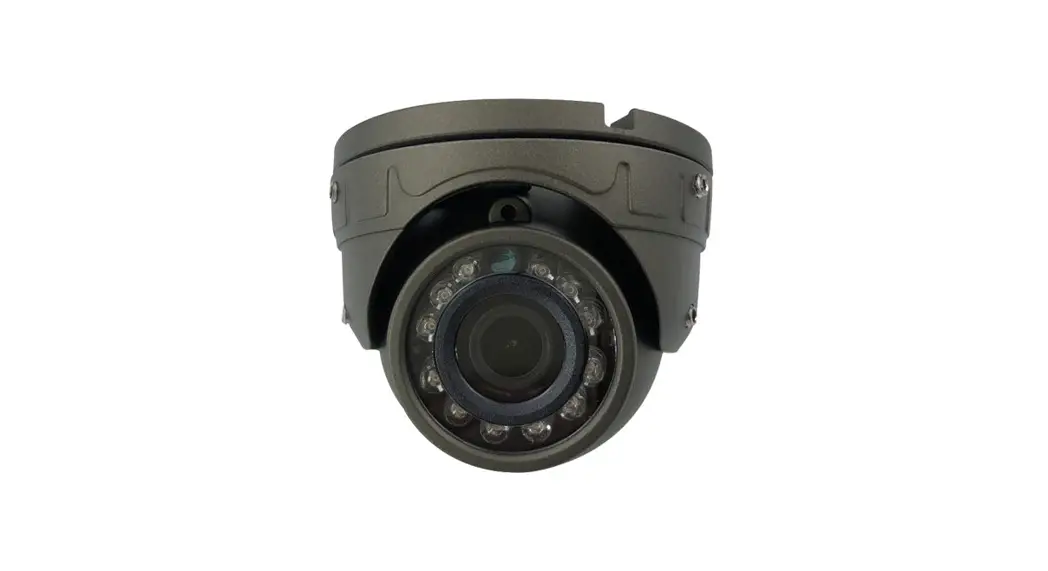
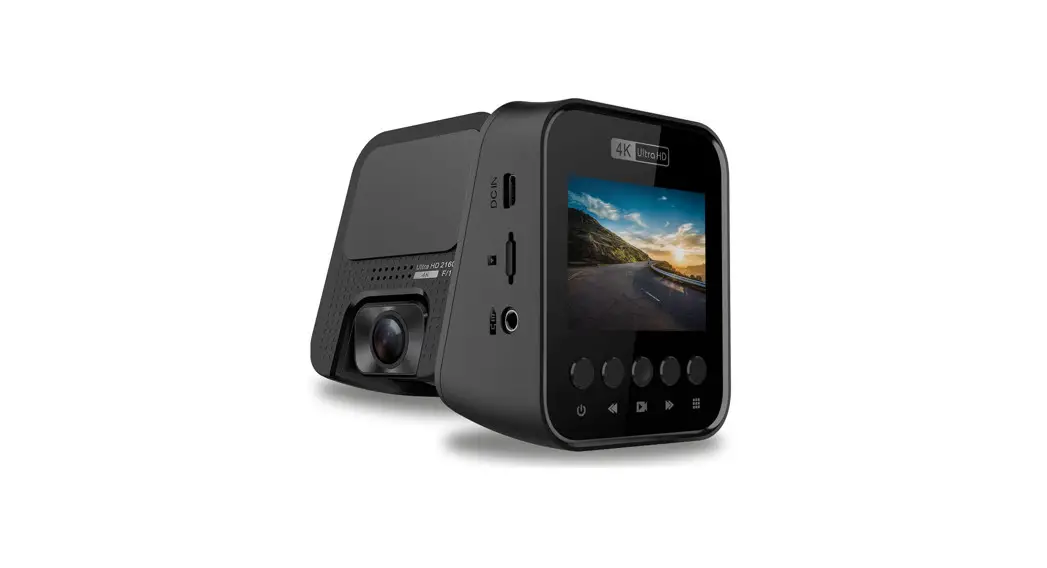
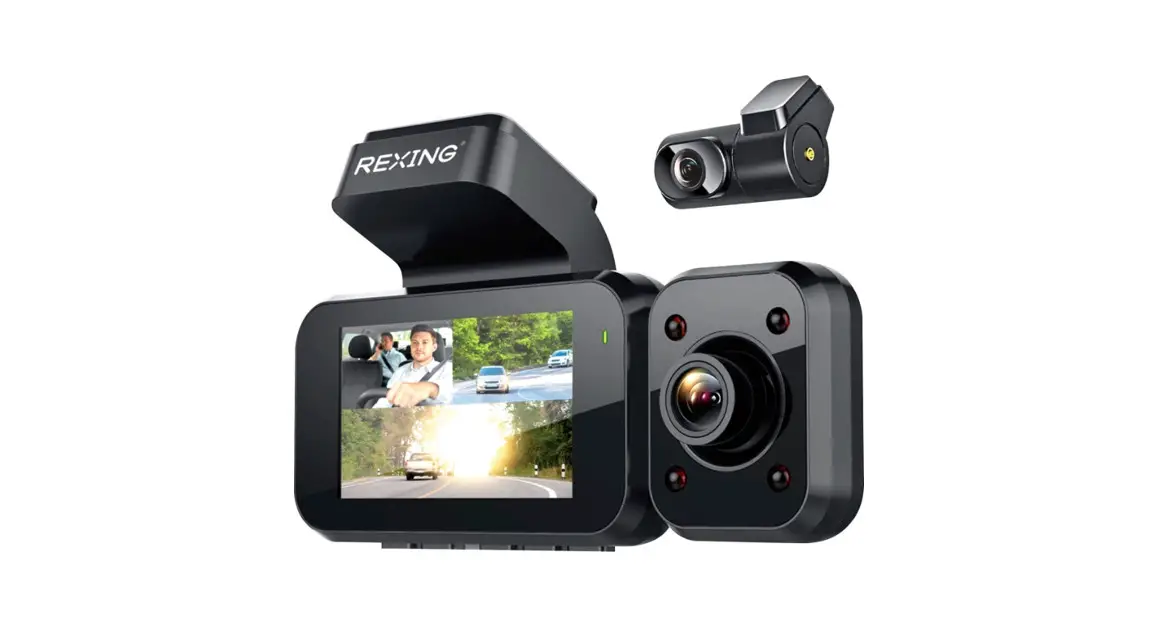
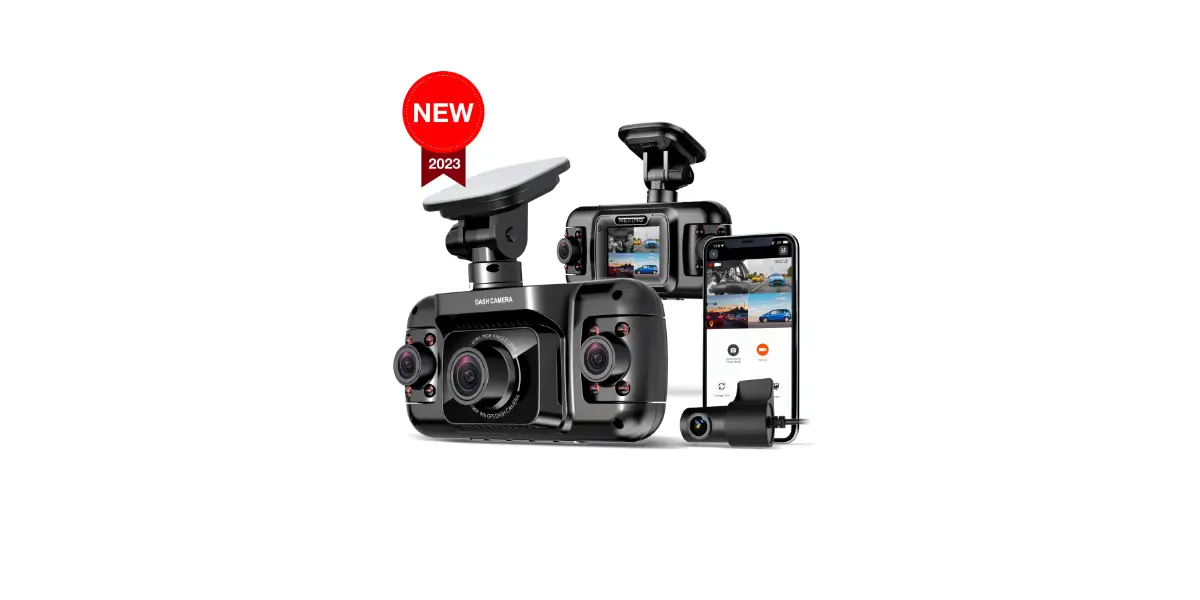
Subcamera Options
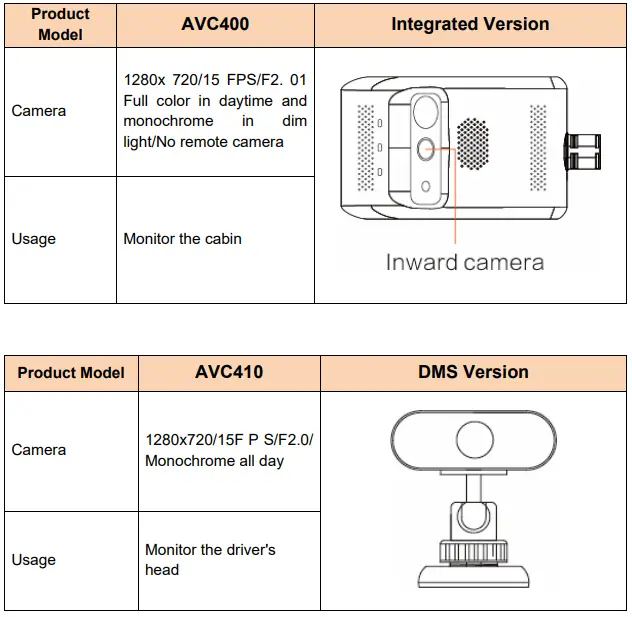
Refer to the specifications and features of the product model you purchased. If you have any questions, please contact your supplier.
LEDs
| LED | Color | Connotation | Status |
| Power LED | Red | Solid on | Device powered on (ACC ON) |
| Blink every 10s | Device in sleep (ACC OFF) | ||
| OFF | No power connected | ||
| GPS LED | Green | Solid on | GPS signal normal |
| Blink every 1s | Searching for GPS satellites |
|
GPRS LED |
Blue | OFF | Device in sleep (ACC OFF) |
| Solid on | Network healthy | ||
| Blink every 1s | Network error | ||
| No SIM | |||
| OFF | Device in sleep (ACC OFF) | ||
| Defense LED | Blue | Fast blink< for 30s | Vibrating alert triggered |
| Blink every 10s | Defense on | ||
| OFF | Defense off |
Wirings
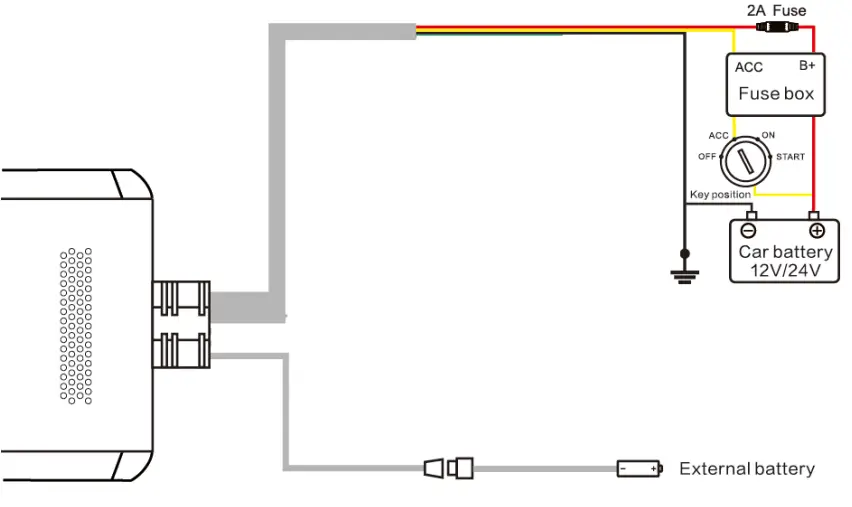
| Cable | Definition | Color | Usage |
| Power | B+ | Red | To battery positive (930V), power input |
| GND | Black | To battery negative, power input | |
| ACC | Yellow | To ACC ON/Positive {9~30V), power input | |
| Camera (optional) | Remote Camera | / | Monitor the cabin |
| Battery | External Battery | / | To provide 450mAh backup battery for the device to protect it against power outage resulted from sudden power disconnection. |
Specifications and Features
Specifications
| Category | Item | Parameter | Remarks |
| Hardware | Memory | 1GB+16GB | / |
| Standard Version | 4G | FDD: B1/B3/B5/B71B8/B9/B20 IDD: B38/B39/B401B41(100M ) | |
| 3G | WCDMA: B1/B2/B5/B8 | ||
| 2G | GSM: 850/900/1800/1900 | ||
| American Version | 4G | FDD: B2/B3/B4/B5/B7/B12/B17 IDD: B38/B41(100M J | |
| 3G | WCDMA: B2/B4/B5 | ||
| 2G | GSM: 850/1800n900 | ||
| WiFi | 2.4 GHz | 802.11/b/g/n | |
| GNSS | Support | GPS/BDS | |
| Microphone | Support | For remote voice communication | |
| Speaker | Support | To notify drivers of status c, events | |
| Interface/Key | Reset key | Support | On the main unit |
| Interface | Micro USB | For commissioning and upgrade | |
| Others | Power supply | Fuse Box | B+/ACC/GND |
| Supply voltage | DC 930V | / | |
| Battery | External | 450mAh | |
| Operating temperature | 20°c ~+70°c | / |
Features
| No | Feature | Description |
| 1. | Video recording | This enables the device to record in loop when the vehicle is moving.5. |
| 2. | Live video | This enables the device to live stream images captured by cameras via the L TE network to the platform (web or app). |
| 3. | Tracking | This enables the device to upload loca1ion data and motion information via the mobile network to the platform for analysis. |
| 4. | Event alert | This enables the device to upload alert messages and video files to the platform when an event is triggered by collision, vibration, dangerous driving behavior, emergency, OMS reminder, speeding, etc. |
| 5 | Remote control | This enables the user to deliver a lock command to the device |
| No | Feature | Description |
| 1. | Video recording | This enables the device to record in loop when the vehicle is moving.5. |
| 2. | Live video | This enables the device to live stream images captured by cameras via the L TE network to the platform (web or app). |
| 3. | Tracking | This enables the device to upload loca1ion data and motion information via the mobile network to the platform for analysis. |
| 4. | Event alert | This enables the device to upload alert messages and video files to the platform when an event is triggered by collision, vibration, dangerous driving behavior, emergency, OMS reminder, speeding, etc. |
| 5 | Remote control | This enables the user to deliver a lock command to the device |
Note: For details about features, refer to the operation guide.
Installation
Precautions:
- This device is not suitable for battery electric vehicles (BEVs) and hybrid electric vehicles (HEVs).
- Use accessories specified by the manufacturer only.
- The standard supply for the device is DC9~30V, please use the original power cable and ensure that 1he positive and negative ends are correctly wired.
- Remove the protective film an the remote camera prior to installation.
- 11 is recommended to ask a distributor, a designated business, or an expert to do the installation and commissioning.
Preparation
Device check
Check visually whether the device is in good condition and whether the relevant accessories are complete.
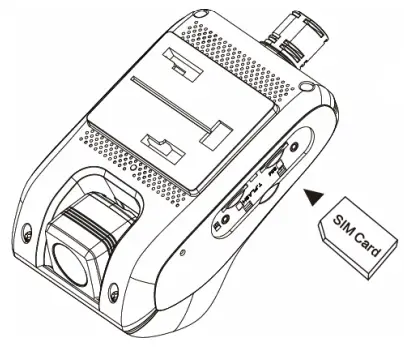
SIM Card Attachment
Ensure that the device is ACC OFF before attaching a proper SIM card.
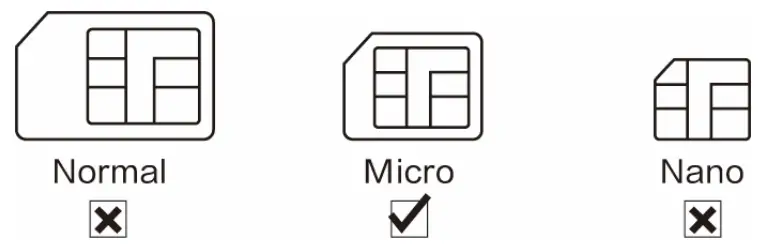
To attach and detach the SIM may damage the contacts, please use the completed Micro SIM card instead. In addition, the SIM should have data service activated and not in arrears.
Note:
- Refer to 3.2 for the SIM size
- Fit the SIM in the correct slot.

TF Card Attachment
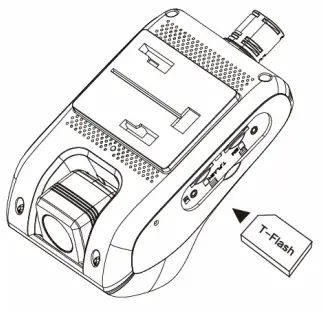
Ensure that the device is ACC OFF before attaching a proper TF card.
Note:
- Use a TF card in speed class 10 or higher and with a capacity of 16GB or above.
- The TF card is recommended to change every half a year to ensure the recording performance of the device.
- Mount the tamper cover after the attachment.
Fit the TF card in the correct slot.
Main Unit Installation
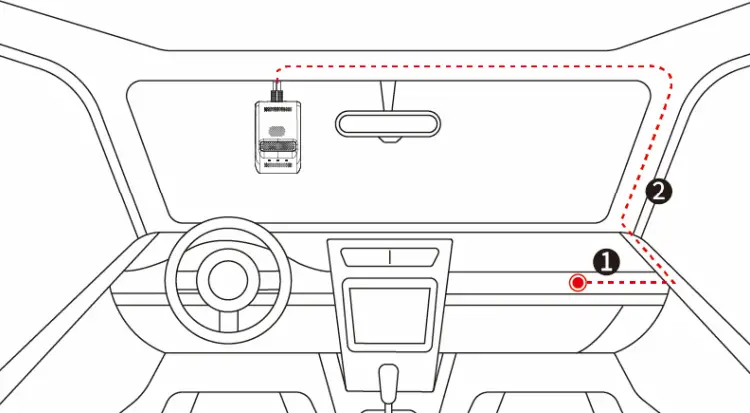
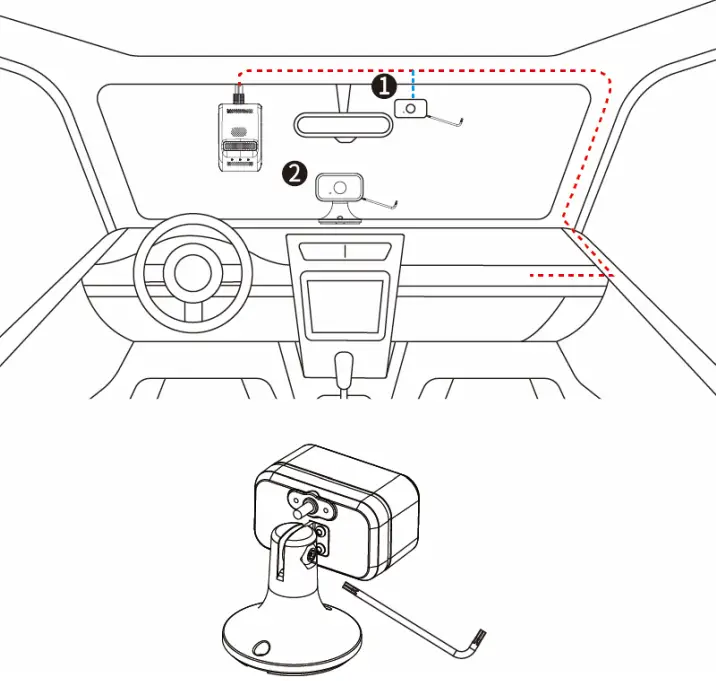
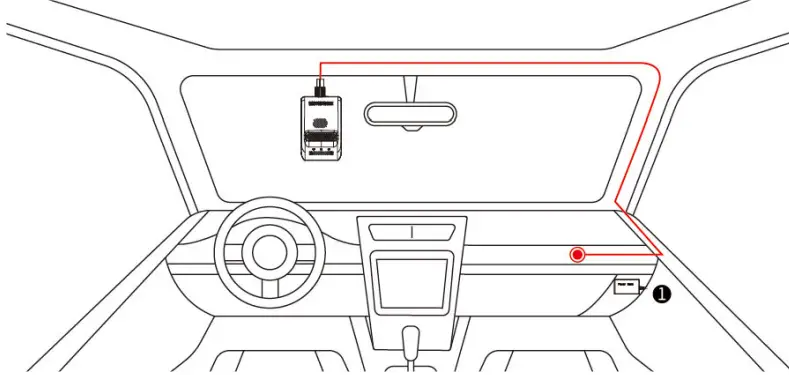
- Connect the power cable of the device to B+, ACC, and GND of the fuse box on the vehicle. 1 is a reference position.
- Route the power cable along the A pillar of the vehicle to the upper center of the front windshield. The red dashed line (2) in the figure is for reference.

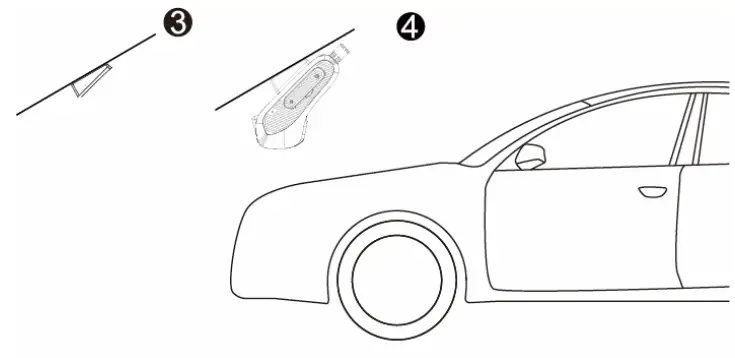
- Select a proper installation position and wipe the position clean. Remove the protective film from the 3M tape of the mounting base and attach it to the position. Wait for 2 hours before proceeding to the next step. See 3 for reference.
- Mount the device to the base and connect its power cable correctly (see 4 for reference). Then fasten the cable securely.
Installation of Accessories
You can select a proper position to install the remote camera according to actual conditions
- Remote AHD Camera

- Face the camera inward and install it to the windshield behind the rear-view mirror (as shown in 1) or to the middle of the dashboard (as shown in 2). Wipe a selected position clean, remove the protective film from the 3M tape, and attach the device.
- Use the supplied screwdriver to tighten the screw of the camera, so it keeps at the best angle. Connect the cables correctly and fas1en them securely.
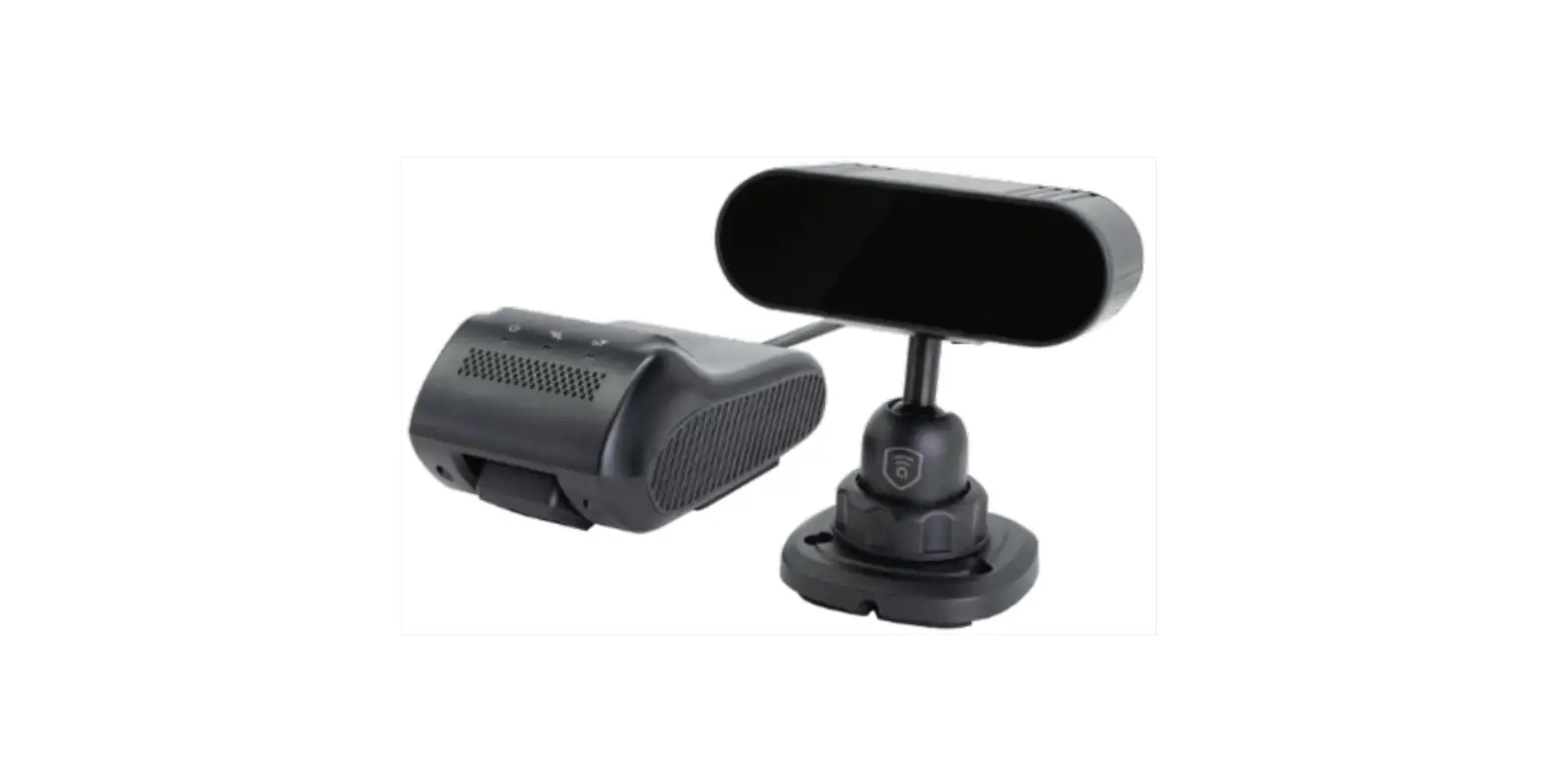
- DMS Camera
This section, is dedicated to AVC410.
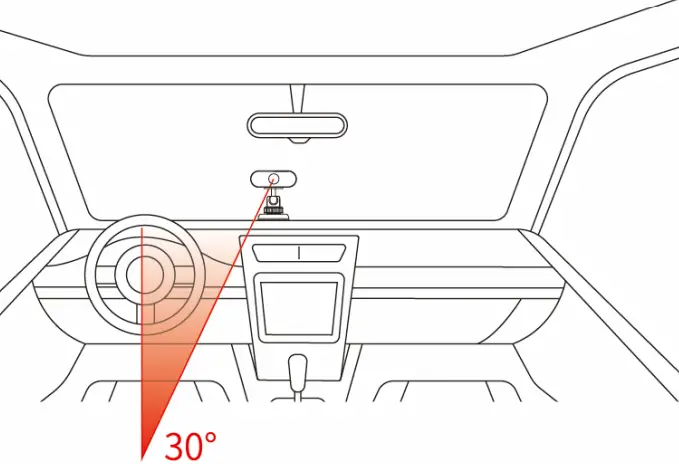
The DMS camera is mainly used for monitoring the driver. Fixate the camera at an angle about 30″ to the steering wheel directly facing the driver’s head, as the following figure shows.
- Other Accessories

- External battery
It is used to power the device for a while after its main supply is cut off. Connect the external battery to the corresponding interface on the device and place it in a proper position (such as 1 in the above figure).
Note- Choose proper accessories based on your actual needs.
- Select a relay that goes perfectly with the battery of your vehicle.
- It is recommended to ask a distributor, a designated business, or an expert to do the installation and commissioning.
- External battery
Commissioning
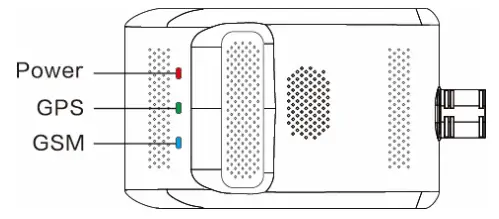
- Check the LED, see 1.3.3 for reference.

- Check the camera: The camera works correctly if you can view the live video of the camera and switch between the two cameras after logging in to the platform. You can also manually adjust the camera according to your needs.

Others
Battery Safety
- Use the original battery supplied by the manufacturer only. The use of any non-original accessories may damage the device, in which case the manufacturer wilt assume no repair liabilities for such damages.
- Avoid metal objects as they may cause short circuits on battery contacts
- Do not remove the cover of the battery.
- Do not soak the battery in water or expose it to fire.
- It is forbidden to use batteries that are deformed, discolored, spilled, or package damaged. If such an exception, such as over temperature, deformation, discoloration, spillage, etc., occurs during use, charging, or storage of the battery, please stop using the device immediately and contact the after sales cen1er for a replacement.
- It is forbidden to dismantle, or modify, or charge (in any other method other than stated) the battery.
FAQ
- How will the Software be upgraded?
Firmware can be upgraded by SD card/USB cable/OTA. - The result is Ok, but no connectivity Data is displayed.
Commamnd is “PING,HTTP” The device will respond to a network delay value, for example, “50ms” - What is the Max time interval?
You can get a response less than 3 seconds after you send the PING,*** command. - Is there any option to change the English accent?
The current one is a Chinese accent. You can try to switch language to a British accent. The command is “VOICESW,4”. - Can more languages be added based on the requirement, eg?
For Jamaica: Fathua Please prepare the voice file according to the voice file format. - How do we get the data?
You can get vehicle low voltage data from the device’s low power alert. Vehicle voltage info is in the alert packet. - Is there any possibility to get 30 mins before or after an event occurred in the event video?
- Our event video is a 15s video. 7 seconds before and 8 seconds after an event occurred for the collision alerts, do not support 30mins.
- You can get event video by URL method.
- Will, it automatically erases & replace old data?
- YES. The device’s internal storage can store 23 hours of sub-stream video(640*360); 32G TF card can store 4.5 hours main stream video(Front:1920*1080;Inward: 1280*720); 64G TF card can store 9 hours mainstream video; 128G TF card can store 18 hours of mainstream video; 256G TF card can store 38 hours of mainstream video;
- Ok! So in this case, will it be possible to create a code on the Firmware to automatically transfer data to Cloud Servers. Under the current situation: the SD card has to be removed for transferring data. But in a scenario where a vehicle has been assigned to a third party person / not available / records are required for analysis purposes.
- Is there a restriction on the API to share only one Video Playback file, thru social media at a time? It would be great if we can have an option to share multiple videos at the same time.
- Your platform can send a video playback file request to our platform, our platform will give you the URL of the video playback file.
- Can this feature not be directly allowed to Amber Platform
- What is the aspect ratio of live video playback in regards to Frames/Sec?
Aspect ratio:16:9; Resolution: 640*360 - Are the Historical videos stored on your server or device only?
The video recorded by the device is stored in two places, the main video stream(1920*1080) stored on TF card and sub video stream (640*360) stored on the device’s internal storage. - How can we retrieve videos in case of an emergency situation?
They will be in the Event Video. The video is stored on TF cards, not on our server.- Option 1: You can select which type of event videos auto upload to the platform on the Video setting of Amber Fleet Portal.
- Option 2: You can send the UPLOADSW command to set the device auto-upload event video.
- Like in GPS trackers: In case of non connectivity, data is buffered and is reuploaded and restored once it is reconnected. Will the device upload buffer data once it comes online
Yes. - What happens when TF Card memory is full
The default is a file in 3 minutes and stored in the TF card. When the storage space of the TF card doesn’t meet the requirements for recording video, the device will delete the oldest video to achieve the feature of loop recording. The device will delete the oldest video to achieve the loop recording feature. - Is there a function to automatically export TF data to cloud servers by setting up a time frame or is there a possibility to create such an algorithm for uploading Images
No. Too large data consumption. We have a pic timer command to catch images and upload them by an interval. PICTIMER,ON,X,1 - Thru TF Card & OTA
- The device will connect and query our OTA server, if our server releases a new FW, the device will auto-download FW and complete the FW upgrade.
- If our server releases a new FW, the device will auto-download FW: We need this manual. All S/W versions need to be approved by Amber Team 1st.
- When the vehicle is parked, the device is not uploading any data on the servers. Only a live recording view is available. In a scenario, wherein if a vehicle is compromised, how will we know the real-time incident?
- When a vehicle is parked, the device will enter sleep mode; when the device’s Gsensor detects vibration, it will wake up to work, take a picture or video and store it in
- SD card, and send a vibration alert to the platform, upload photo or video to the platform too.
Need help? Contact 24/7 live support!
- [email protected]
- Chat via website www.amberconnect.com
- Works with Android phones and tablets, iPhone, iPad.
- Compatible with Chrome, Mac and PC web browsers.