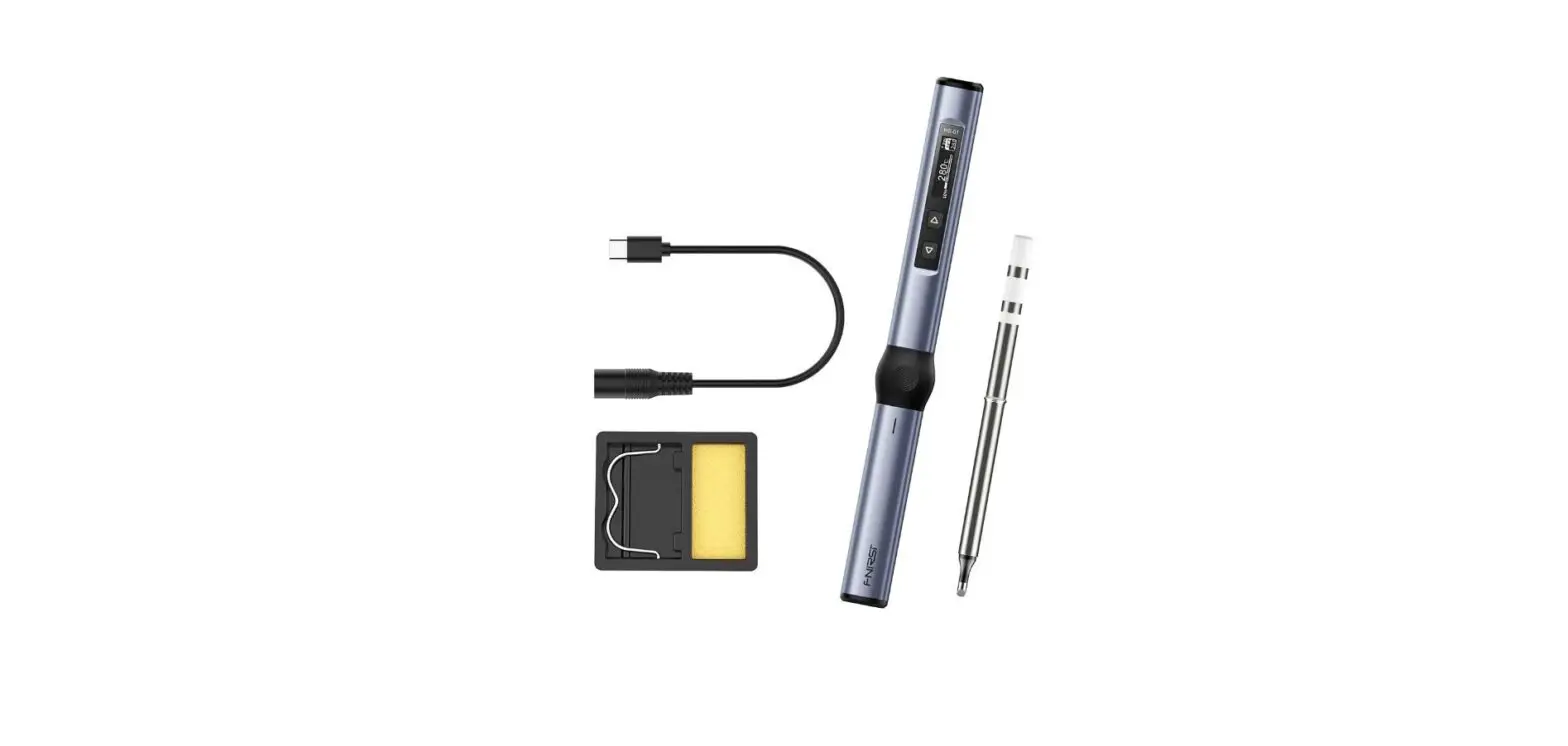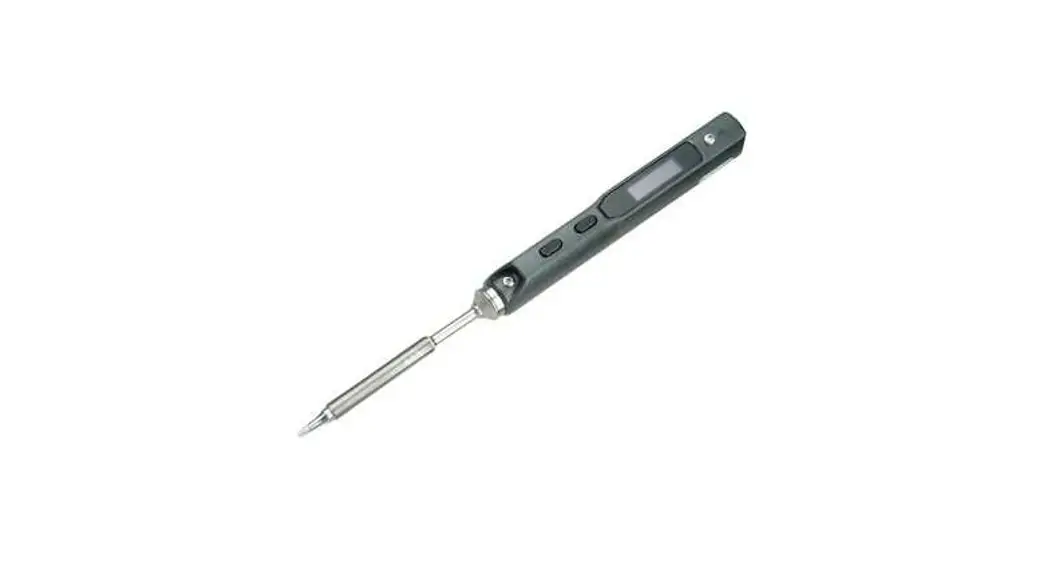

TS100 Mini Soldering Iron
User Manual
Version 1.1
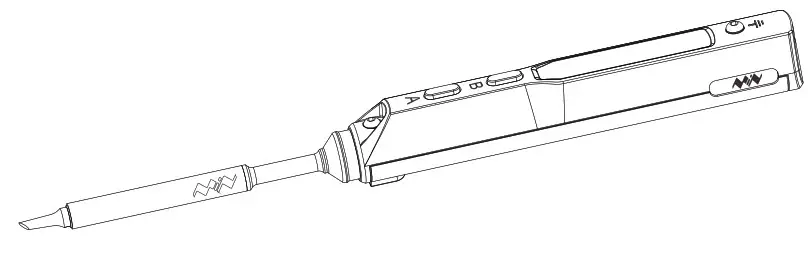
Please read this manual before operating TS100. (This user manual is based on TS100 DFU:3.45, APP Ver:2.18)
 WARNING: Failure to comply with a WARNING may result in serious injury to the user or others.
 CAUTION: Failure to comply with a CAUTION may cause damage to the product or other equipment.
 NOTE: Annotations, operation notes or additional information.
Safety Statements
General Safety
- Use only certified power source/adaptors from your region. (please refer to 3.0 for specifications)
- Do not operate in a humid environment.
- Do not operate in an inflammable/explosive environment.
- Keep the surface of the product clean and dry.
Working Condition
| Working condition | Operating Conditions | Non-Operating Conditions | |
| Temperature | Ot —+50t | -20t —+60t | |
| Relative Humidity | High Temperature | 40t —50t 0%-60%RH | 40t —60t 5%-60%RH |
| Low Temperature | 0C-40t 10%–90%RH | 0 t —40t 5%–90%RH | |
Warnings
When using TS100
- Turn the power off when, not in use or left unattended.
- When power is ON, tip temperature will be between 100°C-400°C(212°F-752°F), please be careful.
- Please don’t operate TS100 when it’s wet or with wet hands, which may cause an electric shock.
 Cautions
When using TS100
- The controller is constructed with precision, dropping shall be avoided
- After continuous use up to 40 minutes, the controller surface temperature will reach 50°C-60°C.
- For the first time using, TS100 may generate a light smoke due to the heating of heating elements, which is a normal phenomenon.
Liability Statement
Any damage of the product, or losses related to the product damage, if it’s man-caused, or assumed to be man-caused, the liability will belong to the user.
Overview
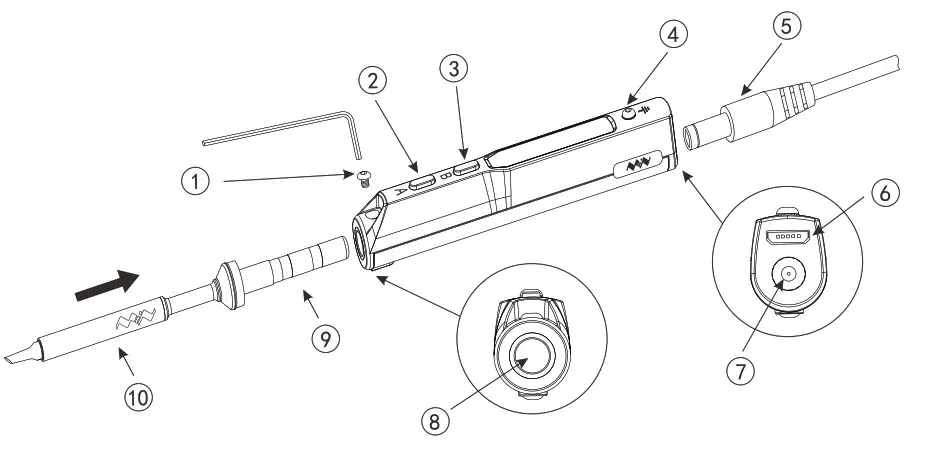
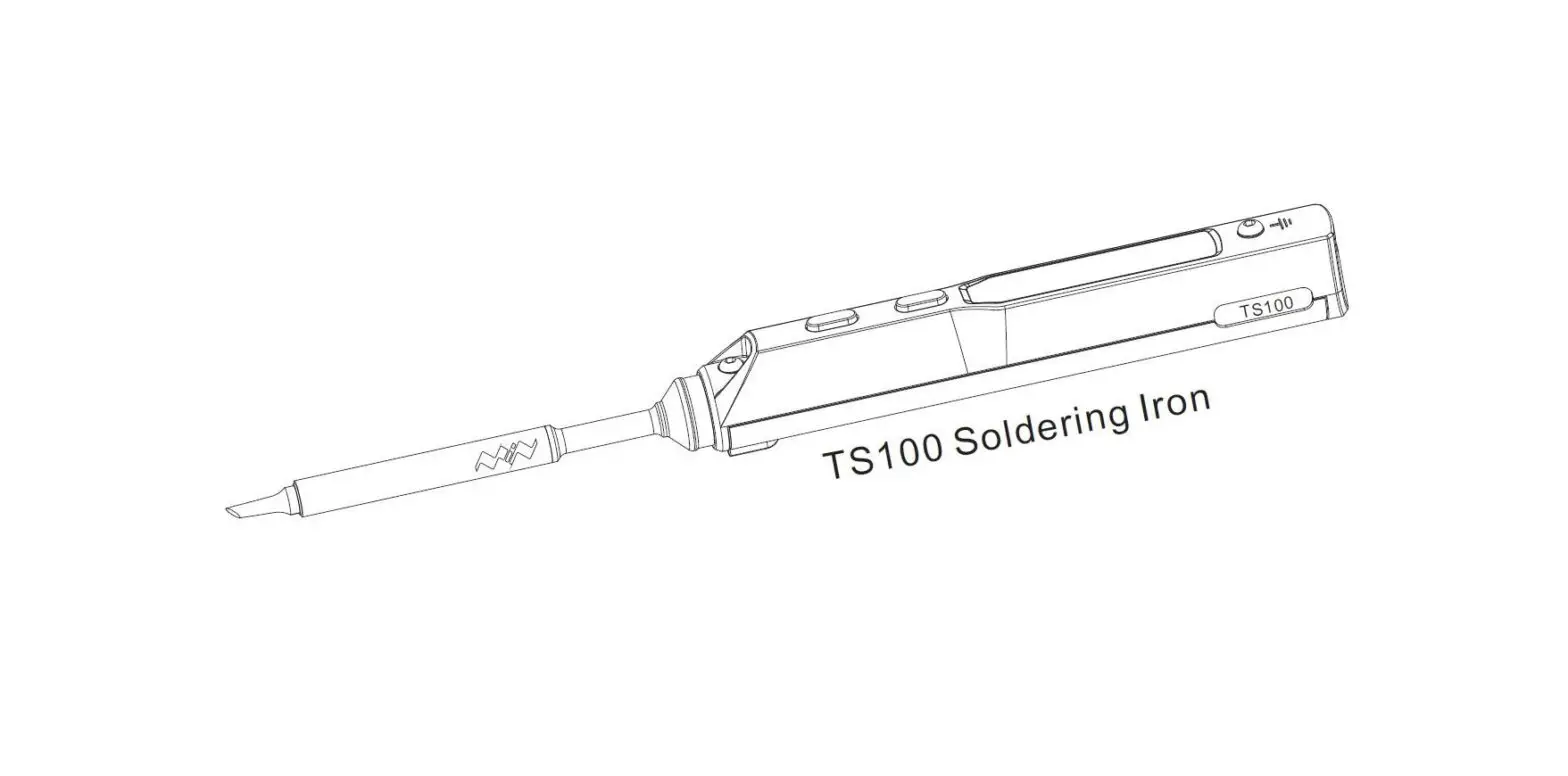
- The tip setscrew
- Button A 3
- Button B
- Ground wire setscrew
- Power connector
- Micro USB port
- DC5525 12-24V jack
- Soldering tip port
- Soldering tip connector
- Soldering tip heating end
Specifications
| Screen | OLED(96*16 dpi) | |
| USB port | Micro USB | |
| Power port | DC5525 | |
| Dimensions | Controller | Length:96mm, Diameter:16.5mm |
| Soldering Tip | Length:72+33mm, Diameter:5.5mm | |
| Weight | 33g(power adaptor not included) | |
Operation Specifications
| Power | 65W(Max) |
| Temperature range | 100°C-400°C(Max) |
| Temperature stability | ±2% |
| Operation temperature under heat | 40°C |
| Soldering tip resistance to the ground | < 2 0 |
Power Adaptor Selection
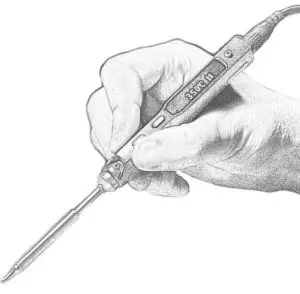
Before connecting the DC5525 (12-24V) power adaptor, check if the adaptor is in good condition as below standard. It is suggested to use the official recommended power adaptor.
| Operation voltage | Power | Electric current | The time needed to inc increase tip temperature from 30°C to 300°C |
| 12V | 17W | ≥1.4A | 40s |
| 16V | 30W | ≥1.9A | 20s |
| 19V | 40W | ≥2.1A | 15s |
| 24V | 65W | ≥2.7A | 11s |
Operation
TS100 Installation
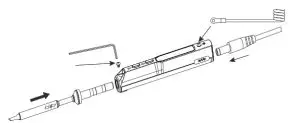
- loosen the tip setscrew, insert the soldering tip connector and tighten the screw;
- Connect the ground wire to the ground wire setscrew ;
- Connect the DC connector to TS100, plugin, and turn on the power accordingly.
 Note: If the screen displays sen-here when it’s turned on. it means the soldering tip is not properly fixed, please re-install it properly.
Default Settings
| Default temperature unit | °C |
| Default temperature | 300T(Default) |
| Sleep mode temperature | 200°C(Default) |
| Adjustable temperature range | 100°C-400°C(Max) |
Basic Control
Screen Display
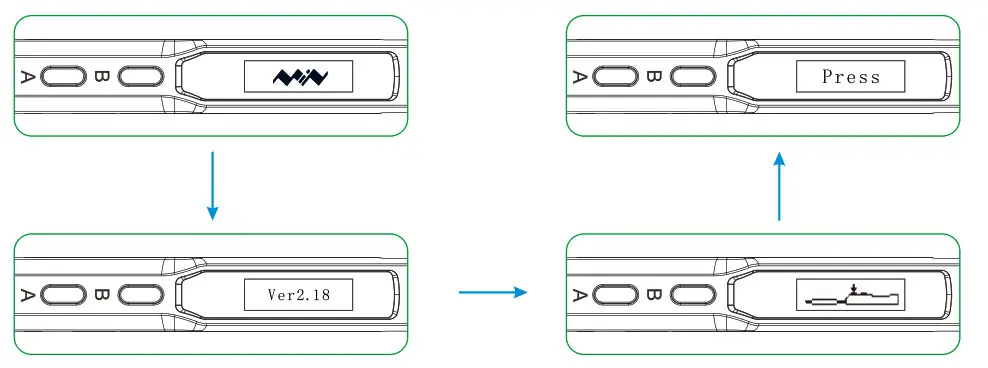
When plugged into the DC12-24V power adaptor, TS100 will display its logo, version number, and its standby screen in sequence.
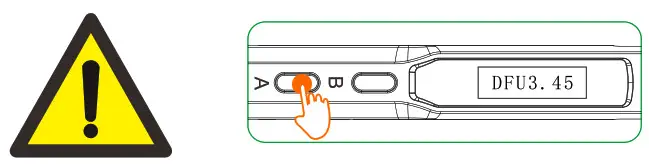
Hold TS100’s Button “A”, and connect TS100 to your PC with a Micro USB cable, to enter DFU mode. A display of “DFU 3.45” will appear on the screen. To exit DFU mode: unplug and plug in the device again without pressing any button, then it will enter standby mode.
Heating up

When pressing Button A in standby mode, TS100 will heat up to preset temperature.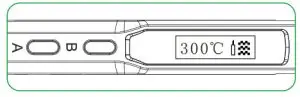 When OLED displays as the picture, means it’s ready for soldering.
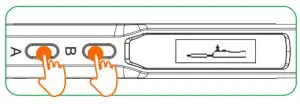
In operation mode, holding both buttons for 3 seconds will return to standby mode.
Temperature Adjustment
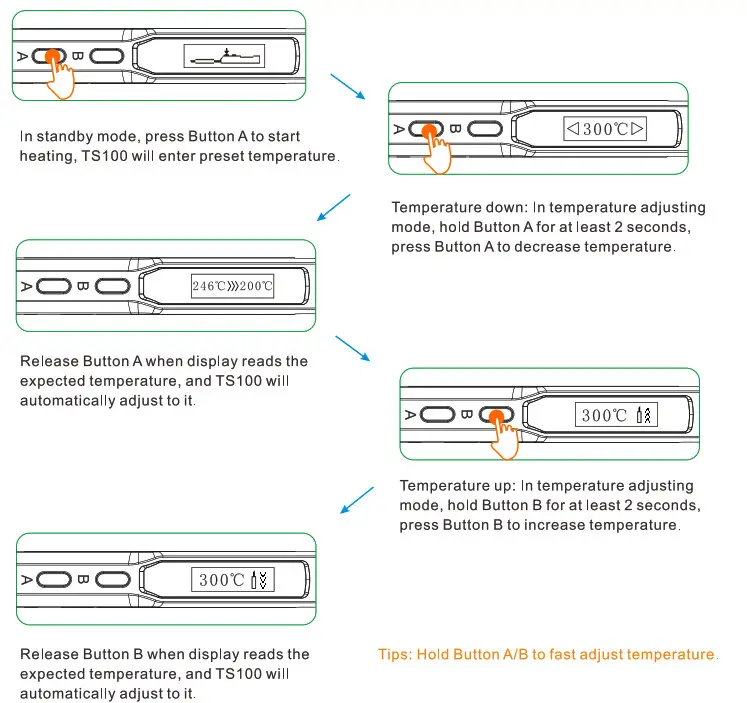
Parameter Settings
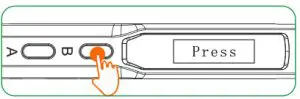
- Short press Button “B” in standby mode to enter setting mode;
- Short press Button “A/B” in setting mode to select the setting menu and long-press Button “A/B” to enter modification; after entering modification, press Button “A/B” to select the appropriate set value; and wait for 5s to return to setting mode. Change the other settings in the same way.
Note: the functions of Button A and B are interchangeable in left-hand mode (LH).
Menu Definitions
| Parameter | Name | Definition | Factory Defaults | Adjustable Range |
| 19.92V 25°C | Current input voltage, current soldering tip temperature. | Not adjustable | ||
| Factory Reset | Restore factory defaults. | |||
| WkTemp 300 | Working Temperature | Working temperature. | 300°C | 100-400°C |
| SIpTime 180 | Sleep Time | The time needed to enter sleep mode from working mode. | 180 | 60-999 Seconds |
| StbTemp 200 | Sleep Temperature | Standby temperature when entering sleep mode. | 200°C | 100-400°C |
| IdlTime 360 | Standby time | When keeping sill, the time needed from sleep mode to standby mode. | 360 | 100-999 Seconds |
| TempStp 10 | Temperature Stepping | The stepping of temperature adjusting. | 10 | 1-25 |
| Parameter | Name | Definition | Factory Defaults | Adjustable Range |
| OffVolt 10.0 | Protection Voltage | Protection voltage when working, if the voltage is lower than the set value, the soldering iron will stop working. | 10.0V | 5.0-12.0V |
| Temp CT | Temperature Display Unit | Temperature display unit, in celsius degree(°C) or Fahrenheit degree). | °C | °C/°F |
| Hand RT | Left/right hand mode | Left/right-hand use mode, screen display direction will reverse and key functions are interchangeable in different modes. | RT | RH(right handy LH(left hand) |
Automatic Calibration
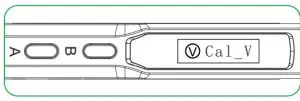
In the “current input voltage” menu of the setting mode, long press Button A or Button B to enter the automatic calibration.
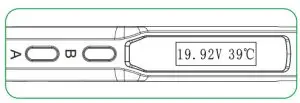
Note: Please insert the soldering tip into the TS100 controller before entering automatic calibration, and let it stand for 10 minutes. Make sure TS100 and the soldering tip have dropped to room temperature, and then connect the power supply to calibrate.
Temperature Adjustment

Note: When the screen displays an arrow pointing to left or right (  or
or ) which means the adjustment has already reached its upper/lower limit temperature, settings will not be saved when power is off.
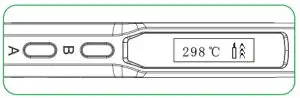
Remark: Maximum temperature: 400°C; Minimum temperature:100°C.
When TS100 temperature stabilizes for 60 seconds, it will automatically enter feedback mode.
The last icon on the right end of the display shows as below

Sleep Mode
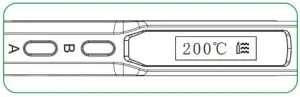
In operation mode, when leaving TS100 for more than 180 seconds( 3 minutes in Default) will trigger the sleep mode, and the temperature will automatically adjust to preset sleep temperature.
When moved, TS100 will restart to operation mode and temperature will automatically heat up to preset temperature(300°C in Default). In sleep mode, if it’s not being operated for longer than the standby time setting, TS100 will then enter the standby mode.

Note: Standby time can be adjusted( 6 minutes in Default).(Preset minimum standby time: 100 seconds)
System Parameters
| Parameter | Definitons | Default | Adjustable range |
| StbTemp | Standby mode temerature | 200°C | 100°C-400°C |
| WkTemp | Operating temperature | 300°C | 100°C -400°C |
| uptime | Time from the operation mode to sleep mode | 180 seconds | 60-999 seconds |
| IdMme | Time from sleep mode to standby mode | 360 seconds | 100-999 seconds |
| TempStp | Temperature stepping: When preset “1”,each step will progress in 1,2,5,25; when preset 2-25, each step will progress according to settings | 10 | 1-25 |
| Molt | When operation voltage is lower than default voltage TS100 will return to standby mode | 10V | 5-12V |
| Temp | Temperature unit | °C | 0 is °C, 1 is °F |
| Hand | Left/right-hand mode | RT | 0(Right Hand) 1(Left Hand) |
| ZeroP_Ad | Temperature calibration parameter, TS100 automatic adjustment | No manual setting required |
Notice: Preset parameter(S) Will be updated to TS100 after Saved.
Soldering Tip
Changing Soldering Tips
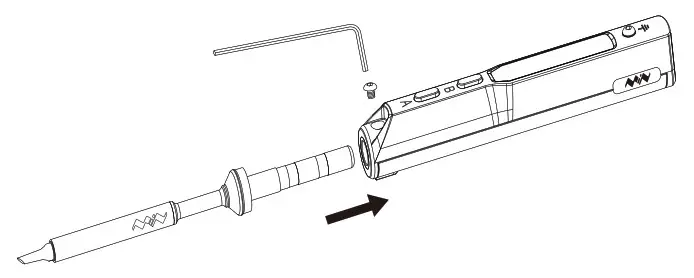
- Unplug TS100 before changing the tip.
- Loosen the tip setscrew.
- Pull out the tip, replace it with another one.
- Tighten the screw.
Note: When TS100 displays “sen-err”, it means the soldering tip is not installed properly. Please unplug and install again.
Choosing Soldering Tips
Note: Choosing the right tips will help you to work more efficiently.
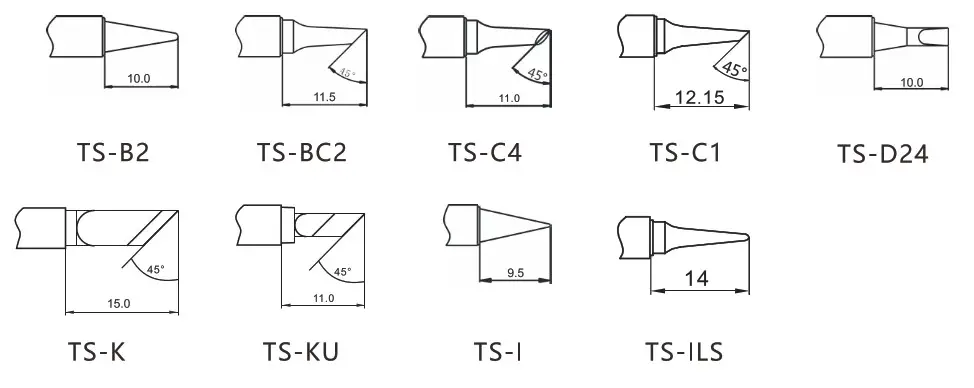
Soldering Iron Tip Maintenance
- Before long-time storage, wipe the tip’s soldering side with some solder.
- Do not leave the tip in a high temperature for a long time, which may cause it to burn out.
- Do not push too hard while soldering, which will damage the tip.
- Do not use rough material or files to clean the tip.
- If the tip surface is oxidized and makes it hard to apply solder on it, you may use 600-800 grit sandpaper to wipe the tip with Ethanol or Isopropyl alcohol, heat up to 200T, and apply solder immediately to avoid it oxidizing again.
- Do not use flux that contains high chlorine or acid, use only resin-based flux.
Soldering Tip Lifespan
The soldering tip’s lifespan is related to its maintenance (refer to 5.3) and use intensity.
FAQ
| Problem 1:No Display | Check: If the cable is broken? Check: Is there any data in USB mode? Check: If the screen needs to be replaced. |
| Problem 2:Every time when installing a new tip, the temperature status display random numbers | This means the machine is checking status which is normal |
| Problem 3:Soldering iron restarts automatically | Check 1:Is it properly plugged into the power source? Check 2:Is the voltage too low? (need to be set up in the config file) |
| Problem 4:Soldering iron is heating up and cooling down simultaneously | Check 1:Is the tip the first time in use? Check 2:Is the power cord in loose or defective contact? Check 3:Is the tip overheating. Set the temperature at an appropriate level. Check 4:Is the soldering iron clean? refer to ‘Soldering iron tip maintenance” |
| Problem SOLED shows ‘Warning!” | Check 1:Is the TS100 overheating? Is TS100 temperature higher than the maximum operating temperature? When the temperature is lower than the maximum operating temperature, the warning sign will disappear and it will return to operation mode. |
| Problem 6:OLED displays “High | Check:ls the voltage too high? (over 24V) |
| Problem 7:OLED displays “Sen-err” | Check 1:Is the soldering iron installed properly Check 2:If check 1 passes, then replace the soldering iron tip |
| Problem 8: The tip doesn’t stick to the solder | Check if: 1. Tip temperature is over 400°C; 2. The soldering side of the tip is not applied with solder properly; 3. Lack of flux during operation; 4. Rub the tip against dry or high sulfur sponge or fabric; 5. Tip touched organic material like plastic, silicone oil or other chemicals; 6. Using impure solder or solder that contains a low proportion of tin. |
| Problem 9:TS100 return to standby mode during operation | Check: Is the voltage lower than the default(10V) Wait until voltage recovers, it could work normally when the voltage is over 10y. |
Standard service
1 year of warranty will be provided for the TS100 controller if the damage was not caused by false manipulation by the user. Please contact your retailer for warranty detail. Tips are consumables, once it’s used, no replacement will be provided.
Default Parameter Setting
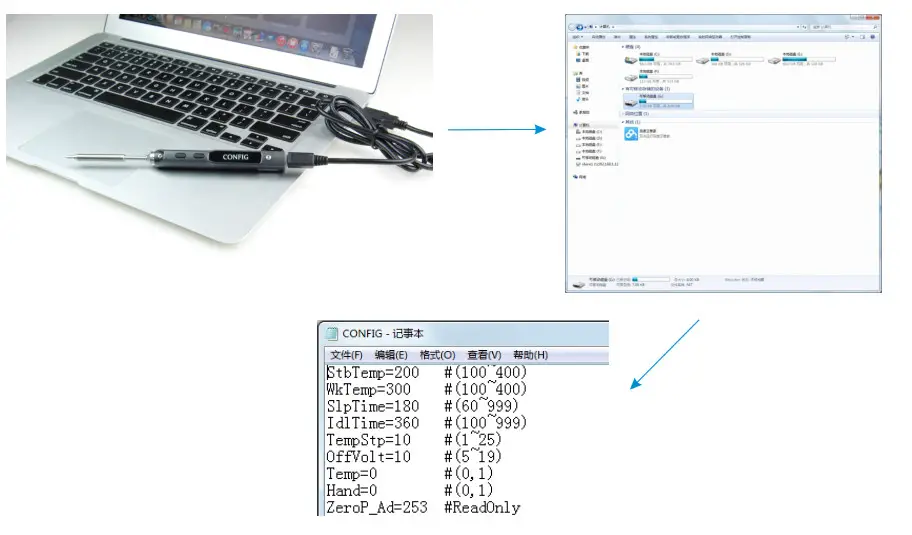
Connect TS100 to your PC with a USB data cord, OLED will display “CONFIG” and means it’s in setting mode. Open config. txt file in the removable disk set the default parameters.
Firmware Update
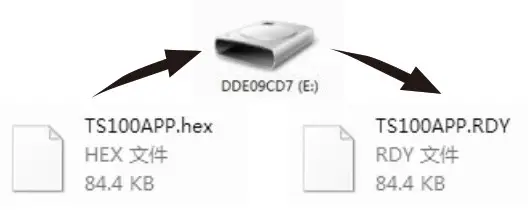
- Visit www.miniware.com.cn and download the suitable TS100 firmware to your PC.
- 1-told TS100’s Button A and connect TS100 to your PC with a USB data cord, to enter DFU mode and it shows °DFU X.XX- on the screen. A virtual disk with 8 serial numbers will appear on your PC.
- Copy the hex firmware to the root directory of that disk. When the extension of the firmware changes from “.hex” to “.rdy”, disconnect the USB and the firmware is upgraded.
Changing Boot Up Screen
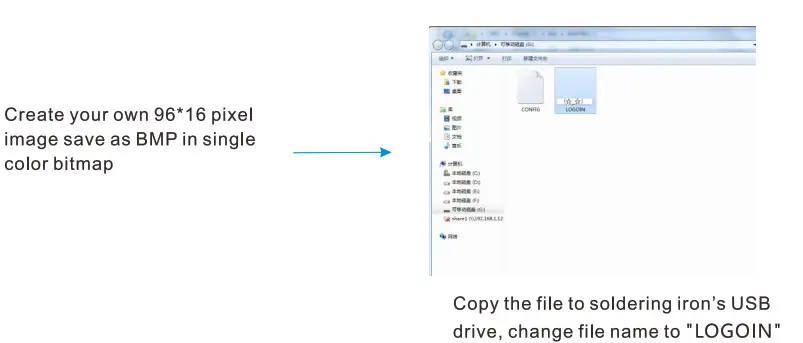
Note: When the ‘LOGOIN.BMP’ exists in the USB drive, the bootup logo will be using the file, if the file doesn’t exist, it will be using the default logo instead.
Legal Statements
Disposal
Do not dispose of this product with domestic waste. Handling and recycling: Disposal of the product shall be manipulated according to laws and regulations in your area.
Statement of Fulfilling FCC Standard
 This device fulfills part 15 of the FCC regulations Device must fulfill the below 2 conditions: (1) Device must not generate interference. (2) Device must be able to resist any interferences on it, including interferences that could cause dangerous manipulation.
Statement of Fulfilling CE Standard
 This is a trademark of the European Union. This product with the CE logo on it fulfills related Euro Union laws and regulations.