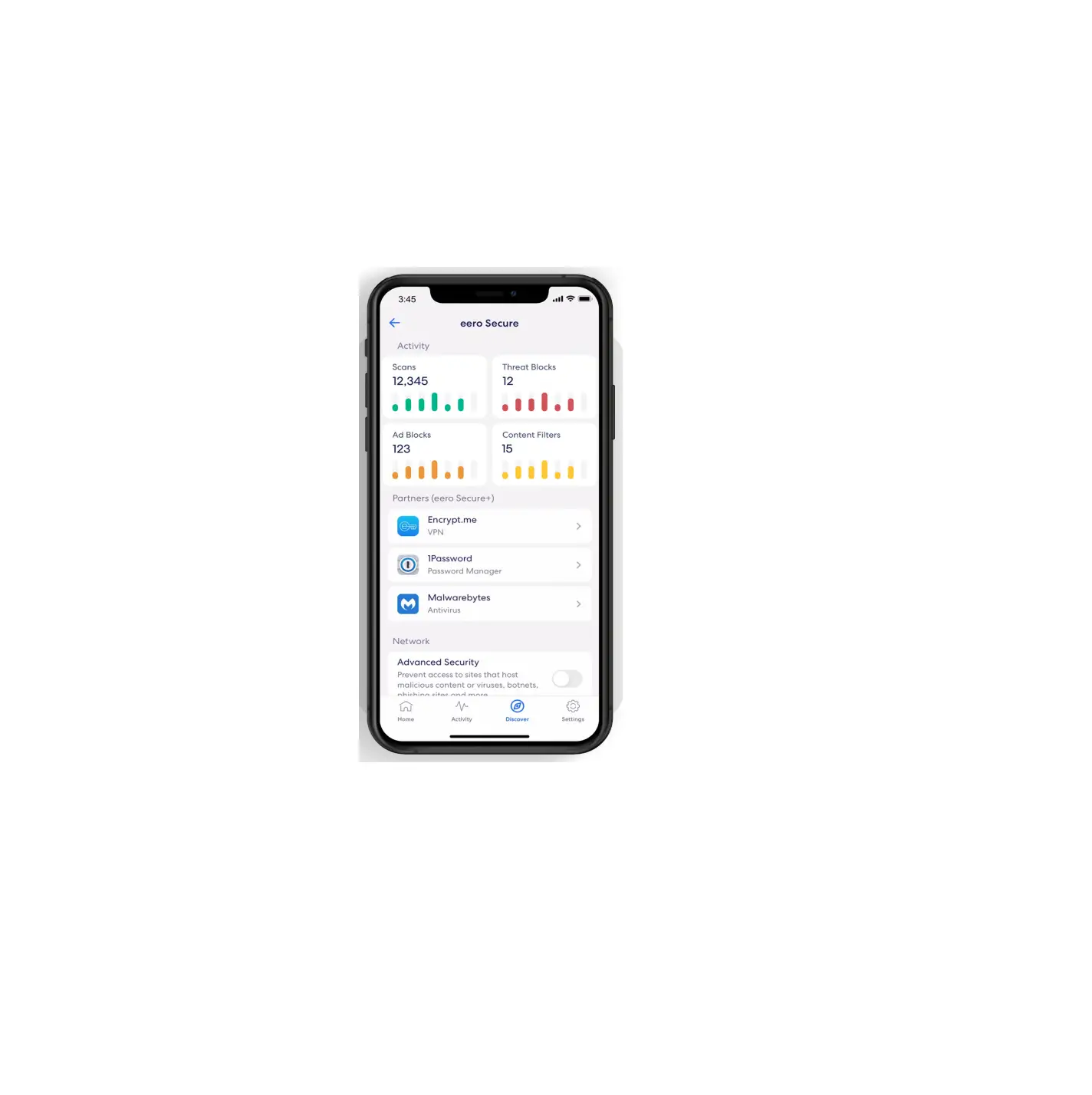
 Mobile App
User Guide  How-to guide
Getting started with your
eero mobile app.
INTRODUCTION
Ready right out of the box.
The eero mobile app can help you set up your wifi in minutes. Simply download the eero mobile app, plug your eero device into your modem, and the eero mobile app will
guide you through the setup.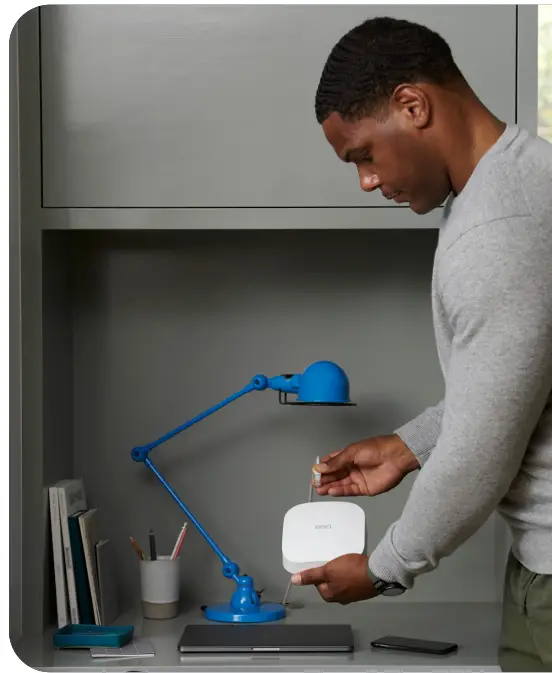 Whether you’re new to the eero mobile app or just need a refresher, this document will help guide you through basic features to set up and manage your eero network.
 Create an account
 Create an account
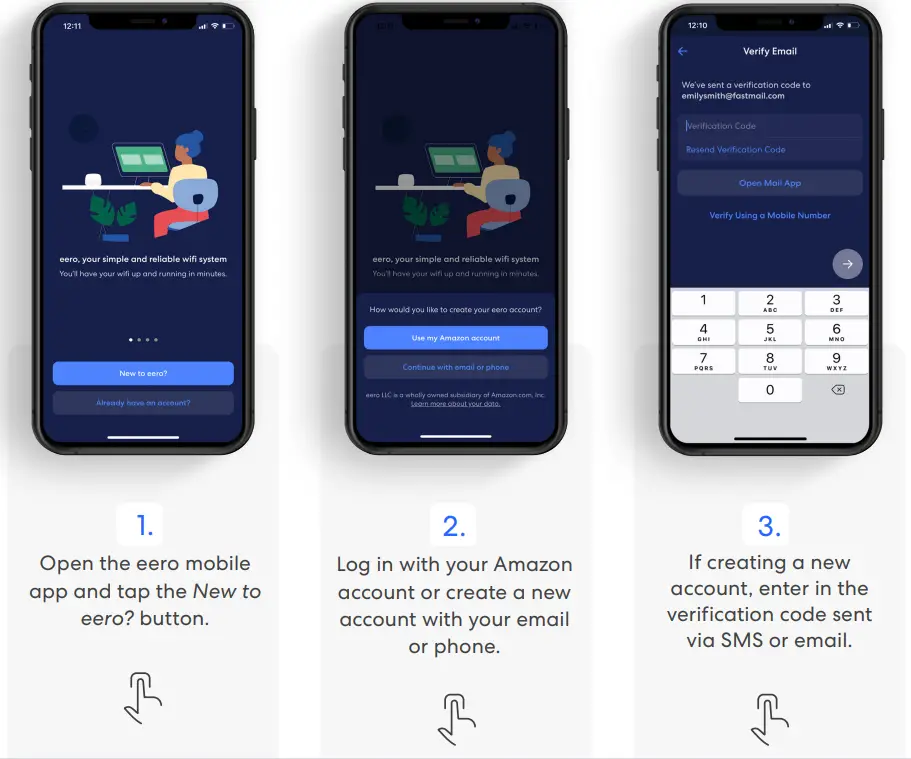
Upon first opening the eero mobile app, you will be prompted to create an account through a guided setup process.
Make sure you have the following to get started:
- Mobile device with a data connection. (If you don’t have access to a data connection, see our workaround instructions here.)
- eero mobile app.
- At least one eero gateway (the eero Beacon can only be added to an existing network).
- Internet service provided into your home.
- Cable or DSL modem.

 Network setup
 Network setup
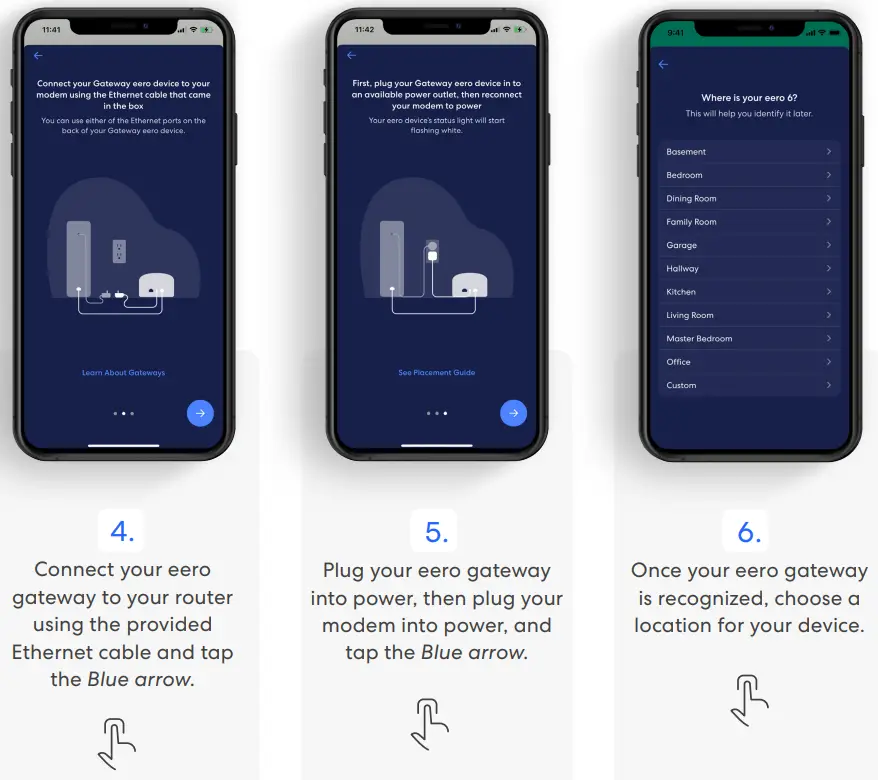
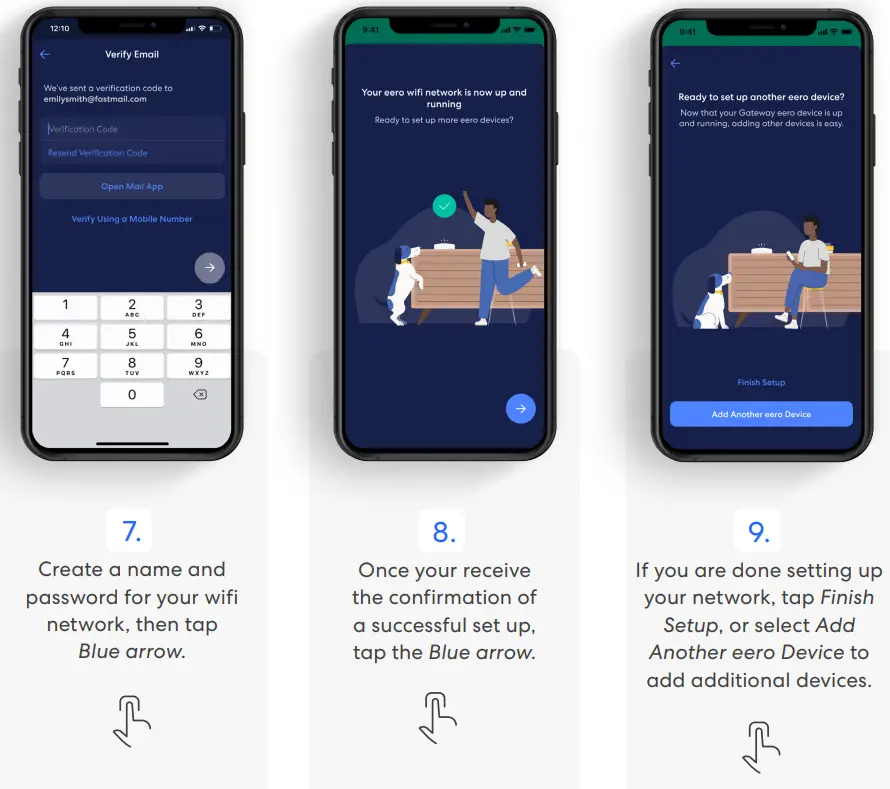
Your gateway is the primary eero device connected to your modem and is needed to establish your network. The eero mobile app will guide you through setting up your eero gateway in the following steps. 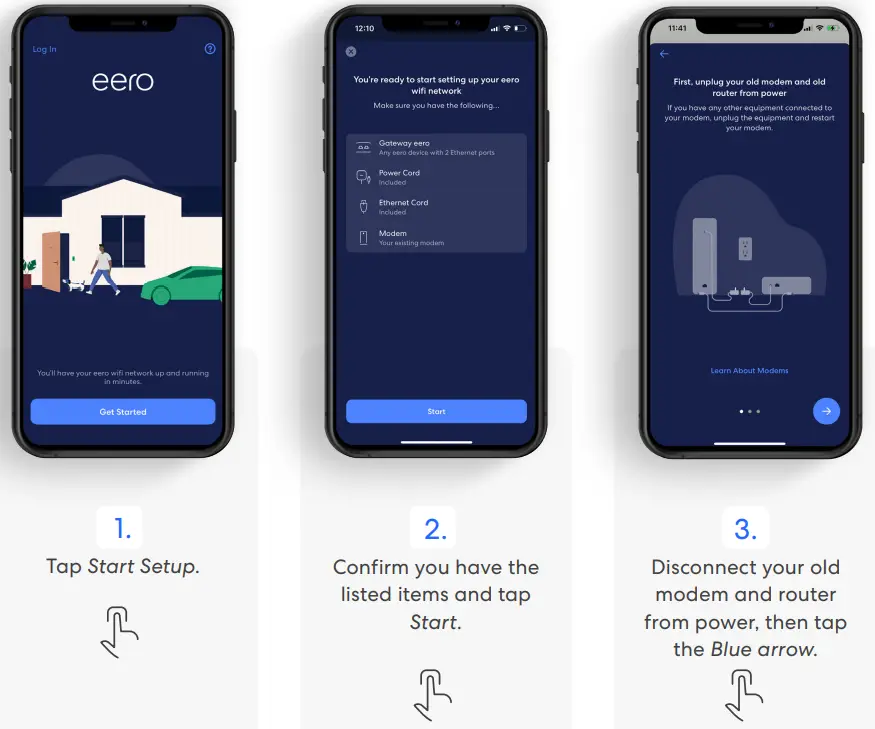
 Add a device
 Add a device
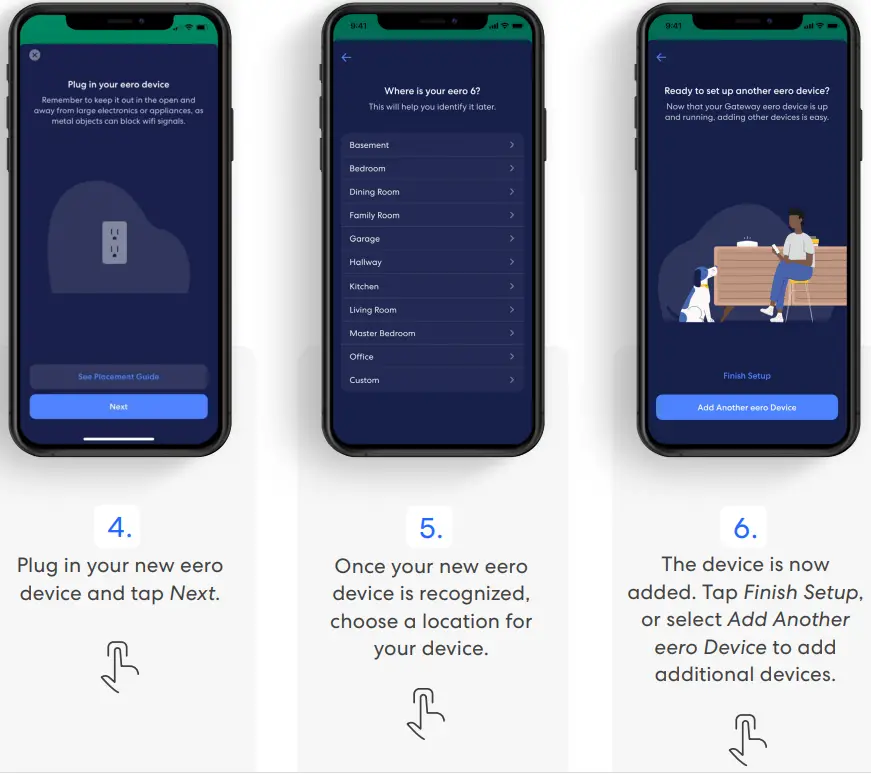
You can add additional eero 6 series devices and eero Beacons to extend your network. eero 6 series devices can join your network wirelessly or using an Ethernet connection.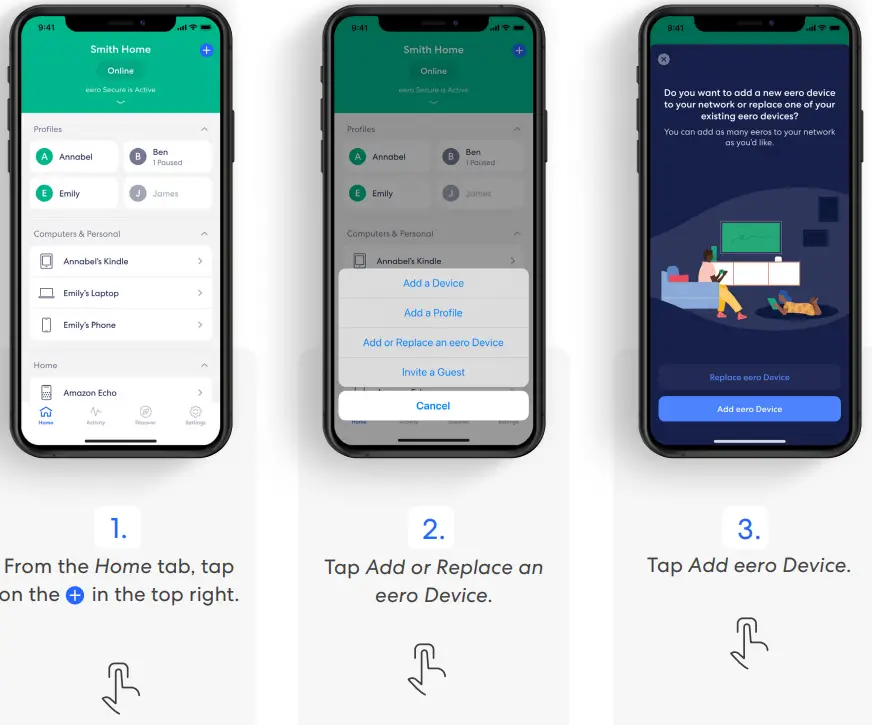
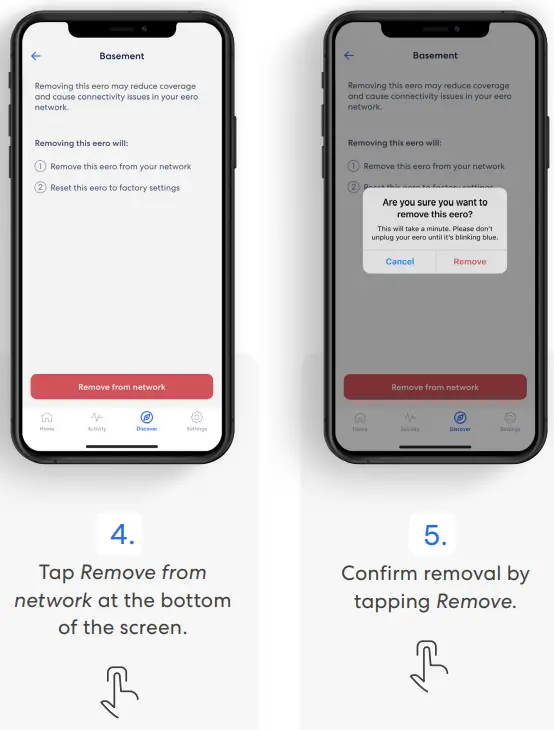
 Remove a device
 Remove a device
eero devices can be removed from the network in a few simple steps.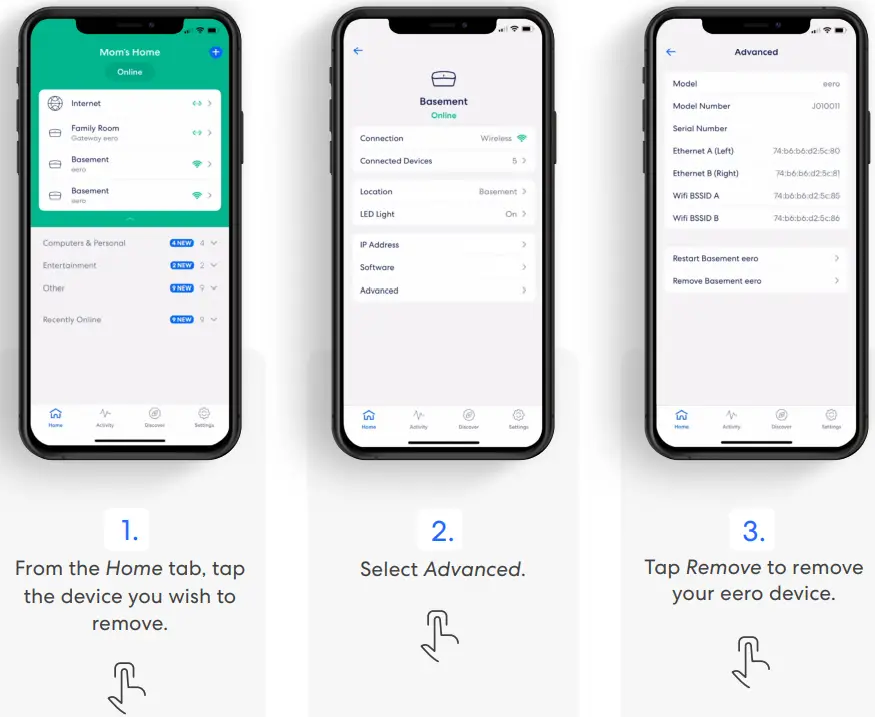
 Profiles
 Profiles
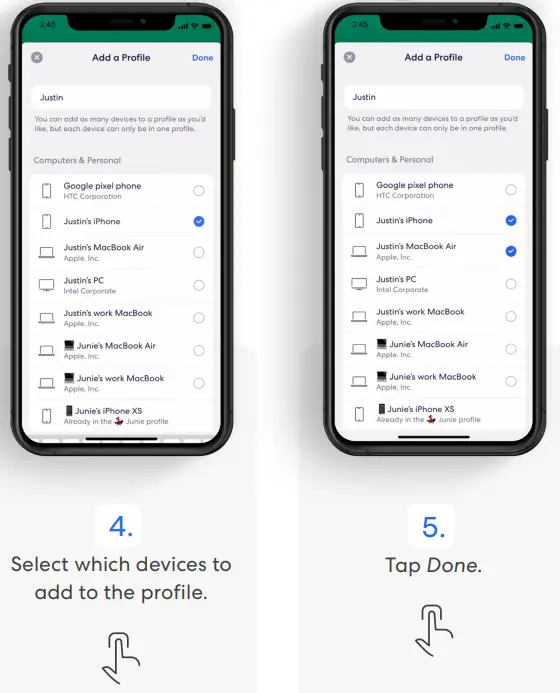
Create profiles so that you can set custom schedules, control internet access, and apply content filters by profile.
Create a profile from the Home tab in the eero mobile app. 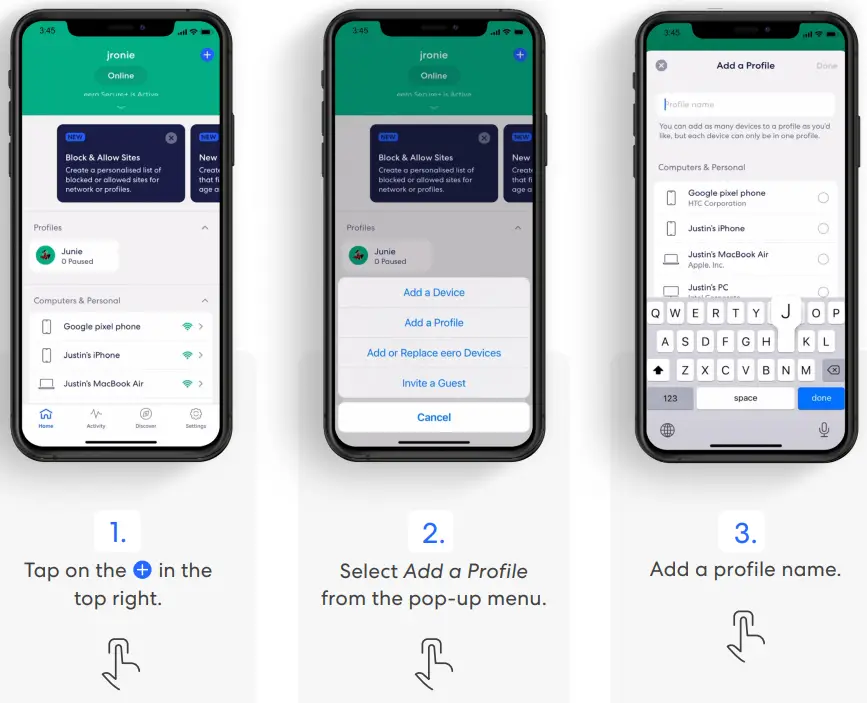
 Guest network
 Guest network
eero allows you to use a guest network to share your home wifi with others.
Note: You can disable the guest network at any time by following the steps below and toggling Enable to Off. Any devices connected to the guest network will lose connectivity.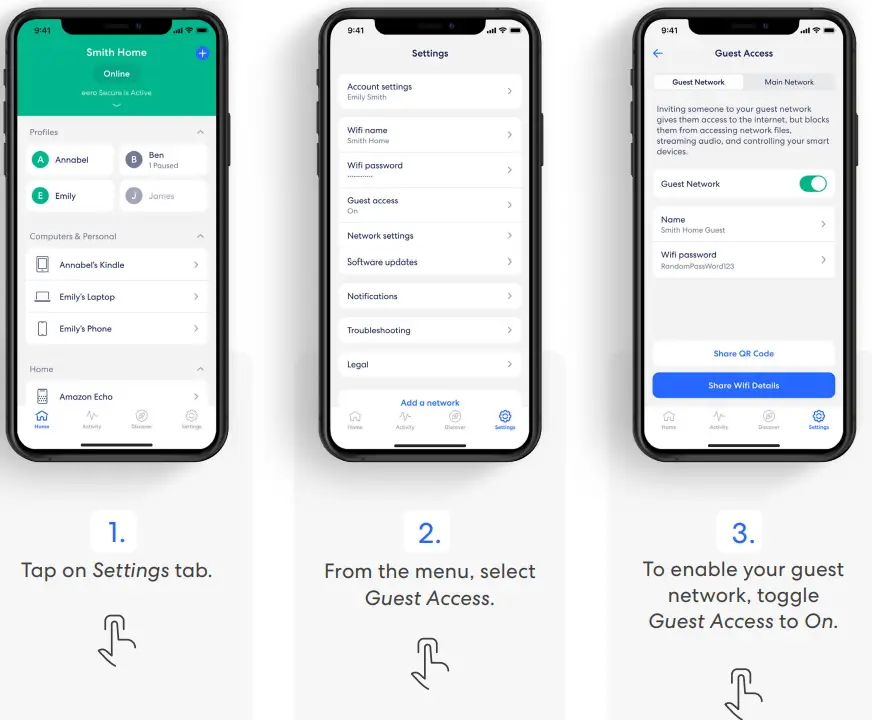
 Pausing wifi devices
 Pausing wifi devices
Pause your wifi network by setting schedules for specific profiles or devices. 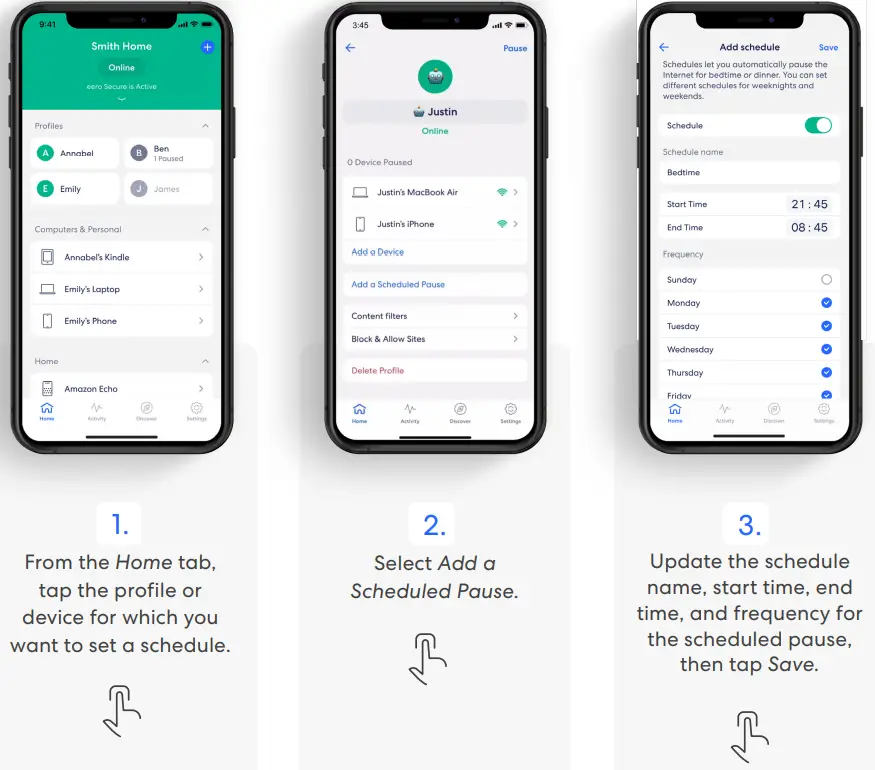
 Data Usage
 Data Usage
View data usage on your wifi network, including by device or profile. 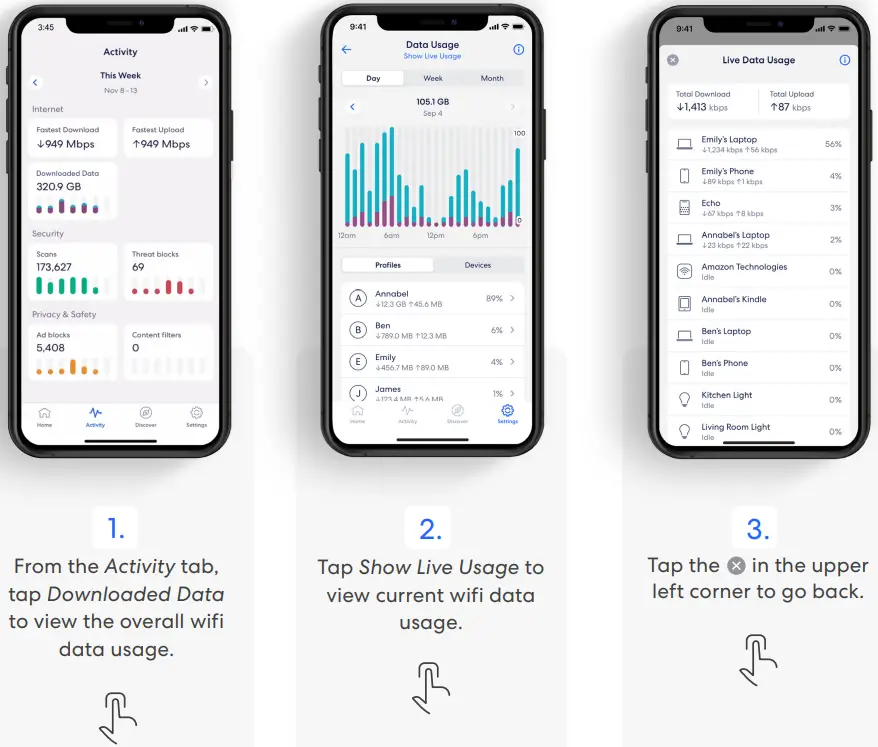
 Speed test
 Speed test
The speed test analyzes your upload and download speeds from your gateway eero.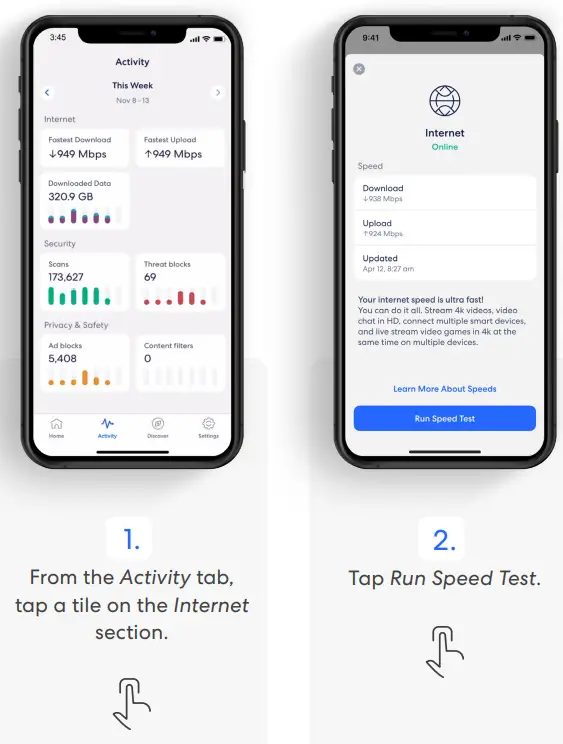
 Update password
 Update password
Easily change your wifi network password as needed.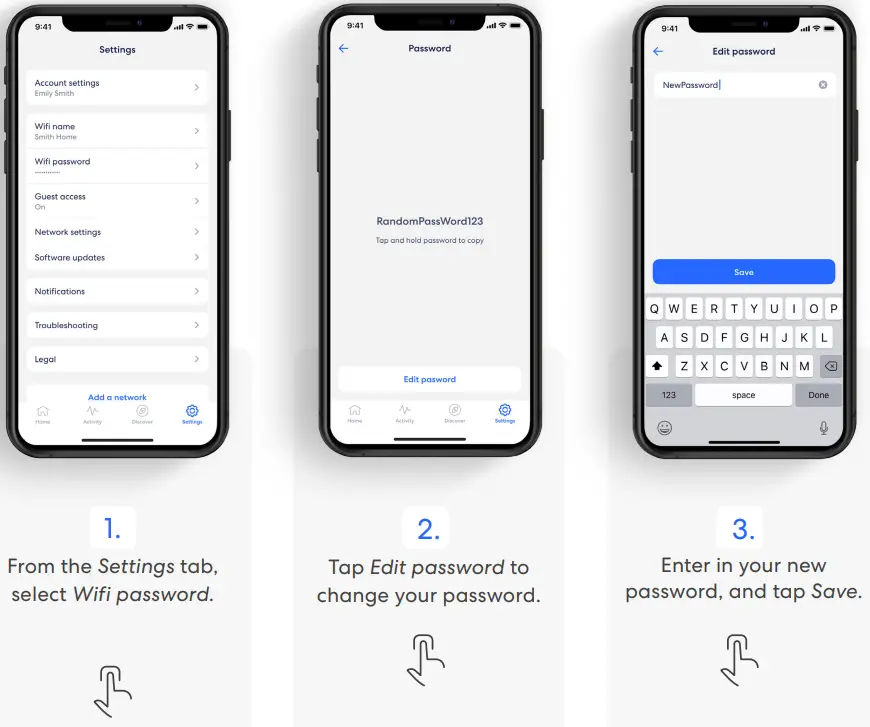
 Software update
 Software update
Help ensure your wifi network is always up to date.
Note: If there is a software upgrade available for your network, follow these instructions to start the upgrade process.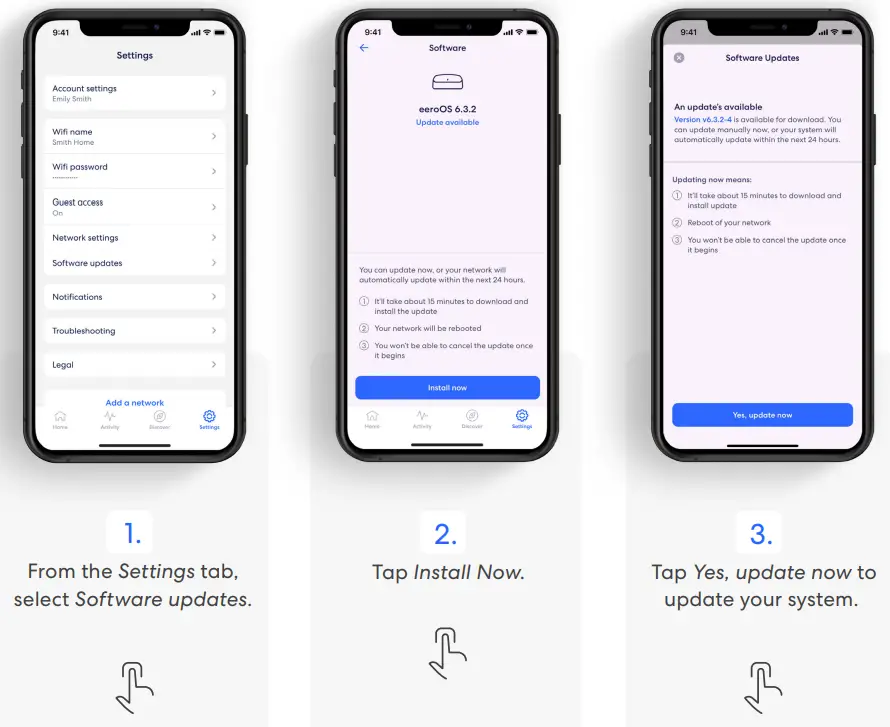
 Notifications
 Notifications
Manage which notifications you receive in the eero mobile app. 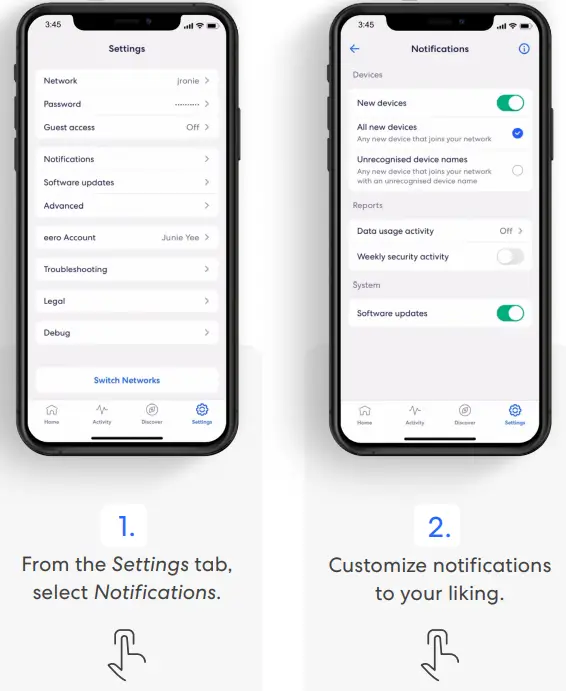
For troubleshooting and further support visit wightman.ca/support
1-888-477-2177
wightman.ca