CHORD Electronic 2 yu User Manual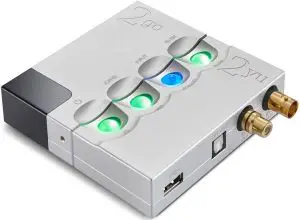
Introduction
This user manual is intended for 2yu users. It contains all the information necessary to safely and successfully use 2yu. The user manual describes 2yu and provides the essential user instructions related to everyday use.
Safety
Please take note of the following safety instructions before using 2yu:
- Never allow 2yu to come into contact with water or other liquids.
- Never spray cleaner onto 2yu. Only use a clean microfibre cloth to clean the casing.
- Before using this product you must read the safety document included in the box.
- There are no user-serviceable components within 2yu. Never attempt to open, dismantle or apply internal third-party devices to it.
NOTE: 2yu is only to be used in combination with 2go. The product will not function without connecting to 2go.
Registering 2yu
2yu comes with a three-year warranty that covers defects in materials and workmanship through fair wear and tear.

- Register your 2yu via the Chord Electronics website: www.chordelectronics.co.uk/register-product
- Registering your product helps us to provide you with the best possible after-sales support.
In the unlikely event of a claim, you must first contact your supplying dealer
Product description
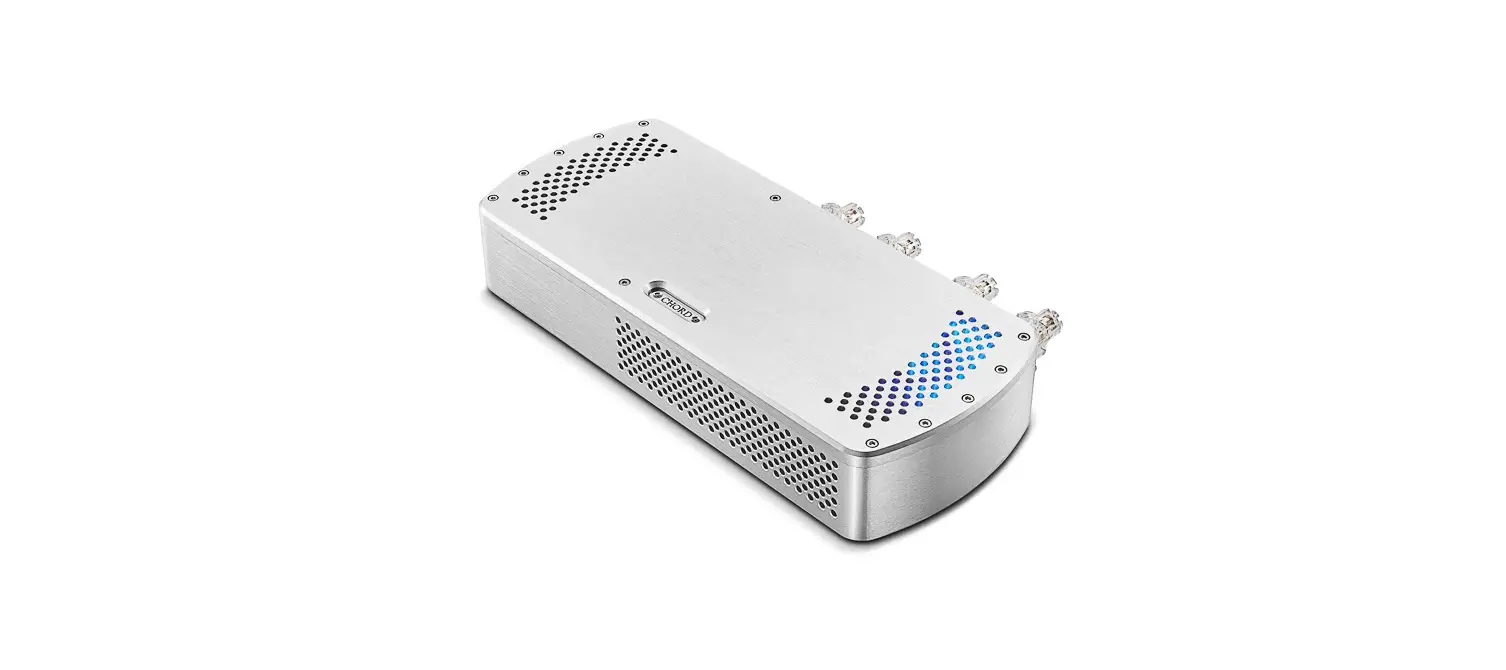
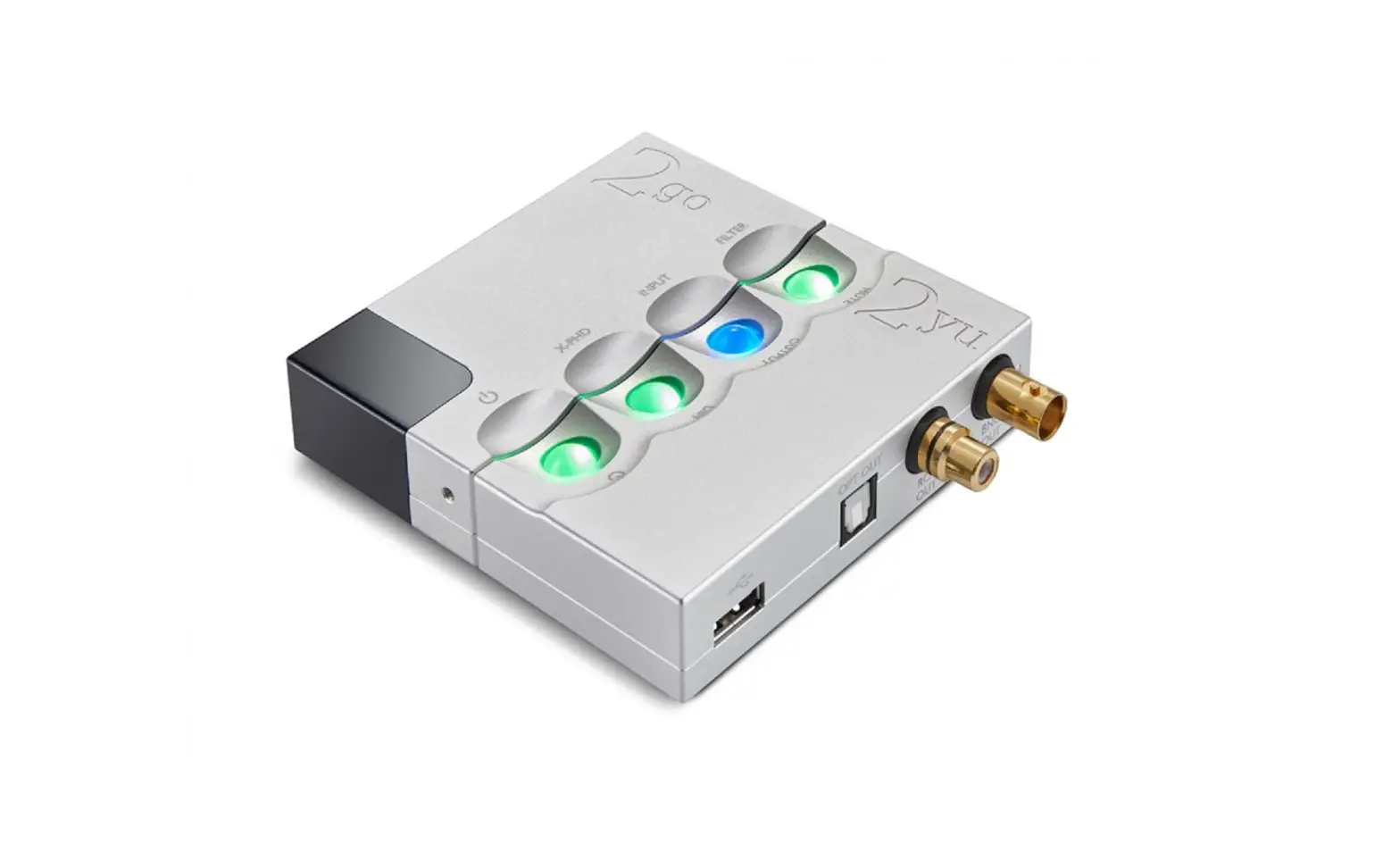
2yu is a digital interface that connects with 2go to create a network bridge for use with a DAC, DACequipped device or the Hugo M Scaler.
Features
Please take a moment to familiarise yourself with 2yu’s main features:
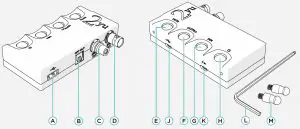
- (A) USB Type-A output
- (B) Optical output
- (C) RCA coax output
- (D) BNC coax output
- (E) Mute button
- (F) Output button
- (G) Dim brightness button
- (H) On/of
- (J) Micro USB inputs for 2go (only)
- (K) Micro USB inputs for 2go (only)
- (L) Allen wrench included with 2go
- (M) Connector pins included with 2go
Connecting 2yu to 2go
To connect 2yu to 2go:
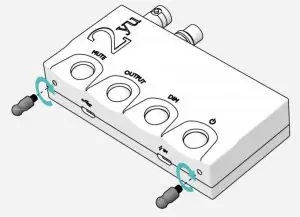
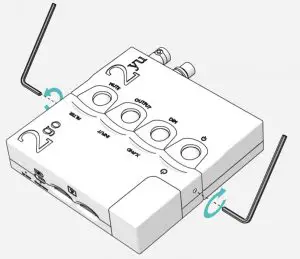
- Before operating 2yu with 2go, the devices must be docked. Failure to correctly dock the devices may cause damage. Using the locking pins supplied with the 2go (pins are not supplied with 2yu), screw the pin into 2yu’s screw-thread until thumb-tight and repeat with the second pin.

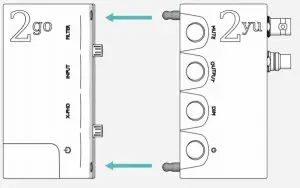
- Ensure the locking hex bolts on either side of 2go are loose and not obstructing the connector holes.
Carefully align 2go with 2yu and slide the two devices together. This is best done on a flat surface.
- Locate 2go’s locking hex bolts and with the Allen key supplied with 2go, gently tighten the bolts until comfortably tight. Do not over-tighten.

NOTE: If docking is unsuccessful, gently remove 2go from 2yu and loosen each locking pin by half a turn (don’t worry if the pins move) and reattempt the connection. Once successfully docked, re-tighten the hex bolts.
Connecting 2yu to an audio system
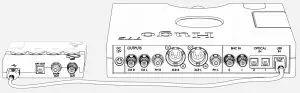
2yu features an array of digital outputs including: USB Type-A; BNC coax; RCA coax and optical.
Using a high-quality cable, connect 2yu’s digital output/s to the corresponding digital input/s on the chosen partnering equipment (DAC, DAC-equipped device or the Hugo M Scaler). All outputs can be connected, however, only the output selected will be active. You can select between USB or optical/ RCA/BNC combined (where all three outputs are active at once). See section 8 for details.
Supported sample rates
2yu features automatic downsampling for use with legacy DACs. If the sample rate of the incoming signal is greater than the output’s capability, 2yu will automatically apply down-sampling. The tables on the next page define 2yu’s output capabilities.
NOTE: If you are not using a Chord Electronics DAC or M Scaler, please consult your device’s manual regarding its input limitations to ensure compatibility.
PCM:
| Playback rate | USB Type A | Optical | BNC/RCA coax |
| 44.1 kHz | 44.1 kHz | 44.1 kHz | 44.1 kHz |
| 44.1 kHz | 48 kHz | 48 kHz | 48 kHz |
| 88.2 kHz | 88.2 kHz | 88.2 kHz | 88.2 kHz |
| 96 kHz | 96 kHz | 96 kHz | 96 kHz |
| 176.4 kHz | 176.4 kHz | 176.4 kHz | 176.4 kHz |
| 192 kHz | 192 kHz | 192 kHz | 192 kHz |
| 352.8 kHz | 352.8 kHz | DS 176.4 kHz * | 352.8 kHz |
| 384 kHz | 384 kHz | DS 192 kHz * | 384 kHz |
| 705.6 kHz | 705.6 kHz | MUTE | MUTE |
| 768 kHz | 768 kHz | MUTE | MUTE |
DSD:
| DSD Playback | USB Type A | Optical | BNC/RCA coax |
| DSD 64 | DSD 64 | DSD 64 | DSD 64 |
| DSD 128 | DSD 128 | MUTE | MUTE |
| DSD 256 | DSD 256 | MUTE | MUTE |
- Sample rates marked with ‘DS’ have been downsampled to ensure compatibility with the selected output connector in use.
NOTE Occasionally, some higher-input sample rates may illuminate 2yu’s ‘MUTE’ button. This means the output selected on 2yu cannot deliver the input sample rate, or a downsampled rate. Refer to the table above for full details.
NOTE To achieve maximum sample rate for certain outputs, a high-quality cable will be required.
Powering on 2yu
2yu does not have its own internal battery and requires continuous power, which must be supplied at all times, from 2go.
Connect the included 5 V 2 A Micro USB adapter to a wall outlet and insert the Micro USB cable into 2go. A green power LED should be displayed; a red power LED indicates 2yu is off. Do not use any third-party power supplies as they may damage the product and will void the warranty.
Press the power button once to power up both devices. All four buttons should illuminate.
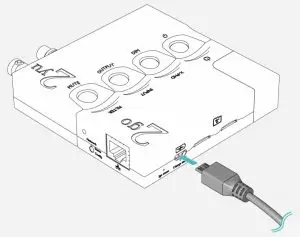
NOTE If the buttons appear faint, the dim function may have been enabled. Refer to section 10.0 for more information.
Powering off:
To turn 2go/2yu off, press and hold the power button until it turns RED.
Selecting an output
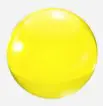
With 2go and 2yu switched on, select an output using the OUTPUT button: press repeatedly to scroll between USB or optical/RCA/BNC (which are simultaneously active).
Before proceeding, please choose which output you will be using with your connected DAC. If using the USB output, ensure you have connected your DAC and powered it on before proceeding with the set-up.
The 2yu will need to see a USB signal from your DAC in order to activate its services for set-up and playback.
Button colour | 2yu status |
 | USB Type-A |
 | Optical/RCA/BNC coaxial |
Mute
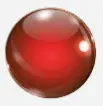
2yu benefits from a mute feature which mutes the output without pausing the signal. Simply press MUTE for on/off operation. Mute is only available in optical/RCA/BNC coaxial mode, USB is a native pass-though.
Button colour | 2yu status |
| Muted |
| Unmuted |

Dimmer function
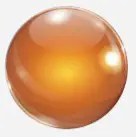
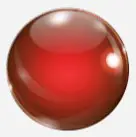
2yu features dimmable buttons with four levels, adjustable via the DIM button.
Button colour | 2yu status |
 | Off |
| Low |
 | Medium |
| High |
 | Full |
Set-up
Before using 2yu, refer to our website to ensure that you have the latest update for the 2go firmware and Gofigure software. You will be able to find this on our product page for either the 2yu or 2go. 2go must be on at least V 1.5.0 firmware and Gofigure for iOS V2.08(22) or Gofigure for Android v1.2.126 or later.
Once updated, 2yu should now be ready to receive data from 2go to pass to a compatible DAC, DACequipped device or the Hugo M Scaler. Refer to the 2go user manual for more information.
Find the product page here along with the 2go user manual online:
https://chordelectronics.co.uk/product/2go/
Technical specifications
Dimensions with 2go | 115 mm x 100 mm x 22 mm |
Weight 2yu | 206 g |
| Weight 2go + 2yu | 362 g |
Inputs | 2 x Mirco USB for 2go only |
| Input power | Micro USB 5 V 2 A (required via 2go) |
Outputs | USB Type-A (44.1 kHz-768 kHz / DSD 256) |
BNC coax (44.1 kHz-384 kHz /DSD 64) | |
RCA coax (44.1 kHz-384 kHz /DSD 64) | |
Optical (44.1 kHz-192 kHz / DSD 64) | |
| Automatic downsampling | Automatic downsampling is applied if the selected output does not support the input sample rate. |
 Register Your Product | Chord Electronics
 2go - Chord Electronics Ltd