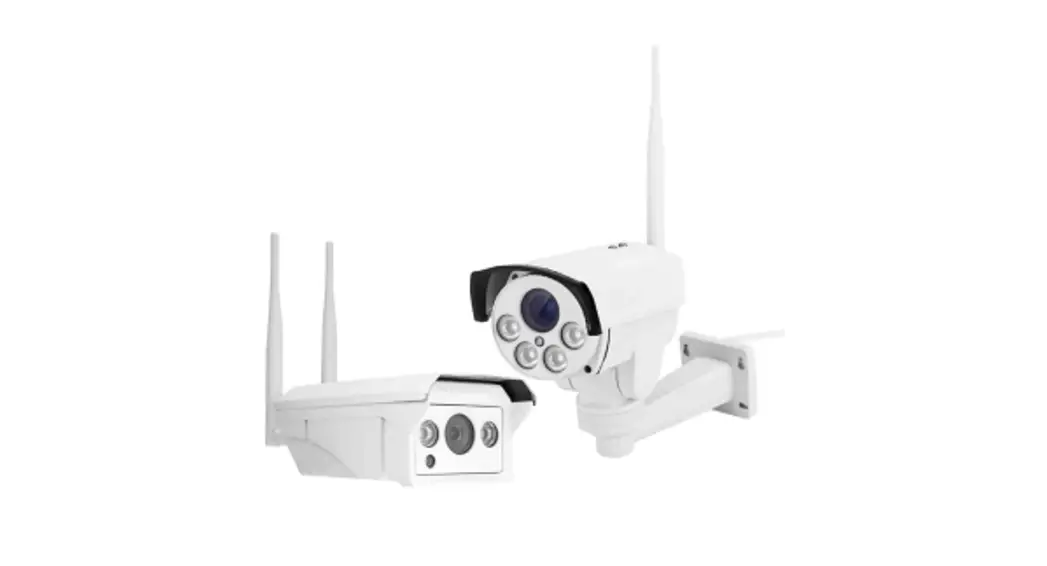

QUICKSTART GUIDE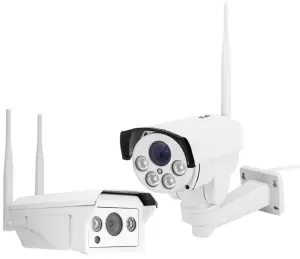
Of 3G/4G
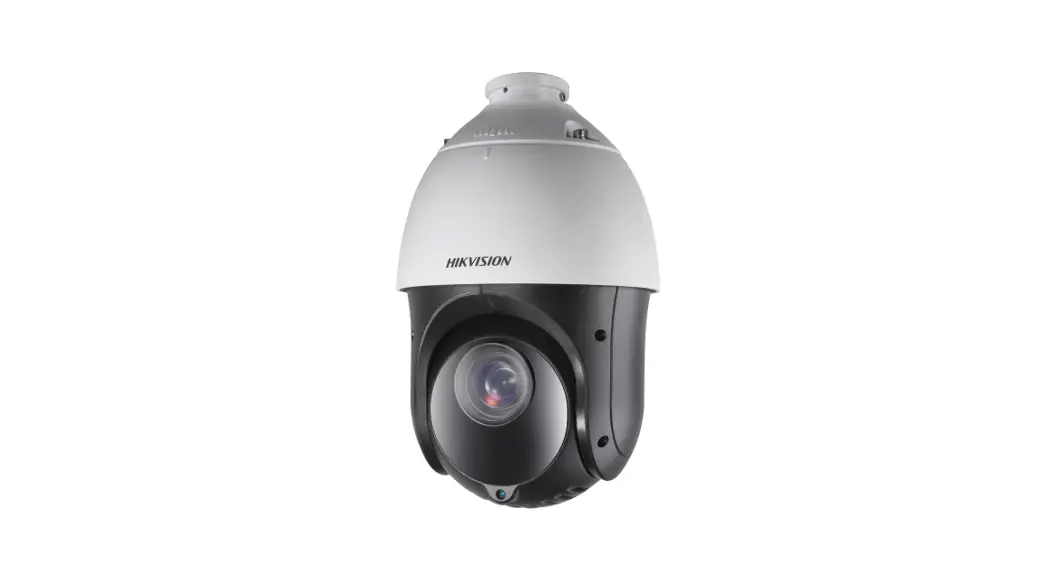
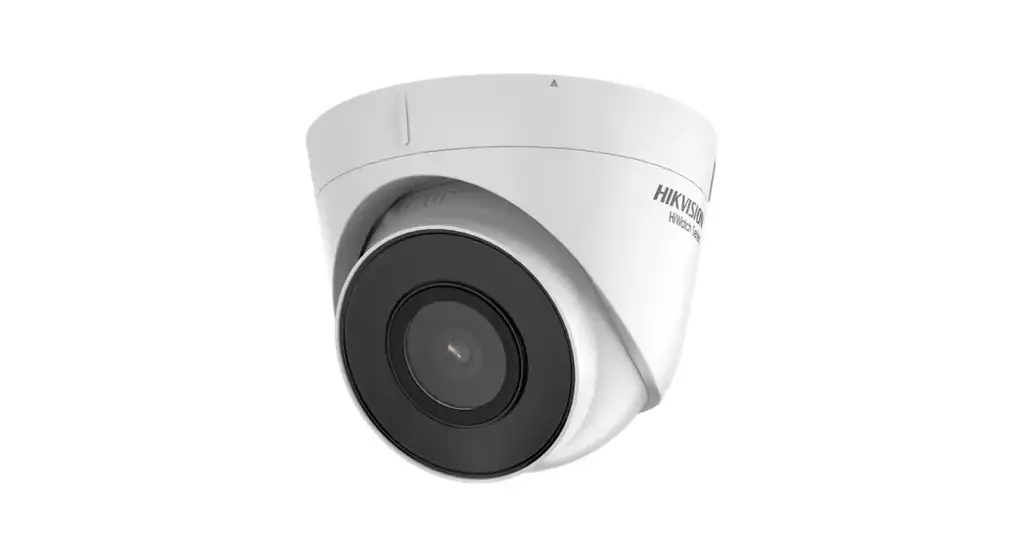
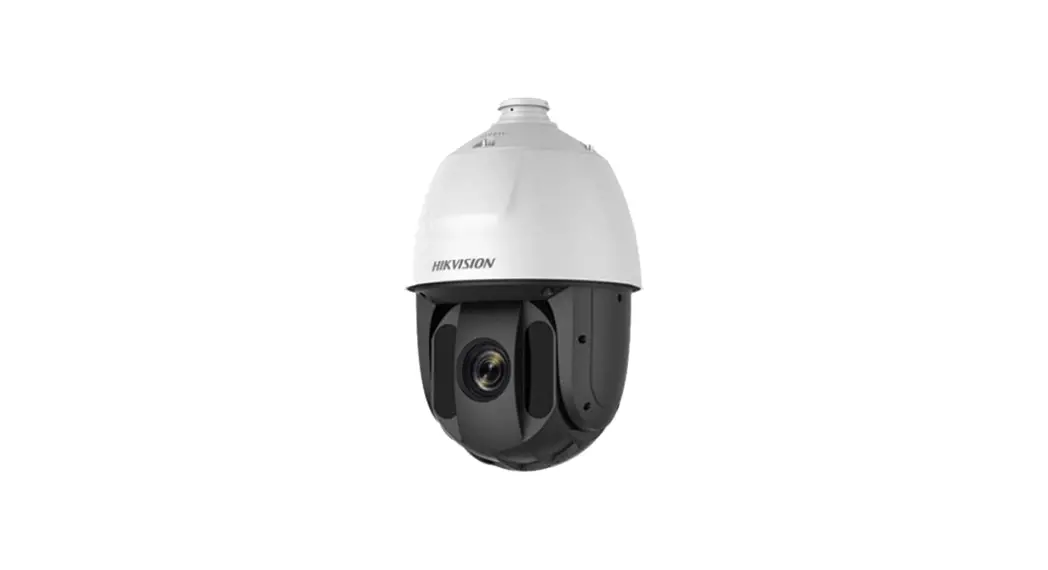
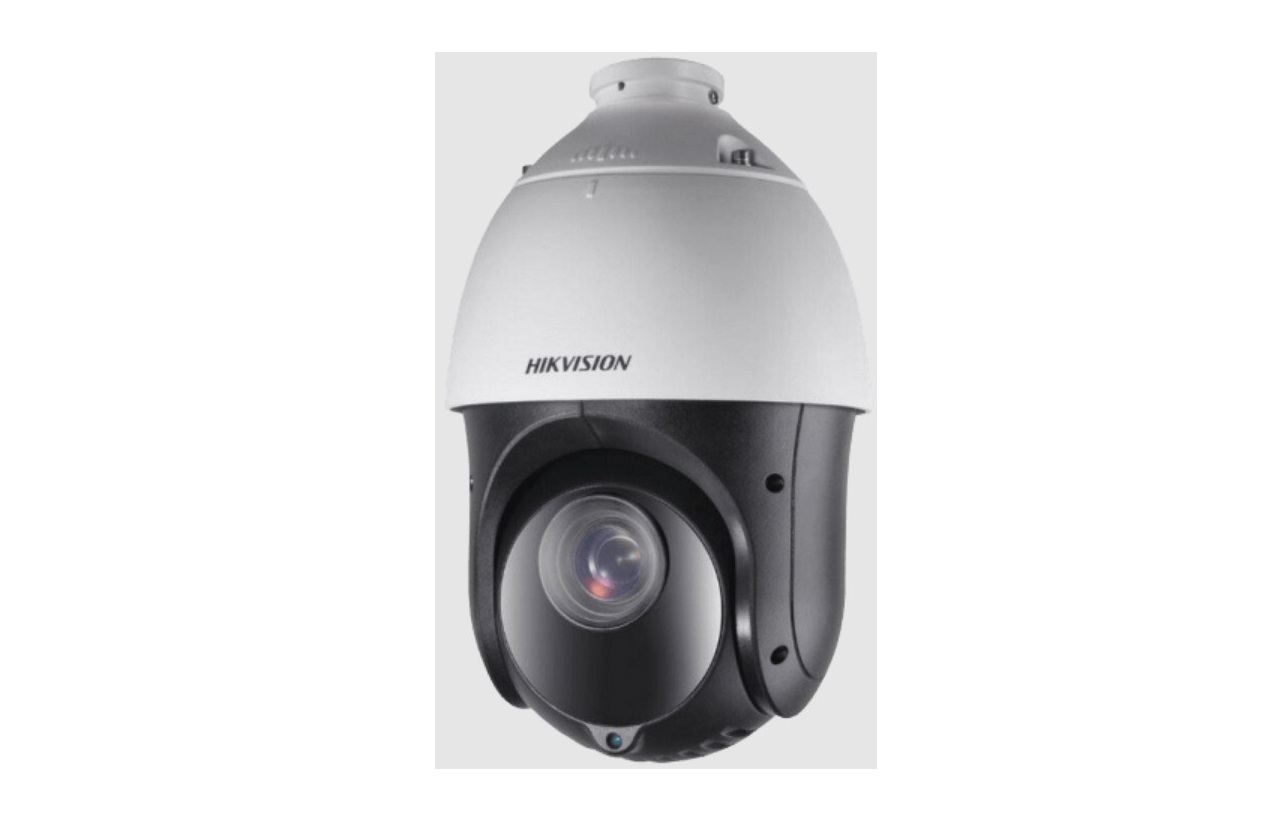
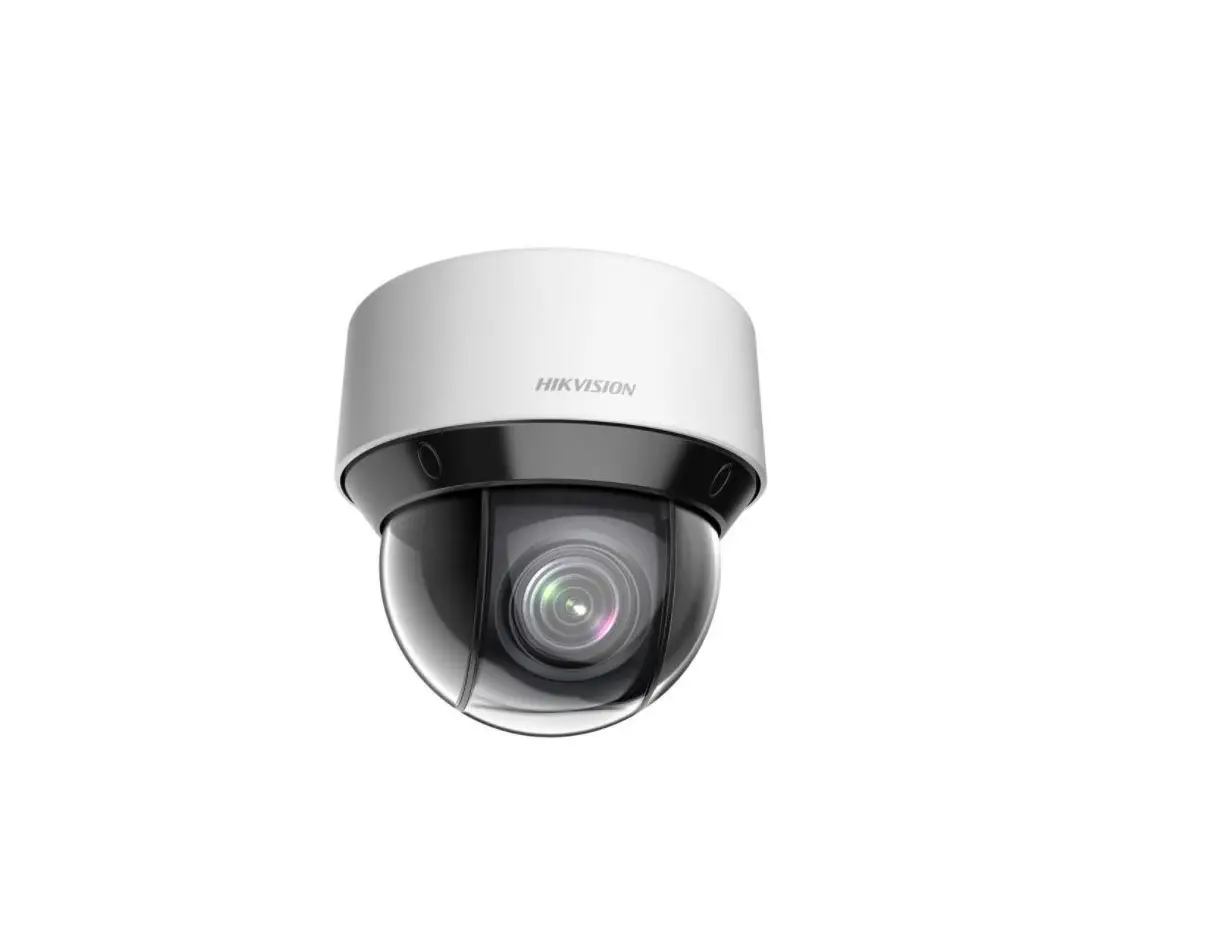
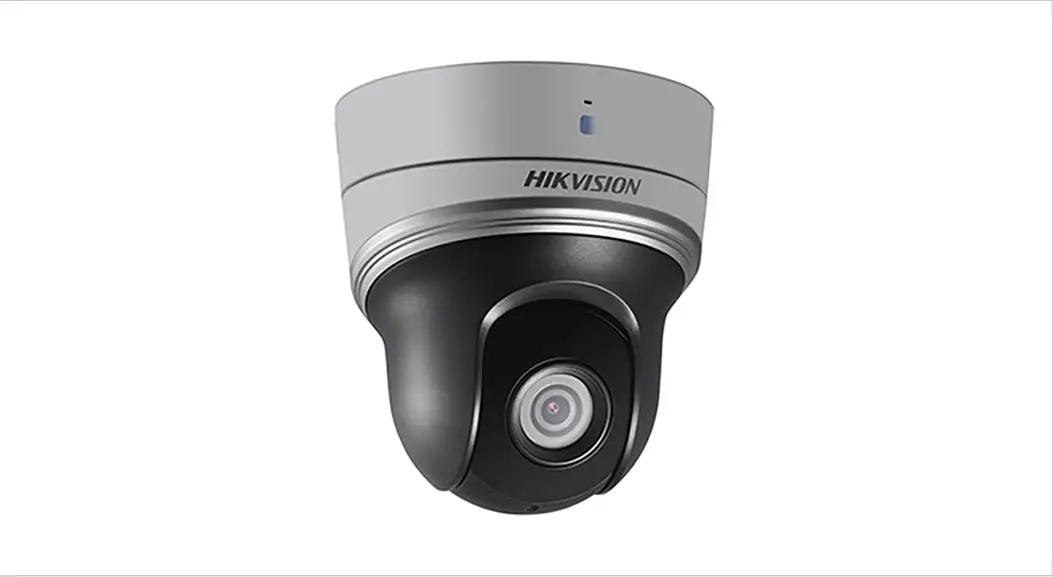
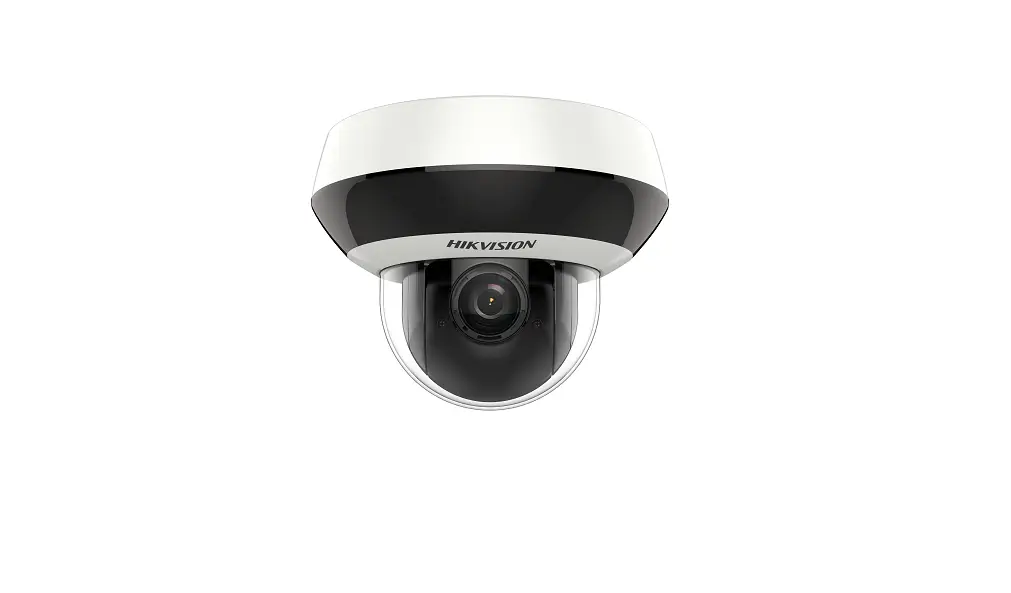
HD Network camera
About camera
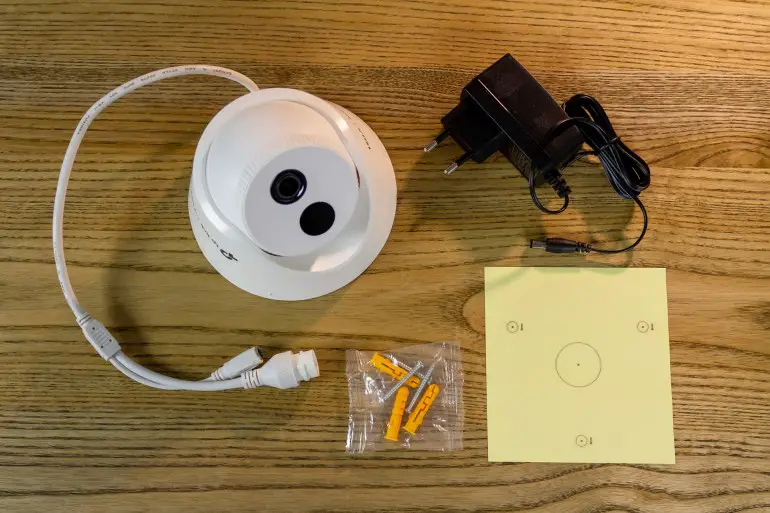
1.1 When you receive the product, besides the camera the product package should contain the following accessories:
Power adapter*1
Screws bag*1
Software disk*1
User manual*1
Antenna*lor2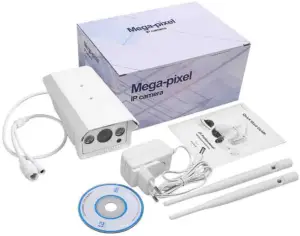 You find any product damaged or parts missing, please contact our sales or reseller in time.
1.2 Interface. 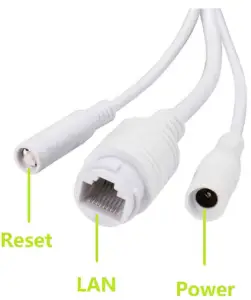
The network cable(LAN) interface is not available for 3G/4G cameras.
2. Install the Micro SD card and SIM card
2.1 Remove the housing cover for camera model one.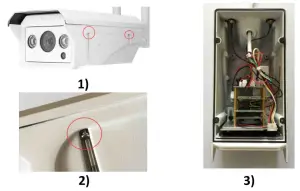 2.2 Remove the housing cover for camera model two.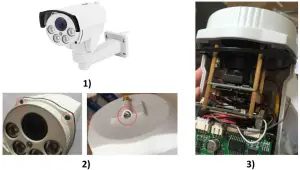
2.3 Insert the Micro sd card and sim card 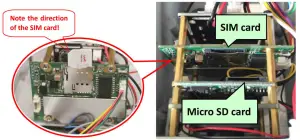
The frequency of the SIM card is supported by your 3G/4G camera! SIM card size type is Micro Sim (12mmx15mmx0.8mm)! Please note the direction of SIM card installation! Hot swapping is not supported!
Connect your camera
3.1 Connect the power adapter and install the antenna to the camera. 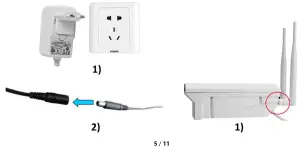
4. View via mobile phone
4.1 Download “CamHi” from Google Play Store/App Store or scan the QR code below to get APP information.
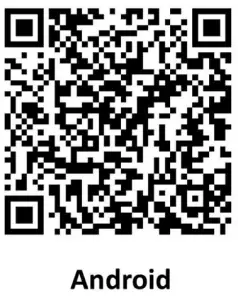 |  | 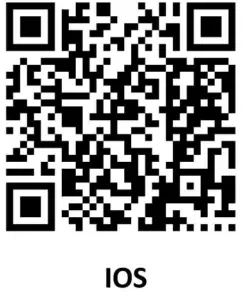 |
| https://play.google.com/store/apps/details?id=com.hichip | http://c3.clewm.net/AdBItP |
4.2 Run APP and click “+” to input the camera UID&password to add camera. 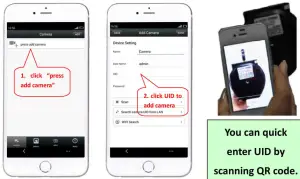
4.3 Click the camera to view real-time images when the added cameras are displayed online.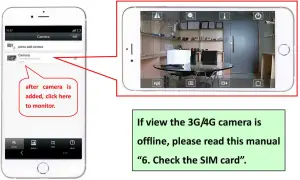
5. View via PC
5.1 Install the “HiP2P Client_Setup” from the CD, then run “HiP2P Client”.
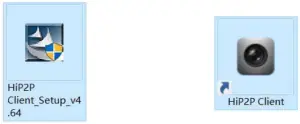 PC client only supports Windows operating system.
5.2 Enter the “Config” interface and click “Input UID” to input the camera UID&password, and then add the camera. 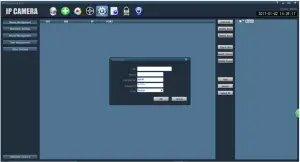
5.3 Click the camera to view real-time images when the added cameras are displayed online.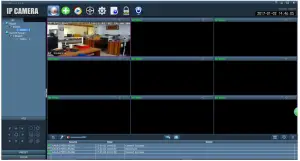
If view the 3G/4G camera is offline, please read this manual “6. Check the SIM card”.
Check the SIM card
6.1 Use the mobile phone or PC to connect the WIFI “MIFI_3F41”, the WIFI password is “1234567890′; you can find the WIFI when the camera starts working. 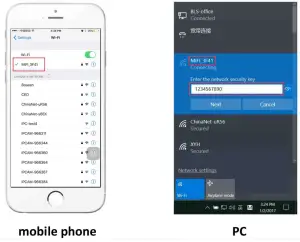
6.2 Access “192.168.100.1” through the browser, the page password is “admin”, you can check the SIM card information on this page. 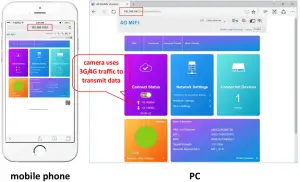
6.2 If your camera display is offline, please note the following: (1)Damaged card or wrong installation direction when prompted ” No SIM Card or SIM Card invalid! “, as shown below: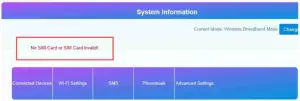
(2)Frequency not supported or SIM card arrears when prompted “No Service” or “Limited Service”, as shown below 1):” C 3
 Make sure 3G/4G signal strength is enough, as shown below 2):
Set Micro SD card record
7.1 Set Micro SD card record on phone.
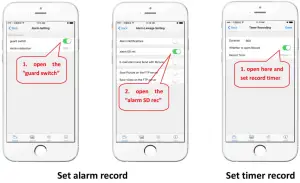
Also, you can set these parameters via PC client
8. More info
This manual only provides basic guidance and simple function instructions, please refer to the content in CD for more information. If you need technical support or have any suggestions for improvement of the product, please contact our sales staff or dealers.