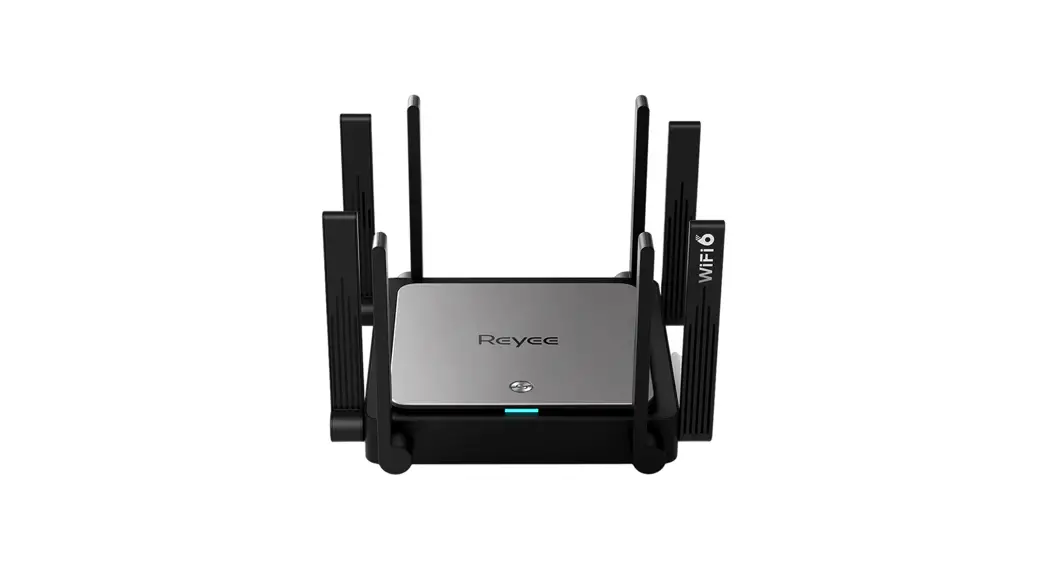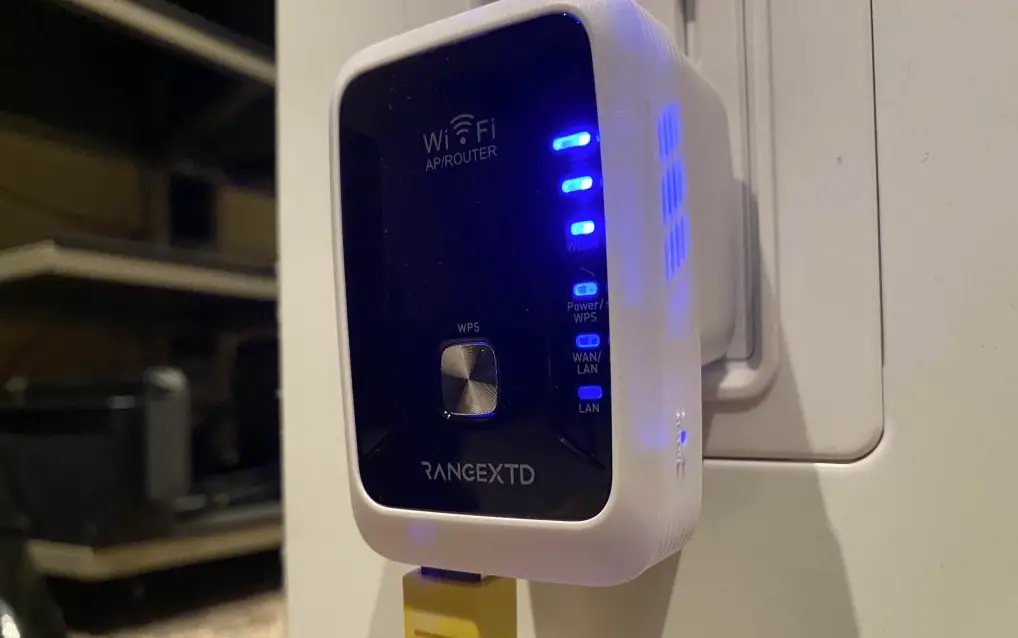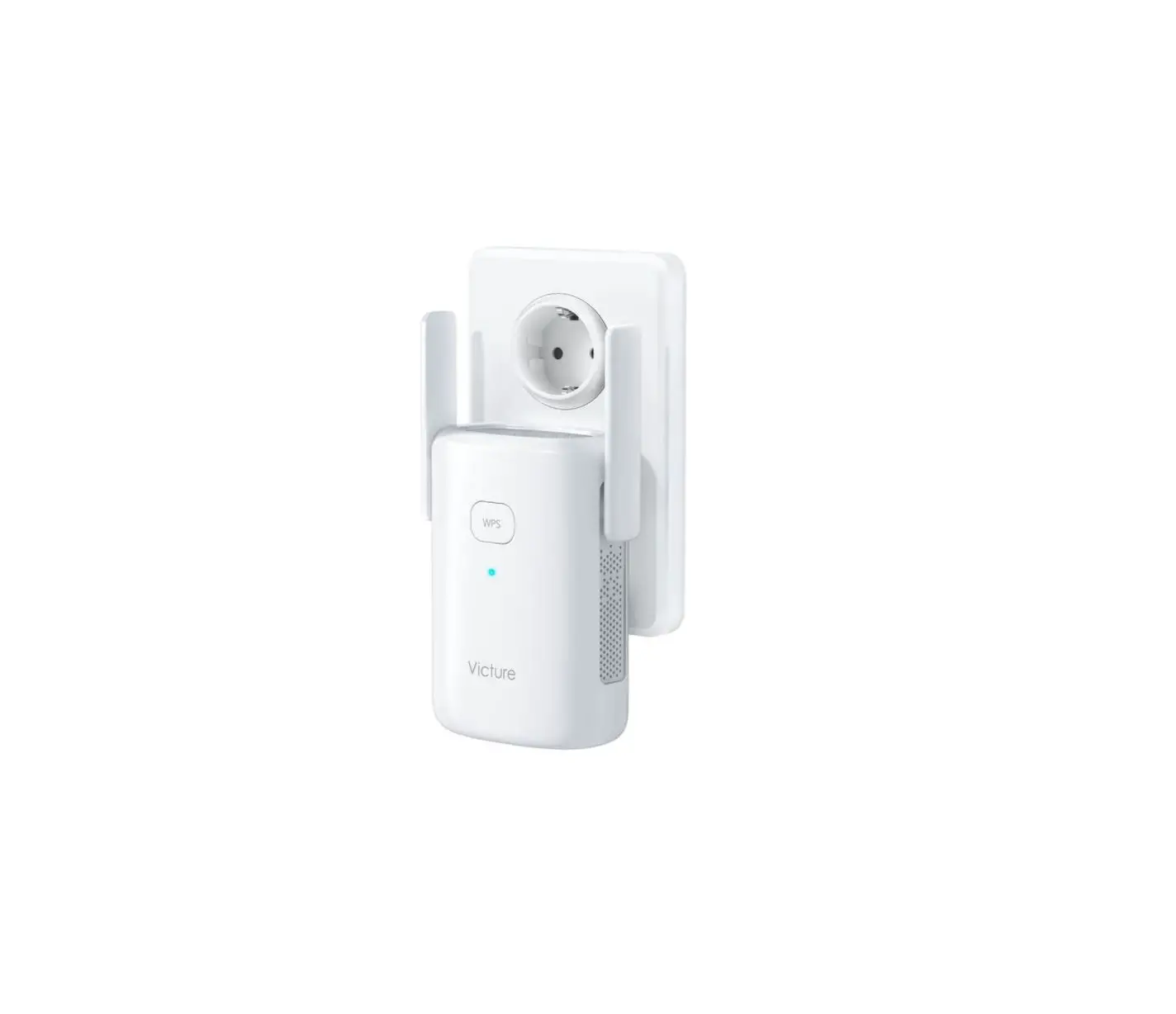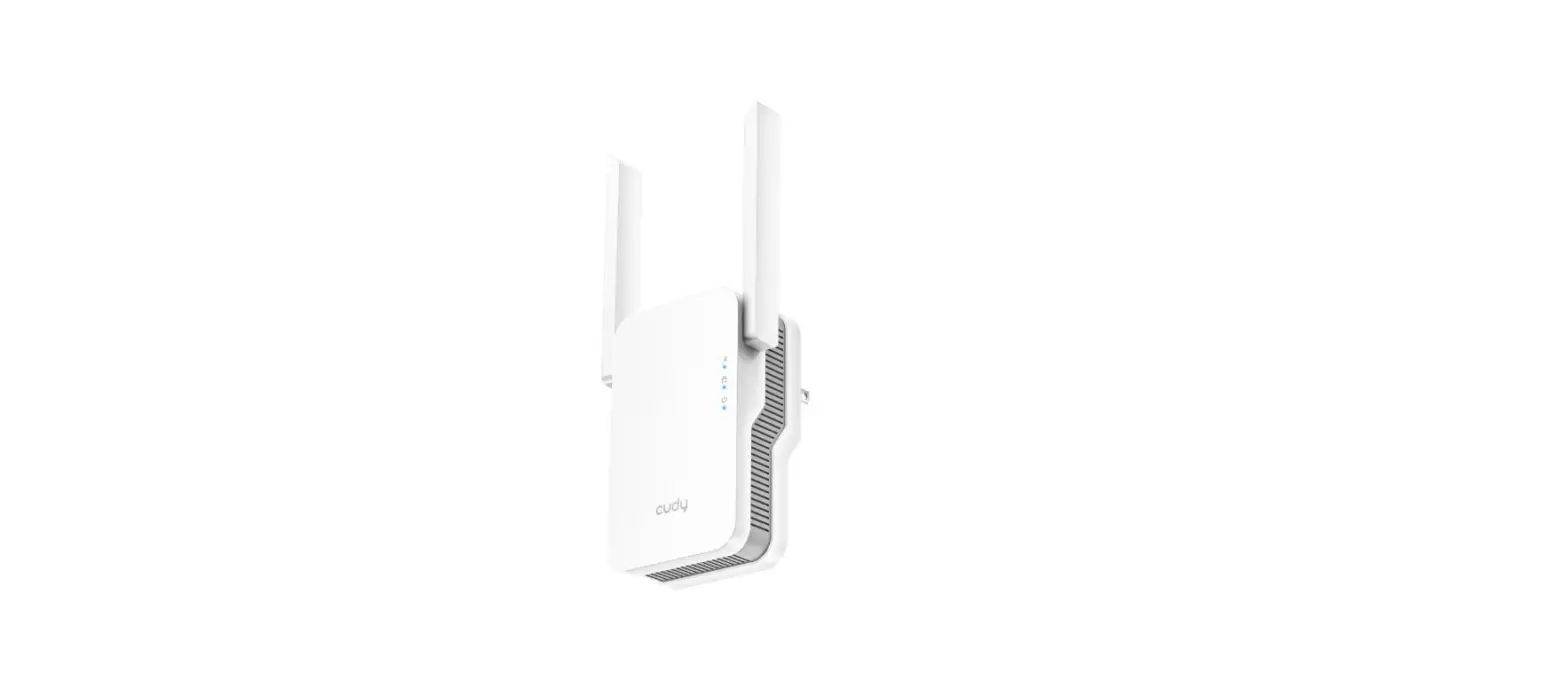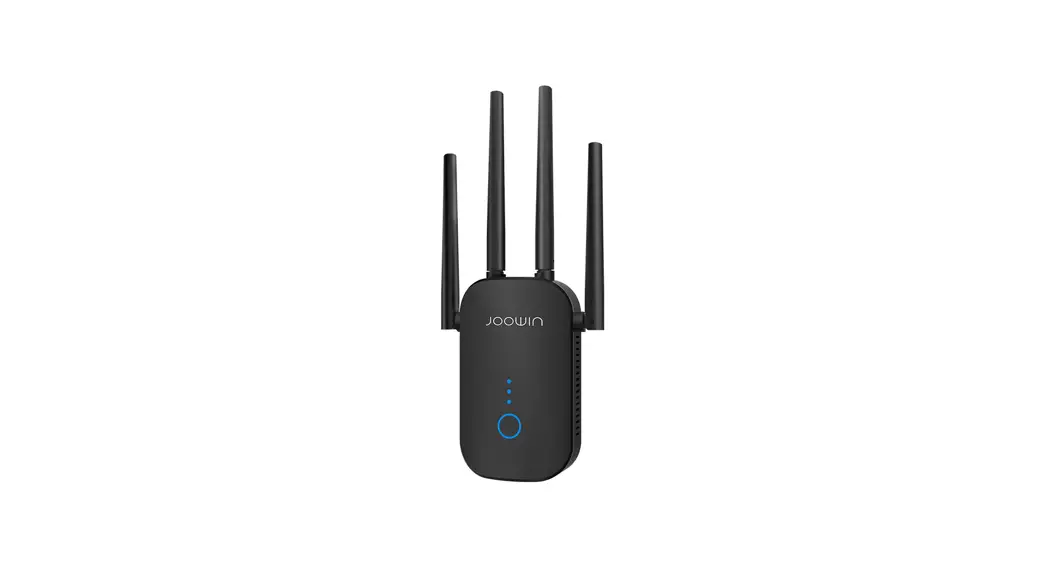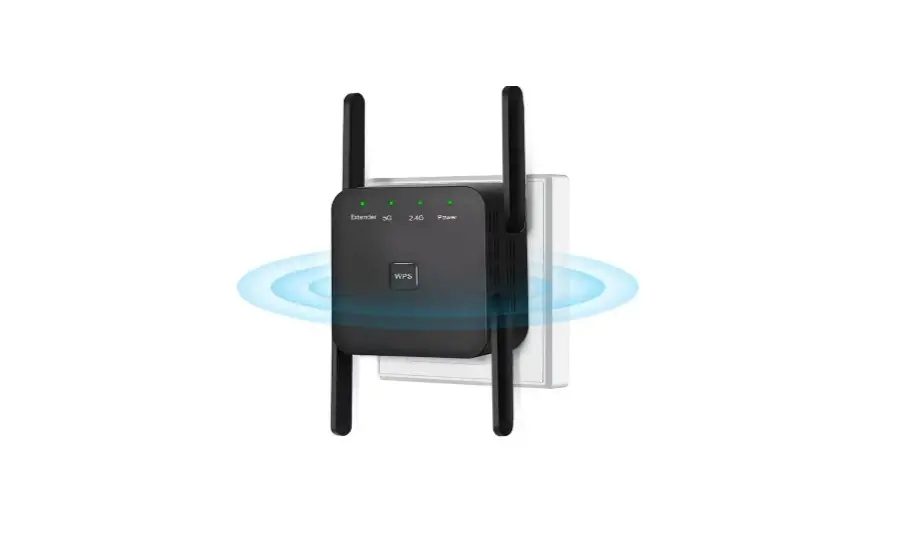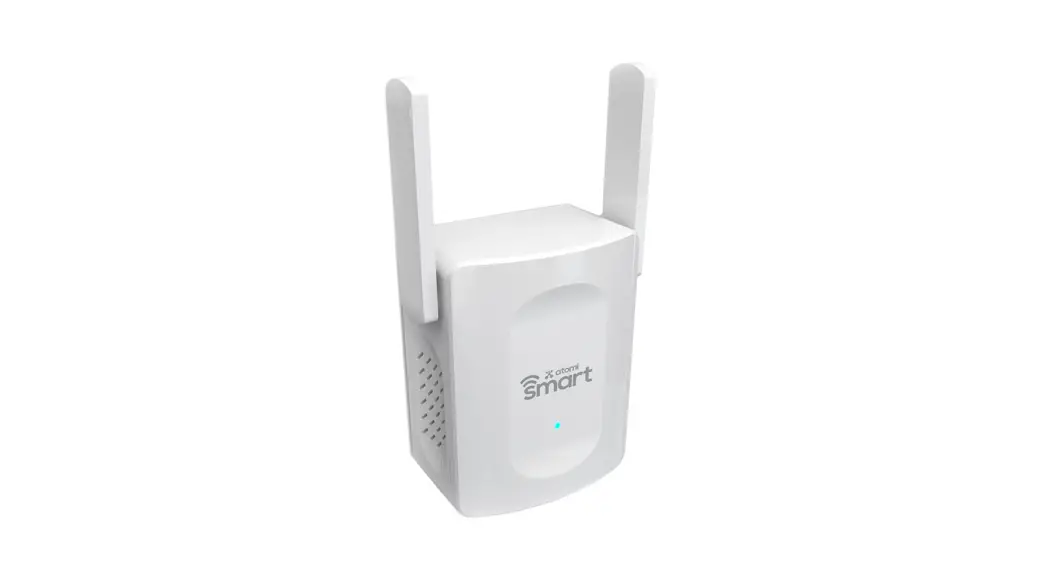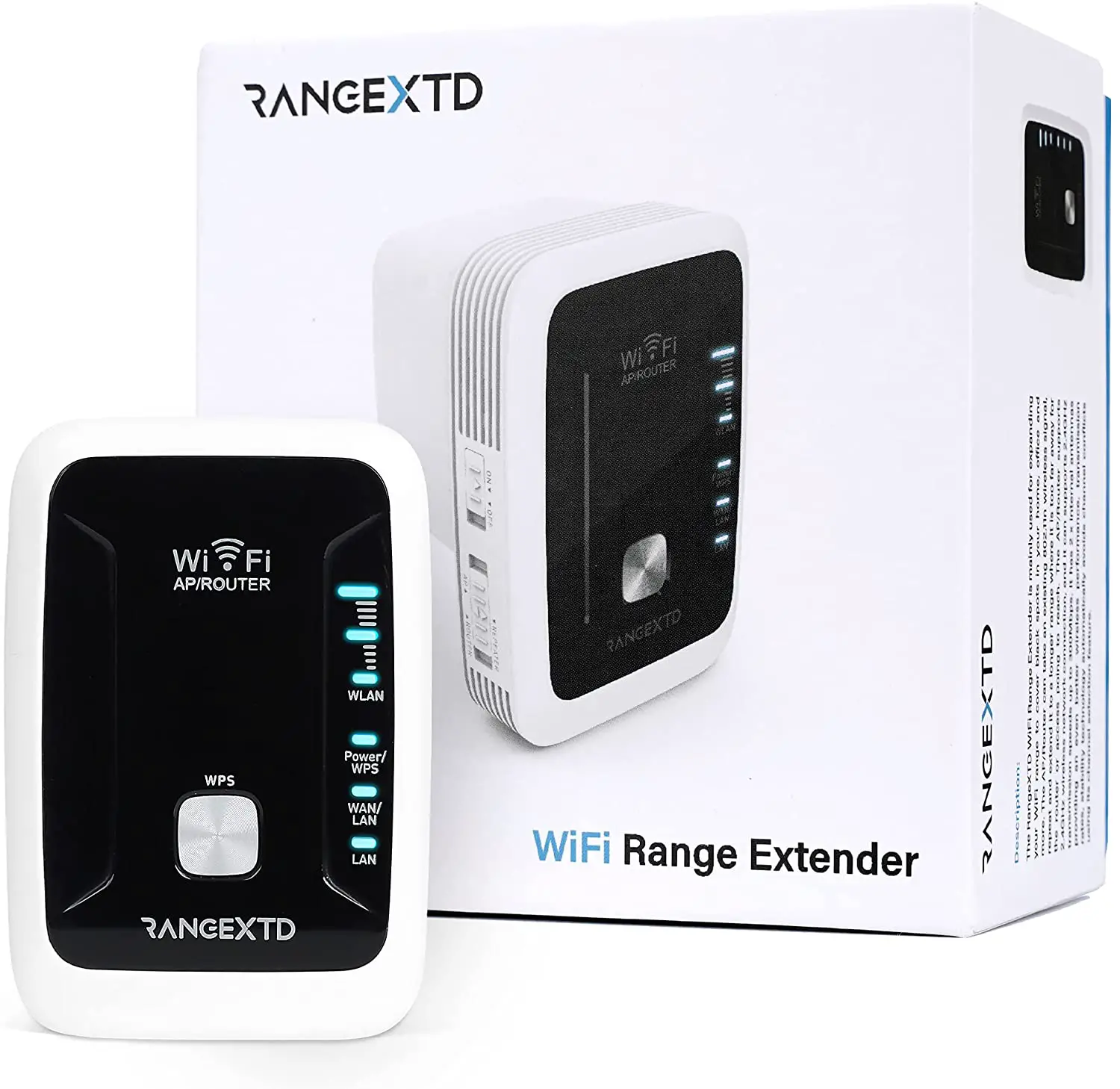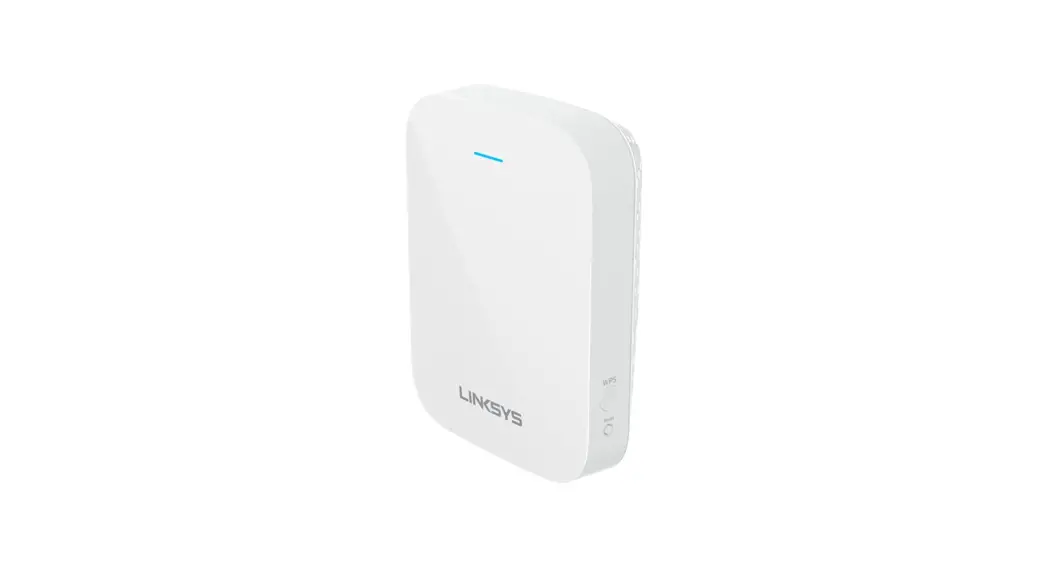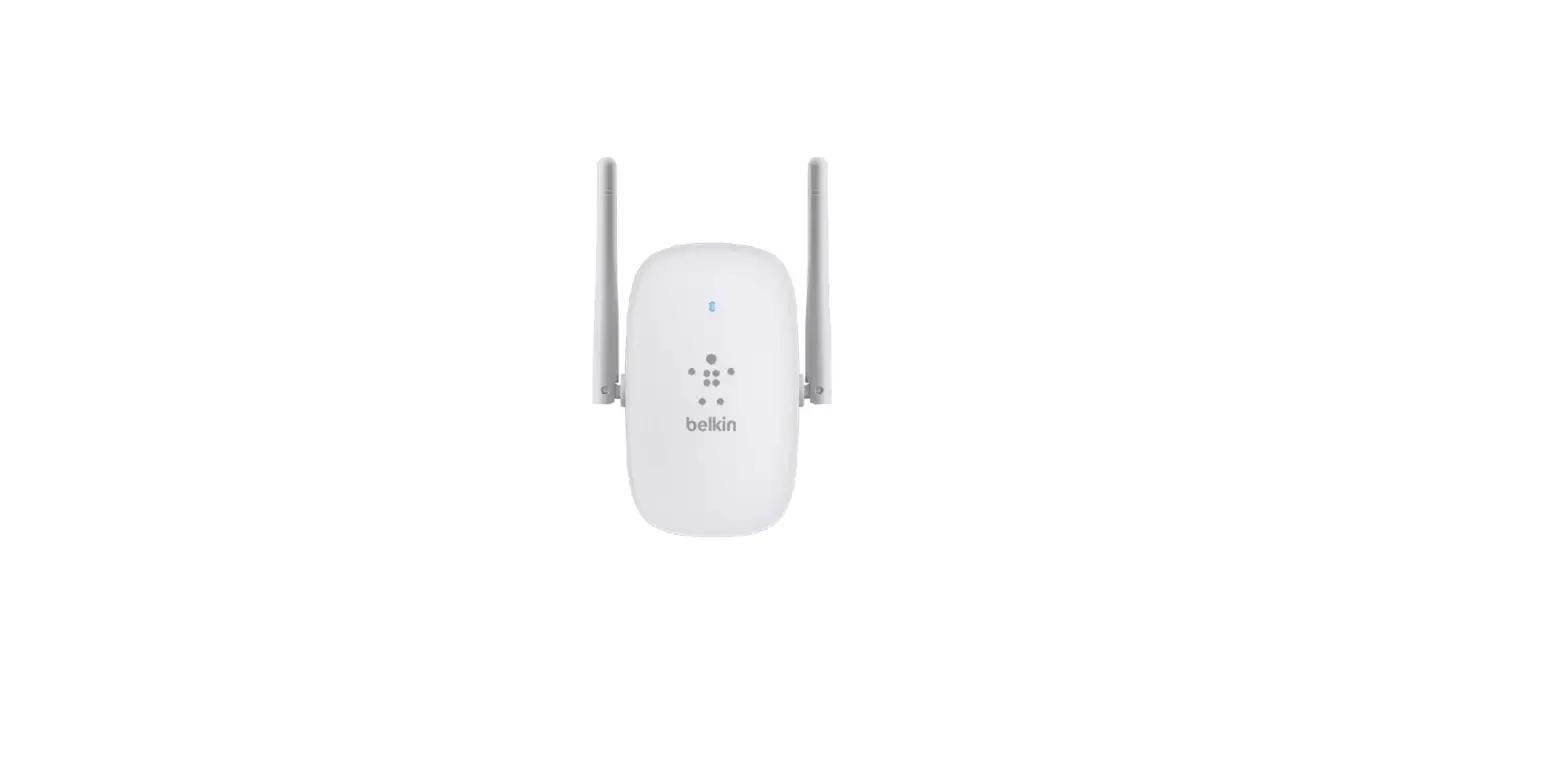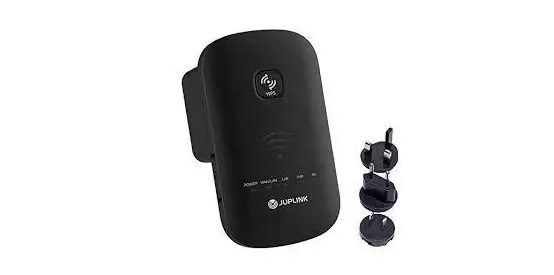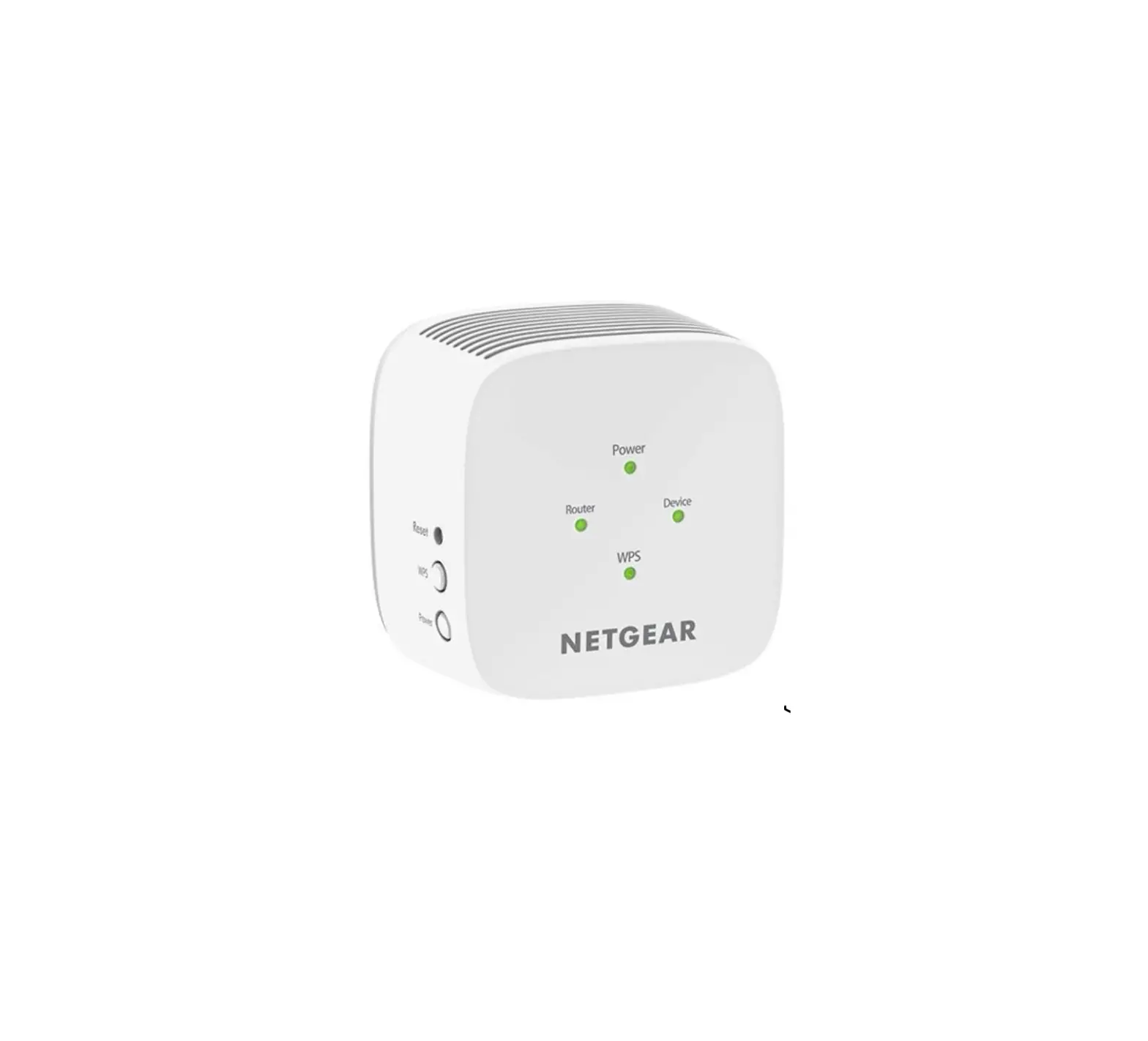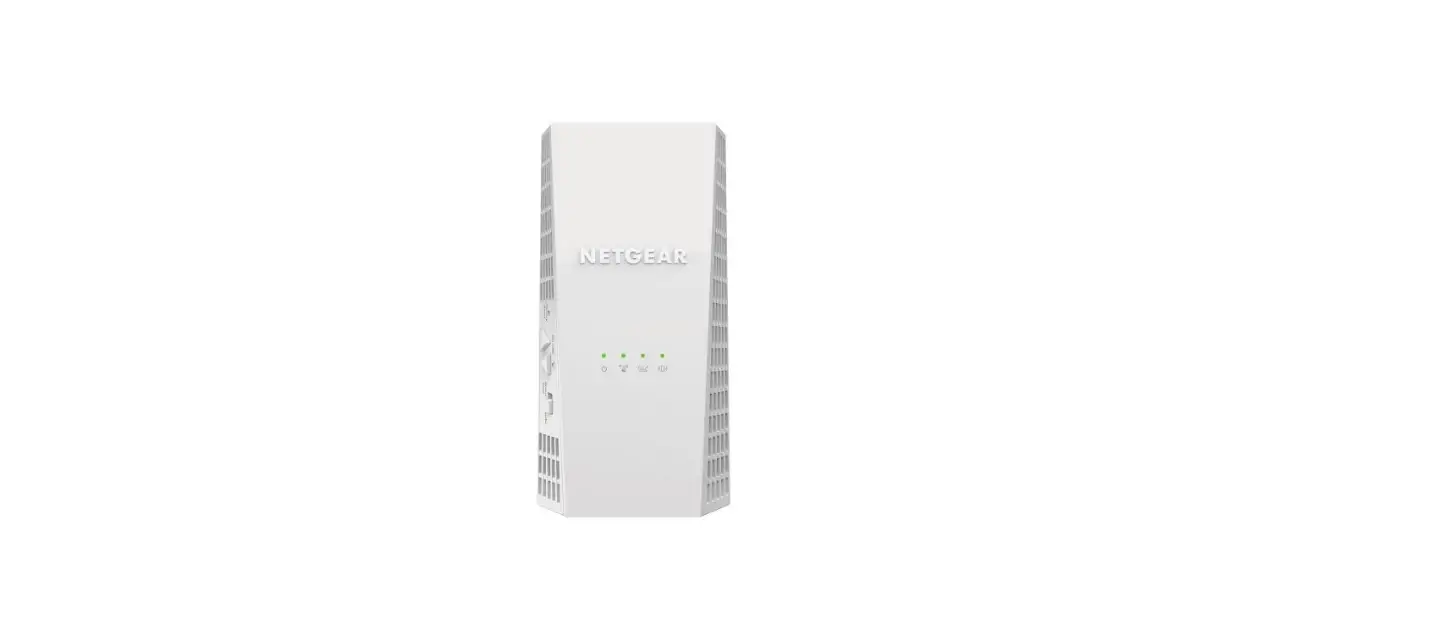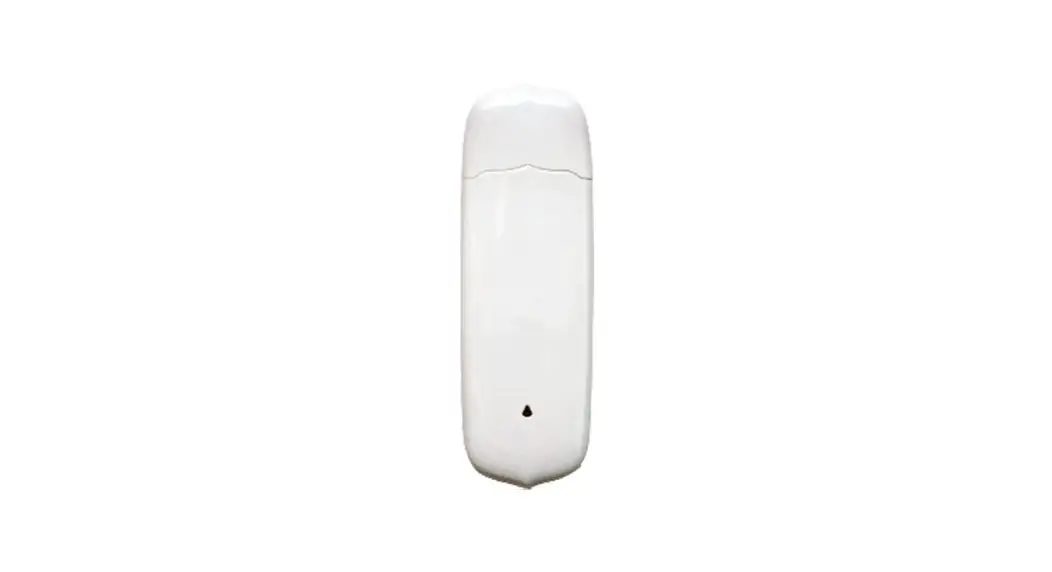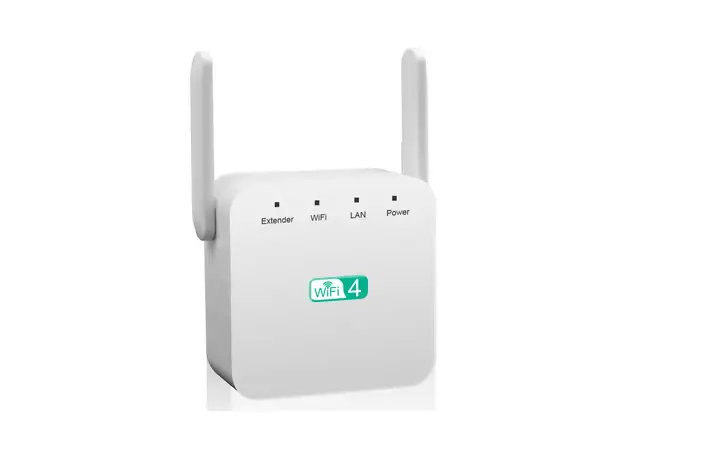

ZOODMALL WD-R611UA Wireless Range Extender
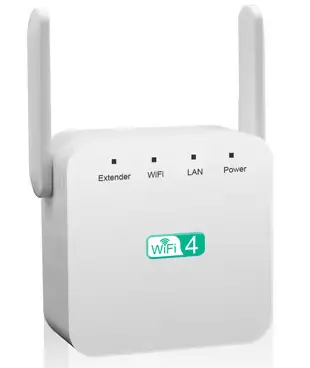
Wireless Range Extender 2
Mobile phone setup
- Plug in your wifi extender and wait for 30s

- Connect your extender SSID
 Please connect to the SSID of “wifi-XXXX “.
NOTE
You can not surf the Internet until you finish all the setting steps, pis continue
XXXX” is the last 4 digits letters of MAC Address which appears at the back of each product. - Open your browser webpage
(Google&Firefox Browser Recommended) NOTE
NOTE
Pls make sure that you have connected
the SSID(wifi-XXXX) of the wifl extender successfully,most of the PC/smart will recognize and Sign in to the management page automatically.
If not, pls enter 192.168.188.1 on the new browser. - Enter the default password: admin

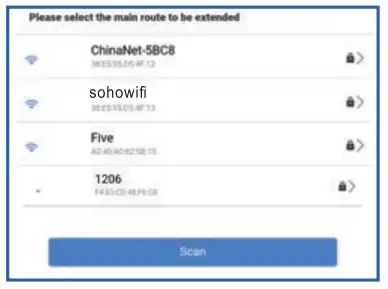
- Scan and select your host router SSID

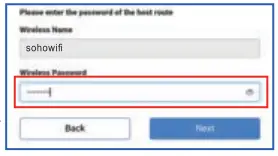
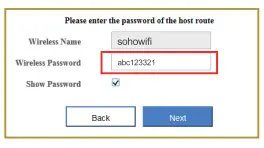
- Enter the password of your host router

NOTE
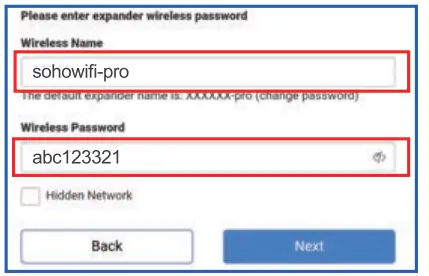
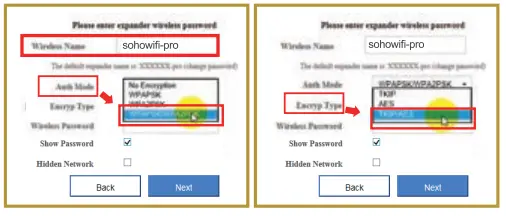
Pis make sure of the right password(spacial characters not allowed,tike”%”) - Set your Extender SSID and password

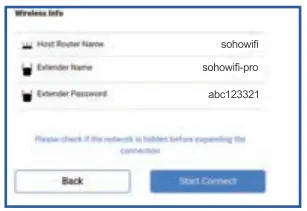
- Check again and confirm the wireless Info

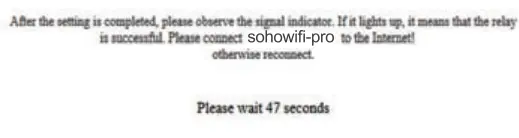
NOTE: After check, click”Start Connect” and wait 30-60s - Walt for the repeater to connect to the router successfully.

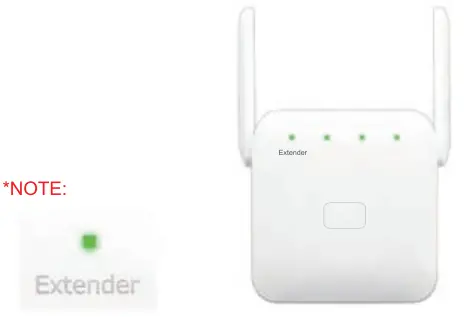
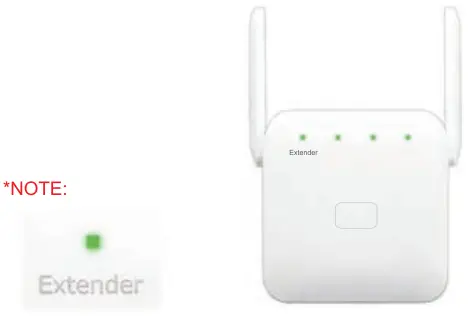
- The led light “Extender” will light up, that means it Exterder Mode successfully.

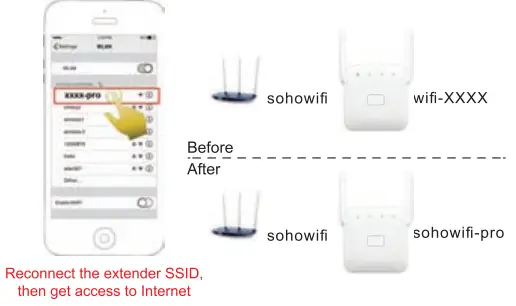
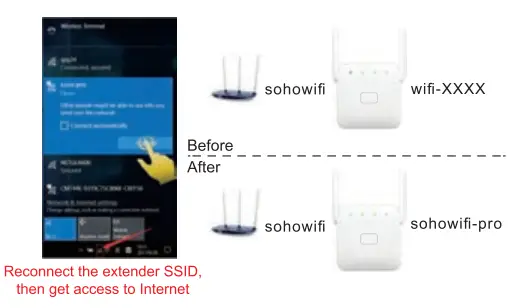
- Reselect and reconnect to your extender wifi
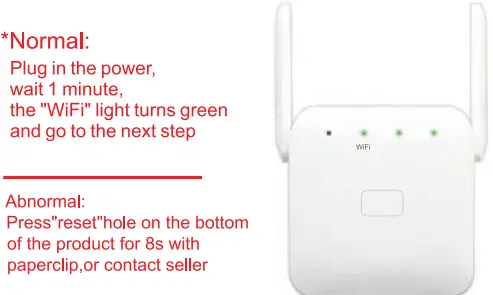
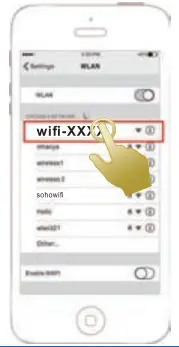 Please connect to the SSID of “wifi-XXXX “.
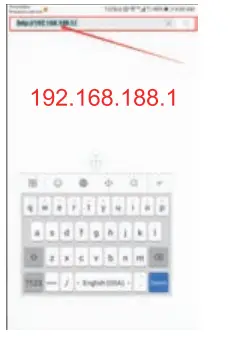 NOTE
NOTE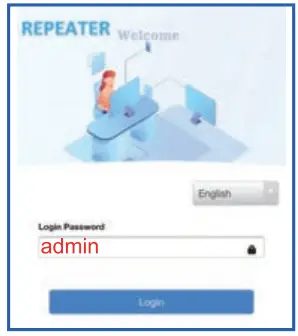
Wireless Range Extender 2
PC setup step
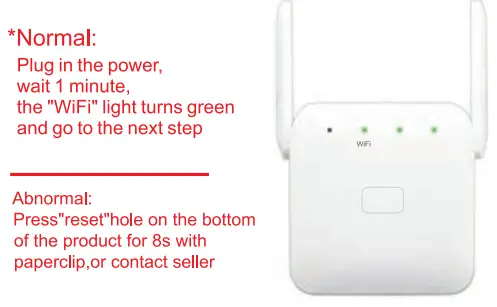
- Plug in your wifi extender and wait for 30s

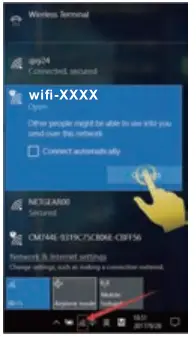
- Connect your extender SSID

Please connect to the SSID of “wifi-XXXX “.
You can not surf the Internet until you finish all the setting steps, pis continue
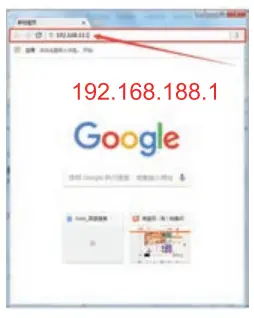
XXXX” is the last 4 digits letters of MAC Address which appears at the back of each product. - Open your browser webpage
(Google&Firefox Browser Recommended)
NOTE
Pls make sure that you have connected the SSID(wifi-XXXX) of the wifi extender successfully,most of the PC/smart will recognize and Sign in to the management page automatically.
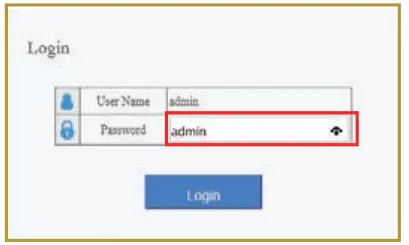
If not,pls enter 192.168.188.1 on the new browser. - Enter the default password: admin

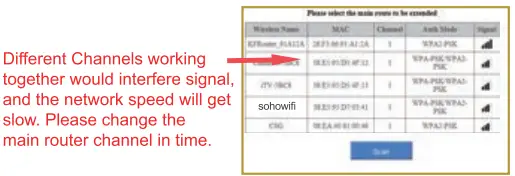
- Scan and select your host router SSID

- Enter the password of your host router

- Set your Extender SSID and password

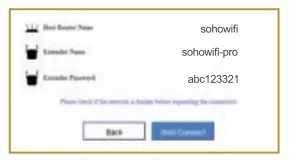
- Check again and confirm the wireless Info
 NOTE
NOTE
After check click Start Connect and wait 30-60s - Walt for the repeater to connect to the router successfully.

- The led light “Extender” will light up, that means it Extender Mode successfully.

- Reselect and reconnect to your extender wifi
 NOTE
NOTE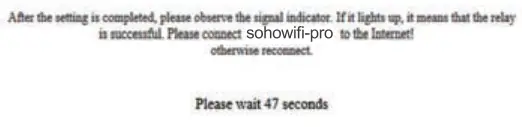
FCC Statement
This equipment has been tested and found to comply with the limits for a Class B digital device, pursuant to Part 15 of the FCC Rules. These limits are designed to provide reasonable protection against harmful interference in a residential installation. This equipment generates uses and can radiate radio frequency energy and, if not installed and used in accordance with the instructions, may cause harmful interference to radio communications. However, there is no guarantee that interference will not occur in a particular installation. If this equipment does cause harmful interference to radio or television reception, which can be determined by turning the equipment off and on, the user is encouraged to try to correct the interference by one or more of the following measures:
- Reorient or relocate the receiving antenna.
- Increase the separation between the equipment and receiver.
- Connect the equipment into an outlet on a circuit different from that to which the receiver is connected.
- Consult the dealer or an experienced radio/TV technician for help.
§ 15.19 Labeling requirements.
This device complies with part 15 of the FCC Rules. Operation is subject to the following two conditions: (1) This device may not cause harmful interference, and (2) this device must accept any interference received, including interference that may cause undesired operation.
§ 15.21 Information to user.
Any changes or modifications not expressly approved by the party responsible for compliance could void the user’s authority to operate the equipment.
The antenna(s) used for this transmitter must be installed to provide a separation distance of at least 20 cm from all persons and must not be co-located or operating in conjunction with any other antenna or transmitter.