 User Manual
RS-232 Commands
GCS1932H / GCS1934H
PART NO. M1644-b / M1645-b
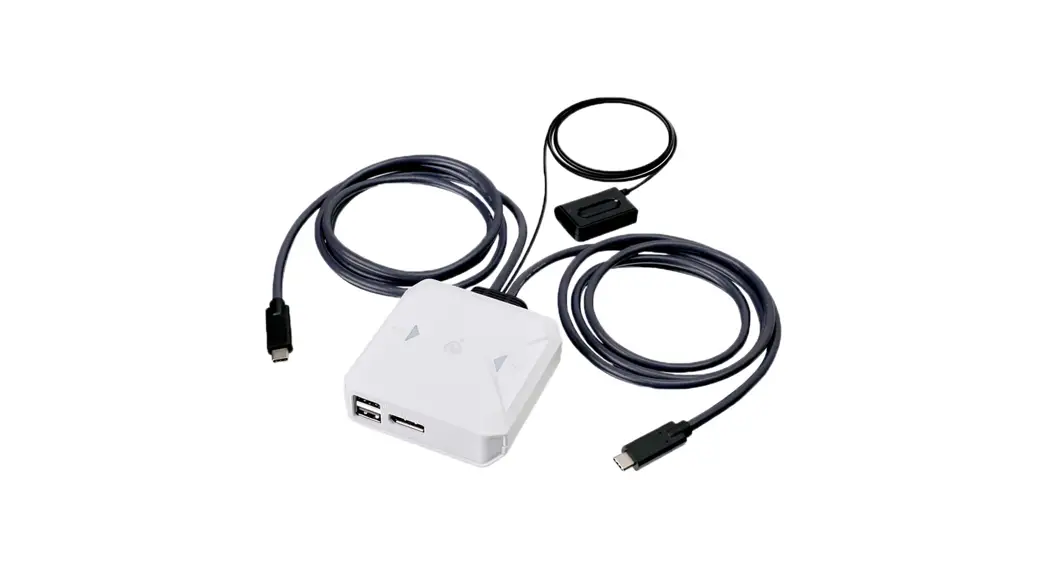
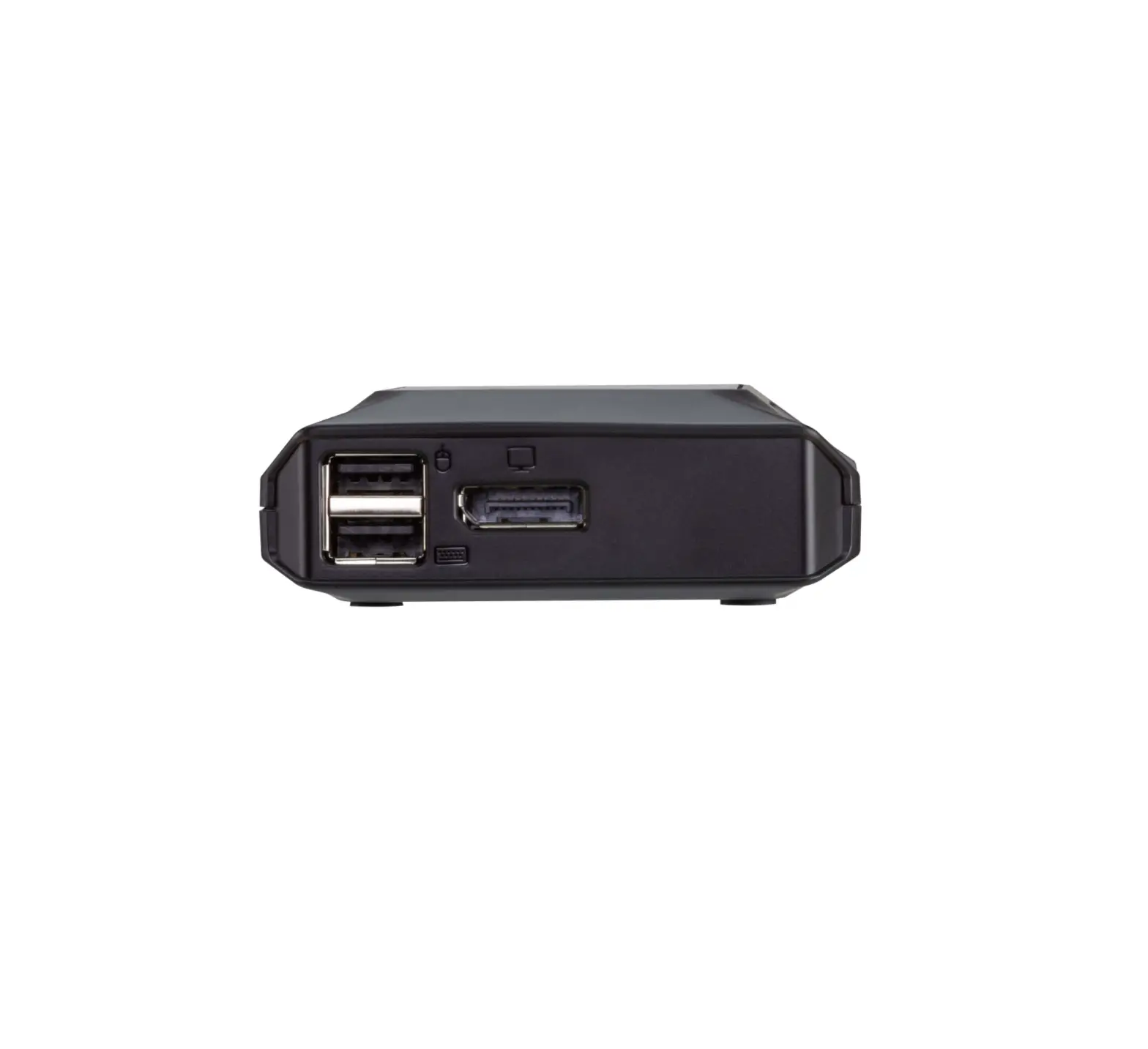
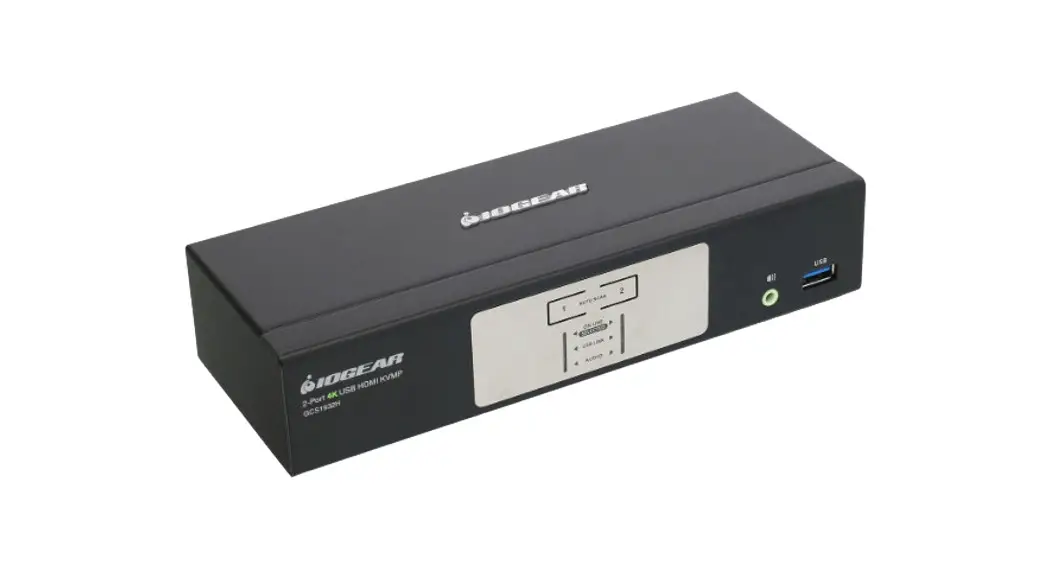
GCS1932H 2 Port 4K KVMP Switch
©2023 IOGEAR. All Rights Reserved. Part No. M1644-b, M1645-b. IOGEAR, the IOGEAR logo is trademarks of IOGEAR.
Microsoft and Windows are registered trademarks of Microsoft Corporation. IOGEAR makes no warranty of any kind with regards to the information presented in this document. All information furnished here is for informational purposes only and is subject to change without notice. IOGEAR. assumes no responsibility for any inaccuracies or errors that may appear in this document.
Serial Port Pinout
| GCS1932H/GCS1934H | ||
| RJ11 Pin | 1 | TXD: Transmit Data |
| 2 | RXD: Receive Data | |
| 3 | N/A | |
| 4 | GND: Signal Ground | |
RS-232 Commands
Console Login – HyperTerminal
Once a physical connection from the computer to the GCS1932H/GCS1934H has been made, you can establish a HyperTerminal session using the instructions below.
- Open the HyperTerminal application, type in “OPEN” and press enter.
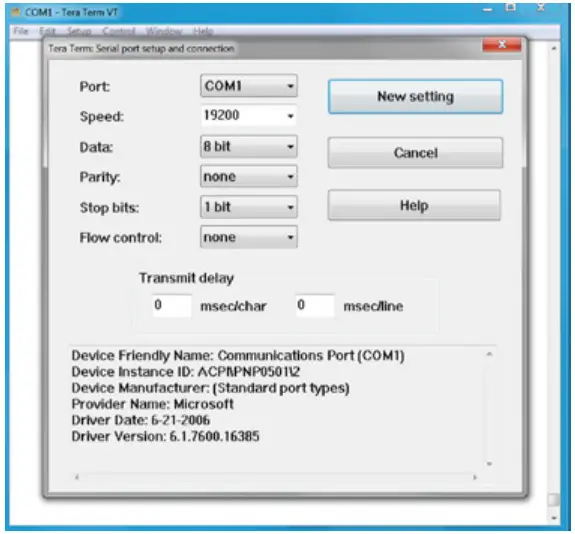
- Configure the port settings for the appropriate COM port number, then click OK.
 Bits per Second: 19200, Data Bits: 8, Parity: None, Stop bits: 1, Flow Control: None.
 - When configured correctly a login prompt like the one below appears.

 Bits per Second: 19200, Data Bits: 8, Parity: None, Stop bits: 1, Flow Control: None.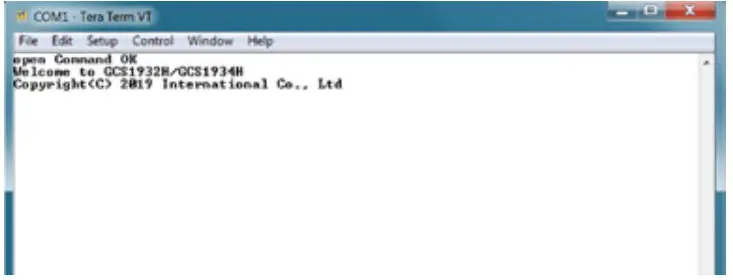
RS-232 Commands
After you login via HyperTerminal (see Console Login – HyperTerminal), you can use the instructions below to send RS-232 commands to control the GCS1932H/GCS1934H from a remote system.
When the RS-232 link is opened, the GCS1932H/GCS1934H will no longer accept commands from front panel buttons or most of hotkey functions (excluding mouse cursor shift and monitor layouts).
For more detailed instructions and information about each of the RS-232 commands listed below, please refer to the original GCS1932H/GCS1934H user manual.
Verification
After entering a command, a verification message appears at the end of the command line, as follows:
| Response Message | Description |
| command OK | Command or parameter is correct. |
| command incorrect | Command or parameter is incorrect. |
Set baud rate
The set baud rate command allows you to set baud rate to the computers connected to the GCS1932H/GCS1934H’s ports. Use the Formula – to set Parameters – to create a Command.
Formula:
Command + Input Command + [Enter]
Parameters:
| Command | Command |
| baud | Setup device baud rate |
| Input Command | Description |
| 19200 | baud command reserved keyword- 19200 baud rate (Default setting) |
| 38400 | baud command reserved keyword- 38400 baud rate |
| 57600 | baud command reserved keyword- 57600 baud rate |
| 115200 | baud command reserved keyword- 115200 baud rate |
| Enter | Description |
| Enter | Enter and send out command |
Set Baud Rate Commands
Some available formulas for the Set Baud Rate commands are as follows: Command + Input Command + [Enter]
To set the baud rate as 38400, type the following: baud 38400 [Enter]
To set the baud rate as 115200, type the following: baud 115200 [Enter]
Note:
- Each command string can be separated with a space.
- The default baud rate is 19200.
- The ASCII code for Enter is 0x0D0A.
Keyboard Language Layout
The Keyboard Language Layout command allows you to change the keyboard language layout. Use the Formula – to set Parameters – to create a Command.
Formula:
Command + Input Command + [Enter]
Parameters:
| Command | Description |
| layout | Change Keyboard Language Layout |
| Input Command | Description |
| en | Change the keyboard language layout to English (Default setting) |
| fr | Change the keyboard language layout to French |
| jp | Change the keyboard language layout to Japanese |
| ge | Change the keyboard language layout to German |
| Enter | Description |
| Enter | Enter and send out command |
Keyboard Language Layout Commands
Some available formulas for Keyboard Language Layout commands are as follows: Command + Control + [Enter]
To change the keyboard language layout to Japanese, type the following: layout jp [Enter]
To change the keyboard language layout to French, type the following: layout fr [Enter]
Note:
- Each command string can be separated with a space.
- The default language is English.
- The ASCII code for Enter is 0x0D0A.
Hotkey Settings
The Hotkey Settings command allows you to enable/disable and change the hotkey used to invoke the HSM (Hotkey Settings Mode). Use the Formula -to set Parameters – to create a Command.
Formulas:
Command + Input Command+ [Enter]
Parameters:
| Command | Description |
| hotkey | Hotkey Settings Command |
| Input Command | Description |
| num | Change the HSM invoke key to: [Num Lock] + [-] (Default setting) |
| f12 | Change the HSM invoke key to: [Ctrl] + [F12] |
| Enter | Description |
| Enter | Enter and send out command |
Hotkey Settings Commands
Some available formulas for Hotkey Settings commands are as follows: Command + Input Command + [Enter]
To change the HSM invoke key to [Num Lock] + [-], type the following: hotkey num [Enter]
To change the HSM invoke key to [Ctrl] + [F12], type the following: hotkey f12 [Enter]
Note:
- Each command string can be separated with a space.
- The default hotkey is num.
- The ASCII code for Enter is 0x0D0A.
Hotkey Switching
The Hotkey Switching command allows you to change the hotkey switching mode. Use the Formula – to set Parameters – to create a Command.
Formulas:
Command + Input Command + [Enter]
Parameters:
| Command | Description |
| switch | Hotkey switching command |
| Input Command | Description |
| Scroll | Change hotkey switching mode to: [Scroll][Scroll] |
| ctrl | Change hotkey switching mode to: [Ctrl][Ctrl] |
| Enter | Description |
| Enter | Enter and send out command |
Hotkey Switching Commands
Some available formulas for Hotkey Switching commands are as follows: Command + Control + [Enter]
To change the hotkey switching mode to [Scroll] + [Scroll], type the following: switch scroll [Enter]
To change the hotkey switching mode to [Ctrl] + [Ctrl], type the following: switch ctrl [Enter]
Note:
- Each command string can be separated with a space.
- The default hotkey switching setting is scroll.
- The ASCII code for Enter is 0x0D0A.
Port Switching
The Port Switching command allows you to change from one port to another.
Formulas:
Command + Input Command + [Enter]
Parameters:
| Command | Description |
| sw | Switching Command |
| Input Command | Description |
| ixx | Input Port number xx=01-04 |
| Enter | Description |
| Enter | Enter and send out command |
For Example: Switching to port 2 type in swi02 [Enter]
Note:
- Each command string can be separated with a space.
- The default USB reset setting is off.
- The ASCII code for Enter is 0x0D0A.
USB Reset
The USB Reset command allows you to reset the USB connection. Use the Formula – to set Parameters – to create a Command.
Formulas:
Command + Input Command + [Enter]
Parameters:
| Command | Description |
| usbreset | USB Reset Command |
| Input Command | Description |
| on | Enable USB reset connection |
| Enter | Description |
| Enter | Enter and send out command |
USB Reset Command
The available formula for the USB Reset command is as follows: Command + Input Command + [Enter]
For example, to reset the USB connection, type the following: usbreset on [Enter]
Note:
- Each command string can be separated with a space.
- The default USB reset setting is off.
- The ASCII code for Enter is 0x0D0A.
Restore Default Settings
The Restore Default Settings command allows you to reset all of the GCS1932H/GCS1934H’s settings back to the default. Use the Formula – to set Parameters – to create a Command.
Formulas:
Command + Input Command + [Enter]
Parameters:
| Command | Description |
| reset | Restore KVM Default Settings |
| Input Command | Description |
| on | Enable Restore KVM Default Settings |
| Enter | Description |
| Enter | Enter and send out command |
Restore Default Settings Command
The available formula for the Restore Default Settings command is as follows: Command + Input Command + [Enter]
For example, to restore all GCS1932H/GCS1934H settings back to the default, type the following: reset on [Enter]
Note:
- Each command string can be separated with a space.
- The default setting is off.
- The ASCII code for Enter is 0x0D0A.
Firmware Upgrade
The Firmware Upgrade command allows you to enable the firmware upgrade mode. Use the Formula – to set Parameters – to create a Command.
Formulas:
Command + Input Command + [Enter]
Parameters:
| Command | Description |
| upgrade | Firmware Upgrade Command |
| Input Command | Description |
| on | Enable Firmware Upgrade Mode |
| Enter | Description |
| Enter | Enter and send out command |
Firmware Upgrade Command
The available formula for the Firmware Upgrade command is as follows: Command + Input Command + [Enter]
For example, to enable firmware upgrade mode, type the following: upgrade on [Enter]
Note:
- Each command string can be separated with a space.
- The default setting is off.
- The ASCII code for Enter is 0x0D0A.
KVM Status
The KVM Status command allows you to display read-only information about the GCS1932H/GCS1934H’s current KVM status. Use the Formula – to set Parameters – to create a Command.
Formulas:
Command + Input Command + [Enter]
Parameters:
| Command | Description |
| status | Display KVM Status Command |
| Input Command | Description |
| on | Enable KVM Status |
| Enter | Description |
| Enter | Enter and send out command |
KVM Status Command
The available formula for the KVM Status command is as follows: Command + Input Command +[Enter]
For example, to display the GCS1932H/GCS1934H’s KVM status, type the following: status on [Enter]
A message similar to the one below will then appear:
hotkey: [numlock]+[-] / [scrolllock], [scrolllock] os setting: pc
keyboard emulation: enabled/disabled keyboard layout: English mouse emulation: enabled/disabled monitor re-detection: enabled/disabled
Note:
- Each command string can be separated with a space.
- The default setting is off.
- The ASCII code for Enter is 0x0D0A.
 IOGEAR :: HDMI Switch, PC to TV, Wireless Audio Video, KVM Switch, KVM, USB Switch, Video Splitter, Video Switch, KVM DVI, LCD KVM, Rackmount KVM