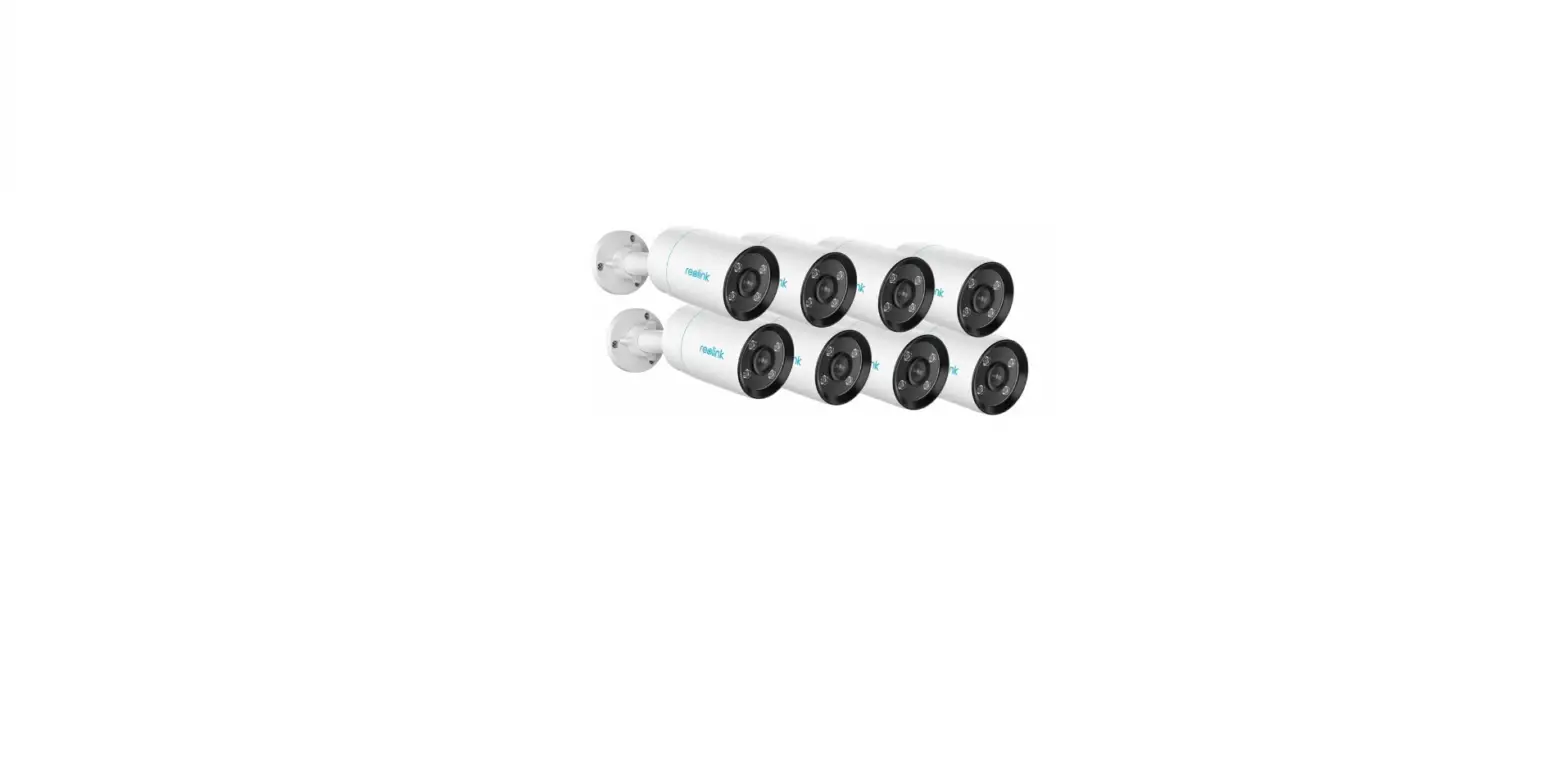
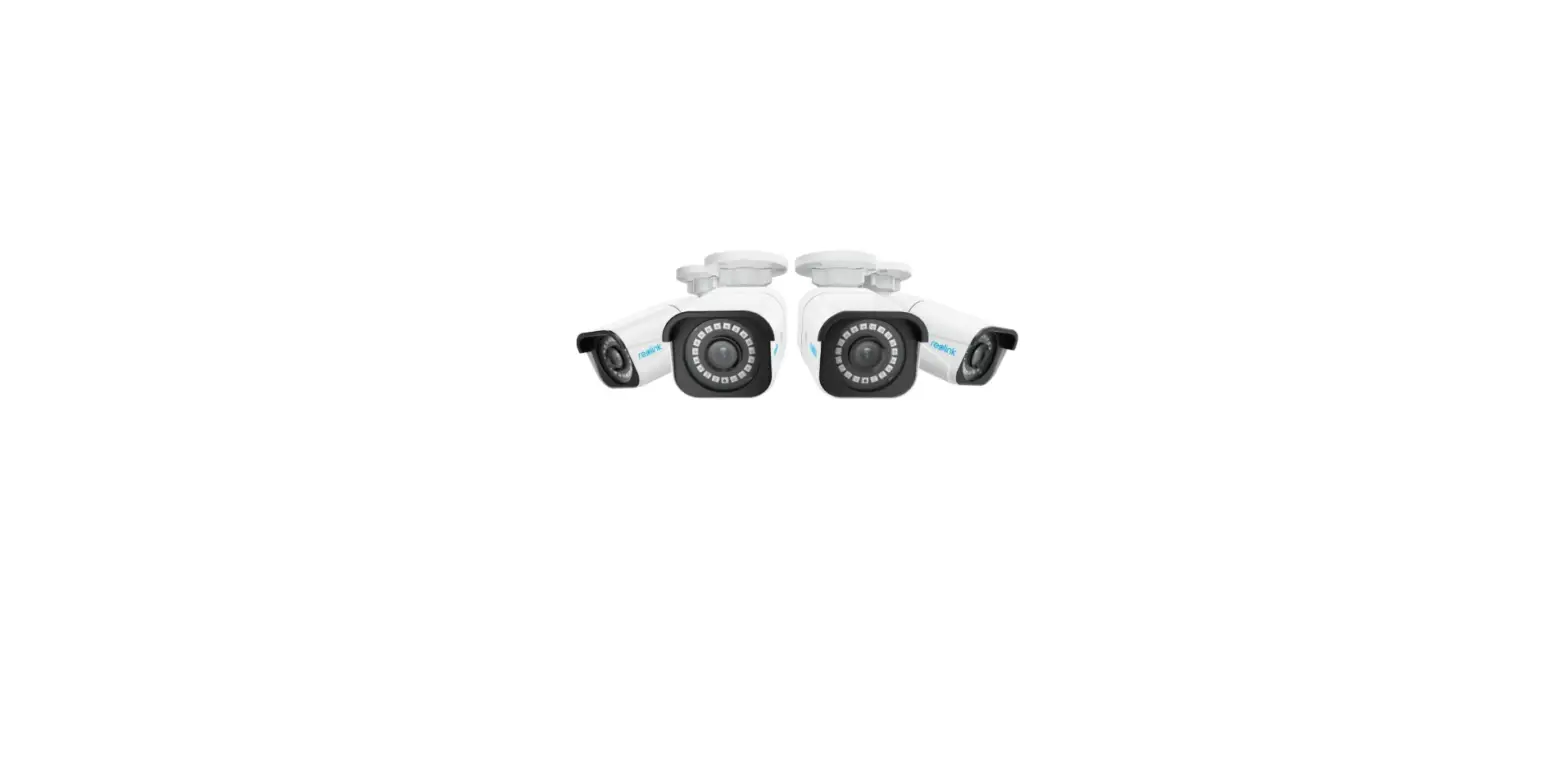
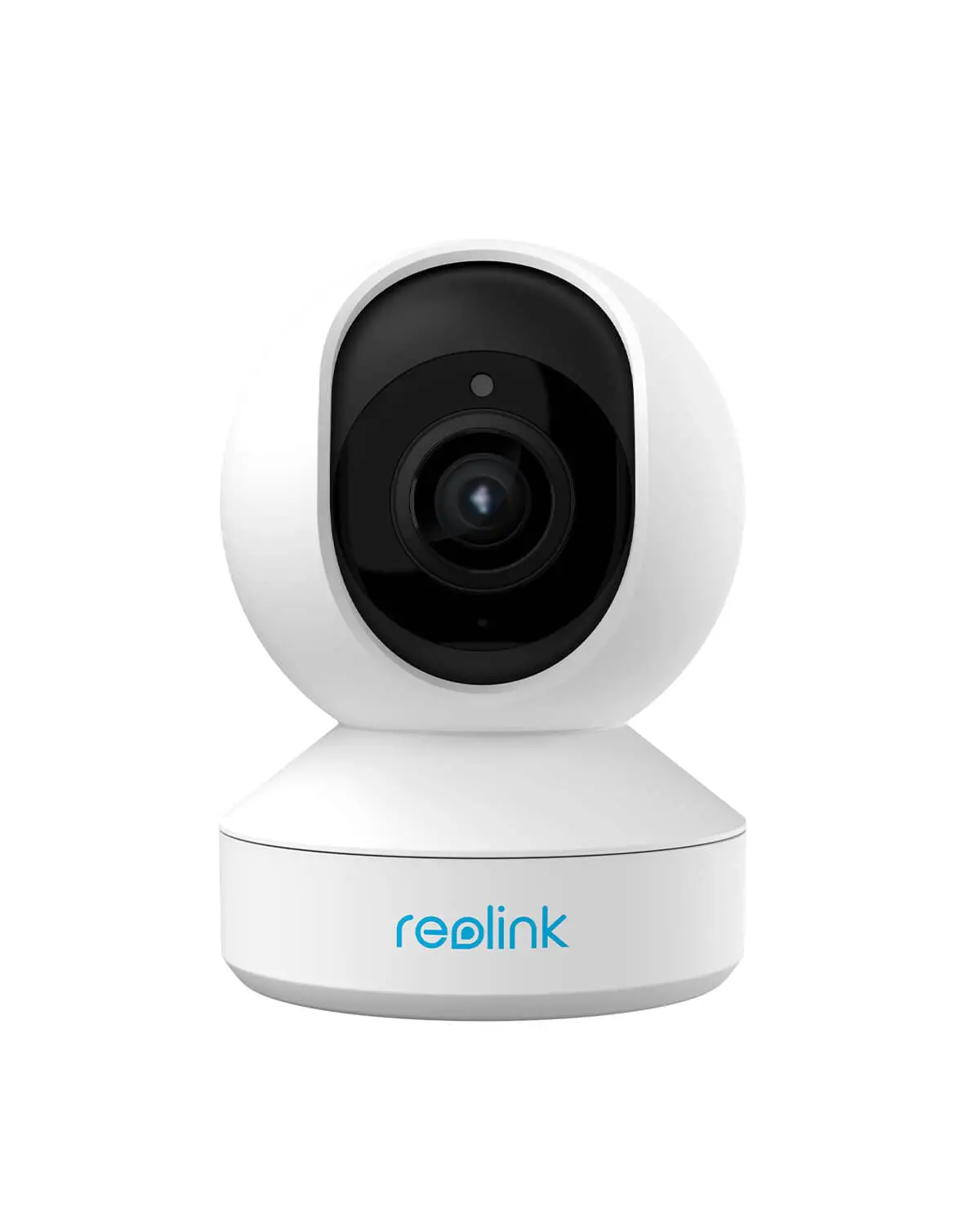
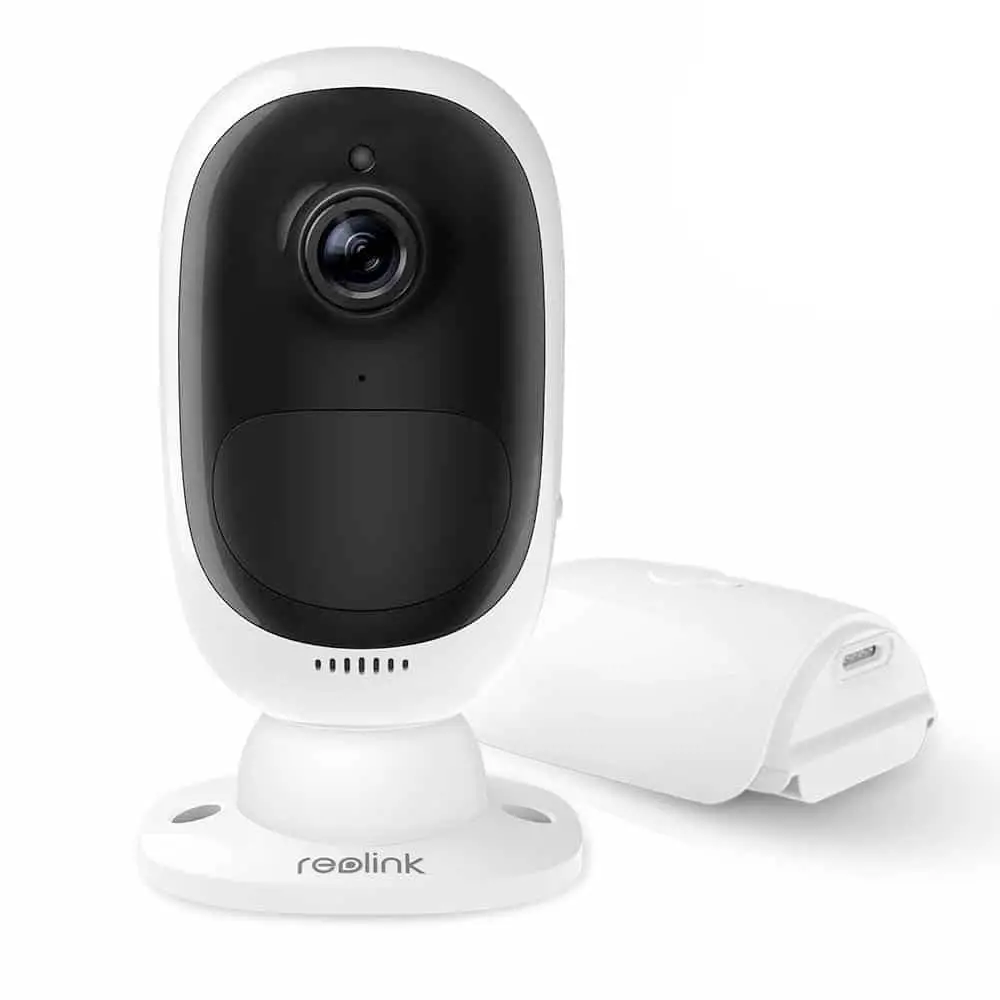
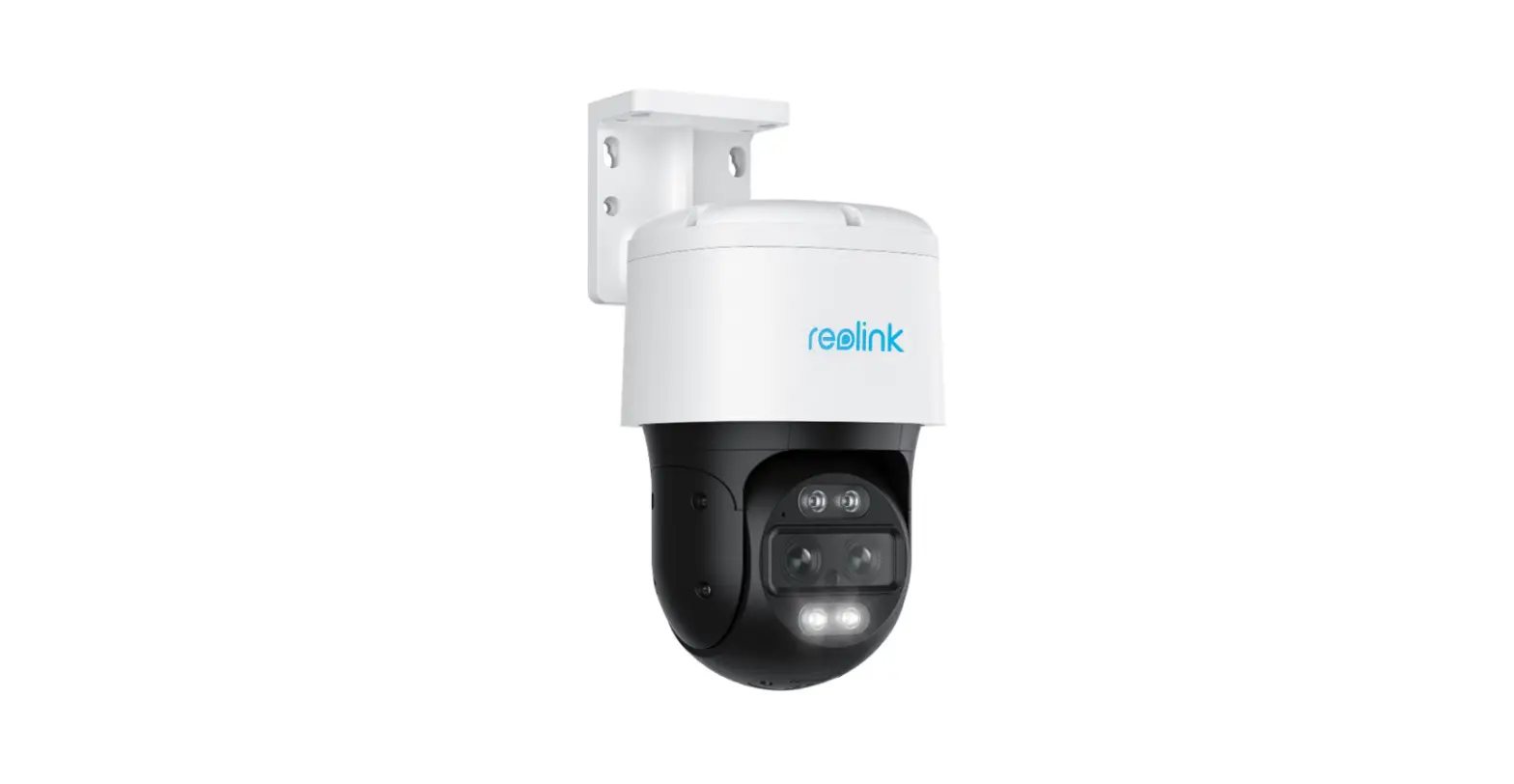
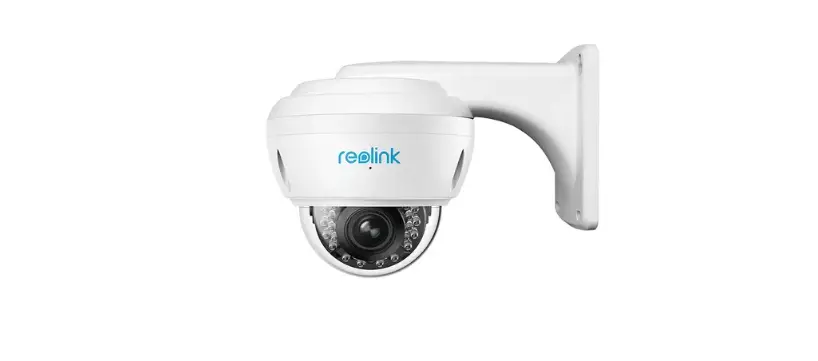
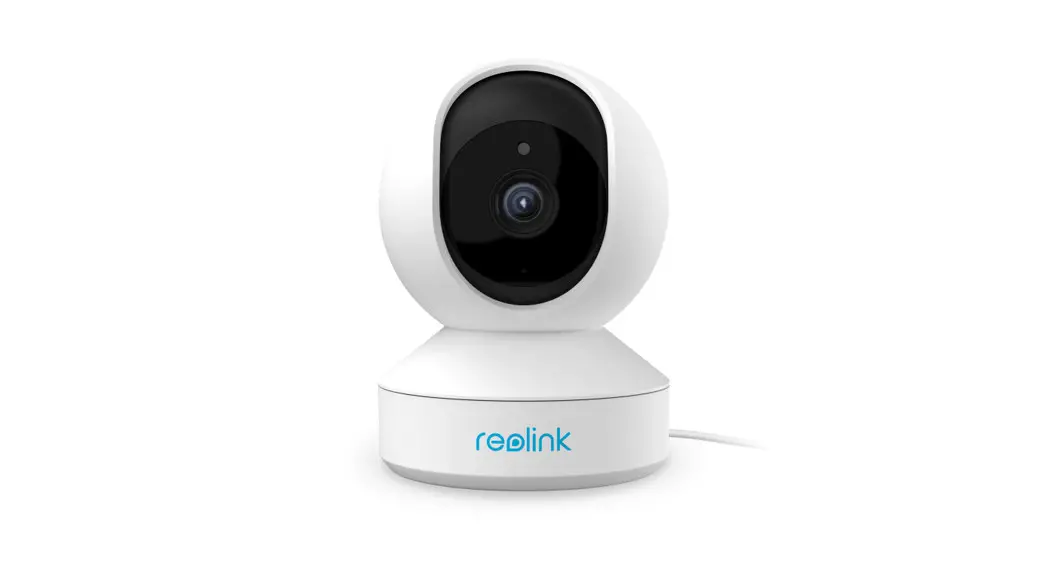
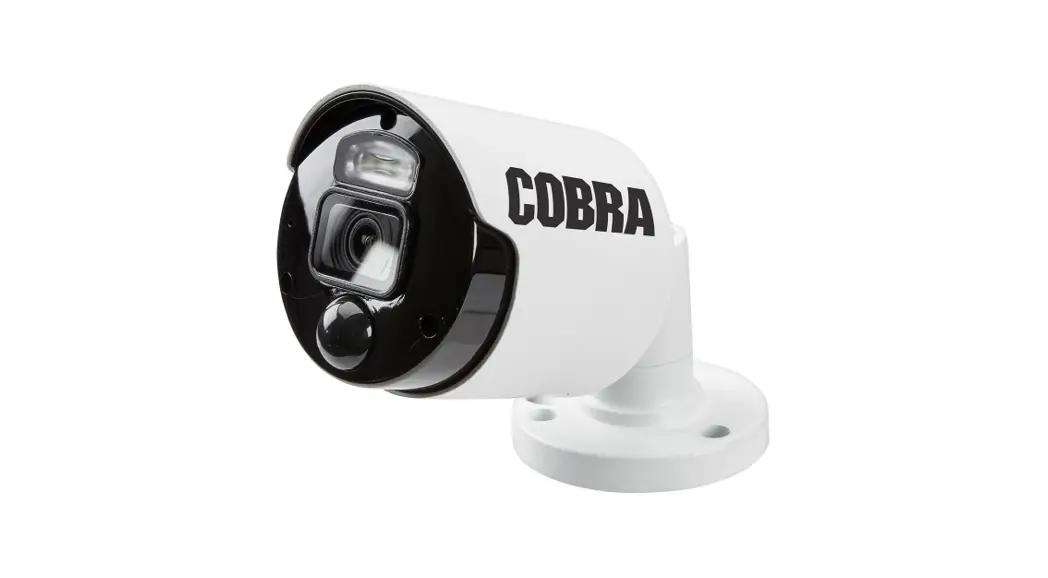
4K Outdoor Surveillance Camera
Product Information
Reolink PoE Security Camera Systems
Contents: What’s in the Box, Introduce the NVR,
Introduce the Cameras, Connection Diagram, Set up PoE NVR System,
Mount Tips for the Cameras, Troubleshooting, Specifications,
Notification of Compliance
What’s in the Box
The package includes:
- NVR
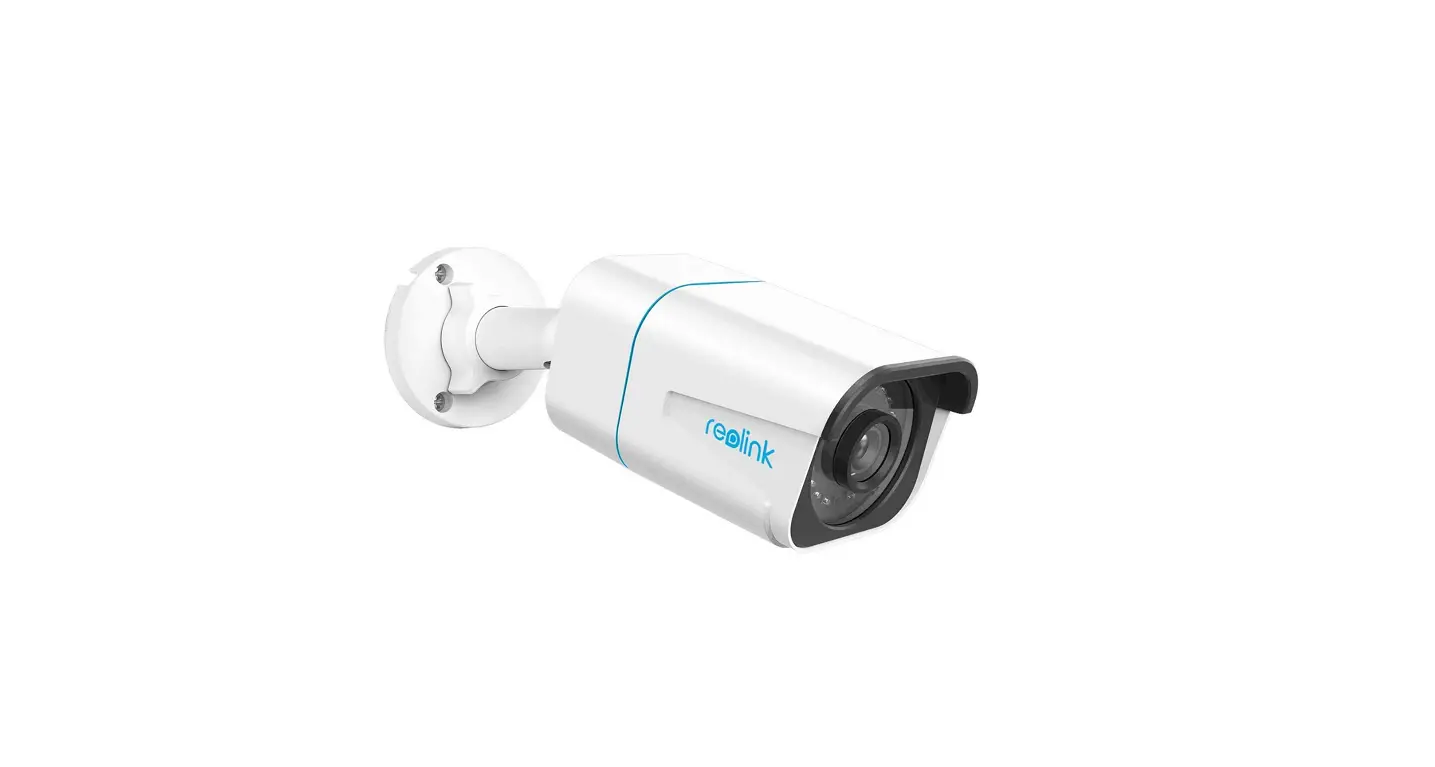
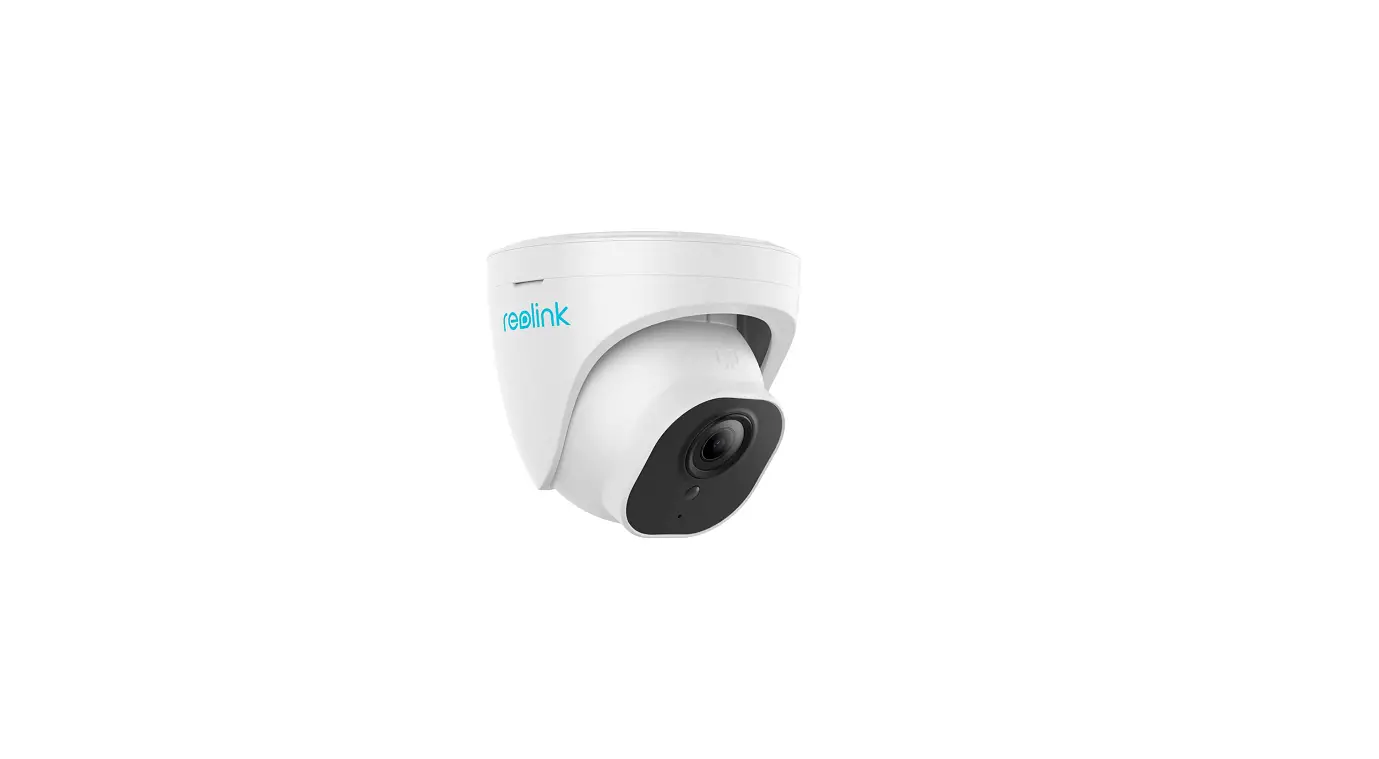
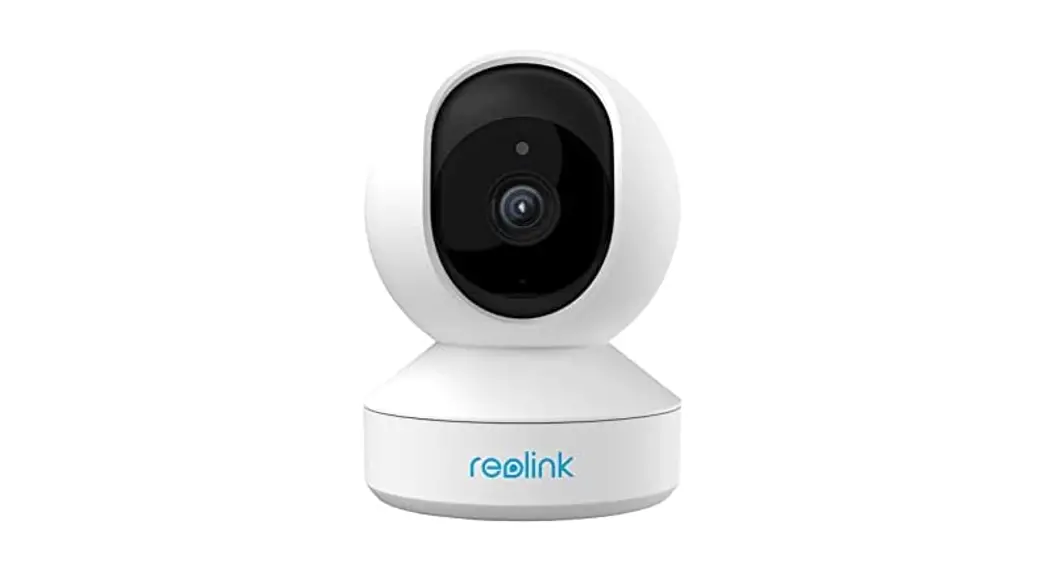
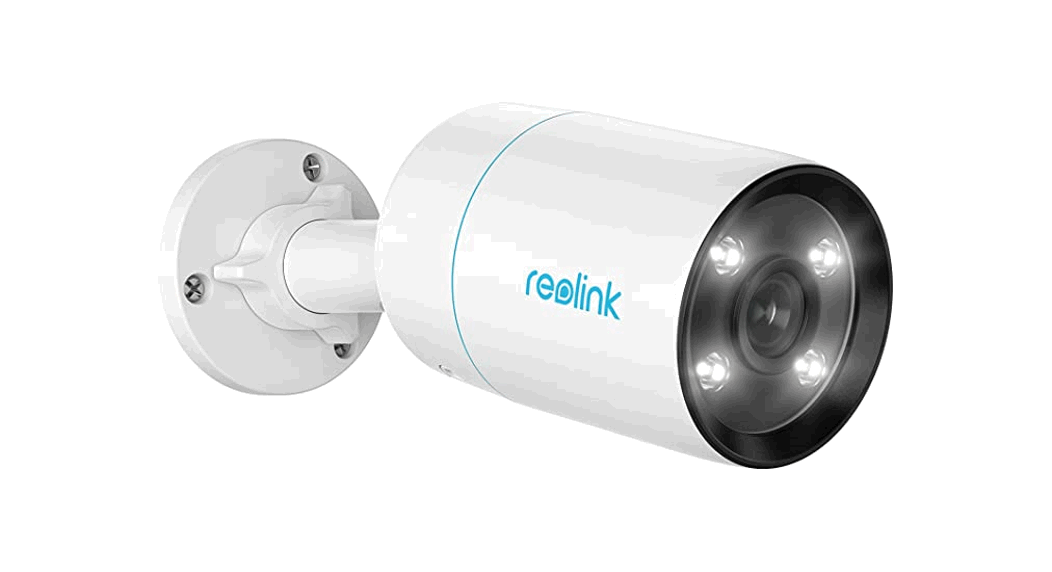
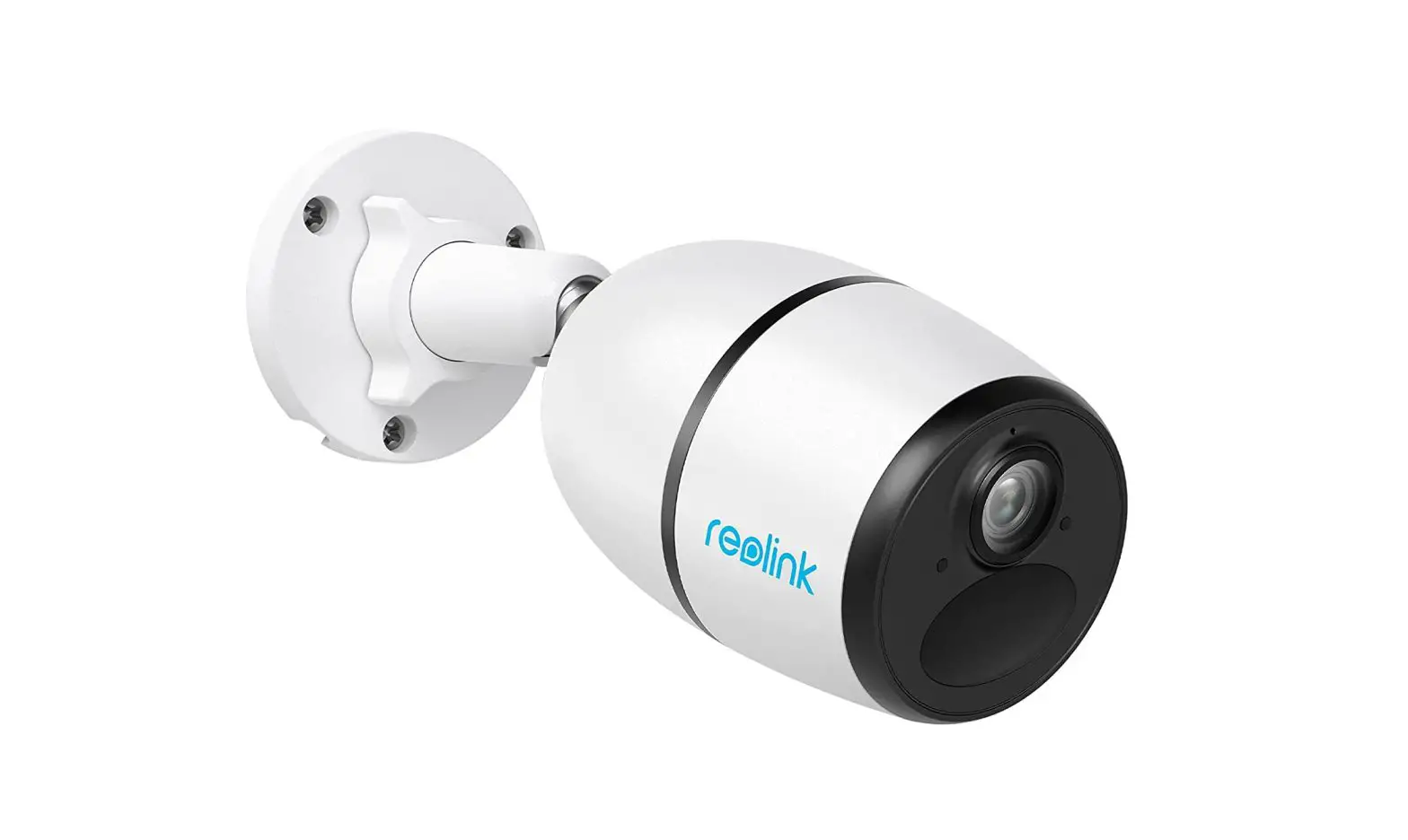
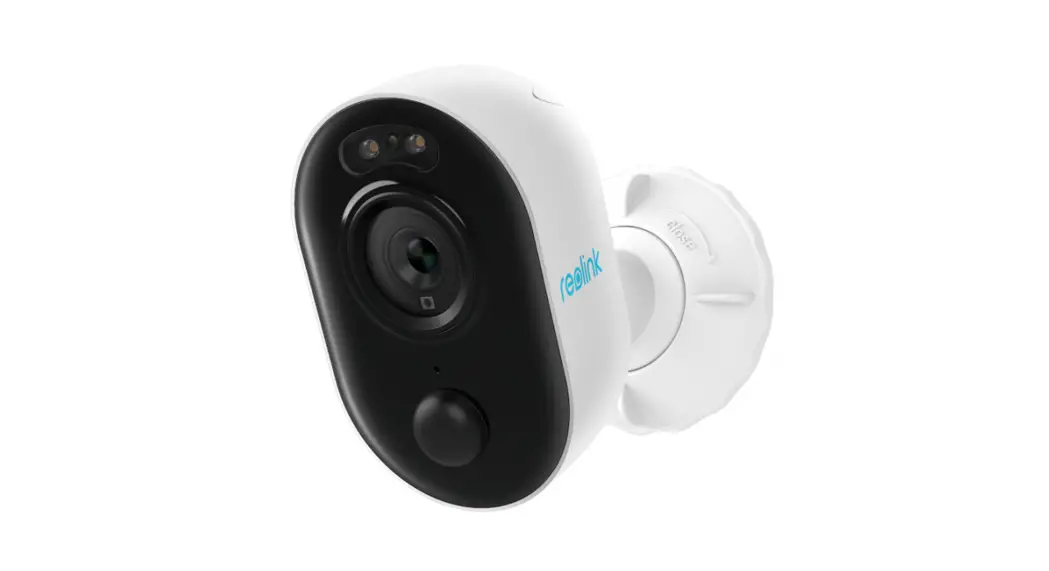
- Bullet or Dome Camera
- Pack of Screws
- Waterproof Lid
- USB Mouse
- HDMI Cable
- Network Cable
- Power Adapter
- Surveillance Card
- Quick Start Guide
- Mounting Hole Template
Introduce the NVR
The NVR (Network Video Recorder) is equipped with the following
ports and features:
- USB Ports
- Power LED
- HDD LED
- Control Panel
- HDMI Port
- VGA Port
- LAN Port
- PoE Interface
Introduce the Cameras
The cameras included in the system have the following
features:
- Infrared Lights
- Lens
- Daylight Sensor
- Built-in Mic
- Waterproof Lid
- Network Cable
- Reset Button (press for about 10 seconds to restore factory
settings) - Power Port (optional)
Connection Diagram
To ensure proper functioning, follow the connection diagram
below:
- Connect the NVR (LAN port) to your router with a network
cable. - Connect the mouse to the USB port of the NVR.
- Connect the NVR to the monitor using a VGA or HDMI cable.
- Connect the cameras to the PoE ports on the NVR.
- Connect the NVR to a power outlet and turn on the power
switch.
Set up PoE NVR System
Follow the steps below to set up your PoE NVR system:
- A setup wizard will guide you through the NVR system
configuration process. Set a password for your NVR and follow the
wizard instructions. - Access the system via smartphone or PC by downloading and
launching the Reolink App or Client software.
Mount Tips for the Cameras
Follow the provided mount tips for properly installing the
cameras.
Troubleshooting
If you encounter any issues, refer to the troubleshooting guide
below:
- No Video Output on the Monitor/TV
- If there’s no video output on the monitor from Reolink NVR, try
the following solutions: - If the issue persists, contact Reolink Support.
- If there’s no video output on the monitor from Reolink NVR, try
- Failed to Access the PoE NVR Locally
- If you failed to access the PoE NVR locally via mobile phone or
PC, try the following solutions: - If the issue persists, contact Reolink Support.
- If you failed to access the PoE NVR locally via mobile phone or
- Failed to Access the PoE NVR Remotely
- If you failed to access the PoE NVR remotely via mobile phone
or PC, try the following resolutions: - If the issue persists, contact Reolink Support.
- If you failed to access the PoE NVR remotely via mobile phone
EN/DE/FR/IT/ES
Aug 2021 QSG2_C 58.03.005.0017
Operational Instruction
Apply toReolink PoE Security Camera Systems
EN
Contents
What’s in the Box Introduce the NVR Introduce the Cameras Connection Diagram Set up PoE NVR System Mount Tips for the Cameras Troubleshooting Specifications Notification of Compliance
1 English
What’s in the Box
2
3
or
4
NVR
Bullet or Dome Camera
Pack of Screws
Waterproof
7
Lid
9
10
11
12
1m
18m
NVR
USB Mouse
HDMI Cable
Network Cable
Network Cable
Power Adapter
12
Surveillance Card
Quick Start Guide
Mounting Hole Template
NOTE: Quantity of devices and accessories vary by different models that you purchase. English 2
Introduce the NVR
USB Port Power LED HDD LED Control Panel
USB Port Power Switch Audio Out Power Input HDMI Port VGA Port LAN Port PoE Interface
PWR HDD
ALL MENU SELECT
OFF
ON
DC 52V IN
AUDIO OUT
USB
HDMI
VGA
LAN
1
3
5
7
9
11 13 15
2
4
6
8
10 12 14 16
NOTE: The actual appearance and components may vary with different products. 3 English
Introduce the Cameras
Mount
Infrared Lights Lens Daylight Sensor Built-in Mic
Waterproof Lid Network Cable Reset Button * Press for about 10 seconds to restore factory settings. Power Port(Optional)
English 4
Mount Infrared Lights Lens Daylight Sensor Built-in Mic
5 English
Mount Metal Case
Lens Infrared Lights Daylight Sensor
Built-in Mic
Mount Metal Case Built-in Mic Infrared Lights Lens Daylight Sensor
NOTE: · Different types of cameras are introduced in this section. Please check out the camera included in the package and check out the details from the correpsonding introduction above. · The actual appearance and components may vary with different model of product.
English 6
Connection Diagram
To ensure all components work properly, it is recommended that you connect every part and try to run the system before a final installation.
Connect the NVR (LAN port) to your router with a network cable. Next, connect the mouse to the USB port of the NVR. 1
HMDI
2 7 English
VGA
Connect the NVR to the monitor with a VGA or HDMI cable.
NOTE: There is no VGA cable included in the package.
DC Power Reset Button
Network (LAN)
3
Connect cameras to PoE ports on the NVR.
Connect the NVR to a power outlet and turn on power switch. 4
NOTE: Some Reolink WiFi cameras also work with Reolink PoE NVR.
English 8
Set up the NVR System
A setup wizard will guide you through the NVR system configuration process. Please set a password for your NVR (for the initial access) and follow the wizard to configure the system. NOTE: The password should be at least 6 characters. It is recommended that you note down the password and keep it in a secure place.
Access the System via Smartphone or PC
Download and launch the Reolink App or Client software and follow the instructions to access the NVR.
· On Smartphone Scan to download the Reolink App.
· On PC
9 English
Mount Tips for the Cameras
· Do not face the camera towards any light sources. · Do not point the camera towards a glass window. Or, it may result in poor image quality because of the window glare by infrared LEDs, ambient lights or status lights. · Do not place the camera in a shaded area and point it towards a well-lit area. Or, it may result in poor image quality. To ensure best image quality, the lighting condition for both the camera and the capture object shall be the same. · To ensure better image quality, it’s recommended to clean the lens with a soft cloth from time to time. · Make sure the power ports are not directly exposed to water or moisture and not blocked by dirt or other elements. · With IP waterproof ratings, the camera can work properly under conditions like rain and snow. However, it doesn’t mean the camera can work underwater. · Do not install the camera at places where rain and snow can hit the lens directly. · The camera may work in extreme cold conditions as low as -25°C because it will produce heat when powered on. You may power the camera indoors for a few minutes before installing it outdoors.
English 10
Troubleshooting
No Video Output on the Monitor/TV
If there’s no video output on the monitor from Reolink NVR, please try the following solutions:
· TV/monitor resolution should be at least 720p or above. · Make sure your NVR is powered on. · Double check the HDMI/VGA connection, or swap another cable or monitor to test.
If it still doesn’t work, please contact Reolink Support
Failed to Access the PoE NVR Locally
If you failed to access the PoE NVR locally via mobile phone or PC, please try the following solutions:
· Connect the NVR (LAN port) to your router with a network cable. · Swap another Ethernet cable or plug the NVR to other ports on the router.
· Go to Menu -> System -> Maintenance and restore all settings.
If it still doesn’t work, please contact Reolink Support
Failed to Access the PoE NVR Remotely
If you failed to access the PoE NVR remotely via mobile phone or PC, please try the following resolutions:
· Make sure you can locally access this NVR system. · Go to NVR Menu -> Network -> Network > Advanced and make sure that UID Enable is selected. · Please connect your phone or PC under the same network (LAN) of your NVR and see if you can visit any website to verify whether there is Internet access available. · Please reboot your NVR and router and try again.
If it still doesn’t work, please contact Reolink Support
11 English
Specifications
NVR
Decoding Resolution: 12MP/8MP/5MP/4MP/3MP/1080p/720p Operating Temperature: -10°C to 45°C (-10°C to 55°C for RLN16-410) Size: 260 x 41 x 230mm (330 x 45 x 285mm for RLN16-410) Weight: 2.0kg (3.0kg for RLN16-410)
Camera
Night Vision: 30 Meters (100ft) Day/Night Mode: Auto Switchover Operating Temperature: -10°C to 55°C (14°F to 131°F) Operating Humidity: 10%-90% Weather Resistance: IP66
Notification of Compliance
FCC Compliance Statement
This device complies with Part 15 of FCC Rules. Operation is subject to the following two conditions: (1) this device may not cause harmful interference, and (2) this device must accept any interference received, including interference that may cause undesired operation. For more information, visit:
Simplified EU Declaration of Conformity
Reolink declares that this device is in compliance with the essential requirements and other relevant provisions of Directive 2014/30/EU.
Correct Disposal of this product
This marking indicates that this product cannot be disposed with other household wastesthroughout the EU. To prevent possible
English 12
harm to the environment or human health from uncontrolled waste disposal and promote the sustainable reuse of material resources,please recycle it responsibly. To return your used device, please visit the Return and Collection System or contact the retailer from whom the product was purchased. They can take this product away for environmentally safe recycling. promote the sustainable reuse of material resources, please recycle it responsibly. To return your used device, please visit the Return and Collection System or contact the retailer from whom the product was purchased. They can take this product away for environmentally safe recycling.
Limited warranty
This product comes with a 2-year limited warranty that is valid only if purchased from Reolink Official Store or a Reolink authorized reseller.
NOTE: We hope that you enjoy your new purchase. But if you are not satisfied with the product and plan to return it, we strongly suggest that you format the inserted HDD first.
13 English
Terms and Privacy
Use of the product is subject to your agreement to the Terms of Service and Privacy Policy. Keep it out of reach of children.
End User License Agreement
By using the Product Software that is embedded on the Reolink product, you agree to the terms of this End User License Agreement (“EULA”) between you and Reolink.
DE
Überblick
Lieferumfang NVR-Einführung Kameras-Einführung Diagramm für Anschluss Einrichtung des PoE NVR Systems Fehlerbehebung Spezifikationen Konformatitätserklärung
15 16 17 20 22 24 25 25
Deutsch 14
Lieferumfang
NVR
or
Bullet- oder Dome-Kamera
Päckchen
Wasserdichter
mit Schrauben
Deckel
Netzwerkkabel 1 Meter
Netzwerkkabel 18 Meter
NVR Netzadapter
USB-Maus
HDMI-Kabel
Schild Videoüberwachung
Kurzanleitung
MontageLochschablone
HINWEIS: Die Anzahl der Geräte und des Zubehörs varriert je nach verschiedenen Modellen. 15 Deutsch
NVR-Einführung
USB-Port Strom-LED Festplatte-LED Bedienfeld
USB-Port Ein-/Ausschalter Audio-Ausgang Stromeingang HDMI-Port VGA-Port Netzwerk PoE-Ports
PWR HDD
ALL MENU SELECT
OFF
ON
DC 52V IN
AUDIO OUT
USB
HDMI
VGA
LAN
1
3
5
7
9
11 13 15
2
4
6
8
10 12 14 16
HINWEIS: Das Aussehen und der Lieferumfang der Kamera können je nach dem Produktmodell variieren.
Deutsch 16
Kameras-Einführung
Montagesockel
Infrarot-LEDs Objektiv Tageslichtsensor Internes Mikrofon
Wasserdichter Deckel Netzwerkkabel Reset-Taste * Zum Zurücksetzen auf die Werkseinstellungen ca. 10 Sekunden lang drücken. Strom(Optional)
17 Deutsch
Montagesockel
Infrarot-LEDs Objektiv Tageslichtsensor Internes Mikrofon
Montagesockel Metallgehäuse
Objektiv Infrarot-LEDs Tageslichtsensor Internes Mikrofon
Deutsch 18
Montagesockel Metallgehäuse Internes Mikrofon Infrarot-LEDs Objektiv Tageslichtsensor
HINWEIS: · In diesem Abschnitt werden verschiedene Kameratypen vorgestellt. Bitte überprüfen Sie die im Paket enthaltene Kamera und die Details aus der oben gegebenen entsprechenden Einführung. · Das Aussehen und der Lieferumfang der Kamera können je nach dem Produktmodell variieren.
19 Deutsch
Diagramm für Anschluss
Es wird empfohlen, dass Sie alle Teile anschließen und versuchen, das System vor der endgültigen Installation laufen zu lassen, um sicherzustellen, dass alle Komponenten ordnungsgemäß funktionieren können.
Schließen Sie den NVR (LAN-Port) mittels eines Ethernet-Kabels an den Router an. Danach verbinden Sie die Maus mit dem USB-Port des NVRs. 1
HMDI
2
VGA
Schließen Sie den NVR mittels
eines VGA-oder HDMI-Kabels an
den Bildschirm an.
HINWEIS: VGA-Kabel ist nicht im Lieferumfang enthalten.
Deutsch 20
DC Power Reset Button
Network (LAN)
3
Schließen Sie die Kameras an die PoE-Ports des NVRs an.
Schließen Sie den NVR an eine Steckdose an und schalten Sie den Stromschalter ein.
4
HINWEIS: Einige Reolink WLAN Kameras können auch mit Reolink PoE NVR zusammen funktionieren.
21 Deutsch
Einrichtung des NVR Systems
Ein Setup-Wizard wird Sie durch den Konfigurationsprozess des NVR Systems führen. Bitte stellen Sie ein Passwort für Ihren NVR ein (für den Erstzugriff) und befolgen Sie den Wizard, um das System zu konfigurieren. HINWEIS: Das Passwort sollte mindestens 6 Zeichen enthalten. Es wird empfohlen, das Password aufzuschreiben und es an einem sicheren Ort zu bewahren.
Zugriff auf den NVR über Smartphone oder PC
Laden Sie die Reolink App oder den Client herunter und starten Sie sie. Dann befolgen Sie die Anweisungen, um auf den NVR zuzugreifen.
· Smartphone Scannen zur Installation der Reolink App.
· PC
Deutsch 22
Tipps für die Installation der Kameras
· Richten Sie die Kamera nicht auf Lichtquelle. · Richten Sie die Kamera nicht auf das Glasfenster. Es kann sonst zu schlechter Bildqualität führen, da das Fenster durch Infrarot-LEDs, Umgebungslichter oder Statuslichter geblendet wird. · Platzieren Sie die Kamera nicht in einem Schattenbereich und richten Sie sie nicht auf einen gut beleuchteten Bereich. Es kann sonst zu schlechter Bildqualität führen. Um eine optimale Bildqualität zu gewährleisten, müssen die Lichtverhältnisse sowohl für die Kamera als auch für das Aufnahmeobjekt gleich sein. · Um eine bessere Bildqualität zu gewährleisten, wird empfohlen, das Objektiv mit einem weichen Tuch von Zeit zu Zeit zu reinigen. · Achten Sie darauf, dass die Stromanschlüsse nicht direkt dem Wasser oder der Feuchtigkeit ausgesetzt sind und sie nicht von Schmutz oder anderen Elementen blockiert werden. · Wetterfest bedeutet lediglich, dass die Kamera unter Bedingungen wie Regen und Schnee funktionieren kann. Das bedeutet jedoch nicht, dass sie unter Wasser arbeiten kann. · Montieren Sie die Kamera nicht an Orten, an denen Regen und Schnee direkt das Objektiv treffen können. · Die Kamera kann unter extrem kalten Bedingungen bis zu -25°C arbeiten, da sie bei der Stromverbindung Wärme erzeugt. So können Sie die Kamera einige Minuten lang in Innenräumen einschalten, bevor Sie sie im Freien installieren.
23 Deutsch
Fehlerbehebung
Kein Videoausgang auf dem Bildschirm
Wenn es keinen Videoausgang von Reolink NVR auf dem Bildschirm gibt, versuchen Sie bitte die folgenden Lösungen:
· Die TV-/Monitor-Auflösung muss mindestens 720p oder höher sein. · Vergewissern Sie sich, dass der NVR eingeschaltet ist. · Überprüfen Sie die HDMI-/VGA-Verbindung oder wechseln Sie zum Test ein anderes Kabel oder einen anderen Monitor.
Falls dies nicht funktioniert, wenden Sie sich bitte an das Reolink-Supportteam
Fehler beim lokalen Zugriff auf den PoE-NVR
Wenn Sie keinen lokalen Zugriff auf den PoE-NVR über Smartphone oder PC haben, versuchen Sie bitte die folgenden Lösungen:
· Schließen Sie den NVR (LAN-Port) mittels eines Netzwerkkabels an Ihren Router an. · Wechseln Sie ein anderes Ethernet-Kabel oder schließen Sie den NVR an andere Ports des NVRs an. · Gehen Sie zu Menü -> System -> Maintenance und herstellen Sie alle Einstellungen wieder.
Falls dies nicht funktioniert, wenden Sie sich bitte an das Reolink-Supportteam
Fehler beim Zugriff auf den PoE-NVR aus der Ferne
Wenn Sie keinen Zugriff auf den PoE-NVR aus der Ferne über Smartphone oder PC haben, versuchen Sie bitte die folgenden Lösungen:
· Vergewissern Sie sich, dass Sie lokal auf das NVR System zugreifen können. · Gehen Sie zu NVR Menü -> Netzwerk -> Erweitert und vergewissern Sie sich, dass UID Aktivieren ausgewählt ist. Bitte schließen Sie Ihr Smartphone oder Ihren PC über dasselbe Netzwerk (LAN) Ihres NVRs an und prüfen Sie, ob Sie eine Website besuchen können, um zu überprüfen,
Deutsch 24
ob ein Internetzugang verfügbar ist. · Bitte starten Sie Ihren NVR und Router neu und versuchen Sie noch einmal.
Falls dies nicht funktioniert, wenden Sie sich bitte an das Reolink-Supportteam
Spezifikationen
NVR Dekodierung-Auflösung: 12MP/8MP/5MP/4MP/3MP/1080p/720p Betriebstemperatur: -10°C bis 45°C (-10°C bis 55°C für RLN16-410) Größe: 260 x 41 x 230mm (330 x 45 x 285mm für RLN16-410) Gewicht: 2.0kg (3.0kg für RLN16-410)
Kamera
Nachtsicht: 30 Meter/100 Fuß Tag/Nacht Modus: Auto-Umschaltung Betriebstemperatur: -10°C bis 55°C (14°F bis 131°F)
25 Deutsch
Betriebsfeuchtigkeit: 10% – 90% Witterungsbeständigkeit: IP66
Konformatitätserklärung
FCC-Konformitätserklärung Dieses Gerät entspricht Abschnitt 15 der FCC-Bestimmungen. Der Betrieb unterliegt den folgenden beiden Bedingungen: (1) Dieses Gerät darf keine schädlichen Interferenzen verursachen und (2) dieses Gerät muss alle empfangenen Interferenzen akzeptieren, einschließlich Interferenzen, die zu einem unerwünschten Betrieb führen können. Weitere Informationen finden Sie unter:
Vereinfachte EU-Konformitätserklärung
Reolink erklärt, dass dieses Gerät den grundlegenden Anforderungen und anderen relevanten Bestimmungen der Richtlinie 2014/30/EU entspricht.
Korrekte Entsorgung dieses Produkts
Diese Kennzeichnung weist darauf hin, dass dieses Produkt in der gesamten EU nicht über den Hausmüll entsorgt werden darf. Um mögliche Umwelt-oder menschliche Gesundheitsschäden durch unkontrollierte Entsorgung von Abfällen zu vermeiden, bitte recyceln Sie die Produkte verantwortungsbewusst, um die nachhaltige Wiederverwendung von Rohstoffen zu fördern. Für die Rückgabe Ihres Altgerätes nutzen Sie bitte die Rückgabe und Sammelsysteme oder kontaktieren Sie den Händler, bei welchem Sie das Produkt gekauft haben. Ihr Händler kann das Produkt dem umweltverträglichen Recycling zuführen.
Garantiebestimmung
2-Jahre eingeschränkte Garantie ist für dieses Produkt verfügbar, die nur gültig ist, wenn es im offiziellen Reolink Store oder einem von Reolink autorisierten Wiederverkäufer gekauft wurde. Mehr Infos:
HINWEIS: Wir hoffen, dass Ihnen der Neukauf gefällt. Wenn Sie jedoch mit dem Produkt nicht zufrieden sind und eine Rücksendung planen, empfehlen wir Ihnen dringend, die eingelegte Festplatte vor der Rücksendung zu formatieren.
AGB & Datenschutz
Die Nutzung des Produkts unterliegt Ihrer Zustimmung zu AGB und Datenschutzrichtlinien auf
Endbenutzer-Lizenzvertrag
Durch die Verwendung der in das Reolink-Produkt integrierten Produktsoftware stimmen Sie den Bestimmungen dieses Endbenutzer-Lizenzvertrags (,,EULA”) zwischen Ihnen und Reolink zu.
Deutsch 26
FR
Contenu
Contenu de la boîte Introduction de NVR Introduction de Caméras Diagramme de connexion Configurer le système NVR PoE Dépannage Spécifications Avis de conformité
27 Français
Contenu de la boîte
28
or
29
30
NVR
Caméra Bullet ou Dôme
Vis
Couvercle
(dans l’emballage)
étanche
33
35
37
38
Câble Ethernet
Câble Ethernet
Adaptateur
Souris USB
Câble HDMI
38
1m
18m
secteur NVR
Signe de surveillance
Guide de
Gabarit de perçage
démarrage rapide des trous de fixation
REMARQUE: La quantité d’appareils et d’accessoires varie selon les différents modèles que vous achetez.
Français 28
Introduction de NVR
Port USB LED d’alimentation LED de disque dur Panneau de contrôle
Port USB Interrupteur d’alimentation Sortie Audio Entrée d’alimentation Port HDMI Port VGA Port LAN Ports PoE
PWR HDD
ALL MENU SELECT
OFF
ON
DC 52V IN
AUDIO OUT
USB
HDMI
VGA
LAN
1
3
5
7
9
11 13 15
2
4
6
8
10 12 14 16
REMARQUE: L’apparence et les composants réels peuvent varier en fonction des différents produits. 29 Français
Introduction de Caméras
Base de montage
LED infrarouge Objectif Capteur de lumière du jour Micro intégré
Couvercle étanche Câble réseau Trou de réinitialisation * Appuyez pendant environ 10 secondes pour rétablir les réglages d’usine. Port d’alimentation (optionnel)
Français 30
Base de montage LED infrarouge Objectif Capteur de lumière du jour Micro intégré
31 Français
Base de montage Boîtier Métallique
Objectif LED infrarouge Capteur de lumière du jour
Micro intégré
Base de montage Boîtier Métallique Micro intégré LED infrarouge Objectif Capteur de lumière du jour
REMARQUE: · Différents types de caméras sont présentés dans cette section. Veuillez vérifier la caméra incluse dans le paquet et consulter les détails de l’introduction correspondante ci-dessus. · L’apparence et les composants réels peuvent varier en fonction des différents produits.
Français 32
Diagramme de connexion
Différents types de caméras sont présentés dans cette section. Veuillez vérifier la caméra incluse dans le paquet et consulter les détails de l’introduction correspondante ci-dessus.
Connectez le NVR (port LAN) à votre routeur à l’aide d’un câble Ethernet. Ensuite, connectez la souris au port USB du NVR. 1
HMDI
2 33 Français
VGA
Connectez le NVR au moniteur avec un câble VGA ou HDMI.
REMARQUE: aucun câble VGA n’est inclus dans l’emballage.
DC Power Reset Button
Network (LAN)
3
Connectez les caméras aux ports PoE du NVR.
Connectez le NVR à une prise de courant et allumez l’interrupteur.
4
REMARQUE: Certaines caméras WiFi Reolink fonctionnent également avec le NVR PoE Reolink.
Français 34
Configurer le système NVR PoE
Un assistant d’installation vous guidera dans le processus de configuration du système NVR. Veuillez définir un mot de passe pour votre NVR (pour l’accès initial) et suivre l’assistant pour terminer la configuration. REMARQUE: Le mot de passe doit comporter au moins 6 caractères. Il est recommandé de noter le mot de passe et de le conserver dans un endroit sûr.
Accéder au NVR via un Smartphone ou un PC
Téléchargez et lancez l’application Reolink ou le logiciel Client et suivez les instructions pour accéder au NVR.
· Sur Smartphone Scanner pour télécharger l’application Reolink.
· Sur PC
35 Français
Conseils de Montage pour les Caméras
· N’orientez pas la caméra vers une fenêtre en verre. Cela pourrait entraîner une mauvaise qualité d’image en raison de l’éblouissement de la fenêtre causé par les LED infrarouges, les lumières ambiantes ou les voyants d’état. · Ne placez pas la caméra dans une zone ombragée et orientez-la vers une zone bien éclairée. Ou bien, elle peut en résulter une mauvaise qualité d’image. Pour garantir une qualité d’image optimale, les conditions d’éclairage de la caméra et de l’objet à capturer doivent être identiques. · Pour garantir une meilleure qualité d’image, il est recommandé de nettoyer l’objectif avec un chiffon doux de temps en temps. · Assurez-vous que les ports d’alimentation ne sont pas directement exposés à l’eau ou à l’humidité et qu’ils ne sont pas bloqués par des saletés ou d’autres éléments. · Gâce à son étanchéité IP, la caméra peut fonctionner correctement dans des conditions telles que la pluie et la neige. Mais cela ne signifie pas que la caméra peut fonctionner sous l’eau. · N’installez pas la caméra à des endroits où la pluie et la neige peuvent frapper directement l’objectif. · La caméra peut fonctionner dans des conditions extrêmement froid-jusqu’à -25°C parce qu’elle produit de la chaleur lorsqu’elle est allumée. Vous pouvez allumer la caméra à l’intérieur pendant quelques minutes avant de l’installer à l’extérieur.
Français 36
Dépannage
Pas de sortie vidéo sur le moniteur
S’il n’y a pas de sortie vidéo sur le moniteur du NVR Reolink, essayez les solutions suivantes:
· La résolution du téléviseur/moniteur doit être d’au moins 720p ou plus. · Assurez-vous que votre NVR est sous tension. · Vérifiez la connexion HDMI/VGA, ou changez de câble ou de moniteur pour le tester.
Si cela ne fonctionne toujours pas, veuillez contacter le support Reolink
Échec de l’accès local au NVR PoE
Si vous n’avez pas réussi à accéder au NVR PoE localement via un téléphone portable ou un PC, veuillez essayer les solutions suivantes :
· Connectez le NVR (port LAN) à votre routeur à l’aide d’un câble réseau. · Échangez un autre câble Ethernet ou branchez le NVR sur d’autres ports du routeur.
37 Français
· Allez dans Menu -> Système -> Maintenance et restaurez tous les paramètres.
Si cela ne fonctionne toujours pas, veuillez contacter le support Reolink
Échec de l’accès à distance au NVR PoE
Si vous n’avez pas réussi à accéder au NVR PoE à distance via un téléphone portable ou un PC, veuillez essayer ce qui suit:
· Assurez-vous que vous pouvez accéder localement à ce système NVR. · Allez dans Menu du NVR -> Réseau -> Réseau avancé et assurez-vous que Activer l’UID est sélectionné. · Veuillez connecter votre téléphone ou votre PC sous le même réseau (LAN) de votre NVR et voyez si vous pouvez visiter un site web pour vérifier si un accès à Internet est disponible. · Veuillez redémarrer votre NVR et votre routeur, puis réessayer.
Spécifications
NVR
Résolution de décodage: 12MP/8MP/5MP/4MP/3MP/1080p/720p Température de fonctionnement: -10°C to 45°C (-10°C to 55°C pour RLN16-410) Taille: 260 x 41 x 230mm (330 x 45 x 285mm pour RLN16-410) Poids: 2.0kg (3.0kg for RLN16-410)
Caméra
Vision nocturne: 30 Mètres/100ft Mode jour/nuit: Commutation automatique Température de fonctionnement: -10°C to 55°C (14°F to 131°F) Humidité de fonctionnement: 10%-90% Résistance aux intempéries: IP66
Avis de Conformité
Déclaration de conformité FCC
Cet appareil est conforme à l’article 15 de la réglementation FCC. L’utilisation est soumise aux deux conditions suivantes: (1) cet appareil ne doit pas causer d’interférences nuisibles, et (2) cet appareil doit accepter toute interférence reçue, y compris les interférences qui peuvent causer un fonctionnement non désiré.
Déclaration de conformité UE simplifiée
Reolink déclare que cet appareil est conforme aux exigences essentielles et autres dispositions pertinentes de la Directive 2014/30/EU.
Élimination correcte de ce produit
Ce marquage indique que ce produit ne doit pas être éliminé avec d’autres déchets ménagers dans l’UE. Afin d’éviter que
Français 38
l’élimination incontrôlée des déchets ne nuise à l’environnement ou à la santé humaine, recyclez-les de manière responsable afin de promouvoir la réutilisation durable des ressources matérielles. Pour retourner votre appareil usagé, veuillez utiliser les systèmes de retour et de collecte ou contacter le détaillant où le produit a été acheté. Ils peuvent prendre ce produit pour un recyclage sans danger pour l’environnement.
Garantie limitée
Ce produit est vendu avec une garantie limitée de 2 ans qui n’est valable que s’il est acheté dans la boutique officielle Reolink ou chez un revendeur agréé Reolink.
Conditions et Confidentialité
L’utilisation du produit est soumise à votre acceptation des Conditions d’utilisation et de la Politique de confidentialité Tenez-le hors de la portée des enfants.
Contrat de licence d’utilisateur final
En utilisant le logiciel produit intégré au produit Reolink, vous acceptez les termes du présent contrat de licence utilisateur final (“CLUF”) entre vous et Reolink.
REMARQUE: nous espérons que vous
apprécierez le nouvel achat. Mais si vous n’êtes pas satisfait du produit et prévoyez de le renvoyer, nous vous suggérons fortement de formater le disque dur inséré avant de le retourner.
39 Français