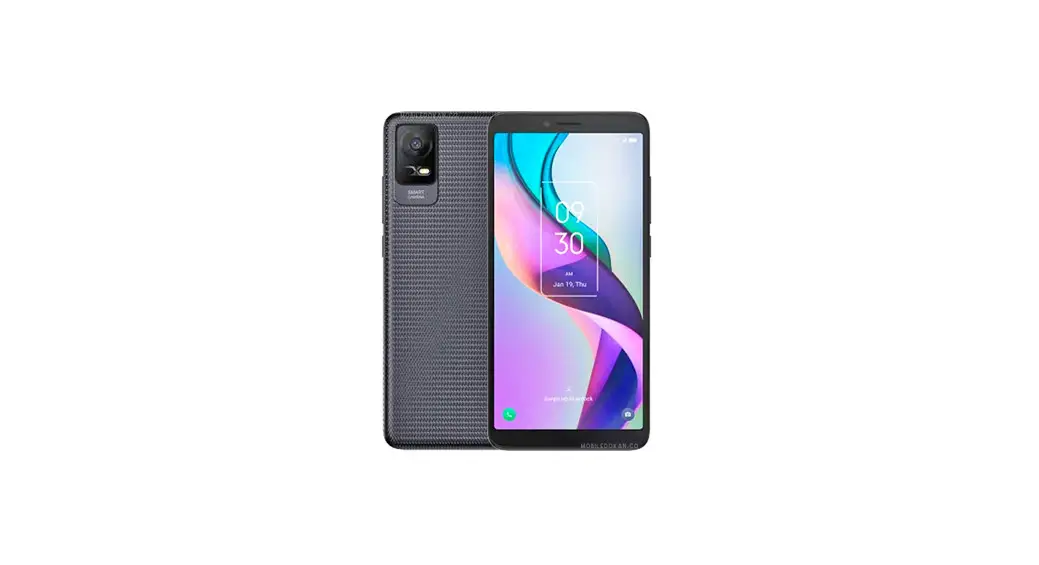
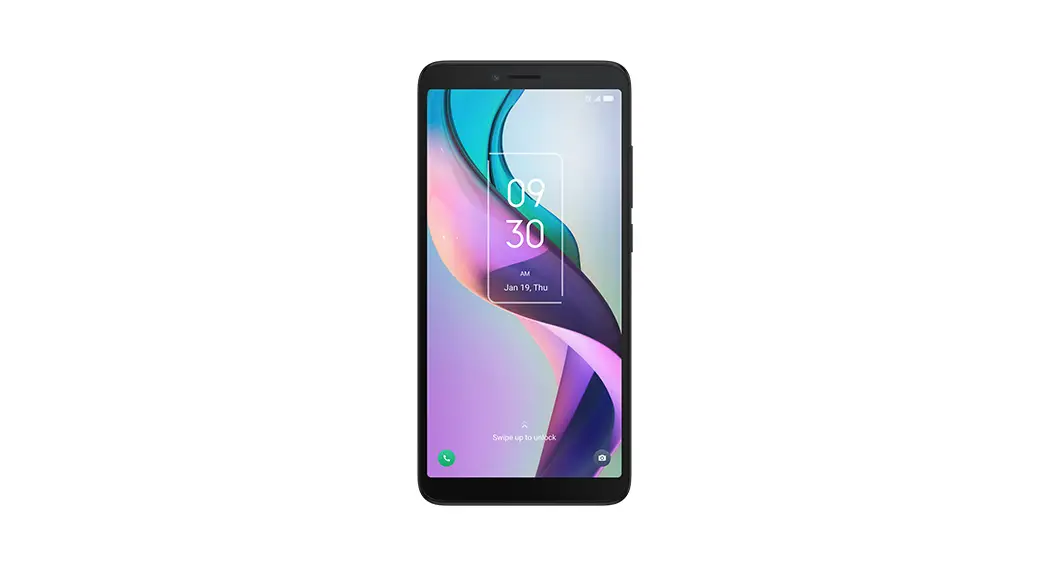
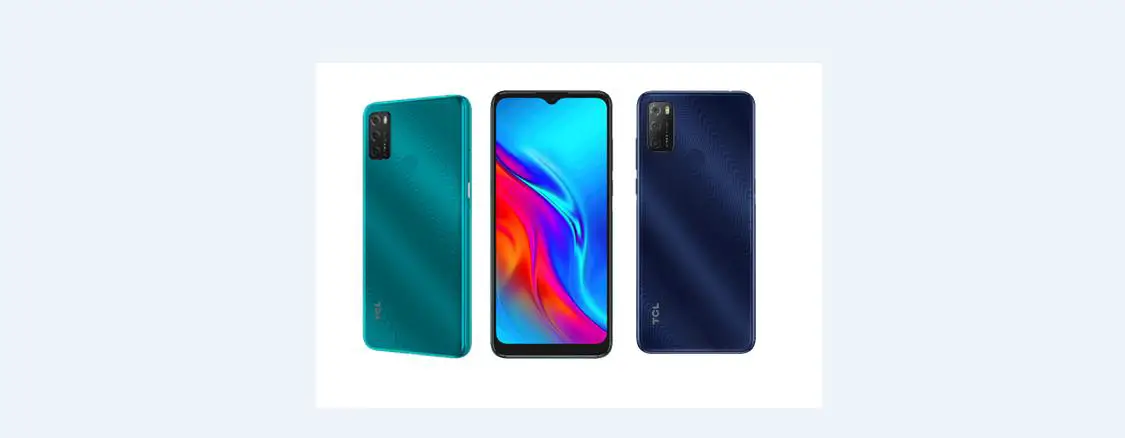
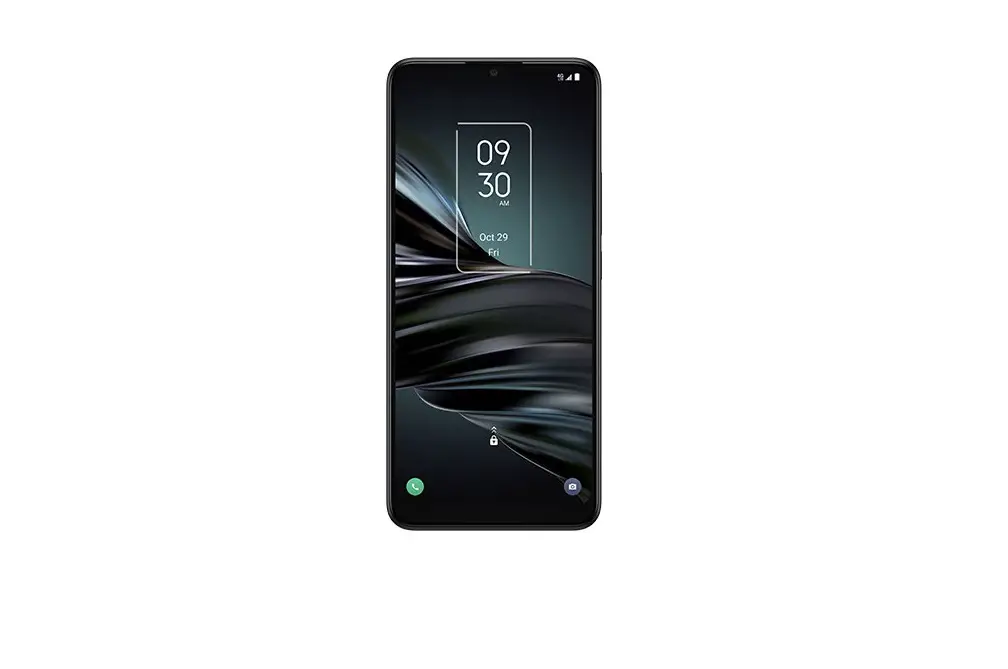
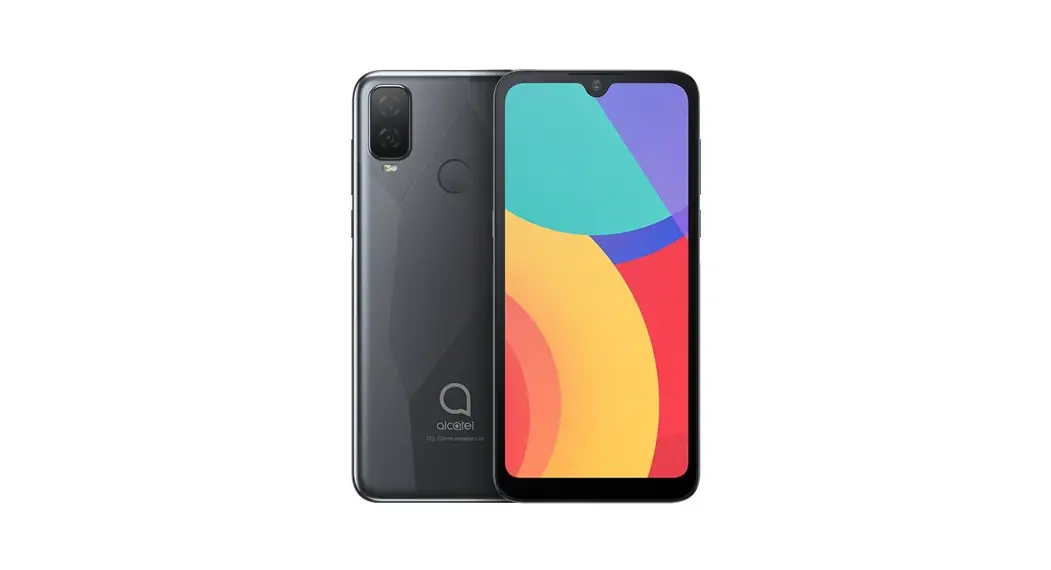
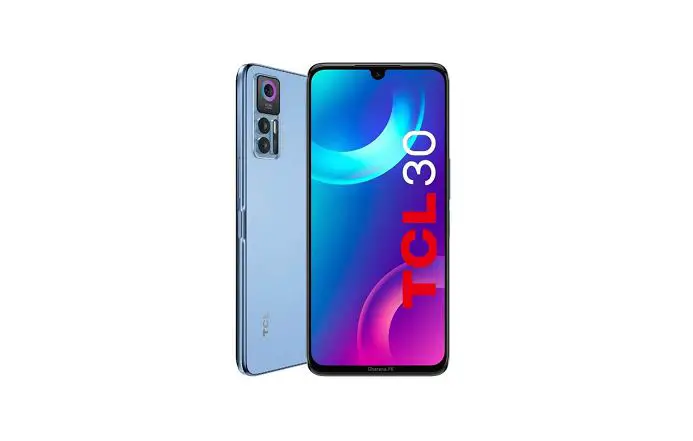
IONx Smartphone
Product Information
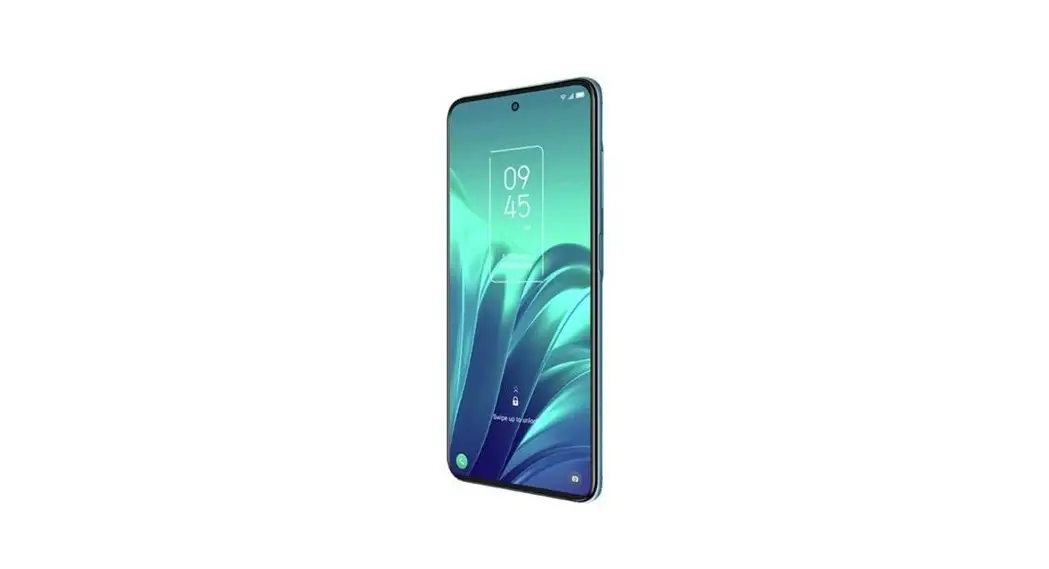
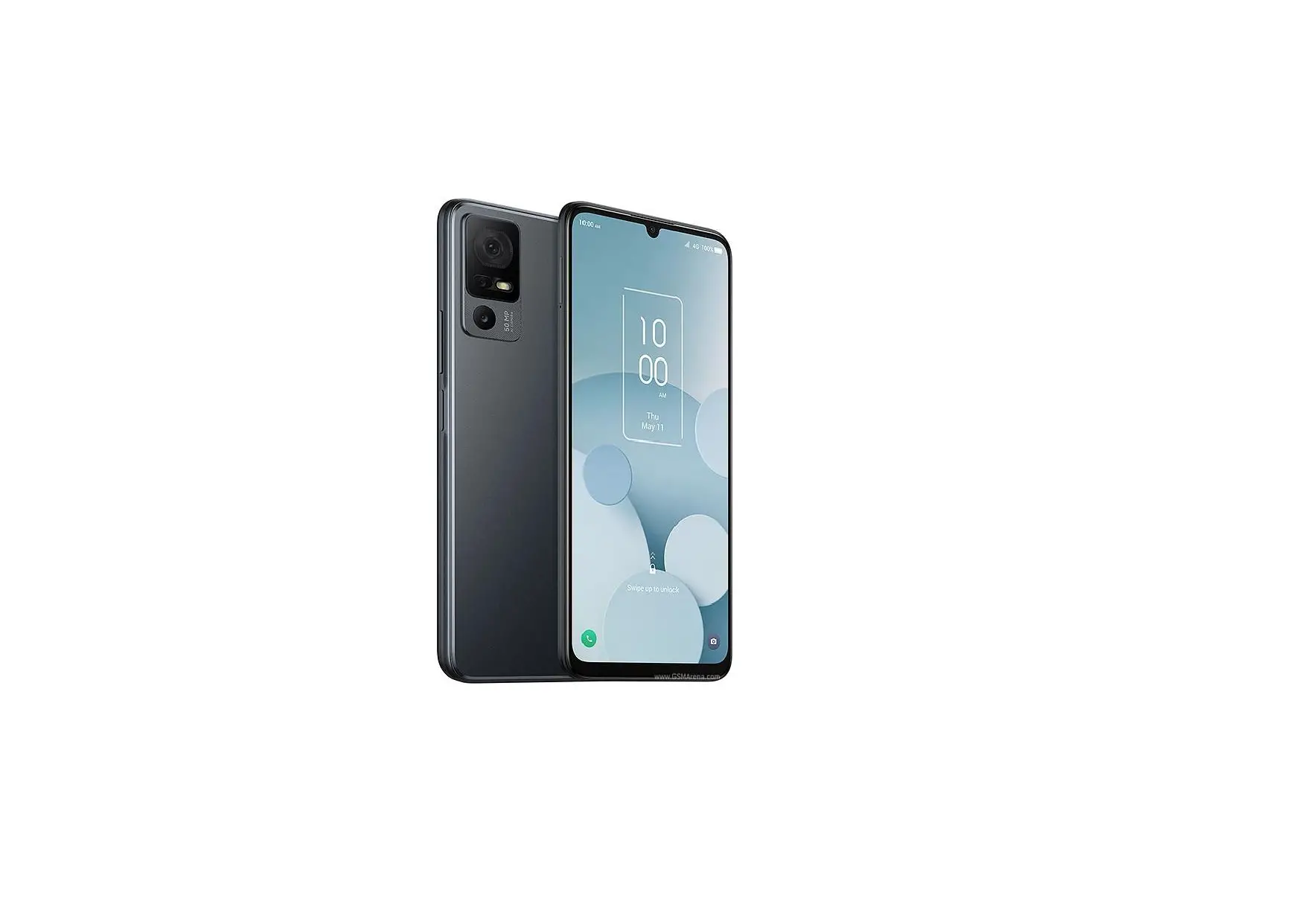
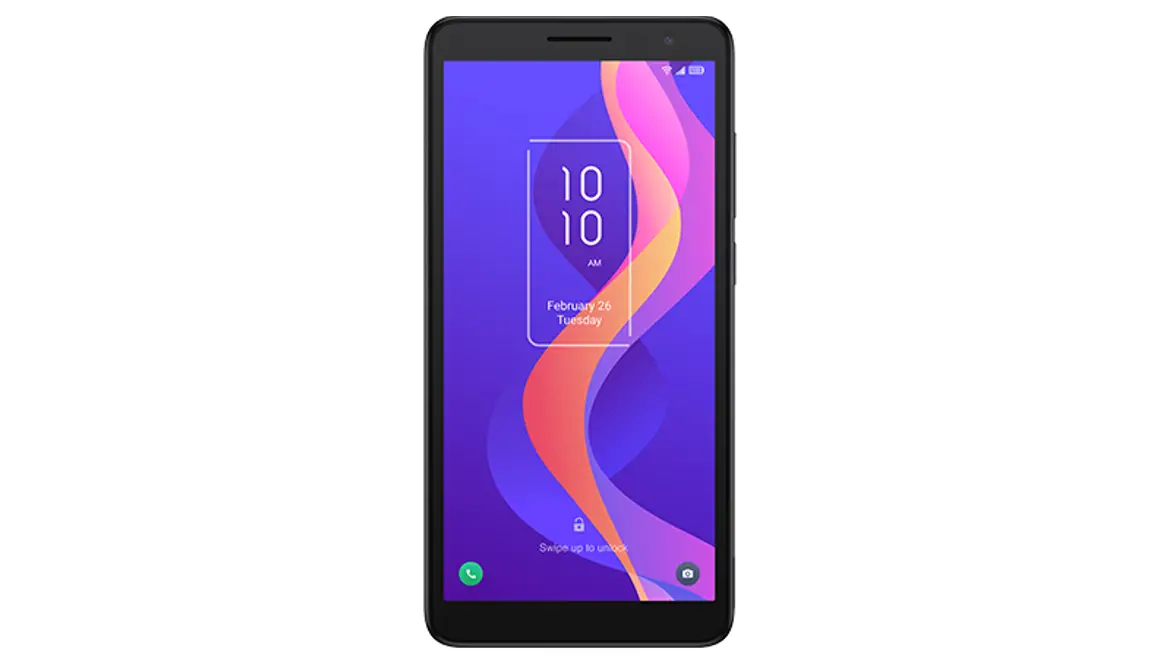
The product is a mobile phone with various features and
capabilities. It supports Nano SIM cards and has a USB Type-C port
for charging. The phone has a front camera, a speaker, a
microphone, volume keys, a power key with Google Assistant
functionality, and a headset connector. It also supports the use of
a microSDTM card for additional storage.
Product Usage Instructions
1. Set up your SIM card
To use your phone for making and receiving phone calls, you need
to properly install a Nano SIM card. Follow these steps:
- Remove the back cover of your phone.
- Insert or remove the Nano SIM card and microSDTM card in the
correct slot as shown. - Note: MicroSDTM cards are sold separately.
2. Battery
Before using your phone for the first time, it is recommended to
fully charge the battery to optimize its performance. Follow these
steps to charge the device:
- Insert the USB Type-C cable into the charge port as shown.
- Connect the charger to a power outlet.
- Note: Please use the charger and USB Type-C cable provided with
your device to avoid potential damage or reduced battery
performance.
3. Optimize battery life
To extend the battery life of your phone, you can adjust the
screen brightness, enable power saving mode, and adjust the screen
timeout duration. Follow these steps:
- Adjusting brightness level:
- From the Home screen, touch Settings > Display >
Brightness level. - To lower the brightness level, move the wheel to the left.
- From the Home screen, touch Settings > Display >
- Power saving mode:
- From the Home screen, touch Settings > Smart Manager >
Battery > Battery detail > Battery saver. - Touch “Use battery saver” to activate power saving mode.
- From the Home screen, touch Settings > Smart Manager >
- Adjust screen timeout:
- From the Home screen, touch Settings > Display > Sleep
and select the desired screen timeout duration.
- From the Home screen, touch Settings > Display > Sleep
4. Security & convenience
To protect your phone and enhance convenience, you can activate
security options such as screen lock and face unlock. Follow these
steps:
- Screen lock:
- From the Home screen, touch Settings > Security &
biometrics > Screen lock.
- From the Home screen, touch Settings > Security &
- Face unlock:
- From the Home screen, touch Settings > Security &
biometrics > Face unlock. - Follow the instructions to set up the face unlock feature.
- From the Home screen, touch Settings > Security &
5. Useful apps
Once your phone is set up, you can explore and use various apps.
Here are some recommended apps:
- Camera: Use the camera and camcorder to capture photos and
videos. - Chrome: Enjoy web browsing using the Chrome browser.
- Gmail: Send and receive emails, manage them by labels, and
archive them using Gmail. - Messaging: Create, edit, and receive SMS and MMS messages with
this phone. - Play Store: Search for and download apps from the Play Store.
Follow the installation guide to install the app.
Quick Start Guide
At a glance
Let’s get started. We’ll guide you through startup and tell you where to find more information about your phone and its great features.
Headset connector Microphone
Front camera
Volume keys Power key/ Google Assistant
Speaker Microphone USB Type-C
1
Set up your SIM card
The SIM (Subscriber Identity Module) card identifies your device to the wireless network. You can’t make or receive phone calls without a properly installed SIM card unless it’s an emergency call (911). You don’t need to power off your device before inserting or removing the SIM card. Note: Your device only supports Nano SIM cards. To avoid damage to your device, do not attempt to insert any other SIM types.
Remove the back cover.
Place or remove the Nano SIM card and the microSDTM card in the correct slot as shown.
Note: MicroSDTM cards are sold separately.
2
Battery
To optimize battery performance, be sure to fully charge your device before using it for the first time.
Charging the device
1. Insert the USB Type-C cable into the charge port as shown.
2. Connect charger to power outlet.
Note: Please use the charger and USB Type-C cable that’s included with your device. Using the wrong cable and charger may damage the charging port or reduce battery performance.
3
Optimize battery life
To optimize battery life, adjust your screen brightness and display timeout. 1. Adjusting brightness level: Lowering your
screen brightness level can optimize your battery level. To adjust the brightness level, from the Home screen, touch Settings > Display > Brightness level. To lower the brightness level, move the wheel to the left.
2. Power saving mode: Power saving mode minimizes battery usage to extend battery life. To explore power management options, from the Home screen, touch Settings > Smart Manager > Battery > Battery detail > Battery saver. Then touch Use battery saver to activate power saving mode.
3. Adjust screen timeout: Sleep mode is a low power mode function and it significantly saves your battery power. Lower the amount of time your device stays on after you stop using it to optimize your battery level. To do so, from the Home screen, touch Settings > Display > Sleep and select screen timeout duration.
4
Security & convenience
To protect your phone and privacy, you can activate the following security options: Screen lock: From the Home screen, touch Settings > Security & biometrics > Screen lock.
Face unlock: From the Home screen, touch Settings > Security & biometrics > Face unlock and follow the instructions to set up the face unlock feature.
5
Useful apps
When you’re up and running, try these apps to see what you can do with your new phone.
Find it: Swipe up from the Home screen to see all your apps.
Camera Your mobile phone is equipped with a camera and a camcorder for taking photos and shooting videos.
Chrome Using the Chrome browser, you can enjoy surfing the Web.
Gmail With Gmail, you can send and receive emails, manage emails by labels, archive them, etc.
Messaging You can create, edit, and receive SMS and MMS with this phone.
Play Store In Play Store, search for the app you need, download it, and then follow the installation guide to install the app.
Settings To access this function, swipe up from the Home screen and then touch Settings.
Note: Software updates happen frequently, so your phone may not have all listed apps or features.
6
Approved firmware versions
This device will only operate with firmware versions that have been approved for use by your wireless carrier and the device manufacturer. If unauthorized firmware is placed on the device it will not function.
Information about safeguarding handsets
We encourage customers to take appropriate measures to secure their devices and invite them to take advantage of the features available on this device to help secure it from theft and/ or other unauthorized access and use. This device has a locking function (e.g., Security PINs) that can serve as a first line of defense against unauthorized use or access to stored information. Preloaded security applications that allow customers to track or locate misplaced devices can be found on several devices. Lost or stolen devices should be immediately reported to your wireless carrier so that proper measures can be taken to protect accounts. For additional information, visit your wireless carrier’s Privacy Policy.
7
Emergency call
If your phone has network coverage, dial the emergency number and touch to make an emergency call. This works even without a SIM card and without typing the PIN code.
Although all phones are equipped with 9-1-1 emergency calling, this phone may or may not permit its location to be approximated during a 9-1-1 call. Be prepared to report your location when dialing 911*.
* Availability of this feature depends on upgrades to the (a) wireless network and (b) 9-1-1 calling system that are required to be installed by the local 9-1-1 response agency or public safety answering point (PSAP); these upgrades may not be available everywhere within your wireless service provider’s coverage area or roaming area. This approximation of the phone’s location and the transmittal of location information are subject to emergency situations, transmission limits, network problems/ limitations, interconnecting carrier problems, your phone, buildings/tunnels, signal strength and atmospheric/topographical conditions, and may be curtailed, interrupted, dropped, or refused. The phone’s approximate location may be transmitted to the local 9-1-1 response agency or PSAP while the call is in progress; this approximation is intended solely to aid the PSAP in dispatching emergency assistance or to limit the search area for emergency services personnel. You should not rely solely on a mobile phone for essential communications (such as a medical or other emergency). Please see your wireless carrier’s Terms and Conditions, and Privacy Policy for additional service restrictions and details.
8
Additional information
Use of some content or features may require qualifying service, or access to a Wi-Fi connection.
TCL Communication Technology Holdings Limited reserves the right to alter material or technical specification without prior notice.
TCL is a registered trademark of TCL Technology Group Corporation ©2022 TCL
Technology Group Corporation.
CJB2KD0TBAAA Printed in China 9