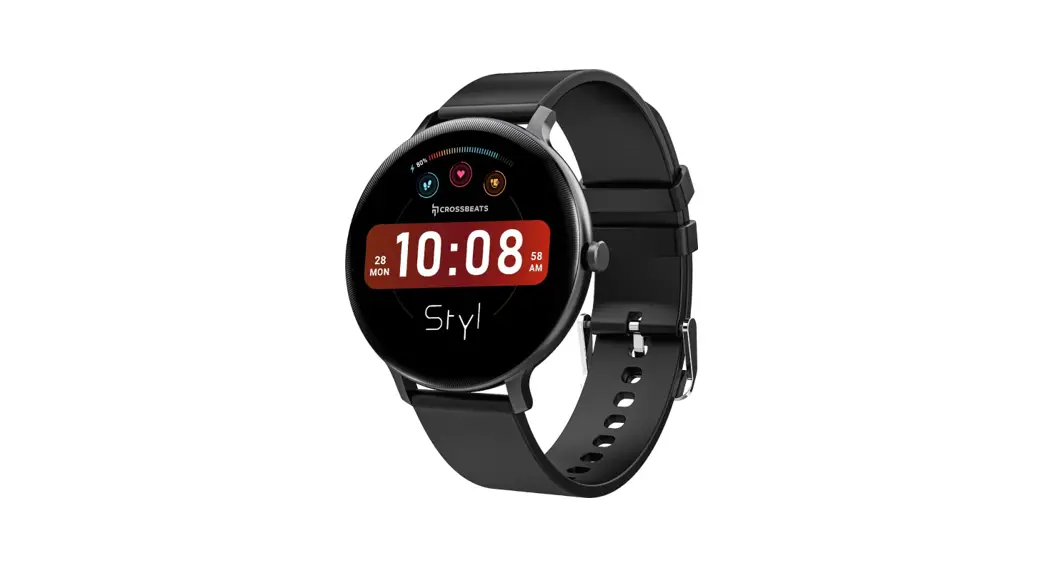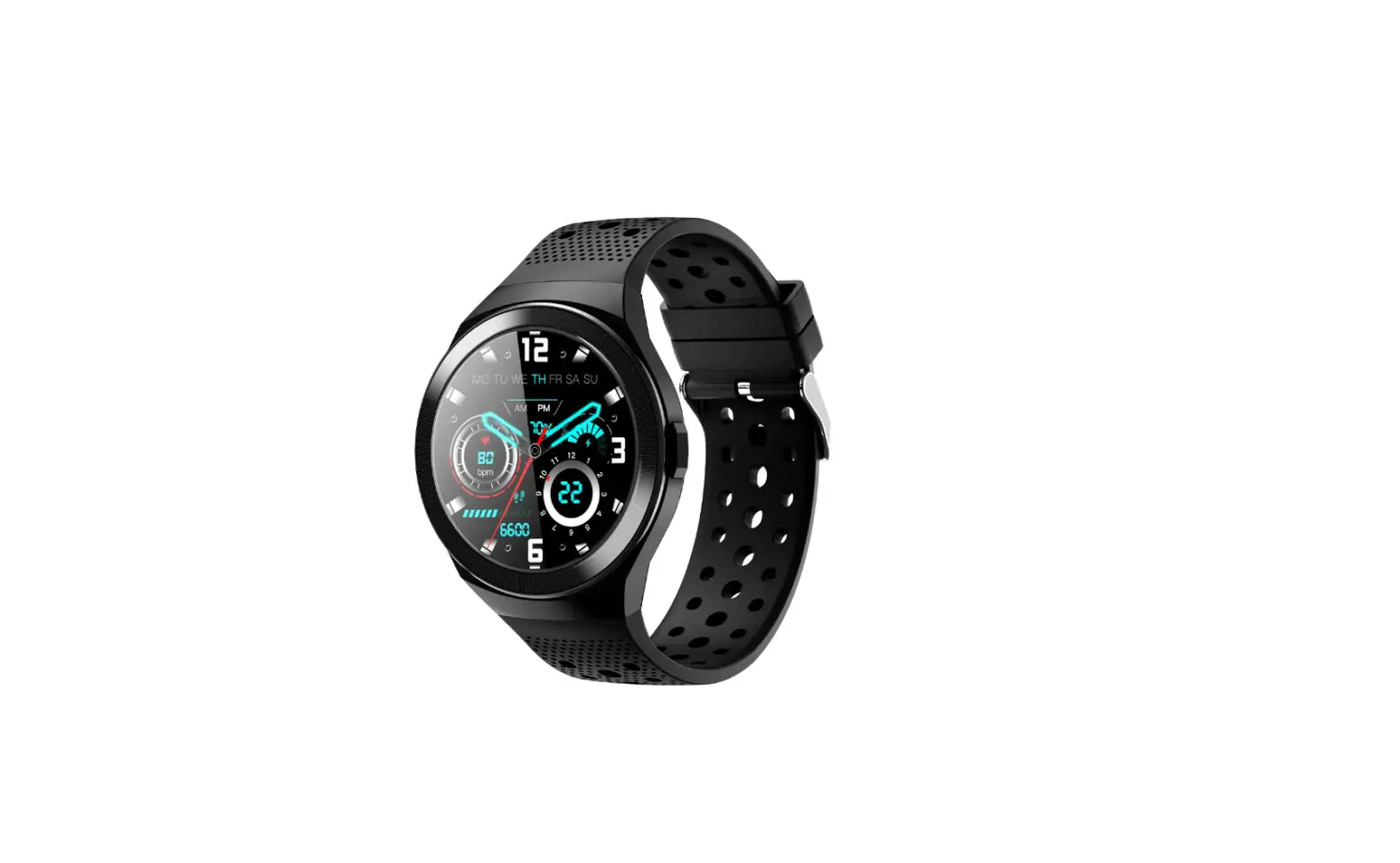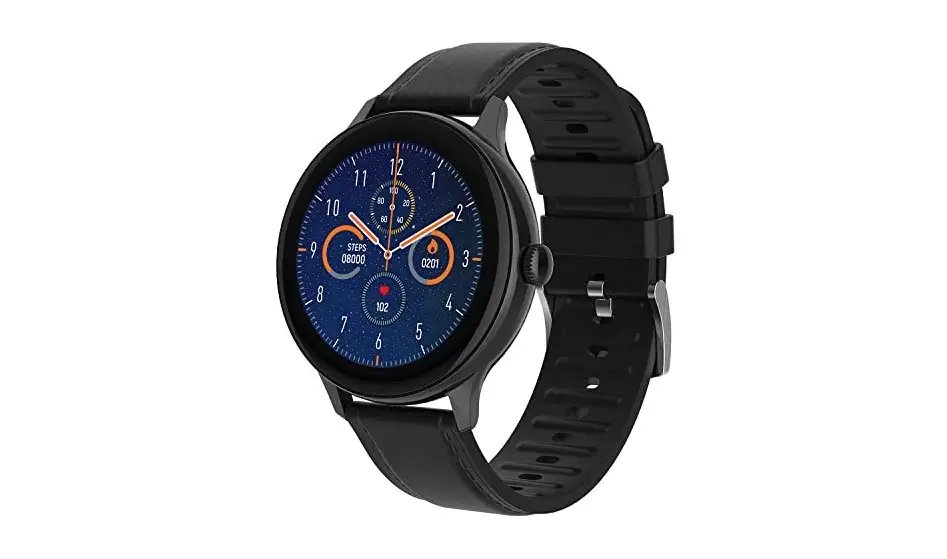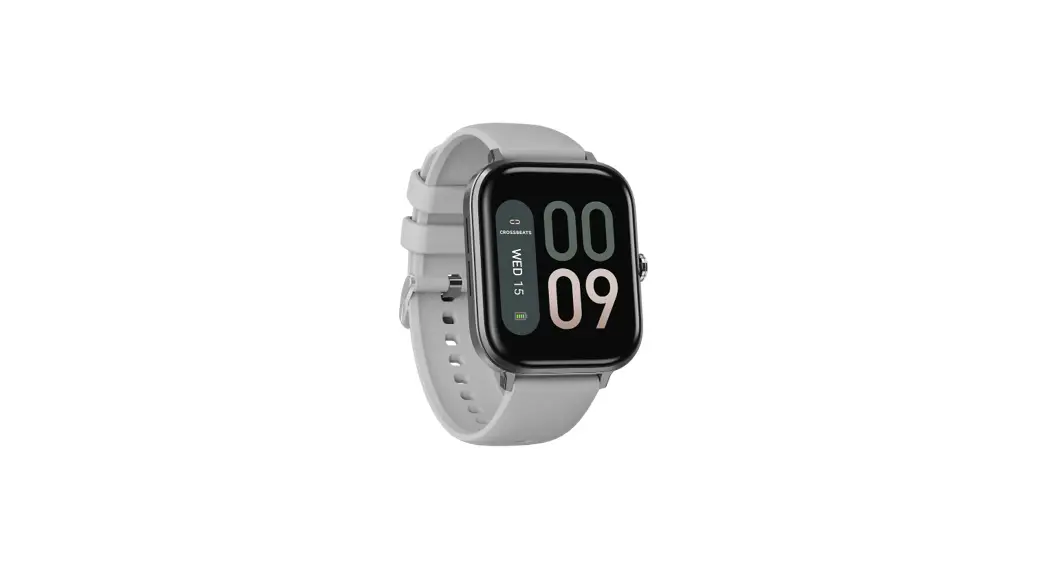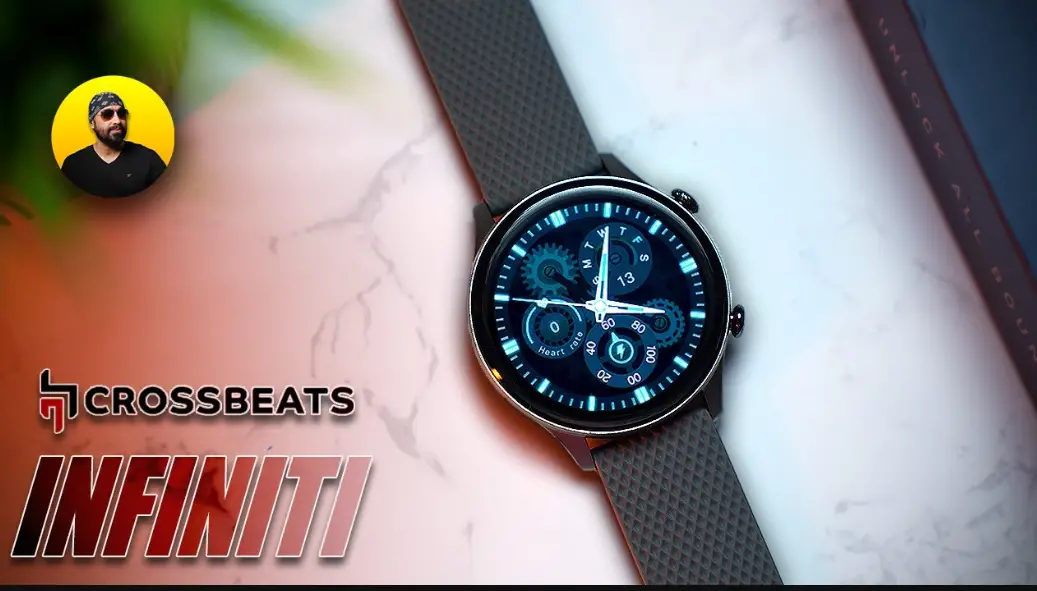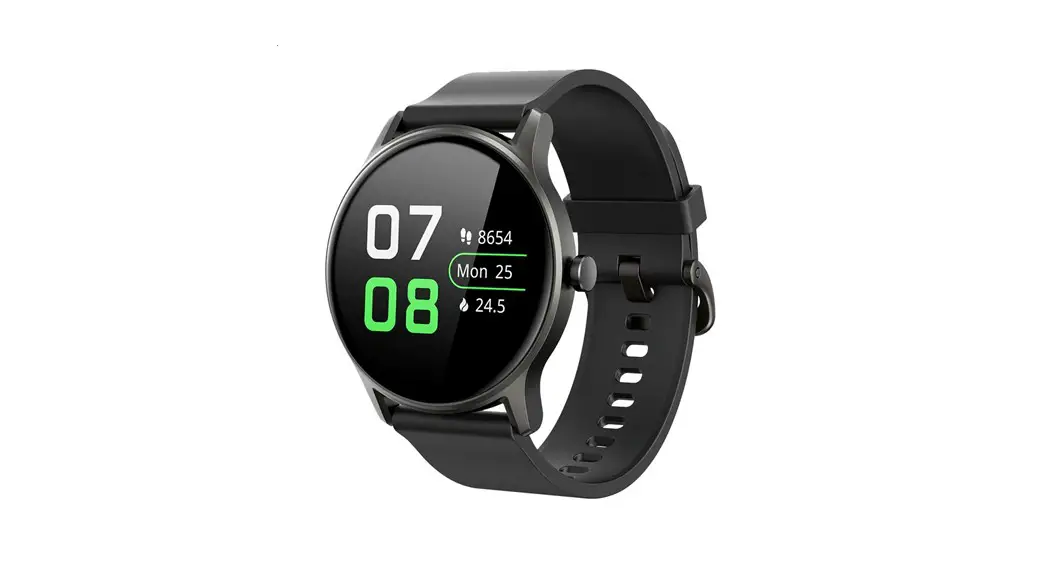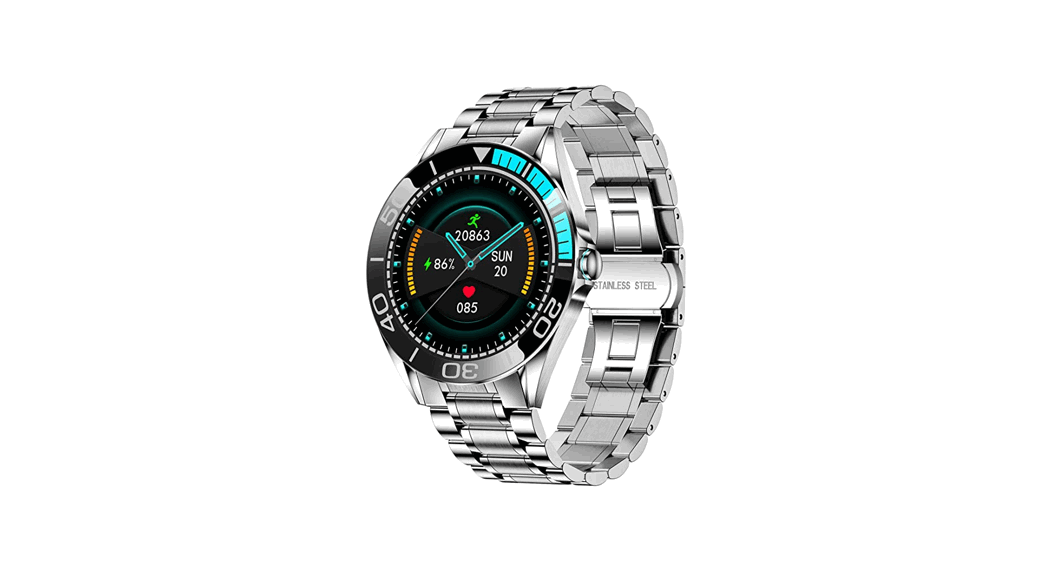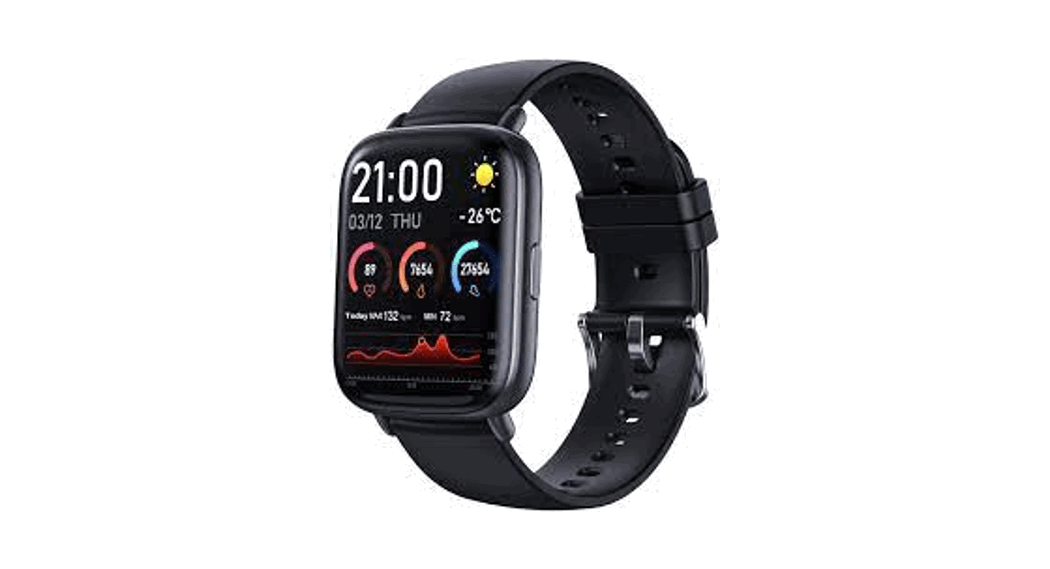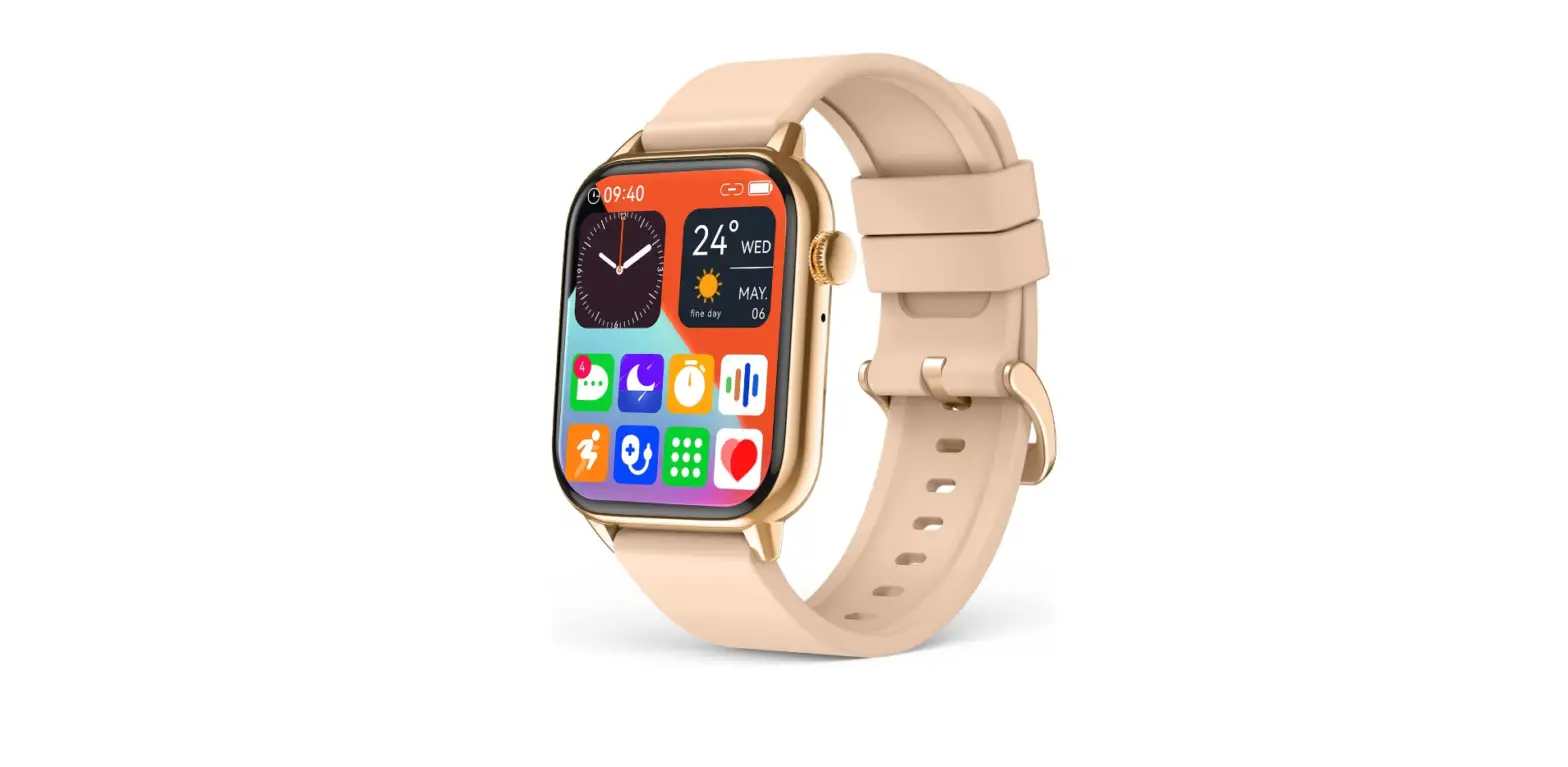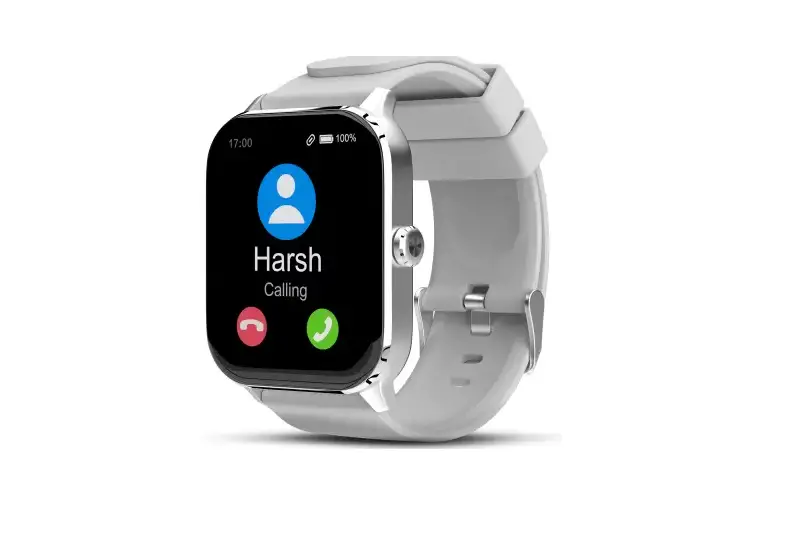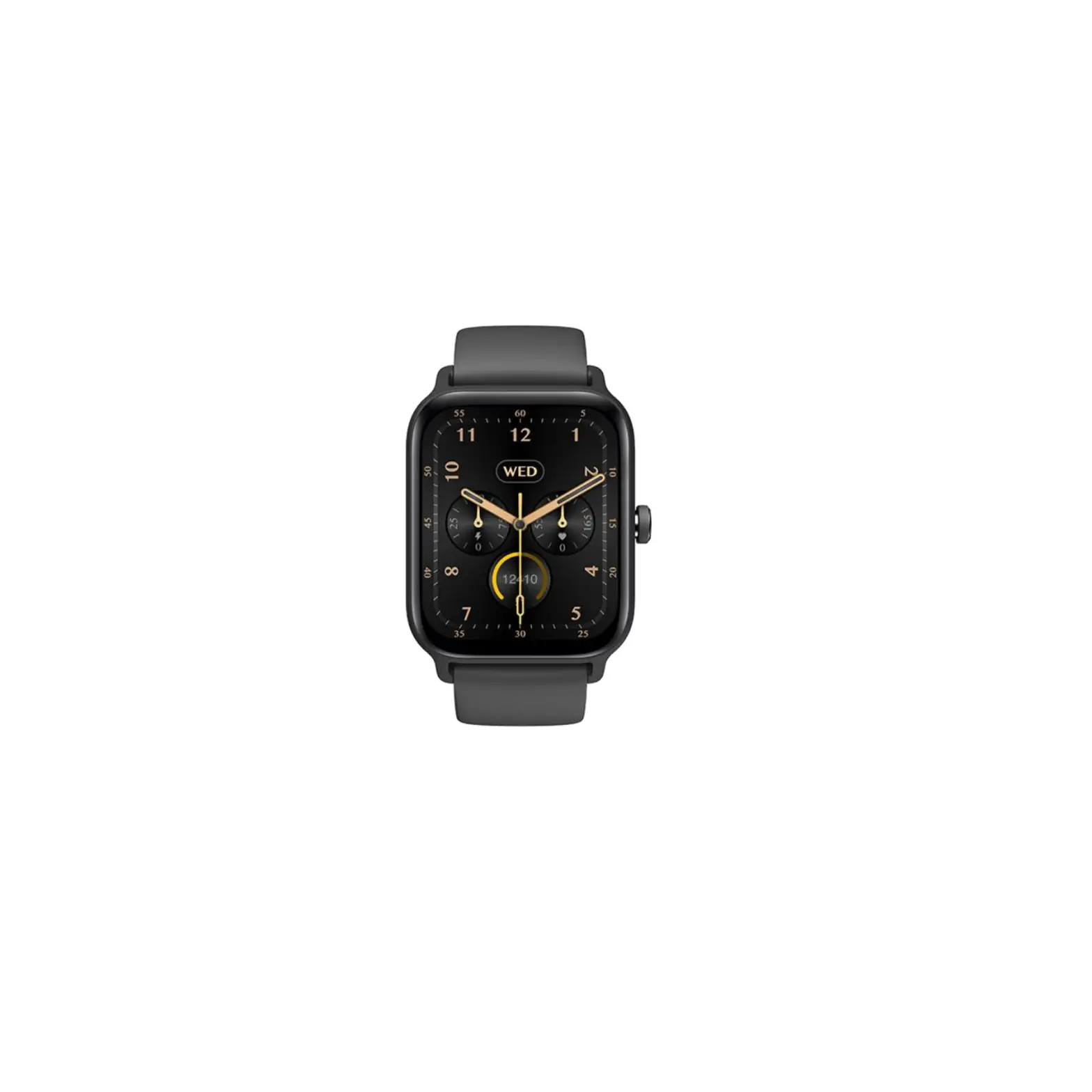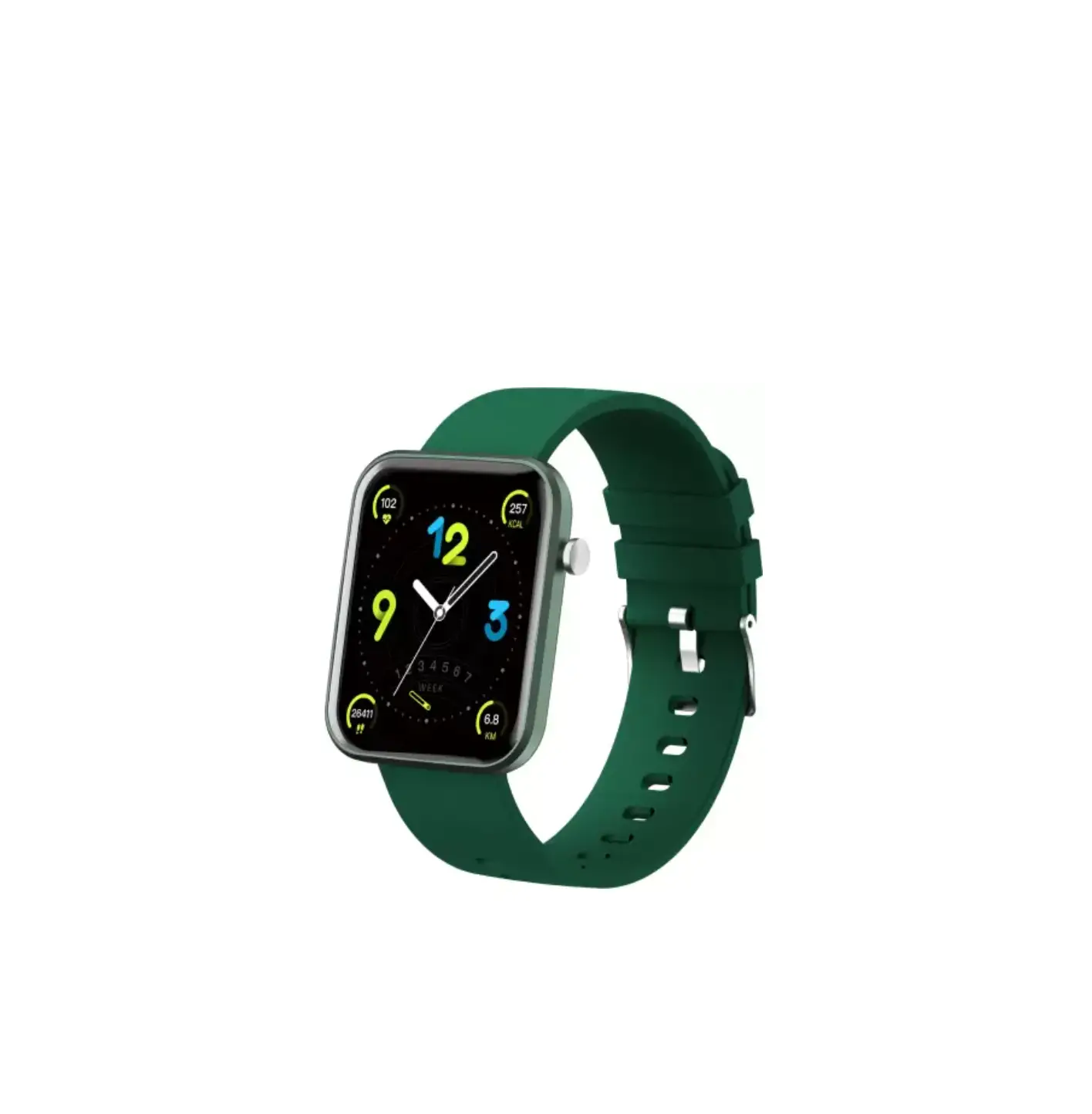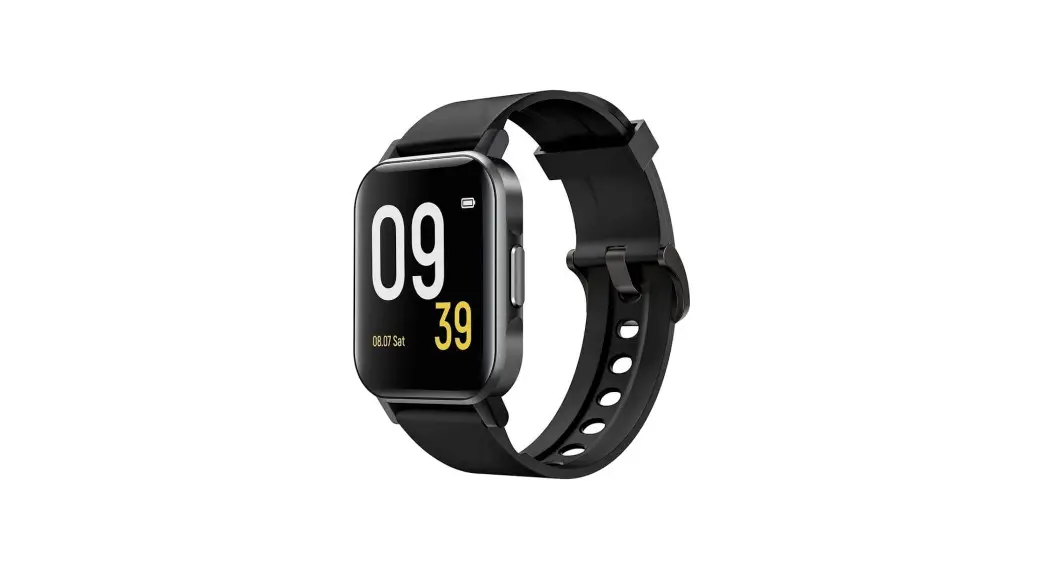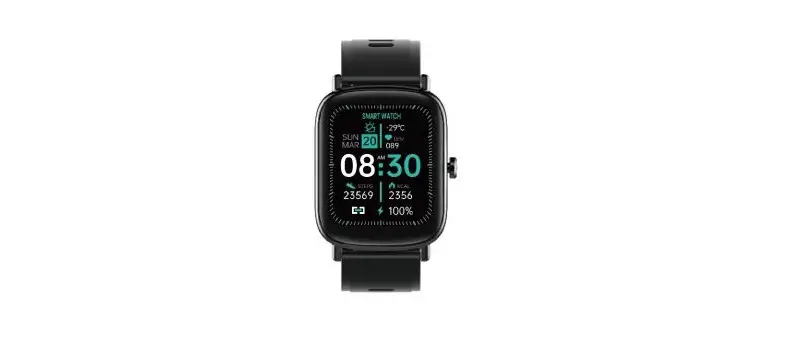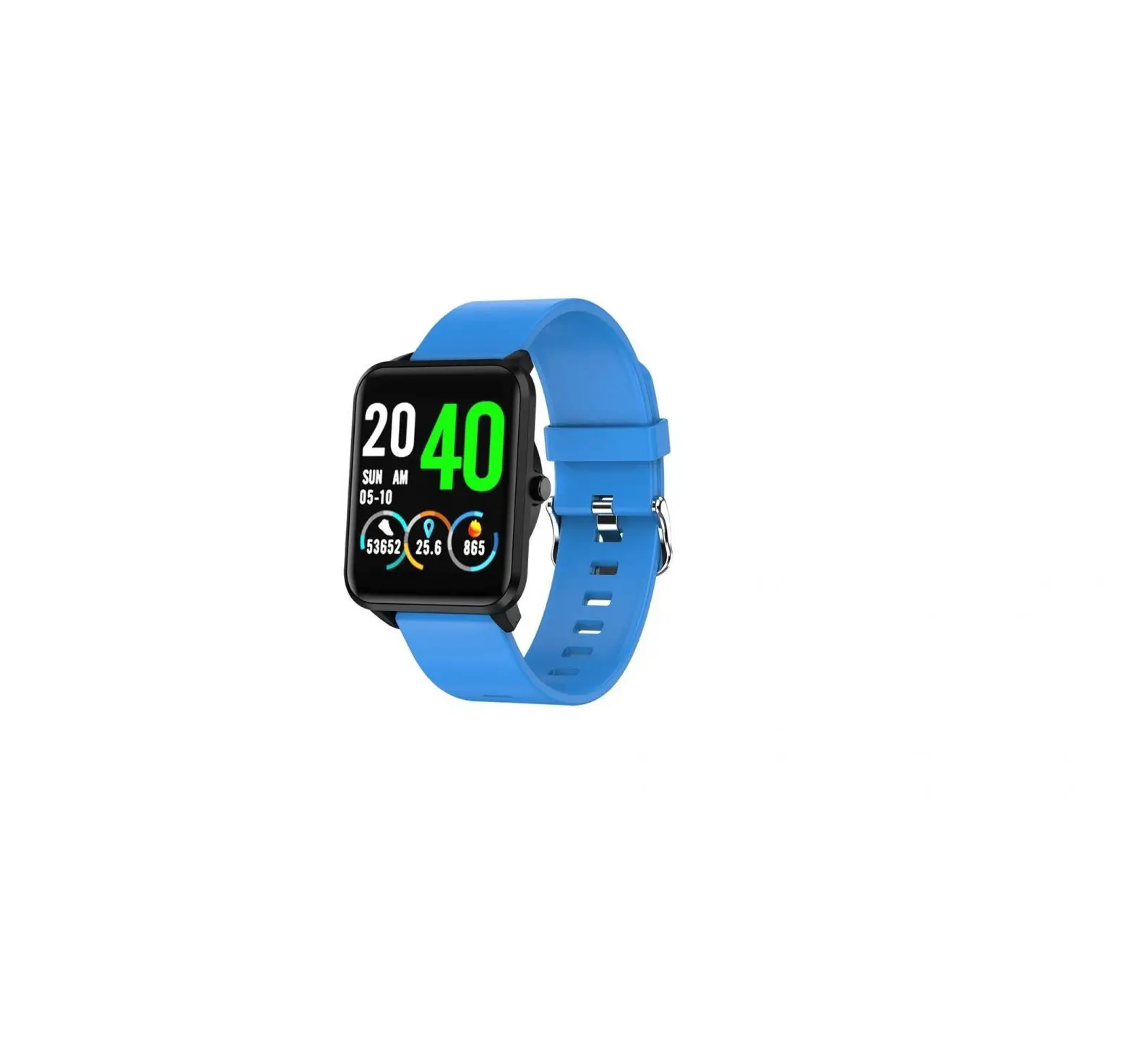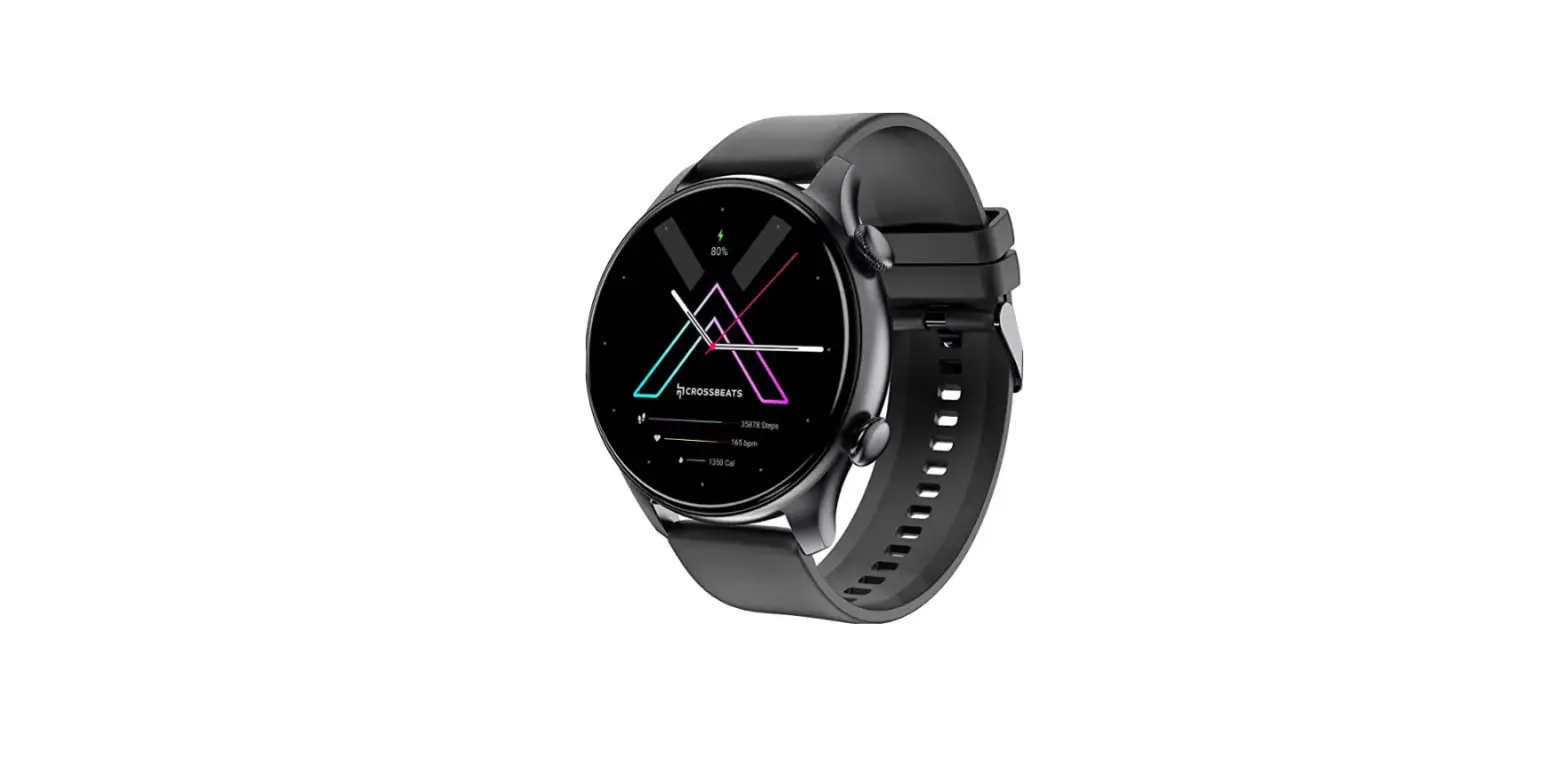

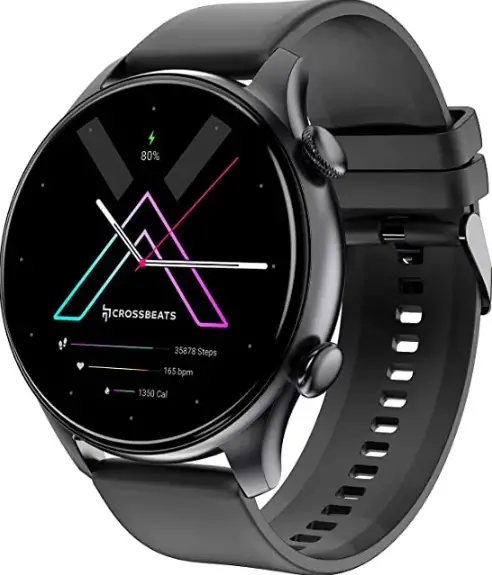
Crossbeats Orbit Apex Smartwatch
OVERVIEW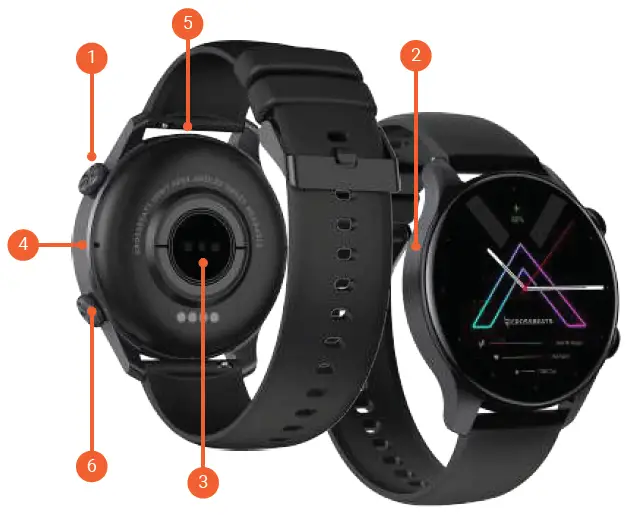
- Multifunction Button
- Aerospace metal casing
- Sensors
- Microphone
- Speaker
- Exercise Menu Button
SPECIAL FEATURES
- Super AMOLED 454×454 Display
- Always-on Display
- Bluetooth Voice Calling
- 1.4” 3D Curved Screen
- Advanced Health Monitors
- IP68 Water-resistant
- 250+ in-app Watch Faces
- Multi-sports Modes
- Voice Assistants Enabled
- In-built Game
- Smart Notifications
- Smart Quick Charge
APP DOWNLOAD
Scan the QR code to download the smartwatch app OR Download ‘Da Fit’ App from the Playstore or App store
INSTALL STRAPS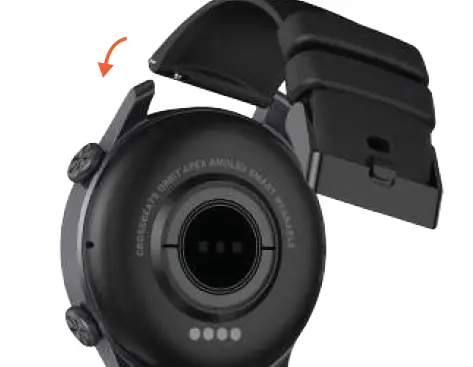
- To attach the straps, slide the pin (the side opposite to quick-release lever) into the notch on the watch. Attach the strap with the clasp to the top of the watch.
- While pressing the quick-release lever inward, slide the other end of the strap into place
- When both ends of the pin are inserted, release the quick-release lever.
REMOVE STRAPS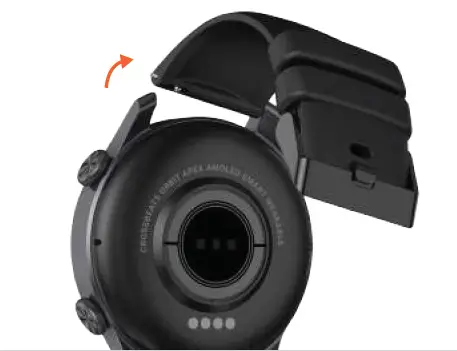
- To remove the straps, turn over the watch and find the quick-release lever.
- While pressing the quick-release lever inward, gently pull the strap away from the watch to release it
CHARGING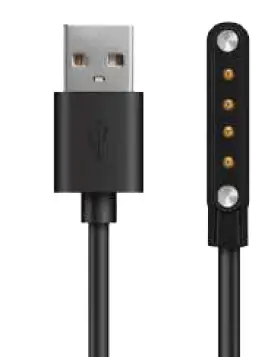
- Charge the smartwatch before using it
- Full charge in less than 90 mins
- Connect the back of the watch to the magnetic charging pin available in the box
- Please use a 5V charging adapter or connect USB with the laptop
- Note: Do not use any fast/dash charging adapters
CONNECT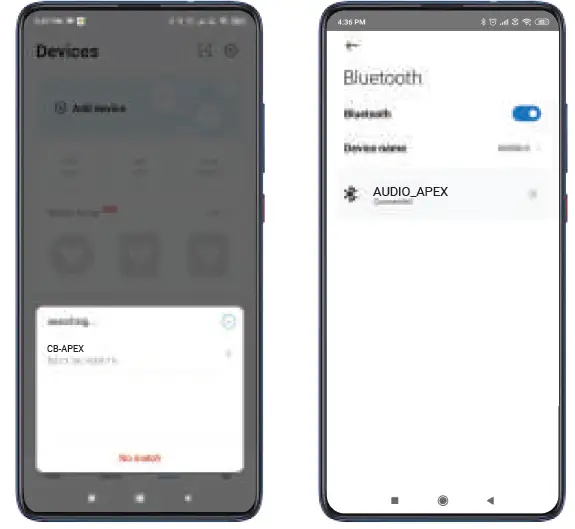
CB-APEX & Audio_APEX
Note:
- All notifications, alerts, reminders, and data received from the phone to watch or vice versa will be connected over CB-APEX.
- For calls, Audio_APEX needs to be connected
CB-APEX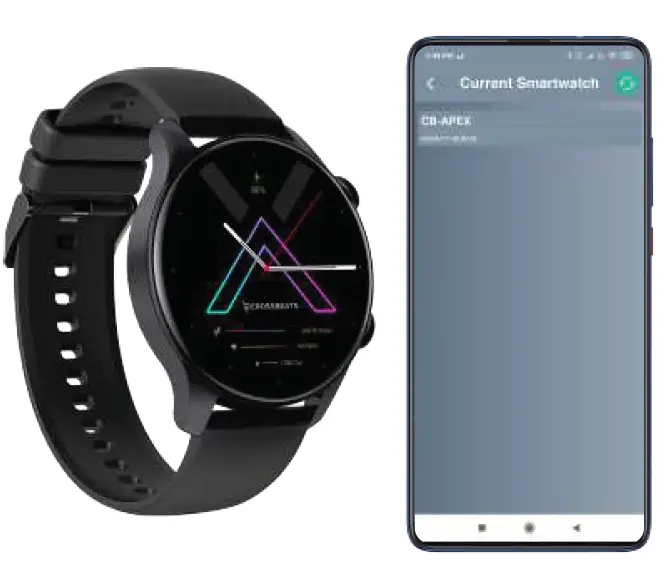
- Turn on the Bluetooth on your mobile phone.
- Create an account and login to the ‘Da Fit’ app
- Open App > Settings > Connect Smartwatch > choose ‘CB-APEX’
NOTE: Once connected, you will receive all the notifications on the watch
AUDIO_APEX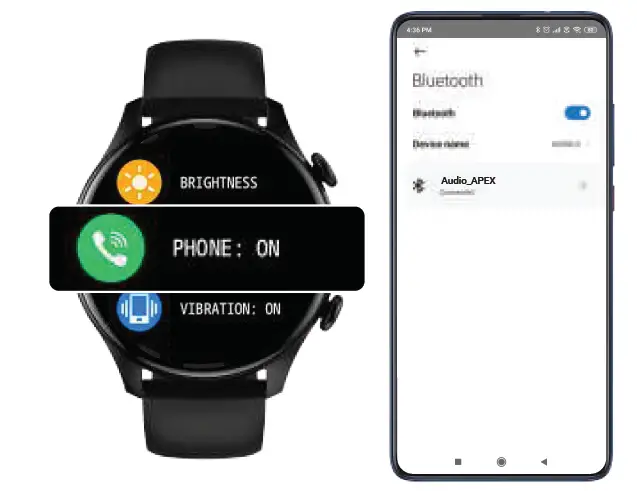
- Swipe from top to bottom once on the watch screen.
- Open Settings > Turn ON the Phone option.
- On the phone’s BT list, Search for ‘Audio_APEX’ and click to connect.
- Upon successful connection, you will be able to make/receive calls from the watch.
NOTE: Once connected, you will receive all the notifications on the watch.
FEATURES
Built in watch faces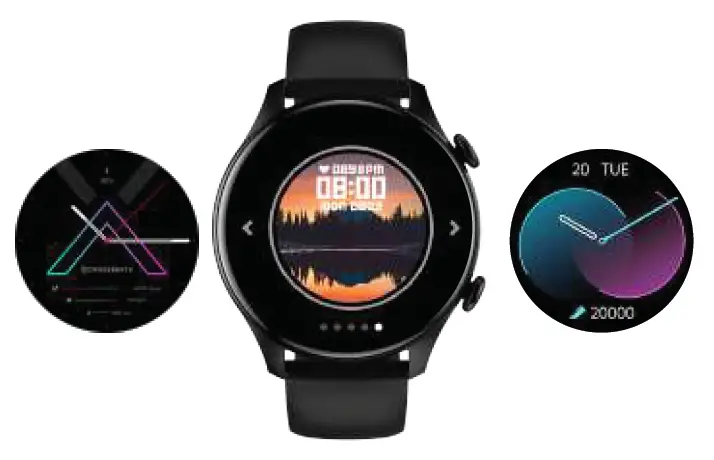
- Press and hold on the home screen for 2 secs
- You will enter the ‘Watch face’ menu
- Scroll & select your favorite screen
Note: You can customize the watch faces from the app
Pedometer/distance/calories burnt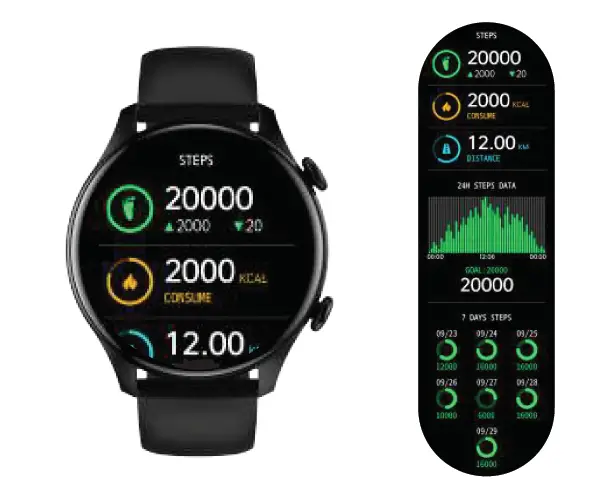
- Swipe from left to right once on the main screen
- Select the ‘Steps’ option
- You can see all the tracked data of steps, distance, and calories burnt
- Scroll down for a more detailed analysis
Sleep monitor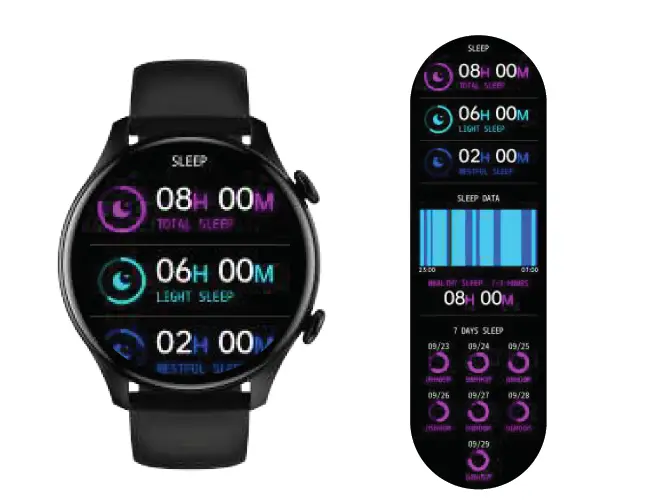
- Swipe from left to right once on the main screen
- Select the ‘Sleep’ option
- You will be able to see the number of hours slept and also the light and deep sleep analysis
- Scroll down for more details
Heart rate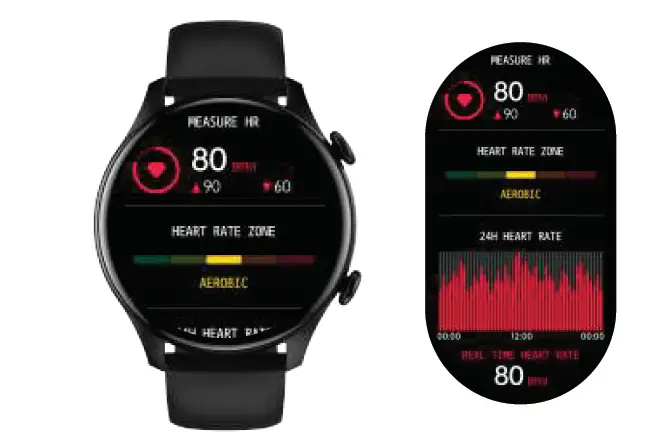
- Swipe from right to left twice on the main screen
- Click on the ‘Heart rate’ icon
- You will be able to check your Heart Rate
- Scroll down for more details
Blood Pressure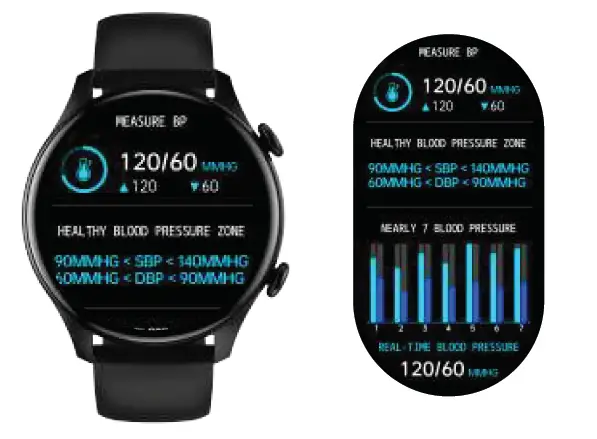
- Swipe from right to left twice on the main screen
- Click on the ‘Blood Pressure’ icon
- Wait for 10-15 secs for the reading to complete
SpO2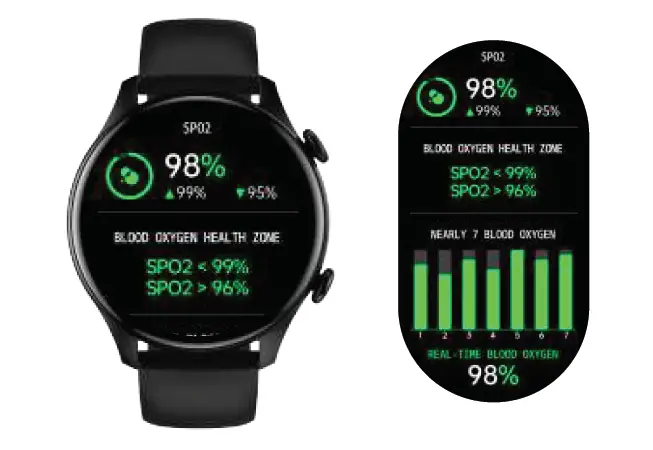
- Swipe from right to left twice on the main screen
- Click on the ‘SpO2’ icon
- Wait for 10-15 secs for the reading to complete
Breathe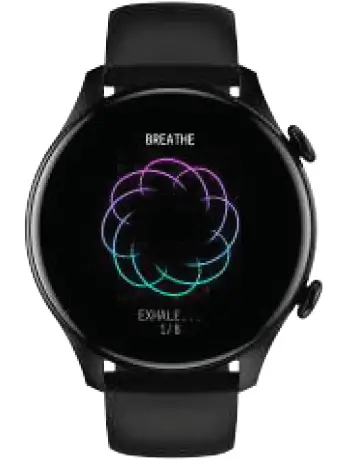
- Swipe from left to right once on the main screen
- Scroll and select the ‘Breathe’ icon
- Click on the play button to start the breathe training
Music control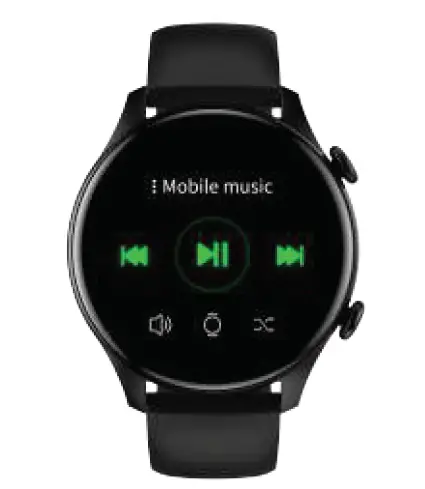
- Scroll from left to right once on the main screen
- Scroll and select the ‘Music’ icon
- You can play/pause, change tracks & control volume levels
Sports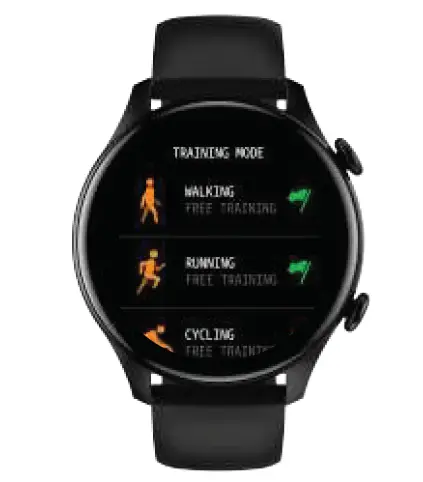
- Scroll from left to right once on the main screen
- Click on the ‘Training’ icon to explore 20 different activities
Weather Updates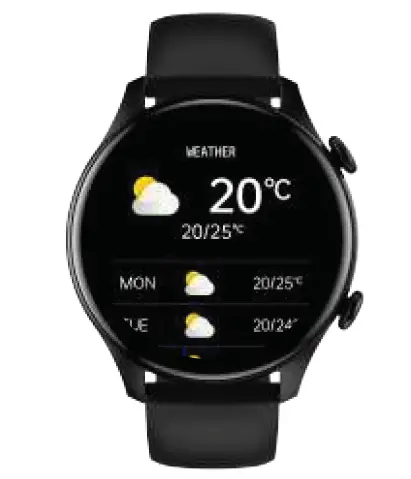
- Swipe from top to bottom once on the main screen
- You can check the weather forecast update
Message Notifications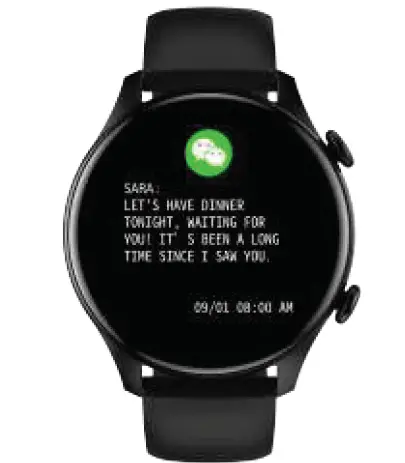
- Swipe from bottom to top once on the main screen
- You will be able to see your latest messages
Call Reminder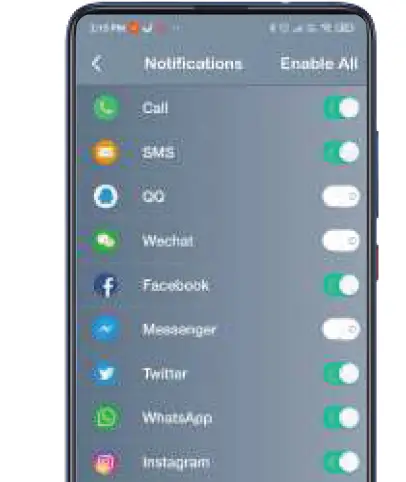
- Open the ‘Da Fit’ app and click on the ‘Settings’ tab
- Click on the ‘Notification’ icon
- Enable ‘incoming call’ and ‘SMS’ alerts
- Note: You can speak on the watch as it has in-built speaker and mic
Power Saver Mode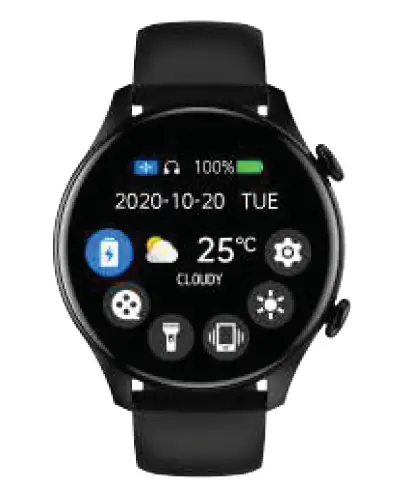
- Swipe from top to bottom once on the main screen
- Enable the Power icon to extend your battery life
NOTE: This mode, turns down the brightness, turns off the vibration & mutes the notifications.
Theatre mode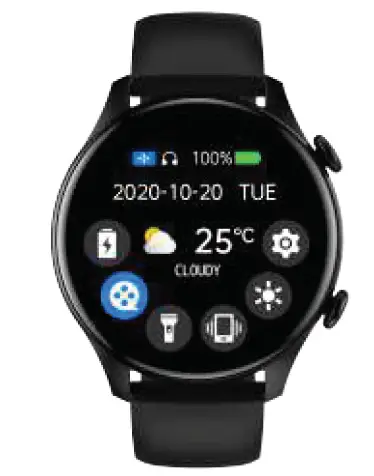
- Swipe from top to bottom once on the main interface
- Click on the ‘Theatre mode’ icon and enable it to mute all the unwanted notifications
Flashlight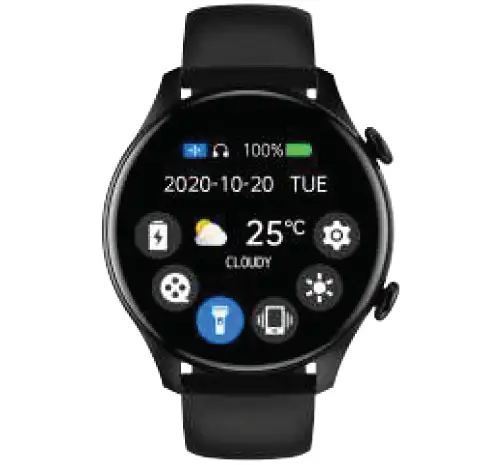
- Swipe from top to bottom once on the main screen
- Enable/Disable the Torch icon for the Flashlight
Stopwatch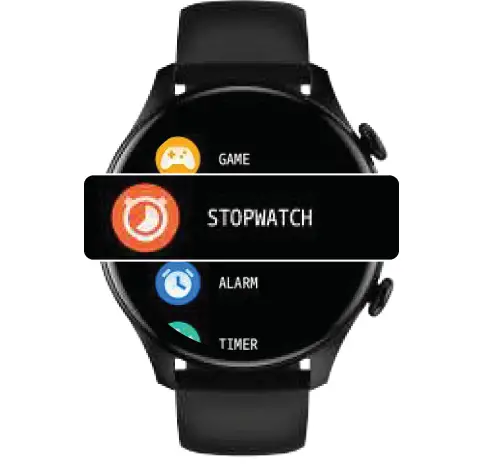
- Scroll from top to bottom once on the main screen
- Open Settings > ‘Stopwatch’ icon and activate
- You also have Pause & reset options
Timer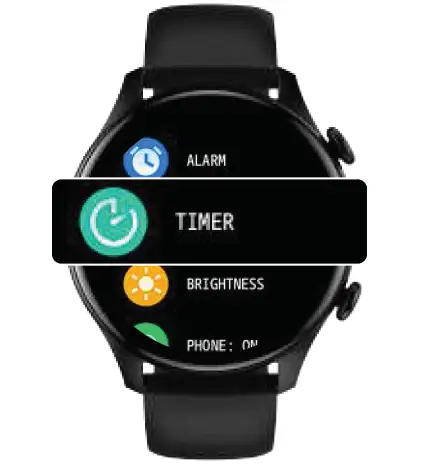
- Scroll from top to bottom once on the main screen
- Open Settings > ‘Timer’ icon
- Now adjust the time and activate the timer
Alarm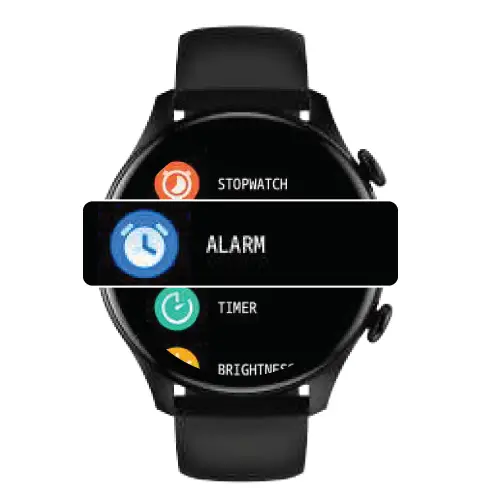
- Scroll from top to bottom once on the main screen
- Open Settings > ‘Alarm’ icon
- You can set the new alarm on the app.
- You can also enable up to 3 existing alarms on the watch
Brightness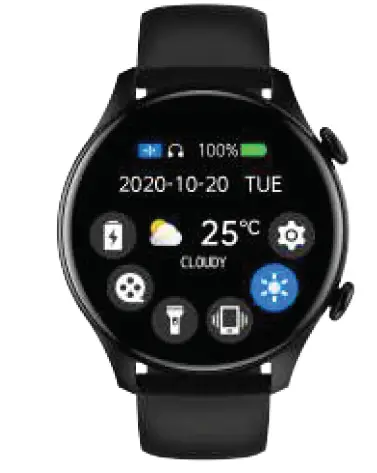
- Swipe from top to bottom once on the main screen
- Click on the ‘Brightness’ icon and adjust the brightness accordingly
Game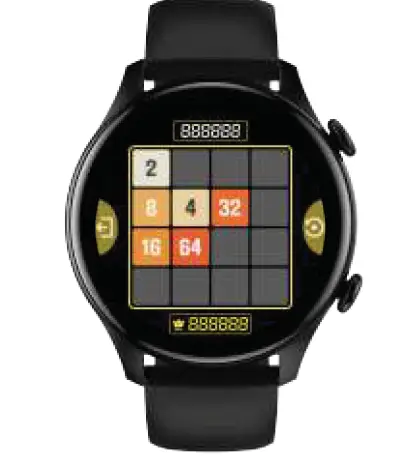
- Swipe from left to right once on the main screen
- Scroll & open ‘Game’ option & select 2048 to start playing
DND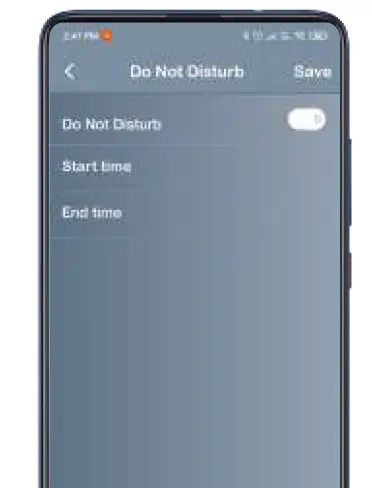
- On the ‘CB-Xplore’ app, go to Settings > System Settings > Do Not Disturb
- Add the start & end time & enable the DND option
Camera Shutter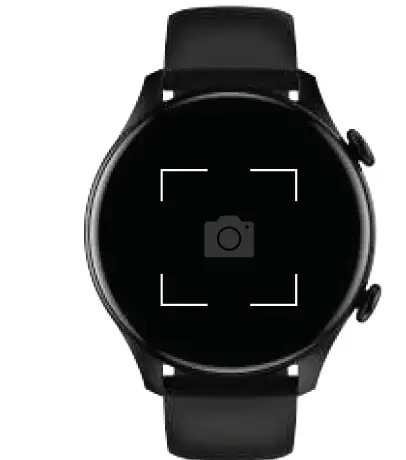
- Swipe from left to right once on the main screen
- Scroll and select the ‘Shutter’ icon
- On the app, go to Settings > Camera Shutter & allow permissions
- Tap on the screen to take a picture
Health reminder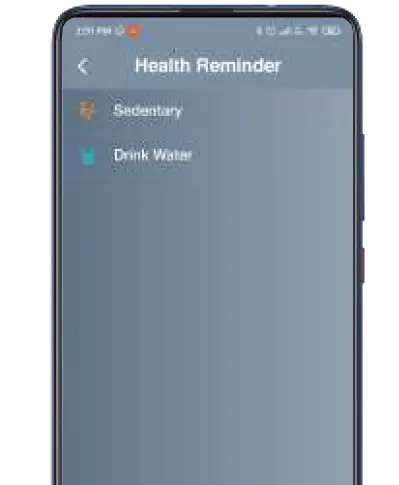
- On the ‘CB-Xplore’ app, go to Settings > System Settings > Health Reminder
- Enable the Sedentary & Drink Water reminders when necessary
Settings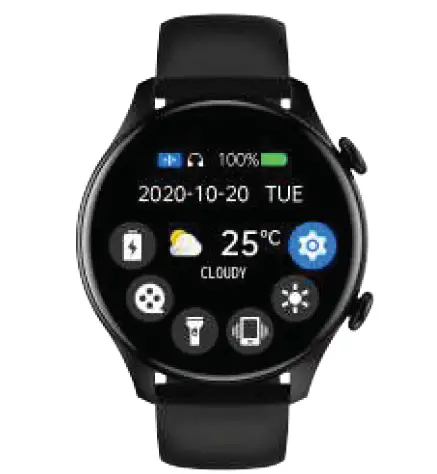
- Swipe from top to bottom once on the main screen
- Scroll and select the ‘Setting’ icon
Vibration mode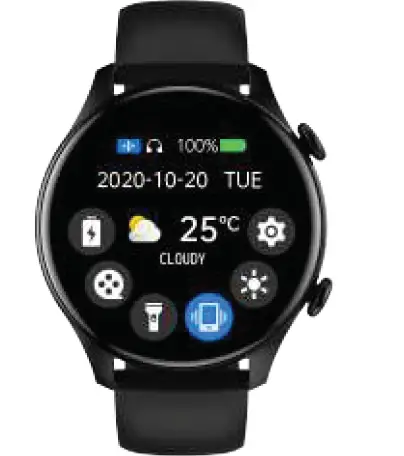
- Swipe from top to bottom once on the main screen
- You can enable/disable the sound and vibrations for the notifications
Reset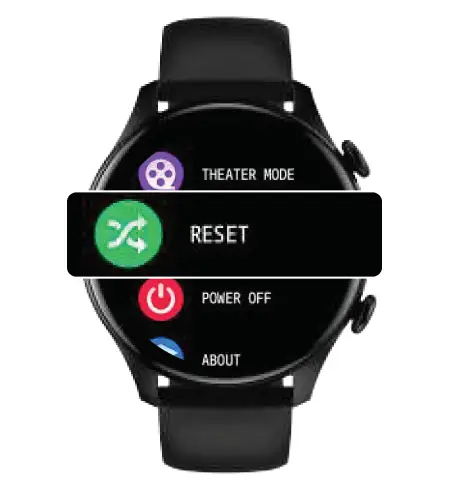
- Swipe from top to bottom once on the main screen
- Open ‘Setting’ > ‘Reset’ to reset the smartwatch
Power Off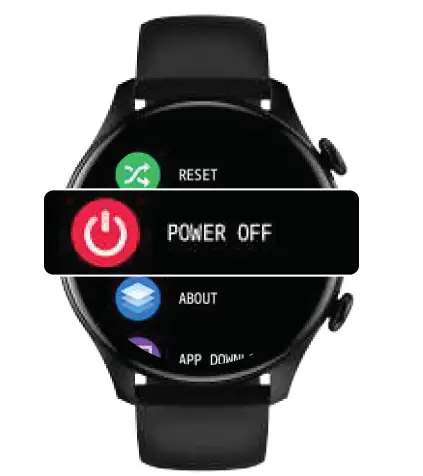
- Swipe from top to bottom once on the main screen
- Open ‘Setting’ > ‘Power Off’ to turn the smartwatch off
Disclaimer
- Optical sensors present on the back of the smartwatch are used to track the health vitals, do not rely on them for medical purposes.
- Crossbeats will not be responsible for in-app purchases made via CB-Xplore.
- Crossbeats does not save your personal data and is not responsible for any data stored on CB-Xplore.
- Battery life may vary depending on usage patterns.
- The watch charging time might slightly vary depending on how much battery percentage has been depleted and the voltage supply for a charge.
- To receive notifications, calls and other alerts ensure your data and Bluetooth connections are stable.
- Our smartwatches are waterproof and are not suitable for diving. Also using them in the shower with harsh chemicals can damage the watch.
- Use the smartwatch with appropriate apps to achieve the best results.