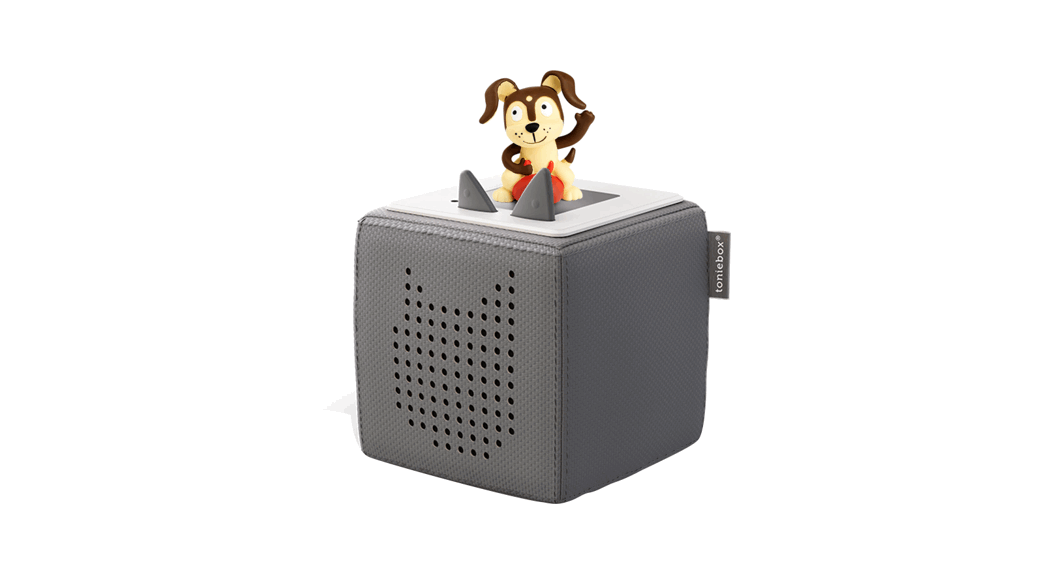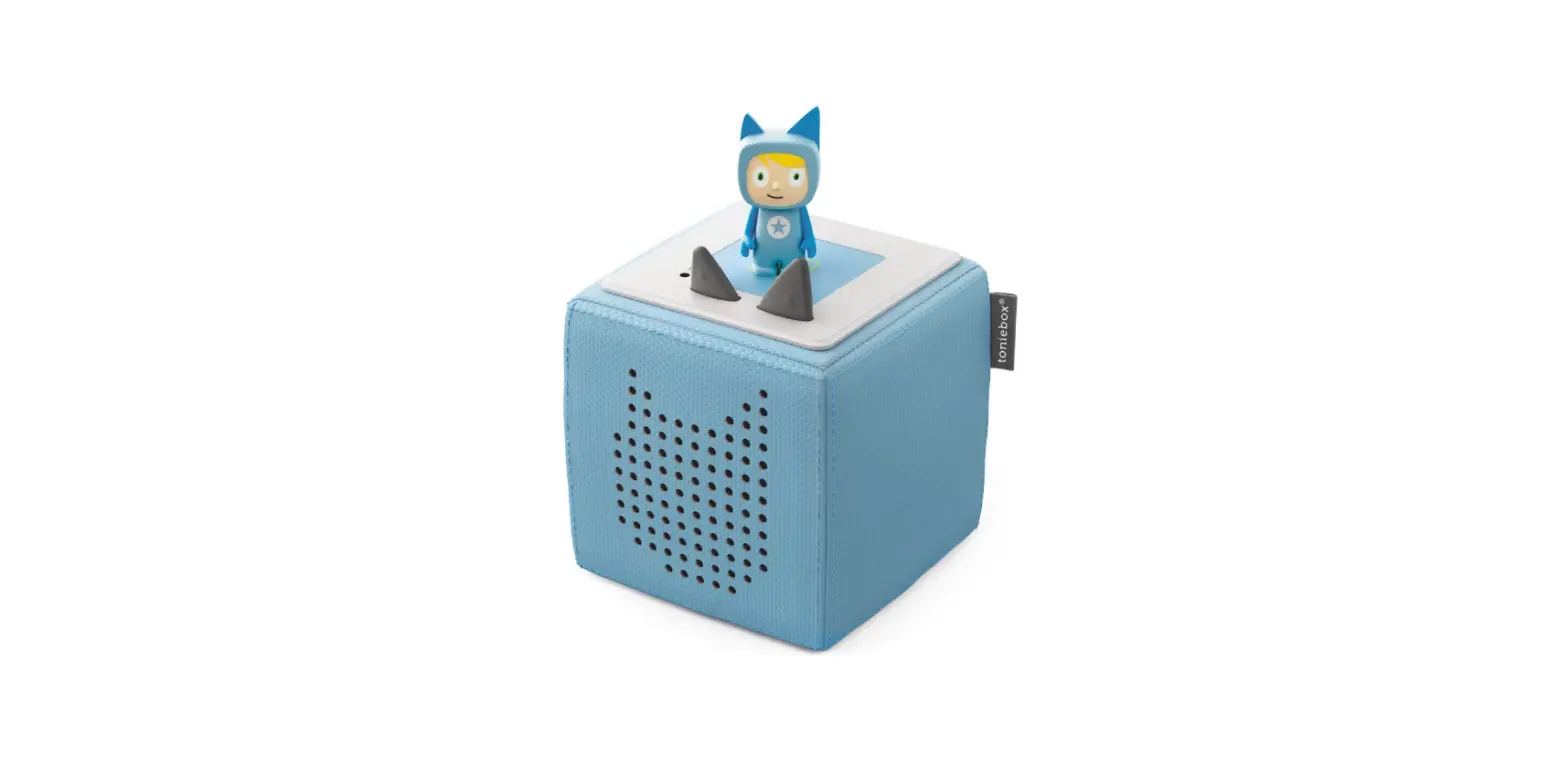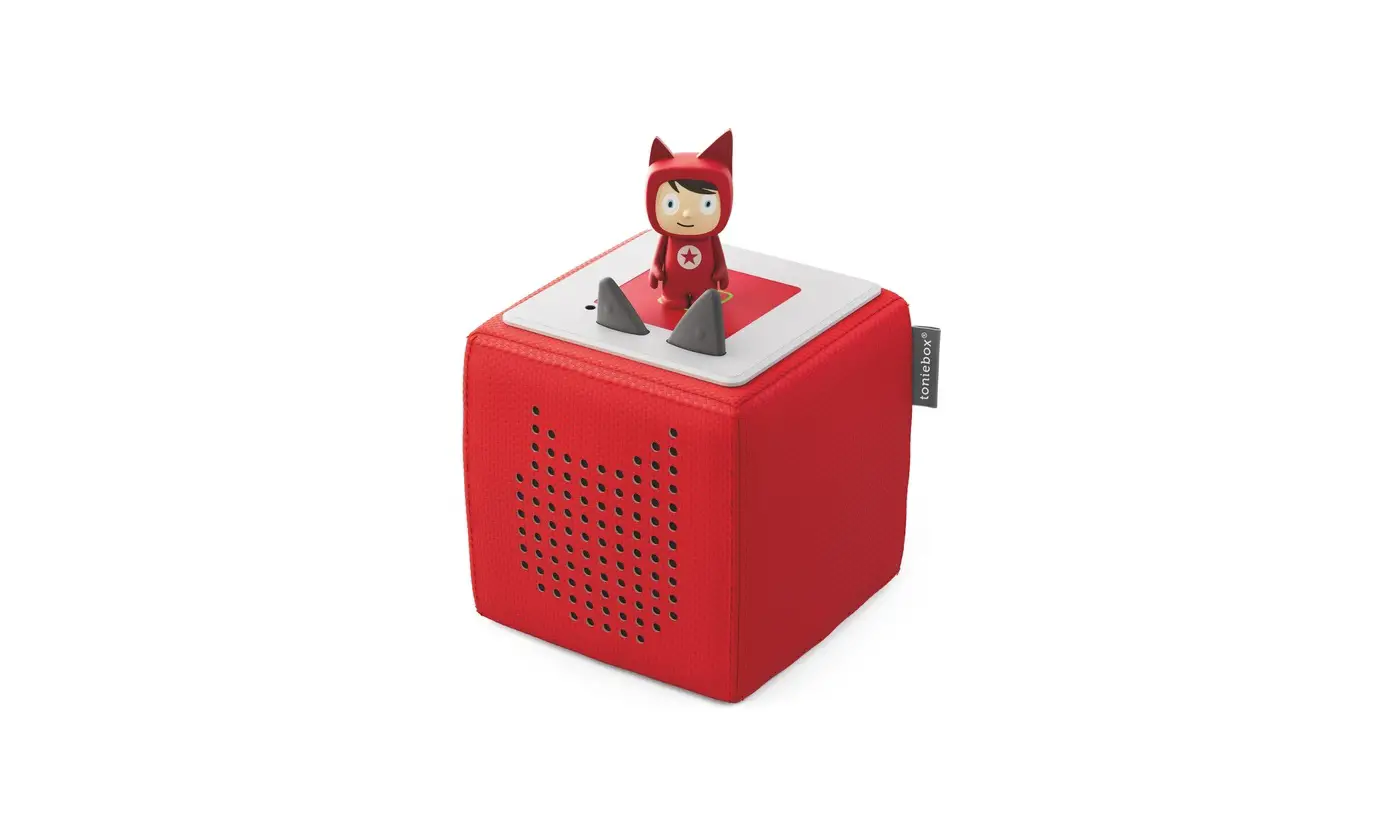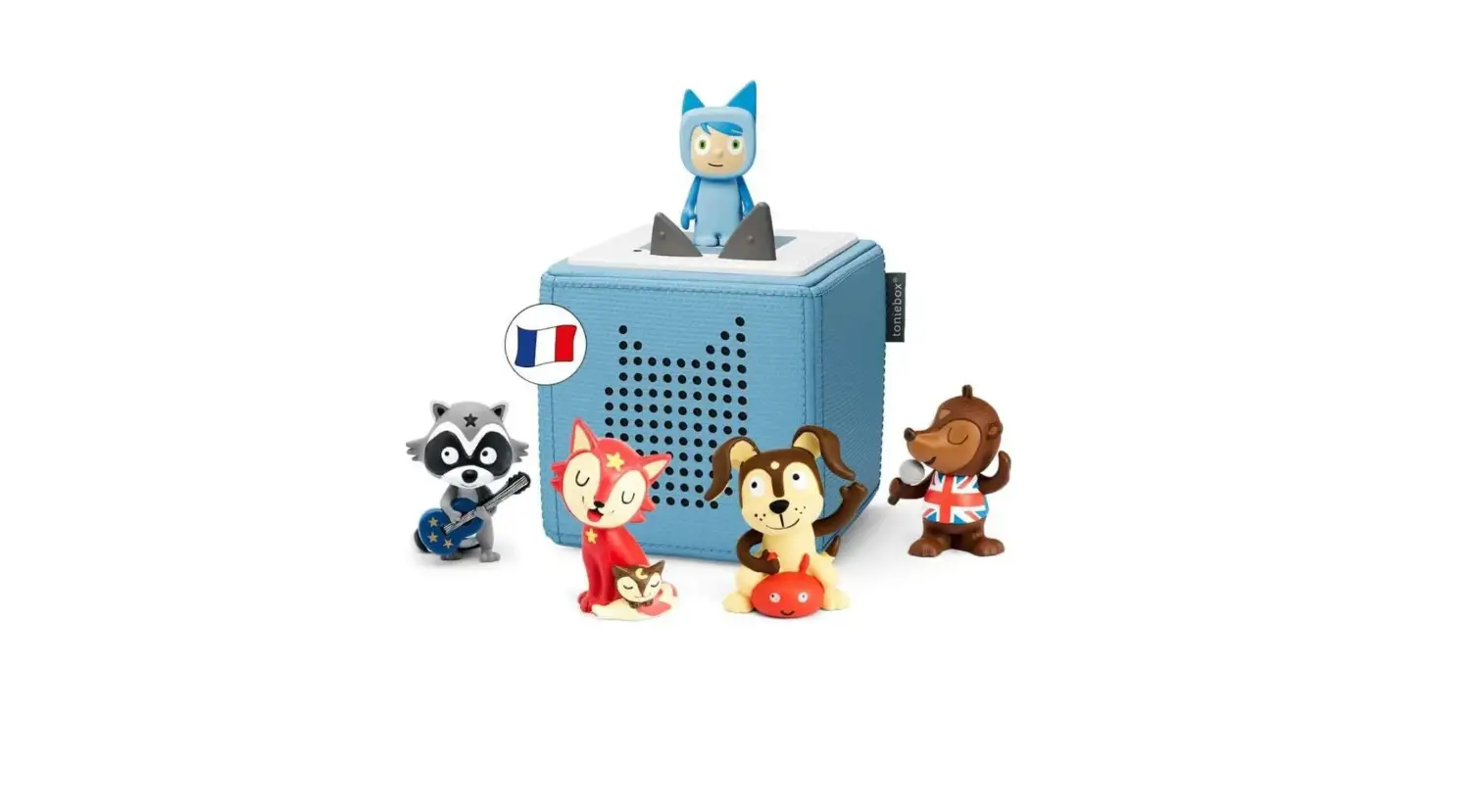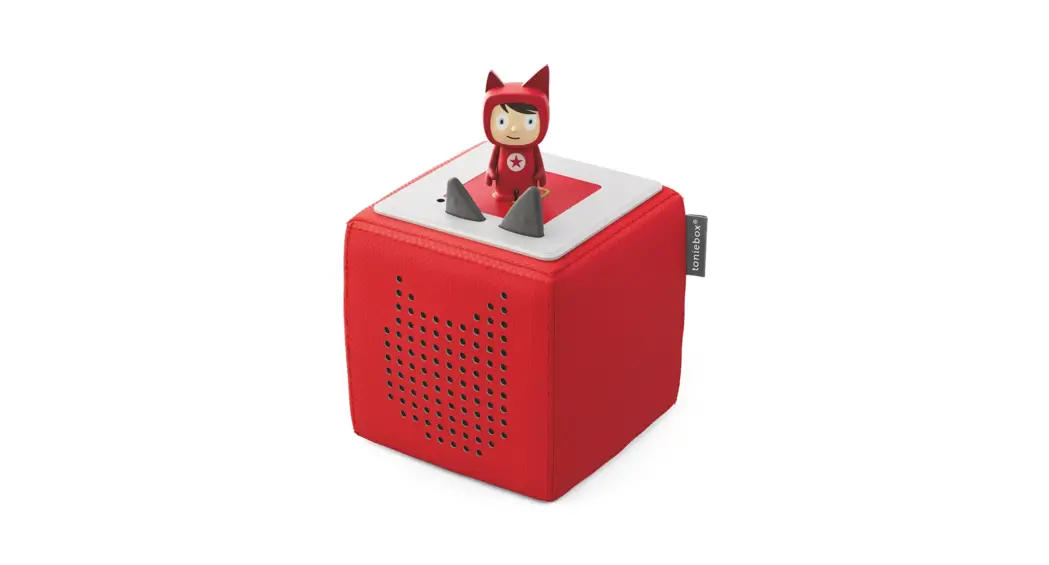
 TONIEBOX Starter Set Kids Portable Musical Storybox
User Guide
Quick troubleshooting tips
Nobody is perfect. In case something goes wrong Machines are not perfect because they are (still) built and operated by humans. So it might be the case that something won‘t work right away. Here are our most important tips for solving possible problems.
No connection to the internet? Router problems?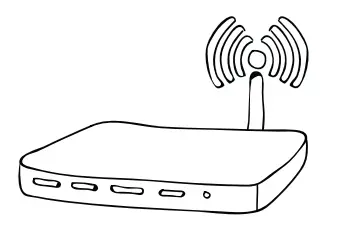 Maybe the Tonie box is too far away from the router. Move it closer to the router and check the connection again.
Check if the internet is working properly.
Does it work on your smartphone, for example? If other devices don‘t have a connection either, try restarting the router. The classic restart method
If the Tonie box is having a hard time and nothing works or you do not know what to do next, then try restarting the Tonie box. To do this, turn the Tonie box on its head and press both ears (on the Tonie box, not your own) for approximately 10 seconds until you hear a sound. Please note: When you restart the Tonie box, make sure it is not on the charging station!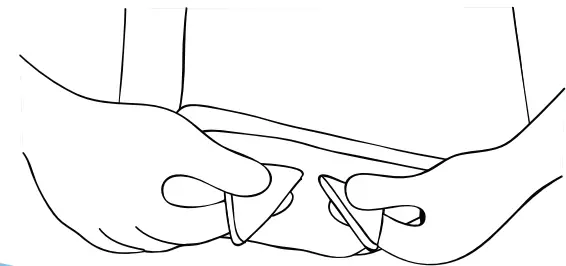 Reset the Toniebox
back to its factory settings.
The last straw: setting everything back to zero.
To do this, turn the Tonie box with the connected charging station upside down and press both ears for about 10 seconds until you hear a sound.
Attention: All network connections, contents and settings will be deleted!
Help from the Tonie-Team
We are also happy to help you personally, as quickly as we can. Here you can find the way you can get in touch with our support team: Jepsen Consumer Products Service Centre (Hong Kong) (852) 29262300 Turning your Tonie box on and off
Turn on Use your thumb and forefinger to press one of the ears or place the box on the charging station.
Turn off Even easier: if nothing happens for 10 minutes, the box switches off automatically.
Restart Turn the Tonie box upside down and press both ears for 10 seconds. Warning: The Tonie box must not be on the charging station.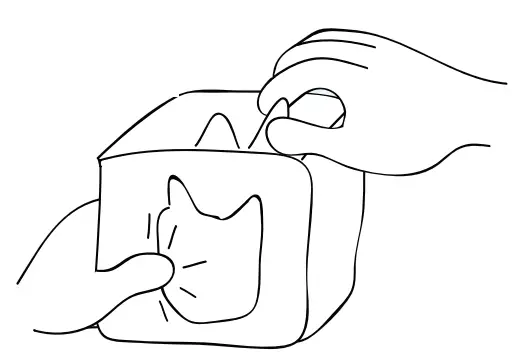 Playing and pausing
When the LED on your Tonie box lights up green, you can place a Tonie on it. A flashing blue light indicates that content is being downloaded from the Tonie cloud. Once the download is complete, your new audio is stored on your Tonie box so you can play it anywhere – even without an internet connection. Want to pause the story? Simply take the Tonie off the box. When you put it back on, it will start again from the same place – as long as another Tonie hasn‘t been played in between.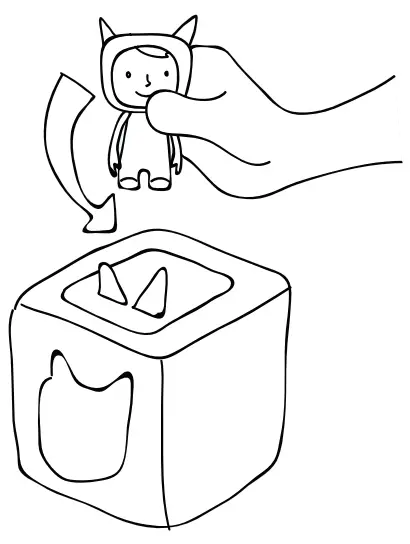 Turning the volume up and down
Press the big ear to turn up the volume on the Tonie box. Use the little ear to turn it down.
Warning: Children’s ears can be very sensitive. You can set the maximum volume in your Tonie cloud account.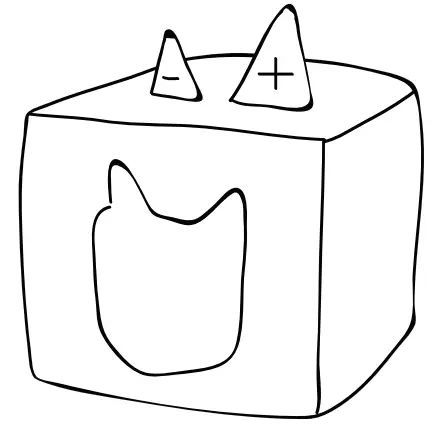 Skip back and forth
To skip back and forth between chapters, tap your Tonie box on the side. To fast-forward or rewind, simply tilt the box to one side.
Note: Right forward, left back? Or the other way round? You can set which side is used to skip forward and which is used to skip back in your Tonie cloud account. Whatever feels best for you.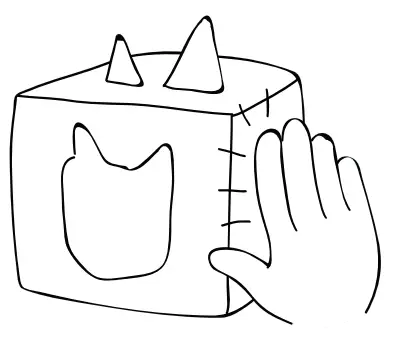 Charging your Toniebox
Even a Tonie box needs a little rest and relaxation now and then. If the battery is sufficiently charged, the LED lights up green. If it’s low, the LED lights up orange.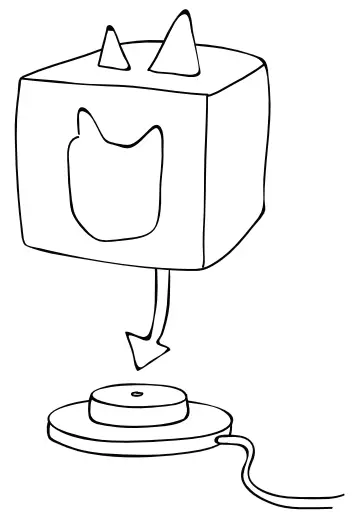
 Time to charge
 Battery sufficiently charged
Check for new content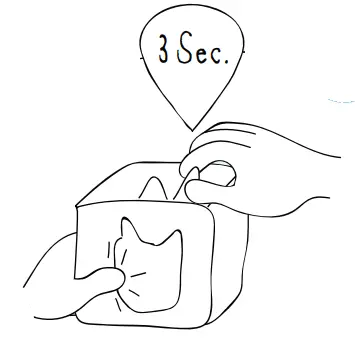 Not hearing the latest content?
Take your Tonie off the box first, then squeeze one of the Tonie box ears for three seconds. Let go when you hear a sound, and then put the Tonie back on!
LED DISPLAY OVERVIEW
| Colour | LED Display Meaning | |
| Green light | | Everything’s good to go. The battery is sufficiently charged and the Toniebox is ready to play. |
| Pulsing blue |  | The Tonie box is in connection mode and can now look for new wireless internet connections. |
| Flashing blue | | This may mean the following: a. The Tonie box is connected to the internet and is downloading new Tonie content. b. The Tonie box is looking for available wireless internet connections before it switches into connection mode (lasts approximately 20 seconds) |
| Orange light | | Warning – low battery! Place your Tonie box on the charging station to recharge the battery. |
| Flashing red |  | Oops! An error has occurred. Your Tonie box will tell you which error it is in a voice message. |