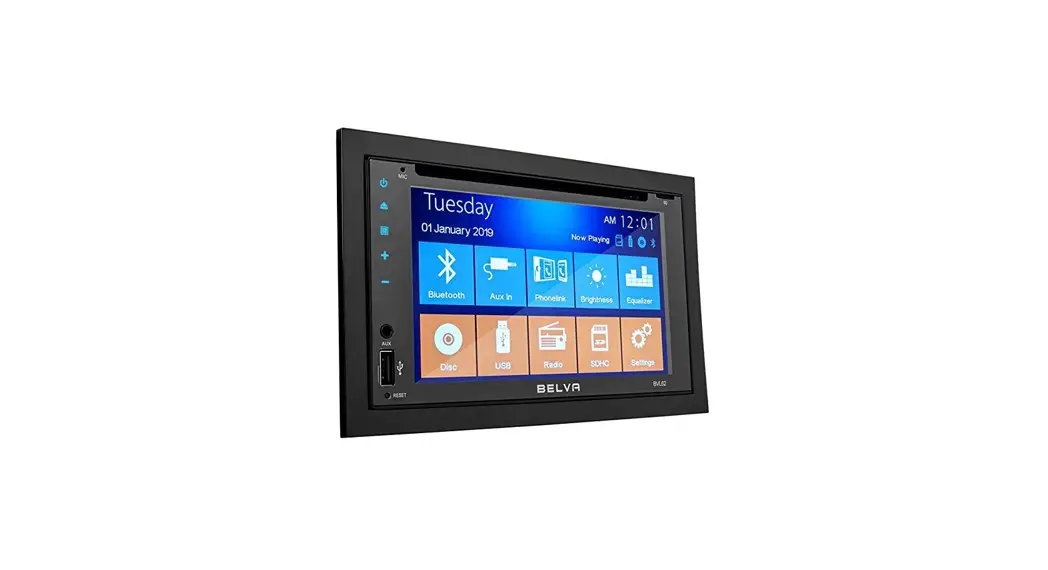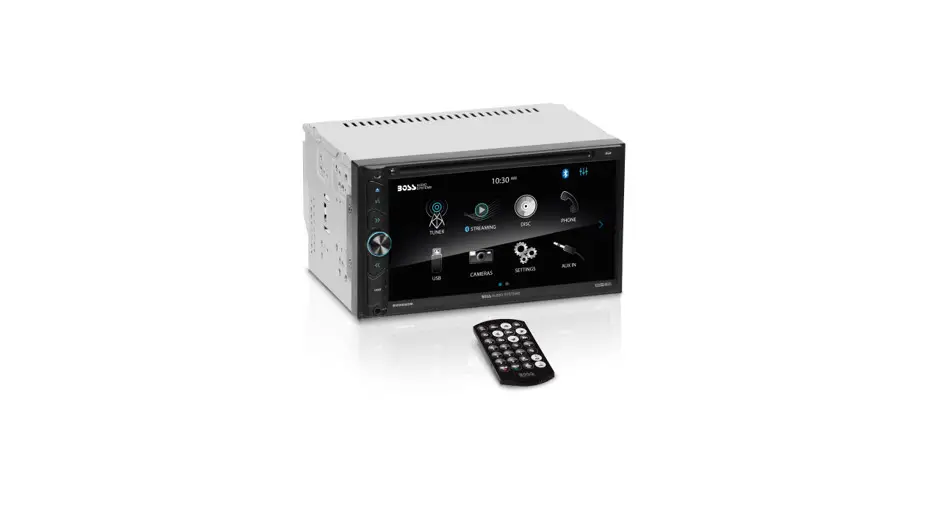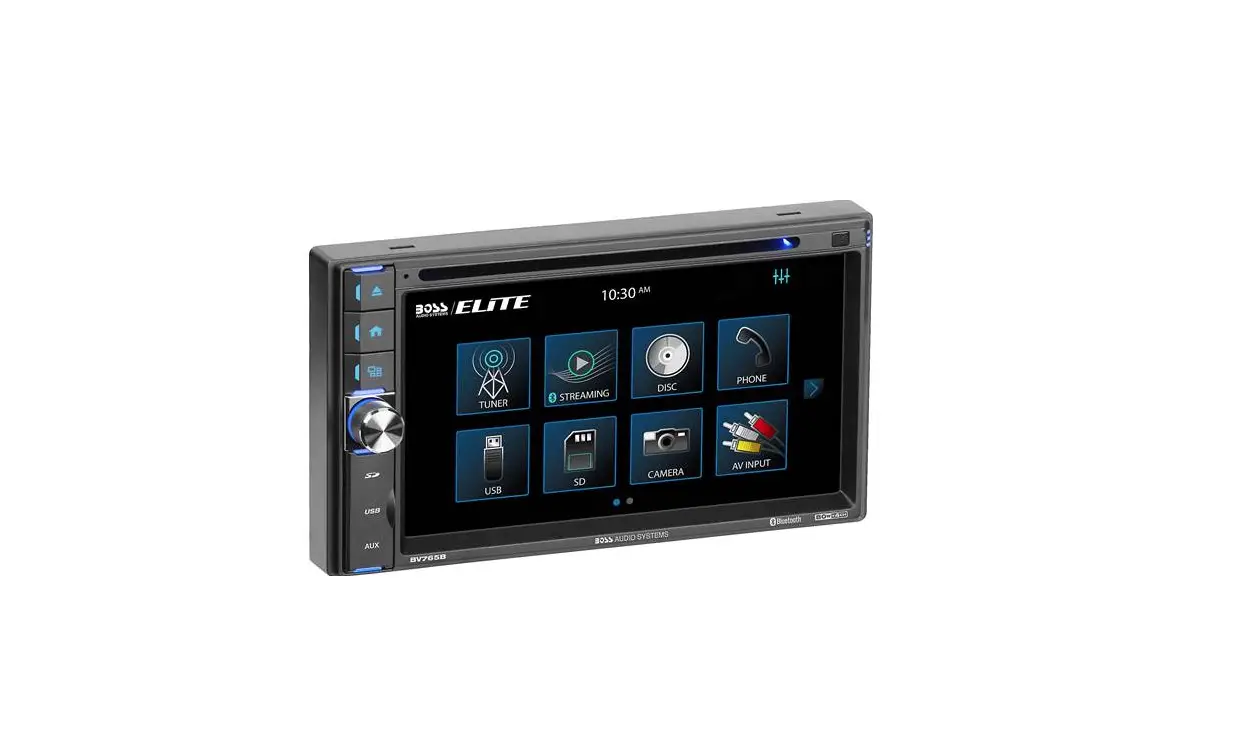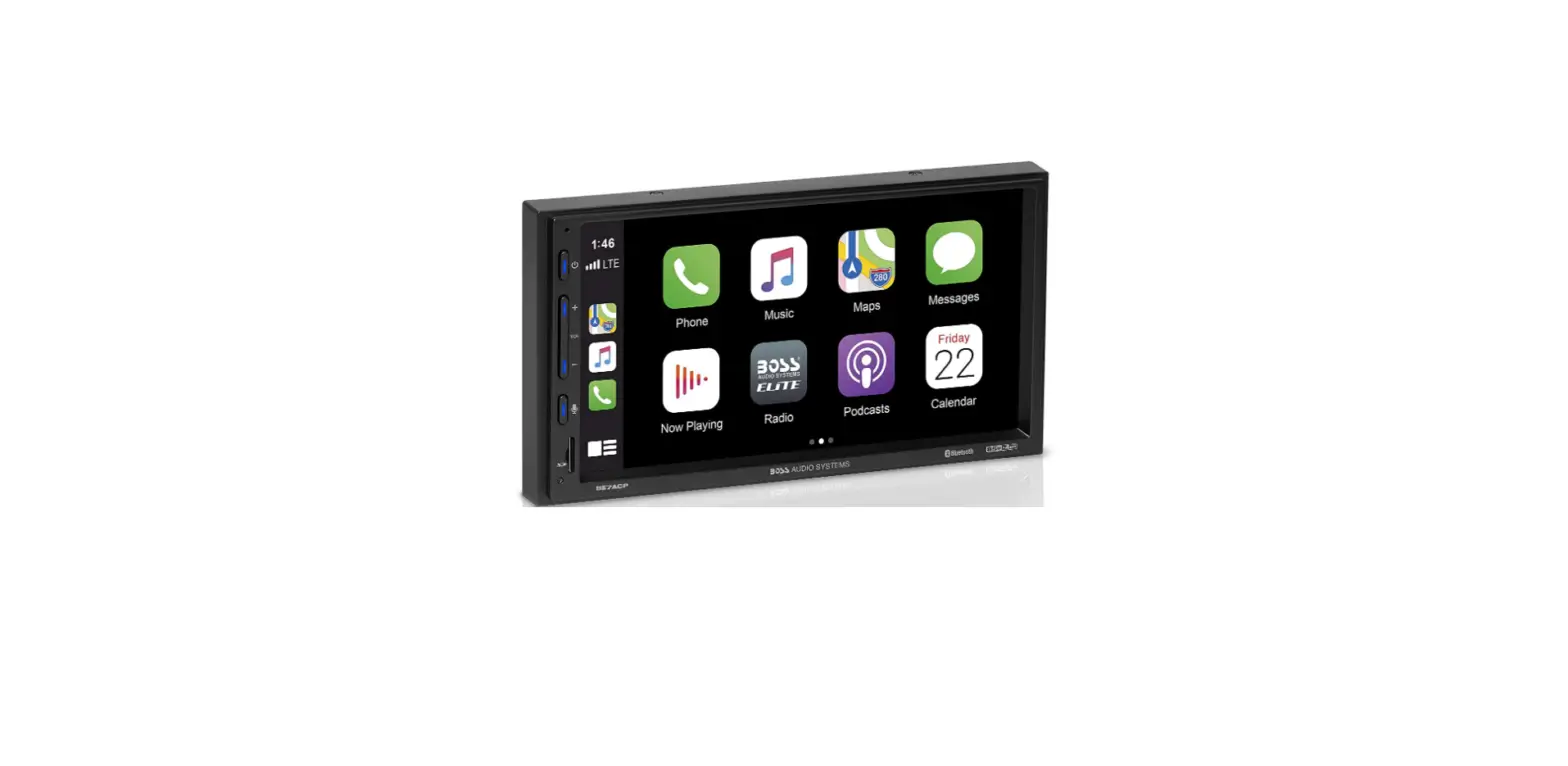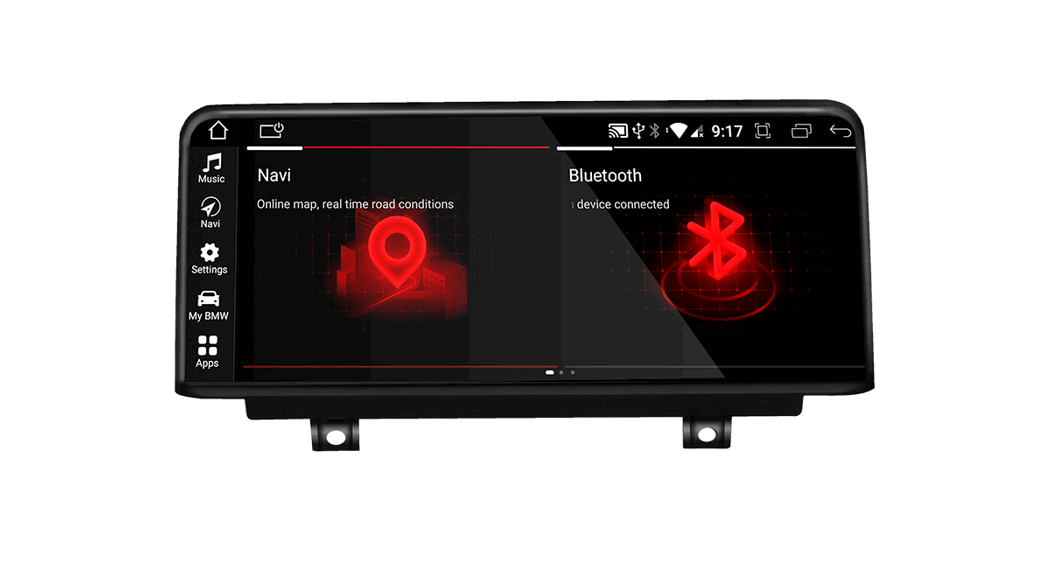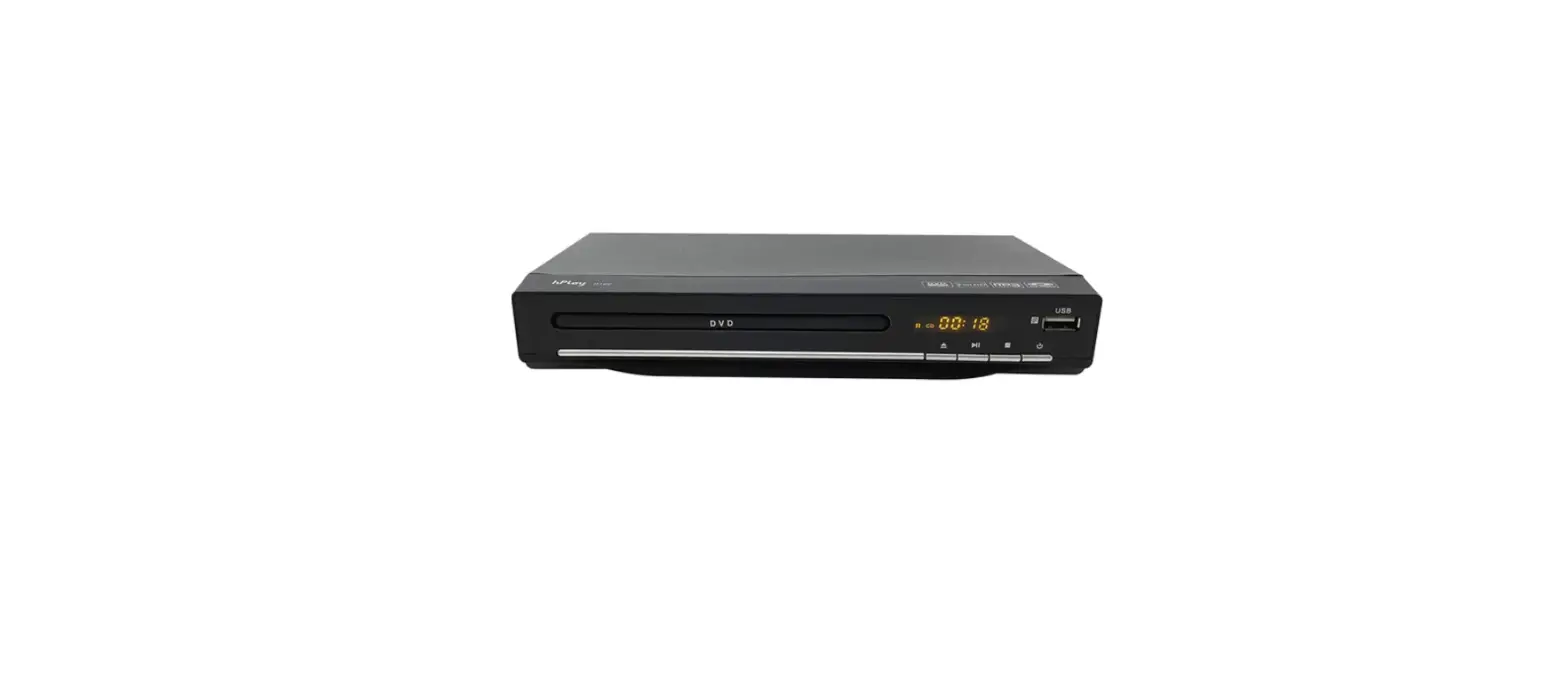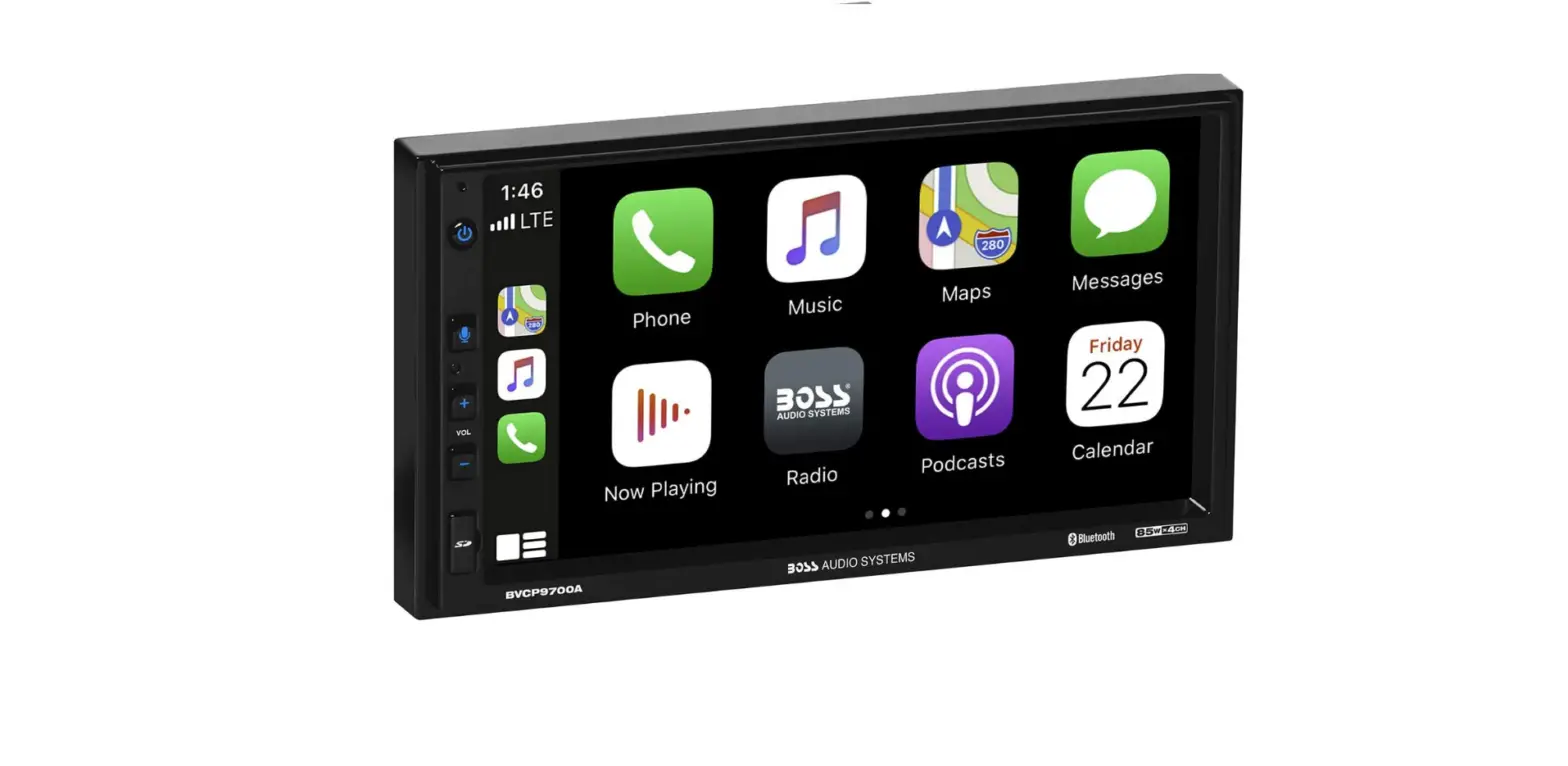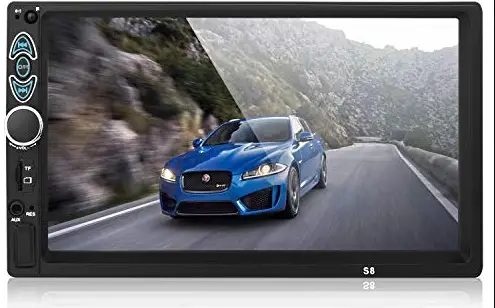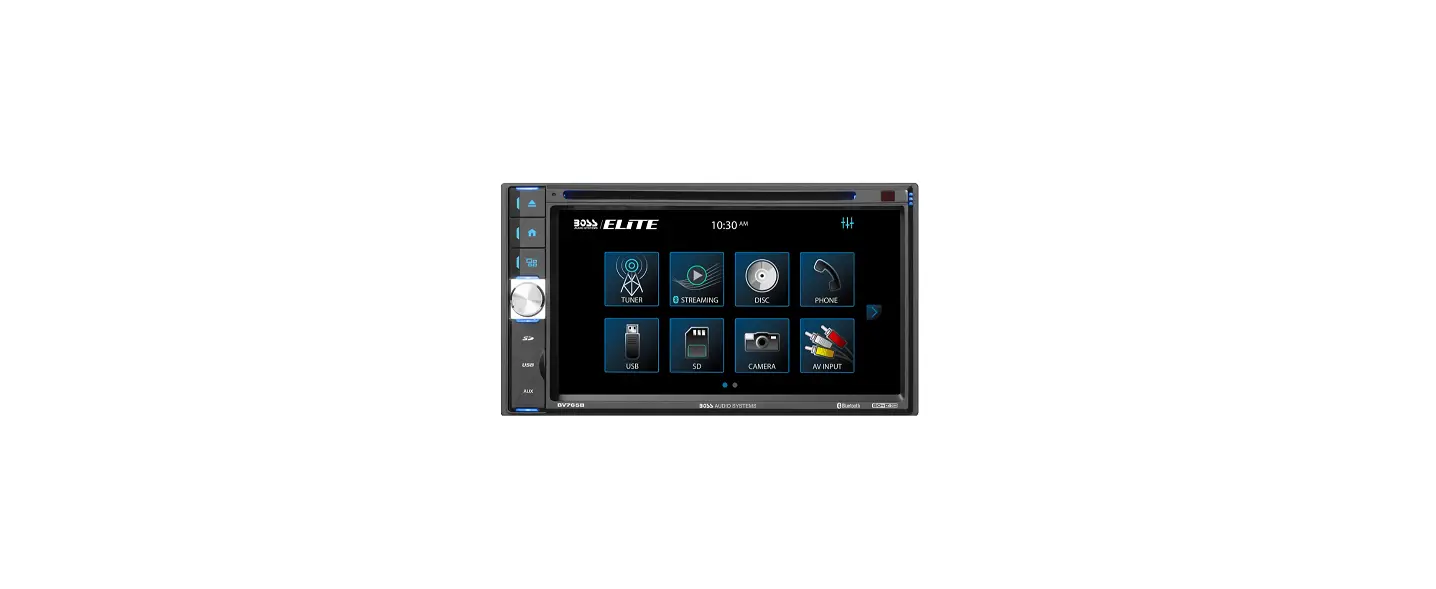

BOSS AUDIO BV765B Car DVD Player

SPECIFICATIONS
| Model No. | BV765B | ||||
| Fixed front panel 6.5 inch TFT screen | |||||
| FM/AM Radio | |||||
| RBDS | |||||
| DVD fully compatible with | |||||
| DVDNCD/CD/MP3/MPEG4/JPEG | |||||
| General | Front USB&SD reader support | ||||
| features | Built-in Bluetooth | ||||
| AUX Input | |||||
| AV Input | |||||
| AV output | |||||
| Front/Rear view camera | |||||
| Front,Rear and Subwoofer Pre-Amp.Output | |||||
| 4*80W AMP power output maximum | |||||
| Steering wheel control | |||||
| TFT screen | 800*480pixel | ||||
| SD | 64G | ||||
| Working power | 12V | ||||
| Max Output | 4*80W | ||||
| Working Temperature |
J | -20°(-70°(/-4°F,…… ,158°F | |||
| Size | 178*160*100mm | ||||
| Weight | 1.57kg/3.46Ibs | ||||
| Compatible Media | |||||
| Picture | JPG/JPEG/BMP | ||||
| Disc | CD/CD-R/CD-RW/DVD/DVD±R/DVD±RW | ||||
| Audio file | MP3/WAV/FLAC | ||||
| Video file | Format | Video code | Audio code | ||
| .MPEG1 | MPEG1 | MP2 | |||
| .MPG | MPEG2 | MP2 | |||
SAFETY NOTICE
Please read and understand the following safety information before operating this unit.
- The device is suitable for 12V power supply (requires grounding).Do not connect it to 24V power supply in trucks or buses, or else it will be damaged.
- Please use genuine discs instead of incompatible discs, or it will damage the device and/or shorten the service life.
- Without the guide of qualified personnel, do not replace the fuse, or else it may damage the device or cause fire.
- Please follow the traffic laws and regulations and do not watch programs or operate the device when you are driving, to avoid accidents(excluding passengers watching through rear monitor).
- To ensure safety and operate the device normally, please ask qualified personnel to install the device. Do not disassemble or repair the device without authorization, to avoid damage and accidents. please contact a local car audio distributor for details.
- Do not put the device in a moist environment or water, to avoid electric shock, damage and/or fire due to a short circuit.
- The mechanical drive part of the monitor uses an automatic precision transmission component.Do not pull.push or rotate the device by force or impact the TFT screen to avoid damaging the device.
- Do not insert the audio plug of the vehicle into the master unit directly. Please convert with the dedicated end cable provided by our company.
- When installing the unit, prevent metal objects from falling into the master unit from the vents to avoid a short circuit and damaging the device.
ACCESSORIES
- Remote ………………………………………………………………… 1
- Power Cable ……………………………………….. ……………….. 1
- Mounting Brackets ……………………………….. ……………….. 2
- Screw …………………………………………………………………… 8
- Trim Ring ……………………………………………………………… 1
UNIT INSTALLATION
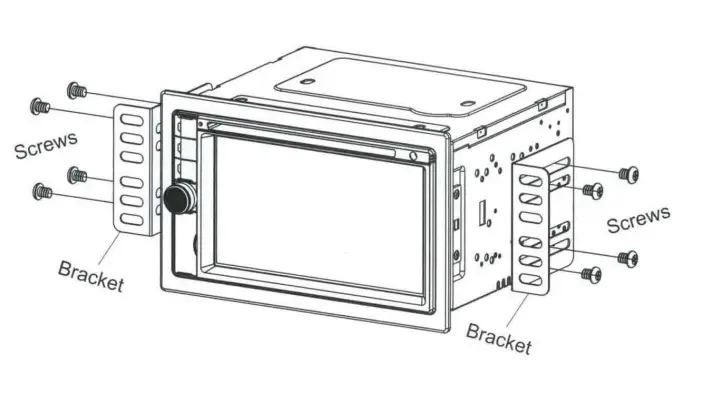
- Put the 2 brackets to the left and right side of the unit;
- Use screws to fix the brackets to the unit.
- Once the screws are attached, the brackets can be adjusted forward or backward depending on the installation requirements.
REMOTE CONTROL OPERATION
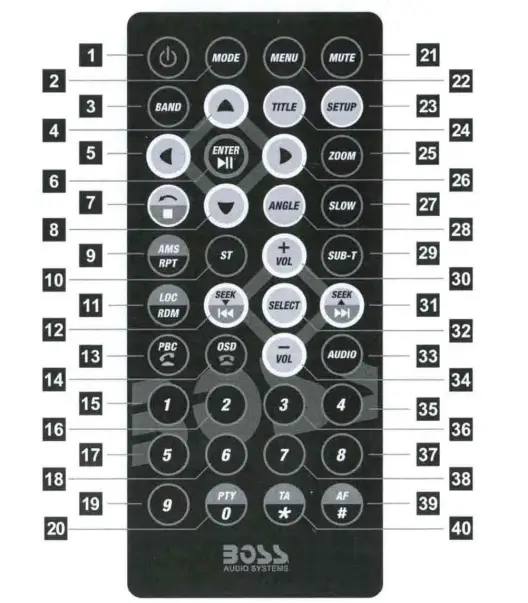
- TURN ON/OFF
- MODE Key
- BAND Key
- 5.8.26. Cursor Keys
- ENTER,
 (Play/Pause) Key
  (STOP),
 (Return) Key
- MS(Auto Store/Recall Preset Station), RPT(Repeat) Key
- ST(Stereo/mono) Key
- LOC(LOC/DX), RDM(Random) Key
 (Tune/Seek Down, Skip to Previous song/video/Photo) Key
- PBC(Playback Control),
 (Answer/Outgoing call/ Redial)
 - OSD(On Screen Display),
 (Reject or End a call) Key
 - Numeric Keypad,
- PTY(Program Types)
- MUTE Key
- MENU Key
- SETUP Key
- Title Key
- ZOOM(Zoom in/out) Key
- SLOW Key
- ANGLE Key
- SUB-T(Subtitle language) Key
- VOL+NOL- Key
 (Tune/Seek Up, Skip to Next song/video/Photo) Key
- SELECT(Audio Settings) Key
- AUDIO(Audio Language)
- AF(Alternative Frequencies)
- TA(Traffic Announcement)
 (Play/Pause) Key
 (STOP),
 (Return) Key
 (Tune/Seek Down, Skip to Previous song/video/Photo) Key
 (Answer/Outgoing call/ Redial)
 (Reject or End a call) Key
 (Tune/Seek Up, Skip to Next song/video/Photo) Key
WIRES CONNECTION DESCRIPTION
The Description of the Input/Output Interface.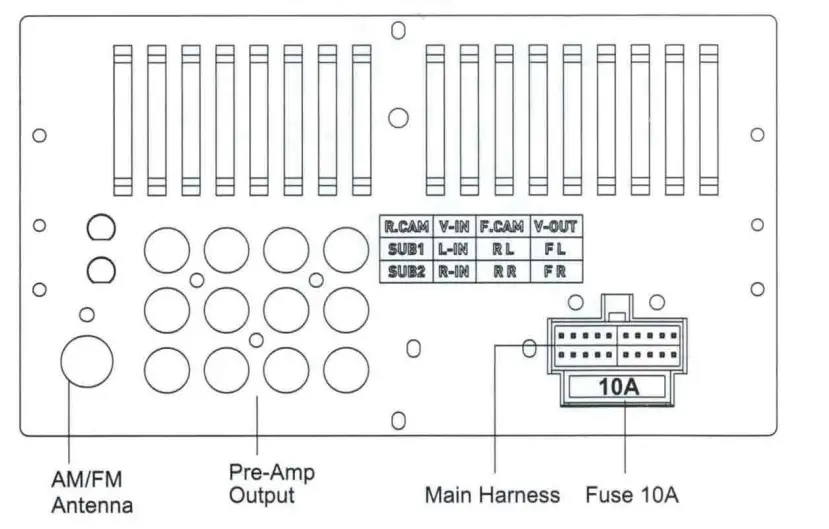
AudioNideo Inputs & Outputs
- R.CAM …………. Rear Camera Input (Yellow)
- SUB1 ………….. Subwoofer Output 1 (Green)
- SUB2 ………….. Subwoofer Output 2 (Green)
- F.CAM ………… Front Camera Input (Yellow)
- R L …… Rear Left PRE-AMP Output (White)
- R R …… Rear Right PRE-AMP Output (Red)
- V-IN ………………………… Video Input (Yellow)
- L-IN ……………… Audio Input Left CH (White)
- R-IN ……………… Audio Input Right CH (Red)
- V-OUT.. …………………… Video Input (Yellow)
- FL ……. Front Left PRE-AMP Output (White)
- FR. ….. Front Right PRE-AMP Output (Red)
Power
- Yellow …………………………… Constant (+12v)
- Red …………………………….. Accessory (+12v)
- Black …………………………………….. Ground (-)
- Orange ………………. Illumination Input (+12v)
- Violet/Wht ………………. Reverse Input (+12v)
- Blue ……………… Ant. Output (+12v, 500 mA)
- Blue/Wht.. ……. Rem. Output (+12v, 500 mA)
- Lt.Green ………………….. Parking Brake Input
Control
- 3.5mm …………………………………. SWC Input
Speaker Outputs
- White ………………………………… Left Front (+)
- White/Blk ……………………………. Left Front (-)
- Gray ……………………………….. Right Front (+)
- Gray/Blk …………………………… Right Front (-)
- Green ………………………………… Left Rear (+)
- Green/Blk ……………………………. Left Rear (-)
- Purple ……………………………… Right Rear(+)
- Purple/Blk …………………………. Right Rear (-)
Camera Power
- Red/Blk ……… Front Output (+12v, 500 mA)
- Red/White ……… Rear Output (+1 2v, 500 mA)
PANEL INTRODUCTION
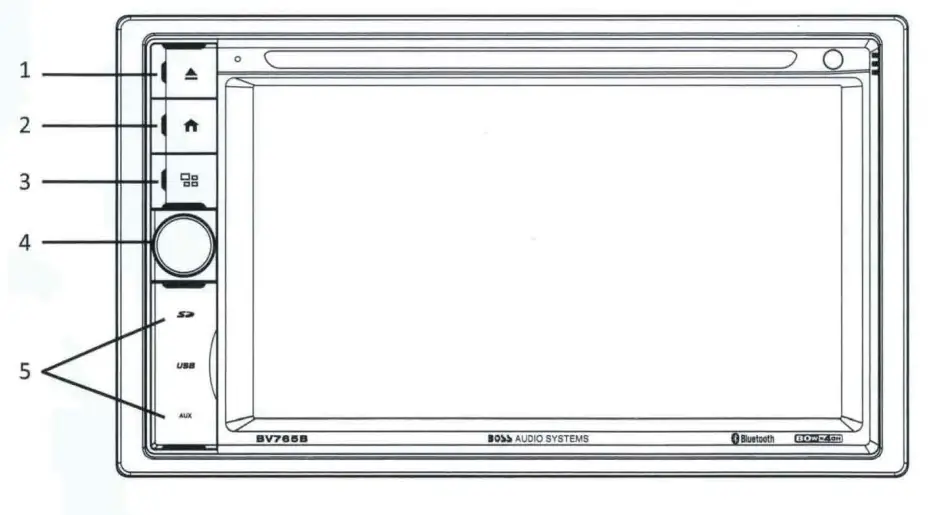
- Eject key
Press EJECT to remove the Disc - MENU key
Press to return to the home menu or previous source. - MODE key
Press to select system mode. - TURN ON/OFF&VOLUME UP/DOWN
Long touch to turn ON/OFF the unit. Short touch to activate the MUTE function and silence the audio output. Touch again to restore sound. Rotate to adjust the output volume UP or DOWN. - Open to see AUX IN jack, SD slot, USB port, and reset key
MAIN MENU 1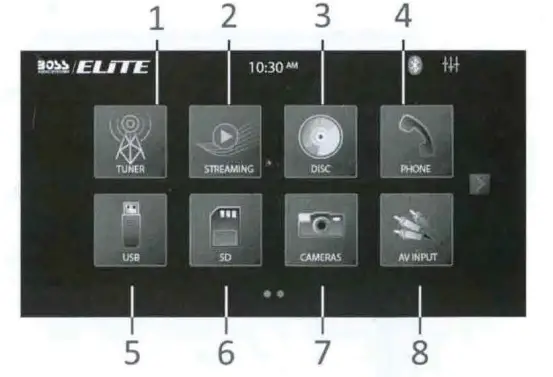
- Tuner Interface
- Streaming Interface
- DISC Interface
- Phone Interface
- USB Interface
- SD Interface
- Front/Rear Camera Interface
- AV INPUT Interface
MAIN MENU 2
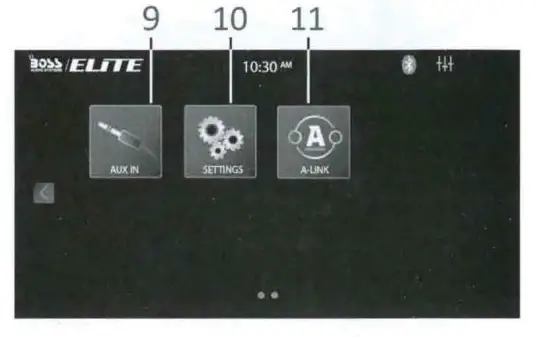
- AUX IN Interface
- Setting Interface
- A-LINK(Autolink) Interface
GENERAL SETINGS-Menu 1 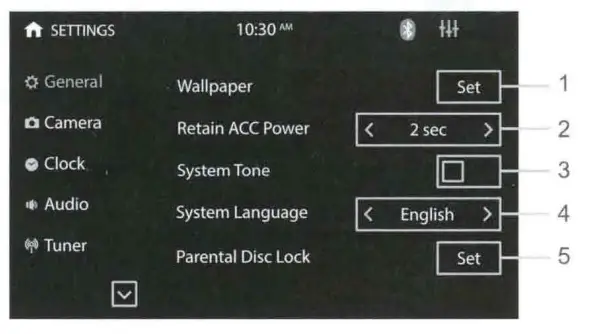
- Touch to set wallpaper
- Retain ACC Power: Select how many seconds to delay shut down after the vehicle powers down
- When turned on, an audible beep tone confirms each function selection.
- Touch System Language to select Spanish/English
- Touch to select parental control level, the default passord is “0000”.
ACCESS SETUP INTERFACE
CAMERA SETTINGS-Menu 2 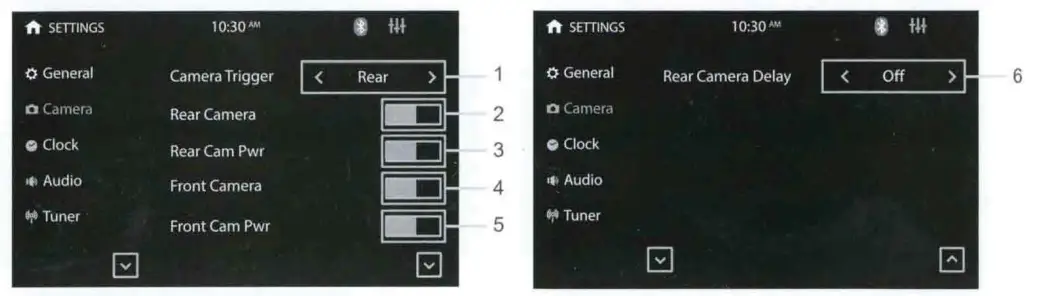
- Camera Trigger: Touch to select Front/Rear/Off, select to display Front Camera, Rear Camera, or no response when reversing.
- Rear Camera: Touch to turn on or turn off the Rear Camera function.
- Rear Cam Pwr: Turn on to power Rear Camera.
- Front Camera: Touch to turn on or turn off the Front Camera function.
- Front Cam Pwr: Turn on to power Front Camera.
- Select the delay setting to define the refresh rate for the Rear Camera image when the vehicle is in reverse gear. Options are off/ 1 Sec/ 2 Sec/ 3 Sec. It can switch to front camera delay or Front Camera delay follow the Camera Trigger change
CLOCK SETTINGS-Menu 3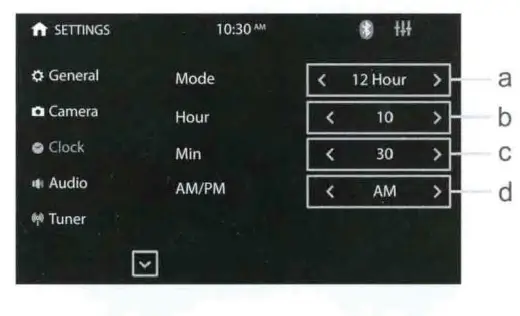
- a. Press to set clock mode: 12/24 hr
- b. Press to set hour
- c. Press to set minute
- d. Press to set AM/PM at 12hr mode
AUDIO SETTINGS-Menu 4 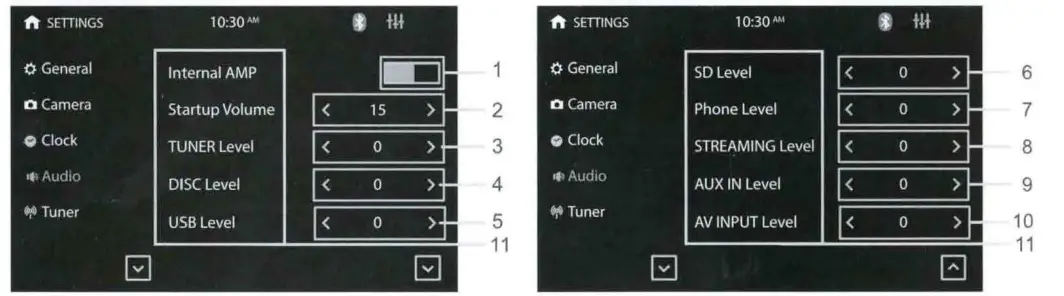
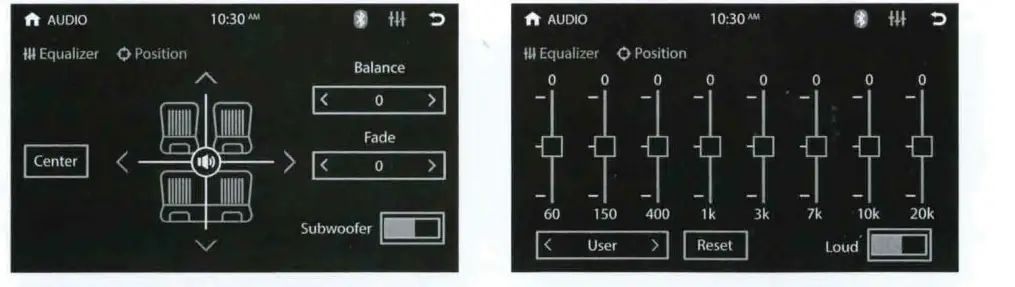
- Touch to select whether to output sound from an external amplifier.
- Startup volume: default volume ;
- If the volume at the last shutdown is less than this volume, the volume at the last shutdown will be used when rebooting;
- if the volume at the last shutdown is greater than this volume, thisdefault volume will be used when rebooting
- Press to set preset gain.
- Slide up or down to enter previous functions.
TUNER SETTINGS -Menu 5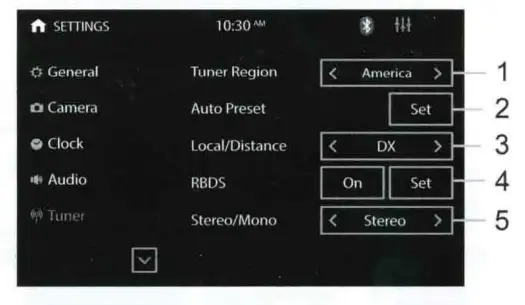
- Touch to choose between America/ EU regions.
- Perform radio auto preset (ps) functionality
- Touch to choose Local or Distance
- Touch to turn on or turn off RBDS; Touch Set to enter RBDS page .
- Touch to choose Stereo or Mono
ILLUMINATION SETTINGS -Menu 6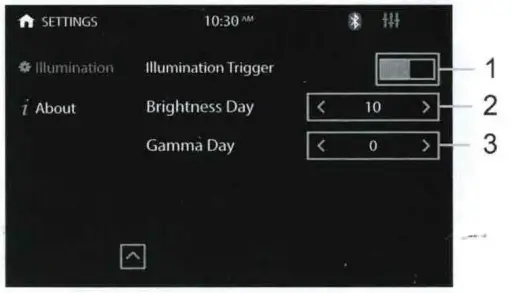
- Touch to turn on the illumination detection function
- Touch to set screen brightness
- Touch to set gamma brightness
ABOUT SETTINGS -Menu 7
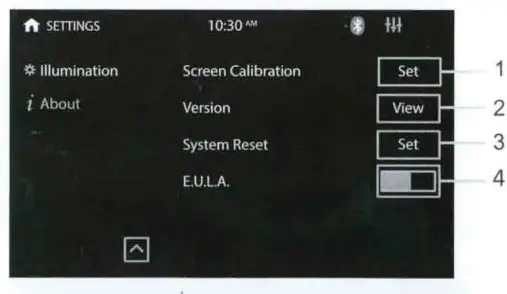
- Touch to enter the touch calibration interface
- Touch to view the version number of the machine.
- Touch to restore the machine to factory status.
- Touch to select whether it is necessary to display a warning interface when booting up.
TUNER OPERATION
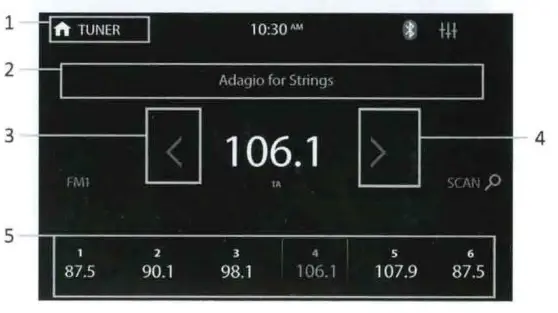
- Touch
 to go back to the home page
 - Show PS,PTY and RT messages from RDS
- Short press to seek backwards, long press to enter manual mode.
- Short press to seek forward, long press to enter manual mode.
- Short press to select the preset station, long press to save current Freq.
RBDS: Touch Setting >Tuner> RBDS > Set to enter the RBDS setup menu. You can choose what program type you’d like to listen to: news, sports, information, etc.
 to go back to the home page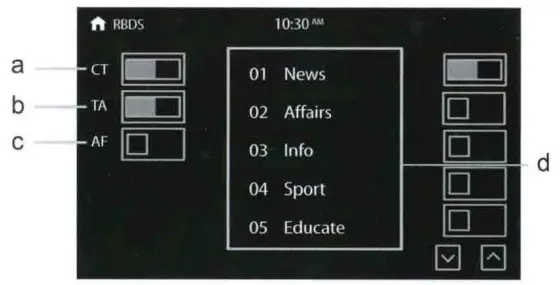
- a.CT(Clock Time
Turn on to automatically correct the b current time every time the RBDS is opened - b.TA(Traffic Announcement)
- ON: When this is turned on the radio will automatically search for traffic station.
- OFF: Turn off to end the TA function. In other modes, the traffic announcements will automatically switch to radio mode. Once the traffic announcements are complete it will automatically switch to the previous mode.
- c.AF(Auto Frequency)
When the AF function is turned on, the radio will automatically fine tune to other frequencies when the received stations become weak. A warning message will be displayed on the screen when receiving emergency announcements.
DISC/CD/USB/SD PLAYBACK
DVD MODE OPERATION
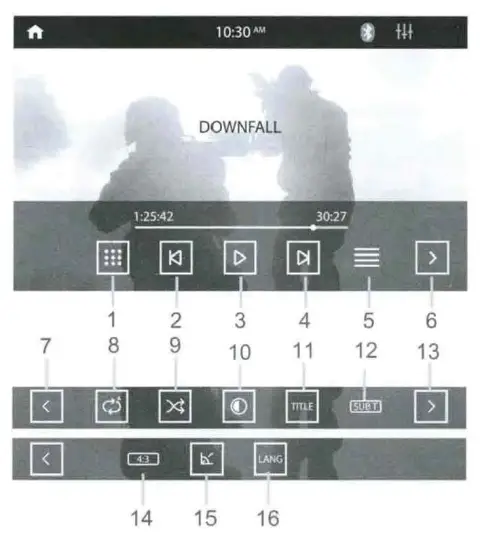
- Touch to select title/chapter of DVD
- Short press to move to the previous chapter, long press to rewind quickly.
- Touch to playback/pause
- Short press to move to the next chapter, long press to fast forward quickly.
- Touch to enter DVD root menu
- Go to the next page of the menu bar
- Go to the previous page of the menu bar
- Touch to change the repeat mode in the following sequence: DVD:repeat all, repeat off, repeat chapter, repeat title VCD(PBC off):repeat all, repeat off, repeat single
- Touch to change random play mode
- Touch to enter video adjust page
- Touch to enter DVD title menu
- Touch to select the subtitle language if the disc is recorded in multiple languages
- Go to the next page of menu bar
- Touch to switch video between 4:3 and 16:9
- Touch to select DVD vfdeo angle
- Touch to select DVD audio language
NOTE: When properly installed, a video cannot be displayed unless the parking brake is applied. If the parking brake wire is not installed correctly, the following message will appear.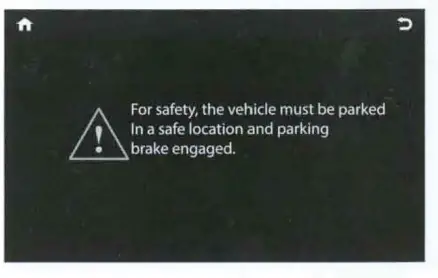
MEDIA PLAYING-CD AUDIO
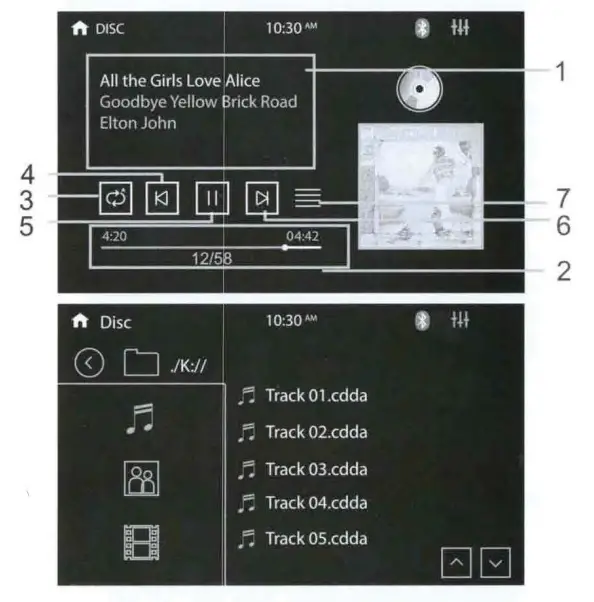
- Show the music’s ID3 information
- Time bar:show the total time and playing time of the present song
- Touch to change play mode: repeat all, repeat directory, repeat single, sequential play and shuffle play.
- Touch to return to previous song.
- Touch to playback/pause.
- Touch to go to the next song.
- Touch to enter file list page.
CD SOURCE MENU
Touch the SOURCE MENU(ICON 5) to access the CD track menu to view or change tracks manually. Touch again to return to playback.
USB/SD MUSICNIDEO/PICTURE
Press USB/SD in the main menu. The music menu is similar to the disc music menu except there is more ID3 information on it (such as song name & singer).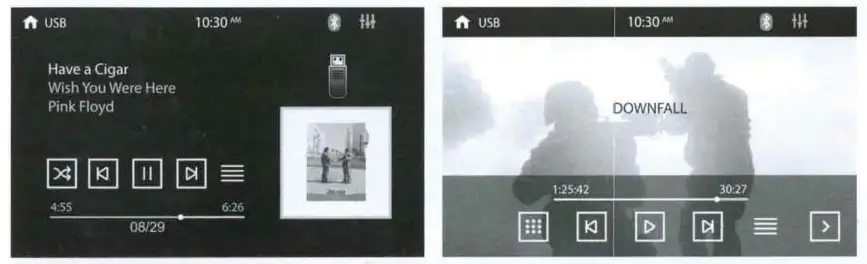
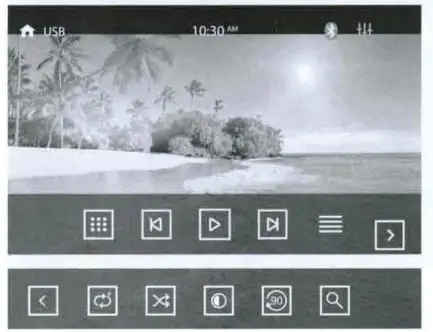

- Keypad: Enter number to select file.
- Previous MusicNideo/Picture
- Play/Pause
- Next Previous MusicNideo/Picture
- List: Press to enter file list
- Go to the next page of menu bar
- Go to the Previous page of menu bar
- Select repeat mode
- Random Play
- Enter Video adjust
- Turn right 90 degree
- Zoom In/Out
BLUETOOTH OPERATION
Bluetooth setting menu
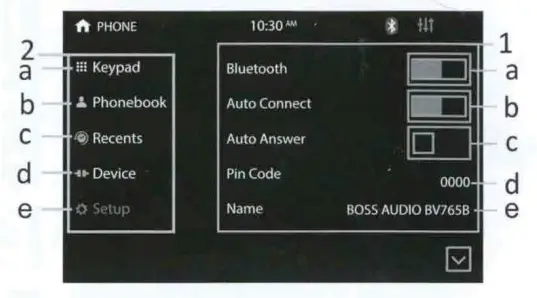
- a. Turn Bluetooth on and off. Turn on and the display loops between the gray Bluetooth icon, the white Bluetooth icon. The icon will turn blue when a phone is paired.
- b. Connect automatically.
- c. Answer automatically.
- d. PIN code: The default password is “0000” and can be changed by clicking “0000”.
- e. Default Bluetooth name for this unit: BOSS AUDIO BV765B.
Function area:
- a. Click to see the dialing keypad. Users can dial phone numbers and make calls.
- b. Click to see the Bluetooth phonebook menu.
- c. Click to see the Bluetooth call history.
- d. Bluetooth pairing interface.
- e. Bluetooth setting menu.
BLUETOOTH DIALING
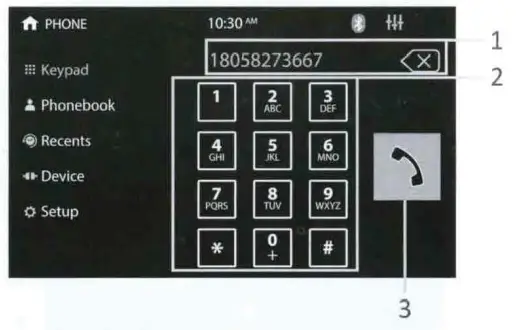
- Shows the number dialed in. Press
 to delete wrong numbers.
 - Key area.
- Touch to call out
 to delete wrong numbers.
BLUETOOTH CALL
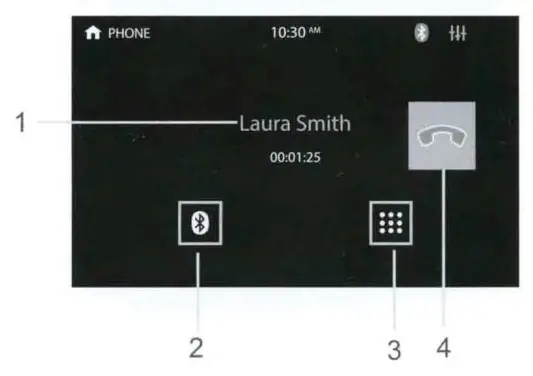
- Show contact name.
- Touch to select talk through phone or through Bluetooth.
- Keypad area.
- Press to hang up the phone call.
BLUETOOTH PHONE BOOK
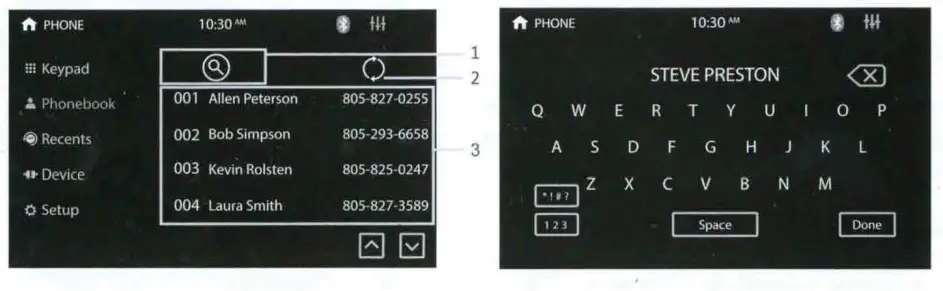
- Touch to search for a name or phone number.
- Click to sync phonebook.
- Contact list.
BLUETOOTH PHONE CALL HISTORY
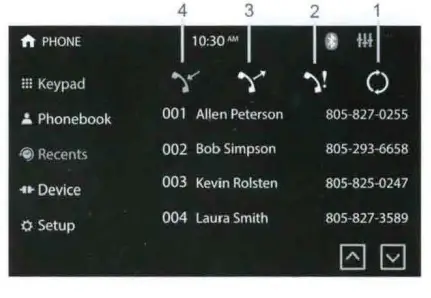
- Click to sync phone call history.
- Touch to show missed calls.
- Touch to show the dialed phone number.
- Touch to show the received phone number.
BLUETOOTH MUSIC-A2DP
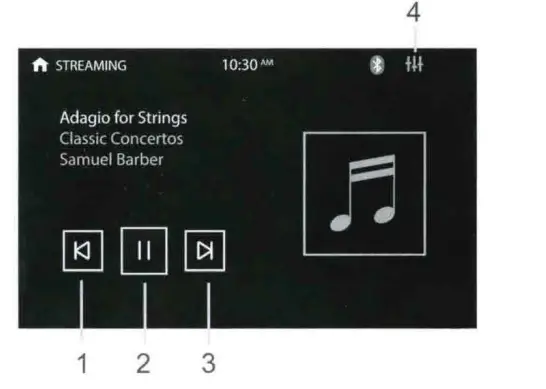
- Previous song.
- Play/pause.
- Next song.
- Enter the EQ setting menu.
A-LINK(SCREEN MIRRORING) OPERATION
A-LINK App allows users to mirror the screen of certain Android smartphones on the screen of this car DVD player. Please scan one of the QR codes to download the “A-LINK” App in Amazone App Store or Google Play Store and install it to the user’s smartphone. Simply connect the user’s smartphone to the USB port through the original cable of the smartphone and the user will be able to see the favorite smartphone apps directly on the screen.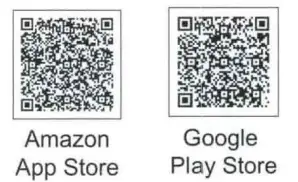
Note:
- Supports 2-way control for Android devices.
- Supports Android 8.0+ or higher, not all apps are supported.
TROUBLESHOOTING
| Media displayed | Cause | Corrective Action |
| Loading | Disc is being read | |
| No Disc/Bad Disc | Disc is dirty | Clean the disc |
| Disc is upside down | Insert Disc in right way | |
| Unknown Disc | Unsupported Disc type | Check the disc and change |
| Error | Illegal mechanism operation | Press EJECT for 5s to reset loading mechanism |
| Problem | Cause | Corrective Action |
| Unit will not power on | Radio fuse blown | Install new fuse with right rating |
| Car battery fuse blown | Install new fuse with right rating | |
| Illegal operation | Press the RESET button | |
| Screen touch is insensitive | P,lace of touch screen is uncalibrated | Go to setup menu and set the calibration |
| No audio output | Improper audio output connection | Check wiring and correct |
| VOLUME 0 | Turn up the volume | |
| Low audio output | Heavily biased volume balance | Check and adiust the channel balance to the center position |
| Poor sound quality or distortion | Speaker power rating not compatible with unit | Connect proper speakers |
| Speaker short circuit | Check wiring |
| Problem | Cause | Corrective Action |
|
Weak station searching | Auto antenna is not properly connected | Connect the auto antenna properly |
| LOCAL function is activated | Turn LOCAL function OFF | |
|
No image | Incorrect connection to parking wire | Check wiring and correct |
| Parking brake is not engaged | Stop vehicle in safe place and set parking brake ON | |
| Flashing image or interference appears on screen | Improper video signal connections | Check wiring and correct |
| Improper image, improper height/width radio display | Improper aspect ratio setup | Use correct aspect ratio setting |
| Cannot insert Disc | Disc already inside unit | Eject the current Disc and insert the new one |
| Lost of noise during play, and stop then | Disc is scratched or warped | Use a new one in good condition |
| Disc is dirty or wet | Clean the Disc |
BOSS Audio Systems
3451 Lunar Court• Oxnard, CA 93030
www.bossaudio.com
805-751-4853 Customer Service
Tech Support: www.bossaudio.com/support
iPod and iPhone• are trademarks of Apple, Inc. registered in the U.S. and other countries. BOSS Audio Systems is not affiliated with Apple, Inc. The Bluetooth” word marl< and logos are registered trademarks owned by Bluetooth SIG, Inc. and any use of such marks by BOSS Audio Systems Is under license. Other trademarks and trade names are those of their respective owners.
Register Your Product Online
To register your product, scan this QR code with your smart device and fill in the online form. You can also find the online registration form at: www.bossaudio.com/support
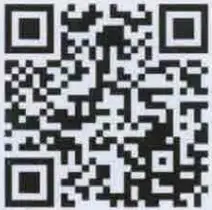
Your product may qualify for a FREE EXTENDED WARRANTY. Please see www.bossaudio.com/policies for the qualifications and details of this program.
WE ARE A COMMUNITY!
We read all product feedback, so please share your experience with us and with others!
NEED SUPPORT?
Our U.S. based Customer Support Team is standing by to help you with your inquiries.
CUSTOMER CARE: (805) 751-4853 & Live Chat
ONLINE SUPPORT: www.bossaudio.com/support
JOIN OUR COMMUNITY
Join our #BOSSlnsiders Program and have an impact on product updates & releases. Apply at www.bossinsiders.com to test and have an influence on future products.
Stay connected with the BOSS Audio Systems community plus get tips &tricks on products and installs @BOSSAudioSystems
 BOSS Audio Systems, a Leading Audio & Video Brand | Quality Car Stereo for All | Powerports, Marine Speakers |
 Home - Boss Insiders