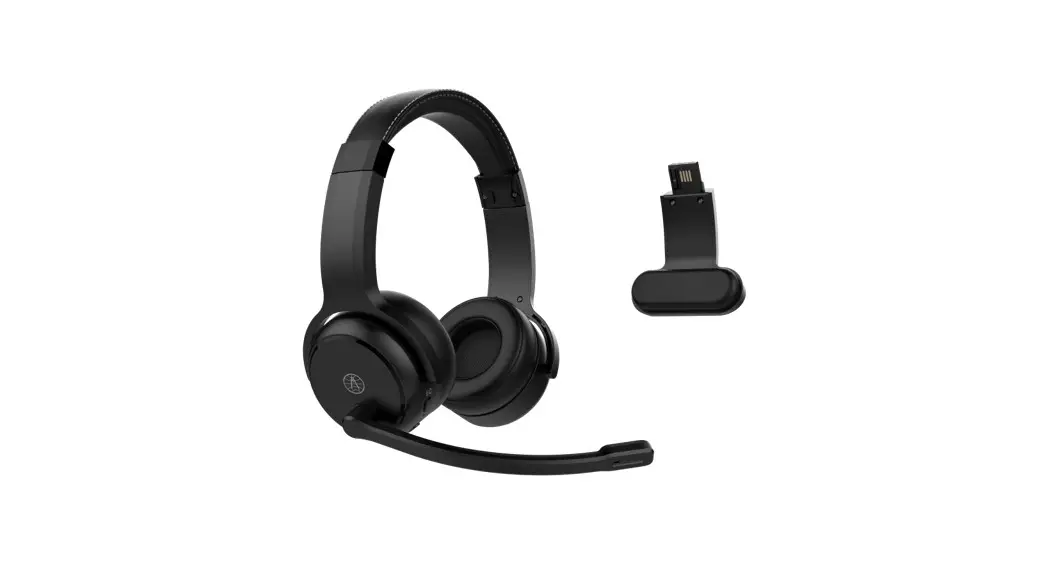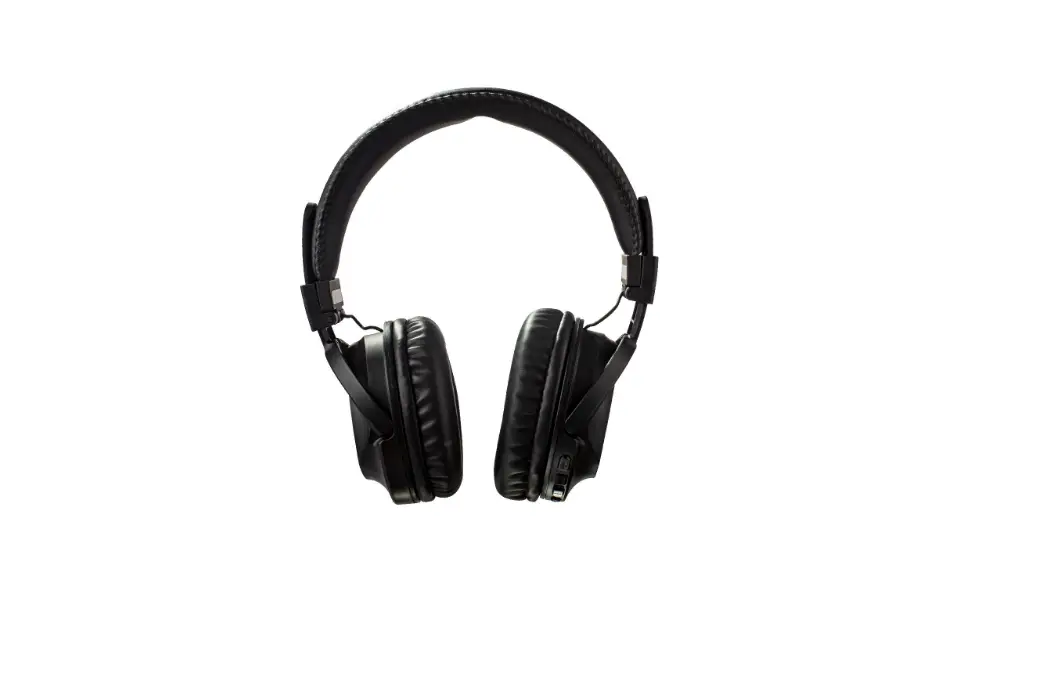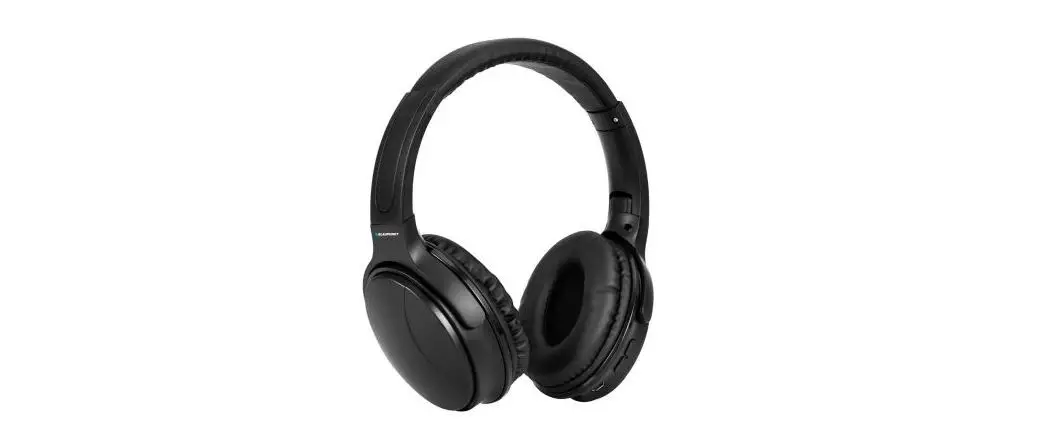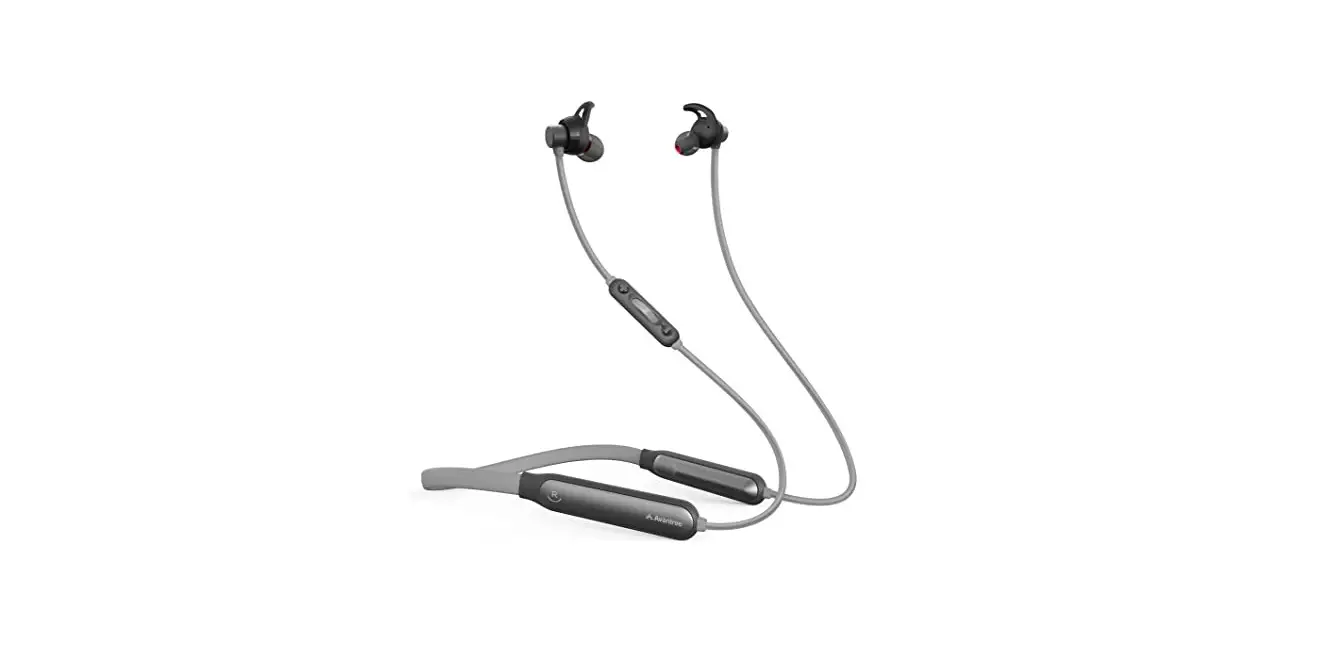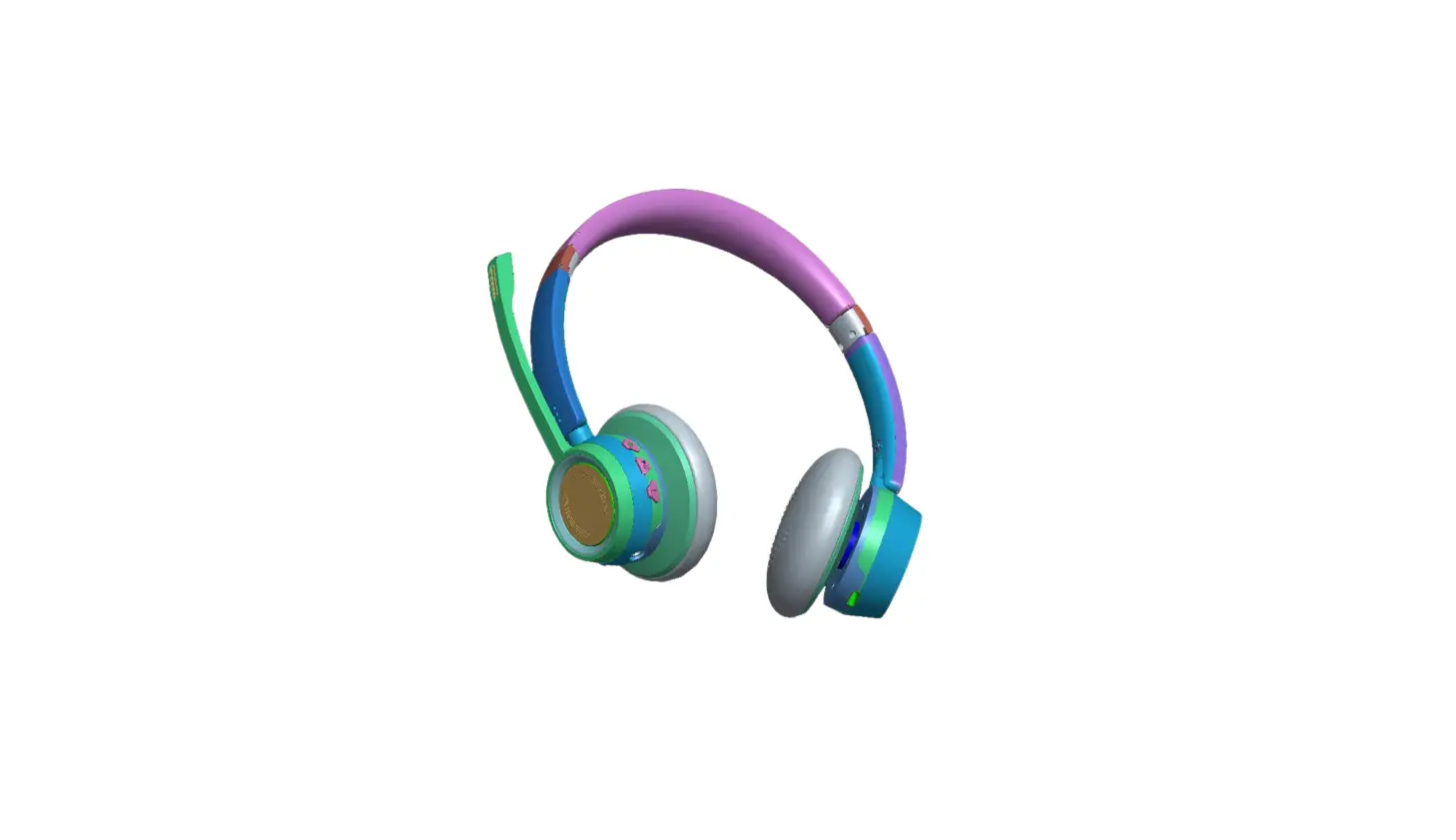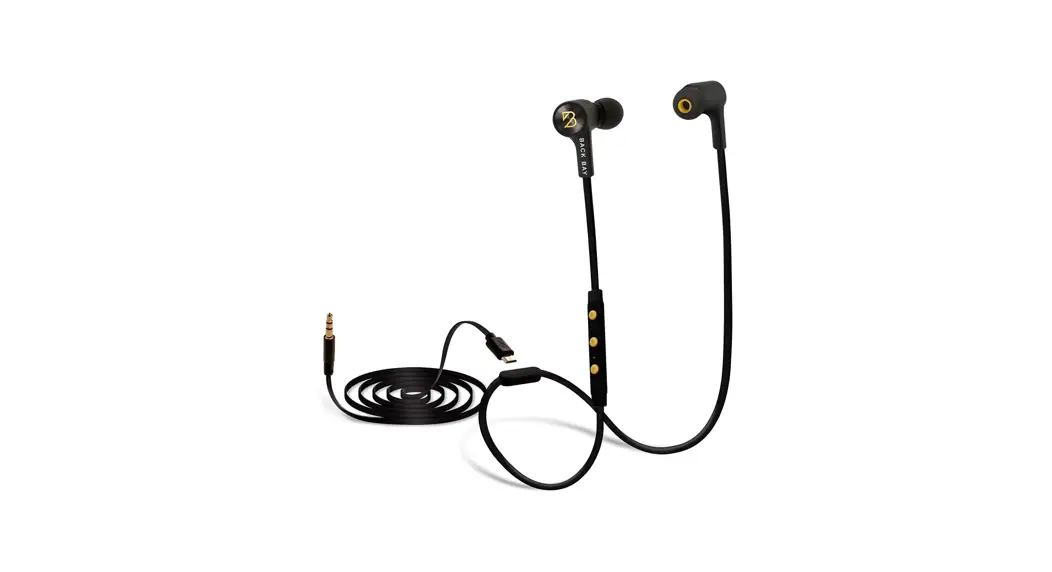
 ClearCall 70 Bluetooth headphone
 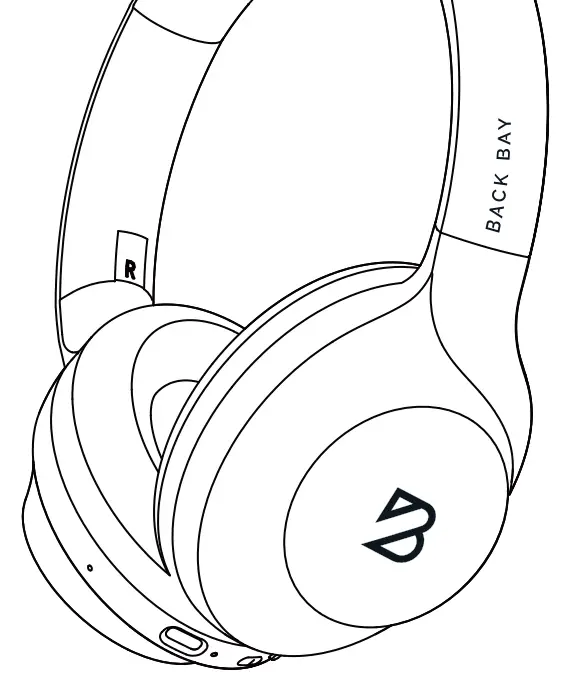 User Guide
FREE 1-YEAR WARRANTY
Thank you for purchasing the Back Bay ClearCall 70 headphones! You are covered by our 1-Year Warranty.
Register for your free warranty at: www.backbaybrand.com/warranty
If you have any issues please feel free to email: [email protected] Our team will get back to you as fast as humanly possible!
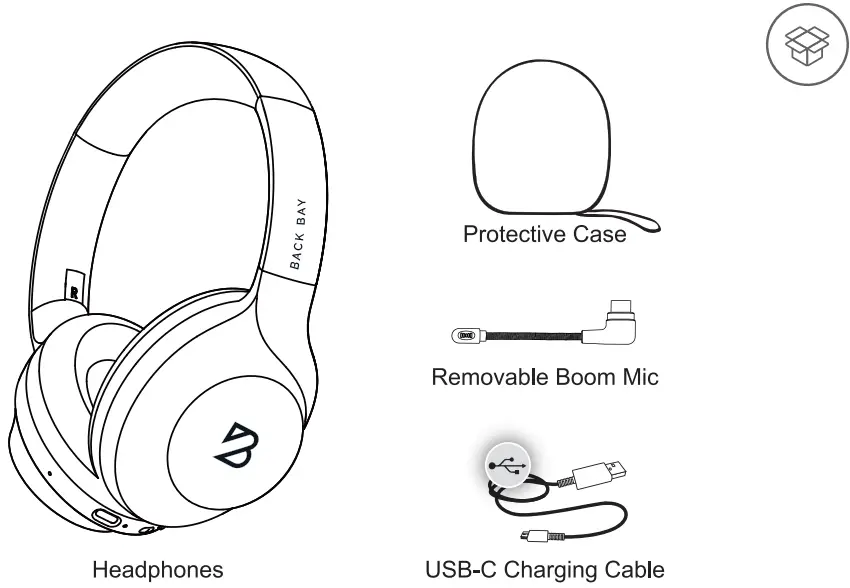
IN THE BOX
PAIRNIG
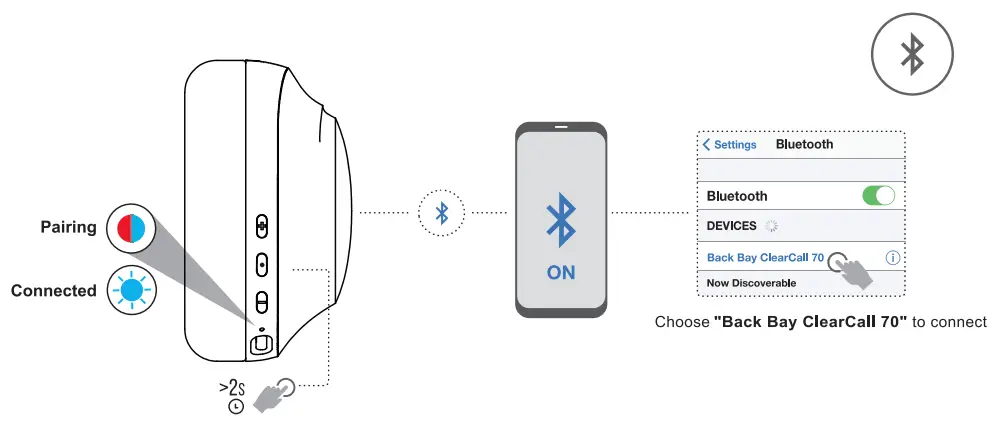
Press and hold the middle button for 2 seconds to power on and automatically enter pairing mode.
* To enter pairing mode again, power off and then hold PowerButton for 5 seconds
 CONTROLS
 CONTROLS
| PRESS ONCE | HOLD | |
 |
|
|
 |
|
|
 |
|
|
 Volume Up
 Next Song
 Play/Pause; Answer/End Call
 Power On/ Off; Reject Call
 Volume Down
 Skip Back
3 SOUND MOSES
Press +/- buttons simultaneously to activate switch modes 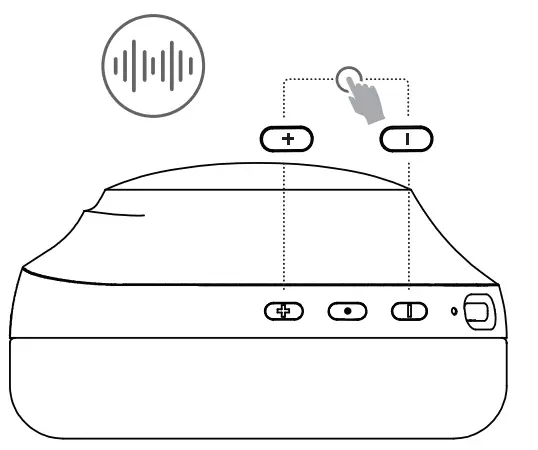
- Back Bay Signature Sound
The sound we’re known for! Refined bass, relaxed midrange, and crip highs - Bass Boost
If you want booming bass without any harshness, you’re in the right place - Vocal Boost
Great for calls! Enhance vocal clarity without any boominess.
CHARGING
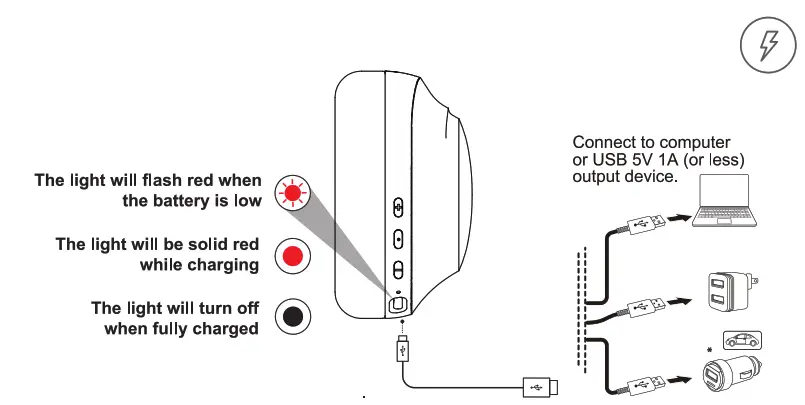
CINNECT TO COMPUTER
Windows’
Put your headphone into pairing mode.
Then in Windows search for “Bluetooth” select “Bluetooth and other devices settings” select “Add Bluetooth or other device” select “Bluetooth” choose the “Back Bay ClearCall70” then click “Done”
To check everything is configured correctly please open Sound settings
Output
Choose your output device – should be set to Headphones(Back Bay ClearCall70 stereo)
Input
Choose your input device – should be set to Headset (Back Bay ClearCall70 Hands-free AG Audio)
Mac® Put your headphone into pairing mode.
On your Mac please go to System Preferences and then Bluetooth.
Select “Back Bay ClearCall70” from the list of devices by clicking “connect”.
To check everything is configured correctly please go to Sound.
Output should be set to Back Bay ClearCall70.
Input should be set to Back Bay ClearCall70.
CONNECT 2 DEVICES
AT THE SAME TIME
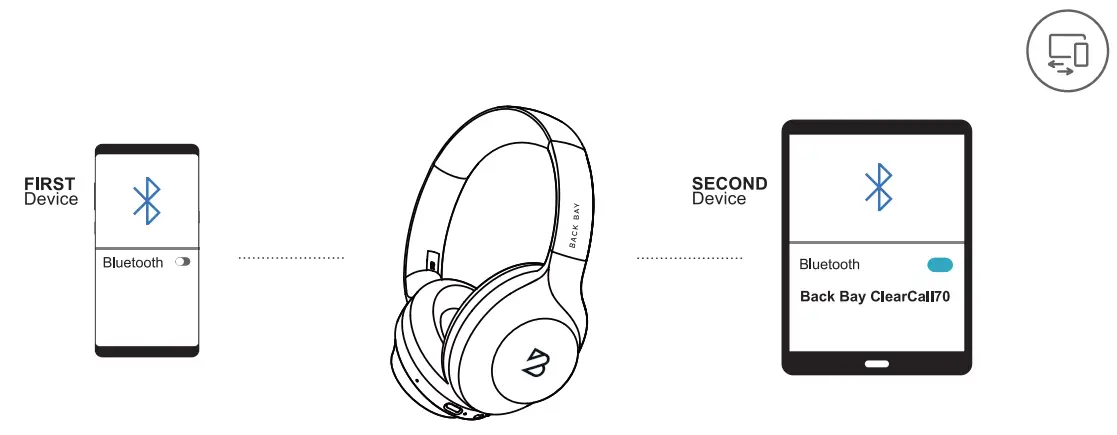 | ||
| Once your first device is connected, please turn off Bluetooth on that device. The “Back Bay ClearCall 70” will then go back into pairing mode. | On your second device, go to Bluetooth settings and select the “Back Bay ClearCall 70” to pair. | On your first device, go back to your Bluetooth setting and turn Bluetooth on again and select “Back Bay ClearCall 70” to connect. A call © may come through from either device. If it is a call from your phone, you can answer it on the “Back Bay ClearCall 70”. If it is a call from your computer, you will need to answer on your computer and it will come through the “Back Bay ClearCall 70”. |
“When the headphones power on. They will automatically connect to the last connected device.
To reconnect the 2nd device, please manually connect to “Back Bay ClearCall 70” from that device.
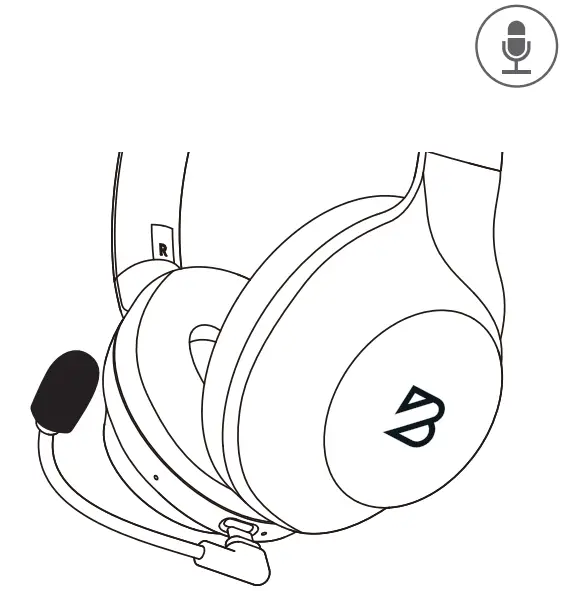
BOOM MICROPHONE
BOOM MICROPHONE
Boom Microphone To enhance the microphone quality for calls you can use the included Boom microphone by plugging it into the USB C charging port.
Foam Sleeve
To increase clarity and remove any harshness in your voice, please use the included foam mic sleeve
When you unplug the Boom microphone the headphone will default back to the built-in microphone.
FACTORY RESET
Please make sure you forget “Back Bay ClearCall 70” from your Bluetooth device settings before resetting
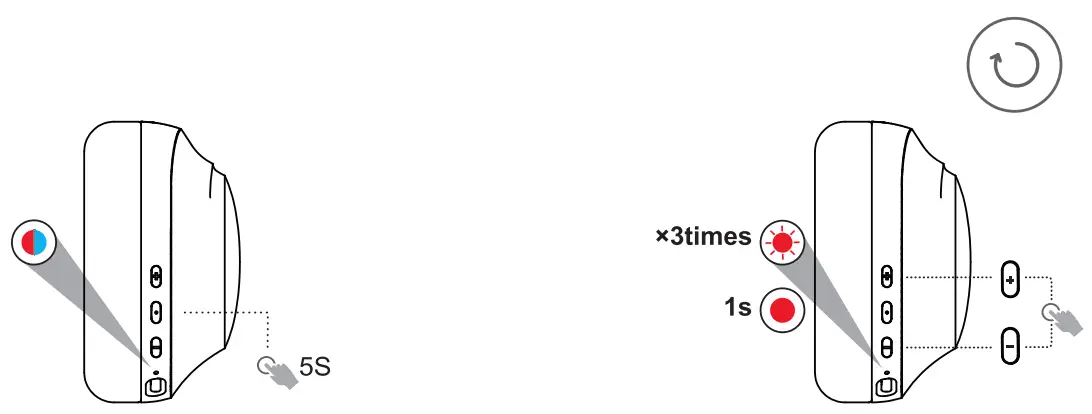 | |
| When Power is off, press and hold the power button for 5 seconds until the light flashes blue and red | Keep holding +/- buttons simultaneously for 10s econds until you see the red light flashing 3times and then turn solid for 1second. Headphone power OFF automatically |
FCC Information
This device complies with Part 15 of the FCC Rules. Operation is subject to the following two conditions: (1) this device may not cause harmful interference, and (2) this device must accept any interference received, including interference that may cause undesired operation.
Changes or modifications not expressly approved by the party responsible for compliance could void the user’s authority to operate the equipment.
NOTE: This equipment has been tested and found to comply with the limits for a Class B digital device, pursuant to part 15 of the FCC Rules. These limits are designed to provide reasonable protection against harmful interference in a residential installation. This equipment generates uses and can radiate radio frequency energy and, if not installed and used in accordance with the instructions, may cause harmful interference to radio communications.
However, there is no guarantee that interference will not occur in a particular installation. If this equipment does cause harmful interference to radio or television reception, which can be determined by turning the equipment off and on, the user is encouraged to try to correct the interference by one or more of the following measures:
- Reorient or relocate the receiving antenna.
- Increase the separation between the equipment and receiver.
- Connect the equipment into an outlet on a circuit different from that to which the receiver is connected.
- Consult the dealer or an experienced radio/TV technician for help.
FCC ID : 2A9PL-CC70
Please read this manual carefully before use.
Warning
To prevent possible hearing damage, do not listen at high volume levels for long periods. For your own safety, please be aware of your surroundings when using these headphones.
Safety Warnings
Do not place near any open flames.
Dispose of batteries responsibly and be aware of the environmental effects of battery disposal. Do not expose batteries installed to excessive heat