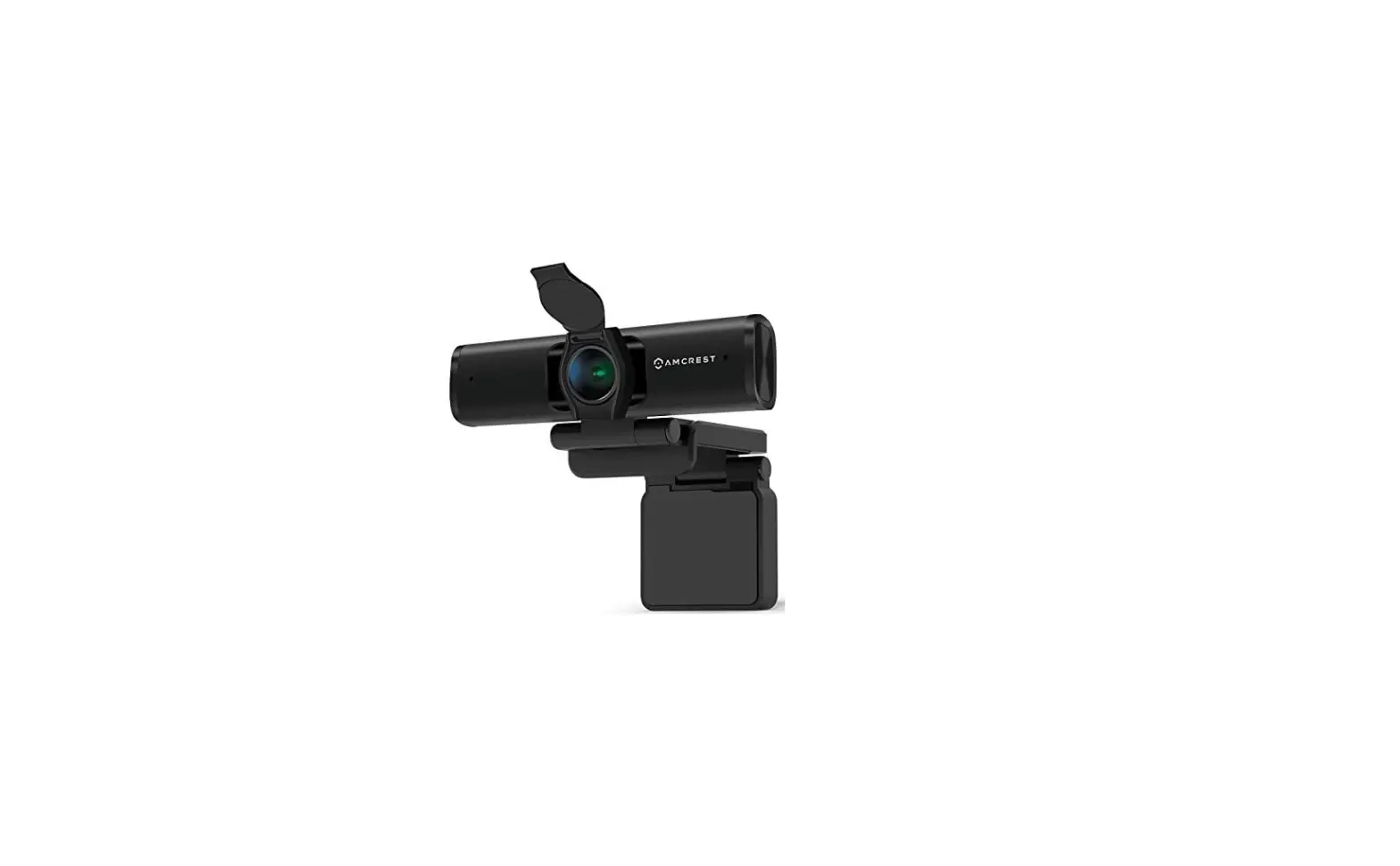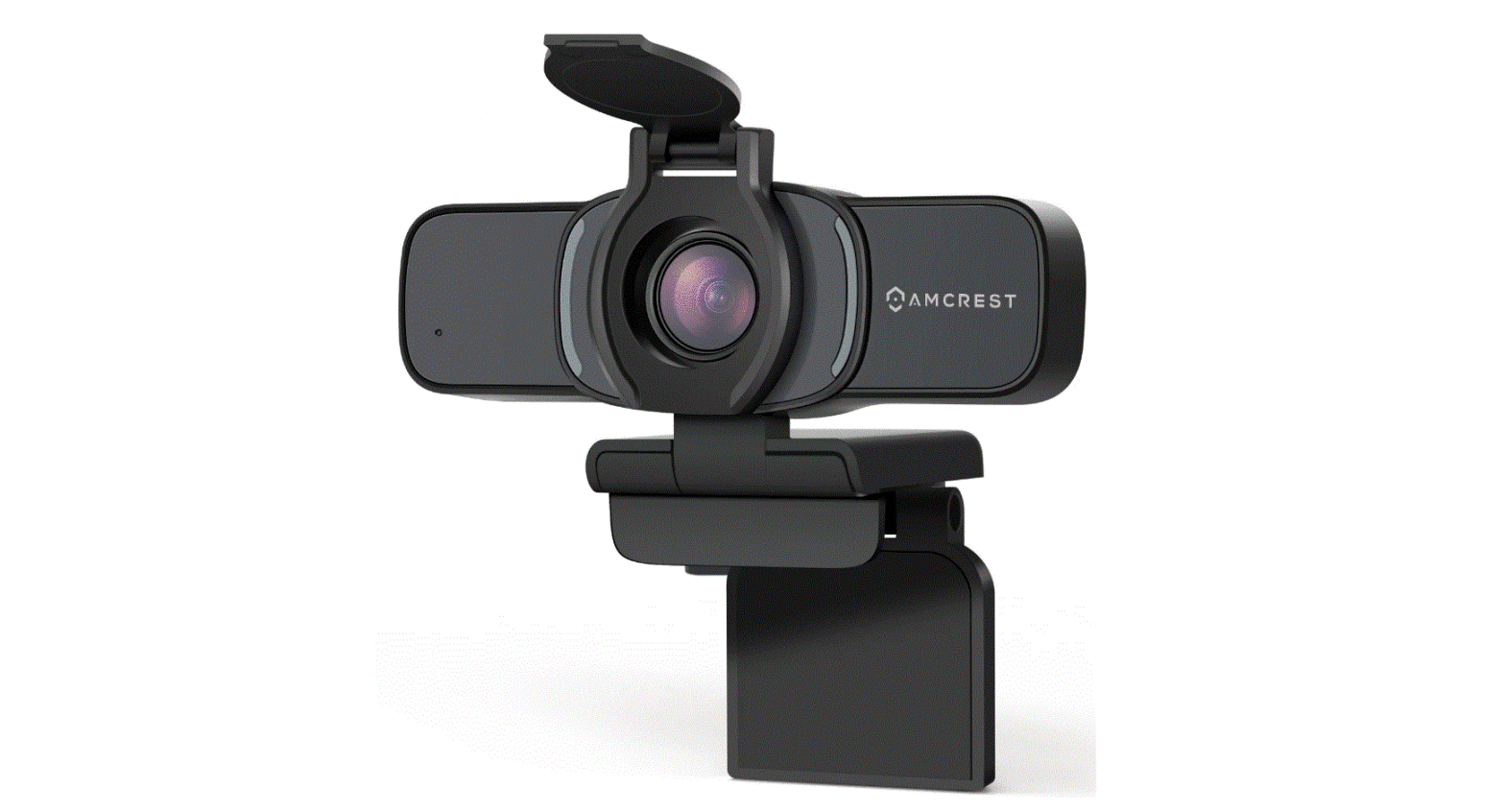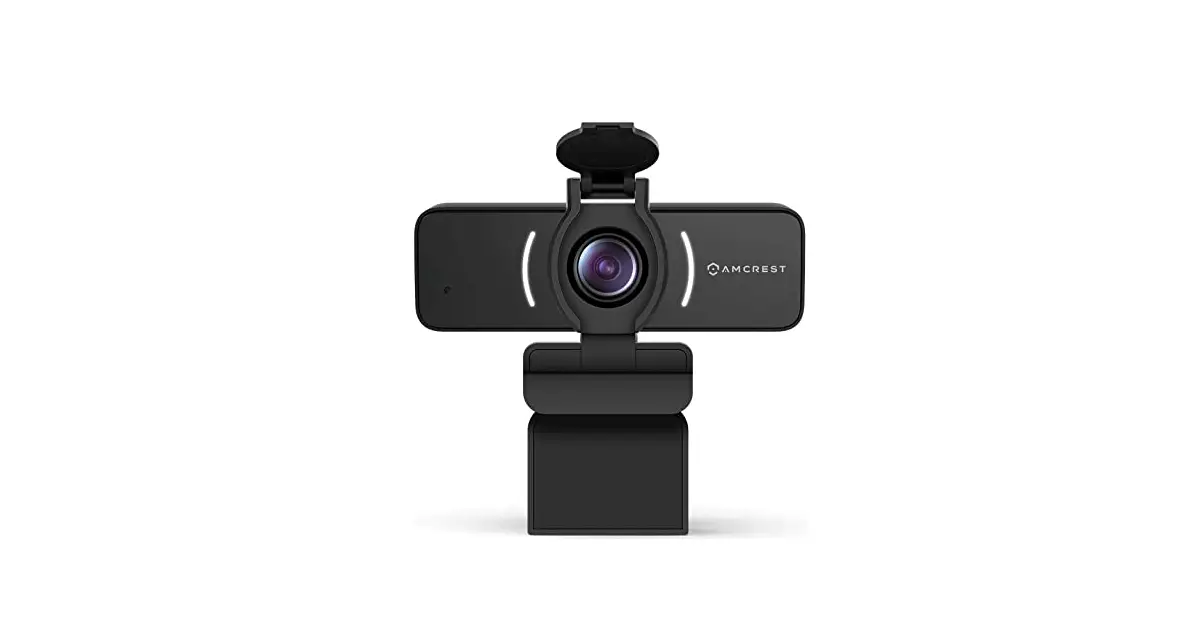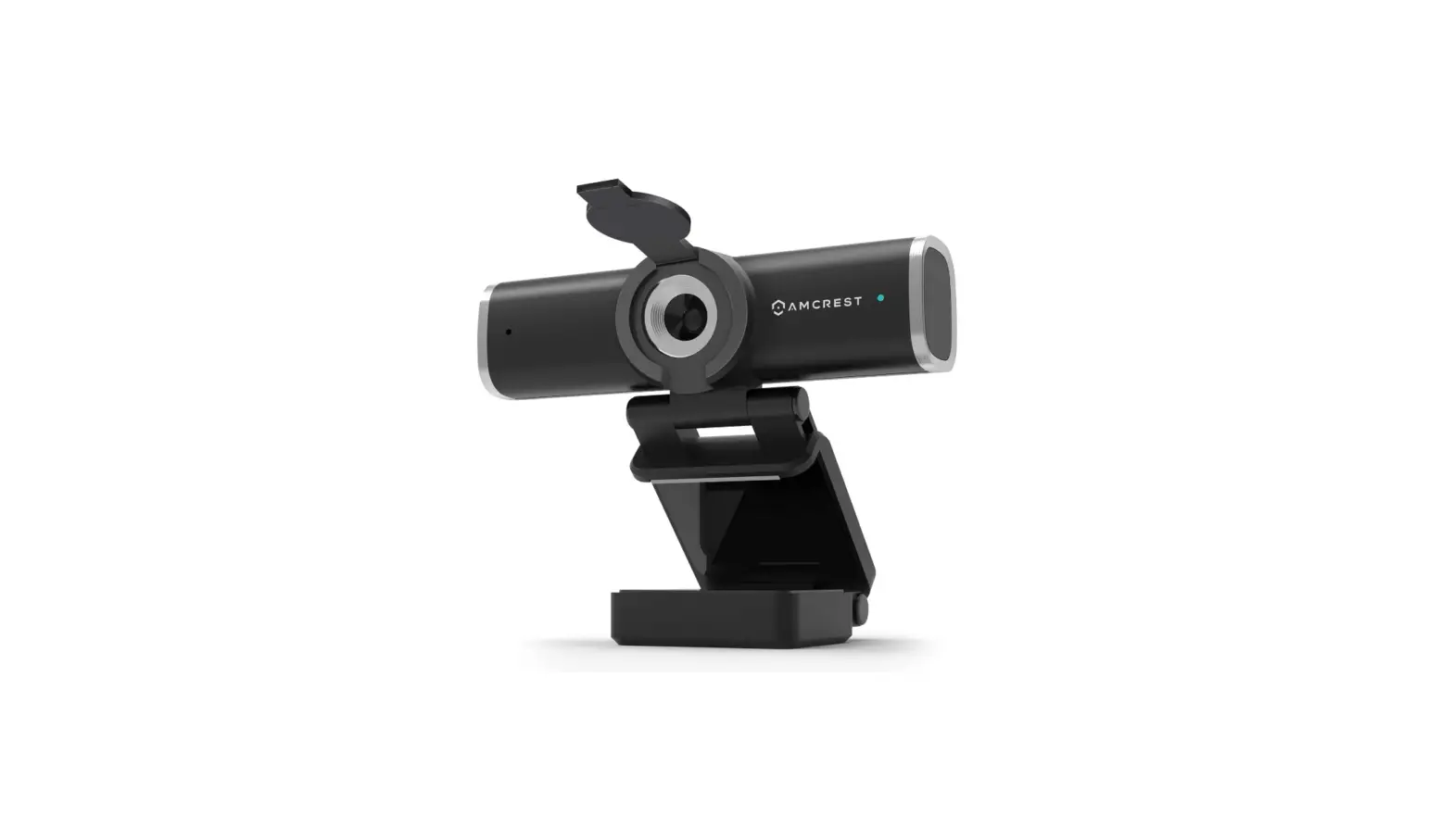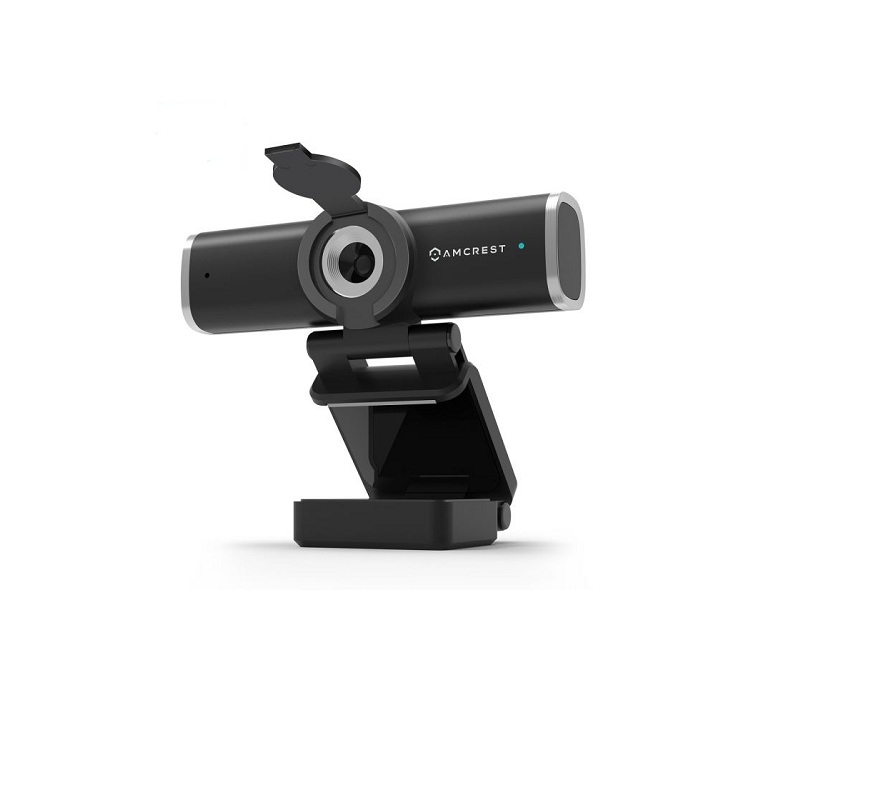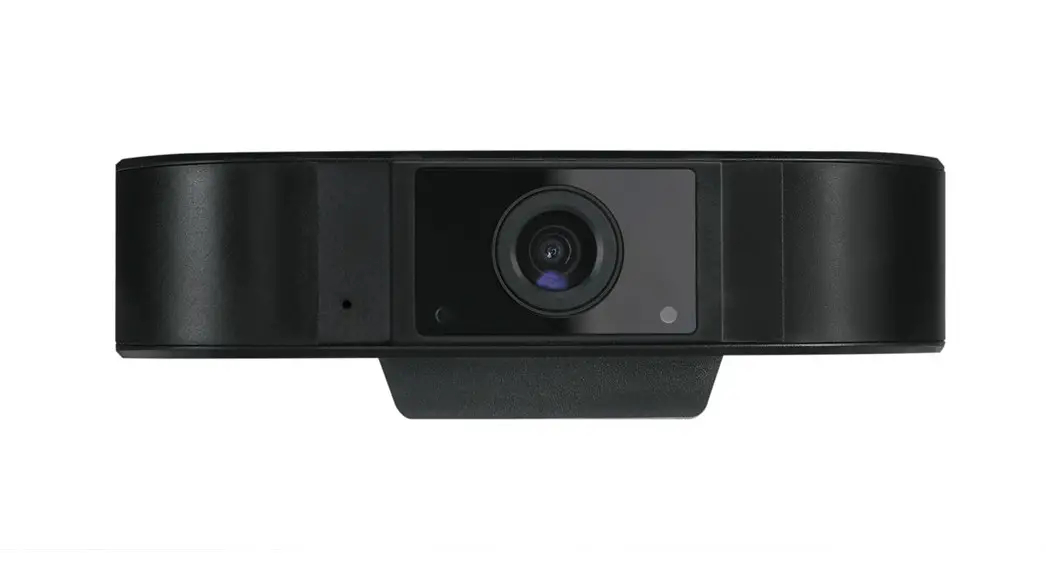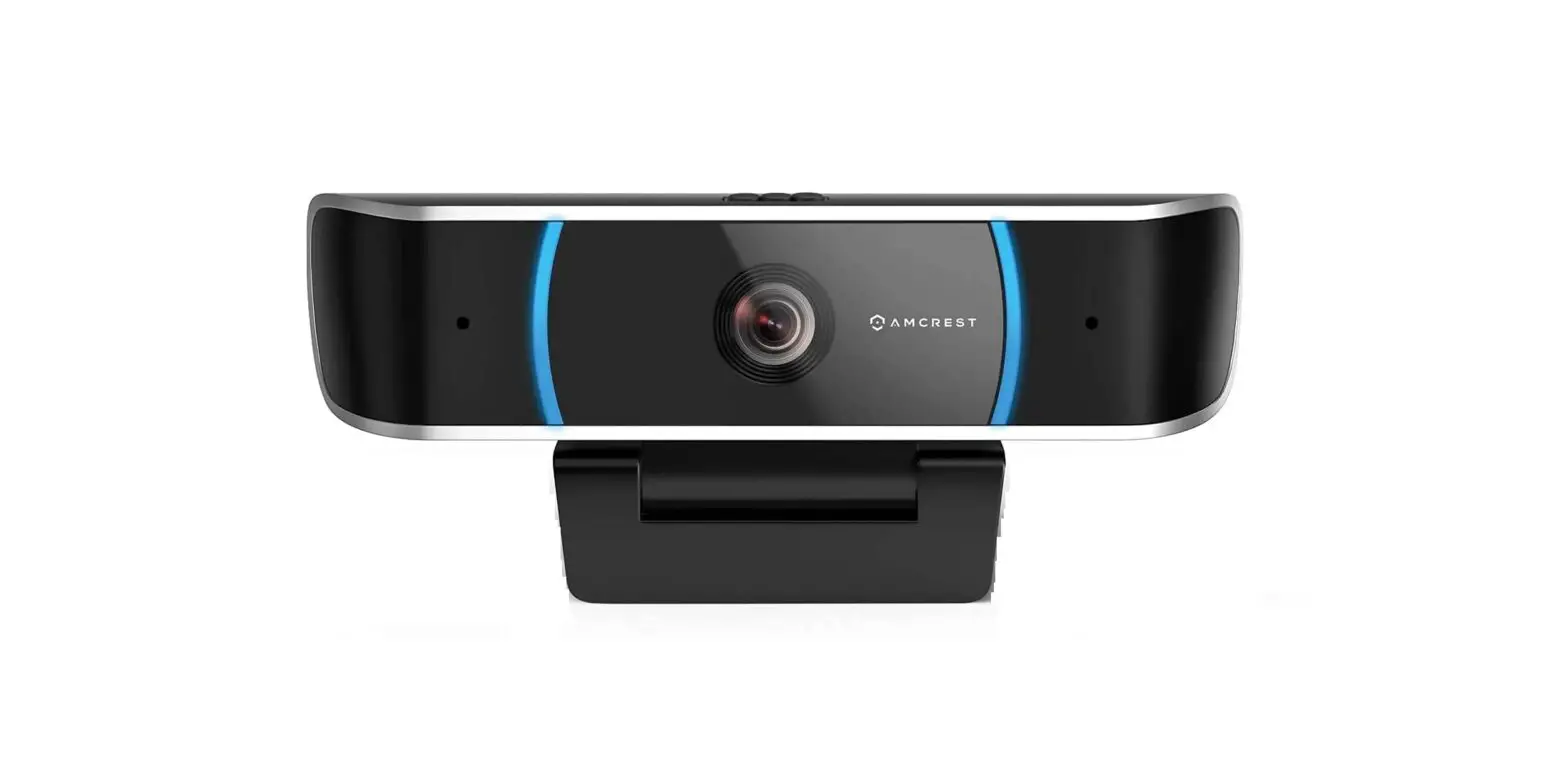
AMCREST AWC5100 5MP UltraHD ProSteam Webcam User Manual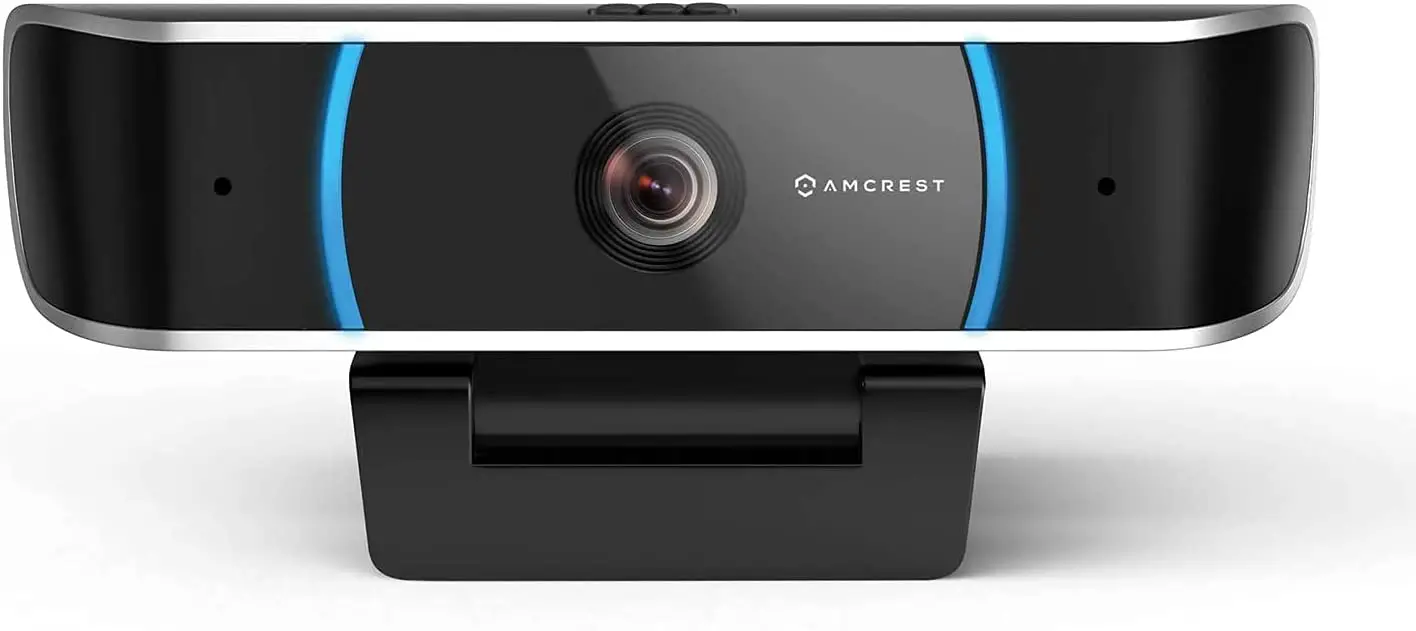
Introduction
Thank you for purchasing an Amcrest Webcam!
We wanted to personally reach out and thank you for purchasing from our Amazon store. Selling on Amazon is what we do to support our family, and product reviews are the lifeblood of our business. It would mean the world to us if you could take one minute of your time to help share the love by leaving us an honest review using the link below:
Thank you again for being one of our amazing customers!
Sincerely,
Amcrest Team
Product Overview
This guide is designed to help you setup and better use your Amcrest webcam. If you have questions before you start or just want to learn more about Amcrest, please visit us at: amcrest.com
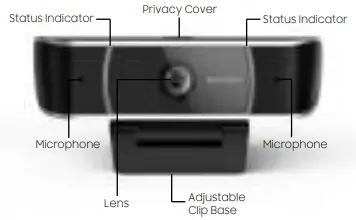
Setting Up Your Webcam
Placing Your Webcam
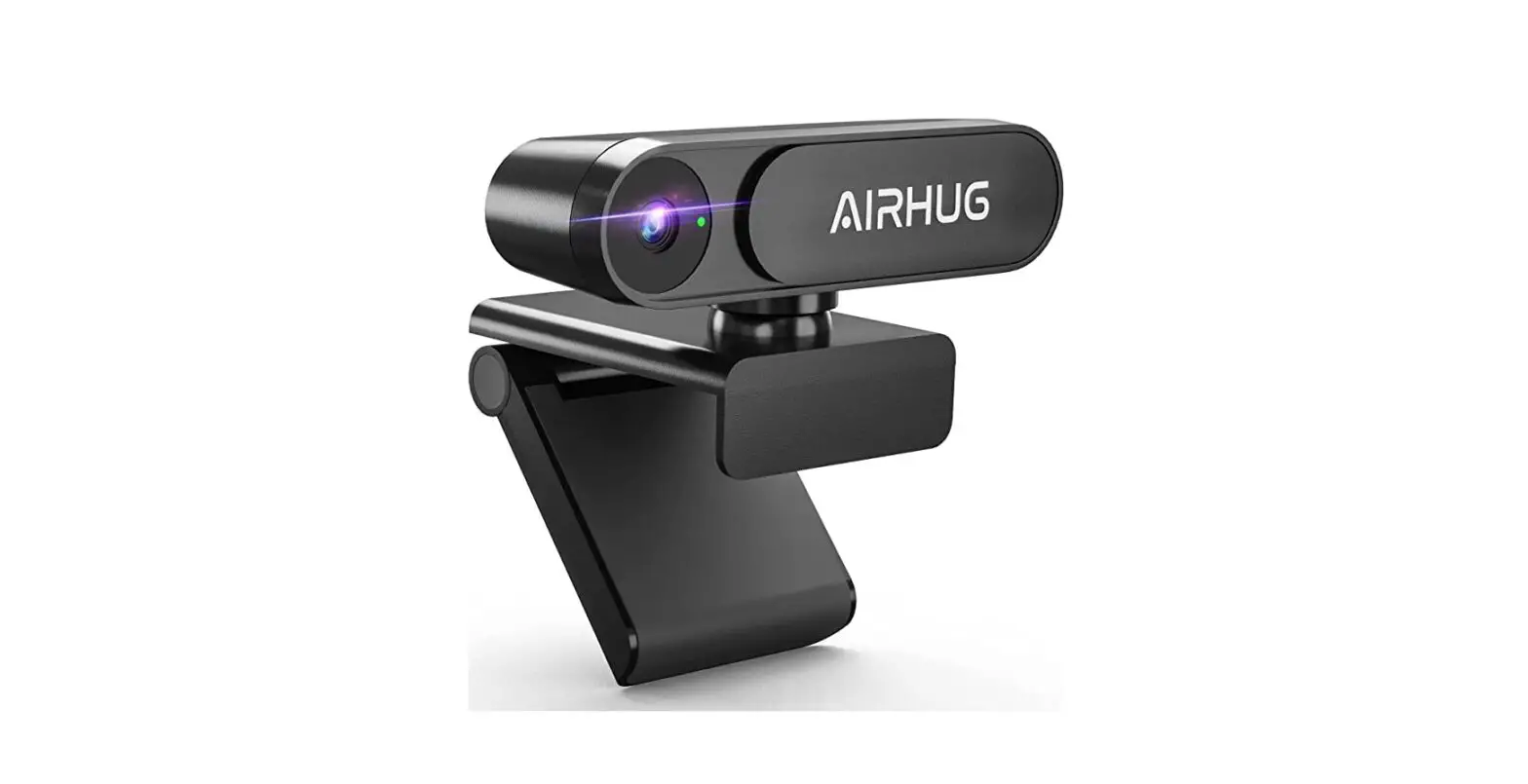
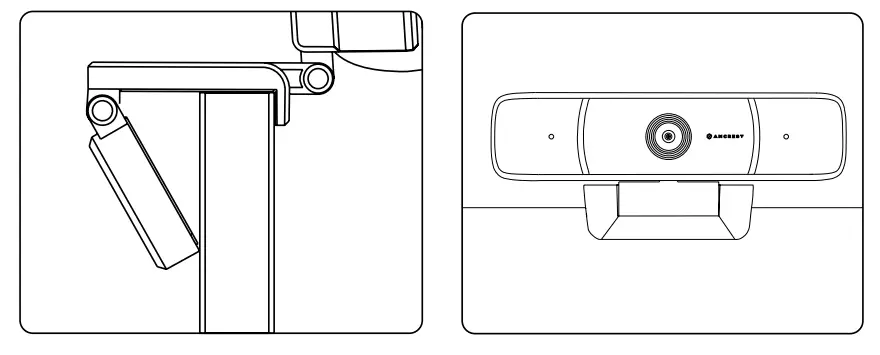
The webcam has an adjustable clip base which allows the device to be secured to a monitor, or desktop, or tripod.
Placement on a Monitor
- Grasp the webcam, as displayed in the image below, and open the clip base.
- Place the opened clip base onto the monitor making sure the foot of the clip base is flush with the back of the monitor.
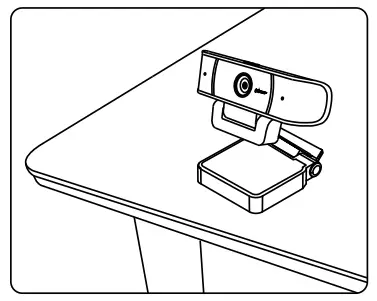
Placement on a Flat Surface
Place the camera on a flat surface and use the adjustable clip base to move and adjust the camera according to your preference.
Placement on a Tripod
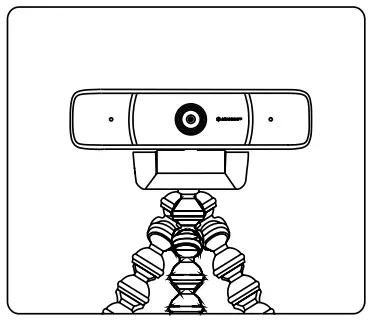
Place the 1/4”20 tripod screw on the bottom of the adjustable clip base to the male end of a tripod and twist the base allowing it to be secured to the tripod (sold separately).
Using the Privacy Cover
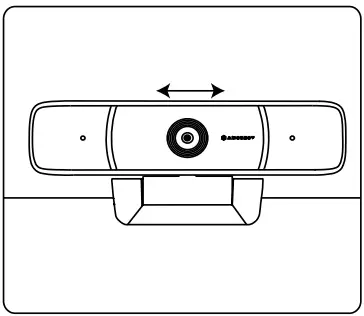
Located on top of the camera is a switch that allows the privacy cover to slide over the lens.
Move the switch left and right to open and close the privacy cover.
Connecting the Webcam
The webcam is compatible with Windows, Linux, and Mac operating systems.
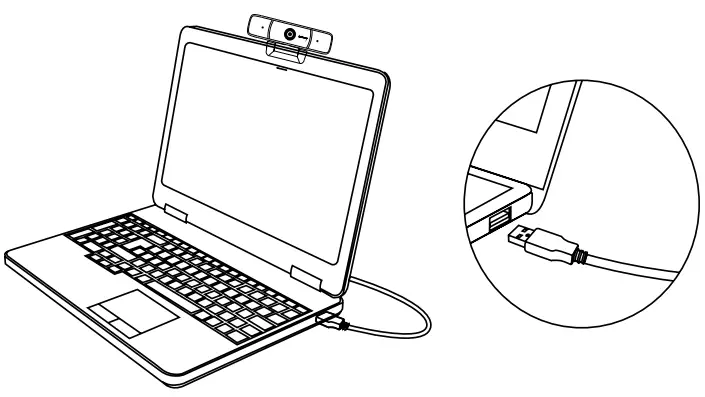
- Connect the webcam’s USB cable to a USB port on your computer. The status indicator on the camera will illuminate indicating the webcam is properly connected.
- Allow any drivers or other software to load and open a video chat or recording software of your choice to open the camera.
- The camera’s default resolution is 2MP and will need to be manually set to 5MP using a third party software such as, Zoom, Skype, Microsoft Teams, etc.
Technical Specifications
| Model | AWC5100 |
| Image Sensor | 1/4 inch 5.0 Megapixel CMOS |
| Effective Pixels | 2592 (H) x 1944 (V) |
| Electronic Shutter | 1/15 ~ 1/100000s |
| Coding Format | H.264/MJPEG/YUV |
| Video Frame Rate | H.264 (1080P@5-30fps,720P @5-30fps, VGA @5-30fps; MJPEG(5M:2592*1944@24fps, 1440P@5-30fps, 1080P@5-30fps, 720P@5-30fps, VGA@30fps |
| Video Resolution | 1920 * 1080 |
| Video Delay | ≤120ms |
| Image Saturation | 100% ~ 130% |
| Signal to Noise Ratio | ≥65 dB |
| Video Output | USB1.1 / USB2.0 / UVC1.0/1.1/1.5 |
| Noise Reduction | Digital Noise Reduction (DNR) |
| Auto Focus | 0.32ft – 16.4ft (0.1m – 5m) |
| Compatibility | Windows, Linux, and Mac |
| Lens Type | 3.6mm |
| Distortion | <1% |
| Focus Distance | 0.32ft (0.1m) |
| Field of View | H: 65°, V: 40°, D: 73° |
| Microphone | Built-in microphone, clear within 9.8ft (3m) |
| Audio Coding Format | 16-Bit PCM |
| Power Supply | USB (DC 5V), 2W Max (Power Consumption) |
| Working Temperature | -14°F ~ 122°F (-10°C ~ 50°C), Humidity: <95% |
| Working Hours | ≥72h (working normally) |
| Dimensions | 4.58”x2.24”x1.90” (116.4mmx57.1mmx48.3mm) |
| Weight | 0.18lbs. (85g) |
| Cable Length | 6.88ft (2.1m) |

© 2020 Amcrest. All rights reserved. Amcrest, the Amcrest logo, and other Amcrest marks are owned by Amcrest and may be registered. Microsoft, Windows, and the Windows logo are trademarks of the Microsoft group of companies. All other trademarks are the property of their respective owners. Amcrest assumes no responsibility for any errors that may appear in this manual. Information contained herein is subject to change without notice.
 Amcrest Technologies - Cloud Video SaaS, GPS, IP Cameras & NVRs
 Amazon Sign-In
 Amcrest Technologies - Cloud Video SaaS, GPS, IP Cameras & NVRs
 Netdesk.com Video calling, Video Conferencing, Screen Sharing, File Sharing | Netdesk.com