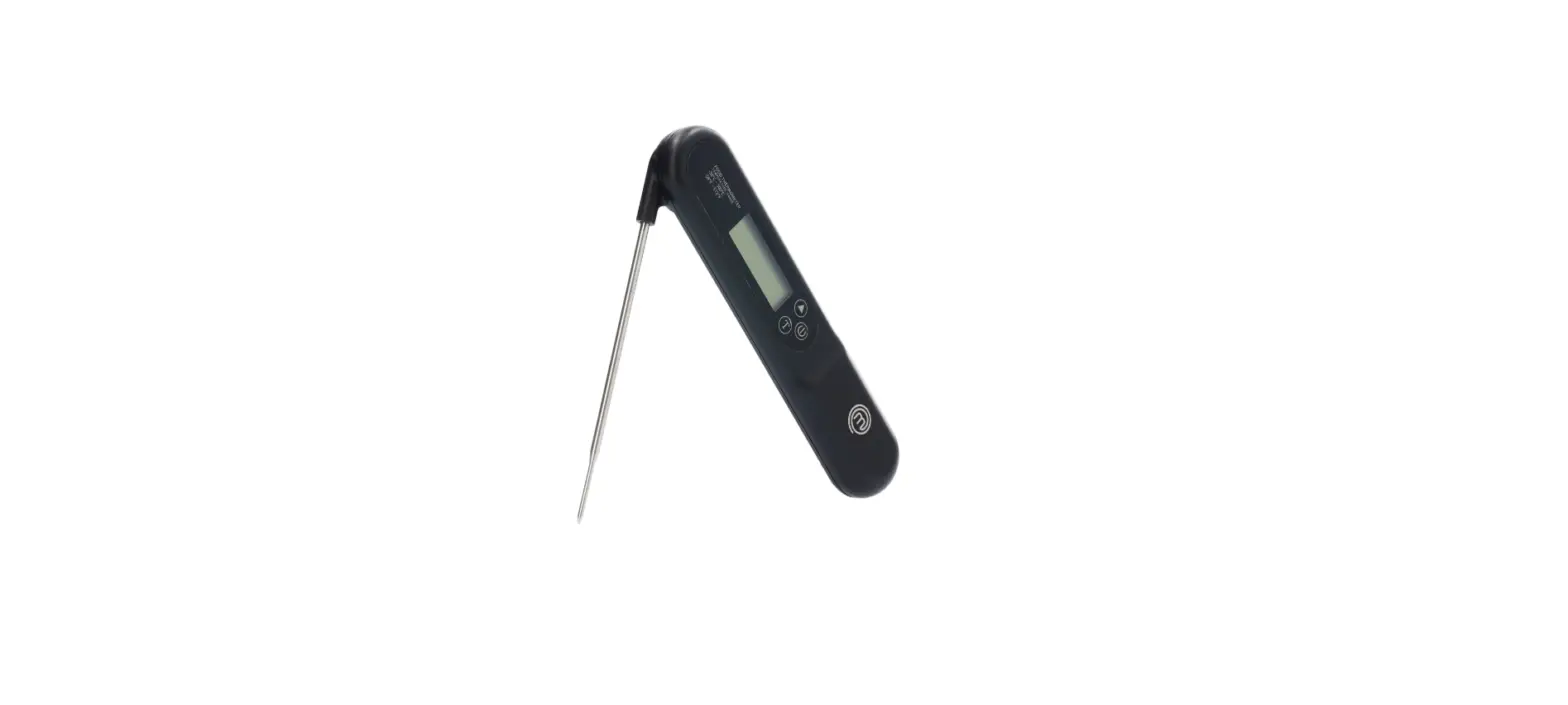
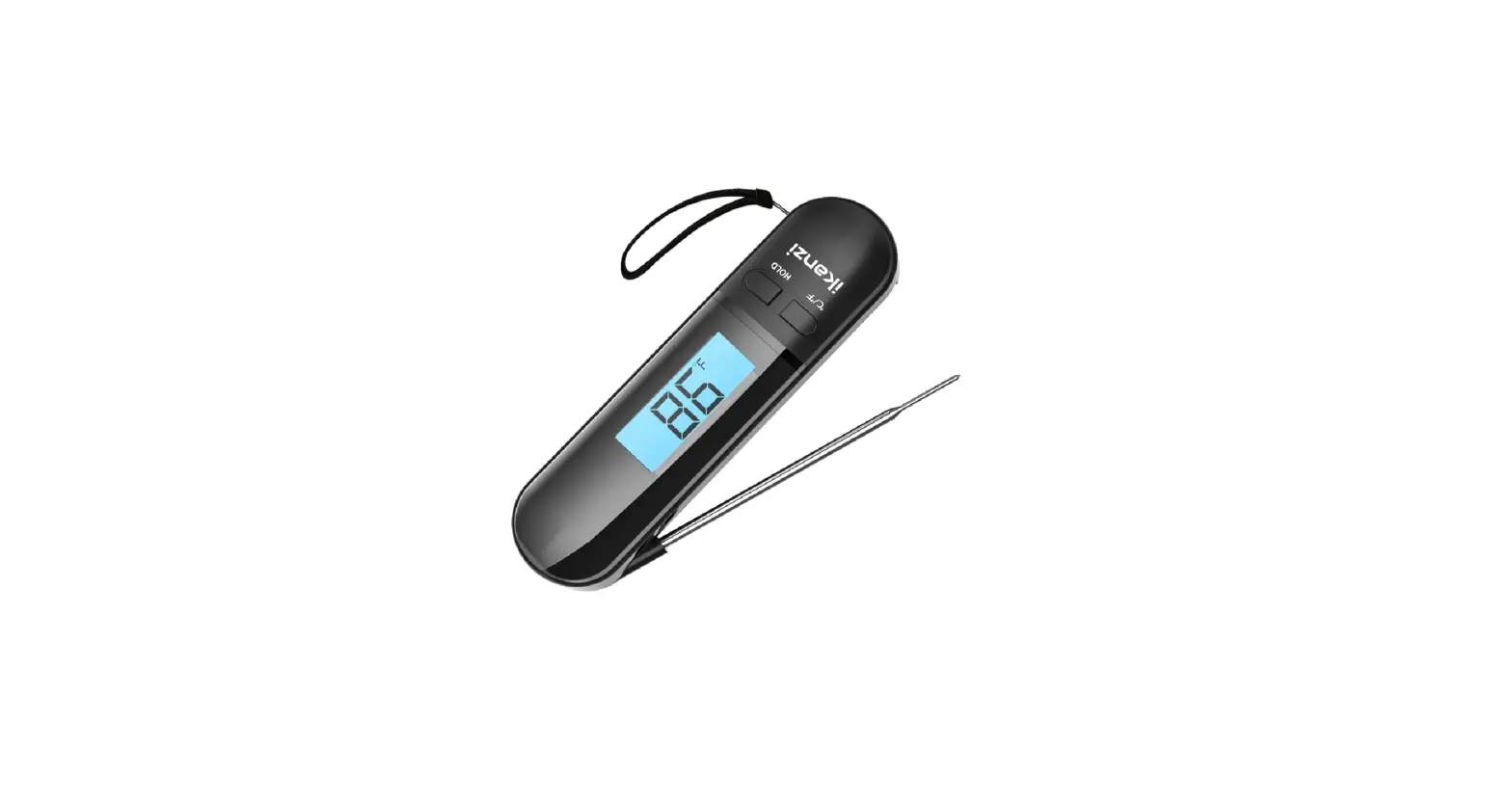
Mini Hands Free Cooking Thermometer
Product Information
The product is a Cooksy microwave that offers various
installation options to suit different kitchen setups. It comes
with different accessories and features a Cooksy App for easy
configuration and control. The product can be installed as a wall
inset or pullout, over the range microwave, island downdraft, or
freestanding.
Content of Box
- Cooksy Mini
- Magnetic Power Cord
- USB Power Adapter
* Note: Only use the USB Power Adapter that comes in the box. Do
not use your own adapter.
Product Usage Instructions
Installation Options
Choose the installation option that suits your kitchen
setup:
- Magnetic Installation: This is the preferred
method for options 1-4. The Cooksy microwave has integrated magnets
that allow for easy magnetic attach installation. Verify if the
surface works with magnets. - Wall Mount: For non-magnetic surfaces, over
the range microwaves, and wall hoods. Fix the bottom base to the
wall using the included 3M adhesive. Secure it by tightening the
ring. Attach the power cable to Cooksy and fix it on the mount via
the pivot ball and screw receiver. Route the cable and connect it
to the USB power adapter. - Freestanding: Suitable for downdraft or
optional islands. Assemble the freestanding mount kit following the
instructions on page 16. Position the stand to the left or right of
the desired cooking surface.
Make sure to install Cooksy off-center and out of direct line of
heat.
Accessory Specific Assembly
Depending on the installation method, follow these assembly
instructions:
- Wall Mount: Clean the area with soapy water,
rinse, and dry. Screws are optional. - Freestanding: Assemble the freestanding mount
kit following the instructions on page 16.
For installation method A, no assembly is required.
Before starting the installation, watch the installation video
at https://bit.ly/CS4help. You
can also scan the provided QR code to access the video.
Instruction Manual
02
QR Code Instructions
Watch the video
Hardware
Content of Box Accessories
Installation Options
Options Wall Inset or Pullout Over the Range Microwave Island Downdraft
Accessory specific assembly
Magnetic Installation Wall Mount Freestanding
Cooksy App
App Configuration Sensor Pairing Calibrate Ready to Cook Cooksy LED Indicator
QR Code Instructions
03 Watch the video
04
Before you start, watch our installation video at
05
https://bit.ly/CS4help
Scan QR Code to see install video.
06
08 09 10
13 15 16 17 18
03
Hardware
CONTENT OF BOX
Verify installation options and check requirements
Hardware
ACCESSORIES
If you have not ordered accessories for required Installation method, check page 3 for details and order at: Cooksy.com
A
B
C
Cooksy Mini
Magnetic Power Cord
USB Power Adapter
04
* Note: Only use the USB Power Adapter that comes in the box. Do not use your own adapter.
Magnetic
No accessory needed
Wall Mount
Cooksy has integrated magnets that allow for easy magnetic attach installation
For non-magnetic surfaces and optionally for Over the Range Microwaves and Wall Hoods
Freestanding
For Downdraft or optionally for Islands
05
Installation Options
Options Options depend on ventilation setup and surface material Preferred method for options 1 – 4 Magnetic Installation.
Verify installation options and check requirements Make sure you have chosen the right installation and accessory option for your kitchen variations.
A Magnet
1
A
2
A
B
B
B Wall Mount
C Freestanding
Wall
Inset or Pullout
Install Method A or B Install Method A or B
Off-Center
Off-Center
06
Installation Options
Note: Verify if hood surface works with magnets (for Options 1 – 4 ) Power outlet within 6 feet of the desired installation area. Minimum 20 inches above cooking surface required. Install Cooksy off-center and out of direct line of heat. For the Wall Mount installation option B , the screw attachment method is strongly suggested. 3M possible but not recommended.
3
4
5
A
A
C B
Over the Range Microwave
Install Method A or B Off-Center
Island
Downdraft
Off-Center
Install Method C
Install Method A or
Option C if non-magnetic
07
Accessory specific assembly
For Install Method B and C Install method A needs no assembly
A
B
C
Accessory specific assembly
B Wall Mount Note: Clean Area with soapy water, rinse and dry Screws are optional
11
2
3
4
5
Magnet
Wall Mount
Freestanding
A Magnetic Installation
1 Locate recommended install position (page 06-07). 2 Attached Power Cable to Cooksy. 3 Route cable and connect to USB power adapter.
Install Cooksy off-center and out of direct line of heat.
2
3
08
Wall Installation 1 Fix bottom base to wall via included 3M adhesive. 2 Secure by tightening ring. 3 Attached Power Cable to Cooksy. 4 Fix the Cooksy on the mount via pivot ball and screw receiver in
back of Cooksy. 5 Route cable and connect to USB power adapter.
09
Accessory specific assembly
C Freestanding Assemble Freestanding mount Kit following instructions. Position stand left or right of desired cooking surface
1
2
3
Accessory specific assembly
C Freestanding Assemble Freestanding mount Kit following instructions on page 16
4
5
6
Assembly
1 Take the arm assembly and insert the large threaded end into the base. Screw the arm assembly in fully until tight.
2 Attach the swivel mount to the end of the arm assembly. Screw in the swivel mount until tight.
3 Adjust the arm by loosening the large arm nob, rotating the arm, and tightening the arm nob.
Box Content
Assembled
1
Freestanding Installation 4 Attach the Cooksy to the swivel mount and tighten the
plastic nut. 5 Attached Power Cable. 6 Route cable and connect to USB power adapter. 7 Position stand left or right of desired cooking surface.
10
11
Cooksy App
Download the Cooksy App You’ll use it to set up and control your Cooksy At Startup: Swiping Blue LED Indicator
Cooksy App
App Configuration At Cooksy Sensor Startup you will see a Swiping Blue LED Indicator which means Cooksy is ready to be configured
12
Already have a Cooksy? Open the Cooksy app and follow setup wizard to add new sensor
13
Cooksy App
App Configuration Open the app to configure Cooksy on your Wi-Fi network
1
2
3
Sensor Pairing Connect your Cooksy Sensor
4
5
Cooksy App
6
14
1 On the Top left, press the settings icon to open the menu. 2 Press the gear icon on the top center to open the App
Setting menu. 3 Press the Sensor Pairing button.
4 Sensor Setup Screen: Press continue
5 Choose network, enter Wi-Fi password and connect.
White blinking light means its connecting. This will take a few
moments 6 Once it’s connected, it will turn green and Cooksy will
15
show on app. Click the checkbox and then click Done.
Cooksy App
Camera Alignment For first time setup, align your Cooksy’s camera. Cooksy alignment will need a non-reflective pan.
1
2
Cooksy App
Ready to Cook Find recipes in the App, gather the ingredients and start cooking. Follow the chef as they cook instead of following “a recipe”.
1
2
3
16
1 Place Pan on desired Cooking Surface and apply heat. 2 Use adjust button to zoom-in and center the thermal
circle.
1 Choose recipe on App. 2 Watch the 30 seconds preview video. 3 Gather ingredients, view the equipment list/prep steps and
preview the minute-by-minute cooking Instruction guide.
17
Cooksy App
Cooksy LED Indicator The LED indicator gives you visual feedback on connection, status, safety and interaction
Light Blue Powering On and not ready. Swiping Blue Ready to be configured.
Solid Green Connected to your Wi-Fi and ready to cook. Pulsing Green Firmware update. When done it restarts. Do not power off Cycling Green Trying to connect to Wi-Fi at startup. If for more than 10
seconds, then is out of range, otherwise move router closer to Cooksy. Light Purple App is actively connected to Cooksy. Railroad crossing Red Warning, too Hot. Ensure its mounted correctly at 20″ away out of direct line of heat. Bouncing Red Low voltage. Please check connection and ensure power brick is the official Cooksy power brick or a QC 3.0 USB power brick. Green progress bar Cooksy is uploading a recipe. See the mobile app for status. Purple Record mode Purple Record mode: When you are recording a recipe.
18
Need Help? For help and troubleshooting contact us at: Email: [email protected] Phone: +1 (856) 924-6695
Do not use stainless steel pans with Cooksy
1) Read these instructions
2) Keep these instructions
3) Heed all warnings
4) Follow all instructions
5) Do not use this apparatus near water
6) Clean only with soft damp cloth. Household cleaners or solvents can damage the finish
7) Do not block any ventilation openings
8) Install in accordance with the manufacturer’s instructions with a minimum of 20″ distance
between Cooksy and the cooking surface and a off-centered installation out of the direct line of heat.
9) Do not install on, near or against any heat source
10) Do not use Cooksy outside
11) Protect the power cable from being walked on or pinched, submerged or close to liquids,
close to heat, particularly at plugs, convenience receptacles, and the point where they exit from
the apparatus.
12) Only use attachments/accessories specified by the manufacturer
13) Unplug this apparatus during lightning storms or when unused for long periods of times.
14) Refer all servicing to Cooksy qualified personnel. Servicing is required when the apparatus
has been damaged in any way, such as power supply cable or plug is damaged, liquid has
been spilled or objects have fallen into the apparatus, the apparatus has been exposed
to rain or moisture, does not operate normally, or has been dropped.
15) The Mains plug should be readily available to disconnect the equipment.
16) WARNING: To reduce the risk of fire or electric shock, do not expose this apparatus
to rain or moisture. 17) Do not expose apparatus to dripping or splashing and do not place objects
19
filled with liquids, such as vases on the apparatus
@2022 Cooksy Corporation. All rights reserved Cooksy and all other Cooksy product names and slogans are trademarks or registered trademarks of Cooksy, Inc
Use of the Works with Apple or Android badge means that app has been designed for Apple or Android App Stores, meeting their requirements to be on the App Stores.
 Cooksy