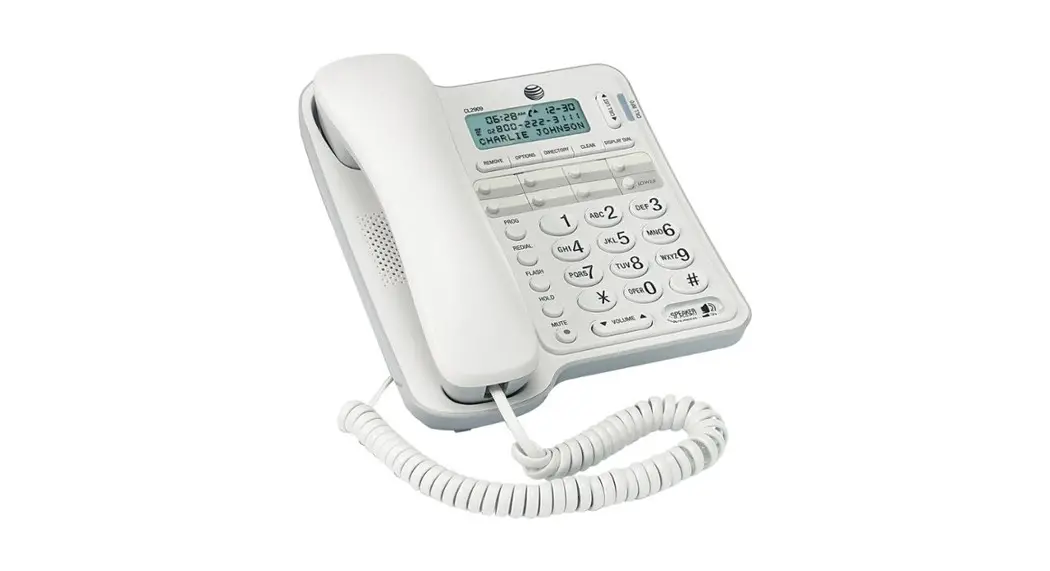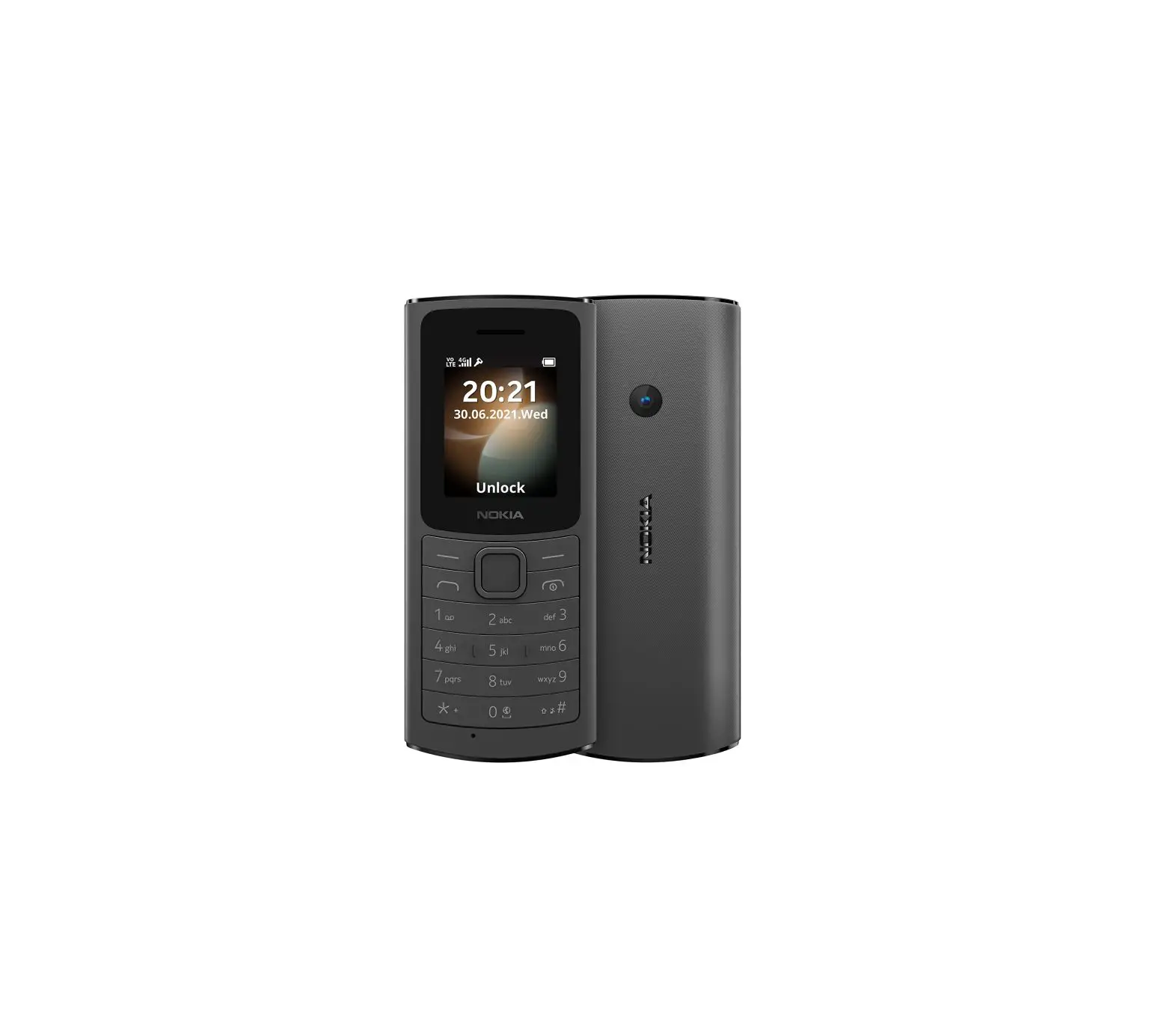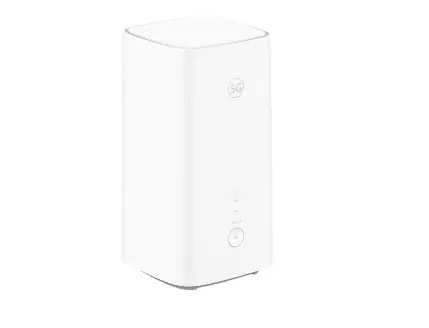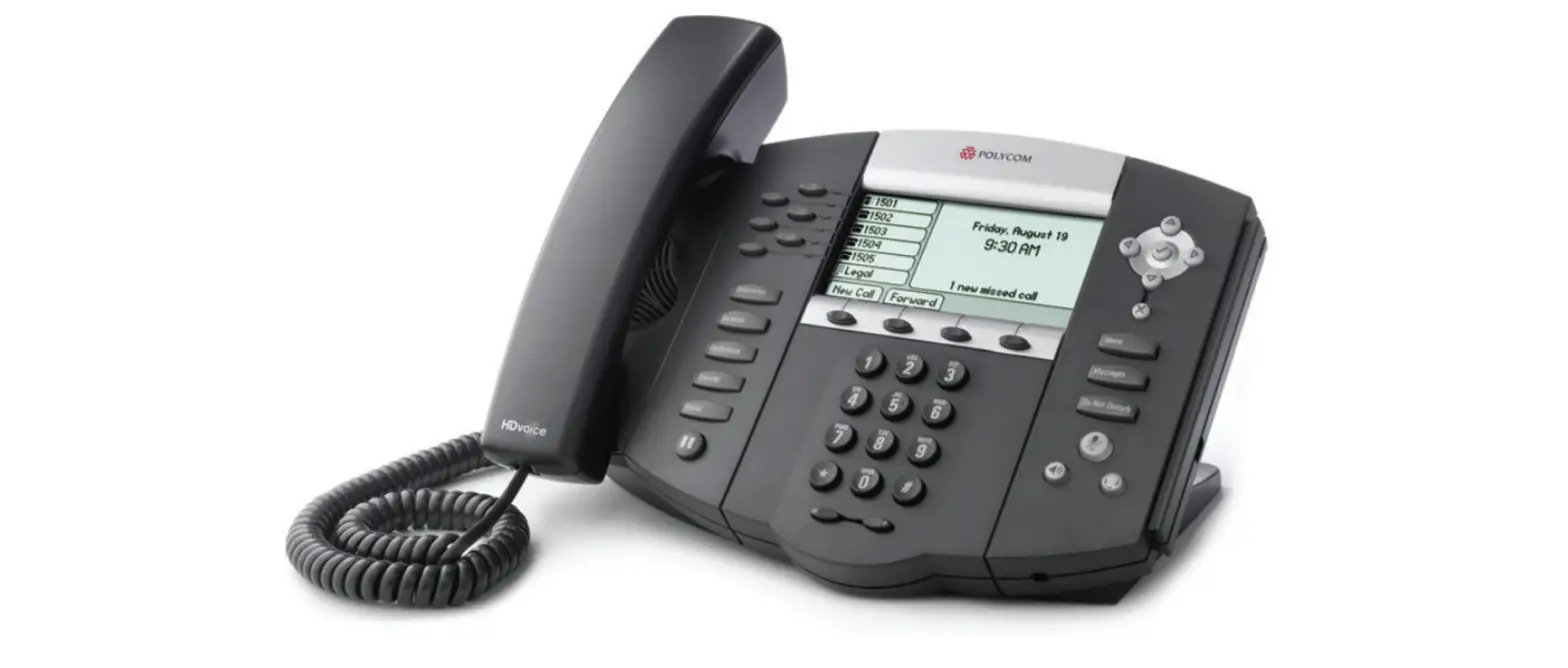

TRUVISTA TruConnect Phone
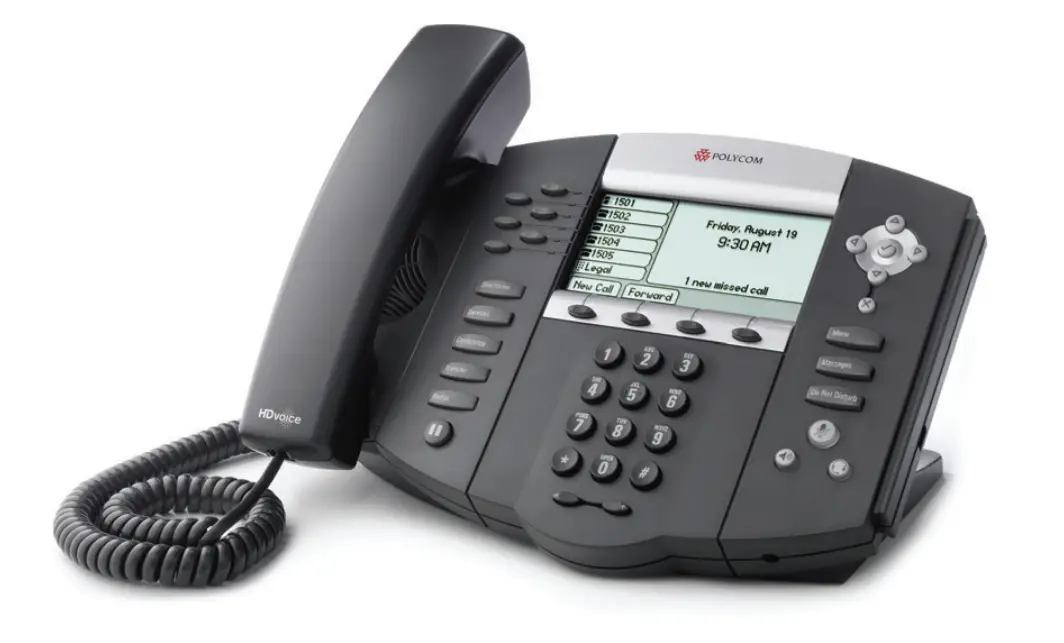
Basic Phone Features
Make a Call
- Lift the Handset and dial the phone number.
- Depending on your phone and configuration, you may need to hit the Dial soft key.
Answering a Call
To answer a call using the speakerphone, press the Speaker key or Answer key.
Redial
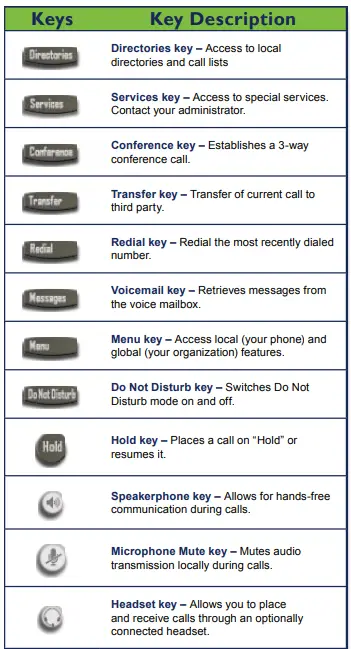
Press the Redial key to call a recently dialed number
Ending Calls
To end a call replace the handset, or press the End Call key.
Programmable Function Keys
Up to 6 programmable keys on the PolyCom phones. Use these keys to activate up to six lines or speed dials that can be as-signed to your phone.
Soft Keys
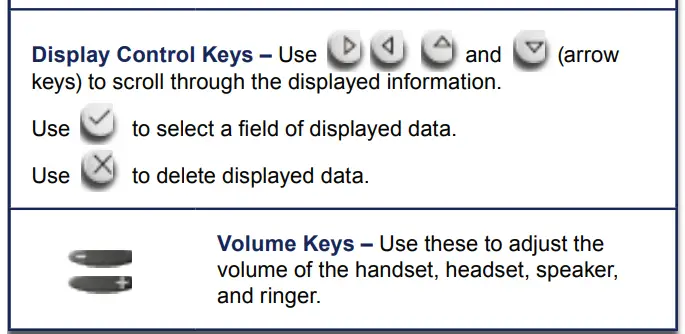
The screen will display labels for these keys, to identify their context-sensitive functions.
For Your Reference
| For Your Reference | |
| Your phone number | |
| Your extension | |
| Code to dial an external number | |
| Access your phone settings online | |
| Conferencing phone number | |
| Conferencing moderator code | |
| Conferencing participant code | |
| Conferencing moderator web access | |
| Remote access to call forwarding number | |
| Remote access to call forwarding PIN | |
| Your administrator | |
| You administrator’s phone number | |
Advanced Call Handling
Call Hold
- To put a call on hold, press the Hold key
- To retrieve the call, press the Resume key or press the Hold key again
Call Transfer
- Press the Transfer key – this places the current call on hold.
- Dial the number of the person you want to transfer the call to.
- To transfer the call before the other person answers, press the Transfer key again.
- Or wait until the person has answered before completing the transfer by pressing the Transfer key again.
Call Waiting
If a second call comes in when you are already on the phone, you will hear a tone and the phone screen will display the details of the second caller.
To answer the second call, select OK press the line key which is flashing.
3 Way Conferencing
- When in a regular call, press the Conference key.
- Dial the person you want to join you call.
- Once this person has answered press the Conference key again to set up the three-way call.
Parking a Call
Parking a call places the call on hold in a “park orbit” so that the call can be retrieved from another phone.
- Initiate call transfer by pressing the Transfer key.
- Dial the Call Park access code *13.
- Listen to the park orbit number where the call will be parked.
- Complete the call transfer by pressing Transfer again. To retrieve a parked call, dial *95 followed by the park orbit number.
Do Not Disturb
Do Not Disturb enables you to send call straight to voicemail.
- If you have a key marked Do Not Disturb, press this to turn Do Not Disturb On and off.
- If you don’t have a Do Not Disturb key then dial *78 to turn Do Not Disturb on and *79 to turn it off.
Voicemail
When you have one or more unheard voice messages waiting, your phone will display a flashing light in the upper right corner.
- To access voicemail: Press *98 or press the Messages or Voicemail key if you have one.
- To listen to your voice messages: Press 1
- To listen to your other messages: Press 11
- To save a message: Press 2
- To delete a message: Press 3
- To change your mailbox settings: Press 4
- To go back to previous menu: Press *
- To finish: Press #
You may also access your voicemail visually using CommPortal
Call Forwarding
Your phone system supports different types of Call Forwarding: Immediate, Busy, and No Answer.
To enable and disable call forwarding, go to the Call Manager tab in CommPortal.
To enable call forwarding using the phone, dial the access code for the type of call forwarding you want to enable followed by the number you wish to forward calls to.
To disable call fowarding, dial the deactivation code for that type of call forwarding.
CommPortal
CommPortal gives you a powerful and easy to use Web interface to your phone settings.
Logging In:
- Go to: https://commportal.truvista.net
- Enter your phone number
- Enter your password

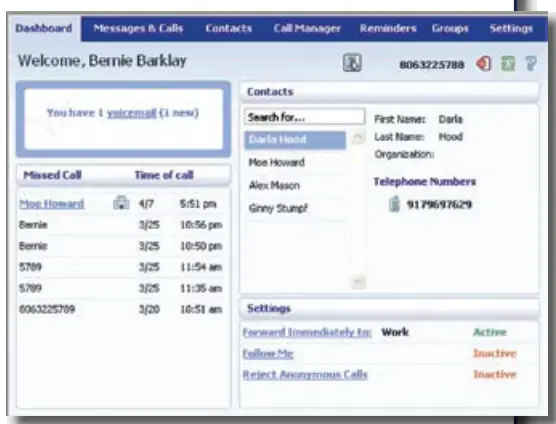
Dashboard Page
The dashboard displays new voice messages, recent received and missed calls, contacts, and settings you have applied to your phone.
Messages & Calls
- The Messages tab displays new and saved voice messages. Play, delete, or market as heard/unheard.
- Missed Calls, Dialed Calls, and Received Calls show you all your recent called activity.
Call Manager
- The Summary tab of Call Manager provides a description of what will happen to your incoming calls.
- The other tabs allow you to change the settings of your call coverage, including Call Forwarding, Do Not Disturb, and FindMe/FollowMe.
Change Password
- Go to Settings page
- Enter your new password in Password box
- Re-enter your new password in the Confirm Password box
- Click Change Password
Configure Your Phone Keys
- Select the Settings page in CommPortal.
- Select the Phones tab.
- Click on the Configure Your Phone link.
| Common Access Codes | ||
| Park Call | *13 | |
| Retrieve Parked Call | *95 | |
| Do Not Disturb Activation | *78 | |
| Do Not Disturb Deactivation | *79 | |
| Automatic Recall | *69 | |
| Group Call Pickup | *11 | |
| Voicemail | *98 | |