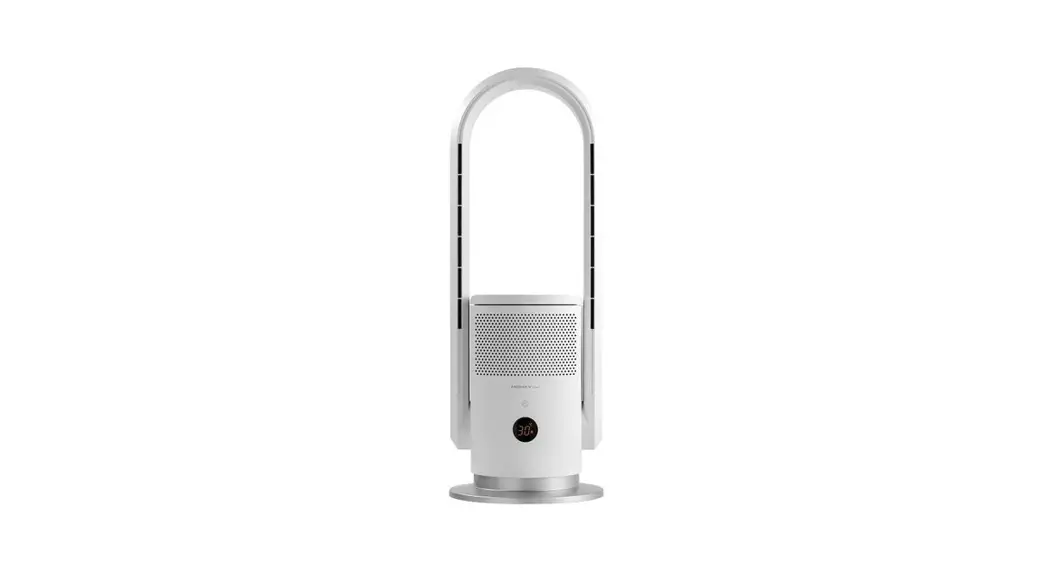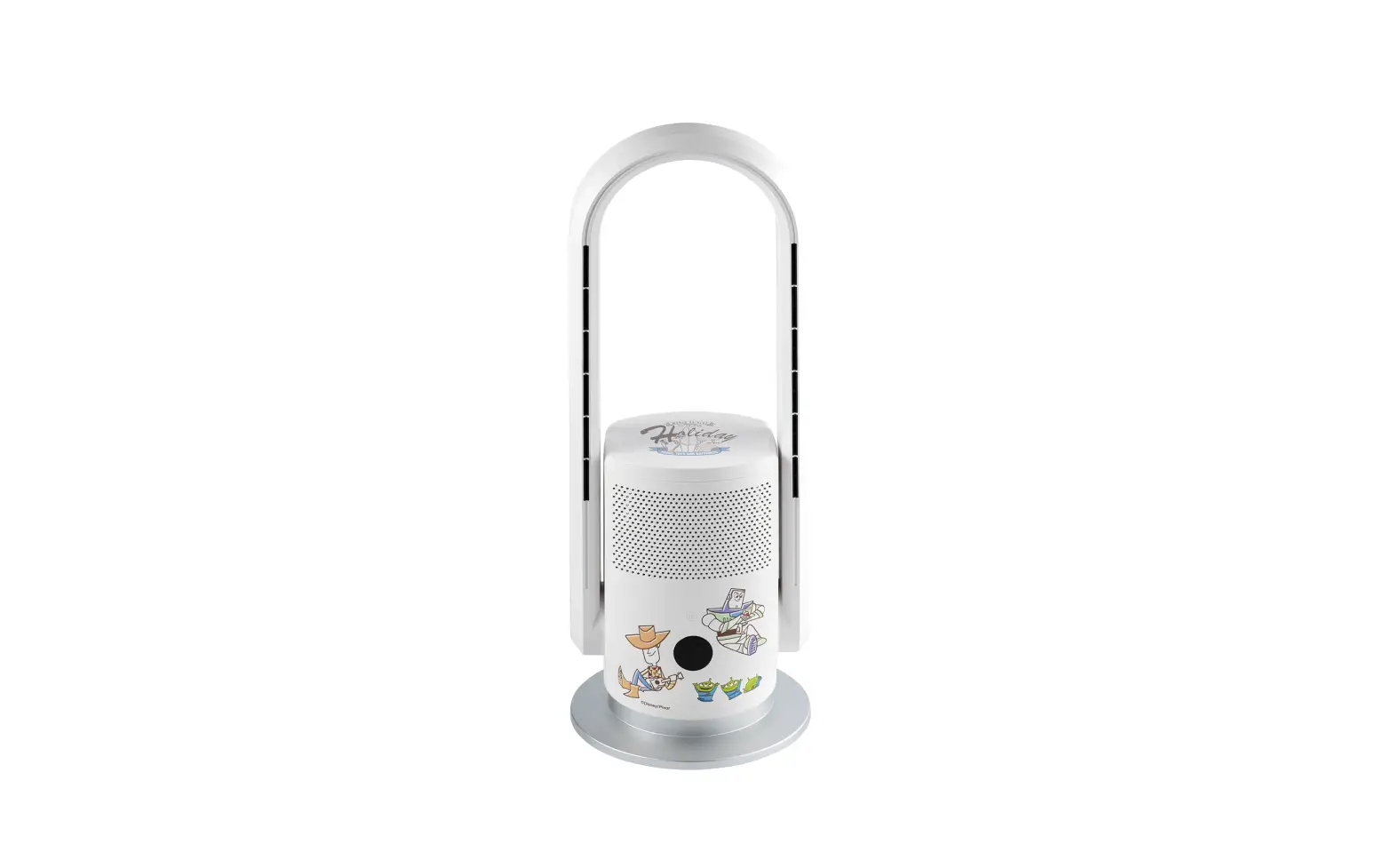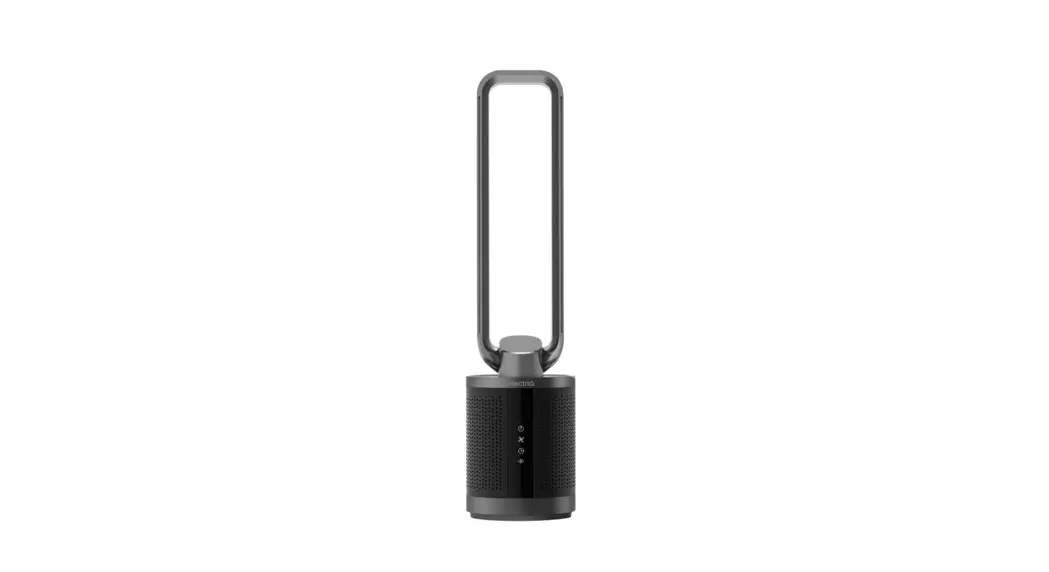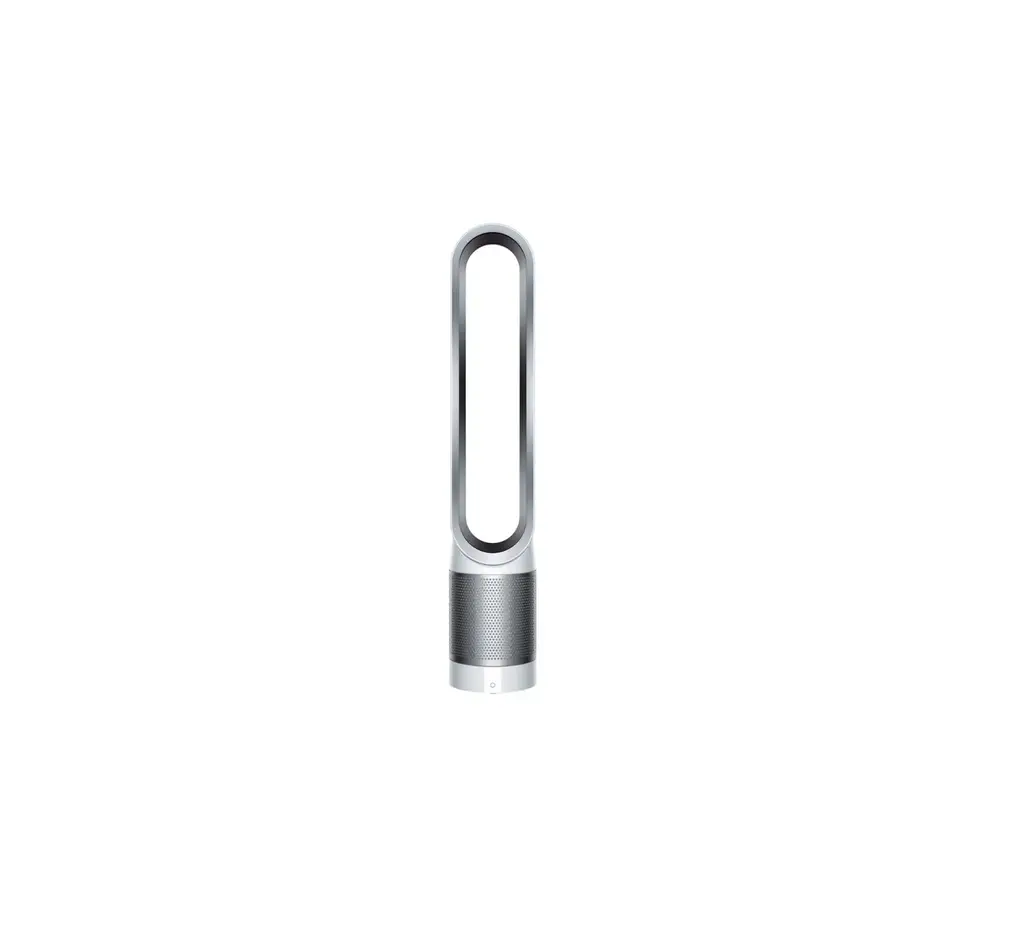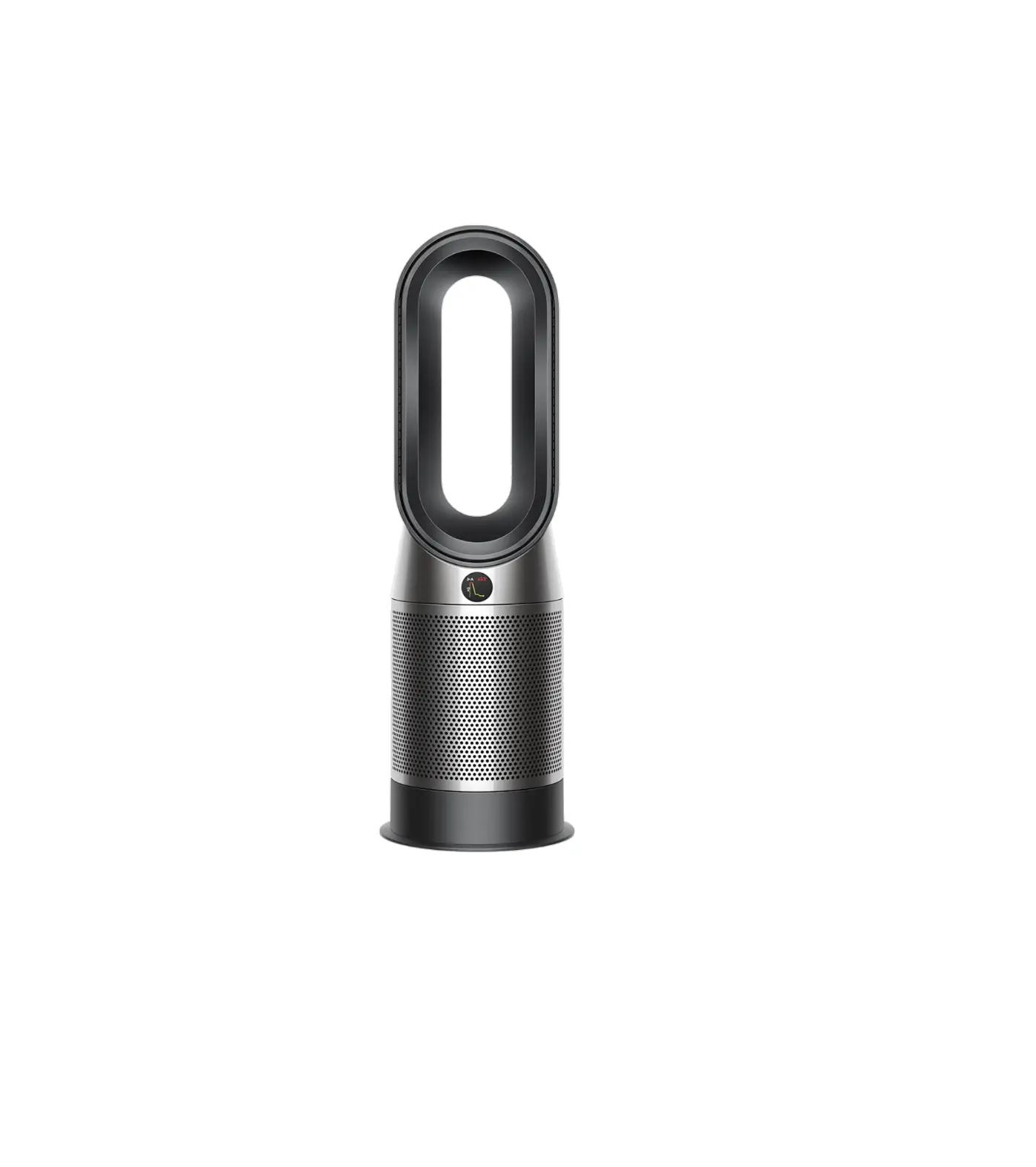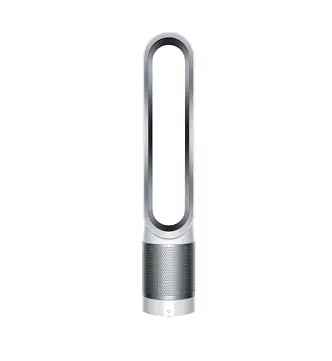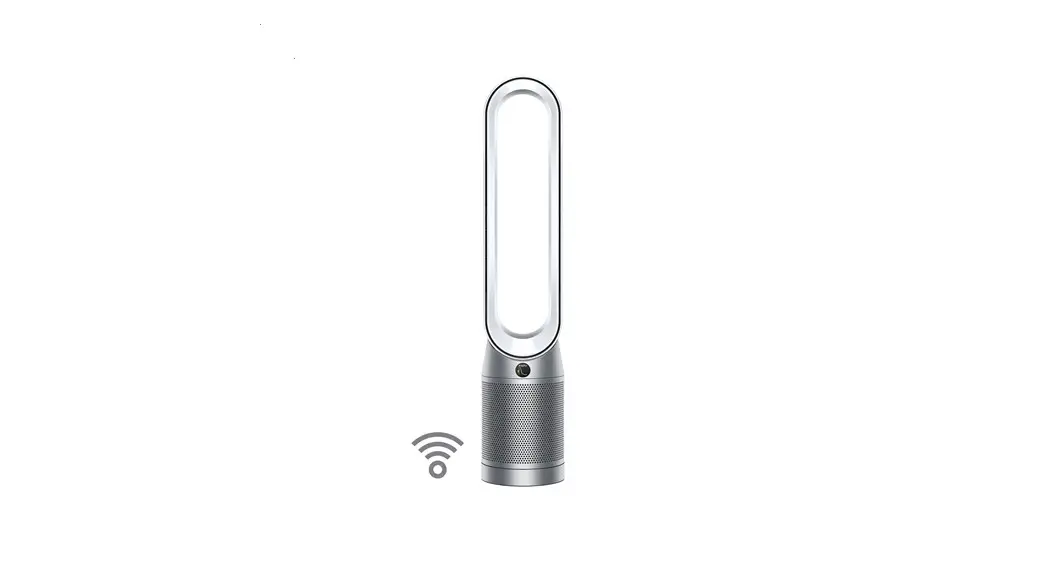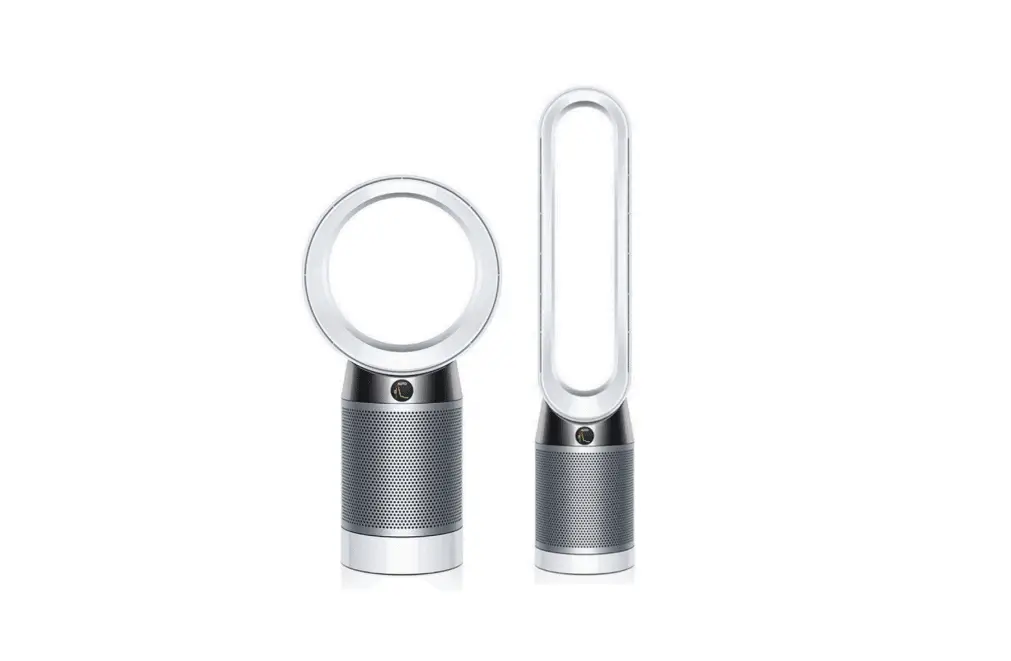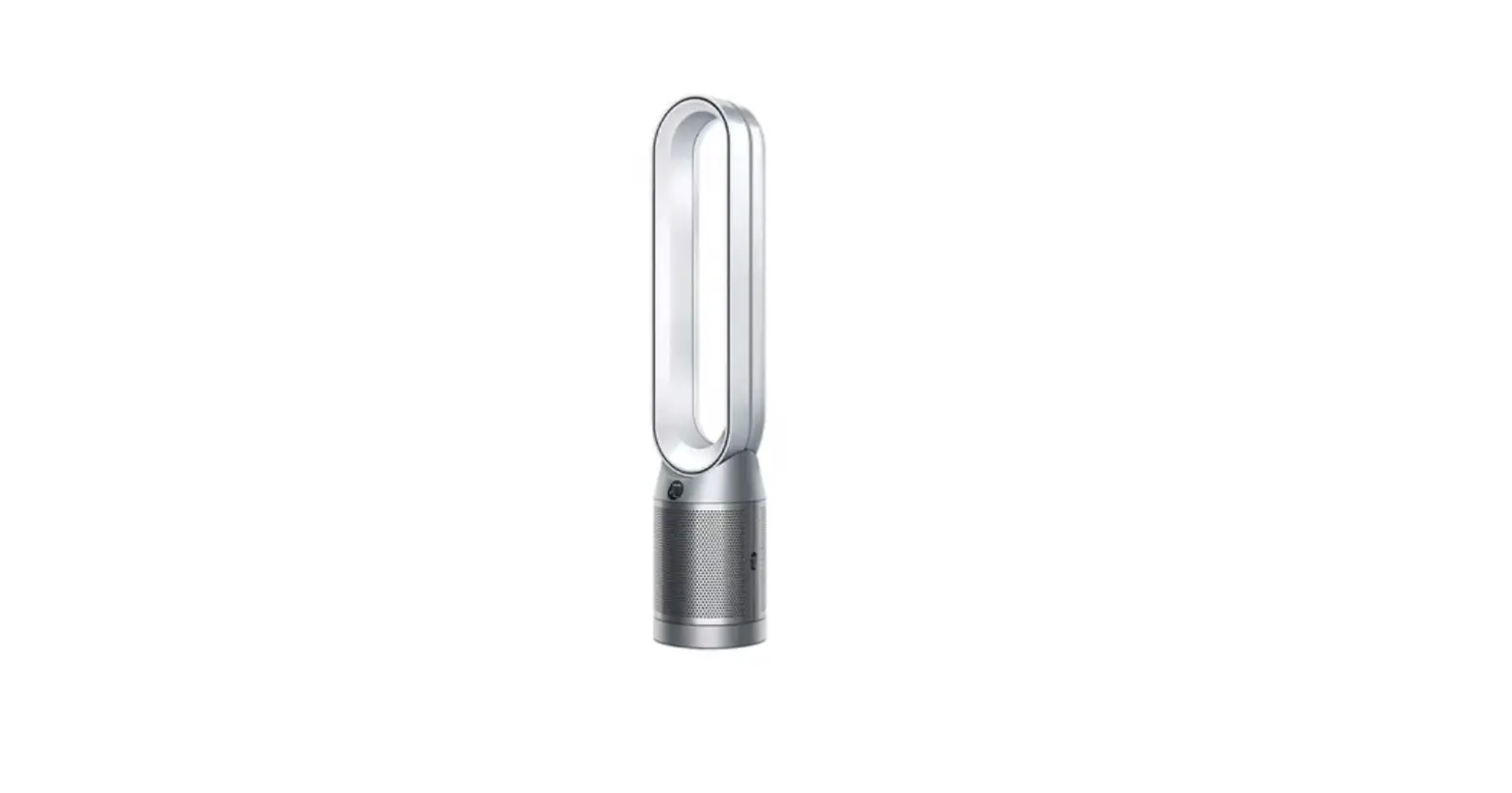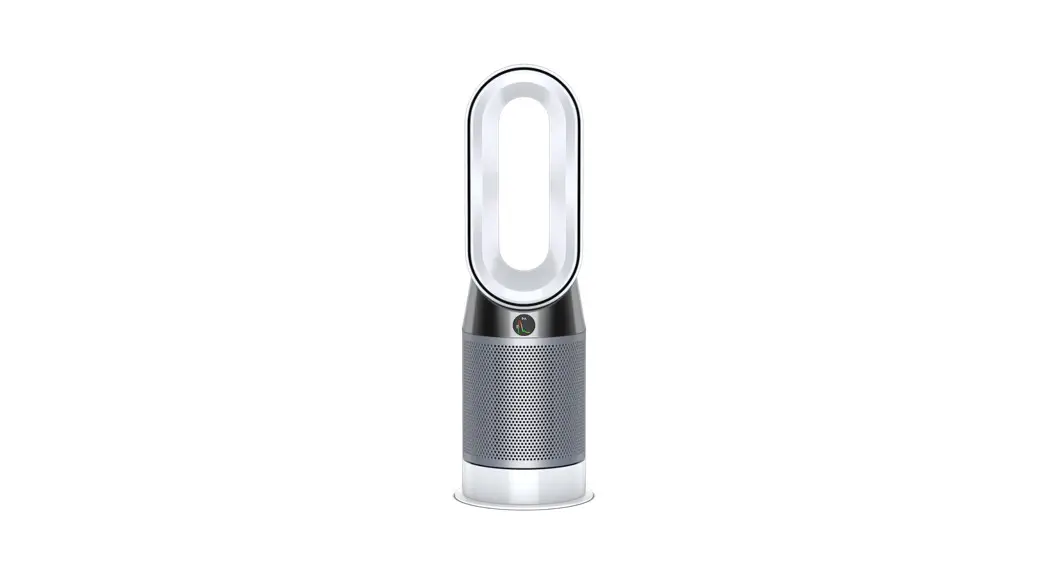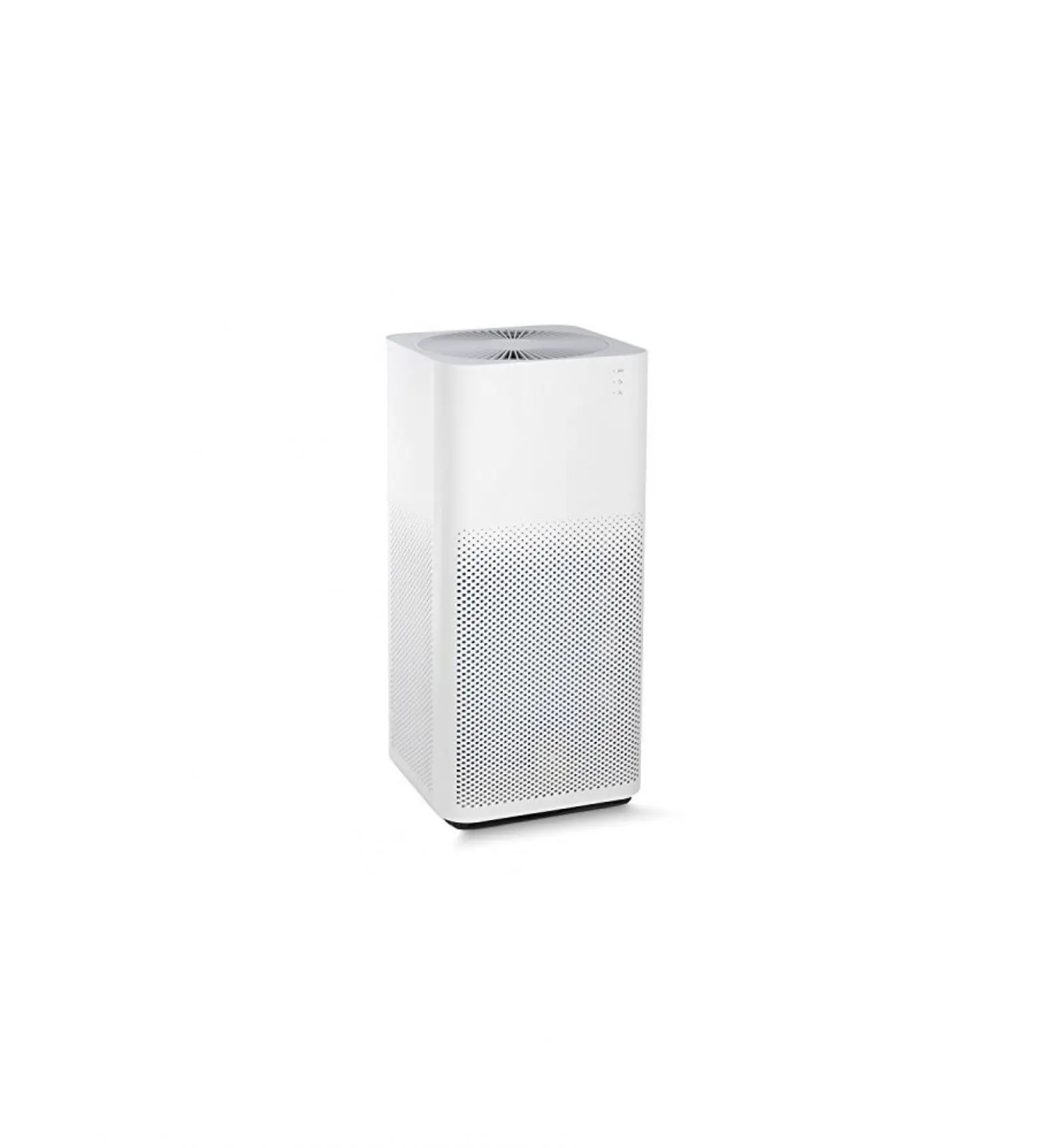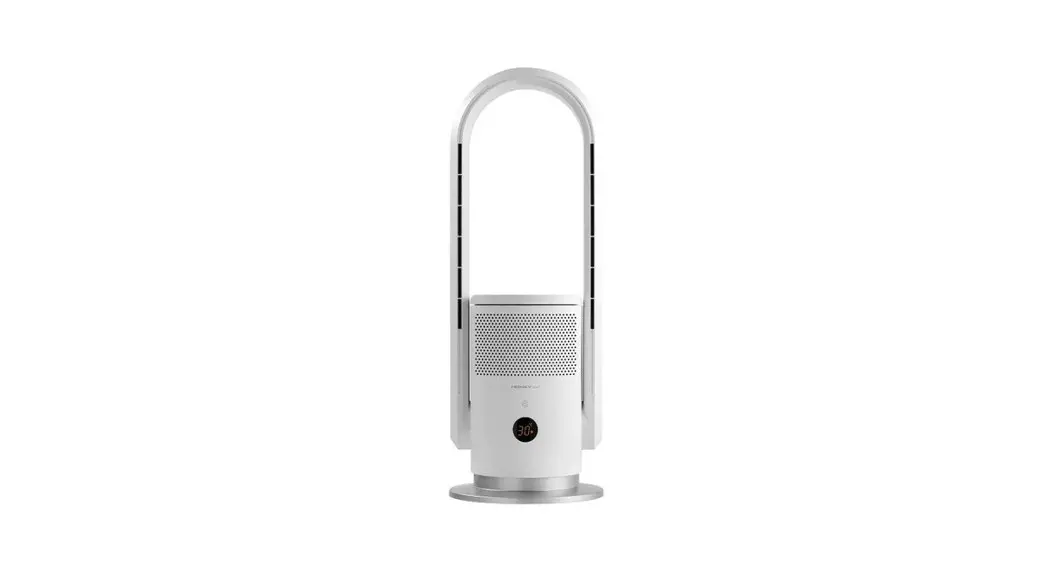

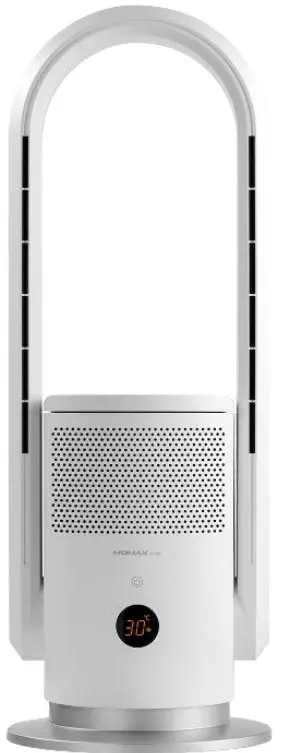
Momax UItra-Air Plus IoT
UV Hot & Cool Purifying Fan
(Model: AP7S)
HKBN Home User Guide
 v.20201221
 HONG L KONG
BROADBAND NETWORK
Product Description
This user guide is to introduce the usage of the HKBN Home App for this product with smart action examples only. For the following details, please refer to the instruction in the package:
- Product Overview;
- Introductions of LED screen and Modes;
- Instructions of Remote Control;
- Warnings;
- Maintenance and Filter Replacement etc.
Download HKBN Home App
Search and download the “HKBN Home” APP in Apple App Store OR Google Play Store
OR
Scan the QR code below
 https://www.hkbn.net/personal/RedirectTo/MobileApp/smarthomeplus
Add Device
- You must first connect your phone to a 2.4GHz Wi-Fi network when adding a device.
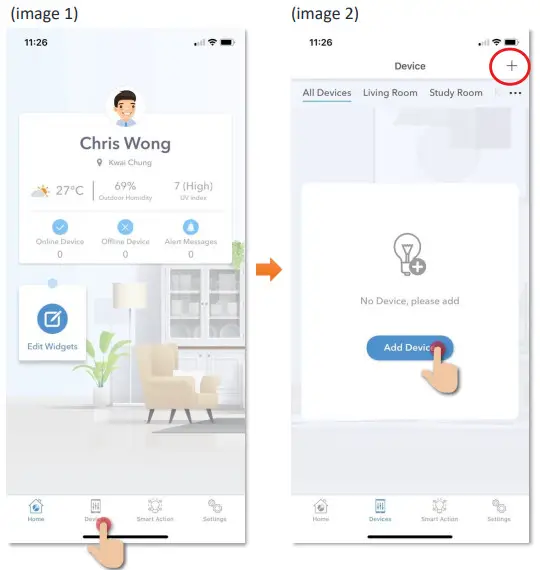
- Tap “Devices” on the bottom menu. (image 1)
- Tap the “Add Device” button OR the “+” icon at the top right corner if you already have paired device. (image 2)

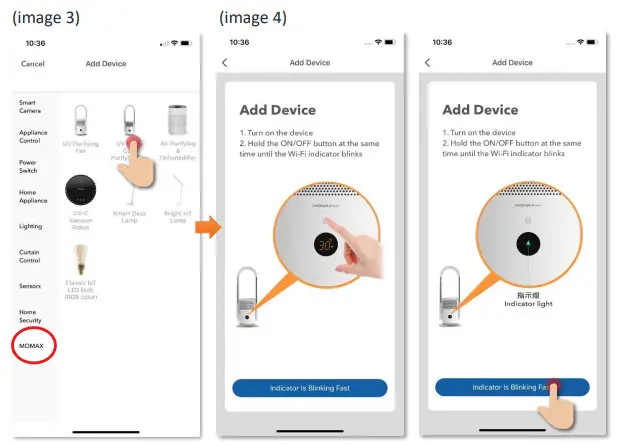
- Tap “Ultra-Air IoT UV Hot & Cool Purifying Fan” from the left menu “MOMAX”. (image 3)
- Connect the power, hold the ON/OFF button until the Wi-Fi indicator blinks. (image 4)

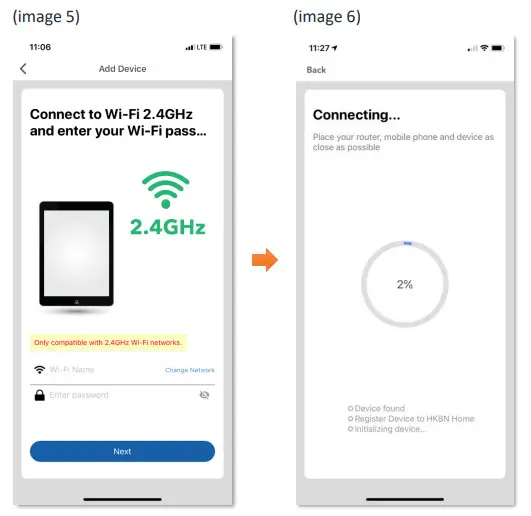
- Select 2.4GHz Wi-Fi network and enter a password* and then tap “Next”. (image 5)
- Please wait a moment while your device is in the pairing process. (image 6)
*Important tips: Wi-Fi requirement
• Currently, all smart devices are compatible with the 2.4GHz network only. Please make sure that your device and mobile are connected with 2.4GHz but not a 5GHz Wi-Fi network.
• If you have a 5GHz network and by using the same network name (SSID) as the 2.4GHz network, please temporarily turn off the 5GHz network first before adding the device.
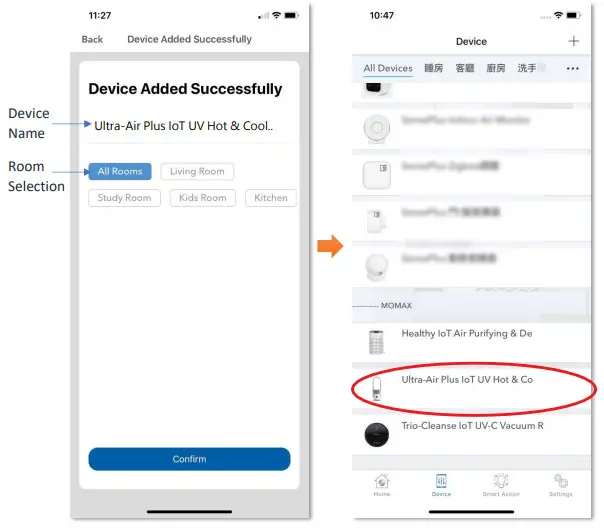
- After the device is added successfully, you can change the device name and assign it to the located room. (You can also change the device name and room location later on the device setting page and room management page.) And you can find the Momax Ultra Air IoT Hot & Cool Purifying Fan in the “Device” page.

Control Device
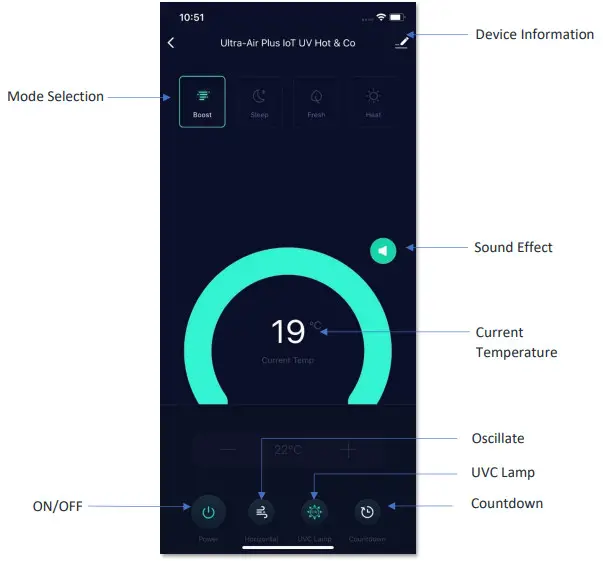
Main Control Panel
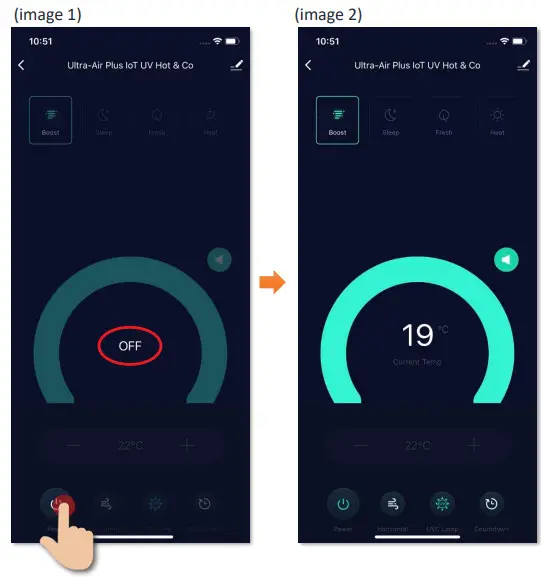
Switch On/Off
You can press the “Switch” key to turn on/off your device remotely. It will show an “OFF” notice on the screen after you switched off the device. (image 1)
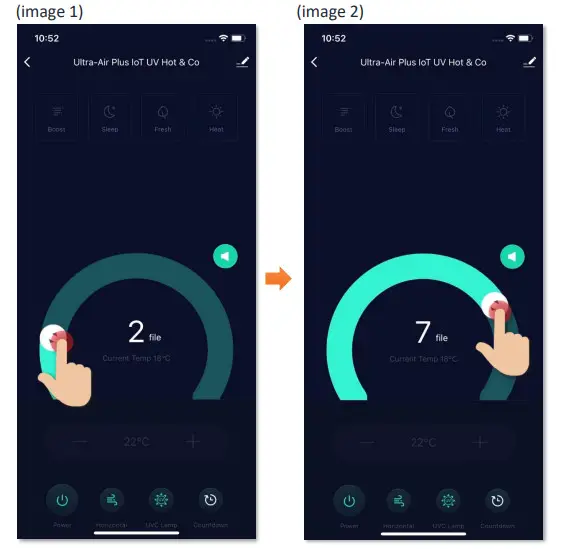
Adjust Wind Speed
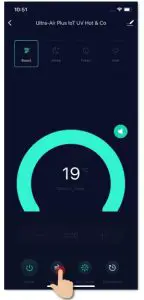
Oscillation
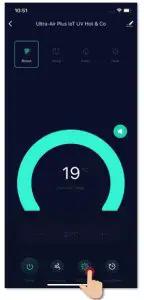
UV-C Light
Control Device
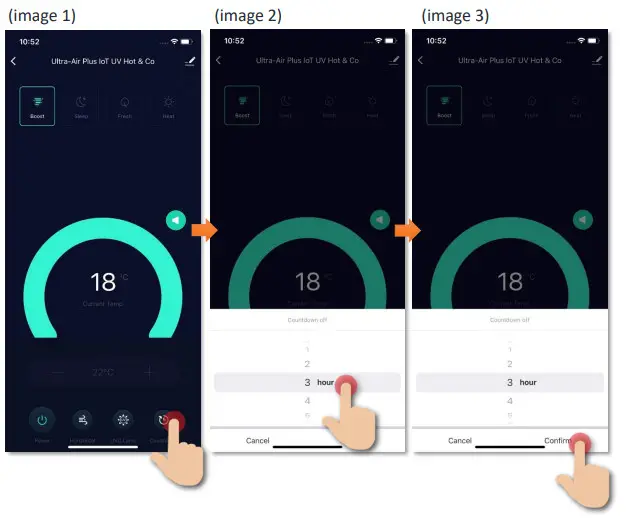
Auto-off timer function
You can set the auto-off timer to turn off the device automatically (from 1 – 8 hours):
- Tap ”Countdown” (image 1);
- Select hours (image 2);
- Tap “Confirm” (image 3).
Mode Selections
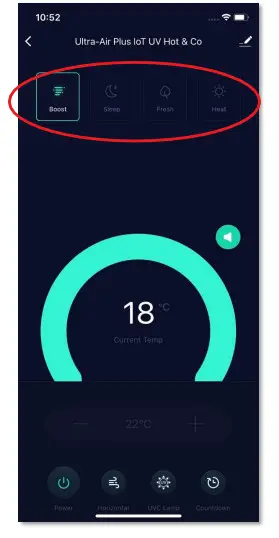
Four shortcut modes are available:
“Boost” mode: Fan speed = 9
“Sleep” mode: Fan speed = 1
“Fresh” mode: Fan speed 3/4/5, and each run for 10 secs.
“Heat” mode: Turn on heater mode.
Heater Mode
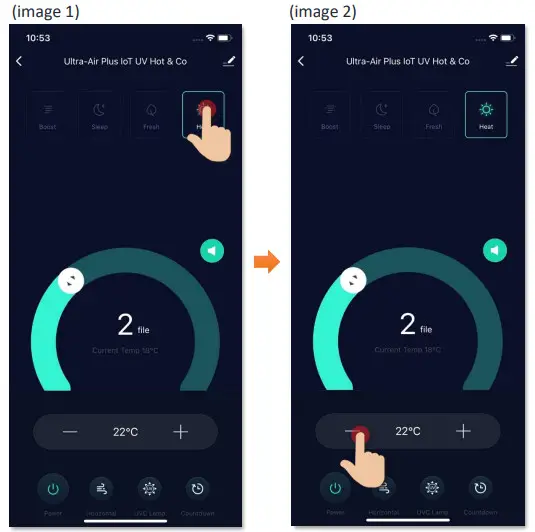
Press “Heat” to turn on heater mode (ranging from 1-30 ℃):
– when the environment temperature reaches the heater settingtemperature, the heater will stop running to avoid excessive drying of the environment and long-term activation of the heater. – When the environment temperature is lower than the adjusted heater temperature, the heater will resume to ensure a warm environment. It can maintain the warmness in the room and achieve energy saving.
Scene (Smart Action)
The integration of different smart devices is the beauty of smart home living which provides convenience and many possibilities of creating your preferred control settings. By setting SCENE, you can execute different smart devices at the same time by only one single tap. You can tailor make your unique scene such as movie time scene, elcome/back home scene, reading scene etc.
User Voice Command to Turn On/Off Fan
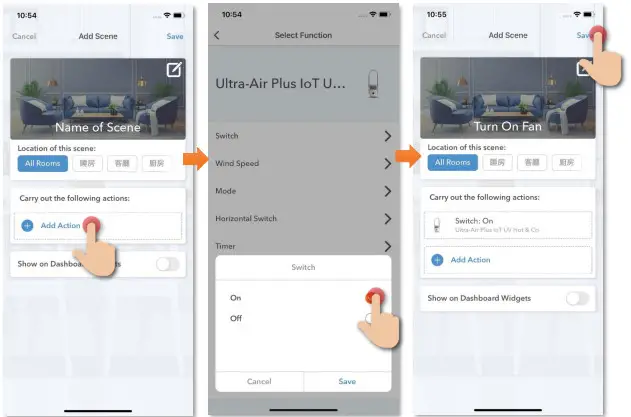
Instructions below explain how to create a Scene:
- In “Smart Action” under the page of “Scene”, tap “+” to add a new Scene, and then tap “Add Action”
- Select the related device and tap “Switch”, and then select “On”. (If turn off the device then select “Off”)
- Tap to enable “Show on Dashboard Widgets”, tap “Save” on the top right corner to complete
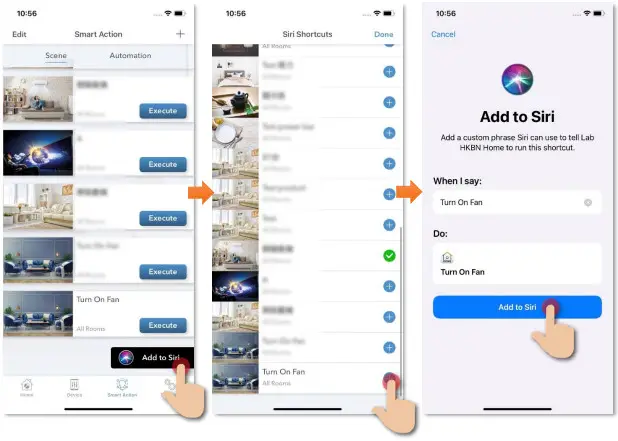
How to add Siri Command into Scene:
- On the page of “Scene”, tap “Add to Siri”
- In Siri Shortcuts, select the scene you would like to add Voice command
- Input the voice command you want and then tap “Add to Siri” to complete
Automation (Smart Action)
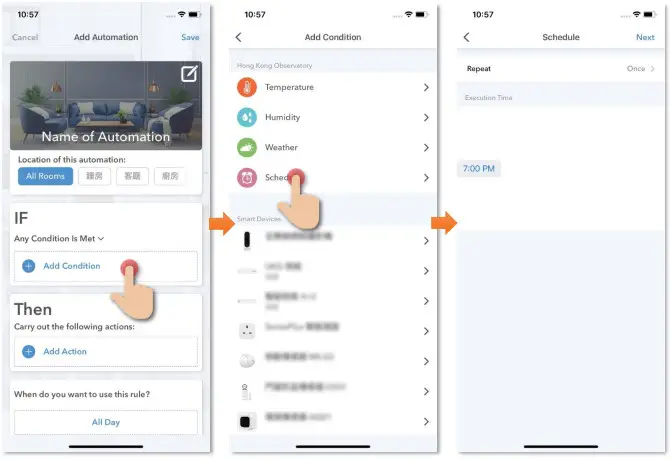
AUTOMATION can carry out device actions automatically by pre-conditions like environment factors or smart device status. You can hand over this complex and important daily works to HKBN Home for convenient and simple living. Automation included the setting of Temperature, Humidity, Weather, and Schedule as conditions to trigger different control in smart devices. Below is the automation example of Fan and Air-Conditioner (Require Infrared Remote Control):
7:00 pm turn on Heater mode
Instructions below explain how to create an Automation:
- In “Smart Action” under the page of “Automation”, tap “+” to add new automation, and then tap “Add Condition”
- Tap “Schedule”
- Set the time at 7:00 pm

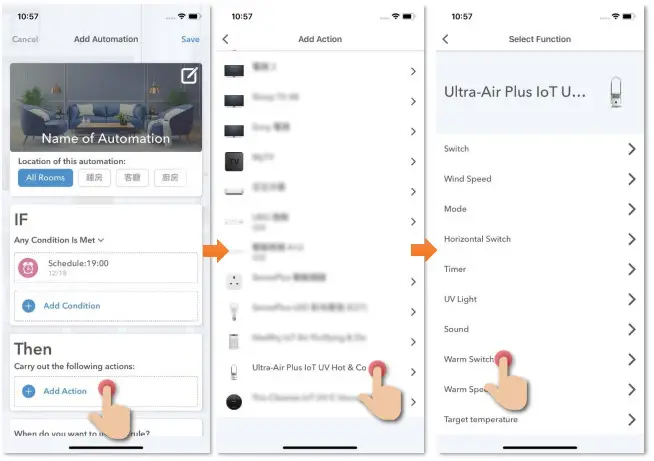
- Tap “Add Action”
- Select the related device
- Select “Warm Switch” and select “On”

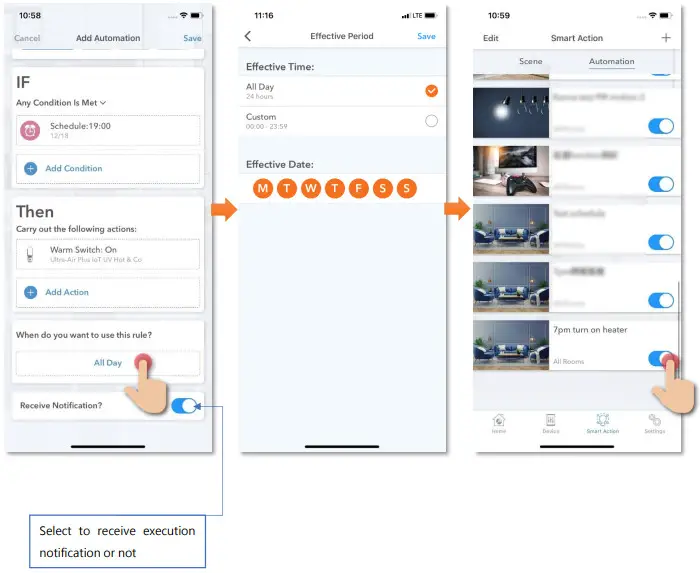
- Tap “All Day” and then set the effective automation time
- Select “All Day” to enable 24 hours or customize the effective period. (If the time is out of the effective period, the automation will not be triggered even if met the condition
- Save to complete. On the page of automation, you can enable or disable automation

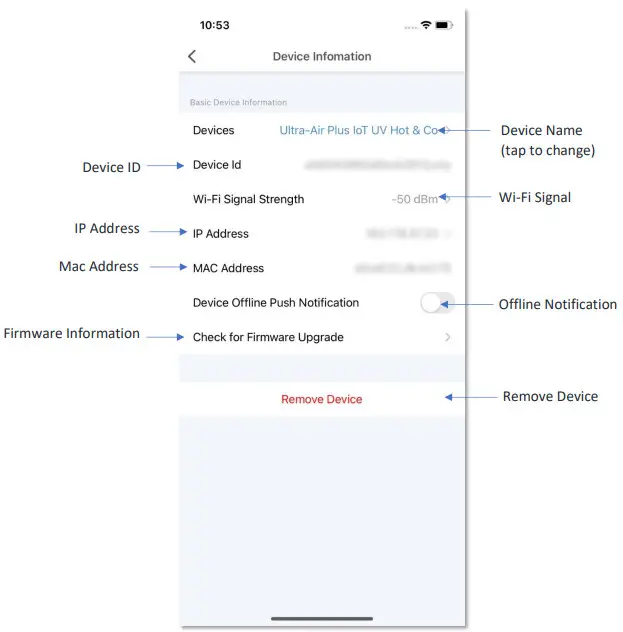
Device Information
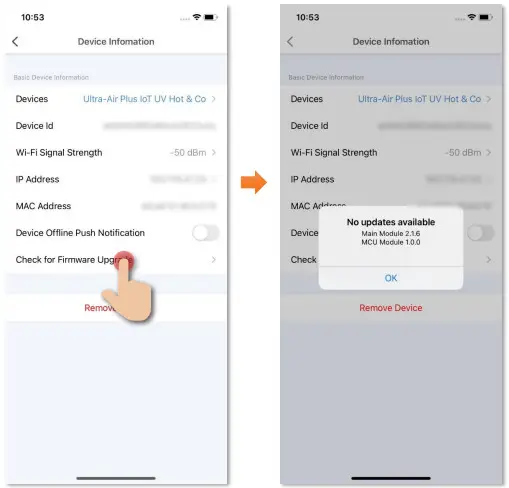
Check for Firmware Upgrade
Tap “Check for Firmware Upgrade”, you can see the current firmware version and available upgrade version if any. Tap “Upgrade” to start the firmware upgrade.
Remove Device
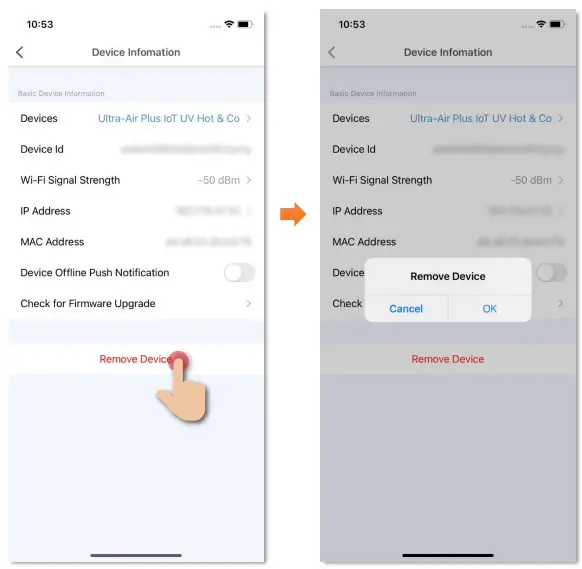
- On the device settings page, tap “Remove Device”.
- Tap “OK” to confirm and remove the device from your account.
Product Specifications
- Model No.: AP7S
- Operating Voltage /Frequency: 200-240V ~ 50-60Hz
- Rated Voltage / Frequency: 220V±10% ~ 50-60Hz
- Rated Voltage: 2000W
- Heater Voltage: 2000W
- Cool Fan Voltage: 35W
- Filter Type: H13 HEPA
- UV-C Lifecycle: 10000 hours
- Horizontal Oscillation: 80° ± 5°
- Vertical Manual Adjustment: 30°
- Auto-off Timer: 1 – 8 hours
- Battery: Button cell lithium battery CR2025 (1pc)
- Wireless Wi-Fi Frequency: 2.402GHz – 2.480GHz
- Wireless Wi-Fi Distance: 10m
- Cord Length: 1.8m
- Size: 255 x 255 x 700mm
- Weight: 4.6kg
Product Maintenance and Warranty
For the inquiry of product maintenance and warranty, please contact the product distributor/ manufacturer below:
MOMAX Customer Service Centre
- Service Center: Unit A, 4/F, Cheung Lung Industrial Building, 10 Cheung Yee Street, Lai Chi Kok, Kowloon, Hong Kong
- Tel.: (852) 2402 3186
- E-mail: [email protected]
- Opening Hours: (Monday – Friday) 9:00 a.m. to 6:00 p.m., Closed on Saturday, Sunday, and Public Holidays.
Should you have any query, please call our Customer Service Hotline at 128 100.
 📧
📧