 Melody
DAB/DAB+/FM Portable Radio
User Guide 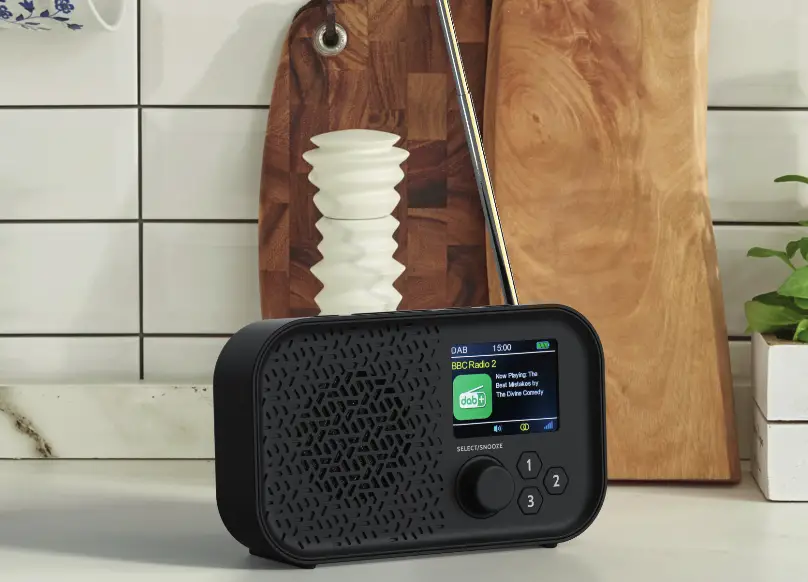
Introduction
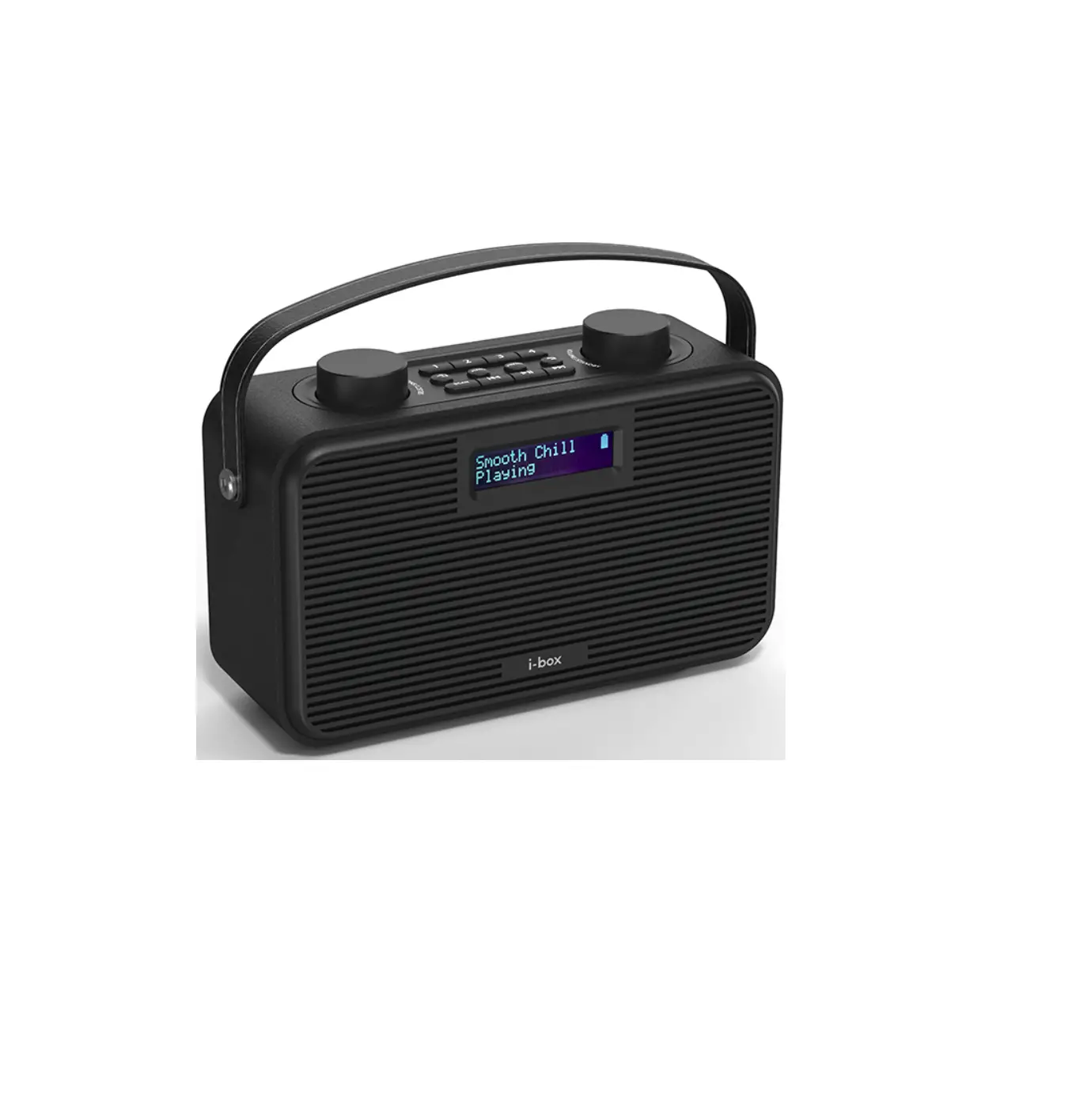
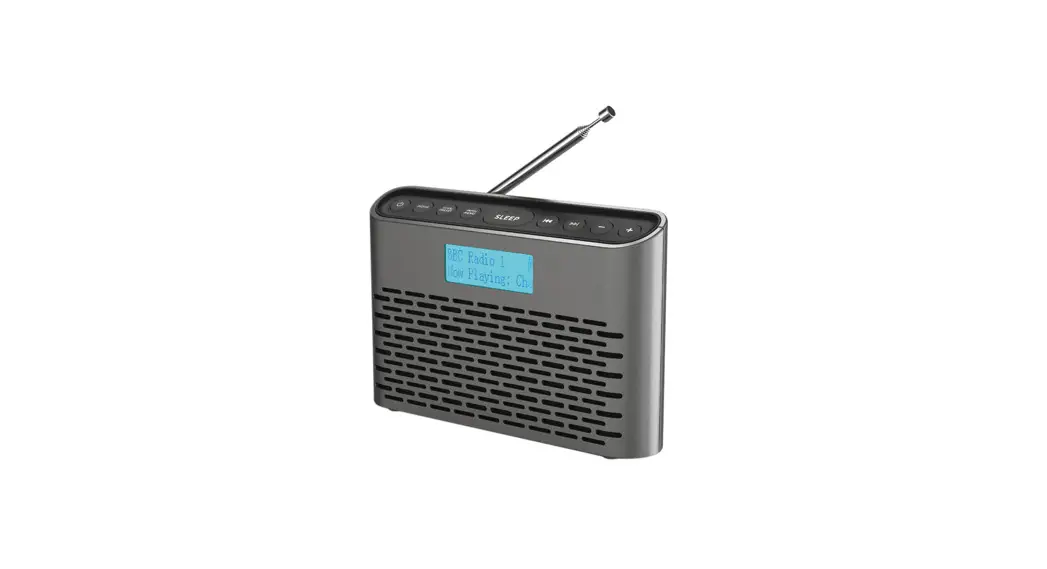
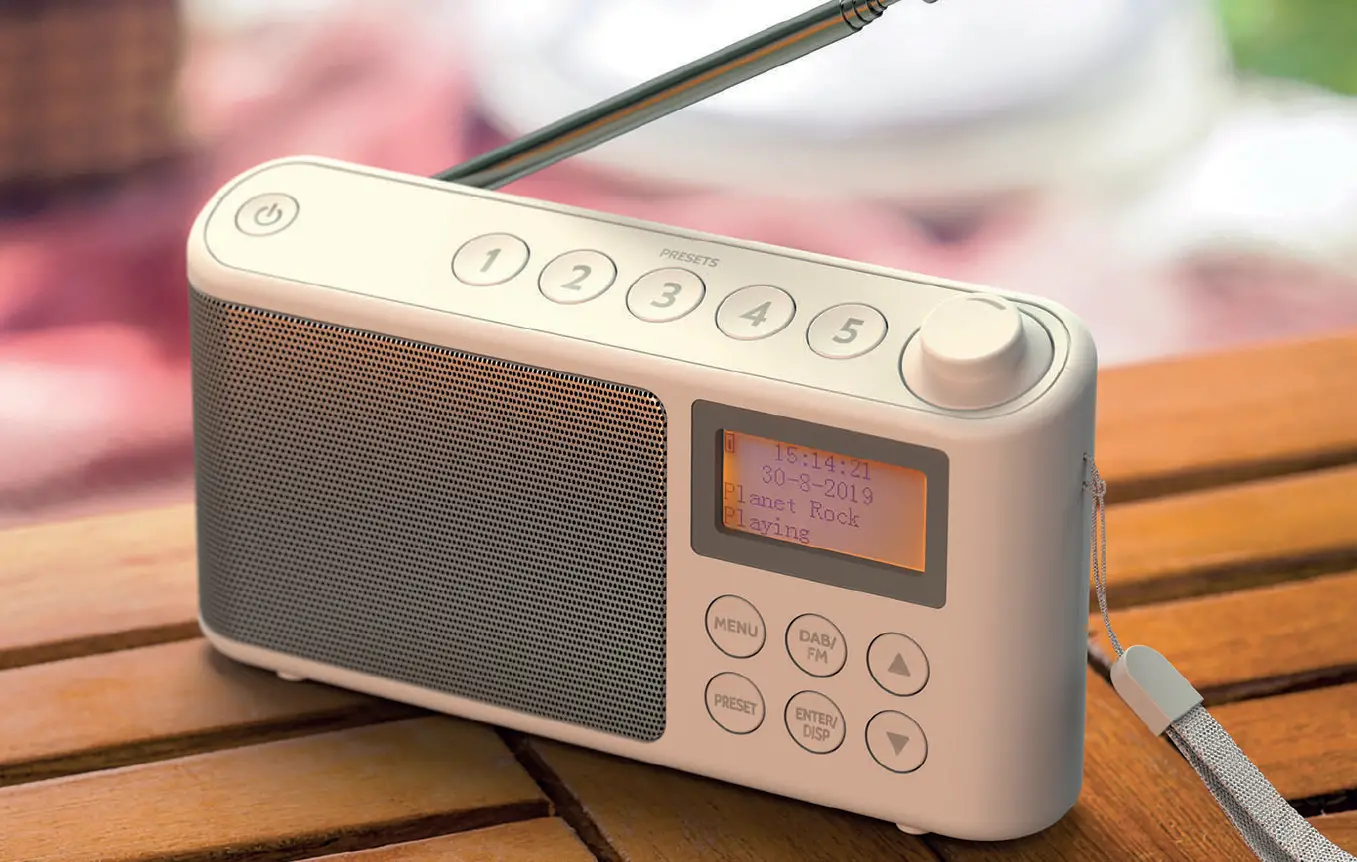
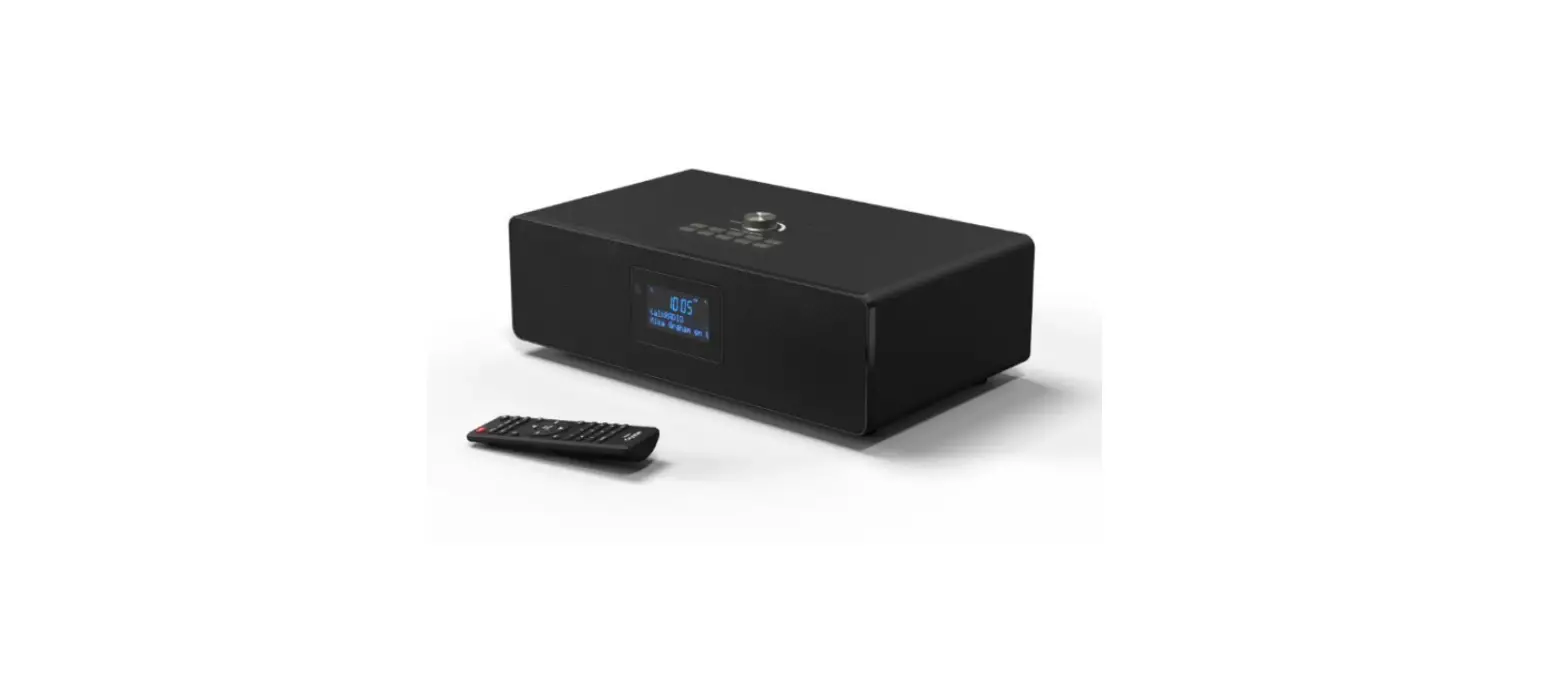
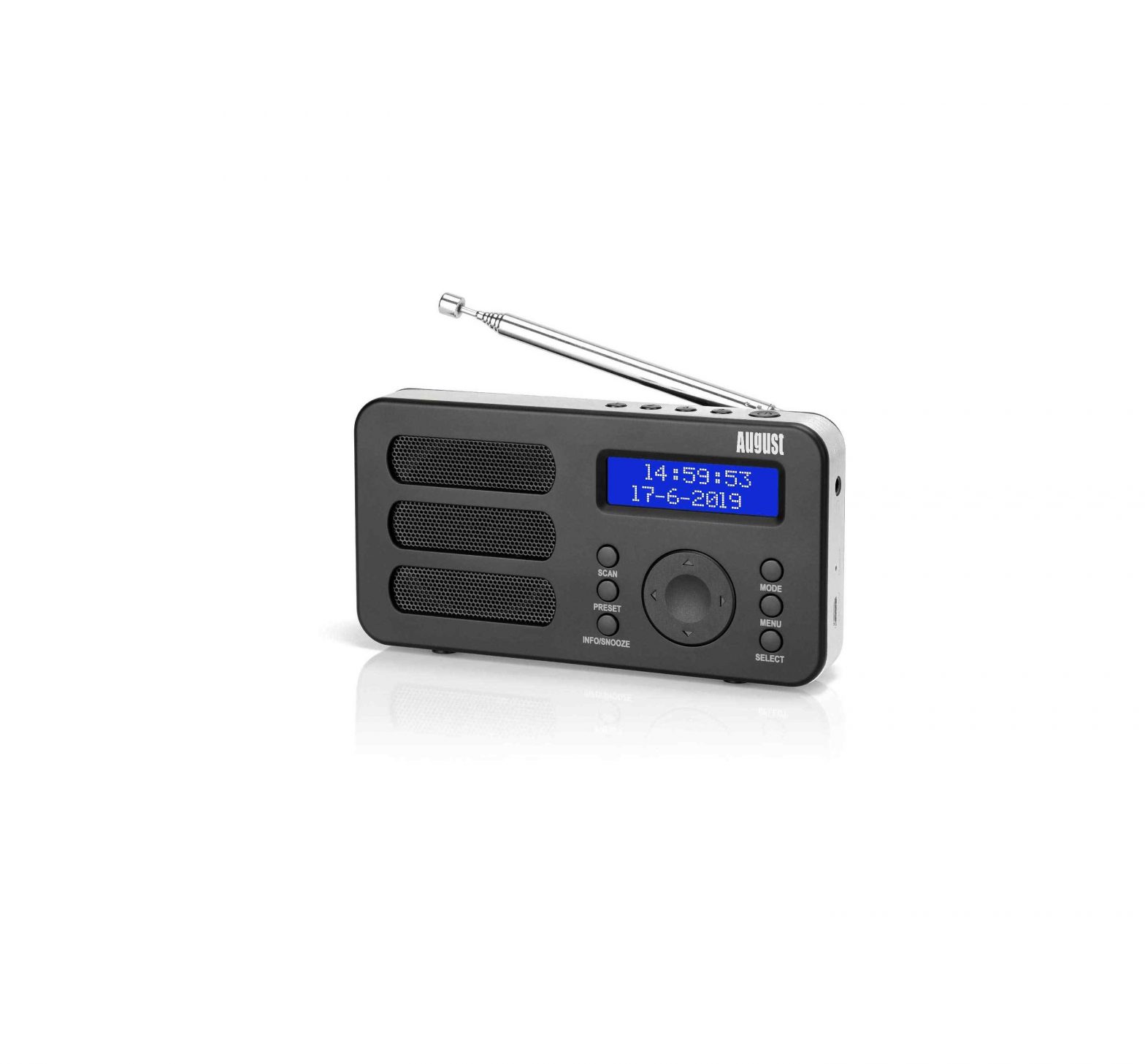
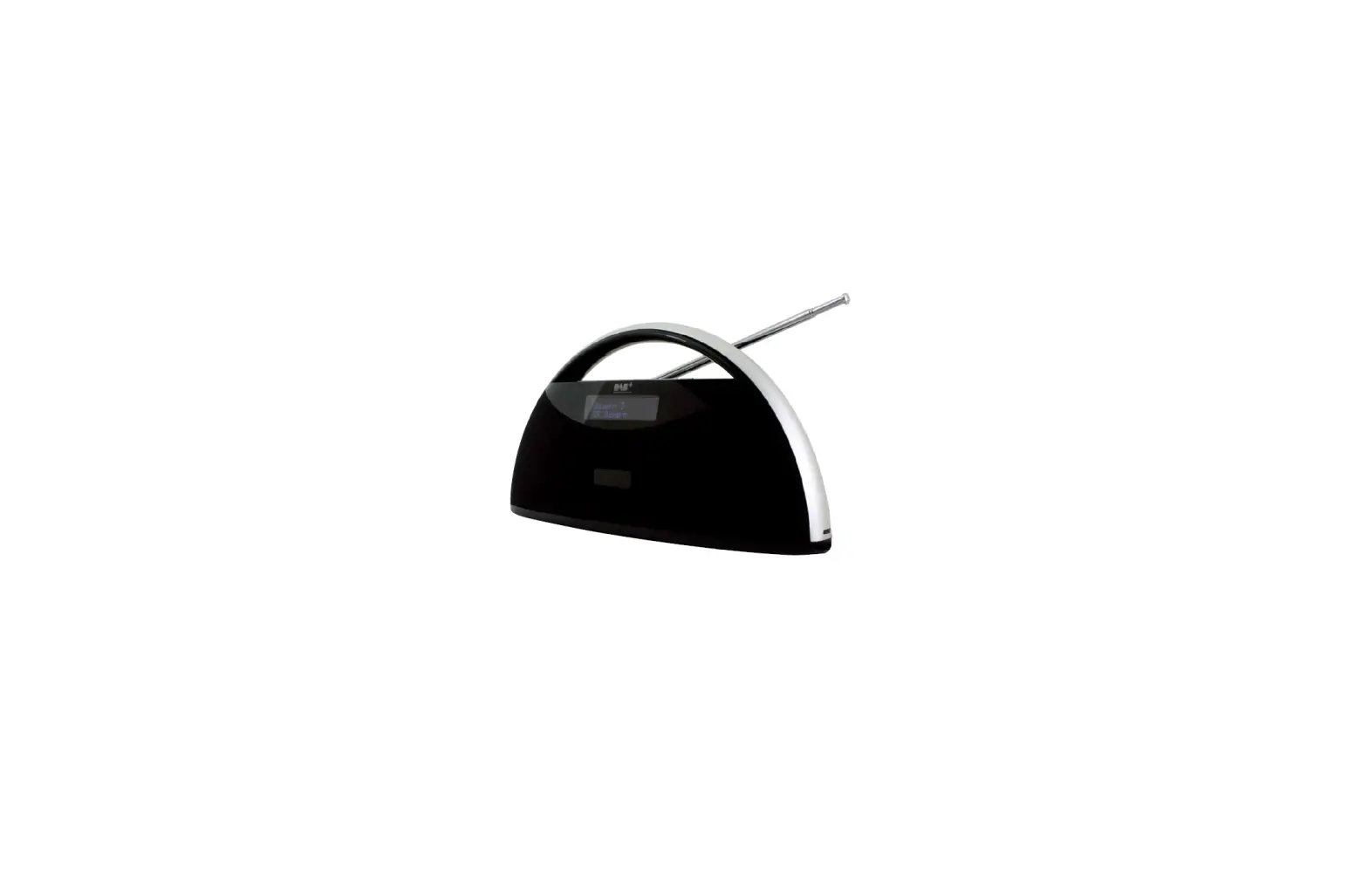
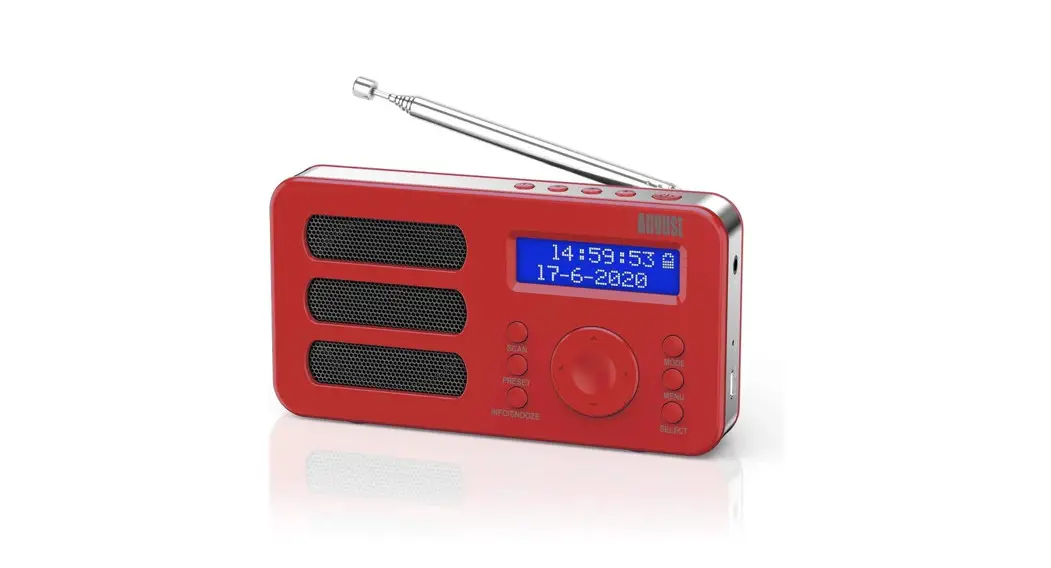
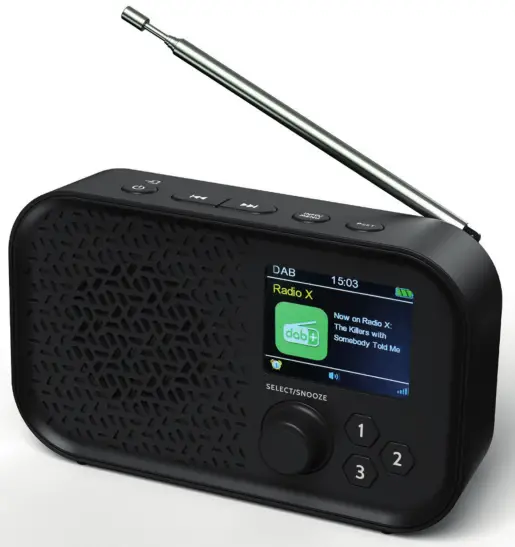
The i-box Melody compact portable radio receives a wide range of DAB/DAB+ and FM stations. Up to 30 DAB and 30 FM stations can be stored as presets and 3 of each can be played instantly by pressing the Preset keys.
A large full-color TFT display makes tuning and setting the dual alarms easy and also displays any program information available. The built-in lithium rechargeable battery makes the Melody perfect for use anywhere indoors or out and supports up to 8 hours of independent playback at 60% volume.
 Caring for your Melody Radio
Important – Please read these instructions fully before installing or operating your radio.
Do not expose to dripping or splashing fluids. Objects filled with liquids, such as vases, must not be placed close to the radio.
Keep away from flame sources such as lighted candles.
The unit should not be exposed to direct sunlight, very high or low temperatures, moisture, vibrations, strong magnetic fields, high frequencies, and dusty environments.
Never attempt to insert wires, pins, or such objects into the vents or openings of the unit.
Do not disassemble or modify the radio, there are no user-serviceable parts.
If the radio is damaged in any way or malfunctions do not use it. Consult a qualified service engineer.
Do not use abrasives or other solvents to clean the surface of the unit. To clean, wipe with a clean soft cloth and a mild detergent solution.
Do not dispose of this product with household waste at the end of its life cycle; hand it over to a collection center for the recycling of electrical and electronic appliances with
batteries. Please check with your Local Authority for recycling advice.

Box Content
Melody DAB Radio
Micro USB Charging Cable
User Guide
Controls & Features
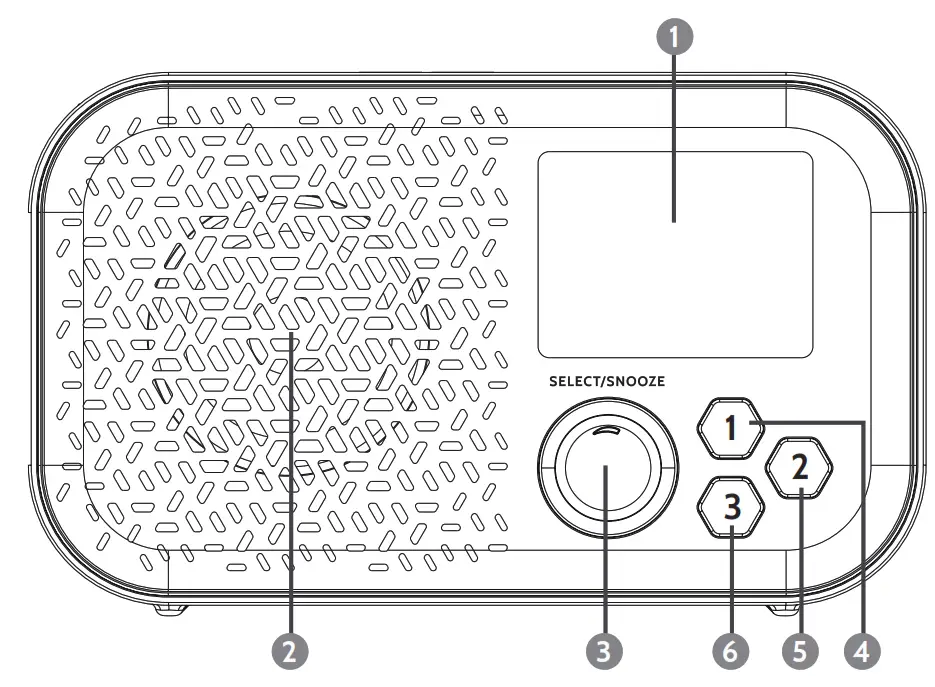
Front Panel
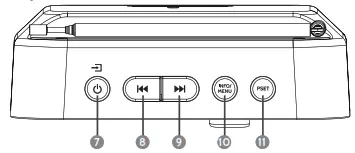
 Top Panel
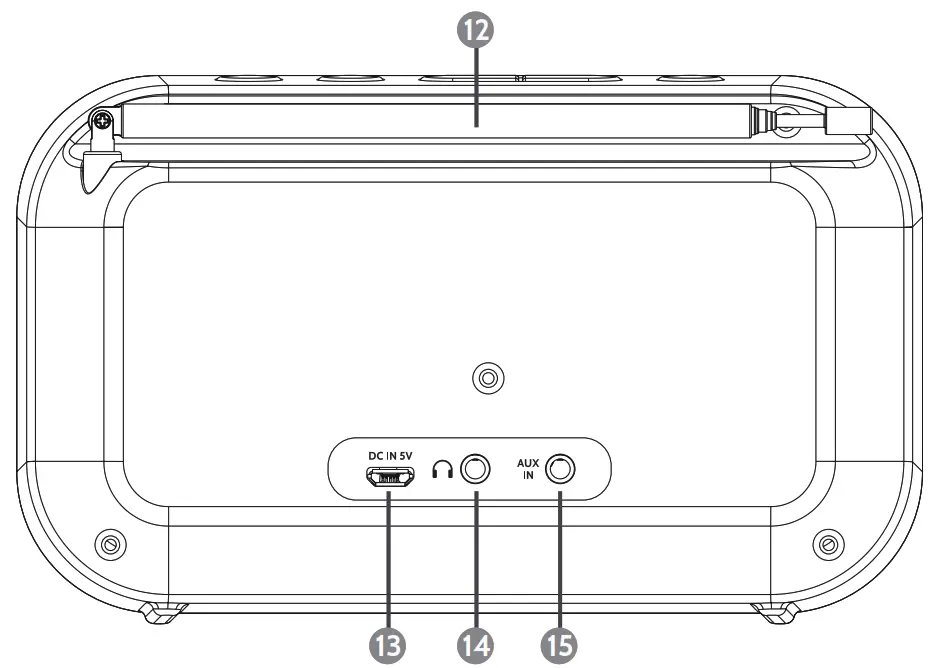
Back Panel
 | 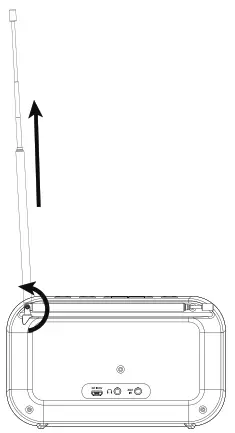 |
Please make sure the aerial is fully extended for optimum reception when listening to radio stations.
Controls and Features
| 1. LCD Display 2. Speaker 3. Select / Snooze / Volume 4. Preset 1 5. Preset 2 6. Preset 3 7. Standby key / Mode Select | 8. Previous / Tune – 9. Next / Tune + 10. Info / Menu 11. Preset Key 12. Telescopic Antenna 13. Power Supply Input 14. Headphone Port 15. Aux In Port |
Powering and Charging
To power the radio or charge the built-in battery; connect a Micro-USB cable to a 5V1A supply.
 Getting started
When the Melody is first powered it will automatically search for DAB radio stations, create a “Station list” and set the time and date. To ensure a comprehensive list of available stations extends the aerial fully before powering up your Melody for the first time.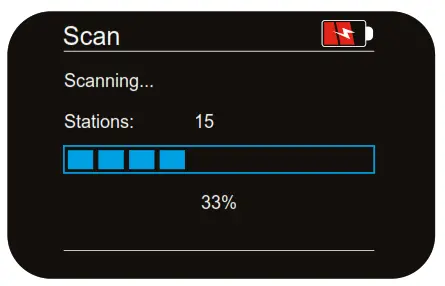 Setting the clock automatically
In standby mode press the Standby key 7 once to enter DAB mode, your Melody will autoscan for DAB stations and the time and date will be set automatically.
Make sure the aerial is fully extended for best results.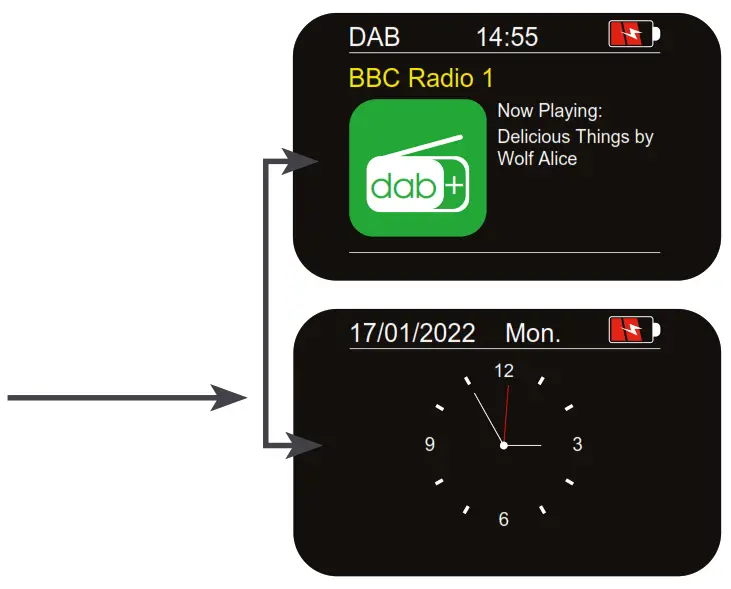 Standby / ON/OFF
Press the Standby key 7 to switch on your Melody in the mode last used. Press the Standby key 7 again to return to Standby.
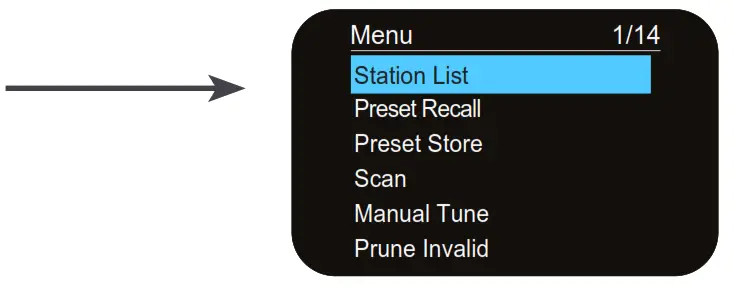
Navigating menus and sub-menus Long press MENU 10 then 8 / 9 to scroll through the menu/sub-menu options. Press the Select key 3 to select an option or enter a sub-menu.
 To change the operating language
The default operating language is English, to change it enter the System menu and scroll to <Language>.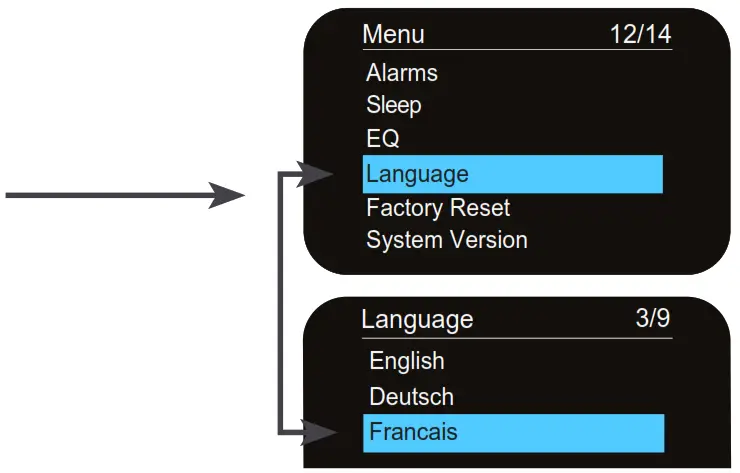 Selecting the mode
Press the MODE Select key 7 repeatedly to switch between modes.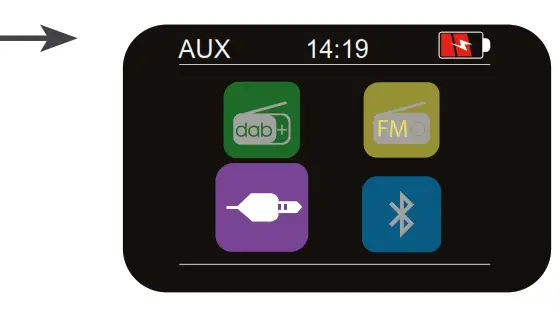 DAB Radio mode
1.1 DAB Full scan:
Long Press MENU 10 then use the previous/next keys 8 / 9 to select Scan. Short press the Select key 3 to full scan for available radio stations.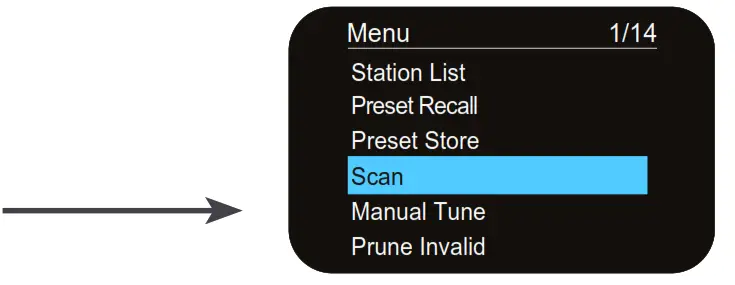 1.2. DAB Station list:
The LCD displays the long name of the station playing
and program information. Use the previous/next keys 8 / 9 to scroll through the list of stations found during the scanning, the short name will be shown. Press Select 3 to listen to the station shown.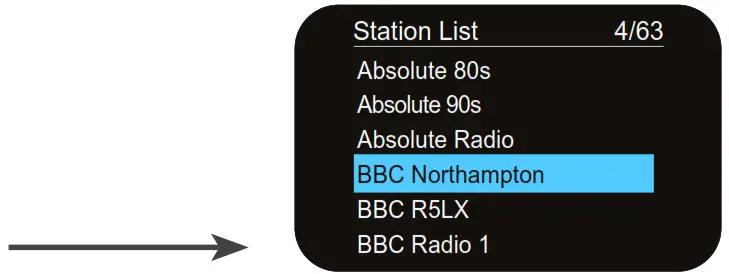 1.3 DAB Radio saving presets:
You can now save the station playing to one of the 30 DAB presets. Long press the PRESET key 11 and use the previous or next key 8 / 9 to scroll to an empty preset position, press select 3 to store. 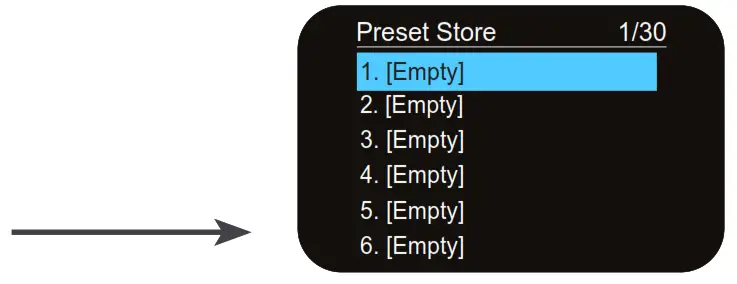 1.4 DAB Radio playing presets:
Short press the PRESET key 11 and use the previous or next key 8 / 9 to scroll through preset positions, press select 3 to play.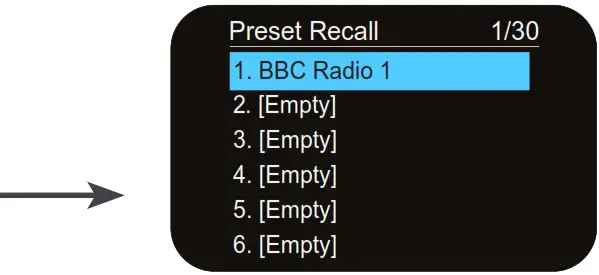
1.5 DAB Manual tune menu option:
If you know the frequency of a station you can search for it using this option. Press MENU 10 then press next 9 then SELECT key 3 to enter <Manual tune>. Use 8 / 9 keys to scroll through DAB frequencies for the one you want. Press the SELECT key 3 to play.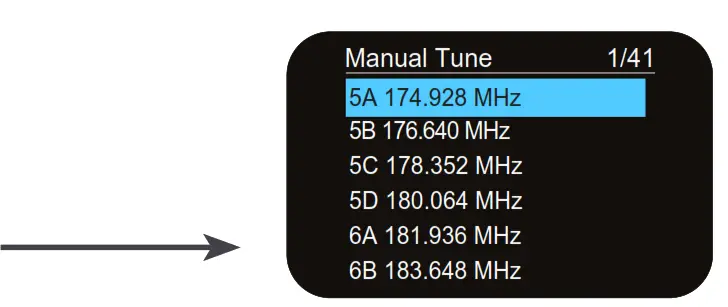 1.6 Prune:
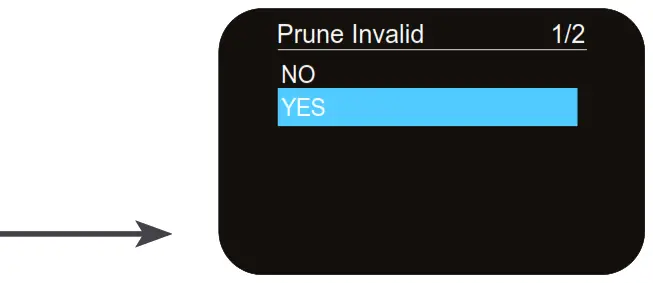
Setting Prune to <Yes> clears stations with no signal reception from the DAB “Station list”.
 FM Radio Mode:
 FM Radio Mode:
2.1 Auto-Tune: In FM
Mode long-press the 8 / 9 keys to tune to the next available radio frequency.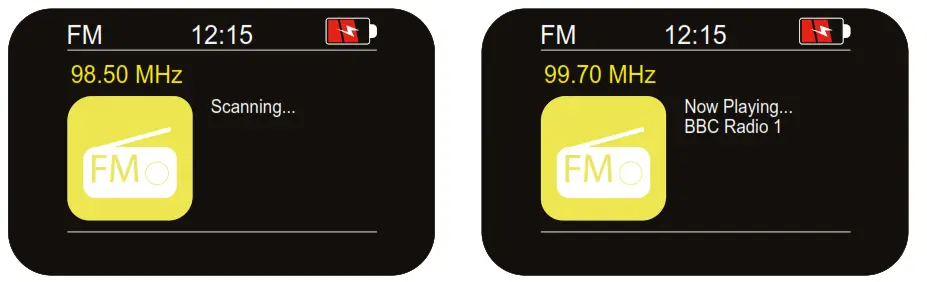
2.2 Scan setting:
Press MENU 10 then 8 / 9 keys to enter the Scan setting menu, choose <All stations> or <Strong stations only> then long press SCAN 3.
Note: If you have a strong signal you may want to choose “strong stations only” to limit the number of stations found and make sure they have a clear signal.
Stations found will be saved to the preset positions up to 30 if this many are found.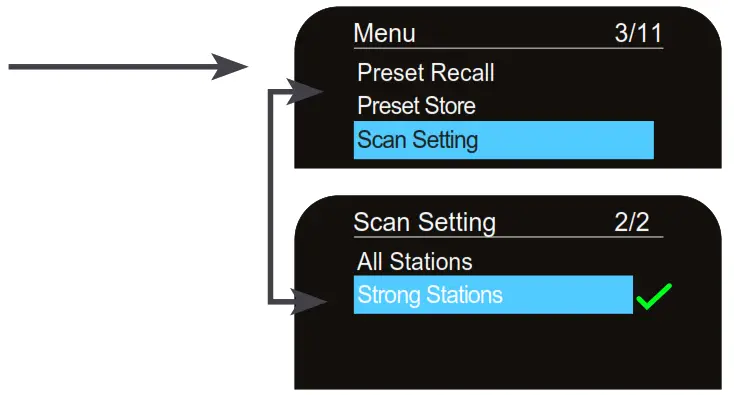 2.3 FM Manual tune:
Short press previous or next key 8 / 9 to fine-tune to the next frequency.
Save the station found to Preset if you want to keep it.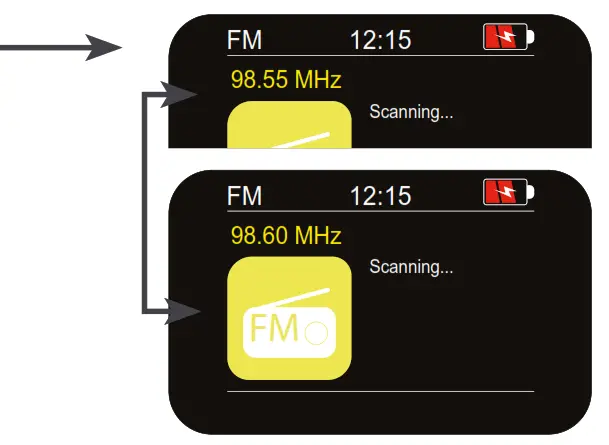
2.4 Saving FM Radio presets:
See 1.3 DAB Radio saving presets.
2.5 Playing FM Radio presets:
See 1.4 DAB Radio playing presets.
AUX In
To use your Melody as a speaker for another device, connect that device (e.g. mobile phone) to the Melody via an audio lead to the Melody’s 3.5mm AUX socket.
Then use the mode key 7 to select AUX as the input.
Adjust the volume on the source device before adjusting on the Melody for optimal performance.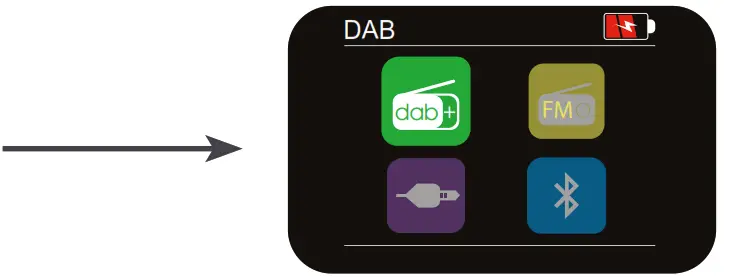
Headphone Mode
Connect compatible headphones to the 3.5mm headphone socket 14 on the back of your Melody.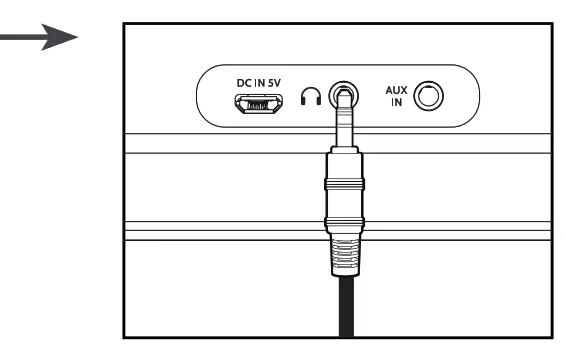
Bluetooth Mode
- Use the MODE key 6 to select Bluetooth an audio tone will sound to indicate the Melody is ready to connect, make sure your device is in Bluetooth mode.
The Melody will search for the last connected device. - If the last connected device is not available. The Melody will search for other devices and will appear in your device’s Bluetooth menu as “i-box Melody”.
- Select the Melody and a “Connected” message will appear in the display and you will hear a second audio tone when the connection is successful.

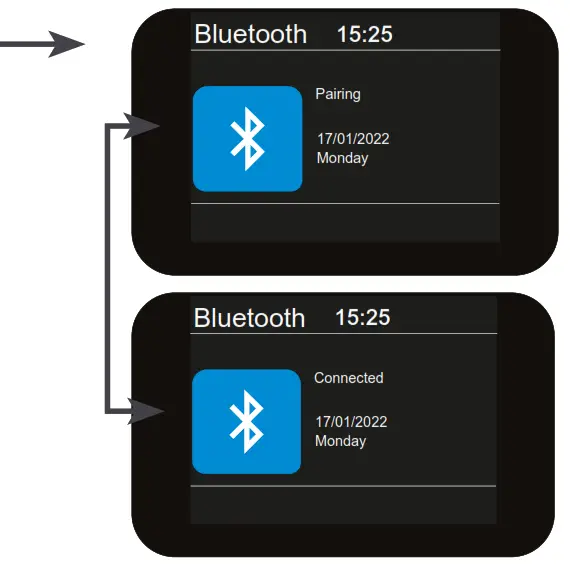
Play audio on your Bluetooth device.
Open the Bluetooth menu of your mobile device (phone) and select ‘i-box Melody’. Now select the ‘forget’ option and confirm.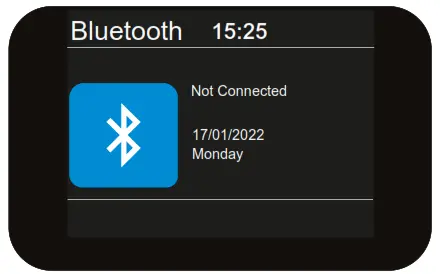
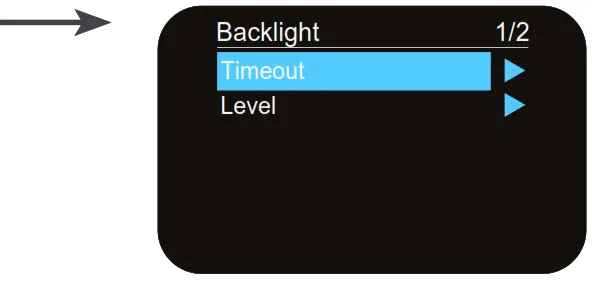
Options are <Backlight> <Time/Date> <Alarms> <Sleep> <EQ> <Language> <Factory Reset> <System Version>.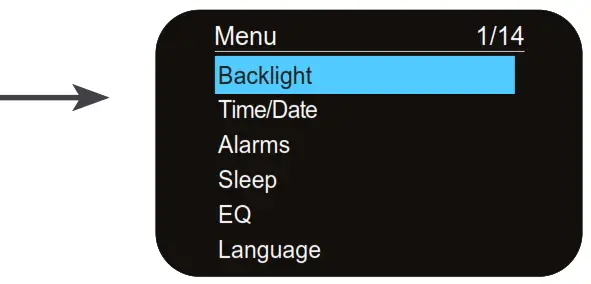 7.1 Backlight:
Controls are <Timeout> (duration) <Level> (brightness).
Timeout settings: <Always on> <10 sec><20 sec><30 sec><45 sec><60 sec><90 sec><120 sec><180 sec>
Brightness settings: <High><Medium><Low>
 7.2 Time/Date:
Controls are <Set Time/Date> <Set Hour System> <Set Date Format> <Clock Style> <Auto Update>
Set Time/Date: Manually set the Date/Time settings.
Set Hour System: Select 12 or 24-hour display format.
Set Date Format: Select from DD-MM-YYYY or MM-DD-YYYY Clock Style: Select from Analog or Digital Auto Update: Choose from No Update or Update from Radio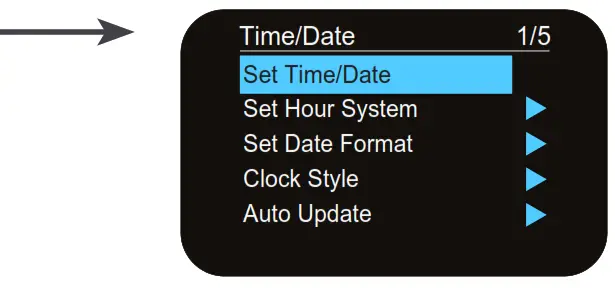 7.3 Alarms:
Set two independent alarms.
Alarm 1 or 2: Choose Alarm 1 or Alarm 2.
Time: Select the time the alarm will activate.
Source: Select from Buzzer, FM Radio, or DAB radio.
Repeat: Select from Once, Daily, Weekends, or Weekdays.
Volume: Select from 1-20.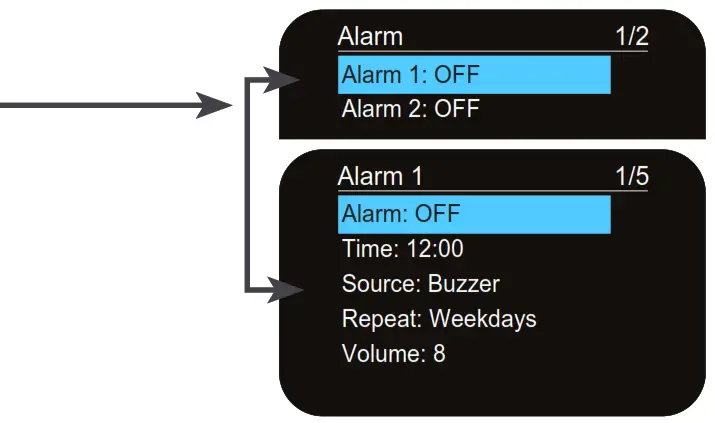
7.4 Sleep:
Allows you to set a period of time after which your Melody will switch off or enter standby automatically.
Options <Sleep off> <15 minutes> <30 minutes> <45 minutes> <60 minutes> <75 minutes> <90 minutes> <105 minutes> <2 hours> The Sleep period remaining is displayed at the bottom.
To cancel Sleep re-enter the menu and set it to Sleep off.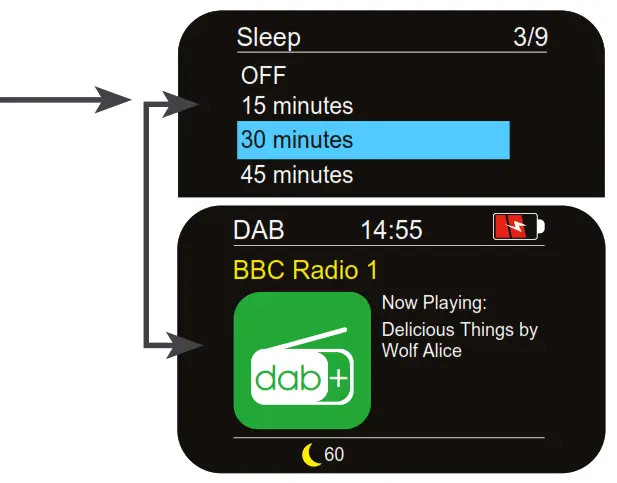 7.5 EQ Settings:
Select a suitable equalizer setting to enhance the sound of the type of audio output playing. Select from <Normal> <Classic> <Pop> <Jazz> <Rock> <Flat> <Movie> <News>. 7.6 Language:
See page 6.
7.7 Factory Reset:
Use this function to clear all settings, station lists, and presets.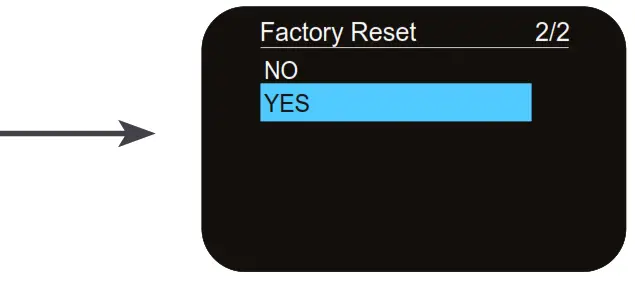 7.8 System Version:
See the software version installed on the radio.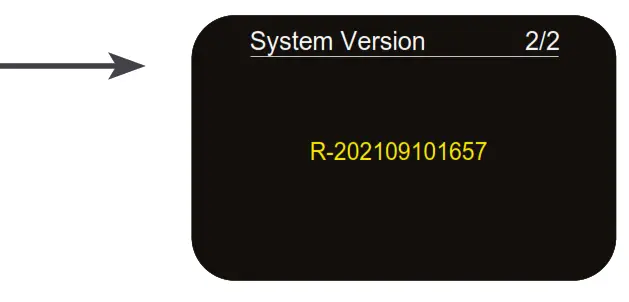 Tips
Tips
New stations are frequently being launched so it‘s a good idea to rescan from time to time to make sure you don’t miss out on the latest additions.
Troubleshooting
| Problem | Solutions |
| Radio reception is poor | Check that the antenna is extended for maximum signal strength and improved reception. Adjust the antenna direction to improve the signal. Move the radio closer to a window. Check that the radio is not close to microwaves, fluorescent lights, or other equipment which may cause interference. |
| No sound | Check if the volume is turned down. Increase the volume. Check that the radio is switched on. Try tuning to another radio station. Check the format of the USB drive/check that USB tracks are MP3 format. |
| The radio doesn’t turn on | Check power supply connections. Check mains socket is switched on. Check battery is charged. |
| The clock doesn’t auto set | Time signal not received. Extend aerial to receive time signal. Set time manually in the system menu. |
Specifications
| Power Adaptor Input: | 5V1A |
| DAB/DAB+ Frequency Range: | 174.928MHz (5A) – 239.200MHz (13F) |
| FM Frequency Range: | 87.5 – 108MHz |
| Presets: | 30 DAB, 30 FM |
| Battery: | 3.7V 2600mAh Li-Ion |
| Playing Time: | 8 hours @ 60% volume |
Technical support
For further help, advice, information, or live chat visit www.iboxstyle.com
Disclaimer
Updates to Firmware and/or hardware components are made regularly. Therefore some of the instructions, specifications, and pictures in this documentation may differ slightly from your particular situation. All items described in this guide are for illustration purposes only and may not apply to your particular situation. No legal rights or entitlements may be obtained from the description made in this manual.
Declaration of conformity
Hereby, Philex Electronic Ltd. declares that the radio equipment: model i-box Melody, for wireless reception in domestic premises is in compliance with the Radio Equipment Directive 2014/53/EU. The full text of the EU declaration of conformity is available at the following internet address: www.philex.com/doc\
 The United Kingdom.
Made in China.
© Philex Electronic Ltd 2022. vb1.1
 i-box - British Designed Audio and Home Electronics
 Declaration of Conformity Documents - Philex Electronic Ltd