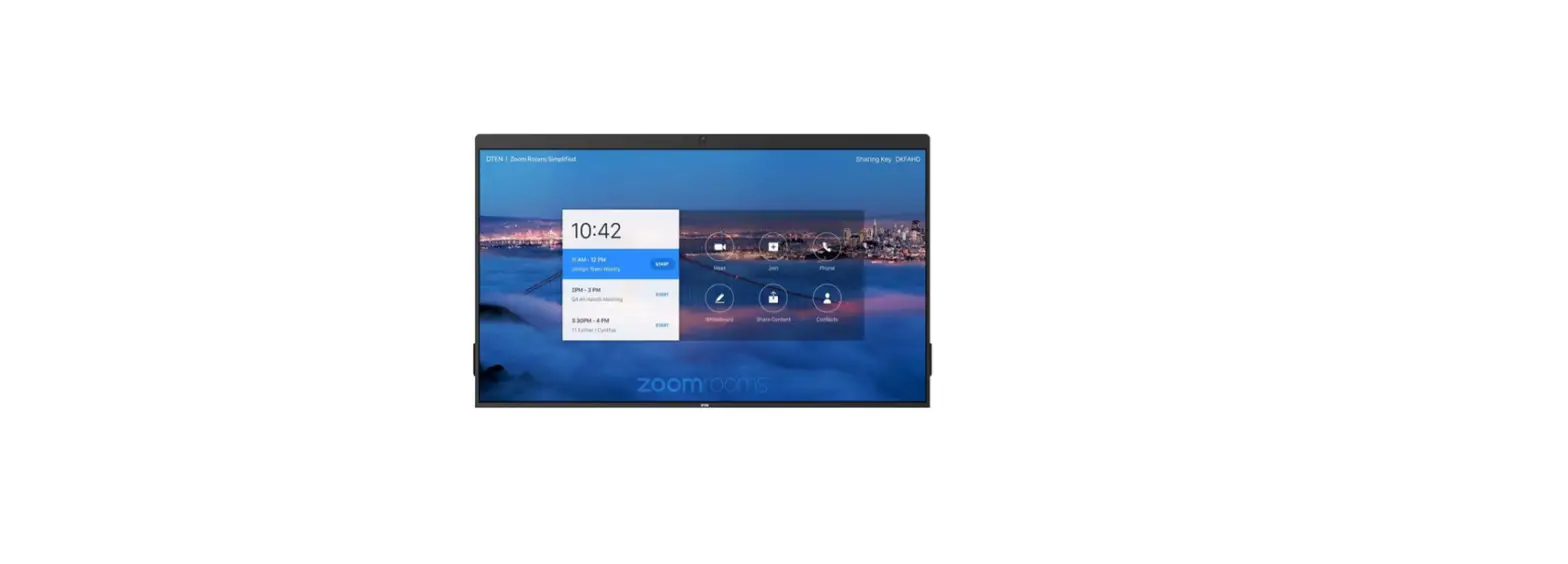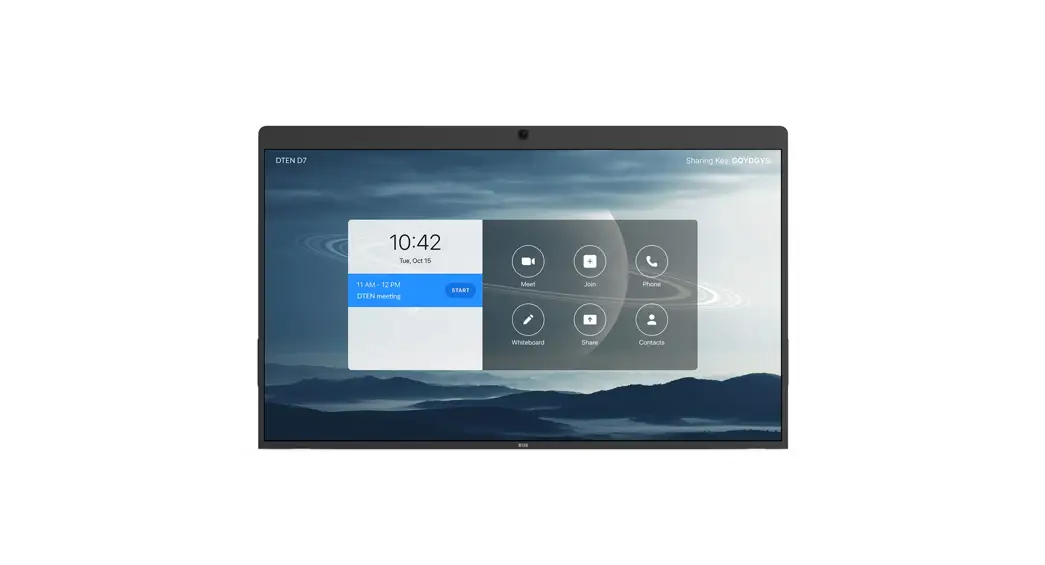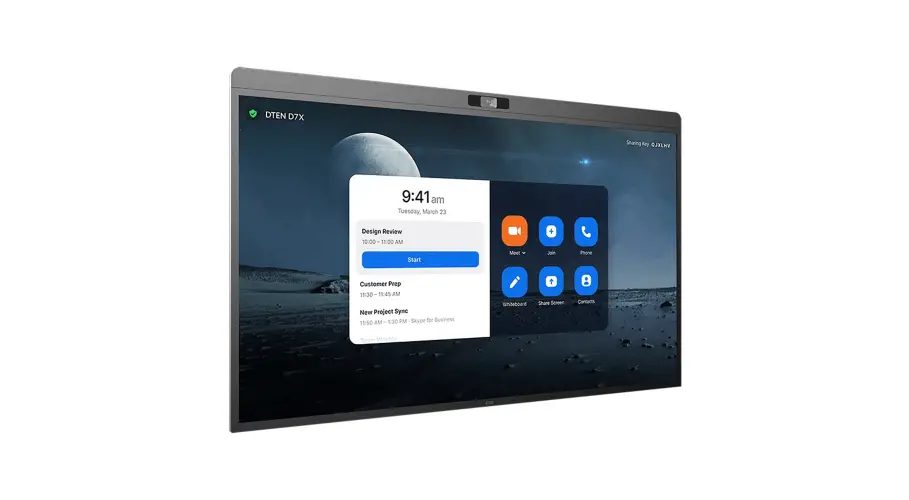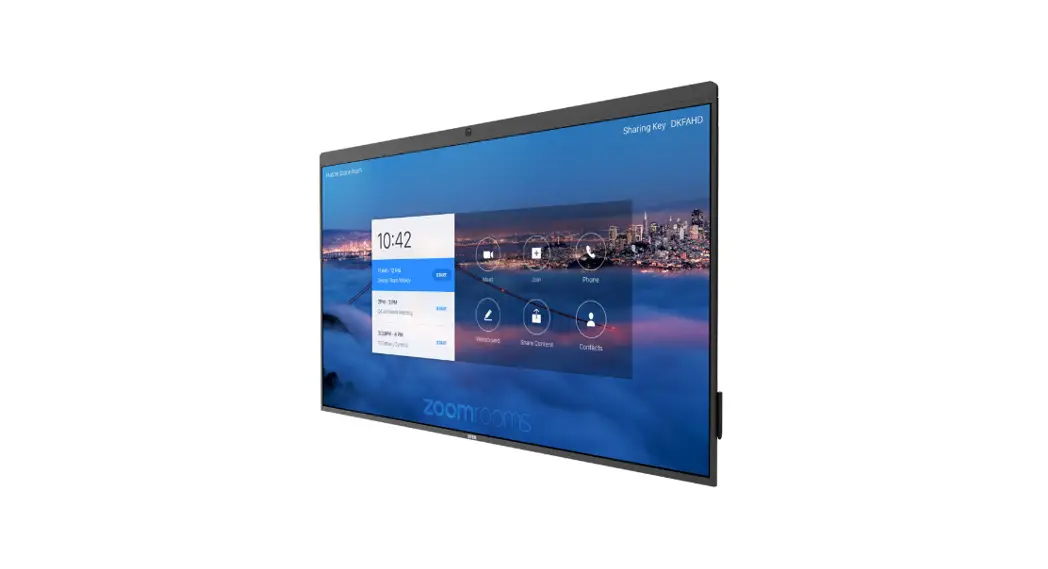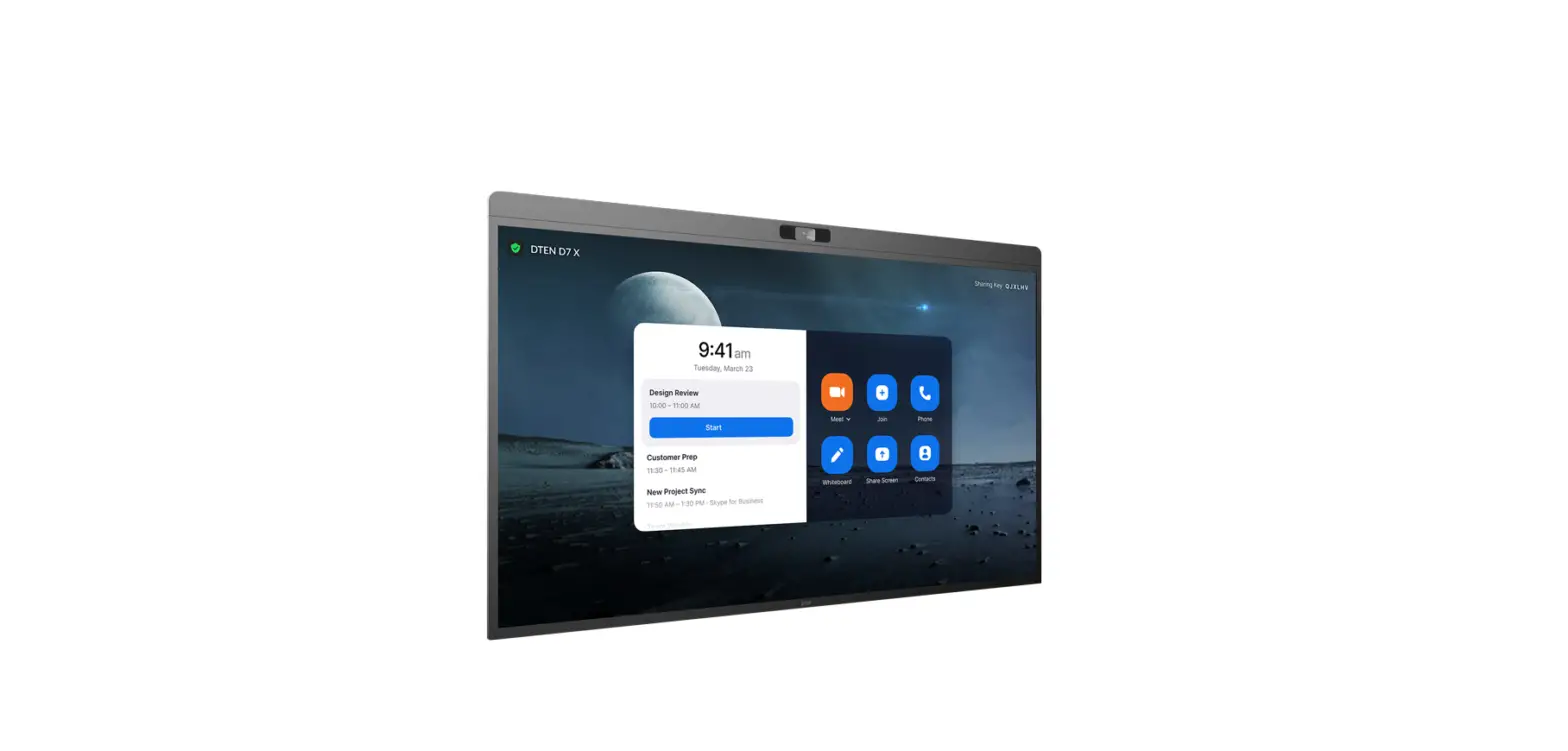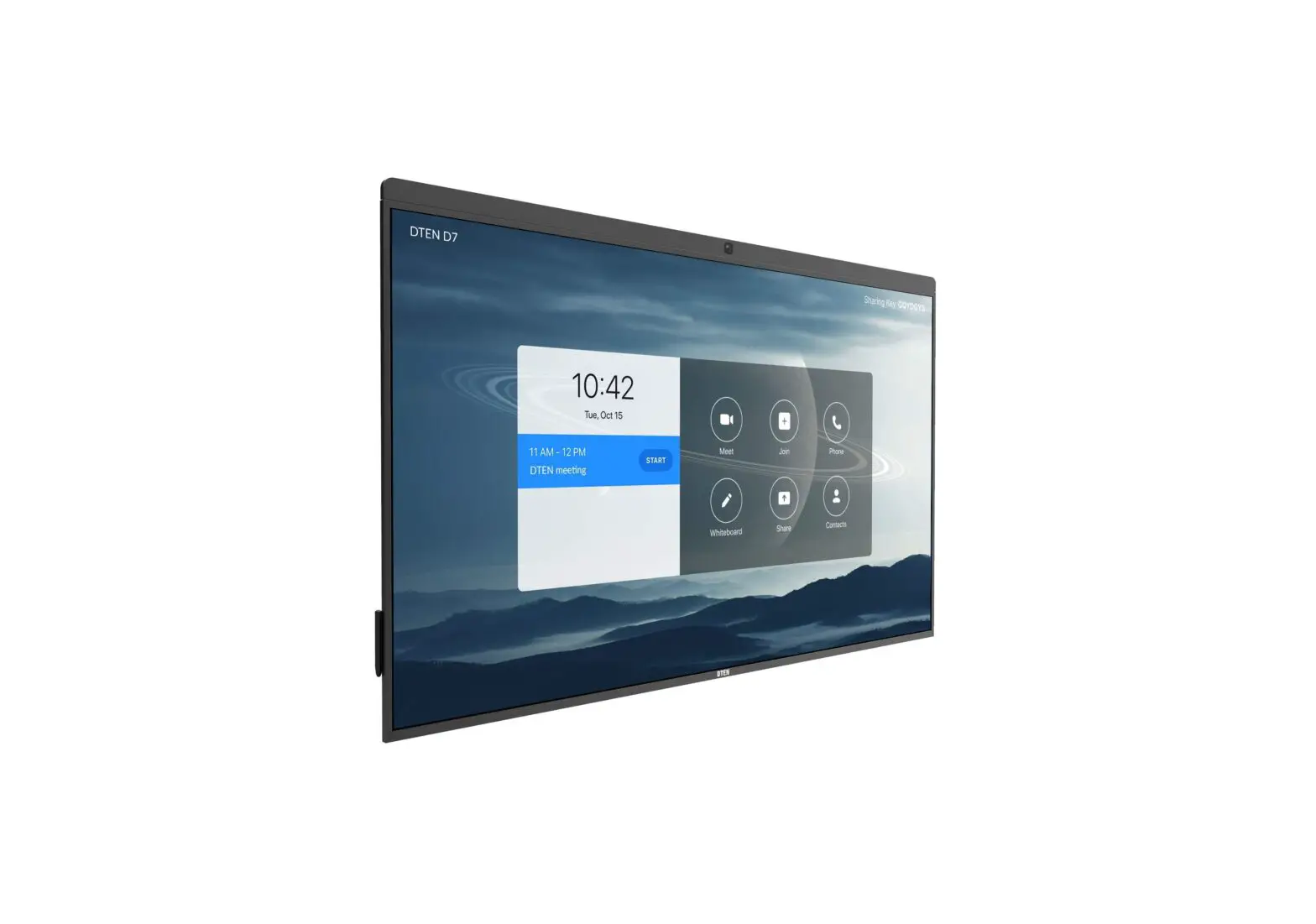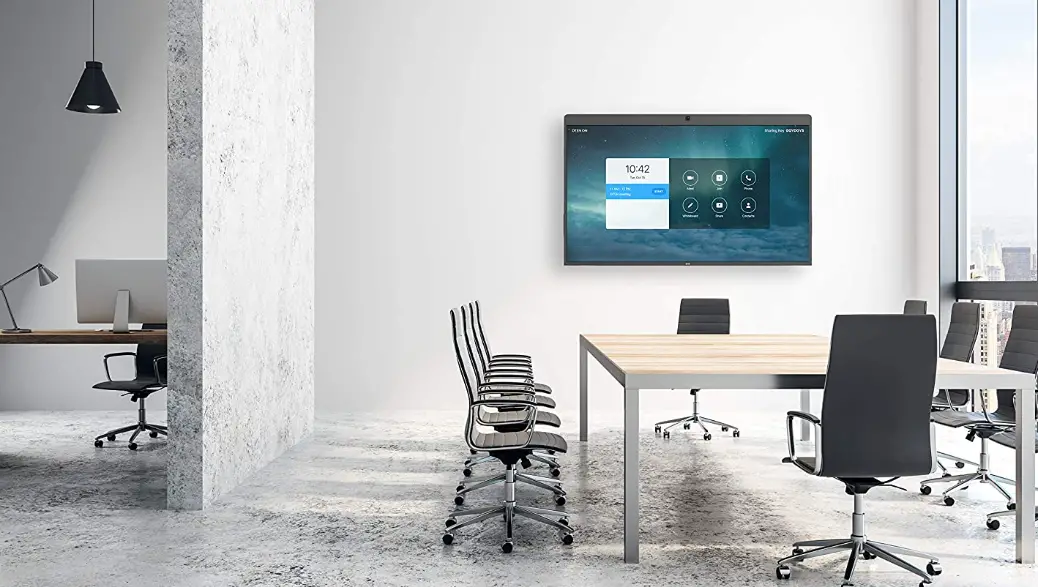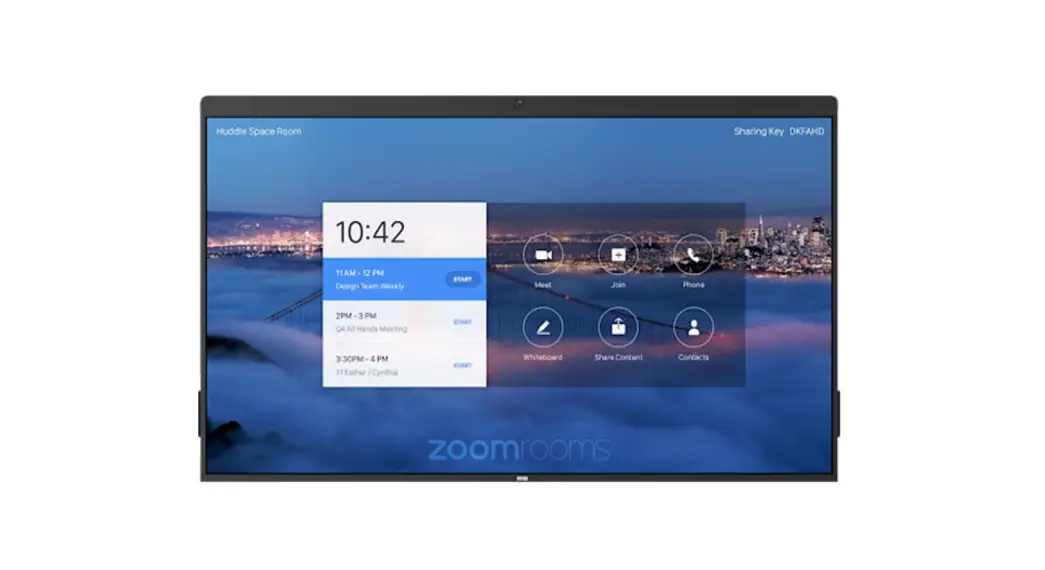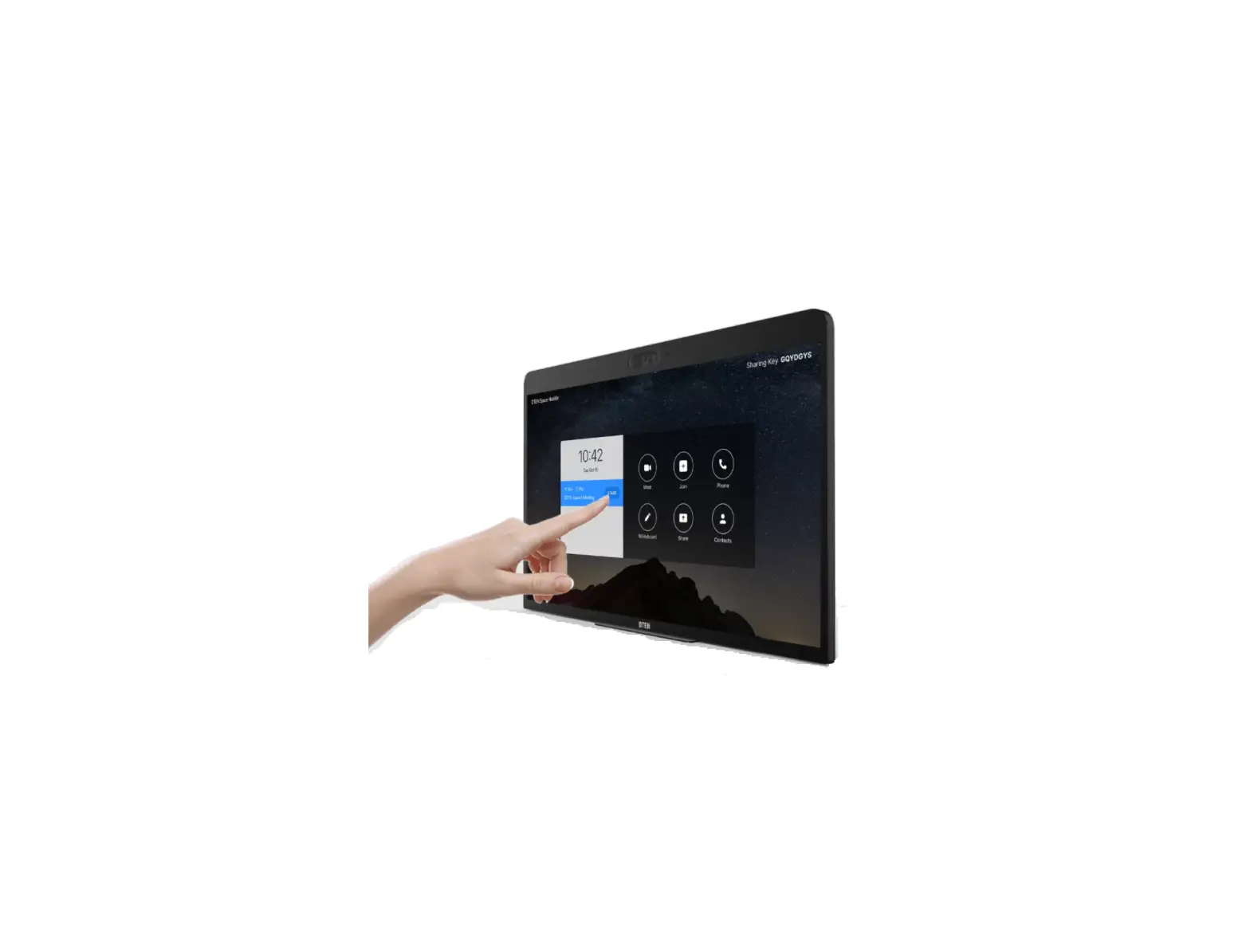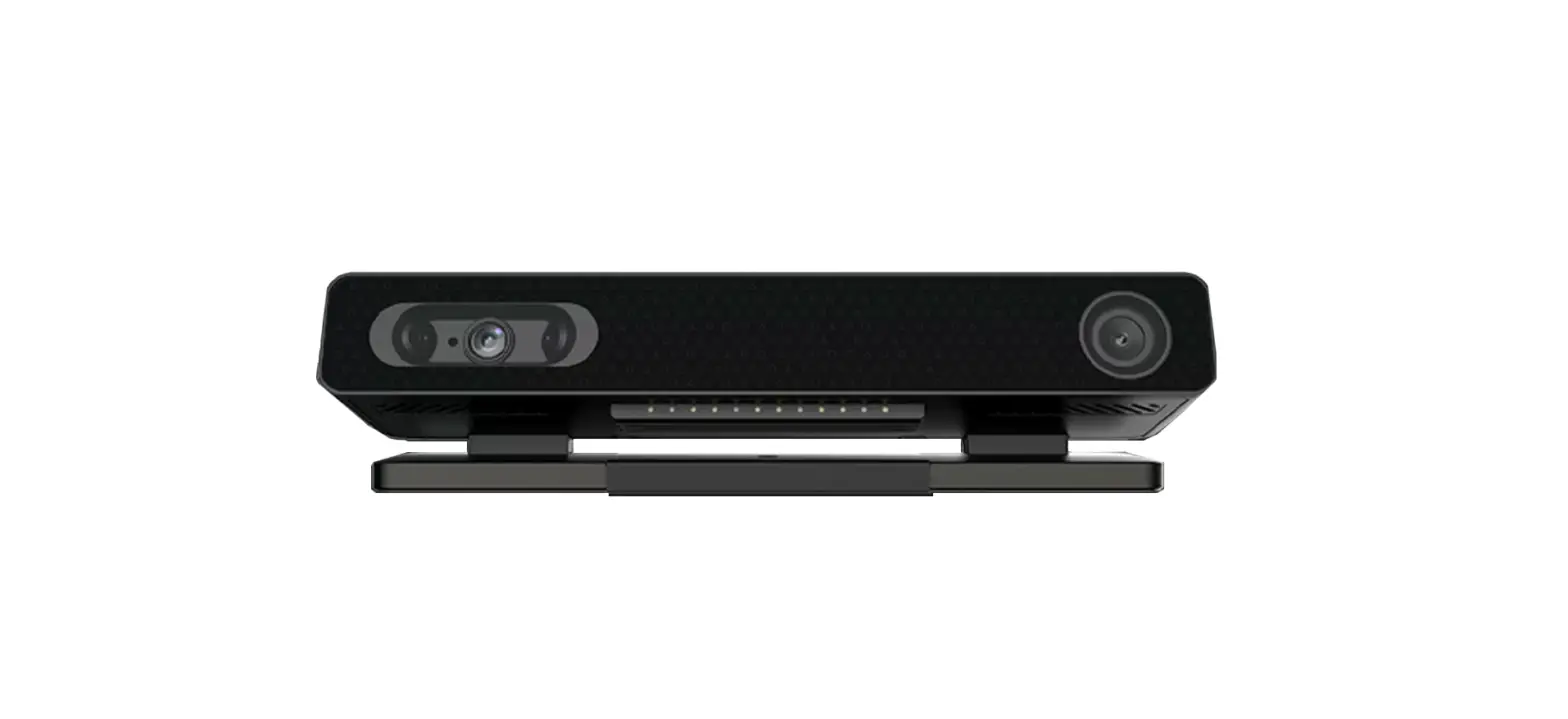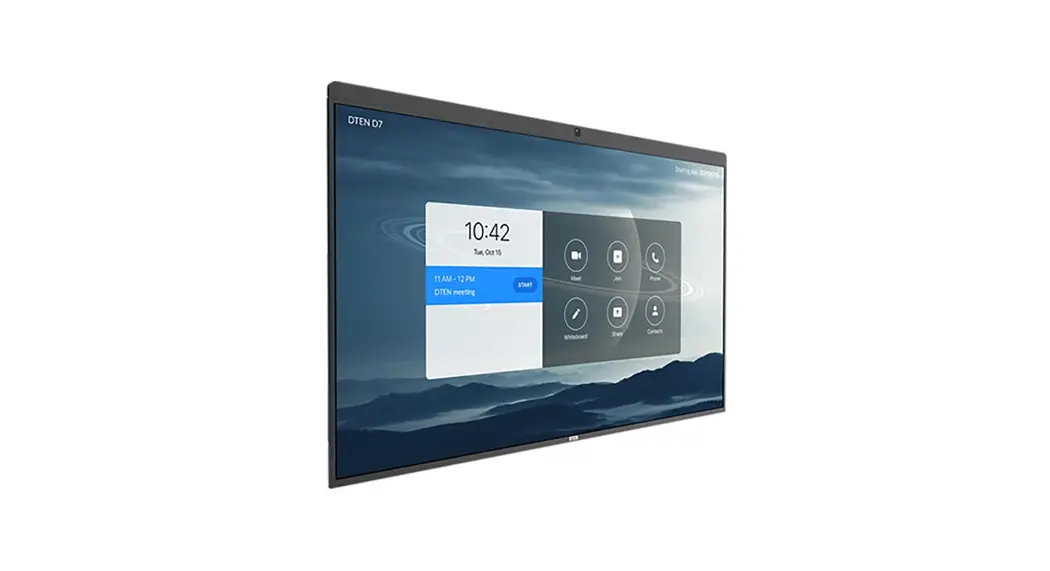
 D7 55 Inch Dual Display Features
User Guide
Packing List
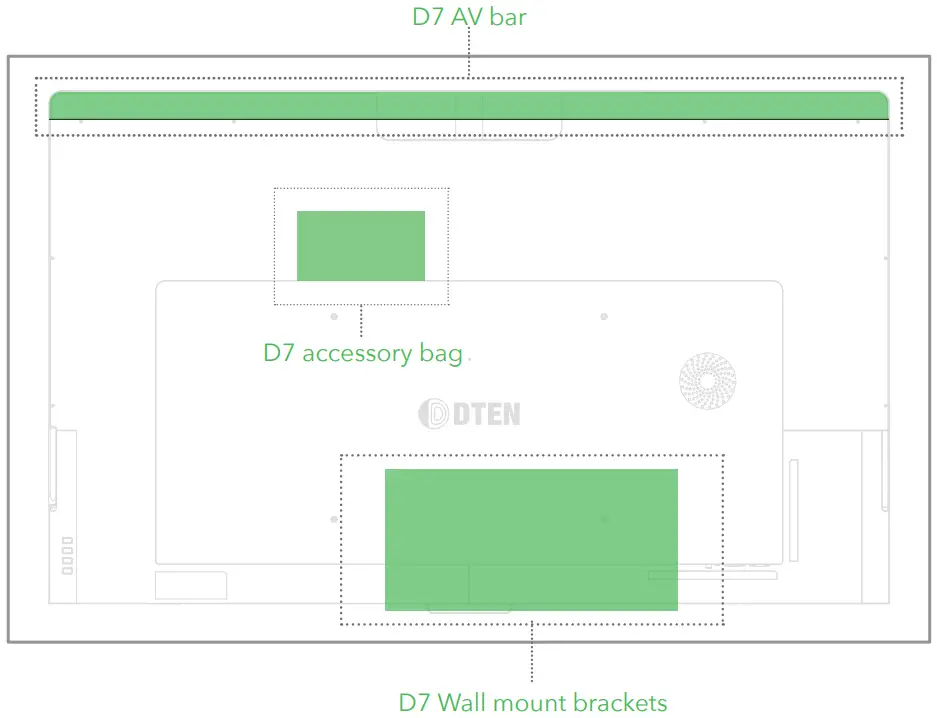
- DTEN D7 55” (Standard) X 1
- Wall Mount Brackets X 1
* The bracket pieces are stored at the bottom of the box (beneath the foam) - Stylus X 1
- Power Cable (AC 100V-240V) X 1
 Do not disassemble the D7 without the supervision of a DTEN technician. Improper use may be subject to voiding the warranty.
What’s Inside
Quick Setup
STEP 1
Install the antennas.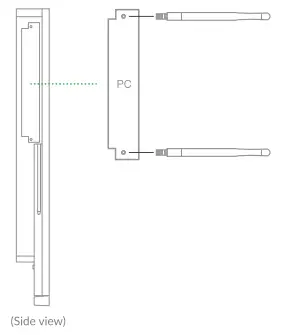 STEP 2
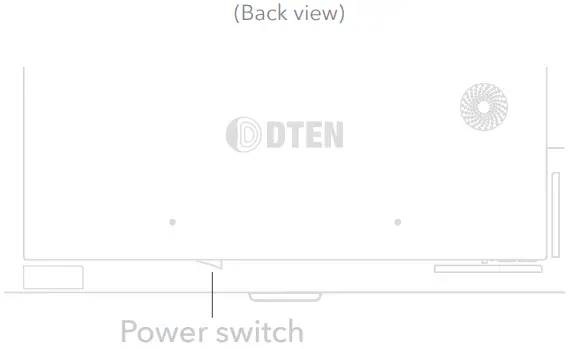
Plug in the power cord to the outlet.
Please Note: The power switch at the panel’s bottom should be set to “on” by default. If the DTEN logo does not come on, please press the switch to the “on” setting.
STEP 3
Follow the instructions on-screen to set up the network.
Ethernet connection is preferred.
For more info about the product, please visit dten.com
Zoom Rooms Setup
STEP 1 You need a Zoom Rooms account to sign in.
STEP 2 Select an existing room or create a new room.
* Please go to Zoom Help Center for more info
Tips
- Increase the volume to the max using the volume button (the first button at the back of the unit).
- Ethernet connection is preferred for the best meeting experience.
- To pair with the zoom rooms controller, please visit zoom.us.
- Please do not disconnect the power without properly shutting down the system.
- Do not disassemble the DTEN product without the supervision of a DTEN technician.
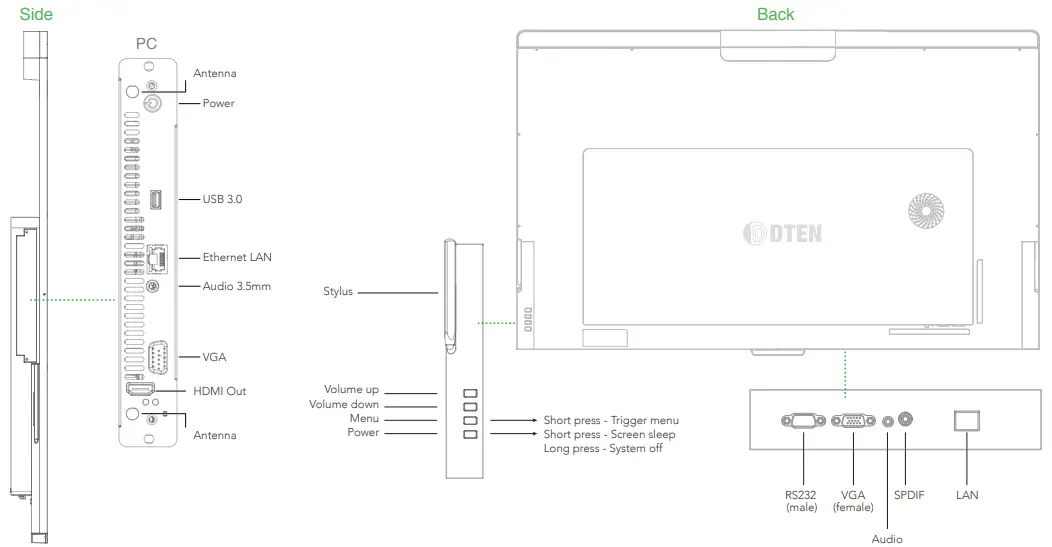
Port Diagrams
Wall Mount
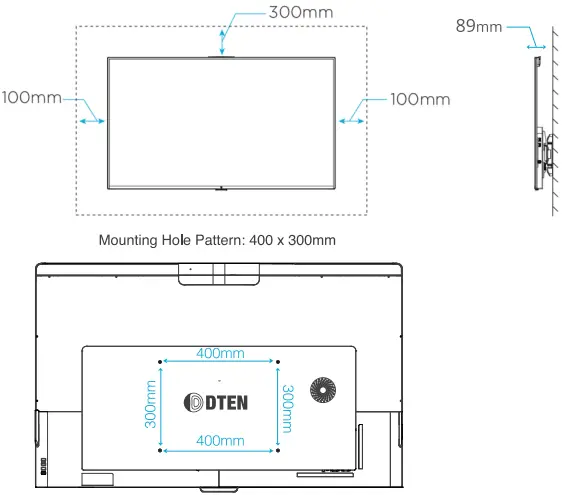
Note: Contact a professional for assistance when wall mounting your display.
We are not responsible for any damage to the product or injury to yourself.
Do not power on the display when performing wall mount installation. It may cause personal injury due to electric shock.
D7 75″
Product Guide
Packing List
- DTEN D7 75″ (Standard) X 1
- Wall Mount Brackets X 1
* The bracket pieces are stored at the bottom of the box (beneath the foam) - Stylus X 1
- Power Cable (AC 100V-240V) X 1
Do not disassemble the D7 without the supervision of a DTEN technician. Improper use may be subject to voiding the warranty.
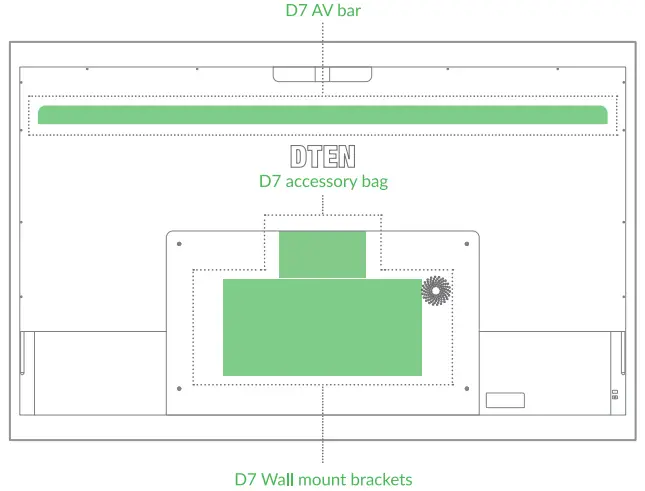
What’s Inside
 Quick Setup
STEP 1
Install the antennas.STEP 2
Plug in the power cord to the outlet.
The display will turn on.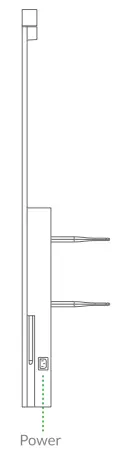
STEP 3
Follow the instructions on-screen to set up the network.
Ethernet connection is preferred.
For more info about the product, please visit dten.com
Zoom Rooms Setup
STEP 1 You need a Zoom Rooms account to sign in.
STEP 2 Select an existing room or create a new room.
* Please go to Zoom Help Center for more info
Tips
- Increase the volume to the max using the volume button (the first button at the back of the unit).
- Ethernet connection is preferred for the best meeting experience.
- To pair with the zoom rooms controller, please visit zoom.us.
- Please do not disconnect the power without properly shutting down the system.
- Do not disassemble the DTEN product without the supervision of a DTEN technician.
Port Diagrams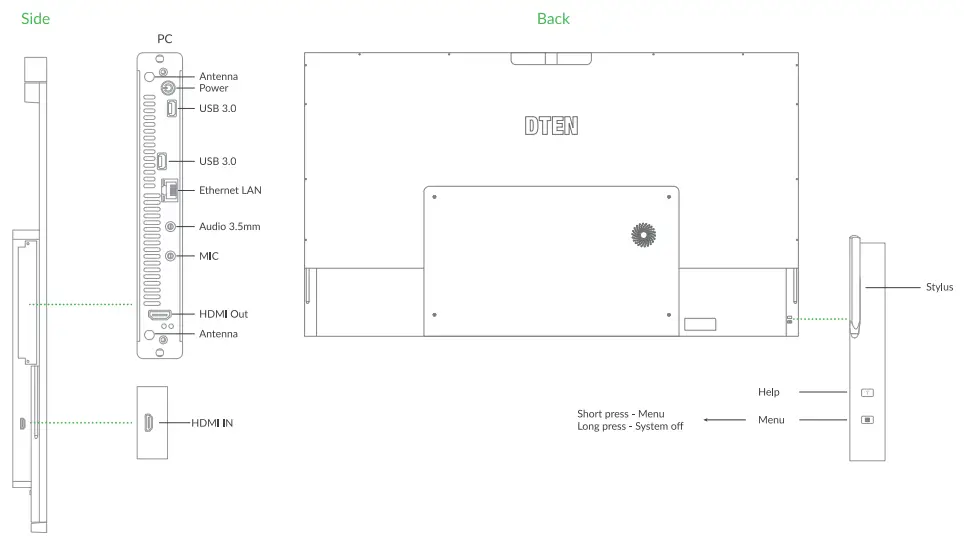
Wall Mount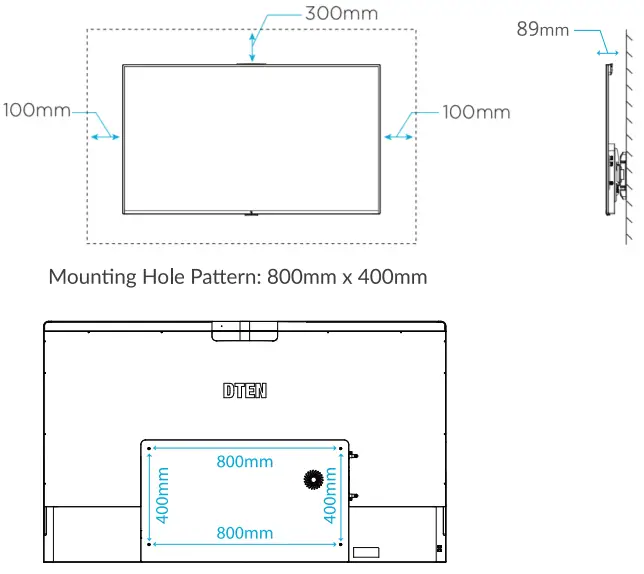 Note: Contact a professional for assistance when wall mounting your display.
We are not responsible for any damage to the product or injury to yourself.
Do not power on the display when performing wall mount installation. It may cause personal injury due to electric shock.
If you have any questions, feel free to contact us. [email protected]
 +1 800 936 3836
 DTEN – Video Conferencing Equipment for Zoom Meetings
 One platform to connect | Zoom