 Ntera Manage My TV App
 Ntera Manage My TV App
Downloading the MyTV App
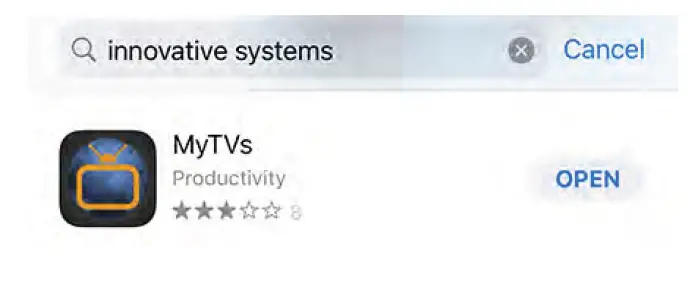
- Go to your App store on your mobile device and tap the Search icon. In the Search bar, type in Innovative Systems. Tap on GET next to the MyTVs app icon below. Once it has loaded on your mobile device, tap on OPEN to launch the app.

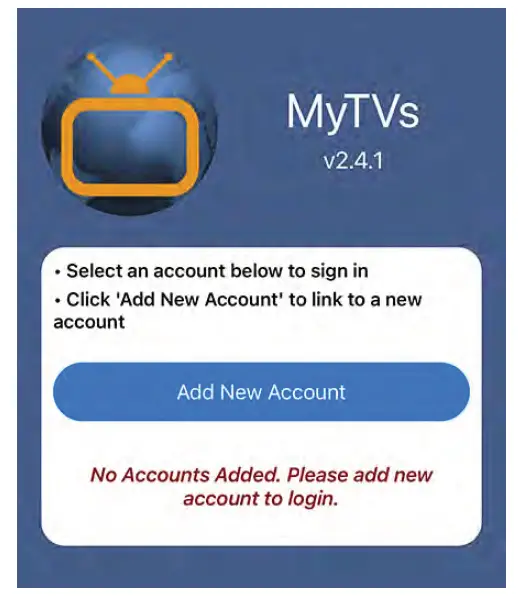
- Syncing the MyTV App with your Account Once the app has opened, tap on Add New Account.

Enter Login & Passphrase
At the time of set up, you should have received login and passphrase information, continue with the steps below. If it has been longer than 7 days since you have signed up, follow the instructions on the screen below to generate a new code.
Login ____________
Passphrase ___________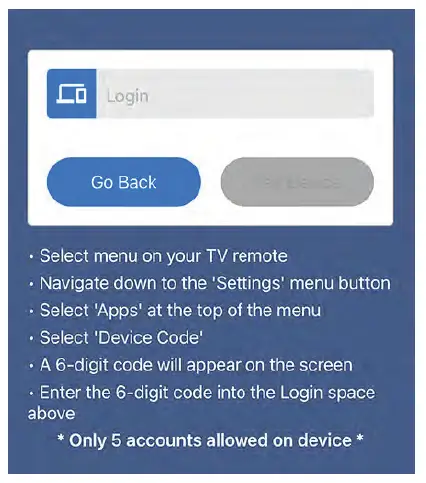
Enter the 6-digit Login code and tap Pair Device.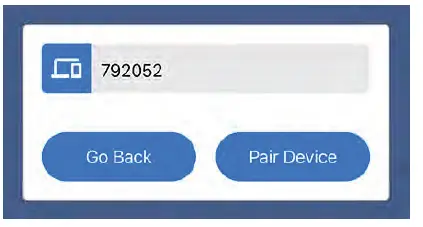
Enter the 8-digit Login code and tap Pair.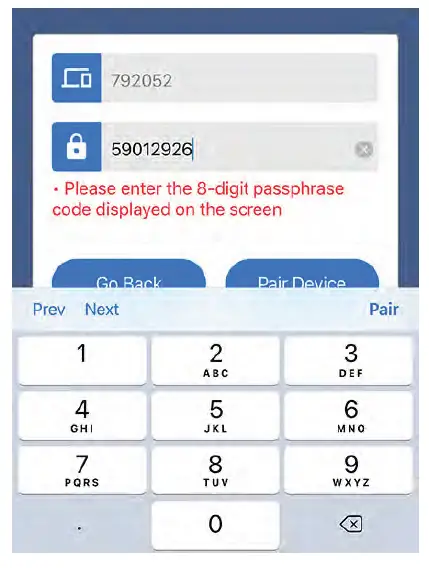
Enter an Account Name and tap OK. 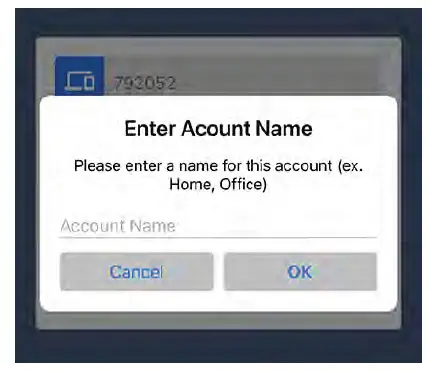
Tap on your Account to access the App.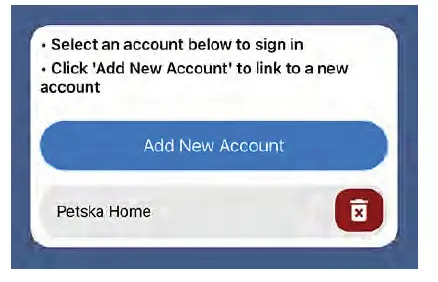
The first screen you will see when the App is opened is the Guide, which shows you what is currently playing on each channel that you are subscribed to.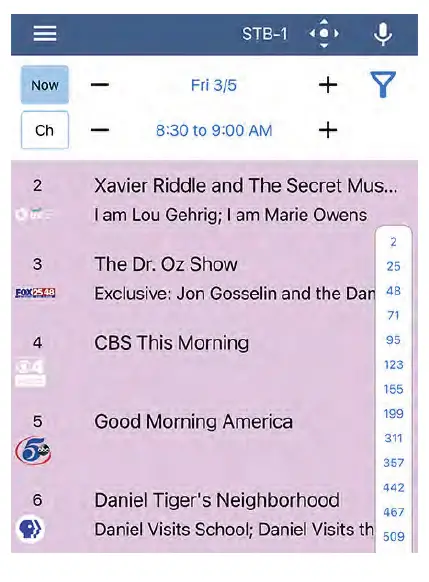
Managing Accounts
If you have multiple devices and/or accounts, you can determine which account/Box you are controlling by tapping on the STB-1 text at the top of the screen. 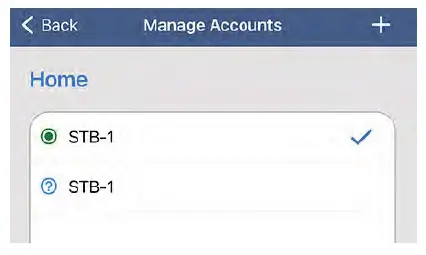
Main Menu
Tapping on the three white lines in the upper left hand corner of the App, will open up the Main Menu.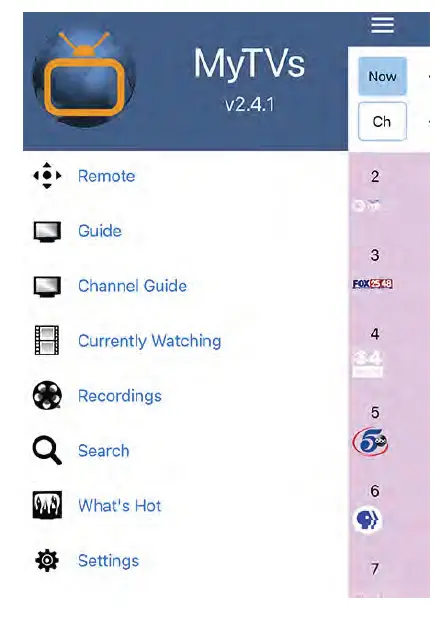
Remote
The Remote option opens up a condensed remote control that can be used with your Box.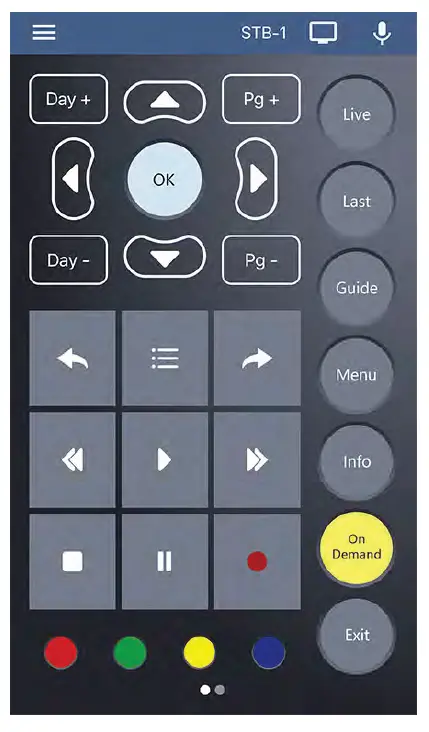
Guide & Channel Guide
While the Guide shows you what is currently playing on each channel, the Channel Guide shows you what is playing on a selected channel at various times throughout the day. 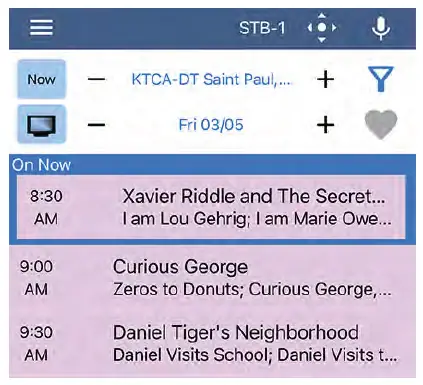
Currently Watching
The Currently Watching option allows you to see what is being watched on your Box.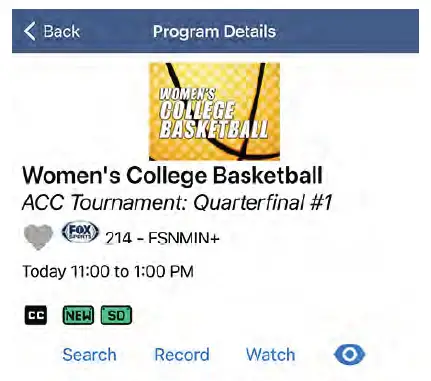
Recordings
The Recordings option allows you to view your Recorded programs as well as your scheduled recordings. 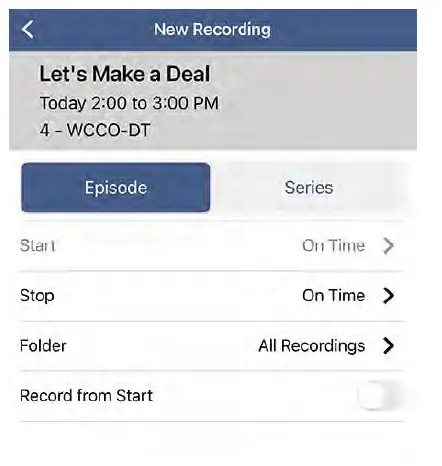
Search
The Search option allows you to find programs in your Guide, Recordings, and Video On Demand. 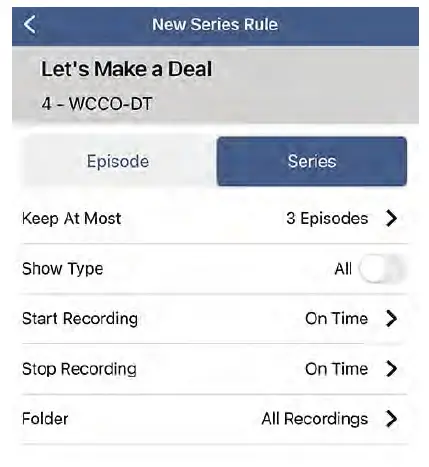
You can narrow your search by tapping the Funnel icon and tapping the circle on each category. 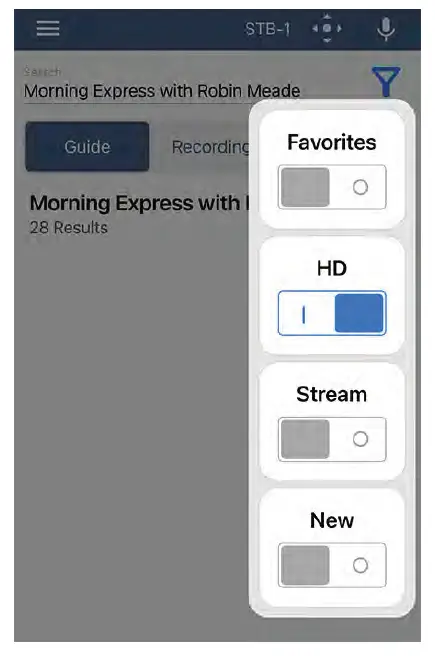
What’s Hot
You can see what Recorded, TV, and Series programming is being watched the most by others in the network.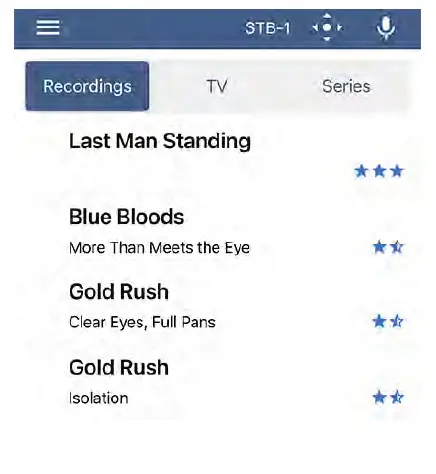
Settings
The Settings option allows you to view your account information and settings.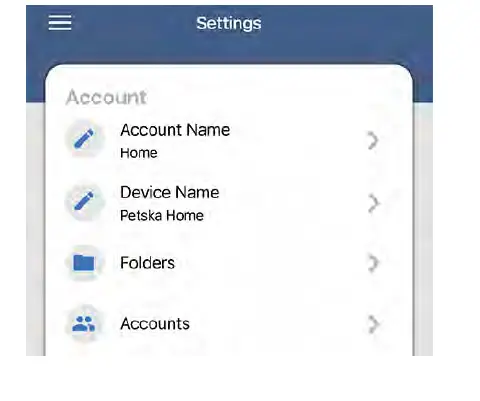
Accessing Programs
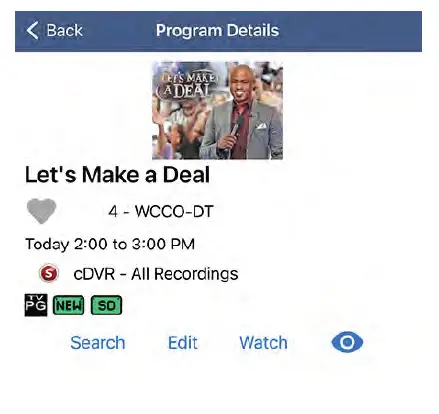
From the Guide or Channel Guide, tap on the programming you would like to access. On this screen, you will see the program details as well as additional options including Search, Record, and if available, to watch the program on your Box, Watch and/or if available, to watch the program on your mobile device an Eye icon. Recording Programming
When you tap Record, you will be able to choose if you would like to record a single episode or a series.
Recording an Episode
You have the ability to extend the Stop Time of the recording as well as store it in different folders if available and choose to have the program record from the start. Once you have the criteria the way you would like, tap Create Recording at the bottom of the screen.
Recording a Series
You have the ability to extend the Start and Stop Time of the recording as well as store it in different folders if available, choose how many episodes to save, and what type of shows you would like to record. Once you have the criteria the way you would like, tap Create Series Recording at the bottom of the screen.
Editing or Deleting a Recording
Once you have scheduled a recording, you can edit or delete it. From the Main Menu, tap on Recordings.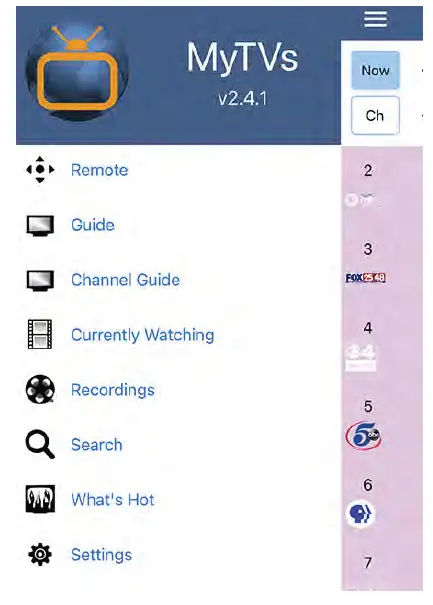
Tap on the program you would like to edit or delete. 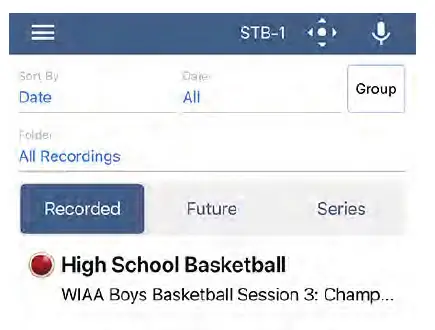
On the Program Details screen, tap Edit.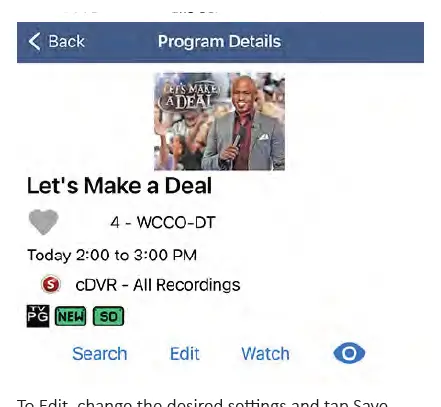
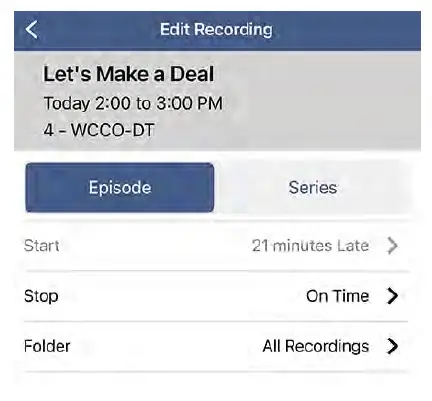
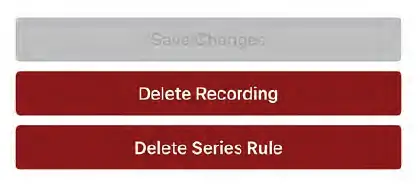
To Edit, change the desired settings and tap Save Changes. To Delete, tap Delete Recording or Delete Series Rule. 

Watching Programming
While you are connected to your home’s WIFI network, you are able to watch LIVE TV and your Recordings on your mobile device.
LIVE TV
Once you have selected the programming you would like to watch from the Guide, tap on Watch to change the channel on your box or tap on the Eye to watch the channel on your mobile device.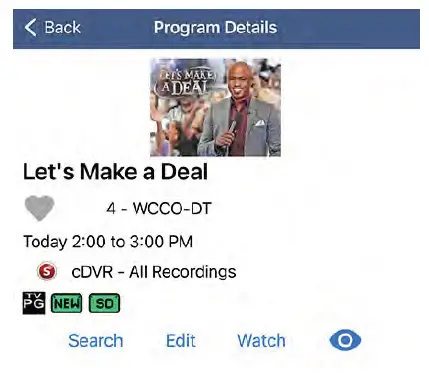
Recordings
From the Main Menu, tap on Recordings to access your recordings. 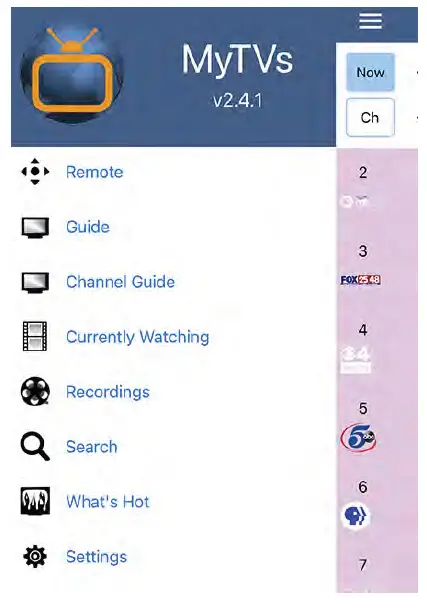
Tap on the recording you would like to watch.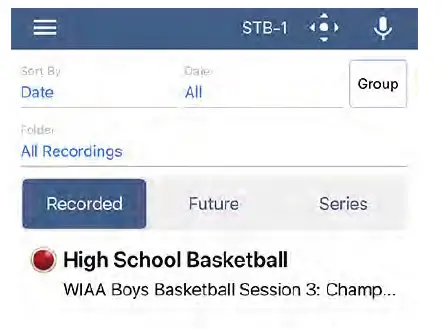
Tap on Watch to play the recording on your box or tap on the Eye to watch the recording on your mobile device.