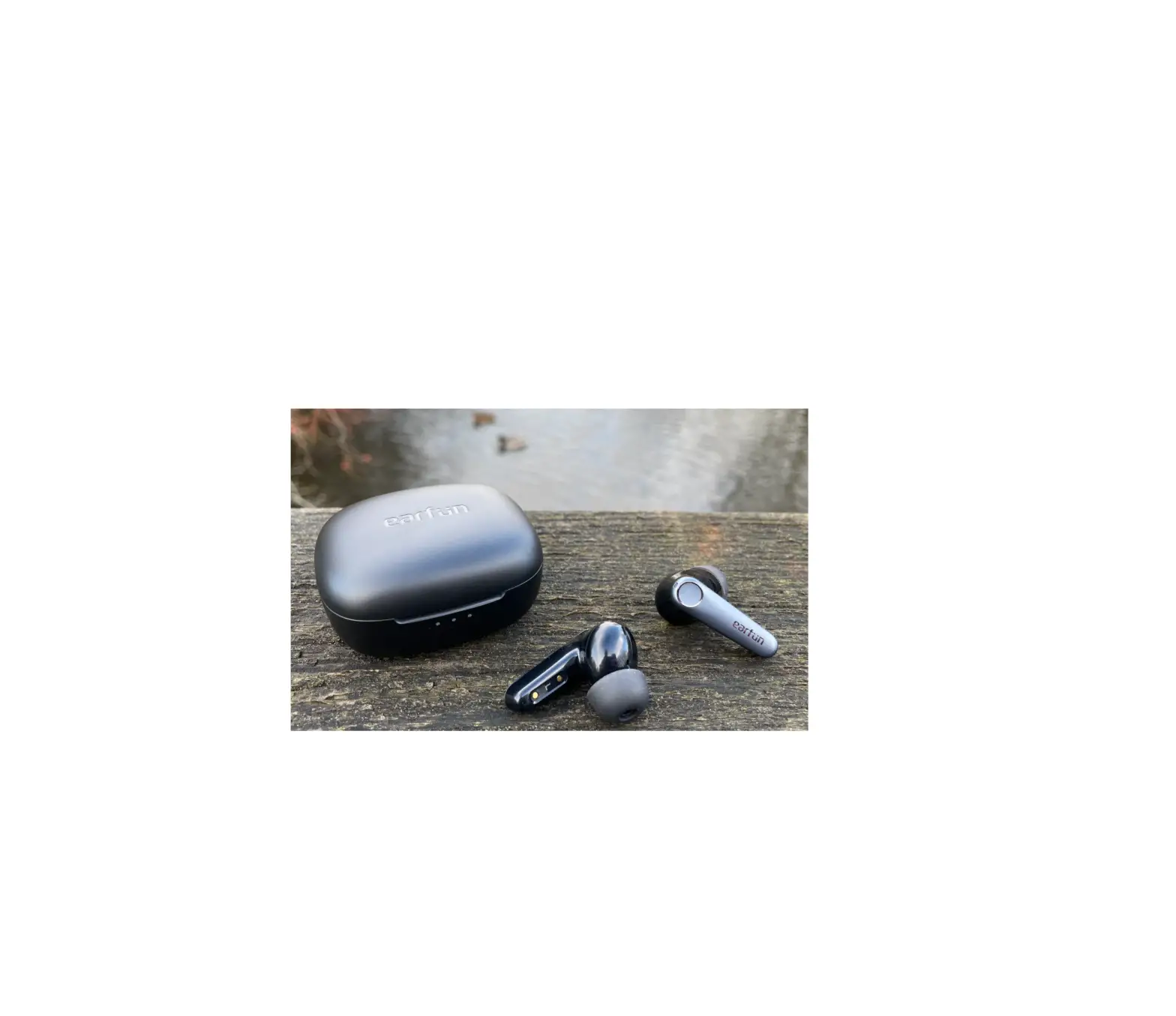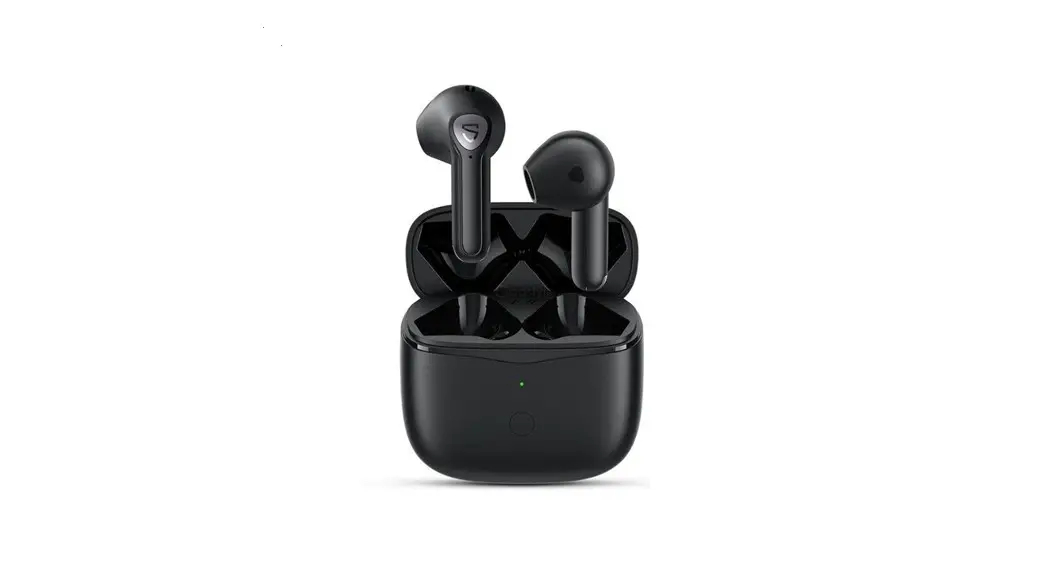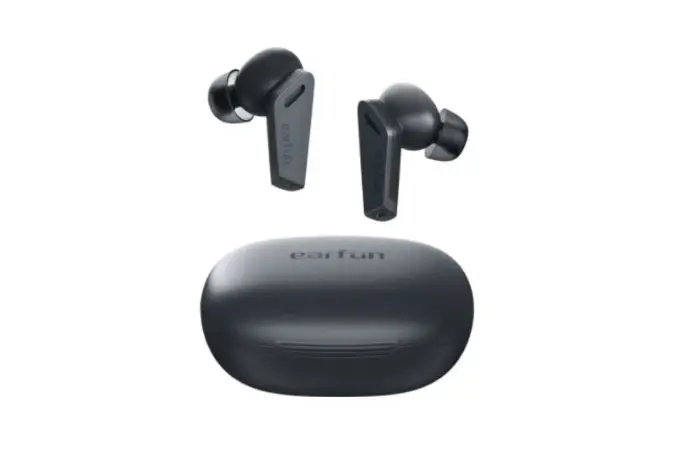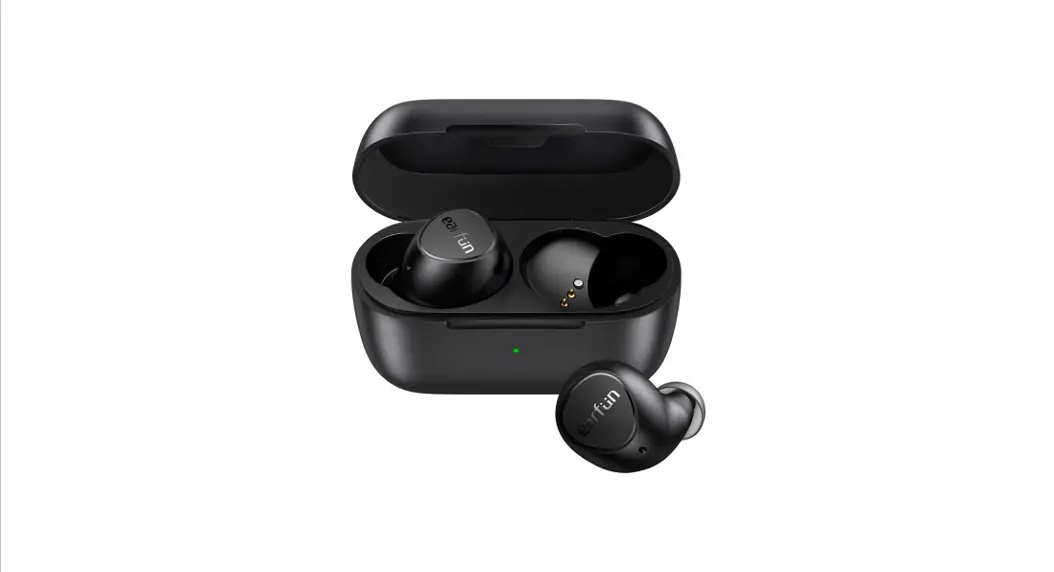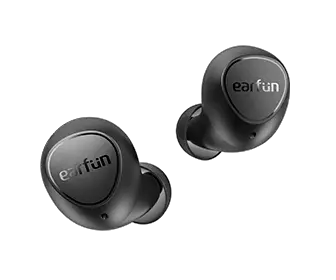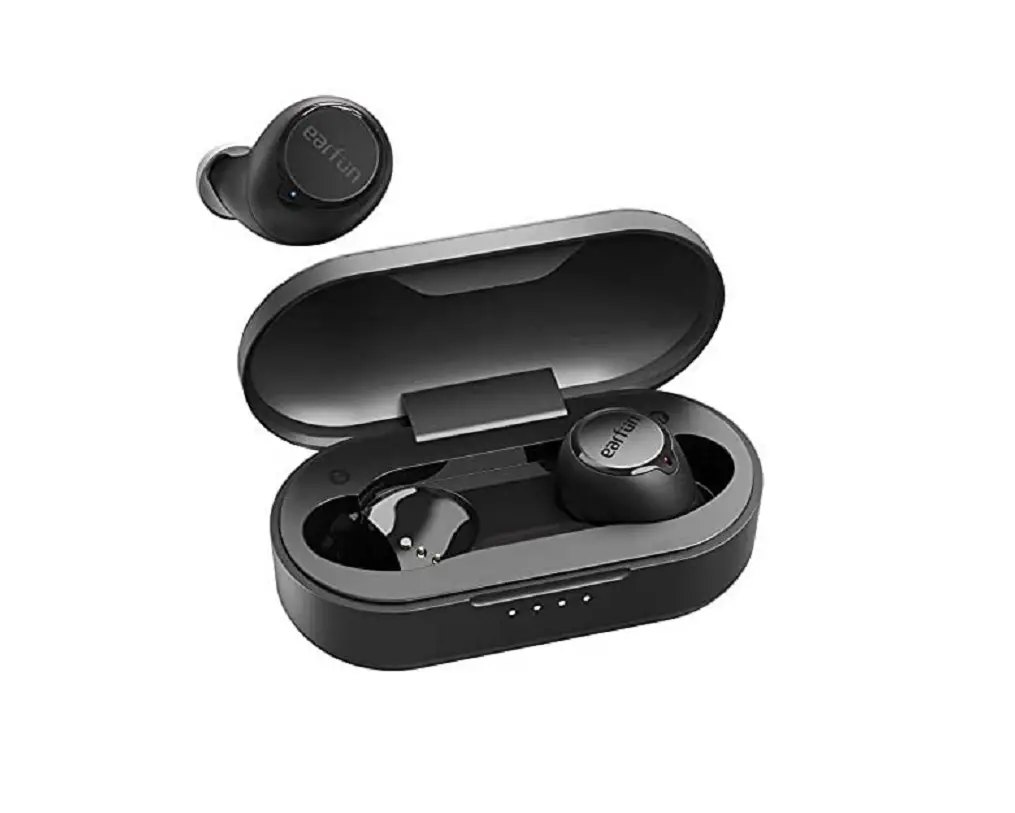

Earvin Air Pro 3
True Wireless Earbuds BC
BC
User Manual
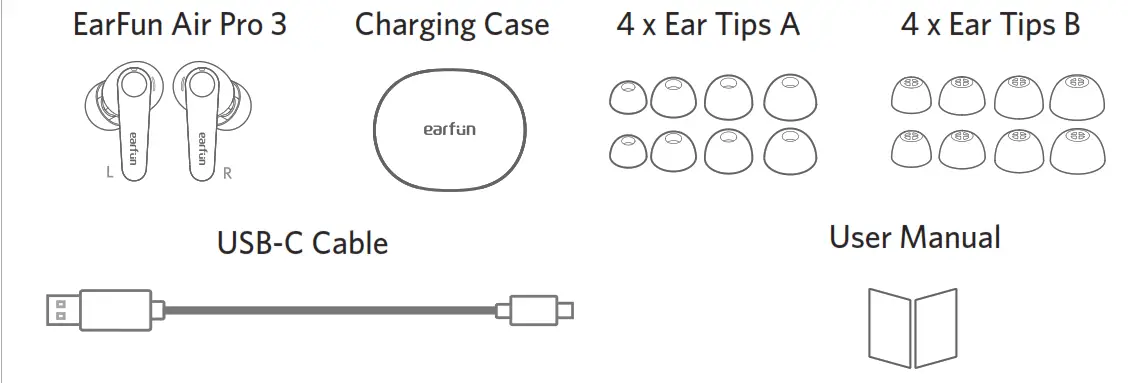
What’s in the Box
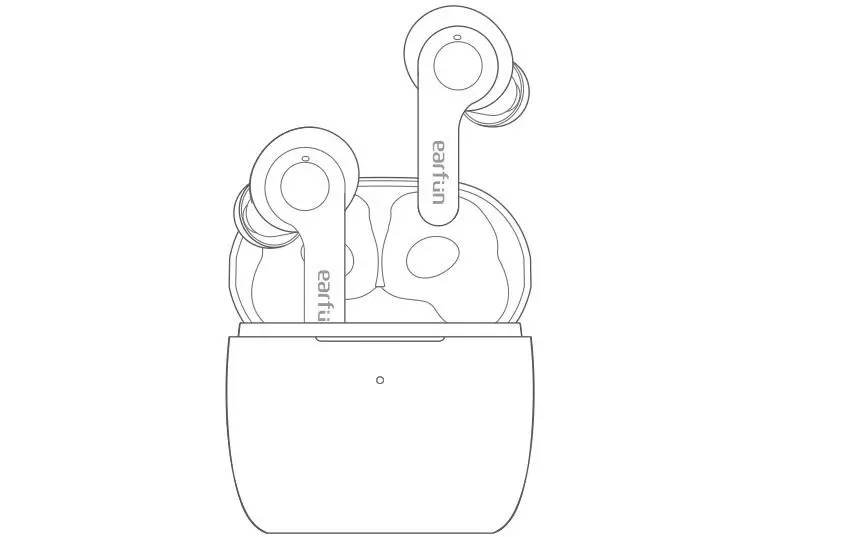
Product Diagram
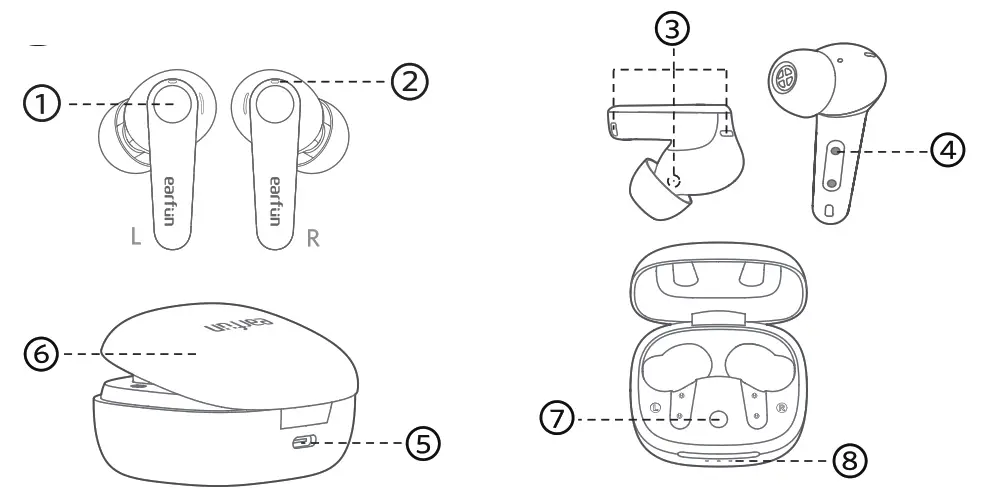
| 5. USB-C charging port 6. Charging case 7Reset button 8 Battery level indicator |
Charging
- Remove the insulating film on the earbuds before using this device.

- Fully dry off the earbuds and the USB port before charging.
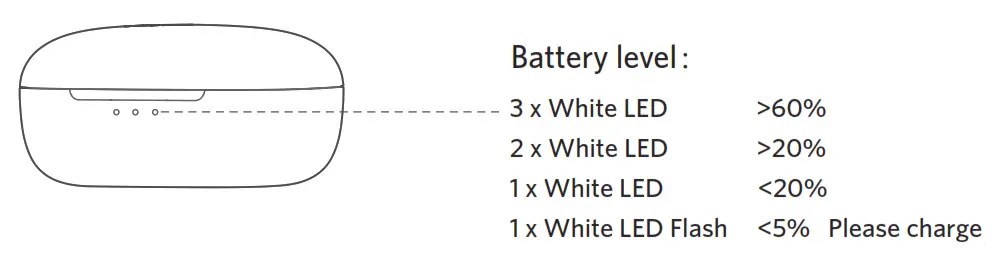
- Open or close the charging case to activate the case battery level LED indicator.
- Place the earbuds back into the charging case and the earbuds will start charging.
- Fully charge both the earbuds and the charging case before the first-time usage.

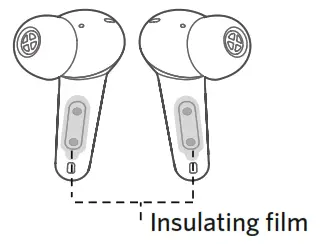
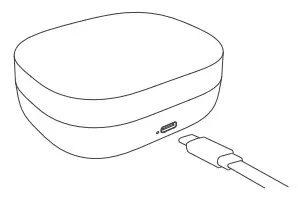
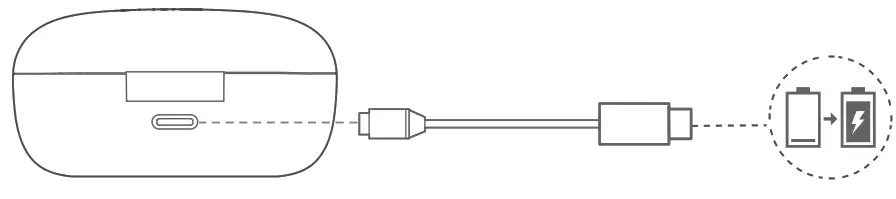
Connect USB-C cable for charging
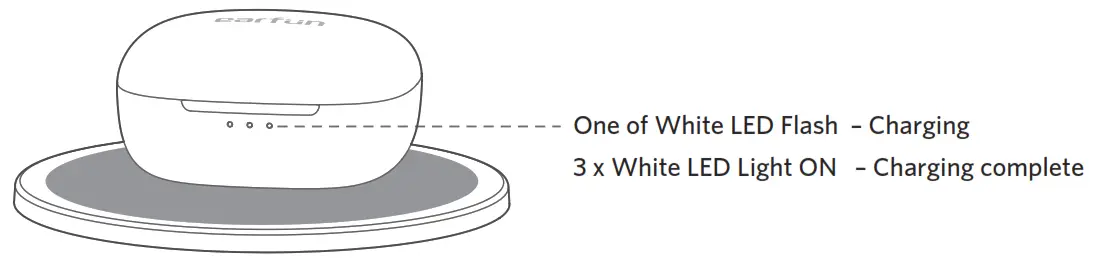
Wireless charging(not included)
Specifications
| Bluetooth version | V5.3 |
| Bluetooth frequency | 2.402GHz-2.480GHz |
| Bluetooth profile | A2DP, AVRCP, HFP, HSP |
| Bluetooth transmitted power | <7dBm (for EU) |
| Maximum working range | 15m(without obstacles) |
| Battery capacity | 54mAh x 2(earbuds); 520mAh(charging case) |
| Charging time | 1 hour(for earbuds);2 hours(for charging case via USB-C); 3.5 hours(for charging case via wireless charger) |
| Playtime | ANC OFF-Up to 9 hours, Totally 40 hours with the charging case; (varies by volume level and audio content) ANC ON-Up to 7 hours, Totally 30 hours with the charging case; (varies by volume level and audio content) |
| Input | 5V 1A |
| Dimensions | 60mm x 50mm x 31mm |
| Weight | 52g |
How to Fit
Note: It may affect the noise canceling effect if you are not wearing the earbuds correctly.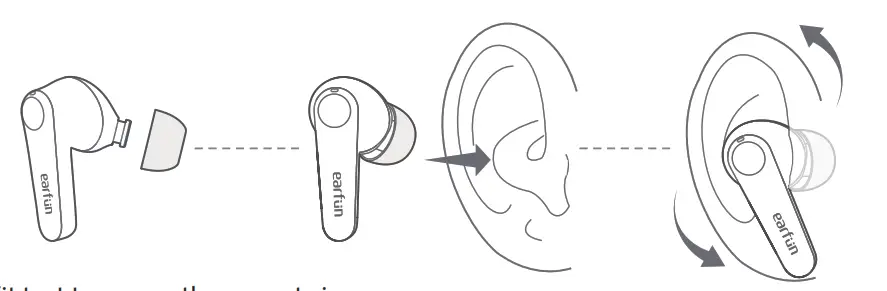
- Take tip fit test to ensure the correct size.
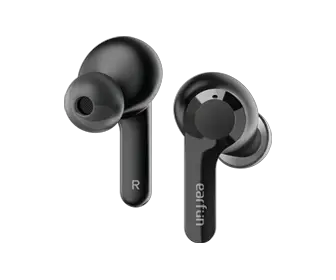
- Identify the left and right earbuds.
- Place the earbuds in your ear canal and rotate to lock.
Pairing Your Earbuds
- First-time Pairing with Device
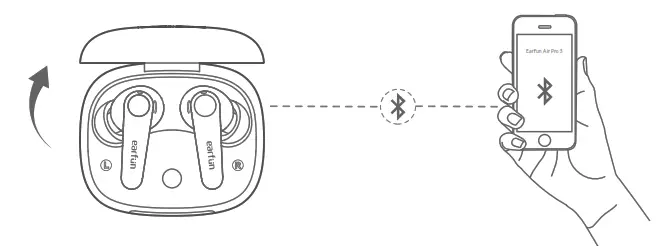
Step 1: Open the charging case, and the earbuds will automatically power on and enter into pairing mode.
Step 2: Activate Bluetooth on your Bluetooth-enabled device and search for other Bluetooth devices.
Step 3: Select “EarFun Air Pro 3” from the list of Bluetooth devices shown (if a password is needed, type ‘0000’).
Notes:
- The earbuds will automatically connect with the device paired last time when the case is open.
- Each earbud could be used independently.
2. Connect to a New Device
Option A
Step 1. Unpair the earbuds from the Bluetooth-enabled device that’s connected. The earbuds will disconnect from the current device and enter into pairing mode for another pair. Step 2. Search on the new device and connect.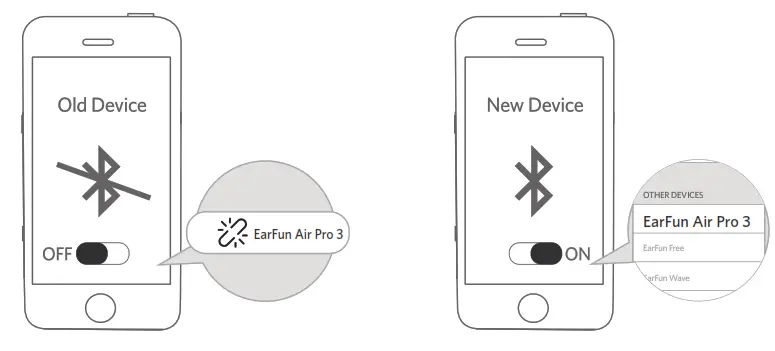
Option B
Step 1. Place both earbuds back into the charging case and make sure they are being charged, keep the cover open and then press and hold the reset button for 3 seconds until the LED indicators on the earbuds flash in blue rapidly.
Step 2. Search on the new device and connect.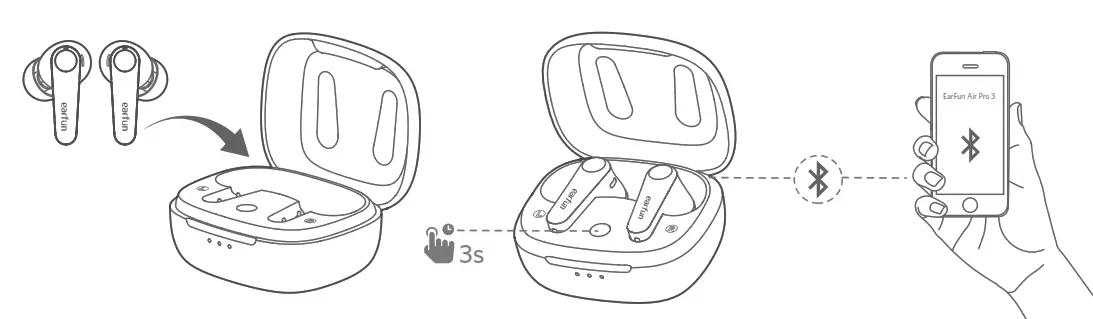
3. Pairing and Connecting two Bluetooth devices simultaneously
Step1. Pair with the first device and stay connected.
Step2. Keep the earbuds in the charging case, then press and hold the reset button for 3 seconds until the LED indicator on the earbuds flash blue rapidly, and then the earbuds enter pairing mode and will disconnect from the first device.
Step3. Search on the second device to connect the earbuds.
Step4. Manually reconnect the earbuds on the first device. 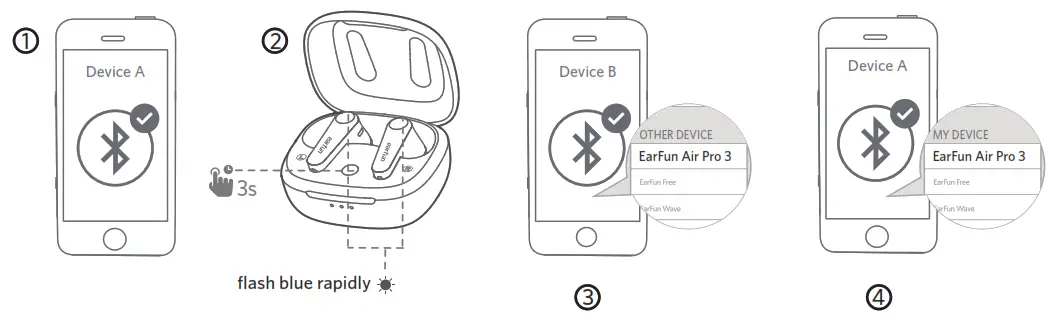
Note: The earbuds will automatically connect to both devices after finishing setting up the multipoint connection.
Functions
Power on/off
Open the charging case, the earbuds will automatically power on.
Place the earbuds back into the charging case and close the case, then the earbuds will automatically power off.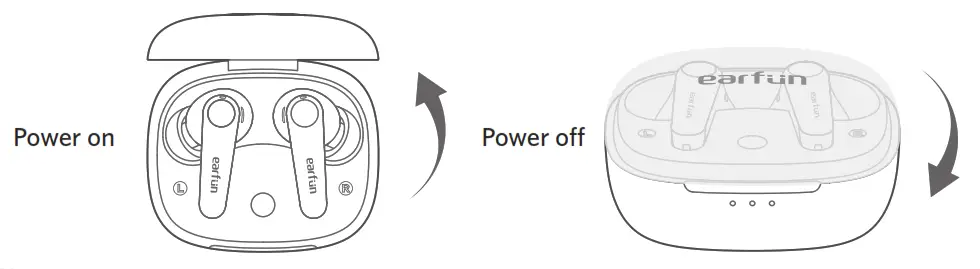
Note: If the earbuds are not connected to any device, they will automatically power off after 10 minutes for saving battery life. Playing music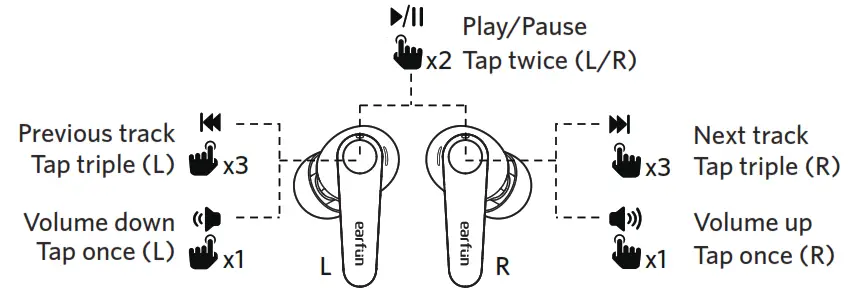
 Hands-free conversation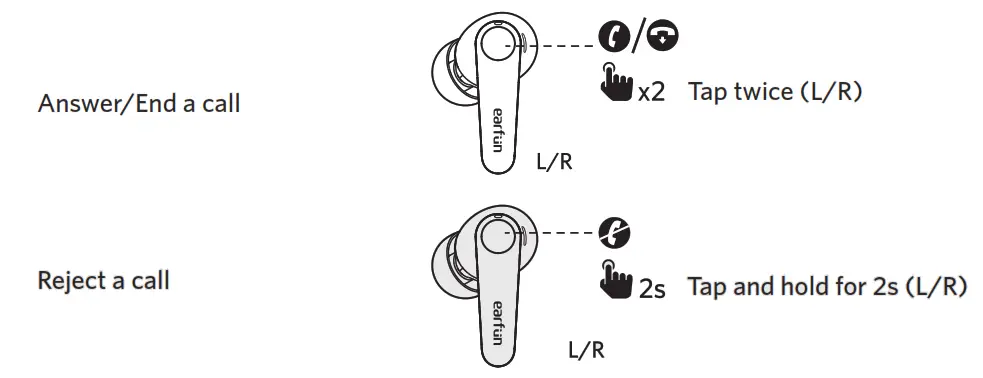
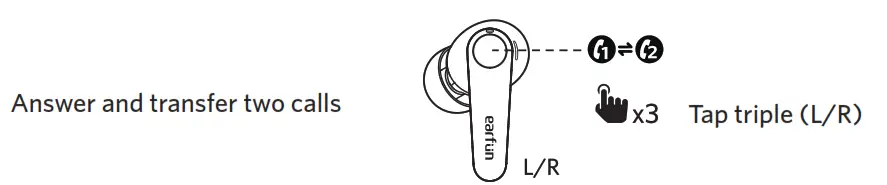
 Activate the voice assistant
 Noise-canceling control
Earbuds LED Indicator
| Power on | Blue indicator flashes for 1s |
| Power off | Red indicator flashes for 1s |
| Pairing mode | Indicator flashes in blue |
| Successfully connected | Indicator turns off |
| Factory reset | Indicator flashes in purple |
Reset and Reconnecting
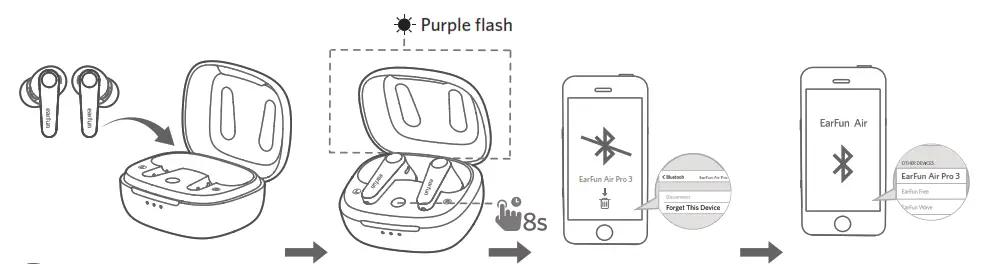
If you fail to build a connection between two earbuds, or between earbuds and Bluetooth devices, please try the following steps:
- Place both earbuds into the charging case.
- Keep the charging case open, then press and hold the reset button for at least 8s until both earbuds flash in purple, then the earbuds have been reset successfully.
- Delete the previous connection from the Bluetooth device and reconnect “EarFun Air Pro 3”.
Troubleshooting
Q: Can I use both earphones separately?
A: Yes, each earbud could be used independently.
Q: The earphones are turning on, but it doesn’t connect to my device.?
A: To connect the earbuds to your device, please check if the Bluetooth of the device is on at first,then select ’EarFun Air Pro 3’ on the Bluetooth list to get paired. If the earbuds still can’t connect to your device, please try to reset it, or contact our customer support.
Q: Why the connection is not stable and cuts out intermittently?
A: Please make sure there are no objects between the earphones and your Bluetooth device, and make sure there is no radio or WIFI interference nearby.
Q: What is the range of Bluetooth earphones?
A: Bluetooth earphones have a maximum range of 49 feet (15m, no obstacle). However, the actual range will depend on usage and the environment.
Q: Is there volume control on the earphones?
A: Yes, touching L earbud once decreases the volume, and touching R once could increase it.
Q: My earphones will not switch on.?
A: Please recharge it and make sure it has enough battery power. If it is fully charged and still nothing happens or if you are not able to charge the unit, please contact our customer support for warranty cover.
Q: Is the charging case waterproof?
A: No, the earbuds are sweaty & waterproof, but the charging case is not waterproof.
Q: Will the earbuds shut off automatically?
A: The earbuds will remain on as long as they are connected to a device. If no audio is in use, they will enter power-saving mode and wake up once the audio is played. If the earbuds are not connected with any devices, they will automatically shut off in 10 minutes.
FCC Statement
Changes or modifications not expressly approved by the party responsible for compliance could void the user’s authority to operate the equipment.
This equipment has been tested and found to comply with the limits for a Class B digital device, pursuant to Part 15 of the FCC Rules. These limits are designed to provide reasonable protection against harmful interference in a residential installation. This equipment generates uses and can radiate radio frequency energy and, if not installed and used in accordance with the instructions, may cause harmful interference to radio communications.
However, there is no guarantee that interference will not occur in a particular installation. If this equipment does cause harmful interference to radio or television reception, which can be determined by turning the equipment off and on, the user is encouraged to try to correct the interference by one or more of the following measures:
— Reorient or relocate the receiving antenna.
— Increase the separation between the equipment and receiver.
— Connect the equipment into an outlet on a circuit different from that to which the receiver is connected.
— Consult the dealer or an experienced radio/TV technician for help.
This device complies with part 15 of the FCC rules. Operation is subject to the following two conditions:
- This device may not cause harmful interference.
- This device must accept any interference received, including interference that may cause undesired operation.
RF Exposure Compliance
This equipment complies with FCC radiation exposure limits set forth for an uncontrolled environment. This transmitter must not be co-located or operating in conjunction with any other antenna or transmitter.
CAUTION
Risk of explosion if the battery is replaced by an incorrect type Disposal of a battery into fire or a hot even, or mechanically crushing or cutting of a battery, that can result in an explosion; Leaving a battery in an extremely high-temperature surrounding environment can result in an explosion or the leakage of flammable liquid or gas;
A battery subjected to extremely low air pressure may result in an explosion or the leakage of flammable liquid or gas.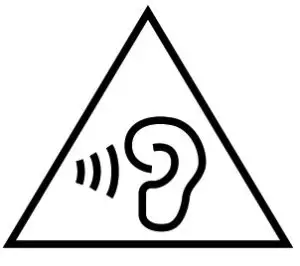 To prevent possible hearing damage, do not listen at high volume levels for long periods.
BLUETOOTH
The Bluetooth word mark and logos are registered trademarks owned by Bluetooth SIG, Inc. and any use of such marks by Earfun Technology (HK) Limited is under license.
Qualcomm aptX is a product of Qualcomm Technologies, Inc. and/or its subsidiaries.
Qualcomm is a trademark of Qualcomm Incorporated, registered in the United States and other countries. aptX is a trademark of Qualcomm Technologies International, Ltd., registered in the United States and other countries.
Other trademarks and trade names are those of their respective owners.
EU Declaration of Conformity
Earn Technology (HK) Limited hereby declares that this equipment is in compliance with the essential requirements and other relevant provisions of Directive 2014/53/EU and RoHS 2011/ 65/EU Directive. The declaration of conformity may be consulted in the support section of our Web site, accessible from www.myearfun.com
UK Declaration of Conformity
Hereby, [Earfun Technology (HK) Limited] declares that the radio equipment type [TW500] is in compliance with UK Radio Equipment Regulations (SI 2017/1206). The full text of the declaration of conformity is available at the following internet address: www.myearfun.com
MODEL: TW500 FCC ID: 2AVIT-TW500
Customer Service
For FAQS and more information:
Please Email to: [email protected]
www.myearfun.com
 EarFun Official Website | Better Sound. Better Life