 Energy Collect Device(MECD)
User Manual
Introduction
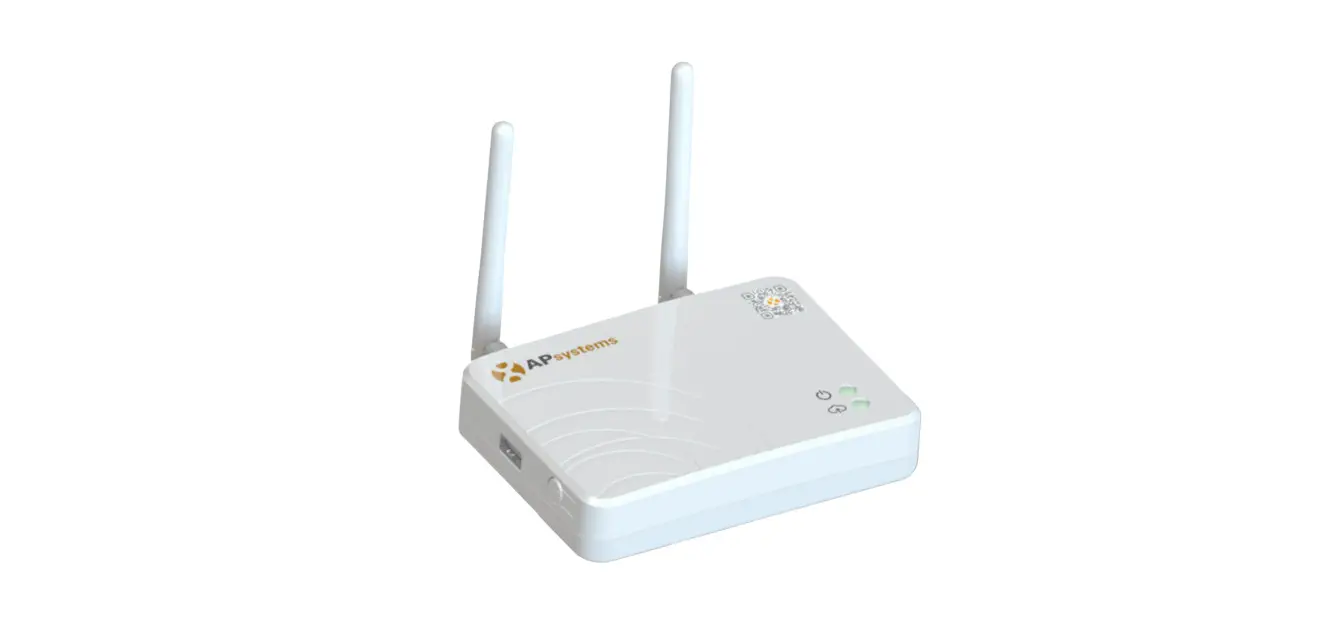
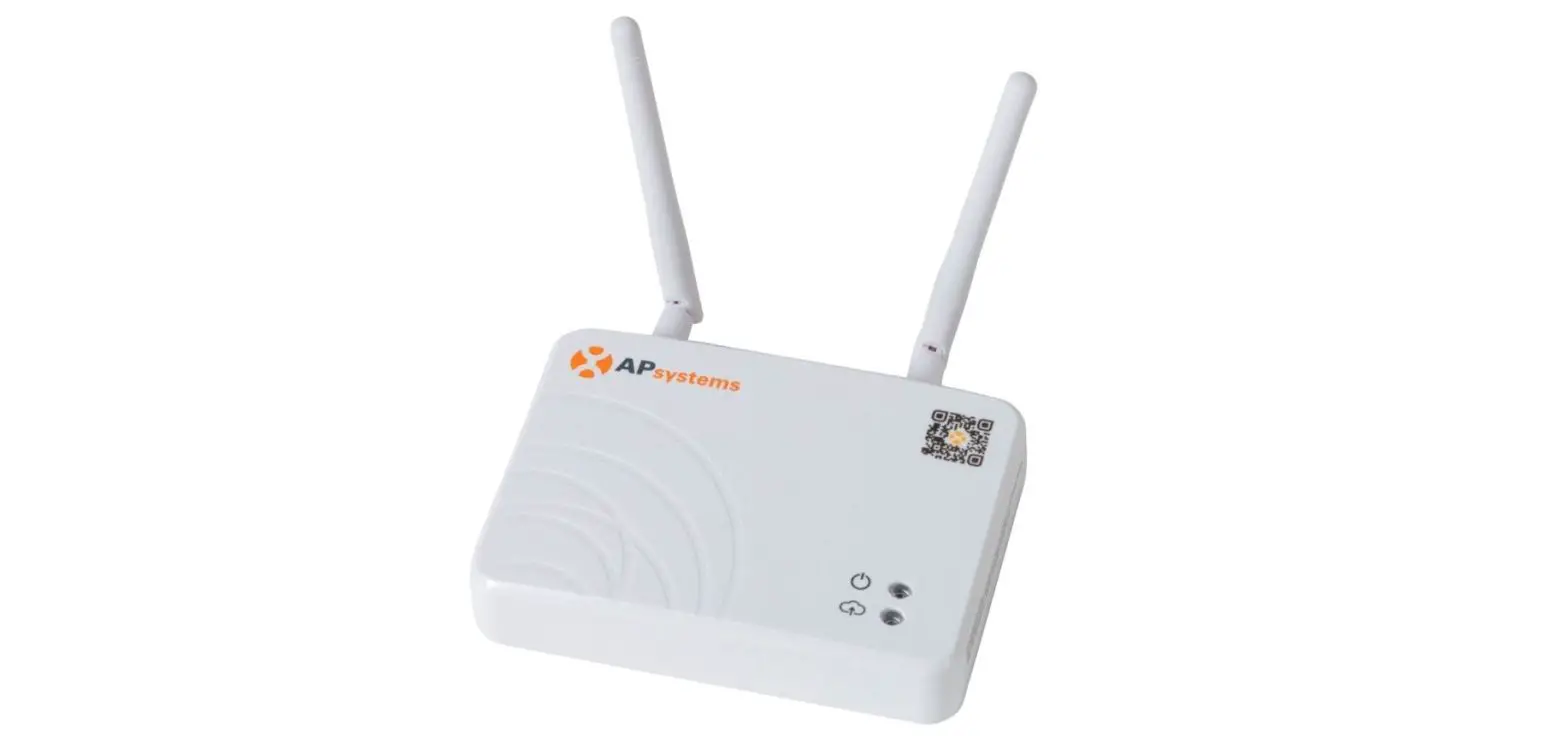
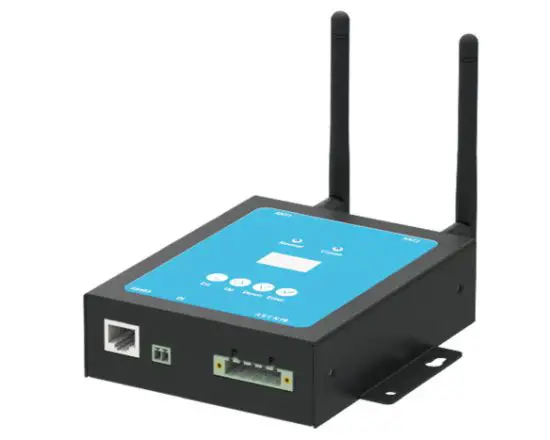
The MECD communications gateway collects and delivers modular performance data in real-time, for comprehensive monitoring and management of your solar system, optimizing the performance of your solar system.
With built-in programmable DI, the MECD is able to control the microinverter connected shut down immediately when the DI status is changed.
Features
User-friendly;
LCD display and buttons, easy operation;
Compact design and light in weight.
Capable
Built-in Zigbee, PLC, and WIFI modular;
Compatible with single-phase and three-phase applications;
Enables remote monitoring and management.
Safe
Support quick shutdown remotely for inverter;
Robust design, 3 years warranty.
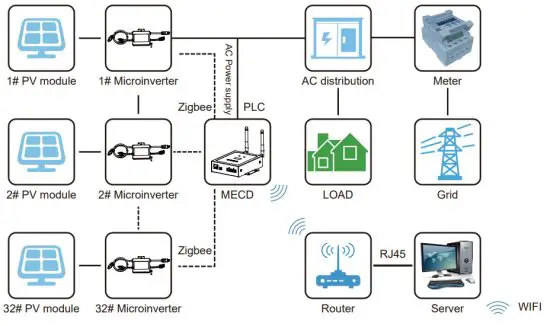
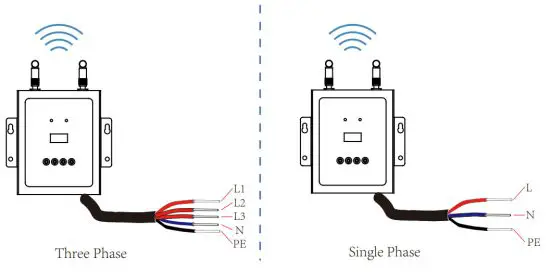
Application Diagram for Single Phase System(5#,10#,20#,32#Max)
Application Diagram for Three Phase System
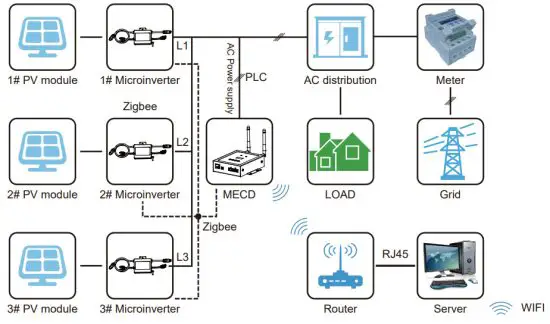
The maximum number of microinverters allowed for each branch depends on the model of the microinverter. And the total number of microinverters of the system is not allowed to exceed the maximum number of microinverter allowed by MECD.
Interface Explanation
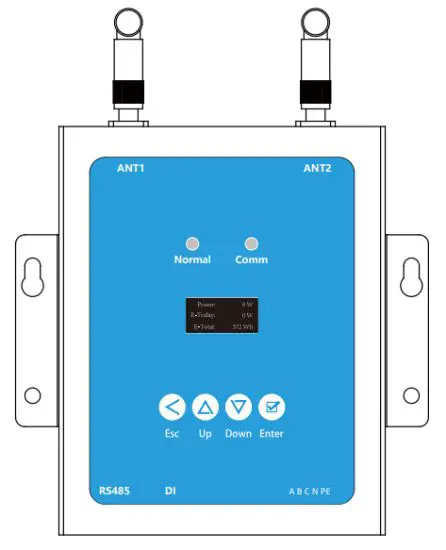
Interface position
All of the MECD interfaces as below, from left to right, are Network port, DI, and Power Connection Port.
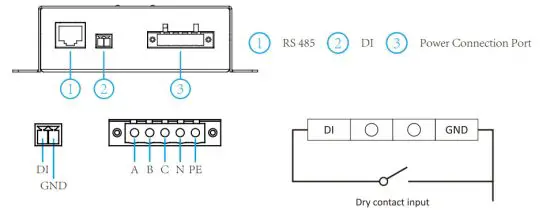
RS485: This port function is reserved.
DI: Digital input. When the DI status changed from 1 to 0, the MECD will send command to control the microinverter shutdown immediately via Zigbee or PLC.
Power connection port: L1, L2, L3, N, PE, connects power through the power line.
Power cable is included in the MECD package.
Preparation
Make sure you have the following things taken care of before attempting to install the ECD:
- A dedicated standard AC electrical outlet (located electrically as close to the array as is possible).
- A broadband Internet connection is available for your use.
- A wireless router is available for you to use a laptop.
- With a web browser (to view the EMA online monitoring application).
- A pre-programmed MECD.
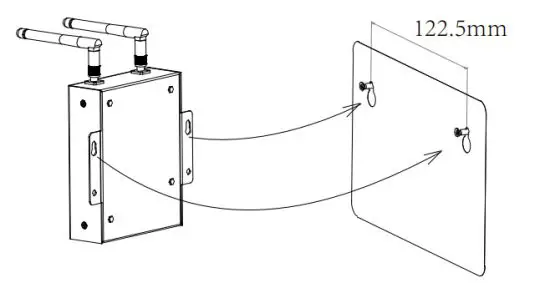
Connections
- Connect the power cable to the power connection port on the bottom of the ECD;
- Config the wifi device with your home router.
Single-phase / Three phase PLC/ZIGBEE type MECD wifi connection
MECD + WIFI Plug Setup Sequence
Once power is supplied to the ECD, it automatically steps into the main screens on its LCD display which includes the below details info.
| Buttons | Name | Functions |
 Esc Esc | Return button | Allows you to return to the last page or end an operation. |
 Up Up | Cursor Up button | Allows you to go to the upper-level menu or set parameters. |
 Down Down | Cursor Down button | Allows you to go to the lower-level menu or set parameters. |
 Enter Enter | Confirm button | Allows you to go to the menu or confirm the value. |
MECD LED indications
There are two indicators of the MECD. The following description will tell how it works.
| Indicator | Status | Meaning |
| Normal indicator (left LED) | Steady blue | All inverters connected works normal |
| Off | All inverters connected has alarms | |
| Blinking blue | Some inverters connected has alarms | |
| Comm indicator (right LED) | Steady blue | All inverters connected communication successfully |
| O ff | All inverters connected communication failed | |
| Blinking | Some inverter’s communication failed |
MECD LCD operation flow chart
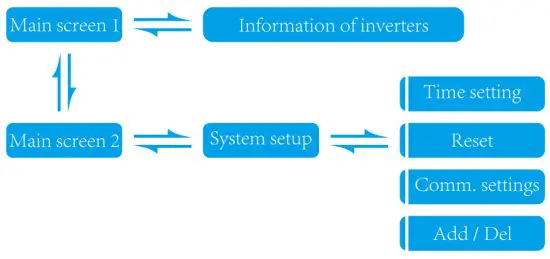
Information on the LCD home page
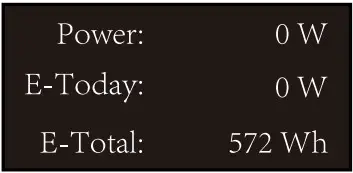
MECD main interface 1:
- Output power;
- Today’s total power generation;
- Total power generation of microinverters connected.
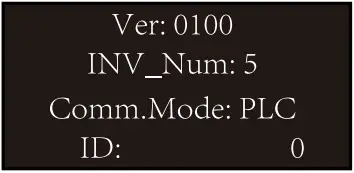
MECD main interface 2:
- version information.
- A number of connected inverters.
- Communication method.
- MECD Serial number.
Information of inverters
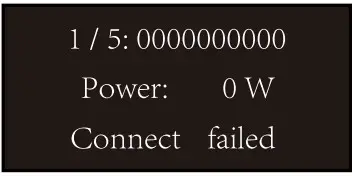
- Inverter ID is currently connected;
- Power generation;
- Connection Status.
System setup
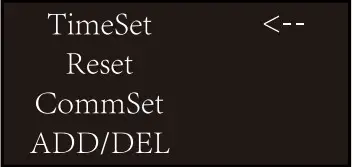
- Time setting;
- Reset;
- Communication settings;
- Add or Delete.
Time setting
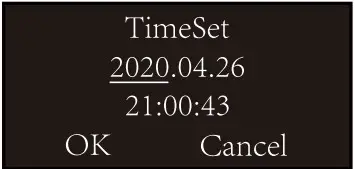
- Time setting;
Reset
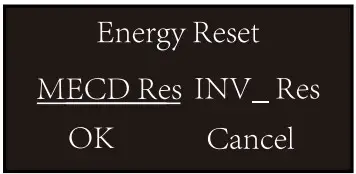
- MECD reset: reset to factory setting.
- Inverter reset: clear all inverter’s information of MECD.
Communication settings
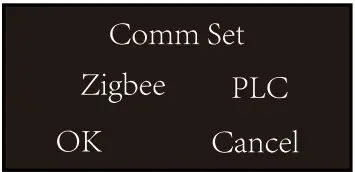
- Zigbee or PLC communication method selection.
Add or delete inverter ID on ECD
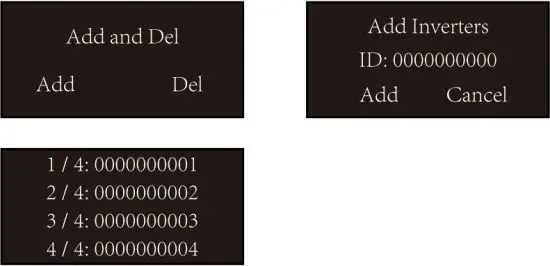
Monitoring Platform
The MECD has built-in WIFI modular which is able to connect to the router directly.
Web monitoring address: https://pro.solarmanpv.com; (for Solarman distributor account): https://home.solarmanpv.com (for Solarman end-user account).
For the mobile phone monitoring system, scan the below QR code to download the APP.
Or by searching “Solarman Business” in App Store or Google Play store, and this app is for distributor accounts. Searching “Solarman Smart” in App Store or Google Play store and choosing “Solarman smart”, this app is for end-user accounts.
 19887526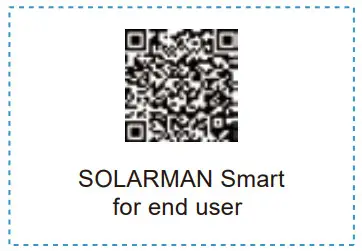
Set WiFi connection on PC
Notice: The setting hereinafter is operated with. Windows XP for reference only. If other operating systems are used, please follow the corresponding procedures.
- Prepare a computer or device with WiFi, e.g. tablet PC and smartphone with WiFi function.
- Obtain an IP address automatically.
- Set WiFi connection to the logger
Open wireless network connection and click View
Wireless Networks
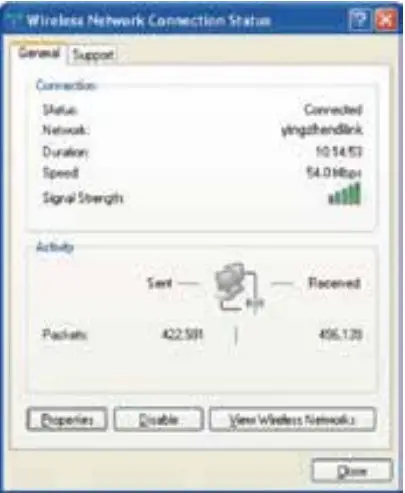
Select the wireless network of the logger.
The network name consists of AP and the serial number of the product. Input the password shown on the logger. Then click Connect.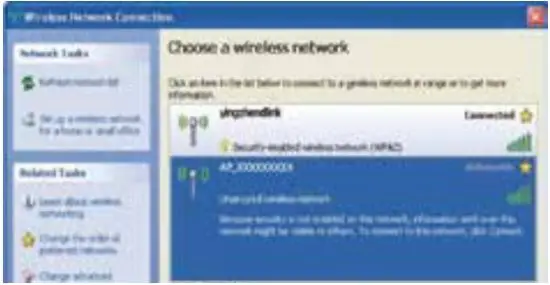
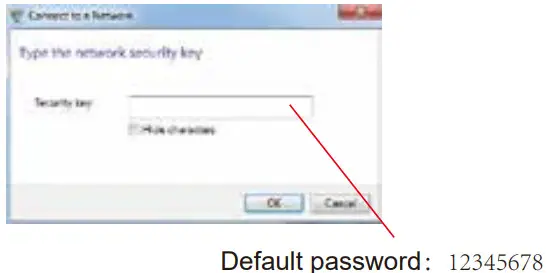
Notice: If AP_(serial number of product) is not available in the wireless network list, there may be problems in the connection or setting of the logger. Please wait several minutes to refresh the list or plug in the logger again.
Set parameters of logger
Open a web browser, and enter 10.10.
100.254, then fill in username and password, both of which are admin as default.
Recommended browsers: Internet Explorer 8+, Google Chrome 15+, Firefox 10+
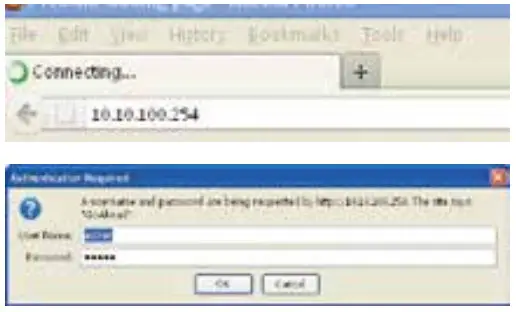 In the Status page, you can view the general information about the logger.
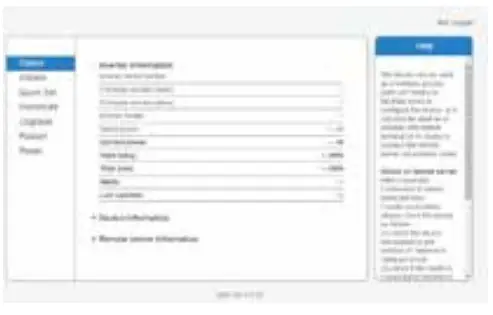
Follow the setup wizard to start the quick setting.
(a)Click Wizard to start. Select the wireless network you need to connect to, then click Next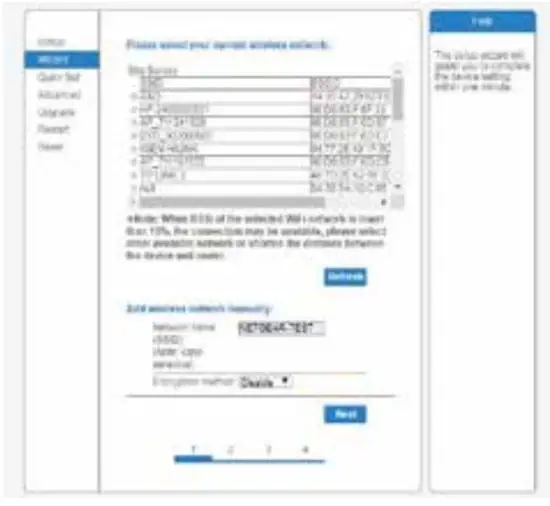
Notice: If the signal strength (RSSI) of the selected network is <15%, which means an unstable connection, please adjust the antenna of the router, or use a repeater to enhance the signal.
The SSID of your selected router network should be less than 30 characters, in which blank space should not be included.
(b)Enter the password for the selected network, select Enable to obtain an IP address automatically, then click Next
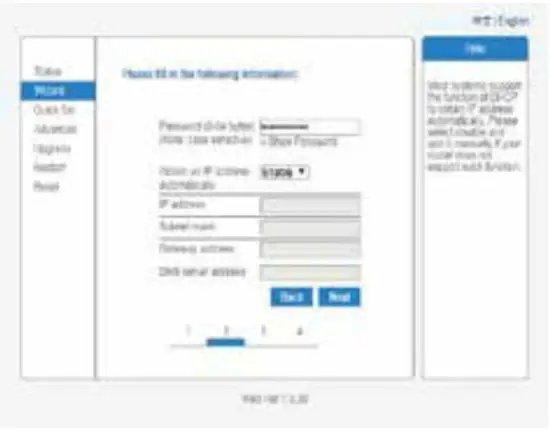
Notice: Router password cannot be recognized if it contains any character such as’84’, T, T0′, and blank space.
The password is being verified, please wait for a while. If you have entered an invalid password or encryption method, an error notice will pop up.
(c)Enhance the security settings of the WiFi logger by selecting any options as listed, then click Next.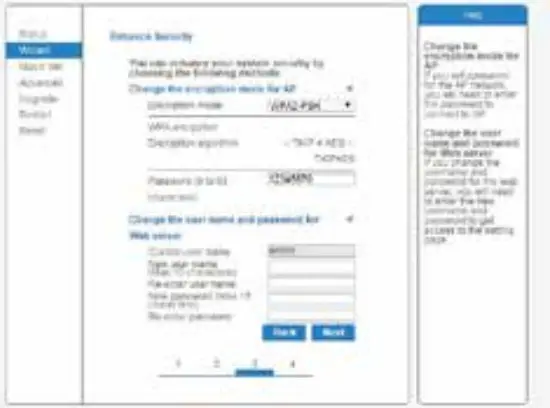
(d) If the setting is successful, the following page will display. Click OK to restart.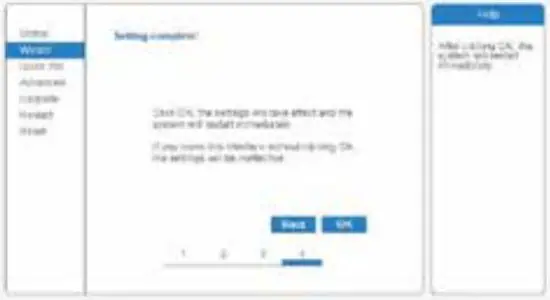
(e) If a restart is successful, the following page will display. If this page does not display automatically, please refresh your browser. 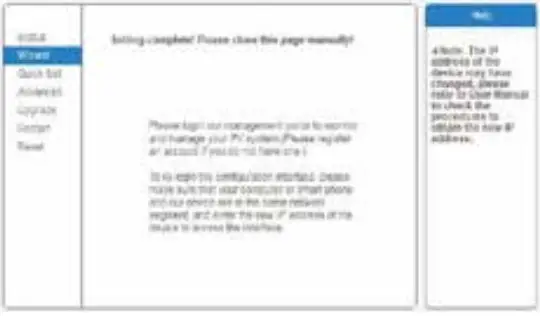
(f) Re-login this setting page to the Status page after the Web server restart, and check the network connection status of the logger.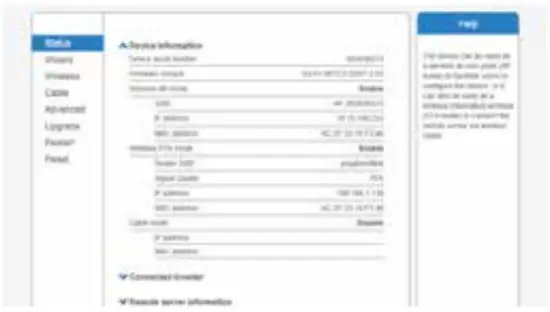
Notice: Aer network setting is complete, the Wireless AP mode should be enabled and relative information of your router will display on the interface automatically. Besides the Remote server, A should be connected.
If you meet any problems and need support, please provide a screenshot of the status page as shown below.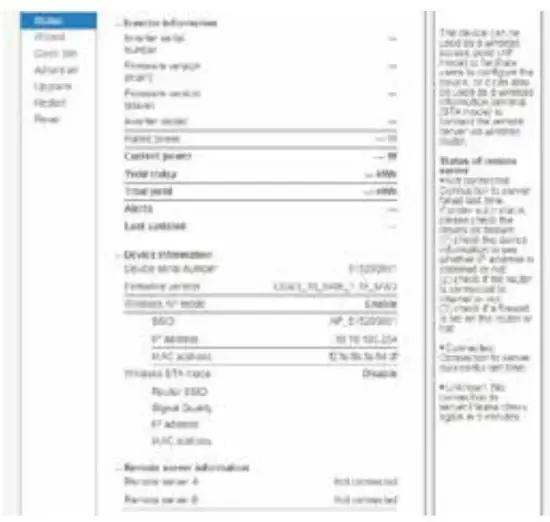
Datasheet
| Model | MECD |
| Communication | |
| Communication method | Zigbee, PLC |
| Max. number of inverters connected | 5、10、20、32(Max.) |
| Communication to router | WIFI |
| WIFI wireless security | WEP, WPA2-PSK |
| RS485 | Reserved |
| Max.distance(free space) | PLC 300m; Zigbee 100m(Max. straight-line distance) |
| Power Supply | |
| AC Power Supply | 100 to 240V AC,50/60Hz |
| Power consumption | 5W typical, 10W Maximum |
| Mechanical Data | |
| Dimensions(W×H×D) | 133.6×132×35.5 mm |
| Weight | 0.3KG |
| Operation temperature range | -20~+50℃ |
| Mounting method | Wall-mounted |
| Display | OLED and LED indicators |
| Features | |
| Grid type | Single-phase/three-phase |
| Digital Input | Control device connection |
| Others | |
| Compliance | IEC60950, IEC61000-6-2, FCC Part15 Class B / Class C |
| Warranty | 3 years |
502011349
Ver: 1.1, 2020-07
 home.solarmanpv.com
 pro.solarmanpv.com