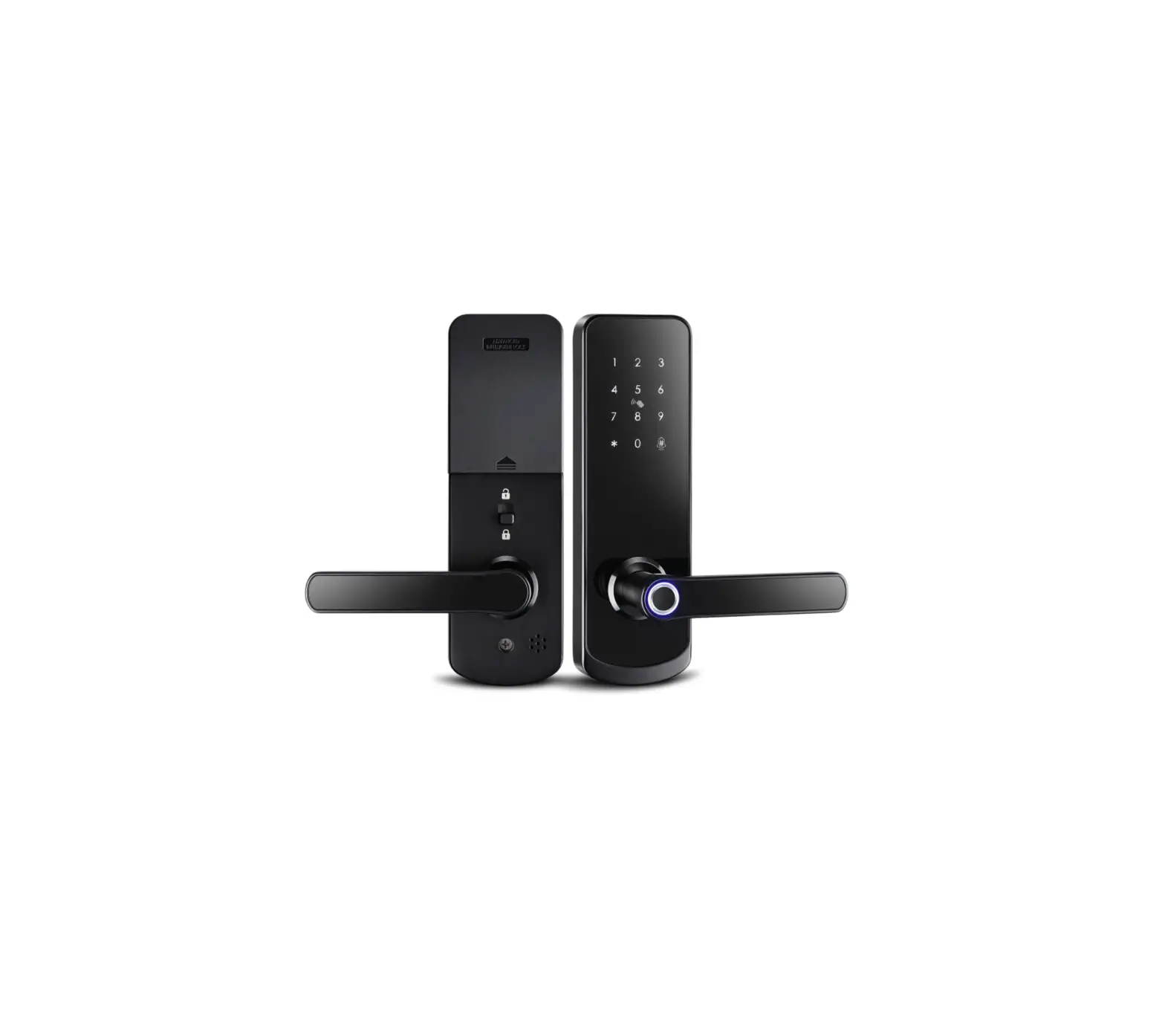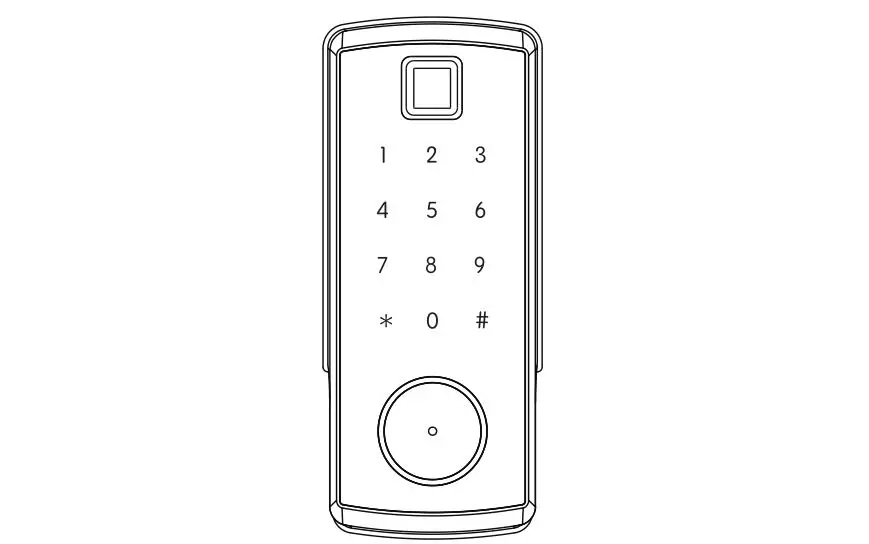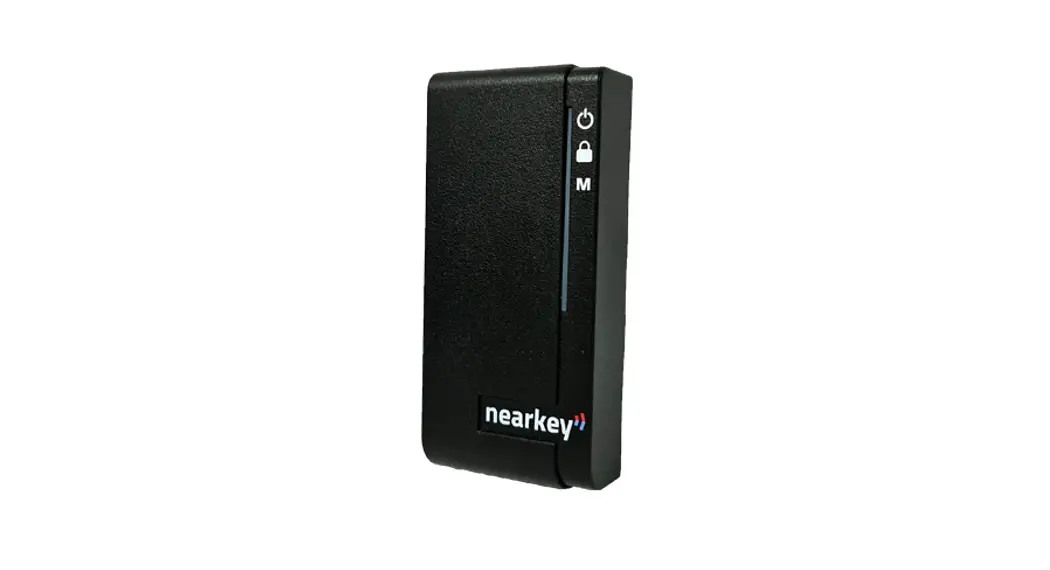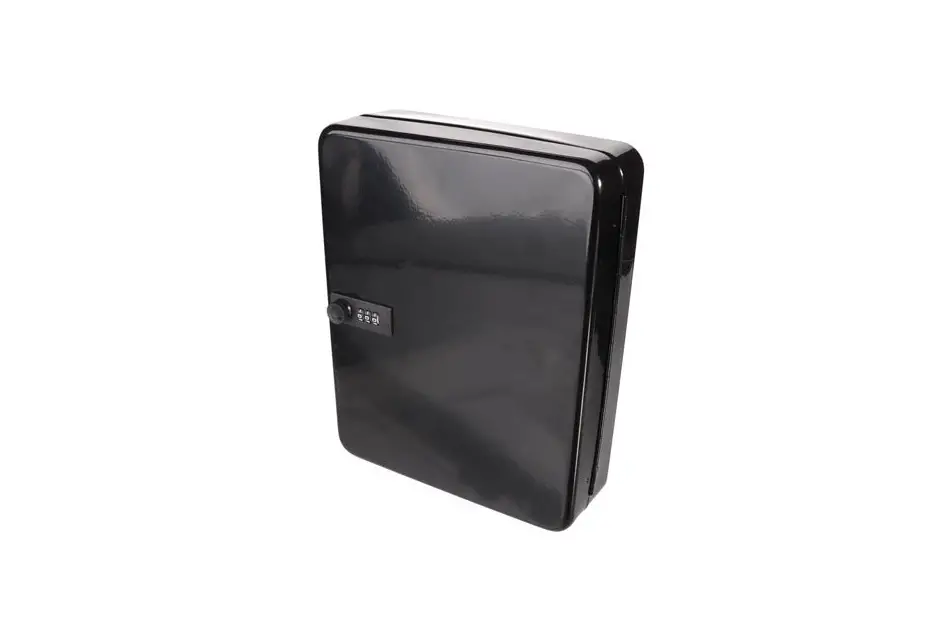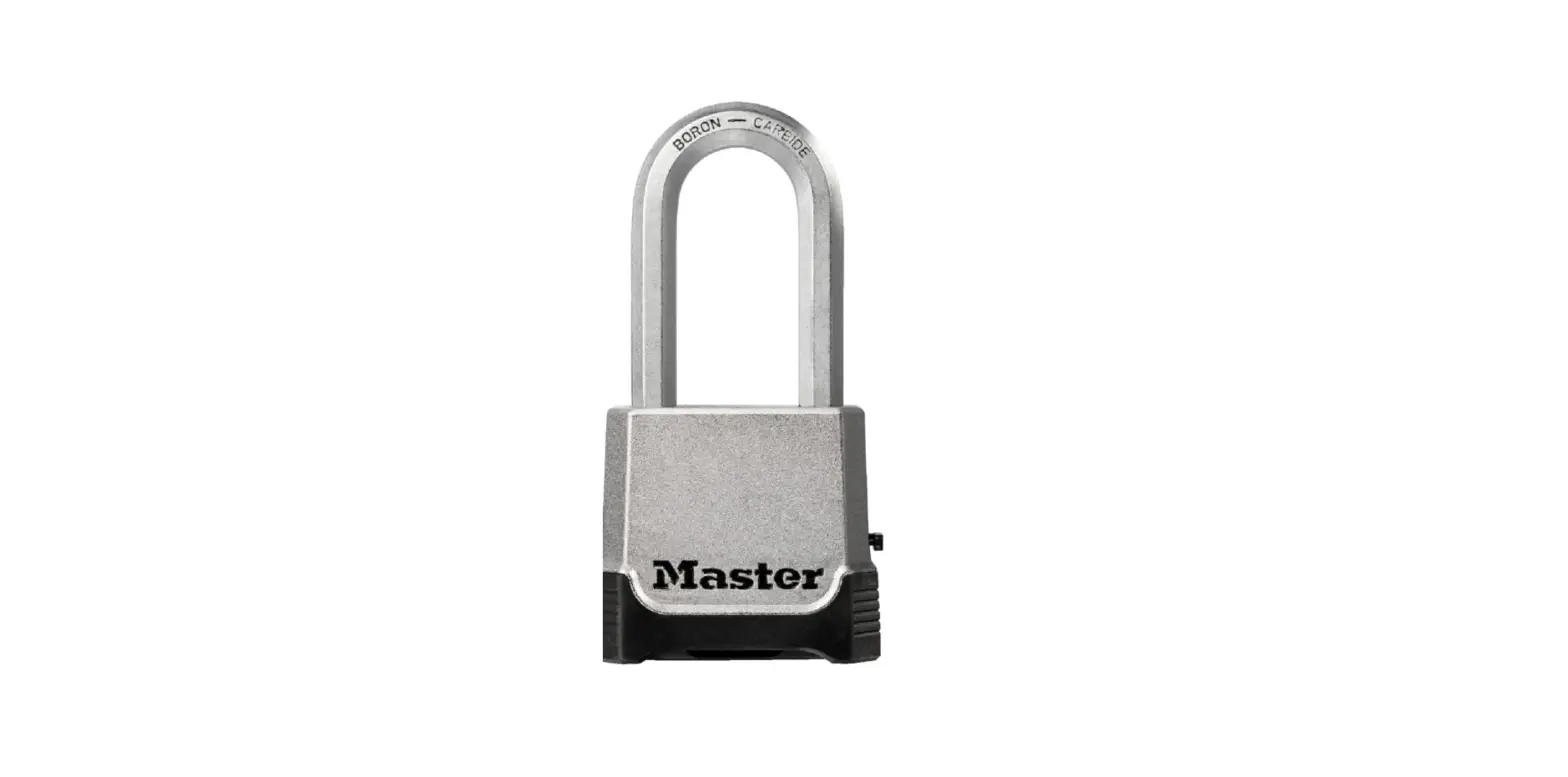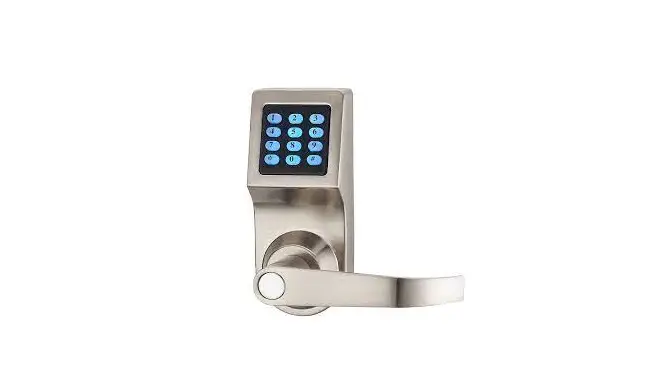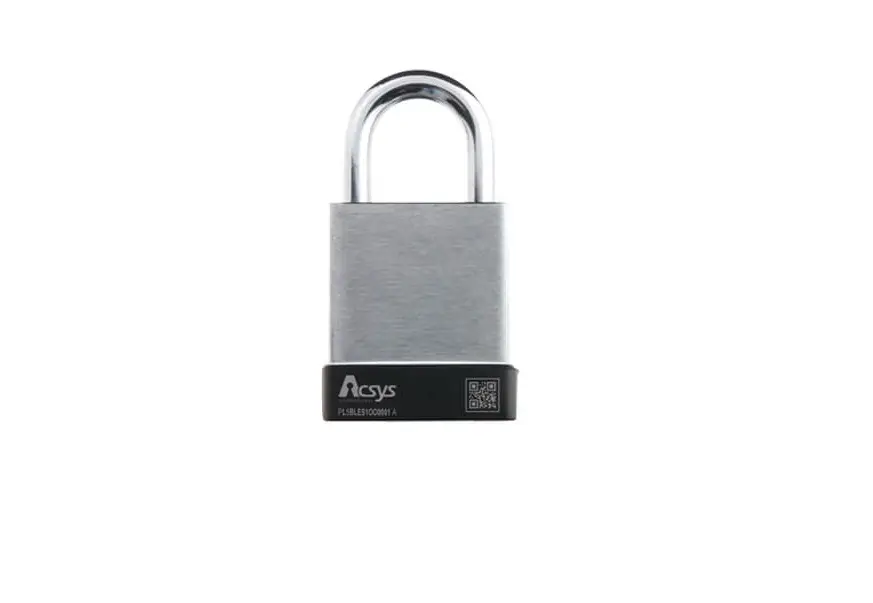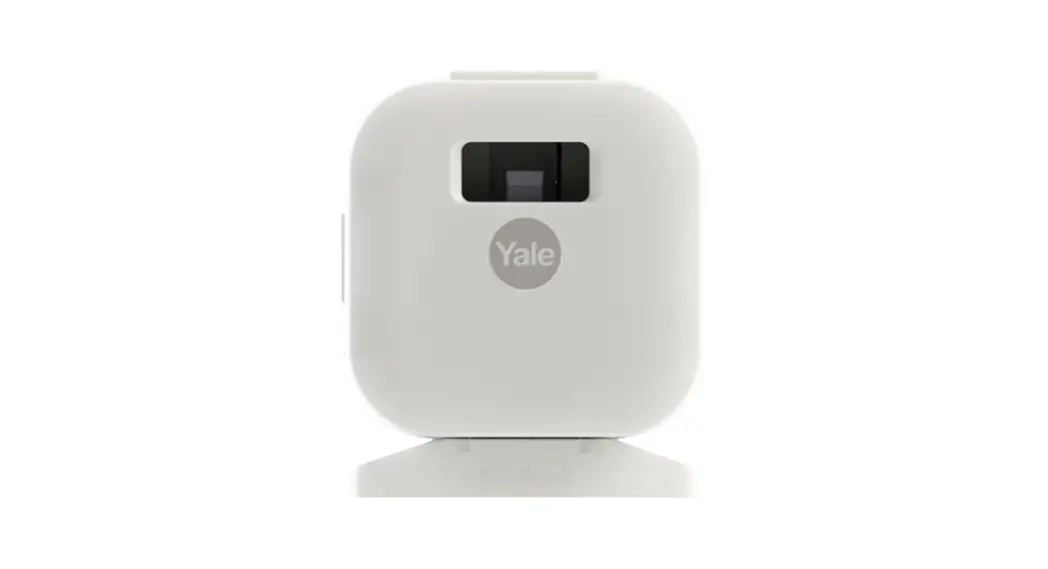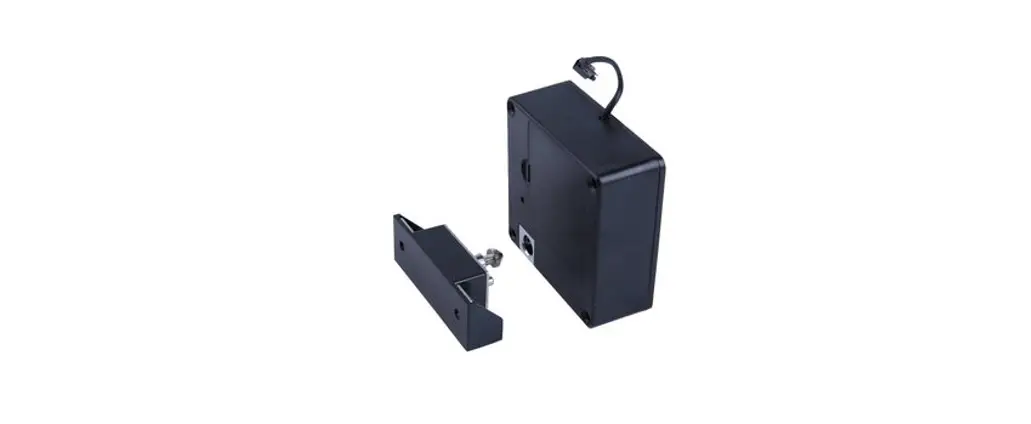

Bluetooth Cabinet Lock
User Manual
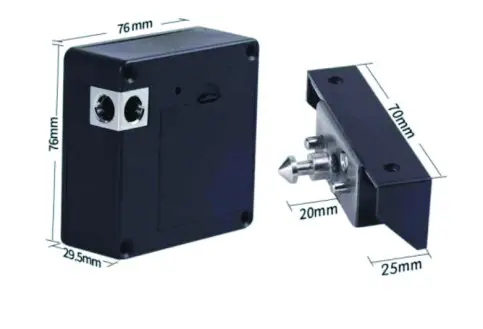
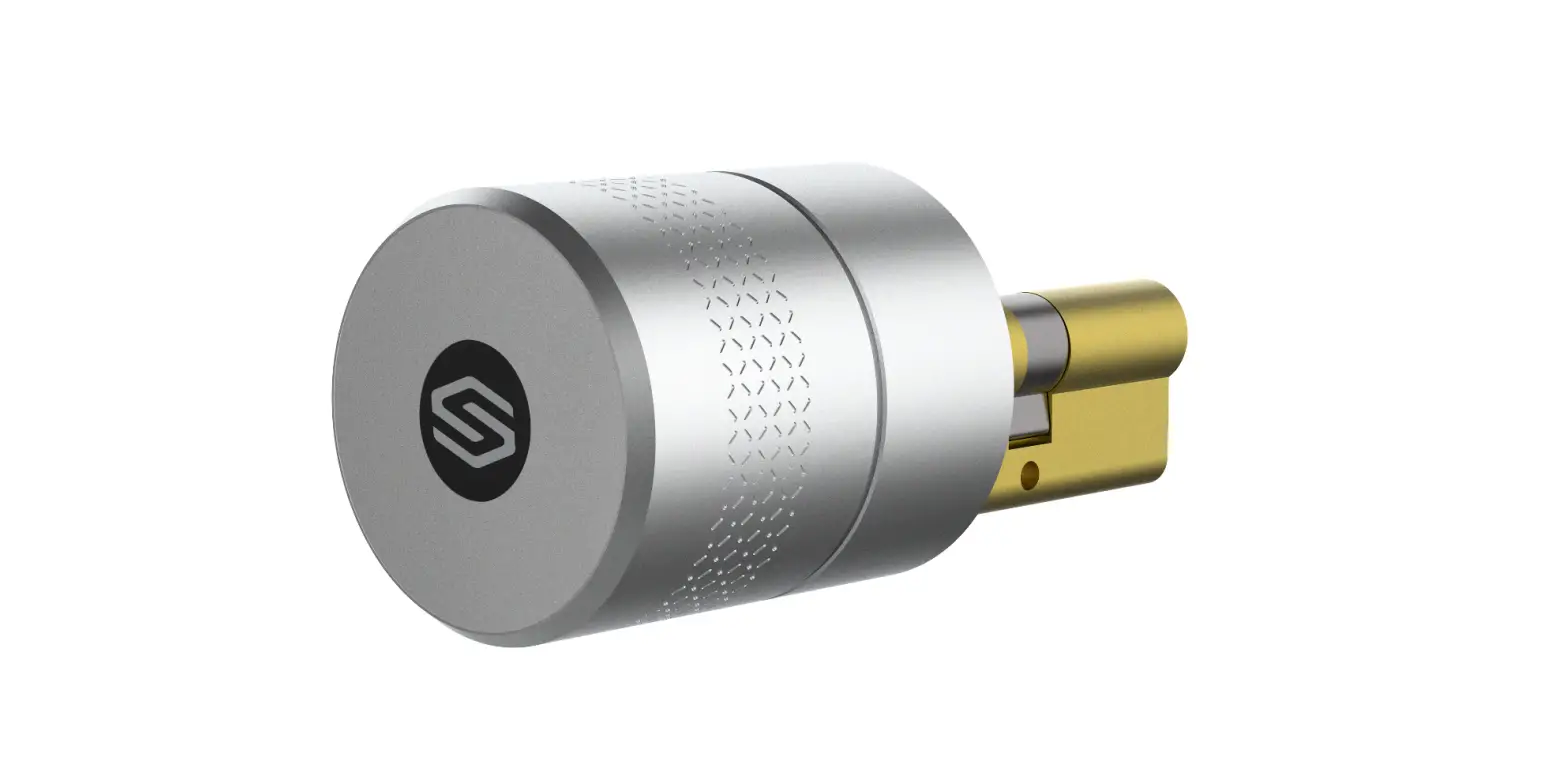
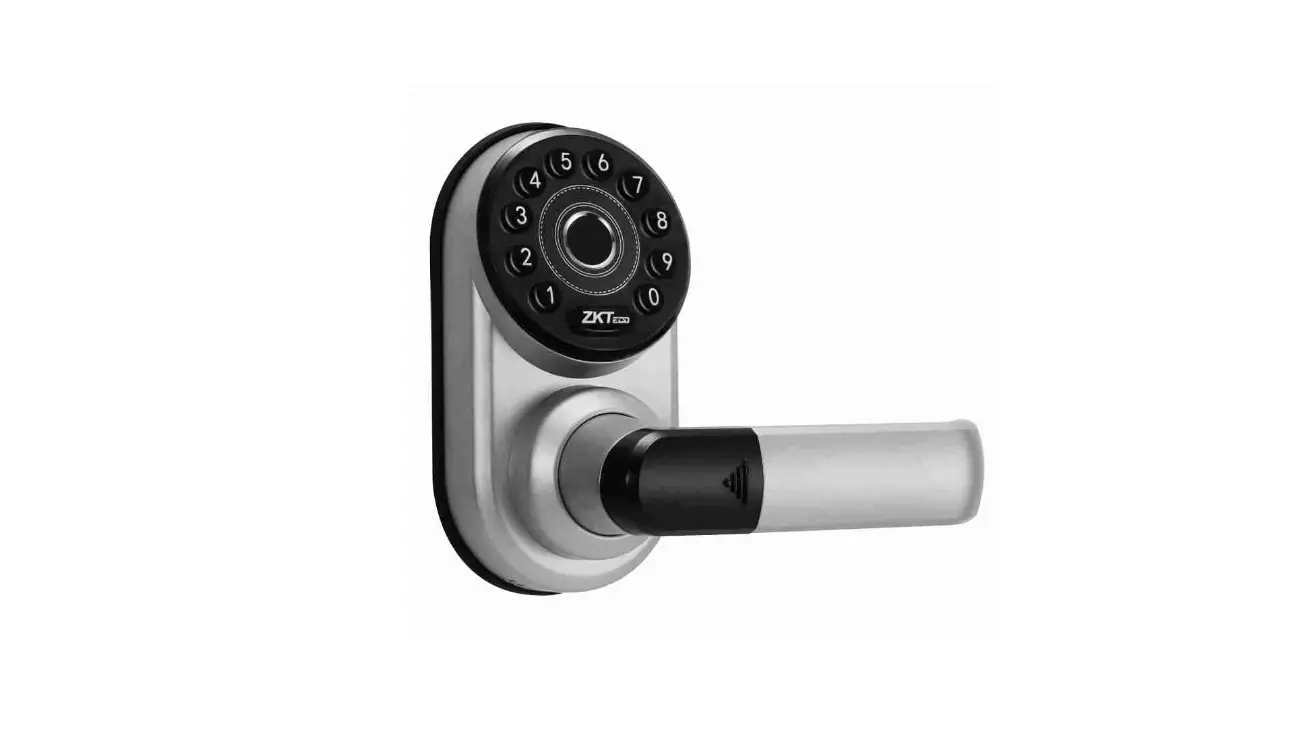
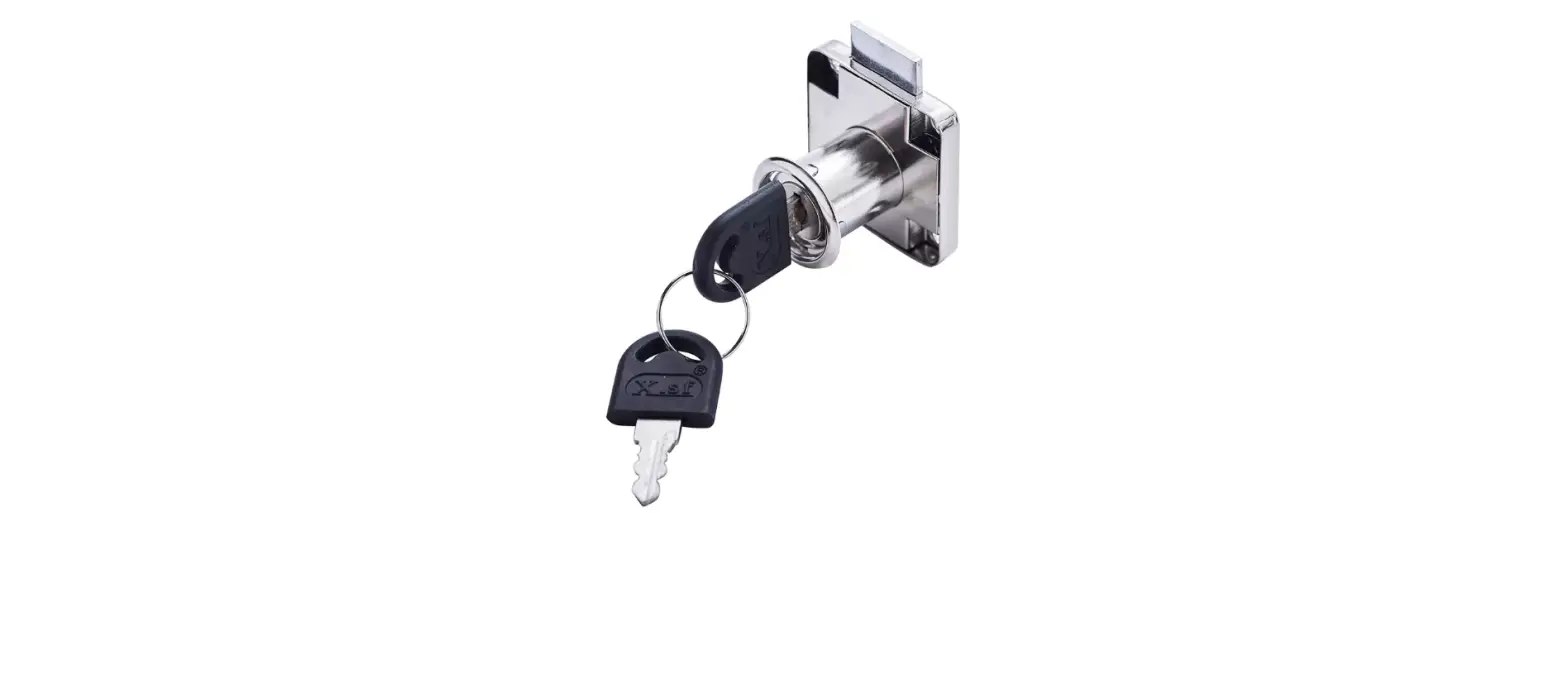
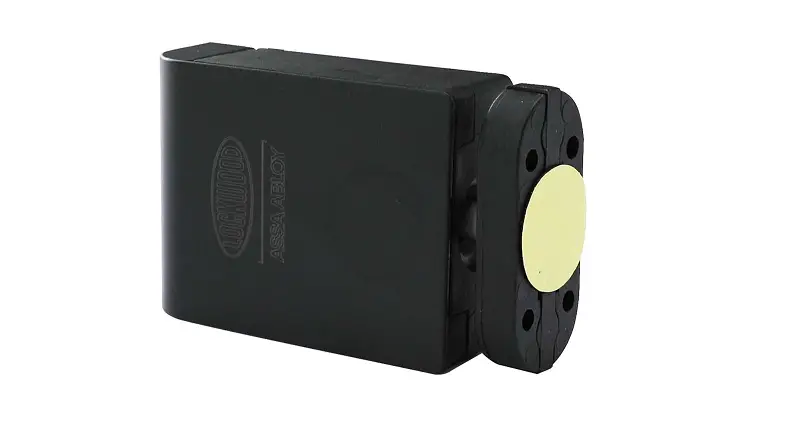
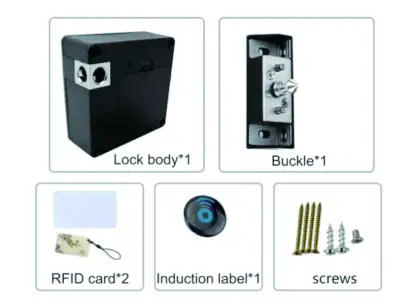
Accessory Display
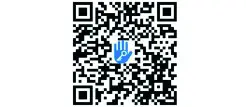
http://a.app.qq.com/o/simple.jsp?pkgname=com.tongtongsuo.app&fromcase=40003
“Lock” APP Download QR Code
Technical Data
| Power Supply | 4 AAA Alkaline batteries |
| Low Voltage Alarm | 4.8V |
| Voltage Range | 4.5V~9V |
| Standby Current | 65 microamps |
| Operating Current | Less than 200 mA |
| Unlocking Duration | 6 seconds (automatically lock after) |
| Operating Temperature Range | -4°F-158° F |
| Operation Humidity Range | 5%~97%PF |
| Supported Card Type | MIFARE M1 card |
| Number of IC cards | 200 |
| Life of Battery | About 6 months |
| The Output Voltage of the Motor Interface | 5.7V |
“TTLock” APP User Guide
- Scan the QR code or search “TTLock” on App Store or Google Play to download. Please watch the video demonstration on the Amazon product page for setup guidance Smartphone Bluetooth Unlock: Based on the low power consumption of Bluetooth technology, unlocking is incredibly convenient through the ·TTLock” app.
- RFID Cards Unlock: Only RFID cards that are registered to TTLock” app can unlock.
- Smartphone NFC unlocks NFC access cards can be cloned to your Android phone’s wallet, or add a digital transit card on your Apple Wallet and program it to the lock as an alternative access card.
- User e-keys Authorization: As an admin, e-keys can be authorized to users anytime anywhere through TTLock” app. E-Keys can be permanent or temporary.
- Activity Log Monitoring: Admin can check all unlocking records through TTLock”, including Bluetooth unlocking and RFID unlocking activities.
Functions Setup on TTLock”
| Functions | Manual |
| Restore Factory Setting | Press and hold the button inside the hole beside the battery cover for 3 seconds until you hear 2 quick consecutive beeps, all data will be cleared. Recommendation: Do this prior to your first time “TTLock” setup. |
| Admin Setup | The first user that adds/connects the brand new lock on “TTLock” via Bluetooth is the admin of this lock. Reminder: Please tap a card to the lock to wake it up, otherwise the lock cannot be found on the app. |
| Admin Deletion | Go to the unlocking page of your lock in the app, click “Settings”, then click “Delete”. Reminder: If an admin is deleted, every card or Bluetooth user that have been added to the lock are all deleted as well. |
| RFID Cards Registration | Click “Cards” —*. “Add Card”→Enter user name →Set time period of validity →Follow the instruction and tap card to the lock Reminder: This is required to be done beside the lock. |
| RFID Cards Deletion | Click “Cards” →Click the card you want to delete vClick “Delete” Reminder: This is required to be done beside the lock. |
| Rename RFID Cards | Click “Cards” →Click the card you want to rename →Click “Name”→Type a new name and save |
| Edit RFID cards Validity Period | Click “Cards” Click to Click the “Validity Period” →card you want to edit → →Set a new period and save Reminder: This is required to be done beside the lock. |
| Bluetooth E-Key Users Setup | Click “Send eKey”→Select permanent or setup validity period →Enter the recipient’s account phone number or email→ Enter the name and click “Send” |
| Bluetooth E-Key Users Management | Click “eKeys” →Click the user key you want to edit →You can edit the name and validity period or delete the e-Key user. |
| Unlocking | Click the lock icon on the “TTLock” app via Bluetooth or tap the registered RFID cards to the lock to unlock. |
| Auto-locking | After unlocking, the lock will be auto-locked within 6 seconds. (Unless the passage mode is on) |
| Passage Mode | Under this model, once the lock is unlocked, it remains unlocked within a preset time period until it is manually locked. You can turn this mode on in the “Settings” of your lock on the “TTLock” app. Reminder: This setup is required to be done beside the lock. |
| Lock Sound | The lock’s beeping sound can be turned on or off in the “Settings” of your lock on the “TTLock” app. Reminder: This setup is required to be done beside the lock. |
| Reset Button | The lock’s factory reset button can be enabled or disabled in the “Setting” of your lock on the “TTLock” app. Reminder: This setup is required to be done beside the lock. |
| Activity Log | Click “Records” and “Refresh Records”, and you can see all the unlocking activities. |
Installation
Video demonstrations of installation is available on our Amazon product page. Please test the lock before any installation.
After-sale Policy
We provide 1 year unconditional replacement policy, please feel free to contact us on Amazon or via the below email: [email protected], if you have encountered any problems.
NOTE
This equipment has been tested and found to comply with the limits for a Class B digital device, pursuant to part 15 of the FCC Rules. These limits are designed to provide reasonable protection against harmful interference in a residential installation. This equipment generates uses and can radiate radio frequency energy and, if not installed and sed in accordance with the instructions, may cause harmful interference to radio communications. However, there is no guarantee that interference will not occur in a particular
installation. If this equipment does cause harmful interference to radio or television reception, which can be determined by turning the equipment off and on, the user is encouraged to try to correct the interference by one or more of the following measures:
- Reorient or relocate the receiving antenna.
- Increase the separation between the equipment and receiver.
- Connect the equipment into an outlet on a circuit different from that to which the receiver is connected.
- Consult the dealer or an experienced radio/TV technician for help.
Changes or modifications not expressly approved by the party responsible for compliance could void the user’s authority to operate the equipment.
This device complies with Part 15 of the FCC Rules.
Operation is subject to the following two conditions:
- this device may not cause harmful interference, and
- this device must accept any interference received, including interference that may cause undesired operation.
 FCC ID: 2A43P-CABINETLOCK11
CONTACT US: [email protected]