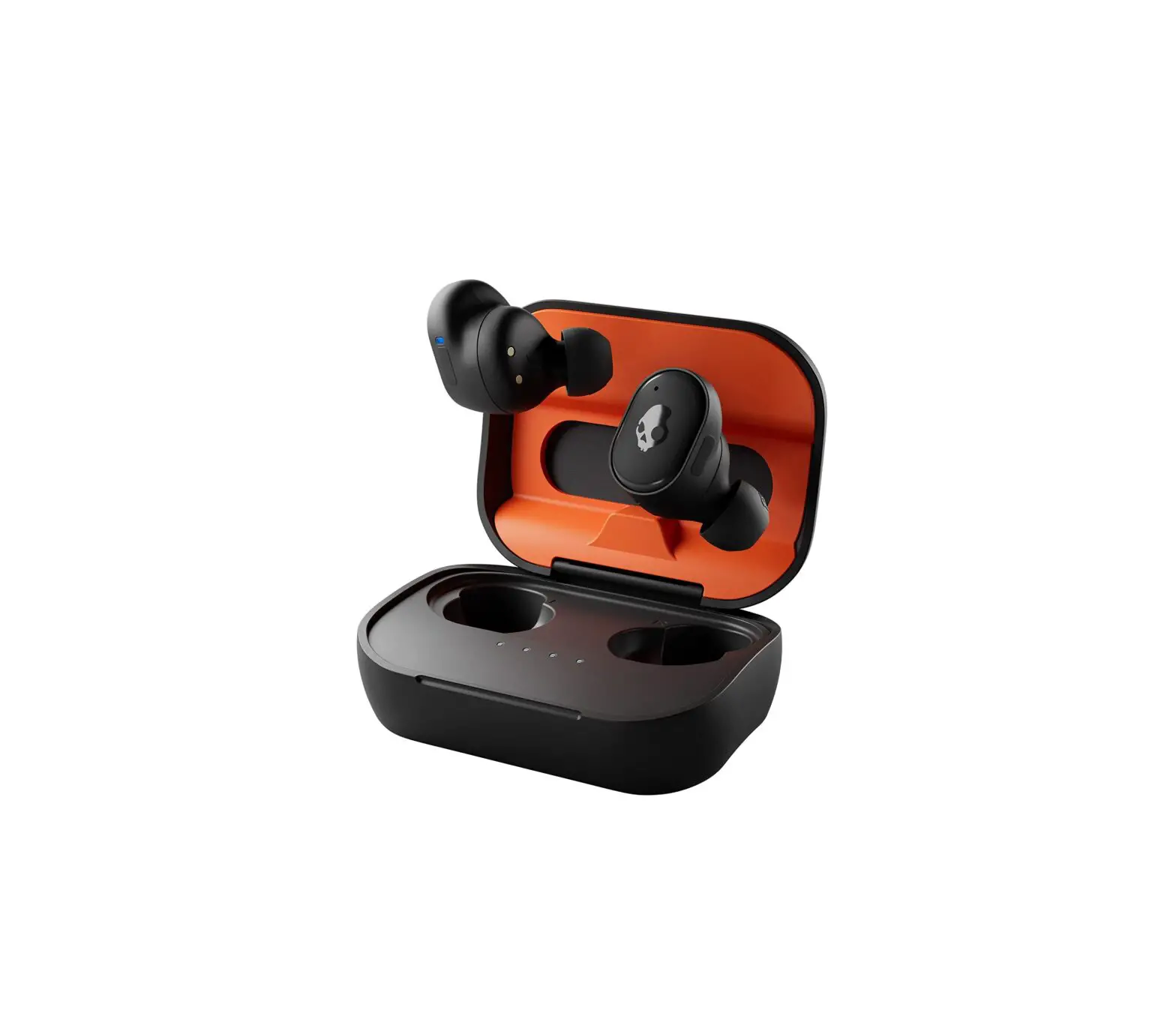
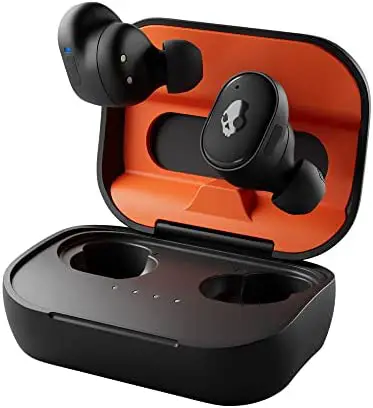
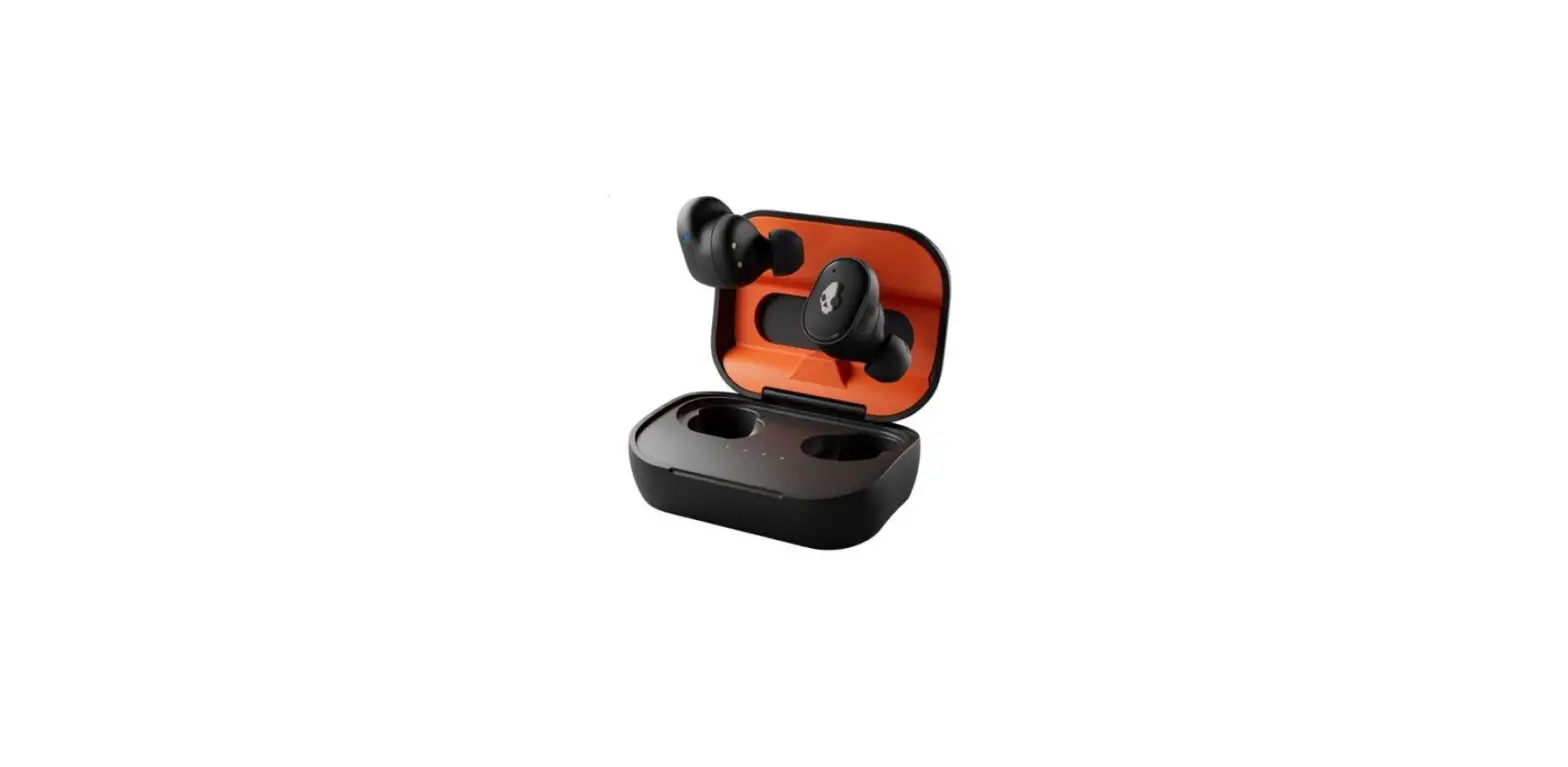
Skullcandy Grind Fuel User Manual
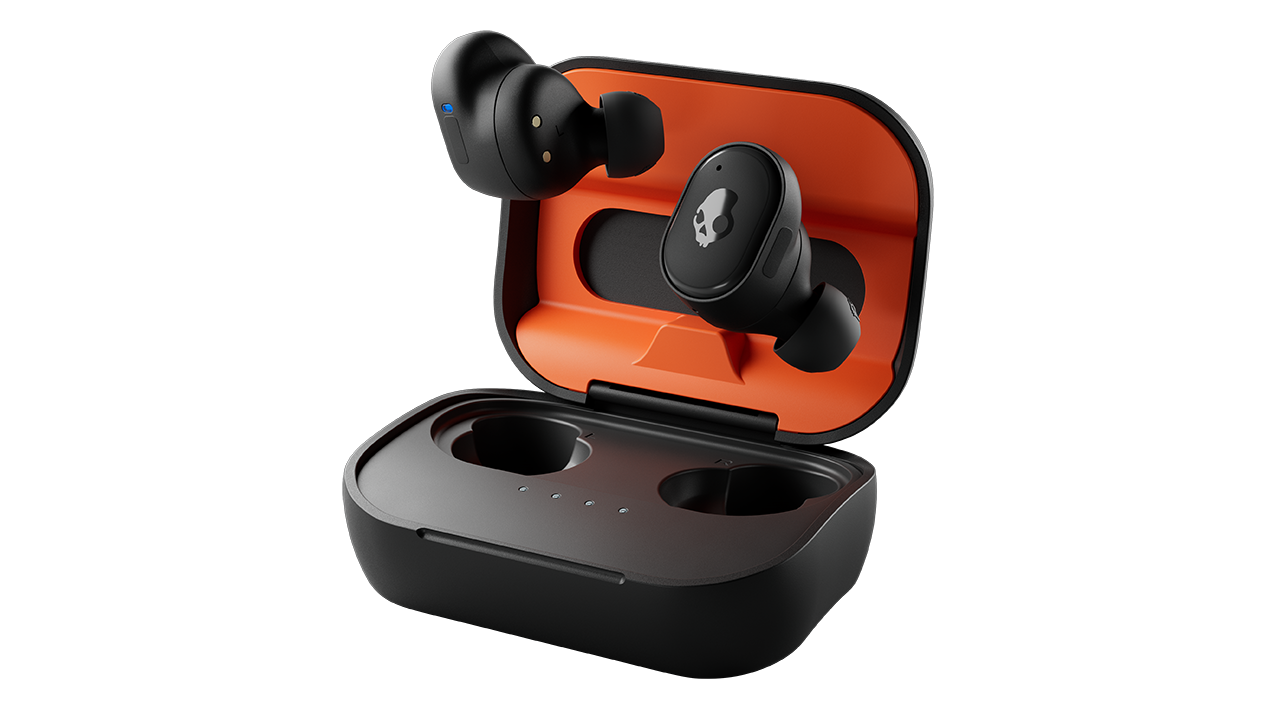
Hi, I’m McKenna, the Global Brand Manager at Skullcandy.
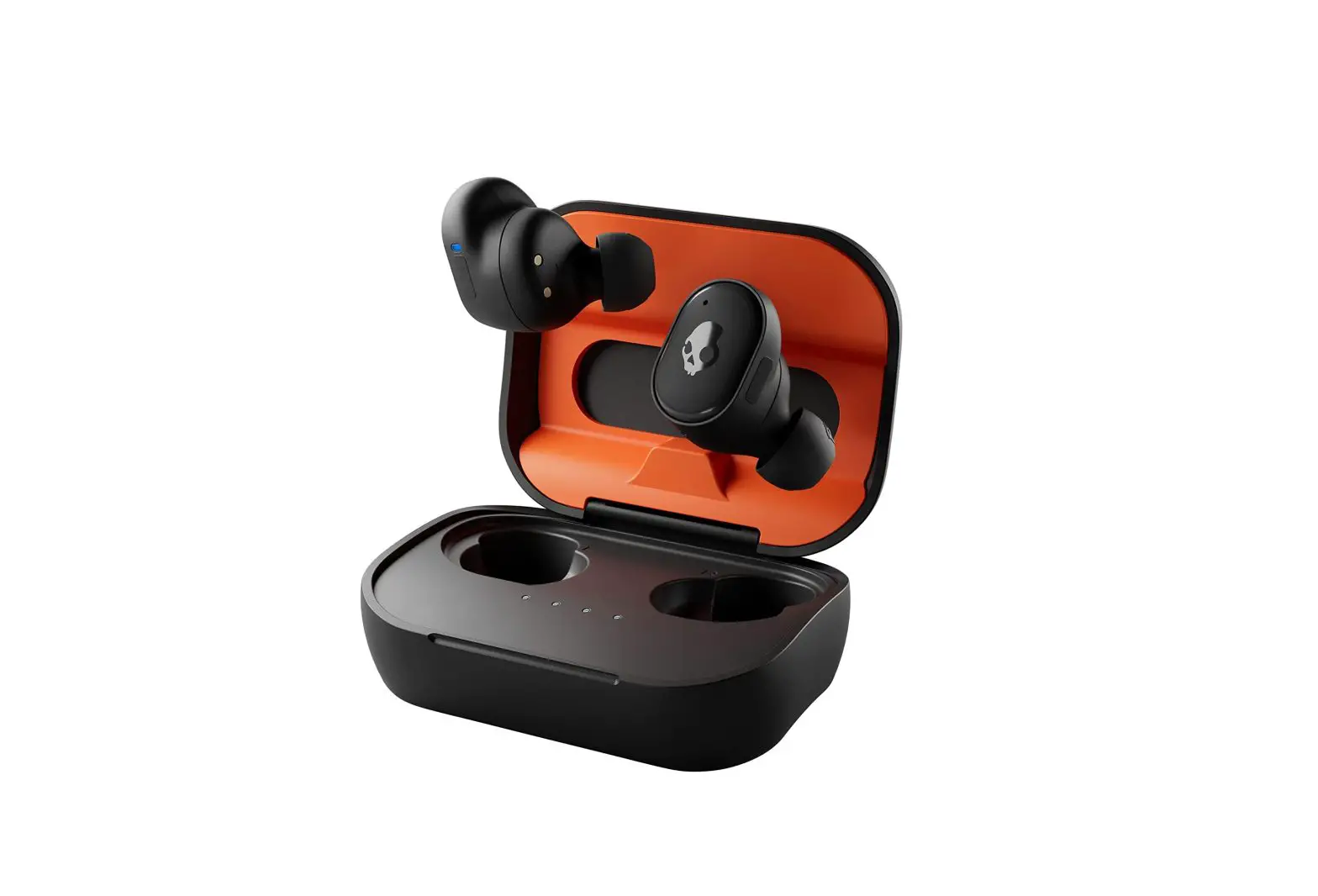
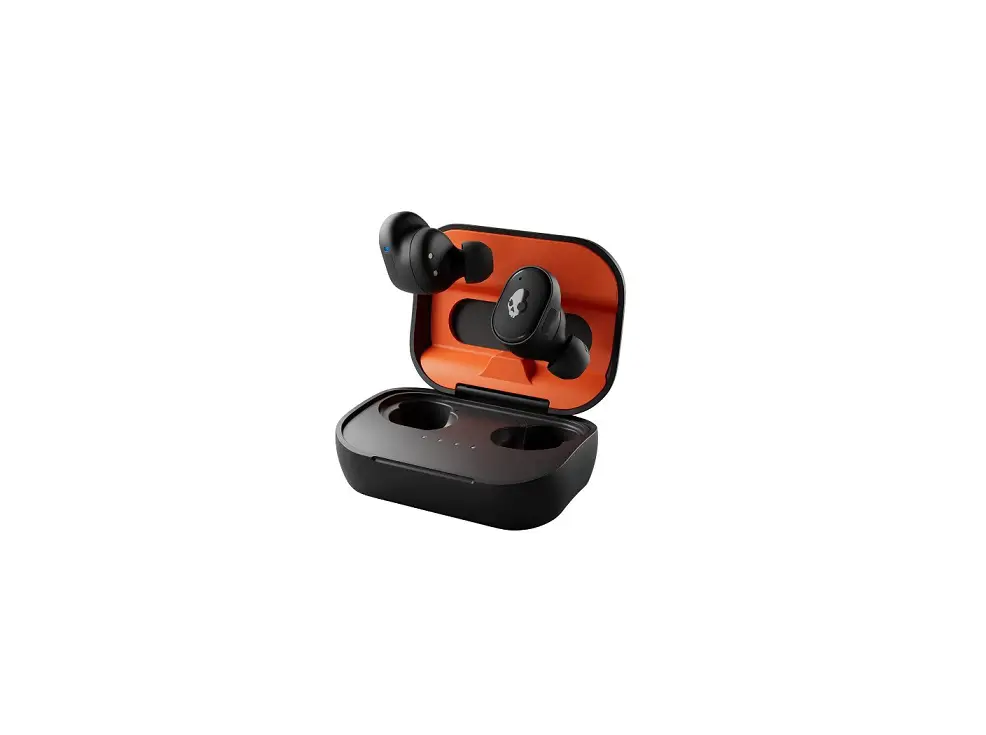
I’m excited to introduce you to the new Grind Fuel. A true wireless earbud with revolutionary Skull-iQ Smart Feature Technology. In this video I’m going to walk you through, how to use your new earbuds. From the most basic setup, to the most advanced features.
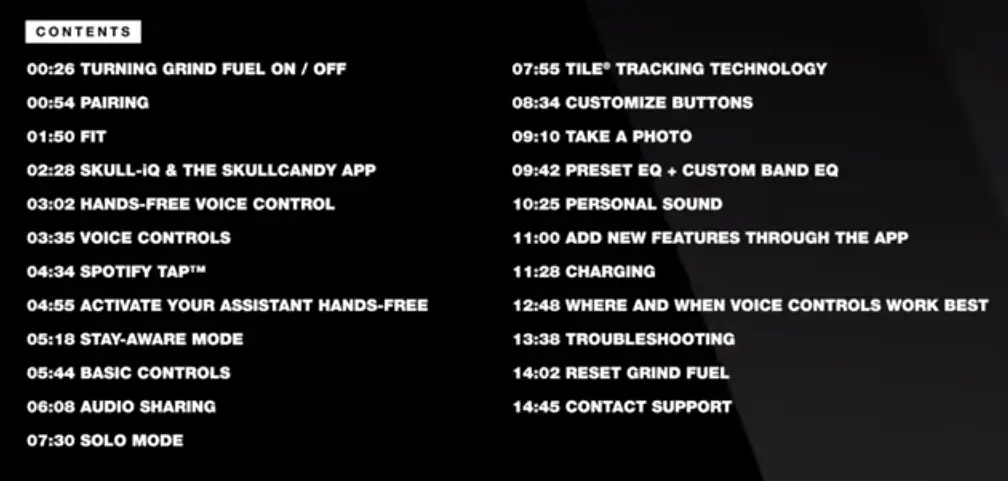
If you’re looking for a specific feature, you can skip ahead in this video using the following time codes.
TURNING EARBUDS ON / OFF
- To power on your new earbuds simply open the charging case and take them out. They’ll automatically turn on.
- They’ll automatically power down when you put them back in the case and then close the lid.
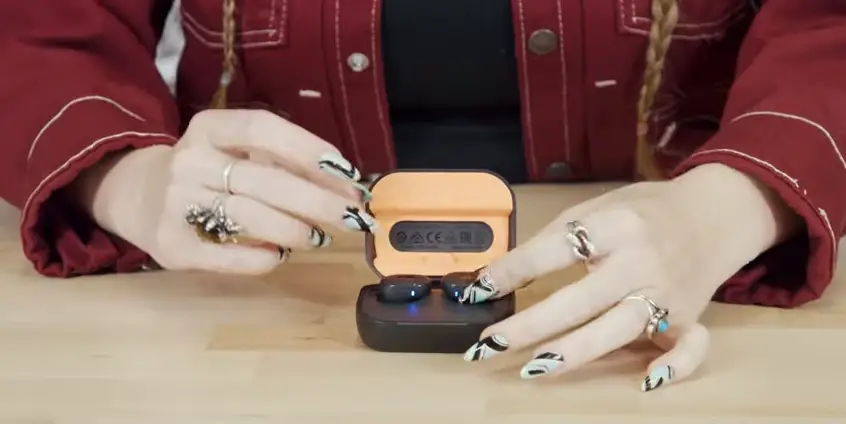
- To turn off your earbuds outside of the case, press the button on each earbud two times, and then hold for one second to turn them back on press each earbud for one second.
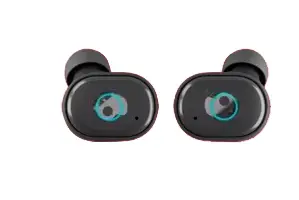
PAIRING
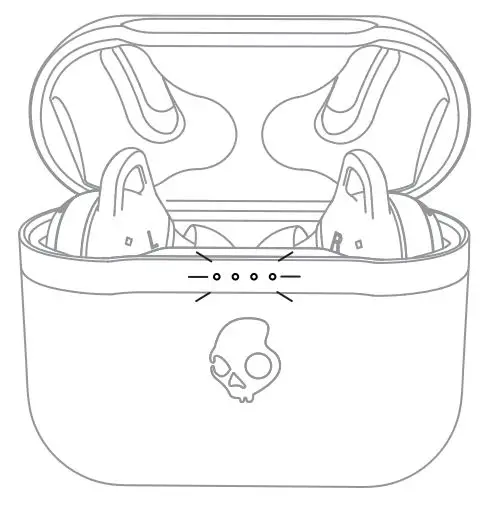
If you’re pairing to your device for the first time, remove the stickers covering the charging points on both earbuds, then place them back in the charging case, making sure both LEDs show red and leave the lid open.
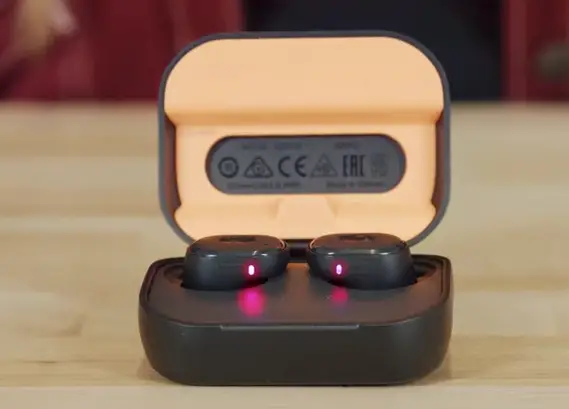
- While still in the case, both buds are now in pairing mode.
Open up your Bluetooth settings in your phone and find your earbuds on your list of available devices.
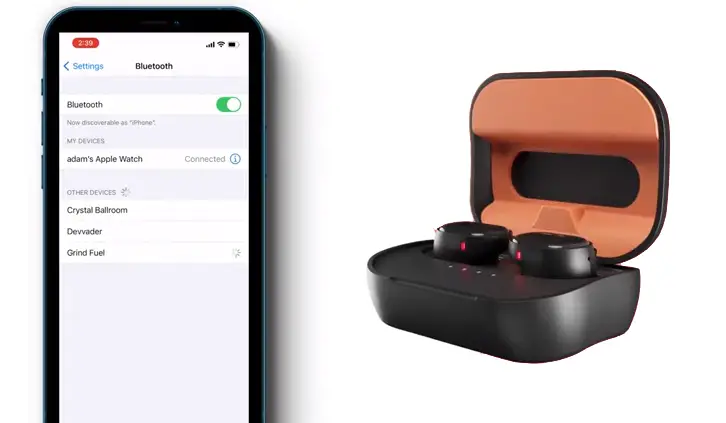
- Then hit, confirm pair.
- To pair to a new device when you’ve already powered on and connected to a different device, press either earbud one time and then press and hold for one second.
- This will enter both earbuds into pairing mode.
You can also enter pairing mode by turning off your device’s Bluetooth:
- The voice prompt will say, “ready to pair” and both earbuds will pulse red and blue.
- Then you can select from your new list of available Bluetooth devices and pair.
FIT
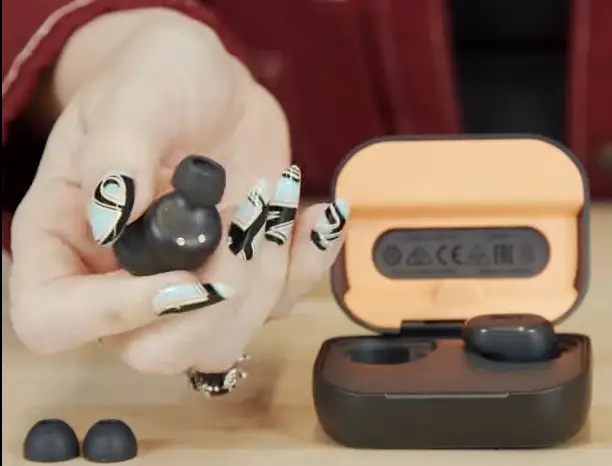
Grind Fuel is designed to fit comfortably and securely in your ear. To get the best fit, place the earbud in your ear and rotate slightly until it fits comfortably.
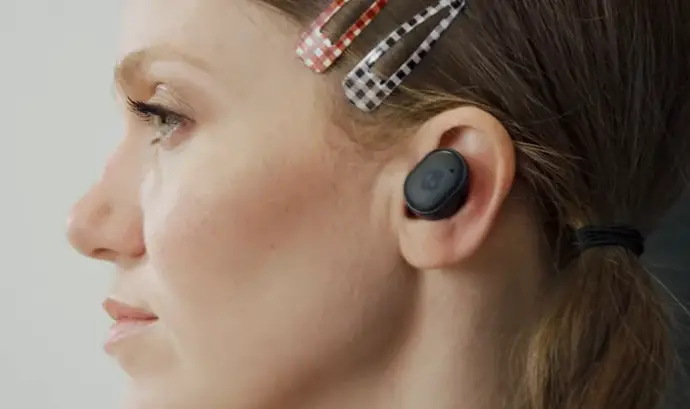
- When worn correctly, the gel should create a nice seal just inside your ear.
- Grind Fuel comes with three sizes of ear gels to help you find the best fit.
- Try each size of the provided ear gels to see which one works best for you.
SKULL-iQ & THE SKULLCANDY APP
Skull-iQ Smart Feature Technology will change the way you listen to music, podcasts and movies.
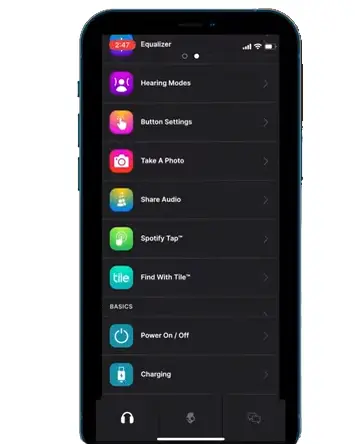
It features hands-free voice control, which gives you complete command over your audio by using just your voice.
To unlock your earbud’s Skull-iQ features, scan the QR code on your quick start guide to download the skullcandy app.
Once you’ve paired your earbuds to your device, open the Skullcandy app. It’ll automatically link.
CONTROLS
The app allows you to enable hands-free voice control, customize your control settings, access user guides, and update new features when they become available.
1. Enable Hands-Free Voice Contrl
2. Customize Control Settings
3. Access User Guides
4. Add new features through the app
Hands-Free Voice Contrl
- Hands-free voice control is enabled through the Skullcandy app.
- Once you’ve download the app, open it up and make sure Voice Control is set to on.
- Once you’ve linked your earbuds with the Skullcandy app and enabled the hands-free voice control.
- You will be notified, “voice control on,” each time you power on your device.
- On iOS, the app must be open to hear the notification For iOS users, voice controls will work as long as the app is running in the background.
- Even if your phone is locked, So if you find your voice commands aren’t working, try re-opening the app to reconnect.
Voice Control
- Once you’ve turned voice controls on in the Skullcandy app, you’re ready to stow your phone in your pocket or bag while still having full, hands-free voice control.
- First say, “hey, Skullcandy,” and you’ll hear this sound, which lets you know that Skull-iQ is listening.
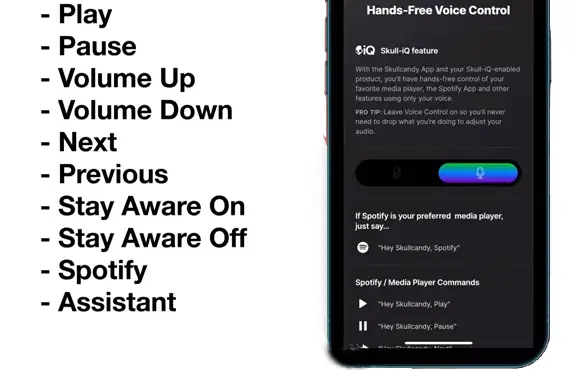
- Then quickly follow up with a command.
Using only your voice, you can control your media, turn Stay Aware mode on or off, activate Spotify, or summon your devices assistant for even more control.
Incoming Call:
- To accept or reject a call, simply say, “accept” or “reject” when ringing.
And here’s a little pro tip for you—
You can adjust the settings in your phone to announce who’s calling you. So you can accept or reject a call without ever having to check your phone.
Hmm.. reject. (“Call rejected.”)
All voice commands are available for quick reference in the app. You can also find them printed in the quick start guide that came with your earbuds. Voice Control will only stop working if the app crashes or you quit the app while the earbuds are connected.
So, when in doubt, open up the Skullcandy app and make sure the voice control is set to on.
SPOTIFY TAP™
We’ve partnered with Spotify to create an instant path to your music through a hands-free voice
control or a simple button press.
When connected to Voice Control simply say, “hey, Skullcandy, Spotify,” or You can press and hold the button on your left earbud for one second.
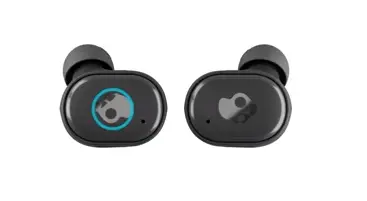
This starts your playlist back up from where you left off.
ACTIVE YOUR ASSISTANT HANDS-FREE
Need to figure out the address for tonight’s show? Or how about, what time the sun sets while out riding?
Just say, “hey, Skullcandy, Assistant” and ask.
Need to send a text?
Just say, “hey, Skullcandy, Assistant.
Text Kaylie, I’m on my way.”
Just like I said, total control, hands-free.
STAY-AWARE MODE
Stay Aware mode makes it easier to hear what’s going on around you without having to remove an earbud. So, you can enjoy your audio and stay in touch with you surroundings.
To turn it on, Just say, “hey, Skullcandy, Stay Aware on.”
And to turn it off, you guessed it. Just say, “hey, Skullcandy, Stay Aware off.”
Stay Aware mode can be activated through hands-free voice control in the Skullcandy app and as a customizable button setting.
BASIC CONTROLS
With your new earbuds, you can go fully hands-free. But you can also control them with the touch of a button.
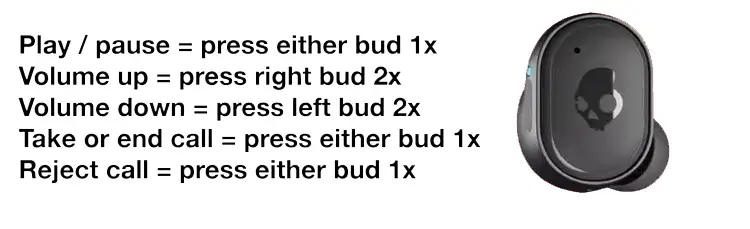
- To play or pause your audio, press either bud once.
- To turn up the volume, press the right bud twice.
- To turn down the volume, press the left bud twice.
- To take or end a call, press either bud once.
- To reject an incoming call, press either bud for one second.
AUDIO SHARING
You can easily share your music or media with a friend. So, you can listen together anytime, anywhere with our new, Share Audio feature.

To share audio, both users need to have Skull-iQ enabled products, be in Bluetooth range, and in stereo mode using both earbuds.
For best results, we recommend both users stay within five meters, about 15 feet, during the sharing session.
The person who wants to share their audio, must have their earbuds connected to a device.
They will “Press and hold the button on their right earbud for three seconds.”
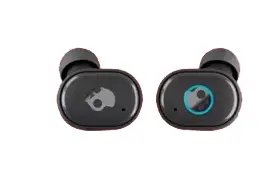
A voice prompt will notify that user that they are now sharing audio. The person that wants to join will…..
“Press the button on their left earbud for three seconds”
They can be in either a connected or non-connected state. A voice prompt will notify that user that they are now joining audio.
Once the share is complete, audio will begin to stream automatically. Each user will have the ability to adjust their volume independently through their earbuds.
Only the person sharing the audio will have voice controls enable.
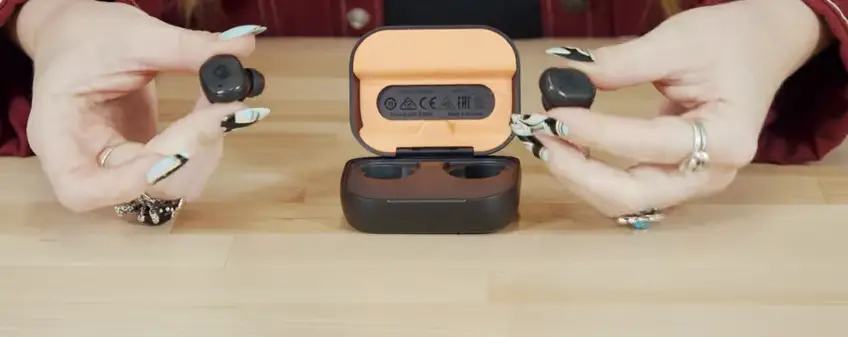
Either party can disconnect from the audio share, by placing the earbuds into the case and closing the lid, powering the earbuds off manually, or repeating the 3 second hold you used to share or join the stream.
If either user is disconnected, both parties will need to start over to continue sharing.
There are three ways to disconnect:
1. Place Buds in case and close lid
2. Power your earbuds off manually
3. Hold the same button you used to join for 3 seconds
You can place your earbuds in the case and close the lid, power your earbuds off manually, or hold the same button you used to join, for 3 seconds.
SOLO MODE
You can use either earbud by itself to stay tuned into the world around you.
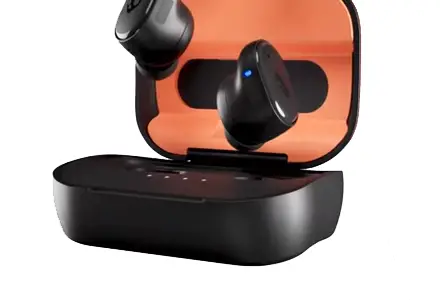
We call this, Solo Mode.
To use Solo Mode, simply remove either earbud from the charging case. Your selected earbud will pair and function normally.
To use both earbuds again, remove the other earbud from the case and once powered on, audio will begin to stream automatically in stereo mode.
TILE® TTRACKING TECHNOLOGY
To help you keep track of your earbuds, each one has built-in, Tile Finding Technology.
Tile is easy to set up and will allow you to locate either one of your earbuds if you’ve ever misplaced them.
- First, you need to download the Tile app for this feature to work.
- Then follow the on screen instructions to connect each earbud individually.
- ” Ring” your lost earbuds
So they’re both trackable.
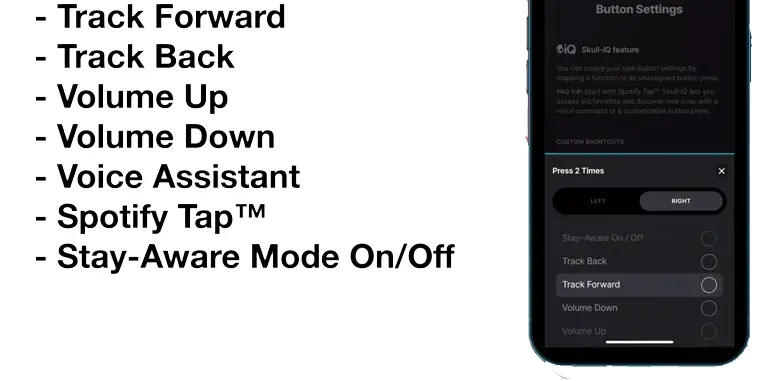
You can personalize your earbuds through the Skullcandy app by customizing your controls. Some default settings and other unassigned button settings can be reconfigured through the Skullcandy app.
Here are the customizable button settings that you can configure to your preferred control settings.
- Double press (2X) ,
- Triple press (3X), and
- Hold for 1-second. (1S)
These function controls can be customized in the Skullcandy app:
TAKE A PHOTO
The, Take Photo feature allows your earbuds to act as a wireless remote for your device’s camera.
Just set one of the custom action buttons to, Take A Photo feature in the Skullcandy app, and then open the camera on your device.
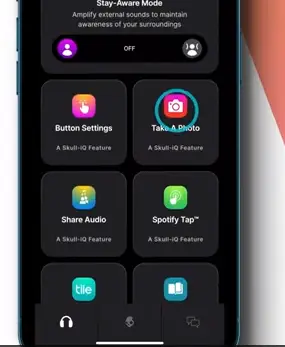
As long as your earbuds are linked with a device in the Skullcandy app, your custom settings will take a picture on command.
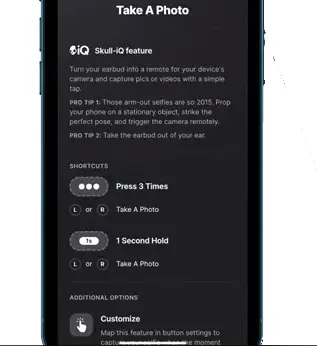
For the best results, set the timer on your camera settings, so you have a few seconds of delay before snapping a pic.
This gives you time to lock in that perfect pose.
PRESET EQ & CUSTOM BAND EQ
To help you get the best sound quality from your content, your earbuds also feature three, preset EQ’s and one, five band customizable EQ listening mode.
The four modes are:
- Music mode,
- Podcast mode,
- Movie mode and
- Customizable EQ.
Your default EQ setting is Music mode, which is great for general listening.
Podcast mode removes most of the bass response and is great for podcasts and audio books.
Movie mode enhances dialog and details in your audio, creating an immersive experience with your favorite media.
To switch between the EQ modes, go into the Skullcandy app and select your preferred audio setting.
- A voice prompt will notify you each time your EQ mode changes.
PERSONAL SOUND
Personal Sound Technology allows you to tune your earbuds to your unique hearing.
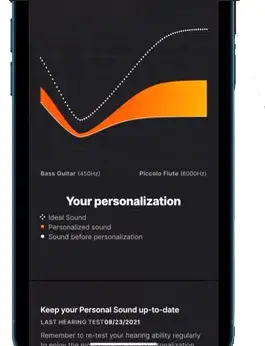
- It’s like having prescription glasses for your ears.
- It will allow you to hear your music exactly as it was meant to sound.
- In the Skullcandy app, locate your earbuds and toggle on, Personal Sound.
Follow the prompts and take a quick audio test:
- You’ll be asked whether you hear a sound and completes the test for both ears.
- After you’ve completed the test, the app will create your Personal Sound profile that’s matched perfectly to your unique hearing.
ADD NEW FEATURE THROUGH THE APP
Occasionally, you’ll receive notifications through the app, that your software is ready for an update.
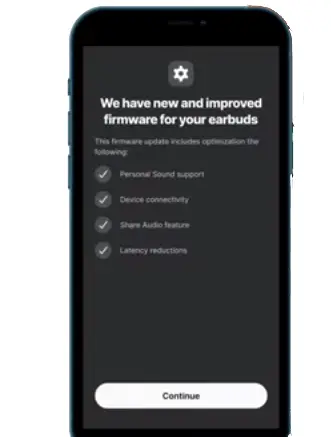
Instead of buying new earbuds for the latest features, your Skull-iQ enabled earbuds, allow you to add new features as they’re developed.
Over time, we’ll add more hands-free voice control including the ability for deeper user customization and other totally new features.
All delivered through the firmware updates via the Skullcandy app.
CHARGING
Grind fuel is packed with battery life.
- Holding up to: 9 hours of play on a single charge.
- Your charging case holds an additional 31 hours of battery time,
- For a total of 40 hours of listening time.
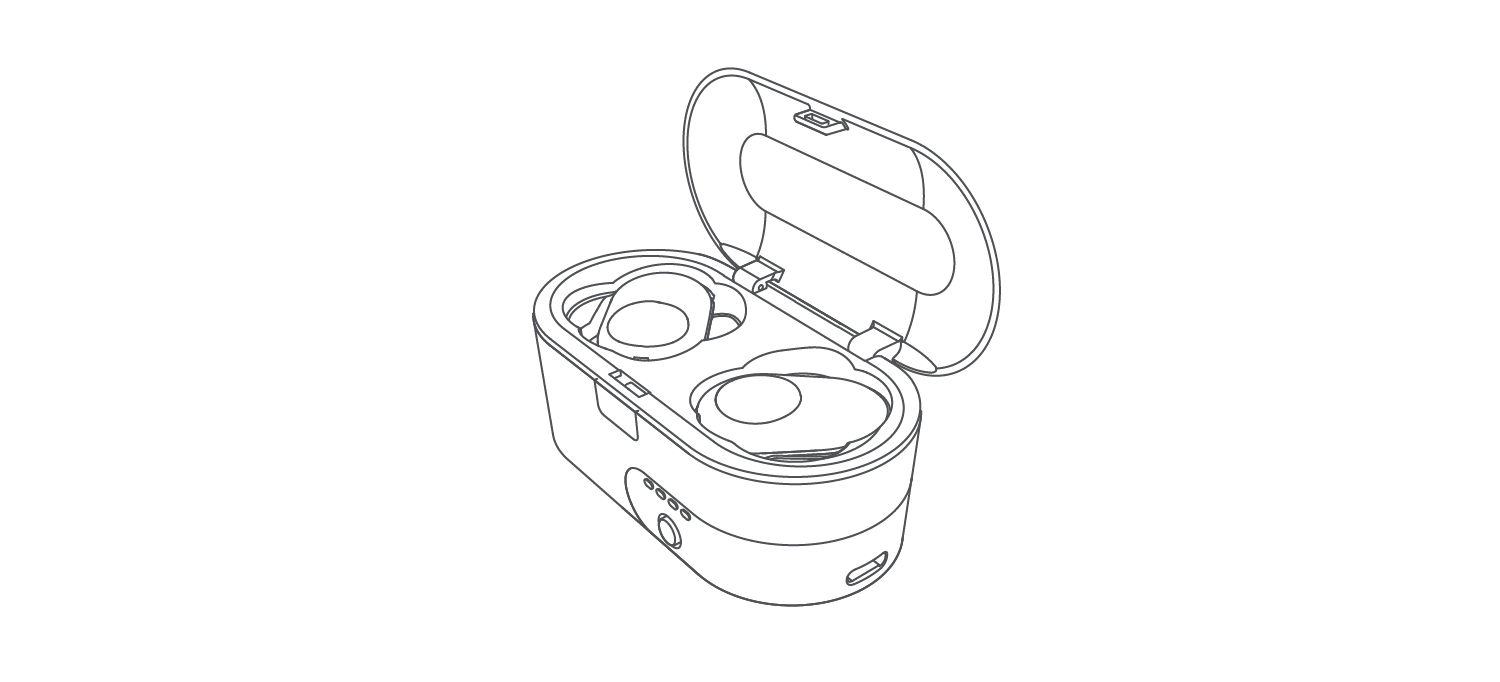
To charge you earbuds, place them in the charging case.
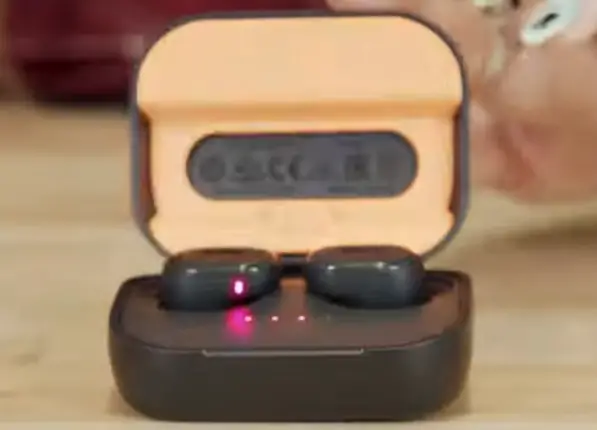
- The LEDs will be solid red to indicate they’re ready to be charged.
- Now, close the lid to begin charging.
- Now open the charge case, and the earbud LEDs will be blue when fully charged.
Every time you remove your earbuds from the case and put them in your ears, the battery report will tell you how much battery life you have left as a percentage.
- A voice prompt will notify you, “battery low,” when your battery has about 45 minutes of play time left it’s about 15% charged.
- And then again, with about 20 minutes left or 8% of charge.
You can also check your earbuds battery life in the Skullcandy app. The Grind Fuel case can be independently charged, whether the earbuds are in it or not.
- To check the case battery life, Open the lid.
- There are four LEDs.
- Each one indicates twenty five percent of battery life.
- When all four LEDs are lit up, your case is fully charged.
With our rapid charge feature, a 10 minute charge of the charging case, with your provided usb-c cable, will provide 2 hours of battery play time.
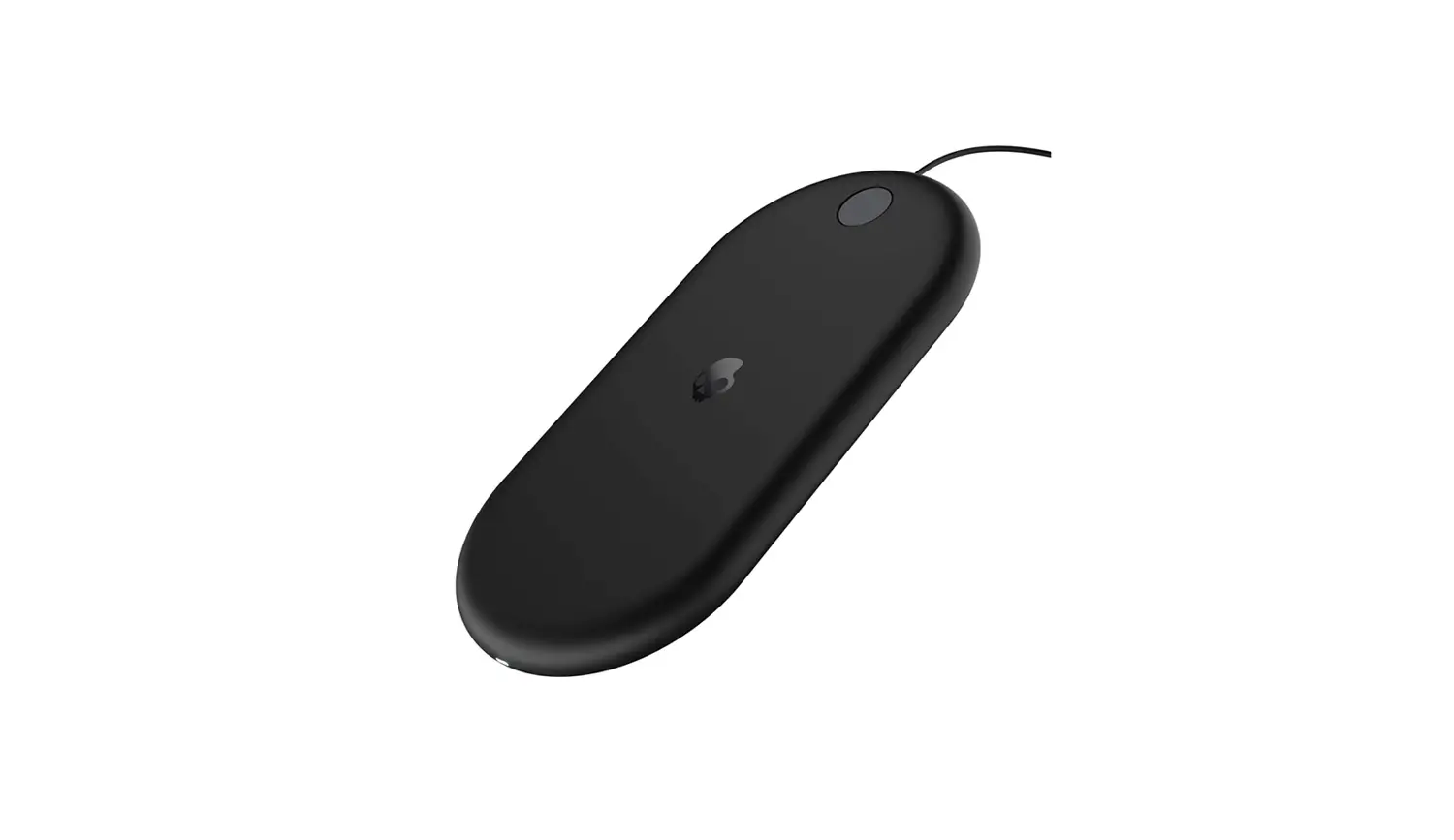
You may also charge your Grind Fuel wirelessly by setting the charging case on a wireless charging pad.
Voice Control is an amazingly freeing experience. Imagine dropping your phone in your bag and controlling your music, answering a call, activating your device’s assistant to send a message, all without ever having to touch your phone.
Voice Control will generally work very well in quieter situations. Like in your home office, or when you’re running, hiking or riding on quieter streets or trails. Lowd, crowded areas may reduce the ability for your earbuds to hear you when you speak, and may reduce the accuracy of your voice commands.
As a general rule, if you have a hard time hearing someone else speak to you, your earbuds will also have trouble hearing you.
Wind also create an aerodynamic turbulence that will make it difficult for your earbuds to hear you clearly. Remember, you can still use button controls on your earbuds when you aren’t using the voice control.
If you’re having trouble getting audio to play from both earbuds, you can quickly re-link them. Ensure that your earbuds are powered on and your Bluetooth is disconnected.
- Press the button on both earbuds 3 times, and your earbuds will begin to relink.
- Once completed, your earbuds will flash blue five times and you’re ready to reconnect to your Bluetooth.
If you’re having pairing difficulties, you can reset your earbuds:
- First, remove them from your device’s Bluetooth paired list, and turn Bluetooth off.
- Then remove your earbuds from the case.
- A voice prompt will indicate that your earbuds are powered on.
- Press and hold only the button on the right earbud for 3 seconds.
- A tone will indicate a successful reset and the right earbud will flash purple three times.
- A voice prompt will say, “ready to pair,” and both earbuds will pulse red and blue.
Now turn on your device’s Bluetooth and select Grind Fuel. Accept the pair, or OK, prompt that appears on the screen.
When pairing is complete, A voice prompt will say, “connected.” And if you ever have any other questions about how to use your Grind Fuel, check out our website or contact our customer service.
Now you should be ready to enjoy your new earbuds.
Thanks for watching.



![Skullcandy 2xl [x7rgfz-841/847] User Manual](https://static-data1.manualsee.com/1/img/66/14529/2020/12/Skullcandy-2XL-X7RGFZ-841-847-FEATURED-1568x766.png "Skullcandy 2xl [x7rgfz-841/847] User Manual")