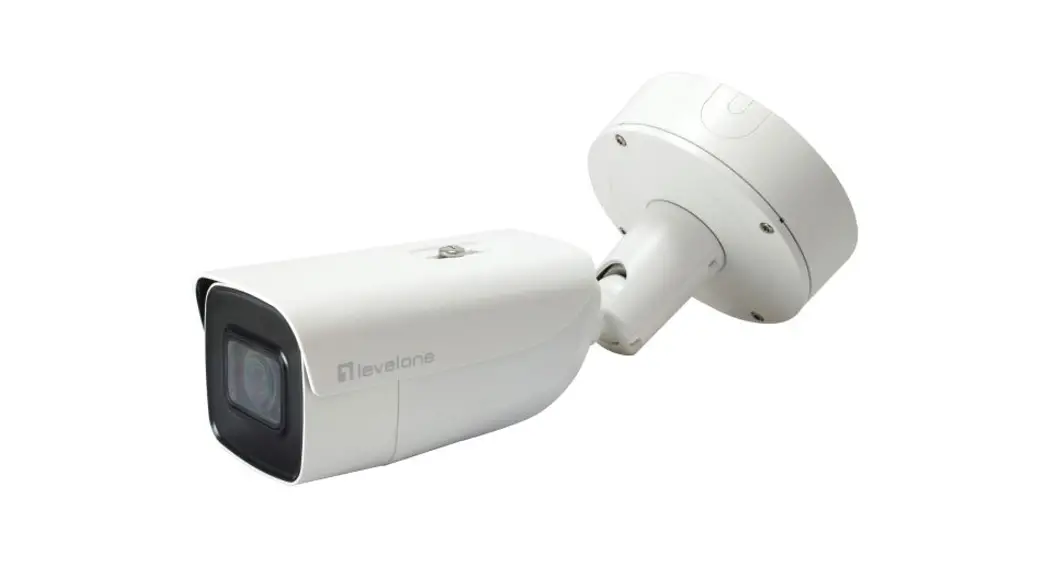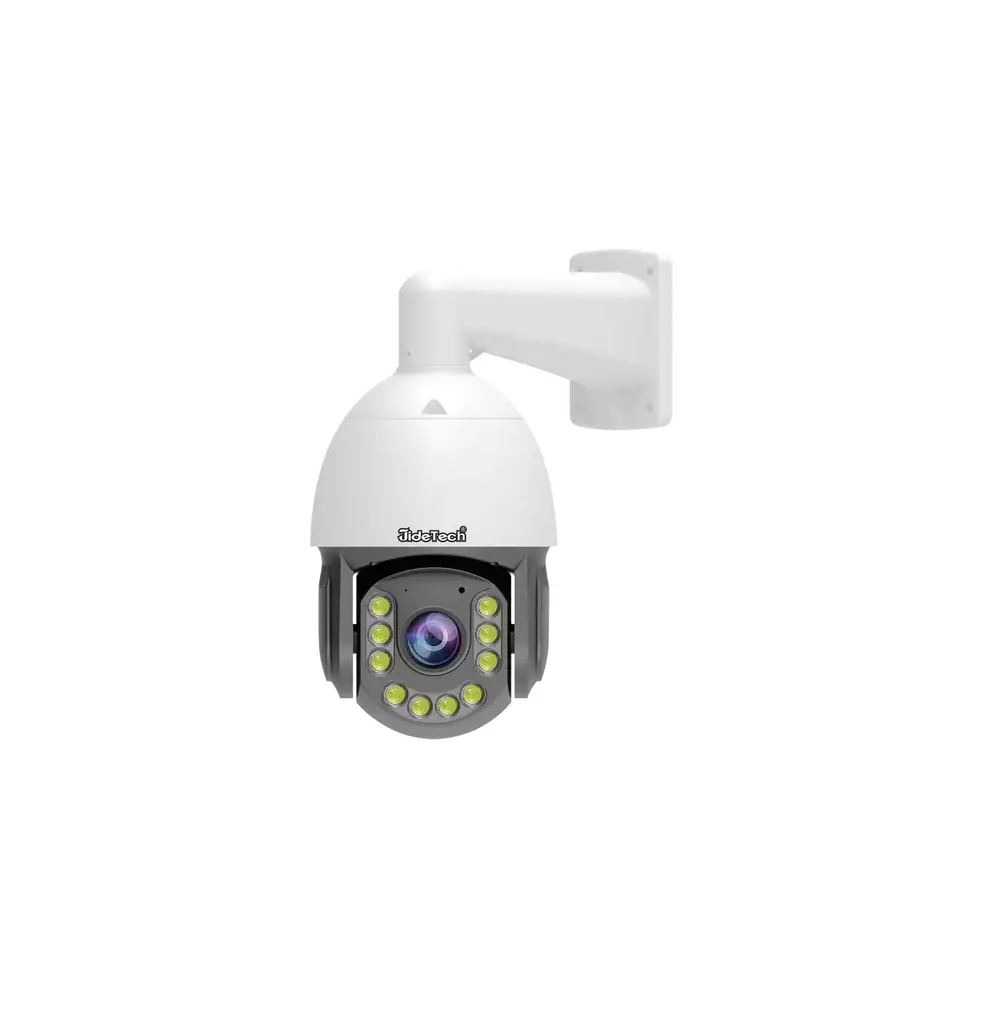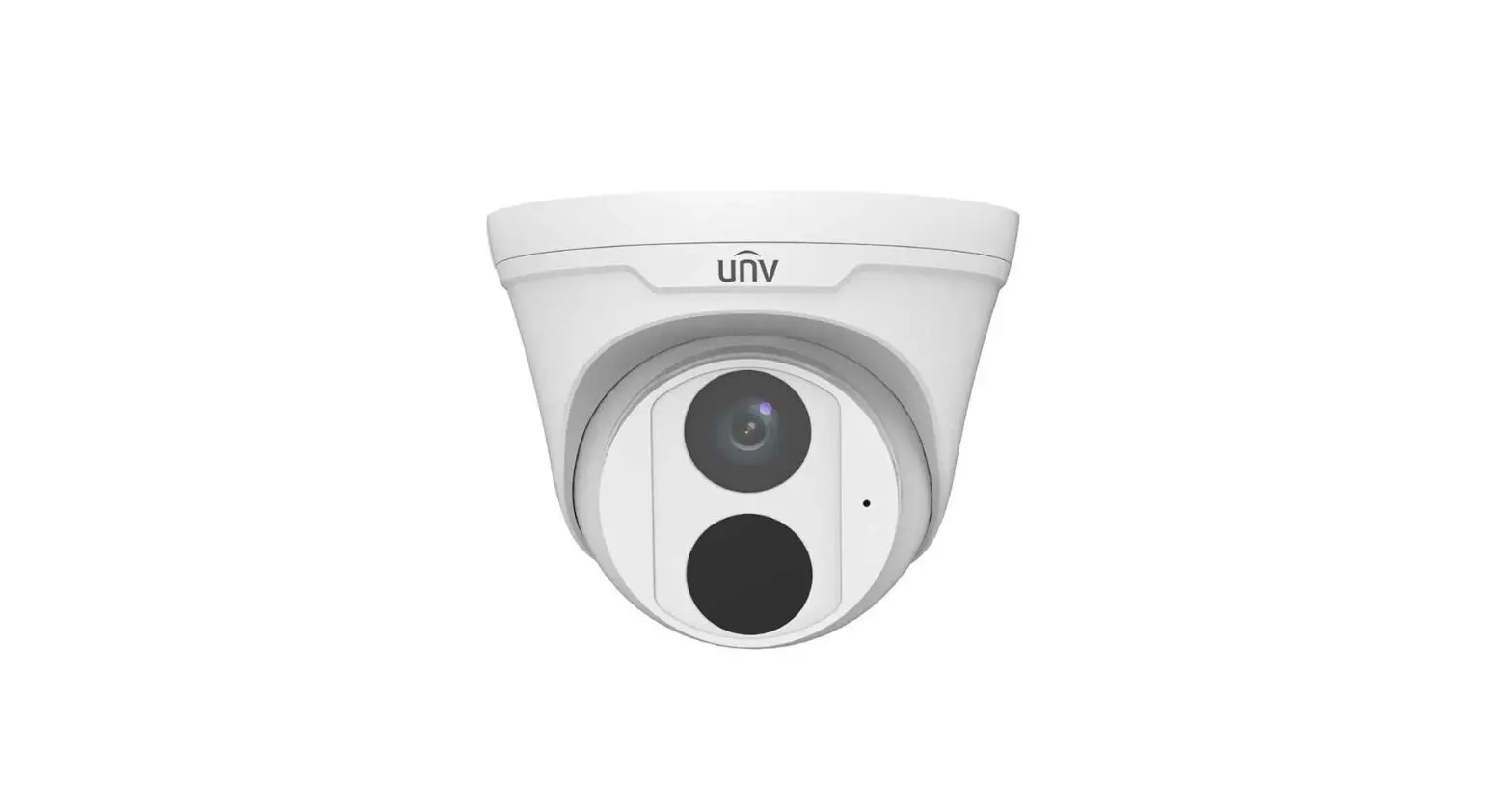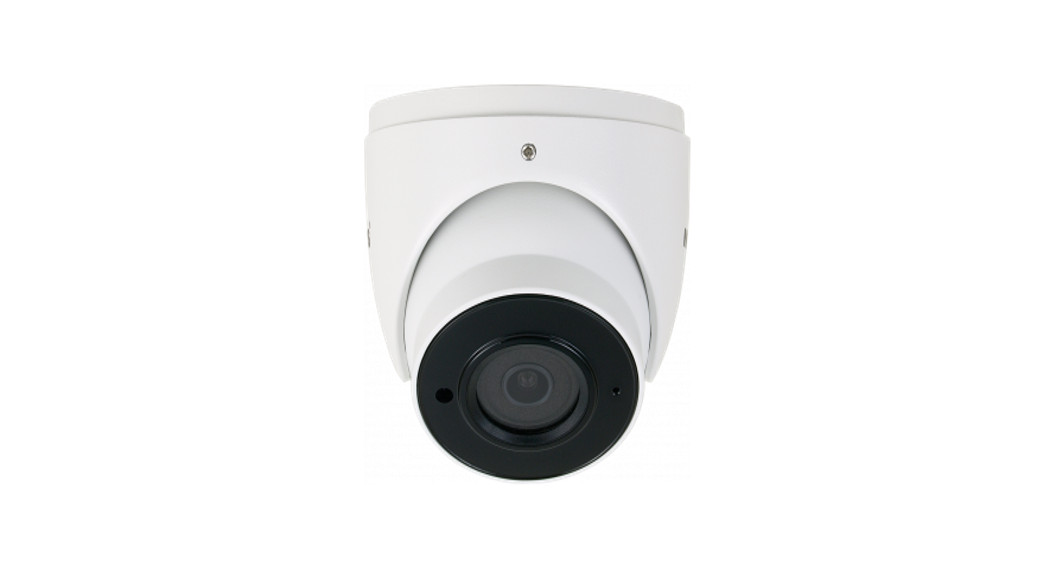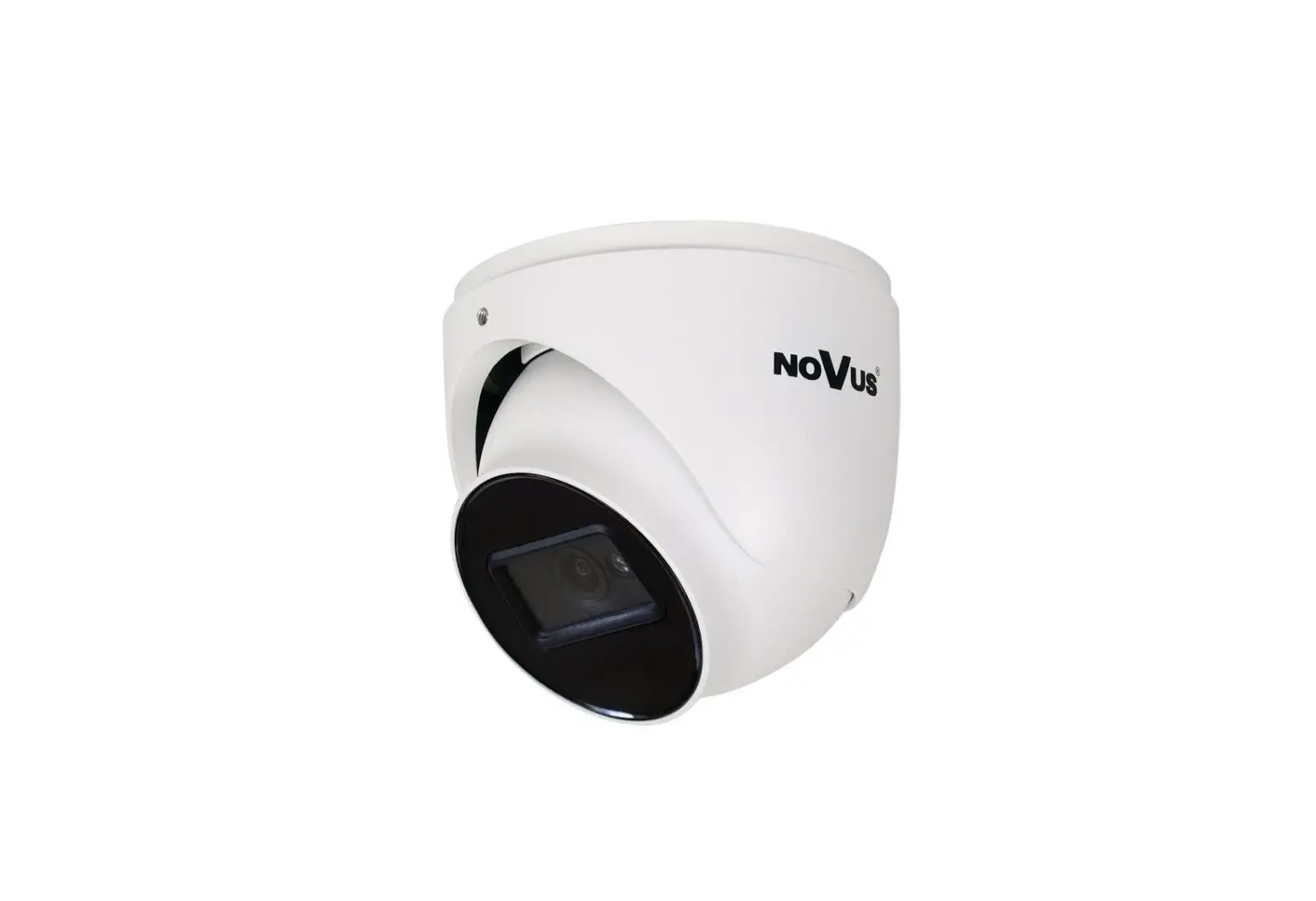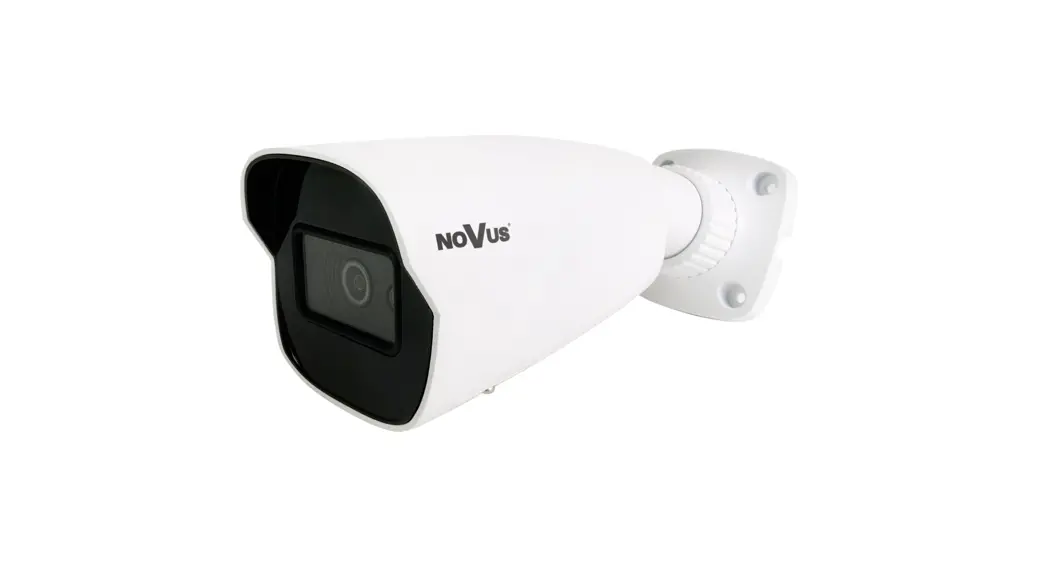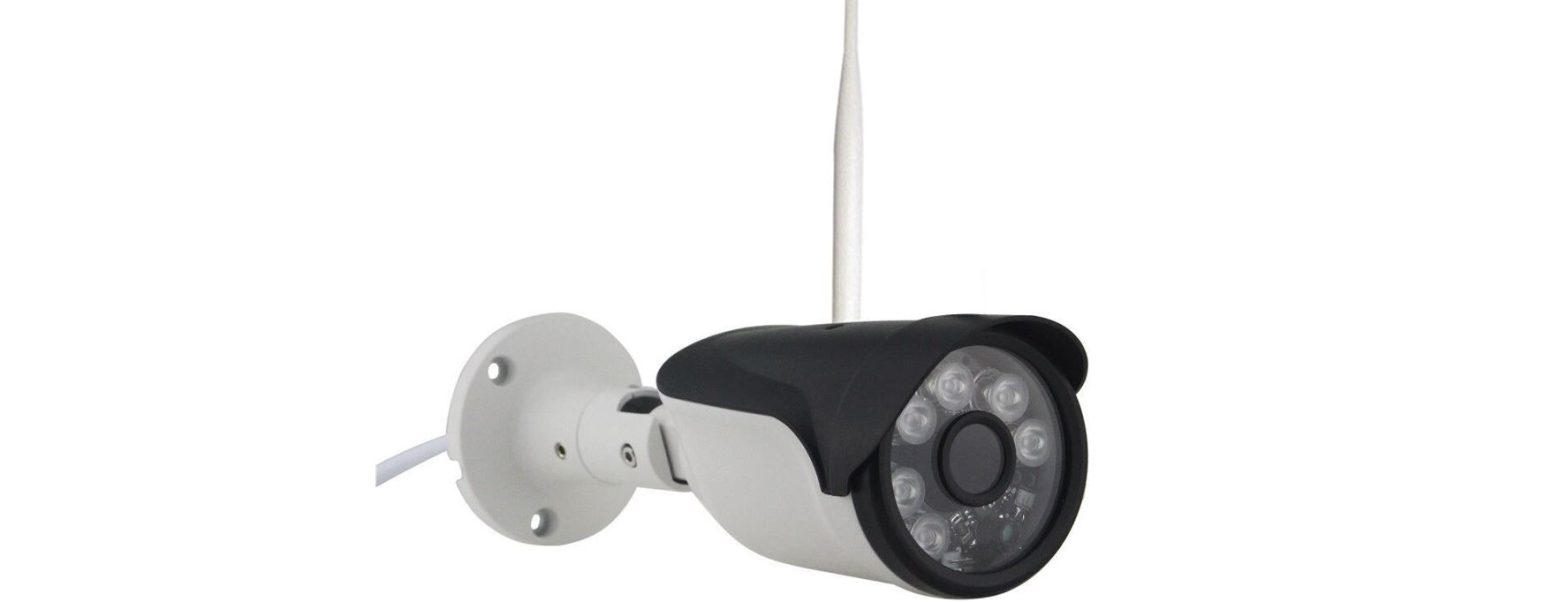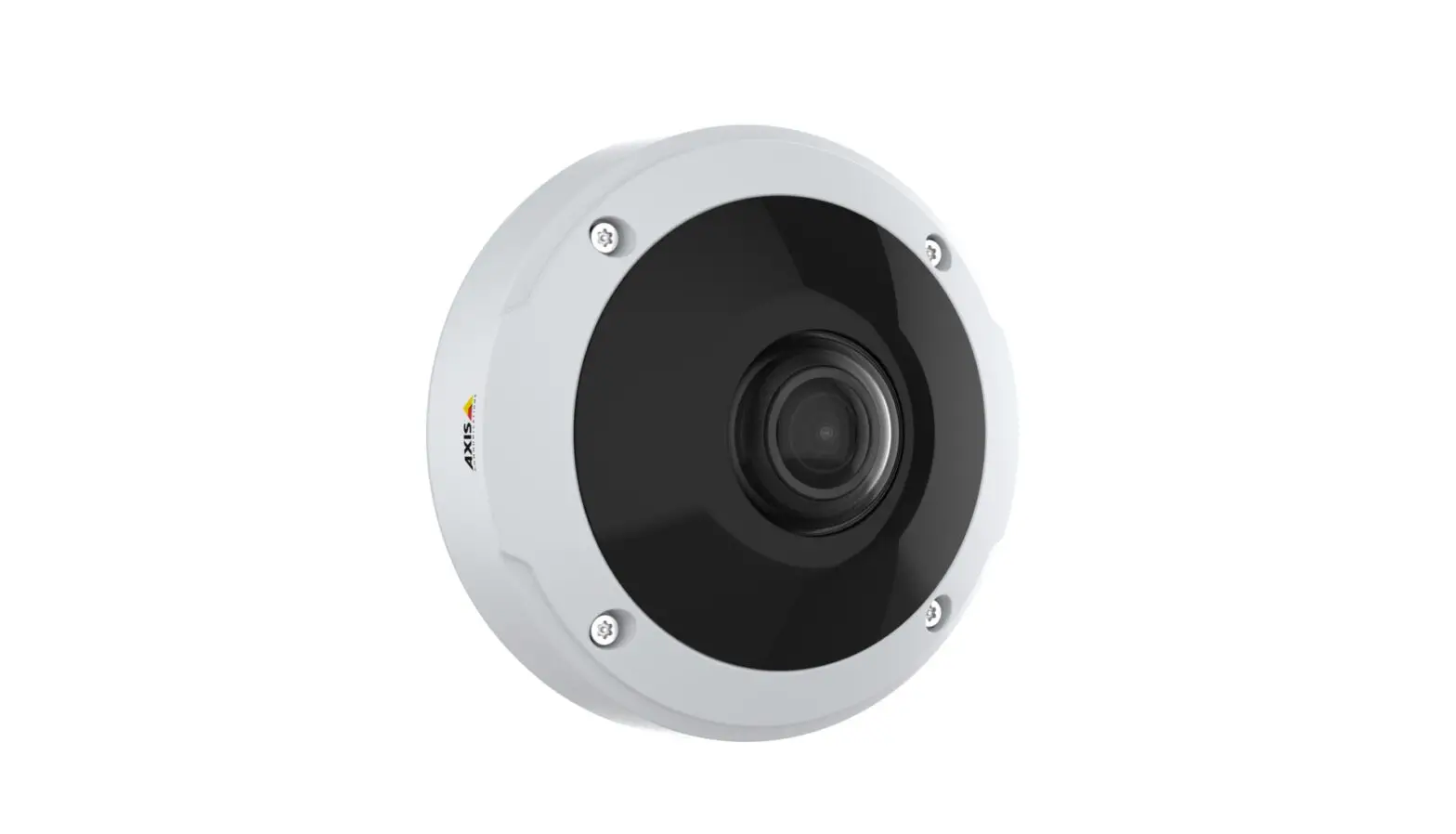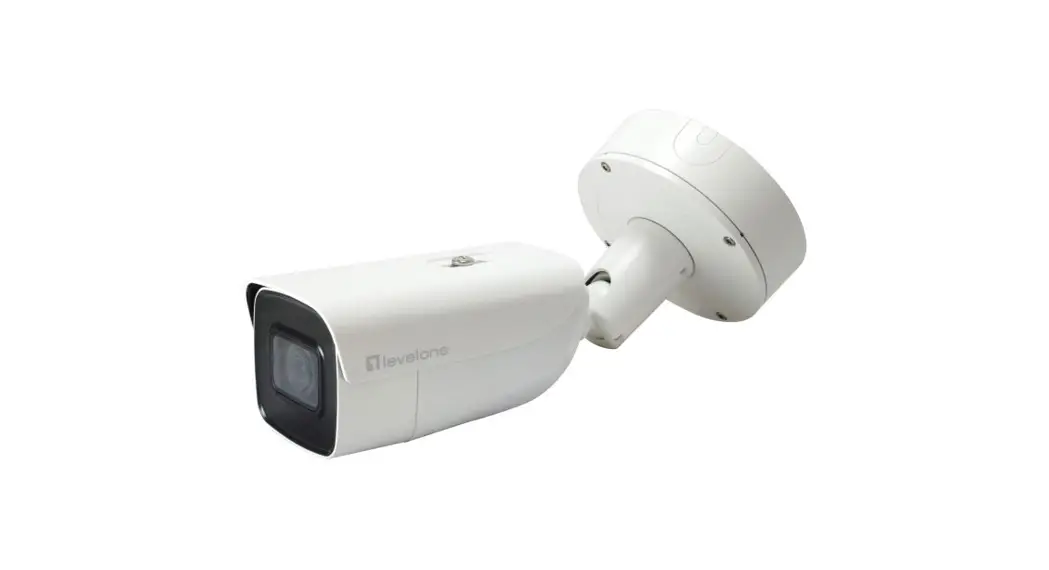
 FCS-5212 Gemini Zoom IP Camera
Installation Guide
FCS-5212 Gemini Zoom IP Camera
Package Contents
- Network Camera
- CD Manual/Utility
- Quick Installation Guide
Search tool of SADP
SADP is a kind of user-friendly and installation-free online device search tool. It searches the active online devices within your subnet and displays the information of the devices. You can also modify the basic network information of the devices using this software.
Search Active devices online
Search online devices automatically
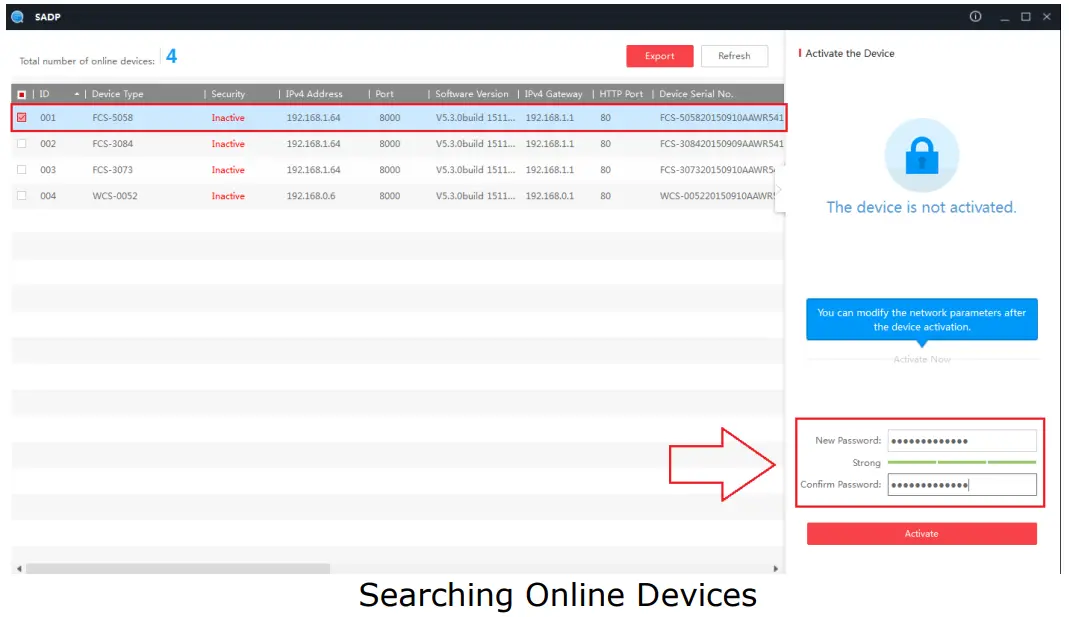
After launch the SADP software, it automatically searches the online devices every 15 seconds from the subnet where your computer locates. It displays the total number and information of the searched devices in the Online Devices interface. Device information including the device type, IP address and port number, etc. will be displayed.
You are required to activate the camera first by setting a strong password for it before you can use the camera.
Note:
Device can be searched and displayed in the list in 15 seconds after it went online; it will be removed from the list in 45 seconds after it went offline.
 For your privacy and to better protect your system against security risks, we strongly recommend the use of strong passwords for all functions and network devices. The password should be something of your own choosing (using a minimum of 8 characters, including at least three of the following categories: upper case letters, lower case letters, numbers and special characters) in order to increase the security of your product.
- Proper configuration of all passwords and other security settings is the responsibility of the installer and/or end-user.
 For your privacy and to better protect your system against security risks, we strongly recommend the use of strong passwords for all functions and network devices. The password should be something of your own choosing (using a minimum of 8 characters, including at least three of the following categories: upper case letters, lower case letters, numbers and special characters) in order to increase the security of your product.
Modify network parameters
Steps:
- Select the device to be modified in the device list and the network parameters of the device will be displayed in the Modify Network Parameters panel on the right side.
- Edit the modifiable network parameters, e.g. IP address and port number.
- Enter the password of the admin account of the device in the Password field and click
 to save the changes.
 to save the changes.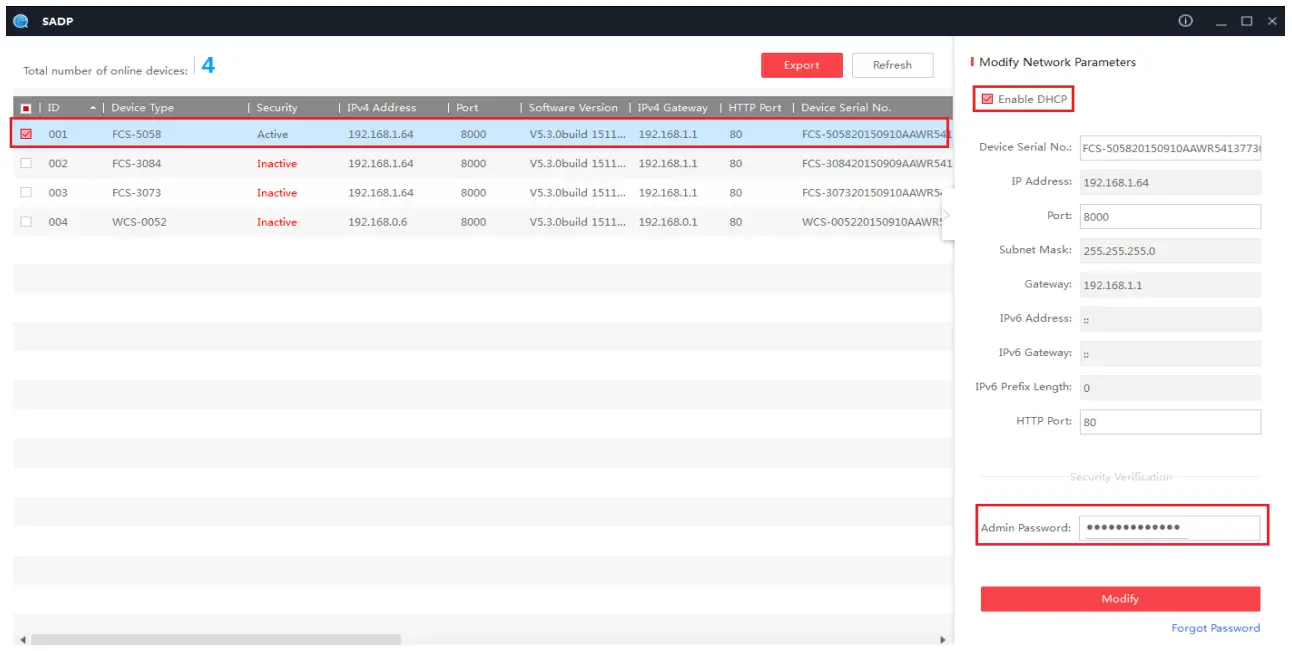
Notes:
- The default IP address of the camera is 192.168.1.64.
- And you need to activate the camera via SADP software. For the camera enables the DHCP by default, the IP address is allocated automatically
Accessing by Web Browsers
Steps:
- Open the web browser.
- In the browser address bar, input the IP address of the network camera, and press the Enter key to enter the login interface.
- Select the interface language on the top-right of login interface.

- Input the user name and password and click
 .
.
The admin user should configure the device accounts and user/operator permissions properly. Delete the unnecessary accounts and user/operator permissions. - Install the plug-in before viewing the live video and operating the camera. Please follow the installation prompts to install the plug-in.
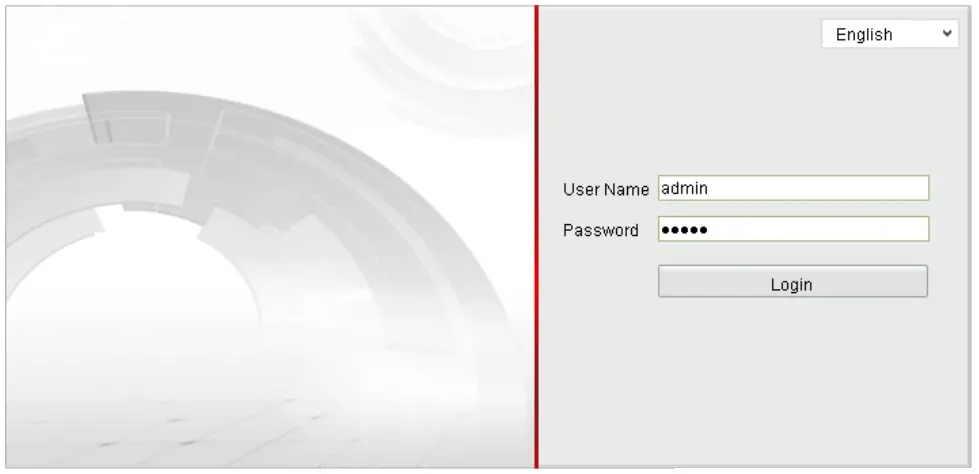
 .
.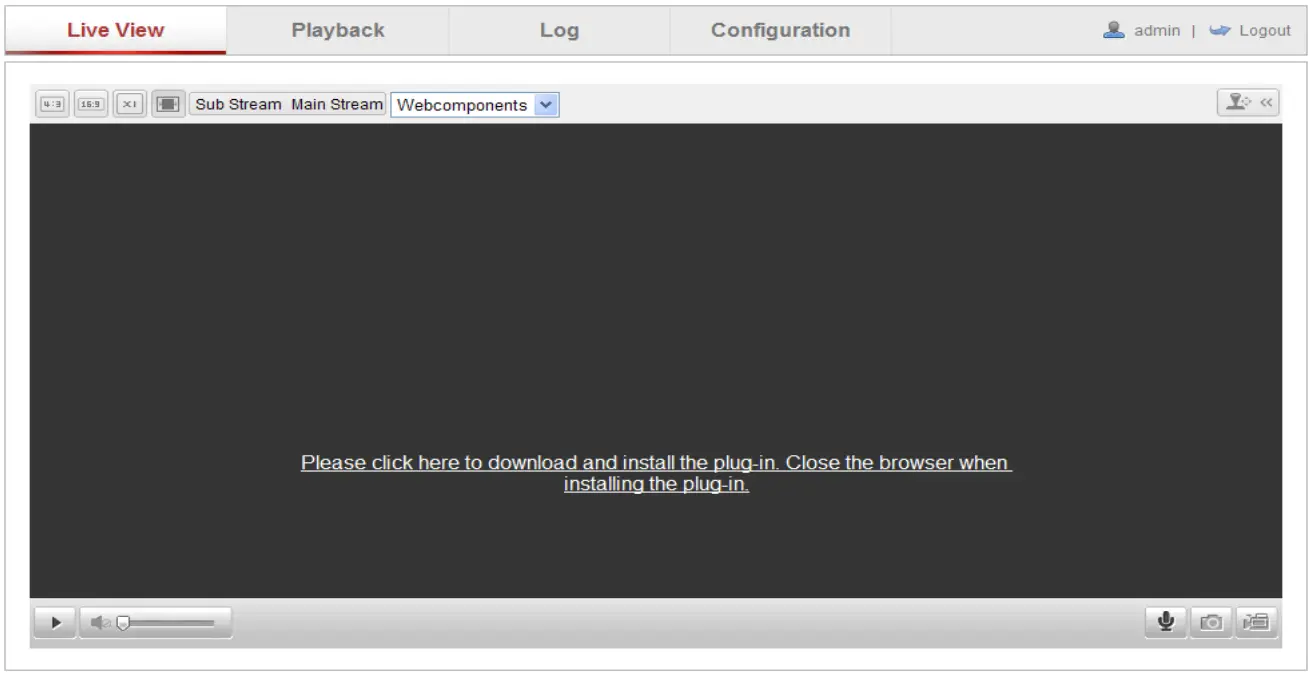 Download and Install Plug-in
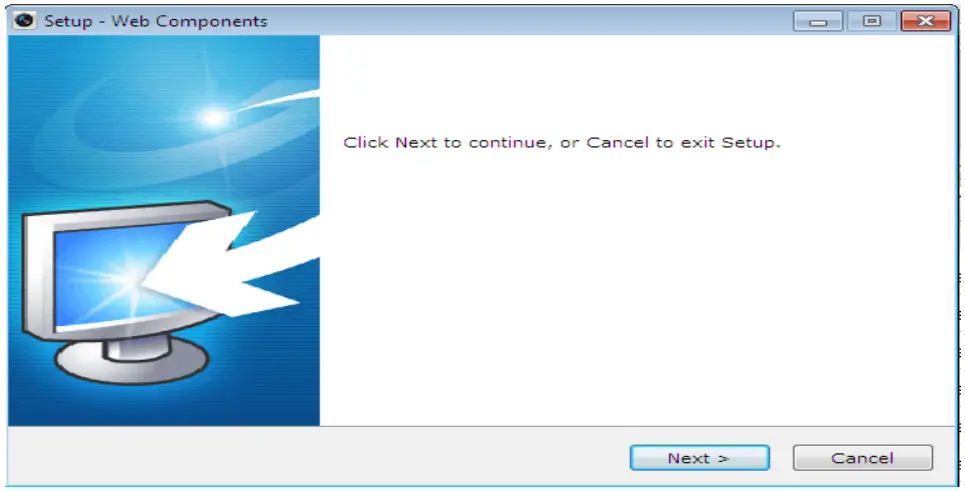 Install Plug-in
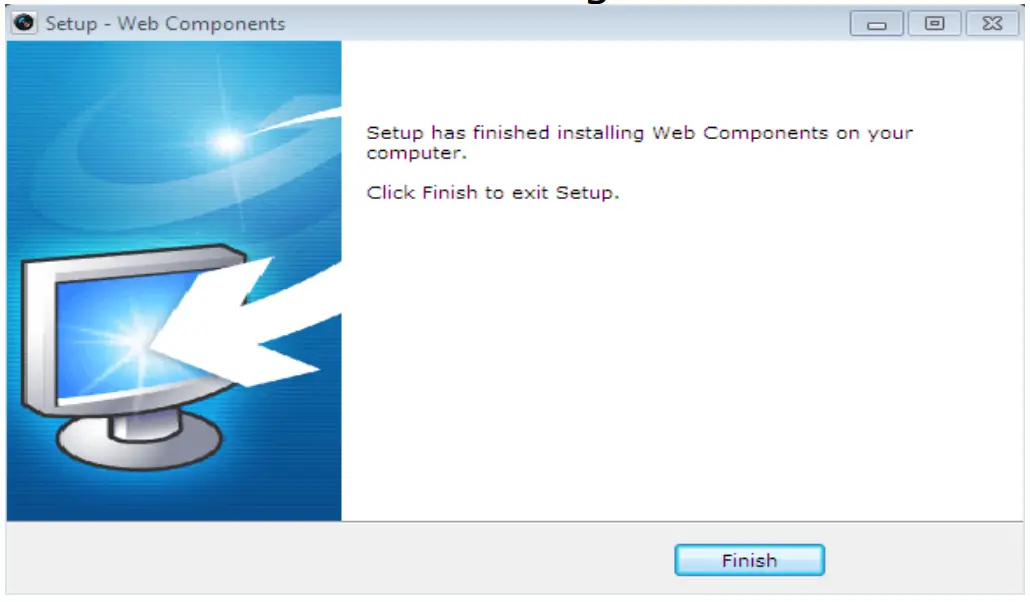 Install Plug-in (2)
v1.0