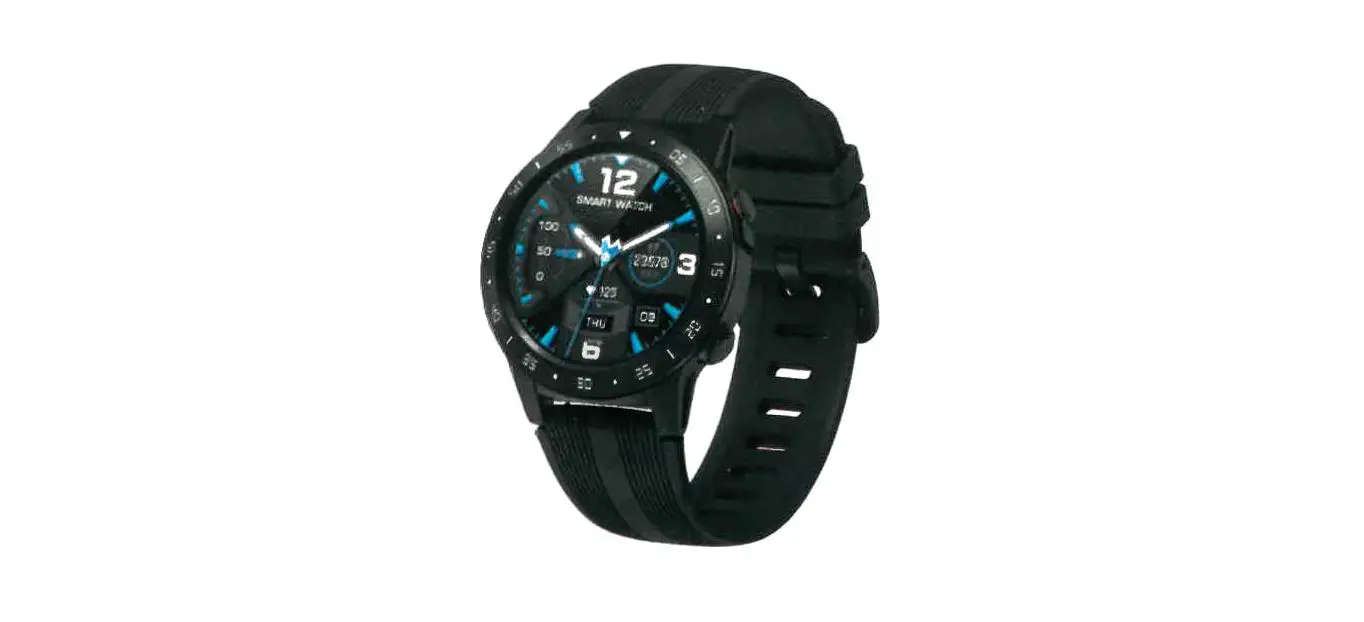
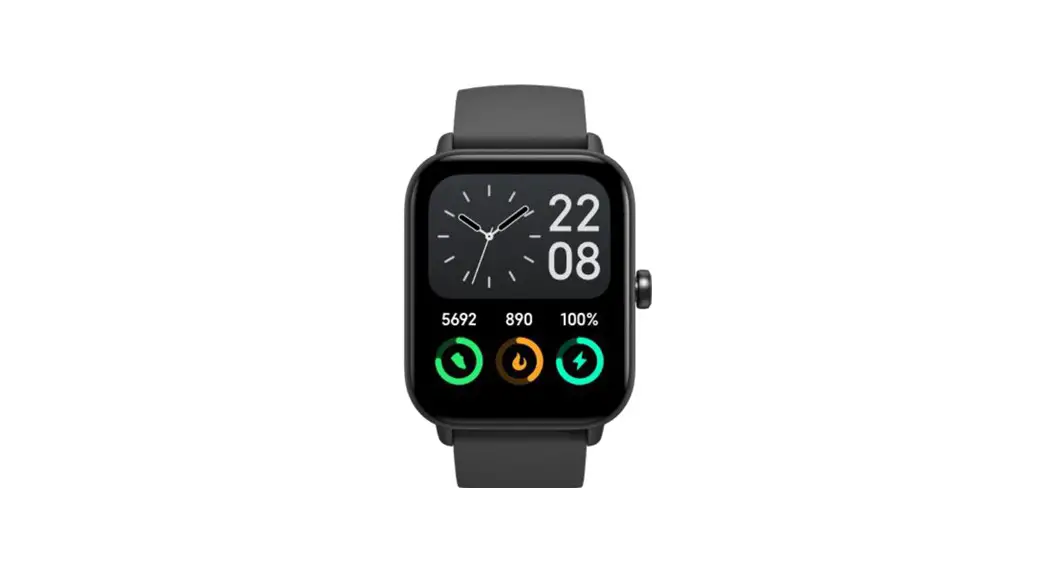
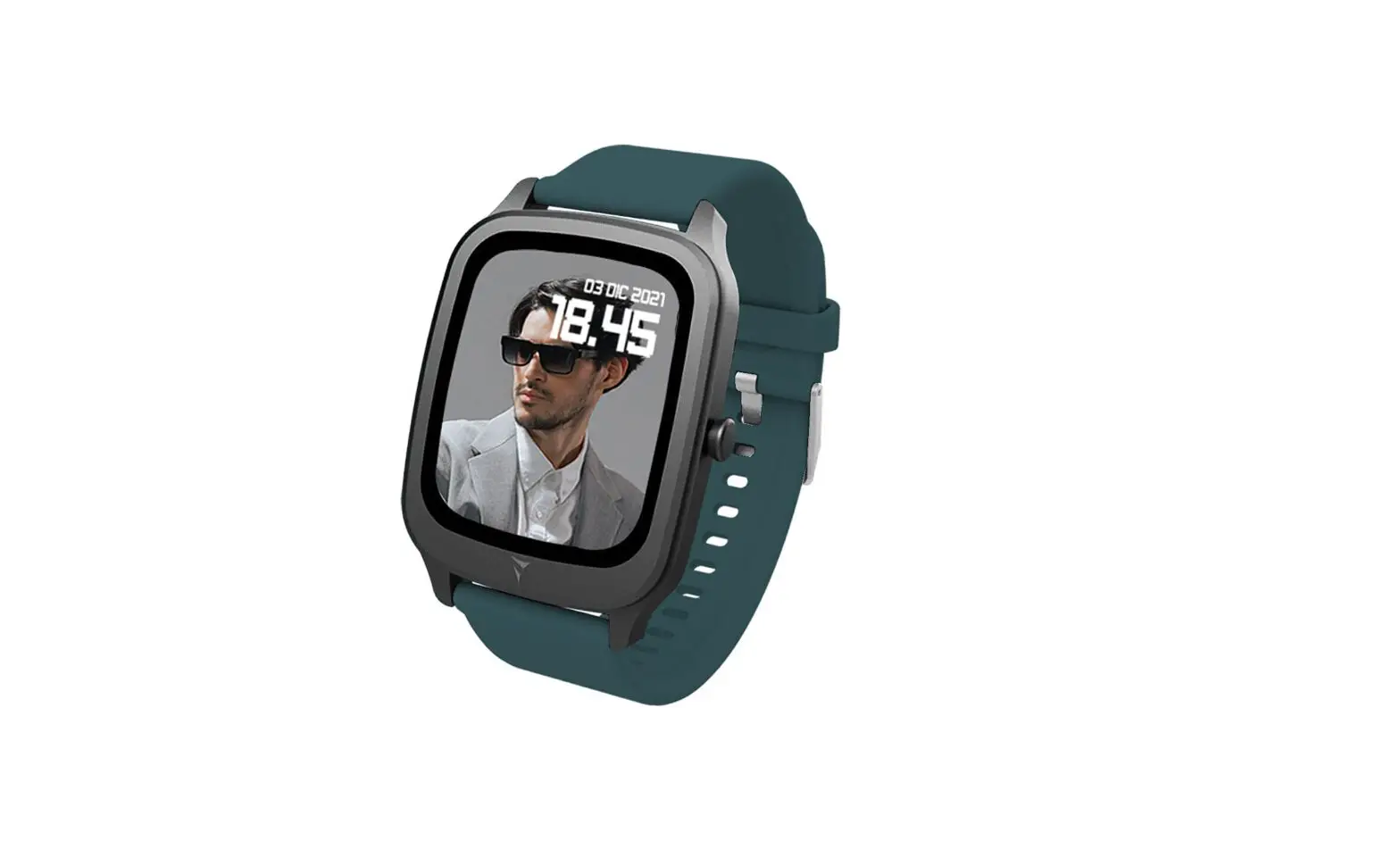
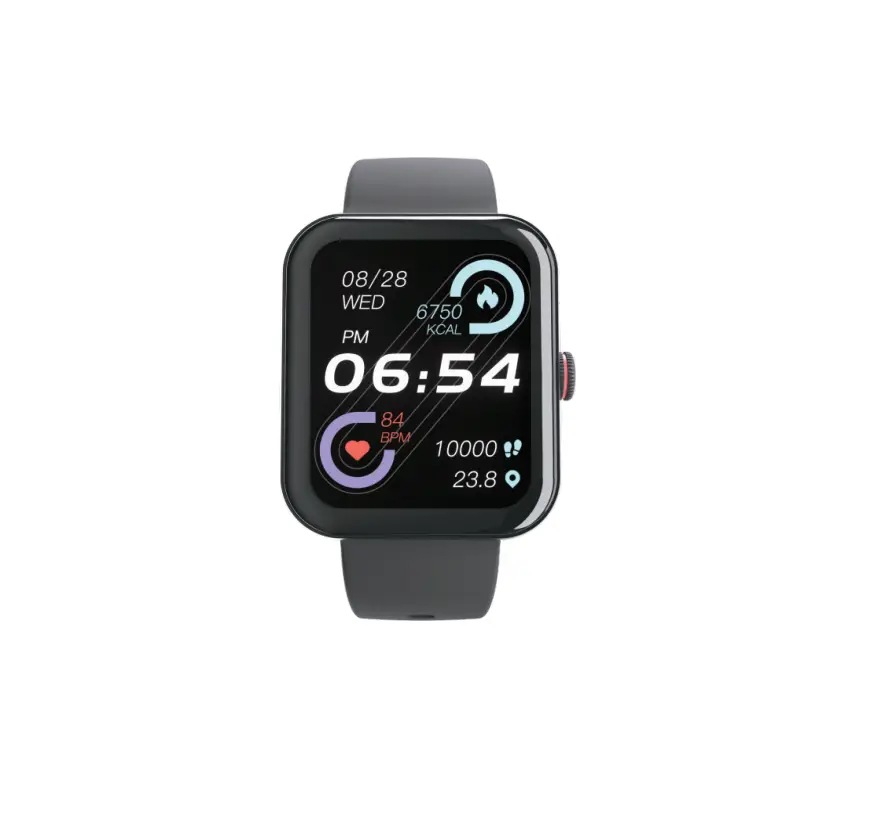
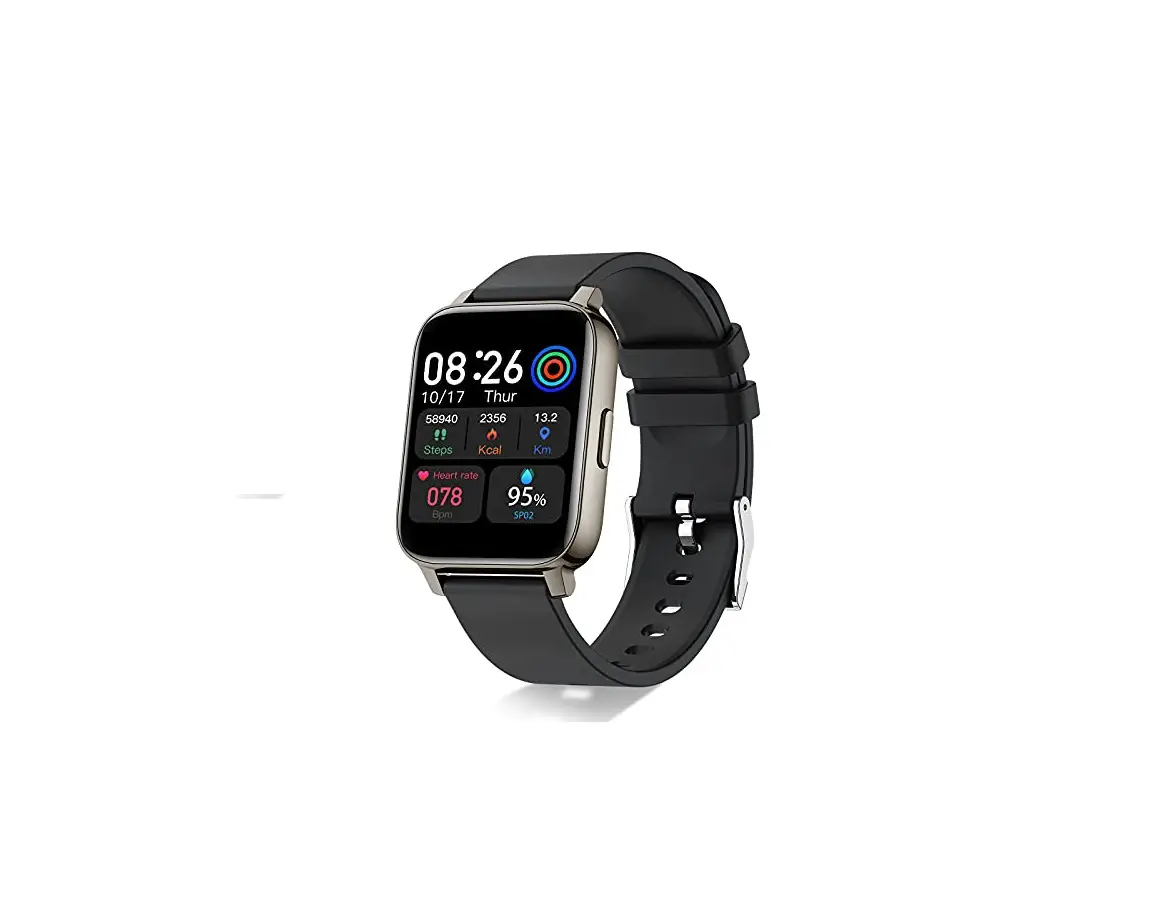
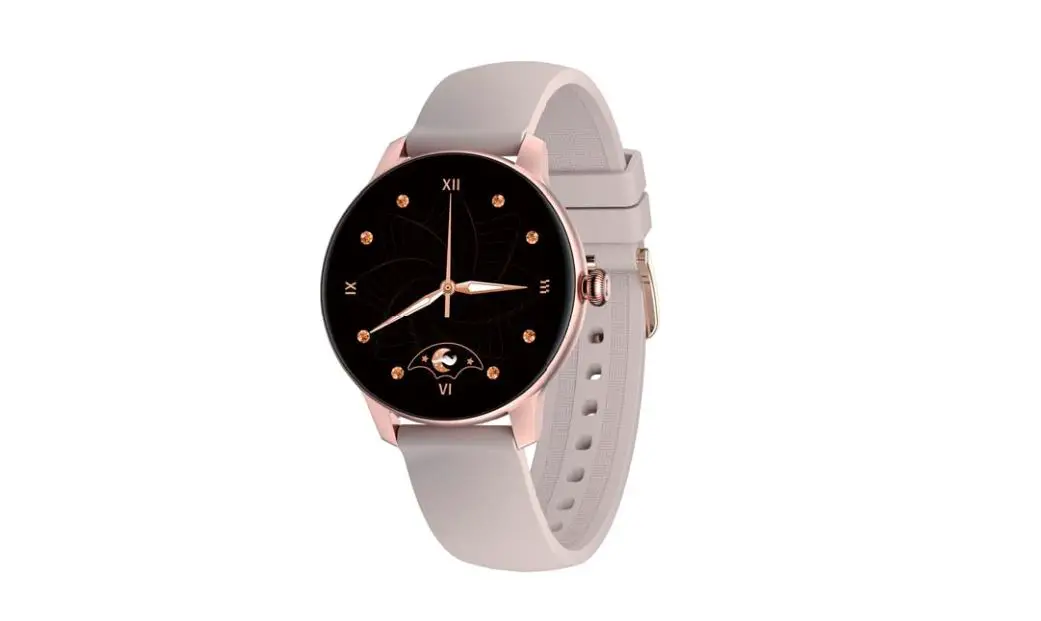
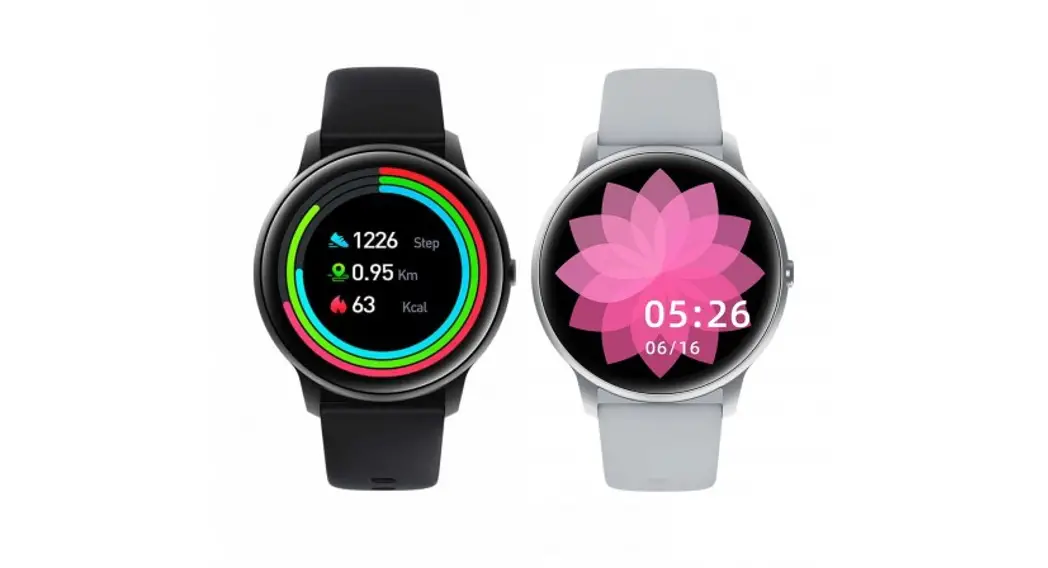
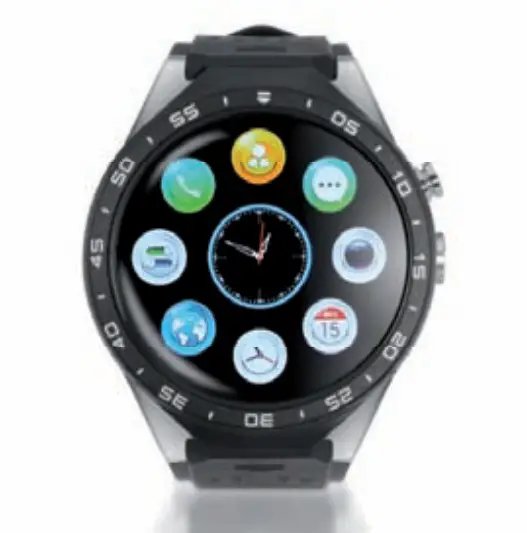
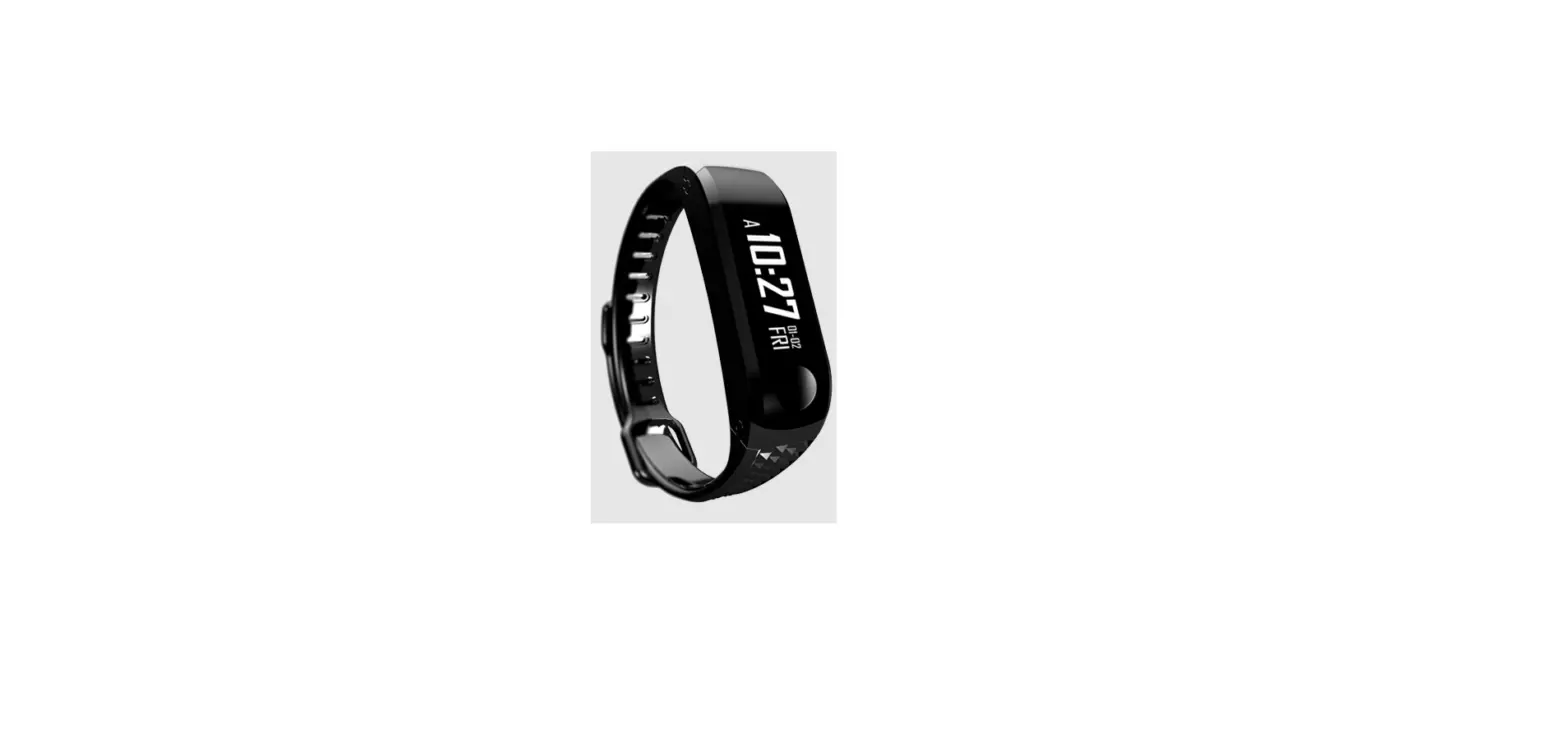
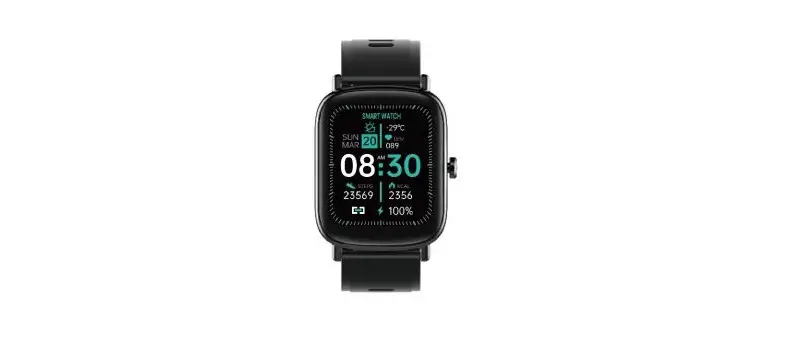
TIMEX M05J Men’s Pro AMOLED Smartwatch
Important Safety Instructions And Warnings
- To prevent risk of fire, chemical burn, electrolyte leak, and/or injury from the unit’s internal Lithium-polymer battery:
- Do not attempt to remove the case back or exterior shell of the unit, or to remove its non-user-replaceable battery.
- Do not leave the unit exposed to a heat source or in a high-temperature location (such as in the sun or in an unattended vehicle). Store the unit out of direct sunlight.
- Do not puncture or incinerate the unit.
- Use only the charging cable supplied with this product.
- This unit is not a medical device and is not recommended for use by persons with serious heart conditions. Always consult your physician before beginning or modifying an exercise program.
- Do not attempt to read the unit’s display while moving: this is unsafe and distracting, and could result in an accident or collision. Read the display only when you can safely do so. See instructions for details.
Product Specifications
- Model: M05J
- Memory: RAM 256KB+ ROM 128Mb
- Capacitive touch screen 1.3 360*360 pixel AMOLED IPS
- Bluetooth: version 5.0
- Function: Heart Rate, Anti-lost, Pedometer, Sleep monitor, Notification
- Battery: Lithium-ion 3.8V/310mAh
Product Details
MODE button, HOME button, MENU button
Side button function:
- (1) MODE button: Press the MODE button from the time of day screen to enter the Sports Mode directly. Swipe the screen up and down to navigate different sport modes. Tap on the icon to select the corresponding sport mode and start the workout.
Features and Functions
3.1 Basic Operations
- (1) In TOD screen, swipe the screen left to select different dial faces. Stay idle for 2 seconds after choosing the desired dial face to confirm the selection.
- (2) In TOD screen, swipe the screen right to enter the menu. Different functions in the menu are shown below.
3.2 Watch Faces
Getting Connected
4.1 The iConnect By Timex 2 App
You have to download and install the iConnect By Timex 2 App from APP Store or Google Play Store; iPhone with IOS 10.0 or higher and Android phone with Android 6.0 or higher is recomme ded.
4.2 Connection and Synchronize Data
4.2.1 For Android:
Connect Step 2: Now the Bluetooth menu interface displays iConnect Pro connected successfully as shown below:
There will be Connected and icon watch after connected successfully.
4.2.2 Synchronizing Data
Pair your watch with iConnect By Timex 2 App, press to sync data. Your data will be shown on the App accordingly.
Notice
Turning off the Bluetooth function on your phone will interrupt synchronization features between your phone and watch. Please keep Bluetooth turned on.
It is recommended to allow the Location Services on your phone to the iConnect by Timex 2 App. This will enable the Weather feature as well other functions.
 Warranty & Repair | Timex CA
 Watches from Timex | Digital, Analog, & Water Resistant Watches | Timex US