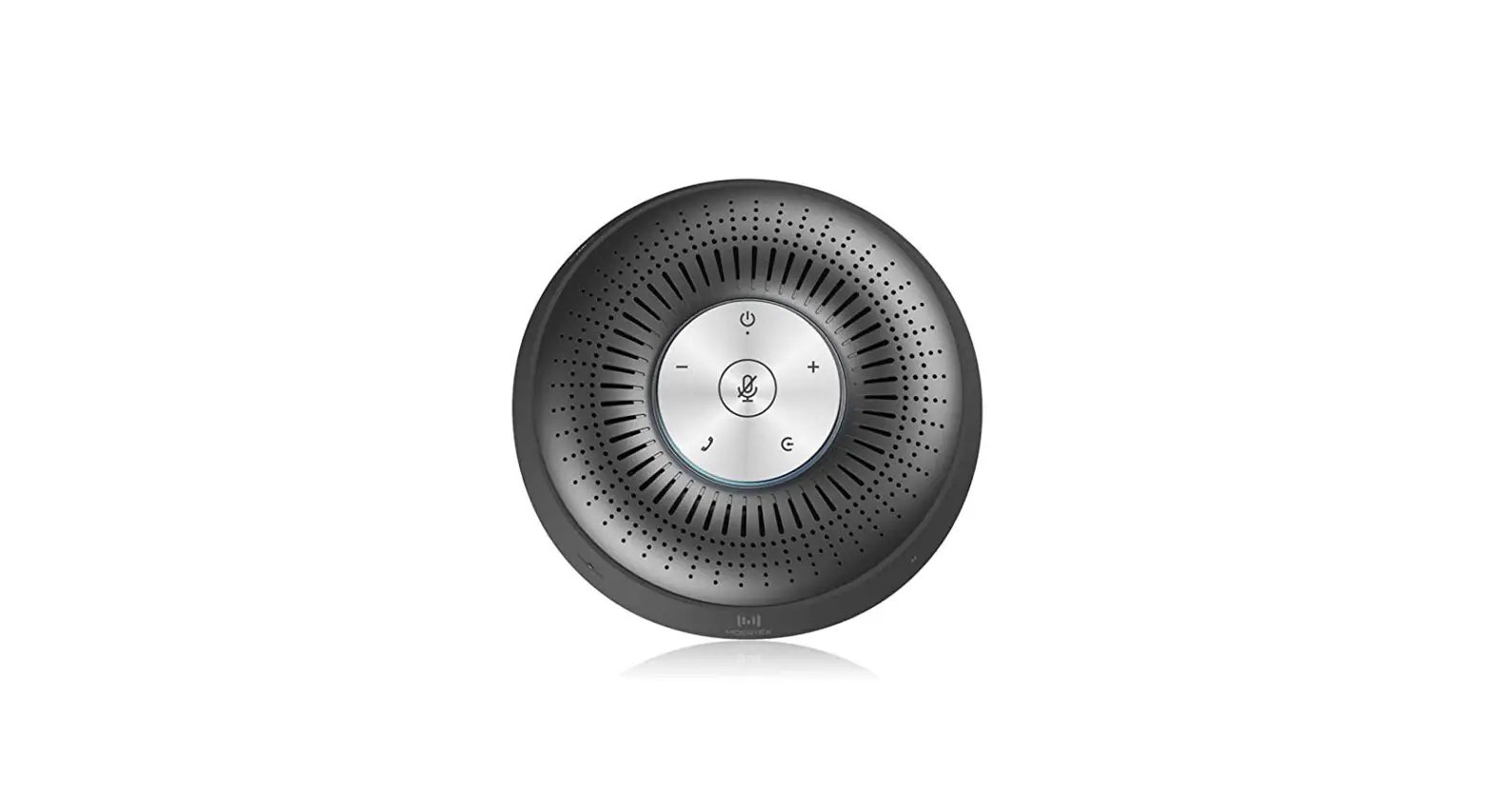
 SP300 Bluetooth Speakerphone
User Manual
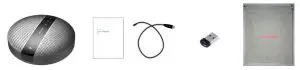
Package Contents
Product introduction
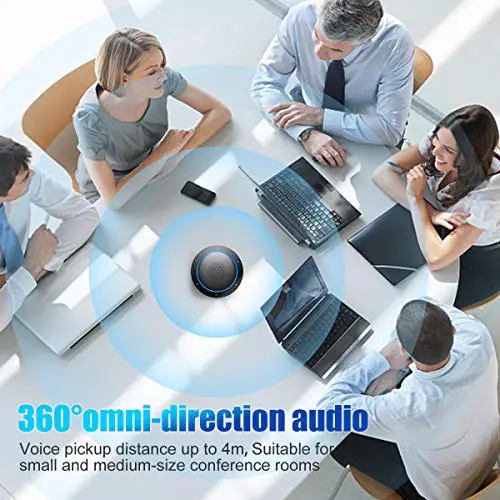
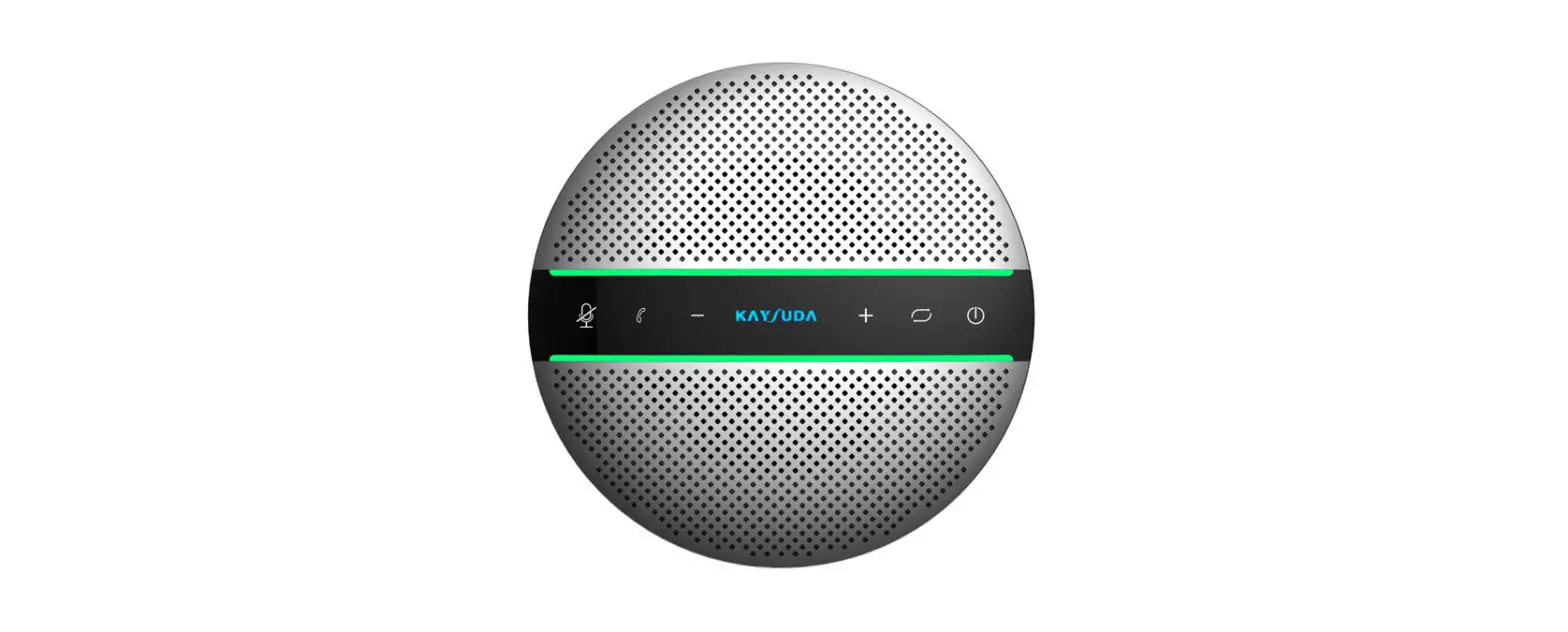
SP300 is a Smart Wireless Conference speakerphone. This product can connect with PC, tablet, and smartphone via Wireless or USB. With an omnidirectional microphone and high communication quality speaker, it receives a voice of 360 in long distances. It is small and portable, convenient for both fixed and mobile offices.
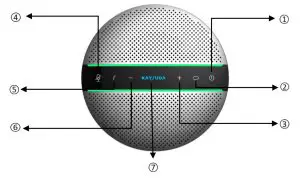
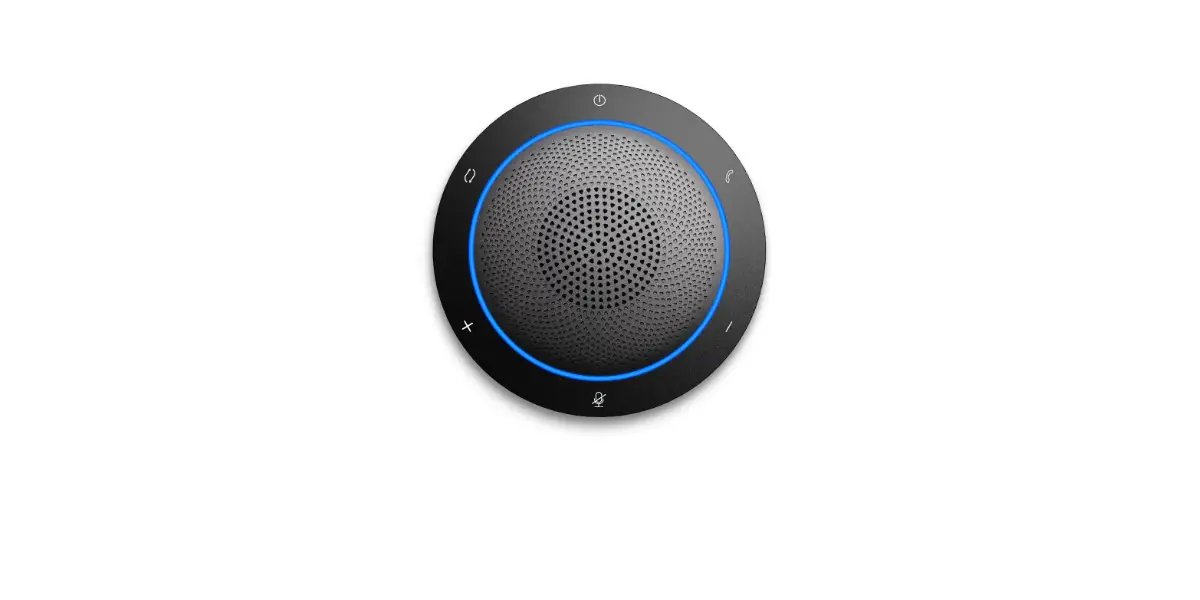
| 1 Power on/off button | 5 Answering/hanging up/Rejecting call button |
| 2 Wireless pair mode button | 6 Volume down button |
| 3 Volume up button | 7 logo indicator |
| 4 Microphone mute button |

| 1 Daisy chain port | 2 Microphone |
| 3 Type C port | 4 Wireless Connection Dongle |
How to power on/off
Press the power button and hold on 3s, the logo indicator LED will be blue and flashing. Press the power button and hold on 3s again, the device will power off and all LEDs will be off. 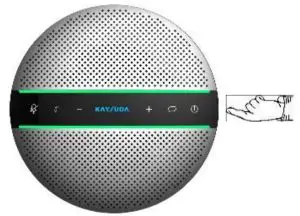
How to charge
Please insert a USB cable in the micro USB port of SP300. Then connect USB type A interface with PC’s USB port or 5V external charger.
When the device is charging, the logo indicator LED will light up and be red, the LED will be off when it is fully charged.
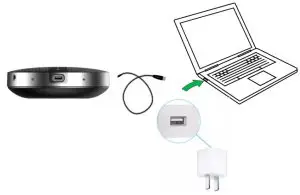
*AC adapters are purchased separately
*only UL certified ITE power supply can be used. The electrical rated output is 5V DC, 1A current is the minimum required.
How to connect
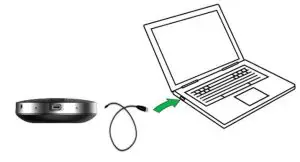
Connect with PC
- Please use the USB cable to connect SP300 with the target PC;
- The device will start automatically, the power indicator LED will light up and you can use it through the USB mode;
- Please set the Echo Cancelling Speakerphone SPEAKERPHONE SP300 as the default output and input audio device.
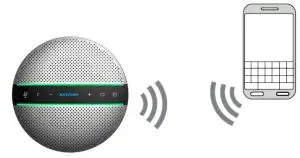
Connect to smartphone/PC with Bluetooth
- Press the power button and hold on 3s to power on the device, the logo indicator LED will be blue and flashing, SP300 is in the Wireless pair mode, then open the Bluetooth in your smartphone or PC, search the device SPEAKERPHONE SP300, connect to use. If you are using a PC, please set the Speaker(SPEAKERPHONE SP300 Stereo) as the default Device and set the Headset(SPEAKERPHONE SP300 Hand-Free AG Audio) as default Communication Device in Playback, set the Headphone microphone (SPEAKERPHONE SP300 Hand-Free AG Audio) as default Communication Device in Recording, make sure to choose Set as Default Device to another device, Don’t choose the same device as the communications device.
- When host device has connected with SP300 before, press the Wireless pair mode button and hold on 3s, the logo indicator LED will be blue and flashing, your smartphone/PC will take the initiative to connect back. The logo indicator will keep lighting.

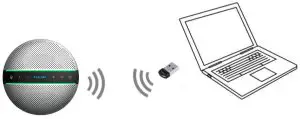
Connect to the PC with a wireless dongle
- If you have a problem connecting the device with the Bluetooth attached to your PC, please plug a Wireless dongle into any USB port of on your host PC and find “Generic Wireless Radio” in the device manager under the system. If your PC has an internal Wireless module, please disable it firstly;
- Press the Wireless Pair mode button and hold on 3s, the logo indicator LED will be blue and flashing, SP300 is in the Wireless pair mode, then open the Bluetooth in your PC, search the device SPEAKERPHONE SP300, connect to use;
- When the host device has connected with SP300 before, when power on the device, your smartphone/PC will take the initiative to connect back. The wireless indicator will keep lighting;
Note:
- Ensure that all Wireless devices previously connected to the wireless connection dongle are switched off.
- This dongle is compatible with windows 10, not Windows 7/8.1, Mac, and Linux.
If you still want to use this product, we strongly recommend that you could use USB mode as above mentioned. - This dongle is optional.
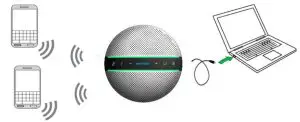
Connect to 2 smartphones with Wireless and 1 PC with USB at the same time
- Press the power button and hold on 3s, the logo indicator LED will be blue and flashing, use the USB cable to connect SP300 with target PC, then Press Wireless Pair mode button and hold on 3s, the logo indicator LED will flash, then SP300 is in the Wireless pair mode, connect up to 2 smartphones to use.
- Among all connections, 2 Bluetooth and 1 USB, the speaker will sound the audio which is sent to the speaker first.
Daisy chain mode
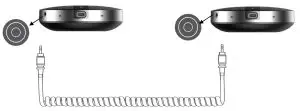
- Power on 2 SP300s, then connect two devices with Daisy chain cable.
- connect one of 2 SP300s to your smartphones in wireless mode or connect to your PC in USB mode, Expand the pickup and playback distance to get more conference space.
How to operate
| ICON | FUNCTION | OPERATION |
 | Power on/off | Press and hold(3s) this button until the logo indicator LED will be blue and lighting |
| Display battery level Mute/unmute | Tap this button Tap this button | |
 | ||
 | Turn up the volume | Tap “+” button, you press it twice, the indicator light will increase by one space |
 | Turn down the volume | Tap “-” button,you press it twice, the indicator light will reduce by one space |
 | Answer call | Tap this button |
| End call | Tap this button | |
| Reject call | Press and hold(3s) this button | |
 | Connect new Wireless device | Press and hold(3s) this button to connect with a new Wireless device |
| disconnect with trusted Wireless device | Press and hold(3s) this button to reconnect/disconnect with trusted Wireless device |
Product Specification
| SPEAKERPHONE SP300 | SPECIFICATION |
| Microphones | Omni-directional |
| Speaker | 3W, Dynamic, 40mm |
| Wireless range | Up to 10m(30ft), Class2 |
| Wireless version | 5.0, compatible with 4.2/4.1/4.0/3.0/2.1 |
| Paired devices Talk time | Up to 8 trusted devices |
| Up to 18H | |
| Operating temperature Storage temperature | 5°C to 40°C (41°F to 104°F) |
| -5°C to 60°C (23°F to 140°F) | |
| Wireless audio bandwidth | A2DP, Wideband |
| Connectivity | USB 2.0 and Wireless connection |
| Micro USB port | Charging and data connection |
| Dimensions Weight | D 130mm x H 38.2mm |
| ? ? g |
Warning
Only could be used in areas below 2000
meters above sea level;
Only applicable to non-tropical climate conditions.
Trouble Shooting
| Problem or Phenomenon | Possible Reasons | Treatments |
| Can’t power on | Low battery | Charge through adapter |
| No sound | Host system audio setting doesn’t select the right output device; The speaker volume is very low | Selecting the correct output audio source; Turn up the speaker volume. |
| USB doesn’t work | Doesn’t use the right USB cable | Please use the original USB cable in the package box. |
| Can’t be charged | Adapter issue or battery is full | Change a new adapter; Tap the power button to check the battery level |
| Can’t connect with Wireless | The Wireless driver of host device doesn’t support audio protocol | Update the latest Wireless driver of your host device. |
Warranty
All our products come with one full year warranty from the date of purchase (accessories are out of warranty). It will be out of guarantee if damaged due to incorrect use or force majeure.
THE FUNCTION DESCRIBED IN THIS MANUAL IS BASED ON TESTING MADE BY OUR FACTORY. SPECIFICATION AND DESIGN MAY BE CHANGED WITHOUT FUTURE NOTICE.
Customer support
If you have any problems, please feel free to contact us
Email: [email protected]
Warning:
Changes or modifications to this unit not expressly approved by the party responsible for compliance could void the user’s authority to operate the equipment.
NOTE:
This device complies with part 15 of the FCC Rules. Operation is subject to the following two conditions: (1) This device may not cause harmful interference, and (2) this device must accept any interference received, including interference that may cause undesired operation.
FCC Statement:
This equipment has been tested and found to comply with the limits for a Class B digital device, pursuant to part 15 of the FCC Rules.
These limits are designed to provide reasonable protection against harmful interference in a residential installation. This equipment generates, uses and can radiate radio frequency energy and, if not installed and used in accordance with the instructions, may cause harmful interference to radio communications. However, there is no guarantee that interference will not occur in a particular installation. If this equipment does cause harmful interference to radio or television reception, which can be determined by turning the equipment off and on, the user is encouraged to try to correct the interference by one or more of the following measures:
- Reorient or relocate the receiving antenna.
- Increase the separation between the equipment and receiver.
- Connect the equipment into an outlet on a circuit different from that to which the receiver is connected.
- Consult the dealer or an experienced radio/TV technician for help.