
KAYSUDA SP300 Kit Bluetooth Conference Speakerphone
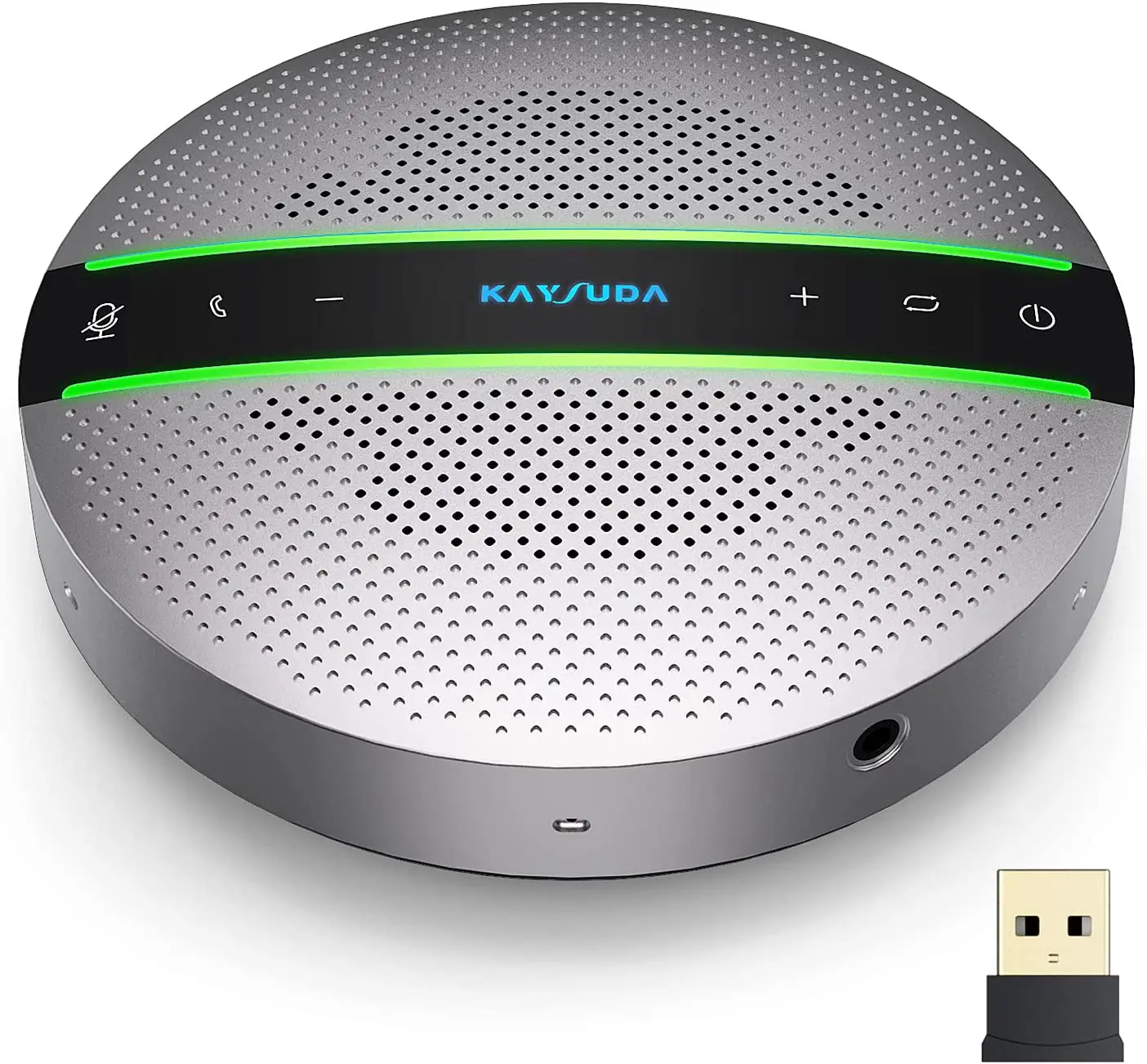
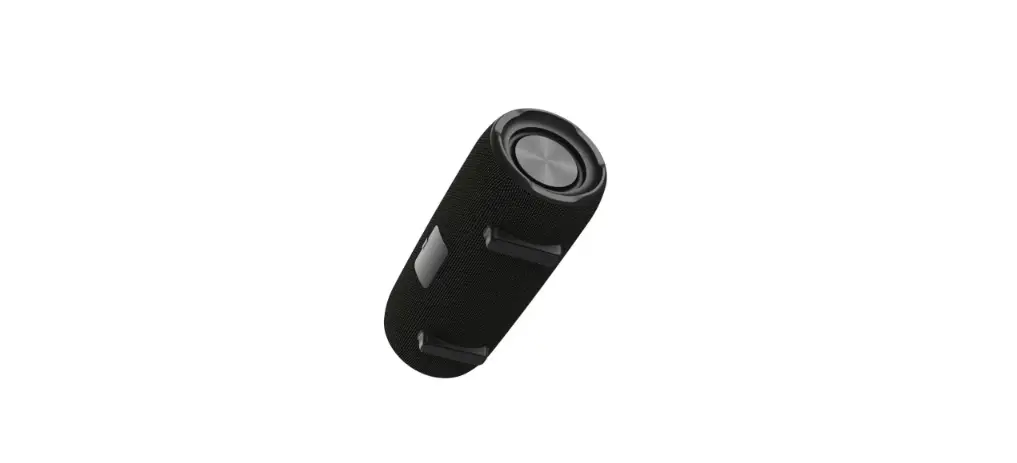
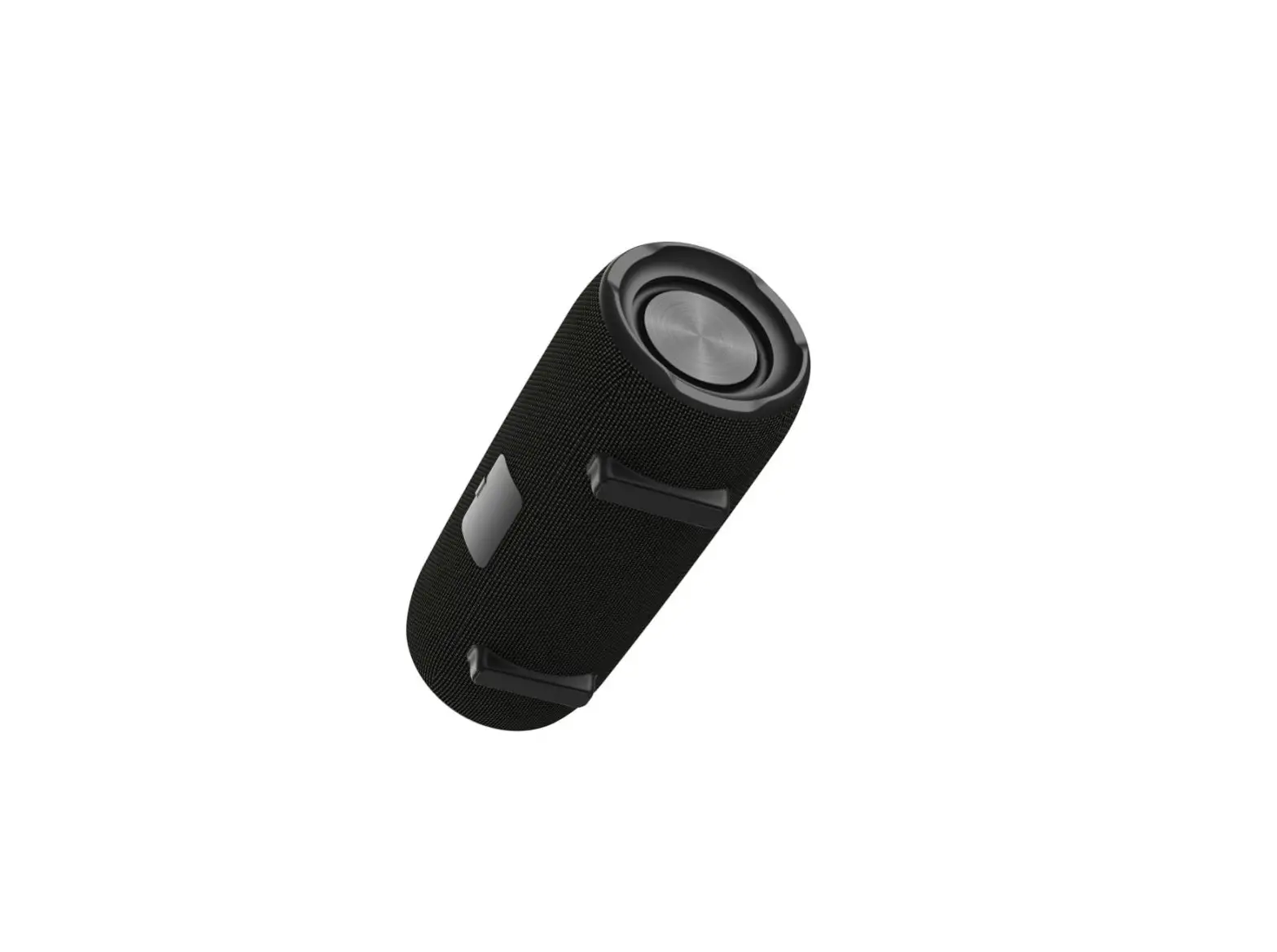
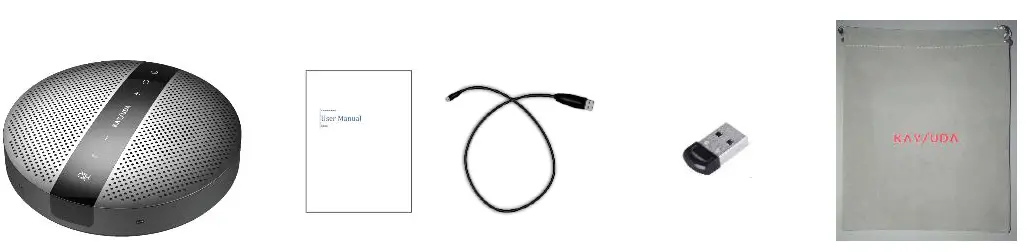
Package Contents
Product Introduction
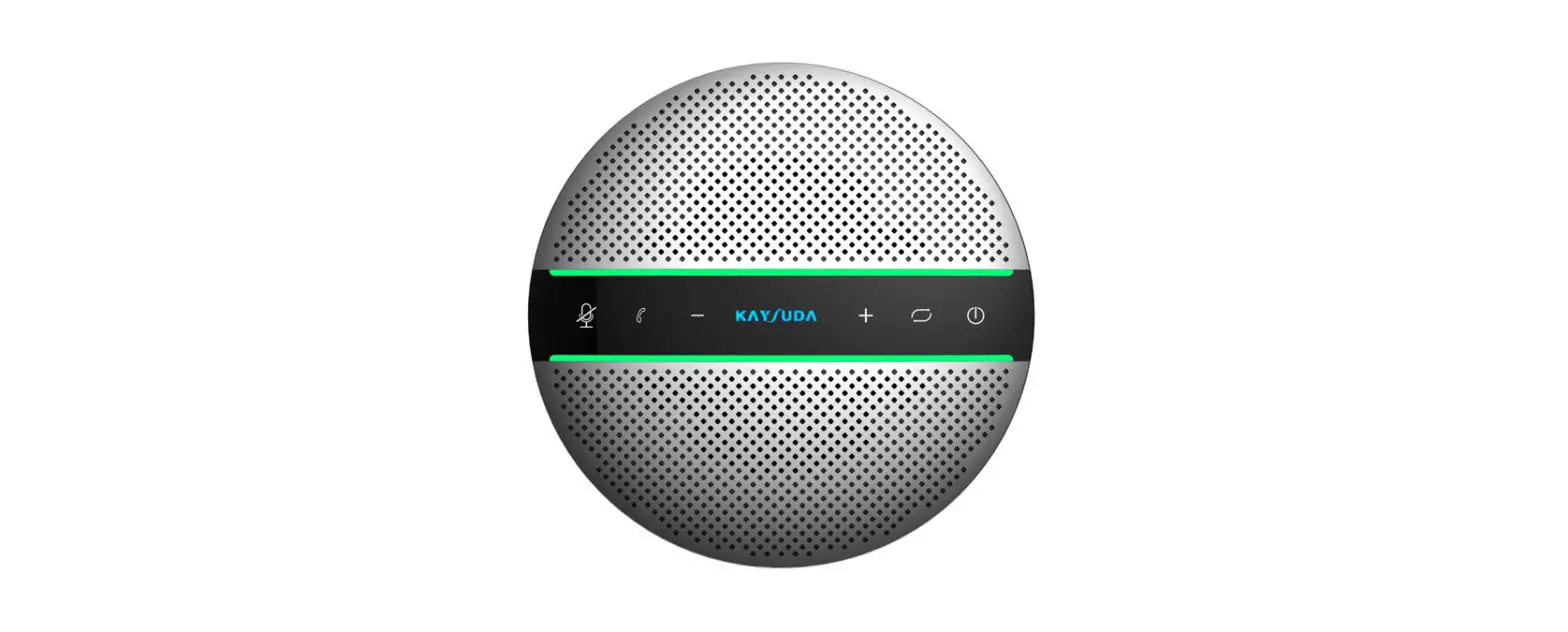
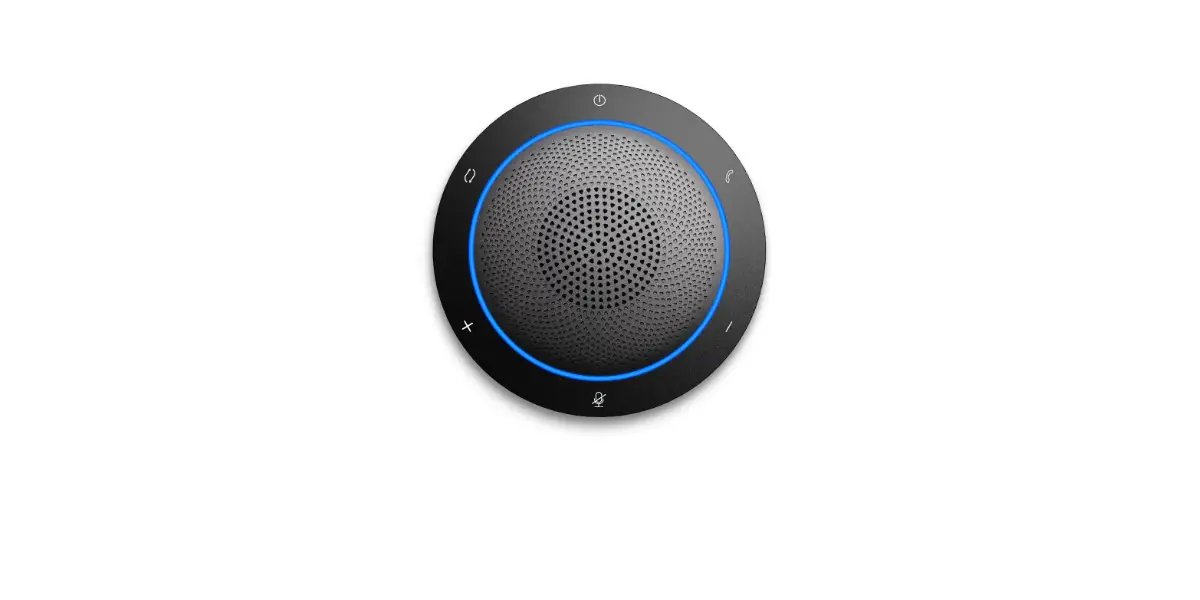
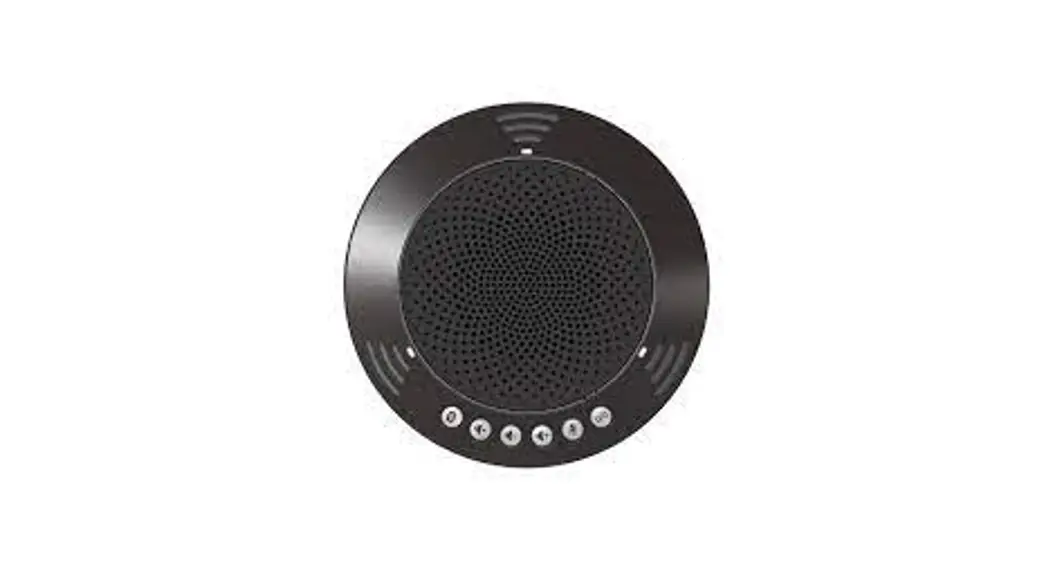
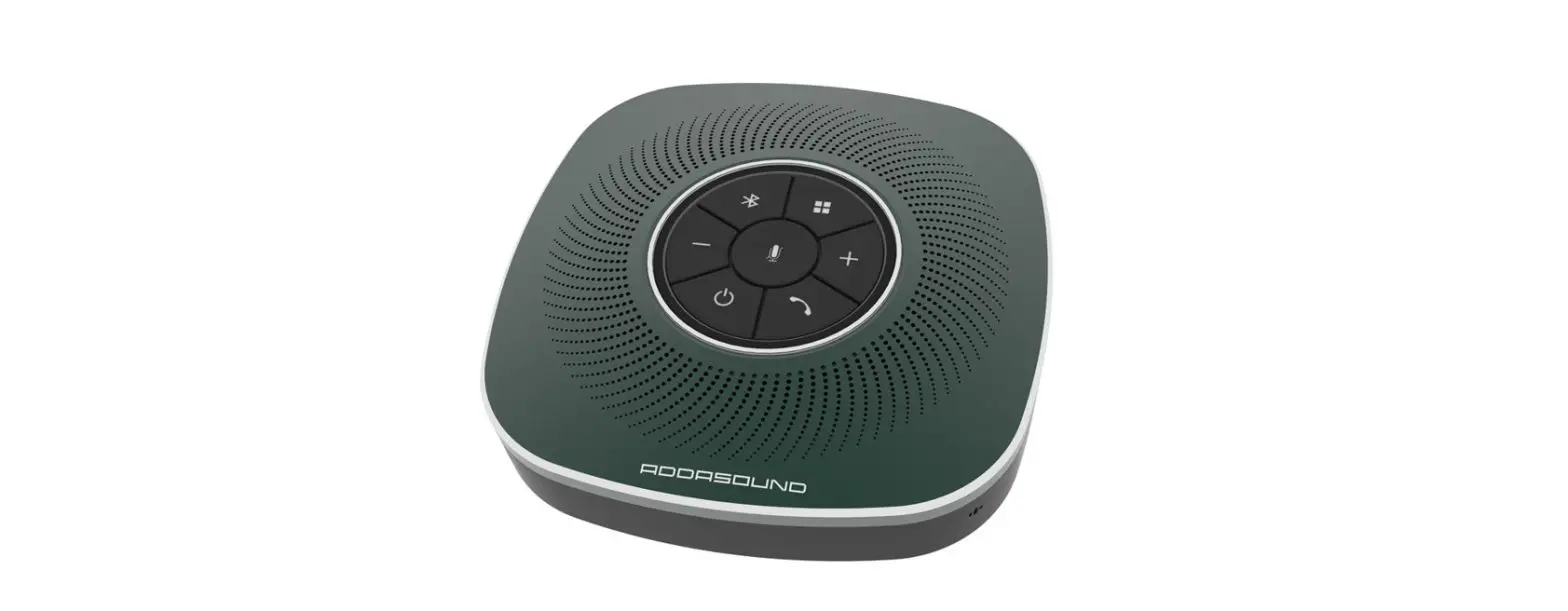
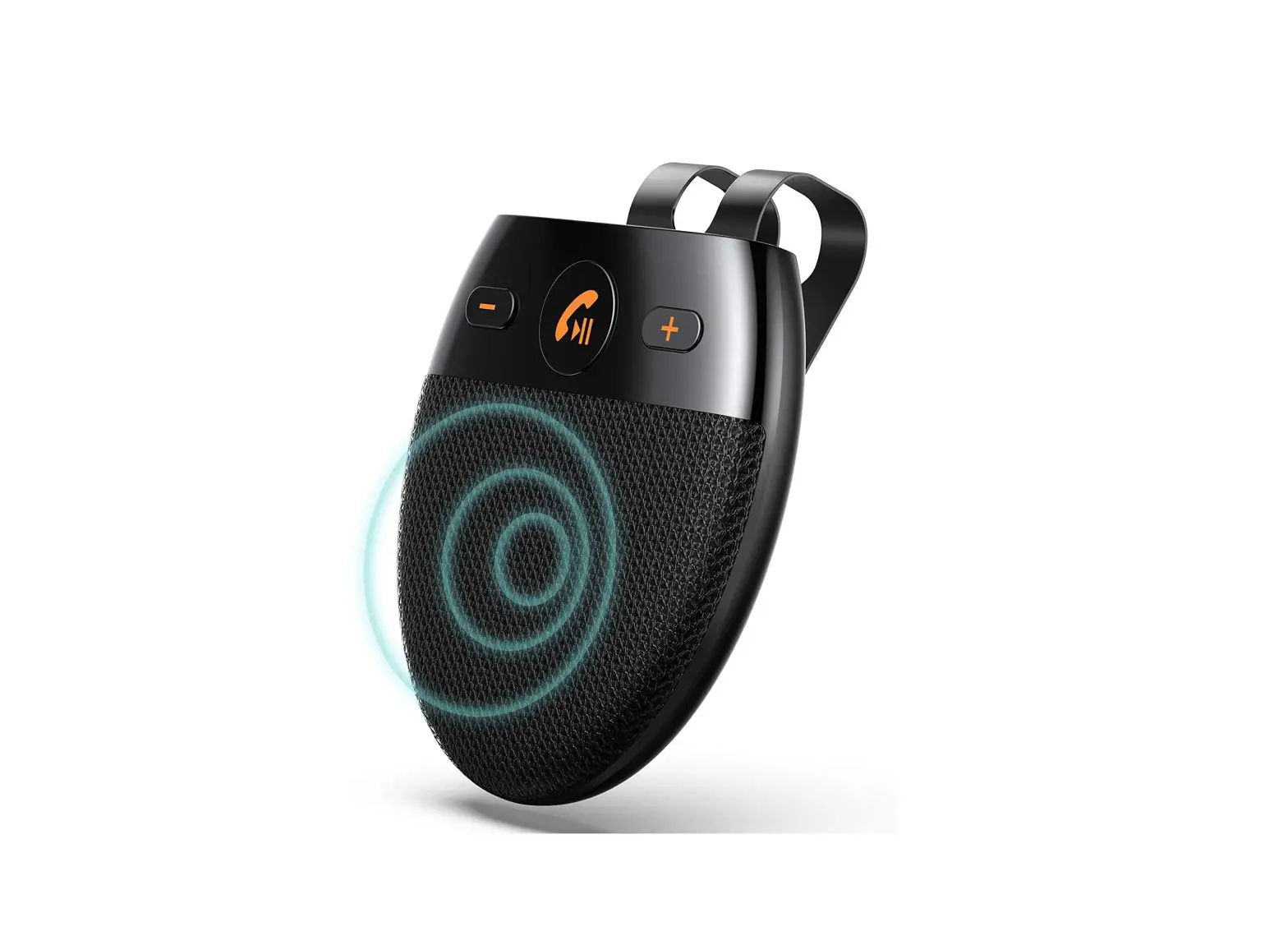
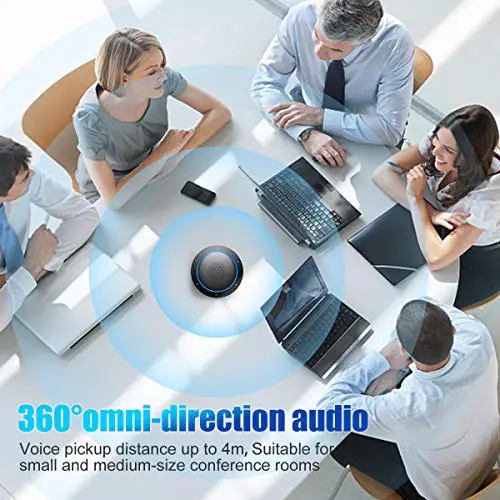
SP300 is a Smart Wireless Conference speakerphone. This product can connect with PC, tablet and smartphone via Wireless or USB. With omnidirectional microphone and high communication quality speaker, it receives voice of 360 in long distance. It is small and portable, convenient for both fixed and mobile office.
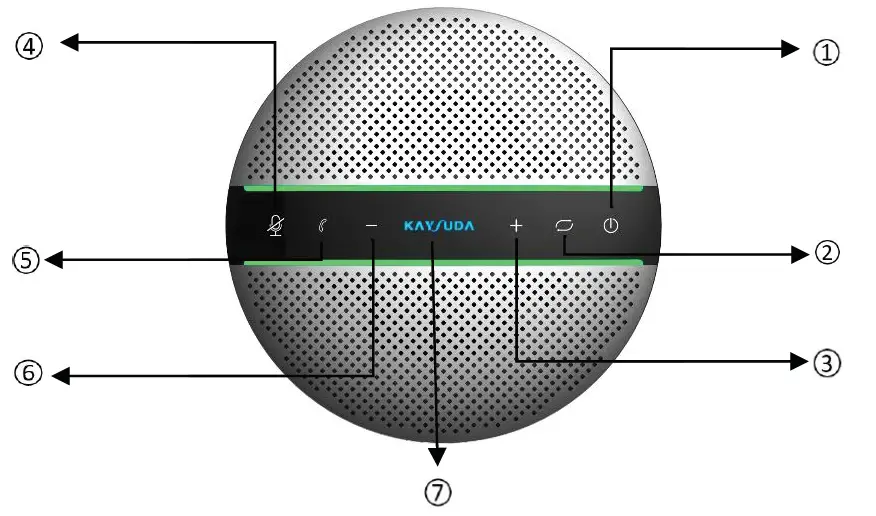
- Power on/off button
- Wireless pair mode button
- Volume up button
- Microphone mute button
- Answering/hanging up/Rejecting call button
- Volume down button
- logo indicator

- Daisy chain port
- Type C port
- Microphone
- Wireless Connection Dongle

Indicator Status
| Position | Color | Status |
| Indicator pipe | Green | Calling/volume+/volume- |
| Indicator pipe | White | Battery charge remaining |
| Indicator pipe | Red | Mute |
| Indicator pipe | Orange flashing | Battery low |
| Logo Indicator | Purple | Working |
| Logo Indicator | Blue | Wireless connected |
| Logo Indicator | Blue flashing | Wireless pairing |
| Logo Indicator | Red | Charging |
How to power on/off
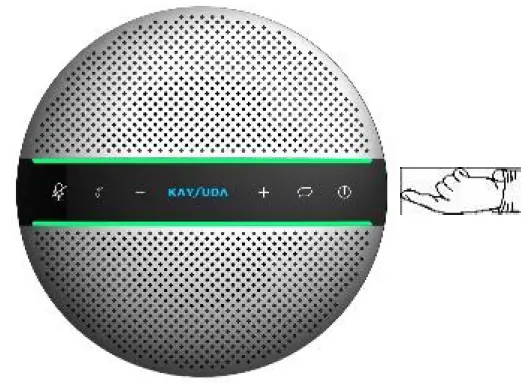
Press power button and hold on 3s, the logo indicator LED will be blue and flashing. Press power button and hold on 3s again, the device will power off and all LED will be off.
How to charge
Please insert USB cable in the micro USB port of SP300. Then connect USB type A interface with PC’s USB port or 5V external charger.
When the device is charging, the logo indicator LED will light up and be red, the LED will be off when it is full charged.
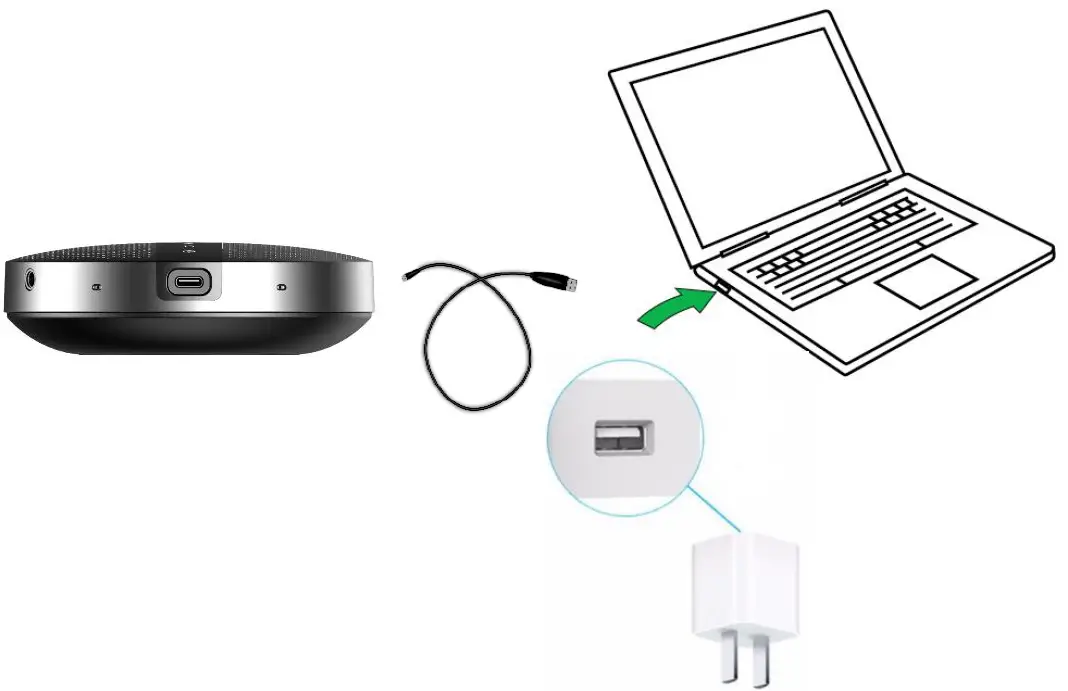
- AC adapters are purchased separately
- only UL certified ITE power supply can be used. The electrical rated output is 5V DC, 1A current is minimum required.
How to connect
Connect with PC
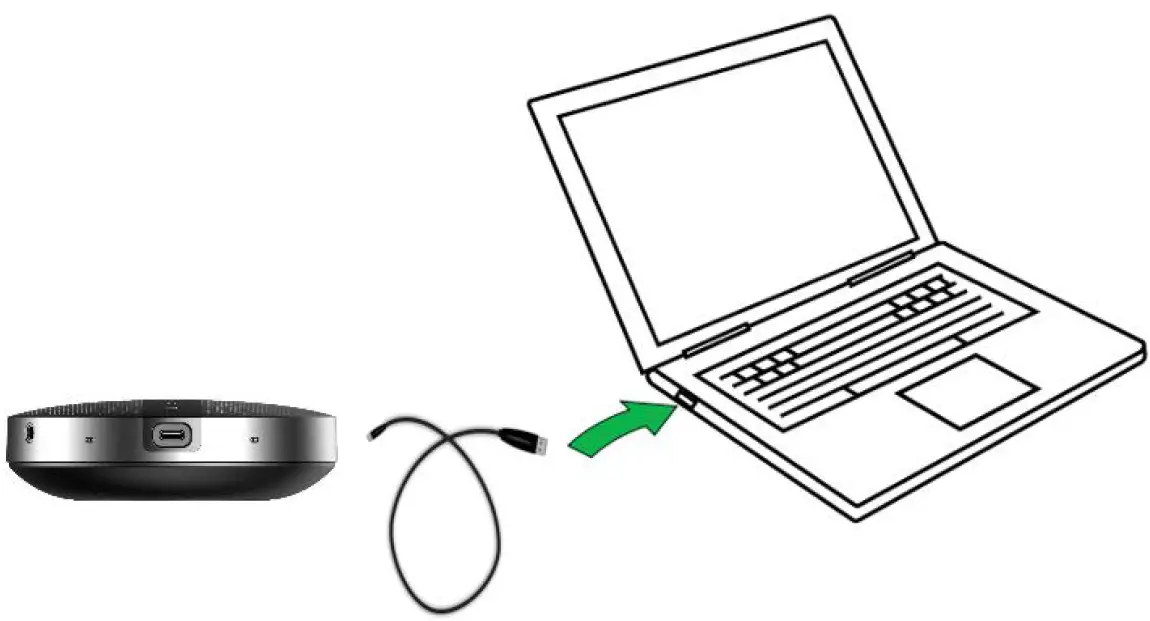
- Please use USB cable to connect SP300 with target PC;
- The device will start automatically, the power indicator LED will light up and you can use it through the USB mode;
- Please set the Echo Cancelling Speakerphone SPEAKERPHONE SP300 as default output and input audio device.

Connect to smartphone/PC with Bluetooth
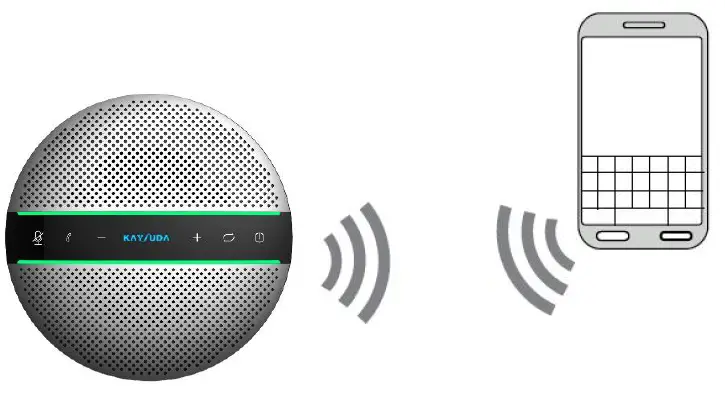
- Press power button and hold on 3s to power on the device, the logo indicator LED will be blue and flashing , SP300 is in the Wireless pair mode, then open the Bluetooth in your smartphone or PC, search the device SPEAKERPHONE SP300, connect to use.
If you are using PC, please set the Speaker(SPEAKERPHONE SP300 Stereo) as default Device and set the Headset(SPEAKERPHONE SP300 Hand-Free AG Audio) as default Communication Device in Playback, set the Headphone micphone (SPEAKERPHONE SP300 Hand-Free AG Audio) as default Communication Device in Recording, make sure to choose Set as Default Device to other device,Don’t choose the same device as the communications device. - When host device has connected with SP300 before, press Wireless pair mode button and hold on 3s, the logo indicator LED will be blue and flahsing, your smartphone/PC will take the initiative to connect back. The logo indicator will keep lighting.
Connect to the PC with Wireless dongle
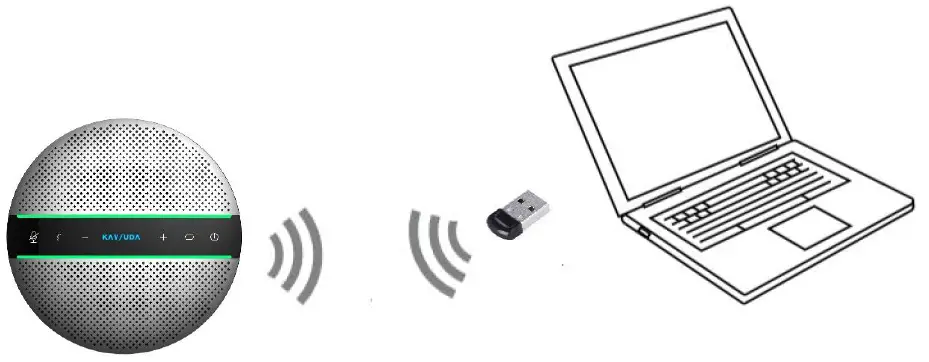
- If you have problem to connect the device with the Bluetooth attached in your PC, please plug Wireless dongle into any USB port of on your host PC and find “Generic Wireless Radio” in device manager under system. If your PC has internal Wireless module, please disable it firstly;
- Press the Wireless Pair mode button and hold on 3s, the logo indicator LED will be blue and flashing, SP300 is in the Wireless pair mode, then open the Bluetooth in your PC, search the device
SPEAKERPHONE SP300, connect to use; - When host device has connected with SP300 before, when power on the device, your smartphone/PC will take the initiative to connect back. The wireless indicator will keep lighting;
Note: How to use the Bluetooth dongle
Before you use our Bluetooth dongle, please help to check the configuration of your host device
1, If your host device has one Bluetooth module by default, please disable the default Bluetooth module firstly,then insert our Bluetooth dongle into each USB type A port of your host device.
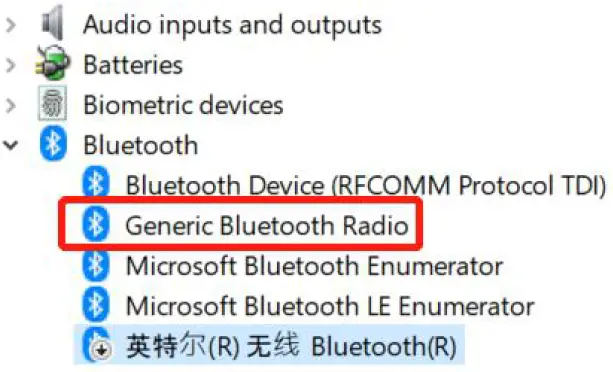
Pic 1.1 Disable default Bluetooth then insert Bluetooth dongle
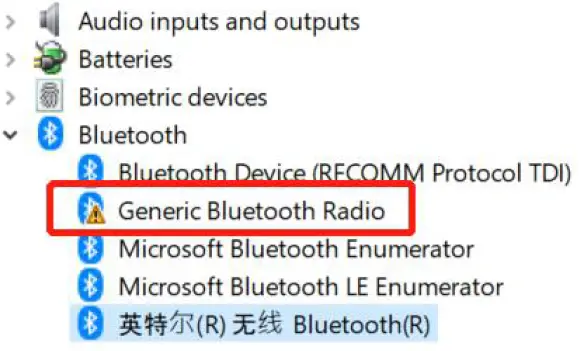
Pic 1.2 Insert Bluetooth dongle into host device with default Bluetooth directly
2, If your host device has not any Bluetooth module, insert our Bluetooth dongle into each USB type A port of your host device,it will work directly.
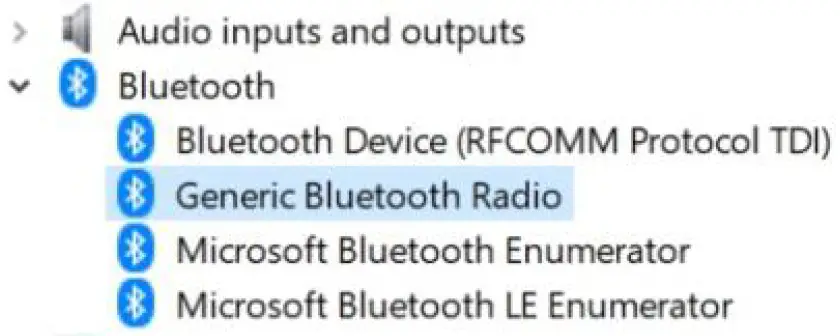
Pic 2.1 Insert Bluetooth dongle into host device w/o default Bluetooth directly
This dongle is compatible with windows 10 not Windows 7/8.1, Mac and Linux. If you still want to use this product, we strongly recommend that you could use USB mode as above mentioned.
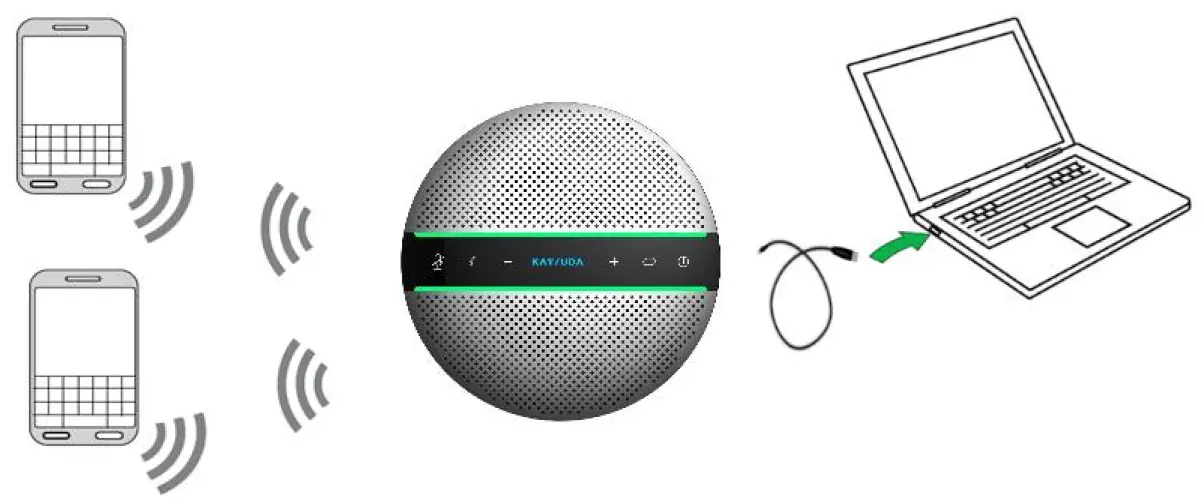
Connect to 2 smartphones with Wireless and 1 PC with USB at the same time
- Press power button and hold on 3s, the logo indicator LED will be blue and flashing, use USB cable to connect SP300 with target PC, then Press Wireless Pair mode button and hold on 3s, the logo indicator LED will flash, then SP300 is in the Wireless pair mode, connect up to 2 smartphones to use.
- Among all connections, 2 Bluetooth and 1 USB, the speaker will sound the audio which is sent to the speaker first.
Daisy chain mode
- Power on 2 SP300s,then connect two devices with Daisy chain cable.
- connect one of 2 SP300s to your smartphones in wireless mode or connect to your PC in USB mode,Expand the pickup and playback distance to get more conference space.
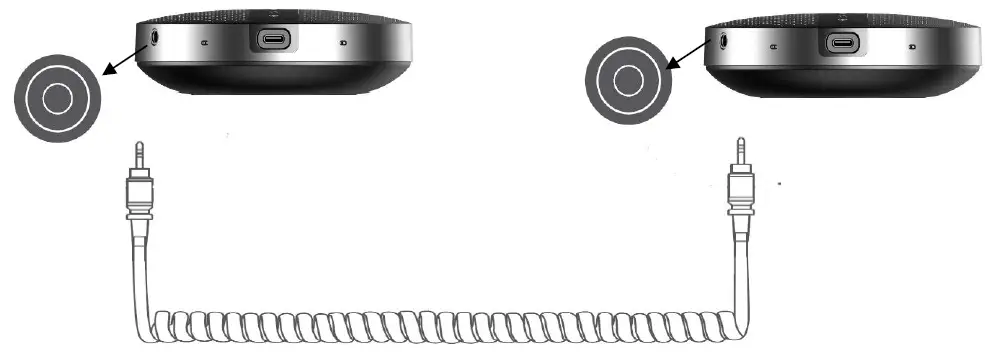
Note: When you use it in daisy chain mode,your phone or PC only needs to connect to one of two devices.
How to operate
| ICON | FUNCTION | OPERATION |
|
| Power on/off | Press and hold(3s) this button until the logo indicator LED will be blue and lighting |
| Display battery level | Tap this button | |
| Mute/unmute | Tap this button | |
| Turn up the volume | Tap “+” button, you press it twice, the indicator light will increase by one space | |
| Turn down the volume | Tap “-” button,you press it twice, the indicator light will reduce by one space | |
|
| Answer call | Tap this button |
| End call | Tap this button | |
| Reject call | Press and hold(3s) this button | |
|
| Connect new Wireless device | Press and hold(3s) this button to connect with a new Wireless device |
| disconnect with trusted Wireless device | Press and hold(3s) this button to reconnect/disconnect with trusted Wireless device |
Product Specification
| SPEAKERPHONE SP300 | SPECIFICATION |
| Microphones | 6 Omni-directional mics |
| Speaker | 3W, Dynamic, 40mm |
| SNR | 65db |
| Wireless range | Up to 10m(30ft), Class2 |
| Wireless version | 5.0, compatible with 4.2/4.1/4.0/3.0/2.1 |
| Paired devices | Up to 8 trusted devices |
| Talk time | Up to 18H |
| Operating temperature | 5℃ to 40℃ (41℉ to 104℉) |
| Storage temperature | -5℃ to 60℃ (23℉ to 140℉) |
| Wireless audio bandwidth | A2DP, Wide band |
| Connectivity | USB 2.0 and Wireless connection |
| Micro USB port | Charging and data connection |
| Dimensions | D 130mm x H 38.2mm |
| Weight | 290g |
Warning: Only could be used in areas below 2000 meters above sea level; Only applicable to non-tropical climate conditions.
Trouble Shooting
| Problem or Phenomenon | Possible Reasons | Treatments |
| Can’t power on | Low battery | Charge through adapter |
| No sound | Host system audio setting doesn’t select the right output device; The speaker volume is very low | Selecting the correct output audio source; Turn up the speaker volume. |
| USB doesn’t work | Doesn’t use the right USB cable | Please use the original USB cable in the package box. |
| Can’t be charged | Adapter issue or battery is full | Change a new adapter; Tap the power button to check the battery level |
| Can’t connect with Wireless | The Wireless driver of host device doesn’t support audio protocol | Update the latest Wireless driver of your host device. |
| Device not responding | Device crashed | please charge and press Power & Mute buttons at the same time. |
Warranty
All our products come with one full year warranty from the date of purchase (accessories are out of warranty). It will be out of guarantee if damaged due to incorrectly use or force majeure.
THE FUNCTION DESCRIBED IN THIS MANUAL IS BASED ON TESTING MADE BY OUR FACTORY. SPCIFICATION AND DESIGN MAY BE CHANGED WITHOUT FUTURE NOTICE.
Customer support
If you have any problem, please feel free to contact us
Email: [email protected]